RSS
 

Posts Tagged ‘Bokeh’

The free Focos app brings more professional looking bokeh to your dual-cam iPhone

01 Nov

Apple’s ‘Portrait Mode’ on the company’s dual-camera iPhones is a cool feature that produces some neat photos. But if you’re not a fan of the fake bokeh Apple’s standard camera app generates, you might want to check out a free new app called Focos.

Created by the same indie developer behind the apps Colorburn and MaxCurve, Focos takes your iPhone 7 Plus, 8 Plus or X’s Portrait Mode shots and makes them look more ‘professional’ by adding more realistic and customizable bokeh effects.

Focos allows you to pick custom bokeh ‘shapes’, generate more professional-looking bokeh by selecting options like ‘creamy’ or ‘swirly’, import your current Portrait Mode photos and re-edit the background, and re-focus Portrait Mode photos after the fact. And since it’s already capturing 3D data, the app allows you to access that data and apply filters based on depth.

The results should ostensibly look better than what Apple is generating with its own Camera app, but at the very least they’ll be more customizable so you can find a more appropriate effect for every photo.

To learn more about Focos or pick up the free app for yourself, head over to the Focos website or go straight to the iTunes App Store.

Articles: Digital Photography Review (dpreview.com)

 
Comments Off on The free Focos app brings more professional looking bokeh to your dual-cam iPhone

Posted in Uncategorized


Olympus 45mm and 17mm F1.2 Pro lenses emphasize bokeh quality

26 Oct

$ (document).ready(function() { SampleGalleryV2({“containerId”:”embeddedSampleGallery_2115725642″,”galleryId”:”2115725642″,”isEmbeddedWidget”:true,”standalone”:false,”selectedImageIndex”:0,”startInCommentsView”:false,”isMobile”:false}) });

Olympus has announced 17mm and 45mm F1.2 Pro primes, offering high-end fast 35mm and 90mm equivalent lenses. The lenses use the same 60mm filters that the existing 25mm F1.2 Pro uses and, like that lens both are weather sealed and dust proof.

The two lenses expand the company’s series of F1.2 lenses, which are equivalent to 35 and 90mm F2.4 lenses for full frame. This allows Micro Four Thirds users to achieve very shallow levels of depth-of-field at the focal lengths where they need this capability. The lenses are designed to be consistent in size with one another.

Olympus says it’s focused the design not just on achieving sharpness but also on providing attractive bokeh. It says its research showed that bokeh with a soft edge produces the most attractive result, producing a smooth transition from in-focus to out-of-focus regions, and with minimal risks of interference patterns occurring in backgrounds.

To achieve this, both lenses are designed so that spherical aberration is not fully corrected (that would give completely uniform bokeh). Instead it focuses peripheral light rays slightly in front of the plane of focus, giving a soft roll-off to the edges of the bokeh. This, they say, is how many much-loved ‘classic’ lenses gave desirable, ‘3D’ rendering.

The 17mm lens includes a unique ED-DSA element, which has dual aspherical lenses formed from soft and hard-to-work extra low dispersion glass. They claim to be the only company currently able to do this.

The company also highlights that its cameras should be able to achieve very high levels of focus precision even with off-center points. Both lenses also have the snap-back focus clutch system, so that videographers can manual focus with a linear focus response.

Olympus mentions that there’s been a trend towards bokeh-optimized primes in recent years but says its design approach gives attractive bokeh without any of the light loss causes by the use of apodization filters in Fujifilm’s APD or Sony’s STF lenses.

Each lens will cost $ 1200. The 45mm will go on sale in late November, and the 17mm will be available in late January 2018.

Press release

BEAUTIFUL BOKEH: TWO NEW OLYMPUS LENSES EXPAND THE M.ZUIKO PRO F1.2 PRIME LINEUP

M.ZUIKO Digital ED 17mm F1.2 PRO and M.ZUIKO® Digital ED 45mm F1.2 PRO Offer Smooth Feathered Bokeh and High Resolution at the Brightest Aperture

CENTER VALLEY, PA., October 25, 2017 — Olympus expands its M.ZUIKO F1.2 PRO prime lens lineup with the new M.ZUIKO Digital ED 17mm F1.2 PRO (34mm focal length in 35mm equivalent) and the M.ZUIKO Digital ED 45mm F1.2 PRO (90mm focal length in 35mm equivalent). These Micro Four Thirds® system lenses join the currently available M.ZUIKO Digital ED 25mm F1.2 PRO (50mm focal length in 35mm equivalent) to deliver outstanding resolution and beautiful feathered bokeh at a maximum aperture of F1.2.

The M.ZUIKO Digital ED 17mm F1.2 PRO and M.ZUIKO Digital ED 45mm F1.2 PRO give M.ZUIKO PRO lens users more flexibility in low-light environments as well as an extraordinarily shallow depth-of-field. Each is designed to achieve a new level of depictive performance, delivering three-dimensional images that represent subjects as they appear in the real world through a combination of feathered bokeh and sharp resolution.

By focusing not only on the bokeh’s size but also its quality, each lens produces a feathered bokeh effect that better emphasizes the main subject and allows it to stand out within the image. The shallower depth of field produced at F1.2 is especially ideal for portrait photographers.

The newly developed ED-DSA lens, which possesses the characteristics of both an ED (Extra-low Dispersion) lens element and a DSA (Dual Super Aspherical) lens element, is incorporated in the M.ZUIKO Digital ED 17mm F1.2 PRO. The ED-DSA lens compensates for common wide-angle lens issues, including chromatic aberrations, distortion and color bleeding on the image periphery.

Like other lenses in the M.ZUIKO PRO series, the M.ZUIKO Digital ED 17mm F1.2 PRO and M.ZUIKO Digital ED 45mm F1.2 PRO feature compact, lightweight construction and a dustproof, splashproof, freezeproof (to 14°F/-10°C) design, giving photo enthusiasts and professionals the ability to capture brilliant images in a variety of shooting conditions.

U.S. Pricing and Availability
The M.ZUIKO Digital ED 45mm F1.2 PRO will be available late November 2017, while the M.ZUIKO Digital ED 17mm F1.2 PRO will be available late January 2018. Both lenses will have an estimated street price of $ 1,199.99 USD/$ 1,499.99 CAD. For a complete list of specifications for the M.ZUIKO Digital ED 45mm F1.2 PRO, visit the Olympus website: http://getolympus.com/lenses/m-zuiko-ed-45mm-f1-2-pro.html, and for the M.ZUIKO Digital ED 17mm F1.2 PRO lens, visit http://getolympus.com/lenses/m-zuiko-ed-17mm-f1-2-pro.html.

Main Features

1. Depictive performance that delivers feathered bokeh and outstanding resolution

Feathered bokeh provides an ultra smooth transition from the sharp to the defocused areas of the image to provide an overall softer background. This results in a subject that stands out with lifelike dimensionality.

In the M.ZUIKO Digital ED 17mm F1.2 PRO, there are 15 elements in 11 groups, including specialized lens elements like the newly developed ED-DSA lens. The ED-DSA lens element, which possesses the characteristics of both an ED (Extra-low Dispersion) lens and DSA (Dual Super Aspherical) lens, reduces the overall weight and the number of lens elements. This design effectively compensates for various types of aberrations that tend to occur in wide-angle lenses, such as chromatic aberration, distortion and color bleeding on the image periphery (magnification chromatic aberration).

The M.ZUIKO Digital ED 45mm F1.2 PRO contains three optimally placed and bonded lens elements, including one ED lens, which compensate for typical problems on wide-aperture lenses like out-of-focus color bleeding (axial chromatic aberration) and peripheral color bleeding (magnification chromatic aberration). The extensive use of special lenses incorporated into 14 elements in 10 groups results in superb optical performance and feathered bokeh effects, even at the widest aperture setting.

Both lenses use the same Z Coating Nano technology as the M.ZUIKO Digital ED 25mm F1.2 PRO for sharp, clear image quality that significantly reduces ghosts and flares that tend to occur in backlit images.

2. Fast, high-precision AF

Both lenses are equipped with the MSC (Movie- and Still-Compatible) autofocus mechanism that provides virtually silent and smooth high-speed focusing performance, even when using the maximum aperture of F1.2. Additionally, there are no AF point limitations, even at the widest aperture, due to the On-Chip AF system in all Olympus OM-D® and PEN® cameras.

Using Face Priority or Eye Priority AF, two modes which are highly regarded by professional portrait photographers, brings out the true power of these large-aperture lenses.

3. Compact, lightweight construction and dustproof, splashproof and freezeproof (14°F/-10°C) performance

The M.ZUIKO PRO F1.2 prime lens lineup is exceptionally compact, lightweight and provides unrivaled mobility, dustproof, splashproof and freezeproof (14°F/-10°C) performance consistent with the M.ZUIKO PRO series. A uniform lens filter diameter across the three F1.2 lenses allows for use of the same lens filters, such as protection filters and PL filters.

Other Features

  • Excellent close-up shooting: The M.ZUIKO Digital ED 17mm F1.2 PRO has a minimum focusing distance of 20 cm and a maximum image magnification of 0.15x (35mm equivalent: 0.3x), while the M.ZUIKO Digital ED 45mm F1.2 PRO has a minimum focusing distance of 50 cm and a maximum image magnification of 0.1x (35mm equivalent: 0.2x), providing outstanding close-up shooting performance.
  • Premium design: Each lens was designed with the professional photographer in mind. The focusing ring placed at the front of the lens makes focusing easier when paired with the large grip of the flagship OM-D E-M1 Mark II camera. The L-Fn Button is located on a gently curving surface to make it comfortable to access. The MF Clutch mechanism allows the photographer to instantly switch between auto and manual focusing mode by pulling the focusing ring toward the camera body.

Lens Accessories:
Lens Cap, LC-62F (bundled): This lens cap is designed for quick and easy removal from lenses with a filter diameter of ?62mm, and can be used even when the lens hood is still attached.

Lens Case, LSC-0811 (bundled): A purse-string-type lens case with three-layer construction thatsecurely protects the lens. The lens can be stored in the case with the lens cap, protection filterand lens hood (stored) attached to the lens.

Lens Hood, LH-66C (bundled): A lens hood specifically designed for the M.ZUIKO Digital ED 17mm F1.2 PRO lens to reduce the amount of unnecessary light entering the lens when shooting in backlit conditions. The hood release lock button features a nonprotruding design that prevents the hood from accidental detachment.

Lens Hood, LH-66B (bundled): A lens hood for use with the M.ZUIKO Digital ED 25mm F1.2 PRO and the M.ZUIKO Digital ED 45mm F1.2 PRO lenses to reduce the amount of unnecessary light entering the lens when shooting in backlit conditions. The hood release lock button features a nonprotruding design that prevents the hood from accidental detachment.

Protection Filter, PRF-ZD62 PRO (sold separately): This protection filter maximizes the abilities of M.ZUIKO PRO lenses bearing the Zuiko name. It features ZERO coating, which cuts reflection by approximately one-half compared to conventional multicoating, black-edged glass, and a satin-finished black alumite aluminum frame for a matte surface that suppresses reflections.

Sales Outline for Separately Available Accessories

Product Name

MSRP

Planned Launch Date

Lens Cap, LC-62F

$ 23.99 USD
$ 21.99 CAD

On sale

Lens Case, LSC-0811

$ 26.99 USD
$ 26.99 CAD

On sale

Lens Hood, LH-66B

$ 44.99 USD
$ 44.99 CAD

On sale

Protection Filter, PRF-ZD62 PRO

$ 64.99 USD
$ 64.99 CAD

On sale

Olympus 17mm and 45mm F1.2 Pro specifications

  Olympus M.Zuiko Digital ED 17mm F1.2 Pro Olympus M.Zuiko Digital ED 45mm F1.2 Pro
Principal specifications
Lens type Prime lens
Max Format size FourThirds
Focal length 17 mm 45 mm
Image stabilization No
Lens mount Micro Four Thirds
Aperture
Maximum aperture F1.2
Minimum aperture F16
Aperture ring No
Number of diaphragm blades 9
Optics
Elements 15 14
Groups 11 10
Special elements / coatings 1 Super ED, 3 ED, 1 ED-DSA, 1 EDA, 1 Super HR, 1 aspherical 1 ED, 4 HR, 1 aspherical
Focus
Minimum focus 0.20 m (7.87) 0.50 m (19.69)
Maximum magnification 0.15× 0.1×
Autofocus Yes
Motor type Stepper motor
Full time manual Yes
Focus method Internal
Distance scale No
DoF scale Yes
Physical
Weight 390 g (0.86 lb) 410 g (0.90 lb)
Diameter 68 mm (2.68) 70 mm (2.76)
Length 87 mm (3.43) 85 mm (3.35)
Materials Magnesium alloy
Sealing Yes
Colour Black
Filter thread 62.0 mm
Hood supplied Yes
Hood product code LH-66C LH-66B
Tripod collar No

Articles: Digital Photography Review (dpreview.com)

 
Comments Off on Olympus 45mm and 17mm F1.2 Pro lenses emphasize bokeh quality

Posted in Uncategorized


New Samsung image sensors use dual pixel for fast AF and fake bokeh

13 Oct

Samsung Electronics has launched a couple of new image sensor—both intended for use in mobile devices—under its ISOCELL sensor brand—the ISOCELL Fast 2L9 and the ISOCELL Slim 2×7.

As the model name suggests, the ISOCELL Fast 2L9 is part of the Fast line-up, providing fast autofocus speeds, even in low light conditions. To achieve this, the chip is using dual-pixel technology with two photo diodes at each pixel location. This not only speeds up autofocus but, according to Samsung, also allows for creation of a software-based bokeh-effect without the need for a dual-camera, which is more or less what Google’s new Pixel 2 devices do.

The 12MP sensor comes with a 1.28µm pixel size, which is slightly smaller than the 1.4µm currently used in Samsung flagship phones.

At 0.9µm, the pixel size is even smaller on the second new sensor, the Slim 2X7. Like the Fast 2L9, it is designed to fit into even very thin devices without the need for a camera bump, but this one comes with a higher 24MP pixel count. In low light, the sensor combines the image information captured by four neighboring pixels to increase sensitivity and reduce image noise, a process which Samsung calls Tetracell.

Like in other ISOCELL sensors, Deep Trench Isolation technology is applied to improve dynamic range and reduce color crosstalk on both sensors.

Looking at the technologies used in these new sensors it is evident that as a maker of both hard and software, Samsung is an excellent position to design its sensors with computational imaging applications already in mind. Unfortunately, there is no information yet on when we’ll see the new sensors integrated in actual devices.

Articles: Digital Photography Review (dpreview.com)

 
Comments Off on New Samsung image sensors use dual pixel for fast AF and fake bokeh

Posted in Uncategorized


Lensbaby unveils Creative Bokeh and Sweet 80 optics

21 Sep

Lensbaby just released two new “optics” for portrait photographer and other shooters who want to add a bit of creative flare to their photography. The first is the Sweet 80: an 80mm optic that gives portrait shooters that trademark Lensbaby ‘sweet spot’ of focus; the second is the Creative Bokeh optic: a 50mm single-element lens that comes with 11 drop in apertures in a variety of shapes.

You can see both optics in the gallery below:

Product Photos

$ (document).ready(function() { SampleGalleryV2({“containerId”:”embeddedSampleGallery_8408114371″,”galleryId”:”8408114371″,”isEmbeddedWidget”:true,”standalone”:false,”selectedImageIndex”:0,”startInCommentsView”:false,”isMobile”:false}) });

Both the Sweet 80 and Creative Bokeh optics join the so-called ‘Lensbaby Optic Swap System’ that allows you to pop different creative lenses onto your Composer Pro I or II Composer, Muse, Scout, and Control Freak.

Lensbaby Sweet 80 Optic

At its core, the Sweet 80 is an 80mm F2.8 selective focus optic with a 12-blade aperture that closes down to F22. As with Lensbaby’s other ‘Sweet’ optics, you select the size and location of your ‘sweet spot of focus’ by tilting the lens and adjusting the aperture.

Here are a few sample photos captured with the Sweet 80:

$ (document).ready(function() { SampleGalleryV2({“containerId”:”embeddedSampleGallery_9030360224″,”galleryId”:”9030360224″,”isEmbeddedWidget”:true,”standalone”:false,”selectedImageIndex”:0,”startInCommentsView”:false,”isMobile”:false}) });

Lensbaby Creative Bokeh Optic

As mentioned above, the Creative Bokeh optic is a 50mm, single-element lens that you attach to a Composer Pro II. Inside you’ll find a 12-blade aperture that ranges from F2.5 to F22, but the built-in aperture isn’t the main draw of this optic.

Instead, Lensbaby is including 11 magnetic drop-in aperture plates that will turn the out-of-focus points of light in your background into a variety of shapes, including: diamonds, dripsplat, slots, swirly, whirlpool, birds, sunburst, heart, star. There are also two blank disks so you can create your own.

Here are some sample images captured with the Creative Bokeh optic:

$ (document).ready(function() { SampleGalleryV2({“containerId”:”embeddedSampleGallery_6828106910″,”galleryId”:”6828106910″,”isEmbeddedWidget”:true,”standalone”:false,”selectedImageIndex”:0,”startInCommentsView”:false,”isMobile”:false}) });

Both of the new optics are available now from the Lensbaby store. The Sweet 80 is available by itself for $ 200 or in a kit with the Composer Pro II for $ 380, and the Creative Bokeh optic sells for $ 100.

To learn more, head over to the Lensbaby website.

Articles: Digital Photography Review (dpreview.com)

 
Comments Off on Lensbaby unveils Creative Bokeh and Sweet 80 optics

Posted in Uncategorized


DxOMark Mobile testing protocol now considers bokeh simulation, low-light, motion and zoom

12 Sep

Camera and lens testing company DxOMark has announced an updated smartphone camera evaluation protocol that evaluates additional elements encompassing some of the newer mobile camera technologies. This new protocol builds upon the previous version, adding an updated low-light test that evaluates performance down to 1 lux, new bokeh and zoom tests, and a motion-based test.

DxOMark detailed the new mobile protocol on Monday, explaining that it is better capable of evaluating phones packing the newest mobile camera capabilities, particularly ones made possible by dual-camera hardware. The company has re-tested some top-tier phone models under the new protocol, finding that in some cases scores increased when looking at features like low-light performance, bokeh, and zoom.

A detailed analysis of the new protocol versus the old protocol sheds some light on what DxOMark is looking for in these new categories, as well as charting the score changes some phones experienced under the new protocol. The company also offers a more in-depth look at the new protocol in a blog post.

Via: Digital Trends

Articles: Digital Photography Review (dpreview.com)

 
Comments Off on DxOMark Mobile testing protocol now considers bokeh simulation, low-light, motion and zoom

Posted in Uncategorized


How to Make and Apply a Bokeh Overlay Using Photoshop

08 Jun

Bokeh overlays are an excellent way to add a trendy stylized look to your portraits. You can purchase overlays, but I would instead suggest making your own. It’s easy, fun, and best of all, it’s free!

In this video, I take you through the process of making and applying a bokeh overlay to a portrait using Photoshop. You will also learn to how to color tone your image to create a stylized look.

How to Make Your Own Bokeh Overlays

You can create bokeh overlays from almost any photo that is not too bright, and which has good contrast. The photos themselves do not have to be great photos at all; they can even have boring subjects and be totally out of focus.

To demonstrate the power of this technique, we will work with two bad cell phone pictures; a photo of a hamburger and a photo of a street.

How to Make and Apply a Bokeh Overlay Using Photoshop

It’s a good idea to look through your phone and experiment with the photos that you already have.

To create a bokeh overlay, place the image into your working document by going to File > Place Embedded. Once the image is in the Layers panel, right-click on it and select Convert to Smart Object. This will make it so that any filter that you apply is non-destructive and you can edit it later if you need to.

To blur the image, and get the bokeh effect, go to Filter > Blur Gallery > Field Blur.

Start by dragging the Blur slider to the right to make the image blurrier. In most cases, you’re going to want to keep the bokeh small, so don’t take the blur slider past 200px.

How to Make and Apply a Bokeh Overlay Using Photoshop - field blur

You can then fine-tune the effect by adjusting the Light Bokeh, and the black and white points in the Light Range. You can introduce more colors to your bokeh effect by dragging the Bokeh Color slider to the right.

Here are my results:

How to Make and Apply a Bokeh Overlay Using Photoshop

How to Applying a Bokeh Overlay to Your Photo

Once you have made your bokeh overlays, you can apply them to any image by using layer Blending Modes.

For this type of effect, the Screen Blending Mode will be the best to use in most cases. But you can try any of the Blending Modes in the Lighten Category to see if they can give you a result that works better for your image. If you’re not familiar with Blending Modes and how they work, then check out this comprehensive look at Blending Modes where I explain each one in detail.

The Screen Blending Mode allows you to keep the bright pixels of an image and hide the dark ones. In this case, the bokeh is bright, so it will stay, and it will hide the darker background.

How to Make and Apply a Bokeh Overlay Using Photoshop

How to Use Layer Masks to Hide Problematic Areas

Some overlays will not be perfect matches for your photos. Sometimes the bokeh may cover up important parts of the portrait, such as the eyes or even the entire face. Create a layer mask and paint on the mask with black to hide those problematic areas.

When you paint with black on a layer mask, you hide pixels. To reveal them again paint on the mask with white. Painting with different levels of gray will give you different levels of transparency.

How to Make and Apply a Bokeh Overlay Using Photoshop

Use Levels to Change How the Bokeh Blends

The bokeh overlay may not give you the best results by simply changing the Blending Mode to Screen. In many cases, you will have to modify the luminosity of the layer to change how the bokeh blends. Remember, the Screen Blending Mode reveals bright pixels and hides dark pixels.

By using a Levels or Curves Adjustment Layer, you can control the brightness of the layer which will control how much of the bokeh is revealed. When using an Adjustment Layer add a Clipping Mask to make sure that the changes only affect the bokeh layer. To clip an Adjustment Layer to the layer blow it, you can press Command/Control+Option+G.

How to Make and Apply a Bokeh Overlay Using Photoshop

Apply a Color Tone to the Image

To finalize the stylized effect, you can color tone your image by using a Selective Color Adjustment Layer.

Under the Colors dropdown menu select Blacks and slide the Cyan slider to the right, and move the Yellow slider to the left to subtract yellow. Doing so will add a blue tint to the shadows, and it will give your image a retro feel.

How to Make and Apply a Bokeh Overlay Using Photoshop

You can watch a video of the whole process below:

Conclusion

Here is the before and after comparison of the image.

Before tutorial

Before

Finished tutorial

After

There it is, a quick and easy way to make and apply your own bokeh overlays. Try it and please share your images in the comments below.

The post How to Make and Apply a Bokeh Overlay Using Photoshop by Jesus Ramirez appeared first on Digital Photography School.


Digital Photography School

 
Comments Off on How to Make and Apply a Bokeh Overlay Using Photoshop

Posted in Photography


How to Create a Beautiful Bokeh Background

22 May

Have you ever thought that a sheet of aluminium foil can be used as a backdrop in order to create stunning bokeh effect? Before we start talking about El Bokeh Wall and how it can be achieved, let us first get to know what exactly the term bokeh means.

Assuming that you may not be aware, bokeh is a term which comes from a Japanese word “boke”, which means blur. You can capture a photo with the blur effect, which makes the background out of focus by shooting at smaller aperture values (larger openings) such as f/1.8 or f/1.4.

Bokeh background or El Bokeh Wall

El Bokeh Wall is basically a technique in which you can capture a photo with the backdrop full of bokeh, which makes your photo eye-catching.

El bokeh background wall 01

Things required to prepare El Bokeh Wall:

  • An sheet of aluminium foil
  • A fast lens, an a maximum aperture of at least f/2.8 or larger
  • At least two speedlights or studio lights
  • A sheet of colored gel

Step 1

El bokeh wall - bokeh background

Take a sheet of aluminium foil long enough to fully cover the background in your frame. Now crumple the foil sheet gently and make a ball out of it, but do not press it too hard.

El bokeh wall - bokeh background

Step 2

Now open the foil ball that you just made and in doing so, make sure that you do not remove the crumples. These crumples on the aluminium foil sheet will be used to create the bokeh effect.

Simply lay the sheet on a flat surface and move your hand gently over it, without removing the wrinkles formed on the foil sheet.

El bokeh wall - bokeh background

Step 3

Once you have flattened the aluminium foil sheet, put it on the wall or hang it in such a manner that it fills the frame. Make sure that the crumples are evenly distributed and the sheet fills your entire frame in order to capture perfect results.

Step 4

Now place your subject in such a position that there is a gap of at least 2-3 feet between the foil sheet and the subject. This will allow you to capture shallow depth of field and make the background out of focus. In order to create a bokeh effect you need to allow some distance between the subject and the background.

Step 5

The last step is where you light up your subject and the foil sheet in order to create a well-lit photo. Start with lighting the aluminium foil sheet, you can either use a flash, studio light or even a table lamp. In order to make the bokeh appear colorful, you can place a colored gel in front of the light source.

El bokeh wall - bokeh background

Now light up the subject as per your desire. Make sure that the light source being used on the subject does not spill too much on the background which can make your background appear overexposed. This is another reason why you should maintain some distance from the background.

Some tips before you start clicking

Once you have positioned your subject and set up the lighting, take out your camera and start clicking. But before that, keep these tips in mind in order to capture a photo full of beautiful bokeh.

El bokeh wall - bokeh background

Try using a lens which allows you to shoot at low aperture value such as f/2.8 or f/1.8. The smaller the aperture value, the more bokeh effect you can achieve.

Use a telephoto lens with focal length of 50mm or more in order to get shallow depth of field and you will need a smaller foil sheet as well.

Using flash or studio lights will give you better control over the light and you can capture much better-quality results. On the other hand, if you are using a table lamp or a bulb, you might have to bump up the ISO sensitivity which will introduce noise.

Conclusion

This is an easy technique to create some stunning bokeh-licious images. Please share your questions, comments and bokeh background images in the section below.

The post How to Create a Beautiful Bokeh Background by Kunal Malhotra appeared first on Digital Photography School.


Digital Photography School

 
Comments Off on How to Create a Beautiful Bokeh Background

Posted in Photography


How the heck do you pronounce ‘bokeh’? PGN settles it once and for all

31 Mar

‘Why are we here?’ ‘Is there life on other planets?’ ‘How do you pronounce bokeh?’ Photo Gear News might not be able to help us answer all of our burning questions, but they have offered a definitive answer on that last one.

At this year’s Photography Show in the UK they polled a number of attendees on their version of the correct pronunciation. Not surprisingly, responses were varied. For all of our sakes, though, they got the definitive answer and put the matter to rest once and for all.

Articles: Digital Photography Review (dpreview.com)

 
Comments Off on How the heck do you pronounce ‘bokeh’? PGN settles it once and for all

Posted in Uncategorized


How to Make Custom Bokeh Shapes

28 Feb

How to Make Custom Bokeh Shapes

The theory

Bokeh (pronounced b??k?) is a Japanese term that translates to blur in English. Bokeh is used by photographers to describe the quality of the unfocused or blurry parts of a photograph. Every photograph has a depth of field – the area of a photograph that is in focus.

For example, in the image below, the upper half of foreground is sharp and in focus, meaning that it is inside the depth of field. The background, however, is blurry or outside of the depth of field. The reason the leaves in the upper foreground are focused is because I physically positioned myself close to them with my camera set to a wide aperture – resulting in a shallow depth field and an unfocused background. It’s this subsequent softness and shape in the background that is described as Bokeh.

How to Make Custom Bokeh Shapes

Looking at the image again, you’ll notice that the points of light in the unfocused areas of the photograph are circular in shape. That’s because my lens renders them to appear that way. However, you can change this shape to create your own patterns by making simple filters and attaching them to your lens.

googletag.cmd.push(function() {
ruleset_slots.push( googletag.defineSlot( “/1005424/_dPSv5topic-rhs(300×250)”, [300, 250], “pb-ad-0” ).addService( googletag.pubads() ) ); } );

What you need to make custom bokeh

How to Make Custom Bokeh Shapes

  • Camera
  • A large aperture lens (I used a Canon 50mm f/1.8, but the larger the aperture the better the effect)
  • Lens cap for the above lens
  • A sheet of black poster board
  • Scissors
  • Craft knife
  • Pen
  • Compass (optional)

Making the filterHow to Make Custom Bokeh Shapes

To begin, place the lens cap on the sheet of black poster board and carefully trace around the outside of the cap with a pen. Alternatively, you can measure the diameter of your lens, set a compass to the measurements and trace an outline with the compass instead. Mark out an extra little tab coming off of the outline to help remove the filter later.

Cut around the outline of the lens cap and tab so that you have a circle that fits snugly in front of your lens. Usually, the filter diameter is about 0.5 mm smaller than the lens cap size, so you may have to trim the edges of the circle a little more for a tight fit.

In the very center of the circle, draw the outline of the shape or design you want to use. Keep in mind that to work properly, the shape can’t too be too big or small. Making the shape too small blocks so much light that most of your photos will be underexposed and turn out black. Too large a shape and you won’t be able to see the effect in your photos at all. It’s a little fiddly, but keep the shape to at least 5mm and at most 20mm. As an example, I cut shapes that were about 15-20 mm on the longest side for my f/1.8 lens. It may take some experimentation to get perfect.

googletag.cmd.push(function() {
ruleset_slots.push( googletag.defineSlot( “/1005424/_dPSv5topic-rhs(300×250)”, [300, 250], “pb-ad-1” ).addService( googletag.pubads() ) ); } );

How to Make Custom Bokeh Shapes

Keep the design simple

The simpler the design, the easier it is to cut with the craft knife, which will make for a more defined bokeh shape. I recommend shapes like 5-pointed-stars, triangles, hearts, crosses, or even question marks. Cut the outline of the shape out with the craft knife, tidying up any messy corners carefully or they will show up in your photographs.

How to Make Custom Bokeh Shapes

Take your filter and press it into the front of your lens so it sits snugly in the ridges.

Using your custom bokeh filter

Set your camera to Aperture Priority or Manual mode. For maximum effect, you want to set the f-stop to be as wide as possible. On my lens, the lowest aperture available is f/1.8 but depending on the lens you use, you might be able to go wider still (f/1.4 or f/1.2). Because the filter blocks a lot of light, you will need to make longer exposures and/or use a higher ISO, so having a tripod will prove handy.

googletag.cmd.push(function() {
ruleset_slots.push( googletag.defineSlot( “/1005424/_dPSv5topic-rhs(300×250)”, [300, 250], “pb-ad-2” ).addService( googletag.pubads() ) ); } );

Remember that only unfocused points of light in the photograph will be affected by the filter. If you want a dramatic effect, try going out at night with your camera set to manual focus and see the results at different focal lengths. The most dramatic effect will be seen at the closest focus distance (when you’re close to the subject and the background is far away). Have fun with reflective objects, fairy lights, reflections, and even glitter to create some eye-catching bokeh patterns. My favorite shape is the heart, can you tell?

How to Make Custom Bokeh Shapes

How to Make Custom Bokeh Shapes

The outline of a tree is marked out at night by the pretty fairy lights draped on its branches. I couldn’t resist the opportunity to test one of my heart-shaped bokeh filters.

How to Make Custom Bokeh Shapes

How to Make Custom Bokeh Shapes

How to Make Custom Bokeh Shapes

Moving the camera around during exposure with a custom bokeh filter can produce some interesting results

How to Make Custom Bokeh Shapes

googletag.cmd.push(function() {
ruleset_slots.push( googletag.defineSlot( “/1005424/_dPSv5topic-rhs(300×250)”, [300, 250], “pb-ad-3” ).addService( googletag.pubads() ) ); } );

How to Make Custom Bokeh Shapes

Light filtered through an oak tree transforms into an intriguing array of diamonds.

How to Make Custom Bokeh Shapes

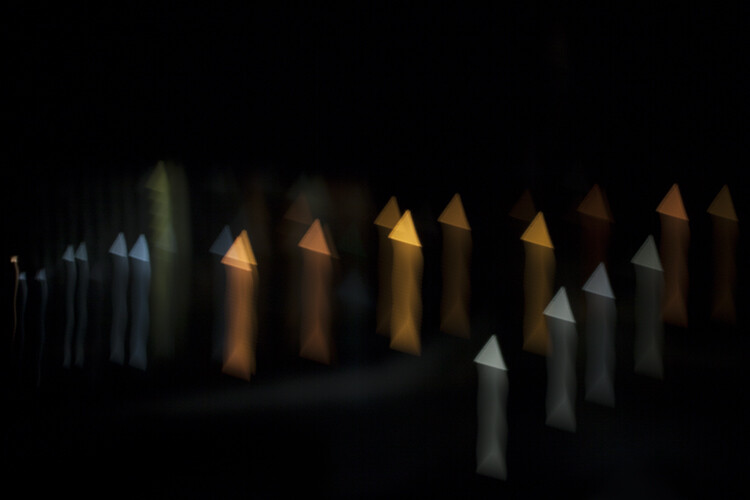
This bokeh filter transforms car lights into a sprinkle of stars

The post How to Make Custom Bokeh Shapes by Megan Kennedy appeared first on Digital Photography School.


Digital Photography School

 
Comments Off on How to Make Custom Bokeh Shapes

Posted in Photography


Sony FE 100mm F2.8 STF bokeh demystified

18 Feb

Sony’s new STF (Smooth Trans Focus) 100mm F2.8 GM OSS uses an apodization (APD) filter to create very smooth out-of-focus regions/highlights both in front of, and behind, the focal plane.

But how exactly does it work? Sony has published a video demonstrating the principle, and the effect. Take a look:

The apodization element is a circular graduated neutral density filter that lets in more central light rays than peripheral light rays. This smooths out transitions between out-of-focus elements, leading to quite unique imagery.

The APD element is a (circular) graduated neutral density filter inserted into the optical path of the lens. Out-of-focus light rays that are either converging in front of the focal plane, or diverging behind the focal plane, have a gradual radial softening (seen as darkening of the more oblique rays in front of or behind the focal plane). This yields less interference between out-of-focus light rays and, so, less ‘busy’ and simply smoother bokeh. 

What’s the real-world impact? Have a look at the image comparison below, which compares the foreground and background bokeh with and without the APD element:

The APD element leads to smoother foreground and background bokeh. Note how out-of-focus highlights are smoothed, and this applies to everything. There’s a cost though: sometimes I like sharp, enlarged de-blurred out-of-focus highlights, which you won’t get with this lens. But what you will get is smooth, creamy bokeh.

We’ve had very little time with the lens, but our initial impressions of image quality are extremely positive. If you’d like to learn more about the lens, visit the company’s dedicated page on this lens over at Sony Alpha Universe, then take a look at the phenomenal MTF curves on Sony.com’s site. Yes, this is a sharp lens, but with beautiful bokeh. And image stabilization, to boot, which, combined with IBIS on most E-mount cameras, will allow you to use slow-ish shutter speeds to maximize light gathering, minimizing noise.

Which you’ll need, because wide open, while you have the depth-of-field of F2.8, you have the light transmission of F5.6.

Sony’s E-mount system is becoming increasingly hard to ignore for professional results. With the release of the 100mm STF GM and 85/1.8 lenses, Sony is rounding out a format that already accepts arguably the largest lens lineup in history (thanks to its short flange distance). But the importance of a native lineup cannot be over-stressed, as it is native lenses that benefit most from Sony’s AF technologies.

A note on autofocus…

Similar STF lenses tend to be manual focus or contrast detect-only, since peripheral light rays – the very ones the filter is designed to block out – are necessary for traditional phase-detect sensors to function. However, since (at least Sony’s) on-sensor PDAF sensors can still use more central light rays for focusing, focusing does still work, remarkably well in fact with the a7R II, even indoors, wide open. That’s quite an achievement, in no small part due to the excellent focusing system of the a7R II. What’s more, movement of the focus element(s) is incredibly fast, thanks to the excellent Direct Drive SSM mechanism we’ve seen in blazingly fast-to-focus lenses like the FE 35mm F1.4 and FE 24-70mm F2.8 GM.

“Unlike Sony’s recent releases, this lens focuses wide open…”

In other words, I was able to use to the 100mm STF to focus on faces, even using Eye AF, in fairly low indoor lighting, despite the T5.6 rating at a F2.8 aperture. This is in no small part due to the fact that this lens, unlike Sony’s recent releases, focuses wide open (albeit stopping down after initial acquisition in AF-C). More tests to follow, but simply the fact they got phase-detect AF working, nevermind the AF performance, is nothing short of impressive.

The FE 100mm F2.8 STF GM OSS is already shaping up to be a spectacular lens, adding to an already well-rounded, serious E-mount lens lineup.

Articles: Digital Photography Review (dpreview.com)

 
Comments Off on Sony FE 100mm F2.8 STF bokeh demystified

Posted in Uncategorized