RSS
 

Posts Tagged ‘Better’

Why Aren’t Search Engines Making Better Use of Their Social Networks for Image Search?

06 Jun

One thing I’ve noticed more and more over the past few years is what a poor job traditional image search engines do vs. social networks.

By using social information around photos (likes, faves, comments, +1s, etc.), social networks typically produce much superior image search results than traditional image search.

Take this search of Coachella 2013 for example.

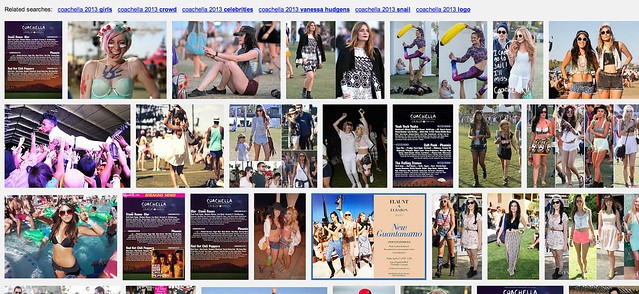
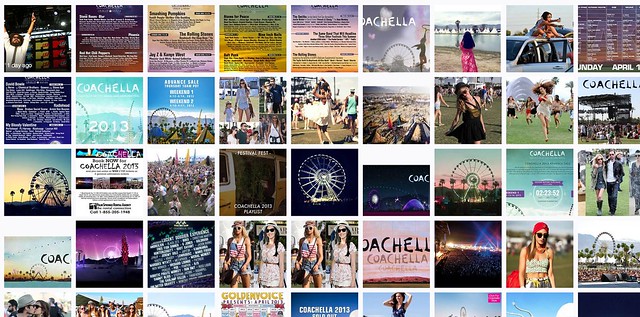
Screen Shot 2013-06-05 at 10.45.53 AM
Yahoo Image Search: “Coachella 2013″

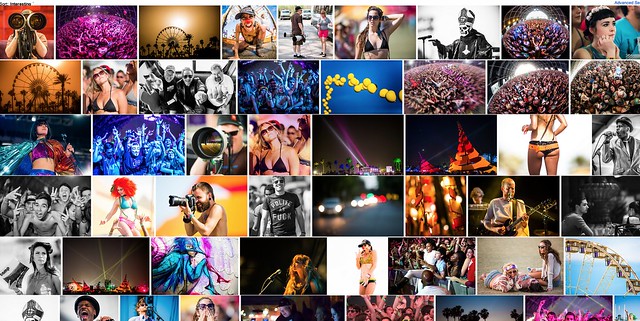
Screen Shot 2013-06-05 at 10.46.24 AM
Google Image Search: “Coachella 2013″

Screen Shot 2013-06-05 at 10.47.28 AM
Flickr Image Search: “Coachella 2013″

The first image comes from Yahoo (or is it Microsoft these days, I can’t keep it all straight). It’s not very good. It shows too many images of just the lineup vs. actual fun interesting photos of the event itself.

Google’s image search results are better, but still not as good as many of the images I find on social networks.

Now I may be biased (as I shot this particular event) but I think Flickr’s search results are *far* better than either Google or Yahoo Image search.

I’m working on a project right now to photograph the 100 largest American cities. When I’m researching things to photograph in these cities I almost always go first to Flickr (because it’s the largest database of highly organized quality photos on the web). I will also look at Google+ too, sometimes. Google+ doesn’t have as many high quality images in the total database as Flickr, yet, but I find some pretty good stuff there sometimes still. Most of Flickr’s advantage here over Google+ just has to do with the fact that they are older and have more images indexed.

Lately I’ve also played around with graph search on Facebook for images — I haven’t been very impressed there at all though.

The one place I hardly ever go is to the actual Google or Yahoo image search engines — because the results are so inferior.

Here’s what I don’t get: *why* are the results at Yahoo and Google Image search inferior? Google and Yahoo have access to proprietary internal social data around photos in their social networks, why isn’t that coming through better in the signal for high quality images.

On my example search using Coachella 2013, not a single Flickr photo appears on Yahoo’s first page image search and not a single Google+ image appears on Google’s first page image search.

Shouldn’t these search engines be better mining organically and socially ranked superior content? It’s not that these engines don’t index it, they do, it’s just not ranking well.

Beyond just better image search, Google and Yahoo *should* have another significant incentive to better include their social images into image search.

All things being equal, assuming you could improve image search results, wouldn’t you want to drive more traffic to your own internal social network, rather than to some unrelated destination — and wouldn’t you want to reward the best photographers on your social network with more traffic vs. some random SEO rigged site somewhere?

Why aren’t image search engines doing a better job with social?

Another added benefit to driving image search traffic to your social network, is that the presentation there is usually better, more uniform and consistent. When I’m tempted to go further on an image from Yahoo or Google, I may end up at some odd sized photo, in some odd format. With a G+ or Flickr result I get a strong consistent image experience that I’m familiar with.

As an unrelated topic dealing with image search on Flickr — the best social image search on the web today — Flickr needs to give us the ability to block certain users from our search results. Many popular photographers will pollute image search on Flickr by falsely tagging things that are not in their popular photos, just to try to garner traffic.

Take this search on Flickr for dog for example. So many of the first page results are not photos of dogs at all. Flickr should allow us to block certain users from our search results in order to better refine them. When we block people from our search results, this should also be a signal to Flickr that this user should rank much worse in search. If users get the message that they will be penalized for purposely mistagging their photos, they will be less likely to try and game the system this way, resulting in better image search on Flickr for all of us.


Thomas Hawk Digital Connection

 
Comments Off on Why Aren’t Search Engines Making Better Use of Their Social Networks for Image Search?

Posted in Photography


Dear Marissa Mayer, Please Give Us a Tool to Better Block Bad Actors on Flickr

26 May

As an opinionated blogger, watching Flickr roll out recent changes to the site this past week has been an interesting experience, to say the least.

Thanks, Marissa Mayer, for making Flickr awesome again. Thanks also to the Flickr team who have worked so hard to roll out these changes. The new Flickr is the most photo immersive experience anywhere on the web. It is far more engaging and far more beautiful than I ever could have imagined.

Witnessing and countering in the vile hatefest that the Flickr Help Forum has become this past week has also been interesting. Simply for expressing my opinion in a public feedback forum on the new design, I’ve been called a shill, a troll, a sock puppet, a scrotum sack, and many things far worse that I don’t really feel like printing.

I’ve been told that my photography is absolute crap, been accused of working for Yahoo, of being related to Marissa Mayer, of trying to pump up Yahoo’s stock price by supporting the changes — my work, motives and integrity have all been subject to relentless attacks there.

There is little civility in a forum taken over by the ugliest and most vulgar of what the web represents.

The vandalization of Marissa Mayer’s own Flickrstream, and the encouraged vandalism in the same forum, saddens me. To see someone leave an offensive comment on a Mother’s Day Photo, of all things, makes Flickr less of a place to want to spend time.

One Flickr staffer had to actually turn off public comments on his Flickrstream. “You are going to hell,” was the comment that made him turn them off.

There is, at least, a partial answer to this problem: give us a tool to block other users on Flickr.

Flickr already does have a blocking feature of course, it’s just super weak and only prevents someone from leaving a comment on one of *your* photos.

On the other hand, even if you block someone, they can still attack you in all sorts of other places on Flickr, where you spend time. Flickr users should be able to use the public areas of the site without being subject to vile personal attacks. The Help Forum, Groups, other people’s photos, all should be places where Flickr users can visit and feel safe and comfortable.

I left Flickr groups for good a few years back (so did a lot of my friends). The reason why I left was that groups were becoming too ugly. Especially as an opinionated and high profile user, I found myself subject to constant terrible attacks. There was nothing that could really be done about this. Sure, you could report someone violating the Flickr Community Guidelines to Flickr, and maybe 5 days later their account would be deleted, but then they’d just make up a new troll account and be right back at it over and over again.

It was simply easier to just leave the public community of Flickr than to deal with the hate.

When I first joined Google+, I saw some of these same bad actors appear over there, too. I’d watch both myself and my good friends be attacked by others — jealous, petty haters and trolls, mostly. But then Google did a really smart thing. Google rolled out a really strong blocking tool and, just like that, all the hate went away.

You see, on Google+, when you block somebody, they become entirely invisible to you. They are entirely filtered out of all of your views on G+. Poof. Gone for good, not just in your stream, but *everywhere* for you on the site — and that has made Google+ a far better, nicer and more polite place for community than Flickr. Where the Flickr community is a negative hatefest, the G+ community is the most amazing, optimistic, supportive community I’ve ever known online.

You see, blocking the worst of the web doesn’t just filter it out of your view. The more significant thing that it does is it *encourages* civility.

Right now on Flickr we have no power against incivility. People can be as nasty and as rude and as ugly and as disrespectful as they want. They can spam the Flickr help forum with images of excrement (as they actually did last week) and you can’t do a damn thing about it — but if you give us the ability to block these bad actors, then their power is reduced. They know that as soon as they begin the ugliest of hate that the vast majority of positive contributing members will simply block them. Their audience is diminished and soon they are standing on a soap box shouting only to the 10 or so other users who share their hate filled outlook on life.

Before I quit using Flickr groups, one particular nasty member was looking at the photos that I was favoriting (this is forced public and Flickr won’t allow me to control who gets to see it — unlike on G+ where it is private) and this person began leaving vile comments on every photo that I was commenting on. This way, every single one of their comments was showing up in my recent activity, even though I’d blocked them from commenting on my own photos. That’s just wrong.

If Flickr wants to be a place where community can flourish, they need to give us tools to protect ourselves from the hate.

Marissa, I don’t need to tell you how bad the hate can be on Flickr. If you’ve reviewed your own Flickrstream this past week, you know what I’m talking about. It’s deplorable. Especially when any user can so easily just keep making anonymous troll account after anonymous troll account — please, give us a tool to remove the bad actors from our Flickr experience.

This week’s new design work was fantastic, now let’s go to work on improving the community for those of us who want to positively contribute there as well.


Thomas Hawk Digital Connection

 
Comments Off on Dear Marissa Mayer, Please Give Us a Tool to Better Block Bad Actors on Flickr

Posted in Photography


Google Unveils Cutting Edge Photography Tools to Make Your Photos Look Better and the World A More Beautiful Looking Place

16 May

Through Glass

Google unveiled significant new innovation in the world of online photography this morning, continuing their rapid development pace on Google+. All in, Google+ pushed out 41 new features today.

Much of the new work is focused on post production photography to make people’s photographs look better than they can straight out of the camera.

Some have suggested that part of Instagram’s success has been their ability to enhance users’ photos with very simple, one touch filters. Instagram has focused on a faux film aesthetic which actually highlights the flaws in many photos to give them more of an artistic, old school feel. By contrast, Google’s easily and automatically applied post production tools, released today, work to make photos look more vivid, life like and realistic.

By using simple techniques like skin softening, clarity adjustment, smart vignetting, HDR and other enhancements, Google, by default, now offers an enhanced photo for every photo uploaded by users to Google+. Also, with this new tech, Google will give you the ability to view the before and after results and decide which you prefer to use. For photographers who do not want their photos altered in any way, these users can turn this default functionality off.

Google Releases New Tools for Photographers Using Google+

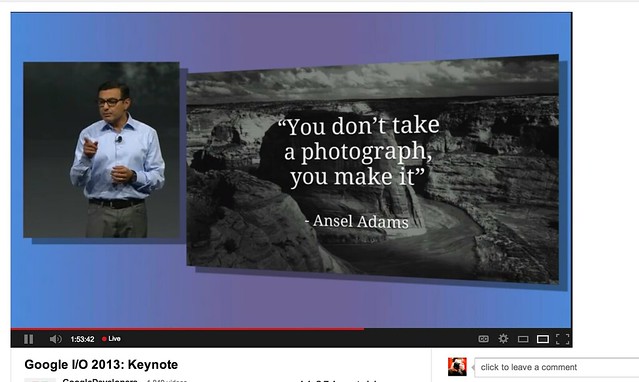
As a photographer, I have long been a believer of photo manipulation and post processing technology. Ansel Adams said “you don’t take a photograph, you make it,” as highlighted in Google Social Chief Vic Gundotra’s keynote this morning. Much of Ansel Adams’ genius has been attributed to the work that he did in the darkroom with his photos, his zone system, his post production technology of his time.

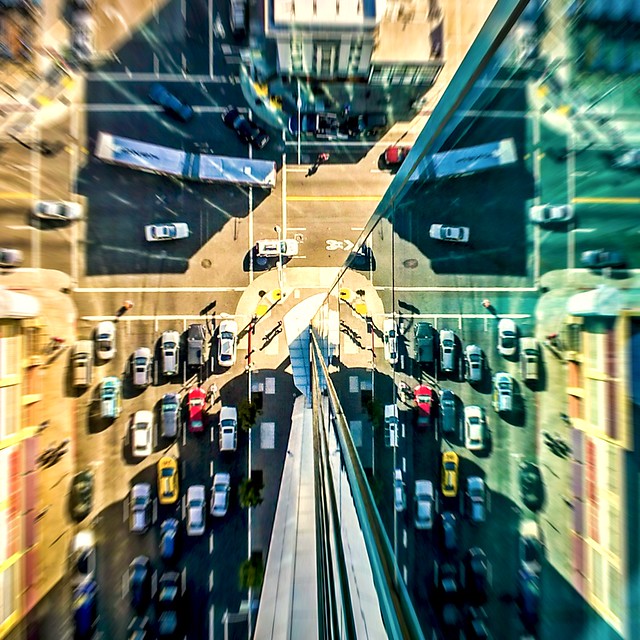
I post process all of my photos. The photo at the top of this post is the very first photo that I made with my new Google Glass that I bought yesterday. While I was able to get the composition to a point where I wanted in camera, much of the pop of that image is done with my own post production technique and style.

Many of my photographer friends also spend a great deal of time post processing their images — but the vast majority of the people out there really don’t post process at all. These people don’t own Lightroom and Photoshop or Nik Suite or Aperture or whatever else they might use to improve their photos. These are every day non-photographers who are still enamored with photography and imagery.

By applying some very basic algorithmic based enhancements, Google can make photos for the masses look much better than straight out of the camera. This is a very smart move on Google’s part. Where Instagram makes your bad photos look purposefully worse, Google now makes your bad photos look purposefully better! I stole that line from an unnamed source, btw. ;)

Where this new tech is especially powerful is in photos of people. By using basic skin softening post production tech, photos of people will look better on Google+ than on other social networks. By appealing to our vanity, this gives Google a big advantage. If people can post photos of themselves on Google+ that make them look BETTER than on other networks, many more people will choose to post their photos on G+. Just watch as people post photos of themselves on G+ for auto beautification and even download and post them to other networks I bet.

All of this sort of fancy post production *can* be done today by skilled post production photographers who spend hours and hours behind Photoshop. Now much of it will be automated and released to the masses.

There will undoubtedly be some naysayers about this tech. The same folks who moaned about the Instagramification of mobile photography will probably also complain about this new tech too. Google was smart here by giving users a very simple way to deal with this, by simply turning off this feature.

While the photo enhancements were the sizzle of Google’s announcements today, there were many other significant enhancements added to Google Photos.

Google will now begin to analyze your images and auto tag them. This is no trick where low paid overseas workers are manually reviewing your images; Googles’ algorithms now can look at the context of your photo and the actual subjects in your photos to identify possible tags for the images. If you post a photo of the Eiffel Tower, Google can detect the Eiffel Tower in your photo and add that tag for you. If Google gets the tag wrong, for whatever reason, it’s simple for you to just remove it.

What this means is that more of your photos will be seen in search by people using Google products. Many photographers are looking for more traffic and views on their photos. Who better to provide this traffic than Google Search, yes, using Google auto applied tags. This is the future of image search. If you are a photographer, especially one who depends on photography for your living, you cannot afford to ignore the significance of Google Search. Many of my own photo sales are made by people finding my photos while searching on Google. By uploading your photos to Google+, your photos will rank better in search and now even moreso with this new auto-keywording functionality.

Google Releases New Tools for Photographers Using Google+

Google also introduced a new smart algorithm that can analyze your photos and show you which ones Google thinks are the best of the batch, offering you highlights. Oftentimes we will “spray and pray,” taking 20 images of one person or subject. Google will analyze all of the images and suggest the best one for you. Google uses not just technical information about a photo (is it blurry or underexposed?) but they are using human tested aesthetics to look for what is most appealing.

But there’s more! In addition to the tech released above, Google has also added some very easy tools which will auto generate gifs for you of your photos, auto HDR bracketed shots, and suggest other compelling ways for you to present your photography to the world. Almost miraculously, Google can even look at photos of multiple people and merge the photos into a single photo that takes the best expression of each individual from *different* photos.

All of this also comes with an awesome new look and layout of Google+ which better highlights photography on the network. Popular photos will now be featured in jumbo new oversized form across a three column layout. For non highlighted photos, Google also made portrait oriented photos, especially, look better and bigger. In the past, the portrait format was the worst looking photo format on Google+, now it’s the best — that’s worth noting. ;) For folks who don’t like the three column layout, they can switch back to a single column if they’d like.

A couple of other notes: all of this work that Google does with your photos is done behind the scenes for your eyes only. You can use the tech or not use the tech. If you use the tech and like it, *you* then choose to share the image to Google+. Nothing is shared until you choose to share it.

The new technology will only work with the JPG format (hopefully Google comes out with RAW support down the road). Google increased everyone’s storage to 15GB of online storage, but note that any photo sized 2048 px or smaller does not count towards your 15GB storage limit (you can also buy more storage if you want to). Google allows unlimited uploading of photos that you either manually resize or allow Google to resize to 2048 px. There is an option on Google where you can set whether or not you want to upload full high res photos or resized 2048 sized images.

I upload some of my photos full res, and many of them I resize manually myself to 2048 px.

Google also introduced a free, stand alone hangout app that you can now use with your mobile phone or desktop device bridging text, photos and real time group video into a single app that preserves conversations (at your choice) over long periods of time. Hangouts have been one of the most popular Google+ feature and several photography related shows have been built around them.

More detail on these changes at Google here. More from Matthew Hanley here. Trey Ratcliff wrote insightful commentary here.


Thomas Hawk Digital Connection

 
Comments Off on Google Unveils Cutting Edge Photography Tools to Make Your Photos Look Better and the World A More Beautiful Looking Place

Posted in Photography


3 Ways to get Better Control of Autofocus

27 Mar

In this post, Steve Berardi from PhotoNaturalist talks about three ways to get better control of autofocus.

auto-focus.jpgSometimes autofocus can be really annoying. For some shots it’ll focus on the right part of your subject, but then the very next shot it may choose to focus on something far and away into the background.

Sure, you could avoid this problem by always using manual focus, but autofocus is great when you need to focus quickly or when you’re photographing a landscape and you need to focus on a certain spot in the scene.

Well, autofocus doesn’t have to be annoying anymore, because here are three ways to get better control of it:

#1 – Press your shutter button half-way to activate autofocus and then recompose

Set your autofocus point to the center spot, then point this spot where you want to focus and press your shutter button half-way (don’t press it completely yet) to initiate autofocus. Then, while still holding down the button half-way, recompose your shot and press the button completely down to snap the photo.

#2 – Switch to manual focus after autofocusing

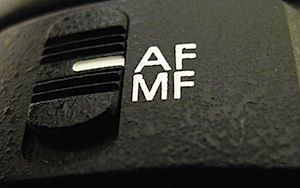
Use autofocus as you normally do, but once it focuses on the right spot, just switch off autofocus on your lens to manual focus. Your lens will keep the current focus when you do this. This method works well when your camera is on a tripod and you’re taking multiple exposures from the same spot, like when photographing a landscape.

#3 – Use back-button autofocusing

Normally, your camera will autofocus when you press the shutter button, but with back-button autofocusing, you have to press a button on the back of the camera instead, giving you complete control of when autofocus is initiated.

With back-button autofocusing, you can just set the autofocus point to the center spot, then point that where you want to focus, and finally press the back button to automatically focus on that point. Now for all the shots you take from that position, that focus will be maintained (the camera won’t randomly focus into the background anymore).

You can do the same thing without this back-button autofocusing by switching to manual focus after the camera focuses properly, but using the back button saves time and this way you don’t have to constantly switch back and forth between manual and autofocus (which can inadvertently move the camera sometimes).

Back-button focusing is especially helpful for photographing moving subjects, like birds in flight or other wildlife: just switch on the continuous focusing mode, set the autofocus point to the center spot, and hold down that back button. Now you don’t have to worry about accidentally hitting the shutter button while you’re tracking the subject in your viewfinder.

How to enable back-button autofocusing: Unfortunately, this feature is called something different on each camera, so you’ll probably have to do some digging around in your camera’s manual and “custom functions” to find it. If it’s not labelled clearly on your camera, try changing the settings of the different buttons on the back of your camera (like the AE lock button).

steve.jpgAbout the Author: Steve Berardi is a naturalist, photographer, and computer scientist. You can usually find him hiking in the beautiful mountains and deserts of Southern California. Read more of his articles on nature photography at the PhotoNaturalist and follow him on Twitter.

Post originally from: Digital Photography Tips.

Check out our more Photography Tips at Photography Tips for Beginners, Portrait Photography Tips and Wedding Photography Tips.

3 Ways to get Better Control of Autofocus


Digital Photography School

 
Comments Off on 3 Ways to get Better Control of Autofocus

Posted in Photography


Ten tips for better mobile photography

02 Feb

Screen_Shot_2013-02-01_at_12.24.28_PM.png

Stock photography website iStockphoto recently began accepting smartphone images from photographers who sell images through the service. Now they’re offering tips to photographers who want to improve their mobile photography skills, which includes both basic photography advice about composition and framing, as well as specific advice for mobilographers. Check out the post on connect.dpreview.com.

News: Digital Photography Review (dpreview.com)

 
Comments Off on Ten tips for better mobile photography

Posted in Uncategorized


3 Tips for Better Black and White Conversion using Lightroom

16 Jan

Ever wondered how the professional photographers get those dreamy black and white or sepia toned images? Wonder why yours come out looking dull and flat looking?  I’m going to give you 3 tips to help you do better black and white conversions using Adobe Lightroom, and solve that problem!

Today’s cameras are pretty smart, and many of them offer a black and white setting or shooting mode. I recommend using those to start, especially if you’ve never done any black and white (B&W) or if you are not currently doing any post processing or image editing on your files. BUT, if you have some experience with b/w photography, and you are processing your images, I recommend doing the conversion yourself as you have more control over the look of the final image.  I’m going to show you a few ways of converting them into B&W using Lightroom.

Note:  for the most part these tips will work in Photoshop as well, using the Adobe Camera Raw features and sliders.

First a quick note about my background. Back when I took my photography degree (dare I say, in 1987-88, and date myself) I spent the entire first year shooting black & white only, using a 4×5 view camera no less. I processed my own film and made my own prints. I spent a lot of time in a black & white darkroom, so I’m pretty well versed in how it works and how to control it to my advantage.

To grab some info from those film days, it’s important to note and understand that your camera sees light and colours differently than does the human eye. Black and white film sees blue tones much lighter than our eyes, for example.  Coloured filters were used to shift how the B&W film “saw” and rendered the scene.  Using a red filter would lighten anything red in the image and darken blue tones.  So if you were a landscape photographer you’d often use a red filter to darken the sky and make it less washed out.   A green filter would lighten green and blue tones and darken red and orange.  So photographers used the appropriate filter to capture the scene as they envisioned it.

In Lightroom and ACR (Adobe Camera Raw) in Photoshop you have the same tools at your disposal!  So without the use of filters, you can adjust how the scene is rendered in B&W.  That brings me to the first tip.

Tip #1 – use the B&W mix to do your conversions

In Lightroom’s Develop module (and ACR) there are a few ways that you can convert your images into B&W.  You can just pull the saturation slider all the way to left to -100. You can also do similar with the Vibrance slider, but it may not give you a 100% B&W image, depending on the image. Both of those options will give you a black & white result. However, they give you no control over how the colours render into the various shades of grey. A better choice, in my opinion, is to use the B&W mix, located on the third panel down on the right in Develop – see below.
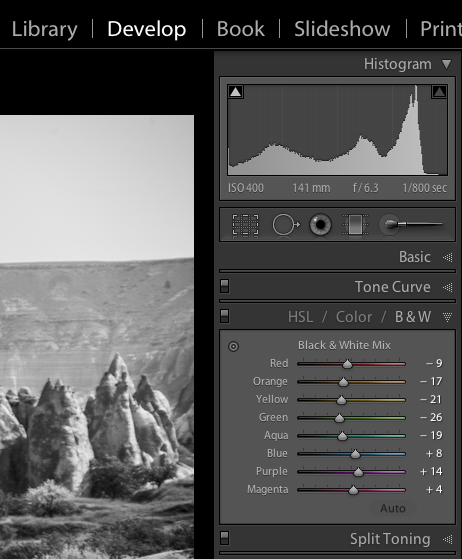
Black and white mix panel in Lightroom Develop module

Let’s take a look at an example using the same image.

Original colour image
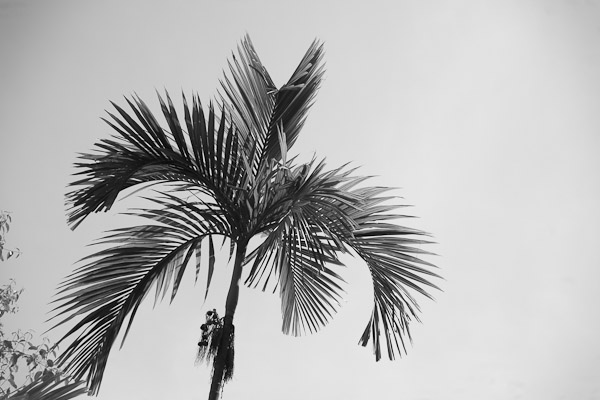
B&W conversion done using the Saturation slider at -100
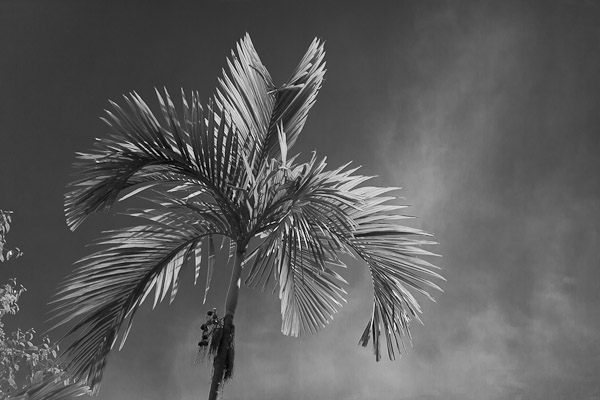
B&W conversion done using the B&W mix in LR

In the images above, notice how the blue sky went really light using the desaturate method?  This is often the case when you have a lot of blue sky in an image, as I explained above.  Using the B&W mix and pulling a few of the sliders I was able to get very different tones.  This is what my sliders in the B&W Mix panel look like on the third image:
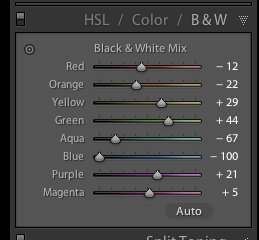
Notice the blue slider is pulled all the way to the left to -100.  That is what is darkening my sky.  Also worth noting is the green and yellow sliders are moved in the opposite or plus direction.  This lightens both yellows and greens (most grass and trees are often a mix of green and yellow, sometimes more yellow than green).  I have not done any selective adjustments to darken the sky here, just the sliders you see to the right!  How very different this image is from the desaturated one, and so simple to do using this method!

Also on this panel notice there is an “Auto” button.  Clicking it will allow Lightroom to apply a predetermined B&W mix for you.  You can also set up in your Lightroom preferences to apply that for you when B&W mix is selected, then you can just fine tune from there.  Otherwise all the sliders will start at “0″.

Another little known trick for using these sliders is the funny looking little double circle thing on the top left.  As you move the mouse over it, you will see this:
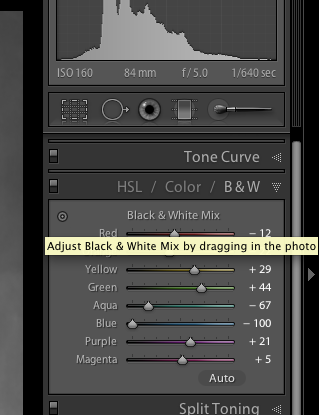
Adjust Black & White Mix by dragging in photo. So what on earth does that mean, you may wonder?!  If you click on the little circle your mouse pointer will now have little up and down arrows, as well as your cursor showing the same icon as you hover over the image. Click anywhere on the image, hold and drag, and it will adjust ONLY the colours that you’ve clicked on.   Drag up to move the sliders to the right (+) and drag down to move them to the left (-). How cool is that?!

This is very helpful if you do not know which sliders to adjust.  Just select the area of your image you’d like to adjust the tones on and drag away!

Tip #2 – don’t just stop there, add some punch

Sometimes even using the B&W mix sliders the resulting image still looks a bit flat and dull looking.  Take it up a notch by adding some punch to your image.  I do the following to most of my B&W images:

  • increase the clarity:  if it’s a scenic I’ll push it quite far like +60 or higher, if it’s a person I keep it under +30 or they start to look a bit crunchy and overly wrinkled (especially if the photo is of your mom or your spouse, they tend not to be too happy about that)
  • lower the black slider, until it looks good.  Highly scientific, yes! Here’s a little trick for you as well using the Blacks slider:  if you click and hold the Opt/Alt button while you slide it, you will get to see exactly where your blacks are clipping (meaning going off the chart on the histogram and having no detail). You can use that information to make sure you have just enough blacks, but make sure you keep all the detail in important areas.
  • increase the contrast either using the Contrast slider or Curves

Occasionally after making these contrast adjustments it will affect the overall image and you may want to go back and rework the B&W sliders a bit too.  It’s a dance, play them back and forth until you get a mix you like.   Here’s the final version of the image above, with contrast and punch adjustments applied.

Notice how much more snap it has, while still maintaining that nice rich, dark sky!

Secret to making great B&W images that the pros won’t tell you . . .

Black!  That’s it.  Make sure you actually have some black, and some white in your image.  Check the histogram and use my little tip on seeing the clipped bits. Add contrast or increase the blacks, whites, or both to get a full range of tones.  No matter what the subject is in the photograph, having enough contrast to have pure white, and pure black is key to having a stunning B&W image.  Otherwise you’re just left with a bunch of grey mud.

Tip #3 – creating selective coloured images

There are a couple ways to make selectively coloured images, and also to create that faded look that is really popular. Once again you can use the Vibrance and Saturation sliders in the Basic panel, however they will affect colours in the entire image the same.  You can also use the Adjustment Brush and paint in a lower saturation onto parts of your image where you want to fade out the colour.  I use that method quite often, even on full colour images, to do tone control on items in the background that are distracting.

Lastly you can use the sliders in the HSL panel.  By sliding selected colours to the left you can desaturate only those colours.  You can also use the little Click and Drag tool we used earlier to do the B&W Mix to click on your image and pick the areas to fade.   Here’s an example using each of these methods.  None is right or wrong, just give you a different look and some have more control than others.  Choose the one that works for you on in individual image basis.
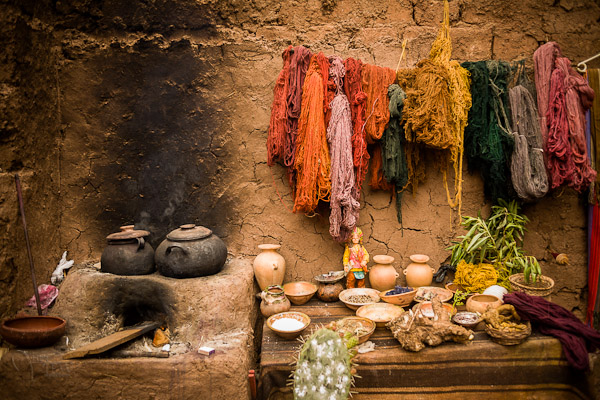
Original colour image
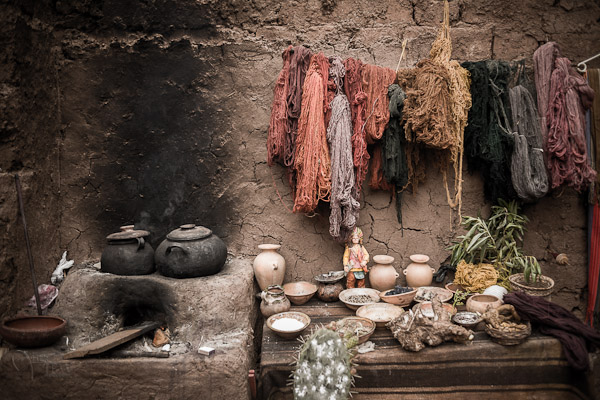
Vibrance slider set to -75

Saturation slider set to -75

Adjustment brush used to paint in saturation at -75 to the whole image except for the wool
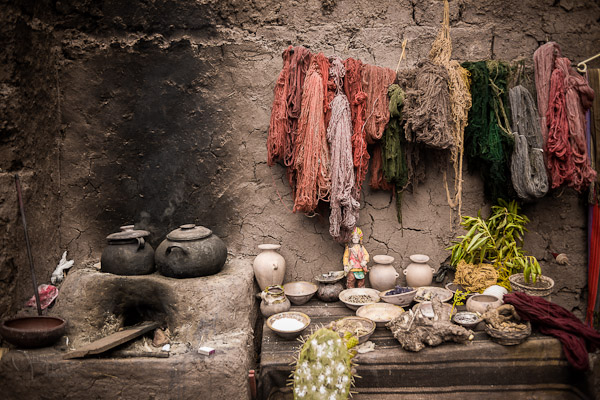
HSL sliders used to desaturate by separate colours

*Bonus Tip – making a nice duotone or sepia toned image

A little extra bonus tip for you.  Adobe has made it super easy to create a really nice duotone (just means two tones, go figure!) image, which includes Sepia.  Just go to the Split Toning panel after you’ve done your B&W conversion, it’s the fourth one down.
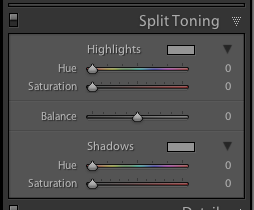
You will see sliders for both Highlights, and Shadows.  My personal tip on how to keep a nice clean sepia or toned image is to use ONLY the Shadows sliders and do not touch Highlights.  That will leave you with clean, crisp white highlights even after you’ve applied the toning.

How to create the duotone

First start by choosing the Hue slider (for Shadows).  If you want a nice brown colour, start with it around 40-45. Each image tones slightly differently, so start there and adjust to your taste and style.  You may notice that nothing happened, right?  That is because you need to increase the Saturation slider before the tone will show up.  The more you increase saturation, the deeper and more vibrant the colour tone will become.  Again, there is no right or wrong, it’s all about preference.  For a subtle, dark, chocolate brown try 10-20.  For a deeper colour go higher with saturation (NOTE: make sure the “balance” slider is set to zero)

If you want a different tone just move the Hue slider.  You can create some really neat affects this way including Blue Tone or a true Duotone.

Example using a portrait

For this final example I’ll show all the steps we’ve just covered using a portrait.  This is applicable to any people photos, you don’t need to make portraits to use this information.
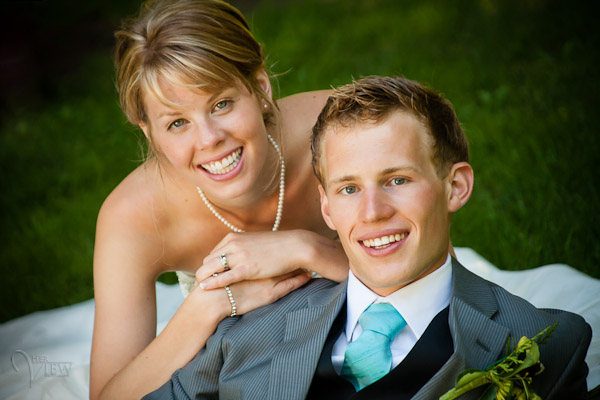
Original colour image
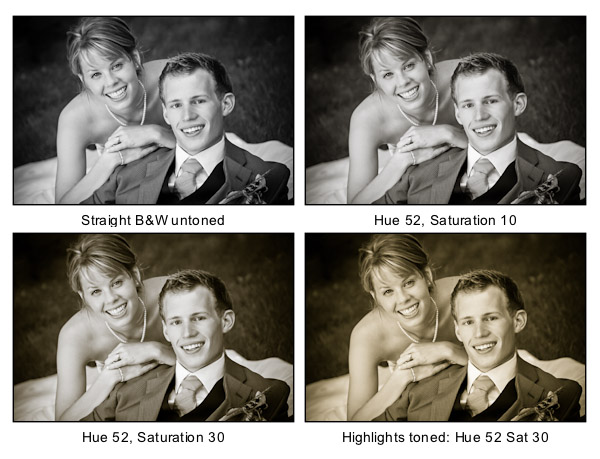

Notice the last image where I’ve added in colour to the Highlights and how it completely changes the look of the image. The whites have a yellow tint now instead of a nice clean look. I personally prefer the third one but there are times I do use this option. Do what feels right for your image, you’ll know what to do.
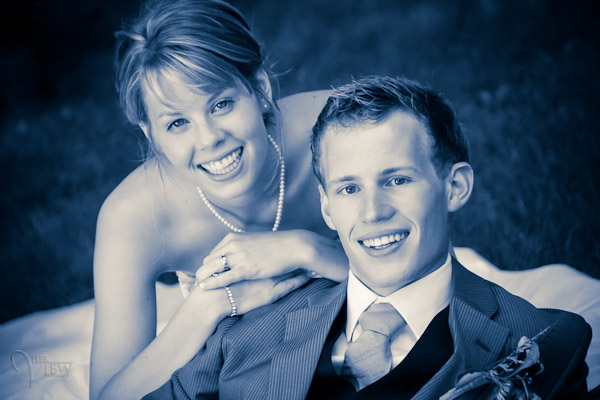
A "duo" tone using different colours for the Highlights and Shadows. Shadow settings: Hue 232, Sat 70 – Highlight settings: Hue 52, Sat 37. I did move Balance to -27 to skew the colours more towards the Shadows as well.

What next?

As always I encourage experimentation.  If you have another way that you like better, that’s awesome!  Please share it with us if you will.  Another way to do some really quick B&W inside Lightroom is to find some good presets. There are literally tens of thousands of Lightroom Develop presets available for free on the internet.  Try a Google search for:   Free lightroom b&w presets.  Then just pick the ones you like and install them.

Now get out there and go make some images and let’s see what you can do in Black & White!


Post originally from: Digital Photography Tips.

Check out our more Photography Tips at Photography Tips for Beginners, Portrait Photography Tips and Wedding Photography Tips.

3 Tips for Better Black and White Conversion using Lightroom


Digital Photography School
 
Comments Off on 3 Tips for Better Black and White Conversion using Lightroom

Posted in Photography


How To Become A Better Photographer By Watching Movies

06 Jan

I went to the movies to see Skyfall recently. As I sat amongst strangers, throwing popcorn into my mouth, it suddenly dawned upon me that what a movie, at its simplest, is just a big collection of photographs. Consider this: a movie’s sole purpose is to tell a story. So the movie-maker’s job is to position his cameras, subjects and Continue Reading

The post How To Become A Better Photographer By Watching Movies appeared first on Photodoto.


Photodoto

 
Comments Off on How To Become A Better Photographer By Watching Movies

Posted in Photography


Become a Better Photographer By Asking One Simple Question

06 Dec

A Guest Post By: John Davenport

Let’s be honest whether it is coming up with portrait posing ideas, photographing the stars, or avoiding danger in the field we all have a common goal here – gain more knowledge and put it to use in our photography – but there comes a time when we must be our own teachers.
We must venture out away from the tutorials, the guidebooks and those YouTube videos to simply do something for ourselves, without fear, and without guidance. Just with the knowledge that we already have in our heads. My friend, that is what this question is all about. 

What Happens When I Do This?

Image One.jpg

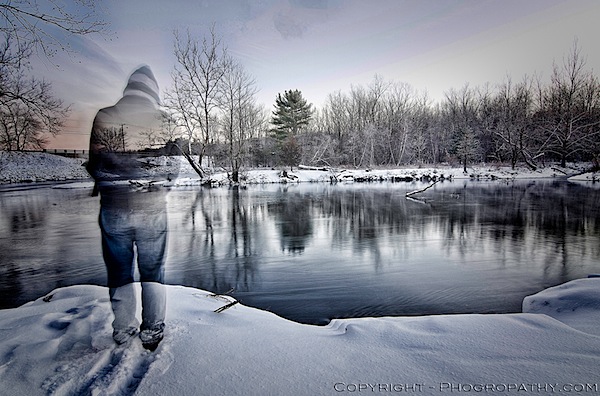
If I had not tried something different, something out of my comfort zone, I wouldn’t have been able to capture this photograph. I was attempting to create an HDR composite, but I wanted to see if I could create one with me in the frame. I’d never done this, I hadn’t even attempted it, so I just set my camera up to capture the brackets, put it on a timer, and walked into where I thought would be a good place to stand. However, while the camera was still taking the shots, I left the scene before the shutter had closed for the final time, and thus – a ghostly figure.

Image Two.jpg

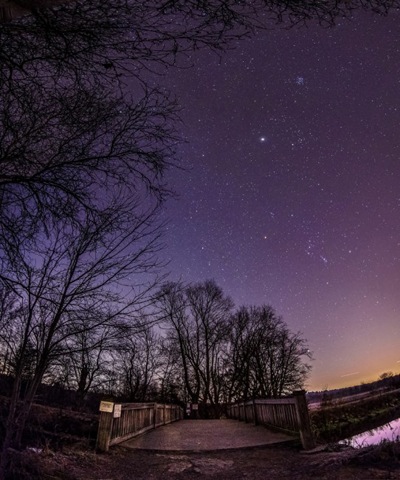
Another example is this photograph of the night sky. It actually consists of four separate landscape orientated images stitched together to create a vertical panorama with a fisheye like effect to boot. I talk in a bit more detail about how I created this vertical panoramic image on my own site, but if you’re listening to the message of this post, you probably shouldn’t have clicked on that link ;) .

It Takes Courage

Tutorials and guides make life easy. Follow the steps and you’ve got a great photograph, but is it original?
It takes courage to be able to do this style of learning and even more so to share your photographs with the world. You have to accept the fact that you’re going to make mistakes, you’re going to feel like you’ve wasted some time, and you’re going to have people tell you that you’ve done it all wrong, but to that I say all this is part of a good learning process.

Don’t Stop With Taking the Photo

Apply this no-holds-bars-experimentation-attitude to all aspects of photography and yes, maybe even to life as well.

Whether you’re using Instagram or Photoshop to edit your photographs asking, what happens if I do this?, is key to creating something different. Sure there’s a lot more to experiment with in the latter, but if you’re always using the same filter and the same blur effect in Instagram are you really learning anything?

What Do You Think?

Is it more important to get out in the field and forget the books once you’ve got the basic knowledge or should you stay up-to-date with all the knowledge that’s being shared on the web every-single-day and miss the possible shot of a lifetime?

John Davenport is an enthusiastic amateur photographer and blogger who shares daily photos on his site Phogropathy. You can also find him on Facebook and Twitter.

Post originally from: Digital Photography Tips.

Check out our more Photography Tips at Photography Tips for Beginners, Portrait Photography Tips and Wedding Photography Tips.

Become a Better Photographer By Asking One Simple Question


Digital Photography School

 
Comments Off on Become a Better Photographer By Asking One Simple Question

Posted in Photography


3D Spongebob – Better Red And Cyan Glasses Needed

27 Nov

Video Rating: 5 / 5

Haunted Castle intro in ColorCode 3D. See it with Super Bowl and Chuck 3D episode special 3-D glasses Color Code 3-D glasses are amber/blue. In Montreal at www.3-d-loreocamera.com

 
Comments Off on 3D Spongebob – Better Red And Cyan Glasses Needed

Posted in 3D Videos


CANON 60D better than any VIDEO CAMERA

27 Oct

quick test of the movie mode on the 60d

My review of Flycam nano. Using Canon 60d, Tokina 11-16 2.8 with Manfrotto quick release model 323 RC2 To learn how to balance the flycam go to Em’s blog: www.vimeo.com

 
Comments Off on CANON 60D better than any VIDEO CAMERA

Posted in Nikon Videos