RSS
 

Posts Tagged ‘Best’

iPhone 7 is best Apple device yet in DxOMark Mobile testing

28 Sep

The engineers at DxOMark have put the iPhone 7 camera through its paces and found it to be a solid upgrade from the iPhone 6s and 6s Plus, in terms of both features and image quality. With an overall DxOMark score of 86 it’s better than Apple’s previous best score of 84 for the iPhone 6s Plus. This is the third best score among mobile phones tested and on the same level as devices such as the LG G5 or Samsung Galaxy S6. 

The testers were pleased by the improved texture performance, which they attribute to the new lens design, and the low noise and artifact levels. They also found the camera to produce good exposures with a wide dynamic range as well as accurate white balance and color rendering. The iPhone 7’s main weakness is a loss of fine detail and visible luminance noise in low light. The DxOMark team was also impressed by the efficient stabilization, fast autofocus and good detail in video mode.

Read the full report at DxOMark.com

Articles: Digital Photography Review (dpreview.com)

 
Comments Off on iPhone 7 is best Apple device yet in DxOMark Mobile testing

Posted in Uncategorized


Opinion: The EOS M5 is Canon’s best ever mirrorless camera, and a big disappointment

18 Sep
Canon’s EOS M5 is a small, lightweight but powerful APS-C format mirrorless camera, which uses the same sensor and on-sensor phase-detection autofocus system as the EOS 80D.

By Barnaby Britton, Editor – DPReview.com

What a long, strange trip it’s been. Eight years have passed since Panasonic unveiled the Lumix DMC-G1, the world’s first DSLR-style mirrorless camera, and for much of the intervening time, Canon has appeared content to let its competitors lead the charge away from traditional DSLRs. In that time, mirrorless cameras have gotten faster, their sensors have gotten bigger and the introduction of 4K video has created a new class of genuine ‘hybrid’ products that have carved out a distinct technical niche compared to their DSLR forebears. 

Then-Chief Executive Masaya Maeda of Canon – pictured at the Photokina tradeshow in Germany, in September 2014. Mr Maeda has since been promoted to President and Chief Operating Officer at Canon Inc. 

In 2014, Canon’s then-Chief Executive Masaya Maeda promised us a serious mirrorless offering ‘in the very near future’, but until now, the closest Canon has come to delivering on this promise was the EOS M3. Canon has never seemed to know how to market the EOS M series*, and insisted at launch that the M3 would not be available in the USA even as Maeda claimed he was telling the his global divisions to “sell it!” Six months later, they finally decided that perhaps they should.

Now, a year after the EOS M3 belatedly entered the US market, we have the EOS M5 – the ‘4’ having being skipped over, possibly in deference to a rather inconsistently applied Japanese superstition. The EOS M5 is a fine product, and one that I think arguably represents Canon’s most sure-footed move in the non-professional space for years. But it is also a massive disappointment.

All Dual Pixel, all the time

Let’s start with the positives. The EOS M5 basically takes the still and video imaging pipeline from the EOS 80D, and puts all of that hardware into a smaller, lighter body with full-time live view. The 80D’s sensor is good – it’s not market leading, but it’s better in some respects than the sensors used in the 70D and 7D II – and despite the equal pixel count, better also than the 24MP sensor that found its way into the EOS M3.

I called out ‘full-time live view’ as a positive because perversely, one of the highlights of the EOS 80D’s handling experience is its behavior in live view mode, when on-sensor Dual Pixel autofocus comes into play. With the EOS M5, it’s all Dual Pixel, all the time, but without having to hold the camera out at arm’s length. All of this, plus the full-time touch-screen adds up to a really, really nice handling experience.

A schematic of Canon’s Dual Pixel CMOS AF sensor structure. The top layer illustrates the light-gathering micro-lenses and conventional Bayer-type color filter array. The lower layer shows how each pixel is split into two photo-diodes, left and right, which are colored blue and red respectively.

So why is the M5 such a letdown? Because this is the camera that Canon should have released at least two years ago, when Dual Pixel AF was first introduced in the EOS 7D II, and when the company still had a chance to really ring the changes in the mirrorless market.

We know that Dual Pixel autofocus is a serious differentiator, and if you’ve been paying attention to our coverage of Canon’s various high-end DSLRs for the past couple of years, you do too. And the M5’s touch interface is lovely. But unless they’ve held and used the EOS M5 (and with more chance of finding a Lapras** on the streets of your town than a dedicated brick and mortar camera store, a lot of people’s first experience of holding a new camera is taking it out of the box), DPAF isn’t the kind of function that’s necessarily going to grab the attention of a potential buyer. Like – say – 4K video might. Or a super high frame-rate mode, or slow-motion movie capture. 

This is the camera that Canon should have released two years ago

The EOS M5’s spec sheet suddenly becomes a lot more impressive if you comb through your memories of the APS-C market segment for the past couple of years, and mentally delete all of the entries under ‘Sony’***

Of course as we all know, specs aren’t the whole story. Luckily for Canon, handling and performance go a long way. The M5 probably shoots fast enough and well enough for most photographers, its 1080p video probably looks basically fine,**** and it’s very nice to use. Although recent Sony cameras have been loaded with an almost unbelievable amount of technology, shooting with one, whether it be an Alpha or a Cyber-shot can sometimes feel unpleasantly like playing chess against a supermarket self-checkout machine*****. Canon at least knows how to make cameras pleasant and uncomplicated to use, while many Sonys still feel like they were designed by the same user interface team responsible for this. If you don’t remember Sony’s late-to-market iPod competitor, don’t feel bad – nobody else does either.

In fact, despite its comparatively pedestrian feature set, given the choice, I’d take an EOS M5 out with me over a Sony Alpha any day of the week. But I really believe that this shouldn’t be an either / or thing.

I don’t think that photographers should be required to choose between a sensible, well-designed but feature-limited camera or a cutting edge, highly advanced but annoyingly fiddly one. For videographers who started out on EOS DSLRs this is a particularly irksome choice.

The Samsung NX1 was ahead of its time when it was released in late 2014, and even now, its spec sheet is remarkably competitive. One of our favorite cameras of the past decade, the NX1 was quietly killed off by Samsung, along with the rest of the NX lineup, late last year. 

Behind my nagging feeling of anticlimax with the M5 is a principle, which is this: Companies that take risks, and deliver new technology to as many people as possible should be given credit. And companies that do not should be held to account. Take the Samsung NX1 – an APS-C format camera so far ahead of its time that even now it has arguably yet to be bettered. In short, it was a vastly more capable camera than it probably needed to be. As such, the NX1 (which benefitted from an aggressive and effective series of firmware updates) encapsulated the best qualities of the company that made it, just as its premature discontinuation, along with the rest of the NX line, could be said to reflect the worst.

Companies that take risks, and deliver new technology to the market should be given credit

The EOS M5 is undoubtedly Canon’s best mirrorless camera yet, and at least in terms of core stills photography it should prove competitive against cameras like the Sony a6300. But as a former Canon user and a long-time Canon watcher, I can’t help feeling let down.

The Canon T90 from 1986 (left) and 1992’s EOS 5 (A2E in the USA). Both incredibly innovative, game-changing SLRs in different ways. And both released a very long time ago.

Canon, after all, is the company that first put a microprocessor into an SLR. It cemented autofocus as a professional feature, not a gimmick, and later created the first multi-point AF systems. Canon introduced optically stabilized SLR lenses, too. It was Canon that gave us the first large-format CMOS imaging sensor, the first sub-$ 1000 DSLR, and the first practical full-frame digital camera******. Hell, arguably the first practical digital cameraCanon is the company that created the still-gorgeous T90. And Eye-Control autofocus, for heavens’ sake, which – granted – didn’t always work, but still feels like science fiction******* even today.

How many of those innovations date from within the past ten years? Not one.

Before you jump to the comments section and start flaming me, I’m not saying that Canon has stopped doing cool things. That’s a common refrain of habitual Canon brand-bashers on DPReview, and one that I don’t agree with. Apart from anything else, it’s perfectly logical that in a maturing market, paradigm shifts will occur with less frequency. And let’s be fair here – Canon can, and does, innovate. If you take a look at Canon’s camera and lens lineup from PowerShot to Cinema EOS, it’s clear that the company is capable of formidable technical achievement.

For all that, many of Canon’s biggest contributions to the consumer digital imaging market in recent years have taken the form of iterative refinement, not wholesale reinvention. And in my personal opinion, this is a shame. Because reinvention used to be what Canon did better than anyone else.


* It’s a Pokemon thing. Ask your kids, assuming you can locate them. 

** Early press briefings on the EOS M were memorable for the unwavering insistence on the part of Canon’s PR team that the M was being marketed primarily to women and smartphone camera upgraders.

*** I write this in the full knowledge that there are some of you who do exactly that.

**** We shot an entire video with the EOS 80D earlier this year. It’s fine.

***** Try it. The machine will persist in maintaining that you didn’t make your last move, when you definitely did, and after going back and forth a few times making you pick up your piece and put it down again it summons a teenager to assist you. 

****** No, I’m not counting either the Kodak DCS-14n or Contax N Digital.

******* Eye Control AF was introduced in the EOS 5, in 1992, almost a quarter of a century ago. I like to think that if Canon had persisted with development we could be shooting with mind-controlled cameras by now. 

Articles: Digital Photography Review (dpreview.com)

 
Comments Off on Opinion: The EOS M5 is Canon’s best ever mirrorless camera, and a big disappointment

Posted in Uncategorized


Why Semi-automatic Mode is the Best Choice for Wildlife Photography

14 Aug

There is a mindset that a lot of photographers seem to have around anything but manual mode is cheating. Not only does this frustrate me as a statement, but it’s just bad advice, that hinders the photographic progress of others. I would argue that there’s no cheating in photography, and that using your camera in fully manual modes actually makes it harder to achieve the photo you’re looking for – so let’s take a look at why semi-automatic modes are a good choice for wildlife photography.

Tracking this puffin in flight, I'd never be able to change the settings quick enough if I was in full manual mode.

Tracking this puffin in flight, I’d never be able to change the settings quick enough if I was in full manual mode.

Now I’d never recommend anyone use full automatic modes. They are a pain in the backside, to be frank. The camera focuses wherever it sees fit, seemingly changing its mind on a day to day basis. The setting are often wrong, since you have no bearing over how the exposure triangle is balanced (other than a little bit of exposure compensation). For wildlife photographers, this is a pretty poor choice of mode.

However, what I do recommend is that you run with a semi-automatic mode. Because with wildlife, everything is so unpredictable that there is little chance you can spin the wheels, and react to changing conditions fast enough in manual mode. Picture this: you’re photographing an eagle swooping down from the sky to catch a fish from the water. It’s moving through many different ambient light conditions, from looking up towards the sky, all the way down to the water, and away again. You can’t accurately change the settings quick enough.

semi-automatic modes

Northern Gannet

So what can you do? Use a semi-automatic mode. It’s definitely not cheating, and is a choice favoured by almost all wildlife photographers in the industry. It’s not to say that we can’t run the camera in manual mode – and that’s definitely something you should learn to do – but rather that there is no point putting such a simple task as adjusting the shutter speed, in the way of you composing a stunning wildlife image.

Choosing a semi-automatic mode

There are a few choices you can make here when it comes to semi-auto modes. Let’s take a look at the best choices.

Aperture Priority Mode

This is my personal favourite. Aperture priority mode allows you to set the aperture you require, leaving the camera to adjust the shutter speed automatically, in order to balance the exposure. You can increase your ISO should the light become a limiting factor, letting the camera increase the shutter speed as a result. But you still have total control really, because all you need to do is adjust your exposure compensation to fine-tune the resulting photo.

DSC_2260

Exposure compensation allows you to retain control and properly expose a photo, even in a partly automatic mode.

A wide aperture often favours wildlife photographs, as it allows for a nice, soft bokeh, that isolates the subject from the background. This is what often gives a wildlife image a sense of quality, although I am a big believer in breaking the rules and actually including the background in your shots. For this reason, aperture priority often makes sense as you are able to control the setting that can make or break a photo.

Shutter Priority Mode

This is definitely not the mode you want to be in, if you’re going to involved in wildlife photography. Chances are you’ll be setting your shutter speed high – and probably too high at that. Wildlife is most active at dawn and dusk, and while you may find it relatively easy to see, it is surprising how little light is available to the camera, especially if you’re shooting with a lens slower than f/2.8. With a shutter speed dialed down, the camera only has so far it can go in increasing the aperture before the photo starts to become underexposed. Conversely, with aperture priority mode there is no real limit to how fast or slow the shutter speed can go – the worst thing that may happen is you get a blurred image, although this can sometimes come off artistically.

Note: Stay away from shutter priority mode for wildlife photography!

Two hooded crows engaged in a scrap.

Two hooded crows engaged in a scrap.

Manual Mode with Auto ISO

This is a popular choice amongst wildlife photographers too, although I have yet to use it myself. By sticking the camera into manual mode, but leaving the ISO set to automatic, you retain control over both aperture and shutter speed, allowing the camera to adjust the ISO to balance the exposure. Personally, I like to have control over the ISO, as I feel this can ruin an image.

This mode does allow you to ensure you have the desired aperture and shutter speed for proper effect, but consequently you may not notice that your ISO is increasing quickly as light conditions drop. The worst thing to find is a photo that looks fantastic on your camera’s LCD, until you return to your studio and find it is peppered with digital noise.

Even so, getting into a good habit of checking the ISO settings periodically during a shoot, will mean this is no longer a problem. With experience you’ll learn what the limits tend to be for certain ambient conditions, before the ISO gets ramped up.

semi-automatic modes

You still have full control in semi-automatic modes, allowing you to achieve more unusual images.

You also still retain the ability to use exposure compensation while ISO is set to auto. This allows you to fine-tune the exposure, just like with aperture and shutter priority modes.

So which mode should you use?

Now we’ve looked at three different semi-automatic modes you’re probably wondering which you should go for? Well, you know what I think about shutter priority mode. Other than that, it’s essentially up to you. If you want to be entirely confident in your aperture and shutter speed, then opt for manual with auto ISO.

Thanks to a semi-automatic mode, I was ready for action when this woolly monkey surprised me in the Amazon rainforest. Manually mode would have rendered my efforts useless in such a fleeting moment.

Thanks to a semi-automatic mode, I was ready for action when this woolly monkey surprised me in the Amazon rainforest. Manual mode would have rendered my efforts useless in such a fleeting moment.

If, like me, you find the prospect of an unacceptably high ISO speed creeping up on you, then stick to aperture priority mode. Professionals use both modes, and either can result in great success with the right photographer behind it. It’s just getting used to the mode of choice, and playing to the relative advantages each one brings with it.

You’re going to feel the limitations of either mode as light drops, but I always say that a slightly blurred image (or risk of one from a slow shutter speed) is better than a photo rendered unusable thanks to digital noise.

googletag.cmd.push(function() {
tablet_slots.push( googletag.defineSlot( “/1005424/_dPSv4_tab-all-article-bottom_(300×250)”, [300, 250], “pb-ad-78623” ).addService( googletag.pubads() ) ); } );

googletag.cmd.push(function() {
mobile_slots.push( googletag.defineSlot( “/1005424/_dPSv4_mob-all-article-bottom_(300×250)”, [300, 250], “pb-ad-78158” ).addService( googletag.pubads() ) ); } );

The post Why Semi-automatic Mode is the Best Choice for Wildlife Photography by Will Nicholls appeared first on Digital Photography School.


Digital Photography School

 
Comments Off on Why Semi-automatic Mode is the Best Choice for Wildlife Photography

Posted in Photography


Interview: “The best image as fast as possible” – Motorola’s approach to smartphone imaging

11 Jul

Modern smartphones are essentially pocket-sized mini-computers, capable of dealing with many tasks that not very long ago would have been processed on desktop or laptop computers. The camera module is just one component of many, but more and more consumers are carefully considering camera performance in their buying decision.

Manufacturers have been well aware for quite some time and are investing heavily to make sure the cameras on their devices can compete with the best. The device division of mobile communication pioneer Motorola for example, which was taken over by Chinese PC makers Lenovo in 2014, first assembled a dedicated camera and imaging team in 2013 when it was still part of Google.

Since then the brand has launched a number of new devices in its Moto range with a clear focus on imaging performance and features. Most recently the Moto G Plus and the Moto Z and Moto Z Force were the first new models to be officially launched under the Lenovo name. In our first impressions review we were pleasantly surprised by the image output of the mid-range Moto G Plus. Both high-end models, the Moto Z and its sister model Moto Z Force, come with advanced smartphone camera features such as optical image stabilization, on-sensor phase detection autofocus and manual control.

Val Marchevsky and Kathy Mahoney in the Motorola image testing lab Peter Matsimanis

We had a chance to speak to some key members of the Motorola imaging team – Kathy Mahoney, Senior Director of Imaging Experiences at Motorola, Val Marchevsky, Senior Director of Engineering – Head of Camera Team, and Peter Matsimanis, Senior Development Manager Imaging – to find out more about the company’s approach to imaging and camera development. Read on to find out what they had to tell us.


How would you describe Motorola’s strengths and weaknesses in the area of smartphone imaging?

One of our core strengths is our dedicated camera and imaging team. Motorola has rapidly enhanced our imaging expertise over the past few years thanks to our internal team which has grown to include software and hardware engineers with diverse backgrounds (color science, optics, computer vision and beyond), in addition to external camera/imaging veterans. This team has reimagined the company’s approach and attitude toward camera technologies, ultimately delivering some of Motorola’s best imaging solutions to date, including our very own intellectual property, like Temporal Frame Stacking and PDAF (phase detect autofocus), which continues to drive major improvements and stands out within the industry.

As for a weakness, I’d say not forming this non-traditional team sooner! Since building our team in 2013, we’ve re-emerged as an industry leader and key player. A lot has changed – for the better – and we look forward to continuing to create industry leading technology that delivers on consumers’ demands for more affordable, thinner smartphones and faster, higher quality cameras. 

Is there any knowledge exchange happening between the imaging team at Lenovo/Motorola and the manufacturers of “traditional” cameras?

In recent years, we’ve added top imaging talent to our team from traditional camera manufacturers like Kodak and HP. We also work closely with suppliers that have great knowledge of traditional cameras, as well as being ODMs for those traditional camera manufacturers. We have also been able to transfer a significant number of top engineering talent from within Motorola to our imaging team, in order to capitalize on their system integration expertise and to also provide cutting edge solutions to enhance the user experience.

Leveraging 80+ years of embedded systems development, we’ve designed cameras that are truly best-in-class. Our plan for the future is to create common imaging experiences across all our products that will universally delight consumers around the world.

What are consumers most looking for in terms of image quality and how is Motorola currently meeting these needs and/or innovating behind them for the future?

Consumers are looking for great image quality in all conditions – low light, bright light, landscapes, selfies, sporting events and more. At Motorola, we’re constantly evaluating imaging solutions to identify those that will deliver under all of these conditions and ultimately provide consumers with a higher quality experience that enhances the memories captured with their smartphone cameras. This includes improving image detail, color accuracy and white balance for all of our devices.

What camera and imaging features are most important to consumers? And how is Motorola working to improve these features in future devices?

We feel what consumers are looking for and what’s important to them go hand-in-hand. Ultimately, what most people really want – and deserve – is a camera that automatically delivers amazing photos and videos that capture the full essence of their experience. We’re focused on continuing to develop enhanced hardware and intelligent algorithms that deliver unbelievable quality and simplicity, but also enable creative freedom.

In which areas can we expect smartphone cameras to make the biggest improvements in the short and long term?

In the short term, we’ll see strides towards improved performance to deliver bright, detail-rich, noise-free photos and videos in low light environments. Many smartphones on the market take low light pictures that are bright, but lack detail due to over-cleaning. We know that to achieve high-quality low light performance, you need to capture more light with bigger pixels and faster apertures. We see this trend continuing. We also expect to see this capability across all price tiers, and we feel Moto G Plus is paving the way.

In the longer term, at Motorola, we continue to address areas of concern for hardware with lasers, better lenses and lower megapixels with large pixels to enhance low light image quality. We also continue to hone in on smart camera experiences, utilizing computer vision and artificial intelligence to provide users the best image, as fast as possible.

Intelligent software not only maximizes the capabilities of hardware, but also leverages the depth of information available from the device. By using device sensors to detect the environment (light, motion, location, etc.), the software is able to deliver better quality images and richer experiences. It turns your camera into an access point for instant information that can help quickly analyze and identify your surroundings.

The Moto 4G offers impressive camera specs for a mid-range device, including a 1/2.4″ sensor and an AF system that uses both on-chip phase detection and a laser to measure subject distance.

The Moto G Plus is, in most respects, a mid-range device, but comes with a high-end camera specification. What was the decision process behind this design and specification?

Consumers depend on great imaging performance each and every day for all of their communication needs, and it was a priority for us when designing Moto G Plus to offer excellent camera systems. Moto G Plus has a 16MP camera, fast apertures, laser and PDAF focus technologies and a wide-angle front camera lens, rivaling some of the best premium smartphone cameras on the market. Putting this technology in the hands of a diverse global consumer audience is a unique opportunity, and we find it particularly rewarding to help them capture life’s most important moments.

The Moto G Plus comes with three focus methods: contrast detect, phase detection and laser. How difficult is it to combine those and what are the benefits of this combination? 

Moto G Plus has an extremely responsive focus system that delivers crystal-clear photography under all conditions; low light to bright light, subjects close-by and distant landscapes. To do this effectively requires multiple focus technologies and the real-time intelligence to know which is best for current conditions. Picking just one or two is simply not good enough. Our philosophy is to maximize output from each focus system and use modern computational methods to calculate the ideal lens position.

Phase Detect Autofocus does a great job quickly finding focus in bright light settings and when the object of interest is farther away, like in landscapes and at sporting events. Laser focus, sometimes referred to as “time-of-flight,” picks up in low light environments and when subjects are close-by, like restaurants and nightclubs. Contrast focus augments each of these technologies to ensure precise focus across a range of light and subjects.

Getting all three to work synergistically is not an easy task, which is why most competitors pick either PDAF or laser (not both), and then augment with contrast. We believe every picture can and should be the best it can, which is why we’ve included all three technologies in Moto G Plus. We’ve also invested in a tremendous amount of simulation tools, deep learning and advanced statistic engines to ensure Moto G Plus covers the endless range of photos and videos consumers want to capture. We will continue to drive advancements in these multi-focus technologies to advance the speed and accuracy of Moto smartphone cameras going forward.

Are manual camera controls, like the Professional mode on Moto G Plus, a niche feature or something that more users will be expecting in a device in the future?

Consumer needs are extremely diverse, especially on a global scale. Most people simply want a great camera – just point and shoot in any condition, but there are others who are more avid photographers and want more out of their mobile imaging experience. We’ve heard from this particular group of photographic aficionados through blogs, the Google Play store, and even directly, that they want features like the professional mode on Moto G Plus that provides greater control and options to create a specific look without a point-and-shoot or DSLR. We’re making great progress towards addressing even more of these needs, and are providing a wider variety of options for more amateur photographers as well to capture every moment exactly how they want to capture it.

The latest generation of Moto devices, including the Moto Z pictured above and the Moto G Plus, all feature manual control over essential shooting parameters, such as shutter speed, ISO and white balance.

Kathy, you have many years of experience at digital imaging pioneers Kodak. How have you leveraged your past experience in your current role at Motorola?

Kathy: I was fortunate enough to be a part of the start of digital imaging with Kodak, working alongside many talented and intelligent imaging engineers. That experience gave me a solid foundation of understanding around what it takes to deliver truly high-quality imaging systems.

Fundamentally, delivering great imaging is so much more than ‘counting megapixels.’ Cameras are complex and require many technologies to deliver great photography. For example, strong low-light performance demands systems that can capture more light, including big pixels and fast apertures, while attaining fast accurate focus requires multiple focus technologies and the smarts to know which one to use under the current conditions.

My past experiences also helped me realize how important photography really is to consumers’ daily lives, as well as the impact (and consequences) of poor quality. Imaging is how we communicate, relive and memorize our life experiences. I am passionate about ensuring Motorola’s camera technology continues to deliver amazing experiences that consumers can count on to be there when they need it.

What lessons have you learned throughout your career in imaging and photography? What words of wisdom would you give to someone just starting in the field?

Kathy: Throughout my career I have learned how important it is to follow your dreams and choose opportunities that you are passionate about. With passion, you’ll always achieve incredible results. Having worked on some of the first commercial digital cameras, the first photo kiosk, digital minilabs, thermal printers, retail printing systems and online photo services, I have spent my career helping people capture, share and relive their lives.

Articles: Digital Photography Review (dpreview.com)

 
Comments Off on Interview: “The best image as fast as possible” – Motorola’s approach to smartphone imaging

Posted in Uncategorized


Tokina AT-X 11-16 Pro DX II Review: Best Value from Wide Angle

29 Jun

Tokina 11-16mm f2.8 is an ultra wide angle lens for crop sensor camera bodies (DX) with a moderately fast constant aperture of f2.8. It is Tokina’s top of the line lens (AT-X) with an internal focusing (IF) and Super-low Dispersion glass (SD). It is available in Canon, Nikon and Sony A mounts. Due to its focal length and fast aperture, Continue Reading

The post Tokina AT-X 11-16 Pro DX II Review: Best Value from Wide Angle appeared first on Photodoto.


Photodoto

 
Comments Off on Tokina AT-X 11-16 Pro DX II Review: Best Value from Wide Angle

Posted in Photography


How to Use Bracketing to get Your Best Shot – 3 Different Methods

29 Jun

One of the most difficult and frustrating parts about shooting with film, back before the days of digital photography, was the limited amount of attempts you had to get the photo you wanted. I remember carrying around spare rolls of film in a fanny (waist) pack on a trip to Walt Disney World years ago, and carefully considering each photo, lest I get one setting wrong and blow the entire shot.

How to use bracketing3 Different methods(1)

Back then you had to wait days, or even weeks, to get your pictures back from a processing lab, and if a picture was too dark, grainy, or out of focus there was nothing you could do about it at that point. Fortunately, digital cameras are far more forgiving than their film-based counterparts, and have many systems in place to make sure you do get the shot you want. But even then, sometimes things still don’t quite work out.

Thanks to a technique called bracketing, you can use the power of your camera, combined with the space available on most memory cards, to make sure you always end up with just the right photo every time.

What is Bracketing?

bracketing-typewriter

There’s a classic children’s tale called Goldilocks and the Three Bears, in which a young girl enters the home of the bears and helps herself to their food, furniture, and futons. With each set of items there are three options: two that don’t quite work out and one that is, as the story goes, just right. While the story could be seen as a cautionary tale about the dangers of sneaking into the home of wild animals, and sleeping in their beds uninvited, its lessons can also be applied to photography.

Essentially, Goldilocks demonstrates the concept of bracketing, by giving herself many options so she can make sure to have at least one that is precisely what she is looking for. In photography there are various types of bracketing, but all involve taking multiple photos, so as to ensure you have at least one good picture. Bracketing can also be used to combine different elements of various photos together to get the best of all versions. The three most common versions of bracketing involve exposure, focus, and white balance.

If you have ever struggled to get just the right shot, or want to learn a new technique to improve your photography, this might be just the thing you’ve been looking for.

Exposure Bracketing

Modern digital cameras are pretty good when it comes to evaluating a scene, and giving you just the right exposure. You can even use different metering modes where your camera looks at either the whole scene, just the center, or even a specific part of the photo like the highlights or some faces. If you know precisely how to control your camera to get the shot you want, you can use these various metering modes, in tandem with your camera’s built-in light meter, to get just the right exposure.

However sometimes it pays to take a few extra pictures to make sure you, like Goldilocks, get an image that is just right. This is where exposure bracketing comes in handy since you can take several additional photos, some underexposed and some overexposed, to make sure you go home with the perfect picture.

bracketing-exposure-tree

There are several ways to go about using the bracketing technique, and one of the most simple is to put your camera in Program Mode and use your camera’s exposure compensation function.

First, take a picture that appears to be properly exposed. Then use the exposure compensation option to intentionally underexpose your image by one or two stops (-1 or -2). More than two stops is generally unnecessary. You are of course free to do so, but it’s quite rare that your camera’s meter would be off so much as to require more than two stops of exposure compensation to get the picture you want.

Then use exposure compensation to intentionally overexpose your image by one or two stops (+1 or +2), and in the end you will have at least three photos from which to choose: one that your camera thinks is properly exposed, one that is underexposed, and one that is overexposed. This may seem kind of redundant, but it’s a nice insurance policy to make sure you get just the right photo you want. It works especially well if you are shooting landscapes, or other outdoor scenery, as the bright sunlight coming from overhead can sometimes cause your camera to meter a scene improperly, even if you think you have everything set up just right.

Bracketing for HDR

Another benefit of using exposure bracketing, is that it lets you create stunning works of art using a technique known as HDR, or High Dynamic Range. This requires the use of exposure bracketing, a tripod, and often some special software like Photoshop, Lightroom, or Aurora HDR Pro, to combine several photos into one.

To get started with HDR you need at least three images, bracketed in full stops of exposure. Take one image properly exposed, then underexpose by one or two stops, and then overexpose by one or two stops. Some cameras do this bracketing automatically with a built-in bracketing function (AEB) but I often find that I like to control the exposures manually with exposure compensation, or by using manual mode. You can use more than that, but if you are just starting out three bracketed photos should be sufficient.

Once you have your bracketed photos, load them into the software of your choice, and you can instruct it to combine them into a single photo that takes the best parts of all the images and creates a single frame-worthy masterpiece. To see this in action, first look at the following image, which despite having a fairly even exposure overall, still suffers in a few areas.

This is an un-retouched JPEG image straight from my camera. The overall exposure is good but the sky is bright white and the hallway is a bit too dark.

This is an un-retouched JPEG image straight from my camera. The overall exposure is good, but the sky is bright white and the hallway is a bit too dark.

I used exposure compensation to overexpose the image by two stops, which lost almost everything in the sky, but brought out much more detail and color in the darker areas of the hallway.

The same image, over-exposed by two stops.

The same scene, overexposed by two stops.

Then I took a third image, this time underexposing by two stops, which made the dark parts really dark, but brought out much more color in the sky.

This image was intentionally under-exposed by two stops.

This image was intentionally underexposed by two stops.

Finally, I used Aurora HDR Pro to combine all three bracketed JPEG images into one that contains the best of all worlds. This shows how useful bracketing can be, and might give you some ideas for how to use it in your own photography.

This final image was made using Aurora HDR Pro to combine all three bracketed shots into one, and final edits in LR including correcting the tilting building.

This final image was made using Aurora HDR Pro to combine all three bracketed shots into one, and final edits in LR including correcting the tilting building.

In recent years the image sensors on many cameras have gotten so good, that the use of exposure bracketing is not as critical as it was in days gone by. If you shoot in RAW instead of JPG, a single image will often contain so much information in the highlights and shadows, which you can recover using Lightroom or Photoshop, that you simply don’t need to take separate images and combine them later. One major disadvantage of this is the file sizes, which on some RAW formats can be anywhere from two to 10 times as large as a JPG file. At the end of the day though, exposure bracketing is still a valuable technique that many photographers rely on to get just the right result, and you might enjoy trying it out to see if it works for you.

Focus Bracketing

Another way to apply the bracketing technique is to take several images that are focused at various distances, which is especially critical when doing close-up photos or taking macro shots. On most cameras the autofocus generally works great to make sure things are crystal clear and tack sharp. But, when using very shallow depth of field, or focusing on objects that are extremely close, it’s not always going to produce the most reliable results.

Often when doing this type of photography you will end up with pictures that are just slightly out of focus in one direction or another, either in front of the subject or behind it, and there is no way to fix that in Photoshop, or any other image editor.

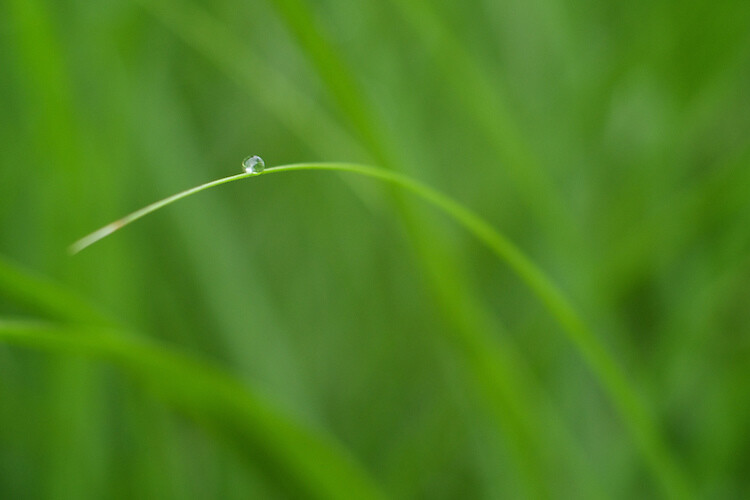
I made this image by slowly adjusting the focus on my lens while I took several shots. Only one had the single strand sharp and in focus, but that one picture was all I needed.

I made this image by slowly adjusting the focus on my lens while I took several shots. Only one had the single strand sharp and in focus, but that one picture was all I needed.

The solution to this problem is to take not one picture, but several, and use manual focus instead of automatic. I start by intentionally focusing not on the subject but slightly behind it, then I slowly turn the focusing ring on my lens as I take several images in a row. I know it can be a bit intimidating to shoot using manual focus, but once you try using this technique, you will probably start to see how useful it can be.

When you have your set of images loaded in Lightroom, or another image editor, you can then pick out the exact one you want, instead of hoping you got one in focus while relying on your camera’s built-in autofocusing algorithm. If you want to get into an even more advanced technique with focus bracketing, you can actually combine all your photos into one super-sharp image using a technique called focus stacking. But if that seems like a bit much for you, it’s still worth your time to try regular focus bracketing, just to make sure your close-up subjects are tack sharp.

Nailing focus on the water drop was almost impossible, so I took several images while focusing manually to make absolutely sure I got at least one good image.

Nailing focus on the water drop was almost impossible. So I took several images while focusing manually, to make absolutely sure I got at least one good image.

White Balance Bracketing

The final technique I want to discuss here is similar to the other two types of bracketing in that it also involves taking several photos of the same scene, while adjusting a single parameter. In this case it’s the white balance, instead of the exposure or focus. Most casual photographers use the Automatic White Balance setting on their cameras, which does a pretty good job most of the time. But every now and then it can leave an image with an ugly green or red tint, or all pale and washed out, because of improper white balance.

The lighting conditions here wreaked havoc with my camera's Auto white balance, so I took five separate exposures and manually adjusted the white balance each time in order to make sure I got one good shot.

The lighting conditions here wreaked havoc with my camera’s Auto white balance. So, I took five separate exposures, and manually adjusted the white balance each time, in order to make sure I got one good shot.

White balance bracketing can be very useful if you shoot JPG, because your camera’s Auto white balance setting is not always as reliable as you want it to be. However, if you shoot RAW you have complete freedom to alter white balance as much as you want using a program like Lightroom, Photoshop, or almost any other image editor. Because the RAW format does not discard any photo data like JPG does, white balance bracketing is not needed when you are shooting. That gives you far more flexibility for fine-tuning things like white balance, as long as you are willing to take the time to do it.

Do you find bracketing to be useful in your own photography? When have any of these techniques been especially useful to you? Share your thoughts, and any pictures as well, in the comments below.

googletag.cmd.push(function() {
tablet_slots.push( googletag.defineSlot( “/1005424/_dPSv4_tab-all-article-bottom_(300×250)”, [300, 250], “pb-ad-78623” ).addService( googletag.pubads() ) ); } );

googletag.cmd.push(function() {
mobile_slots.push( googletag.defineSlot( “/1005424/_dPSv4_mob-all-article-bottom_(300×250)”, [300, 250], “pb-ad-78158” ).addService( googletag.pubads() ) ); } );

The post How to Use Bracketing to get Your Best Shot – 3 Different Methods by Simon Ringsmuth appeared first on Digital Photography School.


Digital Photography School

 
Comments Off on How to Use Bracketing to get Your Best Shot – 3 Different Methods

Posted in Photography


Tokina AT-X 11-16 Pro DX II Review: Best Value from Wide Angle

09 Jun

Tokina 11-16mm f2.8 is an ultra wide angle lens for crop sensor camera bodies (DX) with a moderately fast constant aperture of f2.8. It is Tokina’s top of the line lens (AT-X) with an internal focusing (IF) and Super-low Dispersion glass (SD). It is available in Canon, Nikon and Sony A mounts. Due to its focal length and fast aperture, Continue Reading

The post Tokina AT-X 11-16 Pro DX II Review: Best Value from Wide Angle appeared first on Photodoto.


Photodoto

 
Comments Off on Tokina AT-X 11-16 Pro DX II Review: Best Value from Wide Angle

Posted in Photography


Critical eye: Picturesqe aims to highlight your best frames and throw out the worst

28 May

Picturesqe is a software application that’s designed to speed up the process of selecting the best image from a sequence of frames and the most successful pictures from a day’s shooting or a project. Load your images into the program and it applies artificial intelligence and machine learning to pick the best shots based on its own criteria and common preferences in photography.

The idea is that the program analyzes the pictures as you import them, highlighting some and rejecting others, in an automated process that takes the strain out of determining which are the frames to use. All you have to do is review those Picturesqe selects and chose the best of three, for example, instead of the best of the 26 you shot in that sequence.

I have to say at this very early stage that I’m not very keen on a machine making artistic decisions for me. It’s enough to battle the wants and tastes of a pushy modern camera without then allowing a canned algorithm to replace the subtle process of appreciating line, form, focus, light, composition and atmospheric exposure. That is quite a lot to expect a computer program to do, no matter how ‘intelligent’ it is. Nevertheless, I endeavored to give Picturesque a shot.

What it does

The beginning of the process involves importing your images into Picturesqe, which sends thumbnails to its servers to create groups and then determine which pictures are the best of each group.

Picturesqe is a desktop application that runs on PC and Mac platforms, using support from the cloud to run its more power-intensive tasks. Once installed the program invites the user to import images either from an external source, such as a memory card, or from files already stored on the hard drive. As images are imported they are analyzed so that they can be formed into groups of similar-looking images and then arranged in order so that the best frames of each group are positioned at the top left of the screen.

The process of grouping and ordering is done via an algorithm that exists in the cloud – or Picturesqe’s servers – so thumbnail images are sent from your machine for inspection and the information gleaned returns to Earth to inform the arrangement of images in the Picturesqe user window.

The import process doesn’t actually copy files from the memory card onto your main desk drive but acts as a filtering system in between the two – a sort of staging post – so that you’ll eventually only have to save the best of your images. This way you’ll stop clogging your machine with pictures that will never be used and never seem to get deleted.

Does it work?

I imported the contents of a memory card into the software and it sorted the 460 image into groups according to content and what it determined would be the pictures I would want to choose the best of. Pictures it couldn’t find groups for, and lone images, are left floating freely. While most grouping exercises go well there are exceptions, such as this group in which the images clearly do not belong together.

I found the results of an import and a dose of analysis to be a little mixed. At first I was impressed that Picturesqe was able to divide the contents of a memory card that contained street images, portraits and product shots into a number of mostly sensible groups. Images that feature the same color in about the same place get grouped easily, and those that contain the same objects in approximately the same composition are also bundled together with a decent degree of accuracy. Pictures that fall between stools are left ungrouped for us to leave floating on their own, to manually delete or to add to the group we think most appropriate.

Opening a group reveals what the program thinks of your pictures, as it orders them according to its perception of their merits and labels those it doesn’t think much of with a waste paper basket. Those with a sensitive nature should avoid this stage, as the program’s mathematical opinion will not necessarily reflect everyone’s perceptions of their artistic brilliance.

I had to remind myself that it was a machine I was dealing with so I didn’t have to take things personally

In some instances I was glad of Picturesqe’s help in selecting the best frames from each group, but in others I was left slightly mystified by the way my images had been treated – like entering a camera club competition. Pictures that I thought were the better of the group were often not placed ahead of others I thought less pleasing. On more than a few occasions pictures I had previously selected for printing were marked out for shredding by the algorithm in the cloud. I had to remind myself that it was a machine I was dealing with so I didn’t have to take things personally. I hope Picturesqe has good insurance to pay for user’s trauma therapy. 

I wouldn’t have grouped all of these images together as, while they are all from the same shoot, they represent the pool from which I’d hope to pull three quite different pictures. It doesn’t make sense, to me at least, to group uprights and landscape format images together.

The criteria for the grouping process is a little more open than I’d like as, for instance, it doesn’t seem to take into account the orientation of the image. When shooting a portrait, for example, I’ll shoot poses and locations in upright and landscape formats, and generally edit to offer the sitter one of each. To me then it doesn’t make sense to group uprights and landscape format images together as though you’d pick one or the other instead of one of each. On the whole though the grouping process does a pretty decent job of working out which pictures belong together, and will only rarely drop an odd frame into a group in which it clearly doesn’t belong.

Groups can be edited, of course, once the program has made them, and we can reject individual images from the group so that they float free in the main browser window. A process of drag-and-drop then allows us to manually create our own groups by bunching images together.

This is how the images look when they are first imported into the program – as they should. Picturesqe though then drops the camera-dictated color, contrast and styles for a much more ‘Raw’ looking image. Removing image characteristics doesn’t make picking a winner easier.

The application works with Raw and JPEG files, and I was impressed it is able to display the latest Raw files from the Panasonic Lumix DMC-GX80/85 even before Adobe can. It does it though at the expense of any in-camera processing settings so we see the Raw ‘Raw’ data with distortions that are usually corrected before we get to view the picture. Anything you’ve shot in black and white using Raw will also be displayed in color, though for a short few seconds images are shown as we intended before Picturesqe renders them flat and with native colors. Thus we have to make our judgements without a good deal of the qualities we might often weigh-up when selecting the best of our images – such as color.

I found this quite irritating. JPEGs are rendered just as they should be though, but when fed simultaneously-shot Raw and JPEG files we only get to see the Raws but with the rendering of the JPEGs – though I found the relationship between what I’d shot and what was displayed a little inconsistent across camera brands. If you only shoot Raw though you get to look at slightly flat and unsharp images.

Judgement Day

It seems that the ‘best’ picture (top left) has been selected by the software because the subject is quite central in the frame. The picture the software likes least (bottom right) shows the subject against a distracting background.

It’s not completely clear on what grounds the program and analysis makes its judgements as it orders our images from good to bad. I spotted that it seems to like a subject that’s in the middle of the frame, and one that sits on a third, and that it can tell within a group when the subject is against a clear background and when it’s against one that’s a bit distracting.

Magnifying the eye of the sitter from this group of portraits makes it clear that the software doesn’t place sharpness at the top of its list of priorities. The sharpest picture (bottom center) is actually marked with a waste paper basket, indicating that that Picturesqe thinks I should dump it. The shot it recommends is a good deal less focused.

Things that humans might take into account though the software doesn’t seem to – such as exposure, over-powering flash, focus and whether there are distractions in the background. It can work out when eyes are closed though, and it knows the difference between someone facing the camera straight on and someone at an angle – but it always prefers face-on as though that’s the safe formula for a ‘good’ picture. It can’t tell an unflattering angle from a complementary one though, and doesn’t distinguish between a well-lit subject and lighting that makes a nose look big.

The zoom feature identifies the part of the subject that you want to inspect and just magnifies that bit. The clever bit is that it doesn’t just magnify the same area of the frame of each picture, but actually identifies the part of the subject – wherever that subject is in the frame.

A very nice feature is the synchronized zoom that is great for checking focus across a number of images at the same time. With a collection of portraits, for example, you can zoom into the eye of one frame and the eye area of all the other frames get magnified along with it. What is particularly clever is that the eyes don’t have to be at the same coordinates in the picture for the program to magnify them, as it can identify similar objects in the images across the series.

This feature worked brilliantly for portraits, allowing closed eyes and missed focus to be spotted easily and early on, and on occasions it worked even when the images weren’t all in the same orientation. The success rate is reduced for landscapes and more general scenes where the element you want to inspect isn’t as distinct or as obvious as an eye, but the application can concentrate on rocks, trees and buildings so long as the object you are checking has reasonably powerful edges and outlines.

When the images are less regular, such as in these street pictures, the software finds it more difficult to identify the subject. Using the zoom feature didn’t allow me to compare the sharpness of the subjects in the street pictures, even though they have similar outlines and contrast in each frame.

Export

Once you have whittled your selections down to the best images in each group, or to the better groups in the collection, you are ready to export the pictures to their final destination. The editing process involves deleting the images that aren’t wanted – not from the card or from their home on your hard drive, but from the imported collection. No files are actually deleted.

To do this you’ll have to click on the trash can icon on the image. And that will have to be done on every unwanted image. So, if you have shot a sequence of 100 images and only need one you have to delete 99. You can attend to each frame individually and delete each one in turn, or you can select them all and use the delete key on the keyboard.

I’m a little unhappy about the solely subtractive nature of the process and feel I’d rather just select the best frame and export that without having to deal with the wreckage of the frames that didn’t work, but the truth is it’s more of a big deal in my head that in reality. Clearing away the duds doesn’t take that long.

Images can then be exported to a chosen folder on your hard drive or directly into Adobe Lightroom for editing. 

The research program

At the export stage the first option in the navigation is to send the images to Picturesqe’s research program. The company wants users to send images that have been rated by humans so that it can compare the ‘right’ ranking and grouping with the way the software performed. The idea is that the company can study the differences and similarities and develop algorithms that select and grade more like the user does.

The uploaded images, we are assured, will never be used for anything other than research, and the company takes only a 1500×1500 pixel thumbnail that is studied by a computer and not by a human. The idea is to build a database of how images are selected to allow the software to learn and get better at its job.

In this example the software has compared a Raw file with a JPEG I processed from that same file, and has concluded that the Raw file isn’t just weaker than the JPEG, but that it should be deleted. Had I used the software to select which Raw files I would save for processing in the first place, this one wouldn’t have ever got to the black and white JPEG stage.

Conclusion

So, Picturesqe isn’t perfect. Not by a long shot, in fact, but it gets enough right that shooters who work with long sequences of the same subject will find it useful. In more general work it is not much of a chore to compare three or four frames to select which is the better, but if your photography involves long bursts of action or multiple frames of the same thing, then what it does will be enough to make it useful and to save you time. As the engineers seem to have prioritized portraiture it makes sense that this is the area in which it works best, and for which I’d most recommend it, but motor sports and general action would suit it too.

The company doesn’t claim that Picturesqe can make judgements of taste

As the selection process tends to judge on more formulaic principals you’ll have more success with images that are more about content than artistic ideals. The company doesn’t claim that Picturesqe can make judgements of taste, but that it uses math and obvious standards to rank images, and that is exactly what you get.

There is a good deal of potential to make this a very powerful program for factual photographic subjects and the learning element of Picturesqe promises great things. Right now it needs a bit more work to make it of a standard that the majority of photographers will find it useful, but it is an interesting idea and even as it is will be useful for a good many.

Fortunately we don’t have to take its advice completely, and when you work together with the program, combining its literal mind with your own taste and style, it can work very well if you shoot the right sort of subject.

What we like:

  • A great concept
  • Easy to use
  • Very good for comparing magnified views 
  • It does have some success
  • Good for factual images

What we don’t like:

  • Success rate just isn’t high enough yet
  • It doesn’t sort by orientation
  • Doesn’t seem to take focus into consideration


Interview Q&A with Picturesqe CEO Daniel Szollosi

We got some time with Daniel Szollosi, the CEO and founder of Picturesqe, and questioned him about the way the application works and some of the issues we picked up during the review process.

DPReview: The process to get to the pictures photographers want to save and work on means they have to delete those that they don’t. So, in a collection of 100 pictures to get to one you want to keep you need to delete 99. Is there a way to just export the one you want instead of going through the process of deleting the 99?

Daniel Szollosi: We realize it is not a perfect workflow concept, you are totally right. Originally our primary goal was to get rid of the digital trash – so image deletion was the main focus. Since then we have come up with a new workflow, which directly helps the selection of top quality photos. The new workflow is going to be released in the next version of Picturesqe.


DPR: Raw files don’t always look the way they were shot – when they are supposed to be black and white, for example. Does that only happen when there is no simultaneously shot JPEG imported with it?

DS: We know about this bug. It’s related to white balance, we have problems with setting the right value yet. 


DPR: Your program displays Raw files from cameras that are new and which Adobe can’t display yet. How does that happen?

DS: We’re using a 3rd party library for decoding Raw camera images. Another advantage of this library is that the user doesn’t need to install any kind of camera drivers. 


DPR: The program doesn’t always detect when images are out of focus – is it supposed to or is that something you are working on?

DS: We are definitely working on it! In the next version we expect a really big improvement regarding focus detection. We have developed a technology which seems to be better than the current state-of-the-art regarding local sharpness/blur evaluation. 


DPR: Picturesqe seems to prioritize images where the subject is in the centre of the frame, or on a third. Is that part of the analysis? What other factors are taken into account?

DS: We do take into account composition factors, like rule of thirds. The quality factors we take into account are:

  • Location of visually attended area
  • Exposure (globally and in the visually attended area)
  • Focus (global blur, wrong focus localization)
  • Lighting distribution
  • Color harmony
  • Composition
  • Optical distortions
  • Visual noise

DPR: In some cases the program recommends deleting a Raw file but promotes a JPEG processed from that file to the top of the stack. Why does that happen?

DS: Thanks for mentioning this, we have not thought about it. We resize the images to a smaller size when evaluating the quality and aesthetics and on this scale Raw information does not exist anymore. We can easily implement a filter which prioritize Raw images when compared to its JPEG descendant.


DPR: Does Picturesqe assess exposure and the content of the background?

DS: Semantically we do not interpret the content of the background, but visually we assess the background and the foreground separately. The quality attributes calculated from the foreground have more weights.

Articles: Digital Photography Review (dpreview.com)

 
Comments Off on Critical eye: Picturesqe aims to highlight your best frames and throw out the worst

Posted in Uncategorized


The 5 Best Google Nik Color Efex Pro 4 Filters and How They Can Amplify Your Images

21 May

The Google Nik collection has been considered one of the top photographic effect plugin suites for a few years now, and it just got better in a big way – as of March 24th, 2016, it’s available free of charge.

This move has been applauded by many, yet accompanied by caution with by some, since a few analysts see this as the beginning of the end for the software suite. This is all speculation of course, and regardless of what the future holds for the Nik collection, it is a highly useful set of tools that can benefit any photographer, of any skill level.

Nik color efex pro

Color Efex Pro

The highlight of this set has always been the all-around workhorse, Color Efex Pro. The current version, Color Efex Pro 4, is a complete package in itself, featuring a variety of effects of the highest quality. Although you can sort the list of effects by photo type (landscape, portrait, etc.), there is a lot to explore.

Let’s go through five of the most useful and effective tools available in this package, and see how they can boost the appearance and effectiveness of your images.

Foreword

As with all of the tools within this suite, the filters described below include a Control Points feature within the panel of individual filter controls. This feature is invaluable, and allows you to add positive or negative points anywhere in the image, adding or reducing the effect of the filter in targeted areas. Each point can be individually controlled to modify range of effect and opacity. Combining these points with the filters gives you almost unlimited control of how the filters will effect your final photograph. I encourage you to play around with the control points, and you’ll quickly see how they can help you turn your image into the picture you initially envisioned.

1 – Bi-Color Filters

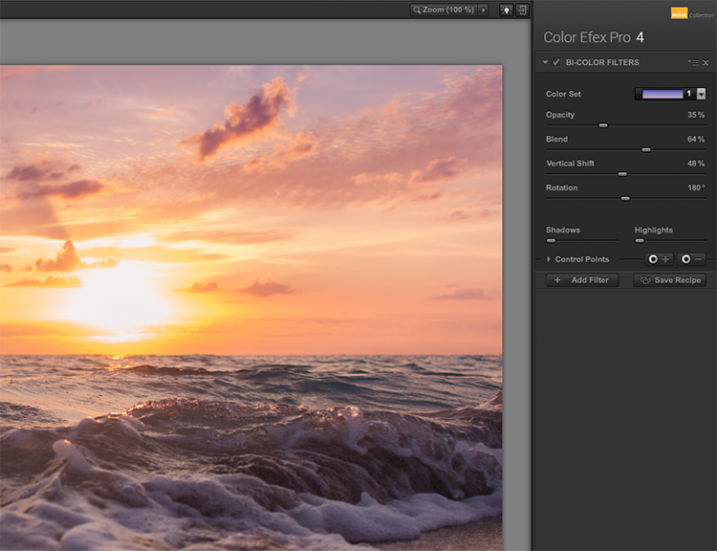
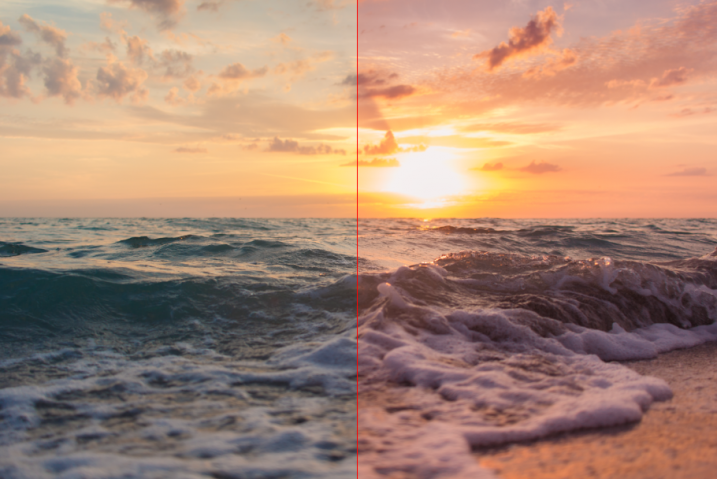
This filter is meant to simulate standard bi-color filters that would normally be affixed to your camera lens. Two preselected colors are blended together along a plane and mixed with your original image, creating a very customizable look that can completely change the tone of the photograph.

Although another bi-color filter is available that allows you to choose the two colors to be blended, the original filter has already selected many color combinations divided into five shade groups, such as browns, cool/warm, violet/pinks, and so on.

Nik color efex pro

Once you have selected a color set, you can further modify the appearance of the filter by adjusting several sliders, including Opacity which allows you to increase or decrease the intensity of the overall effect, and Blend slider, which softens or sharpens the line between the two colors. The entire effect can be rotated around the image using the Rotation slider.

article_cep4_screen6

Once you have mastered the controls for adjusting the bi-color filter effect, you can then move on to the User Defined Bi-Color Filter, which has similar controls, and allows you pick any two colors to blend with your image.

2 – Contrast Color Range

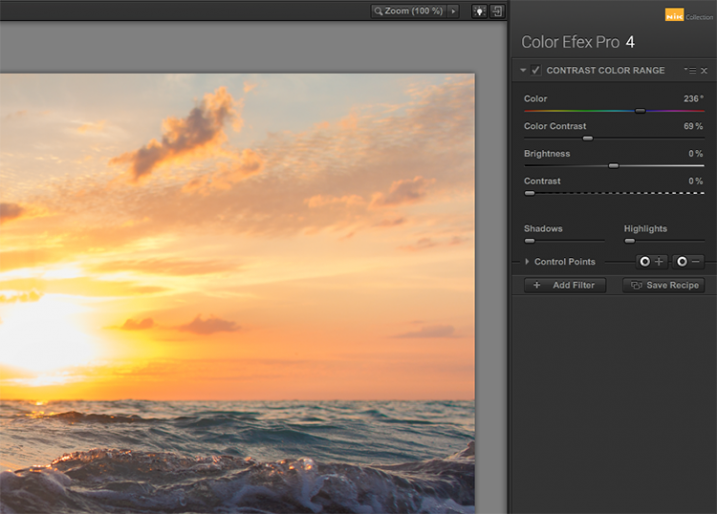
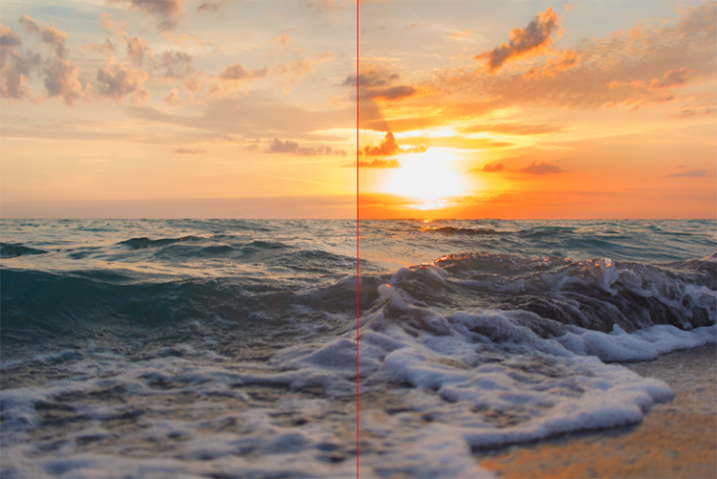
The Contrast Color Range filter allows you to selectively modify contrast within certain colors of a photo. Selecting a color will cause that color range to become lighter or less saturated, and colors opposite of it to become darker or more saturated. For example, selecting a blue or purple color range in an image featuring a sunset (with a lot of orange within the photo) will intensify the red and orange colors, making the sunset much more dramatic.
Nik color efex pro

The two main tools to understand here are the Color, and Color Contrast sliders. The Color slider will select the color range, while the Color Contrast slider will adjust the intensity of the effect by increasing or decreasing the contrast between the color selected and its reciprocal.

Nik color efex pro

Below these are controls for Brightness and Contrast, which behave similarly to their counterparts in Photoshop or Lightroom.

3 – Detail Extractor

While most users might argue in favor of using the excellent Pro Contrast filter (discussed below) over the Detail Extractor, I’d argue that it depends on what look you’re going for. For a smoother, less enhanced result, Pro Contrast would definitely be the way to go, but to add insane levels of drama to your image, the Detail Extractor is just what the doctor ordered.

Nik color efex pro

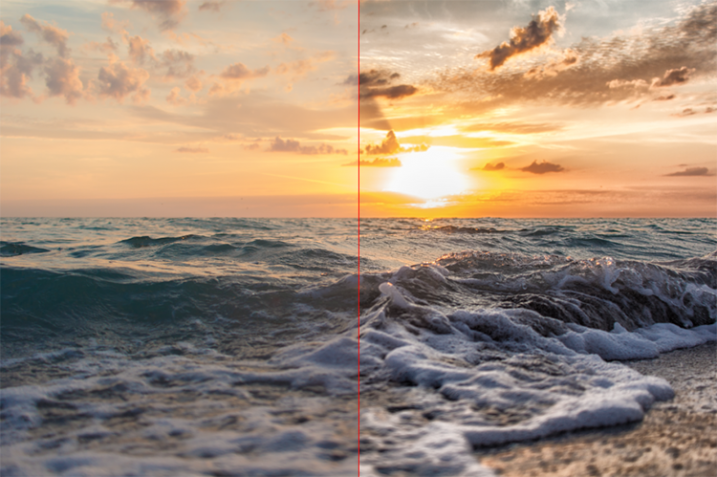
This tool adds that drama by disrupting the balance of shadow and light within the photo, to pull much more detail, giving you a dark and gritty stylized result that can really grab the viewer’s eye.

Nik color efex pro

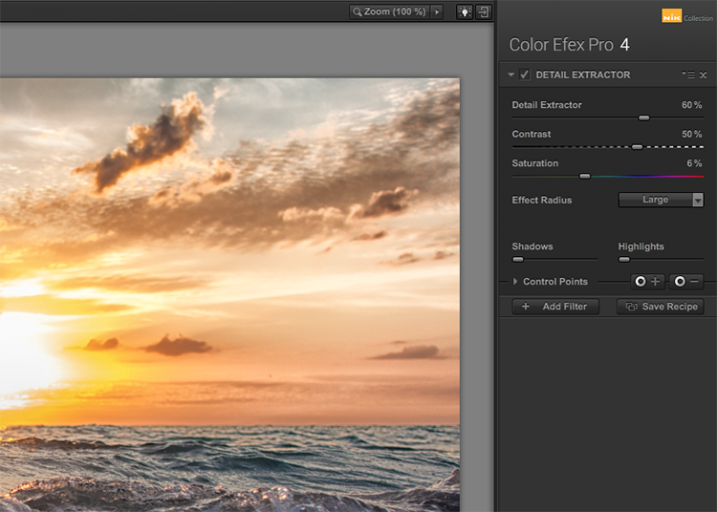
The main control used to create the effect here, is the Detail Extractor slider. Moving it to the right increases the amount of details highlighted. In addition to Contrast and Saturation adjustments, there is also an Effect Radius adjustment available, which allows you to target whether fine or large elements within the image are modified.

4 – Pro Contrast

Without a doubt, the Pro Contrast module in Color Efex 4 is my favorite filter by far. Admittedly, half of my interactions with the Nik Filters involve me making all of my adjustments in Lightroom, and using Color Efex 4’s phenomenal Pro Contrast to add the bit of drama and flair I’m looking for, without going over the top and getting an overcooked result.

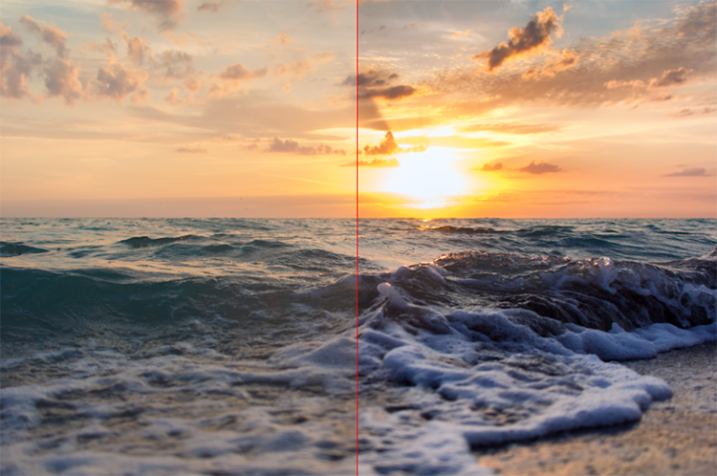
The tool analyzes the image to determine how the contrast adjustment will affect the loss in detail inevitable in this type of correction, and minimizes it. The filter can turn a flat, lifeless, image into a colorful and vibrant photo with almost perfect levels of contrast.

Nik color efex pro

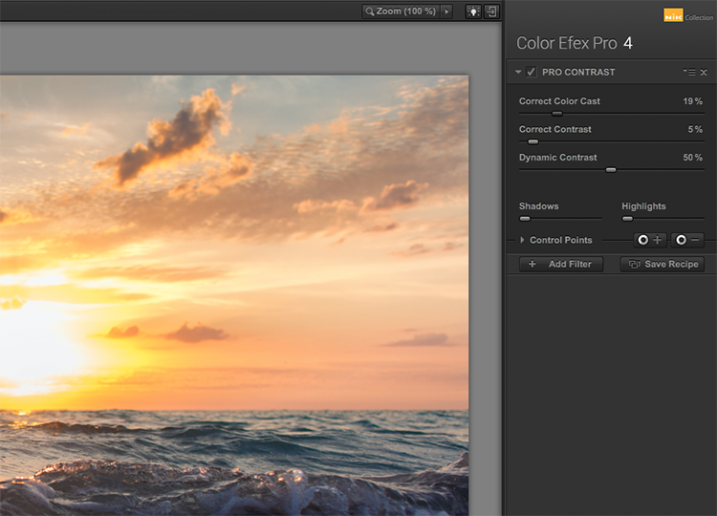
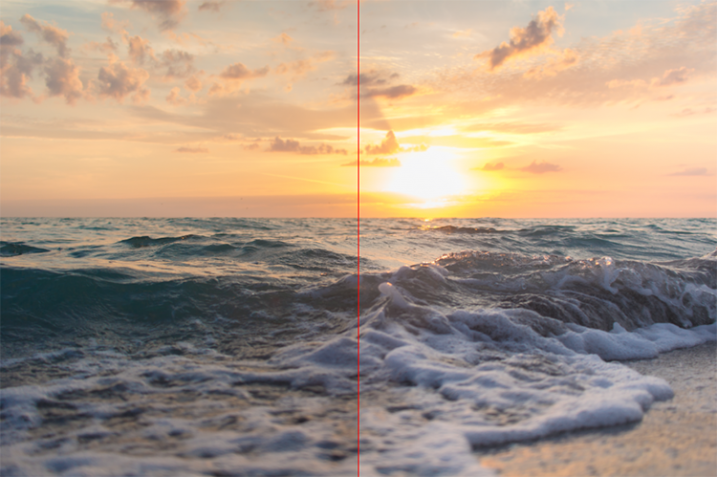
Pro Contrast features three sliders, each one of them important to the final result. Correct Color Cast analyzes the photo, and produces an algorithm to remove any inherent color cast it finds. Moving the slider to the right will reduce this cast and smooth out the tonal scheme of the image. In the ocean sunset image shown here, applying Correct Color Cast removes the orange hue cast upon the waves in the foreground, and returns them to their proper blue.

Nik color efex pro

Correct Contrast applies a general contrast adjustment based on the tonality of the image, as analyzed by the software. Finally, Dynamic Contrast introduces the real magic; areas of the photo that are flat are boosted in contrast, while areas already featuring high contrast are not. This allows for a rich, beautiful enhancement, without muddy tonal structures and details that might normally be lost.

5 – Reflector Efex

We all understand the need for a reflector when creating portraits; whether it be a natural-light or studio situation, certain areas of our subject (usually a person’s face) are befallen with shadows due to the interaction of the subject with the light being used. Reflectors allow us to bounce light onto our subject, and target it to fill in these areas of shadow, producing an even layer of light.

Nik color efex pro

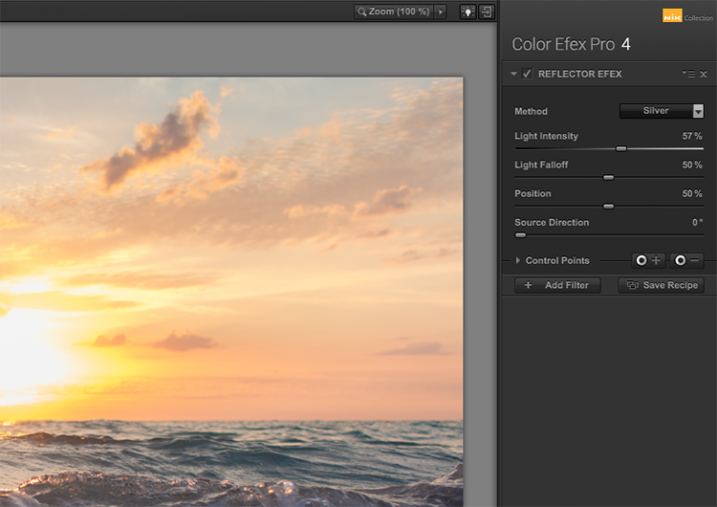
The Reflector Efex filter takes that concept and turns it up to 11, by simulating a silver or gold reflector’s use within your image, and allowing you to modify it in a number of ways to illuminate the photo exactly as you envision it.

First, you select a Method, which is effectively picking which color of reflector to use; gold, soft gold, or silver. You’ll then use the Intensity slider to select how much light will be bounced onto the image. This is equivalent to adjusting power output of a studio light, or the harshness of sunlight in an outdoor situation.

Nik color efex pro

The Light Falloff and Position sliders allow you to adjust how softly or sharply the effect of the bounced light trails off, as well as the position of this falloff. Finally, the Source Direction adjustment lets you change the position of the reflector; if you need light directed to your subject’s left side, you would position the Source Direction between 270° and 360°, which is the bottom, to bottom right corner of the frame.

Conclusion

We don’t know what the future holds for the Nik collection, as a price reduction to zero doesn’t bode well for continued enhancements or updates of any kind. But, for users of the software this may not matter, as it is already an integral part of many photographer’s toolkits, amateurs and professionals alike. The entire collection is of incredible value. But, Color Efect Pro 4 in particular, features these, and many more tools that can be incorporated into your everyday photographic workflow from Lightroom or Photoshop, and give your images a competitive edge!

What about you? Do you already use Google’s Nik Collection? If not, will you try it now after it has been changed to a free product? Are there other filters within the collection you find just as useful for your own workflow? Sound off below please, ladies and gents!

googletag.cmd.push(function() {
tablet_slots.push( googletag.defineSlot( “/1005424/_dPSv4_tab-all-article-bottom_(300×250)”, [300, 250], “pb-ad-78623” ).addService( googletag.pubads() ) ); } );

googletag.cmd.push(function() {
mobile_slots.push( googletag.defineSlot( “/1005424/_dPSv4_mob-all-article-bottom_(300×250)”, [300, 250], “pb-ad-78158” ).addService( googletag.pubads() ) ); } );

The post The 5 Best Google Nik Color Efex Pro 4 Filters and How They Can Amplify Your Images by Tim Gilbreath appeared first on Digital Photography School.


Digital Photography School

 
Comments Off on The 5 Best Google Nik Color Efex Pro 4 Filters and How They Can Amplify Your Images

Posted in Photography


Top 6 Best Cameras Under $1000

29 Apr

If you are interested in taking up photography as a hobby or just love snapping pictures of family and friends, you are probably well aware of how expensive most high-end digital cameras can be. The really great cameras all seem to be well outside your budget. In fact, if you happen to run across a great camera for around $ 3000, Continue Reading

The post Top 6 Best Cameras Under $ 1000 appeared first on Photodoto.


Photodoto

 
Comments Off on Top 6 Best Cameras Under $1000

Posted in Photography