RSS
 

Posts Tagged ‘After’

Revisiting Film Photography After 10 Years: Development & Post

26 Apr
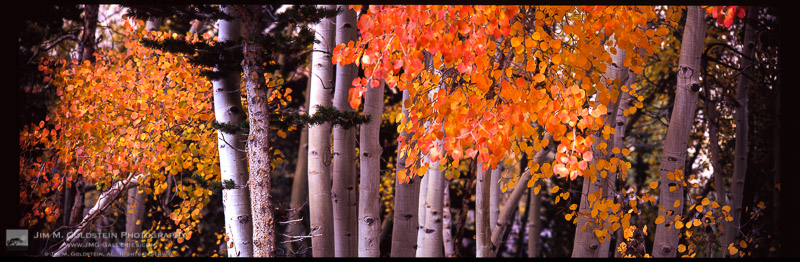
Brightly colored Aspen leaves cling to branches as Fall comes to an end in the Sierra Nevada mountains.

Brightly colored Aspen leaves cling to branches as Fall comes to an end in the Sierra Nevada mountains.

This is the 3rd of a 3 part series on my experience jumping back into film photography after a 10 year hiatus focusing purely on digital photography. You can start here at Revisiting Film Photography After 10 Years: The Readjustment if you missed it.

Withering Vine of Development vs Hipster Revival
These days you hear a lot about how film development has withered away to virtually nothing and I even wrote Film is Dead. No Really! back in 2009 . Depending where you are this may indeed be true. Long gone are the days of having easy access to development at a corner store. In that regard my post from 2009 still holds true. Luckily for me I live near San Francisco and the hipster revival of film has helped keep a few developers, like Light Waves Imaging, alive and kicking. Before finally going to Light Waves I did call around for other alternatives and the few mom and pop stores remaining ship their customers positive film to larger developers elsewhere in California. Rather than wait I opted to drive to Light Waves and pick up my film in 24-48 hours.

Pains of Review and Scanning
It took a while to get used to waiting to see the outcome of my Eastern Sierra shoot on film. It didn’t help that I had immediate access to images I took in parallel on a DSLR. This heightened my interest in seeing my film exposures because I wanted to see how the two formats compared. The last time I shot film side by side with a DSLR it was with an 8.5 megapixel sensor (1.3x crop) Canon 1D Mark II. On this trip I was shooting with a Canon 5DS R which utilizes a 50 megapixel sensor.

When the time came to pick up my film I brought my 5 year old son along and he had plenty of questions at the store counter as to what film was and why it was different than my digital camera. That in itself was a surreal experience as he has only seen digital photographs to this point. I had fun showing him how the images looked on the store light box, but it was still a fairly abstract concept for him to absorb. After spot checking a couple frames on each roll to see if there were any absolute failures (luckily there were not) we headed home. That evening I quickly learned that my old light box was missing a power cord and in a fit of impatience I started using my iPad as a light box. Considering this worked relatively well, but with a loop you see pixels behind your film and I found it distracting. I priced light boxes to buy, but opted to hold off and scanned each frame on my Epson V700 photo scanner.

Am I A Film Worthy Photographer?
I have to admit I was nervous about jumping back into film after 10 years because I wasn’t sure how well I’d hold up to a very unforgiving format. You have a finite number of frames to expose, limited latitude in dynamic range, and a variety of ways to mess up an exposure. I wasn’t a bad film photographer back in the day, but I forgot how bad failed film images made me feel. It’s a miracle I stuck it out with photography. One of the nights I was scanning film I summed up my feelings about film photography on Facebook with the following update:
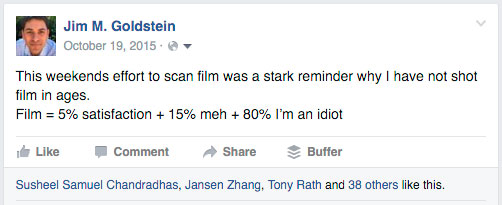
Film = 5% satisfaction + 15% meh + 80% I’m an idiot

Film = 5% satisfaction + 15% meh + 80% I’m an idiot

In the end I turned out to be a “worthy” film photographer. The stats turned out as follows:

  • 29% (13/45) are worthy of working further on (sharp, decent composition, etc.)
  • 11% (5/45) are likely worthy of sharing/printing from the 6×17.
  • 7% (3-4) are likely worthy of sharing from my pinhole camera.
    Note: Each roll of film was comprised of 4 exposures.

The numbers weren’t super impressive, but having >10% of my exposures being worthy of sharing and printing surpassed my expectations. Knowing that while using a new camera system for the first time I could get decently sharp exposures balanced the horrible dread I felt looking at each exposure where I didn’t advance the film properly, under/over exposed, mis-focused, and/or made poor composition choices.

Post-Production
One thing that remained universal 10 years on was how frustrating the results are from scanning film. Whether using a negative or flatbed scanner the resulting scan is soft and looks like a muted version of the film itself. One good thing about the downfall of film is that drum scans are much more reasonably priced. That said for my first time out, flatbed scans were good enough for sharing online.

Looking at my film to edit in Lightroom and Photoshop I felt as though I was transported back in my frustrated younger self 10 years earlier. Other than the interface of the software nothing had changed in the sense that I was color correcting, spotting and sharpening my scans. I found myself meticulously removing color casts with curves adjustments in Photoshop, spotting my image to remove dust spots created by dust on the scanner glass or film itself and trying to resurrect the sharpness of my image after being softened in the scanning process. It made me want to jump ship again to digital… until I saw how final 6×17 image came out.

One other thing that was surprisingly refreshing was once again enjoying the look of Fuji Velvia. In an age where presets are obsessed over as much if not more than cameras I liked seeing a defined look of a particular film. One could argue that the look of film is in itself a preset, but my point here is that it’s a distinct style I long missed seeing. No attempt at a recreated look via a digital preset compares.

Concluding Thoughts
Film photography is both an exhilarating and frustrating experience. Working with a film camera in the field was refreshing. Slowing down and taking in the scene while composing & setting up was incredibly refreshing. I instantly realized how much this had been missing from my digital shoots. On the other hand waiting for my film to be developed, taking a hit to my ego each time I viewed a failed exposure and dealing with the hassles of scanning & post-processing was enough to make me unconsciously start pulling out my hair. If I wasn’t so in love with the 6×17 format I’d likely revert back to shooting digital 35mm exclusively. Luckily for my remaining rolls of 120 film I’ll be taking them out again soon. I’ll keep plugging away with 6×17 film work over the next few years for select personal projects. Film lives after all.


The post Revisiting Film Photography After 10 Years: Development & Post appeared first on JMG-Galleries – Landscape, Nature & Travel Photography.


JMG-Galleries – Landscape, Nature & Travel Photography

 
Comments Off on Revisiting Film Photography After 10 Years: Development & Post

Posted in Equipment


Machine 3D-Paints ‘New’ Rembrandt After Studying the Master

13 Apr

[ By WebUrbanist in Art & Drawing & Digital. ]

remnant design diagram

As part of The Next Rembrandt, a multi-year collaborative project, a team of engineers trained a computer not only to understand the works of this famous Dutch master but also to expand his portfolio. Ultimately, the machine created a portrait that is at once brand new and yet also looks (and feels) like a lost original work of Rembrandt Harmenszoon van Rijn.

next rembrandt studied painting

An incredible combination of both machine learning and 3D printing, the project involved digitally tagging data in scanned versions of the artist’s various known pieces. Resulting patterns were subsequently explored by computers, including: brush strokes, approaches to organic detail and uncanny ability to depict human emotions.

next rembrandt new original lost work

The result is an algorithmic creation that mirrors the style of the master and depicts a Caucasian male in his thirties, with facial hair, black clothes, a white collar and a hat, facing to one side.

lost remnant detail view

Humans input those general parameters, but did not have a say in the look or feel of the final print. A 3D texture was added to the work based on the height and depth of paint applied to Rembrandt’s actual works.

next rembrandt

The two-year project was a collaboration between Microsoft, financial firm ING, Delft University of Technology and two Dutch art museums – Mauritshuis and Rembrandthuis. A public exhibition of the portrait is planned and details of the display will be released at a later date.

From the project creators: “It’s been almost four centuries since the world lost the talent of one its most influential classical painters, Rembrandt van Rijn. To bring him back, we distilled the artistic DNA from his work and used it to create The Next Rembrandt. We examined the entire collection of Rembrandt’s work, studying the contents of his paintings pixel by pixel. To get this data, we analyzed a broad range of materials like high resolution 3D scans and digital files, which were upscaled by deep learning algorithms to maximize resolution and quality. This extensive database was then used as the foundation for creating The Next Rembrandt.”

Share on Facebook


[ By WebUrbanist in Art & Drawing & Digital. ]

[ WebUrbanist | Archives | Galleries | Privacy | TOS ]


WebUrbanist

 
Comments Off on Machine 3D-Paints ‘New’ Rembrandt After Studying the Master

Posted in Creativity


Your Next Purchases After You Get a New Camera

07 Jan

Buying camera gear can be a daunting task, especially if you’re just starting out with photography basics. If you recently got your hands on a new camera, chances are you’ll need a few extra accessories before you’re ready to start shooting like a pro. So, before you start snapping away, go through this checklist and make sure you consider adding a few extra accessories to your photography kit, before taking it out for a spin. As a heads up, this article is written assuming you have a new digital (not film) camera.

new camera accessories

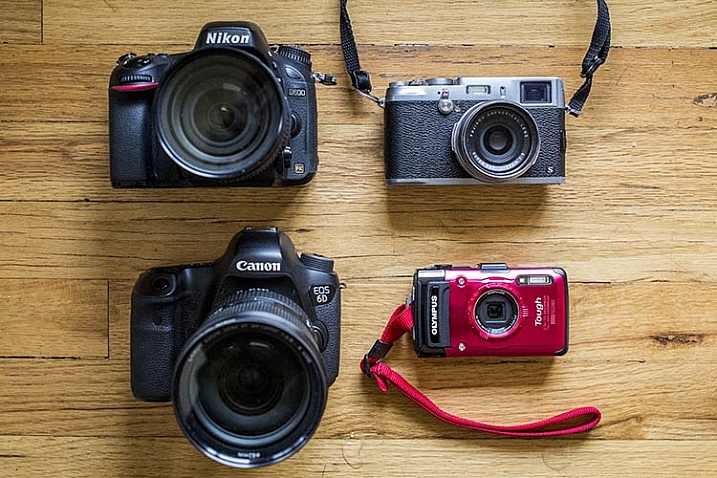
The two cameras on the right are interchangeable lens cameras; the two on the right are not.

1. Extra Lenses

The very first thing you’ll want to do is take a close look at your camera and determine whether or not it is an interchangeable lens camera. If your camera can change lenses, it is considered one, and you will definitely want to think about adding a lens or two to your kit. However, if your camera’s lens cannot be removed, skip this section and move on.

When evaluating which camera lenses to get first, it’s generally not a bad idea to start out with the kit lens that is usually sold with a new interchangeable lens camera (SLR or Mirrorless). These kit lenses are considered starters, and they are inexpensively priced and versatile. Most kit lenses are zooms, meaning you can take a close-up, or wide-angle shot, by simply twisting the zoom ring on the lens.

new camera accessories

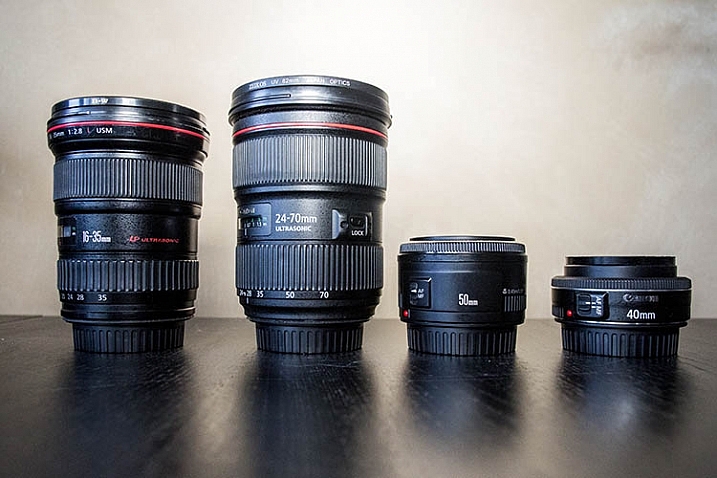
The two lenses on the left are zooms; the two lenses on the right are primes.

Another lens alternative, that most beginning photographers don’t usually know about off the bat, are prime lenses. They only have one focal length, meaning you have to physically move yourself to zoom in, or out, of a photo. The benefits of shooting with prime lenses are numerous including:

  • Quality: Most primes are slightly higher quality, and have crisper images than those taken with zoom lenses.
  • Size: Prime lenses are smaller, more compact, and weigh less than zooms.
  • Price: Prime lenses are usually pretty reasonably priced, compared to zooms of the same quality (maximum aperture).

If you’re considering purchasing a prime lens to accompany your kit lens, start out with a 35mm or 50mm lens. In terms of composition, 35mm (on an APS-C or cropped sensor) is the closest focal composition of the human eye, meaning it will allow you to capture more or less the same amount of a scene that your eye sees. The only downside to 35mm lenses is that they tend to be a bit bulky and expensive, which is why the 50mm is often a preferred alternative at a fraction of the size and price.

As a beginner shopping for prime lenses, ignore the different f-stops (i.e. f/1.4, f/1.8, f/2) specified for each lens and simply purchase the cheapest prime lens that fits your budget. Lenses hold their values well over time, so you can always sell it later when you’re ready to upgrade.

2. Memory Cards

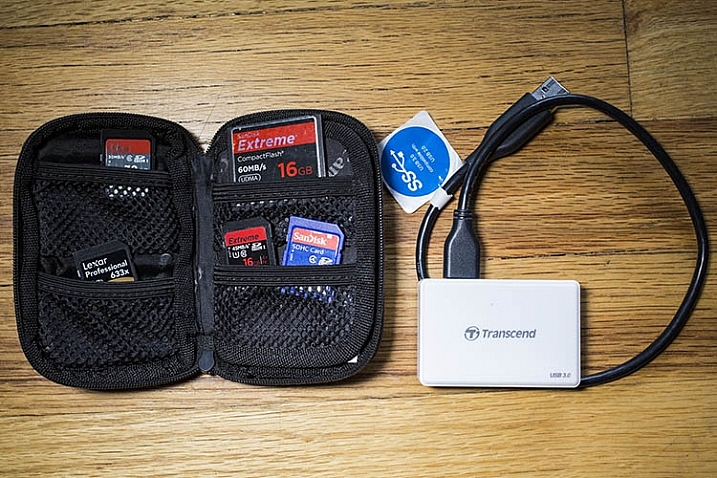
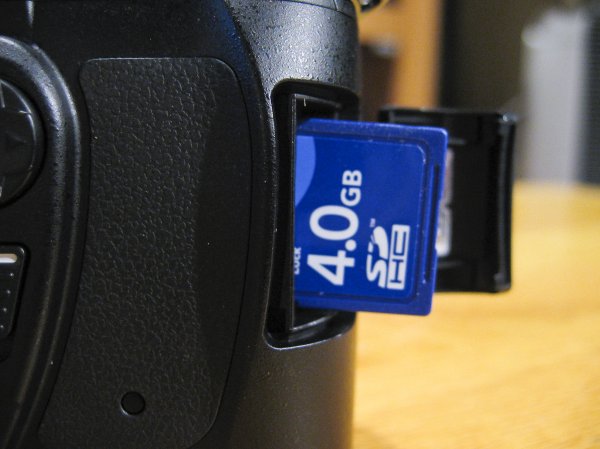
Before you can shoot anything with your new camera, you need memory cards to store all of your photos on your camera. There are a number of different memory cards available, with the most common being the SD (Secure Digital card) and the CF card (Compact Flash card). Be sure to check your camera’s manual, and make sure you buy the right type of memory card. As a beginner, start out with 16GB or 32GB memory cards, and have at least two on you just in case. Also, keep an eye out for sales on memory cards, and stock up when prices are low. You can never have too many!

new camera accessories

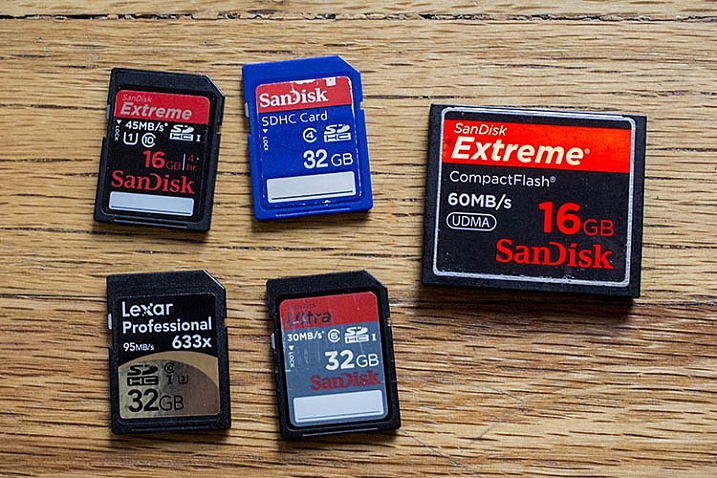
SD memory cards are on the left. The large card on the right is a CF (compact flash) card.

3. Memory Card Case and Reader

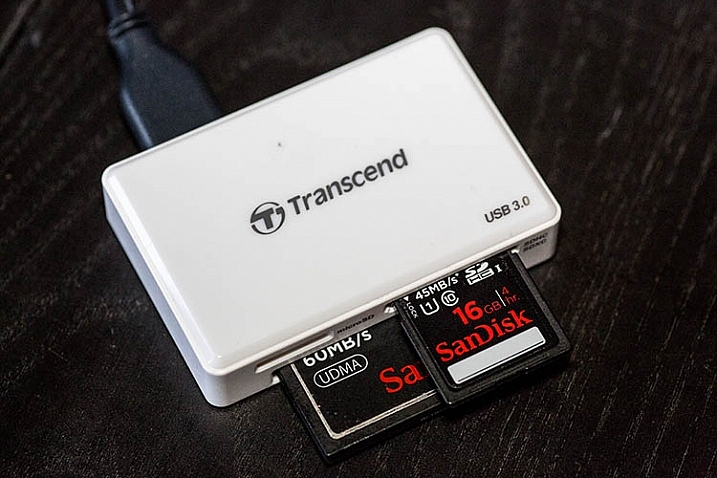
After you purchase memory cards, consider also adding a case or wallet, dedicated to storing and organizing your extra memory cards, as well as a card reader to transfer images from your camera to your computer. Many laptops have built-in memory card readers, but these will generally only accept SD cards. Also, I’ve destroyed many of a memory card by incorrectly inserting SD cards into my laptop, so I always use a card reader. They’re inexpensive, compact, and can even transfer over several memory cards at a time.

new camera accessories

new camera accessories

A memory card reader in action.

4. Ergonomic Camera Strap

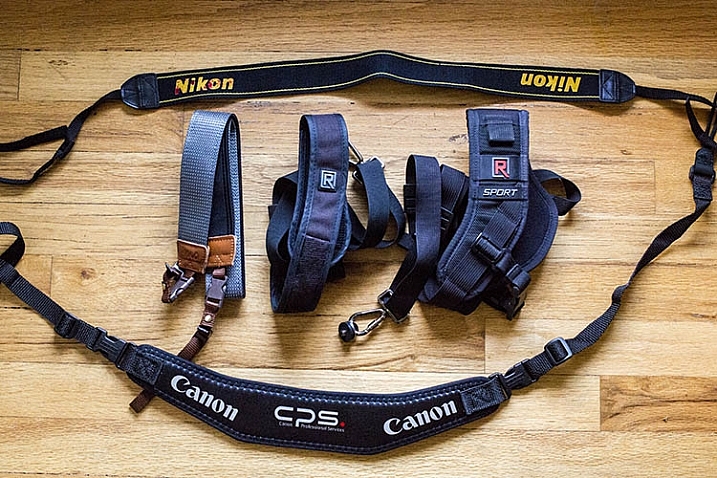
While every brand new camera will come with its own default camera strap, there is also a variety of others available that can help you carry your camera in a flexible, stylish manner. One of the most popular alternative straps is the camera sling, which rests comfortably on your shoulder and keeps your camera hanging closer to your hip, rather than dangling around your neck in front of your chest. There are also rugged, sturdy camera wrist straps if you prefer keeping your camera at arm’s length.

new camera accessories

5. Adobe Creative Cloud Lightroom subscription

Just like all of the items previously mentioned in this article, there’s certainly no shortage of photo editing software choices. But if you’re just starting out, you may as well start with the industry standard for photo editing: Adobe Lightroom.

Considerably more user-friendly than Photoshop, Lightroom doesn’t let you do a ton of photo manipulations like putting your dog’s head on your cat’s body, but it does give you a plethora of tools to process your images. While Lightroom used to cost an arm and a leg, the new Creative Cloud subscription gives you unlimited access to the latest and greatest version, for a low monthly fee. Lightroom is used by pros and hobbyists alike, so if you plan to get serious about photography, take the time to learn how to edit photos in Lightroom.

Over to you

There are certainly plenty more recommended accessories for beginning photographers. You can see a list of the favorite photography gadgets of our dPS writers here.

Would you add any others to the list? Let me know in the comments below.

googletag.cmd.push(function() {
tablet_slots.push( googletag.defineSlot( “/1005424/_dPSv4_tab-all-article-bottom_(300×250)”, [300, 250], “pb-ad-78623” ).addService( googletag.pubads() ) ); } );

googletag.cmd.push(function() {
mobile_slots.push( googletag.defineSlot( “/1005424/_dPSv4_mob-all-article-bottom_(300×250)”, [300, 250], “pb-ad-78158” ).addService( googletag.pubads() ) ); } );

The post Your Next Purchases After You Get a New Camera by Suzi Pratt appeared first on Digital Photography School.


Digital Photography School

 
Comments Off on Your Next Purchases After You Get a New Camera

Posted in Photography


Pete Ashton’s ‘Sitting In Stagram’ shows image degradation after 90 reposts

19 Aug

What happens when you screen-cap and re-post a photo to Instagram 90 times? Artist Pete Ashton’s ‘Sitting In Stagram’ project shows just that – and it’s not pretty. Read more

Articles: Digital Photography Review (dpreview.com)

 
Comments Off on Pete Ashton’s ‘Sitting In Stagram’ shows image degradation after 90 reposts

Posted in Uncategorized


Composition After the Fact: Cropping for Maximum Impact

10 Aug

It may at first seem simple. You took the shot a little wide, or a sneaky branch that you didn’t notice found its way into the edge of your photo. In Lightroom (LR) it’s just a quick press of the R key to activate the crop tool, hold down the shift key to constrain the crop so you don’t get a weird aspect ratio, and your task is complete.

A cropped portrait

The crop tool – simple, yet powerful.

On the contrary, cropping is one of the more powerful tools that you have at your disposal to dial in the composition of your images. Prime lens users will also find that the limited versatility (compared to zoom lenses) can result in the need for cropping more often.

First, let me make the caveat that many aspects of photography are highly subjective. Some of the information and advice offered in this article is my personal opinion, and is the approach I take to create images that fit my style. Personal preference always prevails. Anything called a rule is only so because a common pattern was identified within compositions that are considered especially attractive.

In many respects cropping echoes the fundamental principles of composition. Luckily, if you didn’t get what you wanted the first time around, when you took the photo, you get a second chance, albeit limited, to recompose your images in post-production for maximum impact.

The Basics

The very first thing I look for, and correct, in any photograph that I edit is straight lines. Horizon lines and any vertical lines that are near the edges of the image, should be straight. It absolutely drives me crazy when I see photos with crooked lines.

That being said, lines can be crooked, but it better be obvious that was the intent, otherwise it just looks like careless composition or lazy editing. In the right context a skewed horizon can add drama, and make an image more dynamic.

Photo cropped with crooked horizon.

Crooked horizons can make viewers cringe unless the intent is obvious.

Make this your first step in cropping, because depending on how radically you have to rotate the image you may be forced to crop the edges of the image.

If you have the time when composing the shot, and your camera has a built-in virtual horizon feature for levelling, by all means do so. I have delegated a customizable button on the front of my camera for activating this feature, and I use it all the time.

With the crop tool activated in LR (keyboard shortcut R) there are a few ways to straighten out an image:

  • Drag the Angle slider left or right
  • Click on the value to the right of the slider and drag left or right (scrubby slider)
  • Click on the numerical value and enter whatever you want
  • Hold the CTRL key while dragging along a straight horizontal or vertical line (will correct on either axis) and LR will fix it automatically
  • Also new in LR6 (LR CC) is the “Auto” feature for the crop tool. Just click it and see how it does – then tweak as necessary.

Elimination

A senior photojournalist at a newspaper I once interned for, gave me a memorable piece of advice while critiquing my photos, he said, “crop until it hurts.” It was his way of telling me that I was leaving too much dead or negative space in my compositions.

To this day his advice always resurfaces in my mind when I’m editing images, especially with portraits or other photos with people in them. Fight the urge to become attached to pixels. Crop out half of the photo if need be. Unimportant areas of a photo are not precious real estate.

Cropping to isolate the subject.

You can’t always get as close to the action as you would like (or it is safe to do so) and heavy-handed cropping can make all the difference.

The fact of the matter is that simple is better. We all suffer from attention deficit disorder, and viewers usually don’t want to spend too much precious time analyzing a photo to get the story. Consider the allure of silhouette images. When cropping look for simple compositions and try to distill the scene down to its essence.

Once the image is rotated and you’ve been forced to chop off some of the edges, look for elements that detract, distract or add little to the image. You may not have a choice but to include them, but it’s good practice to be cognizant of them and it may help guide the rest of your editing process or future compositions.

You see many images where the photographer is too conservative when cropping portraits or photos of people. Again, each photo is different, and there is no magic formula, but for example, I find that tight profile shots of people grab my eye more when they are cropped in really close. I am not afraid to cut off the back of the subject’s head, putting their ear in the upper corner of the image, or even cropping the ear out.

Tight cropped portrait

Cropping in very tight can sometimes create a more powerful image.

Negative space can play an important role, especially if shooting for a publication where they need space for text. But, the nice thing about having post-processing options is that you can always revert back to the original. If you compose your images super tight in camera, you can’t get that negative space back.

Leading Lines

Although thoughtfully composing your shots through the viewfinder is one of the more rudimentary skills in photography, there are often distractions. You may find surprises when you pull up the final image on your computer screen.

In photography, as well as painting and other forms of art, you should always be thinking about the arrangement of elements in the image that are going to draw in the viewer’s eye. A compelling subject is just that, but it is your job as photographer to strive to portray that subject in the most powerful, or striking way possible.

Utilizing leading lines to draw in the viewer's eye.

It’s easy to overlook compositional elements while shooting moving subjects. Post -processing cropping reveals additional possibilities for framing your shots like using leading lines to draw in the viewer’s eye.

When we talk about leading lines it’s not always an obvious straight line. Often it is an invisible thread that takes the viewers’ gaze hostage and leads it through the scene. Think of a series of elements that create a pattern.

Diagonal lines which stretch towards the subject are a common, and effective, way to create interest and tension in an image.

Using Crop Overlays as Guidance

In all of its ingenious glory, LR has included several overlays in the Crop tool to help guide your cropping endeavors. There is a basic grid, the Rule of Thirds, the Golden Ratio, the Golden Triangles, diagonals and the Golden Spiral. With the Crop tool active, the keyboard shortcut O cycles through the various overlays and Shift+O rotates the overlay where applicable.

Personally, I find myself using the Rule of Thirds overlay most often. The Rule of Thirds says that when two horizontal and two vertical lines are drawn across the frame to divide it into equal thirds, the subject or elements of interest, should be placed on, or near the intersection of those lines.

Example of the rule of thirds.

The rule of thirds suggests that the subject be placed at the intersection of lines that separate the image into thirds.

An easy mistake to make is placing the horizon line right in the middle of the frame. This is generally considered a no-no, and is a significant compositional faux pas. The Rule of Thirds overlay gives you those handy horizontal lines for recomposing your photo.

The Golden Ratio and Golden Spiral overlays are closely related. There are a bunch of names for this formula including Phi, the Golden Mean and Fibonacci’s ratio. The Golden Ratio grid employs the same basic concept as the Rule of Thirds. I find that the Golden Spiral really isn’t much different, and is more useful to consider in your original composition, instead of trying to apply it after the fact.

The Golden Triangles overlay shows a diagonal line drawn from one corner to another with two branching lines to the other two corners separating the image into four triangles. This gives you a guide for aligning diagonal leading lines, and a suggested location for the subject at the intersection of the lines.

The diagonal overlay calls for placing elements of interest along 45-degree lines drawn across the image. Although the overlay is meant to fine tune this alignment in post-processing, it has been found that artists tend toward this layout intuitively.

The Moral of the Story

Cropping in post-processing is far more than just a simple tool to tighten up composition. Experimenting with various crops of the same image can help you develop an eye for the hidden compositions in a photo.

After you familiarize yourself with the possibilities, you will likely find yourself looking back through your photo library to revisit old images, in order to give them fresh compositions.

Photography is all about seeing, not just looking, and sometimes instead of taking a step back to see the big picture, you need to take a step forward to discover the small one.

What is your thought process when cropping in post-production?

googletag.cmd.push(function() {
tablet_slots.push( googletag.defineSlot( “/1005424/_dPSv4_tab-all-article-bottom_(300×250)”, [300, 250], “pb-ad-78623” ).addService( googletag.pubads() ) ); } );

googletag.cmd.push(function() {
mobile_slots.push( googletag.defineSlot( “/1005424/_dPSv4_mob-all-article-bottom_(300×250)”, [300, 250], “pb-ad-78158” ).addService( googletag.pubads() ) ); } );

The post Composition After the Fact: Cropping for Maximum Impact by Jeremie Schatz appeared first on Digital Photography School.


Digital Photography School

 
Comments Off on Composition After the Fact: Cropping for Maximum Impact

Posted in Photography


Ricoh drops GR II price $100 three weeks after announcement

09 Jul

Just three weeks after Ricoh announced its GR II enthusiast compact, the company has dropped the MSRP by $ 100, from $ 799 to $ 699. While we don’t why Ricoh has dropped the price, it is arguable that the minor differences between the GR II and its predecessor didn’t justify the original $ 200 price difference. Read more

Articles: Digital Photography Review (dpreview.com)

 
Comments Off on Ricoh drops GR II price $100 three weeks after announcement

Posted in Uncategorized


Life After Apocalypse: 8 Seed Banks Saving Up for the Future

22 May

[ By Delana in Culture & History & Travel. ]

seed bank preservation

By some predictions, Earth will become nearly uninhabitable within just a few generations – and between now and then, one of the most damaging events will be the loss of genetically diverse food crops. Luckily, there are some pretty smart folks out there who are dedicated to keeping seeds safe for the future. Whether it be on a grand, global scale or just a grassroots (pardon the pun) movement at a local library, these seed storage sites might prove to be an incredibly important part of the future of the human race.

Svalbard Global Seed Vault – Norway

noahs ark for seeds svalbard

tunnel svalbard seed vault

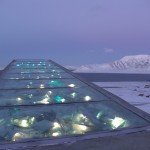
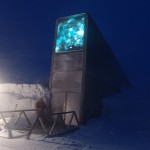
This is perhaps the mother of all seed vaults. Tucked away on a frigid island near the North Pole, Svalbard is the backup storage vault for 1,750 other seed banks all over the world. If other seed collections are damaged or lost due to a global crisis, the Svalbard Global Seed Vault is the place we’ll go to begin rebuilding the Earth’s vegetation.

deposit in global seed bank

norway global seed vault

The permanently frozen, difficult-to-access, post-apocalyptic location wasn’t chosen by chance – this was a calculated decision based on careful foresight. The vault is set nearly 400 feet into a sandstone mountain on Spitsbergen Island. Although no permanent staff are assigned to guard the vault, the structure has an impressive security system that would foil even the most nefarious of seed stealers. When an organization deposits seeds, only they are able to access the boxes containing those seeds; the organizations retain ownership, making Svalbard simply a storage and preservation facility for the good of the planet.

mountain seed vault svalbard

cross section svalbard

Furthermore, the site is favored for its lack of seismic activity and its altitude; at 430 feet above sea level, the vault would be spared from flooding even if the polar ice caps melt. The site’s permafrost is ideal for storage of genetic material, as well. Even if the vault’s refrigeration units were to fail, it would take several weeks for the interior temperature to rise from its stable -0.4° F to the ambient temperature of 27° F.

inside svalbard global seed vault

seed samples svalbard

As of 2015 – seven years after the facility opened – approximately 4000 plant species are preserved in the vault, with a total of around 840,000 total samples. The facility has the capacity to store a total of 4.5 million samples. Besides being an important part of the future of humankind, Svalbard is an incredibly cool-looking facility that would be equally effective as a supervillain hideout.

Millennium Seed Bank – Kew Royal Botanic Gardens – UK

millennium seed bank london kew gardens

The Kew Royal Botanic Gardens is a must-see destination in England, but their conservation arm is equally fascinating. According to the Millennium Seed Bank Partnership, between 60,000 and 100,000 species of plants are in danger of extinction – this number represents approximately one-fourth of all of Earth’s plants. Most of the threat to plants comes from human activities such as over-exploitation and poor farming practices.

wild plant seeds millennium seed bank

kew millennium seed bank

The Seed Bank’s mission is to preserve these endangered plants – as well as those that are not yet in danger of extinction – for the good of the planet and all of the living things occupying it. Partnering with more than 80 countries worldwide, the Millennium Seed Bank has collected seeds from 34,088 wild plant species, representing more than 13% of wild species from around the world. Their goal is to raise that number to 25% by 2020.

kew seed bank seed science

Researchers at the seed bank study the properties and value of each plant variety and produce more seeds to increase biodiversity in plants all over the planet. They also study optimal storage conditions for the seeds and try to determine why some seeds die during preservation. Their research can help future generations of conservationists store valuable seeds more effectively.

Australian PlantBank – Australian Botanic Garden

15947627472_f81d35a548_z

Acting as the research and storage facility of the Royal Botanic Gardens and Domain Trust, the Australian PlantBank (formerly NSW Seedbank) focuses on horticultural research and conservation of native Australian plant species. The facility uses traditional seed preservation methods as well as tissue culture – a conservation method that involves growing new plants from small pieces of plant tissue.

14873002620_21a79a5e3e_z

14872939859_9af5dcde28_z

In the seed vault, more than 10,035 collections of wild-sourced seeds are preserved, totaling a staggering 100 million individual seeds. The seeds represent 4669 species, mostly collected from NSW in an effort to conserve the complex and unique area’s native plants. More than 600 plant species are considered endangered in NSW alone.

australian plantbank research

Seeds and tissue samples are regularly tested for health and viability to ensure that the facility isn’t simply housing millions of dead seeds. The PlantBank researchers point out that, while in storage, plant species do not have the ability to evolve and adapt to changing conditions. Therefore, any seed or tissue sample that is banked today is a “snapshot” of the plant’s genetic makeup today.

Next Page – Click Below to Read More:
Life After Apocalypse 8 Seed Banks Saving Up For The Future

Share on Facebook


[ By Delana in Culture & History & Travel. ]

[ WebUrbanist | Archives | Galleries | Privacy | TOS ]


WebUrbanist

 
Comments Off on Life After Apocalypse: 8 Seed Banks Saving Up for the Future

Posted in Creativity


How to Recover Photos After a Data Loss

05 Oct
Frank Grießhammer

By Frank Grießhammer

One of the worst things that can happen to you as a photographer is data loss, but there are ways to resolve it. This guide will talk you through how to recovery those all-important photos easily and quickly.

Whether it’s a quick snap of your pet or a scenic landscape shot, chances are most of the photos you take are precious and important to you. Photos capture memories and moments; losing these would be disastrous. Sadly, photo loss is not an uncommon event. In fact, either it’s already happened to you in the past or it likely will in the future.

Losing your photos can occur for a variety of reasons, one of the most common being simply human error. It could be something simple like accidentally deleting the wrong file or pressing the wrong button. However, as wonderful as technology is, it too is prone to failure. There are many stories of people unloading their memory cards from their cameras, putting it on their computer and then finding their files can’t be opened or are missing altogether.

If you’ve discovered that you’re a victim of data loss then one of the most important steps to take is to stop using the card immediately, and remove it from your camera, just to make sure that no activity takes place on it. It’s crucial that no further data is written to the card.

Jorge Quinteros

By Jorge Quinteros

When a photo is deleted, the data on the card isn’t immediately purged. There are two main types of data on an SD card: information about the files on the card and the data for the files themselves. When you delete a file, it’s that information about the files that is removed. The data for the files remains on the card until the space is needed for another file. As such, a new photo on the card could be assigned to the place where a deleted photo once was, wiping it out permanently.

It’s now time to try and get your data back, so mount your SD card to your computer. Depending on the condition of the card (e.g. if it is corrupted or uses an unrecognizable file system), your system may automatically detect that there’s a fault with it. You might perhaps be suggested to use the manufacturer’s software to try and resolve the problem. Alternatively, a pop-up box could encourage you to format the card. Do not do any of this.

Bridget AMES

By Bridget AMES

Formatting the card is especially dangerous and will lower your chances of successful data recovery to sinking level. It’s a last resort tactic. Your computer means well by suggesting a card format. It’s essentially saying “Hey, I can’t seem to locate any data, shall we wipe everything and start afresh?” However, just because your operating system can’t find the data it doesn’t mean it isn’t there, lurking under the surface.

DO: stop using the card literally the moment you realize there’s a problem; remember to breathe and stay calm!

DONT’T: browse the photos on your camera, take ‘just one more’ snap, or format the card.

The next stage is to download a program that’s going to help you get your data back. For the purposes of this tutorial we’ll be using R-Undelete. There are other programs available, but this one is entirely free for home users and works really well. The only limitation is that it only works for FAT formatted SD cards—fortunately, practically all camera SD cards are FAT formatted. There are also some professional data recovery companies who will charge you to recover data, but frankly, in this circumstance, using something like R-Undelete will do the same job for none of the cost.

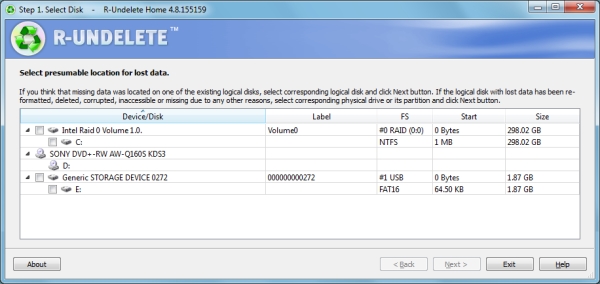
Step One

The first screen you’ll be presented with a list of all the drives mounted to your computer. All you need to do is place a tick in the checkbox next to your SD card and click ‘Next’.

Step1JPG

As you can see, the example image above shows an internal drive, a DVD drive and an SD card. The SD card being used is called ‘Generic Storage Device’, but yours might have a more unique name. Refer to this or match up the size of your card to the ones listed (1.87 GB in the example).

Step Two

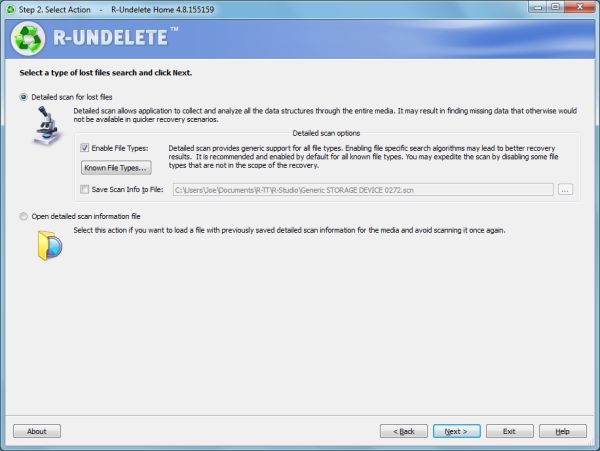
This step is a simple one. The program will automatically select a detailed scan for lost files, which is precisely what you want. You can ask for the program to only search for specific types of files (like videos or pictures) by clicking ‘Known File Types…’, but it’s better to leave it on the default setting to scan everything.

Step2JPG

The scan information is going to be saved to Documents by default, but feel free to change that file path to whatever you wish by checking the box alongside. Remember that you must not save anything to the card that you’re recovering from, so it’s easiest to keep things on your internal drive.

When you’re ready, click ‘Next’ and the scan will begin.

Step Three

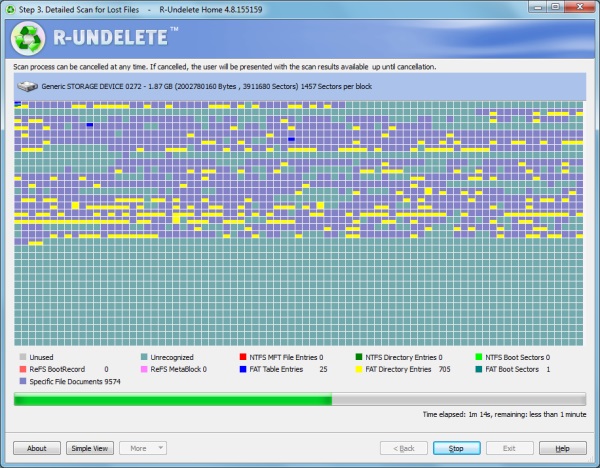
Step3JPG

The scan will then begin. This screen might look a bit scary at first, but there’s no need to worry. It’s just a visual representation of the type of data that is being scanned. Just wait for the scan to finish (it’ll be quick, but will vary depending on the size of your card) and click ‘Next’ when that option is available.

Step Four

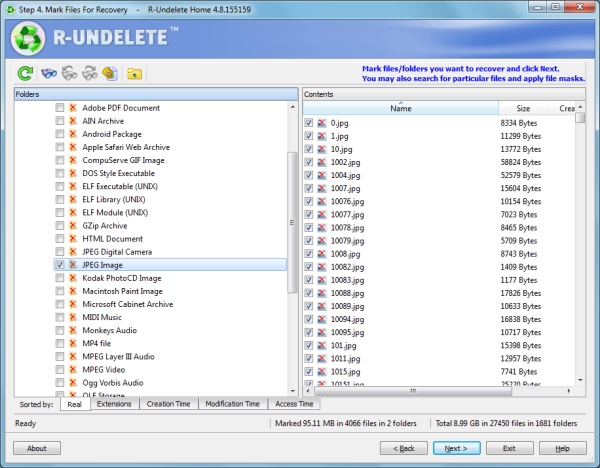
You’ll be presented with a list of all the data that the program has found on the card. On the left are the folders, which show the contents on the right when they are clicked.

Step4JPG

The great thing is that you can sort the results by filters such as the file extension, the time the data was created, or when it was accessed. If you’re trying to hunt down specific files, then there’s also an advanced search tool where you can input variables to search for, like the size of the file or when it was last modified.

One symptom of data loss is that the original file name is often lost, so don’t worry if you don’t recognize any of the file names. If you’re not sure where the data you seek is, go ahead and recover everything the program has found – you can recover as much or as little data as you want without issue.

Once you’ve got the data you want to be recovered selected, click ‘Next’.

Step Five

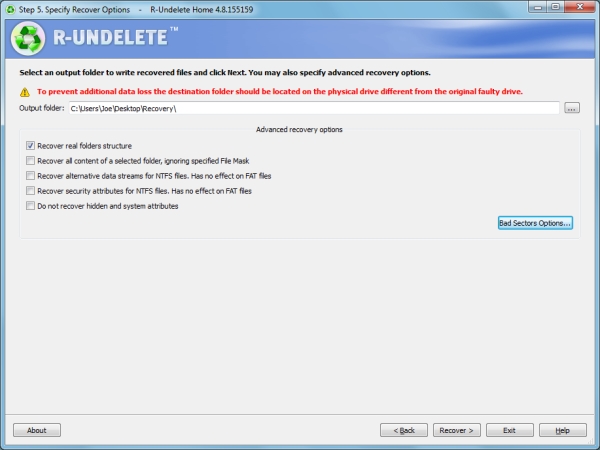
Nearly there! First, select the folder where you want all your recovered data to go. Handily, the program reminds you not to choose anywhere on your SD card – but of course you know that by now!

Step5JPG

There are also some advanced options available. The example above asks the program to try and recover the original folder structures, bear in mind however, this isn’t always possible. Providing you selected all the required files in step four, this should be the only option you might want to select.

Are you ready to get your pictures back? Click ‘Recover’ and the program will begin to work its magic. The time it takes will depend on how much data you’ve asked to be recovered, but the process is relatively quick.

Success!

R-Undelete successfully recovered every image that I asked it to and hopefully it performed the same way for you.

Try and remain calm throughout the whole process. Understandably, that’s probably easier said than done, but data recovery is entirely possible and if you follow the advice given then it should hopefully be pretty effective.

You may aware of how important it is to back up your files, but don’t actually practice it. If possible, ensure your photos are being consistently backed up to another location. Whether you’re just transferring them to your computer at the end of the day, or sending them to cloud storage services like Dropbox or OneDrive, having multiple copies of your photos will mean that it’s less of a problem if data loss does occur.

Best of luck and enjoy those recovered files!

Editor’s note: please be aware the software mentioned only works on a PC. Just do a google search for: photo recovery Mac free and you’ll find a whole bunch that work similarly to the one mentioned in this article.

The post How to Recover Photos After a Data Loss by Joe Keeley appeared first on Digital Photography School.


Digital Photography School

 
Comments Off on How to Recover Photos After a Data Loss

Posted in Photography


Before and After: How This Photo was Processed in Lightroom

16 Sep

Andrew’s ebook Mastering Lightroom: Book Four – The Photos is available now at a special price of 40% off for a limited time from Snapndeals. It’s an advanced guide to processing photos in Lightroom’s Develop module, explaining how to use Lightroom’s powerful processing engine plus Develop Presets and plug-ins to create beautiful images.

Post-processing in Lightroom

The Story

A few years ago I passed through Bolivia, South America’s poorest and, in some ways, least developed country. I spent a few days in Potosí, a small, largely forgotten city whose history had a central role in shaping the modern world. Built at the foot of the Cerro Rico (Rich Hill), the silver mined in Potosí flowed across the continent, through the cities of Cartagena and Havana, and across the ocean to Sevilla and Madrid in Spain, where it powered the rise of European nations as the wealthiest and most developed of the era.

lightroom-post-processing-example-10

The silver no longer flows from Potosí, although the mines are still open. The city seems to exist on a mixture of mining output and tourism. It’s one of the world’s highest cities, sitting a little over 4,000 metres above sea level in the Bolivian Andes. It’s a cold place, even in the summer. Sleet or snow can strike at any time of the year.

I liked wandering the streets as dusk fell, watching the local people as they went about their daily activities. It was a busy time, with kids out of school, shops closing and people leaving work. Potosí is a city of contrasts: the poverty of some of the local inhabitants against the relative affluence of foreign travellers; the fading grandeur of the magnificent old colonial architecture against the newer mud brick houses at the edges of the city; the tragedy and scope of the city’s history against the snippets of modern daily life. The feeling that, even after hundreds of years, this is still a place where the traditions of the people who lived here before the Spanish came intersect with the ways of modern, European descended South Americans.

lightroom-post-processing-example-11

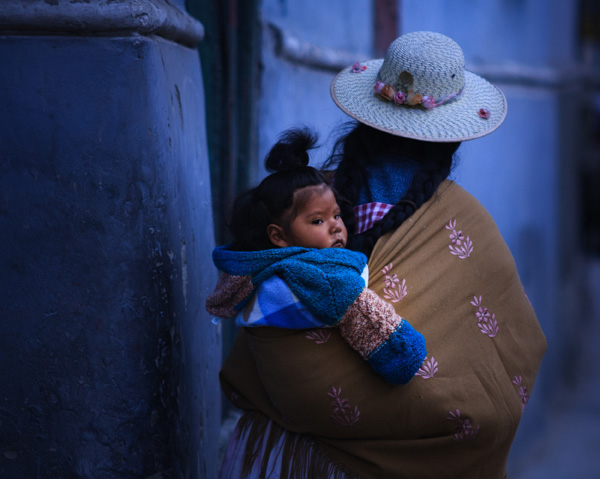
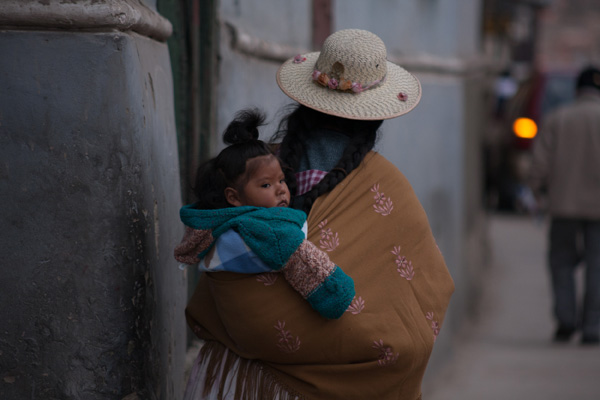
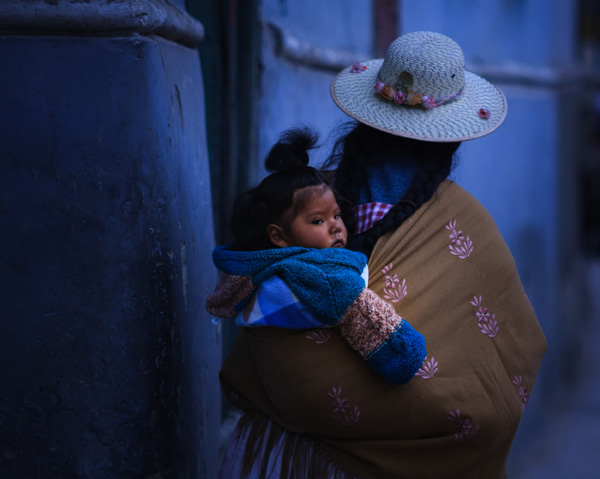
As I wandered around the streets, dusk falling, a Bolivian lady walked around the corner. She had tied her hair in two long plaits, and wore a Bolivian style sun hat on her head. There was a blanket slung around her shoulders, inside which sat a baby, hair styled in a topknot, looking behind it as his mother walked onwards. I had time to raise the camera and take a single photo before a second child walked around the corner and blocked my view.

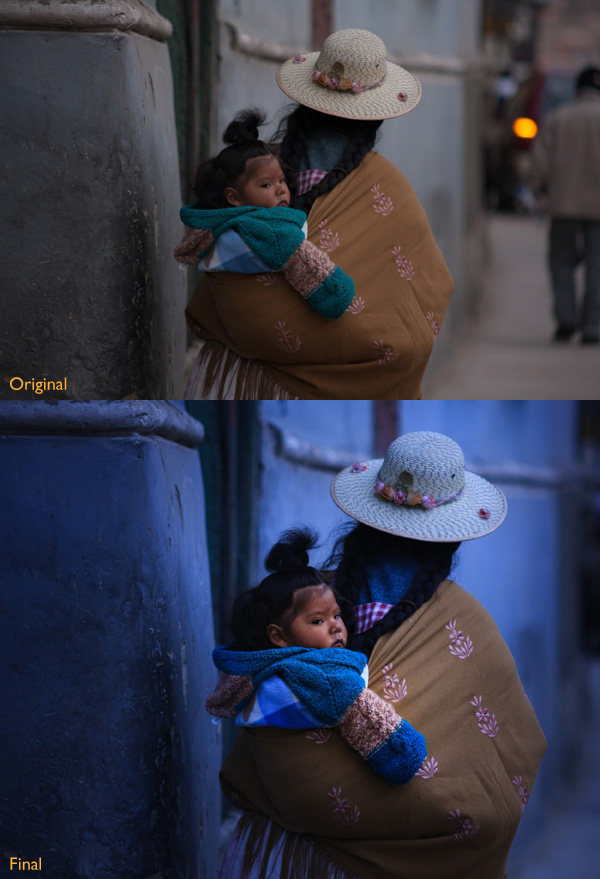
This photo isn’t perfect. The baby’s face is slightly out of focus. The photo was underexposed (the moment happened so fast I didn’t have time to dial in exposure compensation). The rear light of a car and the out of focus man in the background are distractions (see the original version below). Yet that’s not important. Photography is about evoking emotion, and sometimes things happen too fast for technical perfection.

What matters is the moment. In this photo it’s the juxtaposition between the mother walking one way and her baby looking another. The atmosphere created by the fading light of another cold night in Potosí. The age of the building she is walking past. The intersection of ancient ways with the present day.

This is a photo I come back to again and again, reprocessing as my skills improve. Each time my approach is driven by my memory of that moment and how it felt. Ask yourself the same question when processing images. How did the moment feel? And how can you express that feeling with colour, light and shadow?

First steps

There are plenty of things wrong with the original photo (below). It’s underexposed, and needs brightening (although not too much as I want to retain the atmosphere created by the fading light). The background is distracting. The colours are muddy.

Post-processing in Lightroom

Step 1 Basic corrections

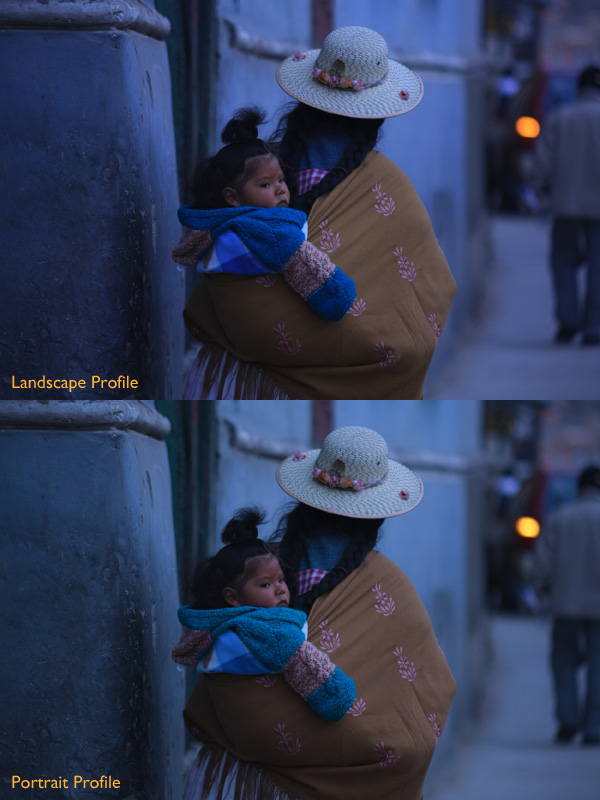
The baby is the natural focal point of the photo, and I wanted to emphasize it. I also wanted a lot of blue, the natural colour of light during dusk, in the photo. To start, I set Profile in the Camera Calibration panel to Camera Landscape. This setting is intended for use with landscape photos, but you can use it whenever you want to emphasize the colours blue or green. I also went to the Lens Corrections panel and enabled both Profile Corrections (with Vignetting set to zero) and Chromatic Aberration removal.

I went to the Basic panel and kept Exposure where it was, even though the photo was underexposed, because I liked the gloomy atmosphere. I set White Balance to auto, which gave a neutral colour, then reduced it (to 3639 Kelvin) to create a blue colour cast. This gave me a good starting point.

Post-processing in Lightroom

Two versions of the photo after the completion of step one. One has the Camera Landscape profile and the other the Camera Portrait profile. Even though it may seem logical to use the Camera Portrait profile on a photo containing people, Camera Landscape is the better option given my intention, as it gives the most appropriate colours.

Isolating the subject

My aim now is to continue the processing in a way that minimises distractions and places the emphasis on the baby.

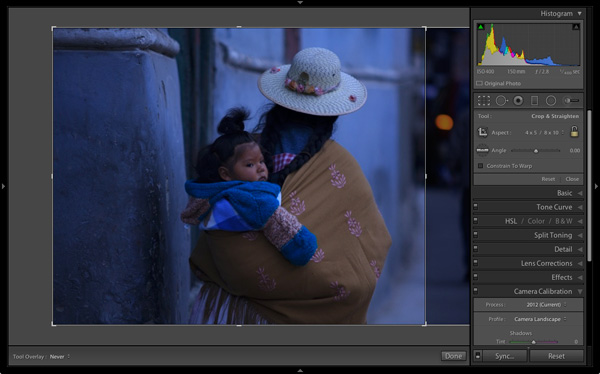
Step 2 Crop

I used the Crop tool to cut the right-hand side of the photo, eliminating the distracting background. This makes a big difference as the eye is no longer being pulled away from the people by the blurred light.

Post-processing in Lightroom

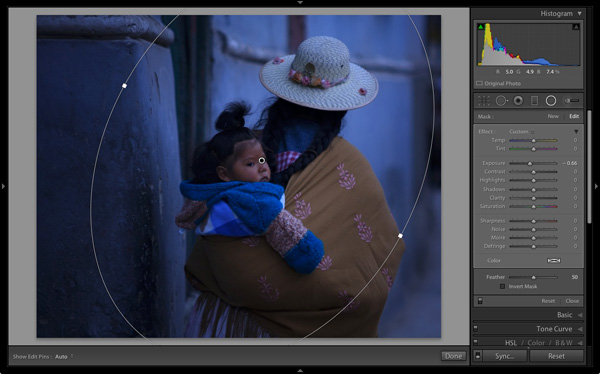
Step 3 Local adjustments

I added a Radial Filter and moved the Exposure slider left to make the background darker. The Radial Filter is new to Lightroom 5, but if you have an earlier version of Lightroom, you can do something similar with the Adjustment Brush (by painting in the area you want to darken).

Post-processing in Lightroom

Step 4 Add some punch

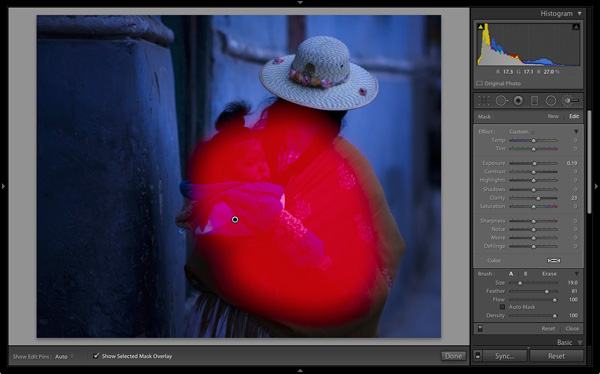
The photo was quite flat so I returned to the Basic panel and increased Contrast. Then I used the Adjustment Brush to make a selection over the woman’s back and the child, and increased Clarity and Exposure. The aim was to make the baby sharper, and a little brighter, than the rest of the image, encouraging the eye to go to that part of the photo.

This screen shot shows the mask created by the Adjustment Brush.

Post-processing in Lightroom

Step 5 Make color work

Next I used the Adjustment Brush again to select a smaller area and moved the Temp slider right, making that area warmer. The idea here is to work on the natural colour contrast between the colours of orange and blue.

This image below shows the result of these adjustments. The key was to make them subtle so the image looked natural and not over-processed.

Post-processing in Lightroom

Throughout the processing I imagined that I had taken the photo on slide film and that the scene really did look like that. The fact that the scene would have come out differently than my version is incidental. The idea was just a guide to the approach I should take.

Step 6 Darken edges of the image

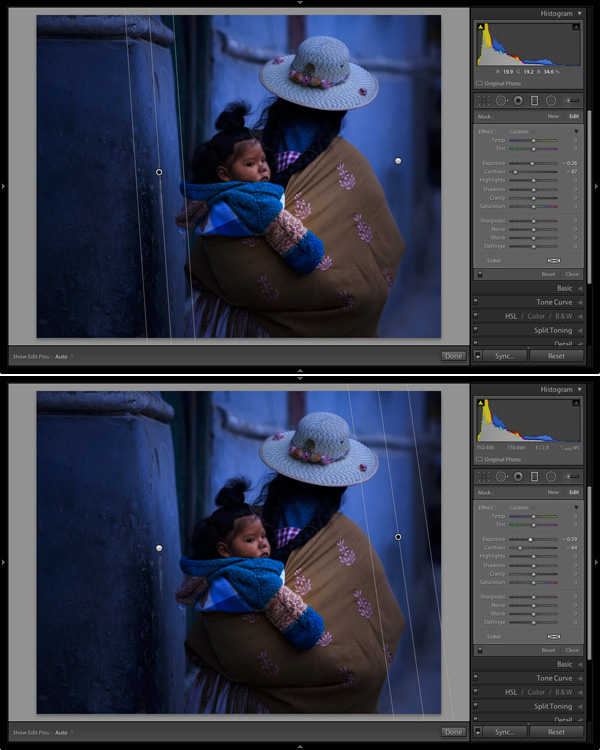
Next I created two Graduated Filters, one on either side of the frame. I reduced the Contrast in each one. A side effect of reducing Contrast is that the area affected also becomes lighter, so I adjusted Exposure to make them darker again.

These are subtle adjustments that reduce contrast at the edges to emphasise the area around the baby in the centre of the image, where I increased Clarity earlier.

Post-processing in Lightroom

Finally I decided the image was too dark and increased Exposure to compensate. Here’s the original and final versions together so you can compare them.

Post-processing in Lightroom

What do you think of these processing techniques and the style in which the photo was processed? Do you have any suggestions for an alternative interpretation of the original Raw file?  Please let us know in the comments.

Mastering Lightroom: Book Four – The PhotosAndrew’s ebook Mastering Lightroom: Book Four – The Photos is available now at a special price of 40% off for a limited time from Snapndeals. It’s an advanced guide to processing photos in Lightroom’s Develop module, explaining how to use Lightroom’s powerful processing engine plus Develop Presets and plug-ins to create beautiful images.

The post Before and After: How This Photo was Processed in Lightroom by Andrew S. Gibson appeared first on Digital Photography School.


Digital Photography School

 
Comments Off on Before and After: How This Photo was Processed in Lightroom

Posted in Photography


Architectural Apocalypse: Famous Museums Seen After the Fall

13 Aug

[ By WebUrbanist in Art & Photography & Video. ]

guggenheim half buried sand

Like that iconic scene in the original Planet of the Apes film, these artists have displaced great works of architecture in time and space to see what each museum might look like after the end of days, relocated in ominous environments and recast in black and white.

guggenheim museum after fall

Ukrainian photographers Vitaliy and Elena Vasilieva use surrealistic landscapes as the backdrop for these imaginative transformations, picturing structures like the Guggenheim in a sand-strewn context that looks like anything but modern-day Manhattan as we know it.

new museum in water

new museum at night

The New Museum is seen rising up from post-armageddon floodwaters, presumably after rising sees wash away the rest of New York City.

Niteroi Museum snow dunes

snow filled museum fall

The Niteroi Museum is perched precariously on a mound of snow, everything else perhaps buried in the frozen wastes around it.

pompidou center picture fall

pompidou center storm front

The Pompidou Center is set in a swirling dust storm, Paris long vanished and its inside-out appearance making it look all the more like a remnant than a finished structure.

guggenheim post apocalypse photo

guggenheim half buried sands

When the dust settles, the smoke clears and the world freezes over, what if only our artistic institutions were left? From the creators of the series: “It is difficult to escape the feeling that ‘Apocalypse in Art’ really shows the world, standing on the edge, barren, falling in decay like a story line of a picture that is breaking into fragments.”

Share on Facebook


[ By WebUrbanist in Art & Photography & Video. ]

[ WebUrbanist | Archives | Galleries | Privacy | TOS ]


WebUrbanist

 
Comments Off on Architectural Apocalypse: Famous Museums Seen After the Fall

Posted in Creativity