RSS
 

Posts Tagged ‘Adobe’

Adobe Creative Cloud trials reset to offer preview of 2015 features

25 Jun

Adobe recently updated its Creative Cloud suite of software, and to give users a chance to test the new features it has reset its product trials. This includes trial versions of Illustrator CC, InDesign CC, and Photoshop CC. Users, even those who have previously taken advantage of Adobe’s 30-day free trial, can start a new trial by opening the software application and clicking ‘Update’. Read more

Articles: Digital Photography Review (dpreview.com)

 
Comments Off on Adobe Creative Cloud trials reset to offer preview of 2015 features

Posted in Uncategorized


Adobe Camera Raw 9.1 adds Dehaze feature and improves X-Trans support

17 Jun

Adobe has released the latest iterations of its Camera Raw plug-in and DNG converter software. In addition to adding support for more cameras and lenses, this update also adds Dehaze correction as well as local B&W adjustment sliders. Adobe has also reduced ‘color blur’ artifacts in Raw images from Fujifilm X-Trans cameras. More details

Articles: Digital Photography Review (dpreview.com)

 
Comments Off on Adobe Camera Raw 9.1 adds Dehaze feature and improves X-Trans support

Posted in Uncategorized


Adobe Updates Photoshop and Lightroom with Creative Cloud 2015 and Launches Adobe Branded Stock Photography Library

16 Jun

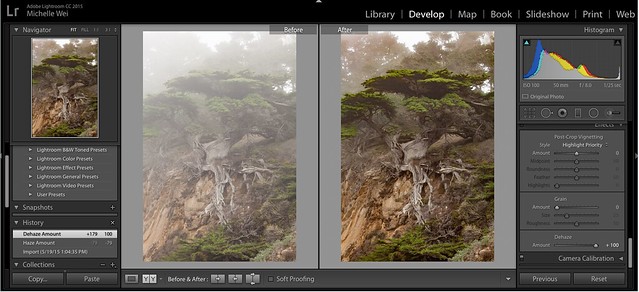
Lightroom Dehaze UI

Today Adobe is announcing updates for their Creative Cloud 2015 Photography package as well as the launch of their new stock photography offering Adobe Stock.

I saw a demo last week of the new Creative Cloud enhancements. The enhancement that I liked the most was a new slider in Lightroom for haze and dehaze. With the haze slider you can now reduce unwanted haze in photos or add haze back in if you want more of an ethereal foggy type mood. I think that this tool will be especially dramatic when working with long exposure photography where you have clouds or low fog and want to get the mix of fog to subject just perfect.

Photoshop is also adding in an additive noise function where you can produce more camera like realistic bokeh and blur noise when desired, making the transition in blur more natural. The Photoshop healing brush also now heals in real time and is faster than previous versions.

These feature enhancements and updates will not be available to the current desktop versions of Lightroom and Photoshop, they will only be available for Adobe Creative Cloud subscribers. This is in line with Adobe’s previous stated goal of providing fast and rapid real time updates and upgrades to their subscription customers. I’m assuming that eventually these new enhancements will make their way to desktop upgrades/updates, but at present Adobe seems to be focused on providing the best and most current features available to their subscription customers.

There are also additional features being launched for the mobile versions of Adobe products including better tone and vignette adjustment for Lightroom mobile and an Android version of Photoshop Mix.

Adobe’s Creative Cloud photography package costs $ 9.99/month and you can subscribe to it here. They also offer a 30 day trial for you to try out Creative Cloud to see if it is right for you.

Adobe Stock

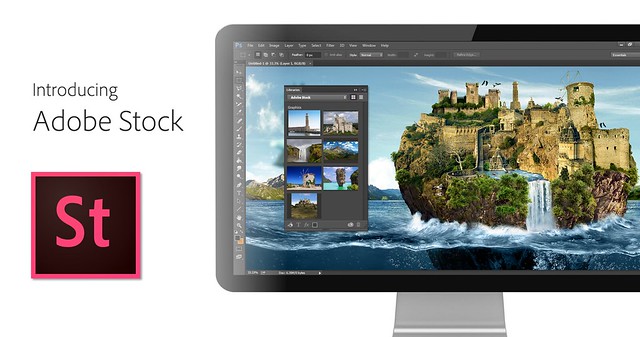
In addition to the improvements in Lightroom CC and Photoshop CC, Adobe is also announcing the launch of their new stock photography service simply called Adobe Stock.

Because Adobe is so widely used by creatives in general, leveraging their software products to sell an Adobe labeled stock photography library seems to make a lot of sense. Adobe’s stock photography service will be featured as a menu item in Photoshop and will allow stock buyers to use watermarked versions of stock photos to create mockups and test design/layout ideas. Once a stock buyer is ready to license an image they can license it directly from Photoshop and download the unwatermarked version of the image.

Images will cost $ 9.99 each to license or Creative Cloud subscribers can purchase one of two different subscription plans. The first plan costs $ 29.99/month and allows a subscriber to license up to 10 images a month and a second plan will cost $ 199.99 per month and will allow a subscriber up to 750 images per month.

Adobe will pay out 33% of their sales proceeds to photographers — photographers interested in applying can apply here.

Because so many stock photography buyers are connected into Adobe’s ecosystem, I think this stock photography offering will end up being very successful and represents formidable competition to the current stock photography giant Getty Images. Earlier this year Adobe purchased the stock photography agency Fotolia, but this new stock offering appears to be a different offering marketed directly under the Adobe brand and available through Adobe’s flagship Photoshop product.

More: MacRumors, The Verge, Engadget, Techmeme.


Thomas Hawk Digital Connection

 
Comments Off on Adobe Updates Photoshop and Lightroom with Creative Cloud 2015 and Launches Adobe Branded Stock Photography Library

Posted in Photography


Adobe Creative Cloud update introduces de-haze feature and speedier healing brush

16 Jun

Adobe has announced a number of updates to its Creative Cloud suite, including some feature enhancements and additions to Photoshop CC and Lightroom CC. A previously demonstrated de-haze tool has been added to CC versions of Photoshop and Lightroom, and the effects of Photoshop’s popular healing brush will now be displayed in real time as the tool is used. Read more

Articles: Digital Photography Review (dpreview.com)

 
Comments Off on Adobe Creative Cloud update introduces de-haze feature and speedier healing brush

Posted in Uncategorized


Get Excited About the New Adobe Lightroom CC

18 May

The day is upon us, my friends; Lightroom CC is here. The latest update to Adobe’s excellent photo management tool has arrived, and as cliche as it sounds, it really does offer something for everyone.

While the updates won’t necessarily satisfy hardcore Aperture users (who are still licking their proverbial wounds), Lightroom 4/5 users can easily justify this upgrade as a satisfying mix of under the hood, and hands-on improvements.
lr_splash

First and foremost, you’ll be ecstatic to learn that Adobe has released an independent version of the software in the form of Lightroom 6, available as a physical DVD or as a digital download. Subscribers of Adobe’s Creative Cloud service (that have Lightroom as part of their subscription plan) will automatically receive Lightroom CC, which is identical to Lightroom 6. We all let out a collective sigh when it was verified Adobe would not leave non-Creative Cloud users out in the cold.

The new and improved Lightroom sports several new features, and has included some improvements as well. Let’s go through a few of the highlights and see how they can make your photography workflow a more powerful and efficient process.

Improved Speed

While this is a behind-the-scenes improvement, it’s one of the biggest in this update. Instead of relying on the CPU (central processing unit) for all processing, as with Lightroom 5, Lightroom 6 has added the ability for some computations to be offloaded on the GPU (graphics processor) of your machine, specifically adjustments in the Develop module of the software.

This takes some of the load off of the central processor of your computer, and makes the entire program noticeably quicker. Efficiency through speed!

Photo Merge to Panorama

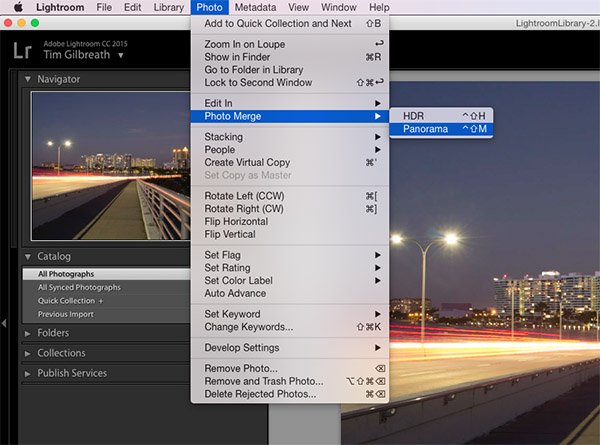
The new ability to create panoramic photos (multiple photos blended together to create a single super-wide image) directly within Lightroom will probably be one of the most talked about features of the update, along with HDR creation. In Lightroom 5, no “creation” of new pixels was allowed, meaning if you needed to create a panoramic image, you’d have to do it in Photoshop or a third-party piece of software.
pano1

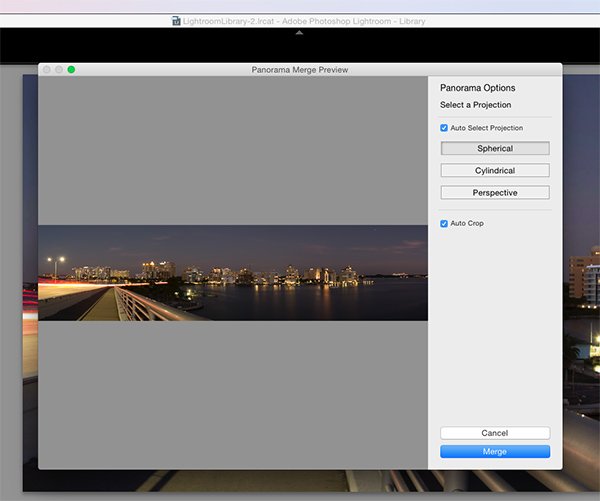
Now, Lightroom allows you to select a set of images, and it will stitch them together with a single click. The detailed controls for this process are sparse, but this is a good thing. You can even have the software automatically crop after the stitch is complete by ticking a checkbox in the creation dialog.

What do you get back after the build is complete? A 16-bit DNG (digital negative) file, a raw format that can be adjusted in the Develop module just like a RAW file. No compressed JPEG’s here.
pano2

The beauty of this process is that unlike the full rendering done in Photoshop, you are giving a very quick low-resolution preview of the image, and it can then be sent to the background, while you work on a different image. The progress of the panorama’s build is viewable in the new Activity Center, which allows you to monitor and control ongoing background processes.

Photo Merge to HDR

The other high profile addition in Lightroom CC is undoubtedly the ability to create HDR (high dynamic range) files. HDR images are created by blending together several shots taken at various exposures, with the intention of pulling the optimal dynamic ranges from each of those images to create a photo that contains a larger dynamic range.

As with creating panoramas, HDR creation was not available in Lightroom 5, and was most often done via a third-party program such as Photomatix, or within Photoshop.
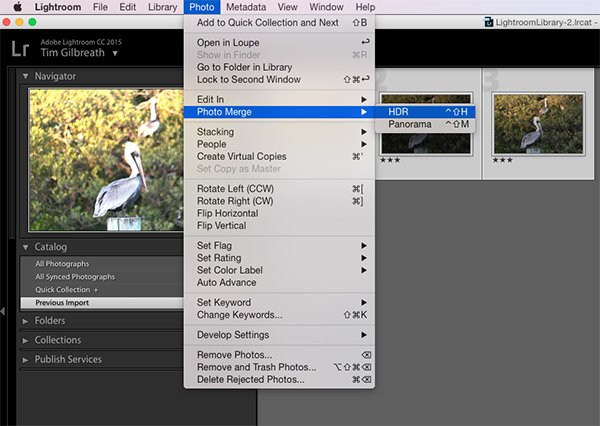
hdr1

Just as with panoramic creation, Lightroom allows you to select several files within the software, and merges them together into a DNG file, with no compression. They may be modified with any of the sliders in the Develop module, just as you would do with any RAW file.
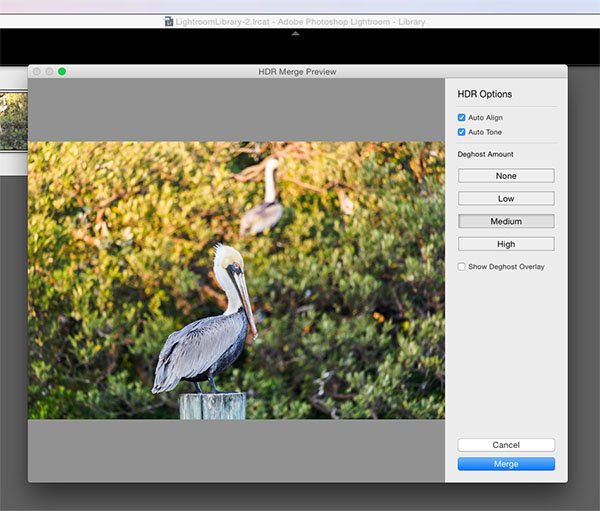
hdr2

The obvious primary benefit for both the HDR and Panorama creation tools in Lightroom CC is the ability to perform these functions right there in Lightroom, without having to merge the files together in a separate program and then import them back into your Lightroom workflow.

More Precise Adjustment Filters

The graduated and radial filters available in Lightroom are some of its most-used features. They give you the ability to paint on a varying layer of adjustments including color, exposure, and many other options. A common example would be adding a graduated filter in a landscape shot to decrease exposure in a blown-out sky, while maintaining the proper exposure for the foreground.
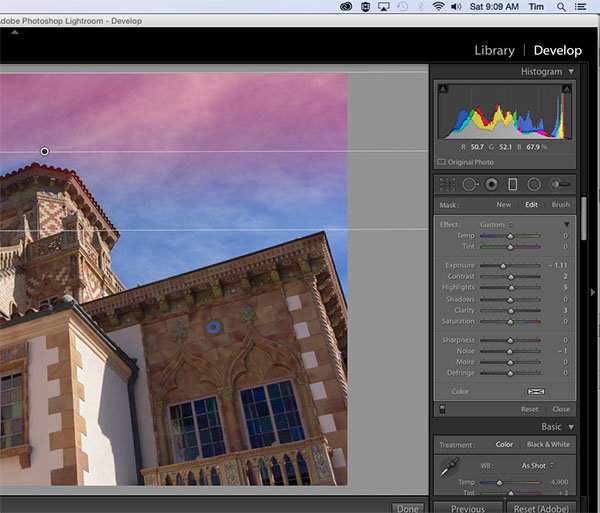
adj_brush1

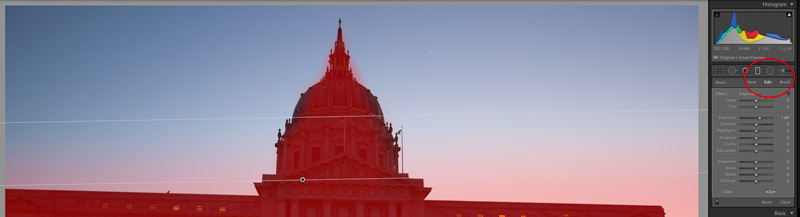
Note the red you see here is the new tool overlay which shows you where it is applying on your image. Just like the adjustment brush tool.

One caveat to using these filters before Lightroom CC was that they were all “what you see is what you get” implementations; if there was an object such as a tall building in your landscape image that extended to the top, a graduated filter to darken the sky would also darken the building.
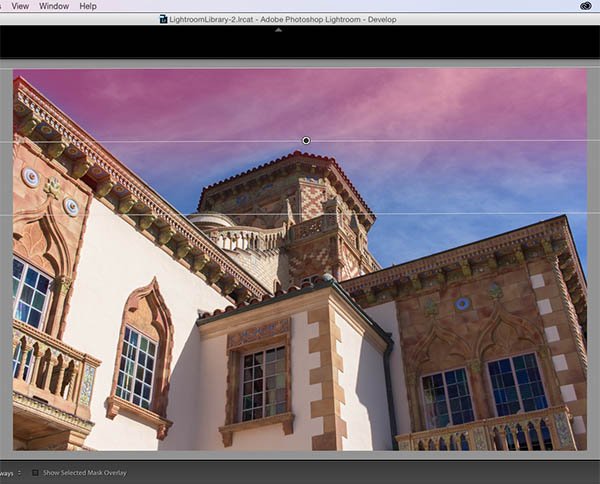
adj_brush2

With Lightroom CC, this is no longer an issue. You can apply a graduated filter as usual, and then use a brush to mask the building so that the effect is only applied to the sky. This adds almost unlimited potential to the filters available in Lightroom.

Facial Recognition

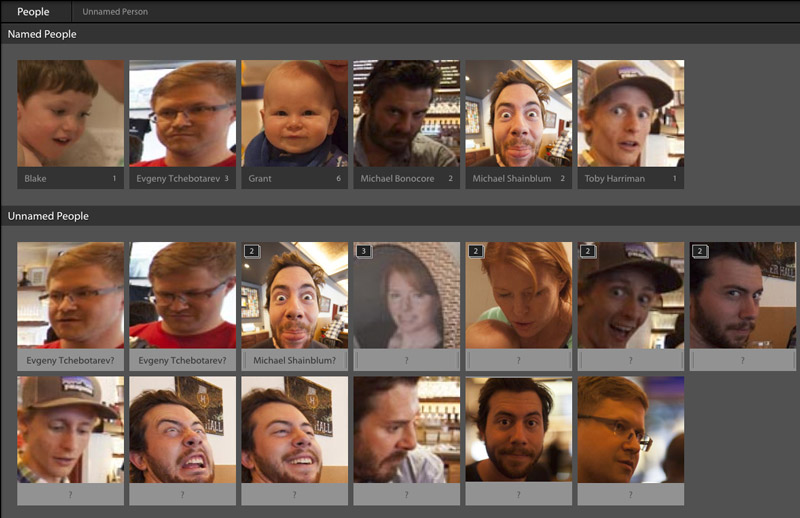
A feature becoming more and more popular in our social-sharing world, facial recognition is well-known in apps such as Facebook, where identifying and tagging friends and family in shared photos is ideal. Lightroom throws its hat in the ring with a new Facial Recognition feature that will allow you to tag people in your photos in a similar manner.

The software will automatically attempt to identify human faces, and allow you to name them for future use. Over time, you’ll build up a database of faces, and Lightroom will begin identifying faces from that database in your newly imported photos.
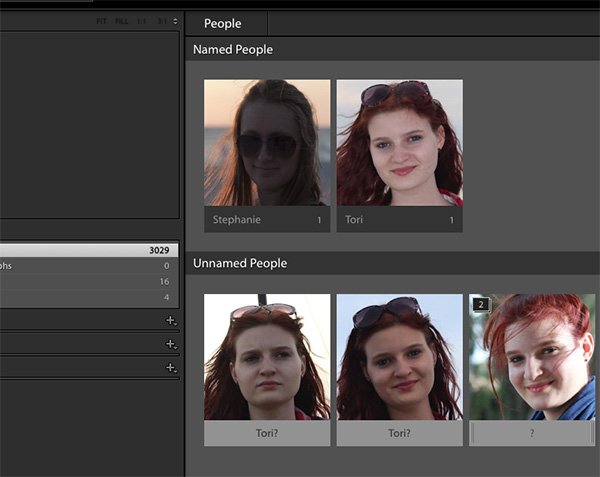
faces

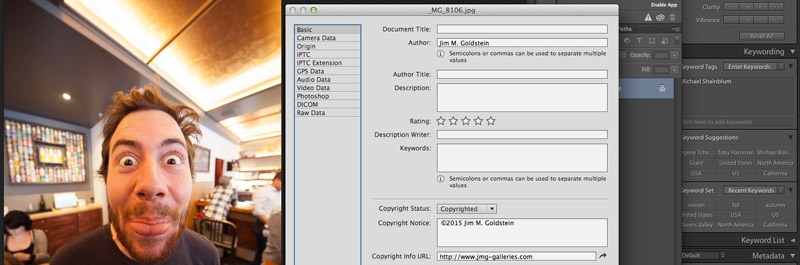
The tags that are created from this process can then be converted into searchable keywords in the metadata for the photo, and used as any other keyword could be.

What do you think?

There are several other smaller improvements and enhancements in Lightroom CC, including updates to the Slideshow module, pet eye removal, and tethered shooting, as well as an improved experience in Lightroom Mobile. Just as a reminder, to use Lightroom Mobile you’ll need to have an Adobe Creative Cloud plan that includes Lightroom.

We’ll likely have more in-depth analysis of Lightroom CC’s new features in the coming weeks, but early in the game, what do you think? Are you excited about the upgrade? Did it change your opinion of Adobe’s Creative Cloud direction of thinking? Thanks for reading, sound off in the comments below!

googletag.cmd.push(function() {
tablet_slots.push( googletag.defineSlot( “/1005424/_dPSv4_tab-all-article-bottom_(300×250)”, [300, 250], “pb-ad-78623” ).addService( googletag.pubads() ) ); } );

googletag.cmd.push(function() {
mobile_slots.push( googletag.defineSlot( “/1005424/_dPSv4_mob-all-article-bottom_(300×250)”, [300, 250], “pb-ad-78158” ).addService( googletag.pubads() ) ); } );

The post Get Excited About the New Adobe Lightroom CC by Tim Gilbreath appeared first on Digital Photography School.


Digital Photography School
 
Comments Off on Get Excited About the New Adobe Lightroom CC

Posted in Photography


Adobe Camera Raw 9 released with Merge to HDR and Panorama features

23 Apr

With the launch of Lightroom 6 and Lightroom CC, Adobe has released Camera Raw 9 with some of the some added features. Merge to HDR and Panorama are now available in ACR, using Raw image data to automatically assemble HDR and panoramic images, which are output as DNG files. This eliminates the need to edit files before merging them in Photoshop. Read more

Articles: Digital Photography Review (dpreview.com)

 
Comments Off on Adobe Camera Raw 9 released with Merge to HDR and Panorama features

Posted in Uncategorized


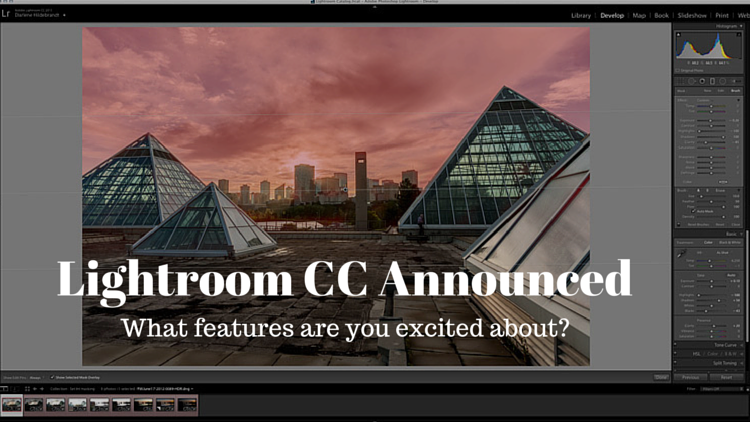
Adobe Announces New Lightroom CC – What Features are You Most Excited About?

23 Apr

Lightroom CC

Well yesterday Adobe pulled the trigger on the much anticipated release of the new Lightroom 6, which is actually called Lightroom CC (part of the Creative Cloud). It will still be available as a stand alone product but many people, myself included were eagerly downloading the new version as soon as it was available.

We’ll have one of our writers doing a more involved look at the new features soon but I wanted to see what you are most interested in with this new version.

LR-CC-03

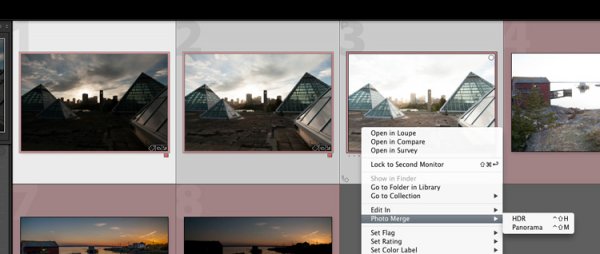
New Photo Merge feature in LR CC

What features were on your LR wish list?

So tell me in the comments below – what things were you hoping Adobe would build into this incarnation of Lightroom? Did you get all the features you wanted? What’s still missing in your opinion?

Was there anything you wanted removed?

What new features are you most fired up about?

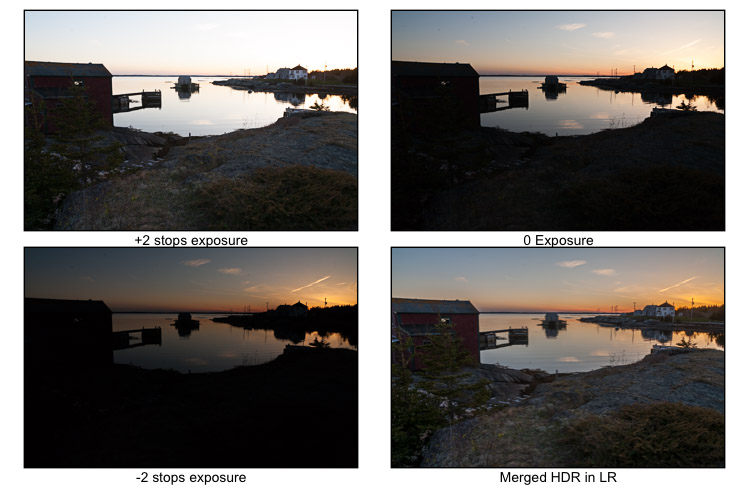
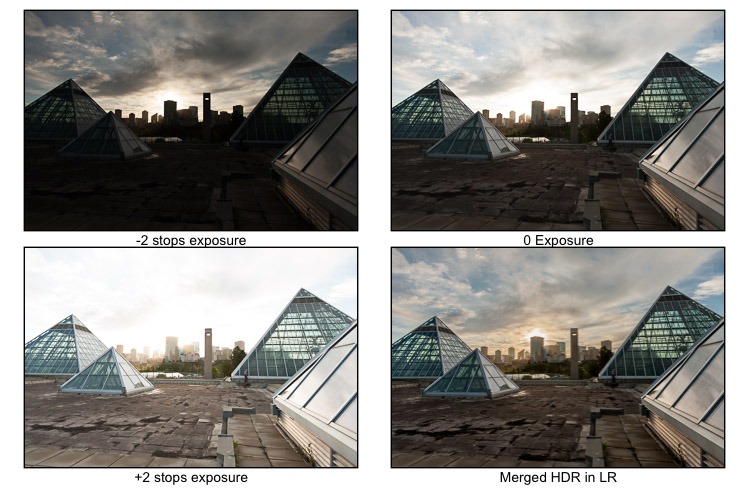
In watching some of the live broadcast of the announcement I picked up on a few of the new features and was eager to try them out, most of all the Merge to HDR (Pano also available). It takes your bracketed shots which you previously had to take to either Photoshop or another plugin to work with – and now Lightroom merges them into a gorgeous 32-bit file which comes back in as a DNG no less! So you have all the editing power of a 32-bit file at your fingertips without every leaving Lightroom CC – I’m sold!

I ran a couple sets through the HDR to test it. Was pretty impressive and super easy. I’ll have to dig into it more later.

LR-CC-02 LR-CC-01

Previously on the set of images above I had to mask the sky back in – but using LR local adjustments and the new HDR Merge I was pretty happy with the result which took about three minutes.

Some of the new features I’m excited about and keen to try are:

  • The Merge feature (to Pano and HDR – it even handles alignment, auto tone and deghosting)
  • Add to Collection on import
  • Filter in Collections (search)
  • Enhanced video slideshows (I use it now for easy shows, this looks like it can make them look better now too)
  • Auto-straighten on the crop tool
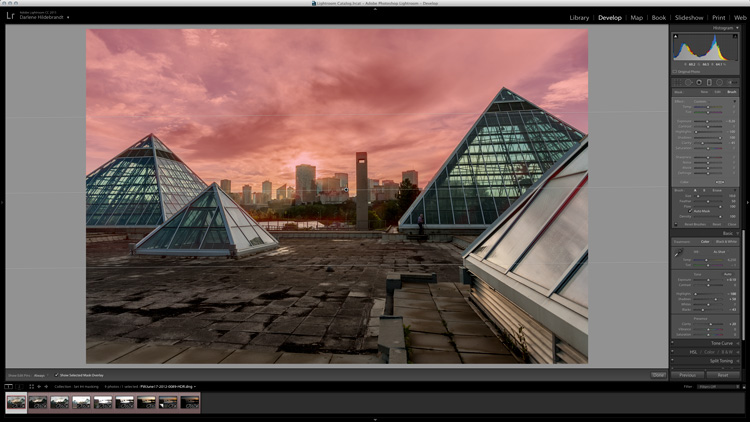
  • New finer control using the graduated filter and radial filter. You can now brush out, or mask (hide) part of it to bring back buildings, trees and areas you do not want affected by the filter. Brilliant!

See a complete run down of all that’s new on the Adobe site.

LR-CC-04

New brush option on graduated filters, very slick!

How about you?

We’ll have more on the new Lightroom in the coming weeks but for now tell us what you think in the comments below.

googletag.cmd.push(function() {
tablet_slots.push( googletag.defineSlot( “/1005424/_dPSv4_tab-all-article-bottom_(300×250)”, [300, 250], “pb-ad-78623” ).addService( googletag.pubads() ) ); } );

googletag.cmd.push(function() {
mobile_slots.push( googletag.defineSlot( “/1005424/_dPSv4_mob-all-article-bottom_(300×250)”, [300, 250], “pb-ad-78158” ).addService( googletag.pubads() ) ); } );

The post Adobe Announces New Lightroom CC – What Features are You Most Excited About? by Darlene Hildebrandt appeared first on Digital Photography School.


Digital Photography School
 
Comments Off on Adobe Announces New Lightroom CC – What Features are You Most Excited About?

Posted in Photography


My Favorite Features in Adobe Lightroom 6 (CC)

22 Apr

The long awaited next version of Lightroom is out and below is my list of favorite features and improvements:

Note before you upgrade I recommend reviewing  Steps to Save Your Ass With Lightroom Catalog Changes

1. Graduated Filters – Brush function

A new Brush function has been added to Graduated Filters so that you can create custom edges versus a linear edge.

Graduated Filter Brush Function

2. Performance: Optimized Multi-Processor and Multi-Core Support + GPU  Utilization

This version of Lightroom has improved export performance that leverages more of your available system resources.  This means that Export is faster, but it also means that you’ll have less resources available during Export for other tasks such as other Lightroom, Photoshop and other application tasks. If you batch export this should be of great benefit for you.

Additionally if you use a 4K or 5K monitor Lightroom CC’s utilization of your computers Graphics Processing Unit (GPU) will result in marked performance improvements.

Requirements to use the GPU in Lightroom CC:

  • 64-­bit only
  • OpenGL 3.3 and up
  • Mac OS 10.9 and higher
  • Windows 7 and higher

Additional system requirements for Lightroom CC / Lightroom 6

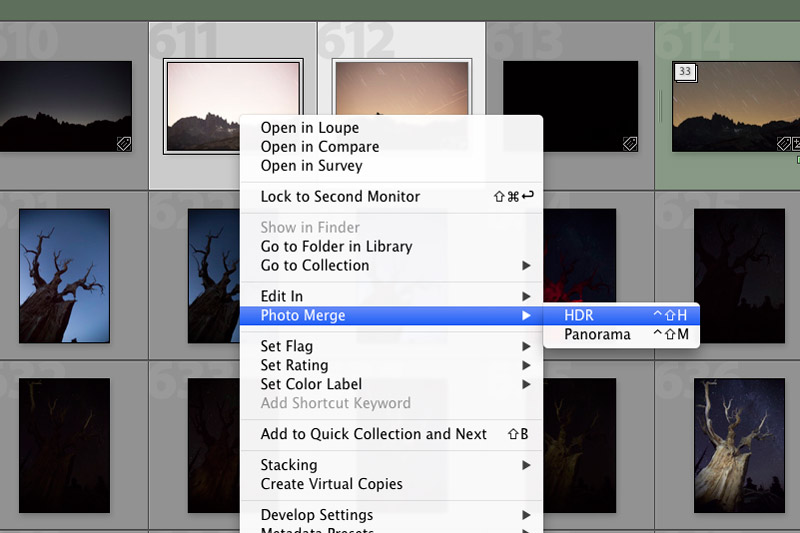
3. In Application Panoramic and HDR

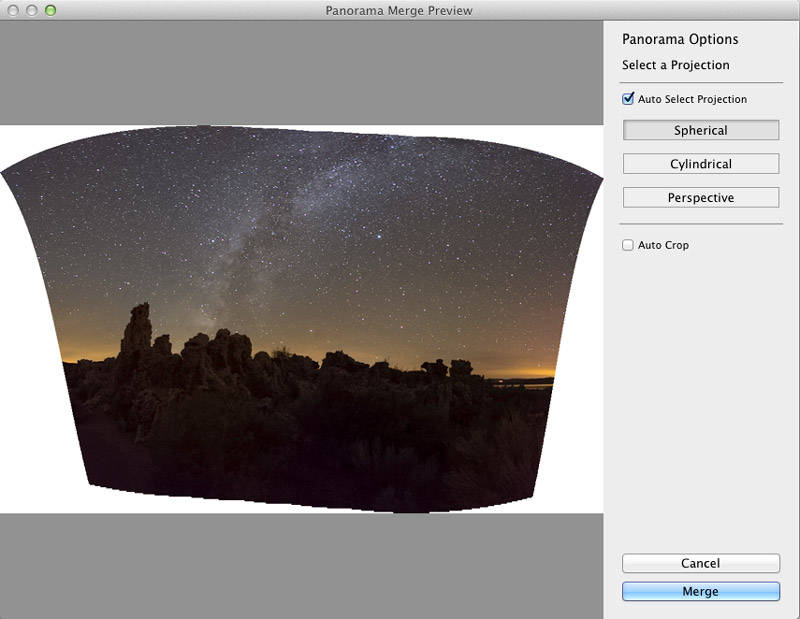
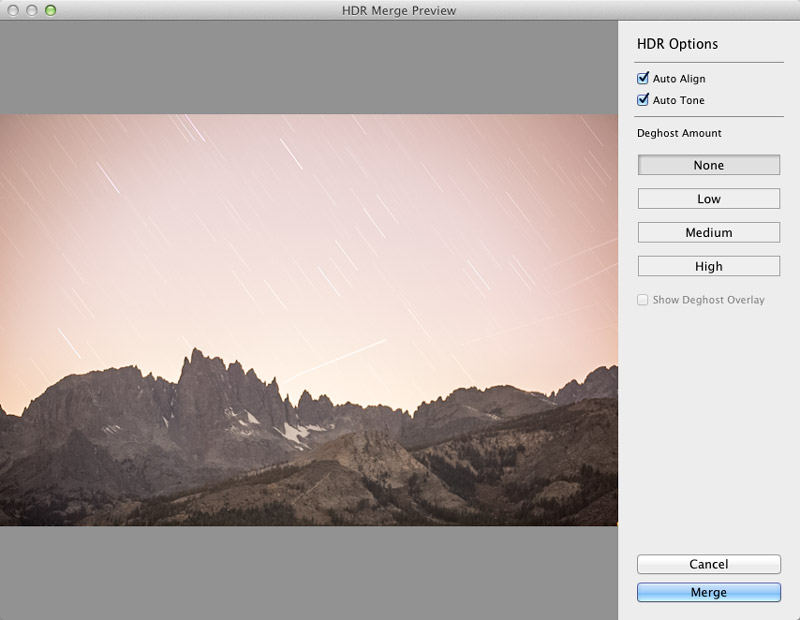
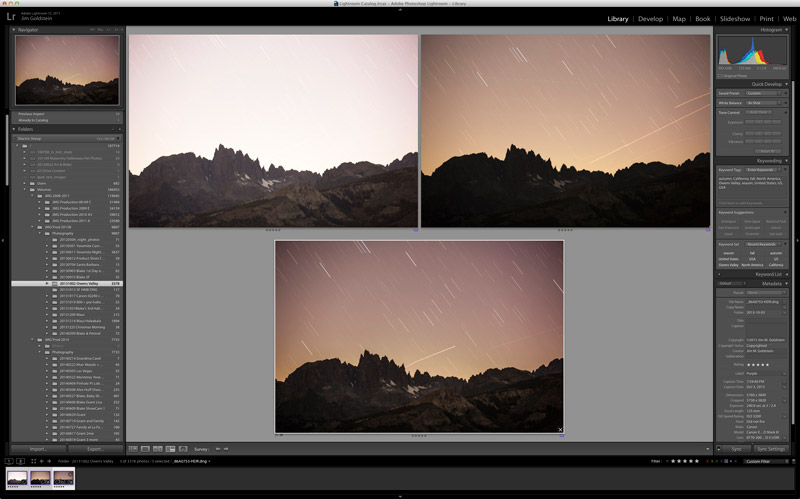
To do Panoramic or HDR merging you no longer need to bounce out of Lightroom to Photoshop. You can now do these functions in Lightroom. As an added bonus there is now a built in preview functionality. In regard to panoramic photos the coolest feature is the “Auto Select Projection” mode that automatically selects the best result between the Spherical, Cylindrical and Perspective modes.  One negative to note you won’t be able to batch process multiple panoramic or HDR photos, but you can repeat this function one after the other with each process running in tandem similar to past multi-exports running in tandem.

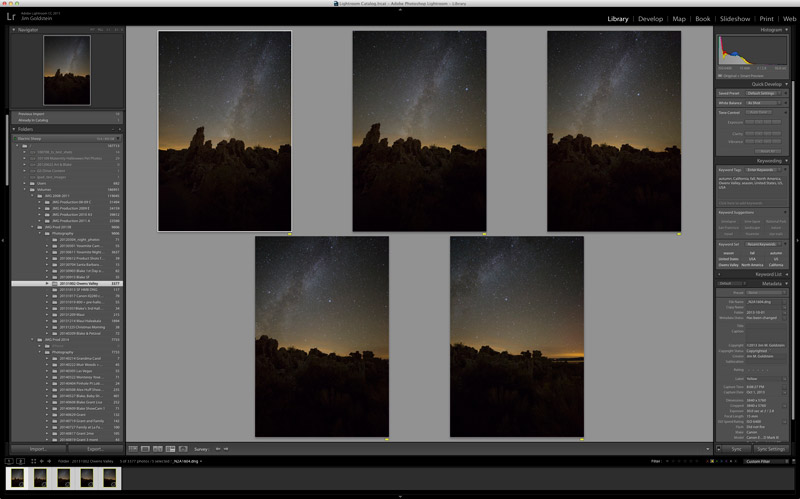
Panoramic Selections

Lightroom CC Pano Preview

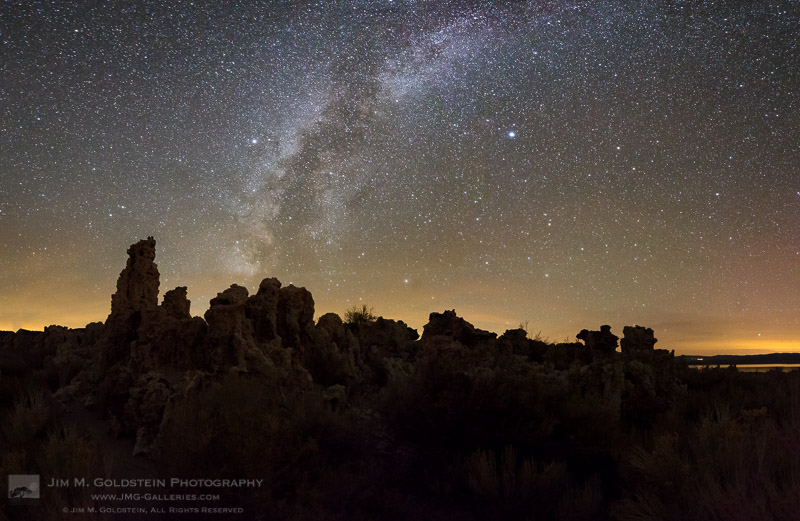
Mono Lake Milky Way Pano

HDR Lightroom Selection

Lightroom CC HDR Preview

Lightroom CC HDR Image Comparison

4. Facial Recognition

Lightroom now contains facial recognition which is quite nice if you’re photographing events or family. Seeing that I’m known to take tons of photo of my two young boys this will come in handy. By assigning names to each person in your photo you’re essentially applying keywords behind the scenes. With an eye toward privacy names of those in your photos are not exported with keywords unless you adjust your preferences.

Lightroom CC Facial Recognition

Lightroom CC Facial Recognition

Lightroom CC & Photoshop CC Keywords

Lightroom CC & Photoshop CC Keyword Comparison After Lightroom Export

5. Improved Metadata Categorization (Date, Location, etc.)

Now Lightroom does a better job of automatically organizing your photos referencing Dates and Locations. If you utilize GPS in your photos you’ll now be able to make use of the Map module in an easier fashion. Similarly if you search or categorize by dates you’ll find Lightroom CC / 6 a little easier to work with.

6.  Adobe Slate – Publish to the Web

If you’ve yet to hear of Adobe Slate you may want to take note. If you utilize Lightroom CC as part of your Creative Cloud subscription you can publish images and stories to Adobe Slate, a visual blog publishing platform.

Copyright Jim M. Goldstein, All Rights Reserved

My Favorite Features in Adobe Lightroom 6 (CC)

The post My Favorite Features in Adobe Lightroom 6 (CC) appeared first on JMG-Galleries – Landscape, Nature & Travel Photography.


Related Stories

  • My Favorite Features in Adobe Lightroom 6 (CC) – Enclosure
  • 6 Steps to Save Your Ass With Lightroom Catalog Changes
  • 6 Steps to Save Your Ass With Lightroom Catalog Changes – Enclosure
Feed Ads by FeedBlitz
powered by ad choices


JMG-Galleries

 
Comments Off on My Favorite Features in Adobe Lightroom 6 (CC)

Posted in Equipment


Adobe rolls out Lightroom CC and Lightroom 6 with HDR and panorama tools

21 Apr

Adobe has announced standalone and Creative Cloud versions of its image management and Raw conversion software, Lightroom. Among other new features the latest versions gain simple HDR and Panorama merging tools that create 16-bit DNG files from the merged results.  Read more

Articles: Digital Photography Review (dpreview.com)

 
Comments Off on Adobe rolls out Lightroom CC and Lightroom 6 with HDR and panorama tools

Posted in Uncategorized


3 Tips for Getting Great Skin Tones Using Adobe Camera Raw

10 Apr

Skin tones can be one of the more difficult aspects of a photograph to master. Getting pleasing skin tones will make your image appear more eye-catching and attractive. If you know the right steps to take, skin can be pretty simple to master. Using these three simple tricks, using only Adobe Camera Raw (ACR), your skin tones will appear more balanced and pleasing to the eye.

Before3 1

After3 1

Note: working in Lightroom you can do the this as well, because the sliders and options are the same!

White Balance

When trying to get great looking skin tones, the first thing you should pay attention to is the white balance. Correct white balance will set the stage for great skin tones. If the white balance is too cool, your skin will appear gray or bluish. On the other hand, if the white balance is too warm, the skin will look yellow or orange. Neither of these options are very pleasing to the eye, and make the skin more difficult to work with later on.

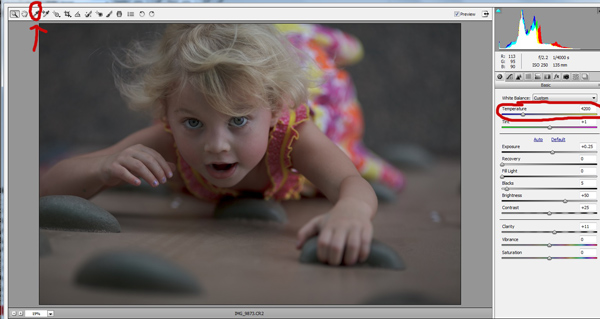
To see if your white balance is accurate, use the white balance targeted adjustment tool. It looks like an eye-dropper and is located at the top of the screen. It is the third tool over from the left. Click on the dropper, then click on an area of your photo that is white. The whites of the eyes are a good place to start. This should give you a good indication of where the white balance should be set. If your image still appears too warm or cool to your taste, use the temperature slider located to the right of your screen, it is the first one. Adjust this by sliding it to the right or left until your get a pleasing white balance. You may have to adjust Tint as well.

Whitebalance1

Exposure

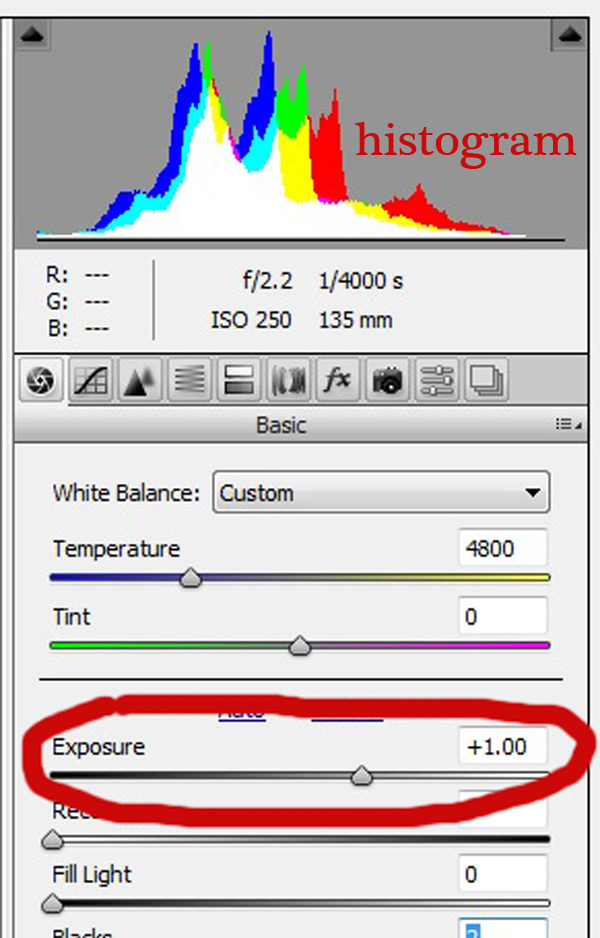
Next, make sure your exposure is correct. Take a look at the histogram located in the upper right hand corner of the screen. Ideally, you want it to look like a smooth bell curve, with the high point of the curve right in the middle. Check to make sure that the curve does not go too far to the left or the right. This may indicate that your photo is over or underexposed, causing your skin tones to either be gray and dark, or too bright and blown-out in some spots.

Exposure 2

If your curve does fall too far to one side, use the exposure slider to fix it. Located three sliders down on the right hand side of your screen, move it either left or right. Watch your histogram. When the majority of the curve is in the middle, you’ve got it! In some photos, there will be parts of your image that are very bright or dark, and cause your histogram to spike on parts of the curve. This happens often when you have a bright sky in the background. If this is the case, your curve will be off the chart on the right edge of the histogram. In an image like this, you would look at where the majority of your curve lies and ignore the parts of the curve that are out of range.

For more information see: How to Read and Use Histograms

Luminance

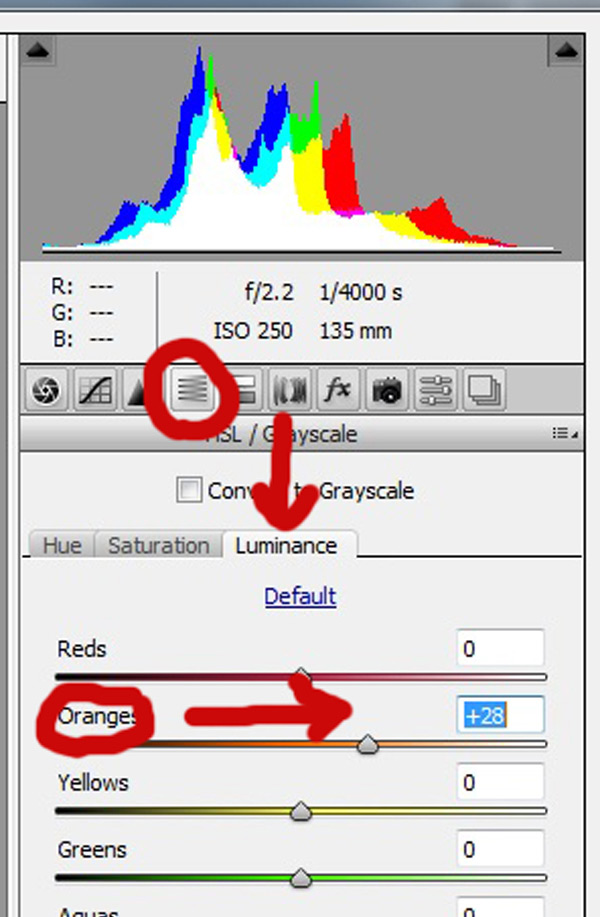
Finally, to give your skin tones just a little more brightness you will want to locate the luminance sliders (look for the HSL panel, the L stands for Luminance). You will see a horizontal strip of buttons directly under the histogram on the right panel. The fourth one to the left is HSL/Grayscale, click on that button. After selecting that option, three tabs will appear. Click on the Luminance tab. Choose the orange slider, which is two down, and move it to the right. You will notice that this affects mainly the skin in your photo and leaves the other areas of the image untouched. The more you move it to the right, the brighter the skin will appear. Keep moving the orange slider back and forth until the skin is the brightness you prefer.

Luminance 2

Before1 1

After1 1

Once you have adjusted your RAW image using these three steps, you can open it up in Photoshop to do any fine tuning or adjustments on the remainder of your photo. Your skin tones, however, should already look great and need little, if any additional work.

Before2 1

After2 1

Do you have any other tips for making great looking skin tones using ACR? Please share them in the comments below.

googletag.cmd.push(function() {
tablet_slots.push( googletag.defineSlot( “/1005424/_dPSv4_tab-all-article-bottom_(300×250)”, [300, 250], “pb-ad-78623” ).addService( googletag.pubads() ) ); } );

googletag.cmd.push(function() {
mobile_slots.push( googletag.defineSlot( “/1005424/_dPSv4_mob-all-article-bottom_(300×250)”, [300, 250], “pb-ad-78158” ).addService( googletag.pubads() ) ); } );

The post 3 Tips for Getting Great Skin Tones Using Adobe Camera Raw by Emily Supiot appeared first on Digital Photography School.


Digital Photography School
 
Comments Off on 3 Tips for Getting Great Skin Tones Using Adobe Camera Raw

Posted in Photography