RSS
 

Archive for January, 2020

Irfanview – The Free Program You Need in Your Photo Editing Toolbox

19 Jan

The post Irfanview – The Free Program You Need in Your Photo Editing Toolbox appeared first on Digital Photography School. It was authored by Rick Ohnsman.
irfanview-software

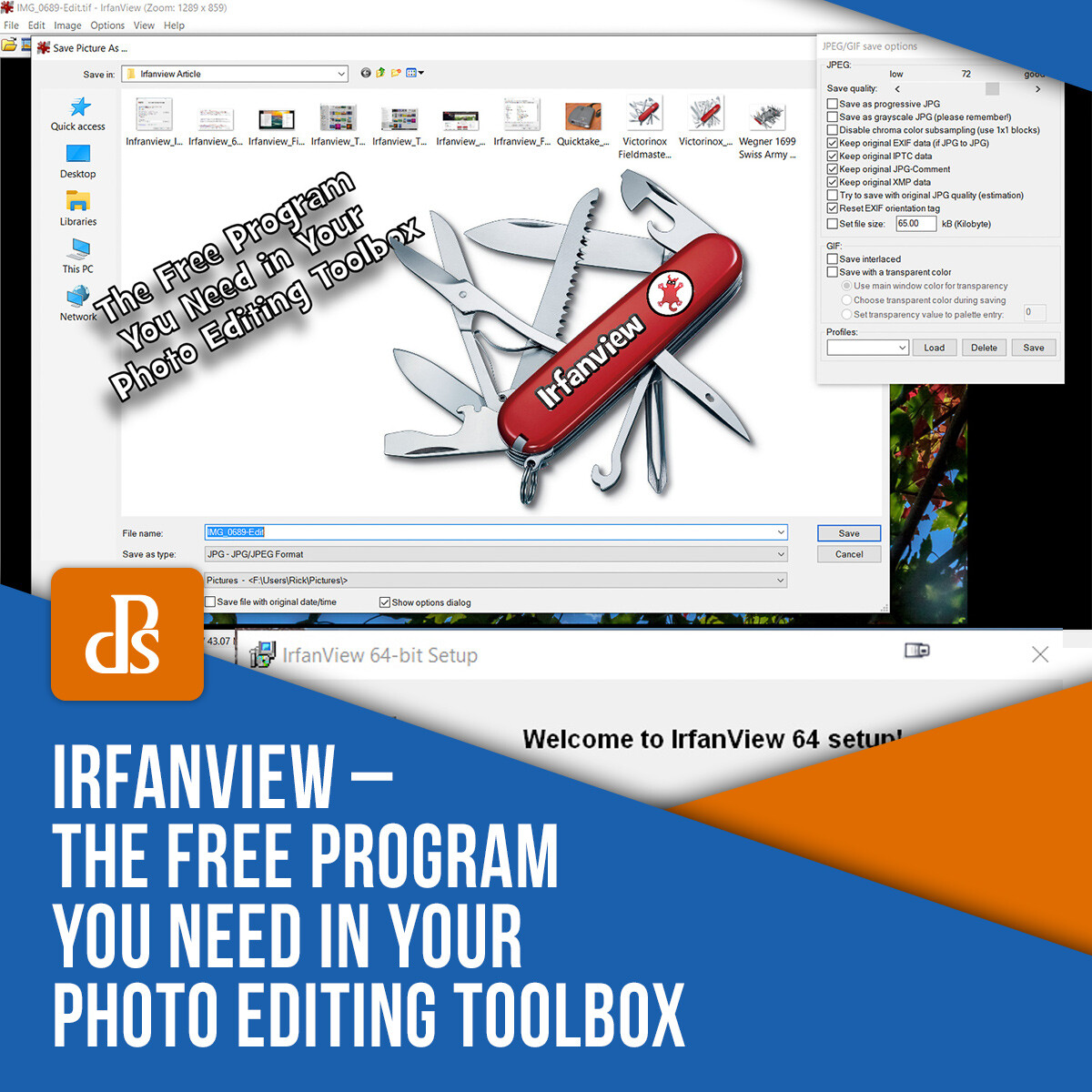
You would typically expect an article on a photo editing/utility program to be about the new latest-greatest thing to come out.  Instead, this article will tell you why Irfanview, a program that has been around since almost the dawn of digital photography, is still as useful as ever and, as a photographer, it’s something you’ll want in your toolbox.

This is the main screen that will greet you on the Irfanview.com site.

This is the main screen that will greet you on the Irfanview.com site.

The “Swiss Army Knife” of digital photography

You no doubt have heard of Swiss Army knives, those pocket multi-tools that have all manner of flip-out gadgets to perform whatever task you might require. Need a knife, a corkscrew, scissors, screwdriver, bottle opener, saw, tweezers, you-name-it? You can get all those things in one pocketable tool.

The largest such knife made by the company Wegner is the model 16999, and it has 87 tools that can perform over 141 functions. It’s hardly pocketable, but probably more of a demo of what is achievable. More typical Swiss Army knives have about 15-30 functions and are very pocketable.

Sure, a dedicated screwdriver or saw might do a better job, but the idea of having an entire toolkit in your pocket is the attraction.

The Victorinox SwissChamp knife

Irfanview is like a Swiss Army Knife – Lots of tools in one compact package.

Such is the case with the utility program Irfanview.

This little do-all program is the brainchild of student Irfan Škiljan, from Jajce, Bosnia/Herzegovina, who first introduced the program in 1996. To put that into perspective, the first commercially successful consumer digital camera, the Apple Quicktake 100, was introduced in 1994. I would venture that some of the readers of this article weren’t yet born.

Not only has Irfanview been around for 23 years, like the Swiss Army knife, but it also is small, compact, can fit on, and even be run from a thumb drive and performs more functions than I’ll even be able to cover here.

If you could only have one digital photography tool to work with, I daresay this might be the one you’d want. (Providing you work on a PC, sorry Mac users, this one’s not available for you unless perhaps you use a Windows emulator).

If you have been involved in digital photography for a long time, you may already be familiar with Irfanview. (Especially considering that since 2003 it’s been downloaded over a million times each month.)

It could be that you’ve used it in the past, but have forgotten about it. If so, you might learn some new tricks it can do now that you didn’t know about.

If you’ve never heard of it, it’s time you did. Either way, the list of Irfanview tools, features, functions, and tricks is impressive.

And did I mention it’s all free?

Yes, Irfanview has always been free, though Irfan Škiljan does accept donations and sells the product when used for commercial use. He has pretty much been able to live off the program.

The Apple Quicktake, released in 1995 was the first consumer digital camera.

The Kodak-made Apple Quicktake, released in 1995 was the first consumer digital camera.

What can’t it do?

I bought my first personal digital camera in 1999, a Nikon Coolpix 950. One of the first tools I used to work with my photos was, yup, Irfanview.

Over the years, new features and functions have been added, many of those created by other contributors who’ve created “plugins.” Adding to the already impressive list of functions the native program can perform, there are now over 70 plugins for Irfanview, expanding its capabilities even further.

It might be easier to list what the program can’t do rather than what it can do, but I will attempt to give you an overview of its basic functions. This will not be a “how-to-use” Irfanview article. One of the great things is the program is very easy to learn, and there’s no end of support available.

Pick the 32 or 64-bit version of Irfanview for your particular computer.

32 or 64-bit versions of Irfanview are available. Pick the version (and the plug-ins) for your particular computer.

Acquiring, downloading and installing

The official site for Irfanview is what you’d expect, Irfanview.com. Once there, you will see there are now two main versions, one for 64-bit and the other for 32-bit versions of Microsoft Windows. It will run on Windows XP, 7,8, and 10. If for some reason, you need older versions, those are available too.

Pick the version suitable for your computer. I suggest downloading the versions with the installers build in (these will be .EXE files).

Once downloaded, just double-click the file, tell it where you want it installed, and let it do its thing. (I also mentioned if you want a “portable” program, you can download and install it to a flash drive. It can be handy to have the program with you when you may want to use it on someone else’s computer and not have to install it to their machine.)

The Installation menu for Irfanview

The installation menu for Irfanview.

The Plug-ins

You don’t have to install the plug-ins, but I don’t know why you wouldn’t, as they greatly expand the list of what Irfanview can do. 

The easiest way to do this is to download and install the All Plug-Ins Installer. Be sure to pick the one that matches the version of the main program you downloaded and installed, 32 or 64-bit

Run the .EXE file just as you did the main program. It will find Irfanview on your machine (install that first) and then put the plugin-ins where they need to go. The whole process is very easy and straightforward.

You can configure Irfanview as the default view for whatever filetypes you choose.

You can configure Irfanview as the default view for whatever filetypes you choose.

Exploring the functions

With so much capability, I think the easiest way to give you an overview of the features is to look at the kinds of tasks you might want to accomplish and how Irfanview can handle those. I’ll briefly describe common tasks, though this will not be an in-depth instruction on how to perform the functions.

You might find this website a good resource for that purpose. The beauty of Irfanview is it’s very easy to learn and quite intuitive.

Open, view, save and convert files

As a photographer, you will likely be working with image file types like JPG, TIF, PNG, GIF, or possibly raw files like Canon CR2 or Nikon NEF.  What’s great is Irfanview opens dozens of different file types, even things you probably haven’t even heard of.  Here’s a link to a full list.

Open a file and view information in Irfanview.

You can learn lots about your image when you open it and use the Information option in Irfanview.

Open and View

To open a file/image, go to the File dropdown, pick Open and use the next menu to browse to where your file is located.

Click it once and, with the Preview Active box checked, you will see a thumbnail below.  There will also be information on the width and height of the image in pixels, the color depth, the size in RAM, and the file size.

Click Open or double-click the image and it will open in Irfanview.  If you want to go to the next image in the same folder, just click the spacebar on the keyboard or use the arrows on the top menu bar.

File conversion is a real strength of Irfanview.

Open one image type and convert it to something else. Irfanview excels at this. Here a .tif is converted to a ,jpg.

Convert

A powerful feature of Irfanview is the ability to convert one file type to another. For example, open a TIF file and save it as a PDF file or maybe a JPG. It’s as easy as opening the file and then saving it as whatever else you like.

If you like keyboard shortcuts, Irfanview has many. For example, an open image, click the “S” key to Save and then use the menu to tell Irfanview the file name, type, and location you wish to save it.

Irfanview can run video files too, like this mp4 video file.

Irfanview can run video files too, like this MP4 video file.

Not just for image files, Irfanview can play mp3 and other audio files.

Not just for image files, Irfanview can play MP3 and other audio files.

Not just photos

Irfanview goes beyond just opening photos.  It can also load and play audio and video files.  Want to play an MP3 music file or maybe an AVI video file?   Irfanview can do!

Send Irfanview images to an external editor of your choice.

Setting up external editors allows you to send an image from Irfanview to another editor, Photoshop in this example.

Open with an external editor

If Irfanview can’t do what you need, you can have it send the image to an external editor of your choosing.  You can specify up to three different editors in the Properties/Setting Menu.

The Thumbnails menu is Irfanview gives you many ways to look at your image files in a folder.

The Thumbnails menu is Irfanview gives you many ways to look at your image files in a folder.

View Thumbnails

This is a useful option.  (The “T” key is the shortcut).  Pick this, a submenu will open, and you can then browse all the folders on your drives.  Find the image you want, double-click it, and it will open in Irfanview.  The Thumbnails feature is very robust, offering many ways to view your files and see information about them.

Irfanview is a great program for making slideshows.

Irfanview is a great program for making slideshows.

Make a slideshow

This is one of my favorite features of Irfanview.

You can create an impromptu slideshow from images on any drive – even a plugged-in flashdrive. You can have the images automatically or manually advance, set timings, add music, show text such as file name, or even complete EXIF data.

If you want to save and take your finished slideshow elsewhere, you can save it to a self-contained EXE file, burn it to a CD or DVD, or even create a Screensaver file (SCR). With your computer connected to a projector, Irfanview makes a great presentation program, even allowing you to do things on the fly.

The batch conversion-rename tool in Irfanview is very powerful.

A top feature of Irfanview is its powerful batch conversion-rename utility. I’ve found none better.

Batch conversion/rename

I have not found a better program for this kind of work than Irfanview. Say I need to convert 200 TIF images to JPG, resize them to 1200 on the long side, sharpen them slightly, and rename them all to the same name but with sequential numbering. Irfanview has many of these options. You can tell it exactly what to do, how to do it, and where to save the results.

Once set up, it can work with as many files as necessary and, when set in motion (Start Batch), will quite quickly perform the assigned task.

Yes, the menus are quite extensive in this portion of the program, and taking the time to prepare your batch command carefully is important. What’s great, however, is the extensive options giving you very precise control of what you want.

There’s only one caution I’d give (and the default settings will usually protect you from doing this); if you convert or rename your files, be sure to set Irfanview to make a copy of those instead of overwriting the originals. You don’t want an “oh no!” moment if you discover you made a mistake and overwritten your originals.

Irfanview is a reasonablly capable image editor.

It’s not Photoshop, but Irfanview is a reasonably capable image editor.

Editing images

I won’t suggest that Irfanview will replace your dedicated photo editors like Lightroom, Photoshop, or whatever editing tool you use. That would be like saying the saw on a Swiss Army knife is a fine substitute for a chainsaw when felling trees.

However, in a variation of the saying about the “best camera,” let me say that the best editor is… the one you have with you.

Since Irfanview can work from a thumb drive, if necessary, without even installing it to the host computer, it’s easy to have it with you.

It’s installed on my desktop and notebook computers, and I carry a copy on a thumb drive on my keychain. Don’t leave home without it!

So what can you do with Irfanview as an editor?  Here’s a quick list:

  • Adjust color, brightness, contrast, saturation, gamma,
  • Resize image, canvas size
  • Crop
  • Add text
  • Paint – adjust brush size, color, shape, type
  • Fill
  • Sample color
  • Replace colors
  • Flip, rotate, mirror vertically or horizontally, straighten
  • Draw lines, arrows, shapes
  • Add borders, frames
  • Convert to grayscale, adjust color depth, invert to negative
  • Show histogram
  • Fix Red-Eye
  • Sharpen
  • Clone Stamp
  • Plus more!
Create multi-image montages with Irfanview.

Use Irfanview to create multi-image montages.

Other editing/compositing functions

Irfan has other great tricks it can perform. Need to create a contact sheet? Make a montage image? Yes, Irfanview can do these things.

While it also has a “Panorama” creation function, this is not a stitching program that can detect and seamlessly merge multiple images. It works better for making horizontal montages with multiple images where the edges need not match.

For stitching panoramas, I would instead suggest another free program, Microsoft ICE, on which I wrote this previous article.

Irfanview can control your scanner, bringing the scanned image into the program for further work.

Irfanview can control your scanner, bringing the scanned image into the program for further work.

Scanning, copying, and printing

Irfanview can connect to scanners and other TWAIN devices to bring images directly into the program. Point Irfanview to the device, and it will allow you to scan single or multiple images.

If you need to make a quick copy of something and have both a scanner and printer connected to your computer, Irfanview has a Copy Shop feature that scans the image and immediately sends it to the printer.

Still more tricks

You will want to explore Irfanview on your own as there are more possibilities than I can possibly write about here. As with many things, the best way to learn is to experiment and get some hands-on experience.

Here a few other things you may wish to try:

Screen captures

Need a screenshot to save or send someone?  Use the Print Screen function on your keyboard to capture the screen.  Then open Irfanview and Edit->Paste the captured image.  Crop it as desired and save the image for attachment to your email, further editing, or printing.

Add your exposure data to your photo with Irfanview.

Want to have your exposure data show on your photo? Irfanview can do! Display any Exif or IPTC data you like.

Put exposure data (or other text) on photo

There could be times you might want to display Exposure data or other text on your photo.  Here’s a simple way to do it in Irfanview:

  • Open the photo of interest
  • Drag a box on the portion of the image where you want to display the text
  • Click Edit->Insert Text
  • Use the menu that appears to fill in the information you want to be displayed.
  • You can use the Exif data codes to pull data from the file (if you haven’t overwritten it with a previous edit to the file).  A list of all codes is available in the Irfanview Help menu. Click the Help button in the menu to see them.  See an example in the image above.
  • If you want to be able to save the “recipe” you created, you can save it as a Profile which you can then use later.  This same technique can be used within the Batch conversion tool to do multiple images.
Plug-ins offer many more options in Irfanview like this Effects option.

Plug-ins offer many more options in Irfanview like this Effects option.

Plug-ins and filters

When you really want to dig deep into what Irfanview can do, you can explore the plug-ins and filters option. Here you can do such things as OCR (Optical Character Recognition), which will allow you to scan in a page of text and then convert it to editable text.

There is Facial Recognition (which I’m still deciphering), and there are the Image Effects (with an image open in Irfanview, click Image->Effects->Effects Browser, to get an overview of the various looks you can achieve.

Want even more? There are plug-ins under the Effects Menu like Filter Sandbox or Filter Factory. Irfanview can also use any Adobe-compatible 8BF filters.

Conclusion

The Swiss Army Knife analogy is a perfect description of the way I use Irfanview. It may not be the tool I use routinely, and certainly isn’t my primary photo editor, but, like carrying a utility tool in my pocket, it is oh, so handy when I need it. It’s also easy to always have around.

For a few tasks, it even does things commercial programs can’t or does them in a simpler, better way.

I have used the program for over 20 years, and I can say even as I prepared this article, I learned some new things I’d not yet discovered. If you try it, you, too, will find a place in your photo-editing-toolkit for Irfanview.

Let me know in the comments how you found it useful in your work.

The post Irfanview – The Free Program You Need in Your Photo Editing Toolbox appeared first on Digital Photography School. It was authored by Rick Ohnsman.


Digital Photography School

 
Comments Off on Irfanview – The Free Program You Need in Your Photo Editing Toolbox

Posted in Photography


Pentax DA* 11-18mm F2.8 sample gallery (DPReview TV)

18 Jan

$ (document).ready(function() { SampleGalleryV2({“containerId”:”embeddedSampleGallery_5548562135″,”galleryId”:”5548562135″,”isEmbeddedWidget”:true,”selectedImageIndex”:0,”isMobile”:false}) });

Check out these full resolution images shot with the Pentax DA* 11-18mm F2.8 ultra-wide zoom lens, captured while shooting this week’s episode of DPReview TV.

Did you miss this episode? You can find it here.

Articles: Digital Photography Review (dpreview.com)

 
Comments Off on Pentax DA* 11-18mm F2.8 sample gallery (DPReview TV)

Posted in Uncategorized


How to Remove a Fence From Your Photo in Just 3 Steps in Photoshop (video)

18 Jan

The post How to Remove a Fence From Your Photo in Just 3 Steps in Photoshop (video) appeared first on Digital Photography School. It was authored by Caz Nowaczyk.

In this Photoshop video tutorial from Piximperfect, you’ll learn how you can remove a fence from your photo in Photoshop – you know, those annoying fences in front of your subject.

?

How to remove a fence from your photo in just 3 steps in Photoshop

Use the following steps to remove your fence:

Step one: Painting out the fence on a layer mask

  1. Make a layer mask.
  2. Zoom in close to your fence, then choose a hard-edged brush that is just slightly larger than the edge of your fence (be sure your paintbrush color is black).
  3. To paint the fence, simply click at the beginning of the fence, then hold the shift key, move the brush to the next section of fence and click. This will create a straight line.
  4. Continue this process over every section of the fence. While this can take some time, duplicating the pattern generally won’t work as no two sections will be the same).
  5. While zoomed in, to move around the image, press the space bar to bring up the Hand and then move the image to where you need it. Then continue painting in the fence lines.
  6. Be sure to paint over all the discrepancies in the fence. If some sections of the fence aren’t straight, simply paint in two or three points.
  7. Once you have painted in all the fence lines, you can move onto the next step.

Step two: Apply the Content-Aware fill

  1. Select the background layer and turn off the fence mask layer using the eye icon next to the layer.
  2. Now hold Ctrl (PC) or Cmd (Mac) and click on the thumbnail of the fence mask layer. This will select the fence layer.
  3. Go to Edit->Content-Aware Fill (If you are using an older version of Photoshop, for to Edit->Fill and then choose Content-Aware from the dropdown section).
  4. This will open up the Content-Aware Fill settings. Leave them at the default settings. Just change the Output To: setting to New Layer. Click OK.
  5. Press Ctrl+D (PC) or Cmd+D (Mac) to deselect the fence.
  6. To see how the Content-Aware Fill tool has worked, turn off your background layer momentarily. Then turn it back on.

Step three: Making minor adjustments

  1. The image may look great while zoomed out on the full image, but when zoomed in close, some areas may not look right. This is where the minor adjustments come into play.
  2. Create a new layer.
  3. You can use the Spot Healing Brush Tool. Paint over areas that need fixing with a soft brush. Be sure that the “Sample All Layers” box is checked too. That way, it samples all the layers below the layer you are working on.
  4. For trickier sections, like eyes, select the Clone Stamp Tool.
  5. Take a sample of a similar section by clicking the Alt Key and selecting. If you need to rotate your clone (for example, around an eye). Hold down Shift+Alt+Right or Left Arrows or > (Win) and Shift+Opt+Right or Left Arrows (Mac)
  6. You can also do that by going to Window->Clone Source and then manually entering in the angle of rotation.
  7. Then use the regular Healing Brush Tool. Click the Alt (Win) or Option Key (Mac) to take your sample then paint in the areas that need fixing.
  8. If you are having difficulty fixing areas such as the eyes, consider duplicating the other eye.
  9. To do this, make a new layer. Then use the Clone Tool and make your selection from the same eye. Then repaint it onto the new layer.
  10. Then press Ctrl or Cmd+D to select it and right-click and select Flip Vertical. This then brings up the corner anchors, and you can rotate the eye as you please.
  11. Next, move the rotated eye section over the top of the original eye.
  12. Click on the Mask icon on the Layers panel to create a mask. Select your brush tool. Remember, a black fill will hide your layer (paint it out).
  13. Start painting out the sections you don’t want. You can lower the opacity of your layer so that you can get it’s positioning just right too.
  14. Next, merge your clone layers (not the background or Content-Aware Fill layers). To do this, select the first layer, then press Ctrl or Cmd and click on the next layer. Then press Ctrl or Cmd+E to merge them.
  15. Continue to look for discrepancies and fix those using the same process.

Step Four: Further adjustments

  1. Now, you can make further adjustments to your image, including selective focus.
  2. Next, create a stamp visible layer.
  3. To do this, first, create a new layer and call it “Selective Focus.” Then select Ctl+Alt+Shift+E (win) or Cmd+Opt+Shift+E (Mac). This will bring your image into the layer.
  4. Then convert the layer to a smart object. Go to Filter->Convert for Smart Filters. Click OK.
  5. Then go to Filters->Blur Gallery and choose Tilt Blur. Next, rotate it. Keep in mind that the areas in the middles are focused – they have zero blur.
  6. Adjust the blur level to whatever you like. You can also adjust the width of the blur area by pulling the lines outward.
  7. Always have your eyes in focus.
  8. You can also add other blur types if you like.
  9. You can also add some sharpness to the eyes. Create another Stamp layer as above. Then desaturate it by clicking Ctrl+Shift+U (Win) or Cmd+Shift+U (Mac). Then go to Filter->Convert for Smart Filter. Click OK.
  10. Next, go to Filter->Other->High Pass. Zoom in so you can see the detail. Decrease the radius slowly and gradually increase it. Just when you begin to see the halos, stop.
  11. Change your layer blend mode to Overlay.
  12. You will see the sharpness on the overall image, but you really only want it on the face. So, hold down the Alt Key (win) or Opt Key (Mac) and then click on the mask. This will create a negative (black) Mask.
  13. First, name it “Sharpen.” Then click the mask, select your Brush Tool, then choose a soft brush and paint on the areas you want to sharpen (Be sure your white paint palette is selected).

And that’s it!

Share your before and after results with us in the comments section!


The post How to Remove a Fence From Your Photo in Just 3 Steps in Photoshop (video) appeared first on Digital Photography School. It was authored by Caz Nowaczyk.


Digital Photography School

 
Comments Off on How to Remove a Fence From Your Photo in Just 3 Steps in Photoshop (video)

Posted in Photography


DPReview TV: The most important Pentax cameras of all time

18 Jan

Pentax week continues! In this video, Chris takes us for a ride on the wayback machine to look at the most important Pentax cameras in history.

Have your own favorite Pentax model? Tell us in the comments.

Subscribe to our YouTube channel to get new episodes of DPReview TV every week.

  • Introduction
  • Pentax K1000
  • Asahi Pentax 6X7
  • Pentax LX
  • Pentax Auto 110
  • Pentax K10D
  • Pentax 645Z
  • Conclusion

Articles: Digital Photography Review (dpreview.com)

 
Comments Off on DPReview TV: The most important Pentax cameras of all time

Posted in Uncategorized


Photojournalists won’t be allowed to capture the handing over of the articles of impeachment against Donald Trump

18 Jan

Image US Capital, West Side. Captured by Martin Falbisoner used under CC BY-SA 3.0

It’s been revealed the United States Senate will be cracking down on the press corps for the Senate impeachment trial of U.S. President, Donald J. Trump, severely limiting photojournalists ability to document the monumental moment.

Later today, when House leaders hand off the articles of impeachment to the Senate, still photographers won’t be allowed to document the monumental moment, an unprecedented move that’s raising concerns over credentialed reporters’ and photographers’ ability to exercise their First Amendment right to the freedom of the press.

According to a report from Roll Call, Capitol Police Chief Steven A. Sund and Senate Sergeant-at-Arms Michael C. Stenger are putting in place restrictions that will allow just a single video camera to be present in the room. No still photographers will be allowed to press the shutter and no audio recordings will be allowed.

Even after today, the remainder of the trial will see only a single press pen set up on the second floor of the Senate, where legislators will enter and exit the chambers. Reporters and photographers won’t be able to move outside the pen, except for before and after the processions when they’re escorted by proper authorities.

Following news of these restrictions, The Standing Committee of Correspondents, a five-member panel of journalists representing the credentialed press in Congress, fired back saying the restrictions ‘fail to acknowledge what currently works on Capitol Hill, or the way the American public expects to be able to follow a vital news event about their government in the digital age.’

Roll Call reports the ‘planned restrictions […] rejected every suggestion made by the correspondents,’ regarding press access during the trial and The Standing Committee of Correspondents has rejected the claim these planned restrictions are being put in place to protect the lawmakers, saying Capital Police have implemented these rules ‘without an explanation of how the restrictions contribute to safety rather than simply limit coverage of the trial’

Other individuals chimed in on the matter, including Alexandria Ocasio-Cortez, a U.S. Representative for the NY-14 district, who shared the following tweet:

Photographer and teacher David Hobby also shared his thoughts on the matter, saying:

Unfortunately, these restrictions likely mean photographer David Burnett won’t be able to use his now-iconic 4 x 5 film camera to capture the transfer of articles for the third impeachment in U.S. history.

Articles: Digital Photography Review (dpreview.com)

 
Comments Off on Photojournalists won’t be allowed to capture the handing over of the articles of impeachment against Donald Trump

Posted in Uncategorized


Xiaomi patent shows pop-up camera with up to seven lenses

18 Jan

Pop-up front cameras are an established design to avoid large bezels, ‘punch holes’ or notches on smartphone fronts. If Xiaomi’s latest patent filing is anything to go by the concept could soon be taken to another level, though.

The documentation which was recently authorized by CNIPA (China National Intellectual Property Administration) shows a pop-up camera that comes with a lot more camera/lens modules than anything we’ve seen up to now.

The patent includes three versions, with the most simple one featuring dual-cameras at front and back. The most advanced variant comes with a dual-cam at the front and five modules on the front.

To accommodate all this the pop-up mechanism is wider than on most other smartphones with pop-up cameras but still, image sensors would likely have to be smaller than on more conventional camera setups. As usual, there is no way of knowing if this patent will ever be turned into a final product but it’s good to see manufacturers looking at new ways of designing smartphone cameras.

Articles: Digital Photography Review (dpreview.com)

 
Comments Off on Xiaomi patent shows pop-up camera with up to seven lenses

Posted in Uncategorized


Lensrentals gets risky while tearing down the Nikon Z 24-70mm F2.8 zoom lens

18 Jan

Image credits: Photos published with kind permission from Lensrentals.


Over on ‘The Desk of a Humble Genius,’ Roger Cicala of Lensrentals has ‘finally’ taken apart the Nikon Z 24–70mm F2.8 lens and shared both his insights and images from the experience.

As the original title of the teardown, ‘Lens Disassembly is a Complicated Profession. Don’t You Agree?,’ alludes to, this particular disassembly proved to be a challenging one, which par for the course with Nikon lenses, according to Roger. In his own words, Roger says ‘Nikon lenses have always been a bit “old fashioned” and different from other SLR lenses,’ but this review comes with a very clear warning to ‘not get your lens and screwdriver and follow along at home,’ because ‘Bad things might happen. Bad. Things.’

The teardown starts off with what is about the only negative thing Roger has to say about the lens—the felt around the lens hood, which he feels peels up too easily isn’t up to the quality of the rest of the lens.

From there, it’s onto the mount, which was dissected one screw and ribbon cable at a time. Upon removing the mount itself, Roger noticed it was particularly difficult to get off. This was due to an inner lip that rests against the rear barrel of the lens. Roger says ‘This might be to keep the bayonet centered, for a dust seal, to provide a little extra strength, or just because it looks cool,’ but notes regardless of the exact reasoning, ‘it seems like an all-around good idea.’

Moving along, Roger removed the rear piece of the lens barrel to reveal the A/M focus switch and the optical sensor the control ring uses. Each piece removed reveals a healthy amount of weather sealing gaskets, as well as numerous electrostatic discharge (ESD) cushions under the exterior of the lens.

With the rear barrel off, Roger gets into the internals of the lens, which proved to be a pleasant surprise. In his own words:

‘OK, let’s take a moment for me to give some props. Forever, during Nikon tear-downs, I’ve made snarky comments about the old-fashioned look they have inside; soldered wires here and there, flexes wandering aimlessly, random secondary circuit boards, etc. Well, no more. Look at this engineering right here: neat flexes running directly where they’re heading placed in recessed channels in the barrel and thoroughly taped in place. Superb! Nikon has clearly modernized and spent time and effort in making a clean, well-engineered layout for the electronics. I’ve been asking for that for years, and Nikon delivered.’

The PCB itself also proved to be quite minimal, at least compared to the one found inside the Canon RF 70–200mm F2.8 lens Roger tore down a few weeks back. In the past, Nikon has used secondary circuit boards in the lenses to beef up the processing capabilities, but Roger notes there wasn’t another one inside this lens, suggesting the camera handles a generous amount of the processing power.

After a few other auxiliary bits, it was onto the removal of the next piece of the lens barrel. Unfortunately, this is where Roger and Aaron ‘ran into the “be careful what you wish for; you might get it” conundrum.’ It turns out one of those nicely-organized flex cables ran down to the display unit of the lens and refused to budge when attempting to lift the barrel.

A syringe full of rubbing alcohol isn’t something you usually want to see during a lens teardown.

‘Rule 63 of taking apart lenses is “thou shalt not tug a flex”; because tearing a flex is bad,’ says Roger in the teardown post. ‘[But] on Nikon lenses, because we can’t buy parts, tearing a flex is very bad.’ After countless attempts to use different means of removing the flex cable to avoid tugging, Roger and Aaron decided they were sick of holding off lunch and decided to use a little rubbing alcohol in a syringe to ease the adhesive from the back of the ribbon cable. After a little bit of pulling, the barrel was off and they were on their way.

Roger hits on a number of other interesting tidbits about the buttons on the lens and the unusually-bright neon-yellow tape strategically-placed throughout the lens. The zoom barrel proved to be weather-sealed incredibly well and the zoom position sensor Nikon uses is an upgrade from the traditional metal brushes it’s used in the past.

The remainder of the lens disassembly proved to be a doozy, with excellent build quality proving time and time again to be a double-edged sword for Roger, who seemed to be as challenged as he was impressed.

While we’ll leave the rest of the humor, photos and details to Roger in his full write-up, here are a few other notable details discovered throughout the remainder of the teardown process:

  • Breaking the front filter thread of the lens is going to be a very expensive fix, as the entire front barrel is a single piece, rather than a piece simply held on with a few screws.
  • Aaron had to put on gloves during the assembly, which in Roger’s own words means ‘shit’s getting real’
  • The aperture diaphragm assembly is a combination mechanical/electronic aperture with very tight tolerances

When all was said and done, this teardown proved to be the longest ever—and that’s before Aaron had to piece it all together. The good news is, it (mostly) took so long because Nikon went above and beyond when engineering this lens.

Roger says these new Nikon Z lenses are a far cry from their F-mount counterparts and much like Canon’s RF lenses, are likely completely new optical designs made in-house. He notes ‘The engineering itself is incredible in most ways [and] the neatly laid out and solidly adhered flexes reflect the careful design.’

To see all of the images and read more in-depth knowledge shared by Roger, head on over to the Lensrentals blog.

Articles: Digital Photography Review (dpreview.com)

 
Comments Off on Lensrentals gets risky while tearing down the Nikon Z 24-70mm F2.8 zoom lens

Posted in Uncategorized


Platypod creators return with the new Platyball Ergo and Elite tripod heads

18 Jan

The Platypod creators are back with another product called Platyball, a new type of tripod head that features a unique design and more modern, convenient features. The Platyball is made with a weather-sealed aluminum unibody, steel components and polymer brake pads; it supports payloads of up to 10kg (22lbs).

Rather than featuring bubble indicators, the Platyball features a built-in leveling indicator offering an accuracy level of 0.5-degrees. The pricier Elite model is identical to the cheaper Ergo model, the only exception being its electronic leveling indicator system. The Platyball is designed for single-hand and gloved-hand use, plus it can be transported using a carabiner clipped to a bag or belt.

Other features include support for use in half a dozen directions, an adjustable brightness display for nighttime use, support for user calibration, an Arca-compatible twist collar, panning lock thumb wheel, two large buttons for locking and unlocking the device and support for standard A23 alkaline batteries.

The Platyball Ergo is offered to Kickstarter backers who pledge at least $ 199; the Platyball Elite for pledges of at least $ 249. The team estimates that shipping to backers will start in March 2021 and that the eventual retail prices will be $ 249 and $ 325, respectively. You can find out more and secure your pledge by heading over to the Kickstarter campaign.


Disclaimer: Remember to do your research with any crowdfunding project. DPReview does its best to share only the projects that look legitimate and come from reliable creators, but as with any crowdfunded campaign, there’s always the risk of the product or service never coming to fruition.

Articles: Digital Photography Review (dpreview.com)

 
Comments Off on Platypod creators return with the new Platyball Ergo and Elite tripod heads

Posted in Uncategorized


Canon wins lawsuit against eBay sellers accused of peddling counterfeit batteries

18 Jan

Canon USA has announced a successful lawsuit against two eBay sellers who were allegedly peddling counterfeit ‘Canon’ batteries. The camera company had filed a complaint against the defendants in October 2019, claiming the sellers were using its trademarks and that doing so could ‘mislead the public as to the source and authenticity’ of the products, potentially to their peril.

The legal victory took place on December 12, 2019, in the US District Court for the Eastern District of Pennsylvania. According to Canon, the defendants in the case were barred from ‘infringing and counterfeiting the valuable Canon trademarks.’ The sellers will also be required to pay Canon a ‘significant amount of money,’ according to the camera company.

Below is a copy of the court documents, obtained by PetaPixel:

Counterfeit batteries put both the operator and their camera at risk, Canon explains on its website. These products may be poorly made and prone to overheating; they may also offer lackluster performance when compared to the real thing, resulting in frequent recharging and shorter lifetimes. Signs of a counterfeit battery include lack of an anti-hologram sticker on the bottom, modifications to the company’s logo and an inability to communicate with the camera.

Articles: Digital Photography Review (dpreview.com)

 
Comments Off on Canon wins lawsuit against eBay sellers accused of peddling counterfeit batteries

Posted in Uncategorized


Fotodiox’s new Vizelex Cine ND Throttle Fusion adapter connects EF lenses to GFX cameras

18 Jan

Fotodiox has launched its new Vizelex Cine ND Throttle Fusion Smart AF lens adapter for connecting Canon EF lenses to Fuji G Mount GFX mirrorless cameras. The adapter features integrated Fusion tech for using autofocus and other automated functions, as well as a built-in variable neutral density filter with 1 to 8 stops (ND2-256).

Fotodiox says users may notice vignetting when the adapter is used with certain Canon EF lenses; for these instances, the product features a switch for changing from medium format to 35mm mode. As well, the adapter has a switch for directly toggling from aperture priority to program mode. Firmware updates are delivered over micro USB.

Other features include an all-metal design, the promise of high-precision construction, chrome-plated brass mounts and a geared rotating ring for adjusting the ND filter. The adapter is available now from Amazon, B&H Photo and Adorama for $ 550.

Articles: Digital Photography Review (dpreview.com)

 
Comments Off on Fotodiox’s new Vizelex Cine ND Throttle Fusion adapter connects EF lenses to GFX cameras

Posted in Uncategorized