RSS
 

Archive for July, 2018

Mastin Labs’ new ‘Kodak Everyday’ preset pack includes Ektar 100, Gold 200 & Tri-X 400

12 Jul
Gold 200 preset photographed by Marco Govel

Mastin Labs has released a new collection of presets for Adobe Lightroom and Photoshop that aim to emulate the look of three iconic Kodak film stocks.

Titled ‘Kodak Everyday,’ this new preset pack includes film emulations for Kodak Ektar 100, Kodak Gold 200 and Kodak Tri-X 400 film stocks. In Mastin Labs’ words, this ‘pack has three distinct looks: bright and vivid, gold and lush, or rich black and white tones.’

Tri-X 400 preset photographed by Quinton Cawthon

In addition to the base presets that come in the pack, Mastin Labs also includes toning profiles, custom white balance settings, and grain settings that replicate 35mm and medium format film grain structure. ‘Our color science recreates the micro-contrast of real film for a clean, three-dimensional look,’ says Mastin Labs on its product page.

Ektar 100 preset photographed by Bisual Studio

Mastin Labs says the presets are color-calibrated for Canon, Nikon, Sony, and Fujifilm X-series cameras (except for the X100). If you’re using another brand camera, Mastin Labs suggests using the Canon preset, which will give you similar results with only a ‘slight reduction in accuracy.’

The ‘Kodak Everyday’ preset pack is the fifth set Mastin Labs has put out to date, including its Ilford, Fujicolor, Fujicolor Pushed, Portra and Portra Pushed packs.

Gold 200 preset photographed by Santi Nunez

At $ 99, the ‘Kodak Everyday’ pack is identical in price to DxO FilmPack 5 Elite Edition and a bit steeper than Visual Supply Company preset packs, which run $ 59 a piece.

The Kodak Everyday pack requires Adobe Lightroom 7.3 or Adobe Camera Raw 10.4 or later and work with both MacOS and Windows computers. RAW, NEF and RAF RAW files are all supported.

To find more examples and to purchase the ‘Kodak Everyday’ preset pack, head on over to Mastin Labs’ product page.

Articles: Digital Photography Review (dpreview.com)

 
Comments Off on Mastin Labs’ new ‘Kodak Everyday’ preset pack includes Ektar 100, Gold 200 & Tri-X 400

Posted in Uncategorized


5 Crucial Mistakes You Need to Avoid When Photographing Clients

12 Jul

Don’t make these 5 crucial mistakes when photographing clients!

Over the years I have read dozens of articles explaining tips, tricks, and things to keep in mind for successful photo sessions. As I was wrapping up a family shoot recently I started to think about the situation from the opposite end of the spectrum. Kind of as a way of giving some advice to my younger self or other photographers who might still be honing their craft.

So instead of five tips to try here, are five things you should never do if you want your photo sessions with clients to run smoothly.

5 Crucial Mistakes You Need to Avoid When Photographing Clients - family photo

Mistake #1 – Not showing up on time

This one is a bit of a carryover from my childhood and is based on a lesson my dad taught me at a very young age. Whether my siblings and I were going to church, to school, or even just to a friend’s house he would repeatedly stress that we ought to arrive at our destination at least 10 minutes early. If we show up on time, he reminded us over and over again, we’re already late.

That might have been a bit of an oversimplification but the lesson still sticks with me to this day. It’s also one that is especially true when it comes to photographing clients.

If you are to meet at a certain location at a certain time, do not arrive when you have agreed to. Instead, make sure to get there at least 10 minutes early, and that’s the bare minimum. The earlier you arrive the more you can prepare, especially if the session is outdoors or in another type of uncontrolled environment.

fossil watch - 5 Crucial Mistakes You Need to Avoid When Photographing Clients

As my dad would say – if you get there on time you’re already late.

Arriving early allows you to assess the situation, get your cameras and lenses in order, double-check your settings (did you remember to turn on Image Stabilization? Are you still shooting at ISO 3200 from last night’s star-trail experiment?) and mentally prepare yourself for the photo session.

It also sends a message to your clients that you’re responsible and you care about the job. If you show up on time you might end up arriving after your clients. If they’re like my father and got there early they may be wondering where their photographer is. It doesn’t take much effort to arrive well in advance but it can pay huge dividends and set a positive tone for the rest of the photo session.

Mistake #2 – Don’t dress casually

portrait of a couple in a garden - 5 Crucial Mistakes You Need to Avoid When Photographing Clients

Your clients go out of their way to dress for the session. You should too.

This one is a big deal for me because I’m perpetually wearing the same clothes I wore in college: jeans and a t-shirt. It’s my go-to outfit for just about any situation and there were a few times early in my photography work with clients that I treated sessions as just another day out when I could dress casually. However, doing that sends an unfortunate message to your clients that you can easily avoid with very little effort.

Jeans and a t-shirt might seem fine to you but your clients might take this as a sign that you are a bit of a slacker or that you don’t care enough about your work (or them) to look the part. Clients are more likely to see your work as high-quality if you take the time to dress up a bit.

Wear nice clothes as a way of projecting a professional image. It will help clients have a more positive view of you, your work, and the session as a whole.

family sitting on the grass - 5 Crucial Mistakes You Need to Avoid When Photographing Clients

Some clients prefer a more casual style for themselves, and that’s fine. But it never hurts for you to wear nicer clothes as a way of projecting an image of professionalism.

Mistake #3 – Don’t make fun of your clients to get a laugh

Tell me if this sounds familiar. You’re doing a photo session and it’s going reasonably well but your clients aren’t responding quite how you would like. You’re trying to get them to loosen up, relax, and smile but they still seem a bit reserved and hesitant. As a result, your pictures just aren’t quite as good as you know they could be.

So you decide to crack a joke at the expense of one of your clients who is balding, wearing mismatched socks, doesn’t realize his shirt is un-tucked, or maybe just not quite paying attention.

Oh no, the glare from Bob’s head is messing up my camera! Hang on a second, I’m being blinded over here!

Does that scenario ring a bell? I have almost done this on a couple of occasions but stopped each time, and I’m so glad I did. You might think your comments are benign and all in good fun, but the person might be sensitive about the very thing you are pointing out. You could easily cause some hurt feelings or even downright anger.

Your clients might respond to these quips with laughter but on the inside, they may feel something entirely different that could cost you referrals, repeat business, or in-person sales.

family walking on a pathway - 5 Crucial Mistakes You Need to Avoid When Photographing Clients

This family was an absolute joy to work with. I would never want to sacrifice meaningful professional relationships with them or anyone else just for a quick laugh.

The damage that is done by what seems like benign comments could linger for a long time and have consequences well beyond the session itself. Instead of aiming for a cheap laugh, strive to maintain a level of professionalism when interacting with and photographing clients on a shoot.

If you get to know them a bit (another benefit to showing up early!) they will be more likely to loosen up, cooperate, and give you the type of pictures you are really striving for.

Mistake #4 – Don’t use your phone during the session

I know how tempting it can be to reach for your phone during a photo session, and there might even be a thousand good reasons to do so. What if it’s a text from your landlord? Maybe your cousin sent you a Snapchat message about his new job? What if your spouse is going to be home late and needs you to pick up the kids? Certainly, your clients would understand if you peeked at your phone for just a bit…right?

They might understand, but they might also wonder why you are getting distracted while they are paying you to do a job. One little peek at your phone often turns into two, then three, and pretty soon you find yourself missing shots or watching your clients roll their eyes in exasperation because you’re looking at your phone more than your camera.

portrait of teenagers - 5 Crucial Mistakes You Need to Avoid When Photographing Clients

My advice is simple, just ignore your phone. Better yet, leave it in your car or put it on silent and stick it in your gear bag. If you think you might need to check it during a session, tell your clients in advance (yet another reason to arrive early) and ask their permission to take a minute at a certain pre-planned time to do so.

This might seem overly restrictive, but it’s so easy to get caught up in the alerts and messages on your phone that you might not even realize how much you are actually using it. Your clients will probably not notice if you are NOT using your phone, but they will certainly notice if you ARE using your phone and they might not want to hire you back as a result.

Mistake #5 – Don’t over-extend the session

Many photographers charge clients a certain amount based on the length of time that they offer for sessions. One-hour portraits, two-hour engagements, 15-minute minis, or 3 hours of wedding plus 2 hours of reception coverage, for example.

This usually works well and gives both the photographer and the clients a set of shared expectations, but it can backfire in some unexpected ways depending on the type of clients you are working with.

little girl in a blue dress - 5 Crucial Mistakes You Need to Avoid When Photographing Clients

15 minutes in and this precious little girl was ready to be done. Extending the session would have made her fussy and stressed out her parents too.

Know when to fold

There’s a line in an old Kenny Rogers song that’s quite à propos for photographers, “You got to know when to hold ’em and know when to fold ’em”. As a photographer, you need to learn how to read the situation, watch your client’s body language, and get their input on how to proceed when you feel like the session needs to draw to a close.

Your clients might be paying you for a one-hour session but if the kids are fussy, the grandparents are tired, and the shirts are getting sweat marks after only 40 minutes then you really need to find a way to shut it down tactfully and gracefully.

The best way I have found to do this is to keep an open dialog with clients throughout the session. Talk with them as you take their pictures and let them know that you are willing to adjust as needed especially if kids are involved. Your clients expect you to be in charge and they often won’t speak up for fear of being rude or confrontational.

So read the situation closely and take the initiative if you think it’s time to put the camera away. Your clients will probably be glad you did.

couple portrait - 5 Crucial Mistakes You Need to Avoid When Photographing Clients

Talk to your clients and make the call

I have had parents thank me profusely for ending sessions early because their children were wilting after only 30 minutes. I once did an entire one-hour family session in 20 minutes on a single spot in a grove of trees because three generations were involved and the elders were exhausted and tired.

In both situations, I got input from the clients constantly and let them know that I was aware that people were ready to be done even though there was still time left on the clock.

The time might not be up, but if the session needs to be over then you have to bring it to a close. Extending it needlessly just to fill the time allotted could cause more headaches than it’s worth. Alternately, don’t go over your time unless you get permission from your clients. If they are expecting one hour and that time is up, don’t keep shooting unless you’re sure it’s fine with them. Doing otherwise could come across as rude or insensitive, no matter how good the pictures turn out.

Conclusion

I hope this gives you a few ideas to try or, more accurately, to avoid the next time you are photographing clients. If you have any tips on what to avoid I’d be glad to have your input in the comments below, and I’m sure other dPS readers would as well!

The post 5 Crucial Mistakes You Need to Avoid When Photographing Clients appeared first on Digital Photography School.


Digital Photography School

 
Comments Off on 5 Crucial Mistakes You Need to Avoid When Photographing Clients

Posted in Photography


Nikon Coolpix P1000: what you need to know

11 Jul

Nikon Coolpix P1000: what you need to know

Nikon’s new Coolpix P1000 boasts an extraordinary zoom range and a suite of powerful stills and video features in a (relatively) compact body. We loved the original P900 for its sharp lens and effective stabilization, but its unimpressive EVF and lack of Raw capture mode made it less fun to use than it could have been.

The P1000 addresses both issues and greatly expands the zoom range, which now caps out at 3000mm (equivalent). Take a look through this slideshow for a detailed overview of this powerful compact’s key features.

All images supplied by Nikon and used with permission.

125X optical zoom (24-3000mm equivalent)

The headline feature of the P1000 is undoubtedly its zoom lens, which covers an astonishing (but no longer incredible) range of 24-3000mm (equiv). That’s wide enough to capture landscapes or interiors at the wide end, and closeup shots of the moon at the telephoto setting.

Notice we said closeups of the moon. The shot above (supplied by Nikon) was taken at ~2600mm (equiv) and as you can see, the moon almost fills the frame, even before the zoom is racked in to its maximum extent. Just to really hammer the point home, Nikon has even included a dedicated ‘moon mode’ on the main exposure mode dial.

125X optical zoom (24-3000mm equivalent)

Optical construction of this complex zoom is composed of 17 elements in 12 groups (including five ED lens elements and one super ED lens element) but there are tradeoffs. A decidedly slow maximum aperture of F8 at the long end is the most obvious one, and we’d also expect diffraction to take a significant bite out of sharpness towards the long end of the zoom (alongside heat haze and the effects of atmospheric pollutants when shooting distant objects).

Still though – the moon. That’s pretty cool.

The lens can be zoomed with a conventional W-T rocker switch surrounding the shutter release, or with a video camera-style switch on the lens housing itself (not visible in this image). This shot shots off the P1000’s generously-sized grip – a near-necessity for a camera with such a long zoom. At full extension, the P1000’s lens almost doubles the total length of the camera.

1cm macro focus

As well as the ability to shoot celestial bodies, the P1000 offers a 1cm minimum focus distance for macro shots. Such a short minimum distance is of limited use in most situations (the shadow of the lens becomes an issue at very close distances) but such a close focusing range should open up some fun creative possibilities for closeups.

Dual Detect Optical VR

You can’t really have a 24-3000mm equivalent zoom without stabilization, and the P1000 boasts a claimed 5 stops of stabilization thanks to its Dual Detect Optical VR (Vibration Reduction) system, inherited from the P900. Dual Detect Optical VR uses accelerometers and corrective elements in the lens and analyzes the scene recorded by the camera’s sensor to reduce the effect of camera shake.

16-megapixel BSI-CMOS 1/2.3″ sensor

Like the P900, the Coolpix P1000 uses a small, 1/2.3″-type BSI-CMOS sensor. We don’t expect miracles from sensors this small (1/2.3″ used to be the standard format for pocket and travel-zoom compact cameras) but image quality from the P900 wasn’t bad, and aside from the possibly issues caused by an even longer lens, we’d expect the P1000 to be capable of delivering decent images in favorable conditions.

The addition of Raw mode (using the .NRW format) to the P1000 is very welcome, but it remains to be seen just how much extra resolution it’s possible to eke out of the camera’s Raw files. It’s likely that all of that glass – especially diffraction and haze-related issues at the long end of the zoom – will place a hard limit on absolute sharpness.

4K UHD video

The P1000 can shoot video as well as stills, at a maximum resolution of 4K UHD (3840 x 2160 pixels) at 30p. A stereo microphone is built in, and there’s a socket for an accessory mic if you need better sound.

Video can be recorded in clips up to 4GB in size or 29 minutes in length – whichever comes first. If a clip exceeds 4GB, another will be created, allowing uninterrupted filming (up to a total of 29 minutes), though Nikon warns there’s a possibility the camera may overheat before that 29 minute limit is reached.

EVF and LCD

The Nikon Coolpix P1000 is a DSLR-style compact, of the kind that we used to call ‘bridge cameras’ (since they represented a ‘bridge’ between conventional compact cameras and SLRs). As such, it features a 2.3 million-dot OLED electronic viewfinder in addition to a rear-mounted, 3.2″ 921k-dot LCD.

The EVF is a significant upgrade compared to the 921k-dot viewfinder of the older P900, but the P1000’s rear screen is unchanged compared to its predecessor. It’s fully articulated, which should prove very handy for all those macro and astro shots you’ll be taking, but it is not touch-sensitive. Also visible in this shot is the P1000’s conventional cluster of rear controls, and the shoulder-mounted rear control dial.

Size, weight and battery life

Despite its tiny sensor, the Coolpix P1000 is a big camera, even alongside its predecessor (shown here on the right). Weighing in at 1,415g (3 lb, 2 oz) it’s pretty weighty, too, tipping the scales at about nearly half a kilo (~one pound) heavier than the older P900 (and around $ 400 pricier at launch). That’s reassuring in a way (clearly there’s a lot of expensive and heavy glass inside that massive lens!) but it could make the P1000 a less enjoyable travel companion unless you really need its extraordinary zoom range.

A CIPA rating of 250 shots per charge is about what we’d expect from a camera of this type, and USB charging is always a welcome feature.

We’re looking forward to getting hold of a reviewable P1000 in the coming weeks, and in the meantime we’d be interested in hearing your thoughts – let us know what you think in the comments.

Articles: Digital Photography Review (dpreview.com)

 
Comments Off on Nikon Coolpix P1000: what you need to know

Posted in Uncategorized


Editing Gently: 3 Tips for Processing Realistic Landscape Photos

11 Jul

A well-processed photograph should be just like a good haircut. That’s one of my favorite analogies when it comes to explaining my approach to editing my own photographs. Not only does it confuse people and make them think I’m weird but it is also incredibly accurate when it comes to processing realistic landscape photographs.

What I mean is that when an image is well-processed the viewer will know something has been changed while not being overly apparent and in the end, they like what they see. Just like a good haircut.

sand dunes - Editing Gently: 3 Tips for Processing Realistic Landscape Photos

Before we get further into this, I want to go on record and say that in my opinion there is no “correct” way to process any photograph. So the tips you’re about to learn here come from my own creative tastes and style for landscapes which lean towards an “enhanced” realism but solidly anchored in reality nonetheless.

Now, let’s talk about some ways you can give your landscapes a good haircut and push your processing right up to the boundaries of realism without tipping over the edge.

#1 – Directional Light

Photography is all about light and in landscape photography, 99% of the time the only light source in your compositions will be the sun, or in some cases the moon, which is just reflected sunlight (science).

Sunlight comes from that big ball of fire in the sky and that makes it very directional by nature. Meaning, your main light source for your photographs comes from one spot. When you process your landscape images it’s very important to pay attention to the direction from which the natural light is falling in the image.

The reason for this is because there’s nothing more telling that a photo has been blatantly over-processed than sunlight appearing to miraculously illuminate the frame from different directions. This is especially true when the sunlight is close to the horizon in the early morning or late afternoon. Have a look at the photo below.

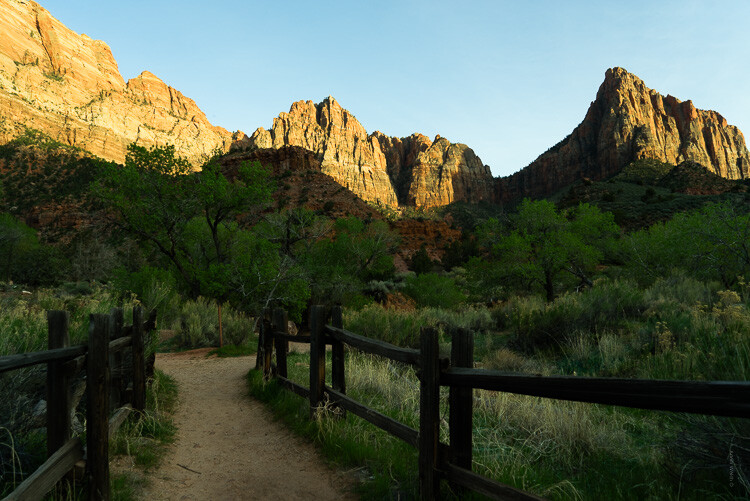
zion canyon - Editing Gently: 3 Tips for Processing Realistic Landscape Photos

Notice how the light comes in from the right of the frame and illuminates the tops of mountains? Yet the foreground is in shadow and so are the areas where the sun is blocked by the cliffs.

When processing a photo with such stark lighting as this be mindful that you don’t create overly artificial light where it shouldn’t be. Sure, bring up those dark areas but don’t go too far as I have with this example (below).

zion bad edit - Editing Gently: 3 Tips for Processing Realistic Landscape Photos

See how “off” the lighting is now? Sure, it’s not terrible but there is bright illumination in areas that should be in shadow on the right. There is no longer a natural feeling gradient to the light as it falls on the foreground.

Let’s look at a more harmonious example of the same photo that has been processed to work with the direction of the available light.

zion good edit - Editing Gently: 3 Tips for Processing Realistic Landscape Photos

In this example, the entire photo feels much more comfortable without having bright spots, uneven shadows, or that odd appearance in the first version.

Most of the editing you’ll do to selectively adjust the luminance of landscapes will be done with local adjustment tools like the gradient filters and adjustment brush. We’ll get into using local adjustments in a moment but first, let’s talk about another aspect of landscape processing that can truly ruin any great photo if you’re not careful.

#2 – Match Color Tones in Reflections

Walking hand in hand alongside working with directional light is how you manage reflections in your landscapes. More specifically, matching reflections in water is a little detail that can make or break a convincing landscape photo.

So often I see reflections in water which are either too bright or too dark or perhaps more noticeable, reflections which do not match (or reasonably approximate) the color tone of the light which it is literally reflecting. Have a look at this. I’ve warmed the sky in this image somewhat from its original blue hour cool tone.

yosemite sky - Editing Gently: 3 Tips for Processing Realistic Landscape Photos

Notice how the light reflecting from the river also carries a hint of the orange color from the sky? Not too much but just enough to add some realism. This is because I intentionally warmed the color of the water a wee bit in order to be more harmonious with the warmed sky. If I had not, we would have something of a tonal mutant on our hands…

yosemite cool water - Editing Gently: 3 Tips for Processing Realistic Landscape Photos

Notice how the color tones in the water don’t match the sky and overall scene here?

When it comes to working with your reflections the name of the game is remembering that the light reflecting in the water comes from the sky…usually. So it should also carry some of the same attributes of that light in terms of luminance and color.

Of course, the type of water plays a role in skewing this a bit but just use good judgment and keep in mind that the reflection should almost always carry a hint of whatever color the ambient light brings to the scene.

#3 – Make Realistic Local Adjustments

I’ve talked about how much I love using local adjustments in other dPS articles. I’m admittedly a radial filter junky and the majority of my photos carry some use of either the gradient or radial filter and adjustment brush edits, often times all three. When it comes to making edits using any of these tools it’s important to know how NOT to use them.

My old friend the gradient filter comes into play quite a bit when processing realistic landscape photos to even out bright skies and for illuminating dark foregrounds. What’s more, used with the radial filter and local adjustment brush, it can work wonders.

good adjustments filters yosemite - Editing Gently: 3 Tips for Processing Realistic Landscape Photos

Good adjustments using the filters in Lightroom.

Or it can look absolutely horrifying when used poorly.

Yosemite - Editing Gently: 3 Tips for Processing Realistic Landscape Photos

Bad use of a graduated filter in editing.

The same is true for its circular counterpart, the radial filter. This little gem works beautifully for applying custom vignettes and brightening (or darkening) areas or for adding in a host of other great adjustments to your photos. However, much like the gradient filter, it can be easily blundered.

saguaro cactus bad edit - Editing Gently: 3 Tips for Processing Realistic Landscape Photos

Bad edit with a radial filter in Lightroom.

The local adjustment brush also carries the same caveats. Few things make a picture look worse than the application of a “finger-paint” local adjustment brush. Actually, it gives finger-painting a bad name.

death valley - Editing Gently: 3 Tips for Processing Realistic Landscape Photos

The key to making effective and realistic local adjustments in any photograph comes down to remembering a few important guidelines:

  • Less is usually more. Local adjustments are just that, local. So when applying them remember that they will become more and more apparent when you use them to make drastic edits.
  • Feathering is your friend. Whether it’s the radial or gradient filters or event the adjustment brush, most times you will want to apply your adjustments gradually with very soft borders which blend well with the surrounding pixels. Set your feathering all the way to 100 and then if you need a harder edge for more defined work back it off from there.
  • Don’t be afraid to stack adjustments. When done judiciously, many local adjustments can be applied one over the other. For example, you might use three graduated filters each with a varying color temperature to give the sky a creamy color tone or multiple radial filters to layer out an exposure adjustment.

Final Thoughts

Landscape photography is a long-loved standby in the photography world. It is also one of the most ethereal and easily mismanaged types of photography when post-processing is done unconvincingly.

There are so many aspects of processing realistic landscape photos and most go beyond simply moving a few adjustment sliders around. In fact, I think of my landscapes as more of an exercise in digital painting than as simply editing a picture.

Whatever your persuasion may be in terms of how much you choose to make edit, having a solid basis in reality is a great jumping off point for making a dynamite landscape.

zion - Editing Gently: 3 Tips for Processing Realistic Landscape Photos

Remember, pay close attention to the direction of the light in your frame and make sure that the rest of your edits stay somewhat true to the natural lighting already present.

The same goes for reflections. Make sure the light reflecting from surfaces like water looks like it came from the ambient light source even if that light source has been changed by you. And lastly, don’t mess up the endgame but applying freakishly obvious local adjustments.

Always remember, there are no rules for processing a landscape photograph but there are ways you can make sure your photos stay true not only to your visualized outcome but also to the natural splendor from whence they were born. Yes, I used “whence” in a sentence.

Happy editing!

The post Editing Gently: 3 Tips for Processing Realistic Landscape Photos appeared first on Digital Photography School.


Digital Photography School

 
Comments Off on Editing Gently: 3 Tips for Processing Realistic Landscape Photos

Posted in Photography


Some of the Pros of Using Micro Four-Thirds Cameras for Wildlife Photography

11 Jul

Micro four-thirds (MFT) cameras have been on the market for 10 years now and have grown to be a preferred option for professionals and amateurs alike. The small camera bodies (you might even say tiny) house high-quality features including high dynamic range, high ISO sensitivity, and 16mp (or greater) sensors.

As the MFT format has gained popularity a range of professional-quality lenses has also been developed. I have been shooting the Olympus Em5 and Em5II since they came on the market in 2013 and 2015 respectively. Throughout my travels shooting wildlife across the U.S., I have been shooting this system with great results.

There are many aspects that micro four-thirds cameras great for wildlife as well as a few drawbacks. I will walk you through my impressions of this system for wildlife photography, both the pros and the cons.

humpback whales - Pros and Cons of Using Micro Four-Thirds Cameras for Wildlife Photography

I took this image of bubble-net feeding Humpback Whales with an Olympus OMD E-M5. All of the images featured in this article were captured using the MFT system.

Intrinsic Advantages (Pros)

The micro four-thirds system has some advantages for wildlife photographers due to the nature of its sensor and technology. These “intrinsic advantages” as I’m calling them are inherent to the system and can assist in your wildlife photography. In the next few sections, I will walk through how a 2x 35mm equivalency, quiet camera, high ISO range, high shutter speed, and high-resolution.

I will also review some features specific to the Olympus E-M5 Mark II system that you may find beneficial.

Micro four-thirds for wildlife - caterpillar

Here I have used MFT to photograph all forms of wildlife. From coastal brown bears to insects.

Pro – Get Closer with the 2x Crop Factor

Everyone who shoots wildlife photography wants to get closer to their subject and this is one way in which micro four-thirds sensors shine. When talking about how a sensor’s size affects the final zoom of your lens, the photography industry standardizes to “35mm equivalency”.

Without diving into the ins-and-outs of that means, here’s the bottom line: if you have a 100-300mm lens the micro four-thirds system effectively makes it a 200-600mm lens. The camera intrinsically doubles the length of your telephoto lens – you can likely appreciate how that doubling of focal length will help you get your wildlife shots!

Micro four-thirds for wildlife - portrait of a deer

2x equivalency is a big deal! You can get closer to wildlife with your enhanced telephoto lens.

small bird with a berry - Micro four-thirds for wildlife

As an avid birder, I appreciate the 2x equivalency to get closer to small birds.

Pro – High Maximum Shutter Speed

The micro four-thirds system is capable of really fast shutter speeds. As a wildlife photographer, it can give you a leg-up on fast-moving animals such as small birds or even insects.

The Olympus OMD E-M5 II is capable of shutter speeds up to 1/8000th of a second! In bright lighting conditions, you can use the fast shutter speed to stop water droplets of an animal walking in a river or the fast pulse of the wings of a hummingbird.

hummingbird in flight - Micro four-thirds for wildlife

Fast shutter speeds will help you stop the wings of a bird even as quick as that of a hummingbird’s!

Pro – 40MP High-Resolution Mode

A feature specific to the Olympus OMD E-M5 II is the 40-megapixel high-resolution mode. Sensor shifting-technology allows the camera to increase the resolution of the image.

One restriction of this process is the subject or animal has to be completely still. However, if you know you have the right conditions and a shot for which you need high resolution, you will find this mode convenient if your goal is to make large prints later.

owls in a tree - Micro four-thirds for wildlife

These great horned owl chicks were sitting so still that I was able to use the high-resolution feature of the Em5II to create a 40-megapixel image of them.

Pro and Con – ISO, and Light

The micro four-thirds system is capable of using high ISO settings to boost your camera’s sensitivity to light. However, high ISO values can create image noise (graininess in the image), and this is one area where the MFT systems fall much shorter than full-frame systems and DSLRs.

You will find that you can comfortably shoot up to ISO 800 or 1600 and be able to post-process out the noise. However, at ISO 1600 you will notice the noise if you crop the image, so be aware of that. Low-light conditions are common for wildlife photography, so consider that this system will not give you the performance of full frame cameras.

great horned owl eyes closed - Micro four-thirds for wildlife

This great horned owl was photographed in low light, so I needed to increase my ISO to capture it.

Pro – A Stealthy Camera

This camera contains no mirrors or moving parts inside the camera – every process occurs digitally. That makes the camera extremely quiet when you press the shutter button and it will not disturb the wildlife you are watching. This helps you keep the animal in range and also be an ethical wildlife photographer that does not negatively impact the wildlife you are shooting.

dragonfly damselfly - Micro four-thirds for wildlife

A quiet camera is very important for capturing skittish animals such as this damselfly!

Pro – Flexibility

This camera can provide incredible flexibility to your kit. In the next sections, I will review some features that I find helpful for wildlife photography.

Pro – Light Body

All of the mirrorless cameras are light which makes them ideal to transport. This is due to the lack of moving parts within the camera such as mirrors – which allow the cameras to be smaller. The lenses native to micro four-thirds cameras are also generally light.

Reiterating my point about 2x equivalency, you can get a 600mm equivalent telephoto lens that only weighs a few pounds. As a traveling wildlife photographer, you will appreciate the light weight in your backpack, carry-on luggage, or strapped around your neck.

micro four-thirds for wildlife - olympus camera

This is the Olympus Em5II body and Lumix 100-300 that I use for wildlife photography. You can see how small the body and lens is!

Pro – Fast Autofocus

The autofocus system on this camera is very fast and is useful for inflight shots of birds and general wildlife photography. Upgrades to the autofocus systems in the Olympus E-M5 II have provided accurate focus points giving you the ability to target an exact spot in your frame to focus.

One disadvantage is I find that the autofocus hunts in low-contrast situations. So you should be prepared to manually focus in low-light shooting conditions such as at dusk or in a heavy forest canopy.

micro four-thirds for wildlife - eagle in mid-air

A fast autofocus system will help you a lot with in-flight images of birds.

crane in flight - micro four-thirds for wildlife

I relied on the autofocus to capture this sandhill crane as it flew by.

Pro – High Resolution

Almost all micro four-thirds cameras come with a high-resolution (16mp or greater) sensor. The 16mp sensor on the Olympus E-M5 II gives plenty of resolution for enlargements. This is useful for printing and also gives you the ability to crop a shot and maintain sharpness.

I have made canvas prints up to 36” with images from this camera and found the resolution was ample for that as long as you have a sharp shot.

owl in Lightroom - micro four-thirds for wildlife

Here is a 1:1 crop of an image of a great horned owl. You can see that the image maintains decent sharpness even at a large crop.

Pro – Native Lenses and Adapting Lenses

If you are willing to shoot with manual focus it is possible to adapt nearly any brand of telephoto lens (Canon, Nikon, Sigma, etc.) to your MFT camera using an adaptor. This is thanks to the small flange distance of the MFT format. I have had success adapting long telephotos, old Olympus OMD lenses, and even old screw-mount lenses such as a Takumar 35mm that I have.

Why does that matter? Adaptors are cheap ($ 25 – $ 50 generally) and allow you to utilize glass that you may already own bringing down the price-point of your system.

olympus camera and adapted lens - micro four-thirds for wildlife

You can adapt almost any lens to the MFT bodies. Although I do not use this Takumar portrait lens for wildlife, it shows off the ability to adapt even a screw-mount lens such as this one built in the 1960s.

Pro – Sealed Bodies and Lenses

The body of the Olympus E-M5 Mark II is sealed from dust and water. Although that is not the case with all MFT cameras, as long as you do your research you’ll find other camera bodies that are sealed and well-built too.

This is invaluable to a wildlife photographer! I am sure you can think of times that you needed to shoot in the rain, the dust, or perhaps the mist of a waterfall. Having a sealed body will protect your camera and investment.

breaching whale - micro four-thirds for wildlife

On a boat or on land, you need to be able to count on a sealed body to protect your camera.

The Bottom Line

You may have found the features above appealing for your photography needs, so let’s look at the bottom line and the value-to-cost of this system.

You can find micro four-thirds cameras starting at $ 200 and going up to about $ 1,000. For those prices, you are getting a camera capable of shooting high-resolution images with excellent quality. With practice and patience, you can take beautiful images of wildlife and not break your back (or your bank) while doing it.

As I like to say, “pixels are cheap”, so I hope you make lots of them photographing wildlife with a micro four-thirds system.

The post Some of the Pros of Using Micro Four-Thirds Cameras for Wildlife Photography appeared first on Digital Photography School.


Digital Photography School

 
Comments Off on Some of the Pros of Using Micro Four-Thirds Cameras for Wildlife Photography

Posted in Photography


PhotoMirage software creates moving photos from a single image

11 Jul

PhotoMirage, a new product from software company Corel, transforms images into “mirages” by adding movement to elements, such as water or clouds. The software works in three steps, the company explains, only requiring the user to select the elements they want animated, isolate them from the rest of the image, then save the final product.

PhotoMirage does not require video footage (the way a cinemagraph does), instead animating a single static image. The software is designed to produce moving images “in minutes,” Corel explains on its product website, enabling the user to choose the rate and direction of the movement using Motion Arrows. Plot Anchor Points are used to isolate images from movement, and a slider is used to manually adjust movement speeds.

The resulting image can be previewed, then either saved or shared directly on platforms like Instagram or through email from within PhotoMirage. The application costs $ 69.95 USD and comes with a free trial, but is only available for Windows 7 and higher.

Via: Digital Trends

Articles: Digital Photography Review (dpreview.com)

 
Comments Off on PhotoMirage software creates moving photos from a single image

Posted in Uncategorized


Tamron releases updated firmware for 28-75mm F2.8 for Sony E-Mount

11 Jul

Tamron has released firmware version 2.0 for its 28-75mm Di III RXD, addressing previously acknowledged autofocus issues.

The update specifically addresses focusing issues on Sony E-mount cameras while shooting video, including ‘autofocusing operation and loss of focus,’ while also addressing ‘flicker on peripheral parts of the image when zooming.’

The firmware update is done through the Sony cameras themselves, with the lens mounted. We’ll be updating our review sample, so keep an eye out on our homepage for a full review in the coming weeks.

Press release

Notice about Firmware Update for Tamron 28-75mm F/2.8 Di III RXD (Model A036)

Dear users and potential purchasers of Tamron interchangeable lenses.

Thank you for using Tamron products.

We are pleased to inform you that the firmware update for the 28-75mm F/2.8 Di III RXD (Model A036) for Sony E-mount, full-frame mirrorless cameras, is now available. The firmware update is available through Sony E-mount camera bodies.

Please review the information below.

Affected model
28-75mm F/2.8 Di III RXD (Model A036)

Firmware version
Ver.2

Improvements
This update improves known issues for autofocus with Sony E-mount mirrorless cameras, when the range of focus search distance is broad, in video recording mode.
Tap for more details.

How to Update
The lens firmware can be updated using cameras that support this lens firmware update.
Tap for more details.

How to Check your Lens Firmware Version
From your camera’s menu screen, please select “Setup” then “Display version.”

Inquiries regarding this matter
Please contact your local Tamron distributor.
http://www.tamron.com/en/#distributors

Articles: Digital Photography Review (dpreview.com)

 
Comments Off on Tamron releases updated firmware for 28-75mm F2.8 for Sony E-Mount

Posted in Uncategorized


Moment launches camera app with focus on manual control

10 Jul

Moment, the makers of high-end accessory lenses for smartphones, have announced the newly revamped Moment camera app for iPhone and Android. According to Moment the app “provides full manual control and a DSLR shooting experience” and it looks like the programmers have tried their best to turn the marketing promises into reality. A basic version of the app has been available for a couple of years on iOS, but this launch marks a major redesign with manual controls added, as well as support for Android users for the first time.

The app offers full manual control over exposure, ISO, shutter speed, focus, and white balance via on-screen sliders. You can double-tap the screen to separate focus and exposure and on the iPhone version there is even a dual-stage shutter with half and full press, thanks to Apple’s 3D Touch technology.

Photographers can shoot in Raw mode and select from HEIF, HEVC, TIFF, and JPEG image formats. In video mode you can change framerate and video modes from the main screen, without a need to dive into the menu.

If you own a smartphone with dual-camera, the Moment app allows you to manually control which camera module you want to shoot with. This feature is especially useful when using Moment or other accessory lenses. Other features include a Live Histogram and Auto Video Stabilization.

The app is free to download and try but you’ll have to invest $ 2.99 for the iOS version and $ 1.99 for the Android version to get access to the complete feature set.

Articles: Digital Photography Review (dpreview.com)

 
Comments Off on Moment launches camera app with focus on manual control

Posted in Uncategorized


NVIDIA researchers develop AI that removes noise from images with incredible accuracy

10 Jul

A team of NVIDIA researchers, in partnership with researchers from Aalto University and Massachusetts Institute of Technology (MIT), has shared details of a new artificial intelligence (AI) program that can remove grain from images with such accuracy that it’s almost scary.

‘Using NVIDIA Tesla P100 GPUs with the cuDNN-accelerated TensorFlow deep learning framework, the team trained [its] system on 50,000 images in the ImageNet validation set,’ says NVIDIA in its announcement blog post.

What’s incredible about this particular AI is its ability to know what a clean image looks like without ever actually seeing a noise-free image. Rather than training the deep-learning network by giving it a noisy image and a clean image to learn how to make up the difference, NVIDIA’s AI is trained using two images with different noise patterns.

‘It is possible to learn to restore signals without ever observing clean ones, at performance sometimes exceeding training using clean exemplars,’ say the researchers in a paper published on the findings. The paper goes so far as to say ‘[The neural network] is on par with state-of-the-art methods that make use of clean examples — using precisely the same training methodology, and often without appreciable drawbacks in training time or performance.’

In addition to being used on photographs, researchers note the AI will also be beneficial in scientific and medical fields. In particular, the researchers detail how magnetic imaging resonance (MRI) scans — which are very susceptible to noise — could be dramatically improved using the program, leading to improved diagnoses.

The team behind the AI will present their work at the International Conference on Machine Learning on July 12, 2018.

Articles: Digital Photography Review (dpreview.com)

 
Comments Off on NVIDIA researchers develop AI that removes noise from images with incredible accuracy

Posted in Uncategorized


Skylum’s DAM will be included with future version of Luminar, free of charge to current owners

10 Jul

Skylum has announced that Digital Asset Manager (DAM) for Luminar will be provided for free to owners of the current version of Luminar – details of which will be revealed “within a few weeks.” Coming with the next version, Skylum will increase Luminar’s retail price, promising that it will “still be very affordable.”

Skylum hasn’t yet revealed a shipping date for DAM, explaining that it is still working on development. The company anticipates its DAM taking Luminar “in a new direction,” offering faster workflows, custom workspaces, a less cluttered interface, and much more. Talking about this is Skylum president Scott Bourne, who said in the company’s recent blog post:

Skylum plans to build our DAM so that we can keep simple things simple. We’re focusing our research and engineering efforts on a few key things. We want our software to be fast. Our goal is to be the fastest. Period. We also want to make sure that with Luminar, it will be fast, fun and easy to browse, rate, edit, share, and enjoy your pictures. That’s it.

Future versions of Luminar will be created with the company’s design goals in mind. Skylum is encouraging its customers to make sure they’re using the latest Luminar version to be put in the queue for the eventual free beta DAM.

Via: 43Rumors

Articles: Digital Photography Review (dpreview.com)

 
Comments Off on Skylum’s DAM will be included with future version of Luminar, free of charge to current owners

Posted in Uncategorized