RSS
 

Archive for April, 2018

Sony a7 III Review

23 Apr

Read our overall conclusion

Despite its billing as a ‘basic’ model, the Sony a7 III is a supremely capable full frame camera. Though it doesn’t have the most megapixels or shoot the fastest bursts, its well-judged mix of resolution, speed, features and price point make it an easy recommendation for all kinds of photographers and all kinds of photography.

Key Features:

  • 24MP full frame BSI CMOS sensor
  • 93% autofocus coverage (693 phase detection points, 425 for contrast detection)
  • Oversampled 4K/24p video taken from full width 6K (cropped-in 5K for 30p)
  • In-body image stabilization
  • 10 fps continuous shooting
  • 2.36m dot OLED viewfinder, 0.78x magnification
  • AF joystick
  • Touchscreen
  • Larger, ‘Z-type’ battery (CIPA rated to 710 shots)
  • Dual SD memory card slots
  • USB 3.1 Type C

Compared to its predecessor, the Sony a7 III has been updated in almost every way; when compared to other similarly priced full frame options, the a7 III looks to be a cut above in many respects. For generalist photographers, wedding and event shooters and even sports specialists, the a7 III gets an awful lot of things just right. But as with previous Sony mirrorless full-frame cameras, there are some foibles that persist with this new model.

We’ve now spent dozens of hours shooting the a7 III in our studio and out in the real world – read on to see how it performs.


What’s new and how it compares

Take a look at the key spec differences between the Sony a7 III and its predecessor and how it compares to existing models from other companies.

Read more

Body and design

Most of Sony’s (positive) ergo changes in other recent cameras have found their way to the a7 III, but there’s been some cost-cutting along the way.

Read more

What’s it like to use

We’ve gone beyond the spec sheet to discuss how the Sony a7 III performs in a wide variety of situations, from landscapes to weddings.

Read more

Image Quality

From our lab and real-world testing, we’ve found the Sony a7 III is capable of excellent image quality – with one or two exceptions.

Read more

Autofocus

The autofocus system in the Sony a7 III is lifted from the company’s advanced a9 pro sports model, and in short, it rocks.

Read more

Video

Despite its relatively affordable price point, the Sony a7 III is one of Sony’s most capable interchangeable lens cameras for video to date.

Read more

Articles: Digital Photography Review (dpreview.com)

 
Comments Off on Sony a7 III Review

Posted in Uncategorized


Five Budget Portrait Photography Hacks to Save You Money

23 Apr

We all love some good photography hacks, and what better than some for portraits. Photography is such a great and fun artistic journey and there is always something new to try, or rather, buy. However, taking great portraits can be done with these five hacks that won’t break the bank. Most of these hacks can be made using household items or you can find them at your local craft stores for a quarter of the price.

Background Portrait Photography Hack - Five Budget Portrait Photography Hacks to Save You Money

Use a plain, solid painted wall on location as a background for your portraits to add a different look.

#1 – Reflectors

Reflectors are a great tool, especially for both studio and on-location setups. They help fill in the shadows with light, bounce light back onto your subject, and can create cool effects. They can even help block out the sun or light falling on either on you or your subject. A reflector is great all around tool.

There are many great reflectors available, like the very popular 5-in-1. But you can definitely make one yourself that will give you the same results and enhance your portrait photography. The great thing here is that your handmade reflectors can be large or small depending on your portrait needs. Small, perhaps for the studio, and large for outdoors or on location portraits. Or make one of each, as it really is so simple to do!

Reflector portrait photography hack - Five Budget Portrait Photography Hacks to Save You Money

Use your handmade reflector to bounce light back onto your subject’s face.

Making your reflector

Grab a piece of cardboard and some aluminum foil (crinkle it up a bit first). Next, glue down the aluminum foil with the shiny side up with spray glue or double-sided tape. Make sure to smooth it out as best you can and cover one side of your board. Finally, paint the other side white. If you choose to go with white foam board, then you can skip the last step.

What you will have is a very durable and effective two-in-one reflector! Use the silver side for maximum fill and use the white side for a softer look. This reflector can be used for both indoor and outdoor portraits. Make a few in different sizes to fit your needs.

Aluminum foil glued to recycled box cut to lay flat.

DIY reflector in use.

Reflector bounce portrait photography hack - Five Budget Portrait Photography Hacks to Save You Money

Use the white side of your DIY reflector to softly fill in light while photographing portraits on location.

Don’t want to DIY it? You can head over to your nearest store and pick up a reflective car shield, the ones that help block the sun from heating up the inside of your car. Those also work great as reflectors and the best part is that you can simply fold it up when you’re finished using it.

#2 – Diffusers

Diffusers, like reflectors, are incredible tools especially for outdoor portraits and for newborn photography. They are simply a translucent material that you can use to soften hard lighting or to create soft light on your subject.

I say newborn portraits because even window light can be hard for these little ones and a diffuser helps to soften it. You can also place the diffuser in front of off-camera speedlights to disperse the light over a larger area, effectively softening it.

Newborn portrait photography hack - Five Budget Portrait Photography Hacks to Save You Money

Use a diffuser to create soft light for your subject, especially great for newborns.

You have the ability to create a diffuser just the right size for your portraits. Grab an embroidery ring and some translucent fabric at your local fabric or craft store. Place the fabric inside the embroidery ring, cut the remaining fabric so that you don’t have too much hanging out. You could hem the edges but the embroidery ring really does hold it pretty tightly.

Once you cut the edges, you have a portable and easy to hold/mount diffuser. It’s lightweight and easy to carry. Use this indoors to soften window light or even a speedlight. Or use it on location to soften harsh sunlight and simply to shade your subject during the session.

This scrim was made with a thiPVCvc pipe about 6 feet long to create a diameter of about 3 feet. I duct taped the ends together and hot glued the translucent fabric to the ring. A hula hoop would be perfect to use for this as well. I couldn’t find one big enough to use for this so I used PVC, both are inexpensive and quick to make.

DIY lighting diffuser in action.

You can also make a DIY large lighting panel – get instructions here.

Editor’s Note: Make note that a ring, 12″ or so is still a relatively small light source and as such will produce fairly hard light. You need a large diffuser (larger than the subject’s face) to really soften the light.

#3  Portrait stools

There are many tools that are made specifically for portrait photography like the portrait stool. It’s basically a fancy hydraulic stool to sit your subject on while you make their portrait. There are also some made especially for children. You don’t have to invest in one of those, however, you simply have to go to your local hardware store and pick up a small two-step ladder, or if you photograph children, a two-step stool. Both of these options offer you the same functionality as a portrait stool.

Use them during your session to pose your subject indoors or on location. Another advantage to using a ladder as a posing stool is that it gives you the option to use it yourself to get a higher camera angle. There are really no limits to the usefulness of the ladder, or small step stool, and it is easy to transport. If you are a beach photographer, use it as a tabletop to hold your gear and keep it from touching the sand.

Portrait Photography Hack - Five Budget Portrait Photography Hacks to Save You Money

Use a portrait stool to seat your subject.

#4 – Phone Flashlight

Sometimes the best tools are right in your pocket. Your phone is used for so much of your daily life and it can also be a great tool for photography. The flashlight on your phone can serve as a steady fill light in case you don’t have an off-camera flash or need a little boost of light.

Turn your camera’s flashlight on and point it directly toward your subjects. You may need the help of a selfie-stick or a friend because although it’s powerful, you’ll still need to have the light pretty close to your subject. The mighty flash is perfect for portraits where you want to capture the light behind, but need a little fill on your subject. This is perfect for on-location photography, especially when the sun is setting behind your subject.

A phone flashlight was used to create interesting lighting in a dark area.

Use your handy smartphone’s flashlight to add drama to your portraits.

Create a little drama using your phone’s flashlight and use it to manipulate the available light around you. This is also very easily done for indoor portraits and it works great to fill your subjects when there is beautiful warm light behind, like in the photo above. Get creative with this portable light that you always have with you. It’s quick and there’s no fussing with adjustments.

#5 – Backgrounds

One of the best photography hacks that you’ll learn is how to turn plain walls into beautiful portrait backgrounds. When you’re looking to do some headshots or just photograph so that it looks as though you were in a studio, this is the hack you can use every time.

Choose a concrete wall that is plain. Pose your subject a good distance from the wall so that you can let the background blur a bit (use a wide aperture as well). Then, with your handmade reflector or phone flashlight, photograph your subject. What you will get is a beautiful seamless background just a tad out of focus to give it that studio look.

Portrait photography hacks - Five Budget Portrait Photography Hacks to Save You Money

Use your ladder and a plain wall to create studio-style portraits on location.

You can also choose a more patterned wall to give your background added texture. Look for walls that are painted in a solid color or have a repeating texture like the brick wall below. Another great photography hack is to shoot from above and let the concrete stairs or asphalt blur out so that it creates a nice background.

Portrait Photography background hack - Five Budget Portrait Photography Hacks to Save You Money

Choose plain or patterned walls to give your on-location portraits more of a studio look.

Conclusion

These five portrait photography hacks will save you both time and money all while enhancing the portrait experience for both you and your subject while photographing on-location. Use them for your next portrait session to get new and different results!

The post Five Budget Portrait Photography Hacks to Save You Money appeared first on Digital Photography School.


Digital Photography School

 
Comments Off on Five Budget Portrait Photography Hacks to Save You Money

Posted in Photography


Discuss: Better Equipment Versus Knowledge – Which Will Help You Improve Your Photography More?

22 Apr

As a photographer, you always have the urge to buy new equipment thinking it will bring you better results. This might be true, but only up to a certain point, because if you don’t have the knowledge you can’t make the most out of your equipment. I started with a Nikon D3200 and I use it to this day because, in my opinion, it’s not the equipment that is going to help me take better photos.

If you’re asking yourself, “What can I do with my entry-level camera?” then this is the article that’s going to prove that you can achieve great things and be a great photographer with your own camera. There are many photographers that took some amazing pictures with film cameras, photographers like; Andreas Feininger, Henri Cartier-Bresson, Eve Arnold, etc.

What keeps you from taking better photos, your EQUIPMENT or your KNOWLEDGE? - portait in a field

We cannot deny that their cameras were the best of their time. But my point is that even today they could compete with any owner of a fancy camera because having the latest camera is not going to guarantee a better vision.

I’m going to give you some tips and tricks on how to take better photos and overcome the obstacle of not having the latest equipment.

1. Read

The most important thing you can do is to read. Many people skip this step and think that only by practicing will they improve. It is true that you have to practice, but unless you study the theory first there is no way of practicing in an efficient way.

For example, if you read an article about shutter speed and aperture it’s easier the understand the mechanism and then apply it, than trying to figure it out all by yourself.

Start here to get to many great dPS articles and find the topics that interest you the most.

girl reading in the grass - What keeps you from taking better photos, your EQUIPMENT or your KNOWLEDGE?

2. Know your equipment

You just bought your first camera and you are stuck with your kit lens. But before buying a new lens you have to learn the basics. You can use your kit lens for numerous types of photos, from landscapes to portrait photography.

I took more than 5,000 images with my kit lens before buying my second one, and I learned a lot of helpful things. If you’re shooting portraits, 35mm focal length can get a nice bokeh having an aperture of f/4.5. This focal length is perfect because it’s not wide so you’re not going to distort the face and you can have more light than shooting the same lens at 55mm, f/5.6.

3. Know what to buy

Buying equipment can be difficult when you can’t afford expensive things and you have to spend your money right. I am speaking from the perspective of a portrait photographer. My first portrait lens was (and still is my main lens) a 35mm f/1.8. If you want nice bokeh for a cheap price this is the right choice. I’m still exploring with this lens and I always find new perspectives.

Knowledge Over Equipment

Next, I’m going to present some arguments on why better equipment doesn’t necessarily make you a better photographer and on why knowledge can help you overcome your equipment struggles.

Buying new equipment is always tempting, but you have to learn how to make the best of what you already have. The best thing you can do as an amateur is buying an entry-level camera and a prime lens. Stick with it and see if you can come up with a new vision every time you go out to take photos.

At first, I didn’t know how to use manual mode. But do you think buying a better camera is going to help with that? No is the answer, you have to read and understand how the relationship between ISO, shutter speed and aperture affect everything in a photo.

After learning that no picture is the same and the settings are going to change every time, you have to do a lot of trial and error. If you practice enough you can achieve great things. After learning how to use your equipment you have to learn how to process your pictures because it makes a big difference as well.

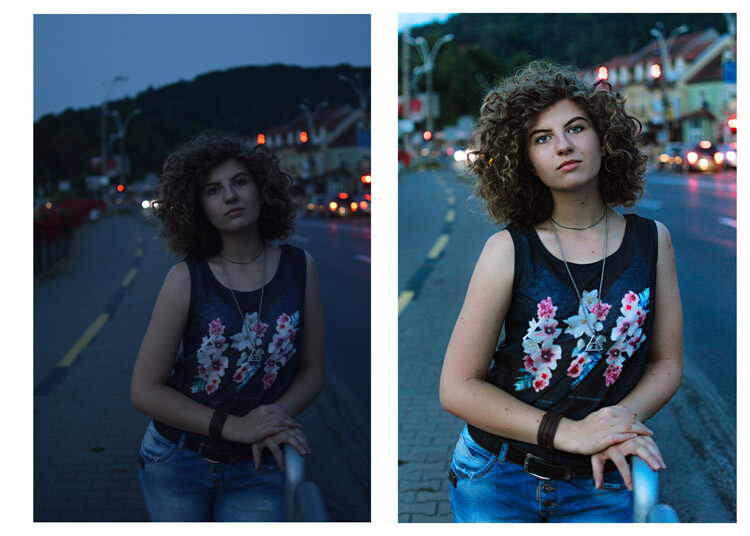
What keeps you from taking better photos, your EQUIPMENT or your KNOWLEDGE? - before and after processing

What keeps you from taking better photos, your EQUIPMENT or your KNOWLEDGE?

The next thing you have to know is that light makes the difference in every picture, you have to learn how to manipulate and control the light. Once you know how light works you are going to love your equipment.

lady and umbrella snowing - What keeps you from taking better photos, your EQUIPMENT or your KNOWLEDGE?

lady in leaves - What keeps you from taking better photos, your EQUIPMENT or your KNOWLEDGE?

When do you need better gear?

There are a few situations where better equipment can be helpful. I’ll give you a few examples and some tips to overcome the difficulties.

1. Shooting in low light conditions

Having expensive equipment can help you here, you can have a higher ISO without a lot of digital noise. With my entry-level camera, I can raise the ISO to 400 and it already looks really noisy. With a full frame camera or even an expensive DX sensor you can raise the ISO to 1600, or 3200 and your image is still going to look fine.

girl walking in the woods in winter - What keeps you from taking better photos, your EQUIPMENT or your KNOWLEDGE?

2. Sports photography

This is another hard thing to do with an amateur camera, you can still achieve great things. Your autofocus is going to play some tricks on you, so you have to work on your timing. Knowing where and when to press the trigger will help your autofocus a lot. Another thing you can do is to learn the panning technique.

Conclusion

So in summary, equipment is just a tool. It doesn’t help you to shape your vision and buying the latest gear as a beginner is not the best choice you can make. When you find that you have difficulty expressing your vision with your current equipment, then you can start thinking about upgrading.

The post Discuss: Better Equipment Versus Knowledge – Which Will Help You Improve Your Photography More? appeared first on Digital Photography School.


Digital Photography School

 
Comments Off on Discuss: Better Equipment Versus Knowledge – Which Will Help You Improve Your Photography More?

Posted in Photography


Video: Understanding the science of camera sensors

22 Apr

When we see a technical video posted online, purporting to explain some scientific concept that has to do with photography, we typically brace ourselves. More often than not, they fall into two categories: (1) oversimplified, or (2) blatantly incorrect.

That’s why this Filmmaker IQ episode on the science of camera sensors is such a breath of fresh air: not only is it factually solid, it goes into more detail and makes that detail easier to understand than just about any other technical breakdown of image sensor science we’ve seen… and they throw in a great explanation about how film works just to sweeten the pot.

The 13 minute video explains:

  • How photographic film uses a thin coating of silver halide crystals to capture light.
  • The science behind the photodiode that converts light into electrical current for all digital image sensors
  • How a Charged Couple Device (or CCD) sensor works, and its pros and cons.
  • How a Complementary Metal Oxide Semiconductor (or CMOS) sensor works, and its pros and cons.

If you’ve never bothered to dive into the science of image sensors or, every time you tried, the explanation was just too dense, give this video a look and let us know what you think in the comments below.

Articles: Digital Photography Review (dpreview.com)

 
Comments Off on Video: Understanding the science of camera sensors

Posted in Uncategorized


How to use Photoshop Droplets and Actions to Automate Your Workflow

22 Apr

Most photographers who do any kind of event photography (including corporate or weddings) need to find ways to automate aspects of their photographic workflow. This is because events usually generate a lot of images. There are many ways to automate your workflow. This article will describe a technique for speeding up your workflow using Photoshop Droplets and Actions (rather than Lightroom).

To understand this method you need to grasp a couple of Photoshop concepts: Actions and Droplets.

Droplet Processing

Created using an Action and the Droplet we’ll make below.

Photoshop Actions

What is a Photoshop Action? An Action is a powerful tool in Photoshop which is essentially is a recorded sequence of steps. By recording the repetitive individual steps as a group, the entire sequence can be repeated. Actions are really intended for global edits and not for image specific local edits.

Conceptually, as you develop your editing skills as a photographer, regardless of whether you are using Lightroom or Photoshop, you will eventually develop a style or procedure that you like to do when you process your images. Using Actions will help automate these procedural edits.

Beyond your own types of global edits, Photoshop comes with a small set of pre-configured Actions that are included in the installation of Photoshop.  In addition, there are many Photoshop Actions available either for free or for purchase on the internet.

Many photographers try to engage their followers by selling Actions to achieve particular looks. Anyone purchasing Actions should know that they are just pre-recorded sequences that anyone can do within Photoshop to achieve the same look (they do take time to set up though). Regardless, Actions automate repetitive steps in Photoshop.

Droplets

Droplets are a great way to automate the use of Actions with Photoshop. Droplets are similar to Actions but can be used on many files and activated from outside of Photoshop. There are other ways to do batch processing, but Droplets are a neat and simple way to allow actions to be performed on multiple images.

Sound confusing? Here it is in a nutshell: a Droplet is a small executable file that allows you to drop a folder full of images onto a file on your desktop that will run an action set and create final image results that are stored in another folder.

Why do this?

By using a Droplet, you can take a folder full of images and process them without having to open each one individually. It allows you to perform a long series of repetitive steps on images simply and cleanly. Just drop the folder on the Droplet and walk away to allow your computer to do all the work while you do something more fun, like make a sandwich or watch a Netflix show.

Why not do all of this with batch processing in Lightroom? Lightroom allows for batch processing of images with Presets. But some Actions are too complex for Lightroom and Actions for Photoshop don’t work in Lightroom unless they are specifically built for Lightroom. Any event photographer or any photographer that has to take and process a lot of images needs to find a way to simplify their process to get images finalized.

So how do you set up a Droplet?

First, you need to either decide on an Action or sequence of Actions (you can use more than one) and decide where you want to put the edited files when they are done. To show how to use a Droplet, let’s create a simple action and then set it up as a Droplet.

Step 1: Open an image

Droplet Batch Processing Before - How to use Photoshop Droplets and Actions to Automate Your Workflow

Image before processing

Let’s make a simple action to apply the appearance of motion to an image by applying a radial blur.

The first step is to open an image in Photoshop. You need to start with an image in order to be able to go through all the steps to save the Action and create the Droplet. You can use a pre-existing Action but to create the Droplet you need to modify the Action and that can get complicated.

For this example, you are going to create an Action first, make sure it works, and then use it to create the Droplet.

Droplet-Creating the Action - How to use Photoshop Droplets and Actions to Automate Your Workflow

Launch the image into Photoshop

Step 2: Create the Action

Create an Action - How to use Photoshop Droplets and Actions to Automate Your Workflow

Dialogue box for creating a new Action in Photoshop.

If you already have an Action that you want to run, you can skip the process of recording a new one, but for this example, we are creating a new Action. First, you need to open the Actions panel. If yours is not visible, go to Window > Actions from the top menu.

Once the Actions panel is open, you need to make sure you are not in button mode (button mode has colorful boxes).  If the list in the Actions panel is grey staggered boxes, you are in the right mode. At the top right corner, there is a small wing menu. Open that and choose New Action. You will then see the panel above.

For this Action, we are creating a motion effect using a radial blur. Call the Action dPS Radial Blur (or whatever makes sense to you) and then press the Record button to start recording the Action. You are on your way and you should see a red dot at the bottom of the Actions panel.

Step 3: Create the Radial Blur

Duplicate the image by selecting Duplicate Layer from the pull-down menu at the top of the layer panel (or use the keyboard shortcut Cmd/Ctrl+J).

Duplicate the image - How to use Photoshop Droplets and Actions to Automate Your Workflow

Create a duplicate layer.

The name of the duplicate layer is not important, but this is the layer to which you are going to apply the radial blur. Now, with the new layer selected go to the menu bar select Filter > Blur > Radial Blur. This will open the following dialogue box.

Radial Blur Dialogue - How to use Photoshop Droplets and Actions to Automate Your Workflow

Apply the radial blur.

The default method is spin and the default quality is good. Change these to zoom and best (as seen above). You need to apply a fair bit of blur for this effect, so anything higher than 70% will work. Your dialogue box should look like the image above.

Step 4: Create the Mask

For this effect, you will only be applying it to the outside edges of the image. To do this you are going to use a layer mask. To create the mask, select the layer you just applied the radial blur effect to and then click on the icon with the white rectangle with a dark circle in the center (third from the bottom left). This should create a white square next to the thumbnail of your active layer, that is your mask. The white mask means that your effect is still being applied or showing across the entire image.

Create the Mask - How to use Photoshop Droplets and Actions to Automate Your Workflow

Create a layer mask on the layer with the blur effect you just created.

Once you have created the mask you need to paint on it with black to selectively hide parts of the effect on this layer. Select the Brush Tool and choose a large brush with a soft edge to modify the mask. The size of the brush should be pretty big so that it covers a large portion of the center of your image. Use a really soft brush (hardness of about 15%).

Paint on the mask with black (make sure the mask is selected not the layer itself – square white brackets should be around the mask) over the center of the image to reveal the sharp part you want showing. Use the softness of the brush to make the transition from blur to sharpness gradual. Your mask should now look mostly white with a black dot in the middle.

The finished image - How to use Photoshop Droplets and Actions to Automate Your Workflow

This is the image after the steps have been completed.

Your image should look something like this effect. Your Actions panel has been recording all these steps in the background. Save your image in the format you want (JPG, PSD, TIF, etc.), the location should be your destination folder.

Step 5: Finish recording the Action

Go to your Actions panel and press the square box (stop button) at the bottom of the panel next to the red dot.

Action panel still recording - How to use Photoshop Droplets and Actions to Automate Your Workflow

Finishing the Action, press stop (square) next to the red dot

This stops the action from taking further steps. Your Action is now complete. If you delete the layer with the blur on it, you can test your action on the same image.

Simply go back to the Layer panel, delete the top layer with the mask.  Go to the Actions panel and find the new Action with the label dPS Radial Blur, highlight it, and click the triangle pointing to the right on the bottom line of the panel. This will activate or run the action. If you have done it correctly you will get the same image again. Yeah!

Step 6: Making the Droplet

Okay, we are almost ready to create the Droplet, there are only a couple more steps involved. To make sure the Action works properly you need a fresh instance of Photoshop. So the first thing to do is to close Photoshop and relaunch it.

The steps to make the Droplet from this point on are quite simple. To create the Droplet, go to the menu bar to File > Automate > Create Droplet.

Creating the Droplet - How to use Photoshop Droplets and Actions to Automate Your Workflow

The Droplet dialogue box.

This is the last set of steps but they are important. First, pick a good location for your Droplet. Usually, a great spot is on your desktop. Click the “Choose…” button, select the desktop and a name for your Droplet (give it a meaningful name for you).

Under the Play heading, uncheck all the boxes (these will stop your droplet from processing) and select your new Action from the pull-down list. Set the destination as Folder and choose a destination for your images (it is usually convenient to put the folder on the desktop as well). Uncheck the Override Action “Save As” command.Press OK.   The last thing to do is to create an empty folder (this will be the source folder where you put your images to be processed) in the same location as you put your Droplet (e.g. the desktop). Close and exit Photoshop.

I like having the source folder, Droplet and destination directory close to each other on the desktop. My arrangement looks like this:

Source folder, Droplet and destination folder

A typical layout for a Droplet on my desktop.

Step 7: Using your Droplet

You are now ready to use your Droplet. Simply put your images to be processed (try only a couple to test first) into the source folder (in this case it’s called To Be Processed). The images should be in the same format you chose previously. Make sure Photoshop is not running (sometimes this causes communication errors). From the desktop, highlight the source folder and drag it onto the Droplet.

Here’s what should happen: the Droplet launches, Photoshop starts, runs your action, and saves your images in the destination folder. Using the test image, it should look like this.

The finaished image

The finished test image after processing

Conclusion

Sometimes droplets are finicky to set up but once they work, they work really well. Each image is processed separately one at a time, so you can take a number of images, put them in your source folder and then just drop the folder on the droplet. This allows you to walk away from your computer for a while, grab a coffee, update your Facebook status (#Workinghard!), have a short nap and come back to a finished set of images.

Droplets can really help to simplify your workflow. The only word of caution is that if you are processing a large number of images with an Action that causes the finished image to get significantly larger, make sure you have sufficient hard disk space for the finished images. I have found if you run out of disk space, Photoshop will crash during a droplet operation.

Happy workflow! If you have used Droplets before please share your experience in the comments below, as well as if you have any questions.

The post How to use Photoshop Droplets and Actions to Automate Your Workflow appeared first on Digital Photography School.


Digital Photography School

 
Comments Off on How to use Photoshop Droplets and Actions to Automate Your Workflow

Posted in Photography


Creative Macro Photography – A Guide to Freelensing

22 Apr

Freelensing is one of the strongest and most underutilized tricks in the macro photographer’s toolkit. It can add diversity to a portfolio, and—when used carefully—generates some truly stunning effects. In this article, I will cover the basics of freelensing, and discuss how it can be used to enhance your macro photographs.

freelensing macro photography bokeh

What is freelensing?

Freelensing is a technique that can be used with any camera that accepts interchangeable lenses. You detach the lens from the camera and focus by tilting the lens in different directions, as well as by moving the lens closer and farther away from the camera body.

How does this change the resultant image? The plane that is in focus is no longer parallel to the sensor. The overall effect is to get both near and far objects selectively in focus, as shown in the photographs below.

freelensing macro bokeh autumn leaves

By tilting my 50mm lens, I was able to selectively focus on these colorful leaves.

How to do freelensing?

First, equipment: I’ve found that macro freelensing works best with lenses in the 50mm range. Lenses much longer than that are going to be hard to focus accurately with, and lenses that are much shorter give a field of view and depth of field that is a bit too broad for macro purposes.

Note: because freelensing involves holding the lens detached from the camera, there is always the risk that you might drop something. Therefore, I like to use lenses that are on the cheaper side; the Canon 50mm f/1.8 is my go-to lens in these situations.

The camera model isn’t important, but I tend to use my backup body, as detaching the lens from the camera does increase the risk of dust and other debris getting inside and onto the sensor.

freelensing flowers macro photography

The freelensing process

Begin by putting the lens on the camera as you normally would. Turn on the camera and set it to Manual Mode. Choose whatever aperture you like; when the lens is taken off the camera, the aperture setting will be rendered irrelevant (it will be wide opened). Focus the lens on a distant object.

NOTE: With some camera makes and models, if you hold down the Depth of Field preview button while removing the lens it will lock the aperture closed to your desired setting. Test and see if your camera has this ability.

Make sure that your camera is not using Live View (as this would increase the exposure of the sensor to the outside world). Then, turn off the camera. Detach the lens, and carefully hold it in front of the camera body, just in front of the sensor. Turn the camera back on.

camera freelensing detach lens

Example freelensing technique with a 50mm lens. The lens is pulled (slightly) away from the camera body.

At this point, the fun begins! There are a few things to consider:

First, the farther you move the lens away from your camera, the greater the magnification.

Second, tilting the lens left, right, up, and down alters the parts of the scene that are in and out of focus. It takes a bit of experimentation to get the hang of this, so don’t be afraid to take many images while honing your freelensing skills.

freelensing nature macro photography

Third, any gaps between the lens and the camera allow for light leaks. This can result in very interesting effects (but be careful not to overdo it!). To minimize light leaks, cup your hand around the lens so as to block out the light.

A note on exposure

When it comes to freelensing, your camera’s metering system is going to be nearly useless. The proper exposure depends on the size of the gap between the camera and the lens, so you will always need to drastically underexpose if you use your camera’s meter. I often take a few experimental shots, incrementally increasing the shutter speed (and checking the image on the LCD), until I reach an exposure that I like.

Freelensing for macro photographers

I’ve given a basic overview of the freelensing process above. But how can freelensing be used by macro photographers?

1. Use freelensing to create spectacular backgrounds

One of my favorite things about freelensing is that it can generate stunning backgrounds. The shifted plane of focus causes greater subject/background separation, so the bokeh can be truly impressive.

Try shooting into the light (with the subject backlit).

freelensing macro photography bokeh backlit

The setting sun (just to the right of the flower) offered some great opportunities for freelensing.

You can also work with a shaded subject and a background lit by direct sunlight.

freelensing poppy flower macro photography

The poppy was shaded, but the background was lit by the setting sun.

2. Find a point of focus

Freelensing can be an exhilarating experience, as subjects that you’ve shot a hundred times will seem brand new. However, it’s important not to get too caught up in the uniqueness of freelensing, and focus on how the effect can be best used to create strong images.

To this end, find a focal point. This might be a flower, an insect, or some leaves. Use this point of focus to anchor your shot. Ensure that you’re tilting the lens so as to render that point of focus sharp, and the rest of the scene out of focus.

freelensing daisy macro photography

3. Use freelensing to isolate a subject from clutter

Adding onto tip number two, one of the advantages of freelensing is that you can order an apparently cluttered scene with a tilt of the lens. Look for the sort of image that would have previously felt too chaotic, then tilt the lens so that only a small part is rendered in focus.

autumn leaves freelensed macro

4. Use light leaks for artistic effects

I mentioned light leaks above, and I want to emphasize their potential. When used right, light leaks can be beautiful.

I like to create small light leaks along the sides of the image by shooting backlit subjects, and by allowing a significant gap between the camera and the lens.

freelensing daisy macro photography

The effect here was created entirely through light leaks; by pulling the lens away from my camera, I was able to give this daisy image a more ethereal feeling.

5. Use freelensing for macro-level magnification

As mentioned, pulling the lens away from the camera increases your magnification. This can allow for detail-oriented macro shots without a macro lens. So experiment by increasing the distance between the camera and lens.

freelensing sunflower macro photography

In conclusion

Freelensing, while unconventional, can be an excellent addition to your toolkit. By detaching the lens from the camera body, you can create unique backgrounds and artistic light leaks while emphasizing the main subject.

With spring flowers just around the corner (hopefully!), now would be an excellent time to start practicing!

freelensing coneflower macro photography

The post Creative Macro Photography – A Guide to Freelensing appeared first on Digital Photography School.


Digital Photography School

 
Comments Off on Creative Macro Photography – A Guide to Freelensing

Posted in Photography


You can own the world’s first single shot 8×10 digital camera for $106,000

22 Apr

$ (document).ready(function() { SampleGalleryV2({“containerId”:”embeddedSampleGallery_1218001005″,”galleryId”:”1218001005″,”isEmbeddedWidget”:true,”selectedImageIndex”:0,”isMobile”:false}) });

If you’re shooting digital, the largest image sensor you will find at your local camera store is the 53.4mm x 40.1mm medium format sensors inside something like the Phase One IQ3. But if that is just not enough for you… there is one, much larger option. Meet the $ 106,000 LargeSense LS911: a large format digital camera and purportedly the “world’s first 8×10 digital single shot camera for sale.”

The LS911 is the passion project of Bill Charbonnet, who left his desk job in 2014 to start LargeSense LLC and built these large-format digital cameras. Four years later, the LS911 is his first shipping product.

According to the press materials, LS911 features a 12-megapixel 9×11-inch monochrome CMOS sensor (that translates into massive 75 micron pixels), ISO that can be set at either 2100 or 6400, 900GB of internal storage, and the ability to output files to DNG, 16-bit TIFF, 32-bit TIFF, RAW and JPEG formats. There is no CFA, but the monochrome sensor can be used to produce color images (of non-moving subjects) using an in-built 3-shot system and color filters.

Oh, and the thing can also apparently shoot 4K, 3840 × 2160 video at 26fps using its electronic shutter.

Here is a video of the LS911 in action:

And here is how the size of the LargeSense LS911 sensor compares to some of the other image sensors out there:

Note: the LargeSense LS45 is a 4×5-inch digital back Charbonnet is working on, but has yet to release.

If the LS911 seems a bit bonkers, honestly, that’s because it is. We’ve been discussing it in the office for the past couple of days, trying to figure out how to put this camera in context for our readers, and here’s our take: it’s cool, but having a sensor this large may not be as advantageous as you think.

Science Editor Rishi Sanyal explains:

One of the main benefits of going to a larger sensor is that you can get more resolution as the larger pixels place less of a burden on the resolving power of the lens, but this camera does not take advantage of that.

What it does offer is the tilting, shifting and swinging ability large format cameras are known for, and if you can give the sensor enough light, the entire image has the potential for greater ‘tonality’ because the lower relative shot noise will yield very high signal-to-noise ratio for most tones. That makes the image more amenable to extreme sharpening without accentuating noise. That said, beyond a certain signal-to-noise ratio, tones are already clean enough – particularly with modern full-frame or medium format cameras – that it likely doesn’t matter.

So, are you guaranteed a noticeable improvement in overall quality of the photos just because of the 9×11-inch sensor? Not necessarily. This is probably more about the feel of large format where you can throw most of the image largely out-of-focus by tilting the focus plane, or keep a large amount in focus without stopping down if you align the focus plane with your subject(s).

If, after knowing all of this, you’re still interested in dropping $ 106K on the LS991 (hey – it’s guaranteed to be a conversation piece at parties if nothing else), head over to the LS911 product page on the LargeSense website or check out the full spec sheet at this link.

And do let us know: what would you use it for?

Press Release

LargeSense launches the LS911

It is the first full frame 8×10 digital single shot camera for sale!

Medium format has thus far been the limit as far as sensor size because large sensors are difficult and expensive to produce. With the LS911, photographers now have an option for high quality large format images other than film. Available now. The USA price is US$ 106,000 Check www.largesense.com for more information.

LS911 Specifications

  • Single shot 9×11 inch monochrome CMOS sensor
  • High base sensitivity of ISO 2100
  • Live view for focusing
  • Compatible with any large format lens with a sufficient image circle
  • Easy to use HTML-based WiFi control with any HTML5 browser
  • 4k Lossless video with audio up to 26fps
  • 900GB internal storage, CF cards and external USB 3.1 drives
  • User-generated curves to apply to the linear files
  • Integrated 3 shot tri-color images when using color filters
  • Designed for mounting on large tripods or custom camera stands

LS911 product page: http://largesense.com/products/8×10-large-format-digital-back-ls911/

LS911 spec and feature sheet: http://largesense.com/files/3415/2348/3451/LS911-Specs-And-Features-180411.pdf

Upcoming Products

A 4×5 inch digital back, the LS45, is expected at the end of 2018.

The color version of the LS911 is expected in 2020.

LargeSense was founded in 2014 by Bill Charbonnet to manufacture single shot, large format digital cameras. Inspiration was from Mitchell Feinberg’s 8×10 digital back. The issue for a business in this tiny market is keeping costs low while delivering a specialty product. After 3 years of development, we are proud to be the first to offer such camera, the LS911!

Articles: Digital Photography Review (dpreview.com)

 
Comments Off on You can own the world’s first single shot 8×10 digital camera for $106,000

Posted in Uncategorized


Shooting Greenland in Winter: Part 1 – Uummannaq Whiteout

21 Apr

Earlier this year, I was sent on assignment to shoot Greenland in winter. This was a trip I had been wanting to do for years, but it always fell through due to scheduling conflicts and the fact that visiting Greenland would be quite expensive to do on my own. Luckily, I was approached by Air Greenland and Visit Greenland, in collaboration with my long-time friends and partners at Square Rock, and given the necessary financial support to finally realize this dream.

Being sent on an assignment and given a green light to shoot whatever I wished and realize my passion was incredible. Indeed, on the one hand, I was a bit stressed by the need to justify the costs and produce good results for my sponsors. But on the other hand, I was completely free to go and do as I pleased, all taken care of.

I was determined to take full advantage of the opportunity, and I’d like to tell you the story of my trip in this series of articles.

Selecting the Destinations

When Air Greenland is one of your sponsors, imagination flies. At the beginning, I naturally leaned toward destinations which I would never conceivably visit on my own. Qaanaaq, in the far Arctic north of Greenland, was a candidate. But I was very quickly made to understand that since I was to produce images that would promote tourism in Greenland, I would need to go somewhere where tourists might actually go!

Domestic flights to Qaanaaq cost upward of $ 2,000, and that’s not including the flight to Greenland in the first place… not exactly tourist friendly. Alright, now what? A few options came to mind.

The first was the southern tip of Greenland, which boasts fantastic fjords and mountains, and a good latitude for Northern Lights. It was a good option but the problem was that there is no stable sea ice to go on. I really wanted to drive or walk close to icebergs embedded in sea ice.

Another option was Scoresby Sound, an excellent location to which I also hadn’t visited. There is plenty of stable sea ice there and an option to dogsled all around and get close to embedded icebergs. The problem with this one is that there wasn’t quite enough material there to fill my two-week time frame.

Finally, I made the choice of going to Uummannaq and to Disko Bay. I had been in Uummannaq once in the summer for just a few hours, and I was seriously intrigued by its beauty and iconic grandeur. Uummannaq Mountain is a landmark which sparks the imagination, with its twin 1170-meter peaks and iconic heart-like shape (Uummannaq means heart-shaped in Greenlandic).

It’s a perfect background for many types of shots, which would give me the diversity I wanted:

Mount Uummannaq above Uummannaq town

Uummannaq Island lies in the middle of Uummannaq Fjord, which was perfect in what it offered: solid, far-reaching sea ice and several glaciers which produce beautiful icebergs. The icebergs travel into the fjord and, in winter, they get stuck in the sea ice—some of them very close to town.

Houses in Uummannaq and an iceberg stuck in sea ice next to town

Uummannaq is a small town but not too small—the infrastructure was more than enough for my needs. I was housed in a very comfortable little guest house right next to the harbor, and there was a restaurant downstairs and a supermarket nearby. I was assigned a local guide who took very good care of me throughout my stay, accommodated my photographic needs and schedule, made sure I was safe and warm at all times and was fun to be around.

First Day in Uummannaq

Uummannaq is at about 70 degrees north, in the far west of Greenland. Getting there from Leknes, Norway, where I had been guiding beforehand, involved no less than eight flights, the last of them by helicopter. The views from the air were admittedly spectacular, but I would have appreciated a shorter route.

Upon arriving at the heliport I was greeted by very cold weather. Even though I had already been in the Arctic for 1.5 months right before arrival, it had been in places with milder weather. For example, temperatures in the Lofoten Islands rarely go lower than -10 Centigrade. Greenland is a different story altogether, and your first breaths at -25 degrees are hard. I had never had to experience this type of temperatures for an extended period of time before—my lungs rejected the cold air and I started coughing until my body got used to the new situation.

Bleak conditions upon my arrival in Uummannaq

After meeting my guide Paaluk and settling into the guest house, I started exploring. That is, if you call being bombarded by snow and gale-force winds exploring.

The first day was quite miserable. With temperatures down to -28 and strong winds, it was very hard to move around, much less shoot. My hands and feet went numb several times, I suffered frostbite on my nose, and was generally frustrated with the lack of light and the harshness of the situation.

The upside was that the weather conditions supplied very interesting photographic material, and even though I sometimes had to go back to the guesthouse to get warm, I did get interesting shots of the locals working and handling their sled dogs.

$ (document).ready(function() { SampleGalleryV2({“containerId”:”embeddedSampleGallery_1587933170″,”galleryId”:”1587933170″,”isEmbeddedWidget”:true,”selectedImageIndex”:0,”isMobile”:false}) });

I also hiked to the icebergs embedded in the sea ice to shoot them during the whiteout. There were several beautiful icebergs right outside town, and all I had to do to get to them was go down to the harbor and walk for 20 minutes, which also warmed me up a bit. There were also several additional icebergs a bit further away, and I sometimes hiked there or took a ride on Paaluk’s snowmobile.

$ (document).ready(function() { SampleGalleryV2({“containerId”:”embeddedSampleGallery_4760425467″,”galleryId”:”4760425467″,”isEmbeddedWidget”:true,”selectedImageIndex”:0,”isMobile”:false}) });

Finally, I also took some images of the ice fishermen at work. It astounded me how these men were working throughout the day, no matter the weather. These guys are tough!

$ (document).ready(function() { SampleGalleryV2({“containerId”:”embeddedSampleGallery_0982299960″,”galleryId”:”0982299960″,”isEmbeddedWidget”:true,”selectedImageIndex”:0,”isMobile”:false}) });

Shooting in the snow and gale was very interesting but a bit hard. Luckily, the upcoming days were much nicer and offered other kinds of photography like the shot you see below. But more on that in Part 2.


Erez Marom is a professional nature photographer, photography guide and traveler based in Israel. You can follow Erez’s work on Instagram and Facebook, and subscribe to his mailing list for updates.

If you’d like to experience and shoot some of the most fascinating landscapes on earth with Erez as your guide, take a look at his unique photography workshops in Southern Iceland, Northern Iceland, The Lofoten Islands, Patagonia, Greenland in summer, Greenland in winter, Namibia and the Faroe Islands.

Erez also offers video tutorials discussing his images and explaining how he achieved them.

Selected Articles by Erez Marom:

  • Parallelism in Landscape Photography
  • Winds of Change: Shooting changing landscapes
  • Behind the Shot: Dark Matter
  • On the Importance of Naming Images
  • On Causality in Landscape Photography
  • Behind the Shot: Lost in Space
  • The Art of the Unforeground
  • Whatever it Doesn’t Take

Articles: Digital Photography Review (dpreview.com)

 
Comments Off on Shooting Greenland in Winter: Part 1 – Uummannaq Whiteout

Posted in Uncategorized


My Thoughts on the SmugMug Flickr Acquisition

21 Apr

Disclosure: I know people and am friends with people who work at both SmugMug and Flickr.

Earlier today we learned that the photo sharing site Flickr has been acquired by the photo sharing site SmugMug. Terms of the acquisition were not disclosed. Flickr was purchased by Yahoo back in the early days of the internet in 2005 for probably somewhere around $ 40 million (give or take $ 10 million). Yahoo managed Flickr for many years, but more recently Yahoo’s core holdings were sold off last year to Verizon. Verizon folded Flickr into a new division called Oath which was made up of various Yahoo and AOL assets (another Verizon acquisition) run by ex-Google executive Tim Armstrong. Now Verizon/Oath has sold Flickr to SmugMug.

As They Pulled You Out Of The Oxygen Tent You Asked For The Latest Party
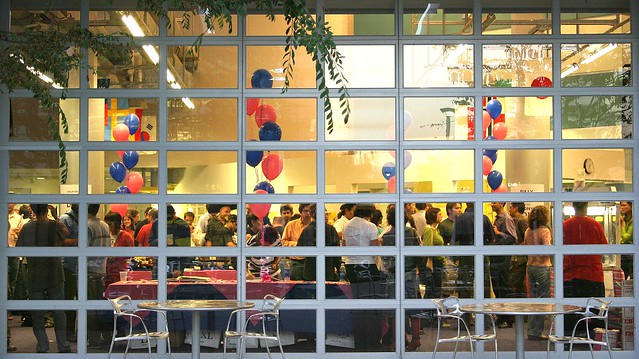
Flickr Fiesta party celebrating Yahoo acquisition in 2005 at Yahoo Campus.

Flickr Turns 2 (12)
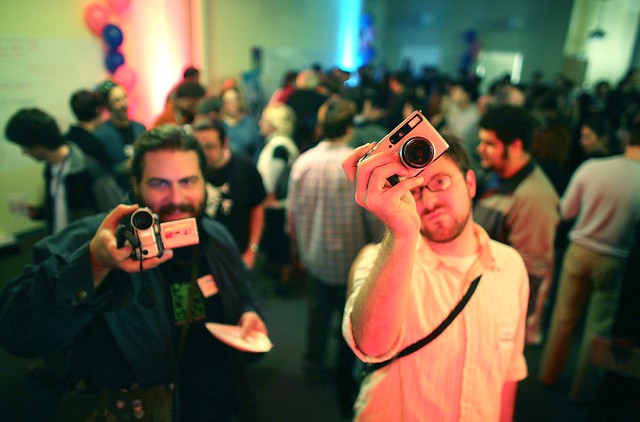
Flickr Turns 2 Party, San Francisco, 2006.

As someone who joined Flickr back in 2003 pre-Yahoo and has been on the site pretty much daily since then, I thought I’d share my own thoughts on what this acquisition might mean for Flickr users and the larger Flickr community.

First off, I have to say that I think that today’s news is *very* good for Flickr users and the Flickr community. While time will tell how this acquisition goes, I have much more faith in SmugMug running Flickr than I do Verizon.

Before getting into the particulars about why I think this is a good fit, I think you have to take a general look at the types of companies Yahoo/Verizon/Oath were/are and the type of company SmugMug is. Yahoo/Verizon/Oath like Google and Facebook are largely advertising companies. These companies offer you free content and use your personal data to advertise at you. One of the things that I always liked about Flickr was that advertising was largely secondary to paid subscription accounts. Sure, Flickr had a free account, but at least as it was initially designed, the free account (which limited you to only seeing your last 200 photos) was really more of a trial for the real thing, Flickr Pro, for which you paid a subscription.

SmugMug has always been a profitable paid photo sharing service. They’ve never had a free option. This has served them well and has kept them profitable. At the same time it is hard to get people to pay for things on the internet so this in some ways limited their user growth compared to Flickr and other services offering a free option.

My own view is that I think people are waking up to the fact that “free” on the internet doesn’t really mean exactly free. The age old adage of if you are not paying for the product, you are the product is becoming clearer and clearer, even to the point of Mark Zuckerberg having to head on up to Capitol Hill and try to explain how all this social media stuff works to Senators and Congress.

Now, does this mean that SmugMug is going to kill the free Flickr account? Absolutely not. But I do think that they might try to nudge people in the direction of paid Pro — which I also think is smart and ultimately more sustainable than simply giving everyone a free terabyte. I LOVE that I have a complete ad free experience for my own use of Flickr AND also for the users who browse my pages of photos. I will happily continue paying for it indefinitely (assuming Flickr continues grandfathering my unlimited storage Pro account). I also think that SmugMug will likely be much better for Flickr from a privacy standpoint as well without having to worry about how to sell off our private information because we pay.

Ivan Makarov, SmugMug HQ
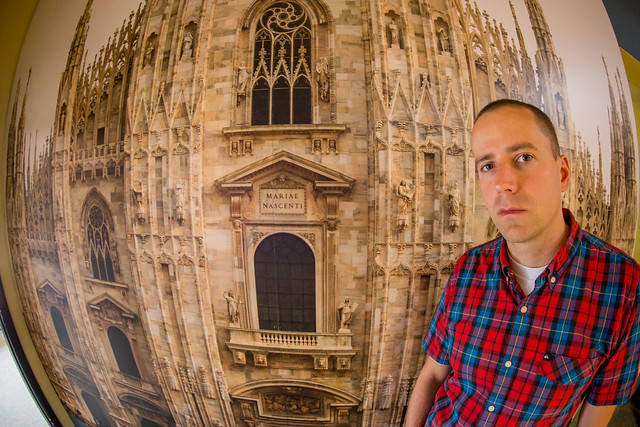
Ivan Makarov, one of my early Flickr contacts (now SmugMug’s VP of Finance) posing in front of a giant wall print at SmugMug’s Mountain View office.

In buying Flickr SmugMug more than anything is buying a community. I think that they are going to be very careful not to disrupt this community and look for ways to grow it thoughtfully. Having known the MacAskills (the family that owns SmugMug) for many years, one thing I can say for certain is that they LOVE photography and photographers. If you ever get a chance to visit their offices in Mountain View do it. What you will find is wall after wall covered with the biggest prints you have ever seen in your life. These are people who are passionate about photography, not advertising.

Baldy Behind the Camera
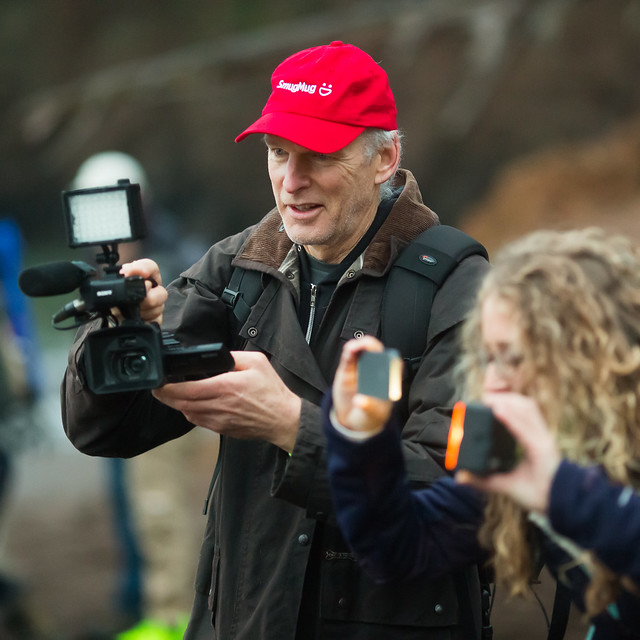
Chris “Baldy” MacAskill on a SmugMug photowalk in 2013

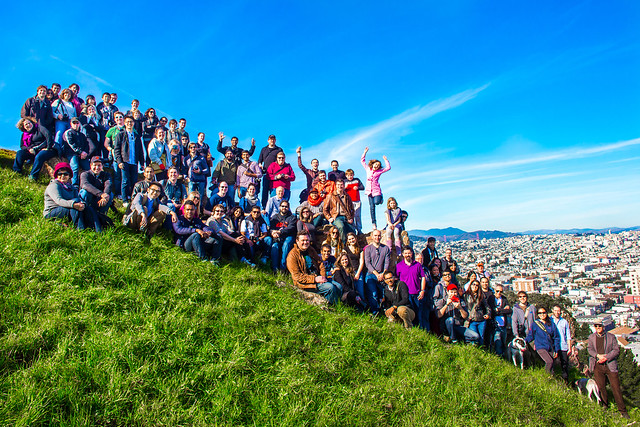
Flickr Over San Francisco
Flickr Photowalk, Bernal Hill, 2013

For SmugMug I think what is probably most exciting is that they are getting a very large community of photographers by purchasing Flickr. I think that this will allow them to do even more with community, photowalks, meetups, etc. They will need to make sure Flickr is profitable (and it will be) but they will have a much larger group to build a bigger and stronger community with. While Google+ sort of became a place for the photographic community for a bit, before Google largely abandoned it, there really is not a good place for a larger community of photographers today and I think with the acquisition of Flickr, SmugMug hopes that it can build this and I think they have a pretty good chance at doing it.

I think the other thing that SmugMug owning Flickr will do is that it will allow them to be much more nimble in terms of hacking on and developing the site. Big organizations (like Yahoo and Verizon) have layers of bureaucracy that sometimes make things difficult to get done. Small organizations, by contrast, can move much more quickly. While I don’t expect any immediate changes to Flickr, I think that going forward it will improve more rapidly. I also think it’s great that from what I can tell the entire team at Flickr is being retained.

Mostly what I’ve seen online since the acquisition was announced earlier today has been a positive response. Flickr co-Founders Stewart Butterfield and Caterina Fake have posted positive tweets on the acquisition as well.

As far as I can tell from looking at the new SmugMug/Flickr TOS everything looks pretty much for things to be business as usual at Flickr for the immediate future.

SmugMug and Flickr will be run as two different sites/properties.

Since Flickr is one of the few sites on the web that allows moderated adult content, I did wonder how SmugMug would treat that — at least per the current TOS it looks like that is going to be handled as it always has been at Flickr. Make sure you moderate your adult content, keeping it away from the kids, and it’s allowed.

If you want to read more in depth at what this might mean for Flickr users going forward I’d point you to a thread in the Flickr Help Forum where more details are provided and where the community is currently reacting to today’s news.

A big congrats to both the Flickr and SmugMug teams. I’m looking forward to being an active user on Flickr for many years ahead and am looking forward to all the ways you will continue to improve both sites.

You can find me on Flickr here.


Thomas Hawk Digital Connection

 
Comments Off on My Thoughts on the SmugMug Flickr Acquisition

Posted in Photography


Sample gallery: Nikon 180-400mm F4E TC1.4 FL ED VR

21 Apr

$ (document).ready(function() { SampleGalleryV2({“containerId”:”embeddedSampleGallery_7878702702″,”galleryId”:”7878702702″,”isEmbeddedWidget”:true,”selectedImageIndex”:0,”isMobile”:false}) });

Announced just in time for the 2018 Winter Olympics, the Nikon 180-400mm F4E TC1.4 FL VR has a built in 1.4x teleconverter – when engaged it provides a 252-560mm focal range with an F5.6 max aperture. Similar in design to Canon’s EF 200-400mm F4L IS USM Extender 1.4x, we expect this $ 12,000 lens to mostly find its way into the hands of working sports, action and wildlife photographers.

Though we at DPReview are none of the above, we also weren’t going to pass up an opportunity to give it a try. An exhibition soccer (football) match between two local Seattle colleges provided the perfect chance to shoot with it mounted on the Nikon D5.

Set up at the midfield line, the 180-400mm range was enough to effectively cover most game play. But the extra bit of reached provided by the teleconverter allowed me to occasionally punch in on the action when I felt comfortable. And engaging the teleconverter is as simple as flipping a switch near its base – a satisfying quiet ‘thunk’ sound lets you know it’s in place. By halftime, I’d mastered the art of flipping it on and off with my eye to the finder.

Weighing about 9 pounds, a monopod is a must when using this lens.
ISO 560 | 1/1000 sec | F4 | 180mm

As you might hope from a camera and lens combination costing almost $ 20,000, the autofocus hit-rate from the soccer match was nearly perfect. A majority of the images were shot with the camera set to its Auto area mode, which for the most part locked on to my intended subject.

Once back in the office, with the images up on a computer, I was impressed by the lens’s sharpness, even with the teleconverter engaged. And though there is some pretty heavy vignetting when the teleconverter is used, it can easily be corrected in post (we chose not to for the purposes of this gallery). Of course one soccer match is hardly enough time spent with Nikon’s 180-400mm F4 to truly test and appreciate what it is capable of. Fortunately we have a little more time with it and the weather in Seattle is just starting to get nice. So stay tuned for more samples, to be posted soon.

See our Nikon 180-400mm F4E TC1.4 FL VR galleryNote: We ordinarily try to keep sample photos in our lens galleries at ISO 800 or below, however we’ve included some higher ISO images shot during the match after the sun set. No noise reduction was applied to these images beyond ACR default.

Articles: Digital Photography Review (dpreview.com)

 
Comments Off on Sample gallery: Nikon 180-400mm F4E TC1.4 FL ED VR

Posted in Uncategorized