RSS
 

Archive for November, 2017

Simple Tips for Positioning Your Portrait Subject to Leverage Natural Light

06 Nov

When I’m on a photo shoot, I always carry two flash guns with me. However, when it’s a family outing or holiday, the flash guns are left behind in favor of kiddie stuff I need to lug around and I shoot using purely natural light, without even a reflector to help. It does help that I carry a prime lens that opens up to f/1.4 should I need or want to shoot indoors.

Here are my tips for making portraits using purely natural light.

On a sunny day, there is so much light that it makes it quite hard to take portraits, contrary to what many would think. I generally don’t like taking portraits with the sun directly hitting the face of my subject, so that makes the job even harder on such a bright day.

Simple Tips for Positioning Your Portrait Subject to Leverage Natural Light

The first thing to be mindful of is the direction of light – is it coming from overhead, at an angle of 45 degrees or higher or lower? As you cannot physically move the sun, you are going to have to move your subject instead. Think of positioning your subject as leveraging natural light to make a pleasing portrait.

Outdoors

Here are some outdoor scenarios where you can position your subject and avoid direct bright sunlight.

In the shade

My go-to (and easiest) spot is a shaded or sheltered area. Ideally, find a large enough shaded area so that your entire subject is covered in shade. You don’t want dappled light or parts of the body overexposed by being in the sun while the rest of the person is in the shade.

Areas of shade could be under a tree or in the shadow of a tall structure such as the wall of a building as in the photo on the left below. This gives you even lighting over a large area and even exposure too with no hard shadows.

Compare the left photo to the right one where the subject is wearing a hat. I metered on her face and because she was furthered shadowed by the hat, the exposure increased a tad and the rest of the image then got brighter. This can be evened out quite easily in post-production by adding a soft vignette.

Simple Tips for Positioning Your Portrait Subject to Leverage Natural Light

With a very bright backlight

Sometimes you find yourself at a location that doesn’t offer enough shade or there is a lack of large structures to provide shelter. You would end up shooting in a bright wide-open space and your only option is to shoot backlit or at least provide shade to your subject’s face.

The difficulty with shooting backlit is that you would need to have ample fill light to compensate for the very strong backlight. You can either use your camera’s built-in flash or use some kind of reflector. That could be a light-colored piece of cardboard or a natural reflector in the vicinity, such as a bright path or wall that reflects strong sunlight back onto your subject’s face.

Shooting in an open or semi-open space, like the black and white photo above, where the backlight is a lot stronger than the light illuminating the subject it gets complicated. Unless you are using a flash to counteract the backlight, the background will be blown out. Even if you shoot with a small aperture, the difference in the amount of light between the subject and the background will be too great to get an even exposure without using a fill flash.

Natural reflectors

In the photo below, this was not taken in a fully open space but the shade there was weaker. The hat provided more shade to her face and you can see the left side is a little darker than the right. That makes for a nice gradation of light and shadow as opposed to a flatly-lit portrait.

I leveraged a natural reflector here which was just to camera right – a light colored parasol which reflected the sun onto the girl’s face. You can also see that the background was a lot brighter and more washed out compared to the first photo above left. But it is showing some foliage compared to the photo above right, hence there is more detail rather than just a white blown out sky.

When I find myself in situations like these, I make sure my main focus is the subject’s face and I don’t mind the background being blown or washed out. After all, I am after a portrait of the subject.

Simple Tips for Positioning Your Portrait Subject to Leverage Natural Light

Light from above

Compare the two photos below. The left photo is shot with fairly flat lighting on the face. I made sure the subject was in full shade and the light coming from both the right and left sides was even.

The photo on the right is different in that I asked her to look up a little, thus using the light coming from above and creating a slight gradation of shadow on the right side of her face. Simple positioning of the face in relation to the light source makes a big difference in how your photos look.

Simple Tips for Positioning Your Portrait Subject to Leverage Natural Light

Indoor lighting

In comparison to outdoors, there is usually only a fraction of the amount of light indoors, even with a window present. However, this works to your advantage. The light source is usually one-directional unless you have many windows, and therefore you can use this it to sculpt your subject’s face as it were, choosing where the shadows will fall and creating a moody portrait.

The light in the photo below left was coming from a big window, high up at about 30 – 45 degrees to the subject. You can see the shadow falling on the opposite side of her nose and cheeks creating a darker, moodier feel to the image compared to the photo on the right shot outdoors. Even with just a single light source indoors, you have enough light to play with and create the ambiance you want to portray.

Simple Tips for Positioning Your Portrait Subject to Leverage Natural Light

Over to you

Whether indoors or outdoors, it is always important to be mindful of where the light is coming from, how much light there is, and if there is any contrast of light and shade in the space. Knowing how to leverage the natural light allows you to create the type of mood you are after in your portrait.

Understanding this and practicing how to use available light will make you a better photographer.

The post Simple Tips for Positioning Your Portrait Subject to Leverage Natural Light by Lily Sawyer appeared first on Digital Photography School.


Digital Photography School

 
Comments Off on Simple Tips for Positioning Your Portrait Subject to Leverage Natural Light

Posted in Photography


5 Lighting Setups You Can Do Using an Octabox

06 Nov

Choosing a lighting modifier is always tough because it’s inherently limiting. Do you go for a large soft source or something with a little more contrast? Or something that plays well with the modifiers you already own? One modifier that appears limiting is the Octabox, because generally, they’re a pretty large source.

You could literally point them anywhere in the region of your subject and get an acceptable photo. I’ve even heard them referred to as “idiot lighting” because they work so well, you don’t have to be clever to use them. It’s not really an insult, it’s more of a reflection of how easy they are to use.

But that doesn’t mean that you can’t use them more subtly though. That’s what we’re going to look at in this article. Your first setup will be the default one most beginners use with lighting. This is a good thing. It gives you a good handle on what the light looks like. But before you begin, let’s talk about the quality of light.

Quality of Light

Generally, when you refer to the quality of light, you’re referring to how hard or soft is the light source.

There are two parts to it though. First, there’s the actual size of the light. A large source is softer, like your typical 4-5 foot Octabox, while a small source, like a 7″ reflector is quite hard.

Soft light

Second, you have the distance to the source. An Octabox placed far from your subject will appear as a smaller source, and become quite hard looking. It’ll also need more power to reach the subject because the light will fall off. This brings us to the concept the f relative size of the light source.

Relative Size of a Light Source

The larger the source of light is in relation to your subject (you may be lighting a still life), the softer your light will appear. A medium source close to your subject will appear softer than a large one further away. So how do you make a larger source softer? Easy, bring it as close to your subject as you can without it appearing in the frame.

Which Octabox?

I currently own three Octaboxes. An Elinchrom 135cm (53″), a Godox 120cm (47″) and an Elinchrom Deep Octa 70cm. For this article, I’m using the more expensive, but really versatile 135cm. You could use the much cheaper Godox. It’s not as soft, but still more than useable.

Setup #1: Light Position to the Front and Side

How to do 5 Lighting Setups Using an Octabox

The Octabox lights both the face and the background in this position.

This is the basic one-light setup. It’s the typical light at 45º to your subject arrangement. Put the light in front of your subject and off to the side (either side, though I opted for the right side for my example).

Your subject can be straight on, or face either direction and still be lit acceptably. You could use a meter aimed towards the light to determine your aperture, but as it’s one light, you could just look at the back of the camera to determine your preferred exposure.

Depending on your preference, anywhere from f/4 to f/11 will work fine, just set the light power to match what you want. The larger aperture of f/4 will give you a softer look overall, while f/11 will have much more in focus.

It should go without saying, but you should always focus on the eye that’s nearest the camera for the most pleasing look.

How to do 5 Lighting Setups Using an Octabox

A behind the scenes image, shot from the side.

How to do 5 Lighting Setups Using an Octabox

Setup #2: Light Position to the Back and Side

How to do 5 Lighting Setups Using an Octabox

With the octabox moved around, the light on the subject is more dramatic. Because it’s no longer aimed at the background, the background goes dark.

For this setup, you just move the light 90º towards the background. This time you have to be more careful about your subject position. They’ll need to be turned towards the light more.

This gives us a short lighting pattern, which is more dramatic. You’ve seen this look before if you’ve read my article about lighting positions. It’s a really slimming look that adds more drama to a portrait.

You’ll also notice that compared to the previous setup, the background is much darker. Because the light is now angled away from the back wall, less of it is lit by your light, rendering it much darker. In the case of these two shots, the subject hasn’t moved, just the light.

How to do 5 Lighting Setups Using an Octabox

How to do 5 Lighting Setups Using an Octabox

Setup #3: Lighting From Behind (Backlight)

How to do 5 Lighting Setups Using an Octabox
This a little more exotic, as you’re letting the light wrap around the subject. Your subject will need to be right against the Octabox for this. Allow the light to wrap around and expose for the subject’s face.

How to do 5 Lighting Setups Using an Octabox

Behind the scenes shot.

How to do 5 Lighting Setups Using an Octabox

Bonus Tip:

You can also add a second light to create a high-key portrait here. Technically high-key has all tones above middle grey, so really, you’re just using the Octabox to create a white background.

Move the subject away from the Octabox a little bit. Make sure that the light from the back isn’t flaring over the shoulders to lose definition. If you use a light meter, make sure the aperture reading aimed at the Octabox is the same or lower than the one aimed at your front light.

How to do 5 Lighting Setups Using an Octabox

Adding a second light will create the white background look that’s currently popular. Technically with high-key, all the elements are above zero, so the black in the dress means this isn’t actually a high key shot, though this lighting can provide that look.

How to do 5 Lighting Setups Using an Octabox

How to do 5 Lighting Setups Using an Octabox

Two lights and one reflector used here.

Setup #4: The Tabletop

How to do 5 Lighting Setups Using an Octabox

This is a very popular look with fashion and editorial portraits. The front of the Octabox should be parallel to the floor above your subject.

The subject should be placed at the edge of the octa, even back from it slightly. This allows the light to wrap down and around the body. A reflector should be used to aim light back into the face as well to fill in shadows.

How to do 5 Lighting Setups Using an Octabox

How to do 5 Lighting Setups Using an Octabox

Setup #5: Lighting From the Front with No Diffuser

For a much edgier look, pull off the front diffusion panel. As I’m using an Elinchrom, I’ve swapped my inner diffusion panel for the white deflector that comes with the 135cm. You can just use the inner diffusion panel. With the Godox, just remove the diffusion panel.

How to do 5 Lighting Setups Using an Octabox

Stand in front of the Octabox and make sure your body or head is blocking the center of the light to minimize any hotspots from the light. Because you’ve allowed the silver part of the Octa to be visible, you get way more contrast in the light.

It’s still a large light source, but you get more highlights on the skin from this look. It also acts like a huge ring light, so you get diffuse shadows all around the subject, for a very cool look.


How to do 5 Lighting Setups Using an Octabox

Get Shooting

Even if you’re just running with a speedlight and a Godox, you’ll still be able to get more options from your light using these five setups.

Remember to keep the center of your light above the subject’s face where possible. Have fun and feel free to post your octabox shots in the comments below!

An Octabox can be used on location as well.

The post 5 Lighting Setups You Can Do Using an Octabox by Sean McCormack appeared first on Digital Photography School.


Digital Photography School

 
Comments Off on 5 Lighting Setups You Can Do Using an Octabox

Posted in Photography


Canon EF-M 22mm F2 STM sample gallery

05 Nov

$ (document).ready(function() { SampleGalleryV2({“containerId”:”embeddedSampleGallery_3314554729″,”galleryId”:”3314554729″,”isEmbeddedWidget”:true,”standalone”:false,”selectedImageIndex”:0,”startInCommentsView”:false,”isMobile”:false}) });

The Canon EF-M 22mm F2 is by no means a new lens. But it’s a lens we find ourselves returning to again and again as we test Canon’s mirrorless cameras. It’s matched perfectly to small, mirrorless camera bodies; put it on an M100 and you’ve got an extremely compact and lightweight combination that’s ideal for everyday situations.

We’ve collected some of our sample images with this handy little lens from years past into a single gallery – take a look.

See our Canon EF-M 22mm F2 STM
sample gallery

Articles: Digital Photography Review (dpreview.com)

 
Comments Off on Canon EF-M 22mm F2 STM sample gallery

Posted in Uncategorized


9 of the Best Apps to Help You Do Awesome Mobile Phone Photography

05 Nov

They say the best camera is the one that you have with you. Even though I love my digital SLR, quite frequently, I shoot with my smartphone. This is why mobile phone photography is so popular.

There is a collection of stunning oak trees near where I live. Each time I go there, the trees look different based on the weather and time of year. Did I need an expensive $ 5,000 camera to get these pictures? No, because I know some tricks for shooting with my smartphone.

9 of the Best Apps to Help You Do Awesome Phone Photography

For these types of images, it doesn’t matter what type of camera you have. If you’ve got a camera, the inspiration, and the time, you can create some great images with your smartphone. Great images come from a good eye and a basic knowledge of composition and light. If you practice with these elements, you can take awesome pictures with any device even if it’s a phone camera. In this article, I will give you some of my favorite apps that will inspire you to have some fun with the camera that is always with you.

Is the era of the compact camera coming to a close?

9 of the Best Apps to Help You Do Awesome Mobile Phone Photography

Either people shoot with their smartphones or they use an advanced digital SLR.  There’s not much in between. Why is this happening?

For the general public, smartphones have more capacity and are easier to use than the current lower-end point and shoot cameras on the market. People are getting better results with less effort. When someone asks for a recommendation on a camera and they only have a couple hundred dollars to spend, I usually recommend that they use their cellphone.

As a photography educator, I find my iPhone to be easier to use and more consistent across multiple models. Some Android models work differently and don’t have the same capabilities as other phones. Some apps don’t work on all Androids, so please take that into account when trying out the apps mentioned in this article.

Smartphone-workshop 9 of the Best Apps to Help You Do Awesome Mobile Phone Photography

The current compact cameras are more menu-driven than most people can handle. And if their photography skills are not up to snuff, it is hard to get past the automatic modes on those cameras. I have had clients in my classes with these lower-end compact cameras where the manual modes do not work at all. These little gadgets are almost as complicated as the advanced digital SLRs, but without the quality results. The only things that are of benefit are their size and price point, but even then it means a smaller lens, a smaller sensor and diminished results.

Smartphone photography

I discovered smartphone photography after attending a professional photographic trade show. I took a little seminar on an app called Hipstamatic for iPhone and I was hooked. I was no longer a photo snob! All of a sudden, I realized I could create stunning photos in moments that would take hours in Photoshop.

Over the next year or so, I shot thousands of pictures on my smartphone and I got really familiar with the ins and outs of this type of photography.

San Simeon Hipstamatic - 9 of the Best Apps to Help You Do Awesome Mobile Phone Photography

I also realized this was the future of social media and photography for the general public. You could create little masterpieces that were appreciated online. They were not high resolution and the use of these images was limited, but that works just fine for most people. As a photographer, you don’t want to post images that can be stolen and easily used somewhere else, so the smartphone low-resolution image size is perfect.

I knew then there was a huge future in this art form for the general public. I continued to research new apps, reading everything I could and staying updated. Here are some of my favorite apps for mobile phone photography.

Shooting apps

Camera+Camera+ for IOS

This app allows you to control separate focus and exposure points, one of the secrets to good mobile phone photography. You can also use additional features such as selective focus, exposure compensation, and exposure lock. I use Camera+ on every picture I take.

Unfortunately, Camera+ is not available for Android.

Big Sur-iPhone  9 of the Best Apps to Help You Do Awesome Mobile Phone Photography

ProshotProShot – for IOS and Android

This app has all of the auto, program and manual modes that Camera+ has and is available for both IOS and Android (as well as Windows phones). With ProShot you have full manual control over exposure, ISO, and shutter speed. The most important aspect here is the ability to separate focus and exposure like you can with the Camera+ app.

My go-to editing app

Snapseed

Snapseed

This app is a must for both IOS and Android users! Snapseed is a go-to app for processing photos. It has such an easy interface, that you can make it part of your normal workflow and literally do your editing in seconds when taking a shot with your mobile phone. There are so many options in this app, but my favorite is the selective contrast and exposure settings. It allows you to go into the image and change exposure, contrast, and saturation in specific parts of your picture. Other settings such as grunge, HDR and Retroux let you create a variety of special effects.

Snapseed is available for both iPhone and Android.

Graphic Apps

wordswagWordswag – for IOS and Android

Are you looking for a simple text app where you can create text overlay or a watermark? Wordswag will help you create professional looking graphics like this in just seconds!

wordswag 9 of the Best Apps to Help You Do Awesome Mobile Phone Photography

Retro Apps

HipstamaticHipstamatic –  for IOS

This app allows you to select “film” and “lenses” in the “classic mode” before you shoot to create the perfect effect. Hipstamatic also added a modern interface with the ability to change your “lenses” and “filters” after you have taken the shot. Find one combination you like to create your own shooting style.

Hipstamatic - 9 of the Best Apps to Help You Do Awesome Mobile Phone Photography

Retro Camera – for Android

Retro

With Retro Camera you can take Hipstamatic-style images with five cameras, five sets of vintage vignetting, film scratch and cross-processing options.

Creative art apps

 Prisma – for IOS and Android

Prisma

Here’s a fun app that will turn your images into works of art in seconds. Lots of different options to create in this app. Each option in Prisma is preset and instant with very little custom editing needed.

9 of the Best Apps to Help You Do Awesome Mobile Phone Photography

Diana

 Diana – for IOS and Android

This app is an easy way to create double-exposure images in seconds. You can create images by selecting specific photos to combine, or you can randomly let Diana select for you. It works better if you have a vision in mind before working with this app, but sometimes a random selection works as well!

Diana app - 9 of the Best Apps to Help You Do Awesome Mobile Phone Photography

Waterlogue – for IOS and Windows 10 devices

Waterlogue

Create beautiful watercolor style images with Waterlogue. Select from a number of different styles to create your own masterpiece!

waterlogue

Conclusion

The beautiful thing about photography with the smartphone is that it expands your creativity and can even help with your Digital SLR photography. You can use more than one app to create even more customized effects. Take each image through a series of apps before getting the final look you want. You never know where you’re going to end up, and you might just like that.

What are your favorite Smartphone apps? Has it changed the way you shoot with your Digital SLR? Which of these apps is going to become a regular part of your smartphone photography workflow?

The post 9 of the Best Apps to Help You Do Awesome Mobile Phone Photography by Holly Higbee-Jansen appeared first on Digital Photography School.


Digital Photography School

 
Comments Off on 9 of the Best Apps to Help You Do Awesome Mobile Phone Photography

Posted in Photography


Why it’s a Good Idea to Take Lots of Photos

05 Nov

Take lots of photos. Lots and lots of photos. Make mistakes. Lots of them. The more photos you take and the more mistakes you make, the better the photographer you will become.

I’m not encouraging you to blaze away with your camera like you’ve got a machine gun and are an actor in a B-grade action movie, you won’t improve your photography doing that. You need to carefully consider many aspects of what you are doing and make sure every frame you shoot is different than the previous one.

Why it's a Good Idea to Take Lots of Photos

Increase your odds

Whether you’re photographing your kid’s birthday party, a street protest, graduation portrait or studio product shot for your website, there’s always a multitude of variables. Taking minimal photos is going to reduce your chances of success.

Varying the composition, timing, and exposure for each picture you take will give you more options when you come to edit your photos and choose the best of them.

Vary the composition and move around

Even the slightest changes in composition can produce significantly different photos. So if you only take one or two frames without moving your camera you might be missing the best angle.

Why it's a Good Idea to Take Lots of Photos

Small variations in composition can make a significant difference.

Moving your position from side to side and up and down, even just slightly, or adjusting the focal length when you are shooting a static subject will provide you with a series of different images.

Then later, when you’re editing, you will have the benefit of multiple different photos to choose from.

Moving subjects

Why it's a Good Idea to Take Lots of Photos

Taking a series of photos when one or more elements in your composition are moving gives different results.

When photographing a moving subject it’s always best to take lots of photos. As the location of your subject changes the dynamic of the photo can be varied in many ways. The relationship of your subject to the background will alter, for better or for worse.

The distance between your subject and your camera may change, possibly resulting in an out of focus photo. When your subject is moving, their position within your frame will be different from moment to moment. So it makes good sense to take a series of images, rather than just one or two.

Timing the moments you choose to make an exposure has a major impact on the outcome of your photo, especially when you have more than one element in your composition that’s moving. If you limit the number of photos you make you will risk the missing the best opportunity.

Continuous shooting mode

Why it's a Good Idea to Take Lots of Photos

In many situations, holding the shutter release button down with your camera set to continuous shooting (burst) mode will not often give you the best results unless you carefully consider your actions.

If you are observant and know your subject, taking time to track the action and choosing the moments you make your exposures will give you better results. Use continuous shooting mode carefully when you need it, otherwise, you will be trying to choose your best photos later from a myriad of exposures with insignificant differences.

Exposure variations

Why it's a Good Idea to Take Lots of Photos

Experiment with exposure settings.

Experimenting with different exposure setting is another good way to produce an interesting variety of images of the same subject, especially if the contrast range in your composition is broad.

If you prefer making photos using one of your camera’s auto modes, make a few exposures like that, then switch to Manual mode. Make more photos, adjusting the exposure slightly for each one.

By taking exposure meter readings from different locations with your camera’s spot meter and adjusting your settings accordingly, it can give you a range of more diverse photos than you would have if you only use an automatic exposure mode.

It’s all in the details

Why it's a Good Idea to Take Lots of Photos

Recomposing slightly avoided the bright line connecting with the flower.

Paying attention to detail when you are photographing can make the biggest difference in achieving fabulous photos or just mediocre ones. Taking your time to carefully observe the elements within your frame as you line up your camera to take a photo is essential.

Watch for changes to the light that will affect your exposure. Watch for movement and make deliberate adjustments to your composition. These are all ways that will add depth and an extra dynamic to your photography. However, if you are simply not taking enough photos you are truly limiting your opportunities to be making your best photographs.

Oftentimes the first angle you think of and photograph will not be the best. And, if you only make one or two exposures, you will not get the best photograph. The second composition you choose may be smarter, but all the smart people will do the same. The third step you make with your camera angle, composition, timing, etc., will likely give you a more pleasing, unique result and even lead to more inspired choices for subsequent frames.

Why it's a Good Idea to Take Lots of Photos

Over to you

By taking your time, observing carefully, and considering the various options of how you can set your exposure and frame your subject – it will give you an opportunity to get a diverse range of photos.

Time your exposures so the action is at its peak and your composition works. Then making variations on your choices will return you considerably more options of good photos to choose from. If you just make one or two exposures without making any changes it’s highly possible you will be missing out on making the best photographs possible. So always take lots of photos.

The post Why it’s a Good Idea to Take Lots of Photos by Kevin Landwer-Johan appeared first on Digital Photography School.


Digital Photography School

 
Comments Off on Why it’s a Good Idea to Take Lots of Photos

Posted in Photography


iFixit tears down the iPhone X, gives it 6 out of 10 on ‘repairability’

05 Nov
Image: Ifixit

The brand new Apple iPhone X just got a complete teardown from iFixit.com, which rates the device a 6 out of 10 on its repairability scale, putting it on the same level as the iPhone 8 Plus and Google Pixel 2 XL. It’s easier to repair than a Samsung Galaxy Note 8 though, which scored only 4 points.

The iFixit team were particularly impressed with the repairability of battery and display; the latter, for example, can be replaced without removing the biometric Face ID hardware. On the downside, the analysis found that unrelated components are tied together by cables, turning them into complex assemblies that are difficult and expensive to replace.

The teardown also gets us a good look at the iPhone X Dual 12 MP cameras—wide-angle and telephoto, with F1.8 and F2.4 apertures and OIS—and the 7 MP TrueDepth front camera with F2.2 aperture, 1080p HD video recording, and Face ID. Head over the ifixit.com for the full report and lots of detail images of iPhone X innards.

Articles: Digital Photography Review (dpreview.com)

 
Comments Off on iFixit tears down the iPhone X, gives it 6 out of 10 on ‘repairability’

Posted in Uncategorized


Photo story of the week: Fire and Ice

04 Nov
?A striking 2 a.m. sunrise in Disko Bay, Greenland

This photograph was taken at 2AM on Disko Bay in Greenland. I had been sailing for several hours between immense icebergs, and the clouds were building in such a way that it was becoming clear that the sunrise was going to be something special.

Upon approaching a patterned iceberg floating between smaller pieces of ice, the light struck it from the side in a way that accentuated its texture. The smaller ice pieces provided the foreground, and it all really came together wonderfully.

The image won a gold medal on the 2015 Arctic Awards.

Photo taken with a Canon 5D Mark III and Canon 16-35mm f/4L IS.


Erez Marom is a professional nature photographer, photography guide and traveler based in Israel. You can follow Erez’s work on Instagram, Facebook and 500px, and subscribe to his mailing list for updates. Erez offers photo workshops worldwide.

Articles: Digital Photography Review (dpreview.com)

 
Comments Off on Photo story of the week: Fire and Ice

Posted in Uncategorized


Affinity Photo 1.6 released: faster processing, new features, and free stuff

04 Nov

Serif has updated its image editing software Affinity Photo with ‘a huge performance boost’ to make it faster to use and more capable with large files. The step to v1.6 also brings a new ‘light’ user interface option for those new to the program or those who don’t need the full range of features.

Additional feature enhancements include a stroke stabilization mode for brushes and pencils, as well as better support for its Photoshop plug-in. Here’s a full list of the new features you’ll find in Affinity Photo 1.6:

  • New light user interface option
  • New stroke stabiliser for all pencil and brush tools
  • New “Edit In” integration with Apple Photos
  • Metal 2 accelerated view optimised for macOS High Sierra
  • Improved view pan/zoom performance and
  • Improved performance with large documents
  • New font chooser dropdown with recents, used fonts and favourites
  • New Glyph browser
  • Align to key items
  • Text frame vertical alignment options
  • Fit frame to text
  • Custom brush wet edges
  • Outlier stacking mode
  • Improved Photoshop Plugin support
  • Improved Live Filters performance
  • Many PDF export improvements including vector export of multi-stop gradients
  • Numerous bug fixes and other improvements

Additionally, the update gives new and existing users what the company describes as ‘bonus content’ worth around £120, including:

  • Dirk Wüstenhagen Fine Art Texture Collection: 99 beautifully crafted, high-resolution textures
  • Uplift Epic Skies Overlay: A versatile collection of 50 striking cloud overlays
  • Macro Pack: A stunning set of image styles, light leaks and distortions

Affinity Photo costs £49 / $ 50 / €55 and can be downloaded directly from the Affinity website.

Press Release

{PressRelease}

Affinity 1.6 updates and free bonus content available now

We are thrilled to announce that both Affinity Photo and Affinity Designer have just received a fantastic new update. And to celebrate for the next two weeks we are giving away a huge bundle of creative content free with every purchase!

Our apps continue to push the boundaries of professional creative software and this latest update raises the bar once again with a huge performance boost making them faster, smoother and more powerful than ever.

We’ve added valuable new features including a light UI mode, brush stabilisation and tons of useful performance improvements and enhancements. For more details check out our brand-new product pages and the 1.6 feature video below, all created using artwork submitted by our very talented users.

Affinity apps are all about enabling you to work faster – whether it’s a quick design draft or photo edit, or a painstaking, complex document involving hundreds of layers or stacked images.

Our apps are already a trusted part of the workflow for creative professionals around the world. The latest versions build on those proven capabilities to deliver lightning speed, pinpoint accuracy and incredible processing power like never before.
Along-side the v1.6 update you will also receive:

Affinity Photo bonus content worth around £105

  • Dirk Wüstenhagen Fine Art Texture Collection – 99 beautifully crafted, high-resolution textures
  • Uplift Epic Skies Overlay – A versatile collection of 50 striking cloud overlays
  • Macro Pack – A stunning set of image styles, light leaks and distortions

Affinity Designer bonus content worth around £60

  • Frankentoon Texturizer Pro Brush Pack – Over 70 brushes created exclusively for Affinity Designer
  • Tom Chalky Handcrafted Fonts & Textures – A huge bundle of stylish fonts and over 80 textures
  • Grade UI Kit – More than 1000 fully-customisable elements, icons, panels and buttons

If you already own Affinity Photo or Affinity Designer this update is completely free, and to thank you for your support we’ve also made the free content available to existing users until 16 November when the special offer ends.

Mac customers can download the update right now from the Mac App Store and Windows customers will be prompted to update the next time they open their app. Once installed a link to the free content will appear on the app welcome screen (go to Help and select Welcome if it does not appear at start up).

If you don’t own them yet now is the perfect time to buy. The apps are available priced at £48.99 / $ 49.99 / 54,99€ each, which we think is great value for money ? the free content alone would cost more than the app, if bought separately. And remember there’s no subscription and future updates like this one are also included in the price!

It’s also worth noting our free trials have now been reset, so if you downloaded a trial in the early days and would like to see how far our apps have come, you can now download the trial from our website for a second time.

{/PressRelease}

Articles: Digital Photography Review (dpreview.com)

 
Comments Off on Affinity Photo 1.6 released: faster processing, new features, and free stuff

Posted in Uncategorized


How to Create a Beautiful Online Gallery with Lightroom Classic CC and Adobe Portfolio in 15 Minutes

04 Nov

One of the common questions I hear from photographers is regarding a way to link Lightroom to a photography portfolio website. It usually comes from photographers who don’t like the design options in the LR Web module. The perfect solution doesn’t exist, perhaps the closest (until recently) is Koken, a free plugin that I wrote about some time ago that uses Lightroom’s Publish Collections to update your online portfolio.

But, the good news is that Adobe has just made creating a portfolio website a whole lot easier with its latest update to Adobe Portfolio.

Adobe Portfolio Lightroom

What is Adobe Portfolio?

Adobe Portfolio is exactly what it sounds like – an online gallery of photos. The benefit of using Adobe Portfolio is that it’s very easy (no web design or coding skills required). It also integrates with your Lightroom Collections (this is the update I just referenced).

That means all you have to do is set up some Collections containing the photos you want to include in your gallery and synchronize them with Adobe Portfolio. Then it’s just a matter of choosing a layout, tweaking the design, and making the website live. You can do all of this in less than 15 minutes.

The only caveat is that you need to be an Adobe Creative Cloud Photography Plan subscriber. Just like Lightroom mobile and Lightroom web, it isn’t available to photographers who use a standalone (purchased) version of Lightroom.

Curious? You can check out a portfolio website I created for myself using Adobe Portfolio here to see what it’s capable of.

Adobe Portfolio Lightroom

Step-by-Step Guide to Adobe Portfolio

The first step – and probably the hardest – is to decide what photos you want to include in your portfolio. Once you’ve made your mind up about that, the rest is easy.

  1. Create a Collection Set in the Library module called Portfolio.
  2. Create several Collections inside this Collection Set, one for each gallery you want to include on your portfolio website.
  3. Add photos to the Collections.
  4. Arrange the photos in the order in which they are to be displayed online.
  5. Synchronize the photos in the Collections by ticking the boxes to the left of the Collection name (marked below).

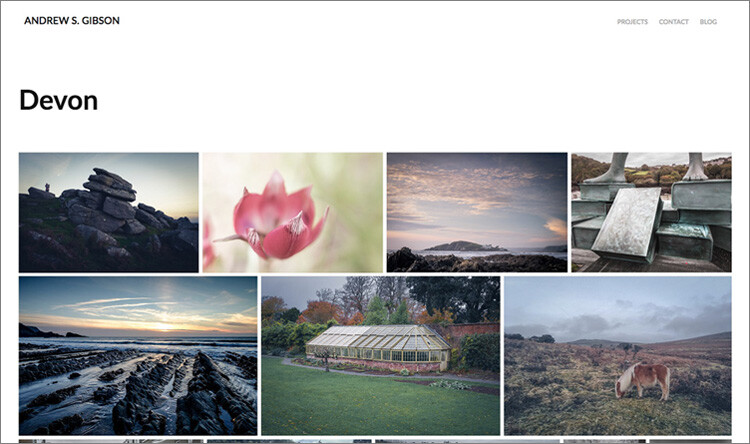
My portfolio website (link above) has four galleries; Black & White, Portraits, Spain, and Devon. Each gallery corresponds to a Collection in Lightroom with the same name (seen below).

Adobe Portfolio Lightroom

Register

Go to www.myportfolio.com and sign in with your Adobe ID. If you haven’t created a portfolio yet click the button that says Get Started Free. Otherwise, click the button that says Edit Your Portfolio.

Adobe Portfolio Lightroom

Choose a design for your gallery

Now it’s time to choose a layout. Start by clicking the Switch layouts icon (marked below).

Adobe Portfolio Lightroom

Adobe Portfolio gives you eight layouts from which to choose. All the layouts are fully mobile responsive, which means they work and look professional on mobile phones and tablets as well as desktop computers. Decide which one you want to use and click the Use this layout button.

Adobe Portfolio Lightroom

It may be difficult to visualize which one works best when populated with your photos. Don’t worry about that at this stage – you can change the layout afterward if you want to.

Settings

Next, click the Edit your settings icon (marked below).

Adobe Portfolio Lightroom

Go to Site Options and click the Lightbox for Images tab. Tick the “Enable lightbox for images on my pages” box and click Done (see below). This is important as it lets people view the photos on your portfolio website. If you don’t tick it all they will be able to see are thumbnails.

Adobe Portfolio Lightroom

Add images to your gallery

Click the Manage content icon (marked below).

Adobe Portfolio Lightroom

Go to the Integrations tab and Click the Add Collections button. The website opens a window that displays all your synchronized Lightroom Collections. Pick the ones you want to include in your portfolio and click the Import Selected button (see button below lower-right).

Adobe Portfolio Lightroom

Go to Adobe Portfolio, click on the Manage content icon again and go to the Website Pages tab. Make sure the switch is set to the On position for each Collection you want to display on your portfolio website.

Adobe Portfolio Lightroom

Choose cover photos

Now it’s time to tidy up the gallery cover photos. You’ll need to do this once for each gallery. Start by clicking the pencil icon next to the gallery cover photo (see below).

Adobe Portfolio Lightroom

Pick Edit Cover Image from the menu to edit the cover photo. At the moment this feature is a little limited – the website automatically picks the photo that appears on the cover and it’s not easy to change it.

The only way currently is to click Upload a new image and upload a photo you’ve exported from Lightroom – there’s no way to select another photo from the Collection. But you can zoom the photo and adjust the crop. Click Done when you’re finished and repeat for the other gallery cover photos.

Adobe Portfolio Lightroom

Setup the domain name

Click the Edit your settings icon again and click Domain Name. You can select a URL for your portfolio in the form yourname.portfolio.com. This is the easiest option. Alternatively, if you have a domain or a subdomain you can follow the instructions to use that.

Adobe Portfolio Lightroom

Preview your portfolio gallery

Click the gray Preview button to see a preview of your portfolio website. Happy with what you see? Click Update Live Site to publish your portfolio to your chosen URL. Congratulations – your brand new portfolio website is now live!

Adobe Portfolio Lightroom

Customizing the design

So far I’ve shown you how to get your portfolio website online as quickly as possible. The hardest part, as I said, is deciding which photos to include in your gallery. That can take hours, days, or even weeks. But, once the decision is made, you can get your portfolio online in under 15 minutes. It really is that quick.

If you’re happy with the default settings of your layout you can stop there, your job is done. But it’s worth spending some time looking at both the page and global settings. You can customize things such as fonts, colors and the number of columns on your front page. There is an option to add pages (for instance an About page) and links to other websites. You have a lot of options and it’s worth exploring them to see how you can individualize your portfolio website.

You can even change the layout by clicking on the Switch layouts icon. Adobe portfolio remembers your customizations, which gives you peace of mind as it means you won’t lose your customizations when you switch from one layout to another.

When you are finished, remember to click the green Update Live Site button. None of your customizations are published until you click that button.

How to update the photos

Portfolios are fluid and as time goes by you will add and remove photos from the Collections you created. You may also add more Collections as your photo collection grows. There are two steps to updating your portfolio website.

1. Update your Lightroom Collections and make sure Lightroom has had time to synchronize the changes.

2. Go to Adobe Portfolio, click on the Manage content icon and go to the Website Pages tab. Click on the Cog icon next to the Collection that you want to update and select Reset from Lightroom to update your portfolio gallery.

Adobe Portfolio Lightroom

3. Finish by clicking the green Update Live Site button to publish the updates to your portfolio website.

Next steps

With the recent update that lets you integrate Lightroom Collections, Adobe Portfolio has become the easiest way to create a portfolio website using Lightroom Collections. The only downside, as mentioned earlier, is that you need to be a Creative Photography Plan subscriber to use this feature.

If you are not, then look at Koken as an alternative. Don’t dismiss the Web module out of hand either, it has some very useful features and doesn’t require a CC subscription to use.


You can learn more about all aspects of Lightroom with my bestselling Mastering Lightroom ebooks.

The post How to Create a Beautiful Online Gallery with Lightroom Classic CC and Adobe Portfolio in 15 Minutes by Andrew S. Gibson appeared first on Digital Photography School.


Digital Photography School

 
Comments Off on How to Create a Beautiful Online Gallery with Lightroom Classic CC and Adobe Portfolio in 15 Minutes

Posted in Photography


Hasselblad unveils 135mm F2.8 for X1D, promises 80mm with fastest aperture yet

04 Nov

Medium format camera and lens maker Hasselblad has released its XCD lens roadmap for 2018, revealing the nine total lenses that will be available for X1D-50c shooters by the end of next year. Mainly, the company has added two new models to the system in the shape of a 135mm F2.8 with a built-in teleconverter, and what it is describing as an 80mm with the widest aperture Hasselblad has ever produced.

In addition, Hasselblad has altered the spec of its already announced 22mm wide lens. It will now come to market as a 21mm F4 after a slight change of plan in what Hasselblad says is a response to feedback from customers.

The new XCD 135mm F2.8 is due to arrive in the first half of 2018, and will come with a built-in 1.7x converter that will transform the lens into a 230mm F4.8. With the sensor of the X1D, this lens will deliver the same sort of angle of view we’d expect from a 110mm lens on a full-frame system, while with the converter that becomes just over 180mm.

The maximum aperture of the promised 80mm hasn’t been disclosed, but if it is to be the widest aperture Hasselblad has ever produced it will need to be wider than the F2 of the 110mm Planar T*. The company has said more will be revealed closer to the launch date at the end of 2018.

Aperture details of the forthcoming XCD 35-75mm zoom and the XCD 65mm have also been released, with the zoom varying between F3.5 and F4.5, and the 50mm-equivalent focal length coming in at F2.8. Prices are also to be released at a later date.

For more information, visit the Hasselblad website.

Press Release

Hasselblad expands the XCD lens range to a total of nine lenses in 2018

Hasselblad updates the XCD lens roadmap for the award-winning X1D-50c with the XCD 135mm and the 80mm lenses, rapidly expanding the XCD lens range to a total of nine dedicated lenses. By end of 2018 X1D users will have a wide range of lens options to maximize their creative vision.

The XCD 135mm f/2.8 lens comes with a dedicated 1,7x converter that extends the tele lens to 230mm f/4.8, while the XCD 80mm is set to become the highest aperture lens that Hasselblad has ever introduced.

In addition to these two new lenses, the previously announced XCD 22mm ultra-wide-angle lens has been updated to 21mm to meet the Hasselblad users’ demand for a better wide-angle lens experience.

Like the other XCD lenses, all new XCD lenses have an integral central shutter offering a wide range of shutter speeds and full flash synchronisation up to 1/2000th second.

Hasselblad is also releasing aperture details for previously announced XCD lenses: the XCD 21 ultra-wide-angle lens will feature f/4.0, the XCD 35-75mm zoom lens will have f/3.5-4.5, and the XCD 65mm lens will have f/2.8.

All new XCD lenses, besides XCD 80mm, are expected to be available during the first half of 2018, while the XCD 80mm high aperture featuring lens is planned for the second half of 2018.

The demand for the previously announced XCD 120mm macro lens and the XH lens adapter exceeded Hasselblad’s expectations, but the production is now being ramped up and orders are being fulfilled globally.

In addition to the nine dedicated XCD lenses, the XH lens adapter allows the X1D owners to use all twelve HC/HCD lenses.

Pricing and additional technical specifications will be provided closer to the availability of each lens. Specifications are subject to change.

Articles: Digital Photography Review (dpreview.com)

 
Comments Off on Hasselblad unveils 135mm F2.8 for X1D, promises 80mm with fastest aperture yet

Posted in Uncategorized