RSS
 

Archive for September, 2017

A Guide to Creating Stunning HDR Images

27 Sep

The simple contrast between light and shadow can have a powerful effect on a photographic image. In fact, quite often you may find that contrast is what inspires you to photograph a particular scene or subject in the first place. Sometimes, however, the contrast of a scene exceeds the ability of your camera to contain all of that information. Fortunately, with the help of powerful software such as Aurora HDR 2018, you can transform a scene with high contrast into a stunning photographic image with tremendous detail. In this article, I’ll show you how it’s done.

Photographing the Scene

The first step in creating a high dynamic range (HDR) image is to capture a sequence of photos. Put simply, when you aren’t able to capture a single photo that includes detail in the darkest shadows and the brightest highlights of a scene, you’ll want to capture multiple exposures and blend them together with software such as Aurora HDR 2018.

Bracketed Exposures A Guide To Creating Stunning HDR Images

Most cameras include an automatic exposure bracketing (AEB) feature that can help streamline the process of capturing the several exposures which are needed to create an HDR result. If your camera only enables you to capture a bracket of three exposures, you can separate the exposures by two stops each. If you are able to capture a bracketed sequence of five or more photos you can separate the exposures by one stop each. It is highly recommended that you use the RAW capture mode for these exposures, to ensure there is maximum information available for creating your final image.

In most cases you will want to keep the lens aperture setting fixed, altering the shutter speed for each frame to adjust the exposure. This will help ensure consistent depth of field in the scene. The ultimate goal is to be sure that you have one exposure that is dark enough to include full detail in the bright areas of the scene, one exposure that is bright enough to include full detail in the dark areas of the scene, and exposures in steps of one or two stops to transition between the darkest and brightest exposures.

Creating the Initial HDR

There are two basic steps to creating a final HDR image. The first is to assemble the multiple exposures into a single image with a tremendous amount of information. The second is to perform what is referred to as “tone mapping” or translating the huge range of tonal and color values into the range of values available for a “normal” photographic image.

With Aurora HDR 2018, there are a couple of ways you can start the process of creating the initial HDR image. If you’re using other software such as Lightroom or Photoshop as the foundation of your overall workflow, you can employ Aurora HDR 2018 as a plug-in for these other software tools. The other option is to simply open the original captures directly from within Aurora HDR 2018.

Open your images

When you initially launch Aurora HDR 2018 you’ll see the “Open Image” button. You can click that button, or choose File > Open from the menu to get started. Note, by the way, that you could also take advantage of the “Batch Processing” option to assemble multiple HDR images in a single process.

Aurora Open Images - A Guide To Creating Stunning HDR Images

After selecting the option to open images, you can navigate to the folder containing the photos you want to assemble into an HDR image, and select those images. Then click the Open button to initiate the process of creating your HDR image.

The images you selected will then be presented as thumbnails so you can confirm which photos are going to be assembled into an HDR image. More importantly, however, you can adjust the settings for how the individual captures should be combined.

HDR options and settings

Almost without exception, you’ll want to turn on the “Alignment” checkbox. Even if you used a tripod when capturing the bracketed frames, it is possible that there was a tiny movement of the camera during the capture process. By having the Alignment checkbox turned on, Aurora HDR 2018 will analyze the contents of the images and fine-tune the positioning of each to ensure perfect alignment.

Aurora Initial Settings - A Guide To Creating Stunning HDR Images

Next, click the popup with the gear icon to adjust the settings for assembling your HDR image. If there was any movement of subjects within the frame, such as people or cars, or even trees blowing in the breeze, you’ll want to turn on the “Ghost Reduction” checkbox. In many cases having this option enabled can completely eliminate the “ghost” effect that results from objects moving within the frame from one exposure to the next.

Once you have turned on the “Ghost Reduction” checkbox, you can choose which exposure to prioritize by selecting it from the “Reference image” popup. In most cases, you will want to choose the image that would provide the best overall exposure if you hadn’t captured bracketed exposures in the first place.

You can also choose the strength setting for ghost reduction, depending on how much movement there was in the scene you were photographing. If there was minimal movement in the scene you can use the “Low” option. However, there are also settings for Medium, High, and Highest to help you achieve good results even when there was considerable movement within the scene you photographed.

Other settings

For many situations where you might employ HDR techniques, you may be photographing a scene with relatively low light levels. If so, you can turn on the “Color Denoise” checkbox to apply noise reduction to your original captures as Aurora HDR 2018 is processing them.

It can also be helpful to turn on the “Chromatic Aberration Removal” checkbox so that any color fringing that appears in the captures can be removed. This fringing is most common when using a wide-angle lens to photograph a high-contrast scene, but it can also occur with other lenses or photographic situations.

Once you have established the desired settings for the assembly of your HDR image, click the “Create HDR” button. Aurora HDR 2018 will then combine the multiple exposures you selected into a single high dynamic range result.

Presets and Beyond

Put simply, an HDR image contains a greater range of tonal information that can actually be displayed on a computer monitor or presented in a printed output. It is, therefore, necessary to translate that huge range of information into the range used for a normal digital photo. That process is referred to as “tone mapping”. Fortunately, Aurora HDR 2018 makes it easy to exercise considerable control over the interpretation of your image during this process.

One of the great features of Aurora HDR 2018 is the ability to use a variety of presets to quickly achieve the optimal look for your image. Even better, these presets are presented as thumbnails that provide an actual preview of the effect you’ll achieve with each preset. In other words, there is no guessing involved. You can browse the preset thumbnails, and easily find a good starting point for processing your photo.

Preset Categories - A Guide To Creating Stunning HDR Images

The presets are organized into categories, so you can start by clicking the “Categories” popup at the center of the thumbnail display at the bottom of the Aurora HDR 2018 interface. Choose a category from the popup (including an option to view all presets at once), and then browse the thumbnails to find a preset that looks good to you. To apply the effect, simply click on the thumbnail for the desired preset.

Adjust to your taste

Of course, the presets are merely a starting point in the process of optimizing your interpretation of the HDR image. You can still exercise tremendous control over the image with a variety of adjustments.

First, you can tone down the effect of the selected preset by reducing the strength with the “Amount” slider. As soon as you select a preset, you’ll see a slider on the thumbnail for that preset. Simply drag that slider to a lower value if you want to reduce the strength of the overall effect.

In addition, there is a wide variety of adjustment controls available on the right panel within Aurora HDR 2018. The preset you selected will have changed the value for many of these controls, but you can go far beyond the effect applied by that preset.

You will probably want to get started in the “HDR Basic” set of controls, where you can fine-tune the overall color and tonality of the image. For example, you can bring out more detail in darker areas of the image by increasing the value for Shadows. In the Color section, you can adjust the intensity of colors in the photo.

HDR Basic A Guide To Creating Stunning HDR Images

Many options available

You’ll then want to move on to some of the other powerful adjustments available. The HDR Structure section provides controls for enhancing the overall appearance of detail in the image. You’ll also find a variety of special effects available, including a polarizing filter effect, graduated adjustments to refine the top or bottom areas of the image, color tinting, dodging and burning, a vignette effect, and much more.

Be sure to also take a look at the Lens Correction and Transform controls available via a popup at the top of the right panel in Aurora HDR 2018. These enable you to correct for lens distortion as well as perspective issues caused by your position relative to the subject you photographed.

As you refine the settings for the many available adjustments in Aurora HDR 2018, you will likely find it helpful to see a “before” and “after” view of the image. You can click and hold your mouse on the “Quick Preview” button (the eye icon) at the top-center of the Aurora HDR 2018 interface to see the image without any adjustments applied. Then release the mouse to see the final effect. You can also enable the Compare view with the button to the right of the Quick Preview button.

Compare View A Guide to Creating Stunning HDR Images

Tone mapping a single image

By its nature, creating a high dynamic range image involves capturing multiple exposures and combining them into a single image with tremendous detail. However, the powerful adjustments available in Aurora HDR 2018 can also be used to improve the appearance of a single photo.

To use Aurora HDR 2018 to process a single image, you can simply open that image. Instead of selecting multiple exposures when you initiate the process of working in Aurora HDR 2018, you can select a single image. The overall workflow is exactly the same as when assembling an HDR image from multiple exposures, and all of the same adjustments are available.

So after getting familiar with the use of Aurora HDR 2018 to process a series of exposures into a single stunning HDR result, you can use the same basic process to apply similar adjustments to individual photos.

Single Image - A Guide to Creating Stunning HDR Images

Special Pre-Order Offer Now Available!

Don’t miss this opportunity to pre-order Aurora HDR 2018 with over $ 150 worth of bonuses, all for only $ 89. (For a limited time.)


Only the beginning

The ability to assemble multiple exposures into a single image containing a tremendous amount of detail and texture provides you with incredible creative control as a photographer. Aurora HDR 2018 provides a powerful solution for creating high-quality HDR images and creating unique interpretations of those images with a variety of features and effects.

In this article, you’ve learned the basic process of creating great HDR images using Aurora HDR 2018. But this is only the beginning. If you spend a little time exploring the many adjustments available within Aurora HDR 2018, you’ll be able to create stunning HDR images with ease.

Disclaimer: Machpun is a Paid Partner of dPS

The post A Guide to Creating Stunning HDR Images by Tim Grey appeared first on Digital Photography School.


Digital Photography School

 
Comments Off on A Guide to Creating Stunning HDR Images

Posted in Photography


No Edits Needed for a Picture Perfect Moment

27 Sep

Warning: preg_replace(): The /e modifier is no longer supported, use preg_replace_callback instead in /home/forge/content.photojojo.com/content.photojojo.com/wordpress/wp-content/plugins/ozh-better-feed/inc/feed.php on line 134


Photojojo

 
Comments Off on No Edits Needed for a Picture Perfect Moment

Posted in Equipment


Review of the DJI Spark Drone

27 Sep

DJI doesn’t particularly need an introduction. Their Phantom series brought drone video to the average Joe, while the Mavic Pro brought it closer to the tech and vloggers communities. Now, the DJI Spark aims to bring it to everybody. This tiny wonder goes places no toy drone could hope to go and really packs the tech of its older siblings into a tiny package.

Review of the DJI Spark Drone

Specs of the DJI Spark

The DJI Spark is not much more than palm-sized, and I don’t have particularly big hands. Weighing in at 300 grams (little more than half a pound), you’d think it wouldn’t be up to much, but as I live close to the sea, most of my flights have been in high winds. The DJI Spark has coped admirably, especially considering its petite frame.

Review of the DJI Spark Drone

Aerial views are a breeze in the wind with the DJI Spark.

Toy drones for practice

Let me give you a little of my drone background. I’ve wanted a drone for ages, but with my history of new gear accidents, added to seeing some of my friends destroy really expensive drones, I avoided getting a good one. Instead, I bought loads of toy drones and learned to fly them. While my agenda was always to get a proper drone, flying toy drones is a lot of fun. Best of all, the price means you’re not afraid of crashing them. I found this a great way to get comfortable with flying.

Review of the DJI Spark Drone

A seascape frame from a DJI Spark video.

Let’s look at the rest of the DJI Spark’s specs. It has a 12MP JPEG only stills mode, with video capabilities limited to 1080p 30fps video. This camera sits on a 2-axis gimbal, which, while not in the league of the 3-axis capabilities of bigger drones, works quite well in practice.

The field of view is 25mm equivalent and looks great. The battery is an intelligent type and has its own firmware independent of the drone itself. Charge time is quick, and as well as the dedicated charger, there’s a micro USB port on the drone that can be used to charge the battery. That’s handy when you’re out and have a power bank at the ready.

DJI Spark Options

The DJI Spark comes as a standalone device, flown via the DJI Go 4 app for $ 499 and as the Fly More kit combo with a controller, spare battery, prop guards, 3 battery charger and a bag for $ 699. Don’t waste your money on the basic version. Get the kit. Why?

Well, flight time is quoted at 16 minutes, but it’s less in practice. You’ll need the extra battery after your first flight because you’ll want to fly more! But the main reason is the controller. With just the phone, you’re limited to using an ad hoc phone Wi-Fi network to control the Spark. This is a meager 30m radius. You’ll run out of fun really quickly.

Review of the DJI Spark Drone

In Flight

Now for the crucial question. How does it fly? After flying toy drones for a while, I’m well used to how the controls work. My left hand has throttle and spin, with the right doing forward/back and left/right. It becomes natural quickly. Because the DJI Spark uses GPS for positioning, as soon as you stop flying, the drone stops moving. It’s locked solidly in place.

Review of the DJI Spark Drone

I began using the Beginner mode from the phone only and moved to the controller once I was comfortable. Beginner mode reduces both the distance and speed the Spark can travel. It’s perfect for learning the ropes.

There’s one thing I will stress. Compared to toy drones, the Spark almost flies itself. It makes me regret not getting a proper drone sooner. However, those toy drones did give me more confidence in flying. If you’ve been holding out and just want a drone with a quality camera for basic photography, this is the one for you.

Issues

Are there any issues with the DJI Spark? Yes. I’m happy enough to use JPEG and there are exposure controls available, but there is one thing that I’m not happy about, sharpening issues. In-camera sharpening on the files is horrible. I’m sure they would print fine, but looking at the files at 100%, it’s just horrible. There’s no way to turn it down either. Obviously, DNG would be better, but that’s a selling point of the Mavic Pro.

Review of the DJI Spark Drone

Review of the DJI Spark Drone

100% view showing the weird sharpening and artifacts with the JPEG.

The flight time for the Spark is quite low in comparison to its older siblings. It’s quite long compared to toy drones though and comparing battery sizes, it’s not a wonder. For the size of the drone, the flight time is acceptable.

The App

The DJI Go 4 app is easy to use and contains all the information you need while flying. High wind warnings, along with information on the home point and general flying information show on the screen as you fly. Height, distance and velocity show on the bottom of the screen. There’s a compass in the bottom left. Always check the direction the drone is facing before take off so you can align the drone if it goes out of visual range.

Review of the DJI Spark Drone

Gesture Control

The big selling point in DJI’s advertising is Gesture Control. To use this, you power it on (single tap, then long hold on the power button), then tap twice. If the sensors pick you up, the props will start to rotate and the Spark will take off.

A series of gestures control the device and placing your hand under it will make it land on your palm. Does it work? Yes, it does. Is it a gimmick? Yep, it’s fun, but only up to a point. Flying with the controller is the only way to go. You get bored with the Jedi palm control rather quickly, though most people find it really impressive.

Sport Mode

In the center of the controller is a button marked sport. This removes the handbrake and turns the Spark into a fun monster. It isn’t immediately obvious that you don’t need the app to fly the Spark. Turn on the controller, then turn on the Spark. Once connected you can fly the Spark directly from the controller with Sport mode on.

I found that it wouldn’t fly for me without Sport mode on. Aim the two joysticks in and down to start the propellors, then throttle to take off. Enjoy! It’s fast and furious, but watch out with braking as it needs room to stop or reverse even.

Verdict

The DJI Spark is a great starter drone with a usable camera. It’s fun to use and easy to fly. If you need 4K and DNG, don’t even look at it, go for the Mavic Pro. If these aren’t an issue, you’ll love the Spark, but save yourself some pain and get the kit version.

Pros

  • Small size.
  • Stable even in high winds.
  • Good mix of control options.
  • Beginner mode useful for learning to fly, as is the in-app Flight Academy.
  • Fun. It’s just loads of fun, especially in controller only Sport mode.
  • Controller flying is great.

Cons

  • JPEG only, with terrible sharpening.
  • 1080p with only 30fps. Obviously, a tactic to upsell to one of the big brothers.
  • Low flight time; acceptable, but still a con.
  • Needs controller for best use, but the kit is a great value.

The post Review of the DJI Spark Drone by Sean McCormack appeared first on Digital Photography School.


Digital Photography School

 
Comments Off on Review of the DJI Spark Drone

Posted in Photography


Getty Images bans Photoshopping models to look thinner thanks to French law

27 Sep

In 2015, France passed a law that will require some commercial images with a digitally retouched model to have a label notifying viewers about the alterations. That requirement will be effective starting October 1st, 2017, and Getty Images is preparing for that day with a policy change of its own.

Announced in an email that DPReview has acquired from a reader, Getty has updated its Creative Stills Submission Requirements to specify that it will no longer accept images of models whose bodies have been edited to look either thinner or larger.

The law doesn’t extend to minor digital edits, such as fixing skin blemishes, altering hair color, or altering nose shape; however, edits that change a model’s body shape require a disclosure. In response, Getty Images says that starting October 1st, photographers may not “submit to us any creative content depicting models whose body shapes have been retouched to make them look thinner or larger.”

Submitting this type of altered image will result in the photographer breaching both submission guidelines and their agreement with the company, Getty warns. The same change applies to iStock submissions, as well.

Magazines and other entities in France that use these altered photos without proper disclosure face a fine of up to €37,500 (~$ 45,000 USD).


DPReview has reached out to Getty Images for comment on the policy change, as well as clarification about how broad this change is, and what the company intends to do about the altered images already in its catalog. We will update the post if and when we hear back.

Articles: Digital Photography Review (dpreview.com)

 
Comments Off on Getty Images bans Photoshopping models to look thinner thanks to French law

Posted in Uncategorized


Nature Sets the Scene in Hot River, Iceland

27 Sep

Warning: preg_replace(): The /e modifier is no longer supported, use preg_replace_callback instead in /home/forge/content.photojojo.com/content.photojojo.com/wordpress/wp-content/plugins/ozh-better-feed/inc/feed.php on line 134


Photojojo

 
Comments Off on Nature Sets the Scene in Hot River, Iceland

Posted in Equipment


Prefab Plyscraper: World’s Tallest Timber Building Tops Out at 173 Feet

27 Sep

[ By WebUrbanist in Architecture & Public & Institutional. ]

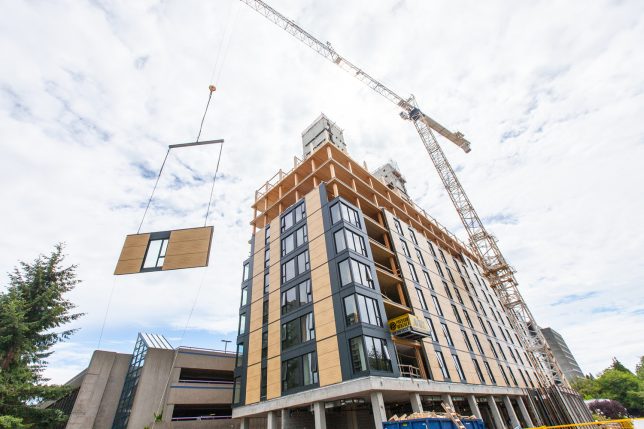
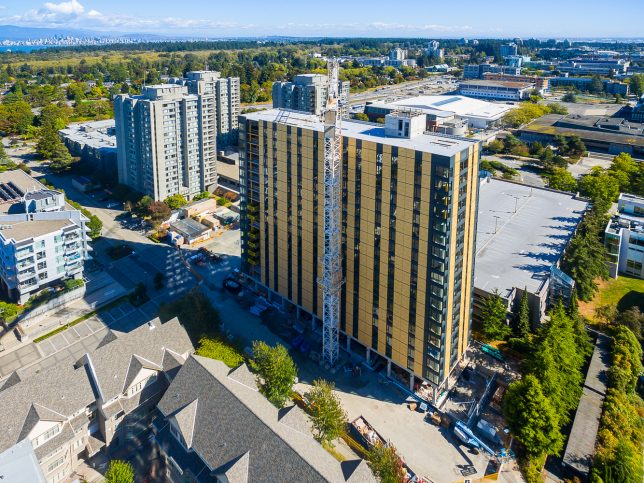
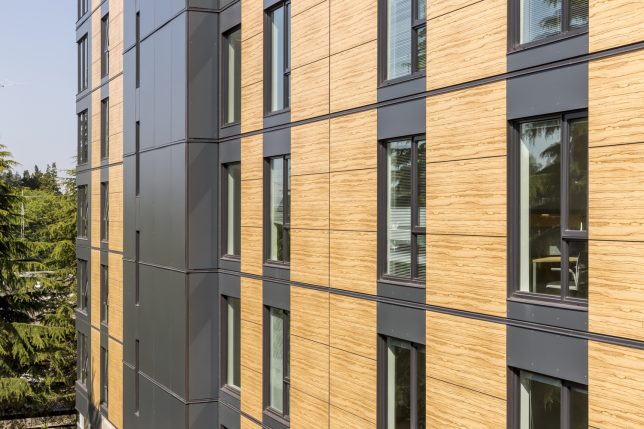
On the University of British Columbia’s campus in Vancouver, a new record-setting wood structures highlights the many advantages of a growing trend: vertical timber construction. Brock Commons Tallwood house is the highest of its kind to date, providing housing for over 400 students.

The Canadian firm behind its construction, Acton Ostry Architects Inc, says that using wood allowed for a much faster building process. Offsite testing of wood-to-wood connections and structural stability meant less time onsite spent figuring things out. Combined with prefabrication techniques, these approaches helped the builders finish the tower in just 70 days.

In addition to cost and time savings, wooden structures like this one are lighter weight, requiring less energy input during construction while also making them more flexible and resistant to earthquakes.

Sustainable forestry also enables them to sequester carbon while using a renewable resource — wood buildings like this open the door to carbon-neutral or even carbon-negative projects. Use of glue-laminated beams and columns also allows thinner trees and offcuts to be used in the construction process, reducing waste and growth time for harvested plants.

Some concrete was still required for the elevator cores, metal was needed for connections, and windows, of course, required glass. Still, compared to steel-framed structures, the amount of these materials used was dramatically reduced. And this project is not alone — around the world, forward-thinking architects and developers are beginning to realize that wood is a useful material for building tall.

Share on Facebook


[ By WebUrbanist in Architecture & Public & Institutional. ]

[ WebUrbanist | Archives | Galleries | Privacy | TOS ]


WebUrbanist

 
Comments Off on Prefab Plyscraper: World’s Tallest Timber Building Tops Out at 173 Feet

Posted in Creativity


K-Pan is a 3D-printed panoramic film camera that shoots 6 x 14cm photos

26 Sep

The 3D-printed camera formerly known as the ‘Cycloptic Mustard Monster’ has launched on Kickstarter under the name K-Pan Panoramic Camera. This medium-format analog camera has the same design showcased earlier this year, and assuming the crowdfunding campaign is successful, it’ll be made available to buyers as a DIY kit. Creator Paul Kohlhausen is also offering 10 limited edition pre-assembled camera units.

The K-Pan’s components are printed from SLS nylon, and once assembled, the camera measures 22cm x 9cm / 8.6in x 3.5in and weighs 350g / 12oz (without a lens). Users supply their own 4 x 5 lens and 120 film, of which the camera shoots five 6 x 14cm frames per roll. When assembled according to its default design, the K-Pan’s focus is set to infinity; however, users can change that by inserting spacer brackets as desired.

Kohlhaussen is offering K-Pan in various bundle options with pledges starting at £270 / $ 364 for a standard kit. Shipments to backers are available globally and are anticipated to start in March 2018.

Articles: Digital Photography Review (dpreview.com)

 
Comments Off on K-Pan is a 3D-printed panoramic film camera that shoots 6 x 14cm photos

Posted in Uncategorized


As Seen on TV: Distorted Long Exposure Portraits

26 Sep

Warning: preg_replace(): The /e modifier is no longer supported, use preg_replace_callback instead in /home/forge/content.photojojo.com/content.photojojo.com/wordpress/wp-content/plugins/ozh-better-feed/inc/feed.php on line 134


Photojojo

 
Comments Off on As Seen on TV: Distorted Long Exposure Portraits

Posted in Equipment


The Nikon D850 could be the only DSLR you’ll ever need

26 Sep

Introduction

Out-of-camera JPEG.
Nikon 70-200mm F2.8E @ 70mm | ISO 125 | 1/2500 sec | F4

Perched on a rock jutting out over Class IV+ rapids on the Deschutes River, I become fully aware that were I to slip and fall, the frothy white waves would toss me around like a cork, I’d probably hit my head on a submerged volcanic rock, fall unconscious and die.

One of the best things about photography (or one of the worst, I suppose, depending on your perspective) is access. Even if you’re not covering the industry, knowing your way around a camera and having a decent portfolio will often afford you opportunities to get up-close and personal with people you’ve never met before, who are doing things you’ve never seen before, in a place you’ve never been before.

The D850 might just be the most well-rounded camera Nikon’s ever made.

In this particular instance, the access came courtesy of Nikon USA. They wanted us to use the D850 so much that they flew me down to Bend, Oregon with a collection of other photographers and journalists, and stuck us all in a variety of disparate scenarios to get a feel for the camera.

From sports to portraits, the D850 seems almost universally capable. Out-of-camera JPEG, cropped slightly to taste.
Nikon 24-120mm F4 @ 50mm | ISO 2200 | F4 | 1/125 sec

And, not being one to back down from a challenge (or maybe I’m just terrible at scheduling), I was booked to photograph a friend’s wedding immediately upon returning to Seattle. I was eager to use the camera outside of the realm of a press trip, especially since its specs seem to indicate that the D850 might just be the most well-rounded camera Nikon’s ever made.

Actually, it might be the most well-rounded stills camera that anyone has ever made.

This thing is way too fast to be shooting 46 megapixels

This kayaker didn’t seem particularly worried about the Class IV+ rapids, which I was later told verged on Class V. Out-of-camera JPEG.
Nikon 70-200mm F2.8E @ 70mm | ISO 64 | 1/800 sec | F2.8

Perhaps the highest praise I can offer for the D850 is that, in more ways than one, it reminds me of Nikon’s flagship D5 with one of the grips lopped off.

The camera feels incredibly solid. The AF joystick is fantastic. Shutter lag is nonexistent. Autofocus is instant. As with the D5, I repeatedly got the sense that the camera was waiting for me, not the other way around. It offers a ‘transparent’ experience by just getting out of the way and letting me focus on what’s happening in front of me so I don’t miss a photo.

In more ways than one, the D850 reminds me of the flagship D5.

And that’s exactly what I needed as the first kayaker came around the bend. I initiated autofocus and let the camera’s 3D Tracking do its thing as I constantly zoomed and adjusted my composition, with the kayaker moving unpredictably through the scene in front of me and the camera motoring away at seven frames per second.

Want to know what brand the kayak is? Just zoom in to 100%. Out-of-camera JPEG.
Nikon 70-200mm F2.8E @ 70mm | ISO 125 | 1/2500 sec | F4

The fact that the D850 behaves this way, in that it is capable of churning out accurately focused 46MP files of fast-moving subjects, makes it unique. It’s true that Sony’s a99 Mark II shoots 42MP files at a speedier 12fps, but that camera wasn’t our best autofocus performer, and the user interface and SD-only recording media make it a slower camera than the D850 in most other respects.

So in the D850, you basically have a sports camera that you could turn around and make wall-sized gallery prints with in a heartbeat. If that doesn’t meet your definition of ‘well-rounded,’ I don’t know what will.

This man seems comfortable with his life choices. Out-of-camera JPEG.
Nikon 70-200mm F2.8E @ 70mm | ISO 125 | 1/2500 sec | F4

Good at every ISO

As I was heading to the airport outside of Bend, I was looking forward to my evening. I had a short flight back to Seattle, and enough time to get from Seatac Airport to a friend’s wedding ceremony on the shores of Puget Sound. Then I checked in, and saw my flight was delayed by 45 minutes.

Heavy sigh. Heavy stress.

By the time I hopped out of my cab in West Seattle minutes before the ceremony was set to start, the sun had already dropped low in the sky. I hastily introduced myself to the family members I hadn’t yet met, apologized profusely for my tardiness and gave the happy couple a couple of hugs. Time to start taking pictures.

Image processed to taste in Adobe Camera Raw, exposed for the highlights with shadows lifted. With a Nikon D5, Canon EOS-1D X Mark II or Sony a9, this processing would result in a much noisier image.
Nikon 24-120mm F4 @ 24mm | ISO 64 | 1/160 sec | F8

In many ways, peak action and wedding photography place similar demands on both photographer and camera. You’re constantly on the lookout for fleeting moments, and the camera has to be able to respond when you do.

But dedicated sports cameras often come with compromises, such as lower resolution and lower dynamic range. It’s not uncommon to see wedding shooters with one ‘speed’ body and one ‘resolution’ body. With the D850, I’m not sure that’s going to be necessary anymore.

Out-of-camera JPEG.
Nikon 24-120mm F4 @ 46mm | ISO 900 | 1/200 sec | F4

Even without a boost from the battery grip, the burst rate is more than sufficient. As when shooting white water kayaking, I never once found myself waiting for the camera during the ceremony. I knew that images at lower ISO values would have lots of editing latitude, but I was also pleasantly surprised at the quality of higher ISO shots when the sun set behind the clouds.

You can dramatically change an image’s composition while still maintaining a good amount of resolution.

The biggest downside for using the D850 for weddings, so far as I can see it, is just that the average client might not need 46MP for every single image. It burdens the photographer in terms of storage space, and honestly burdens the clients if they’re not going to be printing anything bigger than an 11×14. (Even high-quality JPEG files out of the camera weigh in at 20-30MB).

The camera’s smaller Raw file options might help this somewhat, but we’re still testing to see if there will be any dynamic range or other image quality penalty involved. But on the flip side, there’s no avoiding the freedom you’ll feel when cropping tightly on such a high-res image. You can dramatically change an image’s composition while still maintaining a good amount of amount of resolution, which is pretty powerful.

In the wild. Out-of-camera JPEG.
Nikon 24-120mm F4 @ 110mm | ISO 1400 | 1/500 sec | F4

Should I buy it?

No camera is perfect.

I’m not a big video shooter for freelance work, but I love a tilting screen to get some unique angles for stills, and while Nikon’s live view autofocus is accurate, it certainly isn’t fast. Forget about shooting moving subjects if you’re not in a position to have your eye to the finder.

Commitment.
Nikon 35mm F1.8G | ISO 400 | 1/160 sec | F4

Beyond that, Snapbridge (Nikon’s term for a suite of features including Wi-Fi and Bluetooth connectivity for downloading images) has improved, but still isn’t exactly refined. The initial connection process was quick and easy, but I couldn’t reconnect again until after I had both my phone and the camera ‘forget’ each other, and start all over again.

For the last year or so, I’ve been wrestling with the issue of whether or not to upgrade. For what I shoot, which is mostly weddings and events, the D850 certainly has a lot to offer. The files are awfully big, but downsizing them will just make for very sharp lower megapixel options.

Nikon seems to have thrown just about everything they’ve got into the D850, and it sits at a very reasonable price point for all that it is capable of. At first glance, it may not be the most exciting camera for the average consumer; it certainly isn’t flashy, nor is it petite.

Out-of-camera JPEG.
Nikon 35mm F1.8G | ISO 3200 | 1/320 sec | F1.8

But for seasoned photographers shooting a variety of subjects, the D850 is a formidable option.

For landscape shooters, you have the current low ISO benchmark at ISO 64, meaning the D850 should be able to match some medium format digital cameras in terms of dynamic range. For wedding and event shooters, you have all the speed you need, but with tons more resolution than may be used to – this could be a blessing or a curse, depending on your style. For those that love manual focus lenses, you get Nikon’s biggest-ever viewfinder on a DSLR. And for wildlife enthusiasts, you get the benefits of the latest sensor tech with plenty of resolution for cropping, as well as excellent autofocus tracking and coverage, even with low light levels.

In all, the D850 offers excellent autofocus performance, incredible resolution, expansive dynamic range and a capable burst speed. Unless you find yourself shooting run-and-gun video on the regular, the D850 is worth a look.

Sample gallery

$ (document).ready(function() { SampleGalleryV2({“containerId”:”embeddedSampleGallery_5682971467″,”galleryId”:”5682971467″,”isEmbeddedWidget”:true,”standalone”:false,”selectedImageIndex”:0,”startInCommentsView”:false,”isMobile”:false}) });
Articles: Digital Photography Review (dpreview.com)

 
Comments Off on The Nikon D850 could be the only DSLR you’ll ever need

Posted in Uncategorized


UltraPod II: Saving Space and Holding Cameras Still

26 Sep

Warning: preg_replace(): The /e modifier is no longer supported, use preg_replace_callback instead in /home/forge/content.photojojo.com/content.photojojo.com/wordpress/wp-content/plugins/ozh-better-feed/inc/feed.php on line 134


Photojojo

 
Comments Off on UltraPod II: Saving Space and Holding Cameras Still

Posted in Equipment