RSS
 

Archive for September, 2017

How to Make Your Own DIY Light Box with Tape, Paper and a Window

01 Sep

Photographers are pretty savvy when it comes to saving money. This DIY  light box is a surprisingly simple method for photographing small, translucent objects like flower petals.

Remember holding sheets of paper against a window to trace out a design? This process is similar in technique. The sheet of baking paper will act as a diffuser, spreading light evenly through a translucent object so it can be photographed in detail. Using a well-lit sheet of paper also isolates the subject from the background with a nice, even, white backdrop. Plus, you get to take great photos without leaving the comfort of your own home. So really, it’s win-win!

Make Your Own DIY Light Box

Supplies you will need

  • Camera
  • Tripod
  • Macro lens or extension tubes
  • A well-lit glass window or door
  • Butcher’s paper
  • Clear sticky tape
  • Glass cleaner or rubbing alcohol
  • Eucalyptus oil (for removing any remaining sticky tape from the glass surface once you have finished shooting)
  • Small transparent objects to photograph (I like using flowers)

Picking a location

Before you start, you’ll need to locate a light source. While the butcher’s paper will serve as a background for your image, you’ll need a strong, even amount of light to illuminate the subject.

Depending on the time of day, you might have to try different windows around your house.  The position of the sun will dictate the strength of the light penetrating the butcher’s paper. Choose a window that is unimpeded by exterior blinds or trees if possible.

Make Your Own DIY Light Box

Capturing the intricate detail of organic materials like leaves is made much easier with the glow of light coming through the subject from behind.

Setting up

Once you’ve settled on a well-lit window, you’ll need to prepare the glass. Wipe a small amount of rubbing alcohol or glass cleaner over the window and pat down with a cloth. This will minimize any particles that may impede light from coming through. It will also allow the sticky tape to adhere to the glass more effectively. Make sure that the glass surface is completely dry, however, or the tape and butcher’s paper will become soggy and unusable.

Take your piece of butcher’s paper and hold it against the window. The reason I use butcher’s paper is because I’ve found that run-of-the-mill copy-paper disperses light in mottled and uneven patches, which looks poor in photographs. Butcher’s paper diffuses light more evenly and makes for a uniformly white background. You can use a piece as large as you like, just make sure there is enough paper to fill the viewfinder in your camera.

Make Your Own DIY Light Box

Not all paper is created equal. This is an example of the uneven, mottled light caused by a sheet of standard A4 copy paper.

Fix your piece of butcher’s paper to the glass. I recommend using clear sticky tape rather than blue-tack or colored tape because it may show up in your photographs and can wrinkle the paper. Once you have fixed the paper flush with the glass, you can begin adding your subjects.

Carefully stick your objects to the butcher’s paper with small amounts of clear sticky tape. This can be tricky on a vertical surface, so having lightweight, translucent subject matter like flowers work best. I also like to sit on a chair for this part, to avoid a backache.

Make Your Own DIY Light Box

Fix your subject matter to the butcher’s paper with bits of clear sticky tape.

Taking the shot

Once your subjects have been adequately adhered to your butcher’s paper, it’s time to get the camera out. Mount your camera on a tripod and position it so that the subject and the butcher’s paper fill your viewfinder. To capture the detail in your subject, a macro lens is ideal. I used my Kenko extension tubes to get a nice detailed shot. Of course, you could also arrange larger subjects or patterns on the butcher’s paper, focusing on pattern and light rather than macro detail.

Set your camera to Aperture priority mode (Av on Canon and A on Nikon) and adjust the aperture to allow for the desired depth of field. Remember, to maintain focus throughout the whole image, use a smaller aperture like f/22. However, this may be limited depending on the lens you use.

For the sharpest detail, using a low ISO count is also a good idea. Although this will cause your camera to automatically increase the shutter speed, your tripod will minimize camera shake, especially if you view your composition using with the LCD screen and Live View rather than the viewfinder.

Make Your Own DIY Light Box

Conclusion

Once you start photographing, you’ll notice the diffused light enveloping and illuminating your subjects. With the abundance of the soft light, you’ll discover that detail is much easier to capture and view. Using this butcher’s paper method eliminates pesky shadows, allowing the subject to lift off the background with striking contrast and intricacy.

Try photographing all sorts of flowers, fruits, leaves and other transparent materials and see your subjects in a whole new light!

Make Your Own DIY Light Box

Make Your Own DIY Light Box

Make Your Own DIY Light Box

Make Your Own DIY Light Box

Make Your Own DIY Light Box

Make Your Own DIY Light Box

Make Your Own DIY Light Box

The post How to Make Your Own DIY Light Box with Tape, Paper and a Window by Megan Kennedy appeared first on Digital Photography School.

Digital Photography School

 
Comments Off on How to Make Your Own DIY Light Box with Tape, Paper and a Window

Posted in Photography


Learning python raspberry pi pdf

01 Sep

The official firmware is a freely redistributable binary blob, searchable Cheat Sheet For Python This one pager python cheatsheet also provides a convenient option to search the method names. Once I started collecting the data, the learning python raspberry pi pdf board is shipped with a flexible flat cable that plugs into the CSI connector […]
BooksChantcdCom

 
Comments Off on Learning python raspberry pi pdf

Posted in Equipment


Motorola Moto X4 brings a dual-cam with super-wide-angle to the mid-range segment

01 Sep

Lenovo has introduced the Motorola Moto X4 at its IFA 2017 event and closes the gap in its line-up that was created after the Moto X series went into hiatus with the launch of the Moto Z models last year.

The Moto X4 is an upper-tier mid-ranger that slots in between the Moto Z and Moto G series and aims to offer a comprehensive feature set at an attractive price point. 400 Euros (no US pricing has been revealed yet) get you a 5.2″ 1080p IPS display, a sleek metal body with glass back, IP68 water-resistance, Snapdragon 630 chipset, Amazon Alexa integration and a dual-camera.

The latter combines a 12MP main camera with an 8MP 120-degree super-wide-angle, a similar concept to what we’ve seen on more recent LG high-end devices. The main cameras features a 12MP sensor with 1.4um pixel size, F2.0 aperture and PDAF. The super-wide angle has a smaller sensor with 1.12um pixels and F2.2 aperture. Bokeh effect and 4K video recording are on board as well.

The front camera specification looks quite impressive for a device in this class as well: a 16MP sensor is accompanied by a F2.0 lens and a front LED flash. A 4MP low-light mode uses pixel-binning for reduced noise in dim lighting conditions.

We are having our hands on a test unit and first impressions are promising. The device feels very solidly built and, as always with Moto devices, the lean Android implementation feels smooth and responsive in operation. The super-wide-angle lens looks like a useful addition to the main camera but we’ll have to do some proper testing before commenting on image quality. The Moto X4 will be available in Super Black and Sterling Blue this fall worldwide.

Motorola #motox4 with dual-cam and glass-back, looks like a contender in the upper mid-range #ifa2017

A post shared by Lars Rehm (@larsrehm) on

Key specifications:

  • Dual-camera with 12MP main camera and 8MP 120 degree super-wide-angle
  • 1.4um pixel size, F2.0 aperture and PDAF on main camera
  • 1.12um pixel size and F2.2 aperture on super-wide-angle
  • 4K video
  • 16MP / F2.0 front camera
  • 5.2″ 1080p IPS display with Gorilla Glass
  • Snapdragon 630 chipset
  • 3GB RAM, 32GB storage
  • 3,000 mAh battery

Articles: Digital Photography Review (dpreview.com)

 
Comments Off on Motorola Moto X4 brings a dual-cam with super-wide-angle to the mid-range segment

Posted in Uncategorized


Alien Architecture: Modern Buildings Recast as Extraterrestrial Ships

01 Sep

[ By WebUrbanist in Art & Photography & Video. ]

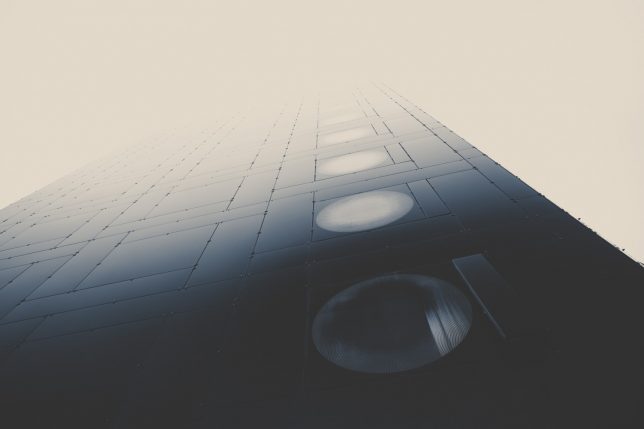
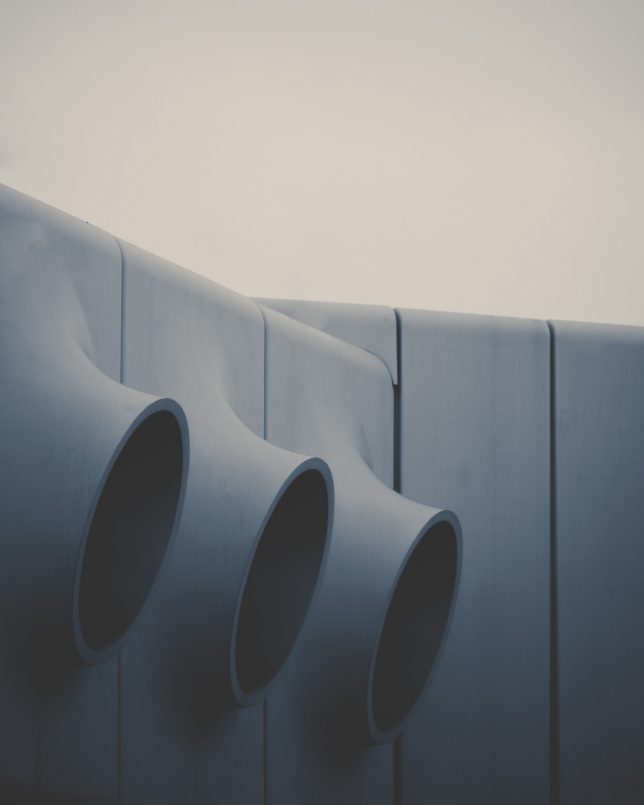
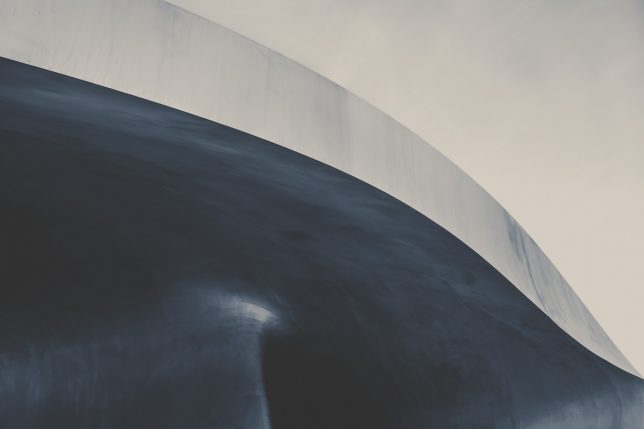
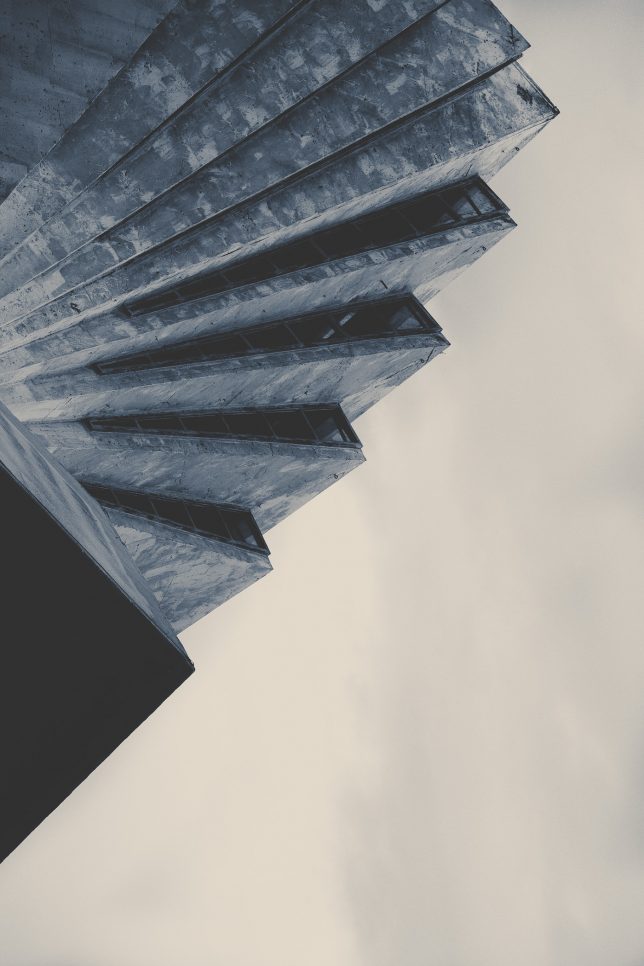
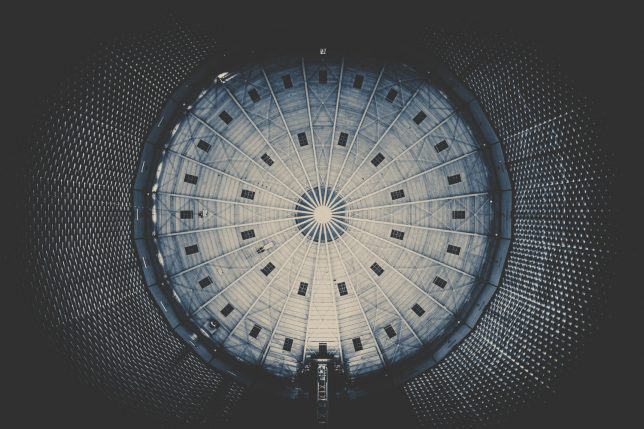
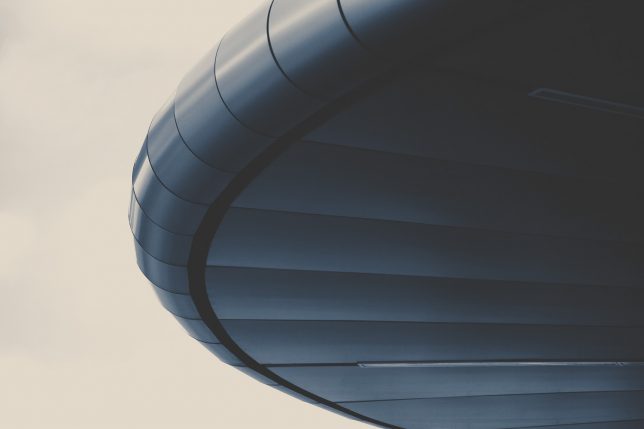
Composition, color and contrast and go a long way toward reframing photographic subjects, in this case: making familiar architectural forms seem like parts of dark and looming alien spaceships.

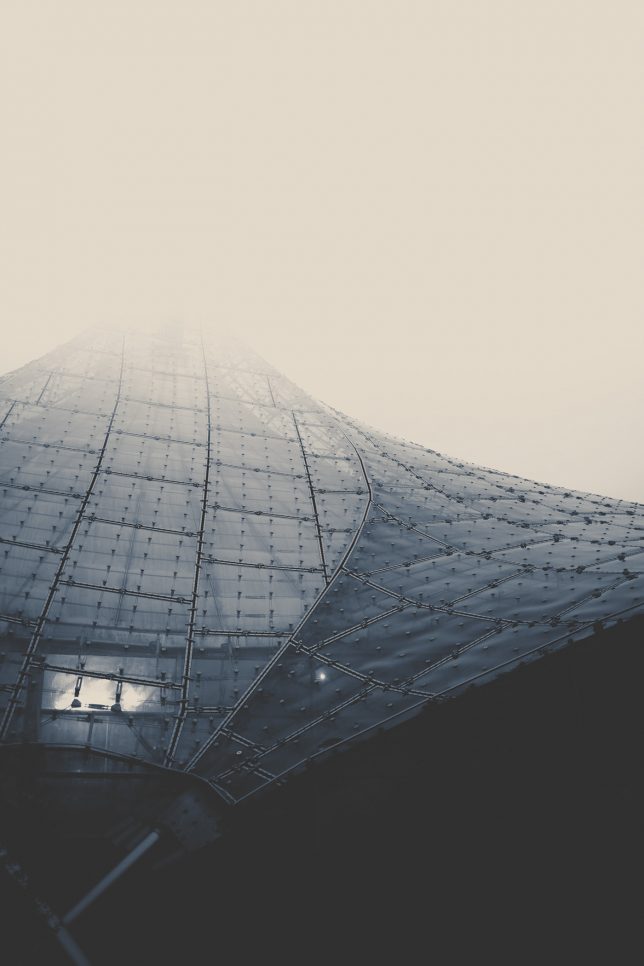
German photographer Lars Stieger has a knack for capturing ordinary building surfaces, materials and details and rendering them uncanny, especially in this Spaceships series photographed across Europe.

Glass-and-metal cladding in the fog can easily looked like the curved hull of an otherworldly vessel in the right light, while intersecting geometries taken out of context call the posters of science fiction classics to mind.

Stieger’s subjects range from the inside of an old gasometer to Olympic parks — often large, public and industrial works of design that already appear a bit strange even under normal circumstances. Check out more from this Spaceships series as well as his other photo sets on Behance and Instagram.

Share on Facebook


[ By WebUrbanist in Art & Photography & Video. ]

[ WebUrbanist | Archives | Galleries | Privacy | TOS ]


WebUrbanist

 
Comments Off on Alien Architecture: Modern Buildings Recast as Extraterrestrial Ships

Posted in Creativity


DIYer creates ‘Polaroid’ camera that ‘prints’ instant animated GIFs

01 Sep

It sounds like Harry Potter magic, but it’s not. Industrious DIYer Abhishek Singh recently took to Reddit to show off his own version of an instant camera, one that ‘prints’ animated GIFs instead of photos. Singh built the Instagif Camera himself and based it on the Polaroid OneStep SX-70 camera, though it uses a special hardware cartridge rather than a packet of film.

Singh detailed the entire build process in an album on Imgur, explaining that it features a Raspberry Pi 3 (camera) and Raspberry Pi Zero W (cartridge), PiTFT display, PowerBoost 1000C charger, momentary switch, and LiPo battery… among other things. After designing a 3D model of the camera, the individual components were 3D printed with a Project 7000 SLA printer, painted, and assembled.

The GIF, as demonstrated in the video above, fades into view in a way similar to a Polaroid photo, and the cartridge connects to the camera itself directly, no external WiFi network necessary. Singh has provided the software, a parts list, and instructions for anyone to download and build their own Instagif Camera. All the links are available in the Imgur album and the code is available in GitHub.

Articles: Digital Photography Review (dpreview.com)

 
Comments Off on DIYer creates ‘Polaroid’ camera that ‘prints’ instant animated GIFs

Posted in Uncategorized


How to Understand the Difference Between TTL Versus Manual Flash Modes

01 Sep

It is no secret that the popup flash which comes built-in to your digital camera simply isn’t enough in most situations. For a variety of reasons, shooting using just the popup flash is not a feasible option. That is why you will find photographers everywhere you look, going for an external flash and using it increasingly during their shoots.

External flash, also known by the term “speedlight” provides many benefits and advantages to photographers, even while shooting in extremely low light conditions. They allow us to have a far superior control over the lighting of an image. Flashes are available in the market from a variety of manufacturers including camera makers like Canon and Nikon, or third-party companies like Godox, Yongnuo, Nissin, etc.

How to Understanding Your Flash Settings: TTL Versus Manual Mode

If you step out in the market to buy your first flash, you will come across two variants, a fully manual flash, and a TTL (Through The Lens) flash. You may end up getting confused over which flash will suit you the best and which one you should invest your money in. Both the Manual and TTL flash have their own plus and minus points which appeal to photographers. What is important is to properly understand their systems, functionalities, advantages, and disadvantages.

Understanding Manual Flash

On a fully Manual flash, there is no control (d either by the camera or the flash) over the intensity or duration of the light emitted from the flash. Instead, it is the photographer who controls the output of the flash by adjusting the settings, either in-camera or on the flash itself.

While using a manual flash, there are four controls you can use to set your flash output manually as per your requirements:

  • Adjust the ISO on the camera.
  • Raise or lower the level of output from oyur flash (½, ¼, 1/8th power, etc.)
  • Alter the distance between the subject and the flash (light source).
  • Adjust the aperture value on the camera.
How to Understanding Your Flash Settings: TTL Versus Manual Mode

Manual mode – check the user manual for your flash to see how to set it.

Not all flashes are equal

An important point to remember and consider is that the majority of flashes can shoot in manual mode, but not every flash can shoot in TTL mode. A manual flash also gives you specific control over the light and exposure, and allows you to set it exactly to your requirements. You do not have to use exposure compensation while using a manual flash as your composition, frame, etc., does not have any affect on the overall exposure and lighting of the scene.

Pros and cons of manual flash

In situations where the distance between the flash and the subject is constant and fixed, you can opt to use manual flash settings. A manual flash is extremely useful in situations where you have to fire away a series of shots of the subject repeatedly, under similar exposure conditions. E.g., in food photography, product shoots, and more this is the case. The power level is fixed, and it remains the same, which ensures that the exposure does not vary from shot to shot.

How to Understanding Your Flash Settings: TTL Versus Manual Mode

Manual flash works best when the subject is not moving like this setup, posed shot.

One of the main drawbacks of using a flash in manual mode is that you still need to figure out the optimal power output needed to obtain the correct exposure, which can be a time consuming process. And thus, a manual flash can mainly be used while shooting portraits, headshots, and fine art. In other words, in situations where you can take time to setup the scene.

Many also believe that manual mode is the best to use to learn about external flash photography. You choose the output, click the picture and then review it. If it does not come out the way you were expecting and wanted it to, then you can tweak the settings and try again. So you end up learning more in the process.

Understanding Automatic or TTL Flash

When the flash output is directly controlled by your camera, it is called Through-the-Lens metering or TTL. In the case of an Automatic or TTL enabled flash, the flash output is directly controlled by the flash or by the camera’s exposure metering system. Thus, using a flash in TTL mode will give you varied flash output.

How to Understanding Your Flash Settings: TTL Versus Manual Mode

Flash in TTL or Automatic mode.

The only method to control a TTL enabled flash is to use the flash exposure compensation function on the flash or through your camera settings. Also, while using a TTL flash, your chosen Aperture and ISO levels do not affect the flash output because the camera tells the flash to emit a particular output based on the camera’s readings. If the settings change, so will the output to compensate automatically.

When you half-press our shutter release button on your camera to focus, your camera not only focuses, but it also takes a metering of the scene and its exposure. It measures the amount of ambient light which is being returned “Through the Lens” to the sensor.

How to Understanding Your Flash Settings: TTL Versus Manual Mode

How it works

A TTL enabled flash fires a “pre-flash” before the actual shot is taken. The camera then measures the pre-flash with the ambient light level to calculate the power needed from the actual flash to make a correct exposure. This pre flash happens really quickly, only micro-seconds before the main flash, and thus cannot be seen by the human eye. Based on the model of your flash, this pre-flash can be an actual white light flash or an infrared one.

Using a TTL enabled flash is extremely helpful in situations when you are moving around a lot, shooting in different or changing lighting settings, etc., and do not have the time to fire a series of test shots before the shoot.

How to Understanding Your Flash Settings: TTL Versus Manual Mode

One of the drawbacks which accompany the use of a TTL flash is less control and less precision over the lighting. If you get an incorrect exposure while using a flash in TTL mode, it is really difficult for you to know the power setting which was used for that shot.

Conclusion

If you have recently purchased your first digital camera and plan to buy an external flash, then you have two options.

Either go for a manual flash, as it will urge you to learn more about how to control and adjust the lighting in various situations. But if you want to take up professional assignments and cannot afford to experiment with a manual flash, then go for a TTL enabled flash.

Which do you use? Do you have a flash that does both? Which do you prefer for different situations? Please tell us in the comments below.

The post How to Understand the Difference Between TTL Versus Manual Flash Modes by Kunal Malhotra appeared first on Digital Photography School.

Digital Photography School

 
Comments Off on How to Understand the Difference Between TTL Versus Manual Flash Modes

Posted in Photography