RSS
 

Archive for August, 2017

Sigma announces firmware update for Sigma 100-400mm f/5-6.3 OS Contemporary for Canon

05 Aug

Sigma has announced a firmware update for its SIGMA 100-400mm F5-6.3 DG OS HSM Contemporary lens for Canon mount. Version 1.02 of the firmware fixes problems with the optical image stabilization when the lens is attached to Sigma’s Sony E-mount converter MC-11 EF-E.

As usual, users who own the Sigma USB dock can update the firmware via the Sigma Optimization Pro software. Users who own the MC-11 converter can update by connecting the latter to a computer via USB-cable. In both cases, you should make sure you are running the latest version of Sigma Optimization Pro which is 1.4.1 for Windows and 1.4.0 for Macintosh computers.

Articles: Digital Photography Review (dpreview.com)

 
Comments Off on Sigma announces firmware update for Sigma 100-400mm f/5-6.3 OS Contemporary for Canon

Posted in Uncategorized


The Dell Canvas 27-inch ‘horizontal smart workspace’ is now available to buy for $1,800

05 Aug

The massive touchscreen ‘horizontal smart workspace’ Dell unveiled during CES 2017 is now available to purchase, and a little bit cheaper than expected, at least for now.

Called the Dell Canvas, this 27-inch display is designed specifically for artists and other creatives who need a large visual workspace in which to edit photos, create graphics, or digitally paint. While Canvas resembles Microsoft’s alternative, the Surface Studio, Dell’s product is merely a very large display, meaning buyers will need to buy a PC separately to connect to the display.

Dell Canvas features a massive 27″ QHD Adobe RGB touch screen designed to rest horizontally on a desk. The display is protected by Corning Gorilla Glass with an anti-glare surface. Joining the display is a pen with multiple tip options for simulating various textures—combine this pen with a total lack of input lag and you get an experience that Dell says is “as close to sketching on paper as possible.”

Also available with the Canvas is a totem (knob) for accessing software menus quickly with the user’s free hand. The totem can be positioned wherever is most comfortable on the screen, and it can be used alongside a second totem if desired. As for Canvas itself, users can optionally prop the display up into ‘Draftsman’ mode via a built-in kickstand. The kickstand can be extended in 10-degree increments up to 80-degrees.

Canvas is available now from Dell’s website, where it currently starts at $ 1,800 thanks to a discount promotion (MSRP is $ 2,000). Dell offers the display with an optional VESA mount (+$ 200) or articulating stand (+$ 500), as well.

Articles: Digital Photography Review (dpreview.com)

 
Comments Off on The Dell Canvas 27-inch ‘horizontal smart workspace’ is now available to buy for $1,800

Posted in Uncategorized


Yongnuo unveils its first Li-ion powered speedlight for the Canon RT system

05 Aug

Hong Kong camera company Yongnuo, known for its affordable lighting gear and knockoff Canon lenses, has launched its first Li-ion powered speedlite: the YN686EX-RT flash for the Canon RT system.

The Speedlite—which was quietly released a couple of months ago—is available through eBay and Amazon and features an integrated 2.4GHz transceiver and a 2,000mAh Li-ion battery able to power 750 full-power flashes. This model can be used as either a master or a slave, and it offers optical slave triggering, according to the Speedlite’s product page.

In addition, the Speedlite YN686EX-RT features a dot-matrix LCD display that shows the battery charge level, a USB port for firmware updates, and an electric zoom lamp head with a 20 – 200mm range. Other features include high-speed sync with shutter speeds up to 1/8000s, a stroboscopic mode, and support for both Custom Functions Setting and Auto-Save Setting.

Yongnuo’s Speedlite YN686EX-RT is available online starting at $ 150 USD.

Articles: Digital Photography Review (dpreview.com)

 
Comments Off on Yongnuo unveils its first Li-ion powered speedlight for the Canon RT system

Posted in Uncategorized


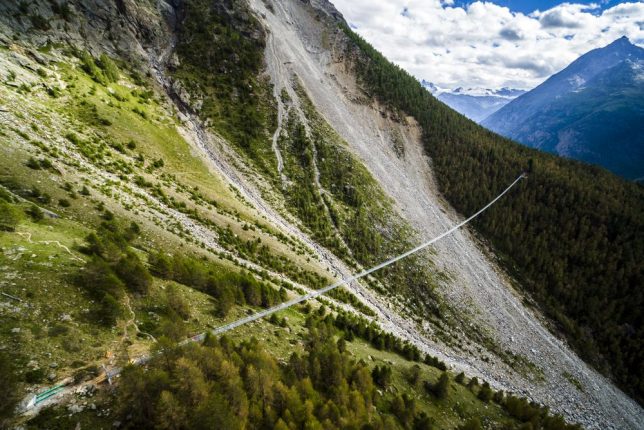
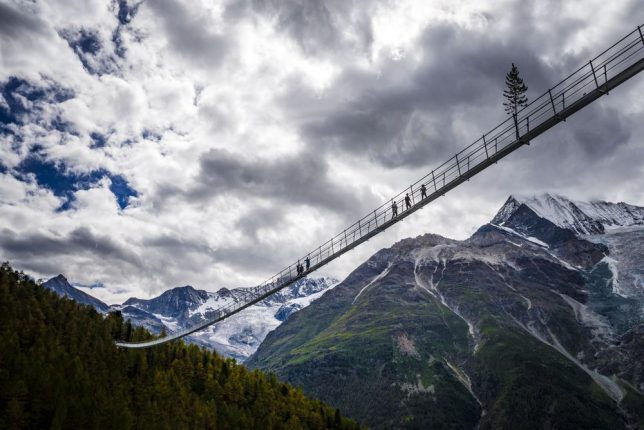
World’s Longest Pedestrian Suspension Bridge Stretches Over 1,000 Feet

04 Aug

[ By SA Rogers in Drawing & Digital. ]

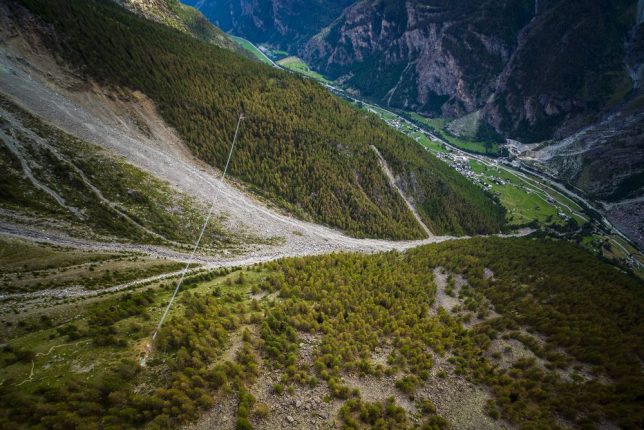
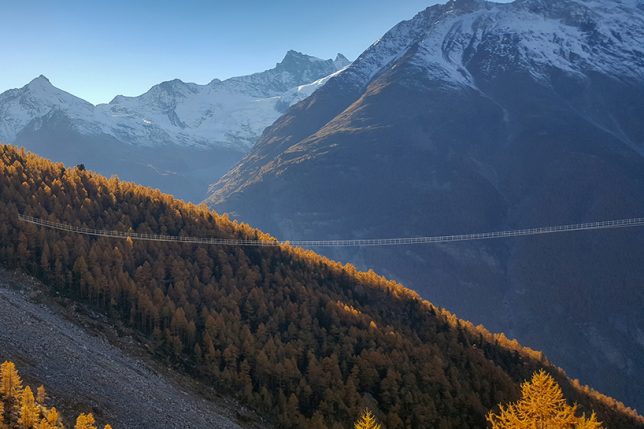
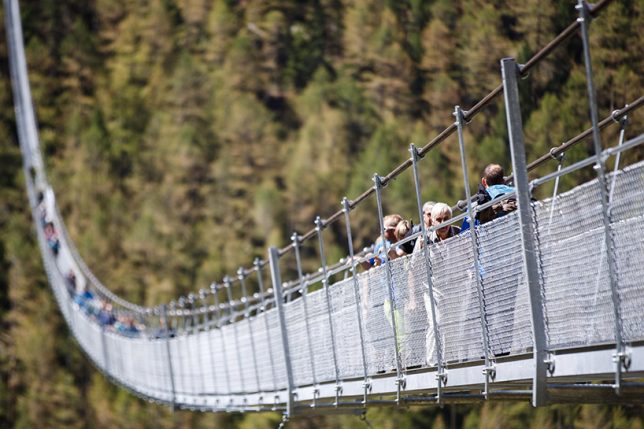
Three hundred feet above the valley floor, a suspension bridge gently sways and bobs as pedestrians cross its 1,621-foot length through the Swiss Alps. These impressive stats have helped the Charles Kuonen Suspension Bridge in Switzerland break previous records, making it the longest pedestrian suspension bridge in the world.

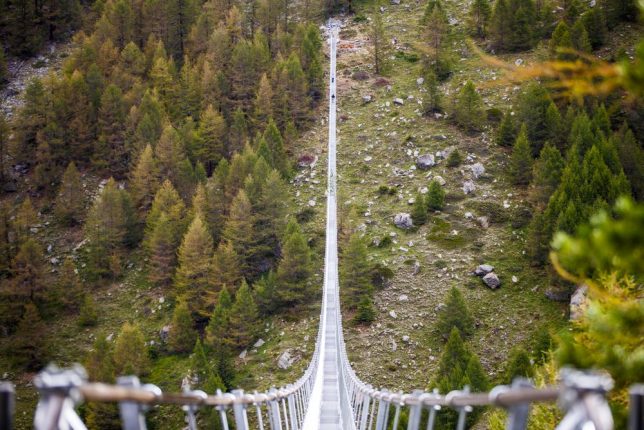
Sure, the glass-floored bridge in China is higher and forces you to look down from your precarious position, but this bridge is almost as scary, considering that it’s not stationary and measures just two feet wide. That means you have to march down its length single-file, making it harder to clutch onto others for dear life.

The bridge was completed in 10 weeks by Swissrope and offers magnificent views of the surrounding mountains, including the Bernese Alps and Matterhorn (if you manage to look up and enjoy them instead of staring at your feet and trying not to hyperventilate.) It features a grated metal floor, runs between 5,000-7,000 feet above sea level, and takes ten minutes to walk cross. The pass through the mountains previously took four hours to navigate.

Photos taken from the air (provided by the Switzerland Tourism Board) give us the best idea of the bridge’s scale. The Charles Kuonen Suspension Bridge links two sections of the Europaweg hiking trail, a two-day link between the towns of Zermatt and Grächen, and replaces an older bridge that was damaged by falling rocks. It’s named for its primary sponsor.

Share on Facebook


[ By SA Rogers in Drawing & Digital. ]

[ WebUrbanist | Archives | Galleries | Privacy | TOS ]


WebUrbanist

 
Comments Off on World’s Longest Pedestrian Suspension Bridge Stretches Over 1,000 Feet

Posted in Creativity


Fujifilm GF 23mm F4 sample gallery

04 Aug

After spending some time with the portrait-friendly GF 110mm F2, we’ve been taking a wider view with Fujifilm’s GF 23mm F4, an 18mm equivalent lens for the company’s medium-format system. Like the 110mm this lens is weather-sealed, offers a nine-blade aperture and focuses silently and internally.

From sunny Seattle summer days to wildfire-smoke sunsets – and some interiors and architecture in-between – check out our gallery of images from Fujifilm’s widest current offering for the GFX system.

See our Fujifilm GF 23mm F4
sample gallery

$ (document).ready(function() { SampleGalleryStripV2({“galleryId”:”1607054883″}) })

Sample photoSample photoSample photoSample photoSample photo

Articles: Digital Photography Review (dpreview.com)

 
Comments Off on Fujifilm GF 23mm F4 sample gallery

Posted in Uncategorized


Throwback Thursday: Adobe Lightroom 1.0

04 Aug
As an amateur photographer, I joined the Adobe Lightroom beta primarily to gain access to the latest version of the ACR Raw converter. I hadn’t expected it to completely change the way I worked.

I can’t remember how I first heard about the public beta of a new photo editing product from Adobe* but, according to Adobe’s Lightroom blog, it must have been after July 23, 2006, when the Windows version of the software became available.

Having used Photoshop since university, I’d seen it become both more powerful and more complicated. I had friends working on their Biochemistry Ph.D.s who were just as dependent on Photoshop as I was, in preparing photos for publication in the magazines I worked on, but who relied on a different set of tools than the ones I used.

I’d quickly become frustrated with the limited software my camera came bundled with

The purchase of a Raw-capable superzoom (one of those decisions I now flinch at), quickly left me frustrated with the experience of using the limited software it came bundled with, so I found myself processing my best images, one at a time, staying late to use my work computer.

Clearly this wasn’t a way of working that was either a) sustainable nor b) scaleable (to use two words that would never have occurred to me at the time). So the idea of being able to access the power of Adobe Camera Raw for free, rather than having to find hundreds of pounds for my own license of Photoshop seemed appealing.

Lightroom meant that, weeks after first processing an image, I could go back and backtrack on some of my changes and, with fresh eyes, produce something better, without the need to fill my hard drive with multiple TIFFs, saved along the way.

As the name hints, Lightroom was intended as an analogue for the film-era darkroom. Unlike Photoshop, which had become all things to a very diverse set of uses, Lightroom was just the tools required for photographers. The terminology of the tools was intentionally photographic: exposure adjustments, measured in EV, white balance measured in Kelvin.

In essence its editing tools were simply those of Adobe Camera Raw, only with the ability to process more than one image at a time. That and a crop tool that, while it seemed incomprehensible and backwards compared with Photoshop’s behavior, quickly began to seem not just obvious, but indispensable**.

The real power of Lightroom, though I didn’t immediately spot it, was in how it imposed a structure on your workflow. It cataloged the images you ‘imported,’ and gave you the tools to sort and tag those images, then pushed you through a logical process of first editing and then outputting your images.

At first I, along with many other beta participants, found the ‘Shoots’ categorization confusingly out-of-step with the way I thought about arranging my files on my computer (the two were connected when you imported files but could diverge if you moved the files or their associations). Adobe recognized this and adopted a more explicitly folder-based pattern with a later update.

What’s this? I can take a series of edits I’ve applied to one image and selectively apply them to others? Mind. Blown. (and, more importantly, time saved).
Used with kind permission from Imaging Resource’s original coverage.

In these early versions, all edits were whole-image corrections: every change you made affected every pixel in the image, meaning its role was very distinct from that of Photoshop. There was some ability to export to Photoshop if you needed to make localized edits, but it meant Lightroom wasn’t quite the ‘all you’ll ever need’ tool I was hoping for.

However, so long as you didn’t immediately rail against being forced to make changes to your workflow, the pattern of importing, sorting, editing and exporting became second nature. So, although I was initially just rushing through the import stage to get to the ‘Develop’ editing module, I quickly found that my life was easier if I engaged with the workflow as a whole.

In those early versions all edits were whole-image corrections: every change you made affected every pixel in the image

By the time I started work at DPReview a year or so later, I was regularly shooting huge numbers of images and appreciating the way adding ratings as part of the import process could help me home straight in on my best shots so that all of my efforts to crop, polish and tweak were focused on my strongest images. I could also take some of the edits I’d made to one image and apply them to similar shots, as a better starting point. It saved so much time, even though I never used the Print or Web output modules.

When the beta finally ended, I thought I’d revert to my existing way of working: selecting and then working-up single images at a time in ACR. But no, once I’d become accustomed to being able to quickly organize, prioritize and process only the best images from every shoot, I couldn’t go back.

I’d discovered that not having a workflow was unworkable

The idea of having to manually trawl through and select images, before processing each one, one-by-one, suddenly seemed exhausting. I’d discovered that not having a workflow was unworkable.

The inability to go back and find or fine-tune existing edits was the factor that finally tipped it for me. I bought a license for Lightroom v1 within a couple of weeks of the beta ending. For a lot less than the cost of Photoshop, it should be noted.

By the time it was launched, Lightroom had officially become ‘Photoshop Lightroom.’

The first full version, launched just over ten years ago now, was still pretty basic. Adobe had learned lessons from the beta, but by today’s standards, it was pretty primitive. Redeye and spot removal tools (cloning, rather than ‘healing,’ if my memory serves me correctly) finally brought the first localized corrections. But brushes and gradients didn’t arrive until v2.0, eighteen months later, so there were still plenty of occasions I needed to export to a pixel-level editor.

It would also be many years before Adobe began to add manufacturer JPEG mimicking color profiles, thus putting an end to a million ‘why do my pictures look flatter in Lightroom’ threads on the DPReview forums. Lens corrections and the ability to add, as well as remove, noise and vignetting were also some years off. But, for me at least, the core concept worked.

The quality of processing and the power and subtlety of the available tools has only improved since then. It’s also, with a few hiccups, tended to get faster over time, which is pretty rare.

Compare this screen-grab from Lightroom v1.0 to the one at the top of the page and you’ll spot a host of additional filtering options.
From Imaging Resource’s original coverage.

It’s strange to find myself looking back so fondly, since my job essentially precludes me from using Lightroom: I regularly shoot with cameras it doesn’t yet support, have to deliver unedited, straight-out-of-camera JPEGs and deal with large numbers of remote files that become irrelevant, the moment a review is published.

Adobe’s monthly license model, to my mind, runs counter to the longevity benefit of building a database around my images

I’m also aware that the latest version of Lightroom is getting to the stage that it has a range of tools I’ll simply never use. That it risks developing the kind of Photoshop-esque learning curve that it was originally intended to circumvent. There’s always the threat that it’ll eventually be permanently ingested into Adobe’s Creative Cloud monthly license model (which, to my mind, runs counter to the longevity benefit of building a database around my images).

Yet, if I found myself with the time to shoot for myself again, the first thing I’d do is to buy a standalone version of Lightroom and pick up where I left off. Because, for all that I’ve tinkered with other Raw converters, I really like what it forced me to do, all those years ago: focus my time on getting the best out of my best photos.


*There’s every chance it was this story
** These days the crop tool in Photoshop mimics the Lightroom way of working

Articles: Digital Photography Review (dpreview.com)

 
Comments Off on Throwback Thursday: Adobe Lightroom 1.0

Posted in Uncategorized


Report: Bowens employees not paid for July, told they must continue to work unpaid

04 Aug

A bombshell of a report on PetaPixel reveals just how sudden last month’s closure of 94-year-old UK photographic lighting company Bowens has been, especially for its employees. An infuriated UK employee reached out to the photography blog to share their story, and the whole workforce of Bowens China has sent an email to the company to complain about how the process is being handled.

The UK employee, who wished to remain anonymous, expressed anger at how the liquidation has been handled, specifically citing issues with pay. According to them, “26 of the most hard working members in the UK […] were in complete shock [on July 14th] to be informed that they will be unpaid for the previous month, and will have to continue to work through a consultation process unpaid.”

The employee claims the UK crew was told they would have to continue working because they are bound by contract. Staff are reportedly considering legal action.

These claims are backed up by an email sent to Bowens and Calumet distributors by the workforce of Bowens China, and acquired by PetaPixel.

The letter claims employees of Bowens Suzhou were “suddenly abandoned” with “no July wages, no social insurance, [and] no updated information since Germany let us stop work [on the] 17th July.” The employees took to the streets and the German embassy to protest what they’re describing as “dishonest betrayal” and “bloody exploitations” by Aurelius and Calumet.

For their part, Calumet did respond to PetaPixel’s request for comment. The company sent a statement in which it re-states the reasons for closing Bowens (“the result of far reaching changes affecting its market”) before addressing the concerns in China, saying:

“As part of the decision to discontinue its operations Bowens consequently also decided to discontinue the manufacturing operations in China […] The liquidation process is handled according to all local laws and requirements and the employees will be informed in due course on next steps.”

You can read Calumet’s full statement on PetaPixel. However, DPReview has reached out to Calumet for comment as well, specifically asking Calumet to address the claim that employees were not paid for July and are contractually bound to continue working without pay.

We will update this post if and when we hear back.

Articles: Digital Photography Review (dpreview.com)

 
Comments Off on Report: Bowens employees not paid for July, told they must continue to work unpaid

Posted in Uncategorized


How to Use Auto Mask in Lightroom to Make Your Photos Shine

04 Aug

Lightroom is a fantastic tool for organizing, editing, sharing, and even printing photos and is an essential tool in the workflow of many photographers today. Unfortunately, it sometimes gets a bad rap when compared to its big brother Photoshop since the latter can do far more in terms of altering, enhancing, changing, or otherwise editing pictures and images. That’s not to say it is a slouch by any means, and you might be surprised at what it can do when you start to learn to use more of its powerful, yet sometimes hidden, features like Auto Mask in Lightroom.

How to Use Auto Mask in Lightroom to Make Your Photos Shine - rabbit photo

You mean Lightroom has advanced image editing capabilities I don’t know about? Go on, tell me more…

What is Auto Mask and how to find it?

The best way to get started with the Auto Mask feature is to navigate to the Develop module in Lightroom and then click on the Adjustment Brush tool. This lets you change all sorts of parameters like exposure, contrast, clarity, sharpness, and more, but only on specific parts of a photo instead of altering the entire image at once. You can select from various brush presets or move the sliders to create your own adjustments, then click and drag on the image itself to implement those adjustments.

You can even use multiple brush adjustments on the same photo and selectively erase your adjustments in case you want to undo anything. When you look at all the features the adjustment brush tool offers, you can start to see just how powerful and useful it really is. What’s more, at the very bottom of the adjustment brush panel is a little check box called Auto Mask that can dramatically increase both the usefulness and effectiveness of this tool in general.

How does Auto Mask work?

In a nutshell, the Auto Mask option constrains the edits of the Adjustment Brush to a narrow band of colors that are very close to where you originally started brushing in your adjustments. Because the Adjustment Brush is circular in nature it can be tricky to confine your adjustments to specific areas, especially when working with angles or hard edges.

To show you just what the Auto Mask does, I’m going to make a few changes to this image of a water valve. It’s not the most stunning picture and won’t win any awards, but thanks to the Auto Mask feature it can at least be made to look a little more interesting.

How to Use Auto Mask in Lightroom to Make Your Photos Shine - before photo

Editing this is going to be tricky. Or, rather, it would be tricky without the Auto Mask feature.

Using the Auto Mask

In this picture I want the reds and greens to really stand out, and while this could be accomplished with the Color sliders and adjusting the overall saturation of the red and green color values, I want a little more granular control of exactly what parts of the image I’m going to edit. By using the Adjustment Brush Auto Mask feature, I can do exactly that.

To do this process on your own, navigate to the Adjustment Brush panel, select a preset or move the sliders to your own liking, adjust the size of the brush, and then tick Auto Mask. Then click the “Show selected mask overlay” option at the bottom of the Develop window (or press O on your keyboard) so you can actually see where your adjustments are being applied. In the example below, I used this process to apply extra saturation to just the yellow circle. I only brushed on the top-left quadrant and left the Mask Overlay turned on so you can see how the adjustment brush was confined to just within the yellow circle.

How to Use Auto Mask in Lightroom to Make Your Photos Shine

The red portion is just an overlay showing where the adjustment brush was applied. Auto Mask is a great way to make sure you always color inside the lines, just like your kindergarten teacher told you to do.

Auto Mask helps you work fast!

To finish off this particular edit, I filled in the rest of the yellow circle with the same method and within about seven seconds I had a picture that was much improved over the original.

How to Use Auto Mask in Lightroom to Make Your Photos Shine

To finish off the image I applied an adjustment brush to the red portions of the water control valve, and because I used Auto Mask I was able to do it in 34 seconds. Literally. I even used a stopwatch to time it.

How to Use Auto Mask in Lightroom to Make Your Photos Shine

The finished picture has adjustments applied only to the red and yellow areas, without anything creeping over into the green background.

The process can be even faster if you increase the size of your Adjustment Brush as far as it can go, making it easy to instantly apply an adjustment to virtually the whole picture at one time. As long as you have Auto Mask enabled, the brush adjustments will be limited to only the parts of the picture that are similar in color to where you actually click your pointer.

Auto Mask with the Radial and Graduated Filters

There’s another way to use the Auto Mask setting in combination with the Radial or Graduated filters, which can be extremely useful if you shoot landscapes, architecture, or other scenarios which often are enhanced by those two types of filters. Frequently there are objects in landscape or architecture shots that don’t necessarily benefit from having a radial filter applied, and yet unless you use the Brush tool with Auto Mask it can be very difficult to work around them.

To illustrate how this works, here is a shot of a building that would be an ideal candidate for using the Graduated Filter as a way of enhancing the sky, except for the columns rising upwards from the structure.

How to Use Auto Mask in Lightroom to Make Your Photos Shine

This kind of image is ideal for a Graduated Filter, but the columns make it a little tricky unless you kick it up a notch with Auto Mask.

Here’s the same shot, but edited with a Graduated Filter applied that increases saturation and slightly adjusts white balance.

How to Use Auto Mask in Lightroom to Make Your Photos Shine

Adding a Graduated Filter made the sky significantly improved, but also altered the color of the columns.

The issue

The image is much better, but when Show Selected Mask Overlay is selected, it’s clear that a few problems have cropped up.

How to Use Auto Mask in Lightroom to Make Your Photos Shine

Showing the Overlay lets you see exactly where the Graduated Filter has been applied. The same thing works for the Radial Filter as well.

At issue here is the fact that applying the gradient to the sky has also changed the saturation and white balance of the building itself, particularly the columns. Normally, the solution to this would involve painstaking work in Photoshop to create and edit separate layers, but Lightroom has an easy solution thanks to the Adjustment Brush tool and Auto Mask.

Auto Mask with the Graduated Filter

With the Graduated Filter option still selected, click the “Brush” option at the top of the panel. Not the icon, but the text option that shows up just to the right of “Edit” (shown below).

How to Use Auto Mask in Lightroom to Make Your Photos Shine

You can now use the brush to apply the same edits in the Graduated Filter tool. But rather than applying more edits using this method I like to remove the effect from unwanted areas, especially with Auto Mask enabled. To fix the image of the building and sky so that the gradient is not applied to the columns or to any part of the building, press the [alt] (or [option] on a Mac) key which causes the brush tool to change from a plus (+) with a circle around it to a minus (-) with a circle around it. Then while still holding down your modifier key double-check that Auto Mask is enabled, and brush the parts of the image from where you wish to remove the gradient (see below).

How to Use Auto Mask in Lightroom to Make Your Photos Shine

You don’t have to worry about staying inside the lines. Auto Mask takes care of that for you.

A few clicks of the mouse later and the image now has the Graduated Filter applied only to the parts where you want it, without altering the areas of the photo where it is not needed. All thanks to the power of Auto Mask.

How to Use Auto Mask in Lightroom to Make Your Photos Shine

The finished image, with only the sky affected by the Gradient Filter. I also brushed away any traces of the filter from the roof and side of the building.

Notes:

This particular example involved the Graduated Filter, but the same process can be used to modify any edits you make with the Radial Filter as well.

Note: I also want to note that this is only available in current versions of Lightroom, so if you aren’t on Version 6 or the Creative Cloud plan you may not be able to use the Brush tool to edit the Graduated or Radial filters. But the Auto Mask will still work with your Adjustment Brush tool.

Conclusion

While this is clearly a long way from Photoshop’s powerful and meticulous editing capabilities, hopefully, it illustrates that Lightroom is not exactly a slacker in the editing department. I’m curious to hear your thoughts on this as well and also know if there is anything I might have missed. Please leave your responses in the comments section below.

The post How to Use Auto Mask in Lightroom to Make Your Photos Shine by Simon Ringsmuth appeared first on Digital Photography School.


Digital Photography School

 
Comments Off on How to Use Auto Mask in Lightroom to Make Your Photos Shine

Posted in Photography


5 Tips for Better Concert Photography in Low Light Conditions

04 Aug

Concert photography is one of the hardest subjects to nail down for one main reason: the conditions almost always have low lighting and you aren’t allowed to use flash. With that said, there are some tips for optimizing your concert photography experience. Whether you’re equipped with a DSLR and a photo pass for a big arena show or simply shooting a local band in a pub or a school performance, use these tips to enhance your low lighting photography.

1. Choose a Low Lighting Lens

5 Tips for Better Concert Photography in Low Light Conditions - use a fast lens

One of my first concert photos snapped with an old Nikon D90 and a 24-70mm f/2.8 lens.

Generally speaking, the gear you shoot with doesn’t really matter, except when it comes to low lighting photography. In this case, you’ll want to have a fast lens with the lowest f-stop possible. For most concert photographers, this equates to a 24-70mm f/2.8 and/or a 70-200mm f/2.8. These are two of the most popular concert and event photography lenses thanks to their low f-stops and vast focal length coverage.

However, fast lenses like these two can be very expensive. If you’re on a budget, consider an affordable prime lens such as the 50mm f/1.8 or 85mm f/1.8. While you sacrifice the ability to zoom, you gain an extra stop or two of light while also saving money.

2. Adjust Your Aperture to Shoot Wide Open

Now that you have a large aperture lens, switch your camera over to Aperture Priority or Manual mode and shoot “wide opened” at the lowest f-stop number your lens allows. This will let the most amount of light get to your camera’s sensor.

As a tradeoff, the lower f-stop number means a smaller depth of field, meaning your images may not be as sharp as if you were shooting at a higher f-stop. So if you happen to be shooting in ultra bright lighting conditions, consider bumping your f-stop up to get more of the scene in focus.

5 Tips for Better Concert Photography in Low Light Conditions

Sometimes you are blessed with ample venue lighting that gives you more flexibility with your camera settings. Shot at f/4 at 1/125 at ISO 640.

3. Watch Your Shutter Speed

If you shoot in Aperture Priority mode like I do, then you won’t have to worry about setting your shutter speed. However, you should always take note of it while shooting and understand how it may affect your image.

As a baseline, your shutter speed should be at least 1/250th to freeze motion while shooting concerts. But this is a luxury often reserved for shooting well-lit shows or outdoor concerts. In low lighting conditions, your shutter speed will probably be much lower than 1/250th. I can usually push my camera to go as low as 1/60th and still pull off decent concert photos, but it’s best to not go any slower than 1/100th.

5 Tips for Better Concert Photography in Low Light Conditions

4. Increase the ISO

Increase the ISO until you are able to shoot at your desired aperture and shutter speed. For most conditions, this means cranking the ISO up to 3200 or even as high as 6400. The exact ISO limitations will vary according to your camera. And just because your camera can shoot at ISO 10,000 doesn’t mean that you should. Experiment with your camera until you find the highest ISO that you are comfortable using (based on the noise level, etc.).

As a tradeoff, a higher ISO means you’ll have more noise or grain in your images. However, many digital cameras today produce very good quality images even at high ISOs. Also, there is noise reduction software available that will help you reduce noise in post-production. The bottom line is that more digital noise or grain in an image is better than having it be blurry due to a slow shutter speed. Don’t hesitate to increase the ISO.

5 Tips for Better Concert Photography in Low Light Conditions

Shot at f/2.8 at 1/100 at ISO 5000. Not the sharpest photo, but it captured a key moment in a venue with horrible lighting.

5. Shoot in RAW

If your camera allows for it, shoot your images in RAW format, rather than JPG. Concert photography is notorious for having inconsistent lighting with red or blue lights that can flicker or change throughout a concert, making it hard to adjust the in-camera white balance. If you shoot in RAW, you’ll have more flexibility to fix and edit those photos in post-production.

concert photography tips

Over to You

What are some of your best tips for photographing concerts in low lighting without flash? Please share them in the comments below.

The post 5 Tips for Better Concert Photography in Low Light Conditions by Suzi Pratt appeared first on Digital Photography School.


Digital Photography School

 
Comments Off on 5 Tips for Better Concert Photography in Low Light Conditions

Posted in Photography


5 Tips for Better Travel Photography

04 Aug

In this article, I will share with you some tips about travel photography.

After spending a year doing travel photography in India, I discovered that it isn’t about traveling physically, it’s about making the viewer travel virtually to your images. Travel image need to have sense of place and time. You can achieve this by shooting in your own city, street, or neighborhood.

Gurudwara Bangla Sahib Delhi - 5 Tips for Travel Photography

If I were from Delhi and shot some images of the Taj Mahal in Agra, or if I were from Agra itself and I shot images of the Taj Mahal, both of those will be considered travel images if they have sense of place or time. Just try to compose an photo so the viewer visually travels to your image. Make him feel that he already went to this place through your image or that he wants to go there in real life.

You don’t need to get an airline ticket to another country to make travel photography. You don’t need to take a train to another city to do, travel photography. But of course when you do travel to another country or city, your energy and passion increase because of the diverse culture and tradition and the fact that your eye is impressed by the new subjects.

#1 Avoiding cliché shots

Lake Pichola Udaipur Rajasthan - 5 Tips for Travel Photography

It’s important to avoid cliché shots in travel photography. Before buying my flight ticket to India, I decided to avoid all popular cliché images of India which are pictures of the Taj Mahal, a train window, Holi Festival, camels of Pushkar, Rajasthani portraits, and portraits of people with wrinkles. I wanted to shoot something different, I wanted to come back to my country with new frames that aren’t common to viewers eyes.

#2 Approaching people

Being a foreign travel photographer means that half of the people you will meet will welcome you and be kind because they appreciate and like foreigners. The other half won’t allow you to photograph them because they won’t be sure about how you will use their images.

Himalaya Nyingmapa Buddhist Temple Himachal Pradesh India - 5 Tips for Travel Photography

There are several ways to approach people abroad:

If you know the local language, it will be very easy for you to up go to your subject, introduce yourself, explain why you want to photograph them and how you will use the photos.

If you only speak English, you can have a guide or translator with you. I don’t recommend this because it will attract attention of people and some may feel that there is something serious in taking their image and they may refuse.

Jagdish Temple Udaipur Rajasthan - 5 Tips for Travel Photography

You can shoot candids and never make direct eye contact with your subject. Do not give an alert that you are photographing, and hide yourself behind the camera.

You can shoot without permission in a candid way with making direct eye contact, and smile to the subject and after taking the picture. Show them the image and tell them that they are beautiful and ask them to smile. Your eye contact and smile can be the permission. This is the best way!

Gurudwara Bangla Sahib Delhi 2 - 5 Tips for Travel Photography

When you take portraits, make sure you have some of your images printed to show to your subject to help explain what are you doing and how they will look in your photographs.

Click one image and show them the pictures on your camera. They will be pleased because many people don’t know that their image can appear in camera.

#3 Enter the culture

Jagdish Temple Udaipur Rajasthan 2

  • Wear local clothes to seem local and attract less attention and to show appreciation for the culture of the country.
  • Learn the greeting gesture if they have one.
  • Learn basics words of the language like; hello, please and thank you. People will be happy that you appreciate their language.
  • If you will visit the place again, try to print their image and give it to them as souvenir, it will be a valuable gift.
  • Smaller cameras and lenses will be make you more invisible as a photographer and you will look more like an amateur.
  • Remember that when you photograph someone, you take part of his soul (many believe this), so you need to appreciate the people you photograph and be kind to them.

Old Town Udaipur Rajasthan - travel photography

#4 Researching

I believe that the step of research is as important as the shooting itself.

Research where are you going. For example, if you will travel to Delhi, you need to know everything about Delhi.

  • What are the most famous places for tourism in Delhi?
  • What are the most famous places for photography in Delhi?
  • Learn about the lesser known places for photography in Delhi by asking local photographers.

Vishwa Shanti Stupa Delhi - travel photography

This will help you explore new places because in every city you will discover places that have never been photographed before.

You need to know about the famous iconic places before visiting your destination. Then you need to research how photographers normally shoot them, so you are able to compose a shot in a different way and be creative.

Jal Mahal Jaipur Rajasthan

#5 Manage your time

Don’t waste any hour without shooting, even in the harsh sun, you can take good images using light and shadow!

Wake up early during your journey, there are many scenes you will never catch except in the early morning.

Old Town Udaipur Rajasthan 2

Visit places twice if you have time because when you visit new place for the first time, you will be shocked and impressed as a tourist. Then when you visit again, your eyes will be adjusted to the scene so you will be able to capture images using your vision not using tourists’ eyes.

Conclusion

Hopefully these 5 travel photography tips will help you come home with great images from you next trip. Please share any others you have and your travel images in the comments below.

The post 5 Tips for Better Travel Photography by Yasser Alaa Mobarak appeared first on Digital Photography School.


Digital Photography School

 
Comments Off on 5 Tips for Better Travel Photography

Posted in Photography