RSS
 

Archive for August, 2017

Calm & Centered: Cemetery Tunnel Trek Reveals Huge Hill-Wrapped Buddha

13 Aug

[ By WebUrbanist in Art & Sculpture & Craft. ]

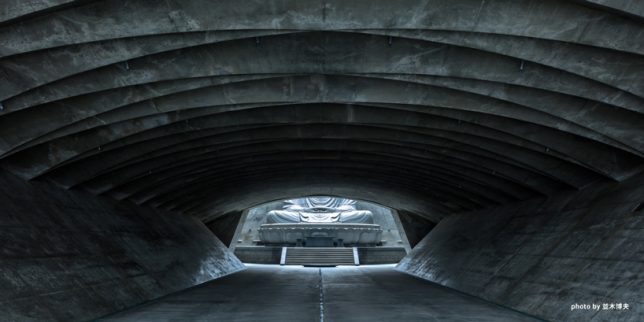
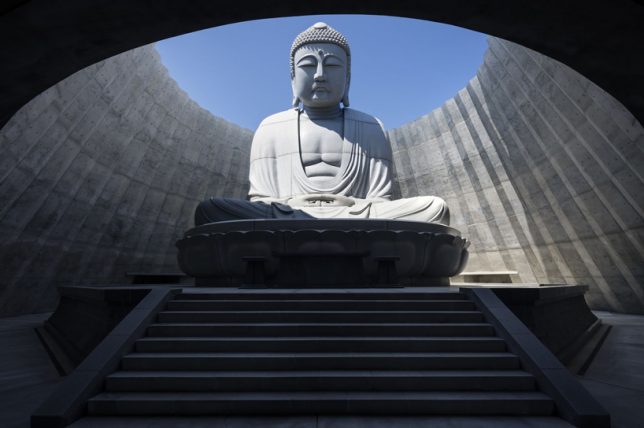
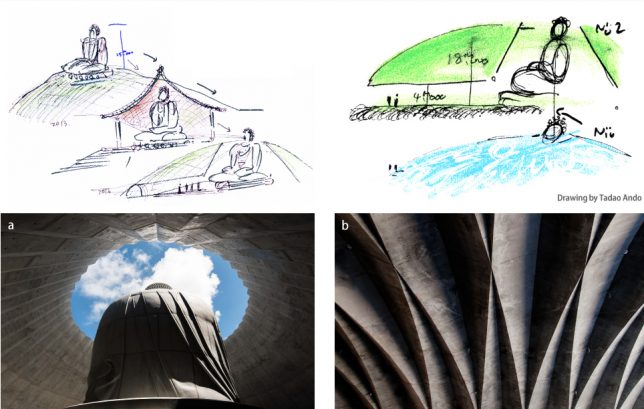
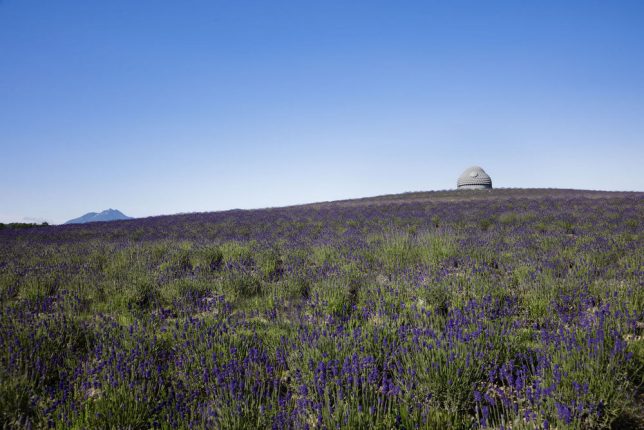
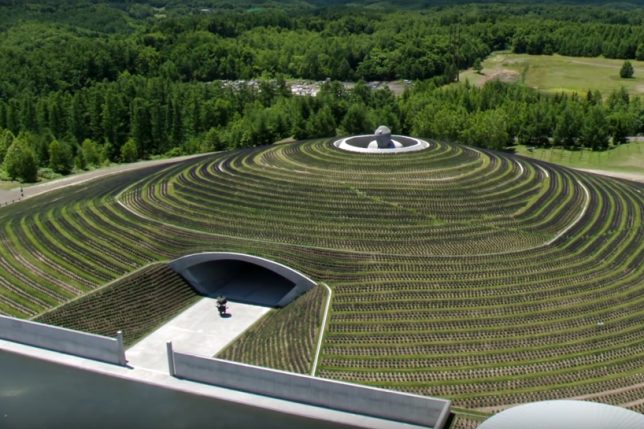
A massive landscape intervention near Sapporo, Japan by architect Tadao Ando both conceals and reveals a 40-foot statue of the Buddha in the midst of a rural cemetery.

The designer was tasked with highlighting the scale of the figure — rather than setting it against something smaller, though, he surrounded the sculpture with a gently sloped and plant-populated hillside.

Thus enclosed, only the head is visible from the outside. Visitors have to make their way through a 120-foot tunnel to get the full effect, looking up at the statue from below. An arched concrete rotunda is revealed, and natural light casts down through a void above.

The design intention was to create a vivid spatial sequence,” says Ando, “beginning with the long approach through the tunnel in order to heighten anticipation of the statue, which is invisible from the outside.” Then, “when the hall is reached, visitors look up at the buddha, whose head is encircled by a halo of sky at the end of the tunnel.”

The greenery draped along the new landscape is designed to change with the seasons, blooming in spring and summer, thinning out in the fall then covered with snow in the winter. Visitors coming at different times of year will thus also experience the sculpture in different ways each time.

Share on Facebook


[ By WebUrbanist in Art & Sculpture & Craft. ]

[ WebUrbanist | Archives | Galleries | Privacy | TOS ]


WebUrbanist

 
Comments Off on Calm & Centered: Cemetery Tunnel Trek Reveals Huge Hill-Wrapped Buddha

Posted in Creativity


Photo of the week: Shooting portraits of the Himba people in Namibia

13 Aug

$ (document).ready(function() { SampleGalleryV2({“containerId”:”embeddedSampleGallery_1471118655″,”galleryId”:”1471118655″,”isEmbeddedWidget”:true,”standalone”:false,”selectedImageIndex”:0,”startInCommentsView”:false,”isMobile”:false}) });

My photography heroes are Steve McCurry, Sebastiao Salgado, Jimmy Nelson and Joey L for his work in Africa, India and Syria. Their work has always inspired me, being at once raw and gritty, and at the same time revealing a bullet-proof dignity in their subjects. I would love to be able to work in this space myself.

I understand that it’s a different era now and that grabbing a job at National Geographic is not a realistic option. I also know that no one is coming to knock on my door to hire me for this sort of work just because I would love to do it. There are no favours in this industry. If I ever manage to make this sort of work my full time job it will be because I have already proved that I could produce quality imagery in this area.

So I recently packed my bags and gear and headed to a country which has always held a special interest for me: Namibia. I went to the tribal homelands of the Himba people and organized through a local guide to head into one of the villages for golden hour, for two evenings in a row, to shoot portraits with them.

On the first evening I went in I found this lovely little girl sitting with her Grandmother. She was shy and watching me as I shot with some of her family, and every time I looked over she hid her face and giggled. After a few minutes though her grandmother called me over and wanted me to take a shot of the two of them together, and after a couple of minutes the little girl opened up and I managed to grab these two shots. For obvious reasons, I try to share them as a pair whenever possible.

I used my trusty Canon 5DmkII and shot with the Sigma 50mm F1.4 lens, which I love for its crisp image. The settings were ISO200 and F2 at 1/100. I was handholding the camera, and the images are both naturally lit with a white reflector to fill.

If you’d like to see a behind the scenes video of this trip check it out here.


Sean Tucker is a professional filmmaker and photographer who is constantly striving to bring his own spark and eye to every project. You can find more of his work by visiting his website, subscribing to his channel on YouTube, or following him on Facebook, Twitter, and Instagram.

Articles: Digital Photography Review (dpreview.com)

 
Comments Off on Photo of the week: Shooting portraits of the Himba people in Namibia

Posted in Uncategorized


Worth the Weight: Ultralight backpacking photography with the Olympus PEN-F

13 Aug
Mount Rainier from Grand Park ISO 200 | 21mm | F3.5 | 1/80th

One of the things that I love the most about my Olympus PEN-F camera is its chameleon-like nature. One minute it can be a tourist snapshot camera, the next a rugged backwoods professional shooting rig. Once I was even chastised for ‘still shooting film’ by a millennial.

This past summer I decided to take my PEN-F with me on my annual ultra-light hike to Mt. Rainier National Park. Those of you familiar with the concept of ultra-light hiking will immediately notice the irony of my statement. Ultra-light hiking requires that only essential items are included in one’s pack. Adding over two and a half pounds of photo gear doesn’t really fit the motif.

The Set Up

I have hiked with cameras for decades, but I have never really been satisfied with my set up.

Simple neck straps—no matter how wide—are out because of the interference with pack straps, croakies, and now hydration systems. Kuban-hitches are just too much mental origami to deal with. Similarly, hip slings can’t be used because they inevitably overlap with the main hip belt of the pack rendering them inaccessible.

It was a bit of a difficult challenge, but I was able to locate a great belt strap clip that was both strong enough securely hold my PEN-F and also small enough to fit on the limited space exposed on the hip belt of my Osprey Aether 60 AG pack. This was the key component of my set up. (IMZ’s DSLR Camera Hanger Belt Clip / 3 oz.)

In addition to the belt clip, I wanted much more gripping security on the camera body itself, so I added a couple elements there.

First was a fingertip grip by Haoge that both gives the body some more heft as well as adding some good security to the three dimensional grip and finger purchase of the body (Haoge HG-PENF QR quick release plate camera bracket holder hand grip for Olympus Pen-F / 4 oz.).

I am fairly pleased with this grip, but I’m still searching for one with even more positive fingertip connections. For one-handed, damp, unstable shooting situations, I love the feel of the PEN-F with this grip on it. Solid.

K Spire from Elysian Fields Camp, Mt. Rainier ISO 200 | 32mm | -0.3 EV | F10 | 1/800th

The other item I added was a wrist strap (Prost Leather Hand Strap / 2 oz.). Here I only minimally succeeded with my choice (not that I could find a better one). I wanted the ability to slip my hand into a strap that would keep the camera very close to the palm even if my grip was relaxed.

Such a strap would have to go from the eyelet on the camera body near the shutter release to a spot on the base near the tripod mounting port. The best I could do was a strap that simply ran down the side of the camera from the eyelet to the base. It provided some security, but not everything I was looking for.

It did, however, provide a nice bit of padding for the camera that paid off in some tight squeezes between rocks and downed trees.

Shooting Process

The wonderful thing about the clip is that the camera attaches to the harness with a ball shaped brass connector. This allows the camera to hang easily below the hip belt of the pack with the lens following the natural crease in my hip. Even in steep climbing the camera was both out of the way and completely accessible to me.

There were so many times when I was winded enough that if I had had to futz with a case or a Kuban-hitch I would have simply skipped the shot. Because I am a bit worrisome about my gear, I always clicked the locking pin into position when the camera was seated in the clip. This meant that releasing the camera was always a 2-handed process. The throat on the clip is deep enough that I believe there are many instances where the locking pin could be dismissed without any downside, but I kept it locked on.

Descending from Spray Park, Mt. Rainier ISO 200 | 12mm | F6.3 | 1/320th

In this configuration, the camera did not swing freely (desirable). It did pivot evenly against my hip and while I thought that this pivoting might create some abrasion or wear on the camera body of lens barrel, there are no visible battle scars on the camera from this adventure. Also, I shot entirely with the eyepiece, leaving the LCD screen folded away for protection against scratches and trail dust.

I took only one lens with me, the Olympus M. Zuiko Pro 12-40 f 1:2.8 zoom (17 oz.). For both protection and effect I had 2 filters on the lens at all times: a simple Rokinon UV filter and also an Altura omni-directional polarizing filter. I nearly always shot in Program mode, frequently with one to two thirds of an f-stop of decreased exposure in order to compensate for the dark foregrounds which had a tendency to washout the scenic backgrounds.

Early sun enters Ohanapecosh Valley ISO 200 | 38mm | -0.3 EV | F5.6 | 1/320th

Across the period of 7 days of hiking I shot 440 images onto a 32GB SanDisk Ultra card with tons of room to spare. While I had 2 back-up batteries at the ready, the battery that I started with lasted for the entire journey.

For those of you familiar with the Pacific Northwest and specifically Mt. Rainier, our trip started at Mowich Lake and ended at Steven’s Creek (Grove of the Patriarchs) with camps at Spray Park, Lake James, Grand Park, Frying Pan Creek, Summerland, and Ohanapecosh.

Ghost Fir, Ohanapecosh, Mt. Rainier ISO 200 | 12mm | F5.6 | 1/200th

I did have two mishaps with my clip, both user error but worth noting. First was on a training hike (and gear check). The small brass clip knob that attaches to the tripod mount worked its way all the way out and dropped the camera, luckily onto soft dirt and bushes. That camera drop nearly stopped my heart. For the long trip I made sure it was much more tightly attached and checked it regularly.

Second, while on the Rainier trip, there was a time when the right side of the clip itself worked free from the hip strap. This is possible and resulted in a dangle rather than a drop. Making sure the straps were in the correct position, unfolded, and flat against the other straps became part of my routine.

I love the process of shooting considered photographs. I am generally pleased with the results. And even though it added an additional 2.8 pounds to my total carry (that’s 6%!) it was totally worth the weight.

Mount Rainier from upper Spray Park ISO 200 | 12mm | F5.6 | 1/250th

Specifications:

  • Lens: 1 lb, 1 oz.
  • Strap: 2 oz.
  • Grip: 4 oz.
  • Camera Body: 1 lb.
  • 2 extra batteries: 3 oz. (unused) Belt clip: 3 oz.

Total Weight: 2 lbs, 13 oz.


Ben Bauermeister has been an amateur photographer his entire life and is currently also a social impact entrepreneur living in the small Puget Sound town of Port Townsend where he enjoys cycling, hiking, kayaking, as well as unnatural acts of community stewardship. His community mentoring website can be found at www.skillmation.org, or you can follow him on Instagram @bbauerm.

Articles: Digital Photography Review (dpreview.com)

 
Comments Off on Worth the Weight: Ultralight backpacking photography with the Olympus PEN-F

Posted in Uncategorized


19 Cool Images of Blue Subjects

13 Aug

A while back we took a look at images with the primary color of summer, green. Now let’s have a peek at the color of the night time – blue.

Of course, there are many other things which are blue as well, as you can see below.

By StudioTempura

By Albert Vuvu Konde

By O. R.G.

By Joao Clerigo

By Maarten Takens

By Bill Dickinson

By Roy Cheung

By nathan_gamble

By Mirai Takahashi

By Stanley Zimny (Thank You for 24 Million views)

By Neil Tackaberry

By Javier Díaz Barrera

By Neal Fowler

By Stanley Zimny (Thank You for 24 Million views)

By Maria Eklind

By Tom Roeleveld

By Michiel van Nimwegen

By Ivan Rigamonti

The post 19 Cool Images of Blue Subjects by Darlene Hildebrandt appeared first on Digital Photography School.


Digital Photography School

 
Comments Off on 19 Cool Images of Blue Subjects

Posted in Photography


Xiaomi Mi Max 2 quick review

12 Aug

The Mi Max 2 is the latest incarnation of Chinese manufacturer Xiaomi’s large-format ‘phablet.’ It combines a very large 6.44″ Full-HD screen that allows for split-screen applications with Qualcomm’s upper mid-range chipset Snapdragon 625, 4GB of RAM and storage options up to 128GB. At 174 x 89mm the Mi Max 2 is definitely not small but, apart from the large display, the dimensions also allow for the use of a gigantic 5300 mAh battery that, according to Xiaomi, gives you 57 hours of call-time and also supports quick-charging via a USB Type-C port.

In the camera department the Mi Max 2 offers a 1/2.9″ Sony IMX 386 12MP image sensor that is coupled with a F2.2 aperture and on-sensor phase detection AF. In video mode you can shoot footage in 4K resolution or 120 fps slow-motion clips in 720p. All components are wrapped up in a sleek-looking full-metal unibody with a fingerprint reader on the back.

Thanks to Gearbest.com, a retailer shipping Xiaomi devices worldwide, we’ve had the chance to try the Mi Max 2 and its camera, shoot a wide range of samples and see how it generally performs as a device for mobile photography.

Key specifications:

  • 1/2.9″ Sony IMX 386 12MP image sensor, 1.25 µm pixel size
  • F2.2 aperture
  • PDAF
  • Dual-LED flash
  • 5MP / F2.0 front camera
  • 4K video, 720p/120 fps slow-motion
  • 6.44″ 1080p IPS LCD display
  • Android 7.1.1
  • Qualcomm Snapdragon 625 chipset
  • 4GB RAM
  • 64/128 GB storage, microSD support
  • 5300 mAh battery
  • Fingerprint sensor

Camera app

The camera app features a manual mode but no DNG Raw file format.

The camera app has been kept simple, with point-and-shoot operation in mind. Focus point and exposure can be set by tapping on the preview image and a mode screen offers a number of special options, including panorama, beautify and manual mode. The latter offers manual shutter speeds of up to 32 seconds but unfortunately capture in DNG Raw format is not part of the package.

The mode screen also gives you access to the settings menu where you can activate tap-to-capture, change contrast, saturation and sharpness or display grid lines in the preview image. A few effect filters are on board as well, and overall the app is simple to use and intuitive.

Image Quality

In bright light the Mi Max 2 camera captures contrasty images with punchy colors and does a good job at keeping highlight clipping at bay. During our testing we had a few exposures that were a touch brighter than we’d like, but overall the exposure system does a decent job and white balance is fairly neutral as well.

Detail is decent for this class of device but at a 100% view some oversharpening artifacts are visible and low-contrast areas can show some compression. The sharpness of the lens of our test unit is good, with just some minor softness towards the edges. Overall, in terms of image detail and noise, the Xiaomi cannot keep up with high-end smartphones but does a good job in bright light for a mid-ranger.

ISO 124, 1/806 sec

Skin tones tend to be pleasantly neutral and face detection ensures good subject exposure in most situations.

ISO 125, 1/121 sec

By default HDR is set to auto and in many bright scenes the camera makes use of the function. As a result, highlights are well preserved in bright elements of the scene.

ISO 125, 1/502 sec, HDR

Using the tap-to-focus function allows you to set focus and exposure point manually. This can help a lot when taking close-up images like the sample below where the flower was more extremely overexposed when shooting in standard mode.

ISO 125, 1/1328 sec

While detail is good, luminance noise is clearly visible in areas of plain color, such as the blue sky below. On some high-contrast edges you can also see a halo-effect, which is a sign of oversharpening.

ISO 100, 1/1881 sec

In lower light the Mi Max uses ISO settings up to 6400 and at very low light levels applies a multi-frame night mode. The ISO 320 shot below was taken indoors. Compared to the bright light shots above fine detail is noticeably reduced and luminance noise becomes quite intrusive. In the shadow areas some blurred chroma noise is creeping in as well.

ISO 320, 1/50 sec

The ISO 640 shot below was captured in a fairly dimly lit interior. When viewing at a 100% magnification blurred noise is very noticeable but the Xiaomi camera maintains decent edge definition and color in these conditions.

ISO 640, 1/33 sec

For the indoor portrait below the camera activated its low light mode which results in very soft detail. The white balance system also struggles with the mixed light temperatures inside this restaurant. The image is usable at typical social-media size but arguably not suitable for printing or viewing on larger displays.

In these conditions face detection also has trouble locking on and the difference between the Xiaomi and top-end smartphone cameras, such as the Google Pixel or HTC U11 is much more obvious than in bright light.

ISO 2000, 1/17 sec

The image below was taken in very low light and is quite soft and noisy. However, it’s a positive that the Mi Max is capable of capturing a decent exposure at such low light levels.

ISO 6400, 1/17 sec

HDR mode

As mentioned above, HDR mode is set to auto by default. As you can see in the samples below it is definitely not a bad a idea to leave this setting as it is. In high-contrast scenes HDR mode is capable of capturing noticeably better highlight detail then standard mode. Still, the HDR looks quite natural and not overprocessed.

ISO 125, 1/602 sec, HDR off
ISO 125, 1/602 sec, HDR on

Panorama mode

On the Mi Max 2 camera panoramic images are captured while holding the phone in portrait orientation. You can record an angle of up to 180 degrees but stop any time by hitting the shutter button.

Exposure is biased towards the first frame which can result in some underexposure like in the first sample below. Under closer inspection you’ll also find some stitching errors but the panorama mode deals very well with moving subjects in the scene and overall does a decent job.

Panorama, 7552 x 3712 pixels
Panorama, 13148 x 3648 pixels

Video

The 1080p video below shows a similar color and tonal response to the still images. Detail is only average, but the video mode’s main problem is a tendency to continuously refocus when panning, making most clips virtually unusable. This is something that needs fixing via a firmware update ASAP, otherwise the Mi Max 2 is simply not suitable for video recording.

At 120 frames per second the slow-motion mode can slow motion down nicely and the 720p resolution still offers enough detail for the occasional slow-motion scene. Unfortunately the mode suffers from the same refocusing issues as the standard video mode, but AF is more stable when holding the camera still.

Conclusion

The Mi Max 2 camera can produce good images in bright light and is capable of capturing good exposures and color even in very dim conditions. However, pixel-level image quality deteriorates quickly as light levels go down and video mode is next to unusable as the camera tends to refocus very frequently while panning.

Still, there is a lot to like about the Xiaomi. Its battery life allows for at least two days of shooting and general use without any recharging and the large 6.44″ display is great for viewing and editing images. The microSD slot makes image transfer from other devices easy if you are not a fan of the cloud and for a mid-ranger the Mi Max 2 also comes with a nice metal unibody and good build quality. The Mi Max 2 with 64GB of storage is now available at Gearbest for $ 270. The coupon code “MAX2C” gives you a $ 10 discount.

What we like:

  • Decent detail in bright light and good sharpness across the frame
  • Intuitive camera camera app
  • Efficient HDR mode
  • Decent panorama output
  • Premium build quality
  • Excellent battery life
  • Screen size is great for image display and editing
  • Responsive general operation
  • Value

What we don’t like:

  • Noticeable luminance noise at base ISO
  • Smeared noise and strong softness in low light
  • Constant refocusing when panning in video mode
  • No Raw file format
  • Too large for most pockets

Sample Gallery

There are 20 images in our Xiaomi Mi Max 2 samples gallery. Please do not reproduce any of these images on a website or any newsletter / magazine without prior permission (see our copyright page). We make the originals available for private users to download to their own machines for personal examination or printing (in conjunction with this review), we do so in good faith, please don’t abuse it.

Unless otherwise noted images taken with no particular settings at full resolution.

$ (document).ready(function() { SampleGalleryV2({“containerId”:”embeddedSampleGallery_8231496656″,”galleryId”:”8231496656″,”isEmbeddedWidget”:true,”standalone”:false,”selectedImageIndex”:0,”startInCommentsView”:false,”isMobile”:false}) });
Articles: Digital Photography Review (dpreview.com)

 
Comments Off on Xiaomi Mi Max 2 quick review

Posted in Uncategorized


Corel launches PaintShop Pro 2018 with improved editing tools and faster performance

12 Aug

Corel just released PaintShop Pro 2018, the latest version of its image editing and graphic design software suite. For this latest version, the Corel engineers have managed to reduce launch times and create a simplified graphical user interface with a new Dual Workspace Environment. There are also customizable tool bars and a number of improved editing tools, including Crop, Text, Selection, Clone Brush, Gradient Fill, Eraser and the Dropper tool.

In addition PaintShop Pro 2018 gets you ten new color palettes, thirty new brushes, thirty new gradients, thirty new textures and fifteen new patterns. If you decide to opt for the Ultimate edition you’ll also have access to a collection of add-ons including Painter Essentials 5, Perfectly Clear 3 SE and After Shot 3.

$ (document).ready(function() { SampleGalleryV2({“containerId”:”embeddedSampleGallery_9445804007″,”galleryId”:”9445804007″,”isEmbeddedWidget”:true,”standalone”:false,”selectedImageIndex”:0,”startInCommentsView”:false,”isMobile”:false}) });

Corel’s new Photo Video Bundle combines PaintShop Pro 2018 and VideoStudio Pro X10 for a complete photo, design, and video editing package. All software options are available in several languages. PaintShop Pro 2018 will set you back $ 80 while the Ultimate edition is $ 100. For the Photo Video bundle you’ll have to invest $ 160.

Press Release

PaintShop Pro 2018 Makes Advanced Photo Editing More Accessible and Affordable Than Ever

Dramatically redesigned interface, accelerated performance, enhanced tools, and loads of all-new creative content jump-start your creative projects

Ottawa, Ontario – Aug. 9, 2017

Corel introduces PaintShop® Pro 2018, the complete photo editing and graphic design suite that offers more speed, flexibility, and creativity than ever before. Enhance your editing experience with a redesigned and customizable user interface that’s now friendlier with high-resolution displays and pen and touch devices. Start and finish your next project faster thanks to improved performance under the hood — and express your creativity with more than 125 pieces of exciting new content including brushes, gradients, textures, and patterns.

“Whether you’re looking for professional photo editing power or just getting started, you need software that lets you jump in and be productive right away. PaintShop Pro now lets you choose from two unique interfaces, plus it gives you the ability to customize them to build an editing and design environment that’s uniquely your own,” said Chris Pierce, Product Manager for Corel Photo. “With PaintShop Pro 2018, we’re delivering a dramatically faster, easier, and highly creative experience that’s even more accessible and of course, still subscription free.”

The new PaintShop Pro 2018 and PaintShop Pro 2018 Ultimate boost productivity with user-requested enhancements and spark creativity with all-new content, including:

  • NEW! Dual Workspace Environment: Introducing two new workspaces designed to match the way you work! New to photo editing or looking to focus on a core set of tools? Try the new Essentials workspace for an easy-to-use, streamlined look. Or, if you’re a PaintShop Pro expert, switch to the Complete workspace for a more traditional experience that offers access to the software’s complete editing and design capabilities.
  • NEW! Simplified, Touch & Pen-Friendly Interface: Now get more control over features, functionality, and customization. Node size not right? Change it. Scroll bar too small? Make it bigger. New larger icons now make it easy to work on touchscreens, 2-in-1 devices, and high-DPI monitors.
  • ENHANCED! Faster Launch Time & Performance: Time is precious and whether you’re launching a program or performing a specific action, no one likes to wait around. PaintShop Pro 2018 launches more than 50% faster than the previous version (X9), while the software’s most popular tools now respond with near-instant results. Text Wrapping is faster and Depth of Field adjustments can be achieved 4 times quicker than before.
  • NEW! Customizable Toolbars: Be more productive with larger, easier-to-see icons and use the new Quick Customize feature to update your toolbars with the tools you want at your fingertips.
  • NEW! Color Palettes, Brushes & More Creative Content: Choose from a selection of complementary hues with 10 new Color Palettes, apply artistic strokes with 30 new Brushes, and get creative with 30 new Gradients, 30 new Textures, and 15 new Patterns.

Choose PaintShop Pro 2018 Ultimate, the comprehensive editing kit for photographers, and also receive a collection of add-ons worth more than $ 250 including:

  • NEW! Painter® Essentials™ 5: Get photo-painting tools that easily transform your pictures into impressive art right before your eyes. Or start sketching, drawing, and painting from scratch using Natural-Media® brushes.
  • NEW! Perfectly Clear 3 SE: Restore details, color, and other elements lost by your camera with the proven, patented corrections. Create a custom look with robust, time-saving presets that let you control multiple adjustments with just one click — all without leaving PaintShop Pro.
  • AfterShot™ 3: With the addition of AfterShot, get a one-two punch to rival Adobe’s Creative Cloud photography subscription, only without the monthly fee — including, digital asset management, RAW conversion, and adjustment. Take advantage of non-destructive editing that preserves your original, whether you edit one version of your photo or 100.

Photo Video Bundle Delivers a Complete Editing Package

Also introduced today, the Photo Video Bundle brings together PaintShop Pro 2018 and VideoStudio® Pro X10 for a complete photo, design, and video editing package to help tell your story. For more information on the Corel Photo Video Bundle, visit us at www.paintshoppro.com/photo-video-bundle.

Pricing and Availability

PaintShop Pro 2018 and PaintShop Pro 2018 Ultimate are available now in English, German, French, Dutch, Italian, Spanish, Russian, Traditional Chinese, and Japanese. Suggested retail pricing (SRP) for PaintShop Pro 2018 is $ 79.99 (USD/CAN) / EUR 69.99 / £69.99 / $ 99 AUD. SRP for PaintShop Pro 2018 Ultimate is $ 99.99 (USD/CAN) / EUR 89.99 / £89.99/ $ 129 AUD. SRP for PaintShop Pro 2018 and Video Studio X10 bundle is $ 159.99 (USD/CAN) / EUR 139.99 / £139.99/ $ 199 AUD. All European pricing includes VAT. Upgrade pricing is available to registered users of all previous versions of PaintShop Pro. For more information or to download a free 30-day trial, please visit www.paintshoppro.com.

To discover how you can bring the power of PaintShop Pro to your business and learn more about volume licensing for commercial or education-based organizations, please visit www.paintshoppro.com/business.

Articles: Digital Photography Review (dpreview.com)

 
Comments Off on Corel launches PaintShop Pro 2018 with improved editing tools and faster performance

Posted in Uncategorized


Five useful photo apps for travelers

12 Aug

Photo apps for travelers

Photographers take great care in choosing the right gear for a trip. Why not make sure your smartphone is well equipped for photography too? After all, it’s probably the camera you’ll have with you in the event that your DSLR battery comes up short, or your shoulders need a break from the weight of your photo bag.

While the stock camera app will serve most people just fine, there are a huge number of photo apps that go a step further – offering unique shooting features and clever editing options. Whether it’s a late summer getaway or just a trip to the park, these five iPhone apps (a couple of which are available for Android, too) can help you get a better shot to remember the journey by.

SKRWT
iOS/Android | $ 1.99

Travels often take photographers to new cities, but accurately rendering tall buildings and structures with the iPhone’s wide-angle lens alone can be problematic. SKRWT (pronounced Screw It — seriously) is handy for correcting perspective and lens distortion.

When you compose a shot that is angled upwards at a building, for example, the resulting picture often shows lines that converge at the top. SKRWT focuses exclusively on straightening horizontal or vertical lines so the picture depicts more of what the eye perceives. With SKRWT, applying corrections takes a bit of user input, including prepping the image for the vertical correction filter and moving the slider to align the image with the grid. The app provides full auto cropping, vignette correction, ratio adjustments, and an EXIF reader alongside Mobile, Wide, Fisheye, and GoPro modes.

You can save the corrected photo to a dedicated gallery or directly to your camera roll. SKRWT also features two in-app extensions: MRRW (pronounced Mirror), a mirroring tool, and 4PNTs (pronounced Four Points), a four-point-perspective tool for skewing and transforming images. Both apps are available as in-app purchases for 99 cents each.

If you find yourself drawn to taking photos of local architecture and wishing you could correct some of the distortion on the fly, SKRWT is a nice option.

Hydra
iOS | $ 4.99

Hydra shoots, processes and merges multiple images in an effort to produce a higher quality image. It offers five capture modes: HDR, Video-HDR, Lo-light, Zoom, and Hi-Res. Depending on available light, Hydra can merge up to 60 frames to create a single high-resolution shot, with an output of up to 32-megapixel images.

Hydra’s best use case is dimly lit, moody landscapes or interiors where you are able to hold your phone stock still — the app will not complete a shot if there’s too much motion. The HDR mode captures up to 20 images in challenging lighting conditions while the Video-HDR setting uses single-image tone mapping or a special sensor mode (for the iPhone 6), and then offers a choice of light intensities and video resolutions.

Zoom mode aims to correct motion blur, though as with other modes, it’s best to hold your phone steady to avoid unexpected results. Hydra is designed for specialized circumstances as a complement to rather than a substitute for the built-in iPhone camera app, but it’s great to have on hand for quiet, dark places.

Think you may end up printing low light photos from your trip? Hydra is worth having on hand.

ProCam 4
iOS | $ 4.99

ProCam 4 is a classic photographer’s app that aims to pack plenty of manual controls — as well as a robust photo editor — into your iPhone. Its wide assortment of settings comes in an easy-to-use format that won’t throw you off track when you’re in a hurry. The shooting app, which includes both photo and video mode, offers specialized settings like Night Mode, Burst Mode, Slow Shutter, Video, and Time Lapse.

You can manually select ISO, shutter speed, exposure, bracketing, white balance, and stabilization. A histogram helps with exposure settings, and in addition Raw support, manual focus, and focus peaking are offered. If you have an iPhone 7 Plus, try shooting some Wigglegram 3D photos with the iSight Duo camera — two photos taken at the same time by each of the phone’s cameras alternate in quick succession to produce a 3D effect that you can save as a GIF or video. In addition to broad shooting options, you can also edit photos and videos with controls for saturation, white balance, exposure, brightness and contrast, perspective correction, and a mix of special effects filters.

If your smartphone is occasionally asked to stand in for your dedicated camera, ProCam is worth downloading for its complete set of manual controls.

Google Street View
iOS/Android | Free

While you’re hiking the trail or strolling the city, anytime is a good time to create a Google Street View 360-degree photo. You can shoot it right from the app on your iPhone — no special equipment needed. The app does most of the work of indicating when to shoot as you pick a scenic spot and start rotating your body to follow the orange circle on your screen. Start with your phone’s camera and follow the app prompts until you have all angles of your image filled in.

As you shoot, the circle automatically repositions itself to help you complete your photo. When you’re done, the app stitches the panels together. Then, publish to Google Maps to share your photo spheres. The app lets you manage public and private images, observe contributions from others, and view your captures in Cardboard mode with a VR viewer. You can also share your photo spheres on Facebook, Twitter, or privately via email.

Those who rarely use their smartphone camera may still enjoy Google Street View’s easy 360-degree photo creation and documentation features. Plus, it’s a handy way to scope out nearby locations for photo opportunities.

Enlight
iOS | $ 3.99

Enlight is an advanced mobile photo shooter and editor that works independently or with the iOS photos app to offer advanced editing options and visual effects. With its hide-show main menu, coupled with a tap-and-drag interface, you get total control over your photo’s details, tone, color, and special effects. Each menu item opens into a variety of options, letting you crop, adjust, apply filters, sharpen, and add a host of artistic elements using adjustable presets, tools, and masks.

Masking features let you blend effects, while artistic and film-based presets let you add grain, black and white conversion, sketching effects, patterned surfaces, and more. A photo mixer lets you merge two photos together for double exposure, and montage. Enlight’s art filters can transform your photo into a watercolor, oil painting, or sketch. Want to start with the basics? No problem: Simple improvements like crop, skew, color adjustment, and healing are available, and then easily combined with decorative borders and frames, vignette lighting, gradients, and vintage filters. Top it off with doodles, decals, special effects, and customized text.

If you’d like your camera to come with a side of stylized editing options, consider Enlight.

Best free and paid options

These five apps work well, especially for the popular, specialized shots and circumstances for which they were designed. But if you only want to download one or two before you hit the road, here are our picks.

Best free option

The only free app in the group — Google Street View for iOS or Android — is a standout in its own right. With this app, dipping a toe into 360-degree image creation requires no special camera or photographic skill. The app’s integrated instructions provide everything you need to start shooting and posting impressive scenic landscapes that viewers worldwide can enjoy. If you’re carrying a dedicated camera, it provides a nice way to complement your traditional photos with something a little bit different – and with no penalty of carrying an extra device.

Best paid option

On the paid side, ProCam 4 gets the nod as the best app for its range of pro-level options, including detailed shooting controls, DSLR-style functionality, Raw support, and a variety of editing features.


The apps above are a tiny sample of creative mobile photo shooters and editors. If you have a favorite that was not mentioned, be sure to share it in the comments.

Articles: Digital Photography Review (dpreview.com)
 
Comments Off on Five useful photo apps for travelers

Posted in Uncategorized


Weekly Photography Challenge – Blue

12 Aug

Color adds mood and feeling to an image. Cool colors like blue tend to have a calming feeling, like these 19 images with blue subjects.

By Christian Weidinger

Weekly Photography Challenge – Blue

This one should be pretty easy. Just go find something blue – OR even convert an image to black and white and add a blue tint to it!

Another option is to go out at dusk and photograph during the blue hour. Here are some tips to help you do that:

  • 5 Quick Tips for Better Blue Hour Photography
  • New Photographer’s Guide to Blue Hour
  • 5 Reasons Why You Should be Doing Night Photography
  • How to Get the Correct Exposure at Night with These Helpful Tips

By Jeff S. PhotoArt at HDCanvas.ca

By ~lzee~by~the~Sea~

By Fiona Shaw

By Thomas Hawk

Share your images below:

Simply upload your shot into the comment field (look for the little camera icon in the Disqus comments section) and they’ll get embedded for us all to see or if you’d prefer, upload them to your favorite photo-sharing site and leave the link to them. Show me your best images in this week’s challenge. Sometimes it takes a while for an image to appear so be patient and try not to post the same image twice.

Share in the dPS Facebook Group

You can also share your images on the dPS Facebook group as the challenge is posted there each week as well.

The post Weekly Photography Challenge – Blue by Darlene Hildebrandt appeared first on Digital Photography School.


Digital Photography School

 
Comments Off on Weekly Photography Challenge – Blue

Posted in Photography


NASA Curiosity Rover captures rare photographs of clouds on Mars

12 Aug
Clouds drift across the sky above a Martian horizon in this photograph captured on July 17, 2017 by the Navcam on NASA’s Curiosity Mars rover. Photo: NASA/JPL-Caltech/York University

Last month, NASA’s Curiosity Rover captured something (appropriately enough) curious in the Martian sky: clouds. Specifically, Curiosity snapped several sequences of “wispy, early-season clouds resembling Earth’s ice-crystal cirrus clouds” that NASA is calling “the most clearly visible so far” since the Rover landed 5 years and 5 days ago.

As NASA explains in a news release:

Researchers used Curiosity’s Navigation Camera (Navcam) to take two sets of eight images of the sky on an early Martian morning last month. For one set, the camera pointed nearly straight up. For the other, it pointed just above the southern horizon. Cloud movement was recorded in both and was made easier to see by image enhancement.

Each sequence of 8 images was enhanced and turned into an animated GIF:

To learn more about these photos and the science behind why there are clouds on Mars, and why they were a lot more common billions of years ago, head over to the NASA news release by clicking here.


All photos courtesy of NASA/JPL-Caltech/York University

Articles: Digital Photography Review (dpreview.com)
 
Comments Off on NASA Curiosity Rover captures rare photographs of clouds on Mars

Posted in Uncategorized


Photographer Bill Frakes loses university position after sexual harassment report

12 Aug

Photographer Bill Frakes, whose career has included shooting for the likes of Sports Illustrated and Coca-Cola, has been removed from his position as visiting professor at the University of Nebraska – Lincoln. The decision was made by the university after it judged that a report claiming sexual harassment against Frakes was credible. News of the allegations first surfaced in documents obtained by The World-Herald.

University of Nebraska spokesman Steve Smith confirmed the report to PDN, saying Frakes was originally appointed to teach through the Fall semester, but that following the university’s decision, “Prof. Frakes is not teaching any courses at Nebraska this Fall.” Additional details weren’t provided for the sake of privacy.

The matter revolves around a report filed by student Calla Kessler. According to those who have viewed the leaked documents, Frakes was accused of violating university sexual harassment policies by commenting on female students’ bodies and clothing, as well as calling female editors “bit***s” and browsing photos of “scantily clad” women using his phone while in a car that contained female students. His actions are said to have only applied to women, not men.

In addition, Frakes was accused of making threats to students that included the ability to “end their careers” and advising that students shouldn’t “piss [him] off.” The university reportedly corroborated the accusations with other witnesses to these alleged actions and statements. Following the investigation, UNL decided to remove Frakes from his role as visiting professor.

For his part, Frakes has remained silent on the matter, stating the confidential nature of the proceedings. “The final hearing has not taken place,” he told PDN. “The university has directed the process be confidential, and I intend to honor that request.” Though he didn’t offer any further statements on the matter, he did reveal that he is appealing the university’s decision.

Articles: Digital Photography Review (dpreview.com)
 
Comments Off on Photographer Bill Frakes loses university position after sexual harassment report

Posted in Uncategorized