RSS
 

Archive for June, 2017

It’s a photo album… and a camera: the Sony Cyber-shot DSC-N1

01 Jun

In the mid-2000s camera manufacturers had to find ways to differentiate themselves from the competition. Kodak brought Wi-Fi to the camera world with its EasyShare One, Panasonic released the DMC-LX1 that had a 16:9 sensor and Samsung put selfie mirrors on the front of its compacts. Not to be outdone, Sony released its Cyber-shot DSC-N1 in October 2005, which was a compact camera and a 500-shot photo album in one.

On the front panel, the N1 had an 8.1MP, 1/1.8″ CCD with a top ISO of 800, a 38-114mm equivalent lens, 5-area AF system and a battery that lasted for roughly 300 shots (which is quite respectable). Images and VGA video could be saved to internal memory or a Memory Stick Pro Duo slot.

Photo quality was typical for 2005, which is to say, good until about ISO 400 or so.

The real action takes place on the back of the DSC-N1, where you’ll find a 3″, 230k-dot RGBW LCD. The display was touch-enabled and offered features that we take for granted today, like touch AF, menu operation and image playback.

Enough beating around the bush: here’s what made the DSC-N1 unique. Every time you took a photo, a VGA-sized version would be saved to the camera’s internal memory bank. Album photos are saved ‘first in first out’, which means that older photos will be automatically deleted from the album if you don’t protect or copy them first.

Images were organized by date and time and you could view slideshows of images from that date or the whole album. Slideshows were accompanied by fancy transitions and generic background music. One nice thing was that you could replace the built-in music with your own, drawing from CDs or MP3s.

As the photo above says, you could ‘paint’ on top of a photo using an included stylus. You could pick a color and a line size and draw away or add ‘stamps’. Thankfully, an eraser was also available.

Sony offered an optional dock, known as the Cyber-shot Station, which let you charge the battery or display your slideshows on a TV.

Read DCResource DSC-N1 review

Sample Gallery

$ (document).ready(function() { SampleGalleryV2({“containerId”:”embeddedSampleGallery_0966509639″,”galleryId”:”0966509639″,”isEmbeddedWidget”:true,”standalone”:false,”selectedImageIndex”:0,”startInCommentsView”:false,”isMobile”:false}) });


Did you have a Cyber-shot DSC-N1 or the DSC-N2 that followed it? Share your memories in the comments! As always, suggestions for future tbt’s are appreciated.

Articles: Digital Photography Review (dpreview.com)

 
Comments Off on It’s a photo album… and a camera: the Sony Cyber-shot DSC-N1

Posted in Uncategorized


Manual Mode or Exposure Compensation – Which is Best?

01 Jun

As you may know, cameras often get exposure wrong. The question is, what do you do when you realize that the exposure settings suggested by your camera are not right?

You have two options. One is to switch to Manual mode and set the ISO, aperture, and shutter speed yourself. The other is to use exposure compensation (and Aperture or Shutter Priority mode).

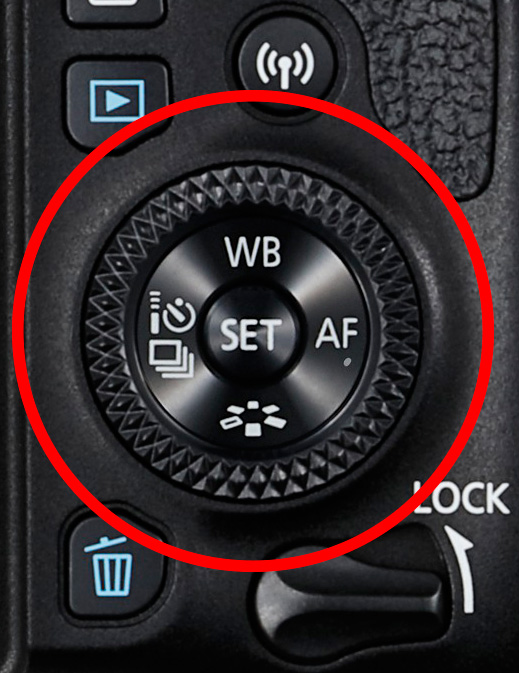
The best solution depends on the situation in which you find yourself, plus the configuration of your camera’s dials. For example, with a Canon EOS digital SLR it’s easy to apply exposure compensation by moving the Quick control dial on the back of the camera. It’s so simple you don’t need to take your eye away from the viewfinder.
Exposure compensation versus manual mode

The Quick control dial on the EOS 77D.

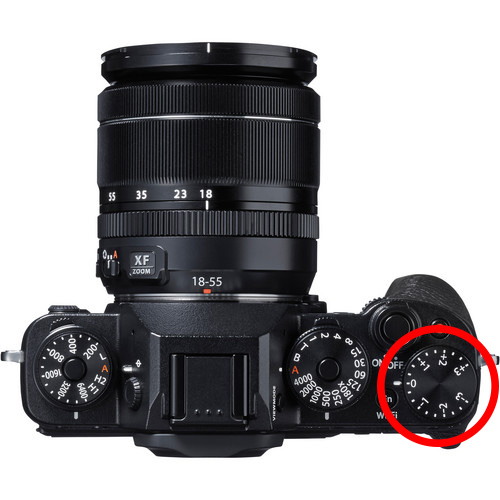
On my Fujifilm X-T1, the exposure compensation dial is on top of the camera. It’s harder to get at and nearly impossible to adjust without taking your eye away from the viewfinder. But the aperture ring on the lens makes it easy to go to Manual mode and adjust exposure by changing the aperture. An optional live histogram in the viewfinder helps you see if exposure is accurate before pressing the shutter (an advantage of some mirrorless cameras).
Exposure compensation versus manual mode

The exposure compensation dial on the Fujifilm X-T1 is much harder to reach.

These are good examples of how hardware can push you in one direction or another. My Canon SLRs pushed me towards exposure compensation, and my Fujifilm X-T1 pushes me towards using Manual mode.

Using Manual mode

Let’s look at Manual mode first. In Manual, you set the ISO, aperture, and shutter speed yourself. There are certain situations when using Manual mode (as opposed to Programmed Auto, Aperture Priority or Shutter Priority with exposure compensation) is beneficial. Let’s look at a few.

1. Shoot in Manual when the light level is constant

If the ambient light level is steady, you don’t need to change the exposure settings once you have decided which ones to use. Automatic exposure modes are influenced by the reflectivity of the subject and the exposure reading can change even if the light levels don’t.

That makes Manual mode ideal for this kind of situation. Once you’ve set the exposure you don’t need to change it. I like to use Manual mode when making portraits in natural light. Once I’ve set the exposure I’m free to concentrate on directing the model.

Exposure compensation versus manual mode

2. Shoot in Manual when you’re photographing landscapes and using a tripod

In this situation, you have plenty of time to assess exposure. Manual mode is ideal because you can set a low ISO (for image quality), a small aperture (for depth of field) and change the shutter speed to suit the light levels. It’s also easy to make adjustments to allow for any polarizing, neutral density or graduated neutral density filters you may be using.

If you’re shooting landscapes at dusk, while the light is fading, Manual mode also works well. After you take a photo, just check the histogram. As it moves to the left, which it will as the light fades, dial in a slower shutter speed to compensate.

Exposure compensation vs. manual mode

3. Use Manual Mode when you’re using manual flash

If you’re using a flash set to manual the output from the flash is the same every time. In that situation, it’s best to adjust the camera settings manually so the exposure is consistent from frame to frame.

To create the portrait below, I worked with both the camera and flash set to manual. Setting your flash to manual only works when the flash to subject distance doesn’t change.

Exposure compensation vs. manual mode

4. Use Manual mode for long exposure photography

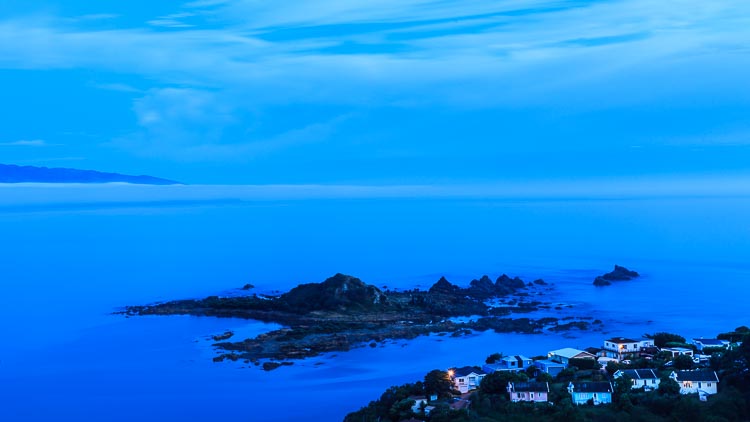
If you’re doing long exposure landscape photography and your shutter speed (exposure time) is longer than 30 seconds then you need to use Bulb mode. This is another form of Manual mode. Except that rather than telling the camera what shutter speed you want it to use, you do so by using the camera’s bulb setting and a remote release.

I used Bulb mode to make this landscape photo with a shutter speed (exposure time) of 82 seconds.
Exposure compensation vs. manual mode

Using Exposure Compensation

The alternative to Manual mode is to set your camera to an automatic exposure mode and use exposure compensation to override the camera’s settings.

The three best automatic exposure modes to use are Aperture Priority, Shutter Priority or Programmed auto. Other exposure modes, such as Landscape and Portrait, don’t give you enough control. On some cameras (such as Canon EOS) you can’t adjust exposure compensation when using one of these modes.

These are some of the situations where exposure compensation may be better than Manual mode.

1. Use Exposure Compensation for street and travel photography

If you are taking photos of people in the street the required exposures can vary wildly. One moment you may take a photo of something in the sun, the next you may photograph something in the shade. The sun may also be going in and out between the clouds.

In this situation, you want to concentrate on finding interesting things to photograph and creating a good composition. If you have to stop and think about exposure, then you may miss the shot. Automatic exposure modes help greatly.

Exposure compensation vs. manual mode

2. Use Exposure Compensation when you are using on-camera flash in an automatic mode (TTL)

If you have the on-camera flash set to an automatic mode, then the camera needs to be set to evaluative or matrix metering, the camera’s most advanced metering mode, to take full advantage of that. The camera and flash work together to calculate the correct exposure.

Setting your flash to automatic (TTL or E-TTL) works best when the subject to flash distance is constantly changing. Using automatic means your camera can adjust the output of the flash as it needs to.

3. Use Exposure Compensation when shooting sports or wildlife

This is another situation where the light level is likely to change frequently and you need to concentrate on tracking the action and capturing important moments. You don’t want to be thinking about exposure when trying to capture the peak of the action in sports or photographing fast-moving wildlife. Let your camera do the work, and use exposure compensation if you have to.

Conclusion

Everybody works differently, so the points in this article should be taken as suggestions only. The more experienced you become as a photographer the more you will learn to judge whether you should use Manual mode or Exposure Compensation to take control of your exposure.

It may make it easier to think of it in terms of time. If you have more time to think about your camera settings, then use Manual mode. If you have less thinking time and need to be ready to react quickly to capture the action, then use an automatic exposure mode and Exposure Compensation.

Do you prefer to use Manual mode or an automatic exposure mode with exposure compensation? Please let me know in the comments below,


Want to learn how to get perfect exposure on your digital camera? Then check out my new ebook Mastering Exposure and say goodbye to all your exposure problems!

The post Manual Mode or Exposure Compensation – Which is Best? by Andrew S. Gibson appeared first on Digital Photography School.


Digital Photography School

 
Comments Off on Manual Mode or Exposure Compensation – Which is Best?

Posted in Photography


DPReview on TWiT: Is the Sony a9 worth $4500?

01 Jun

DPReview has partnered with the TWiT Network (named after its flagship show, This Week in Tech) to produce a regular segment for The New Screen Savers, a popular weekend show hosted by technology guru Leo Laporte.

On this week’s episode of The New Screen Savers, DPReview editor Carey Rose joins Leo and Iain Thomson to talk about the Sony a9, who it’s for, and whether it’s really worth the $ 4500 price tag. The full episode also takes you on a tour of Jupiter with the Juno spacecraft and a quick review of the latest Lenovo Yoga 2-in-1. Lastly, what if you’re going traveling and want a camera for $ 300? We’ll help you out there, too.

You can watch The New Screen Savers live every Saturday at 3pm Pacific Time (23:00 UTC), on demand through our articles, the TWiT website, or YouTube, as well as through most podcasting apps.

Articles: Digital Photography Review (dpreview.com)

 
Comments Off on DPReview on TWiT: Is the Sony a9 worth $4500?

Posted in Uncategorized


Imperial Pomp: Strange Post-Soviet Skyscrapers in Remote Russia

01 Jun

[ By SA Rogers in Culture & History & Travel. ]

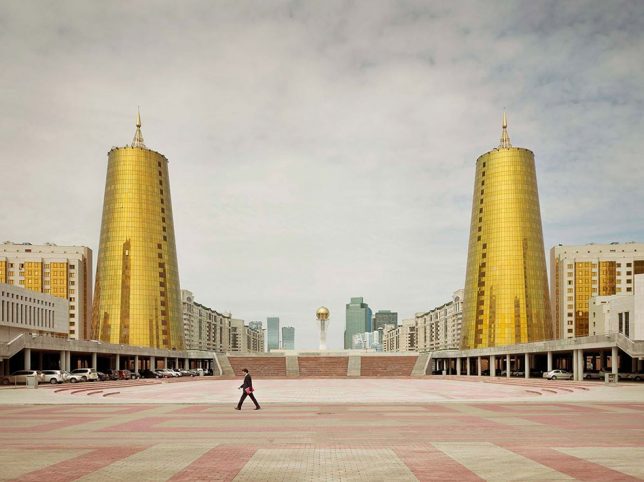
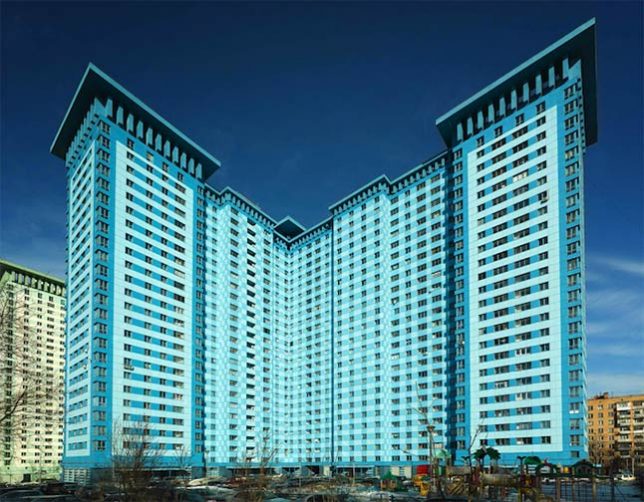
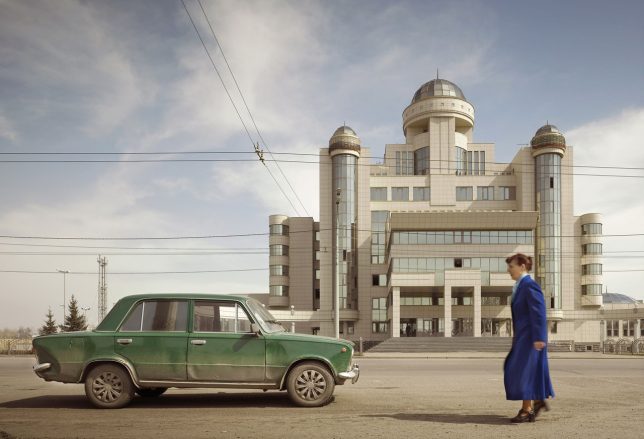
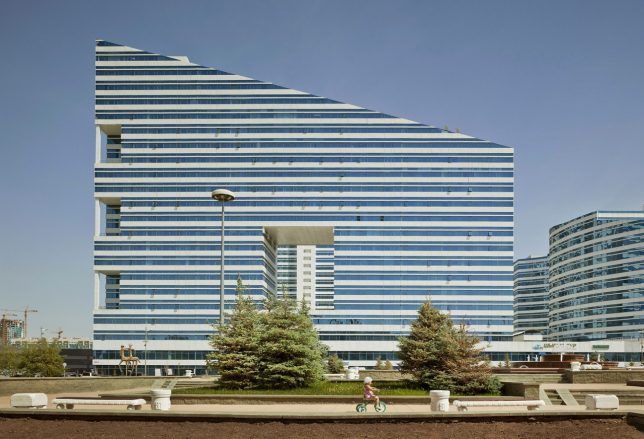
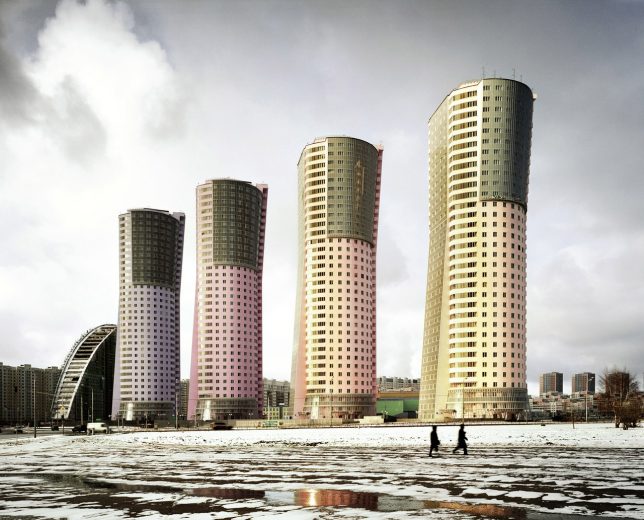
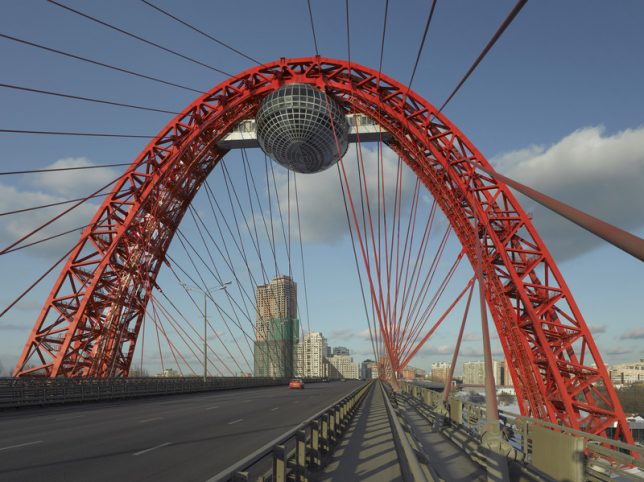
Deep in the most remote reaches of the Soviet Union, strange skyscrapers glitter against the sky, made all the more out of place by their sleepy rural settings and lack of similarly scaled surroundings. Photographer Frank Herfort calls them ‘Imperial Pomp,’ monstrous and overly ostentatious structures that sprung up throughout the nation and the former Soviet Union in the decades since the collapse of the USSR. Traveling to places that might not otherwise draw many foreign visitors, Herfort captured the skyscrapers in all their strangely proportioned glamour for his photo book ‘Imperial Pomp – Post Soviet High-Rise.’

“After exploring Moscow’s structures I realized, that in all cities and former Soviet countries you can find such buildings,” says Herfort. “So I traveled to Vladivostok, to Blagoveshchensk on the Chinese border on River Amur, to Astana in Kazakhstan, to Baku in Azerbaijan, to Sochi and to St. Petersburg. And everywhere in between. I was always impressed by these huge constructions while driving through Moscow. Moscow doesn’t have a big skyline or big houses in the cityscape, and then I was even more impressed when suddenly there appeared one of these big new colored buildings. They are standing like single flowers cropped in the landscape.”

The German photographer notes that he feels like the buildings are “used to manipulate the humans and try to make them feel small.” He says the buildings rarely have infrastructure or real access built around them to invite the public to experience and interact with them, because they weren’t built with a care for anything other than showing off. That would certainly fit with the American perspective on Russia and its strongman fascination.

The buildings do feel like modern iterations of the strange Soviet-era monuments that still litter much of the former Soviet Union, though they’re nowhere near as creative and sculptural as the wondrous and bizarre relics of what used to be Yugoslavia.

Herfort’s book is out of stock at the publisher’s website, but a few copies are still available on Amazon, and you can see more of his work at his website.

Share on Facebook


[ By SA Rogers in Culture & History & Travel. ]

[ WebUrbanist | Archives | Galleries | Privacy | TOS ]


WebUrbanist

 
Comments Off on Imperial Pomp: Strange Post-Soviet Skyscrapers in Remote Russia

Posted in Creativity


Video: a grayscale method for matching colors in Photoshop

01 Jun

Adobe Senior Creative Director Russell Brown recently posted this neat demo showing a technique for matching colors in Photoshop without touching a hue or saturation slider. His method uses adjustments in grayscale to individual color channels, comparing a swatch of the color he’s attempting to change directly to the color he’s trying to match. See how he does it in the video above.

Articles: Digital Photography Review (dpreview.com)

 
Comments Off on Video: a grayscale method for matching colors in Photoshop

Posted in Uncategorized


Mashup Masterpieces: 48 Fusions of Art and Contemporary Pop Culture

01 Jun

[ By SA Rogers in Art & Drawing & Digital. ]

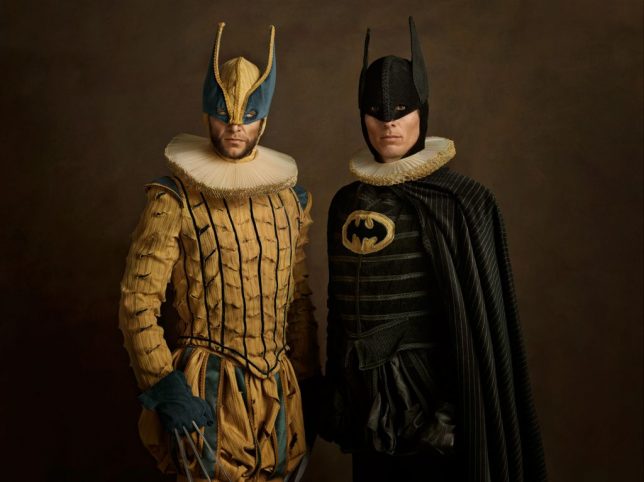
In centuries past, art has mostly depicted religious and political figures alongside artist’s models and ordinary people, but as future generations look back on our era, they’ll see a confusing mishmash of celebrities and fictional characters interwoven into our fine art legacy. Often removed from their context and mixed together, figures from music, movies, television and comic books presented as art subjects make a statement on our obsession with image, fame, heroes and the qualities we project onto the most famous faces our culture has created.

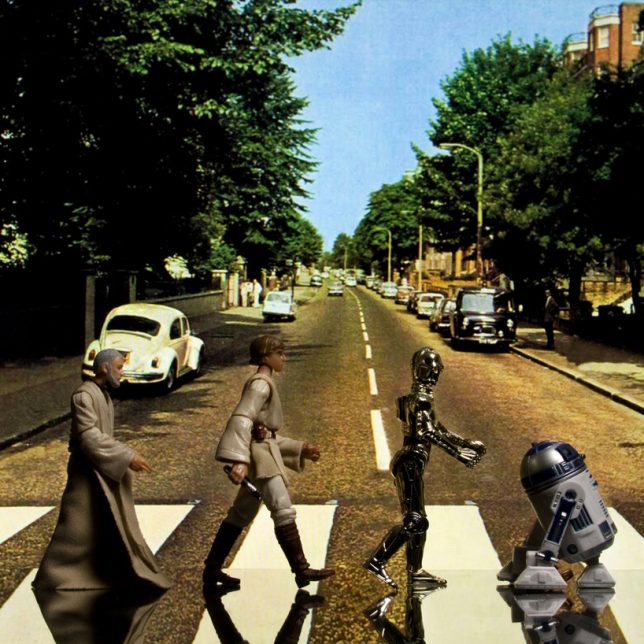
Star Wars Recreations of Famous Photographs by David Eger

For ‘365 Days of Clones,’ Canadian art teacher David Eger recreated famous photographs using Star Wars figurines, including play son ‘Raising the Flag on Iwo Jima,’ ‘Abbey Road,’ ‘American Gothic’ and even the iconic flying-across-the-moon-on-a-bicycle scene from E.T.

Models Turned Celebrities with Body Paint

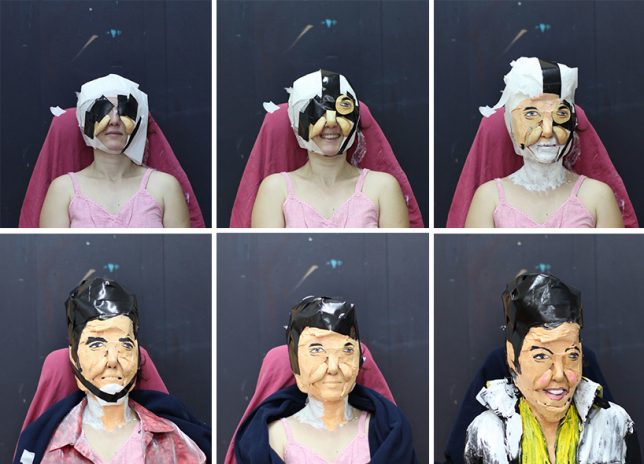
Models are used as the basis of living sculptures, their features changed with globs of paint, plastic, paper, clothes and wigs so they roughly resemble celebrities like Karl Lagerfeld, Steve Jobs and Pamela Anderson. Artist Marie-Lou Desmeules refers to her creations as ‘pop zombies,’ asking viewers to consider what these artistic impersonations say about image in our society.

Terra-cotta Characters by Lizabeth Eva Rossof

Rather than the nameless soldiers of old who made up the historical Chinese terra-cotta army, the Xi’an-American Warriors by Lizabeth Eva Rossof bear the faces of Spiderman, Bart Simpson, Batman, Shrek, Mickey Mouse and other fictional characters, reflecting both the far reach of America’s media influence and modern-day China’s industry of counterfeiting these copyrighted properties.

Hero-Glyphics by Josh Lane

In ancient Egyptian hieroglyphics, artist Josh Lane saw a graphic style of art that lends itself surprisingly well to modern-day cartoon and comic book styles. For his ‘Hero-Glyphics’ series, he dropped modern characters into poses he thought best fit each one’s personality, using background details and symbols to tell a story.

Next Page – Click Below to Read More:
Mashup Masterpieces 48 Fusions Of Art And Contemporary Pop Culture

Share on Facebook


[ By SA Rogers in Art & Drawing & Digital. ]

[ WebUrbanist | Archives | Galleries | Privacy | TOS ]


WebUrbanist

 
Comments Off on Mashup Masterpieces: 48 Fusions of Art and Contemporary Pop Culture

Posted in Creativity


Hands on with Halide, a new gesture-based iPhone camera app

01 Jun

What do you get when a former Apple designer and a former Twitter developer combine forces? You get Halide — a brand new gesture-based iPhone camera app designed for those who want more control over the picture-taking process.

Designed by Sebastiaan de With, developed by Ben Sandofsky, and released yesterday, Halide — a name reminiscent of film-based photographic processes — is designed with the aim that anyone from an amateur to a pro can achieve advanced results with minimal effort.

Advanced apps like Camera+, ProCam, and ProShot offer vast shooting flexibility and go beyond the basics provided by Apple’s stock Camera app, but come with a higher learning curve. Unless you use such apps consistently, it’s hard to remember the location of various controls for a quick shot. In urgent situations, many shooters resort to the app they know best — the default Camera.

Halide aims to be the ideal, elegant middle ground between ‘too simple’ and ‘airplane cockpit,’ peacefully co-existing with the iPhone’s default Camera app and perhaps occupying at least some of the same muscle memory space.

Halide lets you compose your shot in portrait or landscape orientation.

Halide starts out shooting in smart auto mode, but a single tap calls up a manual mode where you can adjust ISO, shutter speed and white balance. The same gestures you use with the iPhone’s native camera work for Halide, though with some variations. The zoom gesture, for example, does not work for some handset models, but instead adjusts exposure, which is similar to the original Camera app’s vertical swipe gesture.

Toggle controls let you switch between automatic and manual settings, and the grid lights up when the camera is level. Tap focusing also works.

Moreover, Halide’s sole concentration on shooting still photos gives it wider latitude within that narrow task. Halide doesn’t do panoramas, video or other special effects like HDR, but it does give you an optional, real-time live histogram, Raw capture and a friendly visual interface. It’s not an editor, so you can’t use it to open a photo from your Camera Roll.

Halide focuses on three major points of interest: tactile controls, focus peaking and instant review. Smart Auto picks your ISO and shutter speeds while an EV feature lets you flick up or down to adjust exposure. Focus peaking automatically highlights in red the sharpest areas in the scene. You can enable an optional overlay grid that doubles as a level – the center tile glows when your camera is level – to help align your shot.

Automatic and manual focus and focus peaking.

Controls at the bottom of the interface let you tap to switch between auto and manual focus, as a toggle evokes focus peaking. You can also tap to focus. Finally, you can choose to shoot JPEG or Raw and customize which controls appear on screen.

When you’re ready to check out your shots, Halide lets you view your recent captures via 3D touch and quickly swipe left or right to either favorite your picks or discard rejects.

Halide runs on iPhone 5 and above — essentially any iPhone that can run iOS 10, but it works a little differently, depending on which device you own. The iPhone 6s and up supports both the real-time histogram and focus peaking. The test sample shots in this story are from an iPhone 6s. 

The single layer of controls at the top are customizable. View, save or discard shots right away.

Halide is available from the App Store now at a discounted price of $ 2.99. It is available in English, with Spanish, Dutch, German, and French localizations in progress. On June 6, the price goes up to $ 4.99. There are no plans for an Android version at this time.

Articles: Digital Photography Review (dpreview.com)

 
Comments Off on Hands on with Halide, a new gesture-based iPhone camera app

Posted in Uncategorized