RSS
 

Archive for January, 2017

Magic Lantern proof-of-concept shows in-camera DNG shooting

04 Jan

Magic Lantern, the free software add-on for some Canon cameras, may one day offer in-camera DNG shooting, at least per a proof-of-concept that has appeared on the company’s forums. The proof-of-concept comes from forum administrator ‘a1ex,’ who details a way in which he got Magic Lantern to produce an in-camera lossless 14-bit DNG file that Adobe’s dng_validate accepts. Although most high-end Canon cameras shoot Raw, files are recorded in Canon’s proprietary .CRW and .CR2 formats.

This proof-of-concept is not a feature currently offered by Magic Lantern, so current users will not be able to access it, and there is no indication at this time whether the software will ever add this feature.

Magic Lantern forum user ‘Danne’ went on to provide sample DNG images taken using this encoder mod; a direct download is available here.

Via: PetaPixel

Articles: Digital Photography Review (dpreview.com)

 
Comments Off on Magic Lantern proof-of-concept shows in-camera DNG shooting

Posted in Uncategorized


Baubotanik: German Botanical Architect Grows Buildings Out of Trees

04 Jan

[ By WebUrbanist in Architecture & Public & Institutional. ]

living-building

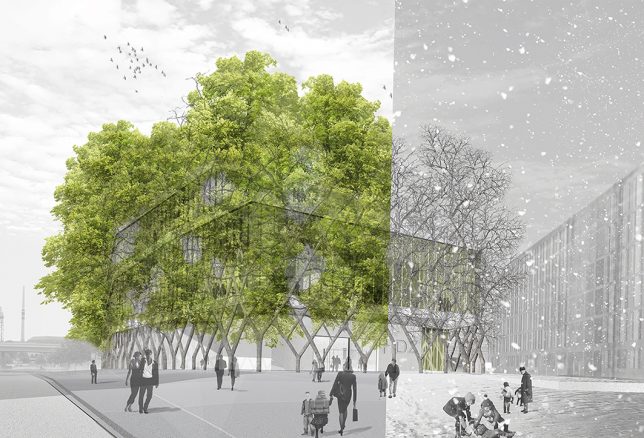
Taking arbosculpture to the next level, German designer Ferdinand Ludwig is working to build not just sculptures but bridges and buildings from living trees. Many of his designs will take years or even decades to fully unfold.

building-envelope

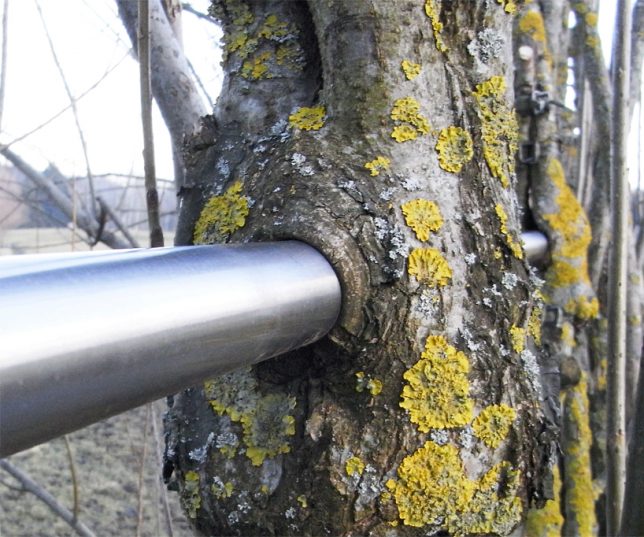
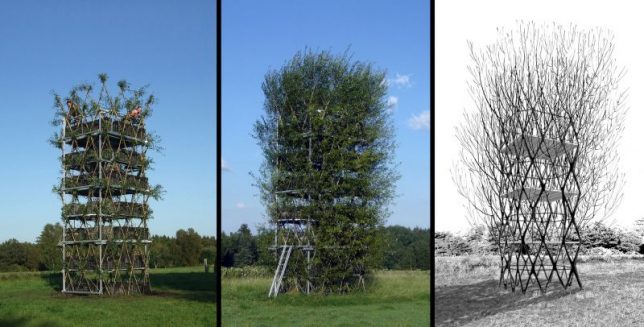
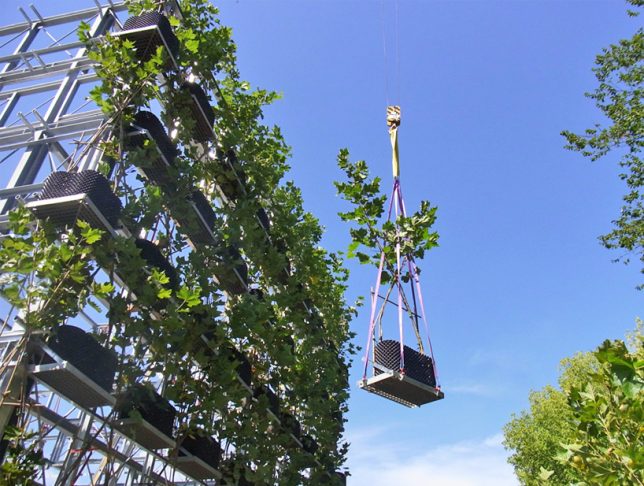
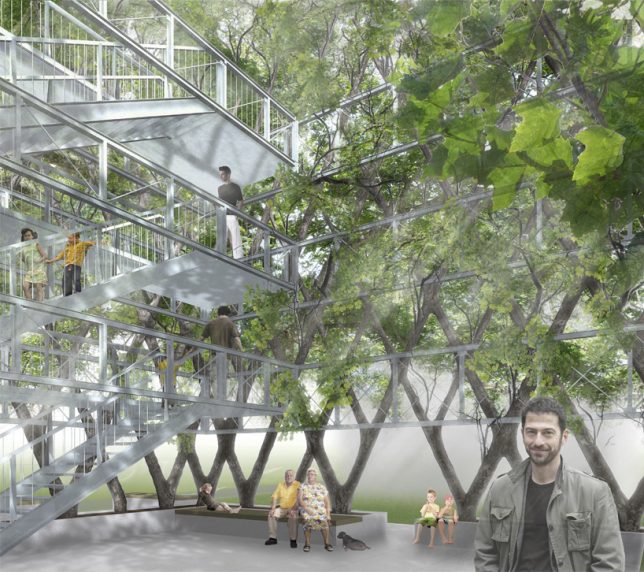
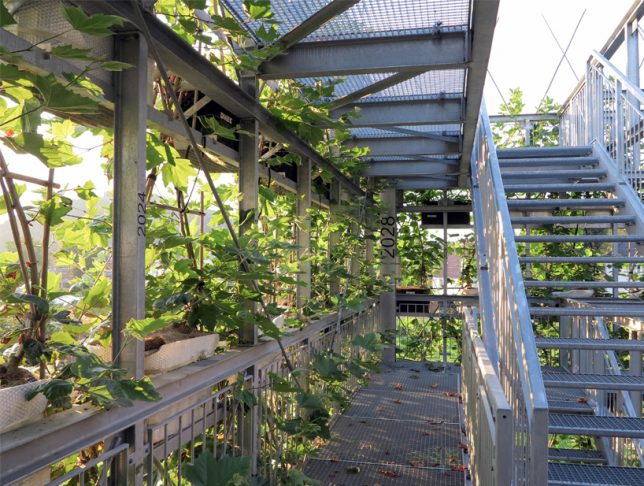
His largest project yet in Nagold, Germany, was a multistory structure made up over over 100 trees slowly combined into a single organism, coaxed into place with a steel framework that will eventually be redundant. The lattice of interconnected tree trunks and branches ends up forming its own self-supporting truss system.

plant-structure-interior

nature-architecture

The support beams are labeled with the years in which they can be removed, allowing the structure to stand on its own by 2028. Like a conventional curtain wall on an ordinary architectural facade, this system could be used to wrap other buildings as well.

hybrid-nature

seasons-change

Even now, though, the slow-growing ‘building’ makes for a shady and cool space in the summer. Through each season, of course, it changes with the natural cycles of spring, summer, fall and winter.

living-tree-structure

nature-over-time

A pioneer of what he calls ‘Baubotanik’ (think: Bauhaus using botanical techniques), Ludwig’s living plant constructions were inspired in part by native tribes that grow living bridges out of trees over time.

Share on Facebook


[ By WebUrbanist in Architecture & Public & Institutional. ]

[ WebUrbanist | Archives | Galleries | Privacy | TOS ]


WebUrbanist

 
Comments Off on Baubotanik: German Botanical Architect Grows Buildings Out of Trees

Posted in Creativity


Samsung patent shows dual-camera tracking feature

04 Jan

2016 was a breakthrough-year for the dual-camera concept on smartphones, with several models being launched. Notably the largest manufacturer of Android smartphones, Samsung, has so far not participated in the dual-camera game. This appears to be changing however, as a patent application has been filed with the South Korean Patent Office suggests that the tech giant is at least considering smartphone models with dual-cameras. The patent suggests that the phone would feature two different focal lengths, similar to what we have already seen on the LG G5 or Apple iPhone 7 Plus.

The patent application is for a specific dual-camera feature that allows for tracking a moving subject with the preview-image of the wide-angle lens and then capturing it larger in the frame with the tele-lens. In the images included in the patent application the frame lines of the tele-image are superimposed onto the wide-angle image, which should make it easier to follow a fast moving subject. 

As usual, there is no way of knowing if the concept will ever make it into a final product but the system certainly looks possible to implement with current technologies. We probably should not expect a dual-cam in Samsung’s upcoming Galaxy S8 flagship but after the Galaxy Note 7 disaster the Korean manufacturer could certainly do with a stand-out feature in one of its next models to recover lost market share.

Articles: Digital Photography Review (dpreview.com)

 
Comments Off on Samsung patent shows dual-camera tracking feature

Posted in Uncategorized


Tips for How to Think and Use Lightroom More Artistically

04 Jan

Each time I process one of my images I do it in a totally different way. This might sound strange to you. I feel that often articles about image processing are riddled with ideas about formulas and essential steps. But for me, this totally goes against everything I believe about photography.
dps-how-to-be-artistic-lightrrom-9

If you want to make creative images there is no one formula that you can apply to all photographs, or all genres. There are no essential steps that you must follow for every single image.

Why there is no magic formula

To say there is one formula is like saying there is one for making great art, and if we followed it then we’d all be great artists. But that is looking at it from the wrong angle. That’s asking for something outside of you to make you perform well. In fact, the only chance (literally the only) any of us have of taking great photographs, is to allow the most unique parts of ourselves to flow out.

Now, that’s not to say I don’t have some great advice for you. I do! It is, though, based on my philosophy that every image is unique. This is not a paint by numbers experience – so processing must be approached in a fresh, new way every single time.
dps-artistic-lightroom-8-6

Before processing

Like a lot of photos there are a few different ways I could have gone about this. Processing, like the act of taking photos, is a totally subjective experience. That’s most of the fun!

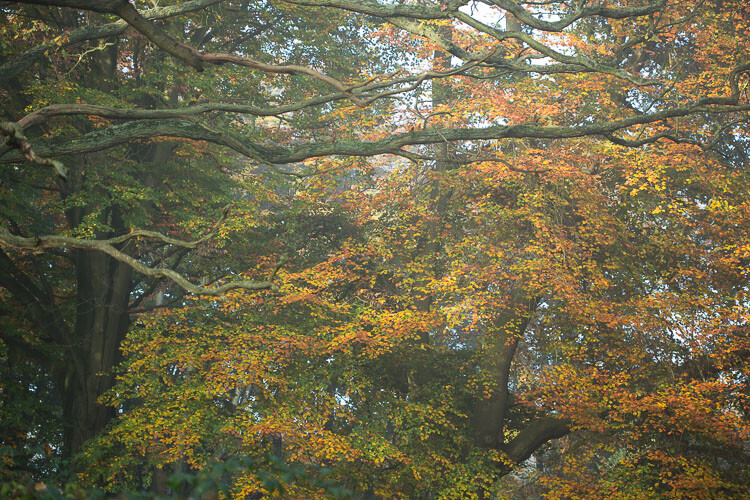
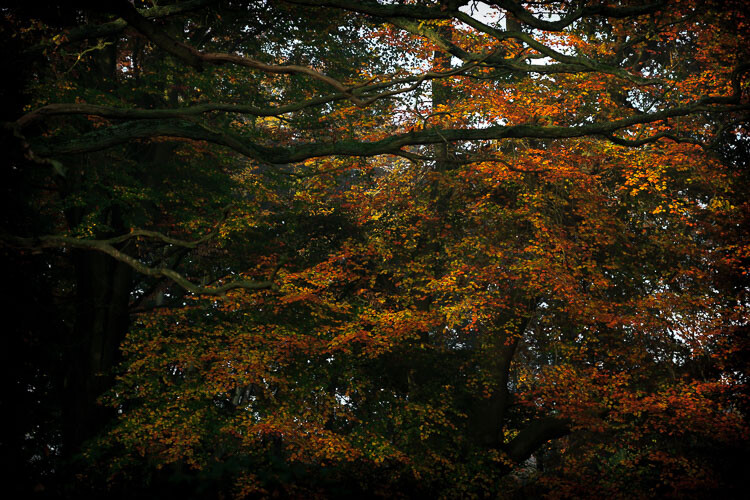
Unlike the other photos I’ve featured in this article, which were all taken on the same beautiful morning in Hampstead Heath in London, in this photo I didn’t want to have that misty fog in the photo. It didn’t work for me with the vibrant colours of the leaves. So instead I enhanced that deep colour and gave the leaves a strong contrast with the dark branches.

To me this is more of a natural look, what you would see when you are out in the woods. I used the HSL module to saturate the colour channels individually with a little Clarity in the basic module. It didn’t really take a big push to make a big change.
dps-artistic-lightroom-8-5

After processing.

“The reason that art (writing, engaging, and all of it) is valuable is precisely why I can’t tell you how to do it. If there were a map, there’d be no art, because art is the act of navigating without a map.” – Seth Godin

Take a unique approach for each image

You wouldn’t shoot all of your images at the same shutter speed would you? When you are out taking photos, even if you shoot on full auto, you respond to both the subject and the lighting conditions around you. You adjust and work with what is there. That’s the same approach you need to take when processing your images.

I like to think of processing an image like creating a painting. It’s an organic, subjective, unstructured process that finds me going back and forth between the tools, using a little of this, a little of that, until I am able see something that I want.
dps-artistic-lightroom-8-2

Before processing.

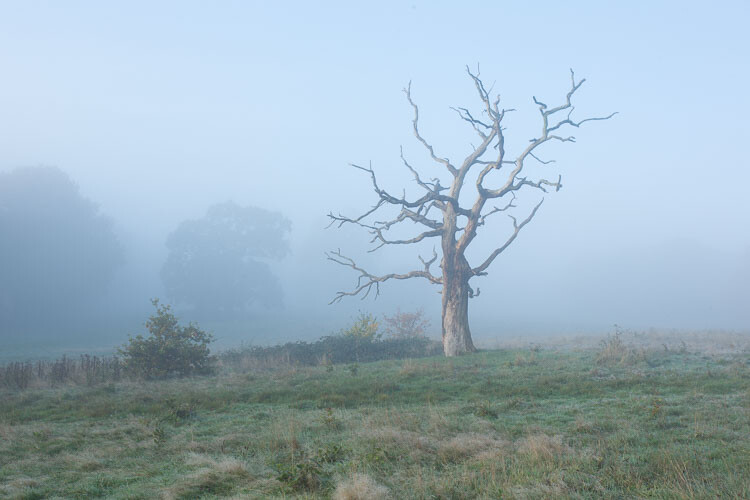
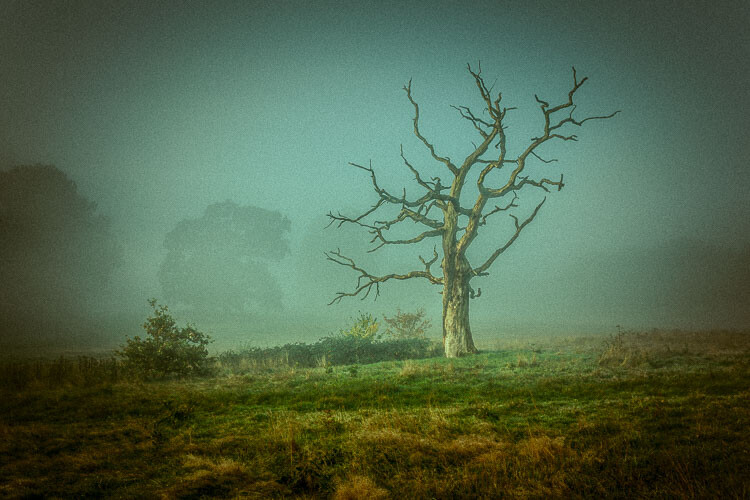
This image already has all of the elements for a good photo. There is atmospheric light that you can truly feel, and the composition of the bare wild tree on its own is strong. So what I focussed on in the processing was to bring out the colours and enhance the atmosphere ad feeling of cold, bleak and misty. Plus I thought a blue/orange split tone would look cool and topping it off with some grain would make it a have a feel of nostalgia…I’m very nostalgic about trees (childhood thing).
dps-artistic-lightroom-8

After processing in Lightroom.

“You must forget all your theories, all your ideas before the subject. What part of these is really your own will be expressed in your expression of the emotion awakened in you by the subject.” –  Henri Matisse

How can you apply this to your photography?

My approach might sound a tad unhelpful – I mean if I can’t tell you the formula, the five steps to success, the three keys everyone needs, how can you learn? Well, my approach may take longer to learn, but you will end up with much stronger images. You’ll create images that are powerful, impactful, and unique to you.

Even though Lightroom is about learning a software program, I recommend you do not use it with a technical mindset. Use it with a creative, artistic mindset. Use it as you would a paintbrush, a pen or your camera. Remember we are creating – not solving an algebra problem here!
dps-artistic-lightroom-8-3

Before

dps-artistic-lightroom-8-4

After

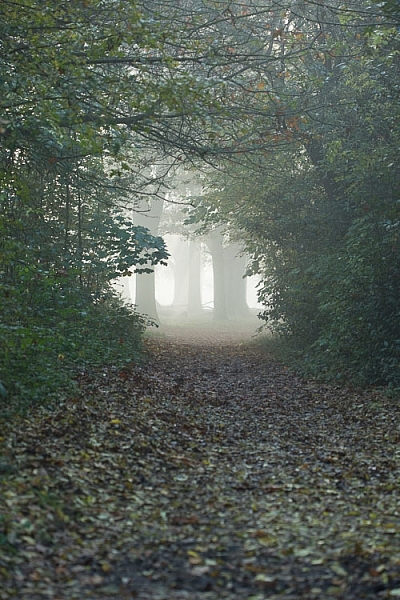
What appealed to me here was the slightly mystical feel. It made me think that the path was leading to a circle of fairies. So my Lightroom work reflected that vision, and this is what I created (above right).I wanted a very surreal look. I used split toning in greens and blues, as well as a vignette, and brought out the blacks very intensely using the basic panel. What I ignored was the histogram, which was all squashed up to the right, but that doesn’t matter.

I wanted a very surreal look. I used split toning in greens and blues, as well as a dark edge vignette, and brought out the blacks very intensely using the basic panel. What I ignored was the histogram, which was all squashed up to the right, but that doesn’t matter. Art is always a bit chaotic, right?

Before and after step by step

This is a creative, organic, fun process. Once you’ve gone through all the Lightroom modules (if needed), don’t be afraid to go back and adjust and have a play.

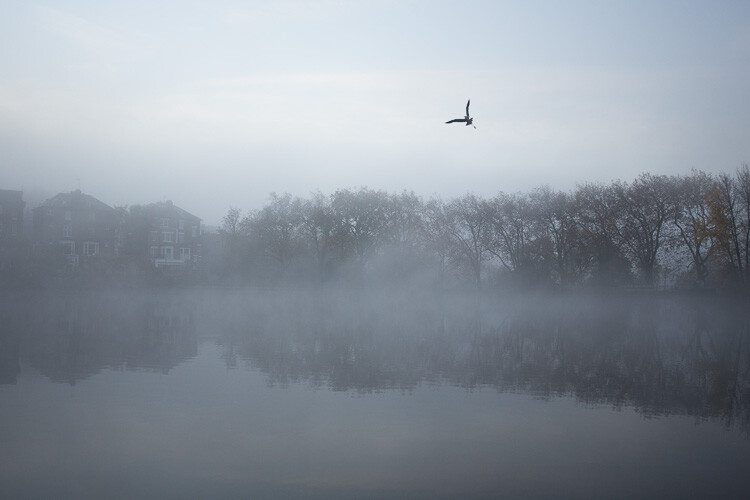
So, I want to take you through the steps of how I processed an image in detail. I hope it sparks a lot of ideas for ways to help you process yours. I am going to take the photo from this, straight out of the camera:
dps-artistic-lightroom-1

Before image, straight out of the camera.

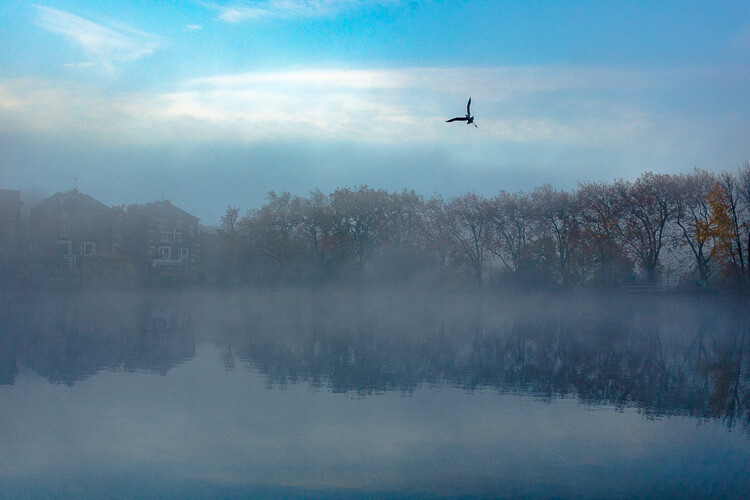
To this:
dps-artistic-lightroom-1-7

Finished image processed in Lightroom.

Connect to the image

Look at the image. What does it make you think of, feel or imagine? What qualities can you sense in the image that you can work with and draw out? The Lightroom tutorials you watch and read will tell you how to use sliders, etc., but they usually don’t tell you when to use them. This process of knowing when to use certain tools comes down to getting really involved in your image, and learning to use the inherent qualities of the photo to guide you.

This may sound obvious, but I think this is an essential step that most people miss. We are often so focused on getting it done, or getting the buttons ready to press, that we leave the artistic part of our mind and jump too quickly into the technical. So respond to the subject, the colors, and the mood of the photo. No blanket presets here, please!

Basic panel first

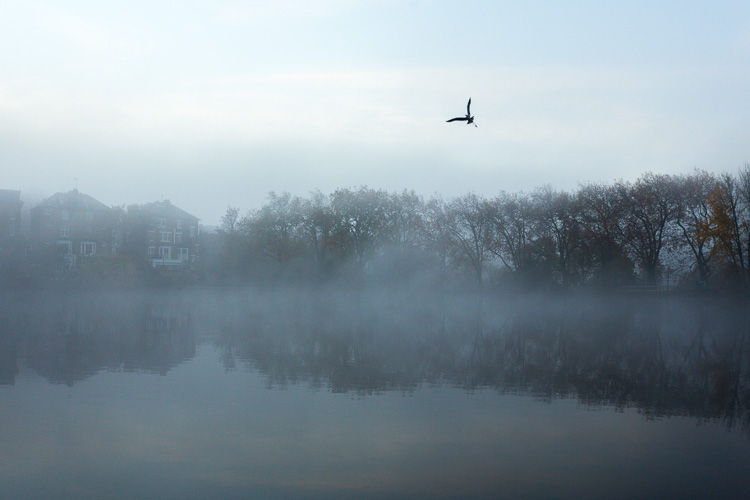
My next step with this image was with the Basic panel. Most images will start here because you may want to control the tones before starting on the color work. This image was really flat tonally so I wanted to boost the contrast by bringing down the shadows and raising the whites. You get much more specific control when you use the Highlights, Shadows, Whites and Blacks slider then you do with the Contrast slider above them. So here are the settings I applied:

  • Highlights -94
  • Shadows -50
  • Whites +50
  • Blacks -31
  • Saturation +50
  • Exposure -0.20
  • Contrast +19

Those changes produced the following result:
dps-artistic-lightroom-1-2

Now I have some good dark tones in the trees and some bright whites in the sky (all contained in the Histogram). Some Saturation gives me a good idea of what color the image would like to be (what direction it leans naturally). In this case, it’s blue.

Apply a Tone Curve

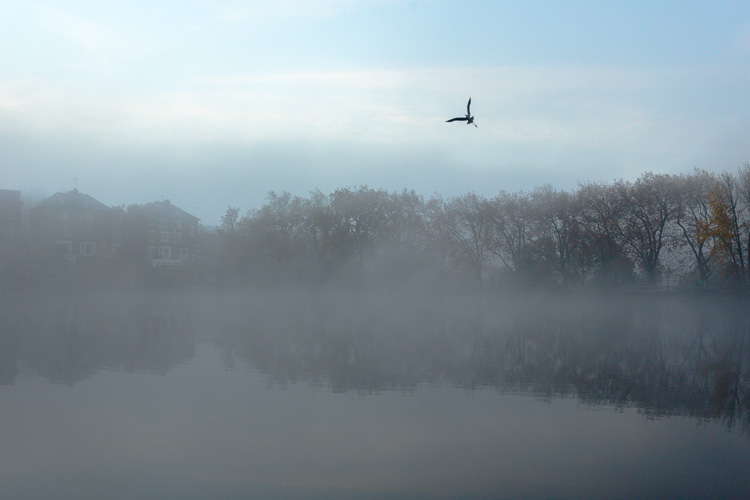
Next I decided to use the Curve panel for a bit more tonal change; bringing up the shadows and bringing down the highlights. Now the sky is richer and the dark areas are less muddy looking.
dps-artistic-lightroom-1-3

Dehaze

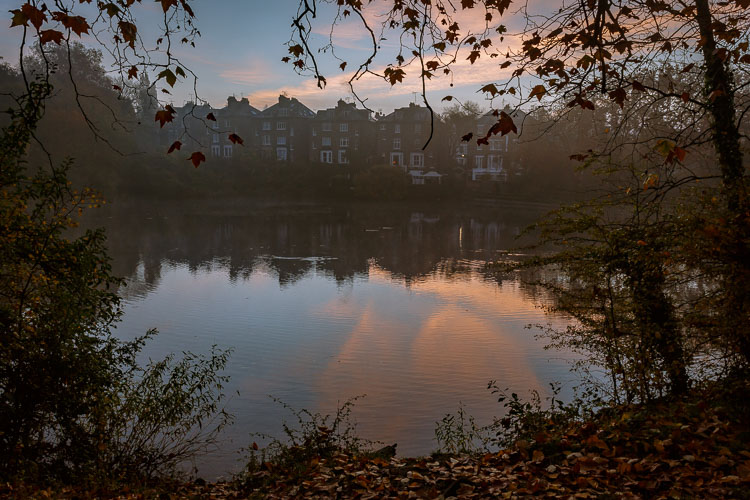
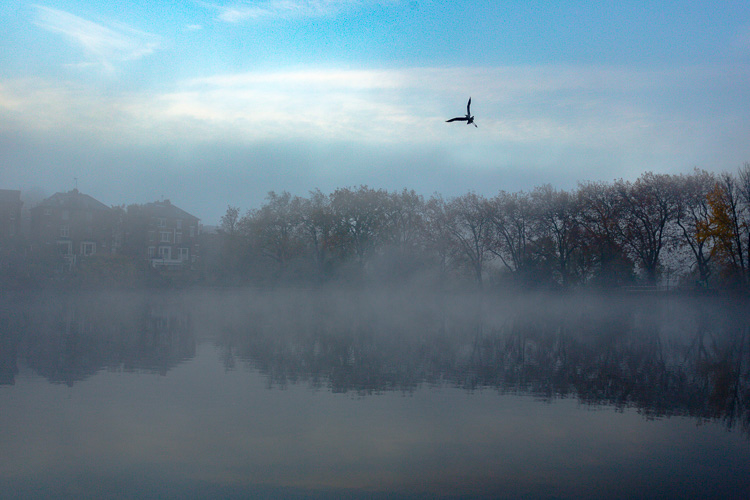
It was a really beautiful morning with the fog and trees, not to mention the fantastic bird (got lucky there!). That said, I was looking at this image and feeling that I wanted to bring out a lot more detail in the water and houses. The fog was great but I was pretty sure I could get more detail without a loss of atmosphere. My answer was Dehaze in the Effects module.

Dehaze is useful for images like this, but can be really super harsh if you are not careful. This image seemed to take a +44 without negative effects, like colour blocking and artefact creation so I left it there (see below).
dps-artistic-lightroom-1-4

Dehaze does tend to mess around with Saturation, which you can see here. But, eh, I liked it! What I was going for was removing some of the fog on the water and houses and that worked well. It also had the added effect of making the reflection of the trees in the water stand out.

Local adjustments

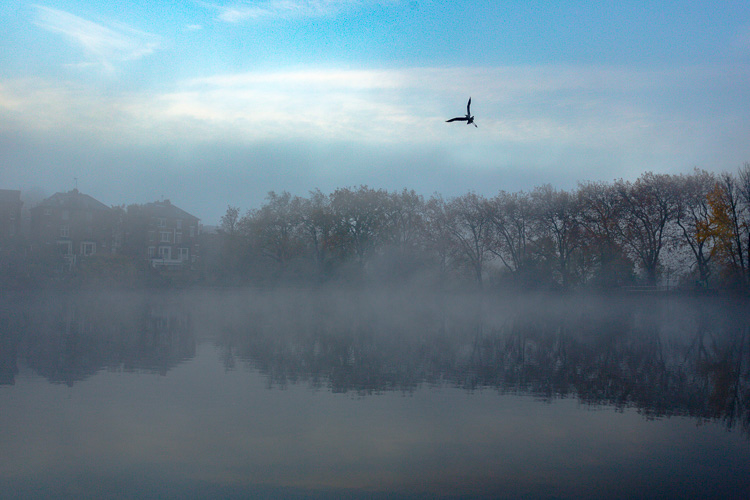
At this point I usually start to toggle modules on and off to see what happens. I thought the shadows of the trees on the right hand side could use a bit of detail so I made a mask with the brush tool to lighten them a bit. This also brightened up the sky behind the trees and made it all look less muddy. Then, I did the same for the reflection.
dps-artistic-lightroom-1-5

I really liked the fog on the water but I wanted the water to look crisp. So I used a graduated filter over it and put Clarity up to +74 and Exposure at +.60. I also changed the colour to match the blue sky. Now there is a lot more separation between the water and the reflection.

If I like my work up to a point I’ll make a snapshot so I can continue working on the image, but go back to that stage later if necessary. I’m pretty happy with it so far. Now is the time I would start toggling modules on and off again to see what needs adjusting.
dps-artistic-lightroom-1-6

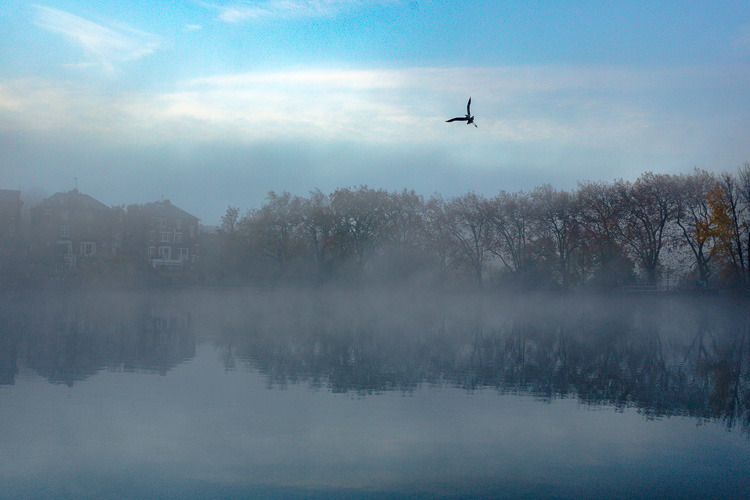
Next, see below, I chose to use HSL (Hue/Saturation/Luminance) panel last just to boost specific colours, in this case the blues. (Not sure why now that I look at it…probably would do it all over again without the blue boost).

I did try lightening the tones in the trees, which look yellow but LR wasn’t having it and said that it was actually blue. Understandable, since there is such a blue cast over everything. The only yellow that could be targeted was that last tree on the far right. I end up with this:

dps-artistic-lightroom-1-7

Conclusion

Now – on the last note, Lightroom is never going to destroy your image or make permanent changes. Therefore you have endless opportunities to play and learn what is possible with this amazing world of processing. Processing is the second half of photography, taking the photo is just the first half. Now I encourage you to:

“Go and make interesting mistakes, make amazing mistakes, make glorious and fantastic mistakes. Break rules. Leave the world more interesting for your being here. Make. Good. Art.” – Neil Gaiman

I’d love to know what you think. Maybe you would have gone about processing this image totally differently? Maybe you like what I did, and maybe you don’t? Let me know, I would love to hear your thoughts.

googletag.cmd.push(function() {
tablet_slots.push( googletag.defineSlot( “/1005424/_dPSv4_tab-all-article-bottom_(300×250)”, [300, 250], “pb-ad-78623” ).addService( googletag.pubads() ) ); } );

googletag.cmd.push(function() {
mobile_slots.push( googletag.defineSlot( “/1005424/_dPSv4_mob-all-article-bottom_(300×250)”, [300, 250], “pb-ad-78158” ).addService( googletag.pubads() ) ); } );

The post Tips for How to Think and Use Lightroom More Artistically by Anthony Epes appeared first on Digital Photography School.


Digital Photography School

 
Comments Off on Tips for How to Think and Use Lightroom More Artistically

Posted in Photography


Household Items to Bring to Your Next Food Photography Shoot

03 Jan

One of the most common assumptions about food photography is that hardcore food styling techniques must be involved to make dishes more visually appealing. In fact, there are professional food stylists who will employ all sorts of techniques to transform a dish into an inedible, yet highly photo-worthy subject. However, food styling techniques can also be very simple and accessible. Below is a list of common household items that can also help you out on your next food photography shoot.

Tweezers Food Styling Tips for Photography

For Keeping Food Clean

Tweezers

It’s pretty much inevitable that a plate of food will have quite a few moving parts that can easily fall out of place. While the Spot Healing Brush in Photoshop can make crumbs or blemishes disappear in post-production, it’s best to remove those bits and pieces from the dish before your shot is taken. This is where a pair of tweezers comes in. Use them to rearrange food on a plate or reach down into a deep glass or bowl to make adjustments.

Tweezers Food Styling Tips for Photography

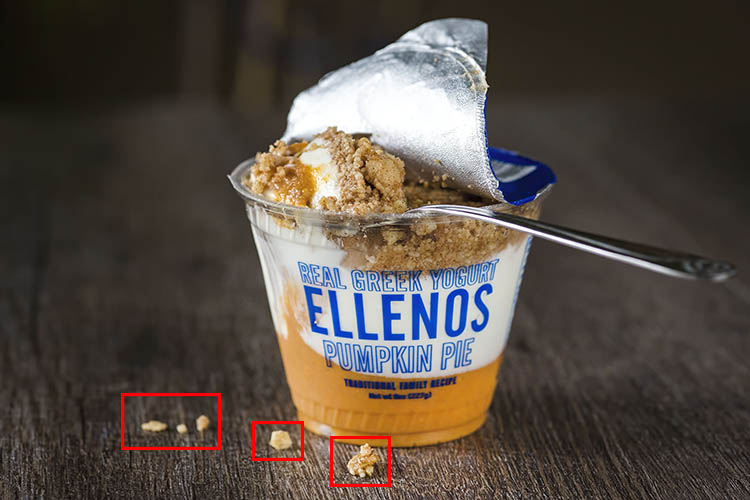
These crumbs could have been easily removed with tweezers, or removed in post production.

Cotton balls

Besides being used to soak up pools of excessive liquid that might gather on a dish, cotton balls are also great for propping up food. Stuff one or two behind a piece of food to give it some leverage and height. Since they’re small and absorbent, the cotton balls can easily hide and blend into a dish so it’s not obvious they’re being used.

Q-tips

Serving a similar purpose to tweezers and cotton balls, Q-tips (cotton swabs) are important for small touch ups. Use them dry or dipped into some rubbing alcohol to remove small blemishes from a dish and you’ll save yourself some valuable time in post-production. Which leads me to my next point…

Rubbing alcohol

Throughout a food photography shoot, your props and gear are bound to come into contact with some morsels of food. Bring a small bottle of rubbing alcohol to keep your gear clean, and even consider keeping some hand sanitizer nearby to clean your hands after rearranging plates of food.

Highly absorbent paper towels

If it’s not already obvious, all of the food styling tools listed thus far have to do with cleaning and touching up dishes before they’re photographed. This tool is the last of the cleaning sort and is useful not only for wiping dirty hands after styling, but also for absorbing liquid from juicy meats, iced drinks, or other plates of food that are a touch too wet.

For Keeping Food Fresh

Food Styling Tips for Photography

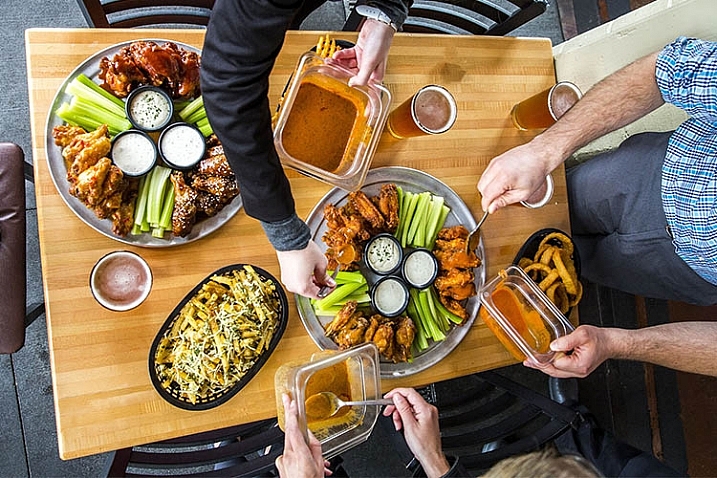
Using a spray bottle filled with water was essential for keeping the shine on these saucy chicken wings.

One of the biggest challenges for food photographers is to shoot dishes while they still look appetizing and edible. These tools will help restore shine and luster to dishes to imply freshness.

Nonstick cooking spray

Restore a bit of shininess to a dish and help it reflect light better by adding a bit of nonstick cooking spray. Be very careful, however, as a spray that is too strong might dishevel parts of your dish.

Spray bottle filled with water

This serves the same purpose as the nonstick cooking spray, but in a slightly more controllable manner as you can often shift the nozzle of a spray bottle to emit a smaller or larger stream of water.

Eye-dropper

When you need ultimate control over liquid application, it’s best to use an eye-dropper instead of a spray bottle or nonstick cooking spray.

For Applying Creative Touches

After using the above tools to perfect the details of your photo subject, it’s time to focus on two other factors that can take your photo to the next level; light control, and selecting a creative background.

Tin foil (or a large metal baking sheet)

Depending on your preferred camera tools, you may already have a reflector in your food photography kit. If you don’t have a reflector, you can use a sheet of tin foil or a metal baking sheet. If you use tin foil, you have the added bonus of being able to use smaller pieces and mold them.

Food Styling Tips for Photography

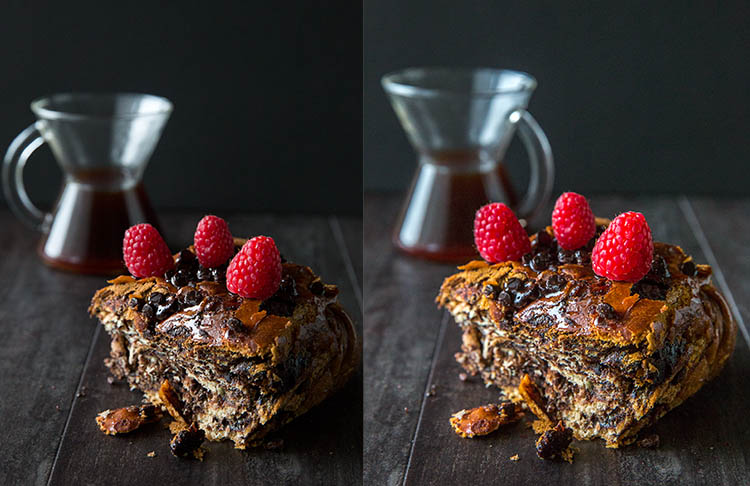
On the left: shot without a reflector; on the right: shot with a reflector to the right of the food.

Baking parchment paper

In photography, baking parchment paper can serve a couple of purposes.

First, it can be used as a cheap alternative to a diffuser (light modifier) to soften the light aimed at your subject. Simply tape a sheet of parchment paper to a window where sunlight is shining through. The resulting light will soften considerably, reducing the shadows and glare on your food subject.

Another way to utilize parchment paper is as a photography background or surface. Try plain parchment paper for a white surface, or the brown version for a different color option.

Food Styling Tips for Photography

Parchment paper can add a different texture and color to your photo subject.

Gift wrap

Since we’re on the subject of photography surfaces, gift wrap is another affordable option for shooting food against creative backdrops. Cutting boards, tabletops, and placemats are also popular options, but they can be pricey and take up lots of room to store. Gift wrap, on the other hand, is plentiful with a variety of colors and textures to choose from.

Tweezers Food Styling Tips for Photography

The same dish shot with different backgrounds. White gift wrap paper was used on the left and a wooden table surface on the right.

Over to You

Do you have any simple food styling tips or tricks to share? Let me know in the comments below!

googletag.cmd.push(function() {
tablet_slots.push( googletag.defineSlot( “/1005424/_dPSv4_tab-all-article-bottom_(300×250)”, [300, 250], “pb-ad-78623” ).addService( googletag.pubads() ) ); } );

googletag.cmd.push(function() {
mobile_slots.push( googletag.defineSlot( “/1005424/_dPSv4_mob-all-article-bottom_(300×250)”, [300, 250], “pb-ad-78158” ).addService( googletag.pubads() ) ); } );

The post Household Items to Bring to Your Next Food Photography Shoot by Suzi Pratt appeared first on Digital Photography School.


Digital Photography School
 
Comments Off on Household Items to Bring to Your Next Food Photography Shoot

Posted in Photography


How to Pose People for Group Portraits

03 Jan

As someone who does a lot of family and child photos, one of the most rewarding but also the most challenging scenarios I encounter, is that of classic group portraits. You know, the one where you’ve got the whole family together and the kids all dressed up and it’s the first time in three years that the everyone was able to get in one place for a picture. Someone is fussing over an un-tucked shirt, another is texting his buddy, the kids are crying, and grandma and grandpa are patiently smiling away because they’ve been down this road many times before.

It’s a tricky situation to be sure. While every family is unique and there is no one single method that will work for every situation, there are a few tips and tricks you can use to pose the whole gang. Get everyone to chill out long enough so you can get the type of frame-worthy shot that may end up as a giant print on the wall or above a fireplace mantle.

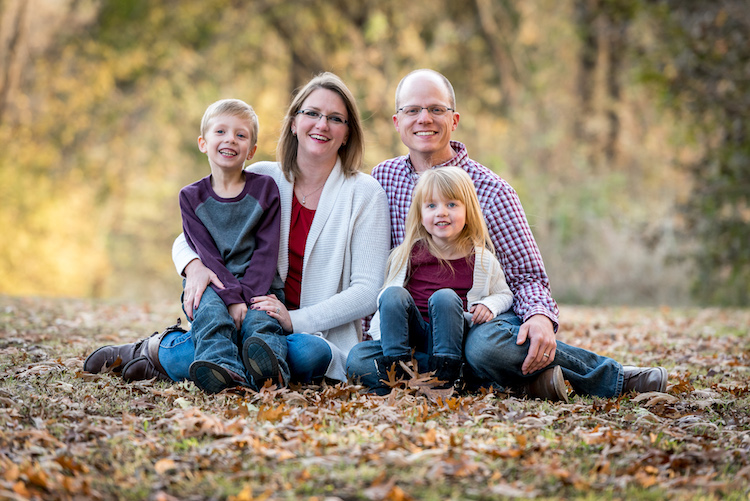
pose group portraits mom and dad and kids

Put the crowd at ease

As a photographer, it can be tempting to get right down to business at the beginning of a photo shoot. You want to show everyone how serious you are about your work, and start barking orders to all parties involved. “Okay Grandma, you sit down over there. Now uncle Jimmy, you go here. And you…what’s your name? Claudia? Can you do me a big favor and get your hands out of your pockets?”

The feeling of authority and power that can creep in when wielding your expensive gear and big lenses can be as intoxicating as it is nerve-wracking. But unfortunately, it’s not the best way to get the shots you want.

pose group portraits family

It’s easy to get so caught up in the idea of getting the perfect picture that you forget about the people whose photos you are taking. You don’t know what happened before they arrived at the session. They are probably a little trepidatious regarding what is about to take place with this photographer and all the fancy cameras and lenses.

The adults are likely on pins and needles because they have invested time, energy, and possibly a lot of money into the ensuing photo session and they just want things to go right. The last thing they need is more stress from a photographer (who can’t even remember their names) telling them where to sit, stand, and look.

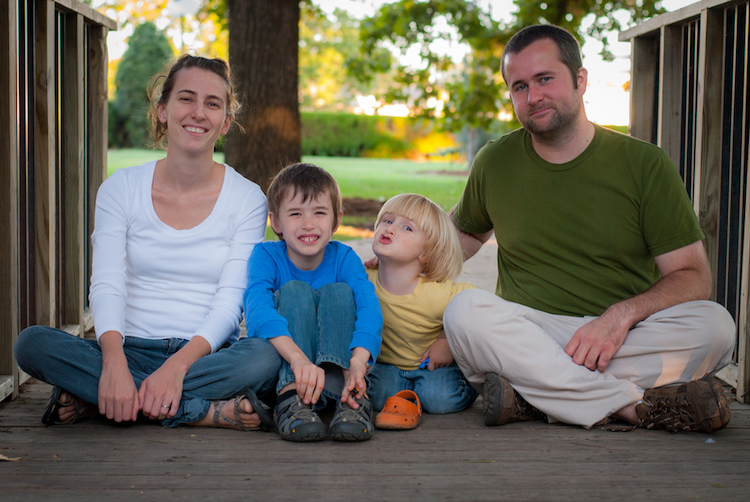
pose group portraits bridge family

Take it slow – talk to them first

To solve this problem, I like to spend five or 10 minutes at the beginning of a family or group portrait session not shouting orders or even getting my camera out, but talking with everyone and getting to know them a bit. And for goodness sakes, learn their names!

Learn some other things too. Where do they work? What do they enjoy doing in their spare time? What movies do the kids like? Sure it will add some time to your shoot, and yes I realize the sun is going down soon and you need to get moving. But if you really want to up your game when it comes to family and group portraits try taking some time to get to know the family or group.

They will feel more at ease and want to work with you. Then when you need Claudia to get her hands out of her pockets you can call her by her correct name (Olivia, to be exact) and give her the Vulcan Salute with a wry grin because you just found out that she, like you, is really into Star Trek.

Focus on the kids

While not all group photos involve children, many of them do and in those situations, it’s vitally important to make sure you prioritize the little ones over the grownups. Not that you don’t care about the adults, but they are much more compliant when it comes to following directions and working with you. Kids are another matter entirely, which is why it’s so important to get them on your side early on and then pay extra attention to them during the photo shoot.

I usually make this clear to the grown-ups too, and blatantly tell them that I expect them to smile, hold a pose, etc., because all my attention is going to be aimed at the little ones. I often start by showing my camera to the children and letting them hold some of my gear. This can be especially useful if you are using longer lenses like a 70-200mm that might feel kind of intimidating to them. The process helps acclimatize them to you as a photographer, dispel some of the nervousness that often results during a session, and usually makes the kids more open to following instructions.

pose group portraits family

I also like to joke around with the kids, ask them about their favorite movies, toys, video games, and TV shows even if I have no idea what they’re talking about. (If someone can explain the difference between Peppa the Pig and Spongebob Squarepants I’d sure like to know. Cartoons these days make no sense at all to me.) This makes the kids let their guard down and smile while also putting the parents at ease, and believe me, if the kids are stressed the parents sure will be also. But if little Timmy and Alice are having fun, you can bet mom and dad are too.

Tips for posing

Astute readers will note that by this point I have said almost nothing that relates to the title of this article, which is ostensibly about posing people for group portraits. That’s because posing isn’t really the point here. If you show up with your Canon 5dMark III and 85mm f/1.2 lens and expect to take frame-worthy shots simply by going through a checklist of poses, you’re going to have a hard time.

Portrait photography is built on the foundation of a good professional relationship between you and your subjects. Taking the time to develop this at the outset is critical to getting good images when you start clicking away with your camera. However, when it is time to actually take pictures here are some tips to keep in mind.

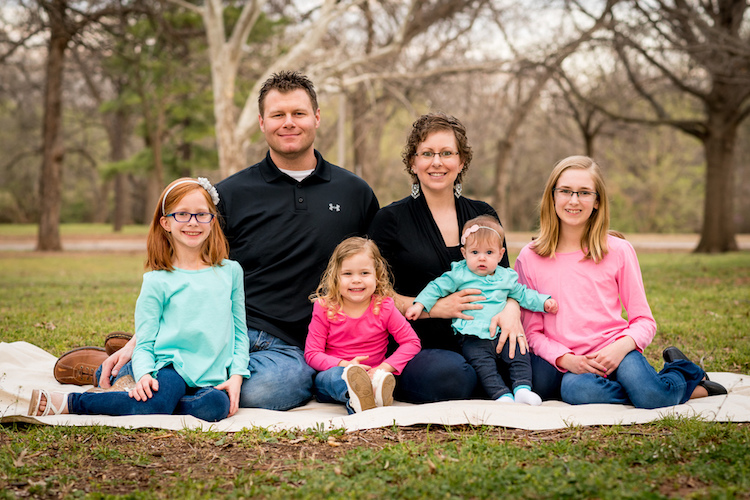
pose group portraits large family

Do the must-have shots first

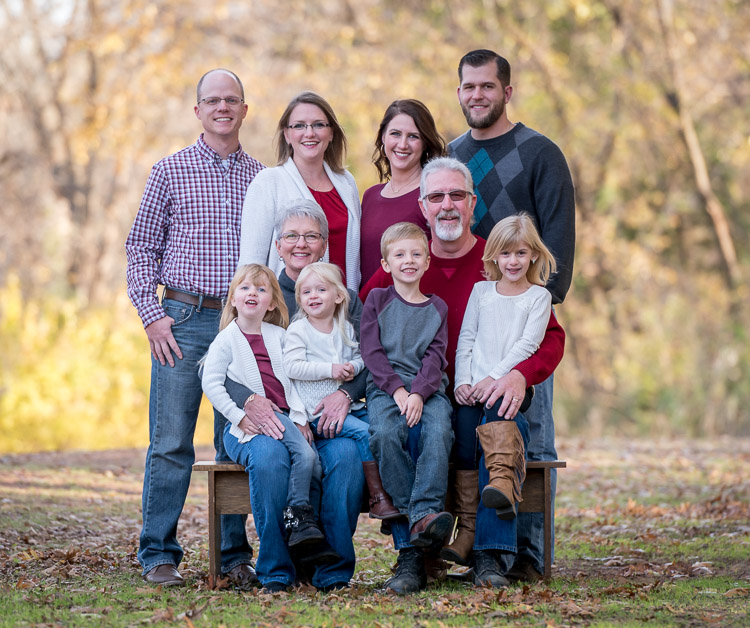
Get the must-have shots done first. These are the ones where you need the whole group in the picture, including the kids, and you need everyone to be at their best and brightest. If it’s a generational picture, put the eldest members (i.e. Grandma and Grandpa) in the middle, sitting down if possible. Surround them with kids. Put the little ones on their laps with any tweens and teens standing next to them. On the sides of the picture place the middle generation, or the children of the grandparents.

As you start taking pictures talk with the people, crack jokes, ask them to say odd things to get them laughing (e.g. “On the count of three everybody say Pepperoni and Pickles!”). In the process, you will not only get the little ones to produce genuine smiles, but the adults usually will too.

Keep it comfortable

Throughout the session, whether there are kids or not, you want your subjects to be comfortable with you and with each other so don’t make them do things that feel awkward or unusual. If you’re working with adults, have them stand up with their hands around their loved ones. (Position hands on backs, not wrapped around waists, or else you end up with floating fingers that look unflattering and unusual).

Use the scenery for seating or to stagger the heights of your subjects in order to get more interesting pictures. If women are on the edge of the frame (outer edge of the group) have them put one hand on their hip with the elbow out.

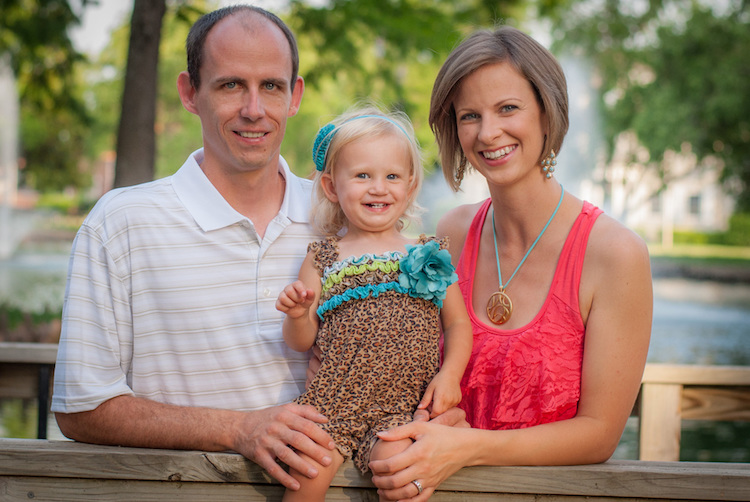
pose family group portraits

Another tip is to put the tallest person in the center and go down in height from there, but pay attention to relationships too. You’ll notice in the group photo above that the two men are on the edge instead of the middle, which creates a somewhat concave shape to the portrait.

That was an intentional choice on my part since the two young women are daughters of the couple sitting on the bench. I deliberately chose to break a posing rule because I wanted to emphasize the relationships present in the picture, which is something you need to keep in mind when posing for group photos.

pose-groups-for-photos-large-family-living-room

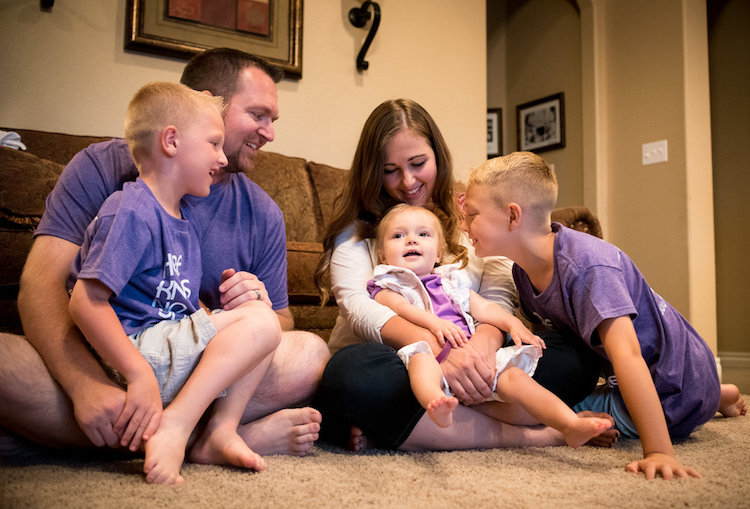
For this picture, I was more concerned with capturing a sense of emotion and family bonding than pixel-perfect posing.

Technical stuff

In terms of raw technical details, know that you need a decently fast shutter speed to freeze motion. So even if your group is standing relatively still I recommend using a shutter speed of 1/125th of a second to minimize blur that often happens due to moving hands or blowing breezes.

As a general rule, I like to shoot at f/4 or smaller (remember that larger f-numbers mean smaller apertures) to get a wider depth of field. Shooting at f/2.8 might give you a nice blurry background, but it could also mean someone in the group will be out of focus due to a shallow depth of field. Finally, off-camera speedlights can be a great way to compensate for harsh or dim lighting and help eliminate shadows on faces.

Finally

One final tip that comes in handy when doing group sessions is to have a shot list prepared with their actual names if possible instead of just placeholder pronouns like Mom, Grandpa, Little Sister, etc. You don’t want to get back to your computer and realize you forgot a crucial shot because you were too focused on getting the hand placements correct.

I hope some of these tips are useful for you, and I’m eager to know what techniques you have found to be helpful in your own shooting too. Leave your thoughts in the comment section below, and may you live long and prosper.

googletag.cmd.push(function() {
tablet_slots.push( googletag.defineSlot( “/1005424/_dPSv4_tab-all-article-bottom_(300×250)”, [300, 250], “pb-ad-78623” ).addService( googletag.pubads() ) ); } );

googletag.cmd.push(function() {
mobile_slots.push( googletag.defineSlot( “/1005424/_dPSv4_mob-all-article-bottom_(300×250)”, [300, 250], “pb-ad-78158” ).addService( googletag.pubads() ) ); } );

The post How to Pose People for Group Portraits by Simon Ringsmuth appeared first on Digital Photography School.


Digital Photography School
 
Comments Off on How to Pose People for Group Portraits

Posted in Photography


How to Create a Dark and Moody Rembrandt-Style Portrait In Lightroom

03 Jan

Dutch artist Rembrandt Harmenszoon van Rijn is known for his dark and moody portraits, characterized by a single lighting source falling across a subject placed in front of a dark background. It’s an interesting, evocative style that is easy enough to replicate in modern photography.

There are two steps to creating a Rembrandt-style portrait. The first is to get the lighting and composition right. The second is to use Lightroom to emphasize the dark and moody feel created by the lighting.

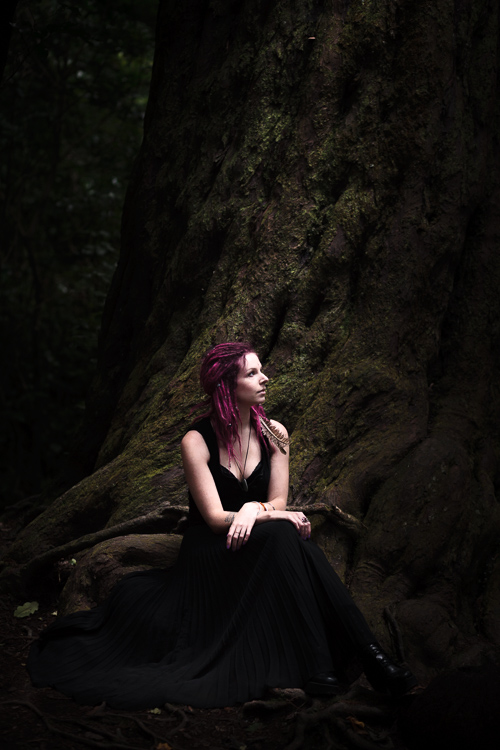
Rembrandt inspired lighting is easily achieved using natural light. The important thing is that the light is directional. Take a look at these portraits to see how it works.

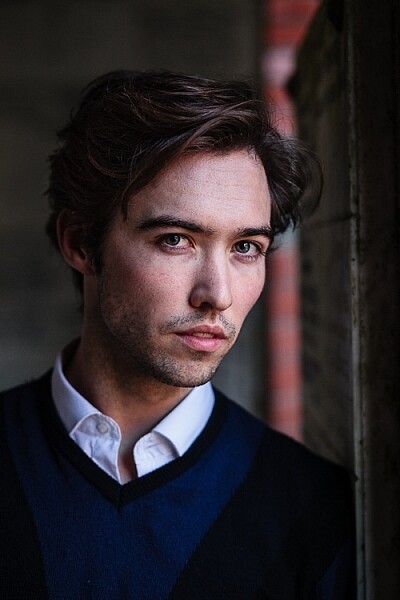
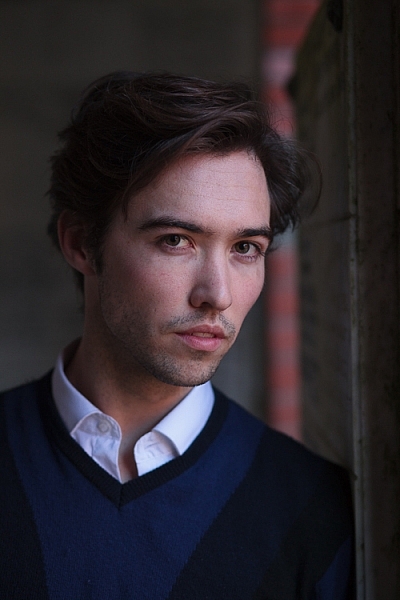
Portrait #1Rembrandt style dark and moody portrait

This portrait was taken with the model standing under an archway that was part of a local building. We took the photo on a cloudy day, so the light was quite soft and even, perfect for portraiture.

The light comes from the model’s left, through the archway, casting a shadow across his face. The right side of his face is dark because no light is coming from that side. The background is also dark because less light is falling on it.

The photo looks like it could have been taken in a studio – but the light was shaped by the archway rather than a softbox.

Rembrandt style dark and moody portraitPortrait #2

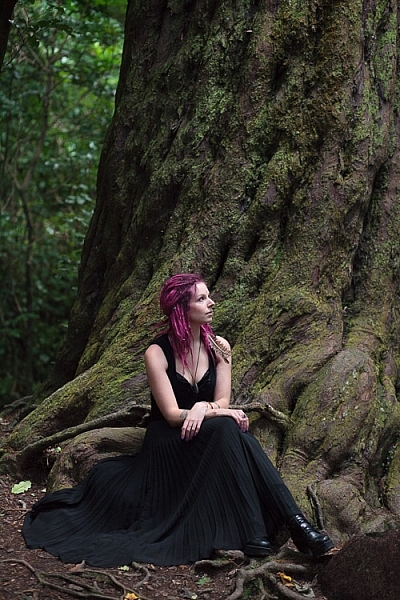
I made this portrait in a forest. The light was coming through the trees from above. It was a cloudy day, but the narrow gaps between trees meant the light was very directional. I asked my model to lift her face up towards the light so that it didn’t cast shadows under her eyes.

I selected these portraits because they are interesting from a post-processing point of view. One of them was very easy to process, and the other took a lot more work. Can you guess which one was which?

Processing Portrait #1

The first portrait was the easiest to process. Here’s the Raw file as it came out of the camera.

Rembrandt style dark and moody portrait

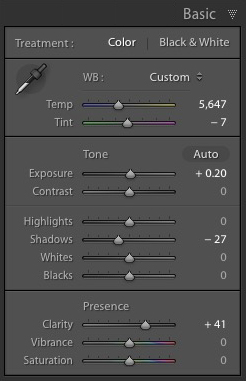
Virtually all the work for this portrait was done in the Basic panel in Lightroom. These are the main adjustments.

Rembrandt style dark and moody portrait

  • Exposure +0.20. A slight tweak to brighten the photo.
  • Shadows -27. This makes the darkest tones in the photo darker without affecting the lightest tones.
  • Clarity + 41. A global adjustment to enhance texture and details and add a gritty feel to the male portrait (a much lighter touch is required with portraits of women).

You’ll note that I didn’t use the Contrast slider to make the background darker. The reason is that the Contrast slider affects both dark tones and light tones equally. It is better to use the Highlights and Shadows sliders to control highlights and shadows separately.

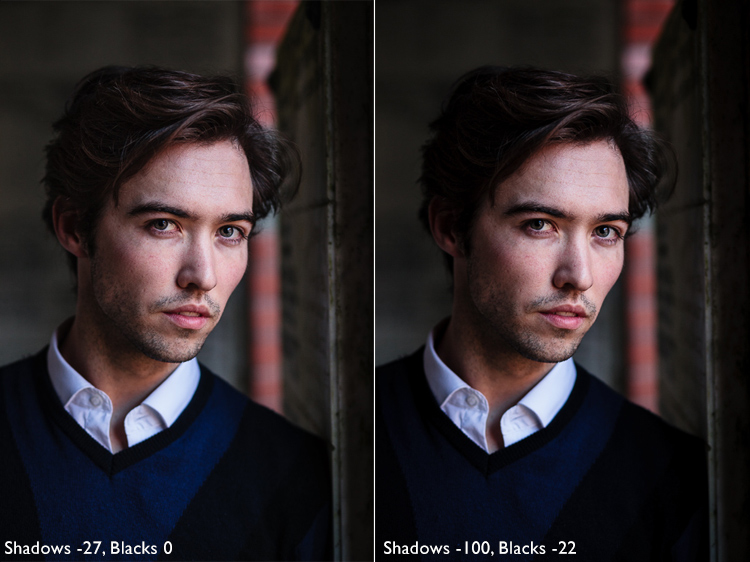
Taking control of dark tones with the Shadows slider gives you a lot of choice when it comes to setting the tonal values of the image. You can also move the Blacks slider left, although you may block up some shadow areas when you do so.

Remember, your aim is to create a dark and moody Rembrandt style portrait, so it’s up to you how dark you want to make the shadows. Here’s a comparison that shows what happens with this portrait when I push Shadows to -100 and Blacks to -22.

Rembrandt style dark and moody portrait

Local adjustments

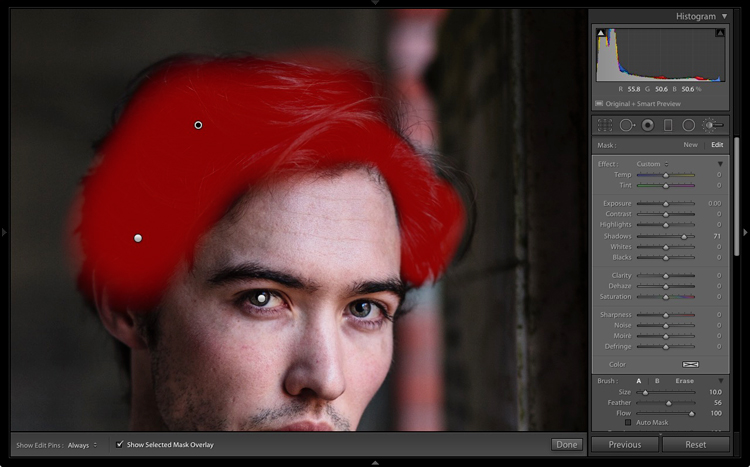
Pushing Shadows and Highlights sliders left may also darken parts of the photo that you would prefer to remain as they are. In this portrait, the model’s hair became too dark, so I used the Adjustment Brush to lighten it. This screenshot shows the mask created by the Adjustment Brush in red. I set Shadows to +71 to make his hair lighter.

Rembrandt style dark and moody portrait

Processing Portrait #2

The next portrait required more work in Lightroom. You can see why when you look at the original image as it came out of the camera, below.

Rembrandt style dark and moody portrait

While the light is coming from above, it wasn’t as directional as the processed image suggests. An image like this needs a little more work in Lightroom in order to obtain the dark background that a Rembrandt style portrait requires.

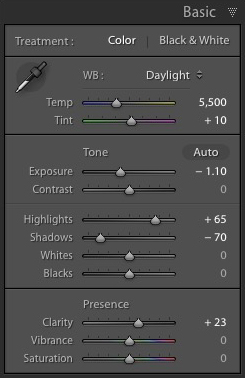
Rembrandt style dark and moody portraitI made some subtle changes by setting the following:

  • Exposure to -1.10
  • Shadows to -70
  • Highlights to +65
  • Clarity to +23

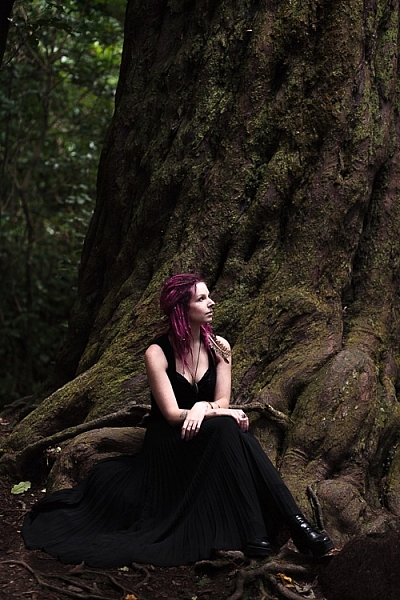
Moving the Shadows and Exposure sliders left made the entire image darker, making the background look more how I wanted. Moving Highlights to +65 then made the highlights (in other words, the model’s skin) brighter. Once again this has increased contrast, but in a way that is much more controlled than using the Contrast slider.

Here’s the result so far.

Rembrandt style dark and moody portrait

Local adjustments

Once you have achieved all you can with global adjustments, it is time to work with local adjustments. Lightroom has three local adjustment tools – the Graduated filter, Radial filter and the Adjustment Brush. It is up to you to select the tool (or combination of tools) best suited to the task in hand.

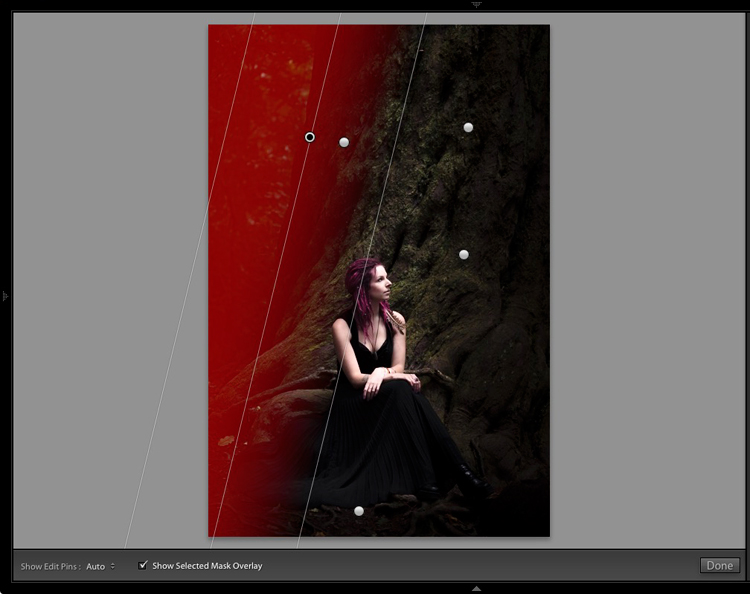
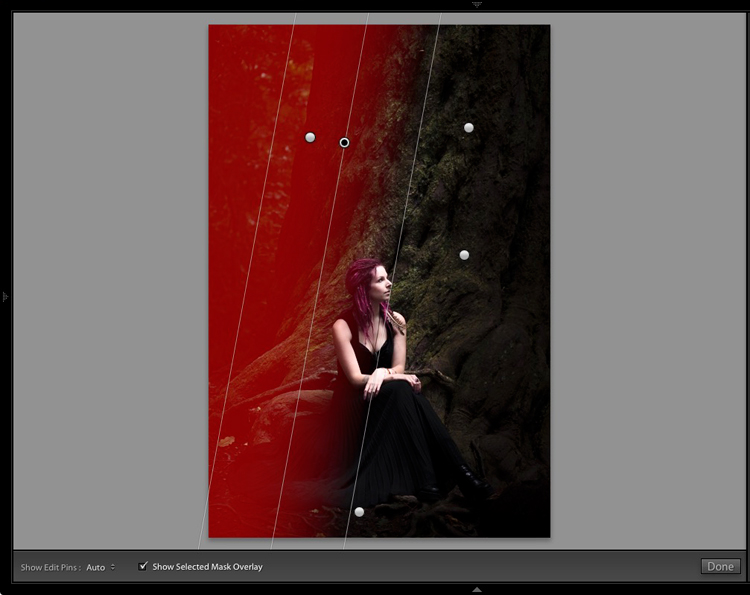
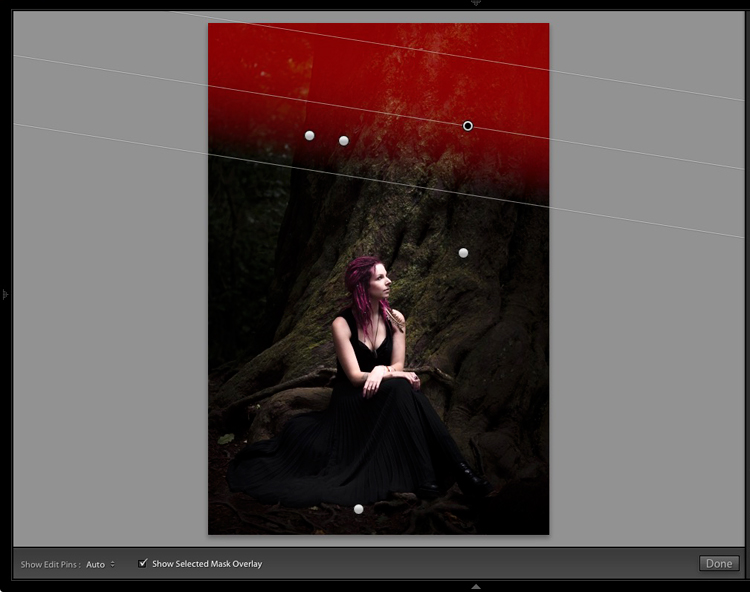
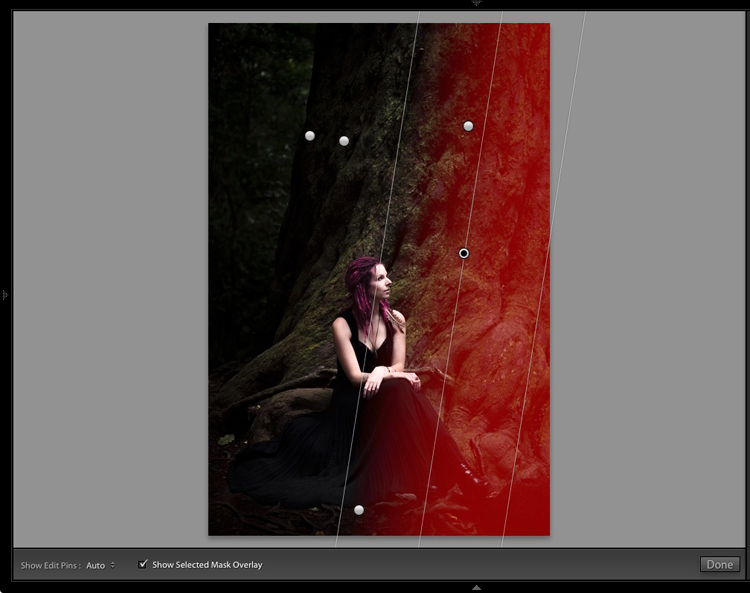
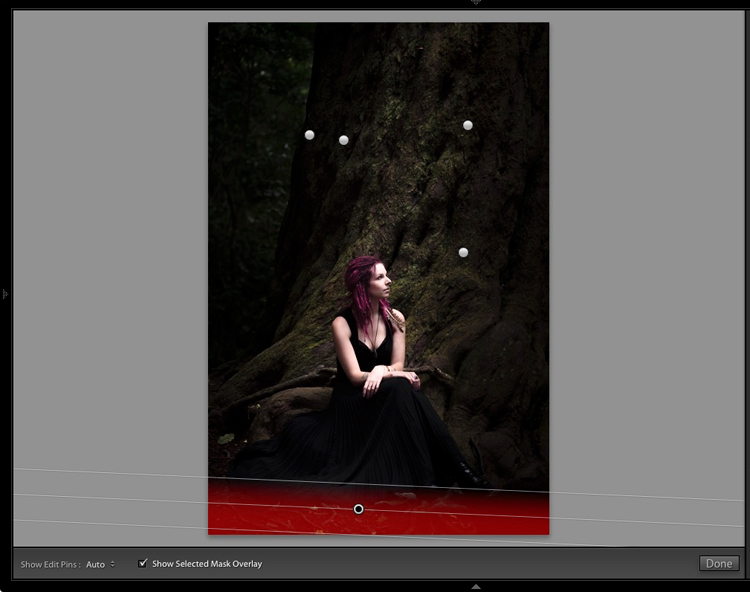
For this portrait, I applied five Graduated filters, and moved the Exposure slider left (to darken) for each one. These screenshots show where the Graduated filters I applied to the image fall.

Rembrandt style dark and moody portrait

Rembrandt style dark and moody portrait

Rembrandt style dark and moody portrait

Rembrandt style dark and moody portrait

Rembrandt style dark and moody portrait

The best way when making local adjustments is to play it by eye. Don’t be afraid to jump around between your local adjustments and tweak the settings until you get the photo looking as you wish.

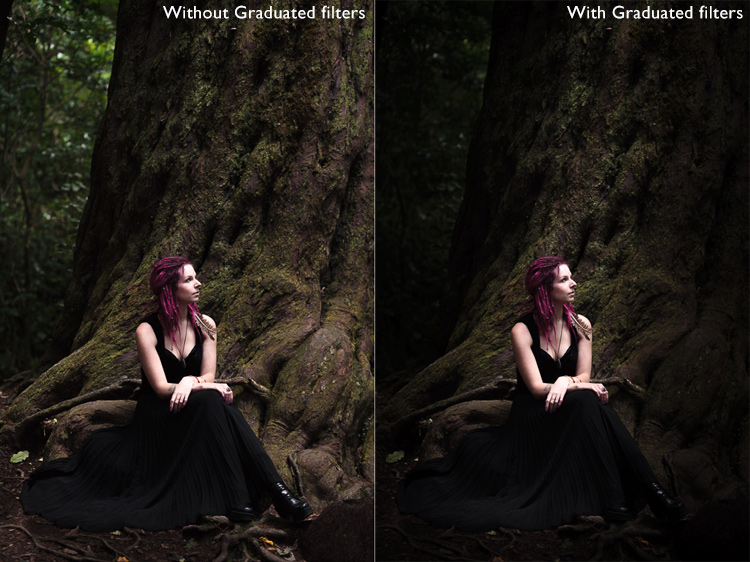
These comparisons show the difference that the Graduated filters made to the image.

Rembrandt style dark and moody portrait

Finally

The key to re-creating the style of a painter like Rembrandt in Lightroom is to analyze the type of lighting used in his portraits and think about how you can replicate that using the tools inside Lightroom. Bear in mind that the lighting is just as important as Lightroom technique. Get the lighting right and the rest should follow easily.

Do you have any questions about the Lightroom techniques used in this article? Let me know in the comments!


If you’d like to learn more about processing your photos in Lightroom then please check out my ebook Mastering Lightroom: Book Two – The Develop Module.

googletag.cmd.push(function() {
tablet_slots.push( googletag.defineSlot( “/1005424/_dPSv4_tab-all-article-bottom_(300×250)”, [300, 250], “pb-ad-78623” ).addService( googletag.pubads() ) ); } );

googletag.cmd.push(function() {
mobile_slots.push( googletag.defineSlot( “/1005424/_dPSv4_mob-all-article-bottom_(300×250)”, [300, 250], “pb-ad-78158” ).addService( googletag.pubads() ) ); } );

The post How to Create a Dark and Moody Rembrandt-Style Portrait In Lightroom by Andrew S. Gibson appeared first on Digital Photography School.


Digital Photography School
 
Comments Off on How to Create a Dark and Moody Rembrandt-Style Portrait In Lightroom

Posted in Photography


Sci-Fi to Reality: Giant Manned Robot Method-2 Has Taken Its First Steps

03 Jan

[ By SA Rogers in Conceptual & Futuristic & Technology. ]

method-2-manned-robot-main

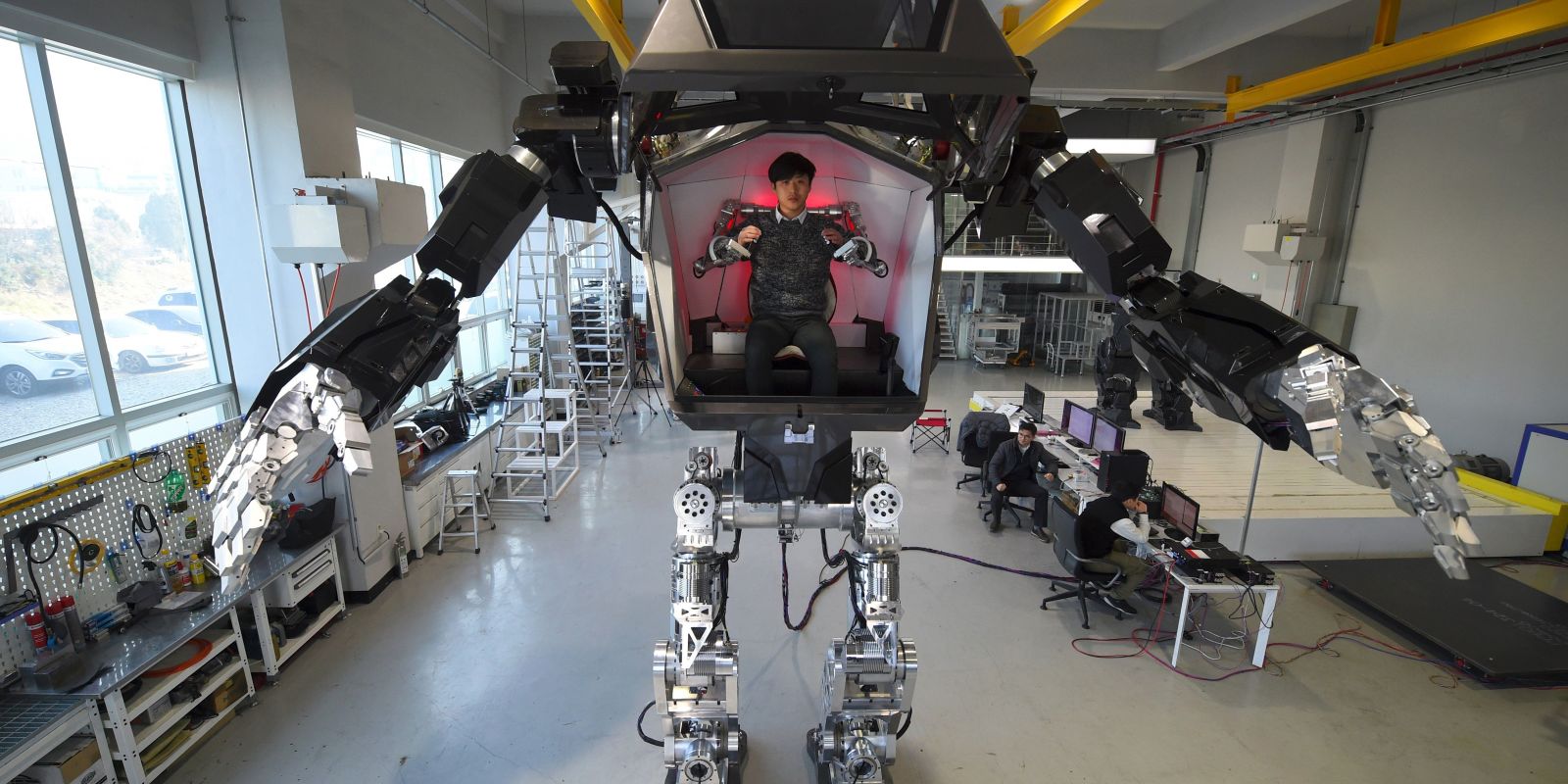
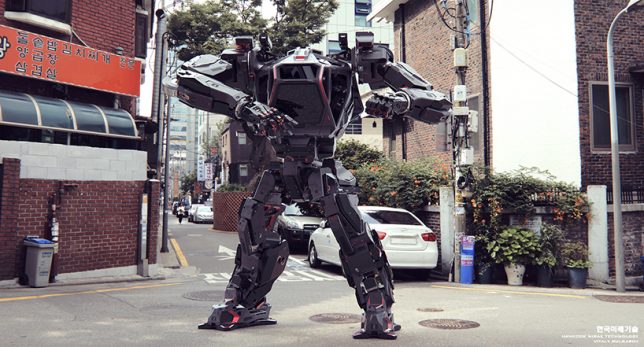
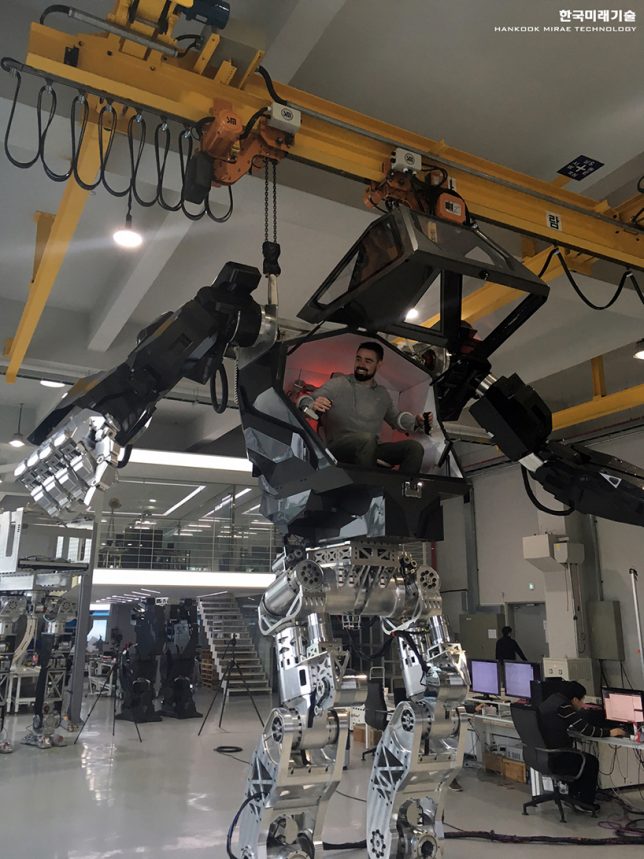
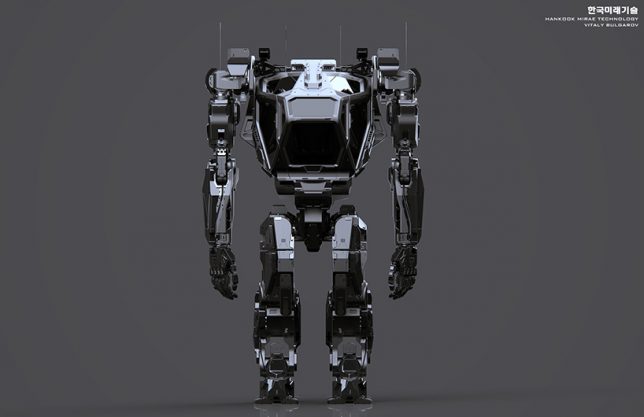
Looking and working remarkably like the robots in the 2009 movie Avatar, the 1.5-ton, 13-foot-tall ’METHOD-2’ by South Korean firm Hankook Mirae Technology has officially taken its first steps. Engineers and reporters watched the robot navigate the company’s facility on its massive mechanical legs, traversing about ten feet before reversing. It appears to be remote-controlled for this exercise, while previous videos have shown how it functions with a human ‘pilot’ sitting inside.

The idea is that METHOD-2 will be able to help people reach the kinds of hazardous destinations that are currently too unsafe to navigate, and it’s easy to imagine this thing walking down the street like a superhero after a disaster. It sounds like the company is currently working out the mechanics of the robot itself, and it’s unclear whether it’ll ultimately be able to climb over obstacles, negotiate uneven terrain or withstand harsh climates.

method-2-robot-gif

method-2-manned-robot-6

Its first planned expedition is into the space between North and South Korea known as the DMZ (demilitarized zone), the world’s most dangerous border, but it’s still got about a year of planning and tinkering to get it into shape. Right now, it requires a tether for power. Its arms weigh 300 pounds each and are controlled by the pilot’s own limb movements.

method-2-manned-robot-3

method-2-manned-robot-4

Unsurprisingly, the robot was designed by Vitaly Bulgarov, who previously worked on the Transformers films and helped design Boston Dynamics’ bipedal robots. Yang Jin-Ho, chairman of Hankook Mirae Technology, says the robot is still taking its ‘baby steps’ but ultimately aims to “bring to life what only seemed possible in movies and cartoons.”

method-2-manned-robot-5

method-2-manned-robot-7

METHOD-2 is already getting lots of interest from companies who want to purchase one, and the price tag is expected to run around $ 8.3 million. The final version is expected to be ready for potential buyers by the end of 2017.

Share on Facebook


[ By SA Rogers in Conceptual & Futuristic & Technology. ]

[ WebUrbanist | Archives | Galleries | Privacy | TOS ]


WebUrbanist

 
Comments Off on Sci-Fi to Reality: Giant Manned Robot Method-2 Has Taken Its First Steps

Posted in Creativity


Modern Markings: 42 Bold Black & White Tattoo Designs

03 Jan

[ By SA Rogers in Art & Drawing & Digital. ]

geometric-tattoos-main

Modern tattoos are less about sailors, pin-ups and ‘MOM’ and more about bold black lines, complex geometry, architecture, esoteric imagery, glitches and even blacking out entire body parts to cover up old work. These standout themes represent some of the most visually striking, imaginative and artistically challenging styles gaining popularity in recent years.

Black & White Snake Tattoos by Mirko Sara

modern-tattoos-snakes-1

modern-tattoos-snakes-2

modern-tattoos-snakes-3

modern-tattoos-snakes-4

Alone, white ink isn’t the greatest choice for a tattoo, according to many artists: it looks splotchy and uneven on all but the clearest, most evenly pale skin, fades quickly, and has a tendency to disappear into a blurry mess within a short period of time. But if you’re willing to get it touched up often to maintain it, it can be really beautiful, and it sets off black ink beautifully. Take the work of artist Mirko Sata for example – whose most common subjects are intertwined snakes.

Blackout Tattoos

modern-tattoos-blackout-1

modern-tattoos-blackout-2

modern-tattoos-blackout-4

modern-tattoos-blackout-5

What do you do when you’ve got a large number of old tattoos you want to get rid of? Laser surgery is an option for the removal of smaller tattoos, but some people get beyond that whole ‘permanent’ aspect of inking the skin in a different way. Blackout tattoos are growing increasingly popular, blocking out large areas of the body with solid swaths of black ink.

Though the lines from the old tattoo still tend to show through, and several painful sessions are often required, the look can be pretty incredible. Some people get blackout tattoos on virgin skin just for the dramatic effect. Tattooers working in this style include Chester Lee of Oddtattooer, Alex Arnautov, Simon Mora, Josh Stephens and Kenji Alucky.

White Ink Over Black Work

modern-tattoos-white-over-black-1

modern-tattoos-white-on-black-3

modern-tattoos-white-over-black-4

modern-tattoos-white-over-black-5

modern-tattoos-white-over-black-6

Fresh white ink applied over healed blackwork can also be a fun way to cover up old mistakes, and the contrast is pretty incredible right after it’s applied. Subjects have to sit for as many as five sessions to go over the white ink to make it opaque enough to stand out, and it can take years to finish a single piece. Artists who have experimented with this process include Esther Garcia, Nathan Mould, Ruslan Batyrbaev and Wayne Fredrickson.

Architectural Designs

modern-tattoos-architectural-mxm

modern-tattoos-architectural-haight-ashbury

modern-tattoos-architectural-victorian

modern-tattoos-architectural-church

modern-tattoo-architectural-thieves-of-tower

thieves-of-tower-2

thieves-of-tower

Architecture can be a particularly striking tattoo theme, especially when it takes up large areas of the body. Artist Maxime Buchi of M-X-M has tattooed traditional Russian architecture across people’s backs, arms, legs and chests, and someone loved Haight Ashbury enough to get imagery of the famous San Francisco intersection inked onto their body by the tattoo studio of the same name. Dmitriy Tkach depicted a Victorian house with roots wrenched from the ground like a plant, while Wang Lei designed an intricately shaded classical church. Thieves of Tower, appropriately enough, often tattoos spindly towers onto their subjects.

Next Page – Click Below to Read More:
Modern Markings 42 Bold Black White Tattoo Designs

Share on Facebook


[ By SA Rogers in Art & Drawing & Digital. ]

[ WebUrbanist | Archives | Galleries | Privacy | TOS ]


WebUrbanist

 
Comments Off on Modern Markings: 42 Bold Black & White Tattoo Designs

Posted in Creativity


Around the world in 10 videos: 2016 Field Tests

02 Jan
DPReview’s Carey Rose, doing what he does best. Staring at women. In this case, rodeo Queens at a rodeo in Nyssa, Oregon, during a DPReview Field Test of the Canon EOS-1D X Mark II.

DPReview has been around the world in 2016, from the deserts of the Southwest to the lush jungles of Mexico’s Yucatan Peninsular. We’ve used everything from enthusiast compacts to high-end professional DSLRs, and along the way we’ve met some amazing photographers. 

Click here to See our full series of Field Test videos

You can check out the full series at the ^ link ^ right ^ there ^ but in this article, I want to take you back through the ten videos that we’ve published this year, and hopefully in the process, let you share a little in some of the sights, the sounds and the smells of DPReview’s Year in Field Tests. OK, not the smells, but definitely the other things.

Before we continue, I am legally obligated to let you know that all of the videos featured on this page are sponsored content, made possible with the support of Amazon and the manufactures featured in the videos. Click here for more information about DPReview sponsored content.

All clear? OK then – let’s watch some videos!

February: Sony Cyber-shot RX100 IV in the Yucatan

Shot at the end of last year, this Field Test, featuring Sony’s Cyber-shot RX100 IV was one of our most ambitious. Mexico’s Yucatan Peninsular is a beautiful place, full of amazing scenery, vivid history, and corner shops that sell antibiotics over the counter to weak-stomached gringos. 

We took advantage of all of these things during our trip, and as a bonus, you get to see me try to speak Spanish. Just be grateful for what you don’t get to see me doing.

March: Canon PowerShot G5 X on the Olympic Peninsula

Even on a grey weekend in early spring, the Olympic Peninsular is still a stunningly beautiful place. In this video, featuring the Canon PowerShot G5 X, DPReview writer Carey Rose spent a couple of days bro-ing down hard with local photographer and keen fisherman Kyle Johnson.

A little bit of trivia for you – this video actually breaks the world record for most amount of plaid featured in the least amount of screen-time. If you have trouble telling some of the men in this video apart from one another, don’t worry – so do I, and I know all of them.

April: Claire Bangser and the Olympus PEN-F

In April, we headed to Mississippi with the Olympus PEN-F, where Editorial Manager Wenmei Hill joined New Orleans-based photographer Claire Bangser on the Blues Trail. Claire and Wenmei spent a couple of days on the trail, photographing the local sights and people of the area. And yes – they used all the Art Filters. 

May: Shooting stars with the Nikon D810 & D810A

In May, we cast our eyes skywards. In this Field Test, DPReview’s Dale Baskin joined astrophotographer José Francisco Salgado in Death Valley, for a celestial shoot with Nikon’s D810 and D810A. One of the things I like most about this video is the way that José says ‘stars’. It’s hard to explain – you’ll just have to watch it.

May: Building a kayak with the Canon EOS 80D

While Dale was star-gazing in Death Valley, I was closer to home, learning how to make a traditional Greenland-style skin-on-frame kayak, in Seattle. I documented the entire process using the Canon EOS 80D. I’m proud to say that despite the countless mistakes, including several holes drilled in the wrong place, Aril still floats.  

July: DPReview goes to the rodeo with the Canon EOS-1D X Mark II

From slow, methodical action to fast, energetic action. In July, we drove down to Nyssa Oregon, with Canon’s professional flagship DSLR, the EOS-1D X Mark II, to cover the annual ‘Nite Rodeo’. This one is worth watching just for the sight of me and Carey wearing cowboy hats. Quote of the trip, from a rodeo spectator: ‘Y’all sure as hell don’t look like cowboys’. 

September: Shooting Action with the Nikon D5

DPReview’s Technical Editor Rishi Sanyal is a super-nerd. Given a chance, he’ll talk your ear off about everything from signal-to-noise ratio to smart lightbulbs. But what he’s probably most nerdy about is autofocus. In this video, featuring the Nikon D5, Rishi gets to indulge his AF obsession for almost 15 minutes. You’re welcome, Internet.

October: Birds in flight with the Nikon D500

In October, we traveled to Montana with the Nikon D500, to join wildlife photographer and friend to the wolves Ronan Donovan, at a nature reserve. It was a short, packed shoot, the dubious highlight of which was when I got dive-bombed by a hawk.

Fun fact: this is the only DPReview Field Test to feature a moose.

Wedding photography with the Fujifilm X-T2

Guemas Island is a tiny dot on a map of the Pacific Northwest, but it’s one of the most beautiful spots for a daytrip, weekend getaway, or a wedding. In this Field Test, Carey and Wenmei took the Fujifilm X-T2 to Guemas Island to document a very special day. Carey really covered himself in glory on this one, by forgetting to shoot Raw.

Dog Portraits with the Sony a6300

They say that dogs are man’s best friend. They also say you should never work with animals. Who are ‘they’ anyway, and where do they get their sayings? We may never know. In this video, Sam Spencer took Sony’s a6300 to a dog adoption shelter, to shoot some professional portraits of their canine residents. I’ll remember this shoot because it was the closest I’ve ever come to adopting an animal. See if you can spot which dog melted my heart.

Anyway – this video is cute. You should show it to your mum.

Subscribe to DPReview on YouTube, and never miss a new video


All of the videos featured on this page are sponsored content, made possible with the support of Amazon and the manufactures featured in the videos. What does this mean?

Articles: Digital Photography Review (dpreview.com)

 
Comments Off on Around the world in 10 videos: 2016 Field Tests

Posted in Uncategorized