RSS
 

Archive for January, 2017

Inverted Roofs: Bowl-Shaped Rain Collectors Naturally Cool Desert Homes

13 Jan

[ By WebUrbanist in Architecture & Public & Institutional. ]

rainwater-roof-system

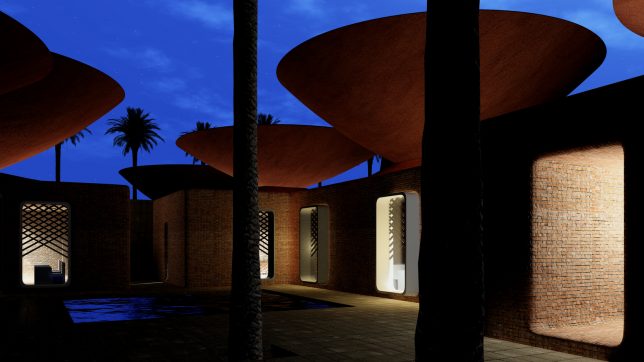
Iranian architects have developed a Concave Roof system to collect rainwater in arid climates with low precipitation, helping cool buildings in hot and dry regions of the world. The water can in turn be filtered for drinking or integrated into interior graywater systems.

roofs-at-night

These systems help reduce reliance on artificial air conditioning (or work were it is unavailable). They could ultimately help keep people in their home regions who might otherwise have to move due to climactic changes.

roofs-from-above

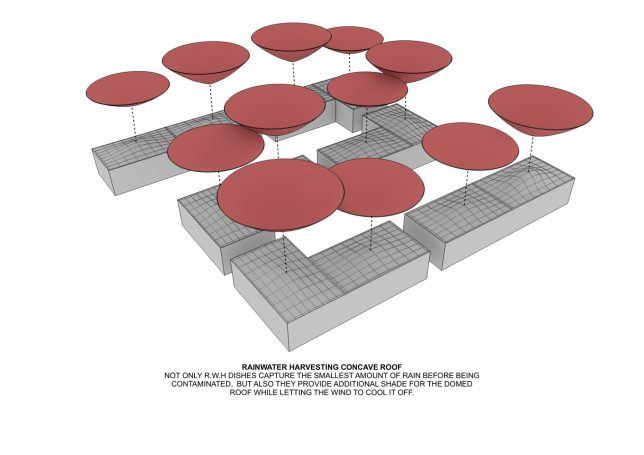
BMDesign Studios’s addresses rapid evaporation with the bowl-shaped roof additions, designed to channel even the smallest amounts of accumulated rain, coalescing them into drops big enough to harvest before they evaporate.

desert-roof-bowls

These inverted shells also provide shade while allowing air to pass between upper and lower roofs, acting as a cooling system in the process.

roof-in-arid-climate

wall-reservoir

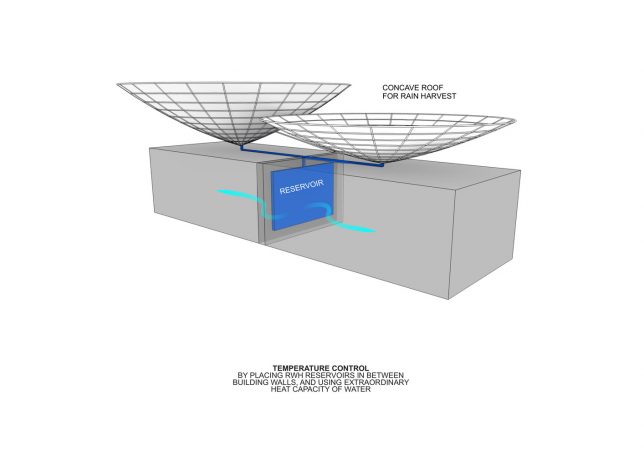
Reservoirs tied into the system are situated between building walls to take advantage of the thermal capacity of the water to regular interior temperatures.

concave-roofs

sunken-courtyard

circulation

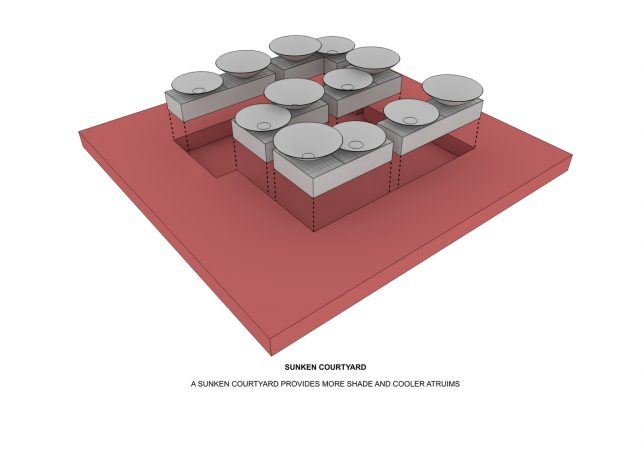
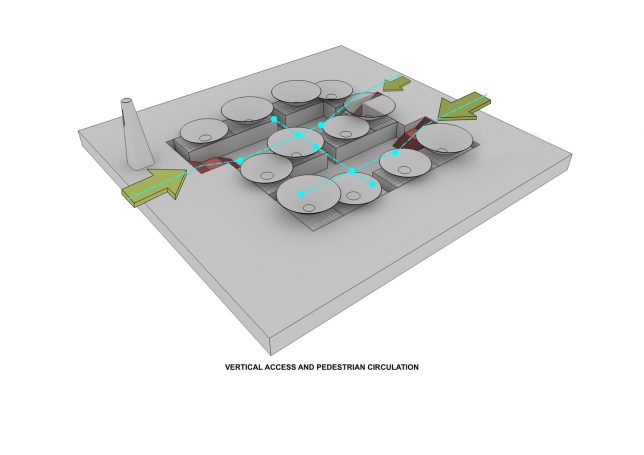
The courtyard and circulation spaces are also sunken to further cool the complex. Temperatures are higher and precipitation in parts of Iran is as much as 2/3 lower compared to global averages, so every drop counts.

Share on Facebook


[ By WebUrbanist in Architecture & Public & Institutional. ]

[ WebUrbanist | Archives | Galleries | Privacy | TOS ]


WebUrbanist

 
Comments Off on Inverted Roofs: Bowl-Shaped Rain Collectors Naturally Cool Desert Homes

Posted in Creativity


Company behind Lily drone shuts down despite $34m worth of pre-orders

13 Jan

When the Lily camera drone was announced in May 2015 it garnered a lot of attention for being one of the first drones capable of flying itself and tracking a user while capturing video footage for up to 20 minutes. As a consequence the company managed to secure $ 15 million in investment and an additional $ 34 million in pre-orders.

However, today the founders of Lily have announced in a letter and email to customers that the start-up is shutting down operations because it failed to raise additional funding to start production of its drone. The founders promise to reimburse all pre-order customers within the next 60 days.

“We have been racing against a clock of ever-diminishing funds,” wrote the company’s co-founders, Henry Bradlow and Antoine Balaresque. “Over the past few months, we have tried to secure financing in order to unlock our manufacturing line and ship our first units – but have been unable to do this. As a result, we are deeply saddened to say that we are planning to wind down the company and offer refunds to customers.” 

The Lily drone was launched with a pre-order price tag of $ 499 and scheduled to ship in February 2016. Shipping was later delayed until summer and then again to early 2017. In the same time frame tracking drones from DJI, Zero Zero Robotics and Yuneec have all been brought to market successfully.

Articles: Digital Photography Review (dpreview.com)

 
Comments Off on Company behind Lily drone shuts down despite $34m worth of pre-orders

Posted in Uncategorized


Initial impressions of the Manfrotto Spectra LED Light 500S

12 Jan

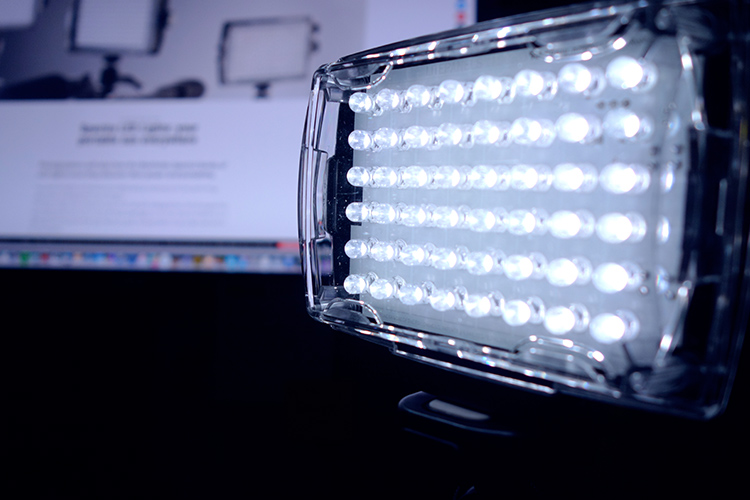
I wanted a small portable LED for video work primarily to either pop on the hot shoe of my camera or use on a light stand off camera. I also really like the white light emitted from a LED source. So I purchased the Manfrotto Spectra LED 500s.

Manfrotto Spectra LED 500S

The portable Manfrotto Spectra LED 500S

Why did I purchase it?

LEDs are becoming more popular in photographers’ studios where continuous lighting is used. The main advantages of LEDs are they don’t get hot, unlike tungsten or incandescent lights. Another important factor is that LEDs use less power (watts) per unit of light generated (lumens). So they are extremely eco-friendly.

In this article, I will describe my initial impressions of using the Manfrotto Spectra 500s light for photography. I haven’t had it for long enough to give it a more comprehensive review.

Most of my work is location based, so portability is essential and plays an important role when choosing my photography gear. Nothing irks me more than going to a shoot and feeling like some poor-beast-of-burden overloaded with camera equipment!

I could have purchased a cheaper similar model off Amazon. However, I sourced online with a local company that had it in stock. I got this particular model at a discounted price and more importantly if I had any problems with the light I could easily return it with minimum fuss. Plus, I have built a trust with the brand over the years.

Disclaimer: I bought this Manfrotto Spectra light. I wasn’t sponsored to write this article. The opinions expressed in this article are mine alone.

What’s in the box?

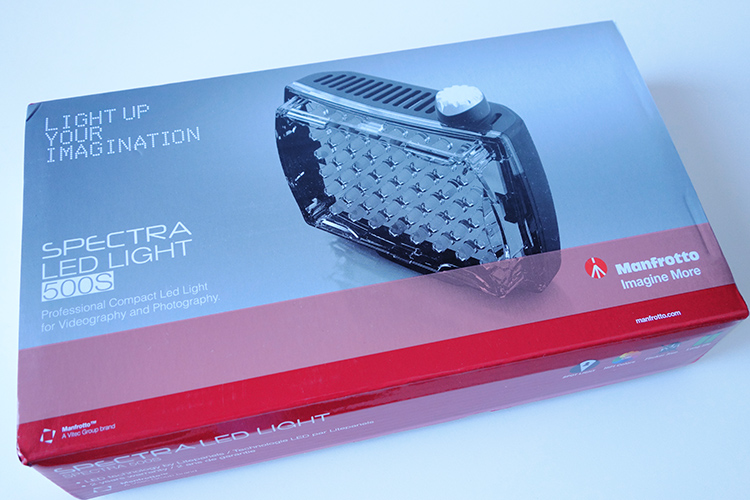
manfrotto-spectra-light-box

The Manfrotto Spectra LED 500s box

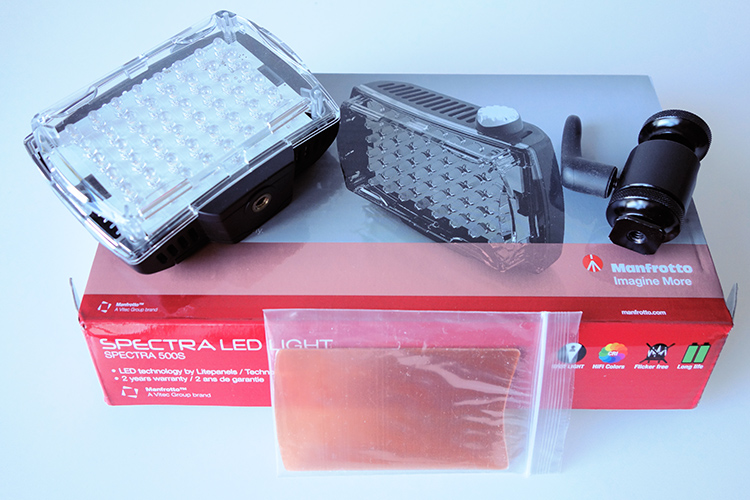
The unit itself is really compact and measures 3.7 x 4.4 x 1.7″ (including the on/off knob). It has one power switch which also acts as a variable dimmer, very cool. It is daylight balanced at 5600 Kelvin. Also included with each light is a set of filters, including one ¼ CTO, one ½ CTO, and one opal diffuser. It also comes with a ball head shoe mount.

Manfrotto Spectra LED 500s in the box

The Manfrotto Spectra LED 500s light comes with 2 CTO gels and one opal diffuser. It also comes with a ball head adapter for mounting on a hotshoe or tripod.

I did find this mini ball head adapter a bit clunky to use. I had to fiddle with the lever to release the tension to get it to move and then lock it back in place. Not ideal when you’re on a shoot, time is of the essence, and you just want your equipment to work effortlessly.

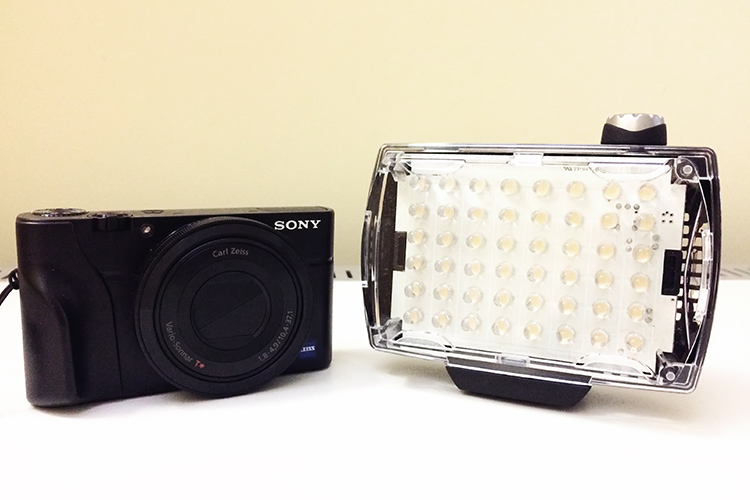
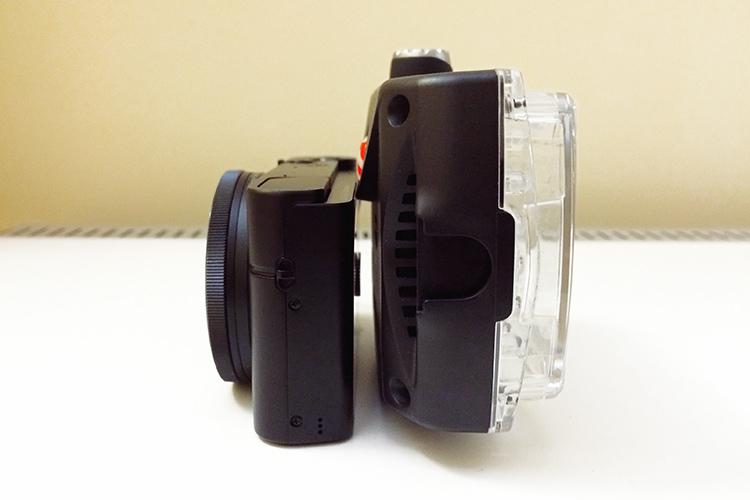
This unit is slim and very compact, as you can see in comparison to my Sony RX100 camera (below).

Manfrotto Spectra LED 500s Sony RX100

Side by side size comparison of the Manfrotto Spectra 500s LED Light with the Sony RX100.

Manfrotto Spectra LED 500s size

The Manfrotto Spectra LED 500s is quite compact and slim.

How is it powered?

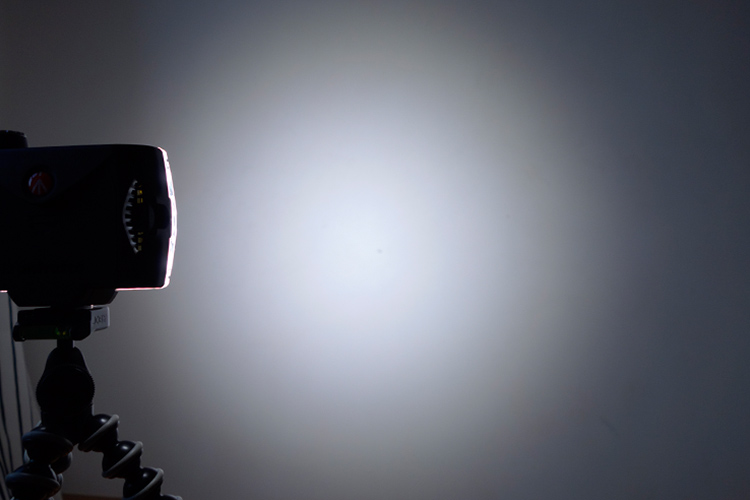
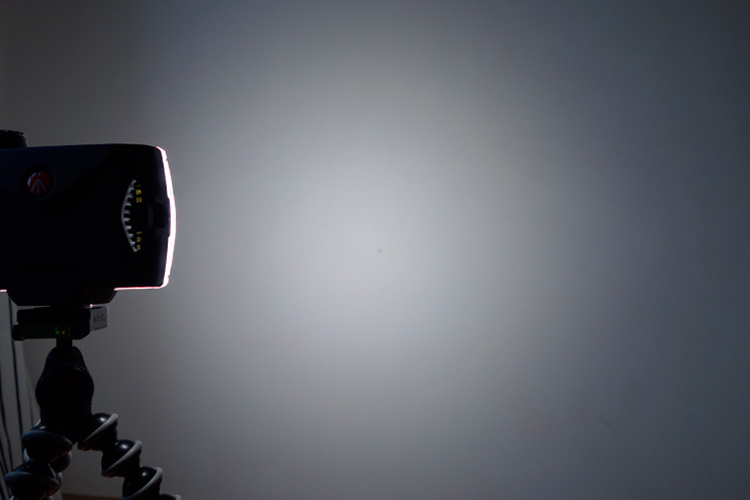
This little unit, the 500S is the smallest in the range of five models by Manfrotto. The S stands for spot, as a beam of light emits at a 30-degree angle. It produces 300 lux at one meter. The Spectra 500s takes four Alkaline AA batteries. It is simple to use, turn the knob to switch it on. It is also dimmable which makes really useful to control the amount of light being powered.

Rechargeable AA and Lithium-Ion AA batteries can be used as well. It can also be powered by an AC adaptor (ADAPTOR12V0.5A) to use through the mains. I can’t see myself bothering with this but the option is there. You can also purchase an adaptor (Manfrotto  L7.2V-Battery Adapter) which mounts at the back of the spectra unit and uses Sony L-Type batteries. Again, another alternative.

 Manfrotto Spectra LED 500s

The Manfrotto Spectra LED 500s on full power at one meter.

lighter-cto-gel

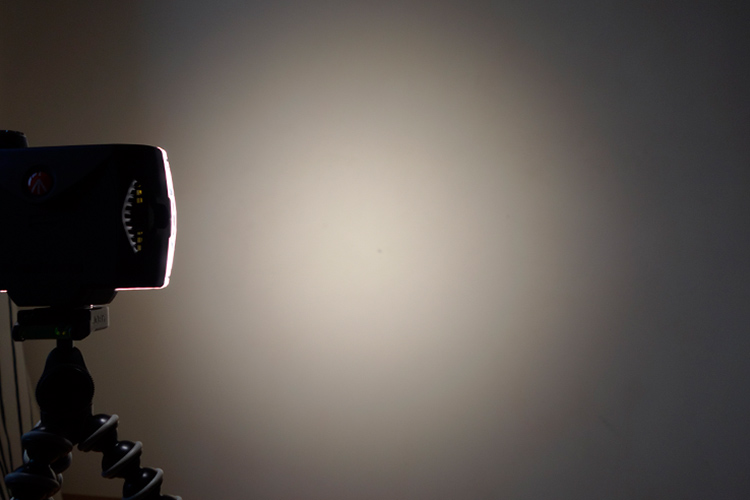
Here, the the 1/4 CTO gel has been applied over the light.

 Manfrotto Spectra 500s LED

The Manfrotto Spectra 500s LED light with a CTO gel.

 Manfrotto Spectra 500s LED opal diffuser

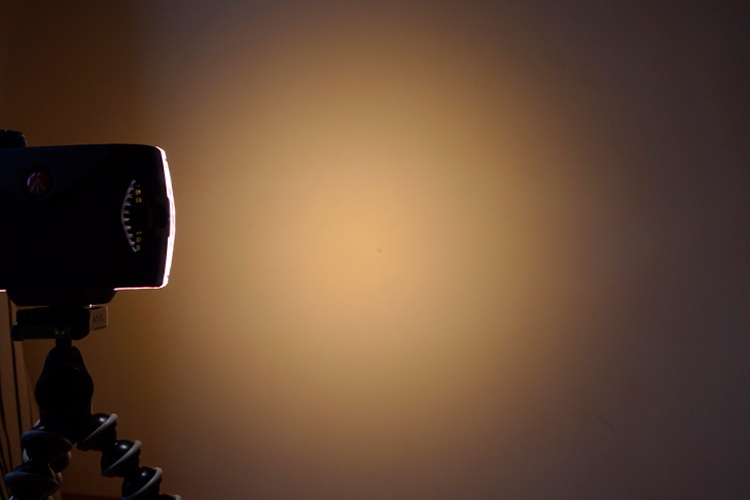
The Manfrotto Spectra 500s LED light with the opal diffuser.

LED versus flash lighting?

To see how using speedlights fared against this little LED I did a quick test. I didn’t set out to pitch one light source over the other, as that would be like comparing apples to oranges. I only wanted to get a comparison to see the results.

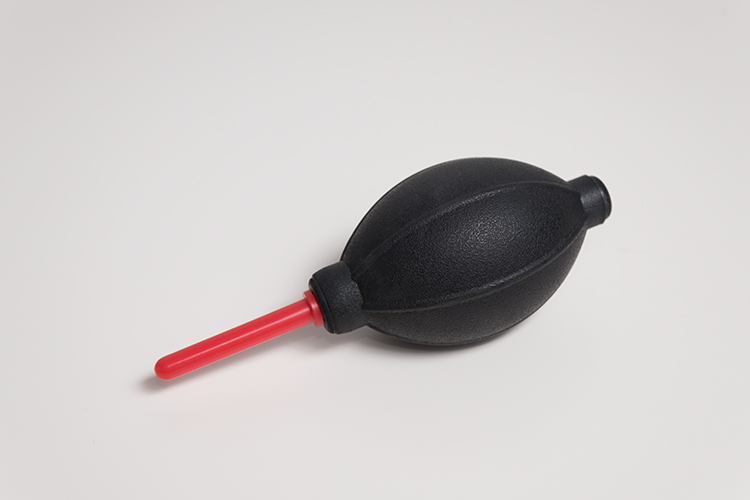
The speedlight is way more powerful, I know that. For the shot below, I used a speedlight with a shoot through umbrella, which was about two feet away from the subject at an angle of 45 degrees. The power on the flash was only at 1/8th power. I kept the ISO the same at 200 for both. Shutter speed was at 1/60 second and the aperture was f/7.1.

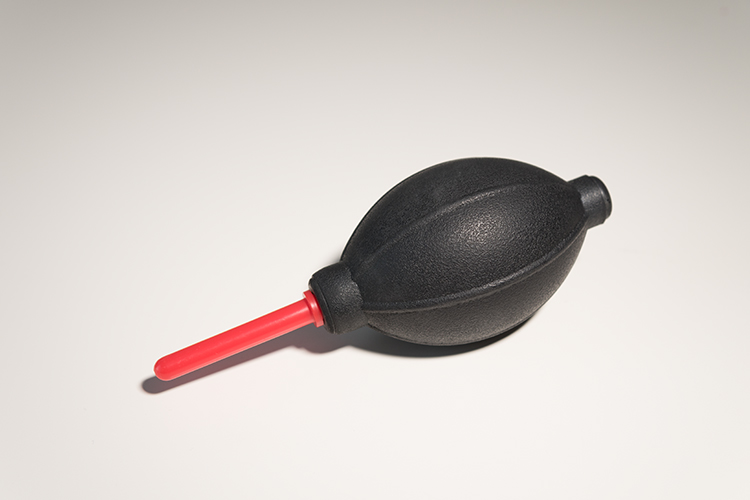
In contrast to the Spectra light, I had the light switched to full power and I had to get really close, 10-12 inches away from the object. The camera settings were 1/15th of a second at f/5.6. I didn’t put a diffuser on the Spectra light as a result, there is a harsh shadow under the air blower.

speedlight versus Manfrotto Spectra 500S LED

This was shot using flash with a speedlight.

Manfrotto Spectra 500s LED

This was shot using the Manfrotto Spectra 500s LED light.

What to look for when choosing LED lights

First, CRI (color rendering Index) is important when choosing an LED light. The closer it is to 100, the more ideal it is. Less than 90 is considered not great. The Manfrotto Spectra LEDs claim >90. What does this really mean? Natural light is classified as having a CRI of 100, the best possible.

Secondly, make sure the LED is flicker free.

Pros of LED lights

  • Extremely portable
  • Lightweight and compact, even with the batteries
  • Easy to use
  • Don’t overheat
  • Can be used for both video and photography
  • Great for small product shots
  • Handy in low light conditions
  • As it is a portable continuous light source, this makes LED lights ideal for beginners to learn about how light affects the subject/model
spectra-light-unde-pendant-shade

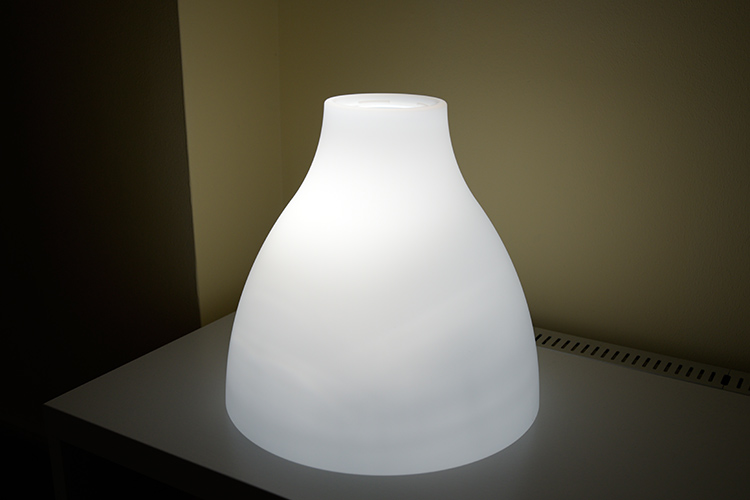
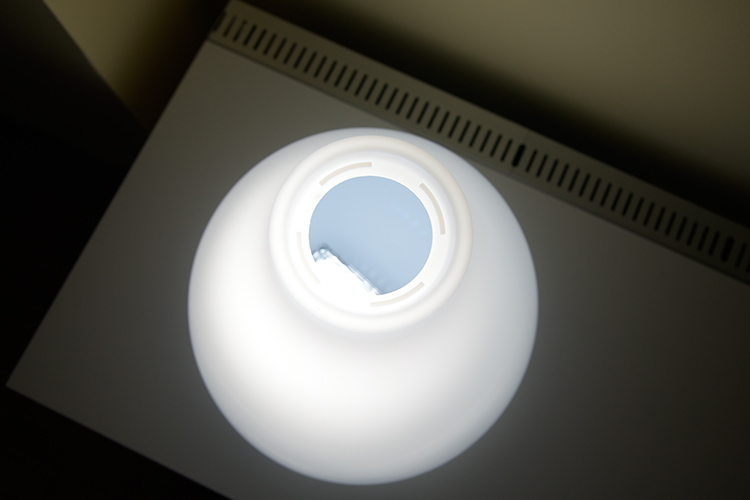
I put the Spectra light inside this pendant shade. This is where the LED light could come in handy by mimicking other light sources to create atmosphere or mood in your shot.

spectra-light-in-shade

I just placed the Spectra LED LIight under this shade to see how effective it could be to mimic another light source to add atmosphere in your shot.

Cons

  • A little pricey, unless you get a discounted price
  • The white light may not be appealing to some – but the gels included compensate for that
  • The mini ball head adaptor is clunky and fiddly to use – not a deal breaker but annoying nonetheless
  • Not powerful enough in some situations where there is a lot of ambient light to balance against.

Conclusion

As I stated at the beginning of this article I set out to describe my initial impressions so far to date. As this is a very recent purchase, I have yet to test it out fully. But so far I give it 3.5 stars out of five. This may seem a bit harsh but I took a half star away for each of the following:

  • The mini ball head adapter is quite cumbersome to use.
  • It’s fairly expensive compared to other similar less expensive models.
  • This light is not really powerful enough in certain situations and other cheaper models are more powerful.

In terms of photography use, LEDs are terrific and so easy to use. The Manfrotto Spectra 500S is the smallest but not as powerful as its siblings in the Spectra range. That said, I won’t be putting away my speedlights just yet.

So, if you are new to LEDs lights and you would like to test them out for your photography. Check out my article here on how to use an inexpensive LED flashlight to take shots.

Do you use LED lights in your photography? Please leave a comment below, and tell us more.

googletag.cmd.push(function() {
tablet_slots.push( googletag.defineSlot( “/1005424/_dPSv4_tab-all-article-bottom_(300×250)”, [300, 250], “pb-ad-78623” ).addService( googletag.pubads() ) ); } );

googletag.cmd.push(function() {
mobile_slots.push( googletag.defineSlot( “/1005424/_dPSv4_mob-all-article-bottom_(300×250)”, [300, 250], “pb-ad-78158” ).addService( googletag.pubads() ) ); } );

The post Initial impressions of the Manfrotto Spectra LED Light 500S by Sarah Hipwell appeared first on Digital Photography School.


Digital Photography School

 
Comments Off on Initial impressions of the Manfrotto Spectra LED Light 500S

Posted in Photography


Improve Your Photos with the Very Best Photo Editing Apps

12 Jan

We snap photos so fine, we don’t need editing apps … but every now and then a photo needs a touch of sharpening, or a cooling filter, or a clip art robot, just to spruce it up.

Who are we kidding? We’re obsessed with editing apps. And so are you – we asked!

Read along to see our favorite editing apps, and the favorites of all of our followers.

You’ll be a pro editor in no time, whether you snap perfect pics or not.

(…)
Read the rest of Improve Your Photos with the Very Best Photo Editing Apps (638 words)


© laurel for Photojojo, 2017. |
Permalink |
No comment |
Add to
del.icio.us

Post tags:


Photojojo

 
Comments Off on Improve Your Photos with the Very Best Photo Editing Apps

Posted in Equipment


Throwback Thursday: the Panasonic GH1 – mirrorless video arrives

12 Jan

Last week at CES Panasonic officially unveiled its newest flagship model, the DC-GH5, a video/stills hybrid camera that looks to be an indie filmmaker’s dream. To see just how far we’ve come, for this week’s TBT we decided to take a look back at where it all began: the Panasonic DMC-GH1.

The GH1 was announced way back in March, 2009, a few months after Panasonic’s first mirrorless camera, the G1. The G1 delivered on the promise of a mirrorless ILC system, but despite all its advances it lacked support for video. Fast forward a few months and Panasonic gave us the GH1 – essentially a G1 with video features added.

It’s hard to remember now, but back then there weren’t many ILCs that captured video. The best known was the Canon 5D Mark II, which was famous for its full-frame depth of field and low light capabilities. Although it was based around a smaller Four Thirds sensor, GH1 quickly became a favorite of the video crowd thanks to its compact size, excellent video specs, and (relatively) good codec.

The camera shot 1080/24p as well as 720/60p video. (1080/24p video was actually encapsulated in a 1080/60i wrapper.) 1080/24p was a magic number for video enthusiasts and indie filmmakers, and thanks to the camera’s multi-aspect sensor it was possible to capture a lens’s full angle of view when shooting video in 16:9 format.

Although the camera’s 1080p footage was competitive with other cameras from the era, I can tell you from first-hand experience that it tended to fall apart quickly if the image was too complex or involved a lot of motion, thanks to the 24 Mbps AVCHD codec. On the other hand, 720p footage generally held up much better, and that’s actually how I ended up shooting the camera most of the time.

720/30p video shot on the Panasonic GH1. Yep… we used bagpipers for our video test. Crank up the volume for your neighbors.

Of course, one advantage we had back then was that most people weren’t actually viewing content on HDTVs or at 1080 resolution online, so it was a reasonable tradeoff. Heck, I even did a bit of commercial work for a client using the GH1’s 720p footage, and they loved it.

When it came to stills, the GH1’s 12MP photos held up well against APS-C cameras of the time, such as the Canon EOS 500D (Rebel T1i). On the other hand, its performance left a little to be desired: from power on to taking a photo took 1.3 seconds. The camera could manage a respectable 3.3 fps of continuous Raw shooting… up to a total of 4 frames before the buffer filled up.

Perhaps what I really loved most about the GH1, and part of the reason it got so much traction in the market, was the virtually universal lens mount of the Micro Four Thirds system. This was particularly important to videographers and filmmakers as it allowed us to utilize virtually any glass we could lay our hands on with the system, a fact I took full advantage of by attaching all my old Nikkor primes to the camera with adapters. Crazy times, I tell you.

With a launch price of $ 1499 (including the 14-140mm F4.0-5.8 kit lens) the GH1 seemed expensive at the time. In that context, the $ 1999 price for the GH5, which can run rings around the GH1 in its sleep, doesn’t seem too far out of line.

I have a GH1 sitting on my desk as I write this. I may have to charge up the battery and do a shootout against the GH5 as soon as we get it back in.

For a blast from the past, read our full review of the Panasonic GH1

Articles: Digital Photography Review (dpreview.com)

 
Comments Off on Throwback Thursday: the Panasonic GH1 – mirrorless video arrives

Posted in Uncategorized


How to Swap Colors in Photoshop – Two Methods Explained

12 Jan

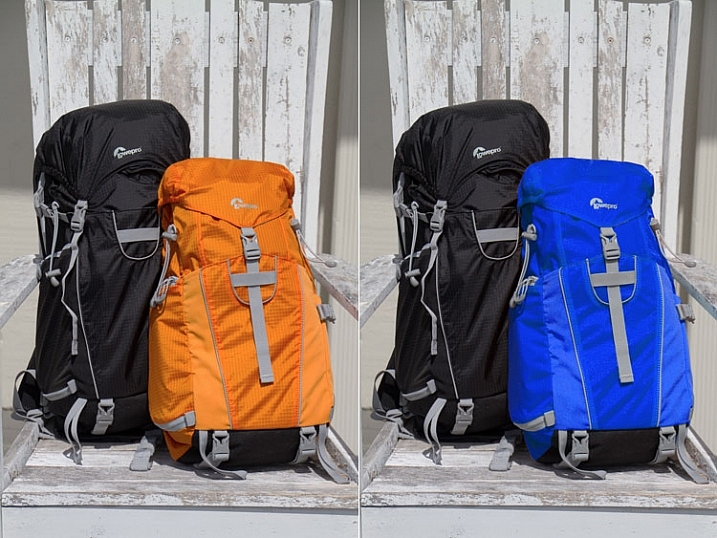
Color swapping in Photoshop is both a fun thing to do and a very handy tool for product photographers with clients in need of options. It’s not a hard technique and it only takes a try or two to get it right. This article outlines two methods for how to swap colors in Photoshop.

final-side-by-side-color-swap


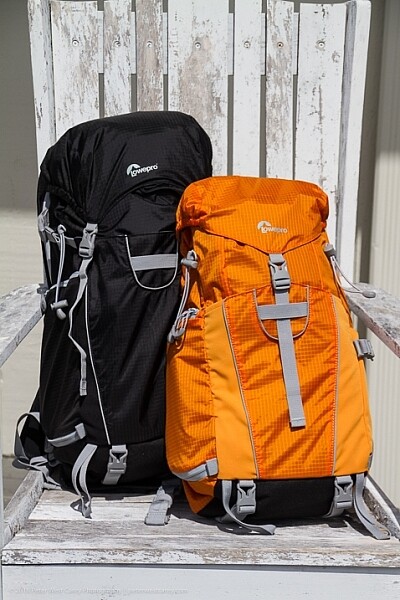
The first is a quick method and the second tends to do a better job. I’ll be using this the image below from my review of the Lowe Pro Photo Sport 100/200 AW bag. This demonstration was created with Photoshop CC 2017.

The Quick Method

This method is a quick color swap that may or may not cover your needs. If your subject has nice, solid colors without very much tonal difference, you can likely use this method by itself. Go ahead and open your file in Photoshop and let’s get started!

How to Swap Colors in Photoshop - Two Methods Explained

Sample Image

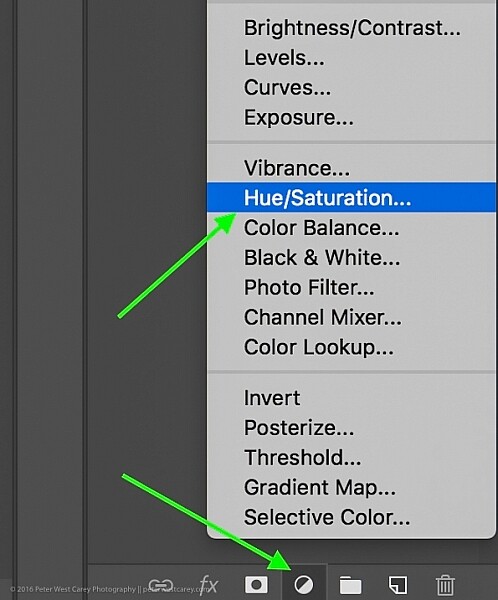
Step #1 Create a Hue/Saturation Adjustment Layer

Click on the “Create New Adjustment Layer” button on the bottom of the Layers panel and choose “Hue/Saturation”.

How to Swap Colors in Photoshop - Two Methods Explained

Choose Hue-Saturation

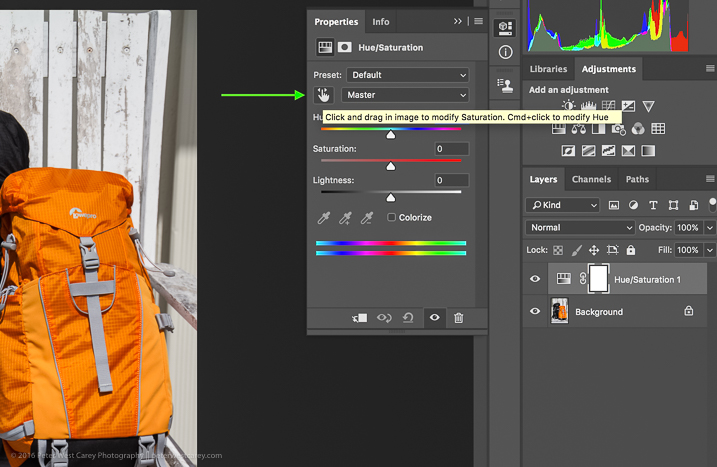
In the Properties window that pops up, there is a little hand with a pointer finger in the upper left side of the box. Click that.

How to Swap Colors in Photoshop - Two Methods Explained

This is where my method deviates from some others. As you can see in the image above, there is an option to hold Cmd/Ctrl as you drag the mouse, and change the Hue straight away.

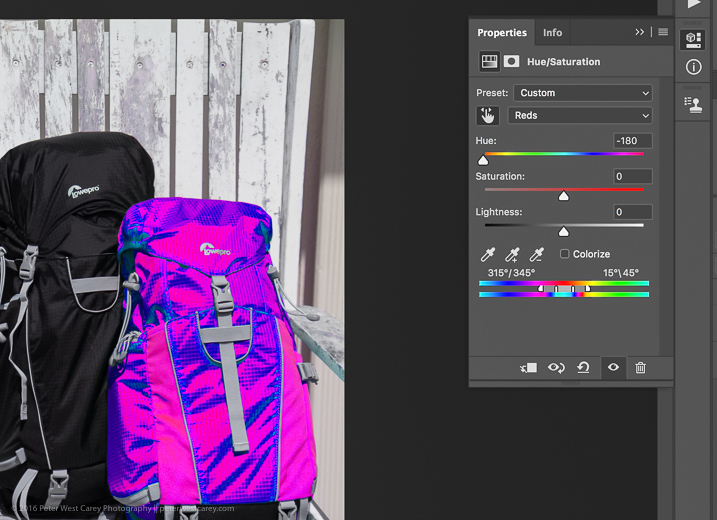
This is a tempting method, for sure. But it won’t always get you as close to your desired results as if you follow the rest of these instructions. For instance, I used that method to try to change the orange pack to blue and this was the result.

How to Swap Colors in Photoshop - Two Methods Explained

Not what I wanted. So….

Step #2 – Select a color range

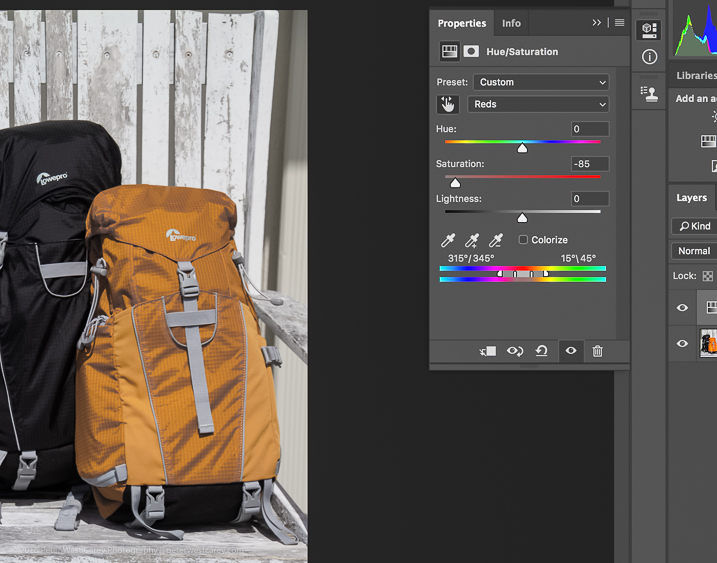
After you click that little finger and hover over your source color (the orange bag), click there to select the color. Your screen will change depending on which color you pick, but more or less it will look a little like this.

How to Swap Colors in Photoshop - Two Methods Explained

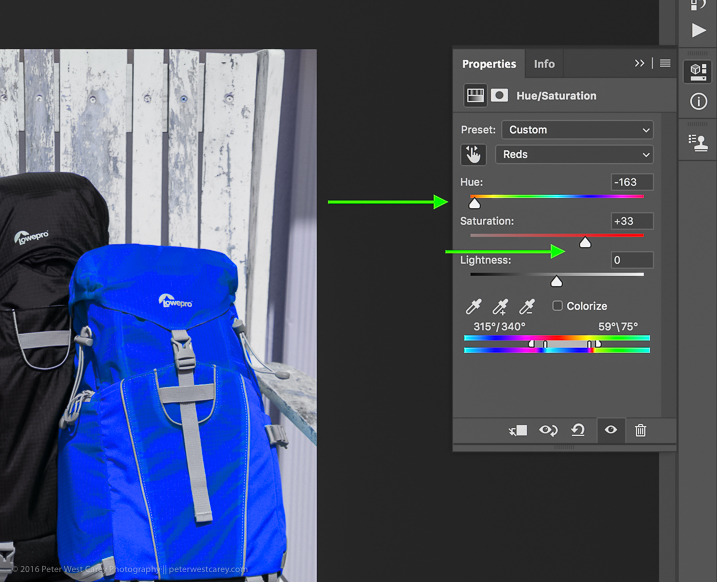
I chose a dark spot so my saturation for all orange dropped and now there is a little slider in the color bands at the bottom of the properties box. You will be using those bands and the saturation slider to refine your selection.

Step #3 – Adjust to get all the color

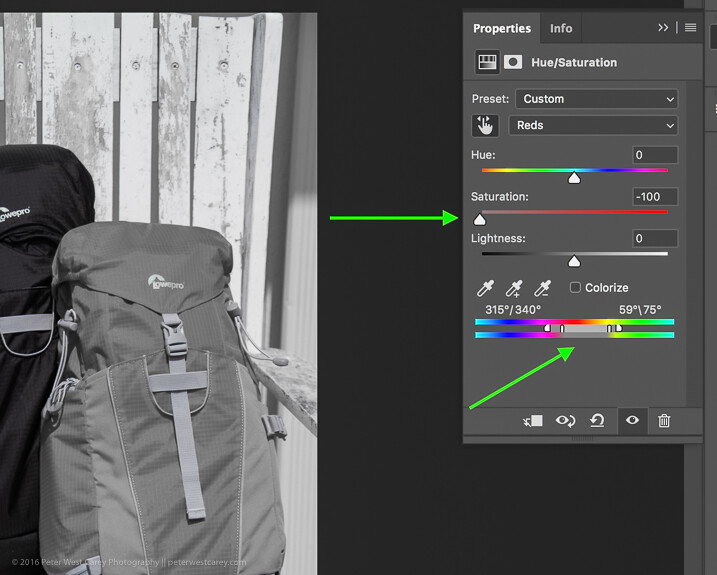
To know you have the right colors you want to work with, move the Saturation slider all the way down, essentially turning off the source color. If that doesn’t get all the color you want, move the little white bands on the color slider on the bottom until it captures all your source color.

How to Swap Colors in Photoshop - Two Methods Explained4

Move Saturation to -100, and adjust the bands (bottom green arrow) left or right, or apart, until there is no more of the selected color showing.

Can you see how that lighter gray box on the sliders at the bottom is larger (they were moved farther apart) in this image compared to the one above? That is to make sure I gobbled up all the orange, including some reds and yellows. Fiddle with this option to capture all your source color.

Step #4 – swap the color for a new one

Now that you know you have the right source color, jack up the Saturation slider then move the Hue slider until you get a color you like.

How to Swap Colors in Photoshop - Two Methods Explained

If you’re looking for quick and easy, you are essentially done! Save the file with a new name and you’re good to go.

But wait! Things aren’t as good as they could be with this method. For one thing, there is now a slight tint to the entire image as the mask was applied to the entire image. Let’s clean that up a little.

Method #2 for swapping colors

Method #2 picks up where Method #1 left off and continues:

Step #5 – Apply a layer mask

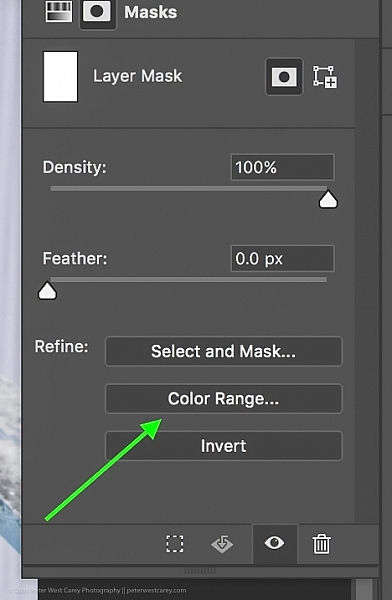
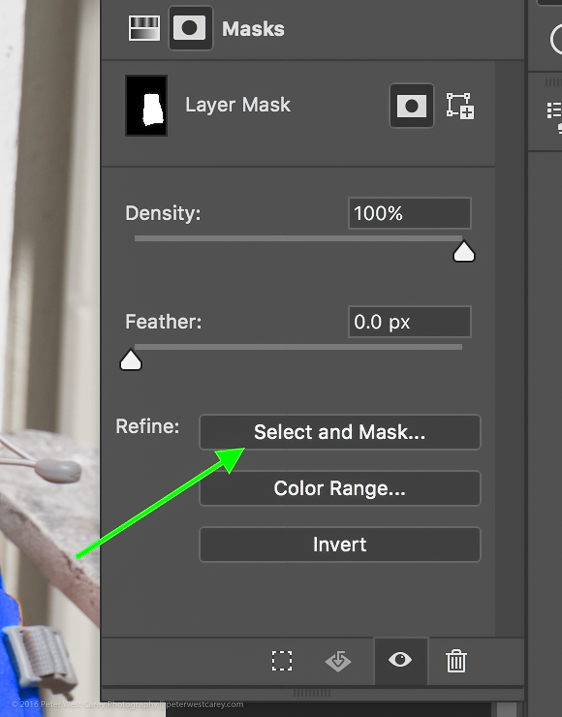
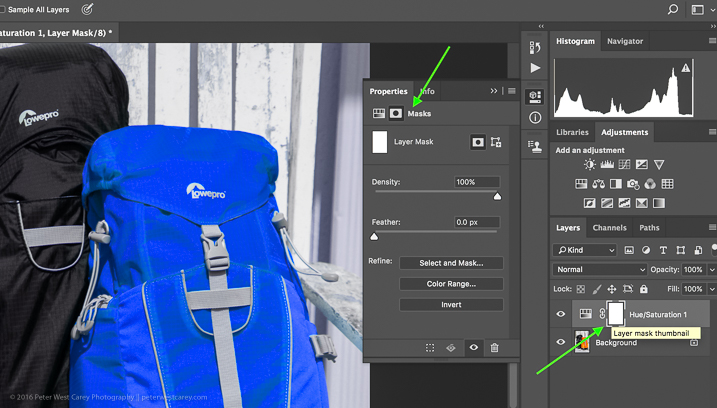
In this step, you want to apply a mask to the Hue/Saturation adjustment layer (seen on the right side of the layer) just to the backpack so it doesn’t tint the whole image. Click on the layer mask and the information panel will change to show mask options.

How to Swap Colors in Photoshop - Two Methods Explained

Choose “Color Range…” from the “Refine” options at the bottom.

How to Swap Colors in Photoshop - Two Methods Explained

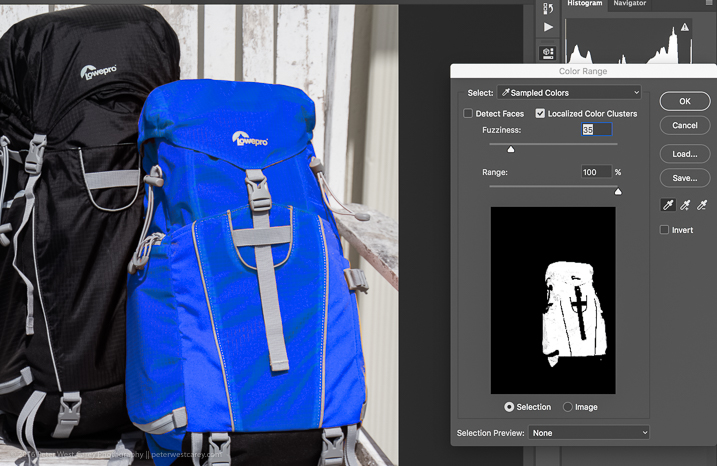
This should bring up a mask with the color range you have already selected and changed in the steps above. Your mask should show the area of color you are swapping as white, like so:

How to Swap Colors in Photoshop - Two Methods Explained

Click OK to apply the layer mask.

Step #6 – Refine the layer mask

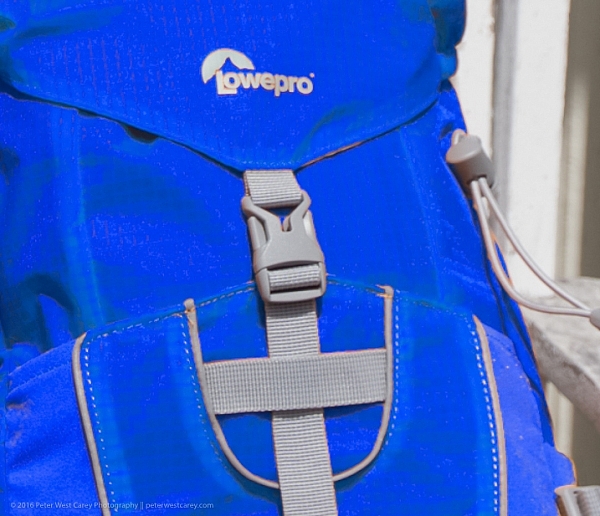
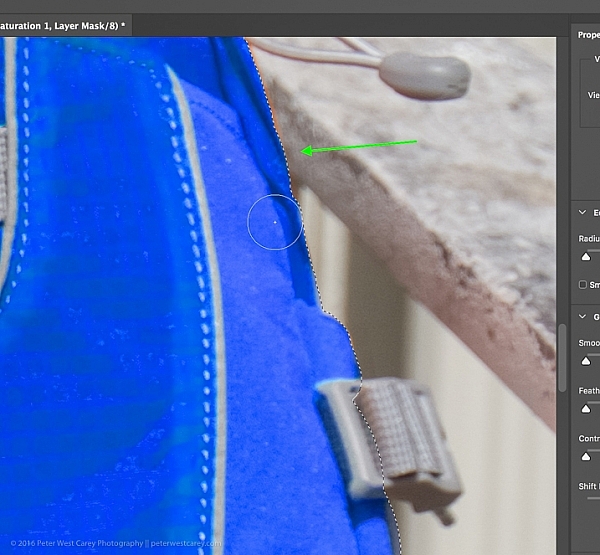
Now you need to refine the layer mask just a little as Photoshop is not always perfect. Take a look close in my example and you can see some orange peeking through.

How to Swap Colors in Photoshop - Two Methods Explained

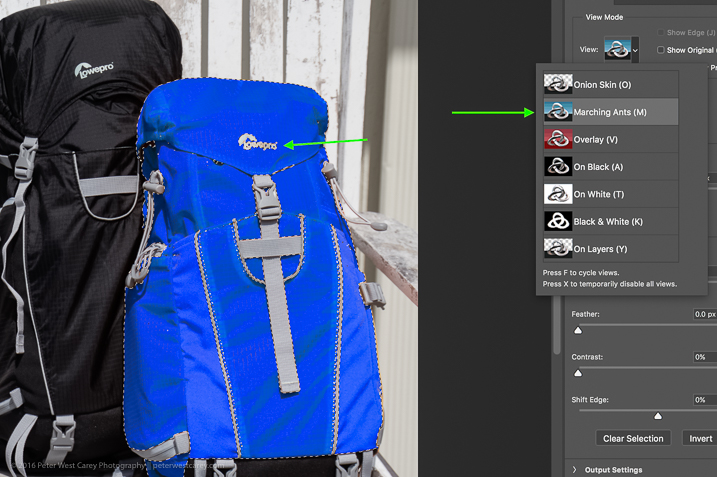
To eliminate this effect, click on “Select and Mask”, once again in the “Refine” options area.

How to Swap Colors in Photoshop - Two Methods Explained

Choose to use the “Marching Ants” View to make it easy to find the missing areas.

How to Swap Colors in Photoshop - Two Methods Explained

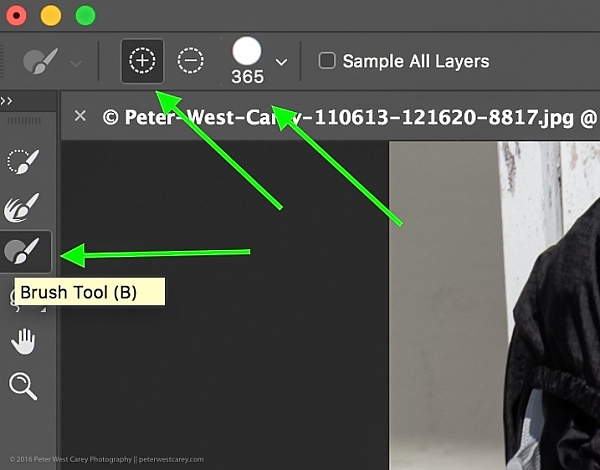
Then in the upper left corner, choose the Brush Tool and make sure the “add” feature (+) is selected. Lastly, choose a radius size to make the selecting easy. In this case, I used 365.

How to Swap Colors in Photoshop - Two Methods Explained

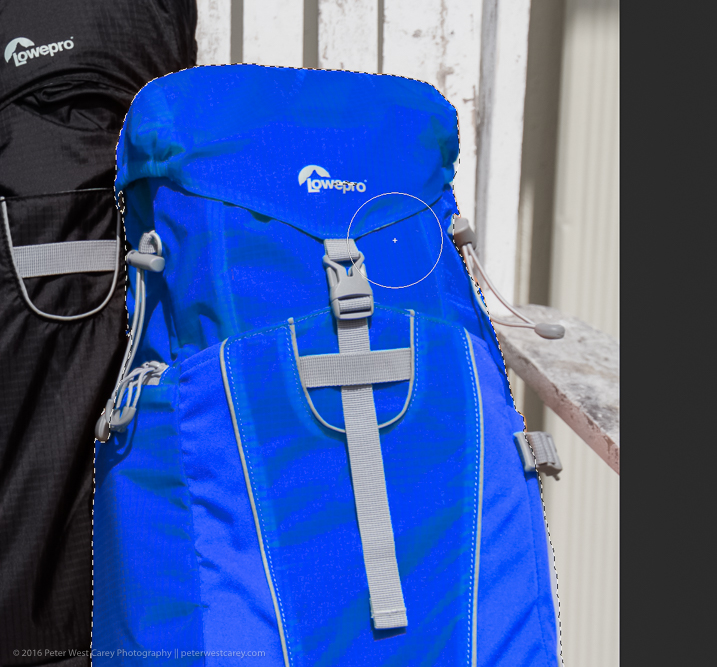
Now paint all over the area you want to change to the new color. It’s okay to go slightly over the edges to ensure all of the color is changed. If you are making drastic changes or if your background color will interfere, you may need to be more careful with your painting.

How to Swap Colors in Photoshop - Two Methods Explained

Zooming in, you can see that I missed some edges here and there and overlapped a little too much. Take your time and make it look good.

How to Swap Colors in Photoshop - Two Methods Explained

You can also see in the image above that there is still an orange cast on the armrest of the chair. To make the scene complete, I’ll swap that color as well.

Click OK when you are finished painting in the area to swap. You’re just about done!

Step #7 – Layer blend mode

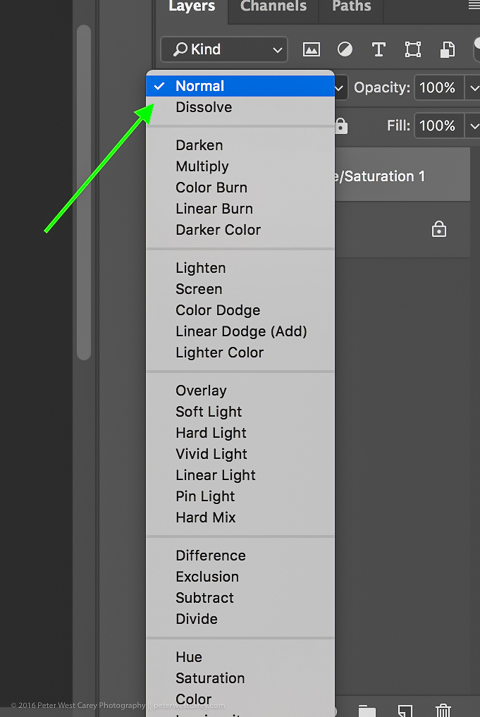
Depending on what you’re swapping and the textures and colors involved, you may be able to get a slightly better result by choosing a different blend mode option for this layer. Click the word “Normal” above your layer and play around with the different layer blend mode choices.

How to Swap Colors in Photoshop - Two Methods Explained

You’re done!

From here, you can fiddle until your heart is content. Try new blending modes and opacities. Refine your masks. Then sit back and enjoy your handy work!

final-side-by-side-color-swap


Cautions

  1. Watch out for white objects when there is a lot of white in the scene. These can be tricky.
  2. For that matter, watch out for the color you want to swap appearing anywhere else in the image. You’ll need to remove the mask from those areas manually (Step #6 but use the “minus” option).

googletag.cmd.push(function() {
tablet_slots.push( googletag.defineSlot( “/1005424/_dPSv4_tab-all-article-bottom_(300×250)”, [300, 250], “pb-ad-78623” ).addService( googletag.pubads() ) ); } );

googletag.cmd.push(function() {
mobile_slots.push( googletag.defineSlot( “/1005424/_dPSv4_mob-all-article-bottom_(300×250)”, [300, 250], “pb-ad-78158” ).addService( googletag.pubads() ) ); } );

The post How to Swap Colors in Photoshop – Two Methods Explained by Peter West Carey appeared first on Digital Photography School.


Digital Photography School

 
Comments Off on How to Swap Colors in Photoshop – Two Methods Explained

Posted in Photography


Focus ramping intervalometer Timelapse+ View goes on sale

12 Jan

US accessories manufacturer Timelapse+ has announced that its latest on-camera timelapse controller is now on general sale. The Timelapse+ View allows photographers to program complex timelapse sequences and preview them as they happen on its built-in monitor. The controller can itself be controlled via a smartphone app which will also display the progress of a shoot as it is recorded.

Users can select start and end points for focus shifts during the timelapse sequence and determine over how many shots the changes will take place, and the device automatically shifts the focus of the attached camera’s lens during the shoot. Gesture detection allows previews to be activated without the photographer having to actually touch the set-up.

The company says that View also can be connected by Bluetooth to the Dynamic Perception NMX motion controller for moving-camera shots, and the files created are fully compatible with timelapse software LRTimelapse. The device supports a range of DSLR cameras from Canon, Nikon and Sony and costs $ 399.

For more information visit the Timelapse+ website.

Press release

Auto ramping intervalometer enables you to preview your timelapse

Time lapse hardware maker Timelapse+ announced today that after a successful KickStarter campaign, manufacturing for the second batch has already begun, with shipment expected to be around mid-January.

The VIEW ran a successful Kickstarter campaign in April 2016, with Timelapse+ successfully raising $ 131,337 of its $ 100,000 goal in 30 days.

The VIEW is a breakthrough intervalometer for cinematographers and photographers that allows for automatic bulb ramping, live time lapse preview — watched either on the VIEW or a smartphone – and touch-free gesture controls. Since the end of the KickStarter campaign, Timelapse+ has been actively adding new features and working with other vendors to include third-party integrations to the VIEW.

The VIEW now has integrations to automatically connects to the Dynamic Perception NMX motion slider via Bluetooth and LRTimelapse support added to XMP data.

Additional new features include:

  • Automatically optimizes buffer time during ramping
  • Configurable ISO and shutter speed limits for auto ramping
  • Red theme option
  • Power button activates help screen for the currently selected item
  • Supports Canon, Nikon, and Sony Alpha

Elijah Parker, inventor of the view, said, “After reaching both the funding and shipping milestones, I’m excited to start this next phase.”

Pricing, updates, and availability
Retail Price: $ 399.

Pricing may vary by country for non-USD purchases and additional fees may apply,
including tax and shipping costs. Estimated to ship January 21st, 2017.

About Timelapse+
Timelapse+ is an innovator in hardware for time-lapse and HDR photography, with the original Timelapse+ Intervalometer and the new VIEW Intervalometer.

Articles: Digital Photography Review (dpreview.com)

 
Comments Off on Focus ramping intervalometer Timelapse+ View goes on sale

Posted in Uncategorized


How to Prepare a Photography Exhibit of Your Work

12 Jan

There is nothing like having your work displayed up on a wall for everyone to see. Even better, is seeing little round red stickers underneath to indicate that the work has been sold. For most artists, that is their driving force and anyone who makes images that are intended for walls and display. However, where and how to go about having a photography exhibition can be harder than you think. It can also be a very expensive exercise.

This article will help answer a lot of the questions that you may have when it comes to exhibiting your work.
photography exhibit tips

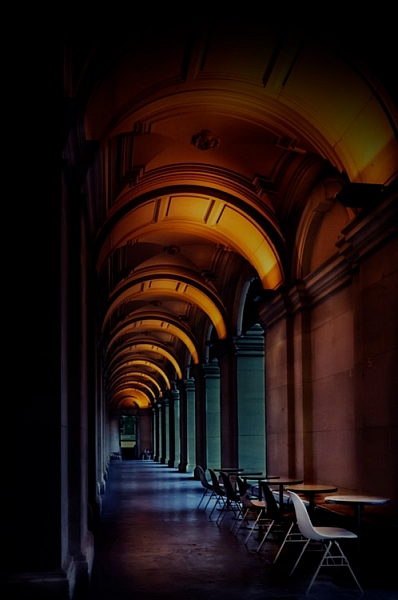
If I were to have an exhibition now this image would be in it.

Why do a photography exhibit?

Artists have been exhibiting their work for centuries, now is no different. The reasons for doing an exhibit can vary from artist to artist. Before the internet, it was one of the best ways to showcase your work to everyone. However, artists used them to make money. They would invite special clients or benefactors to the openings in the hope they would buy one or a few pieces.

Selling artwork is harder these days, so if your sole reason for exhibiting is to sell some, then you may be very disappointed. However, if your goal is to put your work up on a wall to show people what you are capable of, then it can be very rewarding. Having all your best work up for everyone to look at can feel like quite an achievement.

Another reason many artists exhibit is to be able to put the exhibitions down on their artists CV. The CV or Curriculum Vitae is a list of all their exhibitions, plus education and a few other things, similar to a resume. It is what galleries look at when seeing if they will have a show with an artist.
leannecole-exhibiting-your-artwork-31

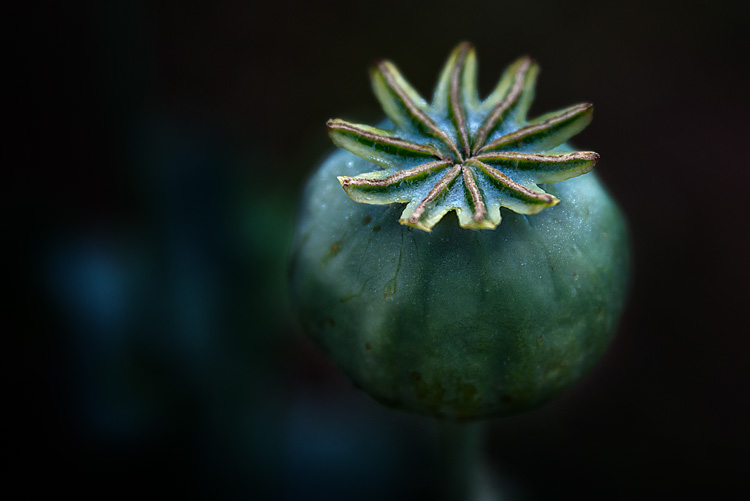
This image would be ideal if I decided to have an exhibition of just my macro work.

Costs and Budgeting

Exhibitions are not cheap and before you decide to have one there are many things you need to take into consideration. What sort of space will you exhibit in and how much will it cost? What other expenses will there be? How many images will you prepare for the exhibit and what will the reproduction outlays cost? Should you have a solo exhibition or start with group shows? These are all questions you need to think about.

Group or Solo

Solo shows are fantastic and ultimately what every artist wants, to have their own show. But they are also very expensive and you have no one to share the expenses with. Having said that, most artists build up to solo shows and often have had some success in group shows first.

For most photographers, group shows are a good way to get your feet wet and start building your artist’s CV. Find some friends who are also interested in exhibiting. Apply together to galleries to see if you can get an exhibition. Many galleries advertise for artists to participate in group shows they are holding, so look out for them and apply.
leannecole-exhibiting-your-artwork-39

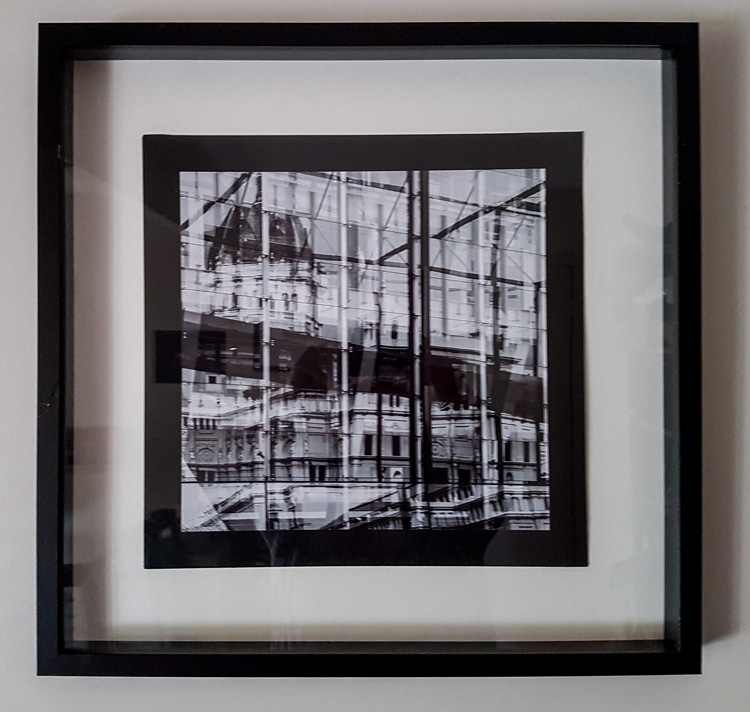
This framed image was in a group show for street photography.

Where to exhibit

This could be an endless list, but the most common places are galleries that specialize in the work that you want to show. However, there are other places, like cafes or restaurants, that like to have exhibitions which feature different artwork on their walls. There are benefits and disadvantages to each.

Cafes, Restaurants, and Foyers

These are often free for holding an exhibition. They don’t always have schedules so you could possibly have your work up for longer than you could in a gallery. These types of venues may not want a commission from the sale of work, though they may want you to handle all the sales, so you would need to leave contact information. They usually won’t take any responsibility for your art pieces, so be aware of that (loss or damage is not covered).
leannecole-exhibiting-your-artwork-35

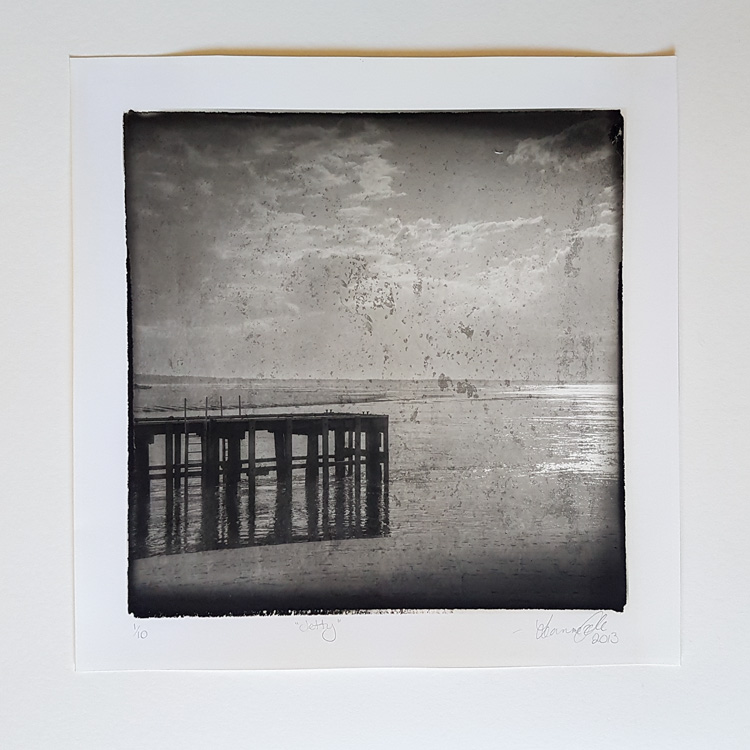
This is one of two images that were exhibited in a cafe down near the coast.

With a place like this, you won’t have access to a mailing list and will have to do all the advertising yourself. People can’t generally just wander in to look at the work. All the customers will see your images, but they are there for different reasons, such as to eat, and buying images isn’t one of them. While it isn’t impossible to sell a piece from a cafe exhibit, your audience isn’t there to necessarily buy what you are selling.

Your work will most likely need to be framed for hanging, and you will probably have to install it yourself at the exhibit space.
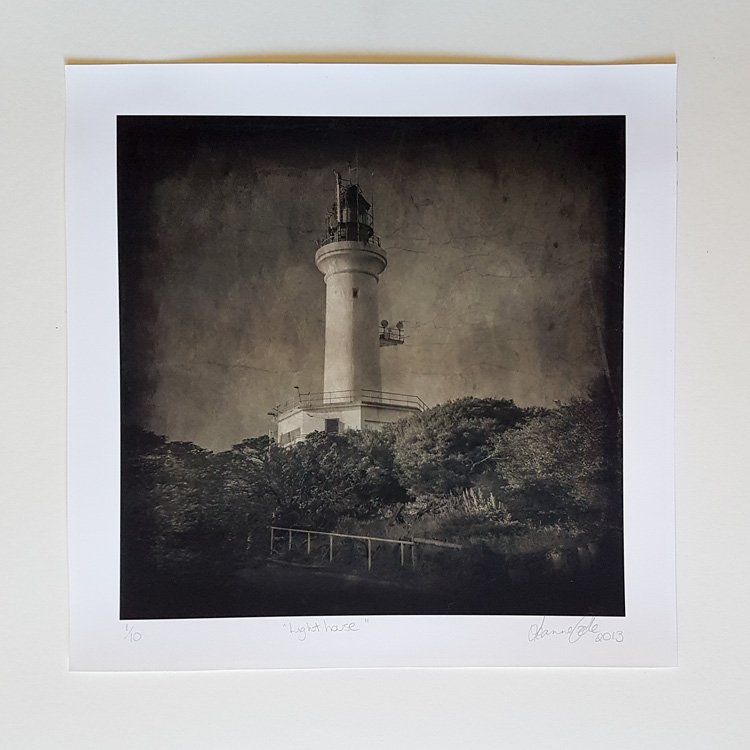
leannecole-exhibiting-your-artwork-34

This is the other image that was exhibited in the cafe.

Galleries

There are many different types of galleries, and it is up to you to decide which one you think will work for you. They usually start with artist-run spaces, then come staffed galleries which are either non-commercial or commercial.

Artist-Run Spaces

Possibly the cheapest spaces to get are those which are artist-run. You pay less to use the space, but you are expected to do what they call, “sit the exhibition”. That means that when the gallery is open you have to be there to watch your work and manage any sales yourself.

Having to be there the entire time the gallery is open can be time-consuming. Many artists will get together for a group show, split the costs of renting the space, and draw up a roster to sit the exhibition. For artists starting out this can be a much better option. If you want to do this, but don’t know anyone to exhibit with perhaps you can contact the gallery as they may know some artists who are looking for someone to share.

You need to take on most of the expenses in this environment. The cost of the opening is covered and organized by you. You must pay for most of the advertising as well, though some galleries will have a mailing list for you to use.
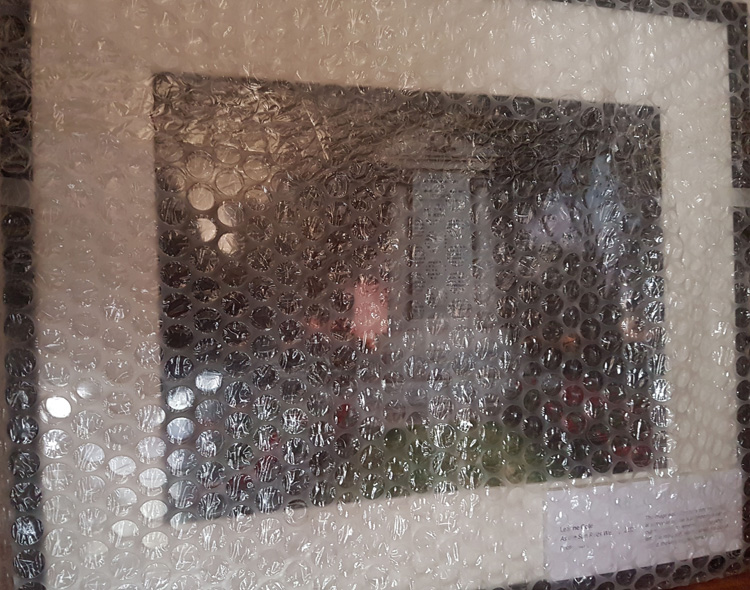
leannecole-exhibiting-your-artwork-38

Still packed up from when it returned from an exhibition last year.

Staffed Galleries

Staffed galleries are the next level. They cost more, but you are relieved of the burden of having to sit the exhibition. There are two different sorts of galleries, the commercial and non-commercial kind, and they often have different directions.

Non-commercial galleries

These are often smaller galleries that will charge you for renting the space and for their service to sit the photography exhibit for you. They are often the most expensive galleries to hire. Non-commercial galleries will help advertise the opening, but they are generally not interested in helping to promote you and your work further beyond the exhibition and the relationship is short term.

They make their money from you hiring the space, and taking a commission from any work you sell, usually around 30%. It is a good way to start getting work on your CV or finding galleries that do a lot of group shows. See if you can put work into them.

Non-commercial galleries aren’t typically picky about who they choose, as long as the quality of work is good. They are not going to mind if one exhibition is all abstract paintings and the next one is more landscape photographs. It can be a lot easier to get a show with them than the commercial galleries.
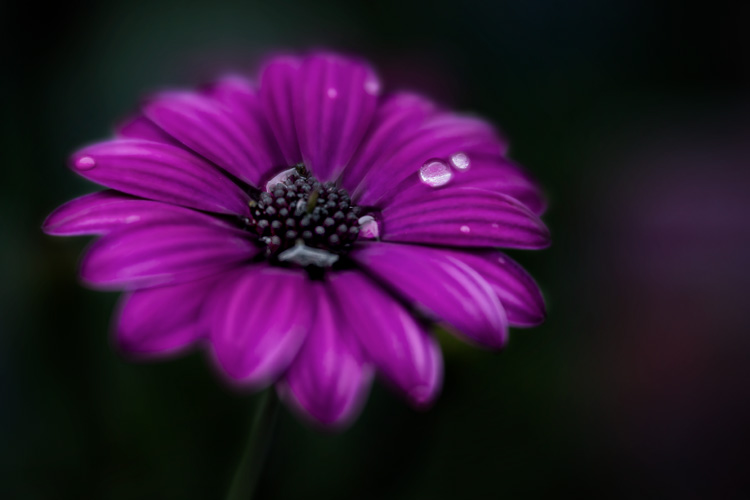
leannecole-exhibiting-your-artwork-28

This image was also popular on social media so it would definitely be in the macro exhibition.

Commercial Galleries

These types of galleries are a lot harder to get exhibitions with as they have so many artists to choose from and usually have a particular type of artist in mind that they show. They are more interested in helping you establish yourself as one of their artists, in other words represent you. Commercial galleries will keep some of your work in a stockroom and advertise what you do. They try to get collectors to view what you have done so they can begin collecting and supporting you as well.

Commercial galleries usually have a niche market they represent. If you are a photographer and you send your work to a gallery that only deals with Indigenous art, then they are not going to be interested in your work.

When approaching these galleries you need to do your research and make sure you work fits in with the other artists they represent. At the same time, if they have another who does work that is almost the same as yours, then they are not going to be interested either.

The commercial galleries often cost a lot less for an exhibition, however they are harder to get shows in and they will take a higher commission. Here in Australia that rate is usually around 40%, compared to the 30% that other galleries take.
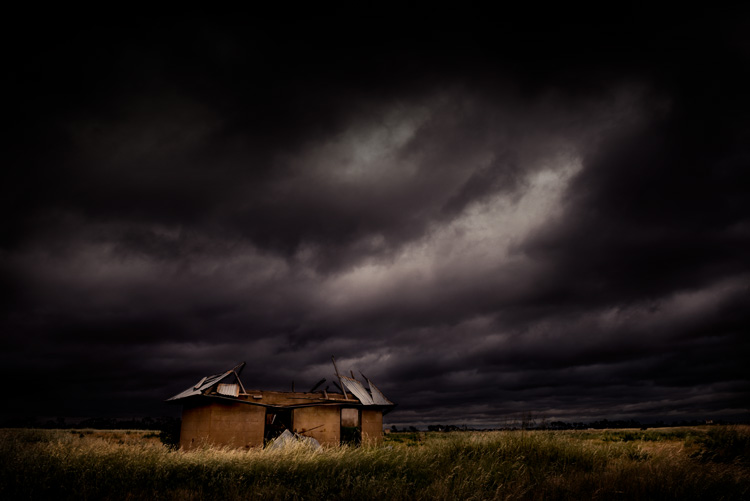
leannecole-exhibiting-your-artwork-30

Another image that would be used if I were to have an exhibition now.

Submitting your work to galleries

All galleries tend to advertise when it is a good time to submit proposals. While you can send in inquiries at other times, it is best to look for submission dates, times when they are asking people to send in exhibition proposals.

Commissions and pricing your work

All galleries charge a commission and some cafes may as well. You need to consider how much the commission is when you are pricing your work. Make sure you find out how much the commission is when first inquiring about exhibiting in the space.

When it comes to pricing you should be realistic. If you are new to the art world, charging thousands of dollars for your work would be unrealistic. Only established artists can command prices like that. To get an idea look at the space that you will be exhibiting in and see how much previous artists have charged for similar work. If you are happy with the prices you could try charging the same, or similar.

As your reputation grows and more people start buying your work then you can look at charging more.
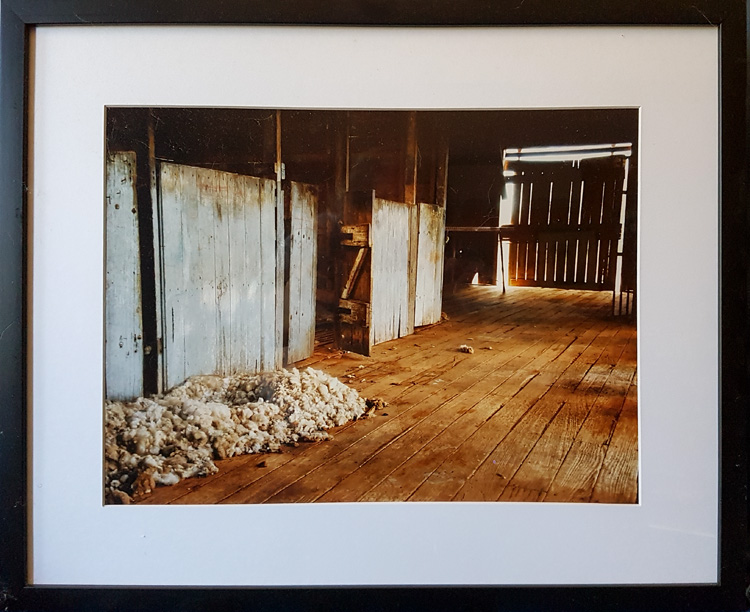
leannecole-exhibiting-your-artwork-36

This is from an solo show I had in the foyer of a theater company.

Loss due to damage or theft

When you hire a space to show your work you also take on the responsibilities of it as well. The gallery or space is unlikey to cover any damage to your artwork or the theft of it. It is often in the contract or terms of conditions. Make sure you are aware of it, and if you are worried then insurance could be an option.

Insurance

As previously stated most places will not cover your work for damage or being stolen, so insurance is  something that you need to consider when putting your art up anywhere. Do you need to take out insurance on it? Most artists don’t worry about it, but that doesn’t mean you should do the same. Look into it and see how much it will cost and if it is worth it for you

If the work has cost you a lot of money to produce, then you may want to consider getting insurance. Talk to the gallery and see if they have had problems in the past, especially with theft. If the work is going into a high traffic zone, like a walkway, where it can be damaged or someone could walk off with it, then it is worth considering.

It should be done according to the place where you are showing. If it is a café then the staff may not have the time to watch the work at all, especially during busy periods. However, a gallery is going to be in a better position to watch if they have the staff. If you have to man the space yourself, can you watch everything?

To frame or not to frame
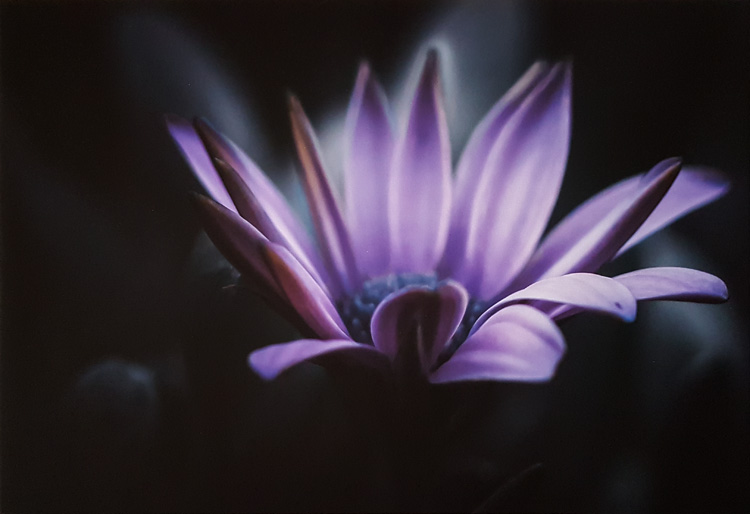
leannecole-exhibiting-your-artwork-37

Testing out a framer and had this macro printed on canvas.

Many places will answer the question of framing for you. tThey will either say the work has to be framed or it can be pinned to the wall.

If the work has to be framed then you must decide if that is something you can afford. Getting work custom framed can be very expensive. But what a lot of artists do is make all their work the same size (or use the same size frames and just alter the mat sizes according to the images), then go to somewhere like Ikea and buy cheaper frames. If you do the framing yourself then you can reuse the frames every time you want to do a show.

If you don’t have to frame and can pin the images on the wall, that doesn’t mean you can’t get the work framed. Again, your budget is going to determine that. However, if you choose to pin them on the wall you need to find out what is going to be the best way and if the purpose is to sell your work then pinholes in your photos might not be desirable to potential buyers (it also isn’t as professional looking or finished for the buyer, they can’t just take it home and hang it up).

What size and how many images to exhibit
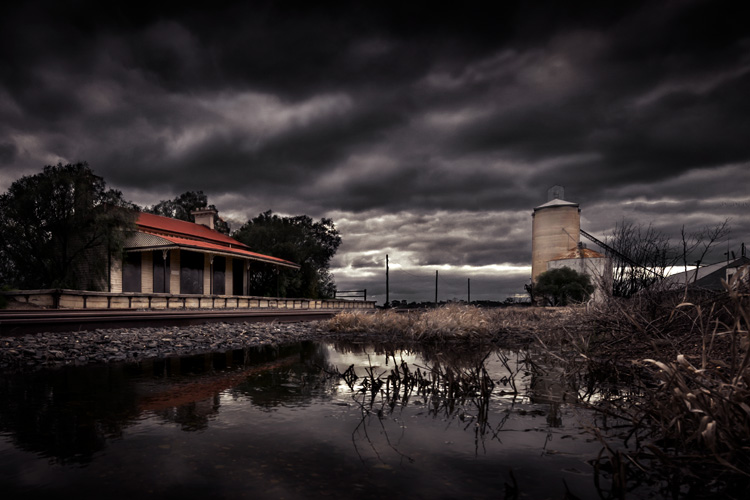
leannecole-exhibiting-your-artwork-25

If I were to have an exhibition now this would be in it along with the others.

This decision comes down to price and space. How much money you have for the exhibition can only be determined by you. But how many pieces you can make, and the size you can get your work reproduced is going to be determined by your budget.

It is also important to know how much space you have available for the exhibit. If the space is only three meters (10 feet) of wall space, then putting up three images that are one meter (39 inches) across will make it crowded and not allow enough space in between each one. However, if you have 10 meters (33′) of space, and you put up four images that are only 50cm (20 inches) across, that will give you too much space between them.

Consider the space carefully. If you think your work looks great when it is enlarged, then perhaps having fewer large pieces is better. The larger they are the more they will cost.

The same goes for the number of images. You don’t want to completely fill the space you have, as giving each image room will allow them to be shown better. Just because you have paid for the space doesn’t mean you have to fill it up. Consider the size of the frames as well, if you choose to frame.

Editioning
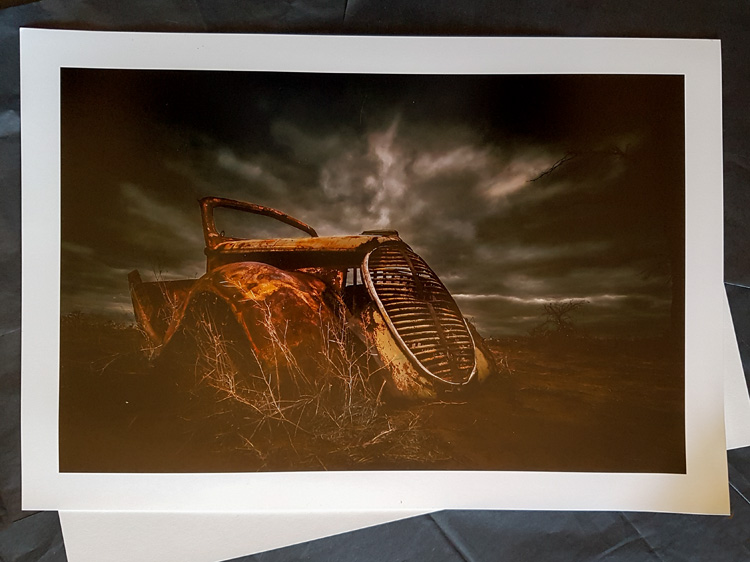
leannecole-exhibiting-your-artwork-33

Trying out different papers to see which one will work best for this image.

Editioning is also referred to Limited Editions and is something to consider with photography. Printmakers have been doing it for centuries. It basically means that you are promising your clients or potential ones that only a certain number of those images (prints) will be available for sale.

Editions can be a good way to make your work more valuable. If you have an image and do an edition of 20, then you need to make sure that the buyer knows what number in the edition they are receiving, for example, 8/20. You need to keep records of it, so you know how many of the image you have sold. Once you have sold the 20 you can’t sell anymore. You made a promise to those that bought the first 20 that you would only sell 20 of them. Be sure of how many you think you might sell from the start, and be realistic.

Another thing you need to be careful about with editioning is to make sure they are all printed exactly the same. They all have to be consistent. If you put up a piece in a show and sell it a few times, people won’t be happy if the image they receive is not the same as the one they saw in the exhibition. You don’t have to get them all printed at the same time, but make sure you use the same printer for all of them and that the printer knows how to replicate them identically.

Medium for printing

What medium you choose for printing is again going to be determined by your budget, but also consider how your work will look the best. Do you want prints in frames? Perhaps canvas will work better for the type of image you are getting printed. Getting work printed on metal is becoming popular now as well, though it is also very expensive and perhaps might only suit some styles of photography.

Whatever you choose, you need to be careful that it shows off your work in the best way possible. Consider getting some images printed in different ways and then deciding which you like the best, and which one will fit into your budget.
leannecole-exhibiting-your-artwork-32

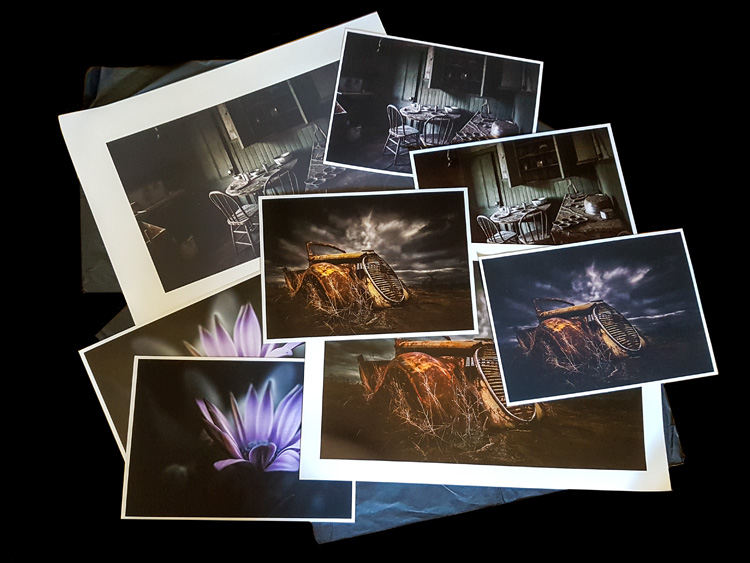
My new printer did lots of tests for me to see which would work the best on what medium.

Curating and choosing which images to exhibit

Choosing which images to put in the exhibit is the hardest part for most people How do you know what images will be the best to show? There is no real way to tell. If you are working with a gallery that has a curator you can likely get a lot of help from them using their experience with the gallery and what sells. If a curator isn’t available you might have to enlist the help of friends, find out what are their favorite pieces. Perhaps your social media sites will help you see which images were popular online.

When it comes to curating the show, there should be a cohesiveness to the work and to the final exhibition. Make sure all the work fits together and flows. Be clear on what your vision for it is. The better it looks on the walls, the more you could sell.
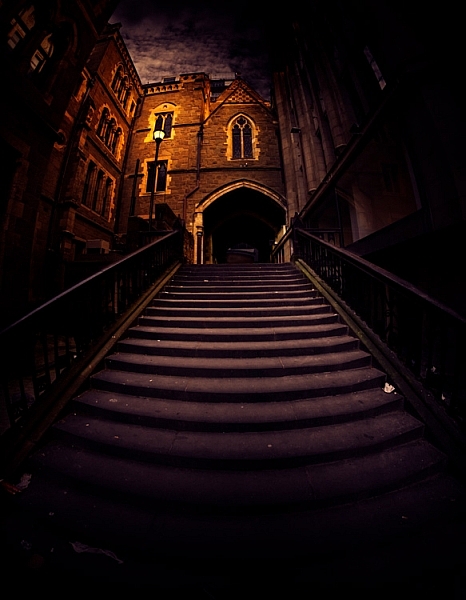
leannecole-exhibiting-your-artwork-29

If I were to have an exhibition now this is another image that would be in it.

Start planning your exhibition

Hopefully this has answered many of the questions you had and explained some of the ways that galleries work. There are many decisions that need to be made and before you start it is good to have a plan of what you want to do, why, and how you will pay for it.

Have you done a photography exhibit before? Please share your experience or post your questions in the comments below.

googletag.cmd.push(function() {
tablet_slots.push( googletag.defineSlot( “/1005424/_dPSv4_tab-all-article-bottom_(300×250)”, [300, 250], “pb-ad-78623” ).addService( googletag.pubads() ) ); } );

googletag.cmd.push(function() {
mobile_slots.push( googletag.defineSlot( “/1005424/_dPSv4_mob-all-article-bottom_(300×250)”, [300, 250], “pb-ad-78158” ).addService( googletag.pubads() ) ); } );

The post How to Prepare a Photography Exhibit of Your Work by Leanne Cole appeared first on Digital Photography School.


Digital Photography School

 
Comments Off on How to Prepare a Photography Exhibit of Your Work

Posted in Photography


10 More Photography Tips to Help Take Your Images to the Next Level

12 Jan

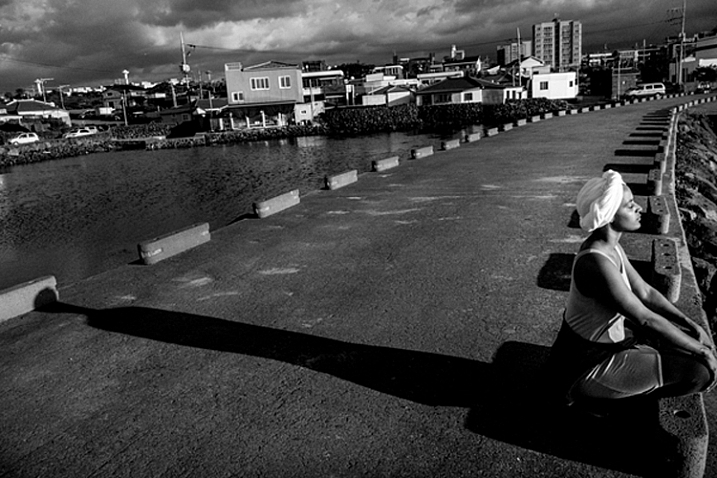
A while back I wrote an article that was quite popular: 10 photography tips to take your photography up a level. In this article, I bring you 10 extra tips from all aspects of photography. Enjoy!

10 More Photography Tips to Help Take Your Images to the Next Level

#1 – What’s more than meets the eye?

Let me ask you something, what would you do? You meet someone attractive, you are head over heels, and then you start actually talking to them. You then uncover the most superficial person you have ever met. That person is all looks and not much else. You would lose interest, right? Because looks by themselves are good enough to make you interested, but if there is nothing sustaining that interest, you’re gone. This is the same thing in Photography,

This is the same thing in photography. A beautiful composition is nice, but what is in your image that is designed to keep the viewer’s attention? What is it about your image that is more than meets the eye? Is it saying something deeper? Is it making a point? Showing a concept? Add meaning to your images to keep the viewer engaged.

#2 – Know your opportunity

I believe there are only four times when you control the image. The first is at the moment of exposure (when you shoot), the second is in post-processing, the third is in sequencing and editing, and the fourth is while printing. So, when shooting, have these things in mind in order to shoot with clarity.

Example, you shoot an image and it is overexposed (because of the camera’s limitation). But it doesn’t end there as you know that you have another opportunity in the post-processing phase to recover details. Or you shoot something with a nice texture but it doesn’t have the effect you want. It doesn’t end there, you know that you can print and blow it up real big to have the effect you seek. Or you shoot an image that can’t stand by itself. Once again it doesn’t end there, you know you have another similar image that can make a diptych.

The point is that making an image is only the first step. There’s a whole process that comes afterward when you can get the effect you desire. So it’s important to know that what you have in the camera is the starting point and not the end.

#3 – Pay attention to this detail (after your background)

10 More Photography Tips to Help Take Your Images to the Next Level

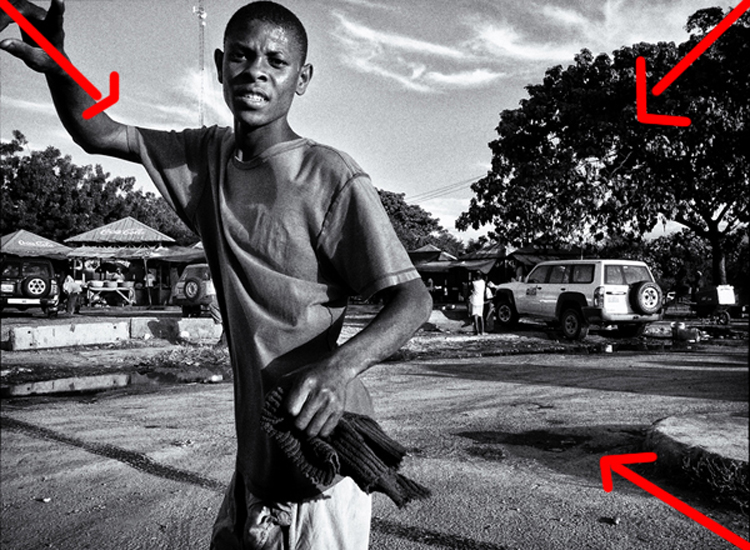
In the first 10 tips article, I suggested that you pay attention to the background first. Now I would like to add another thing to pay attention to before your subject – the corners. You see there is a strong dynamic with the corners, they draw you into the frame, towards the dead center and if you can align some lines there, it’s like surfing a big wave, it just draws your eye even more!

In the image above we have the guy’s hands, the shape of the tree and the shadow on the bottom right corner just pulling you into the image. So, pay attention to your background, watch your corners, and then look at your subject.

#4 – Dennis Rodman-ize it

10 More Photography Tips to Help Take Your Images to the Next Level

Let’s face it, it’s hard to get attention in this ever increasing attention deficit world. Dennis Rodman had been in the NBA for years, but he was receiving few endorsement contracts. He was a good player but didn’t shine enough. Then came the Rodman with the crazy hair and style, even as a kid I knew his name because he simply looked different.

That brings us to photography, you are probably doing something a certain way, so can you Dennis Rodman-ize it? Shoot in a different way that makes your work pop above and beyond what you normally do? For example, landscapes are usually shot with a wide angle, what if you shot landscape abstracts with a telephoto? Or used a special processing technique on your images that gave them a certain look?

#5 – Work on your name

You probably know the wine experiment, where they gave people wine to drink, one was expensive and the other was cheap. Everyone, of course, preferred the expensive wine over the cheap one, even if it was the same wine. Here’s the REAL KICKER, when they scanned the brains of the people who drank the wine, their brain actually made them believe they were drinking expensive wine, and it literally tasted better. Their perception altered their reality.

10 More Photography Tips to Help Take Your Images to the Next Level

With that in mind, work on your images but also on your name or brand. Try to get as much recognition as you can, it will alter people’s perception of your work. I remember a photographer who had decent work, and then that person got famous literally overnight. Let me tell you, even I, knowing all that I know about psychology, now see his work in a better light.

It’s crazy, and probably a bit sad, but that’s just the way it is. The story of Joshua Bell also illustrates this point well. This guy makes $ 1000 per minute playing on a million dollar violin, yet he got a meager $ 32 and a few cents when they had him play anonymously in a metro. Same guy, same skill – different context, different result.

#6 – Get luckier

Let’s not mince words here, luck plays a big role in photography. That Cartier-Bresson shot of the man jumping? That was 100% luck because he couldn’t even see what he was shooting through a hole.

Why is luck such a big deal? Because you DO have to be there at the right moment, and so does your subject, the light, etc. Truth be told, you need the skill and the eye to seize the moment, but if you are not there, the shot won’t be yours.

10 More Photography Tips to Help Take Your Images to the Next Level

So taking into account the luck factor, shoot more often. You’ll get luckier and luckier every time you do. By making more photo opportunities, you’ll be making more images. So if you used to go out once, go out twice, etc.

I mean, who do you think will have a better chance at getting a job? The one that applies for one job, or the one that applies for 10? Skill and creativity are multiplying forces, but it doesn’t matter how skillful you are if you are a couch potato. Sharpen your skills and get out there to get lucky.

#7 – Scramble everything

There was this cool experiment where they gave this guy upside down glasses, so everything was inverted. They wanted to pour him a drink, and he turned the cup upside down (because he believed it was upside down). Imagine the world upside down and how hard it would be to live like that. The kicker? After 10 days he adapted to the upside down vision, and could even ride a bike!

10 More Photography Tips to Help Take Your Images to the Next Level

Sometimes we just get used to how we shoot, we get complacent, that’s normal. So scramble things up. If you normally shoot color, try b/w, if you like portraits try street photography, if you are a film shooter, try digital, etc. It’s like the “Dennis Rodman-ize” tip, but this is more designed to shake you out of complacency rather than to bring attention to your work.

#8 – Revisit your images
10 More Photography Tips to Help Take Your Images to the Next Level

Two photographers can look at the same scene, and yet see two different things. The difference is their knowledge about photography. You probably have some hidden gems in your images that you’ll probably never uncover if you do not revisit your images. You made them, but when you revisit them you do so with new eyes, and you will see them differently.

You will be amazed at what you find. Images that you believed were boring and/or ruined will be seen in a new light. You may ask yourself, “How did I miss that?!? There are quite a few images that I have overlooked, that’s why I have a no-delete policy. Maybe I can’t see what my future self will see or what my future self will be into.

#9 – Let go of preconceptions

10 More Photography Tips to Help Take Your Images to the Next Level

I receive emails daily from photographers around the world. The one thing many seem to struggle with is that they don’t live in a big city. It is understandable, but just because you can’t find the images you have in your mind doesn’t mean they are not there. You just need to let go of your preconceived ideas and be more open to what is in front of you.

Some people tell me they wish they had more money to travel. Evidently, the image in their mind is of travel, but an image doesn’t need to be travel photography to be good, does it? It’s good to have a general idea of what you want, but also to be open to the possibilities.

Some people get hung up on relationship breakups, passing by great, if not better opportunities in front of them. Likewise, seeing what is possible right in front of us allows us to maximize our opportunities as photographers.

#10 – Remember it’s all plastic

10 More Photography Tips to Help Take Your Images to the Next Level

It’s a hard concept to grasp, especially as a beginner, but remember that photography is plastic. Exposure? Plastic. Colors? Plastic. White Balance? Plastic. Sharpness. Who said every image needed to be averagely exposed, with white balance set perfectly by grey card, and super sharp? The first thing I do as a photographer in Lightroom is to clip my blacks. I LOVE clipping my blacks. I never set my white balance with a grey card, I just look at the image and hear what it creatively calls for, then do that.

Photo of a bride and groom? Probably needs to be on the warmer side so that the viewer can get some emotional cues from that. Shot these plastic surgeons? I’ll put my white balance on the cool side to reinforce the surgical cleanliness. Whatever you are doing right now, remember all of it is plastic. Who said images needed to be in a square or rectangle? Who said portraits have to contain faces? Who said colors had to be realistic (see above)? Who said paper and canvas was the only printing options…..you get the gist!

Conclusion

There you have it, 10 more photography tips to help you in your photography journey. I hope you resonate with some of them. Be yourself, stay focused and keep on shooting.

10 More Photography Tips to Help Take Your Images to the Next Level

googletag.cmd.push(function() {
tablet_slots.push( googletag.defineSlot( “/1005424/_dPSv4_tab-all-article-bottom_(300×250)”, [300, 250], “pb-ad-78623” ).addService( googletag.pubads() ) ); } );

googletag.cmd.push(function() {
mobile_slots.push( googletag.defineSlot( “/1005424/_dPSv4_mob-all-article-bottom_(300×250)”, [300, 250], “pb-ad-78158” ).addService( googletag.pubads() ) ); } );

The post 10 More Photography Tips to Help Take Your Images to the Next Level by Olivier Duong appeared first on Digital Photography School.


Digital Photography School
 
Comments Off on 10 More Photography Tips to Help Take Your Images to the Next Level
Posted in Photography


Astropad launches Astropad Studio for the Apple iPad Pro

12 Jan

The team behind Astropad, an iOS app that turns your iPad into a graphics tablet for the Mac, has today released Astropad Studio, a premium version of the original Astropad. The new release was specifically designed to work with the iPad Pro and offers better performance and an expanded feature set. 

Astropad Studio can communicate with an Apple Mac computer via a Wi-Fi or USB connection and uses Liquid Extreme, an improved and 5 times faster version of the standard app’s Liquid technology which allows for smooth operation of the tablet and image quality that is free of compression artifacts. 

In addition, Astropad Studio supports both Bluetooth and wired keyboards and comes with the new Magic Gestures feature that allows for the creation of gesture shortcuts using touch-Pencil combinations. Sidebar shortcuts automatically adapt to the Mac app you are working with and Stroke Lab lets you adjust the characteristics of your pencil stroke in a variety of ways. 

Astropad Studio will be available as a subscription service for either $ 64.99 per year or $ 7.99 per month. This includes syncing of settings across devices and priority support. A 7-day free trial is available for those who are interested in trying the app. More information is available in the video below and on the Astropad Studio website.

Articles: Digital Photography Review (dpreview.com)

 
Comments Off on Astropad launches Astropad Studio for the Apple iPad Pro

Posted in Uncategorized