RSS
 

Archive for December, 2016

How to Understand and Use the Lightroom Histogram

21 Dec

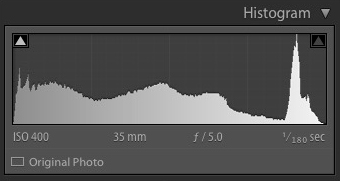
The histogram in Lightroom is a useful tool that is easily overlooked. Its main purpose is to help you understand the relationship between the sliders in the Basic panel and the tones in your photos. It helps you get brightness levels spot on and edit images without losing highlight detail.

Where is the Lightroom histogram?

The histogram is found in two places, at the top of the right-hand panels in both the Library and Develop modules. In the Library module, it helps you see what is happening to your image when you make adjustments in the Quick Develop panel. You also need it in the Develop module so you can see how any adjustments you make during post-processing affect the histogram.
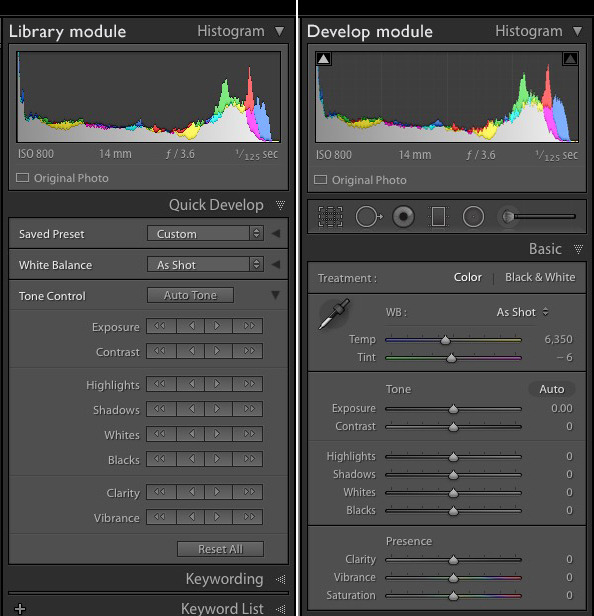
The Lightroom histogram

What does the LR histogram tell you?

The histogram tells you whether you have any clipped highlights or shadows. It also tells you how much contrast the photo has. This information lets you decide whether you need to adjust exposure and contrast. It also tells you whether the original photo was over or underexposed. The histogram changes as you move sliders around in the Basic panel, so you can immediately see the effect.

Important: Please note that the following features work with the Develop module histogram, but not the Library module histogram.

How to check for clipping

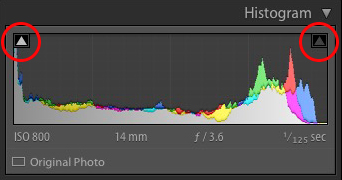
Clipping is indicated by the Show Shadow Clipping and Show Highlight Clipping triangular icons in the top left and right (circled below). Use the keyboard shortcut key J to show and hide clipping.
The Lightroom histogram clipping

In this histogram, the Show Shadow Clipping icon is colored white to show that the image contains clipped shadows (this is perfectly normal in many images and nothing to worry about).

If you click on (or hover over) the Show Shadow Clipping icon, those clipped shadows are shown in blue in the photo.
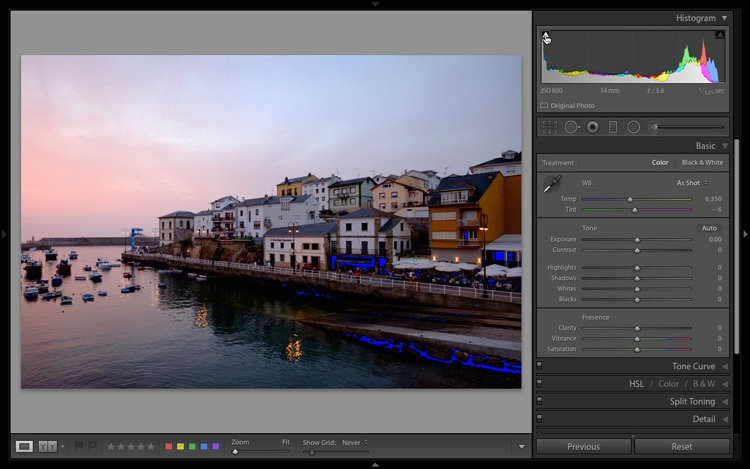
The Lightroom histogram clipped shadows

The Show Highlight Clipping icon on the right is colored gray to indicate that there are no highlights clipping. This is a good sign, as most photographers expose to preserve highlight detail.

The Clipping icons also come in useful to indicate if you are losing detail in the highlights or shadows as a result of making adjustments in the Basic panel.

If I set Exposure to +1.00 for this particular image, the histogram tells me that I have lost detail in the sky. The Show Highlight Clipping icon is colored white to indicate this. If you click the icon, clipped highlights are displayed in red in the image. You can see from the screenshot that only a small part of the sky is clipped. This may not be important, but it indicates that perhaps I increased the Exposure too much.
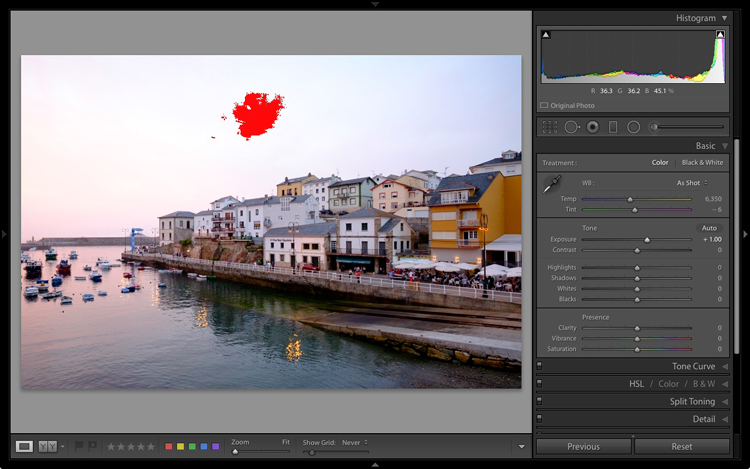
The Lightroom histogram clipped highlights

If I set Highlights to -100 the detail comes back in the sky and there is no clipping. Notice how the histogram has changed from above to the one below.
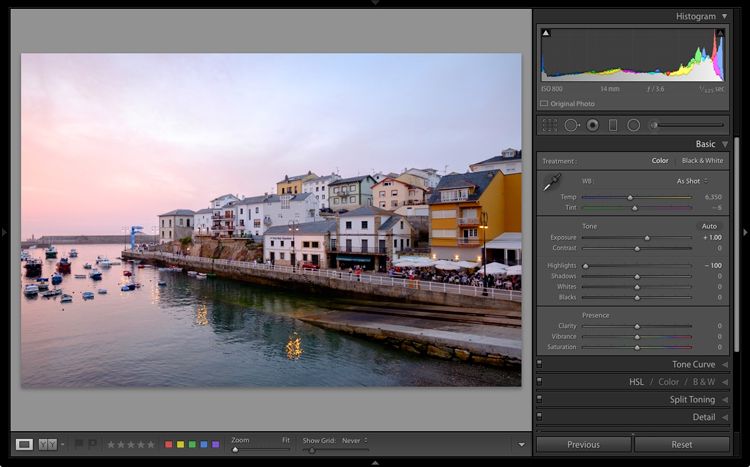
The Lightroom histogram

This simple example shows you how you can push sliders around, using the histogram to make sure that you don’t lose highlight or shadow detail.

The histogram and underexposure

If there is a gap on the right side of the histogram it probably indicates that the image was underexposed (an exception would be if the photo has lots of dark tones but few light ones – like a photo of a black cat sitting on a black rug).

Here’s an extreme example. The photo generating this histogram was underexposed by over a stop.
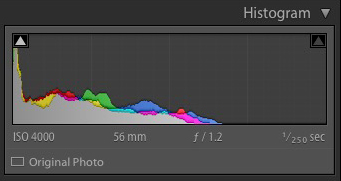
The Lightroom histogram underexposed image

A look at the photo confirms the histogram is correct and that it is underexposed (too dark).
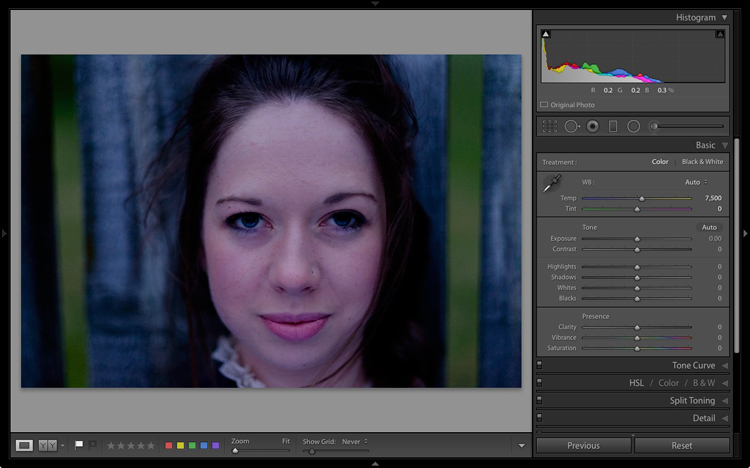
The Lightroom histogram

While it is best to get the exposure right in the first place, you can fix this by moving the Exposure slider to the right. As you do so, the histogram also moves to the right. The Exposure slider is quite clever and increases brightness mostly in the mid-tones to prevent highlight clipping. You may be able to push it a long way to the right without losing any highlight detail.

Here, I set Exposure to +1.6, and the histogram looks much better.
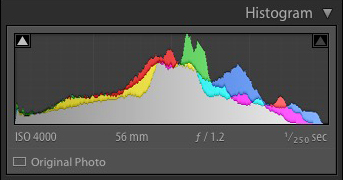
The Lightroom histogram

This is what the photo itself looks like after that simple adjustment. Now it is ready for further refinement.
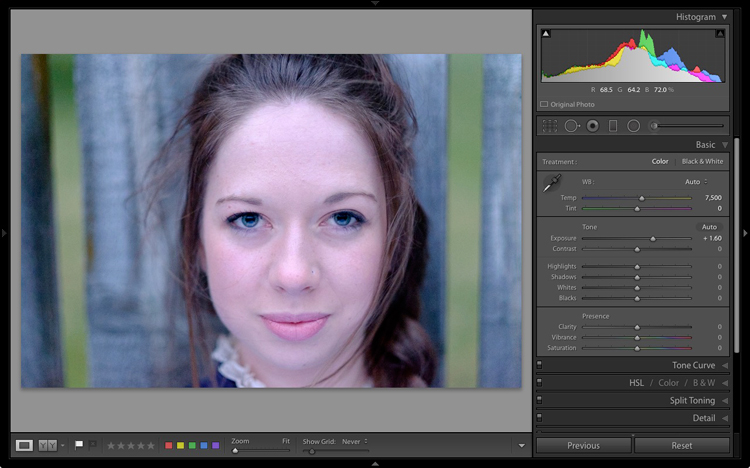
The Lightroom histogram

If you see a gap on the right side of the histogram yet the brightness of the photo looks okay to your eye, it could be a sign that the brightness of your monitor is set too high. If this is the case, you will find your photos look dark when printed or viewed on other people’s monitors. Ideally, you want to calibrate your monitor to be the correct brightness.

The histogram and contrast

If the histogram is bunched together and doesn’t cover the entire range of the graph this indicates that the photo has low contrast. This is most likely to happen when shooting in flat light.

Here’s a histogram that demonstrates this.
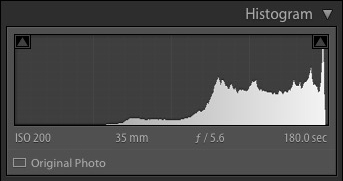
The Lightroom histogram low contrast

The histogram belongs to a black and white photo taken on a cloudy day in warm and humid conditions. The spray coming from the sea reduced the contrast of the scene, resulting in a very flat image.
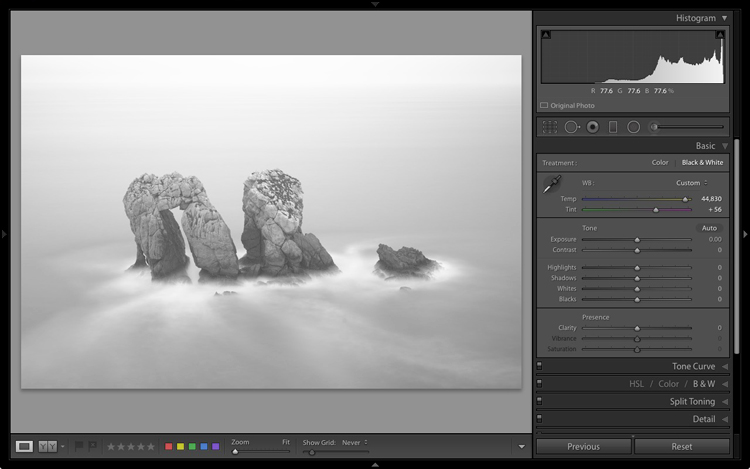
The Lightroom histogram

I used the Tone sliders to increase contrast and stretch the histogram so that it filled the space available. The histogram acted as a guide that told me exactly what was wrong with the image and helped me add the contrast back into the photo that it lacked.
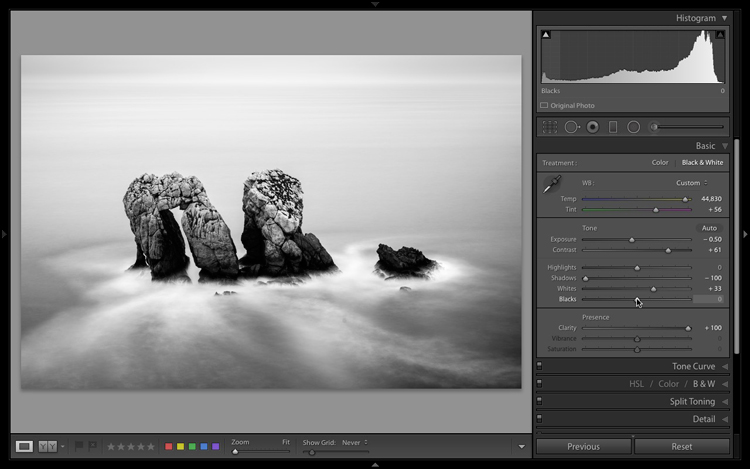
The Lightroom histogram contrast adjusted

The histogram and the Tone sliders

There are five zones in the Lightroom histogram.

When you move the mouse over the Exposure, Highlights, Shadows, Whites or Blacks sliders in the Basic panel the zone that is affected by that slider is shown in light gray in the histogram. I’ve added red lines to make it clear where each zone falls.
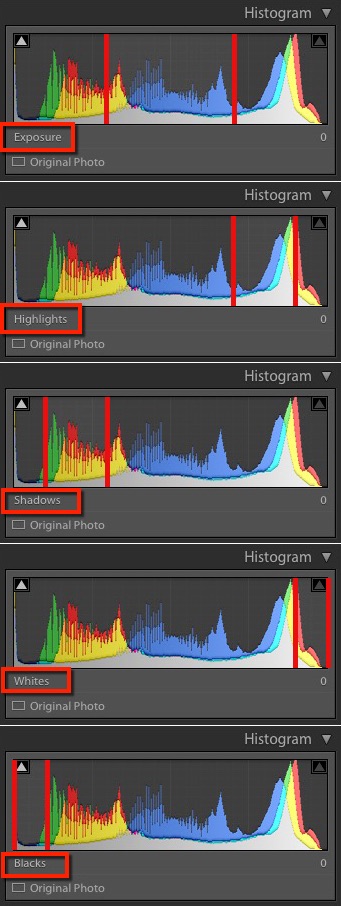
lightroom-histogram-zones

The same zones are shown when you move the mouse over the histogram itself. The name of the slider that controls the tones in that part of the histogram is displayed underneath.

This diagram (right) shows the zone that corresponds to the Shadows slider.lightroom-histogram-sliders
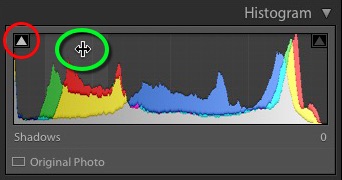
 

When you see the icon with the two arrows (circled in green), hold the left mouse button down and move side to side to adjust move the Shadows slider left or right. The histogram will change as you do so. This technique gives you control over the Tone sliders from the histogram itself.

Each slider controls a particular zone, but bear in mind that those adjustments also make changes in the other zones. Don’t worry if this sounds complicated – it will make perfect sense once you try it out for yourself. The key is to practice, and you will soon understand the relationship between the Tone sliders and the histogram.

Luminance and color histograms

If you’re processing a color photo you’ll notice part of the histogram is colored. Lightroom is actually showing you four histograms in one. On top is the luminance histogram, shown in gray. This shows brightness values only and has nothing to do with color. This is similar to the luminance histogram on your camera. The other three histograms are colored red, green and blue and correspond to the color channels in the image (some cameras also show these histograms).

You’ll also see some additional colors (like yellow) where the red, green and blue histograms overlap.

Saturation and the histogram

The color controls in the Basic panel affect the color histograms. The easiest way to show you is by demonstrating how the Saturation slider affects the color histograms. Here is a histogram belonging to a color photo, with Saturation set to zero.
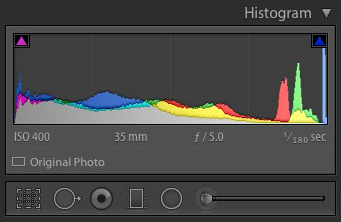
The Lightroom histogram

This is what happened when I set Saturation to +100. Increasing Saturation means that the colors are stronger. The result is that the peaks of the color histograms are higher.
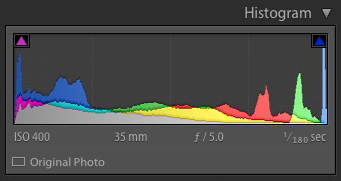
The Lightroom histogram

You’ll also notice that the Shadow Clipping icon (on the left) has turned magenta, and that the Highlight Clipping icon (on the right) has turned blue. These indicate that there is clipping in the shadows, but only in magenta hues, and that there is clipping in the highlights, but only in the blue channel.

This is an extreme example because in real life you will never increase Saturation to +100. But there may be times when you make adjustments that clip colors rather than brightness values. It probably doesn’t matter in images viewed on a computer screen, but it may do with images that are printed on paper or reproduced in a book or magazine.

Finally, when I move the Saturation slider to -100, which removes all color from the photo, the color histograms disappear and we are just left with the luminance histogram. This is a useful tip if you would ever like to see the luminance histogram by itself.
The Lightroom histogram

Conclusion

That concludes our overview of the histogram in Lightroom. Hopefully, you can see what a useful tool it is for processing photos in Lightroom. If you have any questions about the histogram, please let me know in the comments below.


If you enjoyed this article and woudl like to learn more about Lightroom then please check out my Mastering Lightroom ebooks.

googletag.cmd.push(function() {
tablet_slots.push( googletag.defineSlot( “/1005424/_dPSv4_tab-all-article-bottom_(300×250)”, [300, 250], “pb-ad-78623” ).addService( googletag.pubads() ) ); } );

googletag.cmd.push(function() {
mobile_slots.push( googletag.defineSlot( “/1005424/_dPSv4_mob-all-article-bottom_(300×250)”, [300, 250], “pb-ad-78158” ).addService( googletag.pubads() ) ); } );

The post How to Understand and Use the Lightroom Histogram by Andrew S. Gibson appeared first on Digital Photography School.


Digital Photography School

 
Comments Off on How to Understand and Use the Lightroom Histogram

Posted in Photography


Modern Mirrorless: Canon EOS M5 Review

21 Dec

Introduction

The Canon EOS M5 is the most enthusiast-friendly EOS M yet. It’s a 24MP mirrorless camera built around a Dual Pixel APS-C sensor, giving it depth-aware focus across most of the frame. On top of this it adds a built-in electronic viewfinder, a good number of external controls (including twin control dials) and a well implemented touchscreen.

This level of direct control puts it comfortably ahead of Sony’s a6000 and a6300, and more on par with Panasonic’s GX85 (GX80 in some markets) and GX8 enthusiast models. All of these cameras aim to offer stills and video capabilities in relatively small bodies but with a reasonable level of direct external control.

Key Specifications

  • 24MP Dual Pixel APS-C CMOS Sensor
  • 2.36M-dot OLED electronic viewfinder
  • 1.62M-dot tilting rear touchscreen
  • Electronic video stabilization combines with in-lens IS to give 5-axis IS
  • 7 fps continuous shooting (9 fps with focus and exposure locked)
  • Wi-Fi with always-connected Bluetooth

The Canon EOS M5 is a very approachable camera, despite all those buttons and dials. In fact, it’s the implementation of this touchscreen that, in general, we’re most impressed with. Much like the system developed by Panasonic, the M5 not only lets you use the rear touchscreen to position focus, it also allows its use as a touchpad to move the focus point when you’re shooting through the viewfinder. This, combined with decisive autofocus, has proven to be significant for both stills and video shooting. 

The camera has four dials in total: two main dials on the top of the camera, a dedicated exposure compensation dial and a fourth dial encircling the four-way controller on the back of the camera. This is a much higher level of direct control than offered on the simpler EOS M-series models offered previously, suggesting Canon expects the user to take more hands-on control of the shooting experience.

Three of the four control dials on the M5 are on the top plate, giving users easy access to exposure parameters.

While the lack of 4K video capability is a disappointment, the ability to use the touchscreen to re-position the focus point with a high level of confidence that the camera will smoothly glide the focus to the right point is highly desirable.

The touchscreen-plus-Dual-Pixel-AF combination is also useful for stills shooting – you can not only use the touchscreen to drag the focus point around the screen but also use it to select between available faces if shooting or recording in face detection mode.

The other significant benefit of the M5 finally receiving Canon’s Dual Pixel AF system is that it is now able to focus adapted EF and EF-S lenses very effectively – overall performance isn’t quite the same as an 80D in Live View mode, but it’s leaps and bounds ahead of any previous M camera. You’re also no longer limited to the small central focus area offered when using comparable Rebel / EOS x-hundredD DSLR models, and focusing is almost DSLR-quick and decisive.

Compared with its peers

The enthusiast photographer has a good number of choices when looking for a reasonably sized mirrorless camera with a good degree of direct controls. Sony offers the a6000 and a6300 (the higher-specced a6500 comes in at a significant premium over the EOS M5), depending on how much you need 4K video and how demanding your AF needs are. Meanwhile, Panasonic offers both the GX85 and GX8, with the more expensive model offering higher resolution and a better viewfinder. Olympus’s E-M5 Mark II offers a broadly similar feature set and form factor. All of these models are extremely capable, with ease-of-use being the Canon’s most obvious response to their broadly higher video specifications.

  Canon EOS M5 Sony a6300 Panasonic GX8
MSRP $ 1099 with 15-45mm lens $ 1149 with 16-50mm lens $ 1199 body only
Pixel count 24MP 24MP 20MP
Focus method ‘Dual Pixel’ on-sensor PDAF On-sensor PDAF Contrast detection*
EVF 2.36M dots 2.36M dots 2.36M dots
 Dials Two on top plate
Exposure Comp
Four-way/dial
Top plate
Four-way/dial
Two on top plate
Exposure Comp
Continuous shooting 9 fps
(7 with live view and C-AF)
11 fps
(8 with live view)
8 fps
(5.5 with live view)
Video specifications 1080/60p 4K/30p
1080/120p
4K/30p
1080/60p
Peaking/Zebra Yes/No Yes/Yes  Yes/Yes
Touch focus in video Yes No  Yes
Battery life
Screen/EVF
295/295 shots 400/350 shots 330/310 shots

* When using Panasonic-branded lenses the GX8 adds distance prediction based on the out-of-focus characteristics of the lens (A system the company calls ‘Depth From Defocus’).

So, is the EOS M5 the mirrorless tour de force we’ve been expecting from Canon? It’s no secret that we found it to be an incredibly promising camera, even if it is a bit late to the party. To find out just how compelling an option the M5 is, let’s press on.

Articles: Digital Photography Review (dpreview.com)

 
Comments Off on Modern Mirrorless: Canon EOS M5 Review

Posted in Uncategorized


This image is why the world needs professional photographers

21 Dec

A gunman assassinated Russia’s ambassador to Turkey yesterday at the opening of a photography exhibit in Ankara. Associated Press photographer, Burhan Ozbilici was covering the event and witnessed the assassination first hand, which occurred while the ambassador was addressing the room of attendees.

In the face of an active gunman meters away, Ozbilici kept on making pictures. And because of his bravery, the world can witness and better contextualize this horrific event. But before you go on calling Ozbilici a hero for being brave, consider for a moment that he did exactly what he is trained to do. He did what any good photojournalist should have done. 

In an interview with the Los Angeles Times today, Ozbilici had this to say about the incident:

“I was, of course, fearful and knew of the danger if the gunman turned toward me. But I advanced a little and photographed the man as he hectored his desperate, captive audience,” Ozbilici tells the LA newspaper. “I was thinking: ‘I’m here. Even if I get hit and injured, or killed, I’m a journalist. I have to do my work. I could run away without making any photos… But I wouldn’t have a proper answer if people later ask me: ‘Why didn’t you take pictures?’”

It’s a stark reminder that the world needs well-trained photojournalist now more than ever. Unfortunately the trend in the newsroom, both in the United States and World-wide has been a constant cycle of slashing staff photography positions. 

There are a lot of reasons why photojournalism jobs are disappearing, the decline of print/classified ads is surely one, but the increase in smartphone image quality is another. Smartphones have come a long way and for many media companies, a multi-talented journalist who can shoot some photos and video with their iPhone is often considered good enough.

So what if instead of a proper photojournalist, the Associated Press has sent just a reporter with a smartphone to cover the event? After all, it’s just a gallery opening right? A quick snap of the ambassador behind the podium and a few shots of the gallery walls to accompany the text should do the trick. 

The point is, there really is no substitute for a professional photojournalist with years of training and field time. In an era when news is increasingly catered toward one’s specific taste, the facts can be elusive. But a good photojournalist can get us closer to the truth. It’s their job.

Articles: Digital Photography Review (dpreview.com)

 
Comments Off on This image is why the world needs professional photographers

Posted in Uncategorized


DEAL: 2 Amazing Courses to Improve Your Landscape Photography

21 Dec

Our 6th deal of our 12 Days of Christmas Sale brings you two amazing online video courses that will improve your Landscape Photography – at 60% off the regular price.

NewImage

Today only you can pick up these two courses for just $ 54 (normally $ 188).

This value packed Landscape Photography bundle includes:

Creating Impact Course by Varina Patel
Go beyond the basic rules to build stronger compositions with visual impact. The Creating Impact course will help you to establish your creative vision, develop a solid workflow that will make that vision a reality and help you take beautiful landscape photos.

This course normally sells for $ 134.

Practical Lightroom Tutorials by popular dPS writer and renowned Landscape Photographer Anne McKinnell.

Anne will teach you how to stop being overwhelmed by Lightroom and to start using it to transform the Landscape (and other) images that you take. Anne authored our popular ultimate guide to Landscape Photography article, and we’re sure you’ll enjoy these lightroom tutorials just as much!

This course normally sells for $ 49.

This Deal Won’t Last

You are going to love these courses – they have been developed by two of our favourite landscape photographers and contain so much practical information that will help you to take some beautiful photos.

Grab both of these courses today – with hours of video training and 40 online videos – for just $ 54. A Saving of $ 129!

This offer won’t last because tomorrow’s is just 24 hours away – so avoid disappointment and pick it up today here.

googletag.cmd.push(function() {
tablet_slots.push( googletag.defineSlot( “/1005424/_dPSv4_tab-all-article-bottom_(300×250)”, [300, 250], “pb-ad-78623” ).addService( googletag.pubads() ) ); } );

googletag.cmd.push(function() {
mobile_slots.push( googletag.defineSlot( “/1005424/_dPSv4_mob-all-article-bottom_(300×250)”, [300, 250], “pb-ad-78158” ).addService( googletag.pubads() ) ); } );

The post DEAL: 2 Amazing Courses to Improve Your Landscape Photography by Darren Rowse appeared first on Digital Photography School.

Digital Photography School

 
Comments Off on DEAL: 2 Amazing Courses to Improve Your Landscape Photography

Posted in Photography


Google Sheep View: Creature-Mounted Cameras Map Rugged Faroe Islands

20 Dec

[ By WebUrbanist in Destinations & Sights & Travel. ]

mapping

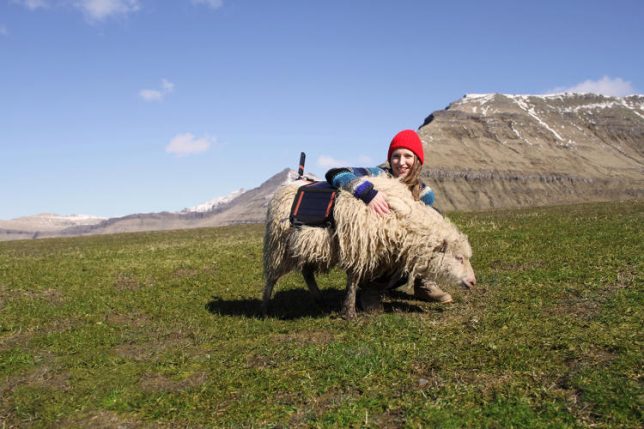
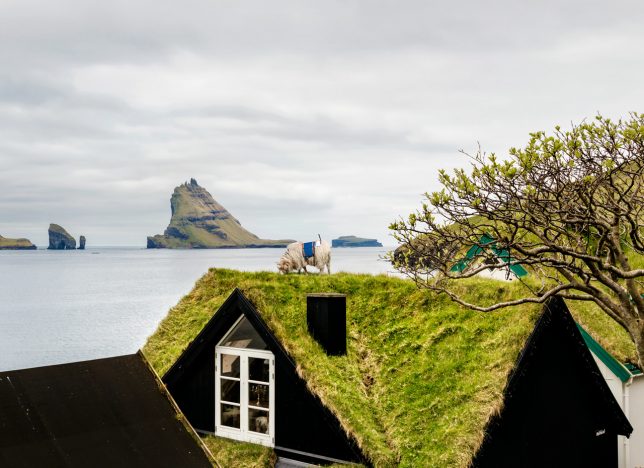
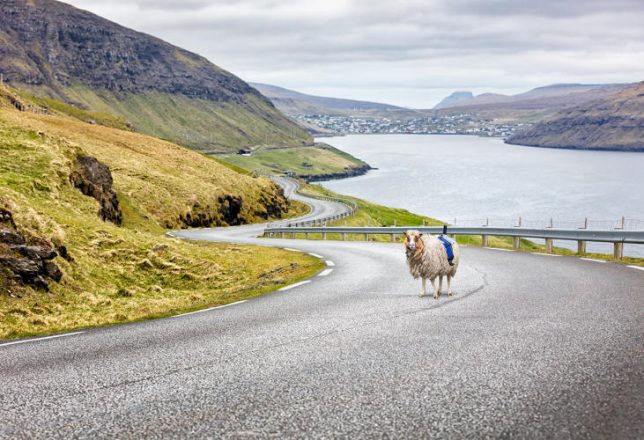
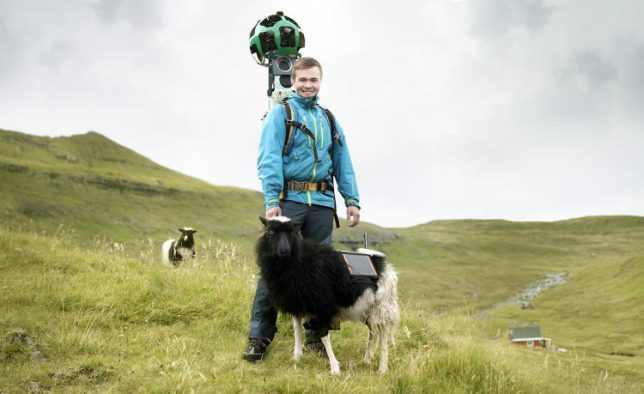
Powered by solar energy and mounted to the backs of sheep, 360-degree cameras are mapping out the Faroe Islands for Google Street View. Since Google was initially reluctant to send cars to the archipelago, locals took it upon themselves to get their own interactive images out into the world, raising awareness of the region’s uniquely beautiful landscapes. In the end, they not only attracted Google’s interest but managed to spawn a creative DIY approach to mapping rugged environments.

Sheep View 360 got its start when resident Durita Dahl Andreassen first strapped a camera to a sheep, let the animal roam free around the island then uploading the results to Google. “I gently placed a 360-degree camera powered by a solar panel on the back of a sheep that would take photographs as the animal freely grazed the open hillsides,” explains Andreassen.

google-sheep-view

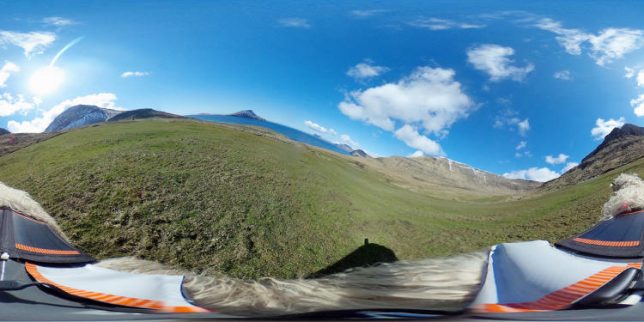
“Photos are then transmitted back to my mobile phone so that I can upload them to Google Street View myself, finally putting the Faroes on the map in a very unique way!” Indeed, some of the shots and perspectives would be unlikely or impossible for vehicles or even humans, taken as they are from the tops of roofs and sides of mountains.

sheep-view-mounted

This endeavor and an associated petition eventually did get Google’s attention, but by the time they showed up with vehicles the self-mapping system was well underway with sheep, bikers, backpackers, ships and even a wheelbarrow playing parts.

sheep-view-panoramic

Ultimately, folks from the Faroe Islands have made it a bit of an interactive game — anyone who wants to can come borrow a camera and start mapping the parts not yet uploaded to Google. This presents an interesting challenge for those who want to take it on: can you as a tourist cameraman visit the places most people and cars don’t go to or can’t reach?

sheep-view-hug

“The Faroe Islands have some of the most beautiful roads in the world. It is impossible to describe what it feels like driving through the green valleys and up the mountains, or alongside the ocean, surrounded by steep drops and tall cliffs. It’s an experience like no other.”

Share on Facebook


[ By WebUrbanist in Destinations & Sights & Travel. ]

[ WebUrbanist | Archives | Galleries | Privacy | TOS ]


WebUrbanist

 
Comments Off on Google Sheep View: Creature-Mounted Cameras Map Rugged Faroe Islands

Posted in Creativity


4 Beginner Tips for Doing Architecture Photography

20 Dec

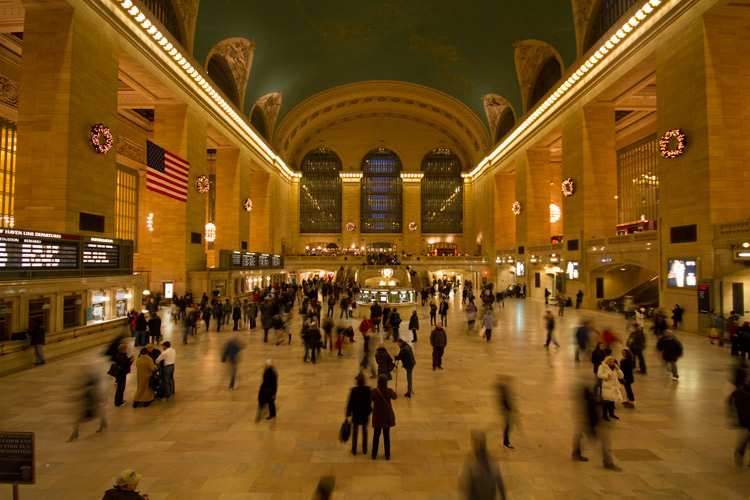
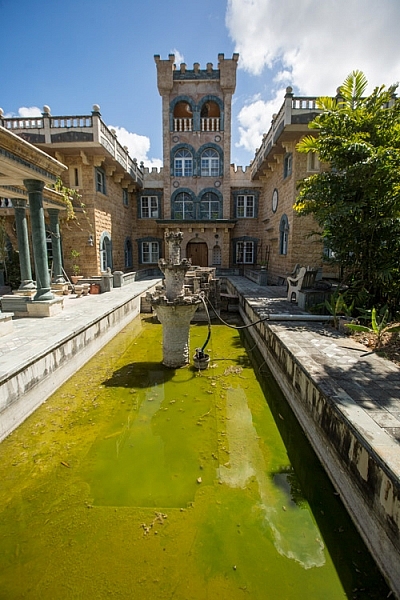
The first thought you will want to steer clear of is that architecture means buildings, as it actually encompasses most man-made structures. Architectural photography involves capturing an image of a physical structure in an aesthetically pleasing way for your viewers. Here are a few tips to consider if you are just getting into this category of photography.

architecture photography tips

1. Gear Up

In any genre of photography, the right gear makes the difference and this also holds true for architectural photography.
If you want to get an entire structure or room into your frame or opt for a dramatic composition, pack a wide-angle lens in your bag.

architecture photography tips

Keep in mind that there will be times when even a wide angle lens may not be adequate to capture an enormous structure or a sense of place – here the knowledge of shooting panoramic images can come in handy.

architecture photography tips

On the flip side, you may not want to show everything and just focus on some interesting details. Pack a zoom lens to capture those details which help to convey the more ornate and interesting characteristics of architecture.

arnos-vale-entrance-architecture

architecture photography tips

Also, a telephoto lens allows shooting your subject from further away and can help a building’s walls and lines appear straighter (with less distortion).

2. Compose Yourself

Interesting architectural photography benefits from good composition. While distortion can add drama and lend to that artistic feel, buildings leaning backwards or looking too distorted can be less appealing. Always consider your angles and how you want to convey your subject.

architecture photography tips

Photographers who specialize in architectural photography find themselves correcting skews in the post-processing phase or invest in a tilt-shift lens to avoid distortion in the first place.

If you are starting out and want to play around with the dramatic feel, you can shoot from lower or higher angles to maximize the disfigurement. Remember while doing this can be interesting, it is recommended to reduce the effect so that it is not too distracting.

architecture photography tips
Move around and try different angles – shoot straight up, get closer or further away, go low to the ground or higher than the building if possible and see what enhances your architecture.

3. Lighting

A major challenge with architectural photography is that you have no control over the position and orientation of the subject (especially when it comes to buildings), so most times you have to make the most the available light.

architecture photography tips
One of the most interesting (and recommended) lighting options for buildings is when light falls on its side and front (side-front lighting). This angle of lighting provides a decent amount of illumination and can cast interesting shadows across the face of a building, which gives it a more three-dimensional look. So scout out your location at different times and see how the light and shadows change the look and feel of your image.

architecture photography tips
Be wary with strong back lighting when shooting buildings since it can create uniform dark surfaces, unless you are going for that silhouetted look. Again the time of day comes into play and if the structure itself has lights, it adds to the photo.

architecture photography tips
Alternatively, you can shoot at night. Many buildings and cities are designed with night time in mind. Even bridges, sculptures, and windmills can be interesting pieces to photograph after dark. Look for color and the way the buildings are lit and use a tripod!

4. Time Investments

As noted there is little control over large-scale lighting on existing grand architecture, so work with the light that is already there. You can do this effectively by investing time to determine what light is most flattering.

architecture photography tips nighttime

Does the building look better in the morning sun or at sunset? How about at night – is it lit or does it make a great silhouette? Are there interesting reflections in the daytime or a lot of texture to capture? Remember that different times of the day and varying weather conditions can change the mood of your architecture.

architecture photography tips light

Conclusion

Architectural photography is interesting and can be quite exciting. Give yourself time to see architecture from alternate angles, at different times of the day and study it long enough to know what you want your end result to be. Invest the time – it can be worth it.

What is your favorite type of architecture to shoot? Please share some of your shots and techniques with us in the comments below..

googletag.cmd.push(function() {
tablet_slots.push( googletag.defineSlot( “/1005424/_dPSv4_tab-all-article-bottom_(300×250)”, [300, 250], “pb-ad-78623” ).addService( googletag.pubads() ) ); } );

googletag.cmd.push(function() {
mobile_slots.push( googletag.defineSlot( “/1005424/_dPSv4_mob-all-article-bottom_(300×250)”, [300, 250], “pb-ad-78158” ).addService( googletag.pubads() ) ); } );

The post 4 Beginner Tips for Doing Architecture Photography by Nisha Ramroop appeared first on Digital Photography School.

Digital Photography School

 
Comments Off on 4 Beginner Tips for Doing Architecture Photography

Posted in Photography


GoPro HERO cameras undergo torture test: a dip in liquid nitrogen

20 Dec

Industrious YouTube user Grant Thompson recently subjected the GoPro HERO5 Session and HERO5 Black cameras to a chilly torture test: dunks in liquid nitrogen. He first tested the experiment with an older Session camera, hoping to avoid the destruction of two perfectly good new cameras if death proved swift. However, the older Session held up surprisingly well, and so he put the two new cameras to the test, literally freezing them solid. See the results in the video above.

Via: PetaPixel

Articles: Digital Photography Review (dpreview.com)

 
Comments Off on GoPro HERO cameras undergo torture test: a dip in liquid nitrogen

Posted in Uncategorized


Tips and Resources for Doing Android Phone Photography

20 Dec

Everywhere you go in the world today you will find someone, or many people, with their phones in the air capturing what they see. They all have a camera with them because they have their phones and can photograph everything they see. Phones have had cameras in them for quite a few years now, but slowly over the years they have improved and today many phones are amazing.

However, when you look around at phone photography there does seem to be an emphasis on iPhones and their cameras. While this article isn’t about which is better, it is important to remember that when it comes to phones Android has a much larger market share and therefore more people are using Android phones and their cameras.

Android phone photography tips

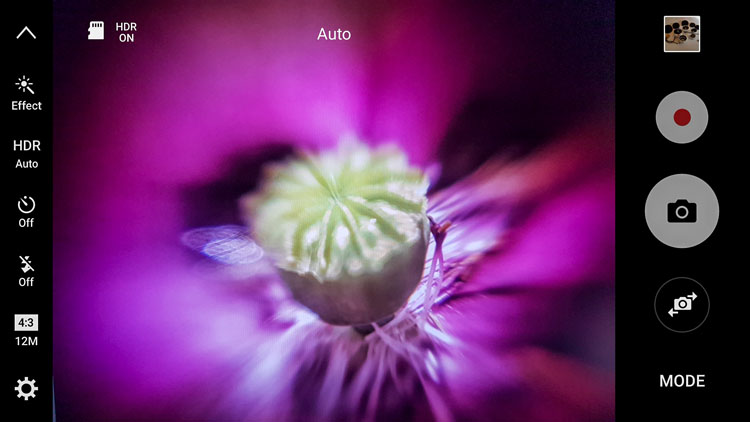
The camera user-interface for the Samsung Galaxy S7 Edge.

For this reason, this article is going to concentrate on Android photography, as there are many who seem to think that everything is made for the iPhone and if they don’t have one they are missing out. That really isn’t the case and since beginning research for this article so many things have come to light.

Phone

Not all phones are the same, nor are the cameras in them. If you are serious about using it for photography, then it would be good to do your research and get one that has a good camera.

While Samsung has had some bad press lately over the debacle with the release of the Note 7, it has to be remembered they are still good phones and the camera in the Galaxy S7 Edge is said to be the best still camera (inside a mobile phone) on the market. It is very clear and the photos have an amazing quality. This is the one I use.

Get one that matches your needs

The camera, as with most, has lots of different settings and modes so you can find one that will be suitable for the type of photography that you are shooting.

If your intention is to use your phone a lot for photography then be sure to select on that has what you need. Also, make sure that it is easy to get the photos from the phone to your computer. In today’s phone market, though, that is easier than ever.

Android phone photography tips

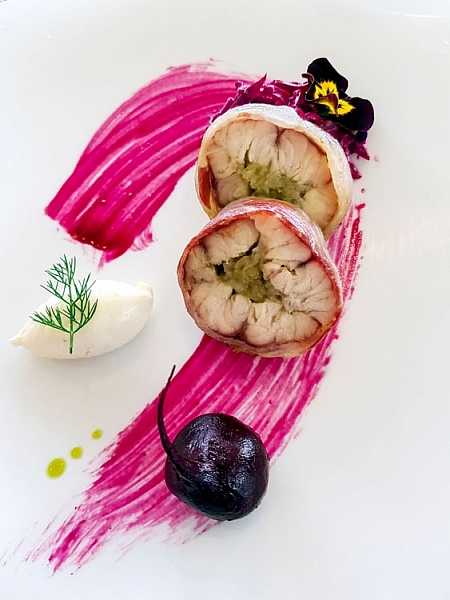
Some food photography with the Samsung Galaxy S7 camera.

Apps for photography

We live in a world of apps. There seem to be apps for everything. Whether they are good or not is another story.

If you go to the Google Play Store and search for cameras you will be given an overwhelming choice. You can get apps for image sharing, doing effects, making selfies, collages, and so on. The list seems endless. Just the popular results give you over 200 choices.

Android phone photography tips

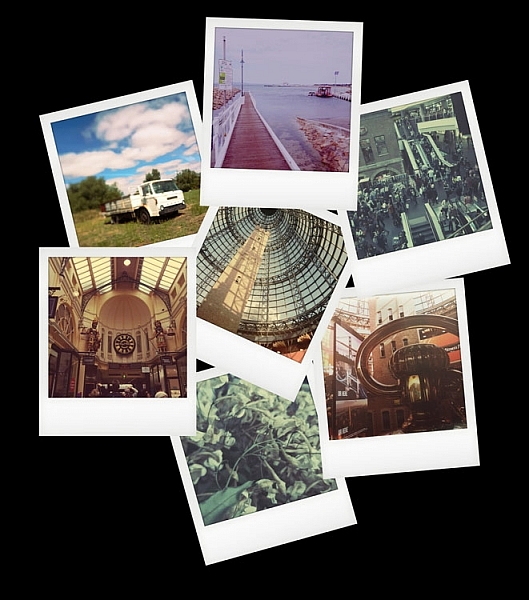
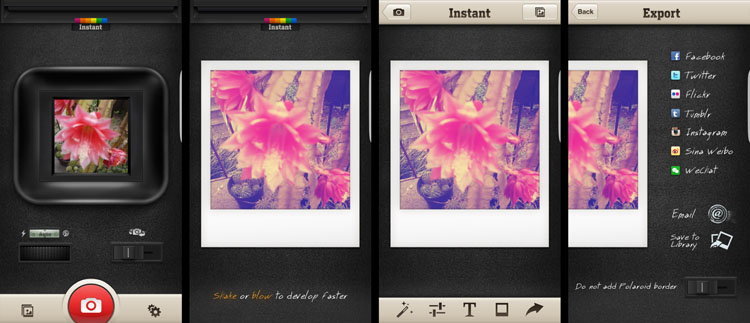
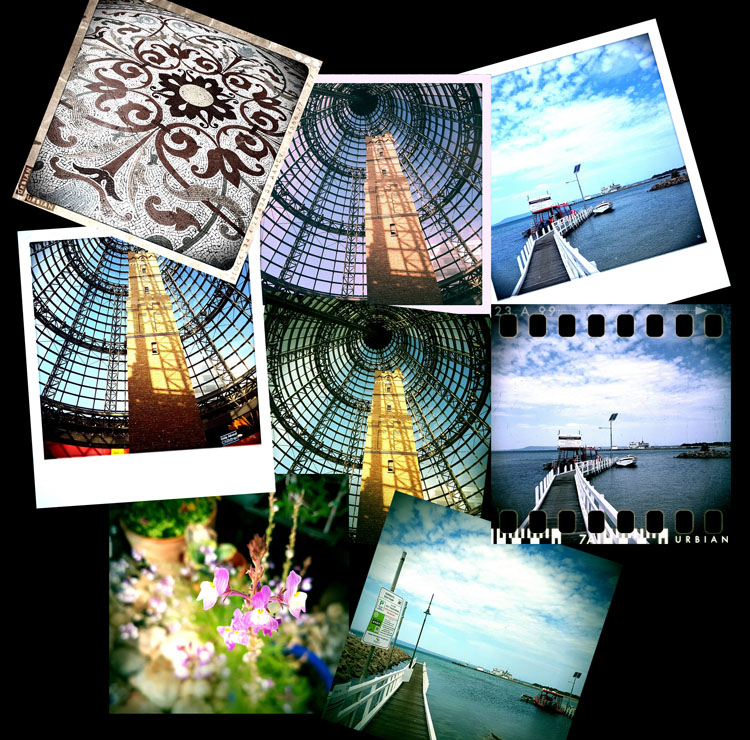
Photos taken with the Instant Camera App.

Most of them are free, so if you are unsure which ones to use you can install them, try them out, and if you don’t like one then just uninstall it. The reviews and number of stars can be a good indicator, especially for ones that you have to pay for. If you have to spend money, then you want to make sure it is a good purchase. Having said, though, many of them don’t cost a lot.

I purchased Instant, which imitates the type of image you would get with a Polaroid camera. After playing around with it for a bit I discovered that there are lots of filters in the app to create many different effects. It is set up for you to shake or blow the image for it to be revealed, like the original Polaroids. Even though you know you don’t need to do it, it almost seems irresistible to not shake or blow on it.

Android phone photography tips Instant app Polaroid.

Taking photos with the Instant Camera App.

Retro camera app

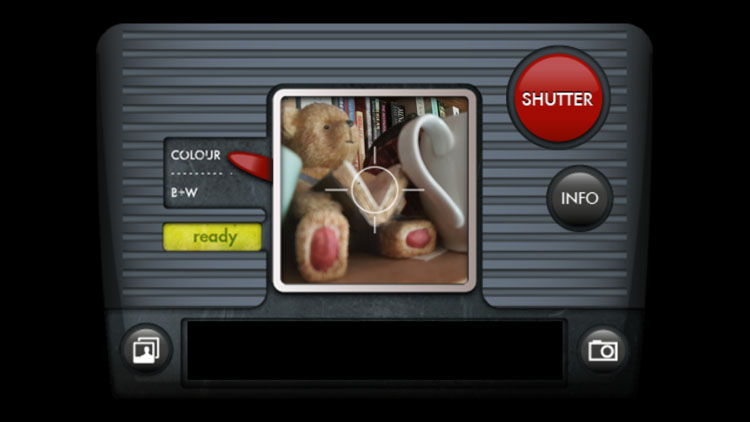
Another one that you can try out is the Retro camera. It’s free and comes with several different cameras. If you press the camera icon in the app you can scroll through and find different ones. I quite like the Xoloroid one and the Fudgecan.  This app does not seem to have the filters, but you can choose to either take colour or black and white images with it.

Android phone photography tips retro camera

The Retro Camera app as it is taking an image.

They are great fun to play around with and I do suggest you try many apps. You might even fall in love with one.

Android phone photography tips retro app

Using the cameras within the Retro Camera app you can get a variety of results with each of the different options.

Lenses to attach to your phone

Lenses for mobile phones have been around for a while, but there does seem to be the impression that they are only for iPhones. I thought the same thing too. But, there are many lenses available for you to attach to your Android phone.

Lensbaby has lenses for the iPhone. When asked why didn’t they do them for Android the answer was simple. They did, but people didn’t seem interested and they didn’t sell. Perhaps the reason they didn’t sell well, was because people didn’t know about them. Well, now you do.

It is unknown how many lenses there are for Android, but apparently, a lot of the ones for iPhones can also be used on Androids. They use a magnetic ring that sticks over the top of the camera on the back of your phone. Some rings are better than others, and some don’t work very well.

Lensbaby

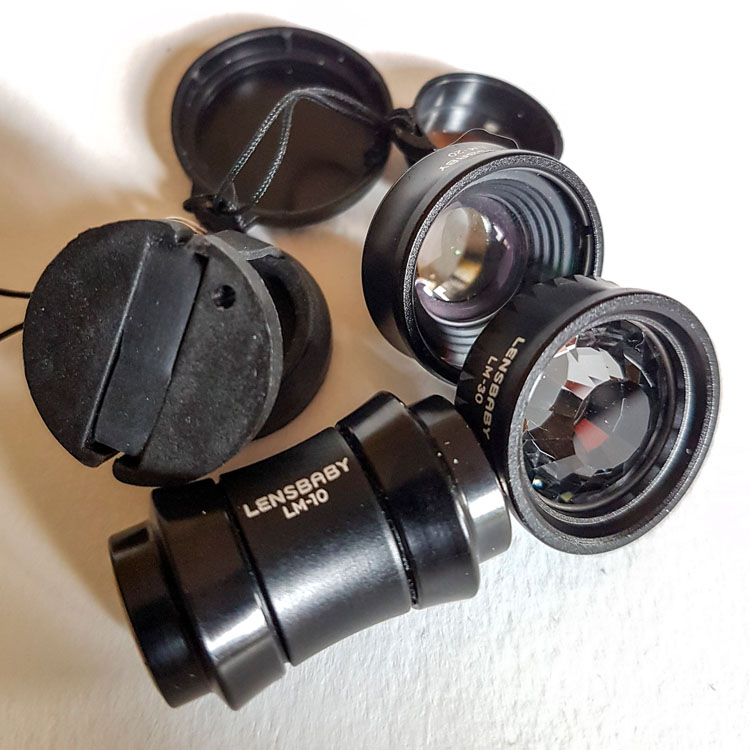
There are three phone lenses from Lensbaby and they all do different things. Along with them is an app for your phone that helps you take photos.

  • The Lensbaby LM-10 is a two-way lens, meaning you can turn it around and use the opposite end as well. The sweet spot is in the center for both ends, but one end will let you get closer than the other. It is a bit like reversing the lens on your camera.
  • LM-20 has a bigger sweet center spot and lets you take more normal images.
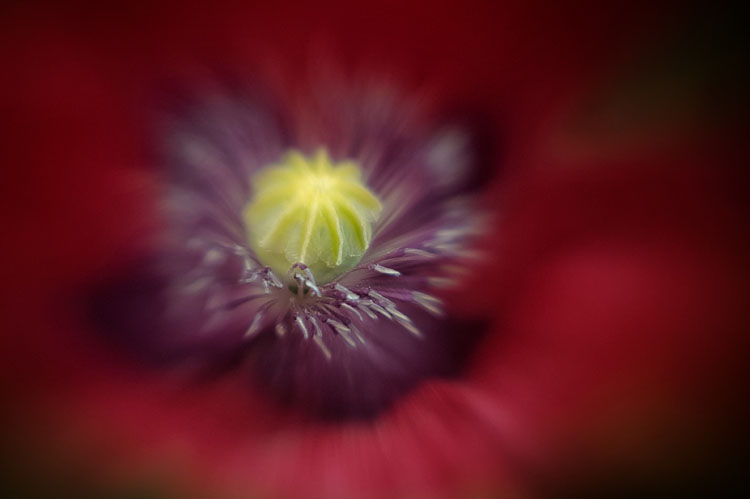
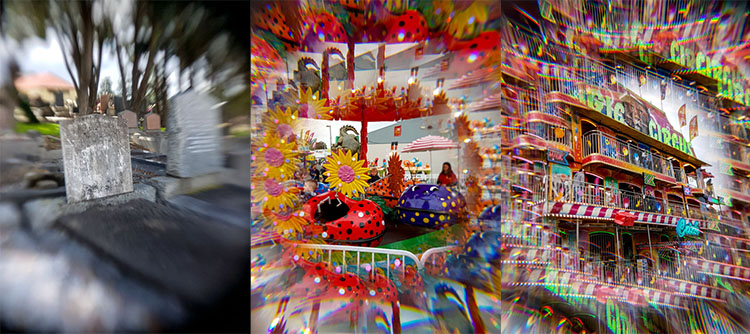
  • LM-30m this is very sharp in the middle and gives a crazy effect around it. Some say the photos are mind-bending, and can too strange. You do have to think about where you would use this lens. It isn’t suitable for everything.
Android phone photography tips Lensbaby LM-10

Lensbaby Lenses

The magnetic ring that sticks to the camera is great and doesn’t come off when you take the lenses off. However, it can be hard to focus using it and if you leave it on, the camera can move so it may need readjusting next time.

One thing that is quite good is that you can take it on and off a bit. I’ve done it up to four times and often leave it stuck to the back of the phone until I need it, and then move it over the camera when I’m ready to shoot.

Android phone photography tips lenses

Macro photo taken using the Lensbaby LM-10

Lensbaby app

As previously stated, Lensbaby also has a free app that you can download that lets you have a lot more control over the images. You can move the sweet spot around, or lock it to one position. Be aware that the LM-10 does reverse the image when you are taking it, so you need the app so you can reverse the view so it appears right way around.

Overall the lenses are great and are small enough to carry around in your pocket or bag when you’re out. I use them a lot for macro photography.

Android phone photography tips Lensbaby

Three images, the first taken with the Lensbaby LM-20, the second two taken using the LM-30 lens.

Photojojo

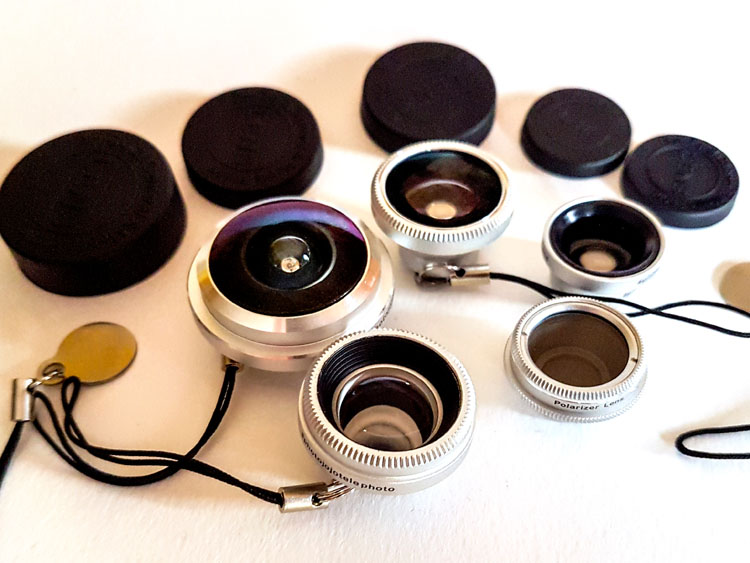
Another company that has produced lenses is Photojojo. You can buy all five or just a couple of them. They have standard lenses, but they also have some special effects ones as well. They are the only company that I saw with a polarizer, which could be very handy for some situations.

Here is a list of what they have:

  • Fisheye
  • Superfisheye
  • Polarizer
  • Wide/macro
  • Telephoto lens
Android phone photography tips Photojojo

Photojojo lenses

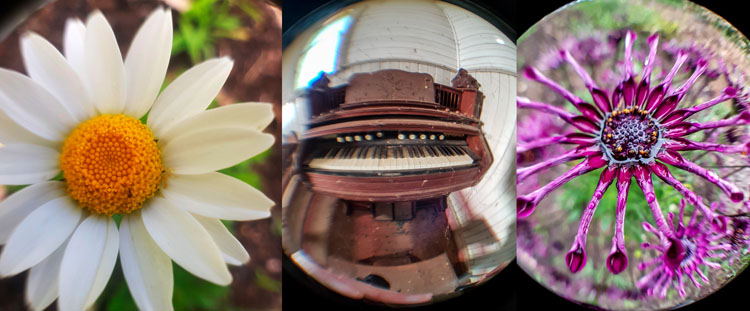
They are all good but the super fisheye is probably the one I’ve played with the most. It is very wide and distorted. You will get your hand holding the camera in the shots you take with this lens. The other lenses are much what you would expect.

The Photojojo lenses come with the magnetic rings to attach to your camera, but they don’t stick very well and when you remove the lens, the ring often comes off as well. If the lens is a bit heavy, like the super fisheye, when you angle the phone down it will just come off, along with the ring.

Android phone photography tips Photojojo lenses

Photos taken with the Photojojo lenses, the super fisheye.

I’ve been using the Lensbaby rings with the Photojojo lenses. Sometimes you have to move the lens or the ring around, but you can get them to work together if you are patient.

Photo editing apps

When you start taking photos with your phone the next progression is to start sharing them with the world on social media places like Facebook or Instagram. You could just post them straight up, use the filters that come with Instagram, or you can do some fine tuning of the images photo editor apps.

If you do a search for photo editors in the Play Store you will be given many choices. As it was for the cameras, you need to go through and see which ones you think will work for you and your purposes. We are going to look at two here.

Snapseed

Snapseed is a photo editor app that has been around for a while. It is free and fairly easy to use. While it does have some filters that you can just add to your image, it also has quite a few adjustments as well. Often, that is all you need to do, just do a few tweaks and the photo is ready to be saved.

As with any software that allows you to make changes to your images you always have to save it. On your phone, Snapseed will make a new gallery for your new saved edited images. You will end up with two of every image, the original and the edited version. When you are sharing, make sure to choose the one from the Snapseed gallery.

leannecole-androidphone-snapseed

The photo on the left was taken with my phone and then processed in Snapseed on the right.

Lightroom Mobile

To get Lightroom Mobile for your phone you have to be a subscriber to Adobe for Photoshop CC and Lightroom CC. It comes as part of the package. Once you are a subscriber you can download the app and sign in.

Get a 20% discount on Photography Plan using this link for dPS readers only! 

It doesn’t work like Lightroom CC on your computer, rather is very similar to other photo editing apps like Snapseed. It is easy to navigate around and figure out. Again, save everything you do and it will export it into a Lightroom gallery for you on your phone.

If you don’t subscribe, then don’t do it just to get this app. Snapseed is probably just as good, and if you don’t like it there are lots of other editing apps. Ask around and I am sure you will get a list for a lot of them. One thing that is great is the ability to install them, and if you don’t like, just uninstall.

Android photography round-up

Taking photos with your phone can very enjoyable and just because you have an Android that doesn’t mean you can’t take photos just as well as those with iPhones. Don’t let Apple users tell you your phone isn’t as good. Now you know that you can take good photos just as good, maybe even better.

In the end, it comes down to the person holding the camera (you) and how good you are. Have faith and share your photos. I would love to see them in the comments section below.

googletag.cmd.push(function() {
tablet_slots.push( googletag.defineSlot( “/1005424/_dPSv4_tab-all-article-bottom_(300×250)”, [300, 250], “pb-ad-78623” ).addService( googletag.pubads() ) ); } );

googletag.cmd.push(function() {
mobile_slots.push( googletag.defineSlot( “/1005424/_dPSv4_mob-all-article-bottom_(300×250)”, [300, 250], “pb-ad-78158” ).addService( googletag.pubads() ) ); } );

The post Tips and Resources for Doing Android Phone Photography by Leanne Cole appeared first on Digital Photography School.

Digital Photography School

 
Comments Off on Tips and Resources for Doing Android Phone Photography

Posted in Photography


DEAL: How to Create Captivating Photo Collages in Seconds

20 Dec

Welcome to Day 7 of the dPS 12 Days of Christmas Sale.

Today’s exclusive offer will help you make beautifully designed collages within Lightroom, in seconds.

Cole from Cole’s Classroom has an exclusive offering for dPS subscribers.

LR collage header

Normally $ 158, today it’s only $ 29. That’s 85% Off.

Creating photo collages has never been so simple, and without ever having to leave Lightroom, you save massive amount of time! These Drag & Drop Collage Templates are Perfect for…

Your Blog, Instagram, Facebook, Prints for Your House & More!

Cole has set up templates for all the popular formats, so you can create collages using:

  • 16 Instagram Unique Design Templates
  • 18 Blog or Website Collage Templates
  • 19 Facebook Cover Design Templates
  • 7 Facebook Ad Templates
  • 16 Print Design Layout Templates

That’s a total of 76 unique design layouts & collages!

Cole has also thrown in a bonus if you buy today so you can export your collages to your blog or Facebook in one click!

So don’t miss out, save $ 129 today.

Note: There’s a 100% no-questions asked money back guarantee on these templates so no risk to you. Buy it, try it and if isn’t what you expect Cole will be more than happy to provide you with a refund.

googletag.cmd.push(function() {
tablet_slots.push( googletag.defineSlot( “/1005424/_dPSv4_tab-all-article-bottom_(300×250)”, [300, 250], “pb-ad-78623” ).addService( googletag.pubads() ) ); } );

googletag.cmd.push(function() {
mobile_slots.push( googletag.defineSlot( “/1005424/_dPSv4_mob-all-article-bottom_(300×250)”, [300, 250], “pb-ad-78158” ).addService( googletag.pubads() ) ); } );

The post DEAL: How to Create Captivating Photo Collages in Seconds by Darren Rowse appeared first on Digital Photography School.

Digital Photography School

 
Comments Off on DEAL: How to Create Captivating Photo Collages in Seconds

Posted in Photography


Rangefinder magazine announces 30 rising stars of wedding photography for 2016

20 Dec

30 Rising Stars of Wedding Photography

Rangefinder magazine has announced selections for its fifth annual 30 Rising Stars of Wedding Photography for 2016, based on submissions by photographers from over 200 countries. Rangefinder is the official publication of the annual Wedding and Portrait Photographers International (WPPI) conference, and honorees will be featured in the December issue of Rangefinder, as well as on display at the WPPI Conference+Expo from Feb. 5-9 in Las Vegas, Nevada. 

We’ve highlighted a few of our favorite photos from this year’s selections, and you can find a complete online gallery here.

Above: Lato Photography/Laura&Tommy (Italy) “One of our favorite weddings of the last season. We were dealing with very difficult and shiny light, and we had to get the best from that situation so we captured this moment using a 45mm tilt-shift lens to create a softer background. The strength of this image comes from their hand positions creating a harmonious line, the delicate colors of their clothing matching with the background and, of course, the bride’s look.”

Lukas Piatek (Germany)

During a wedding day, I often try to take photos of small children. They are not disturbed by the camera at all and just do whatever they would do if I was not around. This little boy was basically running around the dance floor the entire evening, and at one point, I literally waited for him to do something special. I did not expect, however, that he would jump so perfectly, raising his arms in the air, looking into the light and being perfectly centered and framed on the dance floor. The shot was made two years ago and it was my favorite photo from that year.”

Jacob Loafman (USA)

“So, this couple’s ceremony and reception were held at their church. However, their church had recently built a brand new building, but they informed me they still had access to the old church. They wanted to know if I would like to do the main wedding party and bride/groom portraits there. I excitedly agreed and we headed that way. As soon as we walked in, I almost fell over from how amazing the building was inside. It was vacant. Completely vacant. This vacant space still featured the remnants of where the previously used cross hung on the wall. It was just beautiful.”

“I noticed there was still access to the balcony and wanted to do a full wedding party portrait from up there. My idea was to just have them arrange themselves randomly. I provided very little direction, as that’s what I wanted. My desire was to create a group portrait that felt more like an album cover, where the entire group was the focal point, but the vacancy and tattered old floors added an element of interest to the shot. After I released the shutter button a few times, I knew I had accomplished what I was going for.”

People Truelove Tellers (Spain)

“This was a very lucky one. We didn’t actually want to shoot it because we were running out of time and were on our way to another spot for portrait pictures. We were driving in a tiny, narrow and lonely road in the middle of nowhere outside of Madrid, and suddenly a full flock of sheep crossed the road. That was perfect because they ran away to the hill in the perfect direction of the sunset. I asked for the couple to follow them and the photo came!”

Tim and Laura Sullivan (USA)

“Chip and Karyn had a lot they wanted to do for their wedding (ranging from Prince impersonators to multiple live bands), but in the end, they chose an in-town elopement with just their two kiddos and us. Tim officiated, Laura took the ceremony photos, and we spent the day gallivanting around some of the most gorgeous spots in Seattle (we even organized a private chef in an industrial loft for them, because going above and beyond for our clients is our favorite thing). This shot is from the deck of their unfinished condo during their ceremony. Our florist came in and covered the construction dust with the most gorgeous arrangements, almost like their own little Wonderland. Their daughters were crying, we were crying—oh man, was it all memorable.”

Marko Marinkovic (Croatia)

“My editing process aims to resemble the colors of the visual artists from the 16th and 17th century as they, among others, struck a foundation for all of us. Each of the paintings I visit for inspiration gives me insight on the thought process a painter must go through in order to recreate 3D light on a two-dimensional surface. From framing the scene on the square canvas to choosing the color palette, it stays pretty much the same in photography today. Spoiled by the digital era we often overshoot and undermine the thought process behind the images we create.”

The Hendrys (Scotland)

“This was one of the most heartfelt weddings we’ve captured to date. The sun was out—when it was forecasted to rain heavily—emotions were running high and the couple and their guests exuded happiness throughout the whole day. At that moment, we thought to ourselves, is this really our job?! And from then on, we knew it was what we wanted to continue doing for as long as we possibly could.”

Lucy Spartalis (Australia)

“Working with Paul and his groomsmen was like spending a day on the set of Monty Python. LOOK at those mustaches; socks; sexual poses. My partner Alastair and I were wiping tears away between every shot. At one point, someone did a handstand and someone else started posing provocatively on the floor. I could’ve just shot them as they already were, but with a little zhuzhing (I checked that spelling, by the way—what a word)—positioning Paul between the spread legs of the groomsman behind him, asking another gent to kneel on one knee to create a mid-level point of interest, etc—we created a more balanced and dynamic composition. I don’t like to pose people too heavily in most cases, but when you’re onto a good thing, a little directorial tweaking can really take things to the next level.”

Heather Liddell (New Zealand)

“Spring weddings are something special. Julia was greeted by an ecstatic Graham and a sun shower when she reached the top of the aisle. The beads of water caught the light and created the most amazing effect. I crouched low so I could create an angle to get in a little sun flare and to make sure that the rain drops would be highlighted against the dark hedge.”

Pablo Beglez (Spain)

“A few minutes after Paula got out of her room to go directly to the altar, she had a problem with the dress. The designer was there with us and had to take a needle and thread and sew the dress right there. Those were some minutes of stress, but it finally was great.”

Jacob Murphy (USA)

“It was toward the end of the night and the dance party was reaching a crescendo, but I couldn’t help but notice this perfect vignette of everyone’s shoes. I love when details can tell a strong story too. I used an indirect tunnel flash technique to make this photo more interesting.”

Articles: Digital Photography Review (dpreview.com)

 
Comments Off on Rangefinder magazine announces 30 rising stars of wedding photography for 2016

Posted in Uncategorized