RSS
 

Archive for November, 2016

How to Make a Pinhole Camera with a DSLR Body Cap

23 Nov

Pinhole photography is a lensless form of photography. Essentially, the pinhole camera is a lightproof box with a tiny aperture and a photosensitive material positioned inside. Light passes through the aperture and projects an inverted image onto the interior of the box where the photosensitive material is fixed. You can make a pinhole camera out of practically anything, and the results are unique and often surprising.

digital-pinhole-13

Analog ideas in a digital world

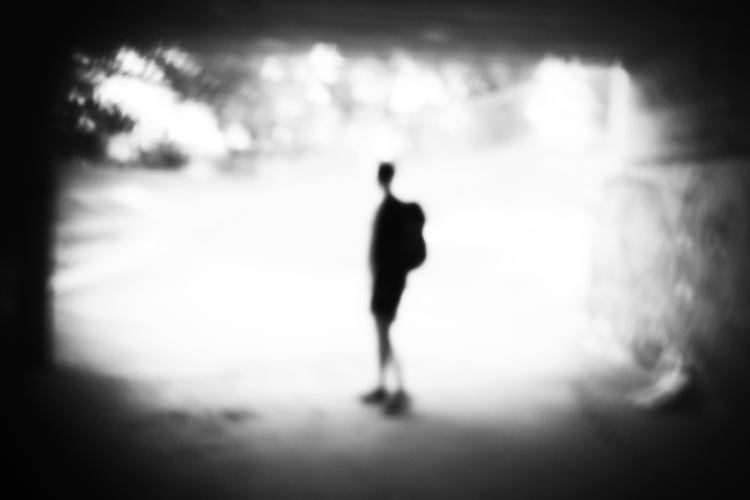
Modifying your DSLR camera’s body cap to create a pinhole effect is a simple project that allows for real-time adjustments that the analog process doesn’t. As long as you can spare a body cap you can do this. The lens emulates the distinctive vignette and softness of a pinhole photograph in a fraction of the time and is great for adding an abstract or surreal quality to an image. While the digital technique isn’t the same as a classic biscuit-tin camera, your home-made lens makes for a dynamic approach to a nostalgic analog process. Plus, the unpredictability of the results adds an interesting twist to your digital practice.

digital-pinhole-15

You will need:

  • A DSLR camera
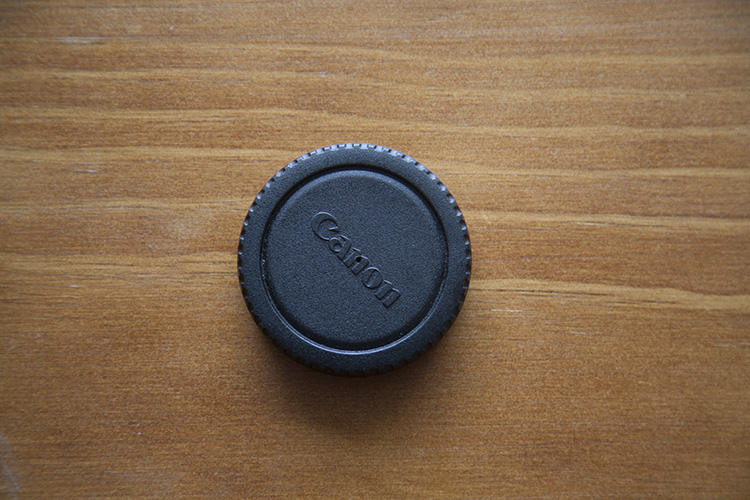
  • One body cap that fits the body of the camera you are going to use
  • One drill and a drill bit
  • A needle
  • Aluminum foil
  • Sticky tape
  • Blu-Tack

Method

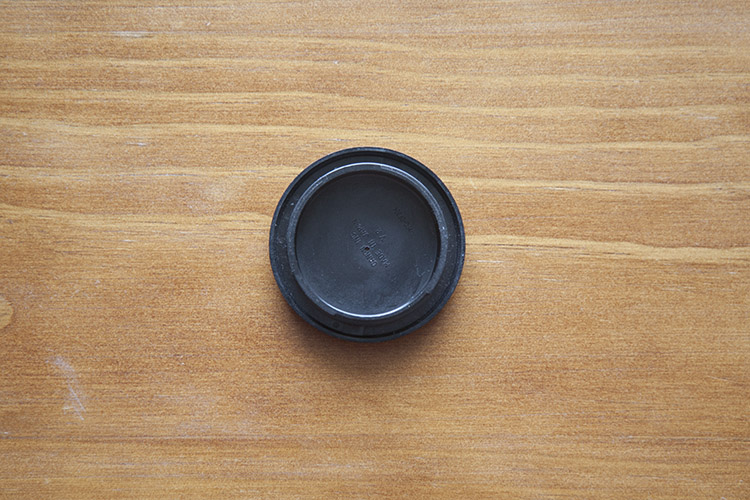
Mark out the center of the body cap and make an indent by pressing the tip of the drill bit into the center mark. It’s important to make a hole in the center of the body cap or you won’t get the full effect. Drill a 1/4″ or 6.35mm hole in the center of the cap. Make sure the hole is clear of any swarf (chips) or sharp ridges left behind by the drill.

digital-pinhole-06

digital-pinhole-07

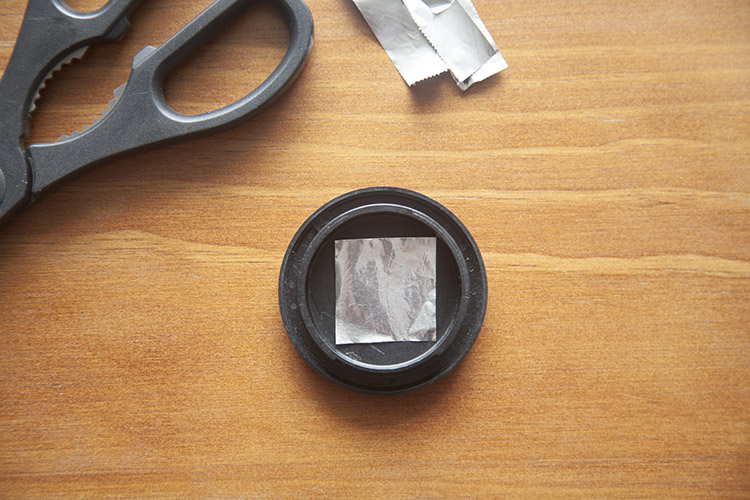
Cut a small piece of aluminum foil to fit inside the edges of the cap.

digital-pinhole-08

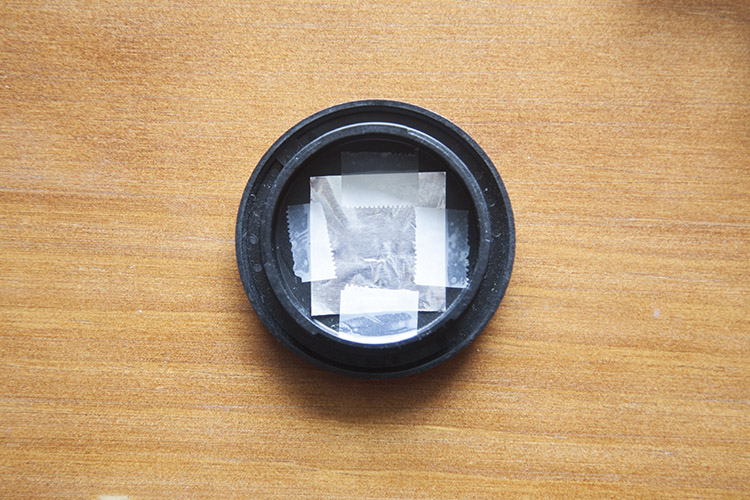
Tape the foil onto the inside of the cap, keeping the sheet taut.

digital-pinhole-10

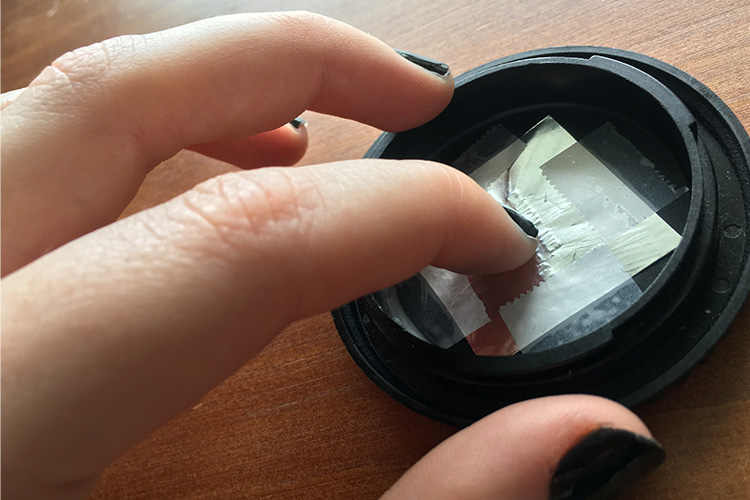
To create an outline of the drilled hole, gently press the foil into the body cap with your finger,

digital-pinhole-11

digital-pinhole-09

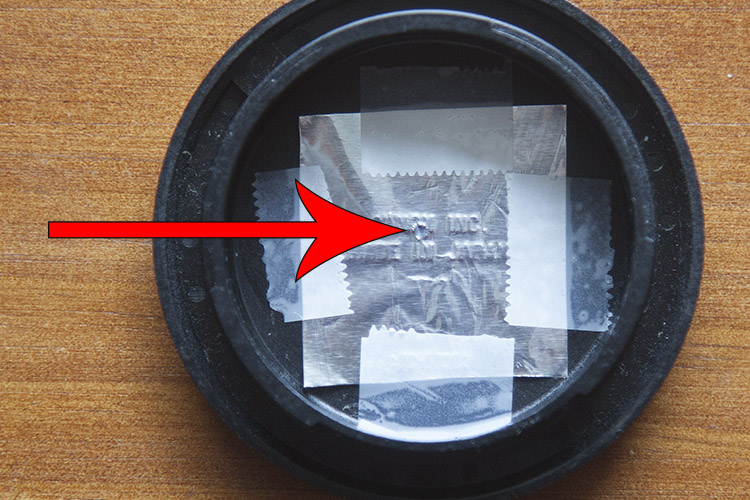
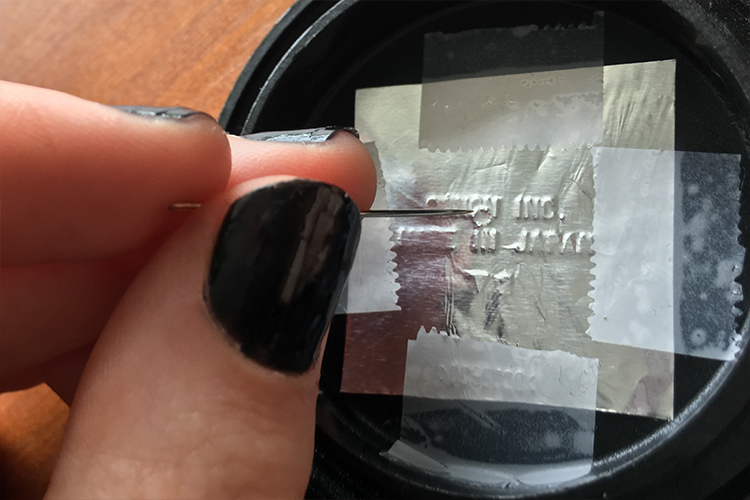
Now, have a look at the outline of the drilled hole. With a small sewing needle, prick a tiny hole in the center of the outline.

digital-pinhole-12

The smaller the aperture, the sharper the photograph, so use the very tip of the needle to make a hole. Make sure no foil hangs over the newly pricked hole as this could compromise image quality.

Shooting with your pinhole camera

Before attaching the cap onto the camera body, be sure to thoroughly clean the body cap of dust and residue. Keep a bit of Blu-Tack with you to cover the hole when the camera isn’t in use.

The tiny aperture in our pinhole lens allows significantly less light to hit the sensor than a conventional lens, so exposures must be longer to compensate. When I’m out in the field, I set my ISO to 500 so the sensor will be more sensitive to the light that does reach it, without too much digital noise in the image. I also set my camera to aperture priority (A on Nikon and Sony, and Av for Canon and Pentax) so that I can adjust the exposure easily, and the shutter speed will adjust automatically.

In dark, indoor conditions, my shutter speed settings can go as low as 8 seconds. On bright days outdoors I photograph at 1/30 of a second but shutter speeds of up to 1/8000th of a second can be used to photograph bright subjects like the sun. At first, it will feel a bit trial-and-error, but half the fun is in the experimentation and you will quickly get a feel for it. Tripods are handy, but in-camera movement can have some neat results too, so don’t be afraid to experiment.

digital-pinhole-01

digital-pinhole-02

Also due to the small aperture of the pinhole lens, dust specks are more visible than images taken with a conventional lens. Don’t panic, it’s not the sign of a dirty sensor! Use Photoshop or a similar program to remove spots via the Spot Healing Tool. While you’re at it, give the colors in your image a bit of a boost with the Curves tool to make your images really pop, or convert an image to black and white for a traditional analog feel.

Conclusion

This project is quick, easy and fun, but it also yields fascinating and unexpected results. Much like its analog counterpart, I found that this method requires the user to relax and enjoy the experimental process and hone in on their photographic senses, rather than pouring over the details.

I found that my best images were the ones I took spontaneously, often having to quickly guess the appropriate exposure and shoot from the hip. Also, I was compelled by the new perspective that the combination of camera movement, long exposure, the limited field of view, and minimal technical adjustment delivered. 

Have fun and share your results in the comments below.

digital-pinhole-04

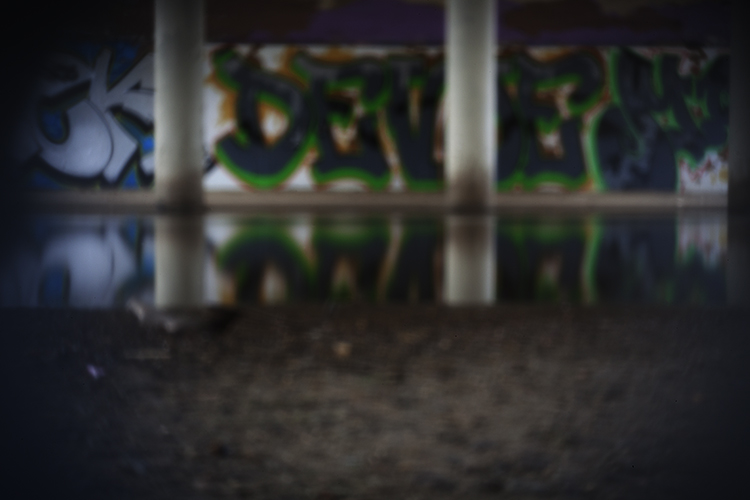
This photograph of leafy branches was taken with a 2 second exposure on an overcast day. The soft focus of our modified lens and the moment of the branches lends a painterly quality to the image.

digital-pinhole-14


digital-pinhole-16

digital-pinhole-03

digital-pinhole-05

googletag.cmd.push(function() {
tablet_slots.push( googletag.defineSlot( “/1005424/_dPSv4_tab-all-article-bottom_(300×250)”, [300, 250], “pb-ad-78623” ).addService( googletag.pubads() ) ); } );

googletag.cmd.push(function() {
mobile_slots.push( googletag.defineSlot( “/1005424/_dPSv4_mob-all-article-bottom_(300×250)”, [300, 250], “pb-ad-78158” ).addService( googletag.pubads() ) ); } );

The post How to Make a Pinhole Camera with a DSLR Body Cap by Megan Kennedy appeared first on Digital Photography School.


Digital Photography School

 
Comments Off on How to Make a Pinhole Camera with a DSLR Body Cap

Posted in Photography


4 Tips to Supercharge your Lightroom Workflow

23 Nov

In this article, we’re going to look at four tips to help you supercharge your Lightroom workflow and post-processing. Then you can spend more time doing what you love, photography!

The issue

Going through several hundred pictures after a photo session can seem so daunting and time-consuming that it becomes more of a chore than an enjoyable and creative part of the photography process. It’s those late nights staring at a collection of pictures on your computer monitor, sipping the last drops from your cold mochaccino long after the whipped cream has melted away, that can suck all the fun out of photography. It can make you want to up-end your workstation, chuck your gear in the trash, and look up the price of desert island real estate so you never have to edit another picture again.

Fortunately, most image editing programs have some type of photo management built-in to help streamline your editing. Lightroom has a set of tools that have been honed over many years of iterative development to really assist you when it comes to trimming precious time from your post-processing workflow. There are four specific techniques that can help you, and those just getting started in the field. Together they can save you time and maybe bring back the artistic spark that may have been lost over the years.

You can help me save time in Lightroom? Tell me more!

Can you help me save time post-processing in Lightroom? Tell me more!

#1 – Create your own presets

Most people know that Lightroom has a fairly extensive offering of built-in presets, and you can even buy additional sets like the ones we offer here at dPS. But as useful as those are, they might not meet your specific needs as a photographer. If you’re like me you, tend to use presets as a starting point and then tweak your images ad nauseam, but sometimes even getting to that starting point can be tricky.

Enter the wonderful world of user-created presets! Lightroom lets you save any combination of adjustments in the Develop module as a Preset that you can apply to any photo at any time. I find this really handy when doing my initial photo imports. I like the RAW files from my Nikon D750 to have a little bit of added vim and vigor right off the bat. So upon import, I usually apply a preset I made called “Nikon RAW Import” that adjusts black, white, and shadow levels along with a few other parameters. It gives me a nice starting point for almost any image and is a great way to save time when editing.

supercharge-lightroom-workflow-custom-presets

How to save your own presets

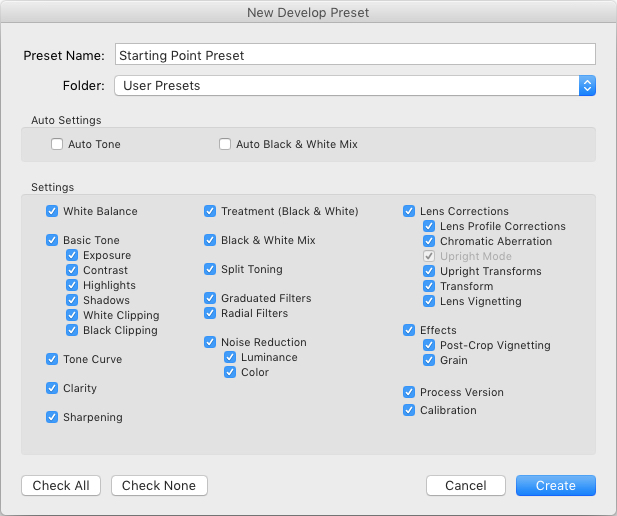
To create your own presets go to the Develop module and change the value of your sliders, adjust your tone curve, dial in your preferred level of sharpening and noise reduction, and you’re 90% finished. After you have an initial set of edits created go to the Develop menu and choose “New Preset.” Select the parameters you would like to include in the Preset and then click “Create.”

Your Preset is now ready to go and you can apply it with one click to any image, or to a batch of images. Do so by selecting them (from the thumbnails) in the Develop module, right-click on them, and choosing “Develop Settings > User Presets > [Your Preset name].” You can also apply it to all your photos on import by going to the right-hand side of the Import screen under the “Apply During Import” option. Where is says “Develop Settings” pull that menu down and find your preset from the list.

supercharge-lightroom-workflow-preset-import

As a bonus, you can even share your Presets with others by navigating to the folder on your hard drive in which they are stored (“Preferences” menu > Presets > Show Lightroom Presets Folder), copying the file with your Preset data, and sharing it with anyone you choose.

Read more here: How to Create Your Own Lightroom Presets

#2 – Sync edits across multiple photos

Photographers are going crazy over this! You can save all sorts of time in your Lightroom workflow by using this one weird trick! I know that sounds like a cheesy click-bait title from a sidebar you might see on a used car website, but in this case, it’s really true.

On many photo sessions you will end up with dozens of images that are relatively similar and thus can often benefit from the same types of adjustments. Let’s say you shoot a wedding and have 20 really nice images of the groomsmen getting ready and adjusting their superhero-themed vests in the church office. You could easily spend 5 or 10 minutes adjusting the white balance, black levels, highlights, color saturation, and noise reduction. You finally get one of the photos looking, as Goldilocks might say, “Juuuuust right,” and then realize you still have nine more to go. At which point you start looking up how much your 70-200mm lens might sell for on Craigslist because you know this is going to be another one of those editing sessions that involves way more late nights and cups of coffee than you had initially planned.

supercharge-lightroom-workflow-sync-button

How to sync your processing settings

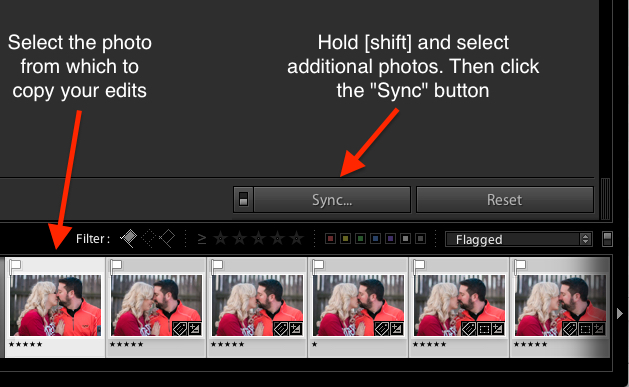
But wait, there’s hope! To instantly sync the edits from the first photo to all the rest which are similar, select the initial image in the filmstrip view at the bottom of the Develop panel. Then hold down the [shift] key while selecting all the rest and click the “Sync…” button in the lower-right corner of your screen.

You can pick and choose which edits you want to sync, and with the click of a button, all the other images are instantly edited just like the first one. BAM! Time saved: infinite. You’re welcome.

Alternatively, you could use the Copy/Paste function to copy edits from one picture to the next, but that only works with a single photo at a time. I have found the Sync option to be far more useful, you may as well.

Using the Sync option saved my bacon on this photo shoot. I had so many pictures to edit that synchronizing the changes made things go much faster.

Using the Sync option saved my bacon on this photo shoot. I had so many pictures to edit that synchronizing the changes made things go much faster.

#3 – Use the White Balance Eyedropper

When I first started out with digital photography I was the kind of person who wanted to do everything myself. Auto mode? No thank you camera, I’ll set the exposure myself. Autofocus? I don’t think so. Automobile? Not me, I prefer to walk!

Over time, I learned to let go of some of these tendencies with one glaring exception. Setting the white balance on my RAW files in post-production, stuck with me far too long.

Setting the proper white balance is the foundation for almost any photo editing. If you fiddle with the Temp and Tint sliders long enough you can usually get a good result. The trouble is that takes a long time, especially when working with hundreds of images. It can take a lot of trial and error, and guesswork to dial in just the right white balance. Unless you let Lightroom do most of the heavy lifting for you.

White Balance got you down? The Eyedropper is here to help.

White Balance got you down? The Eyedropper is here to help.

Using the eyedropper

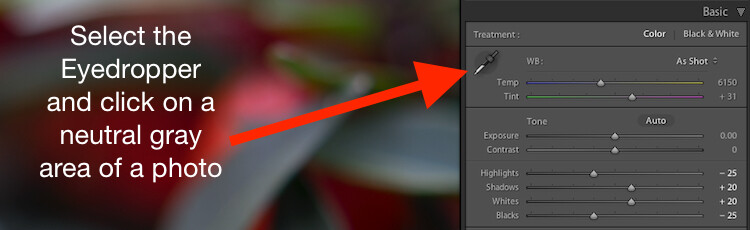
Nestled quietly on the left-hand side of the Basic panel in the Develop module is a strange icon. It looks like a medieval dagger or possibly a light saber that can’t decide whether it’s meant for a Jedi or a Sith. It’s actually an eyedropper. Using on it can help you out immensely when it comes to finding the proper white balance for a RAW file.

Click the icon and find a spot on your photo that is slightly gray (neutral). Not totally pure white mind you, but a little off-white to give Lightroom a reference point as it calculates the value of how the rest of the colors in the image should look. What it does is neutralizes any color cast or shift in that area. A half second later and voilà! Your picture is now properly white balanced, but if it doesn’t look quite right you can tweak it with the sliders. Using the eyedropper isn’t a surefire guaranteed method, but it almost always gets you right on the mark or very close to it.

One click and...bam! Instant white balance.

One click and…bam! Instant white balance.

#4 – Flag/Reject when culling images

I was just talking with a friend recently who takes a lot of pictures of his kids with his DSLR. He told me that one of the hardest things for him to do is go through his images and remove the bad ones. His solution was to simply not delete any at all.

If this sounds like you, whether you’re professional or amateur, and you just can’t quite bring yourself to tap the [Delete] key when browsing through your photo library – Lightroom is here to help.

You might do a family portrait session and get 20 pictures with just mom and dad, 50 that you took in burst mode with the kids sitting on their lap. Then a couple hundred from when the family invited their pet ferret to join the shoot. Some of your images would be easy to discard due to being out of focus, poorly composed, or overly pernicious polecats deciding to climb atop dad’s carefully crafted coiffure. But what about the rest? The ones that are all pretty good while also being quite similar?

So many photos, so little time...

So many photos, so little time…

How to flag images in Lightroom

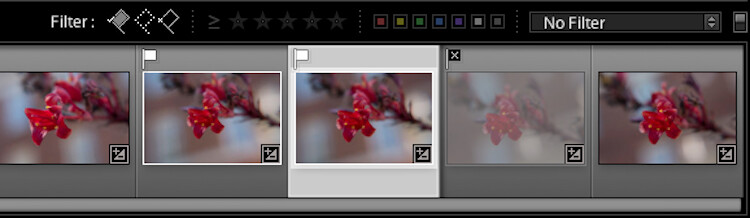
As you scan through your library in Lightroom, you can use the arrow keys to move from one image to the next, and the P and X keys to mark images as keepers or rejects. Tap P (pick) on a picture to adorn it with a  white flag, and tap X to mark it with the Tiny Black Flag of Shame denoting a rejected image.

A Flagged picture is one that you have highlighted as particularly good, while a Rejected picture is not worth your consideration. Marking an image as Rejected does not delete it so you can always go back and look at it later. But it serves as a signal to you as you are culling, that you don’t need to consider it. You can also use the filter bar at the bottom of the screen to show only those images that are Flagged, Unflagged, or Rejected by clicking on their respective icons. If you accidentally mark an image incorrectly, press the U key to remove the Flag/Rejected status.

Filter them

You can also use the filter bar at the bottom of the screen to show only those images that are Flagged, Unflagged, or Rejected by clicking on their respective icons. If you accidentally mark an image incorrectly, press the U (unflag) key to remove the Flag/Rejected status.

Once you mark your images as Flagged or Rejected, use the filter icons to choose which photos to display.

Once you mark your images as Flagged or Rejected, use the filter icons to choose which photos to display.

Using the Flag/Rejected markings has significantly decreased my editing time, and will likely dramatically lower yours as well. In a similar fashion you can use the number keys 1-5 to mark images with one to five stars, and numbers 6-9 to label images with different colors. I find these less handy than simply using the Flag/Rejected method when doing the initial culling, but far more useful when deciding, for instance, which images are the Best of the Best and worth printing, sharing, or showing to clients.

Over to you

I hope these tips have been helpful. Certainly, there are many more options for helping your Lightroom workflow go a little smoother that we simply don’t have the space to cover in one article. What are your favorite tips? Please share your ideas, tricks, and shortcuts in the comments below!

googletag.cmd.push(function() {
tablet_slots.push( googletag.defineSlot( “/1005424/_dPSv4_tab-all-article-bottom_(300×250)”, [300, 250], “pb-ad-78623” ).addService( googletag.pubads() ) ); } );

googletag.cmd.push(function() {
mobile_slots.push( googletag.defineSlot( “/1005424/_dPSv4_mob-all-article-bottom_(300×250)”, [300, 250], “pb-ad-78158” ).addService( googletag.pubads() ) ); } );

The post 4 Tips to Supercharge your Lightroom Workflow by Simon Ringsmuth appeared first on Digital Photography School.


Digital Photography School

 
Comments Off on 4 Tips to Supercharge your Lightroom Workflow

Posted in Photography


2016 Roundup: Best Camera Drones Under $1500

23 Nov

The past few years have seen an explosion in the popularity of drones, and they’re being used for everything from video production to aerial panoramas. It’s an exciting time to dive into this technology.

Drones can be expensive, but there are good values to be had, even under $ 1500. In fact, some of the models in this round-up have been used for prize-winning photography as well as for major feature films.

Before buying a drone, think about how you intend to use it. Some are better for video, while others may be better for pictures. Some still photographers prefer to shoot with 4K video and ‘frame grab.’ As with any tool it’s about picking what’s right for you.

One thing to remember is that specifications are designed to catch your eye. But remember, as with any camera, it’s not all about a single specification; it’s about combining the features and specifications that matter most to you and meet your needs.

In addition to core specs, many drones have features such as ‘follow-me’ or subject tracking modes that can be used to make operation easier, or even automate shots. For instance, if you want to shoot video but have a difficult time orbiting, spiraling, or doing a fly-by pan while keeping your subject in frame, these features can be an immense help (if they work properly). Also, consider how easy a drone is to fly. The guidance system and stability of the drone will help determine this.

It’s a crowded market and there are a lot of drones available for under $ 1500, but we’ll take a look at some of the most common models you’re likely to run into:

  • Parrot Bebop 2
  • DJI Phantom 3 Series
  • 3D Robotics Solo
  • Yuneec Q500 Typhoon 4K
  • Yuneec Typhoon H 4K
  • DJI Mavic Pro
  • DJI Phantom 4 and Phantom 4 Pro

Finally, we’ll try to help answer the question “Which drone should I buy?”

Articles: Digital Photography Review (dpreview.com)

 
Comments Off on 2016 Roundup: Best Camera Drones Under $1500

Posted in Uncategorized


Announcing the PDN Gift Guide 2016

23 Nov

Our friends at Photo District News just published their annual Gift Guide, including gift ideas from the reviews team here at DPReview. Alongside our personal recommendations, you’ll find contributions from the team at PDN, and Rangefinder Magazine.

So whether you’re shopping for a special photographer in your life, or just as an end of year treat to yourself (we won’t tell anyone), this guide is a great place to get some inspiration.

Articles: Digital Photography Review (dpreview.com)

 
Comments Off on Announcing the PDN Gift Guide 2016

Posted in Uncategorized


Review and Field Test of the New SpiderLight Holster

23 Nov

Since 2010, Spider Holster has produce camera carrying systems which are intended to create a more innovative method for carrying your camera with you while working. Their carry systems are designed to offer a convenient and comfortable way to access your camera quickly while still managing to store it securely within easy reach when not in use.

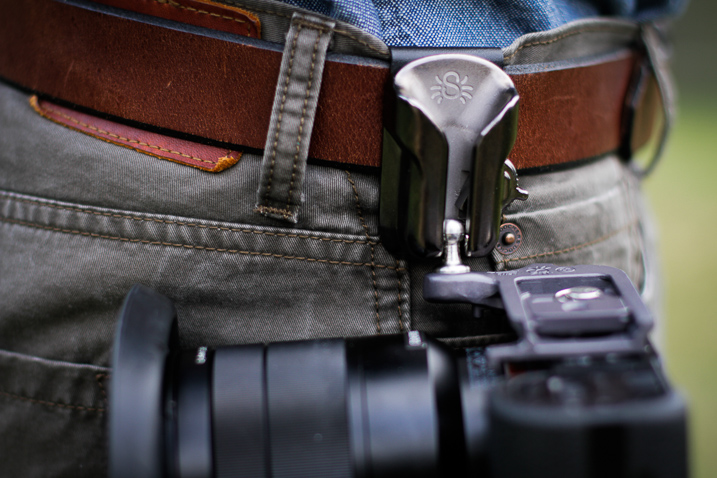
SpiderLight Holster Close Up

Recently, Spider Holsters has launched a brand new Kickstarter campaign for the latest addition to their line of quick-draw type camera carry systems; the SpiderLight Holster. The SpiderLight is intended specifically for those shooters who carry a mirrorless or smaller SLR camera setup. Being a recent convert to a mirrorless camera system myself, I was excited to try out this newest offering from Spider and see if I would truly “Ditch the strap” in favor of this inventive way of carrying my camera while in the field.

First Impressions of the SpiderLight Holster

My cameras are more like extensions of myself than just pieces of metal and plastic. I love my cameras. So naturally I was, shall we say, somewhat hesitant to place their welfare in the hands of a new type of carry system instead of my heavy-duty leather camera strap. All those fears were genuinely soothed as soon as I handled the SpiderLight Holster for the first time. The product is solid, beefy, and extremely substantial. More so than I expected it to be based on the product photos from Spider Holster’s website.

SpiderLight Holster_Plate_2.jpg


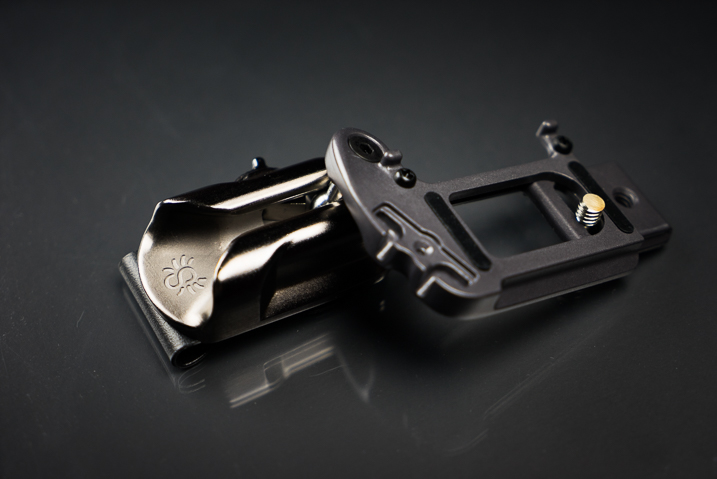
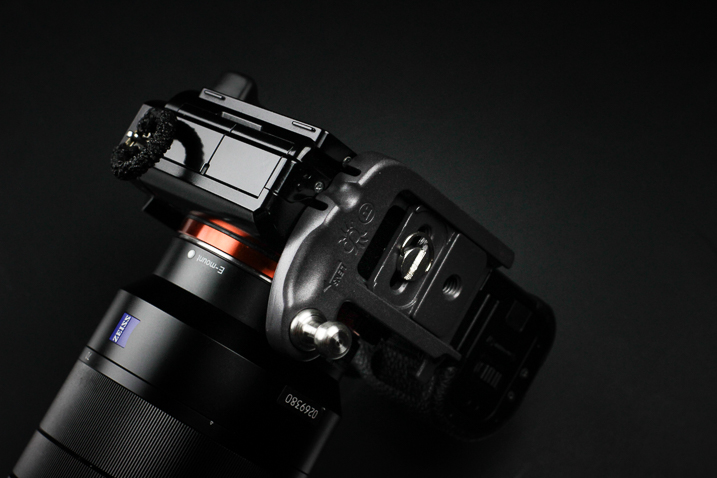
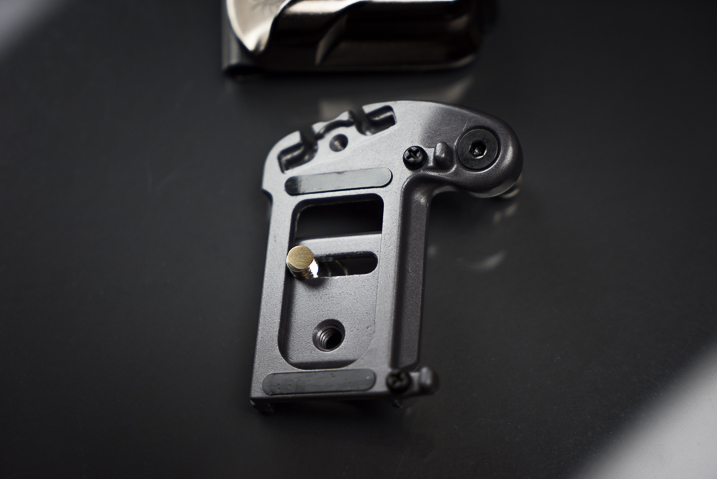
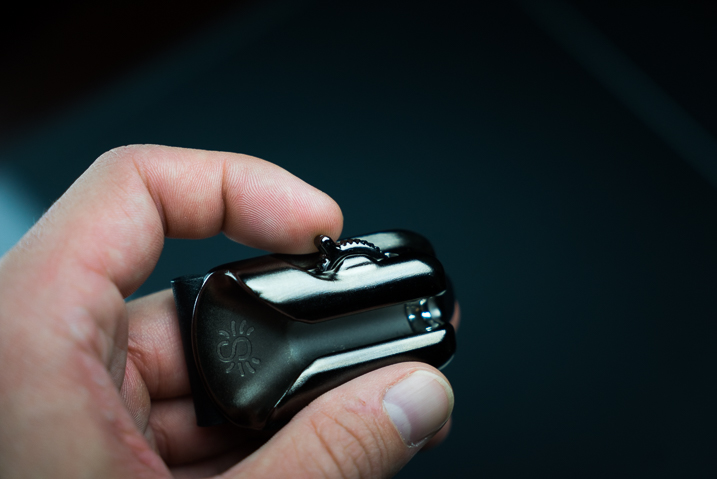
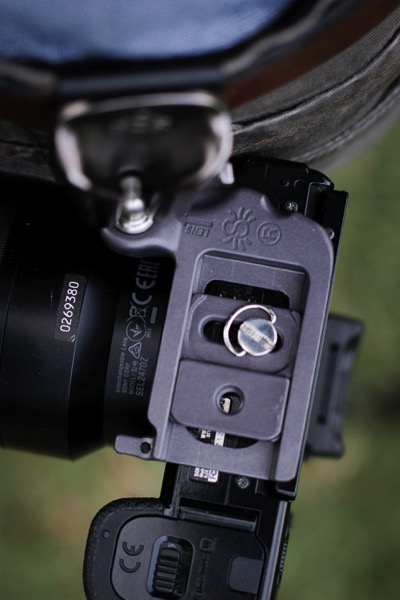
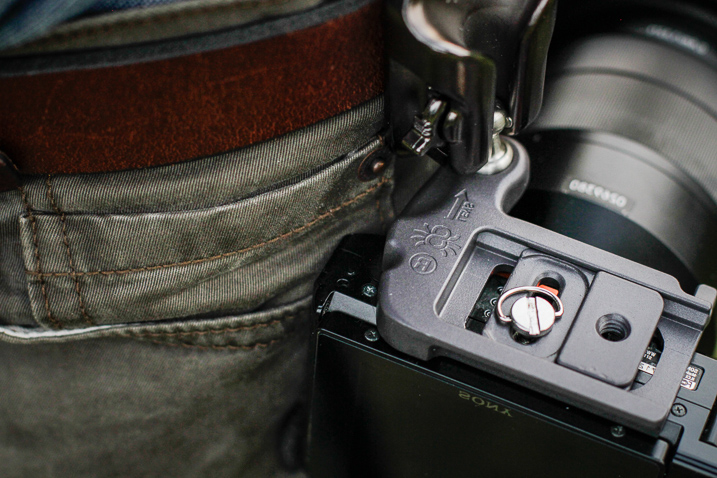
The construction of the SpiderLight is all stainless steel and aluminum, subdued in a professional-looking matte finish. The holster itself is constructed of aluminum with a stainless steel insert to prevent wear with the belt clip on the back, being made from spring steel. The camera plate is crafted from heavy aluminum as well, while the Spider pin (the part that slides into the holster) is CNC machined stainless steel.

SpiderLight Holster Plate

SpiderLight Holster Release

All the screws were tight and the entire mechanism moved smoothly with no burrs or imperfections appearing to be found. Even the markings on the product are etched into the metal instead of being painted onto the surface. The belt clip itself is substantial and provides a heartily robust grip to a wide range of belt widths.

Real World Use

The majority of my work focuses on wilderness and adventure photography with a little bit of everything else thrown into the mix. I spend lots of time in the outdoors chasing light so I was extremely curious to see how well the SpiderLight would perform during hiking and fast movements. I tested the mechanism using my main camera body, the Sony A7r Mk1 fitted with Zeiss Vario-Tessar 24-70mm F4.

SpiderLight Holster 3

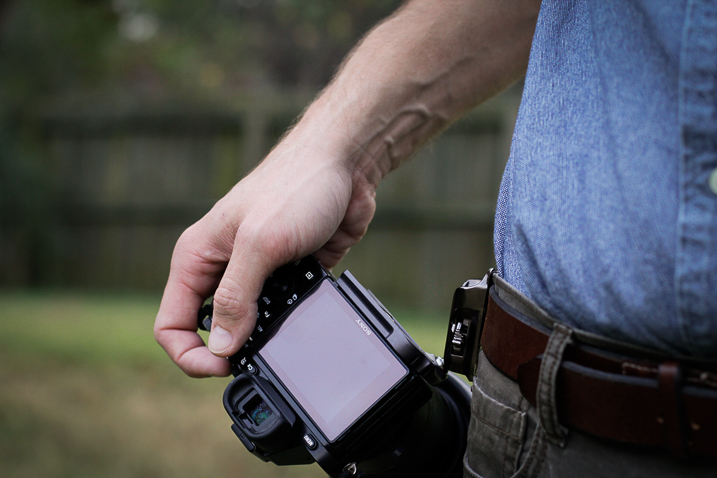
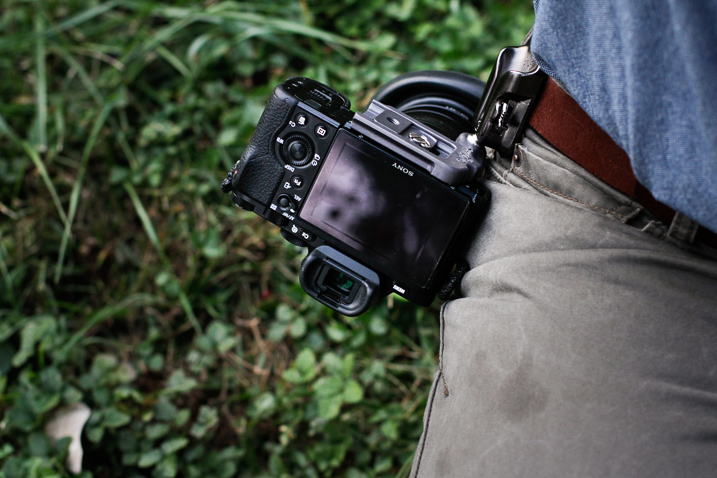
Functionally, the SpiderLight is deceptively simple. There is a steel peg that slides into a groove on the holster in such a way that the camera hangs inverted from the holster. However, looking more closely reveals evidence of some fairly impressive engineering at work.

A well placed two-stage locking switch secures the camera in one of two ways depending on your needs. This switch is invaluable. It locks the camera in place until the user disengages it with a subtle flick. More importantly, it can be completely disengaged to facilitate quick retrieval of your camera.

SpiderLight Holster 4

SpiderLight Holster 5

I was extremely surprised at just how versatile the SpiderLight could be in practice. I walked, jogged, bent down, and did all the epic things photographers do without any real encumbrance caused by the device. The only adversity I encountered was to remember the camera was by my hip when passing through doorways. After a little practice, I completely forgot that I carried the camera at my side. It worked, for lack of a better word, beautifully.

SpiderLight Holster 2

SpiderLight Holster 1

Using a tripod with the SpiderLight Holster

The SpiderLight still allows for the attachment of your own tripod’s quick-release plate, so it does not interfere with your normal workflow if you find yourself shooting with a tripod. It’s not guaranteed that the holster will work with your specific tripod, though. Notice I have to mount mine backward. Still, the function was not hindered in any way by the Spider.

SpiderLight Holster Tripod 1

SpiderLight Holster Tripod 2

One caveat

The only possible reservation I have with the SpiderLight is that even with a lightweight camera kit (Sony A7r and 24-70mm Zeiss) the one-sided weight distribution sometimes sags the pants. I wouldn’t consider wearing the system without a sturdy belt. This wasn’t something that deterred me from using the holster but it is definitely a point of consideration. If you carry a heavier camera I would highly recommend the Spider Holster Pro.

Final Thoughts

The SpiderLight Holster works great for use with a lightweight kit such as mirrorless cameras and smaller DSLRs. From the perspective of a first time user, the SpiderLight performed admirably, in spite of my reservations. The overall build is sturdy enough for heavy-duty use and the complete concept works well. If you are considering the idea of trying the SpiderLight or any other of the products in Spider Holster line you won’t be disappointed.

That being said, give yourself enough time to get to know the holster. Some will love it, some not so much. One of the biggest obstacles I faced was learning to actually trust the holster to securely carry my camera. In my case, breaking 10 years of absolute camera strap reliance takes some time. Still, you never know until you try it and it very well could become your favorite method of carrying your camera.

googletag.cmd.push(function() {
tablet_slots.push( googletag.defineSlot( “/1005424/_dPSv4_tab-all-article-bottom_(300×250)”, [300, 250], “pb-ad-78623” ).addService( googletag.pubads() ) ); } );

googletag.cmd.push(function() {
mobile_slots.push( googletag.defineSlot( “/1005424/_dPSv4_mob-all-article-bottom_(300×250)”, [300, 250], “pb-ad-78158” ).addService( googletag.pubads() ) ); } );

The post Review and Field Test of the New SpiderLight Holster by Adam Welch appeared first on Digital Photography School.


Digital Photography School

 
Comments Off on Review and Field Test of the New SpiderLight Holster

Posted in Photography


Sony a7 II firmware version 3.30 now available

23 Nov

Sony has released firmware version 3.30 for the Sony a7 II camera. The update is a very small one, improving the amount of light at the edge of images taken when using the flash.

The features and improvements added by the previous update, version 3.20, remain:

  • Adds support for the Radio-controlled Lighting System
  • New lenses are supported.
  • Phase-detection AF is supported
  • The lens name will be correctly recorded in the EXIF
  • The AF can be used in movie recording mode with the SEL85F14GM
  • Adds the 14-bit uncompressed RAW format option
  • Adds Phase-detection AF support for A-mount Lens Adaptor LA-EA3 (LA-EA1)
  • Adds a MOVIE button custom key settings that can be assigned for the movie recording function
  • Improves camera function and provides picture improvement for the new lenses (SEL35F14Z, SEL24240, SEL28F20, SEL90M28G)
  • Provides enhanced image stabilization system in half-pressing the shutter, in Focus Magnifier, in movie recording, and other functions

The Sony a7 II version 3.30 firmware can be downloaded now from Sony’s website.

Articles: Digital Photography Review (dpreview.com)

 
Comments Off on Sony a7 II firmware version 3.30 now available

Posted in Uncategorized


Godox launches mini radio flash unit for Sony mirrorless cameras

23 Nov

Flash and accessory manufacturer Godox has announced a new small flash unit that it says is designed to go with the Sony mirrorless range of cameras. The Godox TT350S features 2.4GHz radio control and TTL exposure metering, and offers a guide number of 36m@ISO 100. The company says that the unit is compatible with the Sony a7R II, a7R, as well as the a58 and a77ll SLT cameras. Some RX models are also able to pair with the unit.

The radio controlled system allows the TT350S to work alongside other Godox radio flash units and studio heads, and the flash can operate as a master or slave in multiple-head set-ups. Three groups are programmed into the control system along with 16 channels, while the maximum working range is said to be 30m. High speed sync is provided via an HSS mode that can work with shutter speeds of up to 1/8000 sec, and the unit can be switched from TTL to manual operation to make use of 22 output levels from 1/128th power. An automatically zooming head covers focal lengths of 24-105mm, and a hinge allows the head to tilt but not to swivel.

The TT350S is powered by two AA batteries which the company claims should be good for 210 full power bursts. There is no official pricing yet, but one UK ebay seller is offering pre-orders for £73 and says delivery is expected early January.

For more information about the TT350S visit the Godox website.

Articles: Digital Photography Review (dpreview.com)

 
Comments Off on Godox launches mini radio flash unit for Sony mirrorless cameras

Posted in Uncategorized


Sketch in 3D: Remarkable Drawing App Gives Doodles Depth & Dimension

23 Nov

[ By WebUrbanist in Design & Graphics & Branding. ]

3dsketched

Programs like Sketchup have allowed amateur artists and architects to sculpt and design in three dimensions for years, but this app facilitates far more informal works that really look like sketches in 3D.

Mental Canvas is part of a suite of software for Microsoft Surface that takes more conventional sketched forms and allows users to navigate and expand them in three-dimensional space, retaining the character of rough drawings.

3d-drawing-tool

The infinite-depth approach of this digital canvas software lets users zoom in and rotate their view, adding layers along the way and inspecting their work from various angles. The effect is remarkable as these illustrations show.

drawing-tool-app

From its creators: CAD modelling “comes at a cost. The cost is that one, you have to have a fully resolved three-dimensional model, even if it’s just a cube; second it’s very hard to edit a CAD model, it’s not fast and fluid like a sketch. At any given moment when you’re sketching, the designer or artist has full control over everything in that representation, but with a CAD model, that’s defined by the computer.”

This clever approach liberates an artist from the ordinary constraints of a physical page or even a drawing tablet, letting them shape worlds that maintain the character of a sketch but can be used to tell and frame stories in new ways.

3ddrawing

As with programs like Sketchup, a bookmarking tool allows users to save and store various views then retrace their steps, creating potential for 3D storytelling. It also lets a user pick the perfect shot, navigating three-dimensional space to select an ideal perspective. A dynamic dial tool, meanwhile, lets the artist rotate between colors and line qualities without backing out of the drawing.

As any good architect knows, an unfinished-looking drawing can be an asset: “A sketch has a quality when it’s unfinished; there’s so much possibility, there’s so much room for interpretation, and [Mental Canvas] expands the idea of a sketch. It makes it less flat. In architecture you always want that “Wow” design that gets everyone excited in the room, and [Mental Canvas] enhances it.”

One can see a lot of similarities here between Mental Canvas and tools being developed for augmented and virtual reality platforms. In a way, this program closes the gap, allowing users with more ordinary tools, devices and interfaces to accomplish something wonderful in 3D space.

Share on Facebook


[ By WebUrbanist in Design & Graphics & Branding. ]

[ WebUrbanist | Archives | Galleries | Privacy | TOS ]


WebUrbanist

 
Comments Off on Sketch in 3D: Remarkable Drawing App Gives Doodles Depth & Dimension

Posted in Creativity


Sigma 12-24mm F4 DG HSM Art Lens Review

23 Nov

The Sigma 12-24mm F4 DG HSM Art was first announced September 16th, 2016. This is Sigma’s widest zoom lens offering to date and joins Sigma’s growing list of Art lenses. The lens is priced at just under $ 1600, which makes it a fierce competitor to Canon’s EF 11-24mm F4L USM lens which is priced at just under $ 3,000.

The Sigma is available in Canon, Nikon F (FX) and Sigma SA Bayonet mounts and will most likely appeal to landscape and architecture photographers that are looking for an extremely wide field-of-view (12mm gives around a 122° diagonal field of view).

The looming question is: does the extreme difference in price effect the build quality and performance of the Sigma? In this review we will be looking at the Sigma’s performance and just how it stacks up against the Canon 11-24mm F4L.

APS-C

If you’re an APS-C shooter, the Sigma can be utilized on that platform with an equivalent focal length of 19-38mm and an equivalent aperture of F6.4. It’s worth noting however that Sigma already offers a considerably less expensive 10-20mm F3.5 which would be a 16-32mm F5.6 equivalent, which would be a much better wide-angle option. For this reason we’re not going to consider this lens for use on APS-C in this review.

Sigma 12-24mm F4 DG HSM Art Headline Features

  • 12-24mm focal length
  • F4 maximum aperture
  • Ring-type Ultrasonic Focusing
  • Available in Canon EF, Nikon F (FX) and Sigma mounts

Specifications Compared

  Sigma 12-24mm F4 DG HSM Art Canon EF 11-24mm F4L USM
Price (MSRP) $ 1,599.00 $ 2,999.00
Lens Type Wide-Angle Zoom Wide-Angle Zoom 
Focal Length 12-24mm 11-24mm
Filter Thread  None None (rear insert-type)
Image Stabilization No No
Lens Mount Canon, Nikon F (FX), Sigma SA Bayonet Canon EF
Aperture Ring No No
Maximum Aperture F4  F4 
Minimum Aperture F22 F22
Minimum Focus 0.24 m (9.45?) 0.28m (11″)
Diaphragm Blades   9 (rounded) 9 (rounded)
Elements   16 16
Groups   11 11
Special Elements/Coatings Super Multi-Layer Coating, F-Low Dispersion and aspherical elements, including an 80mm large-diameter molded glass aspherical element

Super UD, UD, and 4 Aspherical Elements, SWC, Air Sphere, and Fluorine Coatings, Rear element fluorine coatings

Autofocus Yes Yes
Motor Type Ring-type Hypersonic Ultrasonic
Full Time Manual Yes Yes
Focus Method Internal Internal
Distance Scale  Yes Yes
DoF Scale No No
Weather Sealing  Dust and Splash Proof Construction with rear rubber gasket Full Weather Sealing
Zoom Method  Rotary (extending) Rotary (internal)
Weight 1151g (2.54 lb) 1180g (2.60 lb)
Dimensions 132mm (5.2″) x 102mm (4.0″) 132 mm (5.2?) x 108 mm (4.25?)
Hood Included Yes (built in) Yes (built in)

The Sigma and the Canon share a rather large number of the same features with respect to lens design. The main differences between the two lenses are highlighted in green. The Canon has a slight edge over the Sigma in terms of build quality with full weather sealing, where the Sigma offers a ‘moisture resistant’ rubber gasket on the lens mount and water-repellent coatings on the front and rear lens elements.

Both lenses are very heavy and are nearly identical in size and shape, and both feature built-in lens hoods. Neither lens accepts standard screw type filters, but the Canon has a slot to accept rear gel filters. The Sigma has that familiar Art build that feels very robust in hand but lacks the same ‘sealed’ feeling that the Canon lens provides due to its water resistant external construction.

The Canon has a slight advantage over the Sigma in terms of the zoom method as the Sigma has an external extending zoom whereas the Canon’s is internal. Being that the Sigma isn’t fully weather sealed this could be a weak point in the design in terms of moisture penetrating the lens during adverse or wet weather conditions. 

With these specifications in mind, we will now be looking at how well the Sigma performs to determine how it fairs in our head-to-head comparison with the Canon 11-24mm F4L. 

Articles: Digital Photography Review (dpreview.com)

 
Comments Off on Sigma 12-24mm F4 DG HSM Art Lens Review

Posted in Uncategorized


Action-packed: Sony a6500 First Impressions

22 Nov

Sony a6500 First Impressions

by Dan Bracaglia

ISO 200, 1/3200 sec at F4. Shot using the 70-200mm F2.8 G Master lens. JPEG edited to taste in Adobe Lightroom.

I spent two and a half days shooting in Austin, Texas with the Sony a6500 on a Sony-sponsored press trip. This was the first time most journalists, including myself, had got a chance to put hands on the camera, let alone shoot with it. One of my favorite things about these trips is getting to talk to other writers to see how their experiences with the camera compare. While specific opinions on the a6500 varied, there was one aspect of the camera everyone seemed to agree on: the touchscreen on the a6500 is a letdown.

Of course the addition of a touchscreen is not the only thing the a6500 has going for it, the camera also receives 5-axis in-body image stabilization, new menus, a deeper buffer and front-end LSI (which stands for Large Scale Integration – basically an additional chip providing more processing power). Not to mention it retains the 425-point on-sensor PDAF system, the same viewfinder, the same video specification and the same 8 fps burst rate (with Sony’s implementation of live view) as its mid-range sibling, the a6300 (11 fps with no live view).

Usability and speed

ISO 6400, 1/1000 sec at F2.2. Shot using the 85mm F1.4 G Master lens. JPEG edited to taste in Adobe Lightroom.

We spent the first day shooting all sorts of fast action subjects, including basketball. I’ve shot a lot of college basketball games in my life (close 100) but this was the first time shooting a game using a mirrorless camera. And you know what? I really enjoyed it! I mainly stuck to the ‘wide’ AF area, though occasionally switched to the ‘Flexible Spot-M’ option. In both cases my hit rate was just as good as when using a sports-oriented DSLR: nearly all my shots were in focus! 

I found the responsiveness of the shutter, from the time I pressed it, to the time the photo was taken, near instantaneous. And following the action at 8 fps was no problem, I didn’t notice any EVF lag (I switched the EVF refresh rate from it default of 60 fps to 120 fps).

“My hit rate was just as good as when using a sports-oriented DSLR.”

In the two days with the camera, Sony managed to cram in not only an opportunity to shoot basketball, but the chance to also shoot skateboarding, tennis, rodeo, lacrosse, live music and flying disk dogs. In each scenario, I walked away impressed with the hit rate. Simply put, for action photography the a6500’s AF system, fast burst rate and a deep buffer make it a very tempting/capable choice.

This image was part of a 50+ photo burst. ISO 6400, 1/3200 sec at F4. Shot using the 85mm F1.4 G Master lens. JPEG edited to taste in Adobe Lightroom.

Furthermore, while shooting long bursts, I almost never encountered a ‘Writing to memory card, unable to operate’ error screen, which is a breath of fresh air having used the a6300. Even after shooting a burst of 50 or so Raw+JPEG files, I was able to hit the playback button and see the most recent image to clear the buffer. The a6500 also features a buffer countdown in the upper left corner so that users know how many images are left before it’s fully cleared.

New Menu

Sony makes some of the most technically capable cameras on the market but the user experience has always been a bit rough around the edges. Of course many folks, by dedicating the time to learn and work around Sony’s peculiarities, they are able to tolerate any U.I. shortcomings and get the most out of these cameras. But for the rest of us, picking up a Sony for the first time can feel confusing, frustrating and uninspiring.

Menu heads are now color-coded and there is a dedicated video menu.

The a6500, with its new menu system and faster processing is a major step in the right direction for overall usability. Menu heads are color-coded and there is now a separate video menu. But there is no ‘My Menu’ style option for customizing a menu page, something offered by most other camera makers. To some degree, we’d have just preferred a customizable menu over Sony’s reorganization, to collate most-used menu items that still remain unassignable to the camera’s Fn menu.

On a positive note, I encountered far fewer error screens than I’m used to when shooting with a Sony. Still, I did occasionally hit one. And there is nothing worse than trying to dial in a setting only to encounter an ‘Invalid operation,’ screen. Hey Sony, instead of tossing up an error, why not make a suggestion so that users know what settings to change to avoid more error messages (and include direct access to the setting that needs changing)?

The touchscreen

I had super high hopes going into this shooting experience that the a6500’s touchscreen was going to be awesome. It’s not. I owned an LG Dare cellphone in 2008 and the a6500’s touch implementation reminds me of that. It’s unresponsive when tapping and laggy when dragging one’s finger. Not only that, the touchscreen cannot be used for anything other than moving AF points and flipping through images in playback. How silly is that? Numerous times I found myself hitting the Fn.menu button and then tapping one of the icons on the screen, only for nothing to happen.

Furthermore, the a6500 is a premium camera with a premium price point, but only one top plate control dial. A touchscreen is the perfect answer to a lack of physical control points, but by limiting its use, Sony shot themselves in the foot.

“The touchscreen on the a6500 is the one feature of this camera that does not feel up to par with everything else.”

Still, its encouraging to see touch capability make its way into this line of camera. No doubt Sony knows how to make a decent touchscreen: it manufactures smartphones for crying out loud, so here’s hoping the next generation actually nails the touchscreen. Because the touchscreen on the a6500 is the one feature of this camera that does not feel up to par with everything else.

It’s not completely without merit though. I quite enjoyed using the flip-out screen at the skatepark we visited to get super low angles and the touchscreen allowed me to easily choose my point of focus. Still, the focus squares can be difficult to see in very bright or very dim light.

ISO 640, 1/1600 sec at F5.6. Shot using the Somny 10-18mm F4 lens. JPEG edited to taste in Adobe Lightroom.

Using the touchscreen as an AF touchpad was also a disappointing experience. The responsiveness is not fast enough, the points are hard to see and there is a noticeable delay when dragging one’s finger around (pretty much the same experience as just using the touchscreen).

There are three touchpad area modes: ‘Whole Screen,’ ‘Right 1/2 Area’ and ‘Right 1/4 Area.’ The ‘area’ refers to which portion of the screen will activate touchpad AF and are meant to help avoid accidentally changing one’s AF point with say, your nose. When using ‘Right 1/2 Area’ for instance, only the upper half of the right side of the screen will engage the touchpad. And when using ‘Right 1/4 area’ only the upper quarter of the right side of the screen will engage the touchpad. Honestly, I was hard put to tell the difference between ‘Whole Screen’ and ‘Right 1/2 Area.’ Also when I put the camera in ‘Right 1/4 Area’ I found it nearly impossible to get the touchscreen to work at all!

I also found it pretty difficult, though possible, to use touchpad AF when shooting through my left eye. There is an option to turn the touchpad off when shooting vertically, so as to not change one’s AF point with their nose. But seeing how unresponsive the touchscreen is, I never ran into this issue. I guess that’s one plus of the lack of responsiveness. Users can choose whether to just use the touchscreen, just the touchpad, both or neither.

Using the Touchscreen during video capture

Like all Sonys, the ‘Lock-on AF’ area modes are greyed-out when shooting video. And as such, there is no intuitive way to tap-to-track when recording video. You can track (though not tap) by assigning a button to toggle ‘Center Lock-on AF’ on and off. But shooting video this way is pretty annoying as you must wait until your subject is dead center to begin tracking. Also the ‘Center Lock-on AF’ option seems to use an older tracking algorithm.

In the ‘Wide’ AF area mode, if you tap the screen, it turns on something called ‘Spot AF,’ which just maintains focus on the chosen point. Based on this video by cinema5D, I’m convinced there is some way to use touch-to-track in video mode. I have a hunch that if you turn ‘Spot AF’ off in the menu and tap the screen, it may engage tracking. I’ll have to wait until we get the camera into the office to confirm this, but either way, engaging tap-to-track in video mode is far from intuitive and the exclusion of lock-on AF area modes in video is inexcusable at this point.

Image Stabilization

ISO 3200 1/2 sec at F4.5. Shot using the 24mm F1.8 Zeiss lens. JPEG edited to taste in Adobe Lightroom.

It’s exciting to see image stabilization make its way into Sony’s APS-C mirrorless line. Initial impressions using image stabilization to shoot stills are positive. The above image was shot at 1/2 sec using the 24mm F1.8 lens. Ordinarily I could probably hold a shot steady, with no IS, down to about 1/30, maybe on a good day, 1/25 sec. So right there we’re seeing a nearly 4-stop advantage using IS at a normal-ish equiv. focal length.

Using IS while recording video made it easier to shoot hand-held at wide to normal focal lengths, like in the clip above. However at longer focal lengths the IS system is very jumpy. You can see an example of that in the clip below.

Having just finished testing video IS on both the Panasonic FZ2500 and Panasonic G85, I’m not all the impressed with the Sony’s video IS performance. Of course both the cameras mentioned use smaller sensor, which in theory should be easier to move around. But more to the point, those cameras offer something the a6500 does not: an option to combine mechanical IS with electronic (digital) IS. Although digital IS tends to slightly crop (and then upscale) footage and therefore costs some image quality, it can lead to impressively glidecam-esque footage.

Physical Improvements over the a6300

The a6500 (left) features two top plate custom keys and toothier dials compared to the a6300. The battery door on the a6500 (left) has also been redesigned. It seems less flimsy than that on the a6300. The camera also gains a deeper grip.

The a6500 gains some very minor physical improvements over the more basic model, including an additional top plate custom function (C2) button. The C1 button has moved to the top shelf, and is now eminently more usable than the one that provided almost no haptic feedback on the a6300. A comfier grip, more similar to that offered on the a7 II models. The control and mode dial also have a nicer tooth to them and the bottom battery door has been redesigned and now feels more secure.

The Takeaway

Make no mistake, the Sony a6500 is a very good camera. It’s lightweight, fast and capable. Still, I can’t help but think Sony may have benefited holding off on the release to spend more time refining it. After all, it is the company’s top tier APS-C mirrorless offering (this despite one top plate control dial). Because some aspects of the camera operation just feel unrefined.

For instance, when shooting 4K video, the screen automatically dims. There is no way to use the ‘Sunny Weather’ option: it’s simply greyed out. This makes the a6500 nearly impossible to use in bright sunlight while shooting 4K video with the LCD. And I’m told the reason is to mitigate overheating, which seems like a thoughtless fix to a known issue, and one that creates a new issue entirely. 

I always close with a rock and roll shot: ISO 1600, 1/800 sec at F2.2. Shot using the 85mm F1.4 G Master lens. JPEG edited to taste in Adobe Lightroom.

The image stabilization is useful when shooting stills, but initial impressions in video mode have us less impressed. The new LSI processor goes a long way to making the a6500 a more usable camera than the a6300. The buffer depth, while we have yet to fully max it out, is impressive. And the camera does not lock users out of settings while the buffer clears. The new menus are also a step in the right direction. Still, there is room for improvement in terms of organization of items and adding a customizable page.

Two days shooting with it proved to me that the a6500 is the most usable Sony APS-C camera on the market and certainly a refinement over the mid-level a6300. I was impressed at how capable it is for sports and action (almost no noticeable EVF lag) and it can certainly capture some lovely-looking 4K video (just watch out for rolling shutter). But the touchscreen, one of the main things you get for the extra $ 400 over the a6300, is simply not good enough. And for that reason I didn’t love the a6500, but I did like it.

Articles: Digital Photography Review (dpreview.com)
 
Comments Off on Action-packed: Sony a6500 First Impressions

Posted in Uncategorized