RSS
 

Archive for August, 2016

How to Use Adobe Camera Raw and Photoshop to Make Your Landscape Images Pop

02 Aug

Photoshop is a wonderful tool if it is used correctly. Yes, there is a way to use it right. The basic idea is that if someone can see the adjustments you have made to your image, that’s not so good.

Think of Photoshop as your own personal darkroom. During the film era, some photographers had black and white darkrooms in their homes. That way, they could control the complete process of making the image. Very few had colour darkrooms, as that was far more complicated and costly. Nowadays, we have a fully functional colour darkroom loaded onto our computers (even our iPads), it’s called Photoshop or Lightroom (which is not named that by mistake, it is the opposite of darkroom). If you have Photoshop or Lightroom, you have a very powerful tool with which to edit your images.
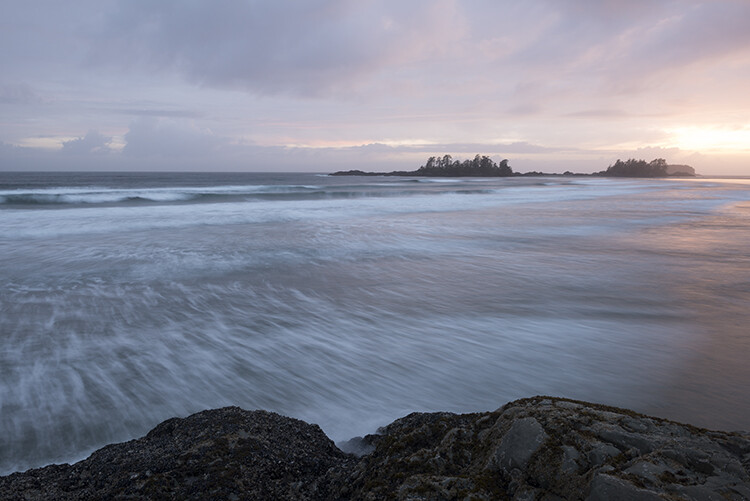
Before
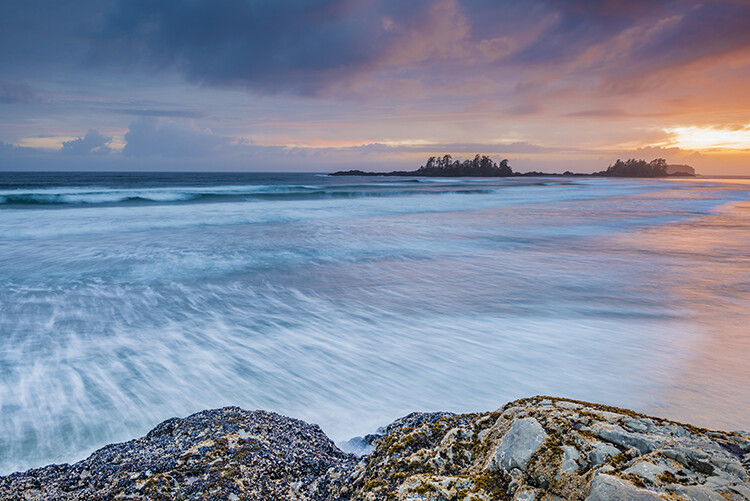
Before

After

After

Making your images POP!

What does it mean to make your images pop? It can mean a number of things, but mostly it means to have more colour, contrast, and look more dramatic. As always, it implies that you have a good image to start with. Trying to make an average image pop, is not what this is about. Make sure you start off with a good image out of camera, then go through these steps in order.

Shoot in RAW

Shooting in RAW is a good start. I know, you may not want to shoot in RAW because the file sizes are so big, or you don’t really see the benefits, but RAW really does make a difference. Firstly, you are working with a full uncompressed file of data. A JPEG image has already had adjustments make in camera to compress it to that file size. Some information has already been discarded, which means you are working with less image information, which in turn means you have less flexibility in the editing process. Of course, RAW is only useful if you are going to spend time editing your images in Photoshop or Lightroom.

Let’s assume that you are going to edit and you have shot in RAW, open your image up in Photoshop and you will see the Adobe Camera Raw (ACR) Editor open. The ACR editor is a really powerful tool. The latest updates have made the ACR editor in Photoshop almost a separate image editing tool, it’s that powerful. As it opens, you will see a selection of tools on the right hand side, mostly sliders such as: White Balance, Tint, Exposure, Contrast, Highlights, Shadows, Whites, Blacks, Clarity, Vibrance and Saturation.

Camera Raw Editor in Photoshop CC

The camera raw editor has some very powerful adjustment tools. The next few steps will be done mostly in the RAW editor, then the image will be opened in Photoshop, and edited further. Many of these edits are very similar in the Lightroom Develop module, so you can make these same adjustments there as well.
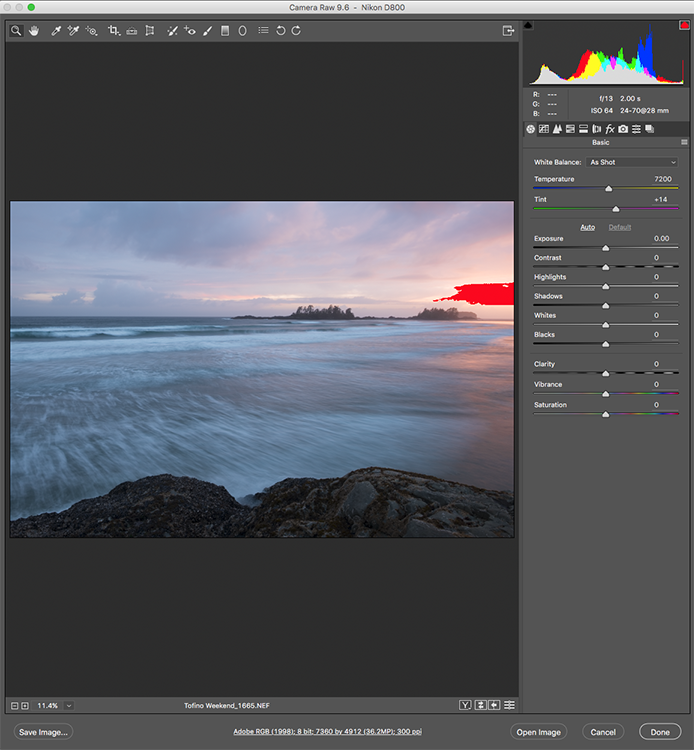
The Camera Raw Editor in Adobe Photoshop CC
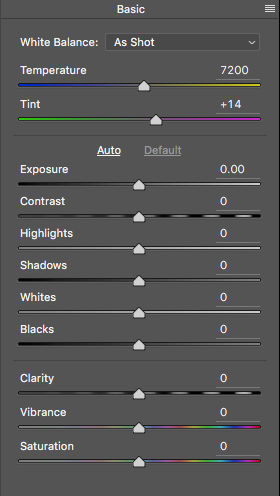
Close up of the basic RAW editor sliders

Making adjustments in the RAW editor

  • Temperature – Start off by taking a look at the colour in your scene. You can adjust the temperature to make the colour of the scene warmer (slide towards yellow) or cooler (slide towards blue). This can be used to correct a colour cast, or to add some drama to your image. In this scene, I chose to move toward the warmer side.
  • Exposure – Take a look at your exposure, the image might be a little dark, or maybe a little bright. Slide the exposure slider to adjust this.
  • Contrast – Adjust the contrast to make sure that the dark areas of the image are dark enough, but don’t lose details here.
  • Highlights – In this image, the red indicator in the highlights shows me where there is very little detail. To compensate for this, slide the highlights slider to the left. If your highlights are underexposed, slide this slider to the right, but be sure not to overexpose your highlights.
  • Shadows – The shadows slider can help you bring back details in the shadows or darken them a little. Be careful not to overdo this slider as your shadows may look noisy (or your image can take on an “HDR” look) if you push this too hard.
  • Whites – This slider adjusts any pixels in the image that are white or partially highlighted.
  • Blacks – This slider will adjust any pixels that are black.
  • Clarity – The clarity slider adjusts contrasts in the midtones. This can really add some structure to your image, but be careful not to overdo it.
  • Vibrance – This slider will adjust any pixels that are not saturated. This is a good place to start to add some subtle pop to your scene.
  • Saturation – This slider will adjust all pixels by saturating or desaturating them.
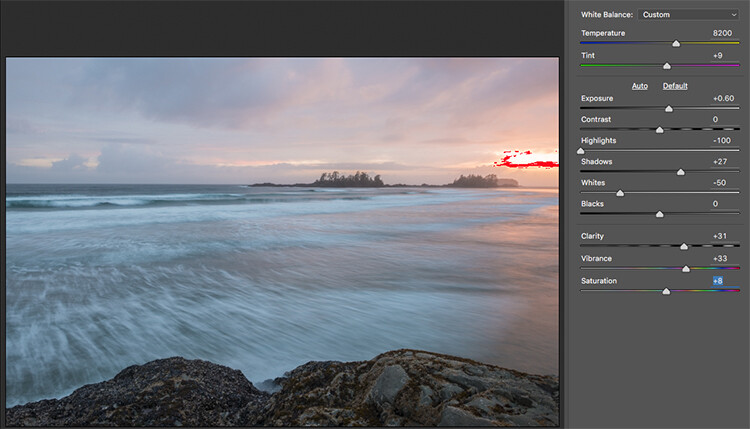
Basic adjustments in Camera RAW

HSL adjustments tab

This tab has three different tools under it, namely: Hue, Saturation, and Luminance (HSL). These adjustments will make changes based on the colour channels in your image. For example, if you click on the saturation tab, you can make the reds in your image more or less saturated, the same is true for the oranges and all the way through the colour channels. You can also make certain colours brighter, by using the luminance tab. In this image, I wanted to saturate the reds, yellows, and oranges, as well as some of the blues.
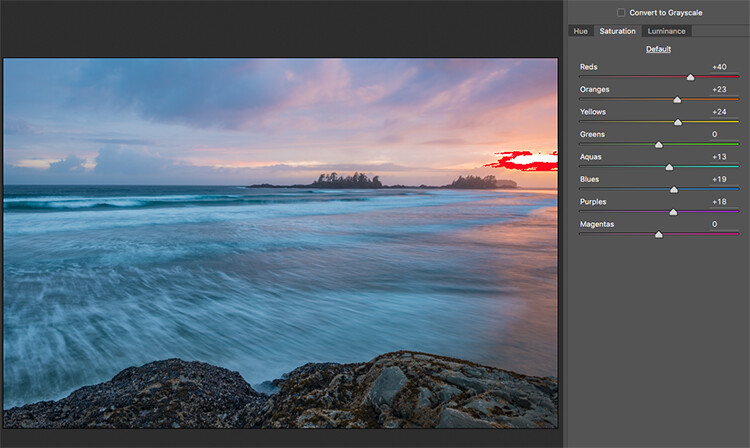
HSL tab adjustments

Graduated Filter in Camera Raw

Much like using one on your camera in the field, you can add a graduated filter in Camera Raw. The beauty about doing this in Photoshop is that you can make some very fine tuned adjustments to your image, depending on how you position the Graduated Filter tool.

Click on the Graduated Filter icon at the top of the screen, and the you will see a whole new dialogue box with very similar functions to the basic Camera Raw Module. The difference here is that you will click and drag the filter down on your image to select the sky. You can also click and drag up from the bottom to select the foreground. I will do both (theGraduated Filter applies to the image from the edge inward).

Starting at the top, I click and drag the filter to just over midway through my image. That limits the effect to the top half. This filter is graduated, so the effect will be properly blended, and you won’t see a hard line where the filter ends (the more you drag it the wider the blend area, you can also adjust that after). I make some adjustments and you can see the difference they made to the sky. Once you are finished with one filter, click on New (at the top of the adjustment box) and repeat the process, but drag up from the bottom this time to make adjustments to the foreground. Once you have made the final adjustments, you can click open image at the bottom of the Camera Raw box to open your image into Photoshop.

Graduated Filter icon highlighted

One key adjustment that needs to mentioned here is the Dehaze tool. The Dehaze tool does exactly what it says, it removes haze and creates better contrast. Use it carefully, it is easy to go too far with it, and your image may suffer as a result. It is a really useful tool for landscapes and seascapes, as there is often some haze in the images, as there was in mine. Using it lightly has removed the haze and made the image better overall.

You will notice it is part of the Graduated Filter tool, and there is also a Dehaze function in the effects tab of the Camera Raw Editor. It is up to you when you use it, but be aware that if you use it without a selection, it will apply the effect universally to your entire image. Using it here in the Graduated Filter tool means you can have better control over how it affects your image.
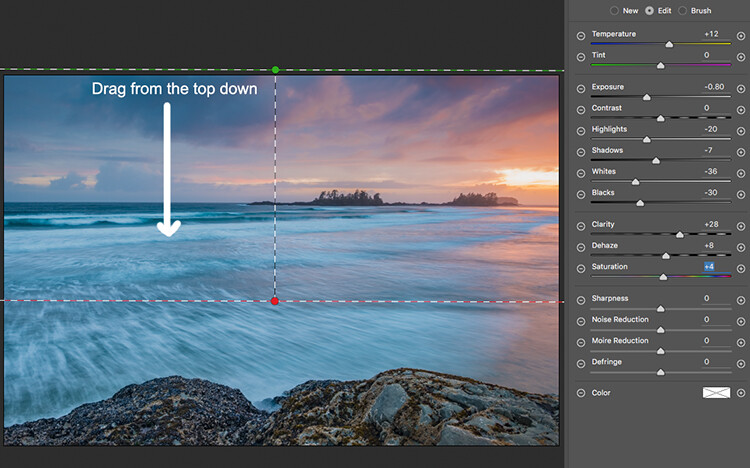
Click and drag the Graduated Filter from the top down to select the sky. Then select with adjustments you want to apply.
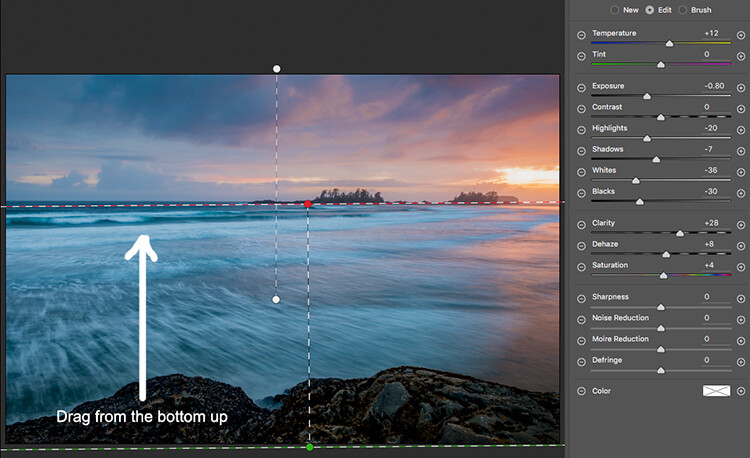
Selecting the foreground by dragging from the bottom up.

Open your image in Photoshop

After you have made your adjustments in Camera Raw, the final touches can be applied in Adobe Photoshop. Once again, the sky and the foreground in this image are going to look different, and will need different adjustments.

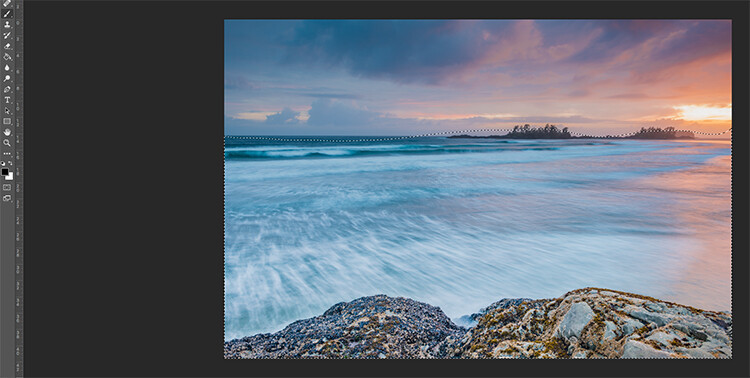
To make a softer selection of the sky, click on the quick mask tool at the bottom of the left hand side toolbar in Photoshop. You can then use a soft brush to paint in a selection of the sky as a mask. Once you are happy with the selection (see red mask) click on the quick mask tool again to activate that selection. There is one tricky thing to note about the quick mask tool, the mask means that you are selecting everything that is NOT red. So, when you click on the quick mask tool, you will see the marching ants around the bottom portion of the image and not the red area. This is good, because you can toggle between the two areas very easily and make adjustments to each selection.

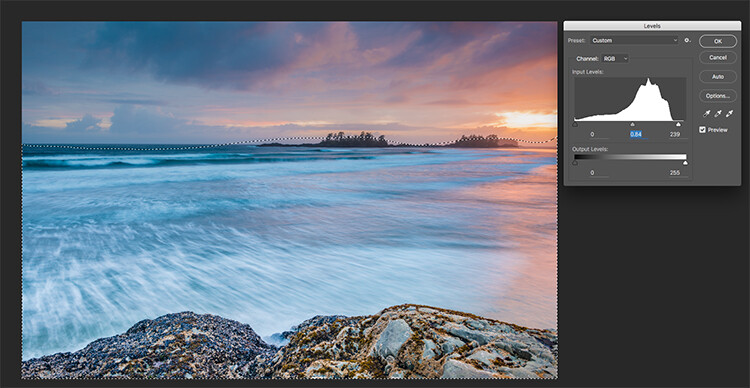
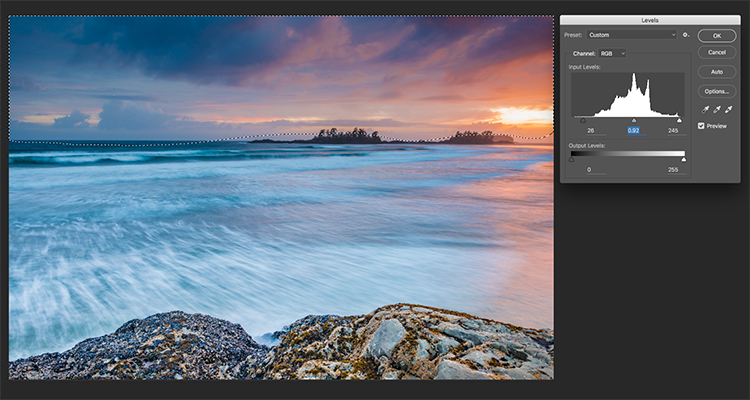
First of all, make the necessary adjustments to the foreground using Levels. In this image, I wanted to make the foreground a bit brighter, so I popped up the highlights a little. From there I selected the inverse (i.e. the sky). You can do this by holding down CMD>SHIFT>I together. This will toggle your selection from the foreground to the background.
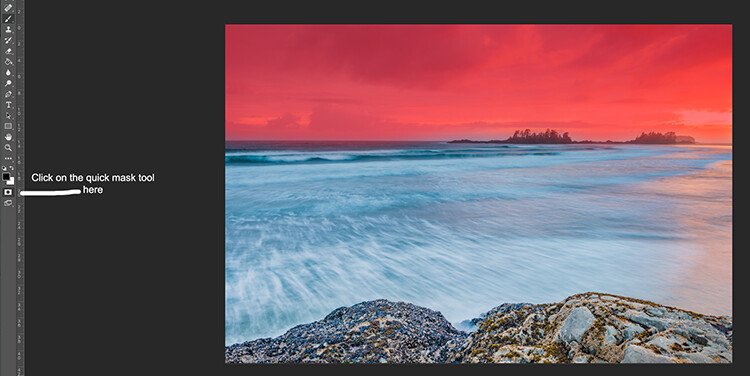
Red indicates the area that will be masked
Screen Shot 2016-07-05 at 3.28.52 PM

The marching ants show where the current selection is in the foreground.
Screen Shot 2016-07-05 at 3.29.56 PM

Making levels adjustments to the foreground
Screen Shot 2016-07-05 at 3.30.24 PM

CMD>SHIFT>I will toggle the selection, here the sky is being selected and levels is being used to adjust the sky

Use Hue and Saturation to make final colour adjustments

You can use the toggle function (CMD>SHIFT>I) to select the sky and foreground interchangeably. Once you have your selection, choose a tool to make adjustments, and the changes will only be made to the area that is selected. In this example I have used the Hue and Saturation function to make further enhancements to the image. I am again making adjustments by each channel. This gives me great control over what colour ranges need to be saturated, and perhaps desaturate others that are a little over done. Go through each channel and make the necessary adjustments.
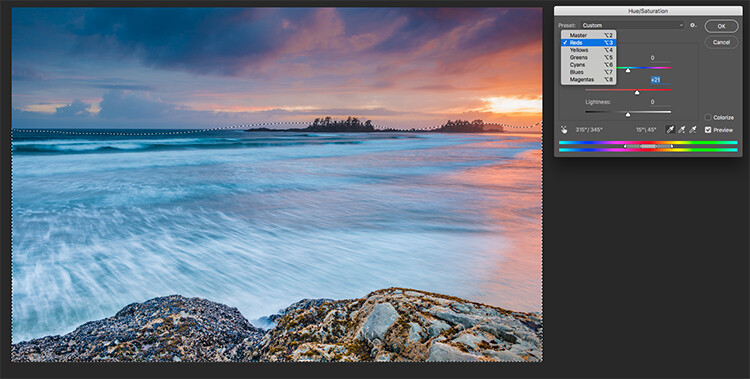
Screen Shot 2016-07-05 at 3.30.53 PM

Use Hue and Saturation to make final colour adjustments

Once you are done, you can then sharpen your image as you see fit and save it to be printed. The steps outlined above will help you make any image look better. If done correctly, your images will have the pop and drama that you are looking for.

Give it a try, once you know the process, these adjustments can be done really quickly.

After

Final image

Please share your images and thoughts on the comments section below.

googletag.cmd.push(function() {
tablet_slots.push( googletag.defineSlot( “/1005424/_dPSv4_tab-all-article-bottom_(300×250)”, [300, 250], “pb-ad-78623” ).addService( googletag.pubads() ) ); } );

googletag.cmd.push(function() {
mobile_slots.push( googletag.defineSlot( “/1005424/_dPSv4_mob-all-article-bottom_(300×250)”, [300, 250], “pb-ad-78158” ).addService( googletag.pubads() ) ); } );

The post How to Use Adobe Camera Raw and Photoshop to Make Your Landscape Images Pop by Barry J Brady appeared first on Digital Photography School.

Digital Photography School

 
Comments Off on How to Use Adobe Camera Raw and Photoshop to Make Your Landscape Images Pop

Posted in Photography


Fujifilm X-E2S real-world samples

02 Aug

The Fujifilm X-E2S takes everything we loved about the X-E2 and its latest firmware updates and adds… well, not much. But that doesn’t mean it isn’t a capable and relevant camera in today’s market. With great build quality, plentiful external controls, retro styling and Fujifilm’s gorgeous film simulations, the X-E2S just begs you to slap on a prime lens and go out shooting. The substantial drop in MSRP compared to the original X-E2 doesn’t hurt, either. Take a look at what we came up with when we took the X-E2S for a spin.

Articles: Digital Photography Review (dpreview.com)

 
Comments Off on Fujifilm X-E2S real-world samples

Posted in Uncategorized


Lighting 102: Distance

02 Aug

Just like your focus, light has depth of field.

For this layer of control, we are going to look at two different pictures. Everything will be the same except for one thing: The distance from our light to our subject will change. Nothing else. In particular, the subject-to-background distance will not change.

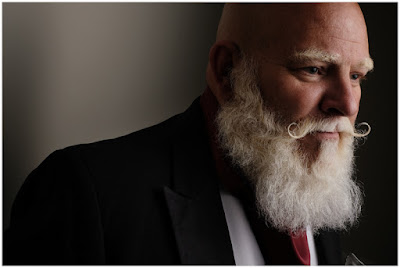
Exhibit number one is a dark portrait of Dean, situated a few feet in front of a white wall, pictured above.

White wall? Yes, white. But it doesn't look white, does it?Read more »
Strobist

 
Comments Off on Lighting 102: Distance

Posted in Photography


Lighting 102: Combining Distance and Two Lights

02 Aug

By using a second light to ensure legibility in the shadows, we can place a "floor" on how low the tones will go on our subject. But we can also combine this with the fast falloff of a closely placed key light to get total control of a subject with an inherently tough dynamic range.Read more »
Strobist

 
Comments Off on Lighting 102: Combining Distance and Two Lights

Posted in Photography


Huawei’s Honor Note 8 comes with 6.6″ Quad-HD screen

02 Aug

If you’re keen on consuming video and images on your smartphone, Huawei’s latest model in its Honor sub-brand, the Honor Note 8, might be just the device for you. Its 6.6″ Super AMOLED display is one of the largest in the phablet segment and decidedly blurs the line between smartphone and tablet. With its Quad-HD resolution it offers a pixel density of 443 ppi.

Unlike the standard Honor 8 model, the Note variant does not come with a dual-camera setup. Instead, the Honor combines a 13MP image sensor with a fast F2.0 aperture, optical image stabilization and a dual-LED flash. Video is recorded at 1080p Full HD resolution and an 8MP front camera is available for selfie-shooting and video calls.

The Android 6 operating system is powered by Huawei’s in-house Kirin 955 chipset with octa-core CPU and 4GB of RAM. You can pick from 32, 64 or 128GB of storage options and expand capacity via a microSD card. The Note 8’s 4,500mAh battery should provide enough power to keep the large screen and other components running all day. The Honor Note 8 can be pre-ordered in China today for approximately $ 345 for the 32GB base model, $ 375 for the 64GB version and $ 420 for the 128GB top-end variant. There is no word on global availability yet but we would expect the Note 8 to become available in other regions soon.

Articles: Digital Photography Review (dpreview.com)

 
Comments Off on Huawei’s Honor Note 8 comes with 6.6″ Quad-HD screen

Posted in Uncategorized


Lighting 102: Apparent Light Size

02 Aug

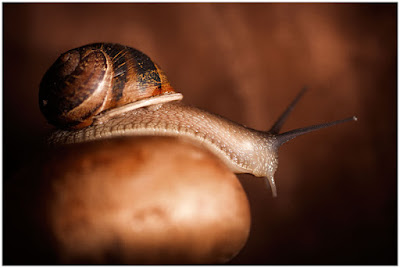
This is Gary. Gary is a snail. And he's beautifully lit by my friend Sara Lando. While babysitting Gary for a friend, Sara decided to actually build a miniature set and then photograph the snail in the style of Irving Penn. Because this is what creative people do in their spare time.

And pray tell, what beautifully soft light source is she using to subtly caress Gary and reveal his form?

Oh look, it's a bare speedlight:Read more »
Strobist

 
Comments Off on Lighting 102: Apparent Light Size

Posted in Photography


Lighting 102: Understanding Soft Light

02 Aug

So what is it that actually makes a light soft? And why is it a function of both size and distance?

In the portrait above, Dean is being bathed in soft umbrella light from camera right. But let's zoom in a little closer and place some waypoints on his forehead…Read more »
Strobist

 
Comments Off on Lighting 102: Understanding Soft Light

Posted in Photography


How to Use Two LED Lights to Achieve Moody Portraits

02 Aug

Any kind of light is a must for photography. You just cannot photograph without light. There are various types of light that no doubt you are familiar with:

  • Natural light from the sun
  • Ambient light (could be natural or manmade)
  • Artificial light such as strobes, incandescent or tungsten, fluorescent, flash and LED lights
  • Infrared light

achieving-moody-portrait-2-LEDs-tips

This article will give you tips for using two LED lights to achieve moody portraits.

Tip #1 – Modify your light

The best light is always modified. Even sunlight is better with a diffuser. Direct sunlight produces hard shadows and harsh light. Clouds soften and diffuse sunlight (by making it spread over a larger area). On a bright cloudless day, shooting in open shade minimizes the harshness, but still takes advantage of the beautiful natural light. Shooting in shadows, located next to reflective surfaces, also leverages any bounced natural light. These techniques are simply modifiers of natural and available light.

Modifiers are more obvious for artificial light. There is a plethora of choice when it comes to these: soft boxes, diffusers, reflectors, foam cores panels, umbrellas, flags to name a few.

The same is true for LEDs when it comes to the need for modifiers. There are many types of LED lights, including ones that you can adjust their brightness as well as colour temperature. But, just like the above, regardless of brightness intensity of the continuous light, it is essential to modify LEDs to get soft, pleasing, beautiful light -overall a better quality of light.

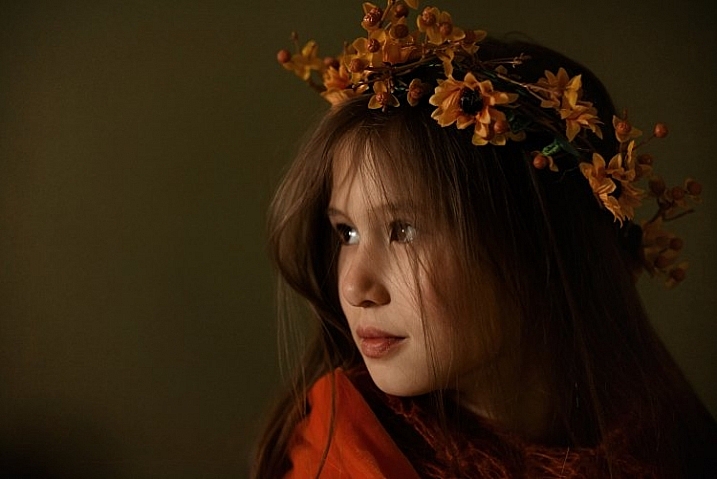
I’m going to show you a setup using modified LEDs to create moody portraits.

achieving-moody-portrait-2-LEDs-tips

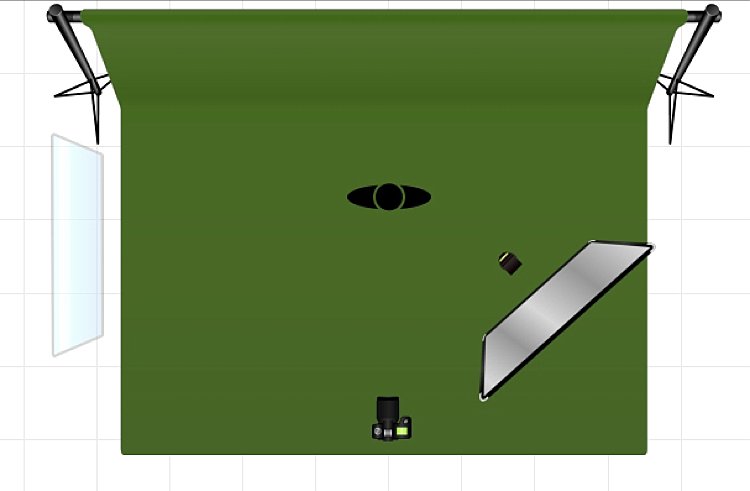
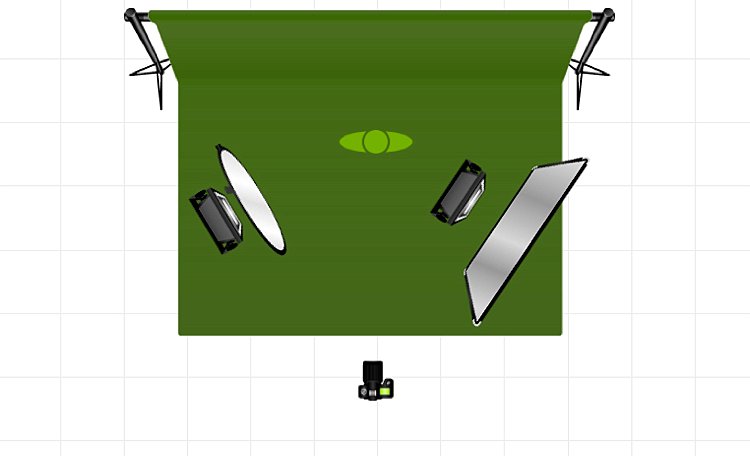
Using a window to camera left and an LED, bounced into a diffusion panel, to the right.


The main light I used here is the Magic Tube, the cheaper alternative to Westcott Ice Light. You can adjust the brightness of the light, and it comes with a tungsten gel if you need it. Apart from looking lightsaber Star Wars cool, the Magic Tube also comes with a charger that allows continuous charging while it is being used. So you can always have access to power by just plugging it in if the battery charge runs out.

You can also use window light and just one LED for this setup. Substitute the main light with your window light, but make sure you are diffusing the light coming from a window with a sheer voile, or fabric to soften it.

To diffuse the main light, I covered it with the Rogue Bender diffuser for the strip light. This is just a piece of rectangular translucent material which simply covers the light.

Tip #2 – Position your lights for contrast

Position the main light at 45 degrees to the subject, up high to emulate light coming from a tall window. Use a diffusion panel or a piece of sheer fabric. The less opaque the fabric, the more diffuse your light will be. To further modify the Magic Tube after I have attached the Rogue Bender diffuser, I also used the diffusion (translucent part) panel of a 5-in-1 reflector and had an assistant hold the panel in front of the main light. Having these two diffusers together reduces the strength of the light, but also greatly softens its quality.

achieving-moody-portrait-2-LEDs-tips

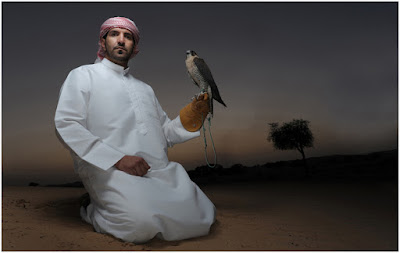
The second light is also an LED, this time a small video light positioned to camera right, at 45 degrees, but at the same height as the subject. However, instead of using a diffuser to modify this light, you can turn it around so the light faces away from the subject, and put a reflector in place to bounce the light on. The subject (filling in the shadows) gets illuminated by the soft bounced light from the reflector.

achieving-moody-portrait-2-LEDs-tips

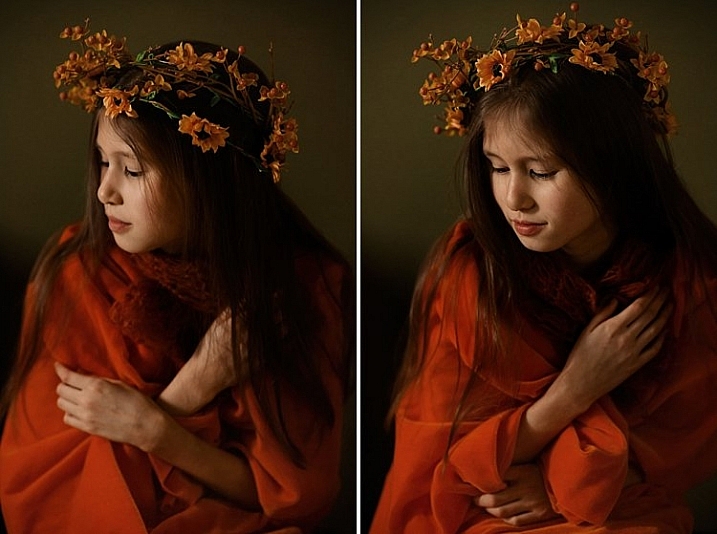
For a moody look it is essential to have both light and shadow in the portrait. You need to watch where the main light falls, and the shadow it’s creating. You want the shadowed area to still have some detail, instead of being completely black. The bounced light from the reflector takes care of this.

Tip #3 – Use a dark background

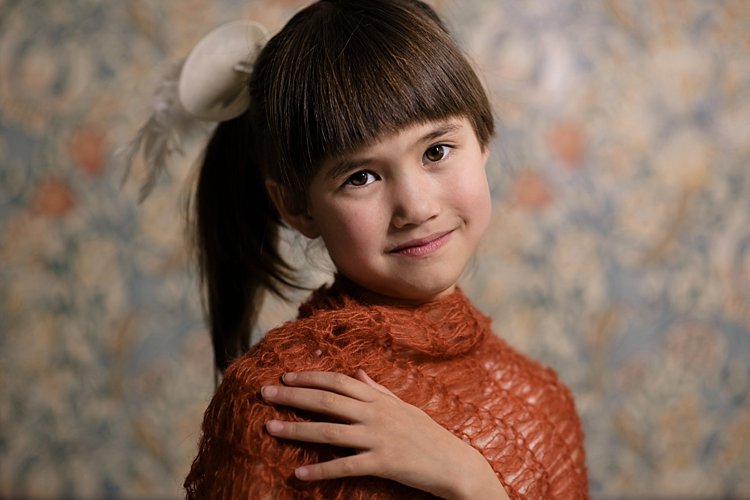
I tried the exact same setup, although the lights were positioned the opposite way, with the main light on camera right. This setup had a lighter background, in this case lightly patterned, and the results were far from moody. I did not want to shoot at a smaller aperture as I wanted to blur the pattern of the wallpaper in the background. I also wanted to emulate sunlight shining through a window illuminating a dark room, and this setup just did not work to achieve that look.

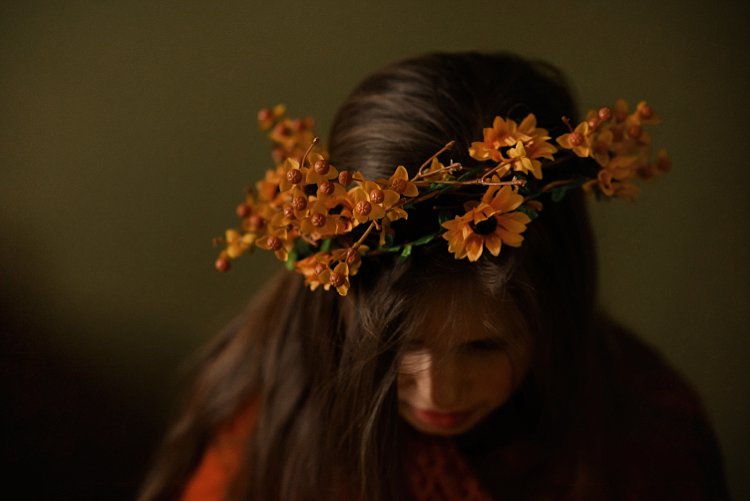
I’m sure if I had gridded the main LED to avoid spill into the light background, while increasing my shutter speed, the background would have gone darker, but I would have lost the soft and atmospheric look I was after. Compare this photo below to the one underneath it, and it’s pretty obvious the darker background is most definitely better at achieving the moody look.

tutorial-using-2-led-lights-for-portraits-photography

achieving-moody-portrait-2-LEDs-tips

I hope this article gave you new ideas to try. Do share other tips you have to achieve moody portraits!

googletag.cmd.push(function() {
tablet_slots.push( googletag.defineSlot( “/1005424/_dPSv4_tab-all-article-bottom_(300×250)”, [300, 250], “pb-ad-78623” ).addService( googletag.pubads() ) ); } );

googletag.cmd.push(function() {
mobile_slots.push( googletag.defineSlot( “/1005424/_dPSv4_mob-all-article-bottom_(300×250)”, [300, 250], “pb-ad-78158” ).addService( googletag.pubads() ) ); } );

The post How to Use Two LED Lights to Achieve Moody Portraits by Lily Sawyer appeared first on Digital Photography School.

Digital Photography School

 
Comments Off on How to Use Two LED Lights to Achieve Moody Portraits

Posted in Photography


How to Use Framing to Create a Sense of Scale

02 Aug

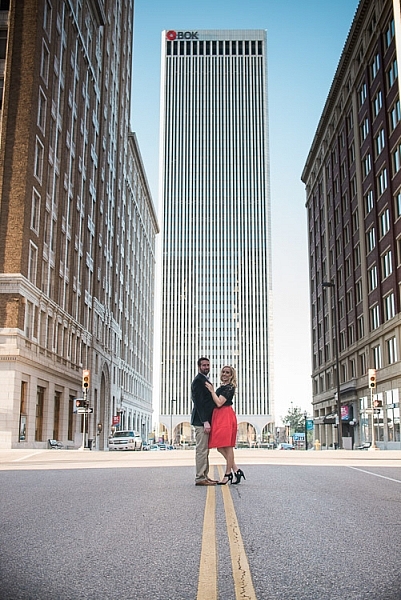
One thing that can be difficult to get across when taking pictures is a true sense of how large something is in real life. A skyscraper that appears towering and imposing in person, can come across as unimpressive, or stripped of its majesty when photographed. Natural formations that inspire awe and self-reflection, often seem puny and insignificant when we go through our photos later at home or on our phones.create-sense-of-scale-bok-center

This is something I have had happen many times in my own journey as a photographer, and while it can be tricky to create a sense of scale, there’s a way to use the concept of framing to capture the massive size of things in the world around you.

What is framing?

Framing has to do with the way the elements in a picture are positioned, in relation to one another. I struggled with the concept of framing for scale for a long time, before I really got the hang of it. But if you really want to show how big something is, it helps to put something else in the picture with it. This concept might seem a little counterintuitive, but adding elements to the foreground, background, or image sides, helps to not only give the viewer a sense of scale by showing how big the object is in relation to something else, but often it helps make the picture more compelling from a compositional perspective.

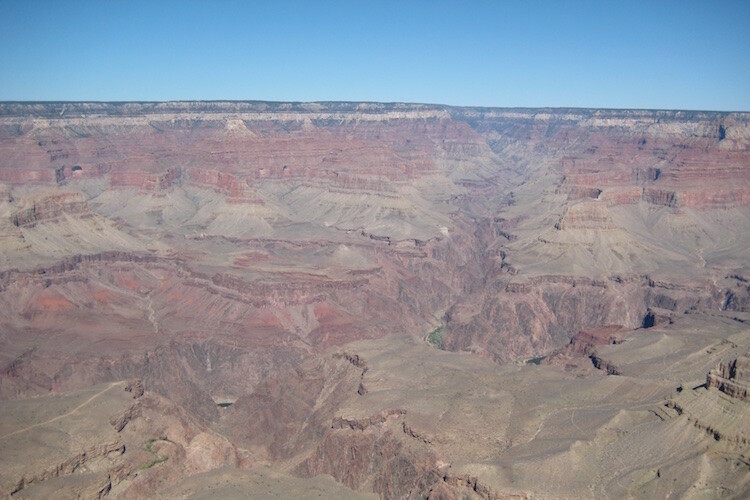
As an example, here’s a picture I took when I visited the Grand Canyon a few years ago. I really wanted to capture the sheer size of this natural wonder, so naturally I pointed my camera out from a precipice and took a few pictures. Sadly, the resulting images look flat, muddy, and downright boring – almost the polar opposite of the Canyon itself.

An incredibly boring picture of one of the most amazing natural formations I have ever seen.

An incredibly boring picture of one of the most amazing natural formations I have ever seen.

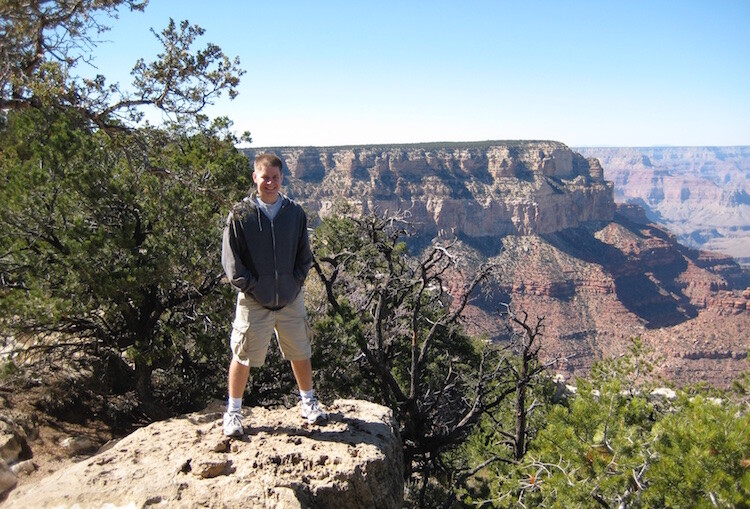
The problem with this image is it does nothing to impart a sense of scale to the viewer. In order to truly appreciate how big the canyon is, we need other visual information in the frame, to which we may compare the background elements. Fortunately, one of my friends took a much better picture that includes a few foreground elements, which although they block out some of the Canyon, help to capture the grandeur of this natural wonder.

create-sense-of-scale-grand-canyon-foreground

A much better picture, even though part of the Grand Canyon is blocked out.

The second picture works because it contains several layers: me, the trees, the plateau, and a glimpse of the rest of the Canyon. Of course this concept, like much in the world of photography, is quite subjective and some might think the top picture looks better because you can see more of the canyon itself. However, in my opinion the bottom image is more interesting because of the multiple compositional layers, while at the same time helping the viewer understand just how big the Grand Canyon really is.

How to apply framing to show scale

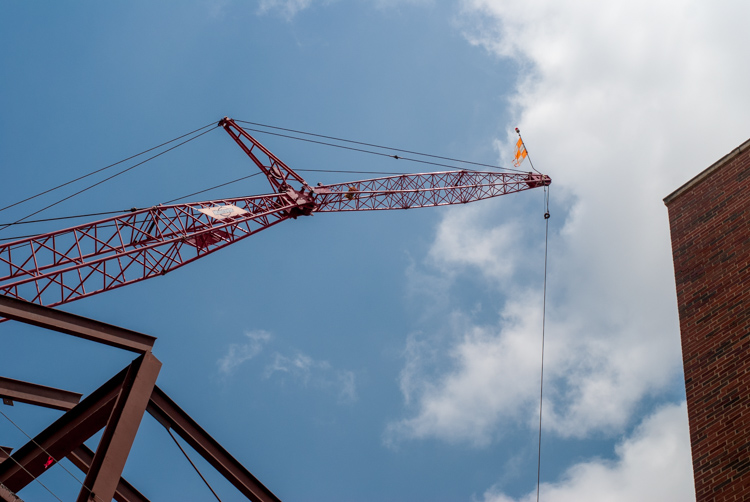
You can see the same principle at work in the following pair of shots as well. The first one was zoomed in a little and focused just on the crane, which is fine, but it doesn’t really tell the story of how big the crane is, or how much it towers over the surrounding buildings.

create-sense-of-scale-crane-unframed

To adequately capture the size of this piece of construction equipment I stood in the same place, but zoomed out a little bit, in order to frame the crane between two of the surrounding buildings. The result is a picture that adds a great deal of additional context, which helps the viewer to understand the size of the subject in the photo.

create-sense-of-scale-crane-framed

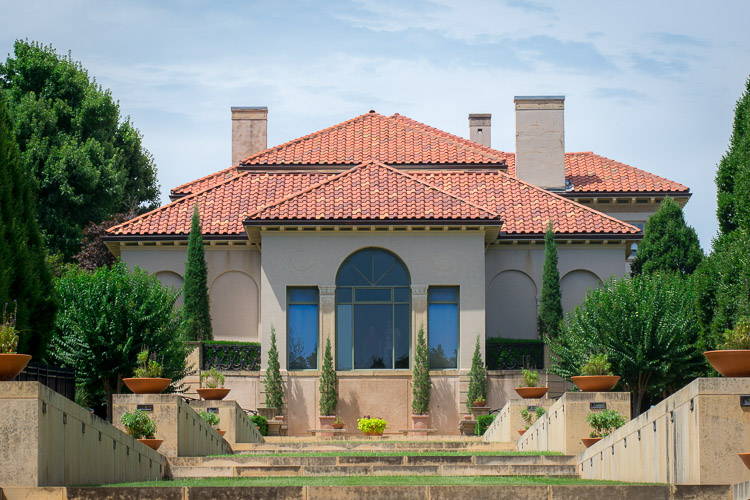
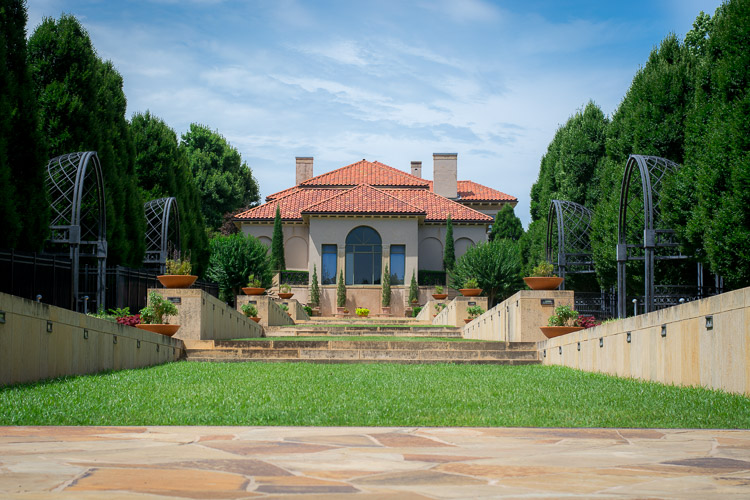
Often these types of framing decisions are not all that complicated. It can be as simple as stepping a few meters in any direction, or zooming in and out with your camera. Another example is this set of two images taken at the Philbrook Museum in Tulsa, Oklahoma. It’s a grand building with a rich history, but unless the building is properly framed it can look like any other house.

create-sense-of-scale-philbrook-unframed

Looking at the above image you might get the idea that this dwelling is somewhat old, with a bit of a terrace in front. But, it doesn’t really capture a true sense of the scale, not only of the house, but its surrounding gardens.

create-sense-of-scale-philbrook-framed

In the second image (above), the size of the mansion is smaller in the image, yet it seems much larger because it is framed on the sides by rows of trees, as well as the lower portion of the photo which shows many distinct levels of the terrace. It’s somewhat ironic that stepping back and re-framing a shot like this, so that the subject is smaller in the frame, can actually make it appear larger. But, you will find this phenomenon to be true across a wide range of photographic situations in which you want to convey the true size of something.

Don’t overdo it

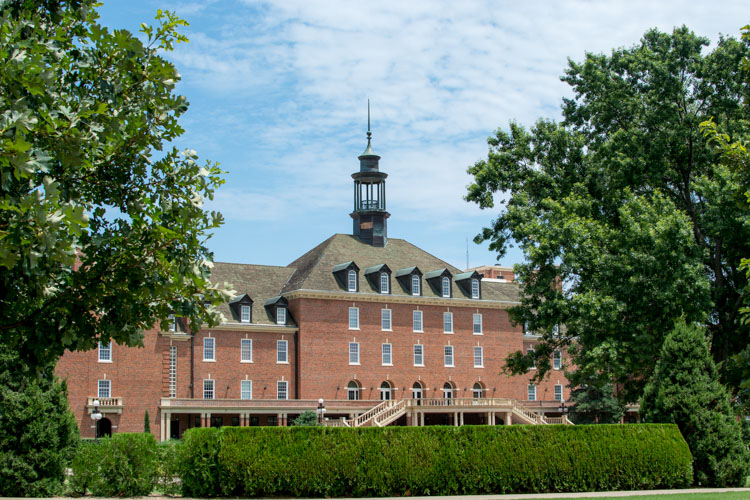
Of course, just as important as knowing how to frame your subjects is knowing when to hold back a little bit. The picture below shows the student union of Oklahoma State University, one of the largest student unions in the country. Yet when it is framed between two trees on the sides and a hedge in the foreground, it almost gets dwarfed and seems somewhat diminutive in size.

create-sense-of-scale-student-union-framed

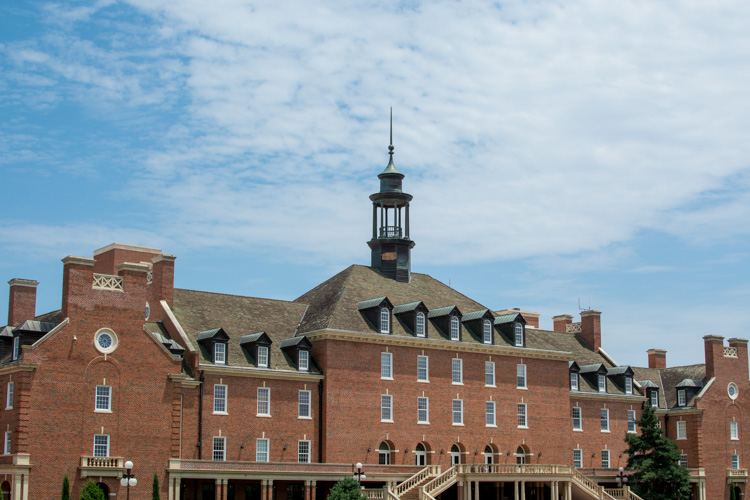
One reason the framing is not useful here is because it actually covers up part of the building, whereas in the previous example the technique was used enhance the large subjects. There are also several visual cues, such as windows and stairs, that on their own do a good job of imparting a sense of size to the viewer. To properly showcase how big this structure is, it’s enough to simply show it on its own.

create-sense-of-scale-student-union-unframed

The above examples are just a few illustrations of how you can use the idea of framing to capture a sense of scale, but I’m curious about your own personal approach. How do you use various photographic techniques to truly capture the size of your subject? Leave your thoughts and images in the comments below.

googletag.cmd.push(function() {
tablet_slots.push( googletag.defineSlot( “/1005424/_dPSv4_tab-all-article-bottom_(300×250)”, [300, 250], “pb-ad-78623” ).addService( googletag.pubads() ) ); } );

googletag.cmd.push(function() {
mobile_slots.push( googletag.defineSlot( “/1005424/_dPSv4_mob-all-article-bottom_(300×250)”, [300, 250], “pb-ad-78158” ).addService( googletag.pubads() ) ); } );

The post How to Use Framing to Create a Sense of Scale by Simon Ringsmuth appeared first on Digital Photography School.


Digital Photography School

 
Comments Off on How to Use Framing to Create a Sense of Scale

Posted in Photography


Real Life LEGO Man: Fleshy Mini-Figure Cosplay Will Freak You Out

02 Aug

[ By SA Rogers in Art & Sculpture & Craft. ]

real life lego man 1

You’ll never hear the phrase ‘all thumbs’ the same way again after looking at this real life Lego man complete with eyebrows, wrinkles and the biggest, weirdest thumb nails you’ve ever seen. Dubbed ‘Creepyfig,’ this disturbingly fleshy cosplay project brings Lego mini figures into human scale and parades him around San Diego Comic-Con, where there are so many crazy things to look at, he barely gets a second glance from most adults before reaching the official Lego exhibit.

Screen Shot 2016-08-01 at 4.07.31 PM

Screen Shot 2016-08-01 at 4.09.12 PM

Artist Frank Ippolito created the mask and hands and donned the costume himself, getting a spirited reaction from kids who poked his head curiously and placed Lego bricks in his clumsily large hands. The head – complete with its characteristic peg – is made of 14 pounds of silicone and includes realistic details like dark eye circles and frown lines. In the video, Ippolito remarks that the eyes are difficult to see out of, but he completed the project in just a week, leaving no time for refinement. By the end of the day, sweat is literally pouring out of the silicone costume components.

Screen Shot 2016-08-01 at 4.12.37 PM

Screen Shot 2016-08-01 at 4.13.31 PM

Created in collaboration with Adam Savage’s Tested, the Creepyfig set started out as a giant lump of hand-sculpted clay. Ippolito specializes in makeup for film and television, giving him the skills to nail those details (no pun intended.) See the whole process from start to finish in a second video, courtesy of Tested.

real life lego man 6

Now, if only someone would make appropriately sized Lego bricks and accessories so we can see this project take a sharp left turn deeper into Uncanny Valley.


Share on Facebook


[ By SA Rogers in Art & Sculpture & Craft. ]

[ WebUrbanist | Archives | Galleries | Privacy | TOS ]


WebUrbanist

 
Comments Off on Real Life LEGO Man: Fleshy Mini-Figure Cosplay Will Freak You Out

Posted in Creativity