RSS
 

Archive for July, 2016

You’ve got mail: Five photo postcard apps tested

04 Jul

In this age of sharing images via email, social media and text messages, one form of photo communication has sadly been left behind. It is something we all used to look forward to getting from anyone who was traveling. I’m speaking of the humble postcard.

Be it a trip as mundane as a work conference in Kansas City or as exotic as a trek through the Amazon rainforest, getting a postcard in the mail was something that we all looked forward to from friends and family. Even today, if I want to make my grandmother happy, sending even the cheesiest of postcards will bring a smile and a thank you. Perhaps more surprisingly, my kids go completely nuts when someone sends them a postcard. At 6 and 8, they both already have email addresses, but the postcards all go right up on the wall above their beds.

But what if we could merge the old-school and the new-school? What if, instead of relying on the spinning metal rack of cards at a roadside diner or airport giftshop, you could easily send a postcard of an image you took yourself? Through the magic of smartphone apps, doing so is far easier than you might expect.

Putting them to the test

I tried out five different postcard apps on an iPhone 5s: Touchnote, Postcard, Ink, Postagram and Snapshot Postcard. All of the apps are free and charge only for sending cards. I sent myself three postcards from each app using the same three images. One of the images was taken with a DSLR and another with a Micro Four Thirds camera, then transferred to my iPhone. The third image was a photo taken with the iPhone’s rear-facing camera. The data regarding pricing was reported by the app companies themselves. I did my best to make it clear what the costs would be for both US and International users. If the company reported specific non-US pricing, it is listed. But if they did not, pricing will be in whatever your local exchange rate is from USD.

Touchnote
www.touchnote.com

Cost: $ 2.99/£2.99/€2.99
Usable worldwide: Yes
Cardstock: 110 lb glossy
Android/iOS: Both
Additional products: Greeting cards

As with all of these apps, Touchnote has iOS and Android versions. What is unique is that it also has a web interface so you can order while at your desk. This is actually surprisingly handy if you intend to send non-phone images regularly. Full-bleed, white border, square or 1-6 multi image layouts are available. Images can be cropped, zoomed and rotated within the app. In addition to traditional messages on the back of the postcard, Touchnote allows you to add up to a 33 character caption on the front side as well. There is a confirmation email after you send a card and you can see (as well as copy for future use) all of your past sent cards in a nice timeline view.

Postcard by PrintMe
www.printmeapp.com/card

Cost: $ 2.99/£1.79/€2.49
Usable worldwide: Yes
Cardstock: 300 gr/qm (aprox 110 lb) luster
Android/iOS: Both
Additional products: Greeting cards, photo books, calendars

Postcard by PrintMe aims to be more of a ‘photo products’ app than the others in this article. That said, its postcard options are plenty strong on their own. Full-bleed, white border, and multi-image layouts are available, as well as many ‘occasion/holiday’ designs. The image can be zoomed and cropped, but not rotated.

Rare in these apps is Postcard’s ability to change the font for your message on the back. Sadly, there is no drop-down list, you just have to keep pressing the ‘font’ button over and over. Still, it is one of the only apps that give you any font option at all. Much cooler is the ‘signature’ box option which allows you to sign your name on-screen and have it print on the card. Finally, though I did not test it, Postcard offers the option to pick up folded greeting cards, but not postcards, next-day at Walgreens locations.

Postagram
www.sincerely.com/postagram

Cost: $ 0.99 domestic $ 1.99 international
Usable worldwide: Yes
Cardstock: 12 pt (approx 92 lb) with thick glossy laminate
Android/iOS: Both
Additional products: None

Looking to differentiate itself from the other apps out there, Postagram is unique both because it is designed around a, presumably, Instagram-inspired square image layout, and also because that square image comes pre-perforated and ready to pop out in a sort of trading-card style. Your message is printed on both the back of the image ‘card’ and on the front side as well. In a nice touch, you can choose a secondary 0.75 inch x 0.75 inch ‘avatar’ style secondary image to appear in the corner. Which is neat for including an image of yourself along with your landscape image from a trip somewhere, for example. Currently the non-image area of the Postagram cards are black. However, an upcoming app update will offer more colorful options.

Both Ink (described below) and Postagram are from the same company, so if you have set up an account on one, it will work on the other. They apps are also virtually identical in design and features, with the few small differences owing mostly to the differing focus of each product. There are some basic Instagram-style image filters available as well as the ability to zoom and crop. Rotating your image does not seem to be an option. To make sending multiple cards faster, you can copy a past card and update the address/message. There is a clever payment option that allows you to take a photo of your credit card instead of entering in the numbers manually. Both apps are very good with order-received/card-sent confirmations. I will say that unless you turn them off, they are both a little heavy on the marketing notifications (‘It’s a week until Mother’s Day!’ etc).

Ink
www.sincerely.com/ink

Cost: $ 1.99 within the USA, $ 2.99 International, $ 2.99 extra for “Premium” option
Usable worldwide: Yes
Cardstock: 12 pt (approx 92 lb) with thick glossy laminate, Premium cards are 120lb with eggshell finish
Android/iOS: Both
Additional products: None

Ink is designed as more of a greeting-card style postcard app, with many pre-formatted designs for various holidays and occasions that you can add your image to. But they also offer standard postcard options as well as full-bleed, white border or multi-image layouts. Ink postcards are the largest of any tested here, at 5×7 (vs roughly 4×6 for the others). They also offer an upgraded “Premium” card that is printed on heavier matte cardstock and comes in an embossed envelope with a real stamp.

SnapShot Postcard
www.snapshotpostcard.com

Cost: $ 1.99 domestic $ 2.99 international (first card is free from anywhere)
Usable worldwide:  Yes
Cardstock: 110 lb glossy
Android/iOS: Both
Additional products: None (though they do have a greeting card app, SnapShot Greeting Card, as well)

SnapShot Postcard is the only one of the apps that offers a quick ‘getting started’ video as part of its signup flow. While none of these apps are what I would call confusing for anyone who is used to mobile apps, a quick video walkthrough is pretty handy for those who aren’t as tech savvy. Another area where SnapShot Postcard is ahead of the others is that you can send your first card free. Trying a product before you buy is always a nice thing. While user interface is not particularly fancy, all the basics are there in the app. You can set a return address, place a caption on the front, and crop/zoom/rotate (with a handy ‘shake to reset’ function). You can choose borders or full bleed for your images. The borders are fairly cheesy and there isn’t any ‘white’ border option, so full-bleed is going to be your best bet. You are asked if you would like to send the same card again to a different address, handy for vacation or family photos where you might send the same card to many people. There is a nice order history, but you cannot copy old cards. 

Articles: Digital Photography Review (dpreview.com)

 
Comments Off on You’ve got mail: Five photo postcard apps tested

Posted in Uncategorized


Nordic by Nature: Fanciful Models of Scandinavian Summer Homes

04 Jul

[ By WebUrbanist in Architecture & Houses & Residential. ]

nordic retreat treehouse

A series of sleek but whimsical models blend photorealism with fantastic concepts for treehouses, hilltop homes and even dwellings mounted on the sides of cliffs.

nordic cliff side dwelling

Santi Zoraidez is an art director and designer from Buenos Aires who does visual, graphic and architectural work, sometimes real and sometimes conceptual.

nordic modernism hillside home

In this set of summer homes, he bends, twists, warps and cantilevers wood in amazing (if sometimes implausible) ways, putting houses on spindly stilts or hanging them from steep rocky surfaces.

nordic modernist

The results are at once daring and provocative while retaining a sense of minimalism, that core feature common to Modernist Scandinavian designs.

nordic angled house modle

By maintaining a simple palette of colors and textures, the artist manages to accomplish a natural aesthetic that makes sense for countryside dwellings while letting the details of designs – long horizontals and asymmetrical shapes – define each work.

Share on Facebook


[ By WebUrbanist in Architecture & Houses & Residential. ]

[ WebUrbanist | Archives | Galleries | Privacy | TOS ]


WebUrbanist

 
Comments Off on Nordic by Nature: Fanciful Models of Scandinavian Summer Homes

Posted in Creativity


Photographing fireworks: The basics and then some

04 Jul

Photographing fireworks

Here in the U.S. there’s a major summer holiday coming up – one that is celebrated with colorful explosions in the sky. The Fourth of July is traditionally celebrated with grilled meats, red-white-and-blue popsicles and of course, fireworks. If you’ve ever taken a terrible photo of a fireworks display and wondered what went wrong, we’ve got some ideas for you – from the very basics to some simple tips that will help you capture all the majesty of those ‘bombs bursting in air’.

Photographing fireworks

First things first: get your hands on a tripod. You’ll need to steady your camera by any means necessary otherwise the long exposures – anywhere from 2s to 10s or more – needed to capture the fireworks trails will just results in a blurry mess. Something else that can blur your photos is pressing the shutter release button, so a remote release of some sort, whether a cable, remote or smartphone will do the trick.

Next, you’ll want a lens or two that give you a variety of framing options. Depending on where you set up and what obstructions are in your path, a zoom lens will allow you to get your composition just right. It’ll also afford you variety with respect to story-telling: a telephoto focal length allows you to compress city elements with the fireworks as we’ve done here, while a wide-angle field of view will allow you to include different context in your framing, such as the viewers in this shot at the end of our slideshow.

Photographing fireworks

Shooting fireworks can be challenging from the perspective of camera settings. First, we recommend you place your camera on a tripod, so you can use the lowest ISO possible. This helps your camera capture as much light as possible, minimizing noise and maximizing dynamic range. Raising the ISO simply brightens tones so much as to often blow the fireworks to white. If you wish to raise dark tones, like the skies and cityscape, it’s better to selectively brighten them in post-processing, rather than increase the ISO which raises the exposure of all tones in your image.

Which gets us to our next point: shoot Raw. This affords you the most post-processing flexibility with respect to exposure of tones, and colors of various tones, including white balance adjustment.

Exposure latitude, and therefore dynamic range, is important when it comes to photographing fireworks. The fireworks are bright, so you don’t want to overexpose and blow them out, while the rest of the city and sky are dark, which you don’t want to clip to black. In fact, some lingering blue color in the sky adds a nice touch to the imagery. Larger sensor cameras, with higher dynamic range, allow you maximum flexibility in post, if you shoot Raw of course. This allows you to recover colors in the bright fireworks, brighten dark blue tones in the sky, and to set White Balance perfectly to balance the warm colors of the fireworks and the blue colors of the sky.

Photographing fireworks

But what settings should you shoot with? After setting your camera to the lowest ISO (usually ISO 100), set your Drive mode to Manual Bulb, then F8 (equivalent) for enough depth-of-field, and to ensure that the initial launch of the fireworks itself doesn’t register too brightly in your final photograph. Trigger the shutter with your remote when no action is occurring, to allow the camera to start accumulate background exposure to capture some of the sky blue and city lights. Once the fireworks explode, continue to capture some of the trails, then end the exposure with your remote. That’ll allow you to capture enough of the fireworks to get a pattern against a well exposed deep blue sky. Any other exposure adjustments to balance the sky, foreground, and fireworks can be saved for post-processing of the Raw.

This method will allow you to to capture just the right amount of fireworks for the effect you desire. Here, for example, we stopped the exposure rather early, to capture some of the interesting paths the fireworks initially took. When the finale rolls around and fireworks are going off all over the place, you’ll want to end the exposures earlier on (shorter shutter speeds), otherwise you’ll get a blown-out mess.

And by the way, the earlier you start shooting, the less mess of clouds and gas from previous explosions you’ll have in your final photograph – there’s already quite a bit of smoke in this photograph!

Photographing fireworks

Photo: Dale Baskin Photography

Move away from the show

Now that you’ve got a handle on the basic principles, here are a few easy tricks you can try out to bring your fireworks photo game up a level.

There’s a natural tendency to want to get close to, or directly underneath, a fireworks show. This works well if your goal is to capture closeups of the fireworks, but without other visual cues a firework over Seattle looks the same as a firework over London. Try moving away from the show and using a telephoto lens to frame fireworks against a city skyline or landscape to provide some context to your photos and to provide a sense of place.

Photographing fireworks

Photo by John Cornicello

Try something tricky

Racking the zoom or adjusting focus while shooting a longer exposure can offer up a creative and new way to photograph fireworks. One way to go about doing this is to throw the focus at the beginning of a 1 or 2 second exposure and quickly refocus after the initial explosion. This will give your images a flower or even sea creature-like look.

Photographing fireworks

Don’t forget video

You can also opt to forget stills for the night. Try shooting high frame rate video if your camera offers it and slowing it down later. Whether you’re watching professional fireworks or simply lighting off roman candles in your backyard, slow-motion video is a simple way to get some very cool shots. Many modern cameras can shoot video at 60 or even 120 fps. And still some cameras, like to Sony RX100 IV used to capture the video below, can shoot as fast as 960 fps.

Photographing fireworks

Capture the human element

For another view, think of capturing the human element instead of the action: Firework photos can frankly be a tad cliche. Don’t shoot the same boring shot as everyone else, instead turn your camera to 180 degrees and capture those watching. Try looking for people displaying an emotional response to the show. And because most folks will be mesmerized by what they’re watching, it should be pretty easy to go unnoticed while you shoot.

Photographing fireworks

Photo by Jonah Cohen

Move away from the show and capture the human element

Alternatively, take a step back and frame the human element, with the fireworks in the background. Here the people are an integral part of the framing, so a small aperture was used for loads of depth-of-field to get both the viewers and the fireworks in focus. You can also get closer to the viewers to create more separation between them and the fireworks, and use a fast aperture to throw either them or the fireworks out-of-focus for creative effect.

Either way, if you’re putting people into the frame, a wide-angle lens will allow you to include a large group of people, as well as create separation, or depth, between the people in the foreground and fireworks in the background. The shot above was taken at 26mm equivalent, for example.

Have any favorite tips or tricks for photographing fireworks? Share them in the comments!

Articles: Digital Photography Review (dpreview.com)

 
Comments Off on Photographing fireworks: The basics and then some

Posted in Uncategorized


How to Use Light to Create Moody Images

04 Jul

It isn’t difficult to take sharp, well-exposed photos with modern cameras. But how do you take it a step further and create moody images that capture the spirit of a place?

What is mood?

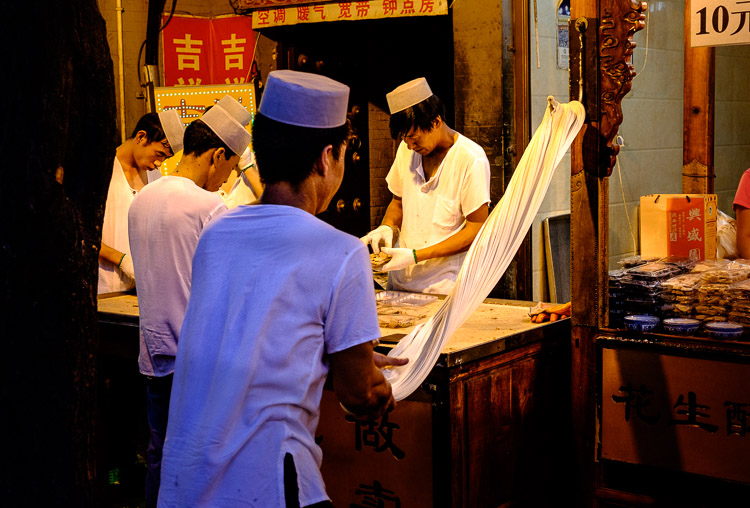
I define mood as a feeling or emotion you get while experiencing something. For example, while travelling through Xi’an, a city in China, last year I spent some time in the city’s Muslim Quarter. I felt a mixture of things – overwhelmed by the crowds and the sticky heat, fascinated by the sights and smells coming from stalls selling home-made street food, and claustrophobic while wandering down hutongs (alleyways) connecting the main streets. Then there was the paradox of the city’s ancient open air mosque – a peaceful paradise amongst the noise and dirt of the old city.

Mood and light

The mood in this photo was created by the mix of artificial and natural light. The lights in the market stall bathe the scene in an orange glow, while the blue light of early evening creeps in at the edges.

Once you have the sense of the mood of a place, you can start thinking about how to capture that in a still frame. Part of the answer lies in composition and the subject. In this example it is obvious that well composed images taken amongst the hubbub of the Muslim Quarter in Xi’an will help capture the atmosphere. But the one thing you really have to pay attention to, the thing that will elevate your photos above the ordinary, is light.

How light and time of day affect your images

Most photographers are familiar with the idea that the moodiest, most evocative lighting comes at either end of the day, close to sunrise and sunset. Golden hour is the name for the time when the sun is close to the horizon, casting golden light that creates long, raking shadows. The blue hour is the time at dusk, or just before sunrise, when there is light in the sky and the natural color of the ambient light is deep blue.

The light at both these times is incredibly moody. Once you have found an interesting place to photograph, and identified with the spirit of the place, then you really can’t go wrong by venturing out at these times to take photos. Yes, you can take interesting photos at other times of the day, but the light won’t be as evocative.

One of the challenges of working in moody light, especially during dusk, is that light levels are low. This is less of a problem than it used to be because high ISO performance on modern cameras is so good you can easily raise the ISO to work with a hand-held camera in low light. It also helps if you have a prime lens, as this lets you use wider apertures which let more light in, enabling you to use lower ISOs or faster shutter speeds (or both). Image Stabilization in its various forms may also be useful.

Mood and light

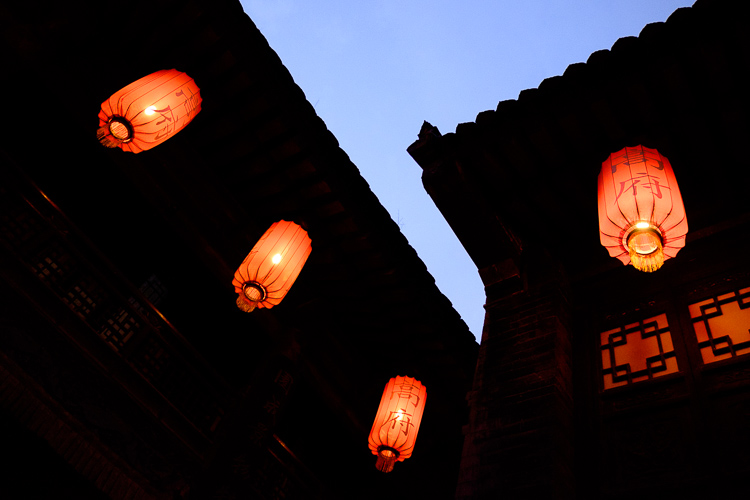
This photo balances the orange glow from the lanterns against the fading blue light of the evening sky. I used an ISO of 6400 to work in low light shooting without a tripod.

If you are a landscape photographer, these points aren’t so important, as you would simply use a tripod to support the camera, allowing you to use small apertures, low ISO settings, and long shutter speeds (another tool for creating mood in the landscape) without camera shake.

Returning to my example of taking photos in Xi’an, I didn’t bother going out with my camera in the middle of the day (when the light was too harsh). Instead, I visited it in the late afternoon, when the fading light and encroaching artificial lights added to the mood, and helped me create a sense of place. This was as interesting time to work, as the low light and the crowds created various challenges to be overcome.

Mood and light

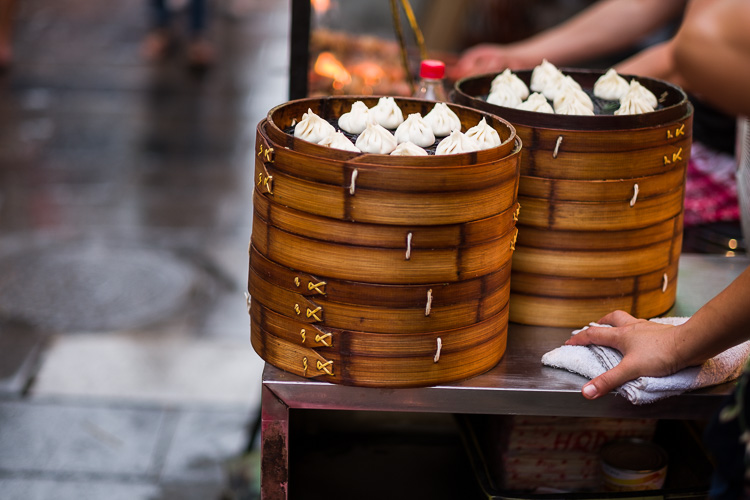
Look carefully at this image and you’ll see that the ground is glistening after a rain shower. Together with the out of focus orange lights in the background, this helps to add mood to the photo.

Mood and light

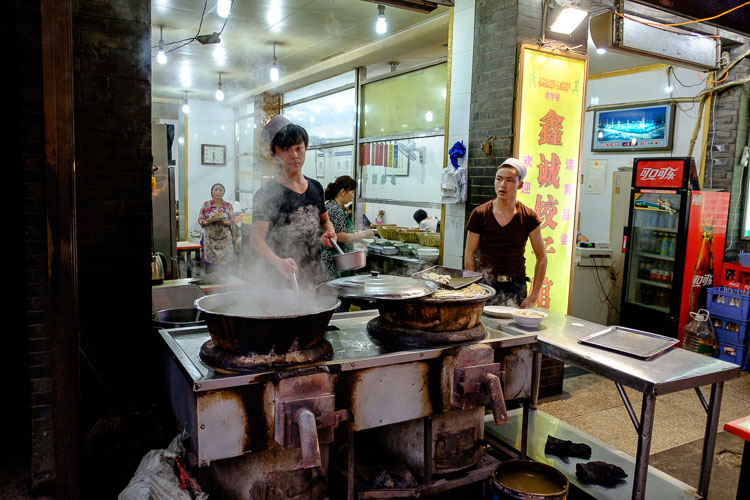
The green fluorescent lights in this image create a different type of mood. The fluorescent light is ugly, rather than beautiful.

Using color contrasts for more drama

One of the key aspects of light at the end of the day is that it often utilizes the contrast between orange and blue. It is something you see a lot in the landscape, with the orange light from the setting sun contrasting with the blue of the sea. Or you may have a photo taken during the blue hour, with a corresponding contrast created by an artificial light source. Sadly, the practise of using fluorescent or white LED lighting is making this less common, but it is something to look out for.

Mood and light

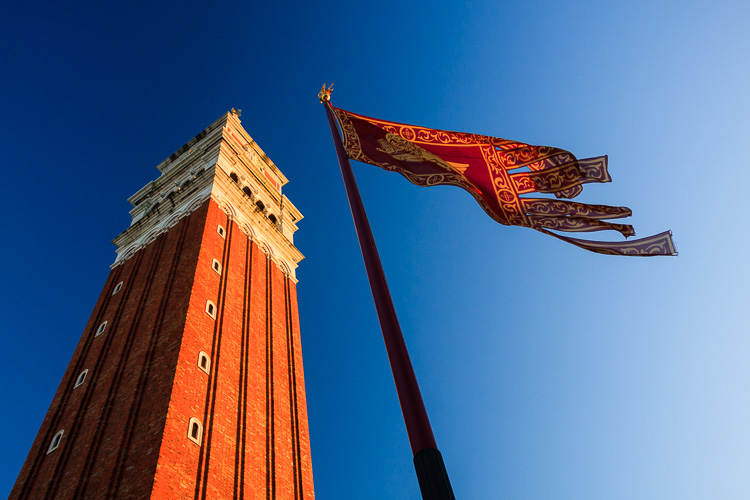
This photo, taken during the golden hour, shows the contrast between the orange light casty by the setting sun on the tower and flag, and the blue sky.

I recently came across an example of this color contrast in a blacksmith’s forge in Lincolnshire, UK. The forge is a historical building, and the people who work there use techniques that were used in the forge over a hundred years ago. The interior has changed little in that time – one of the blacksmiths told me that they are visited by people who remember the forge from childhood over 50 years ago, and say it still looks exactly as they remember it.

There were two types of moody lighting in the forge. One was daylight coming through the small windows, the other was orange light coming from the fire in the forge, and sparks cast by the blacksmith as he worked. I chose to emphasize these even more in post-processing, by using a split tone to give the background a cold blue color.

Mood and light

What examples of moody lighting can you think of? Please let me know in the comments.


Mastering Photography

If you’d like to learn more about creating beautiful photos with light then please take a look at my ebook Mastering Photography: A Beginner’s Guide to Using Digital Cameras.

googletag.cmd.push(function() {
tablet_slots.push( googletag.defineSlot( “/1005424/_dPSv4_tab-all-article-bottom_(300×250)”, [300, 250], “pb-ad-78623” ).addService( googletag.pubads() ) ); } );

googletag.cmd.push(function() {
mobile_slots.push( googletag.defineSlot( “/1005424/_dPSv4_mob-all-article-bottom_(300×250)”, [300, 250], “pb-ad-78158” ).addService( googletag.pubads() ) ); } );

The post How to Use Light to Create Moody Images by Andrew S. Gibson appeared first on Digital Photography School.


Digital Photography School

 
Comments Off on How to Use Light to Create Moody Images

Posted in Photography


Blood Red: 30 Vintage Soviet Accident Prevention Posters

03 Jul

[ By Steve in Design & Graphics & Branding. ]

soviet-accident-prevention-poster-0
In Soviet Russia, accident prevent you! That’s the message rendered in classic commie-propaganda style via these thirty soviet accident prevention posters.

soviet-accident-prevention-poster-1

soviet-accident-prevention-poster-3

Graphic workplace accident prevention posters are nothing new, neither are they the purview of any one nation. That said, this selection of vintage Soviet accident prevention posters reflects a period in Russian history that was drenched in blood, sorrow, violence and loss – and not only on the factory floor.

soviet-accident-prevention-poster-2

soviet-accident-prevention-poster-4

soviet-accident-prevention-poster-5

Oleg Atbashian, a former citizen of the Soviet Union who moved to the United States in 1994, doesn’t recall ever seeing these horrifying-to-the-point-of-being-comical posters. Atbashian worked as a metal worker apprentice at a large Ukrainian factory when he was a teenager and later, as a visual agitprop (agitation and propaganda) artist specializing in posters directed at construction workers. Atbashian was in the right place; just at the wrong time.

soviet-accident-prevention-poster-6

soviet-accident-prevention-poster-7

soviet-accident-prevention-poster-8

Indeed, Atbashian’s USSR of the 1970s was quite a different place from the fledgling “communist paradise” of Lenin and Stalin. “They (the posters) reflect the zeitgeist of a completely different, less sensitive generation of Soviet citizens,” explains Atbashian, “who were so used to being disciplined, humiliated, and terrorized by the authorities that the least of their concerns would be to question some silly presumptive posters that described them as a herd of bumbling idiots being gored by machinery.” Geez Oleg, tell us what you really think!

soviet-accident-prevention-poster-30

soviet-accident-prevention-poster-13

Just as the communist system of government represented a clean break from the Czarist regimes which preceded it, graphic art in the nascent Soviet Union aspired to blaze a new trail in lockstep with the policies and philosophies of the Red Revolution.

Next Page – Click Below to Read More:
Blood Red 30 Vintage Soviet Accident Prevention Posters

Share on Facebook


[ By Steve in Design & Graphics & Branding. ]

[ WebUrbanist | Archives | Galleries | Privacy | TOS ]


WebUrbanist

 
Comments Off on Blood Red: 30 Vintage Soviet Accident Prevention Posters

Posted in Creativity


Fighting the elements: Landscape photography in Antarctica

03 Jul

$ (document).ready(function() { SampleGalleryV2({“containerId”:”embeddedSampleGallery_0745152892″,”galleryId”:”0745152892″,”isEmbeddedWidget”:true,”standalone”:false,”selectedImageIndex”:0,”startInCommentsView”:false,”isMobile”:false}) });

When most photographers want a new accessory or piece of gear to help them get a shot, they can usually pick it up at a local store or online. But when you’re a photographer living in Antarctica, you have to be a little more resourceful.

Josh Swanson has spent 16 seasons working in Antarctica and photographing its landscapes. Starting with a disposable film camera and now shooting with a Nikon DSLR, Swanson has learned the ins and outs of shooting panoramas in one of the most unforgiving environments on earth.

For example, when he began running into issues with elements in his panoramas not aligning correctly, he discovered that a specialized bracket would help sort things out. He tells Resource Travel, ‘…being on the ice I was not able to get one (planes don’t regularly arrive during the winter which means no mail service). I ended up just building one. It worked for the season, although I later replaced it with a manufactured one for that had degree increments etc. for faster more accurate pans.’

As you’d expect, he’s also had trouble with LCDs freezing and battery life plummeting in the cold weather. He tells Kira Morris, a fellow photographer and former Antarctic resident, all about it over at Resource Travel. 

Articles: Digital Photography Review (dpreview.com)

 
Comments Off on Fighting the elements: Landscape photography in Antarctica

Posted in Uncategorized


6 Ways of Using Reflector to Take Better Portraits

03 Jul

I’ve been making my living as a photographer for over 20 years, and have accumulated thousands of dollars of gear over time. I have the latest Canon SLRs, a full complement of lenses, strobes, light stands, gels, filters, soft boxes, tripods, and even some video and audio gear. But the one thing that often makes the biggest difference in the quality of my portraits is a simple $ 20 reflector. I never leave home without it and neither should you.

When shooting outdoor portraits, the first thing many photographers think about is the background, but the pros consider the quality of the light first and foremost. They know, for example, that a portrait with nasty overhead lighting is not going to work, no matter how cool the background.

Photo12

A reflector can help you salvage bad light, and turn okay light into something magical. You can use your reflector from below to fill in shadows, or from above to block distracting light. You can bounce the sun from the silver reflector to create a main light, or you can use a reflector with a black side to create deeper shadows. You can even sit on your reflector to keep your pants clean when shooting outside, or pop it open dramatically to dazzle young children.

Most of the photos in this article were shot with a 5-in-1 reflector you can buy for less than $ 20. 5-in-1 refers to the fact that the reflector and cover can combine to give you five different options: white, silver, gold, and black sides, as well as a diffuser.

Here are 6 tips to help you use this versatile tool, a reflector, to transform your photos.

1. Using a Reflector for Fill Light

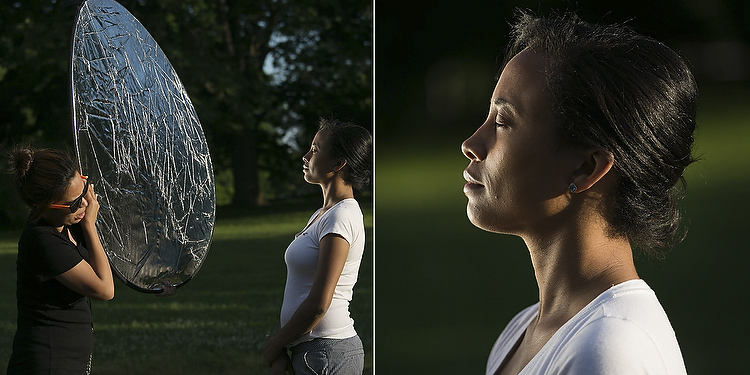
The most traditional use of the reflector is to simply reflect light into the shadows. I took my wife Karen out into our local park to demonstrate this.

Photo1

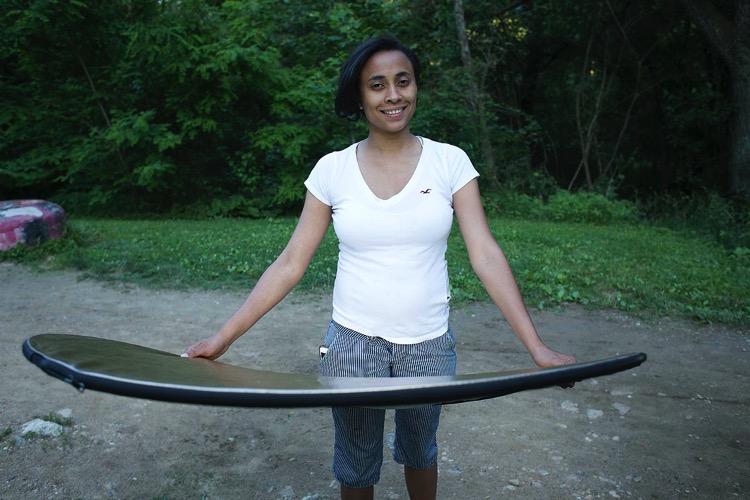
In the photo on the left (above), she is photographed in nice soft light, but there are still pretty deep shadows under her eyes and chin. In the photo on the right, she is holding a reflector at her waist. The shadows on her face are noticeably lighter and there is a subtle catch-light (reflection of the reflector) in her eyes. If she were an older person with more textured skin, the contrast would be even more dramatic.

Photo2

Of course, you may not always want to fill in the shadows in this way, but if you are trying to flatter someone it almost always helps. You don’t even need an official photo reflector. Anything that reflects light will work. In a pinch I’ve used everything from old newspapers to a nearby person wearing a white shirt.

2. Using a Reflector as the Main Light Source

This is one of my go-to reflector moves, and an easy way to wow your friends and family. You place your subject with the light hitting them from behind, then use a reflector to bounce the light back into their face. You will get nice soft light on their face, with a dramatic rim light on the back of the subject’s head. The only trick is positioning yourself so the light doesn’t go straight into your lens and create lens flare (unless you like that look, of course).

Photo3

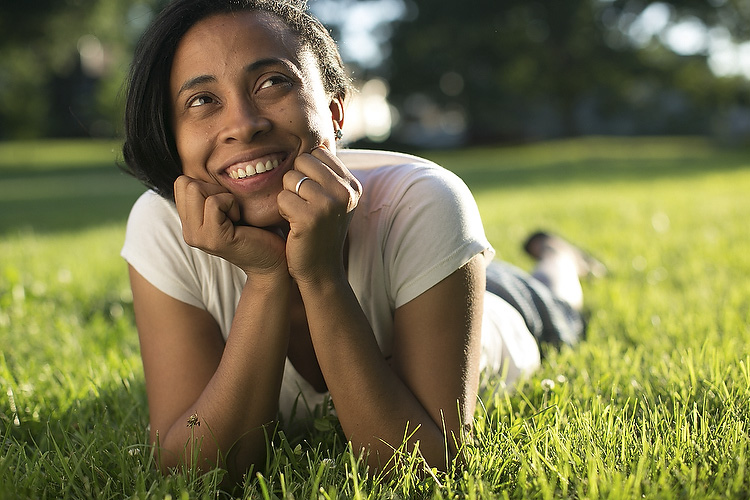
In the photo above the is sun hitting the left side of her face and arm. The light from a reflector is bouncing back some of the sun to light up her face.

You may also notice the shallow depth of field in this photo. If you are lighting with a reflector, you can jack up your shutter speed as much as you like to allow for a wide aperture (this photo was shot at 1/1250th of a second at f/2.0, with a 50mm lens). If you were using flash to create this same effect, you would have to lower your shutter speed (to 1/250th or whatever matches your camera’s maximum) to sync with the flash, requiring a larger aperture and greater depth of field (killing the whole look).

Yes, yes, some of you are no doubt thinking, “What about high speed sync?!” Well, yes, that could give you the same effect if you had the right equipment (and know how to do that). Or, you know, you could just use an old newspaper.

Photo4

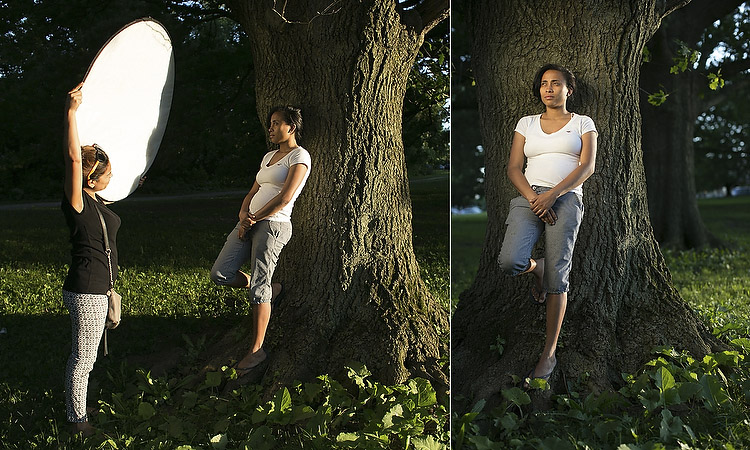
In the next example above, we positioned Karen against a tree and had her cousin Claudia reflect a spot of sunlight on her from about 10 feet away. At this distance, the light from the reflector looks more like it is coming from a grid spot or snoot (hard light) – in other words, it’s a focused and dramatic beam (notice the fall-off of light on her legs). It’s a cool look that you can recreate with a reflector, a few feet of aluminum foil, or your bathroom mirror. Your friends will be wowed, and ask what fancy gear you used for the shot (and your family will ask what happened to the bathroom mirror).

Using a slight variation of this technique, we moved the reflector slightly behind the subject (relative to the camera) to created a dramatic rim light on the face in a profile shot (see below).

Photo4a

3. Using a Reflector to Block Light

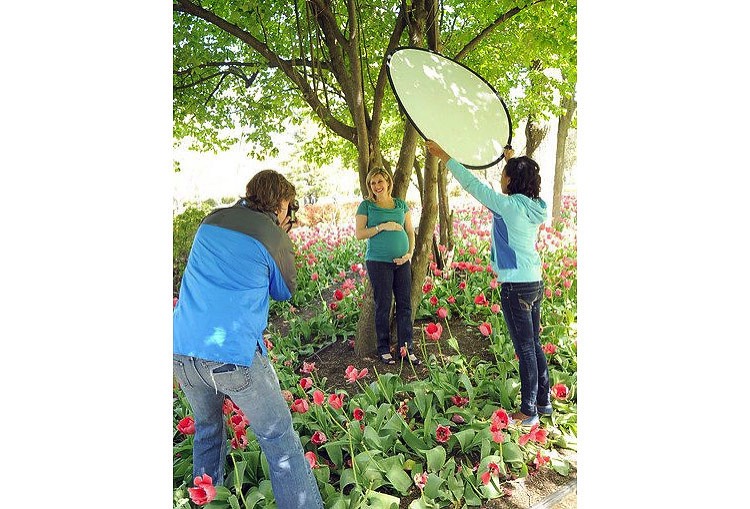
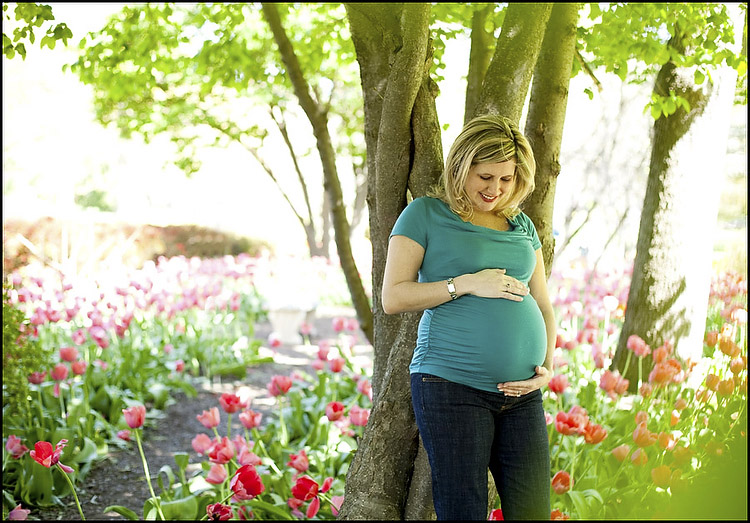
Sometimes you’ll find yourself in some beautiful shady light under a tree, except for that pesky sunbeam that finds its way through the leaves to light up your subject’s left ear. When this happens, turn your reflector into a light blocker (sometimes called a flag or gobo).

A few years ago, I was doing a maternity portrait in a local park, when a newspaper photographer snapped my picture using just this technique. If you look at the reflector, you can see the bright spots of sunlight that it’s blocking (imagine how those spots would have ruined the final image if we didn’t block them).

Photo5

Photo6

4. Using a Black Reflector to Create More Dramatic Shadows

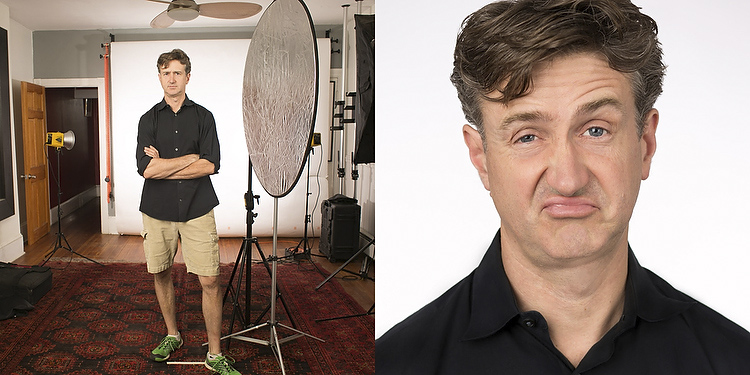
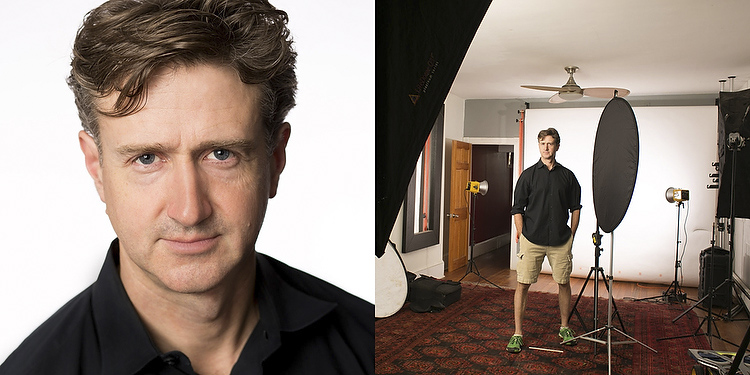
Sometimes you actually want to deepen the shadows. I use this technique all the time in my headshot studio. Below is a photo of me with a white background. In one shot, I have a silver reflector opposite the main light, sending light back towards my left cheek. In the other, the reflector has a black cover on it, gobbling up reflected light, leaving a dark shadow on the cheek.

Photo7

Photo8

Except for the small change of literally flipping the reflector from one side to the other, the lighting setup is identical, but as you can see the difference is pretty dramatic. (For you studio lighting enthusiasts out there, my key light here is a large soft box, and there are two bare heads pointing at the background to make sure it is nice and bright white).

This is the same technique used in the famous Steve Jobs portrait where he has his hand on his chin. In addition to creating a little drama, you can also use this technique to give someone a photographic face-lift by trimming pounds from the dark side of their face and under their chin.

5. Who Holds the Reflector?

You may be saying to yourself, “But, I don’t have an assistant! Who’s going to hold the reflector for me?”. I usually don’t have an assistant either, but there is usually someone nearby who is more than happy to help, be it a family member, passerby, intern, wedding guest, etc. Sometimes you can even have the subject of the photo hold the reflector themselves (as in the photo of my wife holding the reflector at her waist in the photo above). Of course if you’re in the studio, or outside on a day without too much wind, you can just pop your reflector onto a light stand (like in the studio shots of me above).

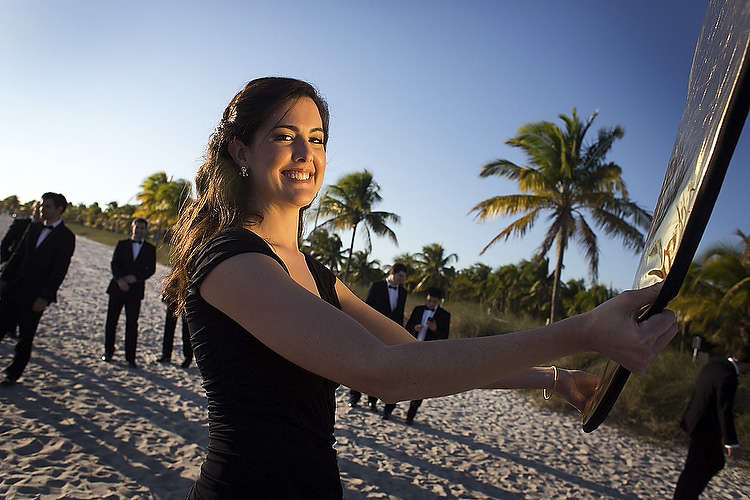
In the photo below, I was shooting wedding portraits on a beach in the Florida Keys. My reflector assistant that day was one of the bridesmaids, who truly enjoyed helping her friends out with their portraits.

Photo9

Photo10

6. Reflectors in the Environment

Once you get the hang of reflectors, you’ll probably start noticing reflected light everywhere. Ever see a white building getting blasted by the sun? Well that’s nothing but a giant reflector! Depending on what’s around it, you may have found yourself a giant studio, with no rental fee.

Mind you, anything that reflects enough light can work as a reflector. A brick building, large truck, flock of seagulls flying by at just the right moment…

Final Notes

Although they may not be as sexy as strobe kits, reflectors can often yield similar, or superior results for your portraits, and are cheaper and easier to use. I will leave you with a few more assignment photos, shot using nothing more than a reflector.

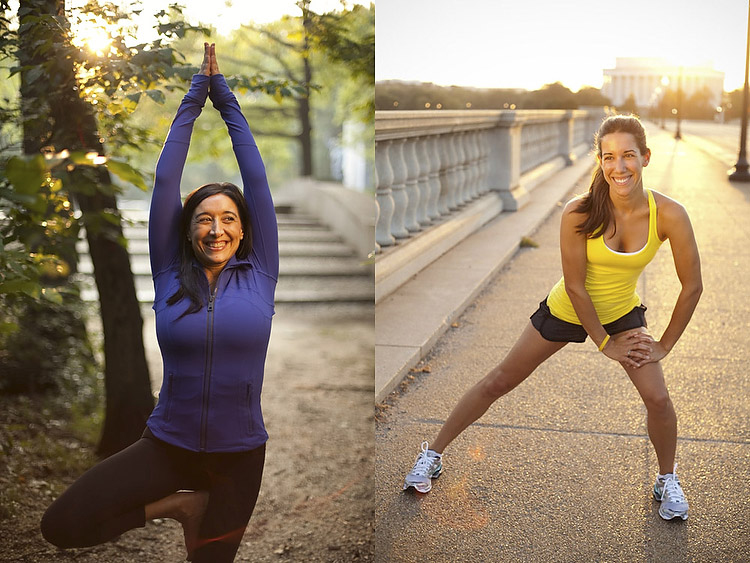
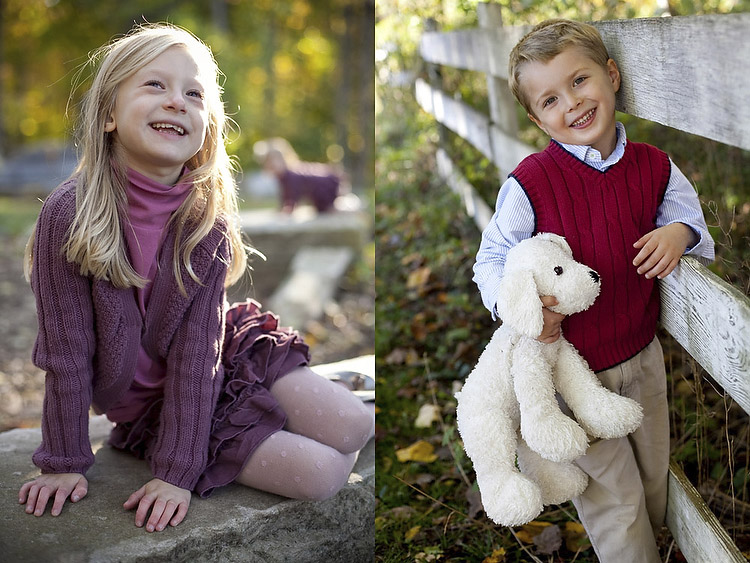
In the child portraits below, note that there is light behind the kids in both cases, but there is still beautiful light on their faces. Same goes for the athlete portraits.

Photo11

Photo12

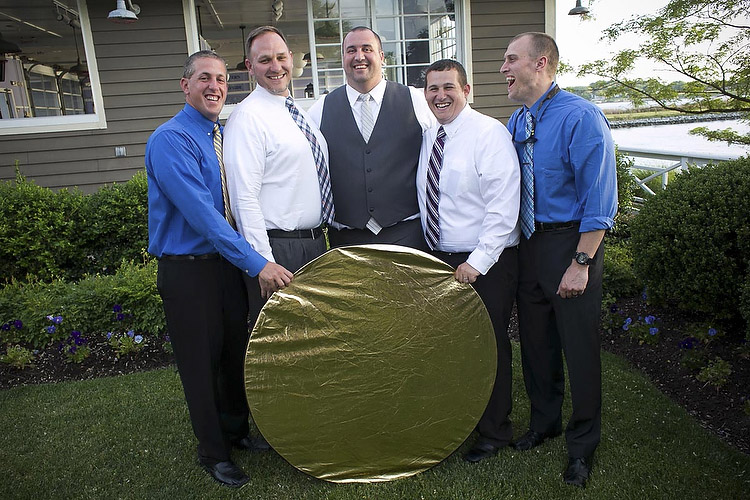
As a final image, I leave you with a group of wedding guests who were so enamoured of my reflector that they wanted a picture with it. Hopefully you will soon have similar feelings towards your own reflector!

Photo13

Do you have any additional reflector tips to add? Please do so in the comments below.

googletag.cmd.push(function() {
tablet_slots.push( googletag.defineSlot( “/1005424/_dPSv4_tab-all-article-bottom_(300×250)”, [300, 250], “pb-ad-78623” ).addService( googletag.pubads() ) ); } );

googletag.cmd.push(function() {
mobile_slots.push( googletag.defineSlot( “/1005424/_dPSv4_mob-all-article-bottom_(300×250)”, [300, 250], “pb-ad-78158” ).addService( googletag.pubads() ) ); } );

The post 6 Ways of Using Reflector to Take Better Portraits by Dennis Drenner appeared first on Digital Photography School.


Digital Photography School

 
Comments Off on 6 Ways of Using Reflector to Take Better Portraits

Posted in Photography


How to Understand the Mysteries of ISO for Beginners

03 Jul

Josh Cripps has many really helpful videos on his YouTube channel. In this one he will help you get a handle on one of the elements of the exposure triangle that is often confusing and perplexing to many beginners – ISO.

Watch as his gives real world examples, learn what ISO is, when to change it, when you should raise it or lower it and why. Ultimately having a better grasp of ISO will help you take better photos, and get the results you want.

He also mentions his teacup video where he explains the relationship of aperture and shutter speed. You can see that one below for your reference as well:

I hope these videos have given you a good idea about ISO and how to use it in your photography.

googletag.cmd.push(function() {
tablet_slots.push( googletag.defineSlot( “/1005424/_dPSv4_tab-all-article-bottom_(300×250)”, [300, 250], “pb-ad-78623” ).addService( googletag.pubads() ) ); } );

googletag.cmd.push(function() {
mobile_slots.push( googletag.defineSlot( “/1005424/_dPSv4_mob-all-article-bottom_(300×250)”, [300, 250], “pb-ad-78158” ).addService( googletag.pubads() ) ); } );

The post How to Understand the Mysteries of ISO for Beginners by Darlene Hildebrandt appeared first on Digital Photography School.


Digital Photography School

 
Comments Off on How to Understand the Mysteries of ISO for Beginners

Posted in Photography


Tips for File Renaming Success in Lightroom

03 Jul

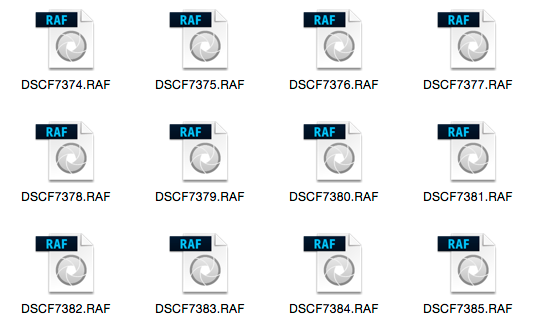
This article is about how to build a useable file renaming strategy, and how to implement it in Lightroom. Your standard camera names are generally pretty boring. IMG this or DSC that, or even P0235425653. If you’re not using continuous naming you might even end up with hundreds of IMG_0001 files. Don’t laugh, I was there once upon a time after reading some terrible advice on camera settings.

If you’re using Lightroom, renaming is really straightforward and accessible from quite a few places in the application.

File naming in lightroom 1

Before we talk about how to rename your files, let’s talk about what you should name them. First and foremost, each photo should have a unique name. There are two number sets that can pretty much ensure this. The first is the date the photo was taken, and the second is the sequence number the camera creates (assuming you do use a continuous camera naming system). Mixed together these give each file a unique name. You’d need to shoot 10,000 images in a day to get two identical names with this structure. You could just use this method and nothing else, but a series of numbers, while great for sorting, is generally meaningless to most people.

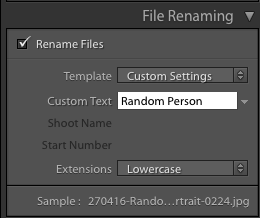
File naming in lightroom 2Some photographers use those number sets and their initials to get the filename. It’s enough to create that unique pattern. A string of numbers doesn’t tell you what’s in the file though, even with some initials. For this reason, I use a custom text field that I change with each shoot that I import. In Custom Text field I put a little description of the shoot. That way even outside Lightroom I can tell the contents of the file just from the name. It also gives me additional search terms I can use when looking for a file. Let’s look at how to set this up.

File naming template in Import

Renaming in Lightroom uses a mix of tokens and direct text in the box. The Dialog for creating File Naming Templates can be called up from a variety of places in Lightroom. The first place you see it is in the Import Dialog box when using one of the following settings: Move, Copy or Copy as DNG. It’s on the right hand side in the appropriately named File Renaming panel. As well as the type of File Naming, you can choose Custom Text/Shoot Name, a Start Number, and whether the file extension is upper or lower case.

File naming in lightroom 3

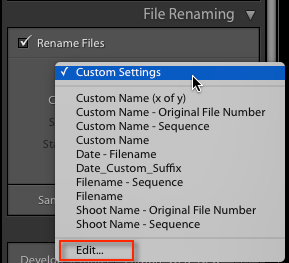
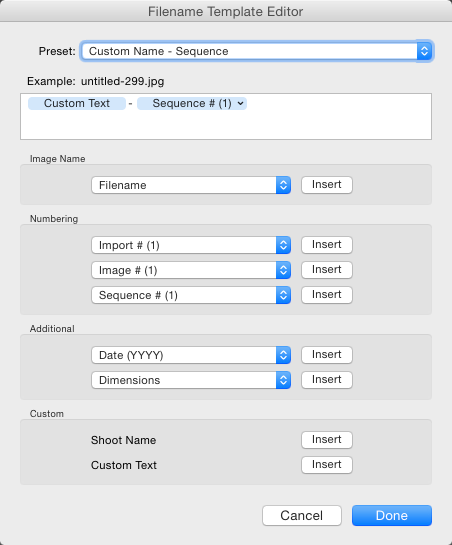
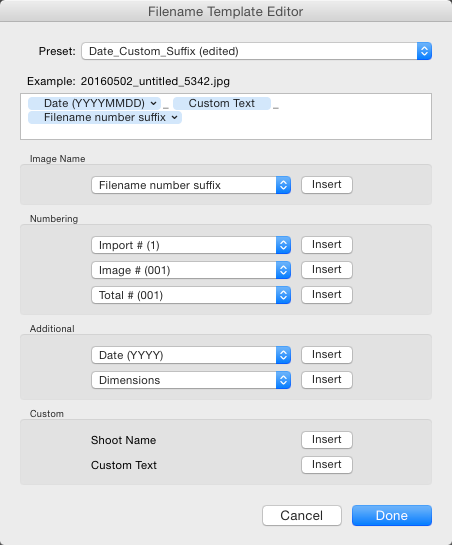
File naming in Lightroom depends on Templates, so click on the Template list and choose Edit from the bottom of the list (shown above). This opens the Filename Template Editor (below). At the top we see the current Template, or in a typically Lightroom fashion, it’s called a Preset here, versus being called a Template in Import. The contents of this list matches the one you saw in Import from the Template dropdown. Note that the Filename Template Editor is not exactly the same in each location you can use it in Lightroom. You’d think it would be, but nope, it’s not.

File naming in lightroom 4

Note this is the box you will see in the Import dialog popup. If you access rename files from the Library module it looks slightly different.

Next is the text box where the template is built. Any item you click from the list below will be added to the box, in the order you click them. You can also type directly into the box. Remember that text typed directly into the box will be added to all filenames, so use it sparingly (above there is only a hyphen added between tokens Custom Text and Sequence # to separate them).

File naming in lightroom 5

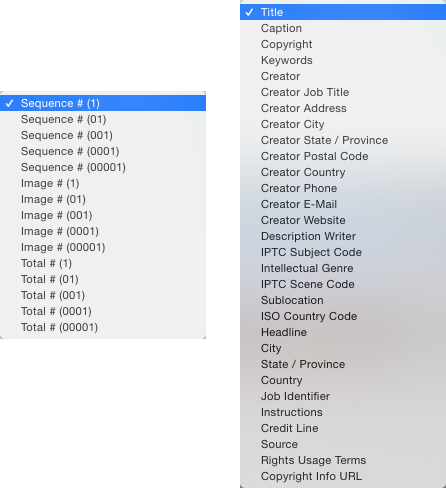
Below this are the tokens, split into sections of similar information. Image name has two options, Filename and Filename number suffix. The latter refers to the string of numbers at the end of the current filename (not necessarily the original file numbers). Note: When you use Edit in the Library version of renaming, you also get Folder Name as an option.

File naming in lightroom 6

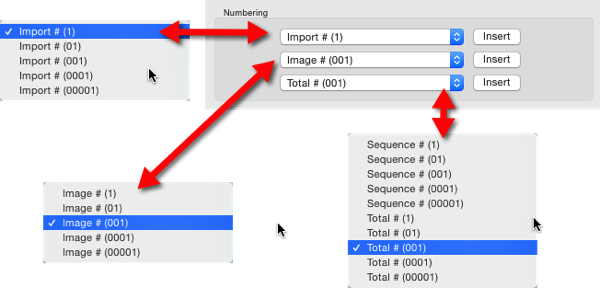
Numbering has far more options. In each case you can choose an option with leading zeros. It’s good practice to include enough of these so your sorting looks okay. For example, Image1 is followed by Image10, then Image2 if you have no leading zero in the file name. For most things three leading zeros is enough.

File naming in lightroom 7

Import refers to the number of imports and can be set in the Catalog Settings dialog (under the Edit menu on PC, Lightroom menu on Mac), as can Image. Image itself refers to the number of images imported into Lightroom. Sequence creates a new sequence each time, with the start number set in the renaming panel (except on Export). Total refers to the number of images that are being imported at that time.

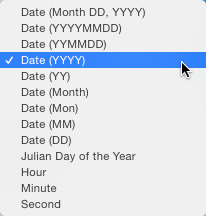
File naming in lightroom 8Next is the Additional Section. For the Date, you can opt for any combination of year, month, day, hour, minute or second. Personally I go for the YYYYMMDD version, though you could choose Year YY, Month MM and Date DD as as shorter year set. Using this at the start of the name puts all the photos in a dated chronological order when when sorting by name.

File naming in lightroom 9

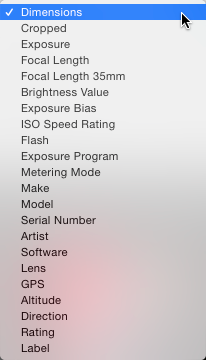
The 2nd part of Additional is a metadata list (above). It contains things like the camera serial number and file dimensions.

Custom lets you add text that can change between imports. Shoot Name is available only in the Import menu. Shoot related naming is not available using Auto Import.

File naming in lightroom 10

When you’ve entered the tokens you can either click Done, to have the settings apply as Custom Settings or you can go back to the Presets menu, where you now have additional options. If you started off by editing an existing Preset (e.g. Filename) you can Save you settings as a new Preset, Update the Current Preset, or restore the default presets.

File naming in lightroom 11

If you select a Preset and don’t edit it, you get the options to Delete or Rename the preset (below) instead of the Update option. That covers the mechanics of creating a File Naming Template.

File naming in lightroom 12

My method:

My preferred renaming method is: {YYYYMMDD}_{Custom Text}_{Original Filename Suffix}. The items in {} are the tokens from the Date, Custom Text and Filename menus (see right). The underscores are written directly into the textbook between the tokens. You may prefer to use a dash instead. I use underscores, because the Web module changes dashes into underscores.

File naming in lightroom 13

This keeps files in order by set based on the Date and Custom text, the Suffix then keeps the sequence. You can use any naming system you like, of course. The important thing is that you use the same naming consistently. When I first started using this kind of renaming system, I had the Custom Text first, but it turned out to be a pain for sorting. Generally when I look through a shoot now, I visually ignore the date part of the name and look at the custom text if I’m just browsing. I don’t need to see it generally, but it helps the sort.

File naming in lightroom 15

This is how my file naming looks

Renaming inside the Library Module

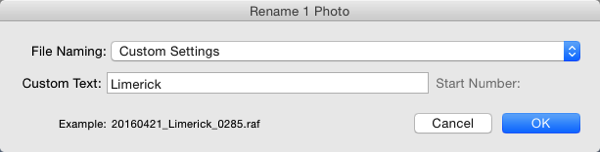
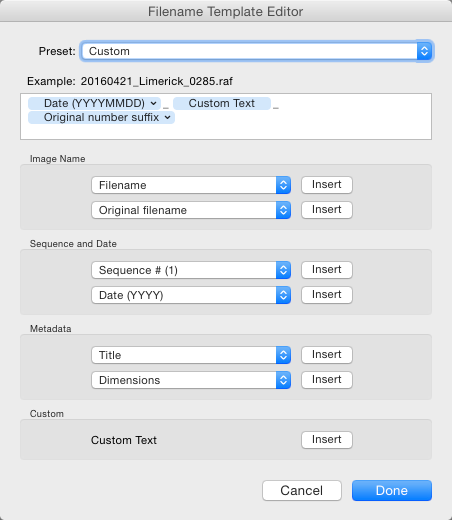
As well as renaming on Import, you can batch rename inside Library by pressing the F2 key. This brings up a really basic dialog where you can select or edit a preset, change the Custom Text, or the Start Number if you’ve chosen a sequence. When you select Edit from the Preset list, the Filename Template Editor has a slightly different set of options to that of the editor inside of Import.

File naming in lightroom 14

We’ve looked at Image Name. The other main differences are the Sequence menu now has Date as well and the Additional section is now called Metadata with a 2nd set of Metadata, in this case IPTC metadata. Other than that, it works identically to in Import.

File naming in lightroom 16

Renaming on Export

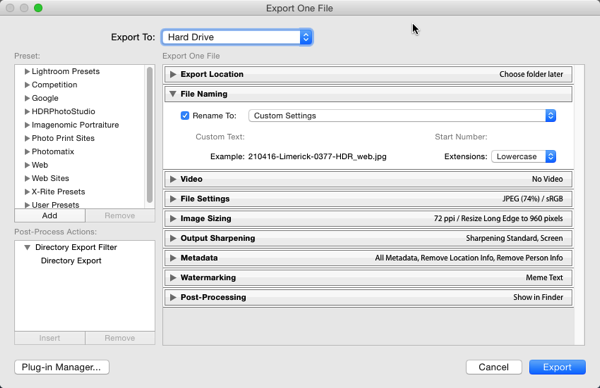
You can also rename when Exporting. In the Export Dialog, File Naming is usually the second option. It’s similar to the other instances where you can select or edit a file naming preset, add Custom Text or choose a Start Number. In this case the Filename Template Editor is the same as the one available in the Library module.

File naming in lightroom 17

So that’s a look at how to choose a suitable naming system in Lightroom, and how to create a filename template to match it. How do you do your file names? What structure do you find works best for sorting and finding images later? Please share your thoughts in the comments below.

googletag.cmd.push(function() {
tablet_slots.push( googletag.defineSlot( “/1005424/_dPSv4_tab-all-article-bottom_(300×250)”, [300, 250], “pb-ad-78623” ).addService( googletag.pubads() ) ); } );

googletag.cmd.push(function() {
mobile_slots.push( googletag.defineSlot( “/1005424/_dPSv4_mob-all-article-bottom_(300×250)”, [300, 250], “pb-ad-78158” ).addService( googletag.pubads() ) ); } );

The post Tips for File Renaming Success in Lightroom by Sean McCormack appeared first on Digital Photography School.

Digital Photography School

 
Comments Off on Tips for File Renaming Success in Lightroom

Posted in Photography


Fotodiox releases new LED studio-in-a-box

02 Jul

$ (document).ready(function() { SampleGalleryV2({“containerId”:”embeddedSampleGallery_5352485227″,”galleryId”:”5352485227″,”isEmbeddedWidget”:true,”standalone”:false,”selectedImageIndex”:0,”startInCommentsView”:false,”isMobile”:false}) });

Fotodiox has announced a new LED Studio-in-a-Box, designed to make it easy to create simple macro and product images on a tabletop. Aimed at Etsy and Ebay sellers just as much as macro and still life enthusiasts, the Studio-in-a-box comes in four sizes, from 16×16″ ($ 69.99) all the way up to 28″x28″ ($ 119.99). Each model comes with an integrated ring of LED lights, and four plastic, wrinkle-free ‘cyclorama’ backdrops.

Features:

  • Comes with Integrated Daylight LED Lights (~85 CRI) & Diffusion Panel
  • Folds up into supplied carrying case
  • Four sizes available: 16×16″, 20×20″, 24×24″ And 28×28″
  • Comes with four choices of backdrops: blue, gray, white and black
  • 24 Months Manufacturer Warranty

Press Release:

WAUKEGAN, IL JUNE 29, 2016

Fotodiox Pro Announces Lightweight, Portable LED Studio-in-a-Box for Tabletop Photography

Fotodiox Pro, creator and distributor of several lines of specialty solutions for videography, cinematography and photography, has announced the LED Studio-in-a-Box: a lightweight, fold-out kit that provides tabletop photographers with a fully-contained environment for shooting clean, professional images.

Ideal for small business owners, artists, retailers and independent Etsy and eBay sellers, the LED Studio-in-a-Box comes equipped with built-in LED lights and a removable diffusion panel for maximum control and ease of use. Available in four different sizes, the LED Studio-in-a-Box can be purchased now on FotodioxPro.com.

The LED Studio-in-a-Box can be set up by photographers of any skill level in well under five minutes, with no need for tools, and folds down flat after use. The kit includes four plastic, wrinkle-free “cyclorama” backgrounds in black, white, gray and blue, as well as a removable diffusion panel and an integrated ring of top-mounted LED lights for a powerful, even glow. Perfect for macro photographers, professional tabletop photographers and artisans, the LED Studio-in-a-Box saves an enormous amount of time and space, and allows any user to shoot dynamic, expertly lit images with any type of camera, including smartphones.

To learn more about the Studio-in-a-Box and Fotodiox Pro’s additional photography and filmmaking accessories, please visit FotodioxPro.com. View unboxing videos and product demonstrations via youtube.com/user/FotodioxInc.

About Fotodiox

Serving the photo and video markets since 2004, Fotodiox Pro is a leading manufacturer and distributor of high-quality, professional and affordable photography and filmmaking accessories. Known for such products as the WonderPana wide-angle filter system, the Vizelex ND Throttle adapter series, the ever-expanding line of award-winning GoTough accessories for GoPro cameras, and the groundbreaking FlapJack LED Edgelights, Fotodiox Pro is also responsible for bringing the CamDolly Cinema System – the industry’s first truly portable, modular dolly system for professional videography gear – to filmmakers in the United States.

For more information about Fotodiox Pro, please explore online at http://www.fotodioxpro.com, http://www.youtube.com/user/FotodioxInc, http://www.facebook.com/Fotodiox and http://www.twitter.com/Fotodiox.

Articles: Digital Photography Review (dpreview.com)

 
Comments Off on Fotodiox releases new LED studio-in-a-box

Posted in Uncategorized