RSS
 

Archive for July, 2016

Elevating X-Trans? Fujifilm X-T2 First Impressions Review

07 Jul

The Fujifilm X-T2 is an updated version of the company’s top-level DSLR-shaped APS-C camera. It’s built around the same 24MP X-Trans sensor as the X-Pro2 but ends up being much more than an X-T1 with more pixels. Instead, the X-T2 is a camera that does much to address the X-System’s remaining weaknesses, which can only broaden its already considerable appeal.

Fujifilm X-T2 Key Features:

  • 24MP X-Trans CMOS III sensor
  • 325 AF points (169 of which offer phase detection)
  • AF point selection joystick
  • 2.36M-dot OLED EVF with 0.005 sec refresh time (60 fps or 100 fps in boost mode)
  • 3″ 1.04M-dot articulating LCD
  • 4K UHD video at up to 30 fps for up to 10 min (30 min with booster grip)
  • F-Log flat profile and 4K out over HDMI
  • 8 fps continuous shooting with AF (11 fps with booster grip)
  • 5 fps continuous shooting with live view updates between capture
  • Dual SD card slots (UHS-II compatible)
  • USB 3.0 socket

The X-Pro2 represented a good step forward for image quality within the system and the X-T2 gains all of that improvement, but there are also some considerable changes in terms of autofocus, video and flash control, suggesting Fujifilm wants its the X-T2 to be an all-round more capable camera than its predecessor, rather than just building on its existing strengths.

The body seems broadly unchanged at first glance but there’s a clever doubly-hinged flip-out screen that seems to offer many of the flexibility advantages of a fully articulated monitor while retaining the more compact form of a tilting screen.

There’s also a Performance Boost mode that speeds up several aspects of the camera’s behavior (at the expense of some battery life), but that really comes into its own when the optional ‘Power Boost Vertical Grip’ is added. None of these additions comes for free, though: at $ 1599, body only, the X-T2’s launch price has jumped $ 300, compared to its predecessors’.

Autofocus

Part and parcel of that 24MP sensor are the 169 phase-detection points that we saw in a large central square region of the sensor on the X-Pro2. Beyond this, the X-T2 now gains an extra two columns of 13 contrast-detection AF points down each side of the frame, widening its AF area and bringing it to a total of 325 AF points in total.

Fujifilm also promises a more powerful processor and revised algorithms, along with faster sensor read-out, to improve the camera’s speed, regardless of whether it’s using a combination of phase detection and contrast detection (Hybrid AF), or simply the latter alone.

To get the best-possible performance out of the newly refined AF system, the X-T2 introduces a use case-based AF-C setup system. Much like the one we’ve seen on high-end Canon DSLRs, this lets you specify the types of movement you’re expecting from your subject, so that the camera can try to respond appropriately.

Video

The X-T2 makes a bigger leap forward into video than we were expecting. There was much chatter around the time of the X-Pro2’s launch that the camera’s hardware was, theoretically, capable of 4K capture, but that the company hadn’t pursued its development for such a stills-orientated model. Well, it has now.

The X-T2’s movie capabilities are a big step forward for the system.

But Fujifilm has done more than just do enough to be able to emblazon the phrase ‘4K capable’ on the box: the camera also gains a mic socket and on-screen audio monitoring with the ability to assign mic volume to a Fn button. There’s also an ‘F-Log’ flat profile to give flexibility while color grading.

The good news is that our first shots of our test scene suggest the camera’s 4K footage is much more impressive than the 1080p that the first X-Trans cameras could muster. Combine this with 4K output over HDMI and the X-T2 looks like the first X-Trans camera that might appeal to shooters interested in shooting both stills and video.

Flash control

One of the missing pieces of an increasingly well fleshed-out XF mount system has been the lack of advanced flash control – something that the X-T2 is looking to address. Up until now, users have had to turn to third-party makers if they wanted to communicate TTL flash information to remote flash units.

The newly introduced EF-X500 flash allows high speed flash sync and remote TTL flash control for the first time, making it significantly easier to use the X-T2 with strobes.

Optional ‘Power Booster Grip’

Along with the X-T2, Fujifilm has introduced the VPB-XT2, a vertical battery grip that holds two extra batteries. As well as significantly extending the camera’s battery life, the grip also extends the camera’s ‘Boost’ mode. With the grip attached, this is able to draw power from multiple batteries, increasing the camera’s maximum continuous shooting rate, as well as extending its video recording time to 30 minutes.

The entertainingly-named ‘Vertical Power Booster Grip’ can house two addition batteries (without displacing the camera’s internal unit), helping increase capacity to around 1000 frames between charges. It also adds a headphone socket and a ‘Boost’ switch that improves responsiveness and ups the frame rate to 11 fps.

This grip features the same level of environmental sealing as the camera body and also plays host to a headphone socket for audio monitoring while shooting video.

Review History

Review History
6 July 2016 First Impressions, Studio Scene and Beta Gallery published,
based on pre-production camera running f/w 1.34

Articles: Digital Photography Review (dpreview.com)

 
Comments Off on Elevating X-Trans? Fujifilm X-T2 First Impressions Review

Posted in Uncategorized


Subterranean Singapore: Short Sci-Fi Film Envisions Dystopian Future

07 Jul

[ By SA Rogers in Art & Drawing & Digital. ]

subterranean singapore 2

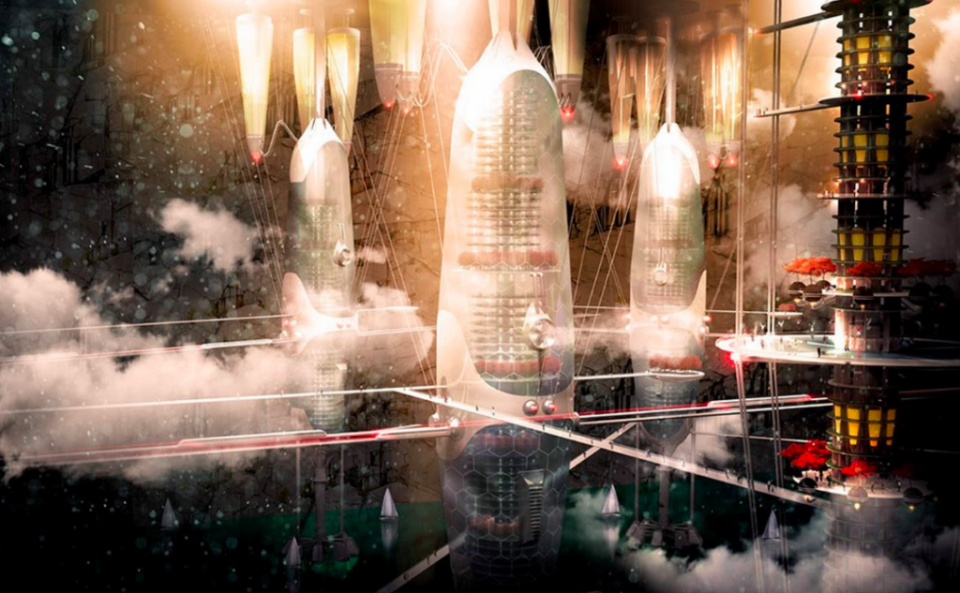
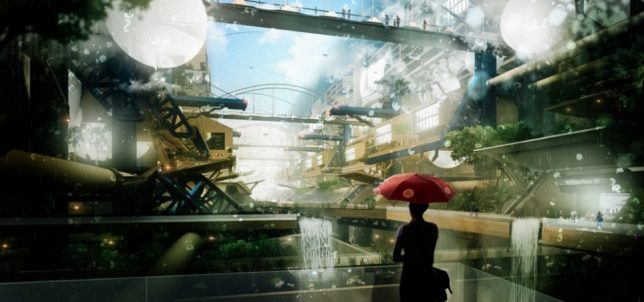
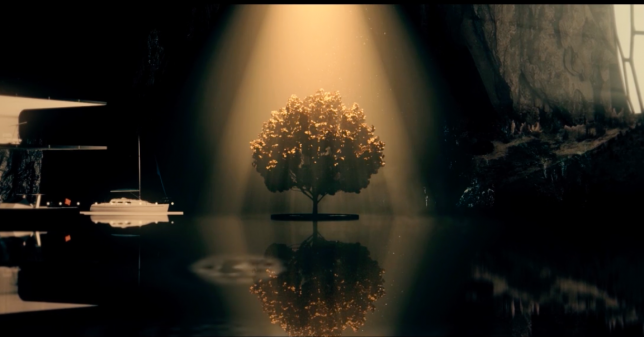
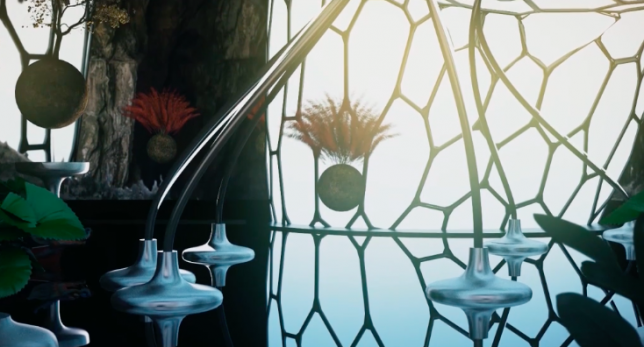
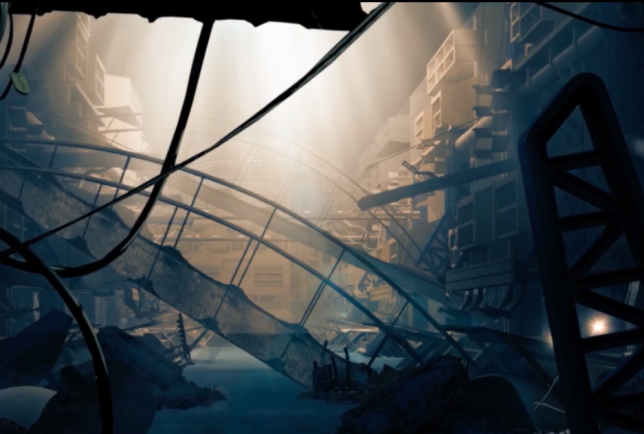
Instead of stretching upward toward increasingly polluted skies, could the solution to land scarcity issues in places like Singapore be found in subterranean development? Like something out of a dystopian film, this proposal by a student at Bartlett School of Architecture envisions a sort of mole city with inverted skyscrapers digging deep below street level, an extreme excavation of massive caverns and “a complex and continuously self expanding network of green canyons, tunnels, reservoirs and exploratory excavations into the granite rock below.”

Screen Shot 2016-07-06 at 5.47.16 PM

Screen Shot 2016-07-06 at 5.47.52 PM

If you look at the sci-fi we humans have been producing for the past half-century, many of us have already accepted a future in which living on the surface of the Earth is no longer viable, whether that means we will have to build vertical cities, float on the oceans or leave the planet altogether. It’s not too far-fetched to imagine that a combination of climate change, pollution, overdevelopment and overpopulation would push us into building underground wherever possible, as well. This proposal by Finbarr Fallon envisions Singapore starting to plan the project by the year 2020, celebrating the idea before ultimately tearing it down and highlighting its many flaws.

subterranean singapore

Screen Shot 2016-07-06 at 5.48.55 PM

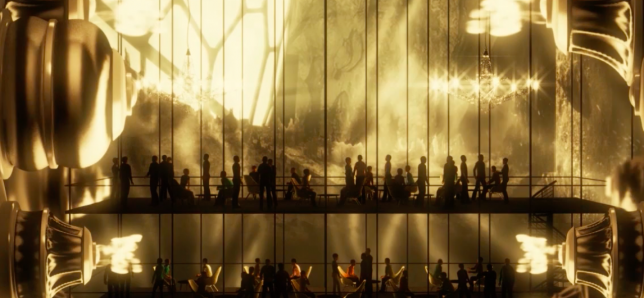
Fallon presents Singapore 2065 as a darkly cinematic short film, with an engineer from the Subterranean Development Institute explaining how and why the development came about. The film takes us on a tour of the ‘World’s Greatest Engineering Feat’ and its luxurious architecture, which is clearly targeted at the well-to-do. The presentation seems fairly straightforward, but watch it all the way to the end for an unexpected plot twist.

Screen Shot 2016-07-06 at 5.48.42 PM

Screen Shot 2016-07-06 at 5.47.25 PM

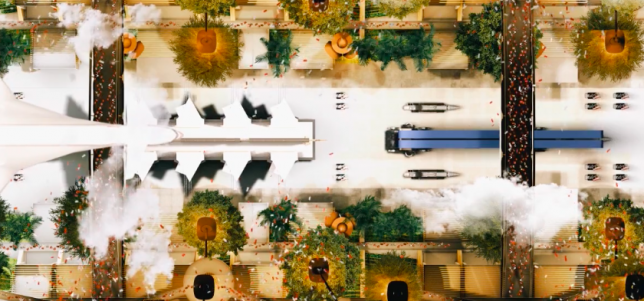
“The film follows a documentary created by the state led, Subterranean Development Institute which looks behind the scenes of the world’s largest construction project, from a highly corporate and nationalistic point of view,” says Fallon. “This concludes with spectacular scenes of celebration where the National Day Parade is reconfigured from traditional military use, to a choreographed march of robotic construction technology through the underground city.”

Screen Shot 2016-07-06 at 5.49.26 PM

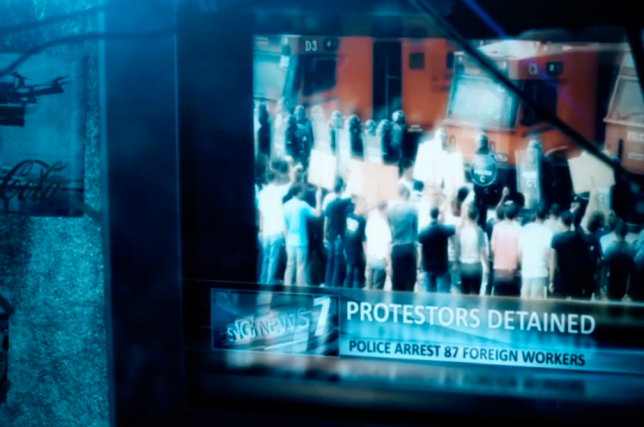
“The documentary however, is interrupted by a subversive protagonist (the author), who gains access to secretive parts of the network by discovering hidden cave networks. This acts as a counter point critique to the corporate led masterplan, forming a social commentary on the ethics of large scale infrastructural projects and the resulting consequences, such as the exploitation of foreign workers.”

Share on Facebook


[ By SA Rogers in Art & Drawing & Digital. ]

[ WebUrbanist | Archives | Galleries | Privacy | TOS ]

WebUrbanist

 
Comments Off on Subterranean Singapore: Short Sci-Fi Film Envisions Dystopian Future

Posted in Creativity


Wanted: Homepage content tips and freelance writers!

07 Jul

We’re on the lookout for freelance writers to contribute news and short feature content for our homepage. If you’re an experienced writer with great editorial instincts who loves ferreting out interesting and unusual photo-related content, we want to hear from you. 

If you’re interested in contributing to dpreview.com, click here and tell us about yourself – preferably with links to published work. If we like the cut of your jib, we’ll be in touch.

If you’re not interested in writing for DPReview, but you’ve found an interesting story that you think we should write about, you can submit suggestions here.

Articles: Digital Photography Review (dpreview.com)

 
Comments Off on Wanted: Homepage content tips and freelance writers!

Posted in Uncategorized


Camera Lift-Strap eases camera weight by clipping to a backpack handle

07 Jul

A unique camera strap from PONTE Leather Co. called Camera Lift-Strap has surfaced on crowdfunding website Kickstarter, and it aims to ease the discomfort of carrying heavy cameras around the neck. Camera-Lift Strap features a clasp that is positioned behind the wearer’s neck. When a photographer is also wearing a backpack, the camera strap can be clasped to the backpack’s handle, moving the camera’s weight off the wearer’s neck and distributing it onto his or her shoulders.

The Camera Lift-Strap is presented in two varieties: the Canvas Camera Strap, which is made of weather-treated nylon, and the Leather Camera Strap, which is made from ‘top grain leather,’ according to PONTE Leather Co. The strap’s metal components are made of brass with an oxide finish. The company plans to offer two attachment types, as well as a custom steel ring for securing all types of cameras to the strap. 

PONTE Leather Co. is currently seeking funding for the product on Kickstarter where remaining pledge options include a canvas Camera Lift-Strap for $ 26, an early bird leather Camera Lift-Strap for $ 35, and various multi-strap bundle options at higher price points. The company anticipates shipping the straps to backers in November 2016.

Via: Kickstarter

Articles: Digital Photography Review (dpreview.com)

 
Comments Off on Camera Lift-Strap eases camera weight by clipping to a backpack handle

Posted in Uncategorized


5 Life-Saving Tips on How to Back Up Photos

07 Jul

Everyone’s heard the horror stories about people who’ve lost their photos, and everyone knows that – no matter what they’re of or what they’re for – losing your pictures can be devastating. Whether it’s a folder of precious family photos, a portfolio, or a project for a client, replacing what was lost can be time consuming, expensive, and even impossible Continue Reading

The post 5 Life-Saving Tips on How to Back Up Photos appeared first on Photodoto.


Photodoto

 
Comments Off on 5 Life-Saving Tips on How to Back Up Photos

Posted in Photography


All about the details: Hasselblad X1D pre-production samples

07 Jul

At a recent Hasselblad event in London I got some time with the new 50MP Hasselblad X1D mirrorless camera. The bodies are still very much at the pre-production stage, and many of the proposed features that will be available when the camera goes on sale have still to be implemented.

The unit I used didn’t have touch AF activated, so focusing had to be done with the central AF point or manually, and the Nikon-based flash system was not installed. Hasselblad also made it very clear that the AF speed experienced with this camera did not represent what the production models would manage, and that the image quality is still far from finished. The company has however agreed to let us publish some sample shots to allow readers to get an idea of the sort of resolution and colors the camera can achieve.

I shot Raw and JPEG files and processed them through both Adobe Camera Raw and Hasselblad’s own Phocus software. The difference in color, brightness and general quality is quite different between the two applications, and the JPEGs shown here are from Raw files processed in Phocus. The images have been approved by Hasselblad for publication, but they stress that the minor faults found will not be present in images from the production models. Of the twelve images I sent for approval only one was rejected.

As focusing on off-center subjects meant using the central AF point, locking the focus and recomposing, you’ll note that some images have the focus on the farther eye rather than the closer, but I’ve left these in as they still demonstrate other elements of the image quality. In other shots I focused manually and found that the 2.36-million-dot EVF is of excellent assistance and makes finding focus quite easy.

The camera has a large grip but it feels very secure in the hand, and the whole system is comfortable to hold and to use either to the eye or at arm’s length using the live view screen. The operating system will take a while for DSLR owners to get used to, but it matches the system used on the H6D so current Hasselblad customers will feel at home straight away.

I used the Hassleblad XCD 90mm F3.2 lens that delivers an angle of view we’d associate with a 71mm on a 35mm camera system. Shots taken at ISO 200 were lit with broncolor flash heads, and the ISO 400 and 1600 images were exposed with window light and a little tungsten fill.


Editor’s Note: Images have been sharpened to taste in Phocus software. That said, the fact that such high levels of sharpness can be attained with very little image noise cost is a testament to the light-gathering capability of larger, particularly Medium Format, sensors. 

Articles: Digital Photography Review (dpreview.com)

 
Comments Off on All about the details: Hasselblad X1D pre-production samples

Posted in Uncategorized


Tips for HDR Night Photography to Retain Maximum Image Detail

07 Jul

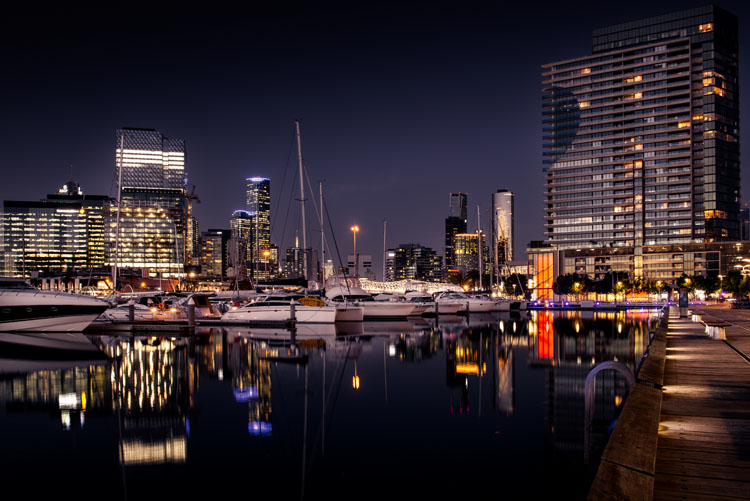
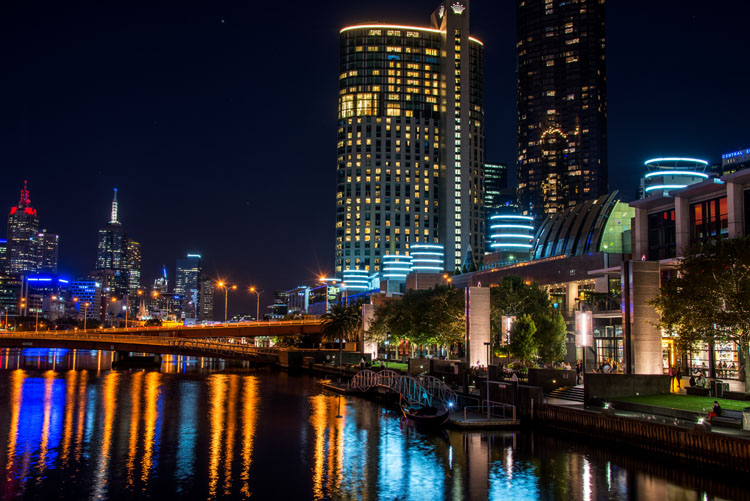
Night photography is very popular, and if you go out to take photos on on any given night here in my hometown of Melbourne, you will find other photographers doing the same thing. Night photography can create magical images and you are able to see things with the camera, that you can not see with your eyes alone. Your camera can do a better job at taking in the lights than you can.

leannecole-night-photography-nightHDR-start

HDR image of Docklands, Melbourne.

Taking photos with your phone, or on a compact camera, is never going to give you those amazing results you see of night photos. You really need to do long exposures; set your camera up on a tripod and do exposures from a couple of seconds, to several minutes.

One major problem with taking photos at night is the sharp contrast between the highlights and shadows. If you try and get detail in the shadows, you will often blow out your highlights. If you do expose for the bright parts, then you won’t get any detail in the rest. Most people don’t mind this. However, if you want your night images to really sing, you should start looking at what you can do to make them stand out.

Comparing shots with different exposures

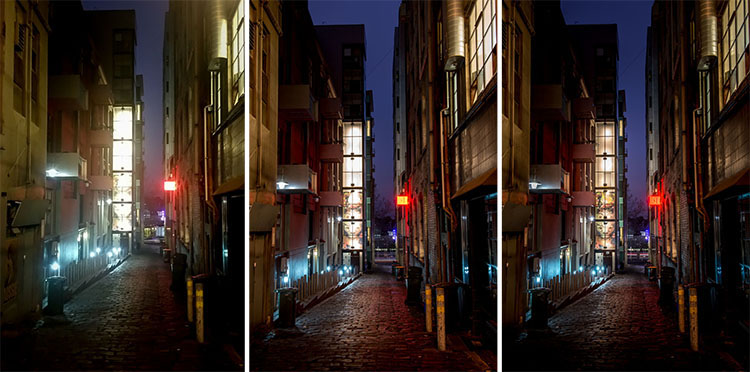
Here is a side by side comparison of images all taken at the same time, but with different methods. The first was taken with a phone, the second is a single exposure, the one the camera says is correct. Lastly, the third image is an HDR using four out of five bracketed shots.

leannecole-nightphotography-comparison

Three images of the same scene, (left) phone, (middle) camera correct exposure, and (right) HDR.

Hopefully you can recognize the difference and appreciate just how unique each approach is.

Photos with your phone

You see a lot of people in the city taking photos with their phones. If it is all you have, then you have to be content with what you get. However, you are never going to get amazing night photos simply with a phone or most compact cameras. Often the photos are too grainy, you will only get a few of the highlights, and none of the depth that a longer exposure will give you.

To get great night photos you need to have a camera on which you can control the ISO, aperture and shutter speed.

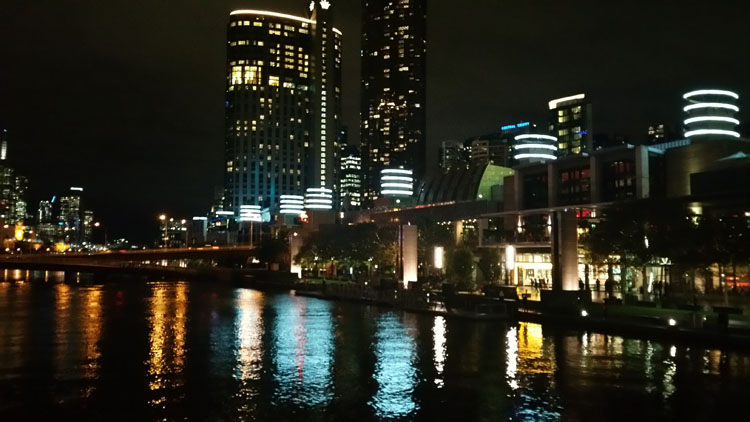
The first image (below) was taken with the Samsung Galaxy Note 4. It is not a bad image for a phone, but it is noisy and not as sharp.

leannecole-night-photography-phone

Image taken with phone of Melbourne at the Casino.

Using a DSLR or Mirrorless Camera

When you can control what your camera is doing, then you can use a low ISO, the aperture you want, and get a shutter speed of a couple of seconds to several minutes. You will get a lot more detail doing this, however, you do need more equipment.

A tripod or somewhere solid to set your camera is important to prevent camera shake. If you want to do exposures longer than 30 seconds you will need a remote shutter release, that will allow you to lock your shutter open for however long you choose to expose. Both are pieces of equipment that you will use a lot so they are worth getting.

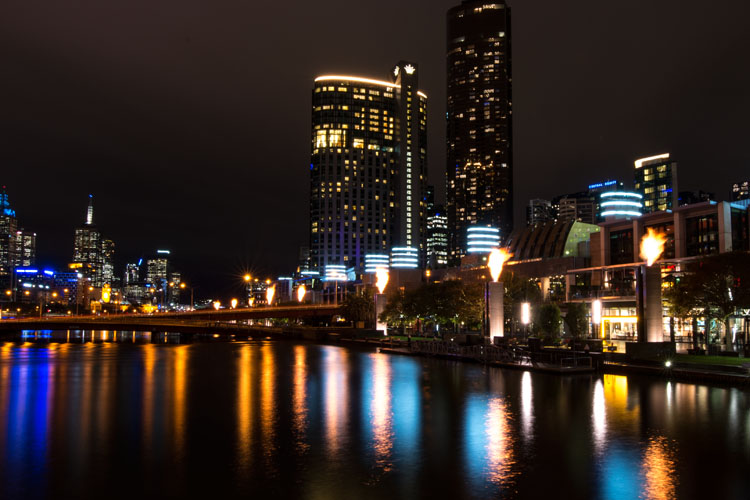
This image was taken with a DSLR at the correct exposure, according to the camera.

leannecole-night-photography-3

Single image of Melbourne at the Casino.

Bracketing

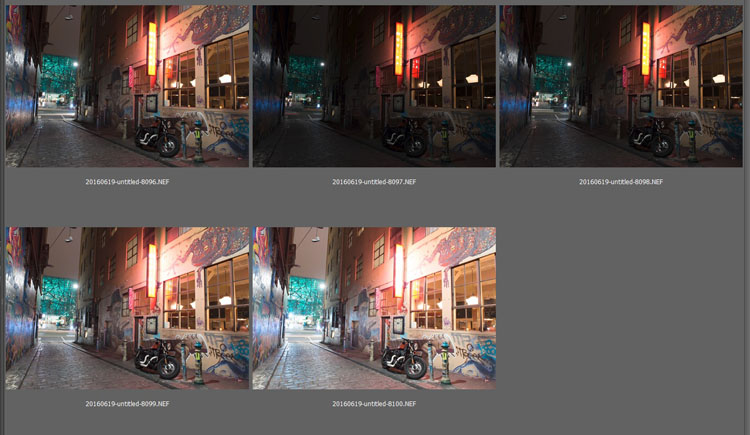
Bracketing your photos is thought to be a process that people only do for HDR. However, photographers have been using this technique for a very long time. In the days of film, you would have had to work it out for yourself, but most digital cameras have the ability to take bracketed exposures, and do the calculating for you.

The process involves taking a series of photos, usually three or five. When you do this, you are taking one image that is the correct exposure, and additional images that are under and overexposed. The amount of time for each image changes, while aperture and ISO remain the same, and the shutter speed is altered by the camera.

There are good reasons for bracketing, one being that it gives you more options. Sometimes the exposure the camera says is the right one, is in fact not. The overexposed image or the one that is under can be the better choice.

leannecole-nightphotography-bracketed

Five bracketed photos ready to use.

There are, of course, disadvantages to bracketing. You end up with many more images, especially if you are doing five each time. If you are shooting in RAW you may encounter storage problems. However, I find that the positives far outweigh the negatives.

High Dynamic Range (HDR)

HDR has been popular for a few years and we have all seen those hyper real images that some people create. They have given the process a bad name, but if it is used in the situations it is meant for, it can be very effective.

High Dynamic Range is used to correct the problem of having very bright and overly dark areas. Cameras do not work the same way as our eyes, and they cannot make the necessary adjustments that your brain and eyes do. Your camera will either expose for the highlights and make the shadows too dark, or it will do the opposite.

HDR software takes the well exposed highlights and shadows, and puts them together in one finished image so that nothing is lost in either area. You can do it manually (using luminosity masking or layer blending), but there is good software out there which can do it for you.

Here is an HDR image of the same scene above, using four of five bracketed shots. Notice how much more detail is retained in the highlights.

leannecole-night-photography-hdr-example

HDR night image of Melbourne at the Casino.

HDR Software

There are many different types of software that can process your HDR images for you. The most popular has been Photomatix Pro, though Lightroom and Photoshop can also be used, and they have improved significantly over the years.

Lightroom does a fairly decent HDR image and I often use it. However, you do have to be careful that the image is processed properly. Sometimes it misses spots, but most of the time it is effective.

Lightroom HDR

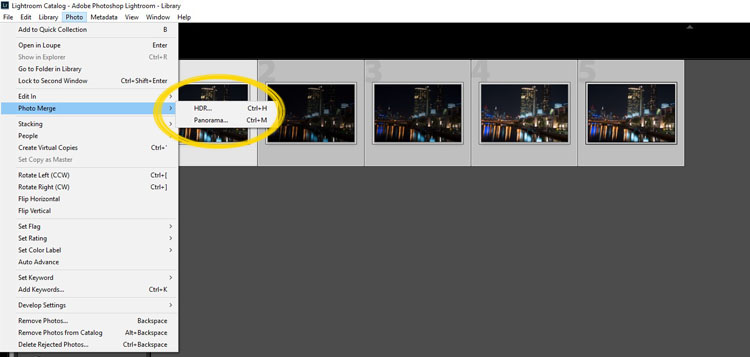
It is easy to use Lightroom’s Merge to HDR. Select the images you want to process and highlight them. Go to Photo > Photo Merge > and click on HDR (you can also find it by right clicking with the images selected).

leannecole-night-photography-101

Selecting photos and merging for a HDR in Lightroom.

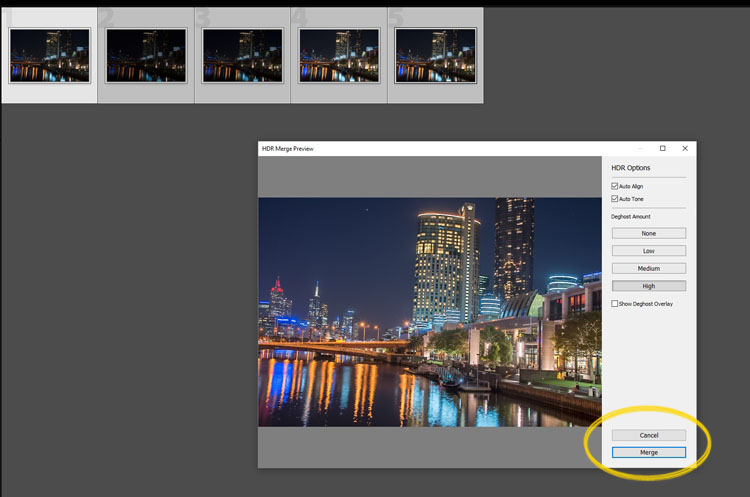
A separate window will come up. You can select whether you need deghosting or not (use it if something has moved between shots like trees or people). If you have used a tripod to take the image then you shouldn’t need deghosting, although it doesn’t hurt to use it regardless.

leannecole-night-photography-102

Lightroom loading the photos ready for you to click Merge

Watch for the Merge icon to come up and then press it.

Often the image will appear at the end of the folder, sometimes just after the images. You may have to search for it (sort by file name and it should appear next to your originals).

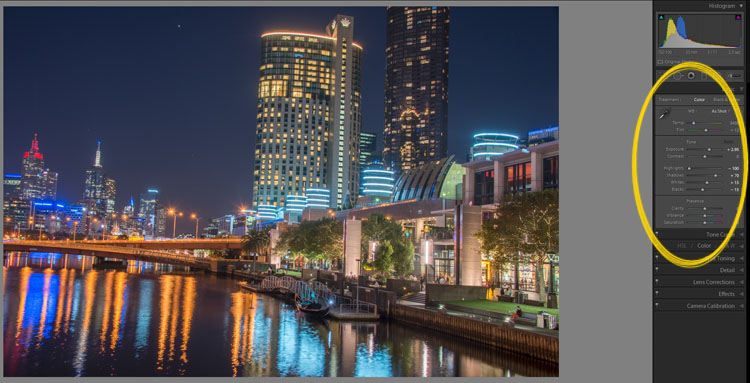
Once it is done you will see that it does not look great.

leannecole-night-photography-103

What the image looks like when Lightroom has processed it using Auto Tone.

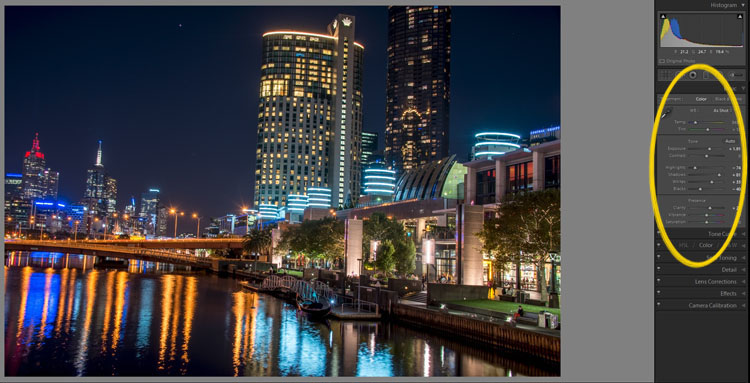
Lightroom shows you the adjustments that it has made using Auto Tone, but there is no reason why you can not change them.

I have found that it will often have the exposure up too far, but you are able to turn that down slightly. You can turn the shadows down a little, and you usually need to add more black to the image. Compare the image above and below and you can see what changes have been made.

leannecole-night-photography-104

What it looks like after you have made changes to the adjustments.

Once you have the image as you want it, you can do further adjustments in Lightroom or press Ctrl+E and continue editing it in Photoshop.

Long Exposure Night Photography

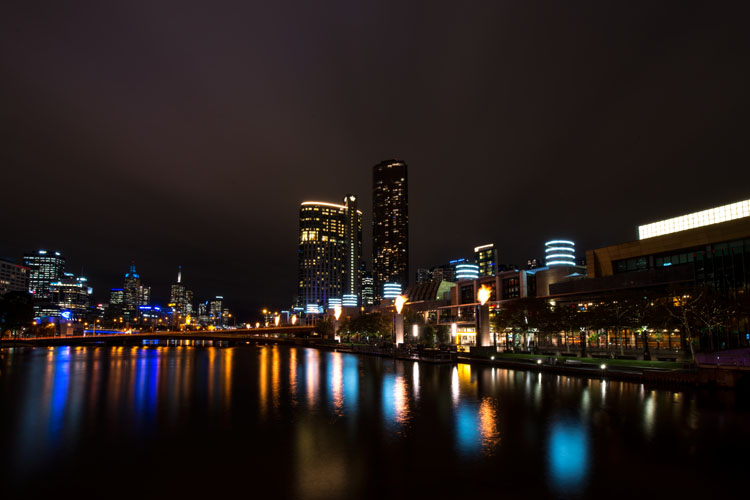
There is nothing wrong with doing long exposures as well. You do not need filters, but you can do images that are more than 30 seconds. Using a tripod and a remote shutter release, you can put your shutter speed on Bulb, and try taking some exposures for a minute or longer.

leannecole-night-photography-longexposure

A one minute exposure of Melbourne at the Casino.

You do have to be careful that you don’t blow out the highlights too much. Try different times and see what you can get.

Examples

Night photos taken with any of these techniques can give you great results. You should try them all and see which ones you like, and what works best for your style.

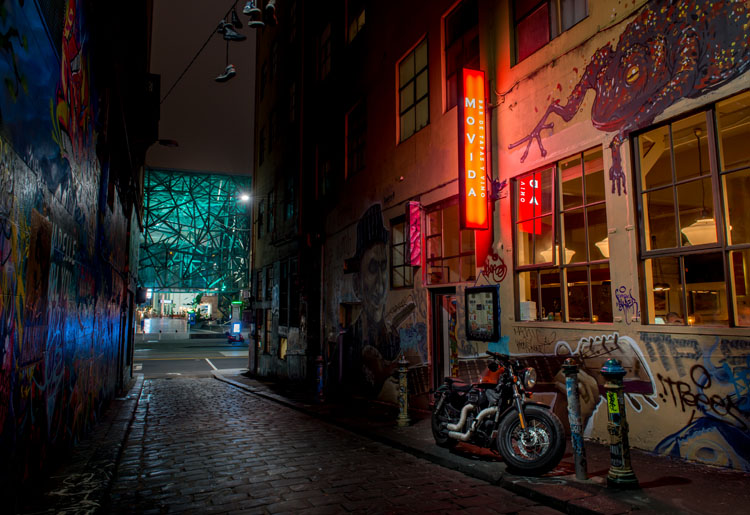
Following are some more night shots with descriptions of how they were done.  Good luck and be safe out there.

leannecole-night-photography-example3

Hosier Lane in Melbourne, HDR image with 4 images.

leannecole-night-photography-hdr-example2

HDR image of laneway in Melbourne.

leannecole-night-photography-example4

Single image at docklands with a one minute exposure.

googletag.cmd.push(function() {
tablet_slots.push( googletag.defineSlot( “/1005424/_dPSv4_tab-all-article-bottom_(300×250)”, [300, 250], “pb-ad-78623” ).addService( googletag.pubads() ) ); } );

googletag.cmd.push(function() {
mobile_slots.push( googletag.defineSlot( “/1005424/_dPSv4_mob-all-article-bottom_(300×250)”, [300, 250], “pb-ad-78158” ).addService( googletag.pubads() ) ); } );

The post Tips for HDR Night Photography to Retain Maximum Image Detail by Leanne Cole appeared first on Digital Photography School.


Digital Photography School

 
Comments Off on Tips for HDR Night Photography to Retain Maximum Image Detail

Posted in Photography


That’s a Wrap! 15 Building Facades Veiled in Plastic & Cloth

06 Jul

[ By SA Rogers in Architecture & Cities & Urbanism. ]

Stretched or hung around the skeletons of buildings, these membranes made of plastic, fabric and metal mesh act like architectural clothing, diffusing light and obscuring the original forms. From Christo and Jeanne Claude’s iconic Wrapped Reichstag to homes enveloped in translucent ETFE, these veiled structures have an air of mystery, their second skin often made of unexpected materials like plastic bottles or camouflage-printed textiles.

Lucas Cultural Arts Museum by OMA

wrap facade OMA 1

wrap facade oma 2

wrap facade oma 3

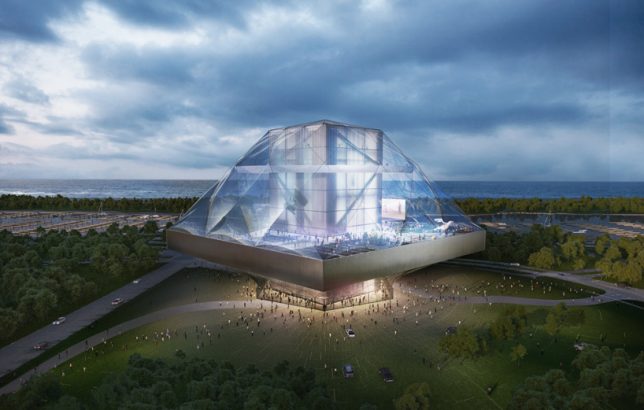
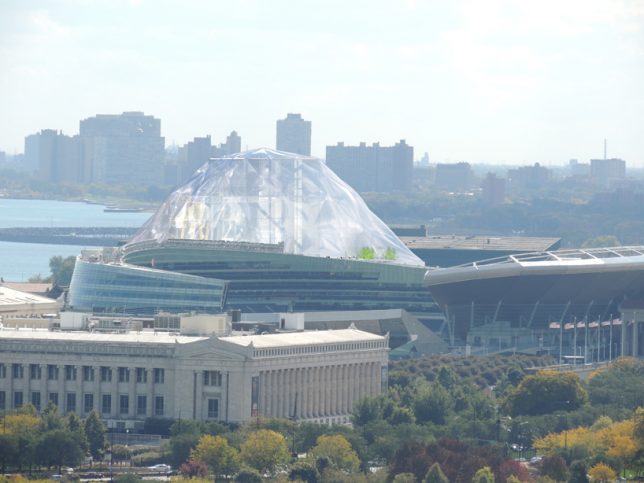
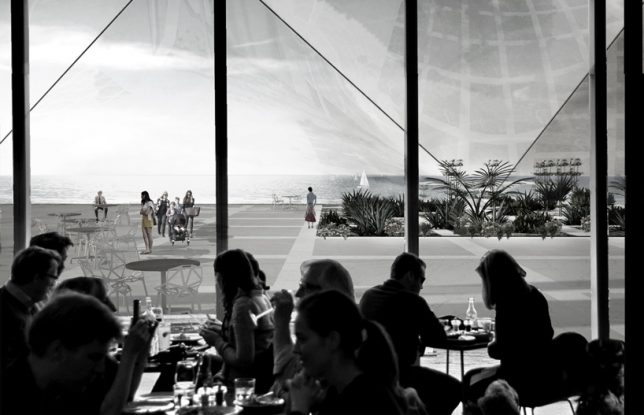
Once it’s finally built, after a long delay that saw its planned building site changing from Chicago to California, the Lucas Cultural Arts Museum (LCAM) could be veiled in a dome-like transparent membrane made of ETFE plastic. Designed by OMA, this second layer creates a sheltered, freely accessible sky park, and can also function as a giant movie screen.

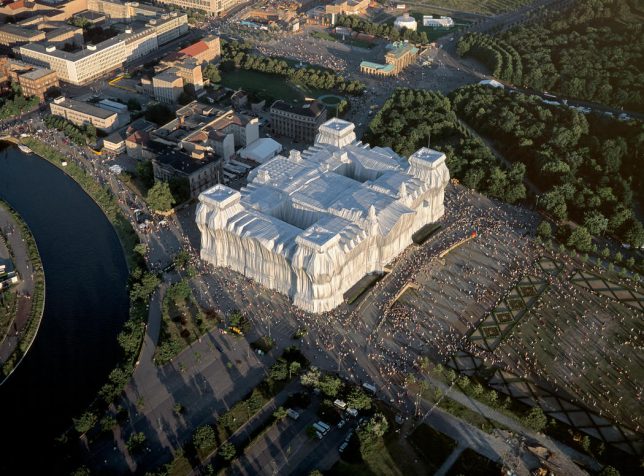
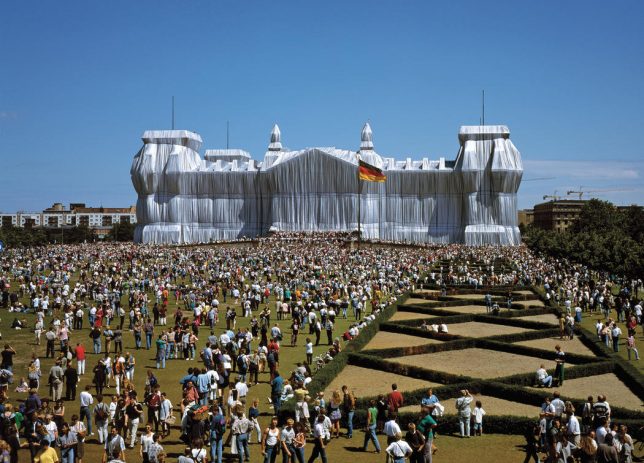
Wrapped Reichstag by Christo + Jeanne Claude

wrap facade reichstag 3

wrap facade reichstag 4

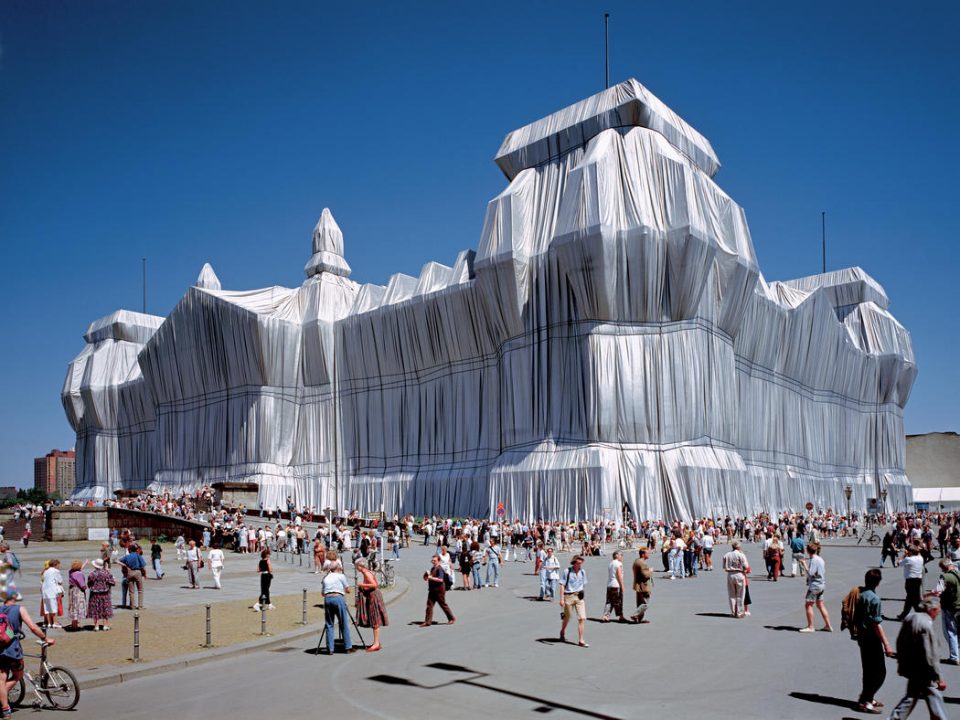
Virtually any structure with a membrane of some sort wrapped around it evokes the iconic work of artistic duo Christo and Jeanne Claude, particularly ‘Wrapped Reichstag.’ In 1995, the artists completely covered the entire Kunstmuseum Bonn with more than a million square feet of aluminum-colored fabric as a symbol for the new Germany after the fall of the Berlin Wall. The project cost $ 15 million USD and remained in place for two weeks.

Shrink-Wrapped Storefront by SO-IL

wrap facade storefront

wrap facade storefront 2

wrap facade storefront 3

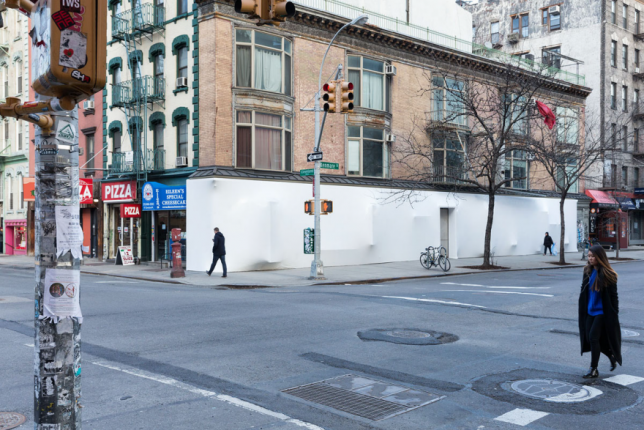
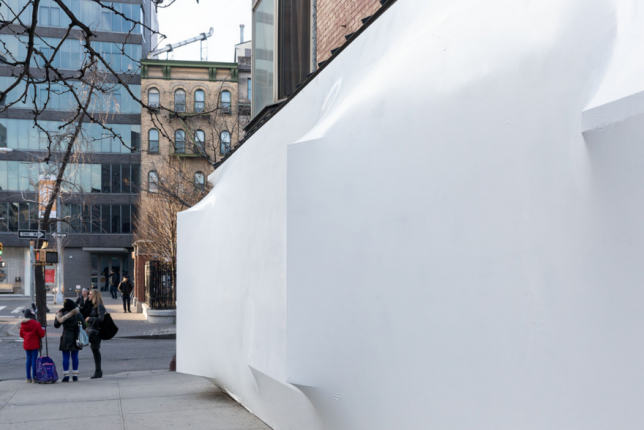
Brooklyn-based studio SO-IL literally shrink-wrapped the famous Storefront for Art and Architecture’s facade in white plastic, creating a mysterious series of bulges and a single entryway. Taking inspiration from the seasonal storage of boats, SO-IL plays with the concept of artistic preservation. It’s actually not unusual for entire buildings to be shrink-wrapped for various purposes, like sensitive renovations, but the company that helped carry out the project noted that artistic usage of the wrapping method is rare. The new facade gave the storefront a snow-white and pristine look that lasted just days as it proved a tempting surface for vandals.

Glowing Home in Japan by Suppose Design Office

wrap facade glowing house 1

wrap facade glowing house 2

wrap facade glowing house 3

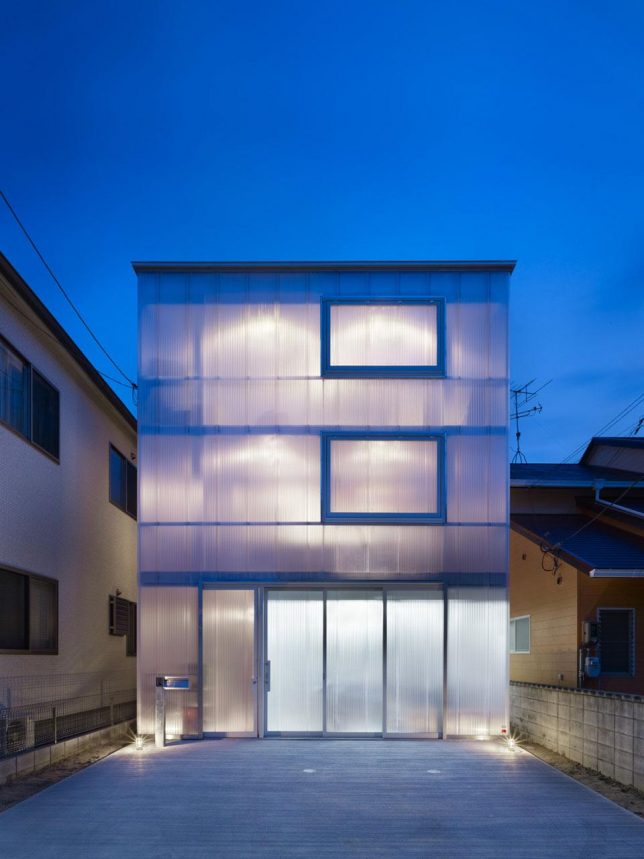
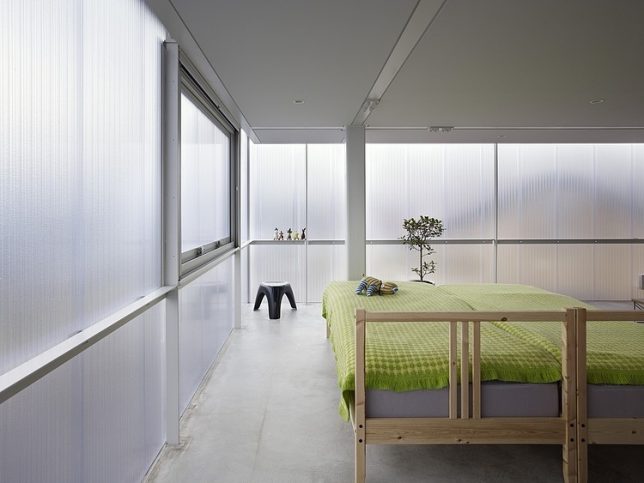
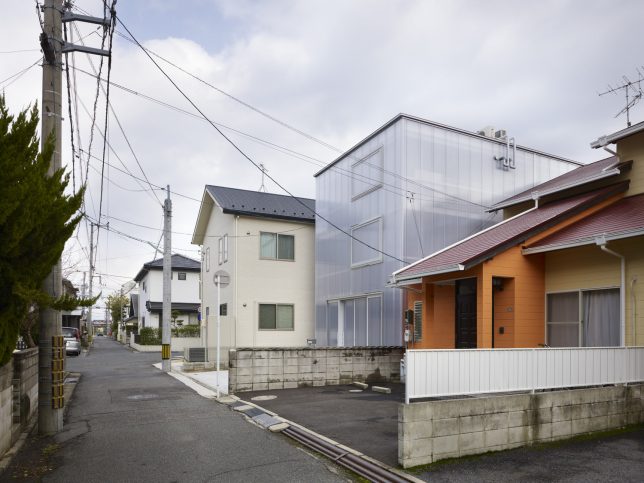
Plastic sheets wrapped around the exterior of a three-story steel home in Hiroshima filter light and create a lantern-like effect at night when illuminated from within. This translucent envelope enables a light-filled home on the inside, which was no small task for architecture firm Suppose Design Office as the narrow property is boxed in on three sides. Reed shades are hung in the upper stories during the summer to keep them from overheating.

Exterior Curtains on an Australian Home

wrap facade curtains

wrap facade curtains 2

wrap facade curtain house 3

wrap facade curtain house 4

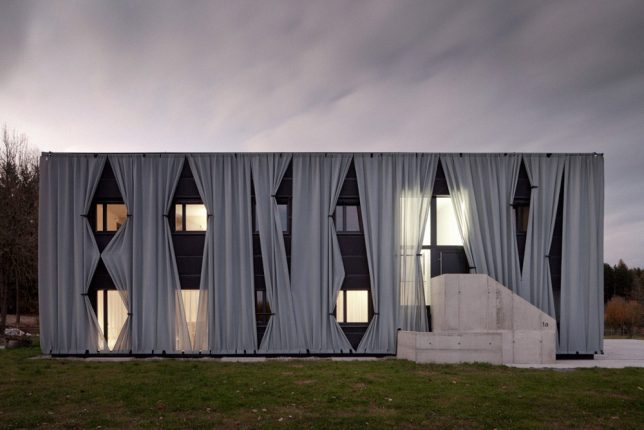
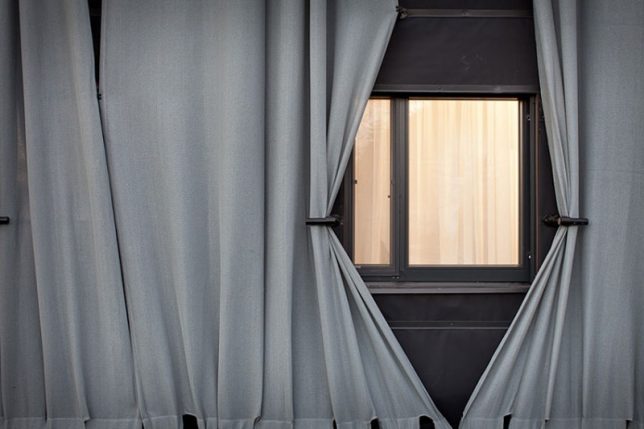
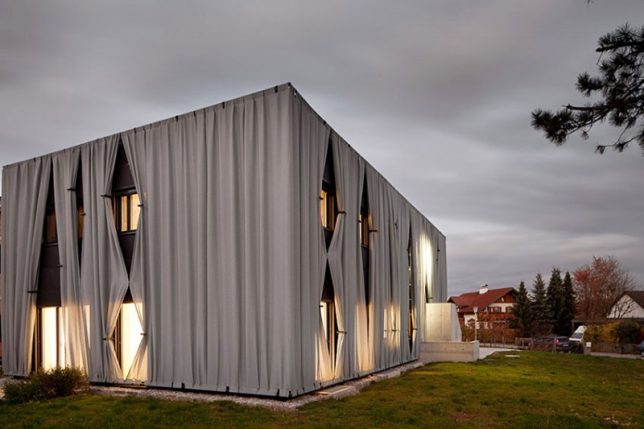
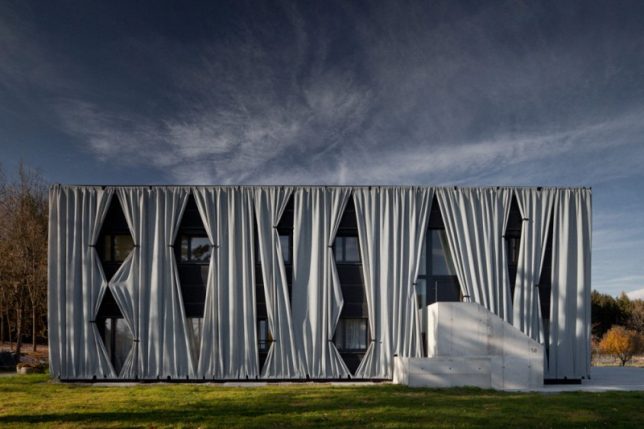
In a reversal of the usual curtained windows, Herzl Arkitekten of Austria covered an entire two-story building in oversized outdoor draperies, veiling the outside of the duplex from view. Pegs hold the curtains open around windows and doors.

Next Page – Click Below to Read More:
Thats A Wrap 15 Building Facades Veiled In Plastic Cloth

Share on Facebook


[ By SA Rogers in Architecture & Cities & Urbanism. ]

[ WebUrbanist | Archives | Galleries | Privacy | TOS ]


WebUrbanist

 
Comments Off on That’s a Wrap! 15 Building Facades Veiled in Plastic & Cloth

Posted in Creativity


Hands On: RNI All Films 4.0, analog presets for Lightroom and ACR

06 Jul

$ (document).ready(function() { SampleGalleryV2({“containerId”:”embeddedSampleGallery_9248880534″,”galleryId”:”9248880534″,”isEmbeddedWidget”:true,”standalone”:false,”selectedImageIndex”:0,”startInCommentsView”:false,”isMobile”:false}) });

All images in the gallery above were processed using presets from RNI All Films 4.0 – Pro (the duplicate is the un-edited version for comparison). Click through for larger previews and more info on which presets were used.

Really Nice Images has announced RNI All Films 4.0, the latest version of its film simulation presets for Lightroom and Adobe Camera Raw. It will be sold in two versions, Pro and Lite. 

In the full ‘Pro’ version, 58 film stocks are organized into 5 categories including Negative, Slide, Instant, Black & White, and Vintage. And because most film stocks have several versions, in total RNI 4.0 offers more than 300 presets, 170 of which are brand new from the previous release.

Processed using the new ‘Fuji Natura 1600 – 01’ preset.

RNI specifically highlights Fuji Natura 1600, Fuji Velvia 2.0 and Fuji Pro 400H among its new film stocks, but many more have also been added. Furthermore, according to RNI, the vast majority of presets included from previous releases have been fine-tuned or completely reworked for more accurate skin tones and more realistic grain.

RNI’s film simulations are created from analyzing actual film stocks, so if you are an analog purist, this may be the easiest way to dial in the look of some of your favorite films. RNI 4.0 also now features customized camera profiles, with support for most modern digital cameras.

The software also includes RNI 4 Toolkit, a set of presets that allows users to quickly adjust parameters like grain and softness. They’re useful if you are going for a ‘very analog’ look. Though I personally found the Toolkit presets made my images look over-processed. And when working with film presets, there is a fine line between good processing and over-processing.

Once installed, RNI presets will show up in the left-most Lightroom panel. Hovering over a preset will show a quick display in the thumbnail (upper left) of what it will look like once applied.

Of course, there are quite a few companies marketing realistic film emulations and presets. Two of the most popular are VSCO Film and DxO Filmpack. VSCO Film, like RNI All FIlm, is a set of analog-like presets for Lightroom and ACR. However, unlike RNI All Film, VSCO Film is packaged into 8 different packs of presets, sold separately. Each pack goes for $ 59 and includes around 20 film stocks (each film stock has multiple variations, some have up to 10). 

DxO Filmpack 5 on the other hand is both a plugin for LR and ACR and a stand-alone program. It is sold in two editions: the Elite edition is $ 99, the Essential Edition is $ 49. The former includes 120 different ‘styles,’ 80 of which are based off of film. 

RNI All Film 4.0 also comes in two flavors, Pro and Lite. Pro will run you $ 122. The Lite version, which is stripped down and includes a curated selection of presets from the Pro version will cost you $ 59, the same as one VSCO pack. Of course, if you’re upgrading from a previous RNI Pro version, the price is cut in half, same goes if you’re upgrading from a previous RNI Lite version to RNI Lite 4.0.

Processed using the ‘Fuji Fortia SP’ preset. 

I’ve long been a user of VSCO’s film presets, but in just briefly trying out RNI 4.0, I’m eager to keep using it in the future for processing. Most of the actual film stocks (not Toolkit presets) are well-judged and there are plenty to experiment with. Not to mention, RNI 4.0 offers quite a few film stocks not available from the competition.

 You can download All Films 4.0 directly from RNI here.

Articles: Digital Photography Review (dpreview.com)

 
Comments Off on Hands On: RNI All Films 4.0, analog presets for Lightroom and ACR

Posted in Uncategorized


How to Use Lightroom to Learn Composition in Photography

06 Jul

If you want more Lightroom help from Viktor, get 50% OFF his Four Seasons Lightroom Preset Collection, on now at Snapdeals (only until July 19th, 2016)

When you start learning about photography, the whole process can be overwhelming with its complexity. But, when you break it down into smaller pieces that you can tackle one at a time, you quickly realize that photography isn’t rocket science at all. By then, it’s only a matter of time before you understand the whole picture, and are comfortable with the different aspects and techniques.

Images Composition in Lightroom 01

I still find one aspect of photography is more challenging than the rest, however. That is composition, which is difficult to learn and even more difficult to teach.

Why? The main reason is because of its subjective nature. It is not easy to quantify composition. In other words, there is no right or wrong; everything is open to interpretation. As a result, learning and mastering composition is usually a long and gradual process.

I want to share with you an exercise that you can perform using Lightroom, in the comfort of your home, that can accelerate the composition learning cycle. This approach was incredibly helpful in building my comfort with, and understanding of composition, in my photography. I hope you find it useful too.

Images Composition in Lightroom 02

The way I approach composition today is different, compared to my approach five years ago. The reason for that is because of new publishing channels.

As a photographer who runs a popular blog dedicated to travel photography, I have multiple channels where I publish my photographs. It all begins on the blog, then moves to social media networks like Facebook, Instagram, G+, and Pinterest. Plus, I often prepare an extra version for printing purposes as well.

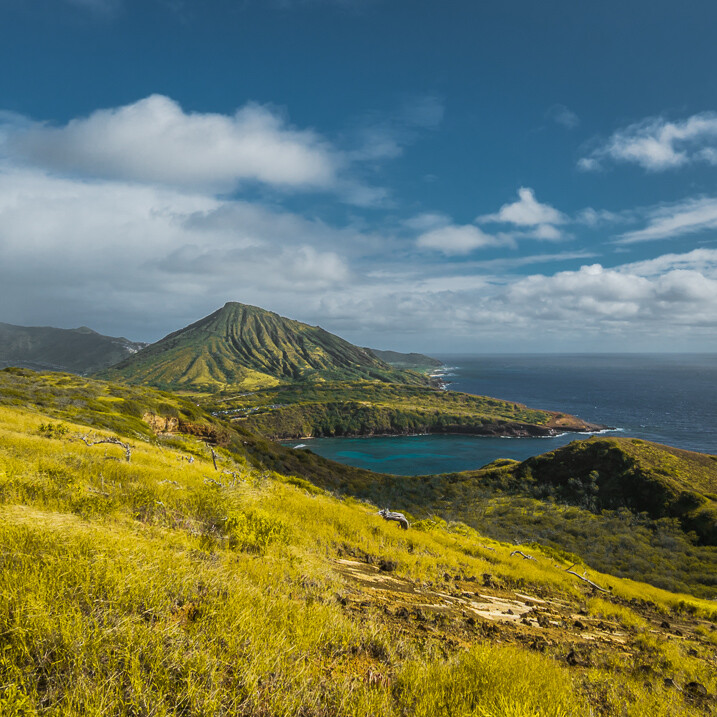
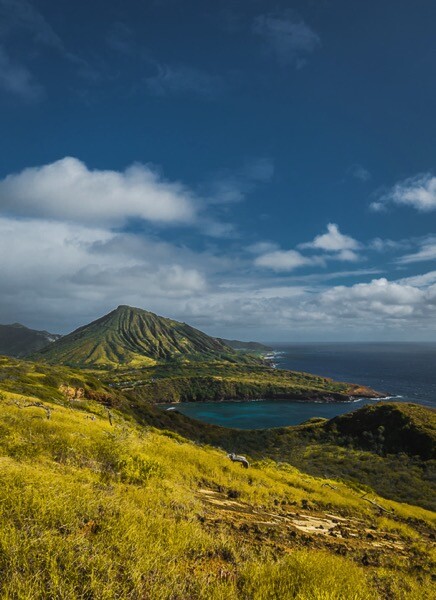
Typically, different publishing channels require different versions of the same photograph. For example, if the original photograph has a landscape orientation with the aspect ratio of 3 x 2, Instagram requires a square 1 x 1 version, and Pinterest requires a vertically oriented image. I might need a panoramic version for print.

Even though creating multiple versions of the same photo with meaningful composition takes more time and effort, I find this exercise is extremely valuable in learning and mastering composition in photography.

Exercise in a Real Life Scenario

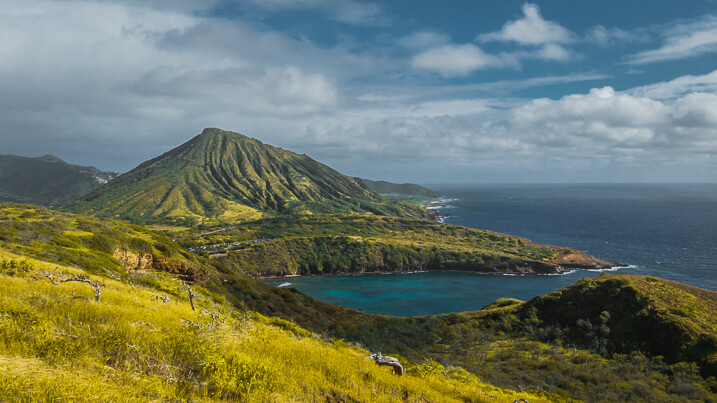
I took this photo just after the sunrise on O’ahu Island in Hawaii.

Images Composition in Lightroom 03

From the very beginning, I could see the potential of the scene and was confident that I would use it on my blog, and maybe even in my portfolio.

I intentionally took the shot of the scene wider than I would want for a regular 3 x 2 landscape composition. I left some room to have more freedom when creating different versions for publishing. I have no problem with cropping and trimming my photographs in post-processing, because 24 Mpx sensor on my Sony a6000 gives me enough pixels even for very aggressive cropping.

I started the editing process by applying few of my favorite presets from my Landscape collection, and when I was happy with the result I started working on composition.

Images Composition in Lightroom 4

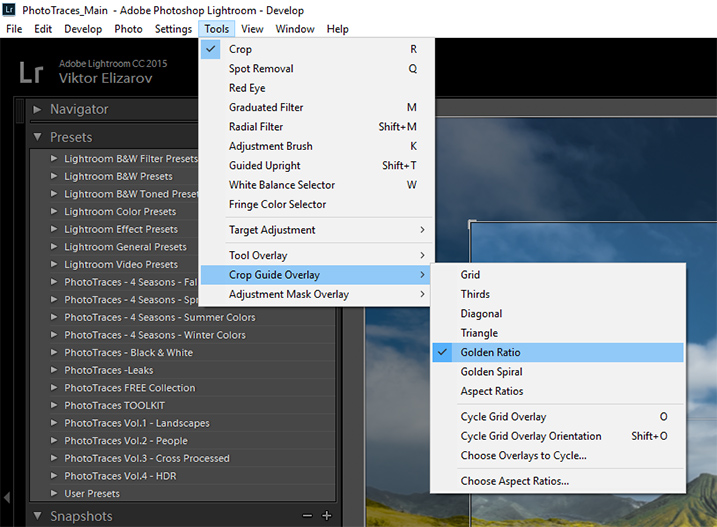
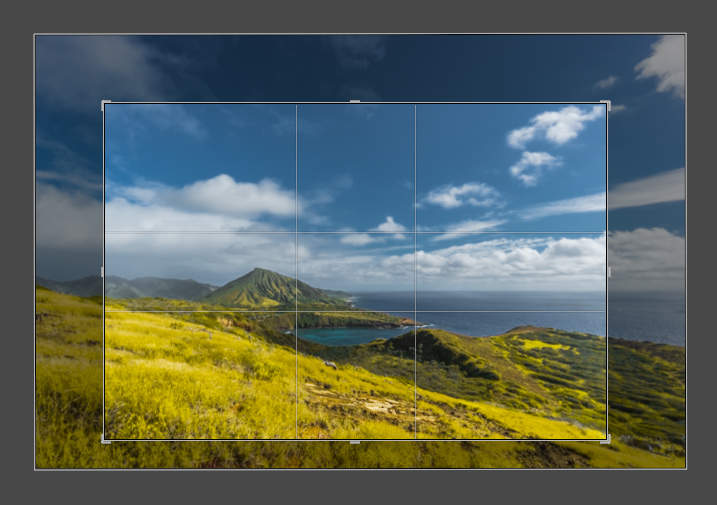
First, I set up the Crop tool Overlay options, setting it to Golden Ratio. I know that Thirds is the most popular option among visual guides, but I find that Golden Ratio helps me to create more balanced compositions.

Images Composition in Lightroom 05

You can also scroll through the various overlay options by repeatedly hitting the O key on your keyboard, until you find the one you want.

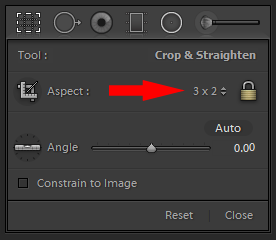
I set the aspect ratio to 2×3 and lock it.

Images Composition in Lightroom 06

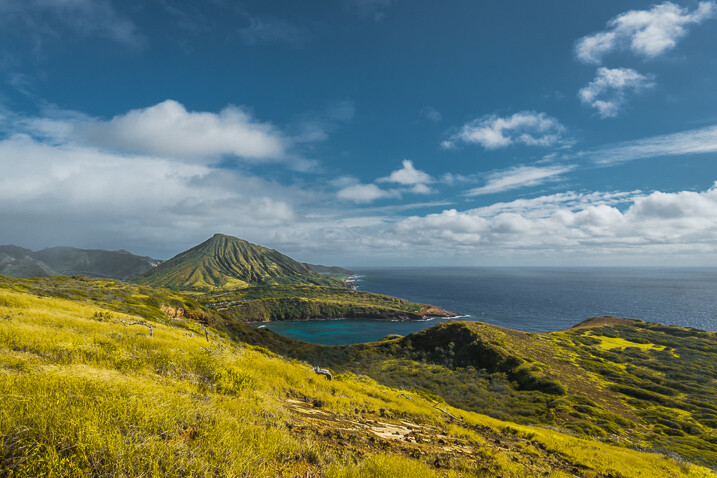
I create my first version by simply making the composition tighter.

Images Composition in Lightroom 07

Images Composition in Lightroom 09

Version 1 – Aspect Ratio 3 x 2

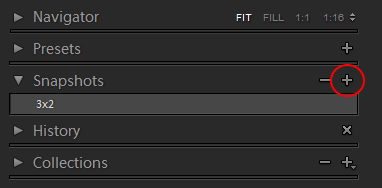
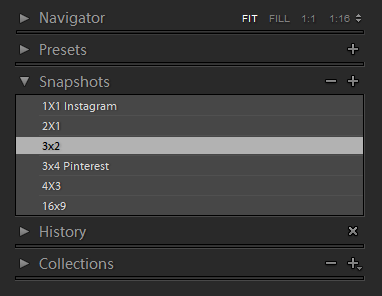
When I am happy with the result I use the Snapshot functionality of Lightroom to save my version as a new Snapshot, and name it 3 x 2.

Images Composition in Lightroom 08

Then, I move on to the next version.

Images Composition in Lightroom 10

Version 2 – Aspect Ratio 1 x 1 (Instagram)

Images Composition in Lightroom 11

Version 3 – Aspect Ratio 2 x 1

Images Composition in Lightroom 12

Version 4 – Aspect Ratio 4 x 3

Images Composition in Lightroom 13

Version 5 – Aspect Ratio 16 x 9

Images Composition in Lightroom 14

Version 5 – Aspect Ratio 3 x 4 (Pinterest)

When I am done I have the Snapshot Panel filled with six newly saved versions (snapshots).

Images Composition in Lightroom 15

Another alternative is to use the Virtual Copy functionality for each version I create. bu I prefer the Snapshot panel, which makes Lightroom less cluttered.

Now, I can review each version by clicking on an individual Snapshot version, and if I am happy with the results, I am ready to start publishing.

Conclusion

The only way to learn composition in photography is to practice on a regular basis. I highly recommend the exercise I outlined above. Make a habit of creating at least two extra versions for each photograph you edit, one for Instagram and another for Pinterest. I can guarantee you it will help you to accelerate the process of learning.

If you want more Lightroom help from Viktor, get 50% OFF his Four Seasons Lightroom Preset Collection, on now at Snapdeals (only until July 19th, 2016)

googletag.cmd.push(function() {
tablet_slots.push( googletag.defineSlot( “/1005424/_dPSv4_tab-all-article-bottom_(300×250)”, [300, 250], “pb-ad-78623” ).addService( googletag.pubads() ) ); } );

googletag.cmd.push(function() {
mobile_slots.push( googletag.defineSlot( “/1005424/_dPSv4_mob-all-article-bottom_(300×250)”, [300, 250], “pb-ad-78158” ).addService( googletag.pubads() ) ); } );

The post How to Use Lightroom to Learn Composition in Photography by Viktor Elizarov appeared first on Digital Photography School.


Digital Photography School

 
Comments Off on How to Use Lightroom to Learn Composition in Photography

Posted in Photography