RSS
 

Archive for June, 2016

Walk on Water: 13 Interactive Aquatic Art Installations

14 Jun

[ By SA Rogers in Art & Installation & Sound. ]

infinite bridge main

Vital yet dangerous, shifting its shape and obscuring what lies beneath, water is an ideal conduit for illusion, and artists take advantage of these qualities to produce works that confuse our senses and seem to give us superpowers. These aquatic art installations allow people to walk on water and breathe beneath its surface, and ask us to confront its mysteries, navigating flooded spaces in pitch blackness or edging dangerous whirlpools.

Floating Piers on Italy’s Lake Iseo by Christo and Jeanne Claude

water art floating piers 1

water art floating piers 2

water art floating piers 3

water art floating piers 4

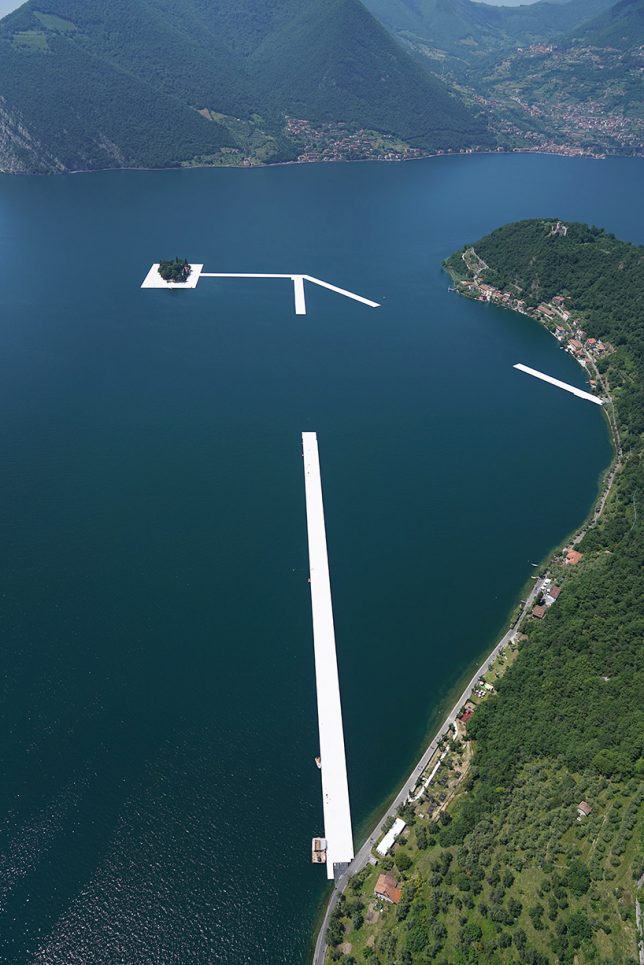
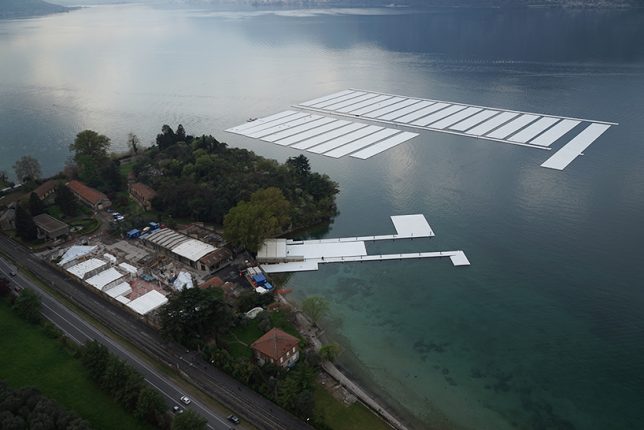
A modular floating dock system comprised of 220,000 polyethylene cubes will allow visitors to walk all the way to an island from the shore of Italy’s Lake Iseo. The first work by Christo and Jeanne-Claude in Italy in over 40 years, ‘The Floating Piers’ are still under construction and will ultimately be covered in a shimmering yellow fabric that will continue for a mile on land through the pedestrian streets. In the works for decades, it’s Christo’s first piece to be completed since the death of his partner Jeanne-Claude in 2005. The exhibition will be in place for 16 days and then all components will be industrially recycled. “Like all of our projects, ‘The Floating Piers’ is absolutely free and accessible 24 hours a day, weather permitting,” says Christo. “There are no tickets, no openings, no reservations and no owners. The Floating Piers are an extension of the street and belong to everyone.”

Intentionally Unstable Floating Pavilion

water art unstable pavilion 1

water art unstable pavilion 2

water art unstable pavilion 4

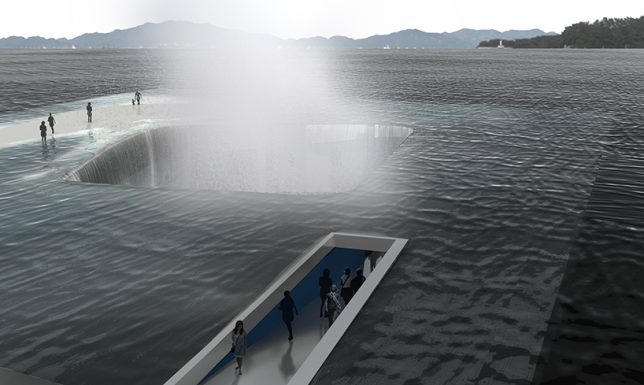
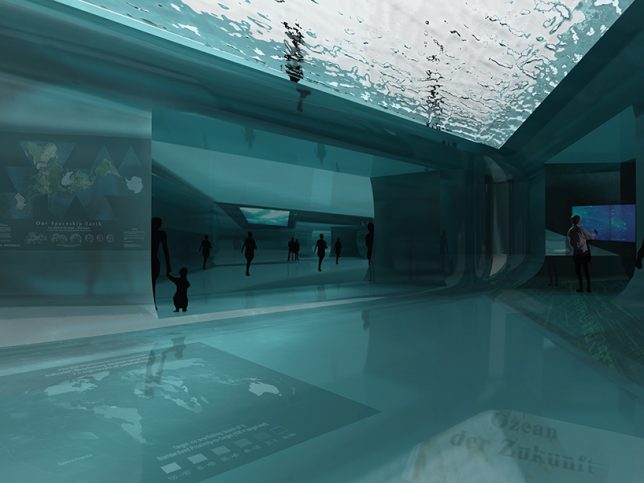
Just barely peeking above the surface of the sea in a few strategic places, this sunken pavilion lets you walk right out onto the water, with dry paths appearing and disappearing according to the movement of the waves. ‘Thematic Pavilion’ gently rocks back and forth as visitors move from the top level to the nautical exhibition space below the surface. Hydraulics of the same sort used for submarines keep the structure from sinking to the bottom, and raise it all the way up after the exhibition so it can be used like an ordinary boat.

Glass Topped Swimming Pool by Leandro Erlich

water art swimming pool 1

water art swimming pool erlich 2

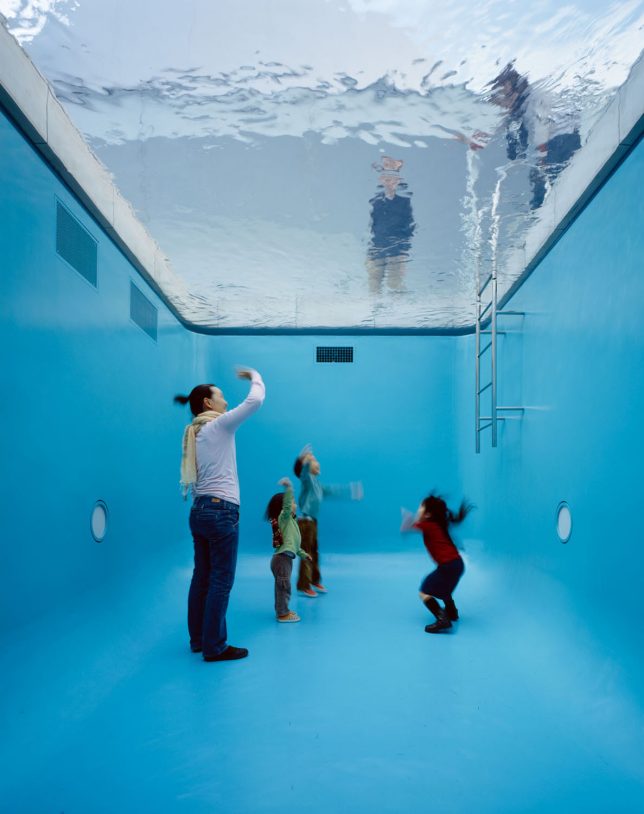
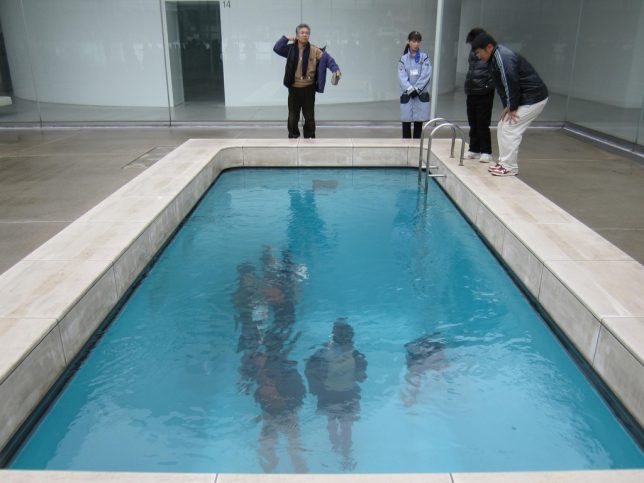
Glimpsed through the surface of a swimming pool, groups of people standing on the bottom seem irrationally calm – not to mention dry. That’s because a thin sheet of glass actually separates them from the extremely shallow water, creating the illusion that they’re submerged. Artist Leandro Erlich uses perspective, mirrors and glass to create optical illusions that shake our sense of what’s up and what’s down.

Boat Tour Through a Flooded Art Museum

water art flooded museum 1

water art flooded museum 2

water art flooded musem 3

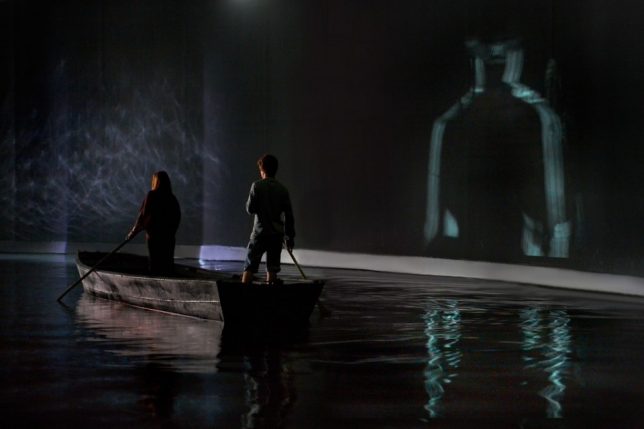
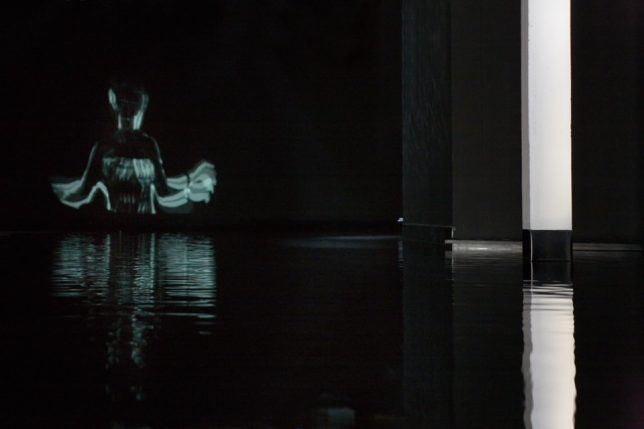
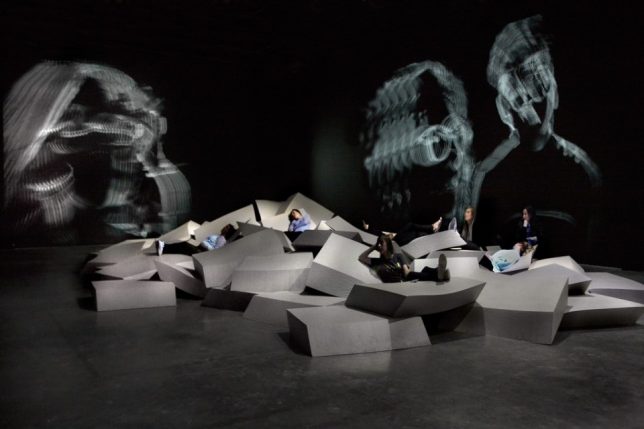
Visitors to the Palais de Tokyo have to navigate dark waters inside the museum itself, as if in a post-apocalyptic scenario, for this installation by Celeste Boursier-Mougenot. ACQUAALTA takes its name from the annual flooding event in Venice, imagining what would happen if this same flooding were to affect Paris. Standing or sitting in their boats, visitors row through the nearly pitch-black space before disembarking onto jagged foam landscapes.

Next Page – Click Below to Read More:
Walk On Water 13 Interactive Aquatic Art Installations

Share on Facebook


[ By SA Rogers in Art & Installation & Sound. ]

[ WebUrbanist | Archives | Galleries | Privacy | TOS ]


WebUrbanist

 
Comments Off on Walk on Water: 13 Interactive Aquatic Art Installations

Posted in Creativity


STG Uploader app allows Sony cameras to upload directly to Google Photos

14 Jun

A new unofficial app called STG Uploader enables Sony cameras compatible with PlayMemories Camera Apps to upload content directly to Google Photos. Running the application will prompt the user to set up a Wi-Fi access point, after which the user will authorize the app to place an oAuth token on the camera’s SD card, a safer alternative to saving the user’s Google username and password on the camera.

Full instructions on installing the app are located on the Sony-PMCA-RE Github. Once installed and set up, users are presented with a simple screen that shows how many photos are ready to be uploaded to Google Photos and how many have already been uploaded. An upload status bar is provided, as well as an option for erasing the upload database.

According to a user at SonyAlpha Rumors, the app uploads photos in full resolution. Images uploaded directly will appear in Google Photos with the name ‘SonyUpload’ followed by the date. Note that formatting the SD card will cause the oAuth token to be erased and the app setup process will have to be repeated.

Via: SonyAlpha Rumors

Articles: Digital Photography Review (dpreview.com)

 
Comments Off on STG Uploader app allows Sony cameras to upload directly to Google Photos

Posted in Uncategorized


Time-lapse captures fast-changing Singapore skyline over three years

13 Jun

Time-lapse and tilt-shift specialist Keith Loutit’s latest project has been years in the making. The Lion City II – Majulah is a follow-up to another impressive feature, documenting the rise and fall (but mostly rise) of skyscrapers on Singapore’s skyline over the course of three years.

Channel NewsAsia reports that the four-minute video is the culmination of 500 hours of shooting from June 2013 to June 2016. The soundtrack was composed for the project by Michael Adler Miltersen in collaboration with Loutit. 

The Lion City II tells a compelling story about daily life in the shadow of urban growth. And as someone who played way too much Sim City as a kid, I’m pretty sure I could watch this on repeat all morning. Are you inspired to start a time-lapse project of your own? Let us know in the comments.

Articles: Digital Photography Review (dpreview.com)

 
Comments Off on Time-lapse captures fast-changing Singapore skyline over three years

Posted in Uncategorized


2016 Roundup: Semi-Pro Interchangeable Lens Cameras

13 Jun

Within this category, which is made up of cameras costing $ 2000 or more (body-only, and based on MSRP in the US), you’ll find some of the fiercest competitors the camera industry has to offer. This includes cameras with 50 or more megapixels geared perfectly for studio shooters, 4K-capable cameras for serious film makers, and all-rounders that can easily split their time between pro-level still shooting and high-end video capture.

All of the cameras in this price range use full-frame sensors. And while most of them are DSLRs, there are also several mirrorless options as well. Simply put, there is something here to satisfy just about everyone who is willing to pony up the requisite funds. Read through to see what makes this segment so cutthroat, and what innovations are driving this tier forwards at a remarkable pace. 

The models covered in this roundup are:

  • Canon EOS 5D Mark III
  • Canon EOS 5DS / 5DS R
  • Leica SL
  • Nikon Df
  • Nikon D750
  • Nikon D810
  • Sony Alpha a7R II
  • Sony Alpha a7S
  • Sony Alpha a7S II

Note: We purposely excluded the Canon EOS 1DX II, Nikon D5 and Pentax 645Z from this roundup as we feel the capabilities of both cameras put them in a class of their own, which we’ll cover in an additional roundup.

Articles: Digital Photography Review (dpreview.com)

 
Comments Off on 2016 Roundup: Semi-Pro Interchangeable Lens Cameras

Posted in Uncategorized


Total Beginner’s Guide to Lightroom – Step by Step

13 Jun

I had tried Lightroom in the past, but always preferred using Apple’s Aperture photo editing program. But in the spring of 2014, when it was announced that Apple was no longer supporting Aperture, I decided to make the leap to Lightroom. At first I found it difficult to use and not really intuitive, but I soon found my way around and I was a Lightroom convert.

beginners-guide-lightroom-blue-buds

If you are new to Lightroom and don’t know where to start, or have thought about using it but feel overwhelmed, then please know I feel your pain, and know where you’re coming from. I wrote this Beginner’s Guide to Lightroom to help you, and I wish I would have had something like this when I first got started. It’s designed to help you through a few basic steps from opening up Lightroom for the first time, making two basic edits, and exporting (saving) a final version of your picture.

What is Lightroom and what does it do?

In a nutshell, Lightroom is a program that can manage and edit your images. The catch, though, is that it doesn’t really edit your images, or actually manage anything either. Instead, the program works by looking at pictures you have stored on your computer, and allows you to create instructions for how you want to change them.

For example, let’s say you have a photo of a squirrel that’s a bit dark so you want to make it brighter. Lightroom doesn’t touch the original image! It doesn’t move it, copy it, rename it, or change it in any way. Instead Lightroom, is a non-destructive editing program, that allows you make changes to a preview or thumbnail version of the picture, which means you can see what the final image will look like after you make it brighter. When you are finished with your editing you export (or save as) a final image from Lightroom (again leaving the original file completely un-touched) and voilá, you now have a second, much brighter photo, to print or share with others.
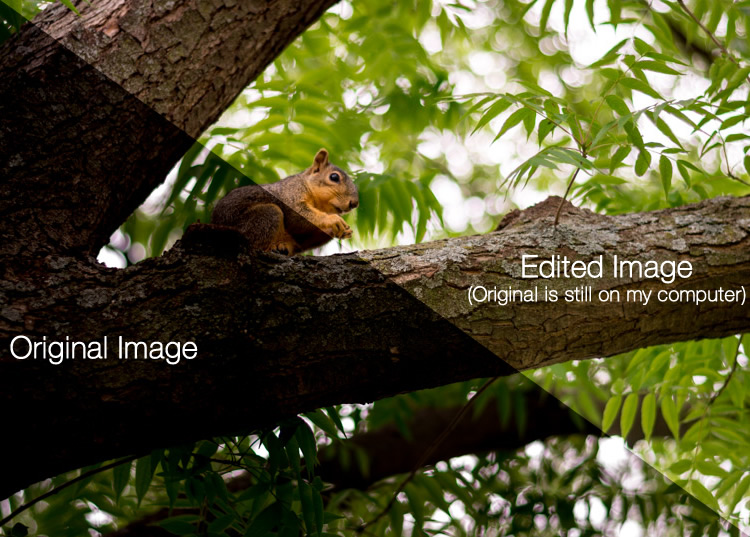
beginners-guide-lightroom-squirrel-comparison

The Lightroom catalog is like a recipe book

Lightroom stores a record of all the changes you want to make to your images in a separate file called the Catalog, which is stored independent from your pictures. The best analogy I can think of is that of a kitchen: your original pictures are kind of like the raw ingredients in your cupboards, and the Lightroom Catalog is like a recipe book. Lightroom doesn’t do anything to your ingredients (your original files), but instead saves the instructions for transforming your supplies into actual finished products (in this case output edited images), just like recipes for your photos. When you are finished, your original image files still remain, but you have a new creation (i.e. an edited picture) that you can share with others.

The Importance of Adobe Camera Raw

Before we get too deep into the weeds here, it’s important to back up a bit and look at another program called Adobe Camera Raw (ACR), which allows you to perform all sorts of edits and changes to your Raw images – from simply making them brighter or darker, to selectively editing colors, or working with curves. You may already have it on your computer and not even know it, and it’s actually the engine that powers everything Lightroom does in terms of editing your images. Every change, adjustment, and tweak you do to one of your photos in Lightroom, is actually being done by ACR. Understanding how this fits in might seem a bit extraneous to the overall Lightroom discussion, but it’s important to know how all it works together if you want to make sense of Lightroom itself.

beginners-guide-lightroom-brothers

You and Lightroom: best buds for life.

Opening Lightroom for the First Time

When I initially launched my copy of Lightroom four years ago, things started to go south within a matter of seconds. It asked me about making a Catalog, and wanted to know where to store it, and I started channeling my inner Gob Bluth while muttering to myself, “I’ve made a huge mistake.” If this sounds like you, don’t worry – there’s really not much going on here that you need to worry about, and everything will be fine. Remember the kitchen analogy I mentioned earlier? All your computer wants to know right now is where to store the Catalog, or recipe book, that it will use to keep track of the changes you want to make to your pictures. You will need to create a new Catalog, and specify its location on your hard drive. I just keep mine within my Pictures folder.
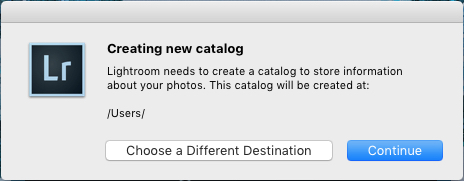
beginners-guide-lightroom-catalog-dialogue

Lightroom wants to know where you would like to store its Catalog, or database of edits you want to make to pictures. If you’re not sure what to do here, just click the “Continue” button.

Some people are very specific about where they want this Catalog to be located, and professional photographers will often have multiple image collections and many catalogs as well. Honestly, if you just want to figure out how to use Lightroom you can just click the “Continue” button and go about your business. For casual photographers the exact location of the Catalog file is not all that important, so don’t sweat it.

Note: do not store your catalog on an external hard drive though, it will not run optimally or may not run at all. Keep it on your computer’s main drive. If in doubt just click Continue as noted above.

In terms of new-user-confusion, the next screen (the Library module) you see is not much better. Upon encountering it for the first time I felt like someone had quashed my photography enthusiasm with a scary dull grey veil. There are a few tutorial hints that pop up in the middle, which aren’t very helpful, and after you dismiss them you’re left staring at an empty dark wasteland, wondering why you didn’t just stick to using Instagram filters like everyone else.
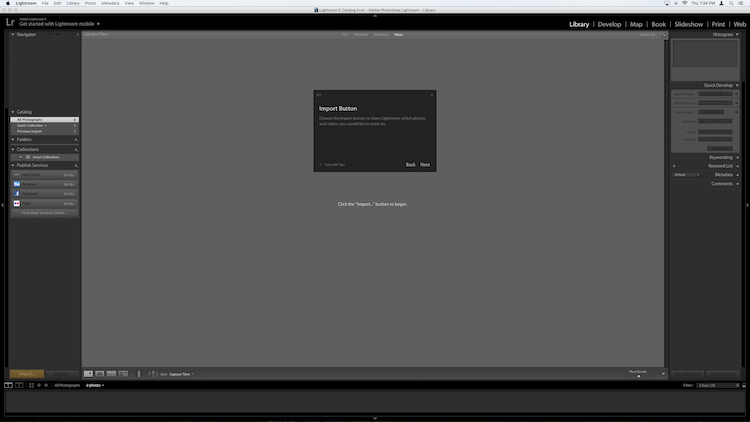
If this screen doesn't make a new user run screaming from Lightroom, I don't know what would.

If this screen doesn’t make a new user run screaming from Lightroom, I don’t know what would.

What you’re looking at here is your entire library of photos, but it’s empty because none have actually been imported yet. There’s plenty of other options and buttons here as well – enough to confuse even the most experienced user – so for now just ignore the Catalog/Folders/Collections stuff on the left side, and all those Quick Develop options on the right side. And for heaven’s sake, don’t give a second thought to those strange chessboard-like icons at the bottom. Just take a breath, grab your memory card and your favorite beverage, and get ready to import some photos. Plug your memory card into your computer, then click the “Import” button in the lower-left corner to start transferring your pictures over to your hard drive. You can also import photos that are already sitting on your computer, but for now I want to focus on the kind of workflow you might encounter, as a photographer who just wants to figure out this program.

Importing Photos

The first thing you see once you have your memory card connected is a grid with tiny thumbnail previews of all the pictures on your memory card.

Note: You can also connect to your camera directly – however, it’s a better idea to use a card reader then plug in your camera directly. If the camera battery dies during import you can crash the card and damage or lose your images.
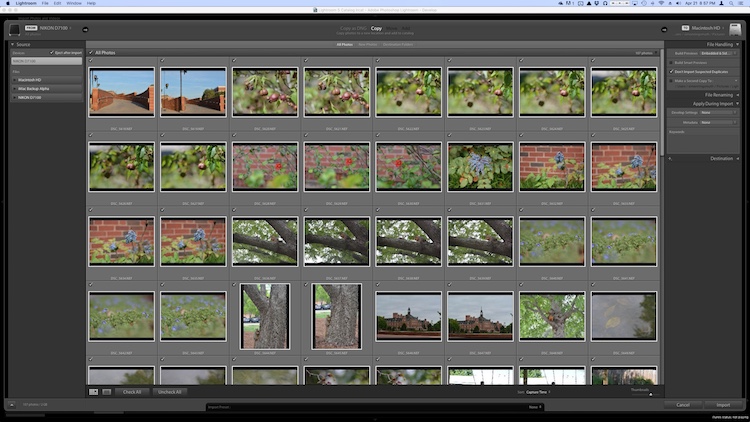
beginners-guide-lightroom-import

There are all sorts of options on this screen, but if you just want to get the basics down, here’s what you need to look at:

  1. At the top of your screen, select the option that says “Copy.” This will, as you may guess, copy the pictures over to your computer, and add them to the Lightroom catalog so you can make edits to them later.
  2. On the right-hand side you have to choose a Destination so the program knows where to put the original photos on your computer. You can select a specific destination or just let Lightroom figure this out for you. You can also do things like rename your pictures as they are imported, apply specific edits (called “Develop Settings”) to all of them, or give them keywords such as “Wedding” or “Camping.” For now don’t worry about any of this, and I promise everything will be just fine.
  3. Choose which pictures to import by making sure they have checkmarks in the top corner of each thumbnail preview. They should all be checked by default (if they aren’t just click Check All), but if there are any images you don’t want to import, you can just un-check the box next to them.

When you’re all set, click the Import button in the lower-right corner of your screen. Your computer will beep or chime when everything is done, and you’ll be ready to start editing your photos!

Organizing and Developing (Processing)

After your photos are imported things start to get really crazy, but once again just try to ignore all the new things that show up on the side of your screen, and focus on just a few of the essentials. First of all, don’t start making edits or changes to your pictures just yet.

Instead, look at the left side of your screen and find an area called “Collections.” beginners-guide-lightroom-collectionsRemember that Lightroom doesn’t actually do anything with the original pictures. When you clicked Import, it copied them over to a folder on your hard drive where they will remain, intact and untouched, until the end of time. What you can do is organize the pictures into Collections within Lightroom itself, in order to keep track of them more easily. Collections function just like playlists in iTunes or Spotify, and allow you to sort photos manually or automatically, based on how you want them to fit together. Click the + button on the right side to make a new Collection (i.e. Playlist), Smart Collection (where sorts your photos automatically based on criteria you specify) or Collection Set (a folder containing multiple Collections). Once you have a Collection created you can populate it by dragging and dropping your photos over to it, just like in iTunes. During this process the original images stay exactly where they are on your hard drive, you are just using Collections to help manage them a little easier.
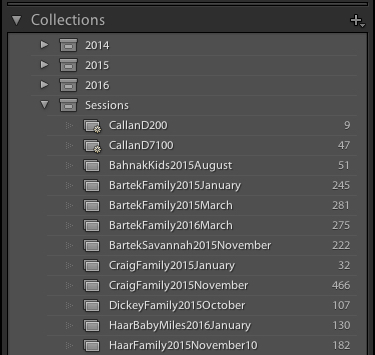
Read more on collections and organizing here: How to Organize Your Photos in Lightroom

Once you have your images sorted into Collections it’s time to start editing them. (Or you can start editing without doing any sorting at all. It’s up to you.) Click the “Develop” option in the top-right corner of your screen to begin making changes (or click D on your keyboard). At first I was put off and confused by the term Develop, but Adobe used it to hearken back to the days of darkrooms and analog film photography. (which some photographers still use even today). Before digital cameras you had to actually get your film developed before you could see your pictures, and that’s essentially what Lightroom is trying to emulate here in the Develop module. If it doesn’t make sense to you yet, just pretend it says “Edit” instead of “Develop” and you’ll be fine.
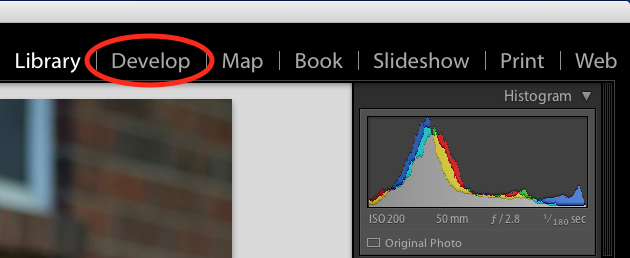
beginners-guide-lightroom-develop

You are now in the Develop module, which is one of seven different working states available inside Lightroom, the rest being: Library (which you started in), Map, Book, Slideshow, Print, and Map. I ignore all the others, and spend about 98% of my time in either Library or Develop, and as a new user I would recommend the same for you.

At first when you click on the Develop module it might not seem like anything is different, but look again and you will see that all the metadata information that was on the right-hand side of your screen has been replaced with a series of panels like Basic, Tone Curve, Lens Corrections, and more. Don’t start hyperventilating! I promise this is easier than it may seem at first. There are a metric ton of tutorials and web pages online devoted to helping you understand the Develop module, but right now I just want you to focus on two simple things: Cropping and Exposure.

One of the most basic edits many people do, is to trim them down so just the important parts are in the frame, and get rid of things along the edge like trees, trash cans, bystanders, and the like. To do this click the square icon under the colorful graph called the Histogram, (or use the keyboard shortcut R) and you will see a nifty overlay appear on your image that you can use to crop it down how you want. Also read: How Cropping in Post-Production Can Improve Composition
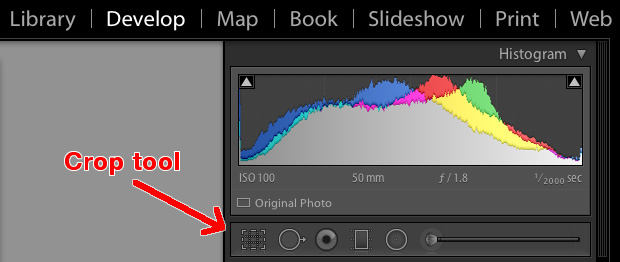
beginners-guide-lightroom-crop-tool

Use the corners of the rectangle overlay to crop your picture down so it contains only what you want, then when you are done press the [enter] or [return] key to see the results. Remember what I said earlier about Lightroom being nondestructive? It might look like you have just removed part of your photo, but the original is entirely untouched, and remains fully intact on your computer. What you are actually editing here is a placeholder – a preview of what the final image will look like – not the actual image itself. None of your edits in Lightroom are permanent, and you can reverse or undo any editing decision you make, so don’t be afraid to play around with it, kick the tires, and just start trying things even if you’re not entirely sure what the result will be.
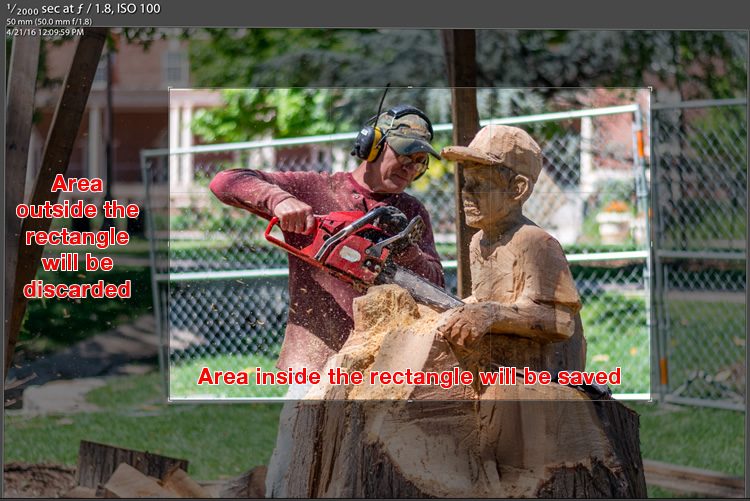
beginners-guide-lightroom-crop-tool-example

But your original file remains uncropped on your computer – Lightroom only shows how it will look if you apply this setting.

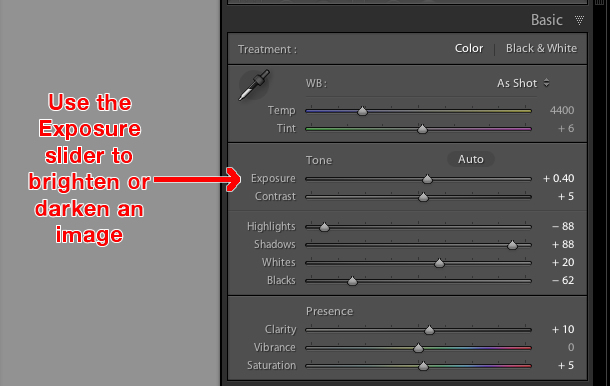
The other common edit that people make to their images is adjusting the brightness, often to fix an image that is too over or under-exposed. This can easily be done with the top panel on the right side of the Develop module, appropriately titled “Basic.” Look for the slider called “Exposure” and move it to the right or left in order to make your picture brighter or darker.
beginners-guide-lightroom-exposure-tool

Once again you will notice the changes you make reflected on the picture you see, but keep in mind you are not actually editing the original photo. Your instructions to crop, brighten, or otherwise change the picture are being stored in the Catalog file, while the original remains untouched. At this point you can go ahead and experiment with all the other options, tools, and sliders you see in the Develop module and take note of how they alter your photo. Even if you are not at all sure of what is happening just remember that Lightroom is nondestructive so you may as well play around with things to your heart’s content, since your original pictures will never be altered, and are safe.

Read more on the basic editing tools and sliders here:

  • Master These Five Lightroom Sliders and Your Photos Will Pop
  • Understanding the Basic Sliders in Adobe Camera Raw

Exporting (Save As)

Once you have made all the changes to a picture that you want, it’s time to export the final photo. This is again where the cooking analogy may come in handy, since this step is similar to putting your cake, casserole, or quiche, in the oven so it can bake. You still have the original ingredients on your counter and in your pantry, but once your timer beeps you will have an entirely new creation based on the recipe you used.

In Lightroom you edit photos instead of making pastries or pies, and the Export step is when you put them in your virtual oven to be processed. You may also think of this as opening up a document or spreadsheet, making some changes, and then choosing “Save As” instead of “Save.” This leaves the original document intact while creating a new one with your changes, much like exporting a picture in Lightroom leaves your original image as it was, and gives you a new edited version, complete with all the edits you made.

beginners-guide-lightroom-conversation

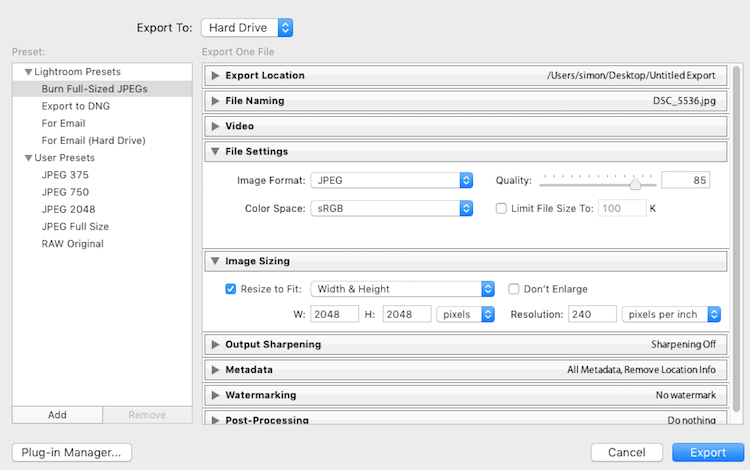
When you are ready to export a photo or multiple photos, select the ones you want while in the Library or Develop module and choose “File > Export”, which will bring up yet another confusing dialog box filled with head-spinning options and choices. Hopefully by now you are getting a little more used to this sort of thing when using Lightroom, but if not just focus on a few specific items on this screen.

On the left side you will see a few presets for exporting your photos, depending on whether you want to print them, email them, etc. You can also create your own presets for exporting, but for now don’t worry about that and just focus on a few specific settings.
Once you get the hang of the Export box you can create your own presets for saving pictures with specific parameters that you set.

Once you get the hang of the Export box you can create your own presets for saving pictures with specific parameters that you choose.

If you’re not sure which option to choose, start with “Full-Sized JPEGs” and then modify things just a bit by tweaking a couple settings (make sure Export To: is set to Hard Drive at the top of the box). Then find and adjust the following:

  • File Settings – Choose “JPEG” as the Image Format, set the quality slider to 85, and Color Space to sRGB.
  • Image Sizing – Tick off “Resize to Fit” then choose “Width & Height” and then enter 2048 in both the W (Width) and H (Height) boxes, (make sure it says “Pixels after Height, not In or Cm.). Leave the rest of the parameters alone.
  • Post-Processing – make sure After Export is set to:  Show in Finder (or Show in Windows Explorer if you use a PC).

These settings will give you pictures that are large enough to print up to about 5×7″ size, or share on social media sites, (for email use a slightly smaller size like 1200 or 800px). When you’re ready, click the “Export” button in the lower right corner and you’re all set. As long as you did the last part, Lightroom will open a Finder (or Windows Explorer) window showing you all your new images, and where they are on your harddrive. Lightroom will probably save the edited copies of your pictures to your Desktop (the default) but you can double check this using the “Export Location” option (at the top of the box) in the Export pop-up box if you want.

Read more here:

  • Organizing Images in Lightroom 5 (still applies in 6 and LR CC)
  • Photography Workflow Tips – From Memory Card to Computer and Beyond

The original photo was OK, but Lightroom helped me coax much more detail, color, and vibrance out of it.

The original photo was okay, but Lightroom helped me coax much more detail, color, and vibrance out of it.

Let’s Review

This all seems like a lot, but hopefully if you have made it this far, you now have a good understanding of a very basic Lightroom workflow. If you take away nothing else from this tutorial, remember these few precious nuggets of wisdom:

  • Lightroom does not edit your original images. They will always remain wherever you put them, and Lightroom does not change them in any way.
  • You are looking at preview versions when you are editing your photos in Lightroom, and not the actual images themselves.
  • A complete record of edits to your photos is kept in a database called the Catalog. Think of this like a recipe book, where you have instructions for how to cook your images, but you are not altering the original ingredients in the kitchen.
  • The editing process is not complete until you Export your images, which saves a new copy of your photos, complete with the changes you made in Lightroom.

I hope this Beginner’s Guide to Lightroom was helpful. Please leave any thoughts or questions in the comments section below. Good luck, and feel free to share some of your favorite images that you have edited in Lightroom too!

googletag.cmd.push(function() {
tablet_slots.push( googletag.defineSlot( “/1005424/_dPSv4_tab-all-article-bottom_(300×250)”, [300, 250], “pb-ad-78623” ).addService( googletag.pubads() ) ); } );

googletag.cmd.push(function() {
mobile_slots.push( googletag.defineSlot( “/1005424/_dPSv4_mob-all-article-bottom_(300×250)”, [300, 250], “pb-ad-78158” ).addService( googletag.pubads() ) ); } );

The post Total Beginner’s Guide to Lightroom – Step by Step by Simon Ringsmuth appeared first on Digital Photography School.


Digital Photography School

 
Comments Off on Total Beginner’s Guide to Lightroom – Step by Step

Posted in Photography


India says no to Google Street View, citing security concerns

13 Jun
Launched in 2007, Google’s Street View service uses imagery captured by cameras mounted on cars, backpacks, bicycles and snowmobiles. Today, the service covers locations all over the globe.

Indian officials have told the BBC that the country has rejected Google’s plans to image its towns and cities as part of its expanding Street View service. Citing security concerns around ‘sensitive defense installations,’ officials point out that planning for the 2008 Mumbai attacks was believed to have involved photographic reconnaissance. As such, the country believes, Street View could compromise national security.

This isn’t the first time that Google’s Street View service has attracted concerns. Several countries have at one time or other raised privacy and security worries. The Czech government has banned the company from taking any new imagery (current Street View images of Prague are frozen at 2014), and in 2010, almost 250,000 Germans requested that Google blur images of their homes.

Articles: Digital Photography Review (dpreview.com)

 
Comments Off on India says no to Google Street View, citing security concerns

Posted in Uncategorized


IKEA Indoor Gardens Produce Food Year-Round for Homes & Restaurants

13 Jun

[ By WebUrbanist in Design & Fixtures & Interiors. ]

ikea home garden

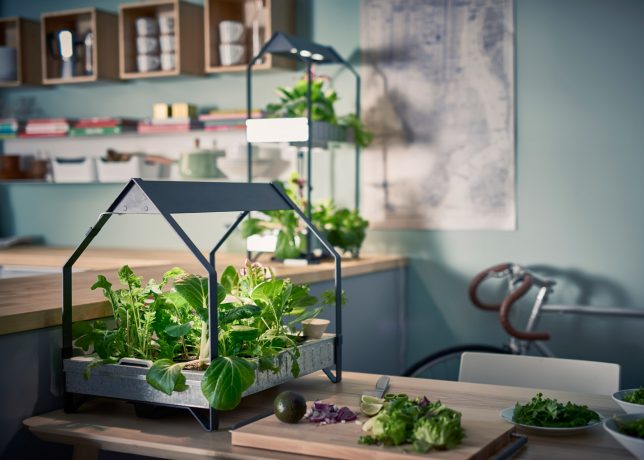
IKEA recently launched a hydroponic gardening system to allow people to grow fresh produce at home (without soil or sunlight) and has just unveiled a similar system under development that is aimed at helping restaurants raise ingredients in-house.

ikea home grown

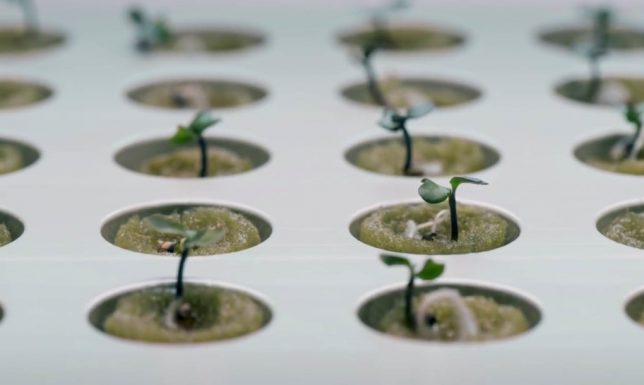
The KRYDDA/VÄXER hydroponic garden lets sprout seeds without soil using absorbent foam plugs that keep plants moist (without over-watering, thanks to a built-in sensor). Germinated seeds can then be transferred to pots fitted into a growing tray featuring a solar lamp. The system is designed to be easy to use for even inexpert gardeners.

ikea seeds

Meanwhile, in another bit to expand their sustainability model beyond furniture, furnishings and fixtures, IKEA has teamed up with Space10 to create The Farm, an aquaponic garden system for restaurants. A prototype is live and working the basement of Space10’s office in Copenhagen, and the two companies are planning to develop the system further for mass production and commercial deployment.

the farm ikea

Few customers realize that IKEA is actually already one of the largest restaurant chains in the world, selling over a billion Euros of food annually. It is well-positioned to push for changes in the food supply chain (photos by Kristine Lofgren for Inhabitat).

the farm meal

The Farm prototype can even create a complete burger (of sorts) on site, specifically: a “bugburger” made of mealworm, beetroot and gluten and top with freshly-grown herbs and lettuce. Aside from this particular (and peculiar) delicacy, however, the design is aimed at bringing as much of the food production process in-house, similar to a recent system developed in Germany allowing grocers to raise and sell their own fresh produce.

the farm fresh

ikea fresh food

On multiple fronts, IKEA is changing the face of the farm-to-table movement, operating in parallel to larger urban vertical farming systems to generate products that are cheap and accessible, making gardening something that any city dweller or restaurant owner can dig into.

Share on Facebook


[ By WebUrbanist in Design & Fixtures & Interiors. ]

[ WebUrbanist | Archives | Galleries | Privacy | TOS ]


WebUrbanist

 
Comments Off on IKEA Indoor Gardens Produce Food Year-Round for Homes & Restaurants

Posted in Creativity


Road tripping through New South Wales, Australia

13 Jun

$ (document).ready(function() { SampleGalleryV2({“containerId”:”embeddedSampleGallery_1954449661″,”galleryId”:”1954449661″,”isEmbeddedWidget”:true,”standalone”:false,”selectedImageIndex”:0,”startInCommentsView”:false,”isMobile”:false}) });

Photographer Jason Futrill has already spent three months of this year exploring Australia for various tourism marketing campaigns and social media channels. Based in Tasmania, Jason recently completed an eight-day road-trip from Sydney down to Bermagui, along the Sapphire Coast of New South Wales.

Futrill’s trip took him to Narooma, where he photographed the famous Camel Rock, and to the distinctive Sea Cliff Bridge which connects the coastline between Coledale and Coalcliff, north of Wollongong. The trip culminated back in Sydney, just in time for the annual light festival, ‘Vivid Sydney.’ After looking at his photographs, we’re itching to recreate the trip…

Articles: Digital Photography Review (dpreview.com)

 
Comments Off on Road tripping through New South Wales, Australia

Posted in Uncategorized


White Water Roofing: Wild Water Tanks Top Cool Punjabi Homes

12 Jun

[ By Steve in Art & Sculpture & Craft. ]

punjab_water_tanks_1a
Out to impress the neighbors in Punjab, India? Try topping your humble abode with a cool water tank rendered as a jet, blossom, or bodybuilder.

punjab_water_tanks_1b

Keeping up with the Joneses (or their Punjabi equivalent) just got a lot tougher thanks to Santokh Singh Uppal, a successful entrepreneur who, in 1959 and at the age of 17, left his native village of Uppal Bhupa to make his fortune in the United Kingdom. “To me,” explained Santokh, “this Air India plane symbolizes the hopes and dreams of all those enterprising Punjab residents for whom going abroad is like the first step towards shaping their destiny.” Ajay Verma snapped the above shots of Santokh’s house-topper, completed in 2004 after five years of construction.

Leaving On A Jet Plane

punjab_water_tanks_2a

punjab_water_tanks_2c

punjab_water_tanks_2b

More than a few Punjabis share Santokh’s sentiments and show it by mounting similarly artistic water tanks on the roofs of their homes. Most of these home-owners are NRIs – Non-Resident Indians – who have achieved success abroad yet still maintain their home base in their homeland. Mounting a decorative water tank symbolic of their personal odyssey, main interest or both serves to signal their family’s prosperity while spurring their village neighbors to top – no pun intended – their folk art braggadocio.

Tanks For The Memories

punjab_water_tanks_3b

punjab_water_tanks_3a

punjab_water_tanks_3c

When, where and how did this weird water tank oneupmanship get started? “In Nawanshahr,” states photographer Rajesh Vora, “the proud owner of a restaurant in New Zealand celebrated his success as a chef with a pressure cooker-shaped water tank back home. Soon, villagers in neighboring villages started to copy it.” Not everyone is a successful restaurant owner, however, nor is constructing a rooftop water tank an endeavor anyone can engage in. True to their entrepreneurial spirit, enterprising Punjabis have opened off-the-rack water tank shops and will perform custom on-site installations upon request.

Next Page – Click Below to Read More:
White Water Roofing Wild Water Tanks Top Cool Punjabi Homes

Share on Facebook


[ By Steve in Art & Sculpture & Craft. ]

[ WebUrbanist | Archives | Galleries | Privacy | TOS ]


WebUrbanist

 
Comments Off on White Water Roofing: Wild Water Tanks Top Cool Punjabi Homes

Posted in Creativity


Review of the MindShift BackLight 26L Backpack

12 Jun

PWC-Mindshift-Backlight-26-5844It sounded like another gimmick but I’ll give you the short of it: The MindShift Gear BackLight 26L works as a backpack that can rotate around your body, and give access to all your gear without getting muddy on the trail.

Mindshift has tried the rotating thing before (see my previous review of the Rotation 180 here on DPS) and this time they are trying to make the entire pack come all the way around your body for easy access. Sounds incredible, doesn’t it? Let me show you how it works, and some aspects that need attention.

An overview

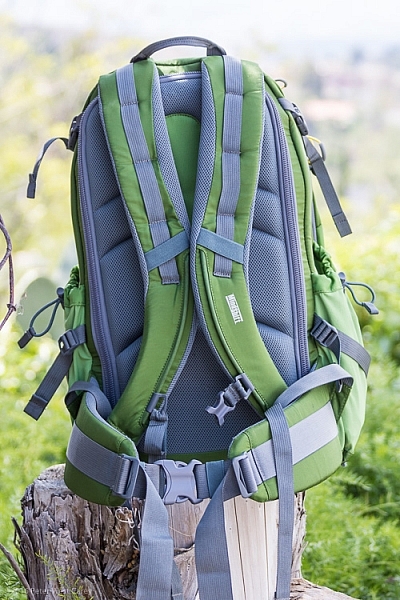
The pack looks normal enough; side compression straps, just enough padding on the hip belt, zippers here and there, and good back support.

PWC-Mindshift-Backlight-26-5856

PWC-Mindshift-Backlight-26-5847

PWC-Mindshift-Backlight-26-5845

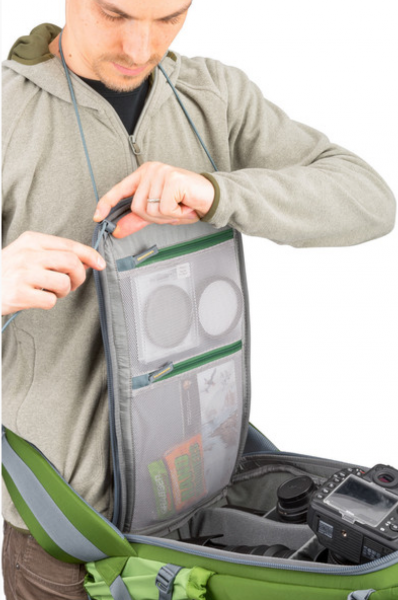
It has loops on the back for securing ice axes, trekking poles, and other miscellaneous whatnot. Inside the main compartment on the back is space for a laptop, a tablet, and even a book. Just not a thick book. There is an organizer for pens, cards, and the top section has a small pocket with a hook for car keys. Kind of the normal items we expect from a photography backpack.

PWC-Mindshift-Backlight-26-5850

But there is one key difference in the shoulder straps. They are attached, and cut in such a way, to enable full removal with the hip belt still attached. The pack is then rotated around so you can access all your goodies inside the camera compartment. You can see how it works in the sequence of photos below.

PWC-Mindshift-Backlight-26-5861 PWC-Mindshift-Backlight-26-5862

PWC-Mindshift-Backlight-26-5863

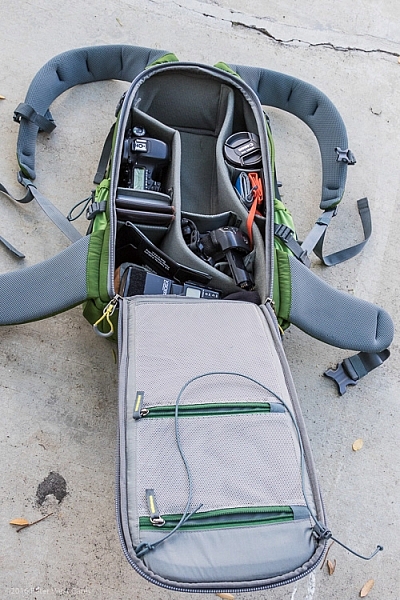
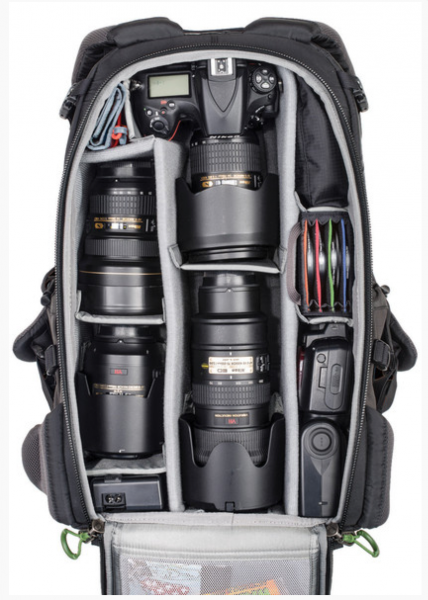
Inside you can store a fully gripped DSLR and big old 70-200mm lens. You will need to modify the highly customizable storage space, but as you can see, not only will the camera and lens fit, but there is room for a second body, secondary lens, all kinds of filters, batteries, flash, cards and even a hat.

PWC-Mindshift-Backlight-26-5867

My personal configuration above is meant for a DSLR with a grip. The standard images below from Mindshift are without a grip on the camera. You can technically fit the gripped camera upright, bit it will poke into your back a little.

Mindshift-Backlight26-22 Mindshift-Backlight26-21

The main flap has a loop on it, that I think is a little goofy, but I see why they added it. It is meant to go around your neck to hold the flap up and out of the way, as seen here.

Mindshift-Backlight26-20

Great in concept, but I found it annoying in practice.

What About the Other Features?

Some features I like on the pack:

  • Just the right amount of space for two DSLR bodies and my gear (as seen in the photos above).
  • Organizer inside has room for what I need: iPad, pens, business cards, note pad, dental floss.
  • Comes with a rain cover.
  • Ample attachment points.
  • Hipbelt is easy to adjust.
  • Deep water bottle holders.
  • Seven months of constant use shows little wear and tear. Zippers are great.
  • Fits under a typical airplane seat. Great for taking aerial shots on commercial flights.
  • The sternum strap goes low enough! This is a big one for me. It’s been a bane of most bags that for a taller torso, the sternum strap rides too high, sometimes at my neck. This strap goes extra low, or as I like to call it, just right.
PWC-Mindshift-Backlight-26-5849 PWC-Mindshift-Backlight-26-5859

Then there are some things I can see that need improving:

  • Just not enough space for a sandwich. Makes a day hike harder, as bananas and other squishables don’t work as well.
  • To get into the main back compartment fully, the compression straps need to be removed. Minor annoyance.
  • That neck loop thing used when opening the pack? It often sticks out and gets in the way of the zipper.
  • My wife doesn’t like the color, but I do (it also comes in charcoal, which hides even more dirt and use).
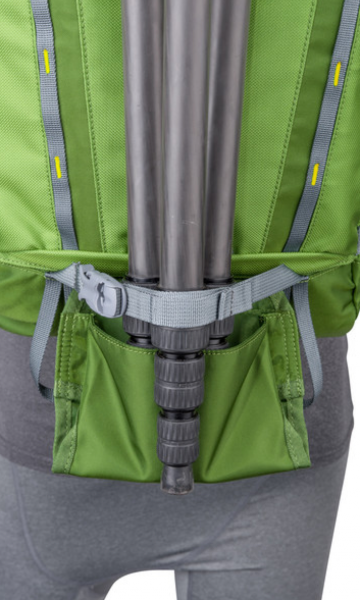
  • There is a mount for a tripod, but it hangs below the bottom of the pack. So it works (and is great how it hides away on the top and bottom of the pack) but it means you can’t easily set your pack down.

PWC-Mindshift-Backlight-26-5852

Mindshift-Backlight26-23

Testing it in real life

This has been my travel, and around town pack for the last seven months. This is why the pack you see in the photos here looks a little worked in. I’m trying to give more of my review items a solid, semi-lengthy test. How better to tell how a pack rides on your back than to wear it 50+ times?

One of my gripes with the pack is the overall amount of usable space inside. When I place my iPad in the sleeve, I can’t imagine fitting an actual laptop behind it. Even sliding in a legal pad of paper takes some pushing. I think it’s built for one or the other. A thin laptop could work, I suppose.

The same goes for fitting in a couple smaller books. Fitting one book in the very back pocket works just fine, but when I try to place a second book inside, I have to wiggle it in. This isn’t the end of the world, by any means, and it does keep the unit nice and compact for fitting under a plane seat. It’s something to be aware of if you normally carry lots of planners, books, and bulkier items.

Now then, about that spinning around thing this pack is built for.

PWC-Mindshift-Backlight-26-5863

I know, it looks goofy that way, but once you get accustomed to NOT taking off the hip belt to get to your stuff, the system works quite well. NOTE: If the pack is filled with lots of heavy glass, as in the stock photos above, it will tip far forward and feel odd in the wrong places for some of us.

I’ve mentioned in other reviews that I often travel with my family, and they are prone to leaving me behind when I stop to take a photo. This pack has seen me be left in the dust far less. Its ease of swinging around and getting into the pack, has me taking more shots than I would with a pack that I have to fully remove for my camera.

When swinging the pack to return to my back, I find my shirt tends to bunch up, but that’s a minor thing. On the dusty and wet hikes I have been on, I have greatly appreciated this pack’s ability to stay off the elements and keep my gear clean. It comes with a rain cover that does not need to be removed to get to your camera. Bonus!

I like the way the pack rides for my height (6’1″ or 1.8m). I also appreciate the dual water bottle holders of ample size, so an extra large bottle does not tip out easily.

PWC-Mindshift-Backlight-26-5860

Conclusion

I wouldn’t have kept testing the MindShift Gear BackLight 26L backpack for months on end if I didn’t like it. It’s a great size for two cameras and the essentials, while allowing me to carry the basics of my mobile office.

It’s not perfect for a day hike, in my opinion, because there isn’t enough space in the back to pack things like apples, bananas, or sandwiches, without them getting a little scrunched. If I don’t fill the main camera area with gear, I can fit food in there. So it can get the job done if you have space. There is space on the top for keys, headphones, and charging cables, which makes them easy to get to on a plane when the bag is under a seat.

The bag retails for $ 249.99 in the US and can be found on Amazon.

googletag.cmd.push(function() {
tablet_slots.push( googletag.defineSlot( “/1005424/_dPSv4_tab-all-article-bottom_(300×250)”, [300, 250], “pb-ad-78623” ).addService( googletag.pubads() ) ); } );

googletag.cmd.push(function() {
mobile_slots.push( googletag.defineSlot( “/1005424/_dPSv4_mob-all-article-bottom_(300×250)”, [300, 250], “pb-ad-78158” ).addService( googletag.pubads() ) ); } );

The post Review of the MindShift BackLight 26L Backpack by Peter West Carey appeared first on Digital Photography School.


Digital Photography School

 
Comments Off on Review of the MindShift BackLight 26L Backpack

Posted in Photography