RSS
 

Archive for May, 2016

We Are Not Amused: 15 Creepy Abandoned Theme Parks

30 May

abandoned-theme-park-1a
Once delightful domains of sight and sound, these creepy abandoned theme parks now moulder away in silence attended only by shadows and memories.

abandoned-theme-park-1b

What a dump… er, no, not this charmingly manicured abominable snowman in particular but the entire abandoned Miracle Strip Amusement Park in Panama City Beach, Florida.

abandoned-theme-park-1c

abandoned-theme-park-1d

The park closed in 2004 and “enjoyed” a whole half-decade of unhindered deterioration until the site was finally demolished in 2009, as disturbingly documented by Flickr user Steve Sobczuk. You’ve gotta admit, the Dante’s Inferno ride never looked spookier than it did in its dying days.

No Hue

abandoned-theme-park-2a

abandoned-theme-park-2b

abandoned-theme-park-2c

Ho Thuy Tien is an abandoned water park and aquarium located in Huong Thuy, a district of Hue, Vietnam. Urbex explorers like Courtney Lambert of A Great Perhaps had best navigate those slimy water slides with care – the park’s aquarium once housed a trio of very hungry crocodiles who were abandoned along with the rest of the park in 2013. Fear not, animal lovers: thanks to Lambert alerting PETA and the WWF, the crocs were moved to a wildlife park in northern Vietnam.

Petrified

abandoned-theme-park-3d

abandoned-theme-park-3c

abandoned-theme-park-3b

Prehistoric Forest Amusement Park in Michigan’s otherwise pleasant Irish Hills opened in 1963 but by the 1980’s, changing trends in recreation and tourism saw visitors and revenues enter an irreversible slide. We’d like to say an asteroid gave the struggling tourist trap its death blow but the truth is far less dramatic – the park was sold by its original owners in 1997 and closed for good in 1999.

abandoned-theme-park-3e

abandoned-theme-park-3g

abandoned-theme-park-3f

In Prehistoric Forest Amusement Park’s heyday, as many as 70 fiberglass statues of dinosaurs, mammoths and the odd Neanderthal Man (kidnapped by students in 1985 and deposited in front of Saline High School) dotted the park’s forested grounds. A few still stand today; most have been damaged or destroyed by vandals. Kudos to KE Photography & Video (whose video of the abandoned park in winter can be viewed here) and Flickr user Wolly Shambler for capturing and posting the images above.

Darkest & Disturbingest Africa

abandoned-theme-park-5b

abandoned-theme-park-5a

The former Umoja Children’s Park is located in Chake-Chake, a town on the Tanzanian island of Pemba, just north of Zanzibar in the Indian Ocean. If the eerie, rusty caterpillar ride looks familiar, it’s the same kind of “Happy Worm” kiddy ride as one reputed to be in the infamous Pripyat amusement park near Chernobyl, Ukraine. You know the one… THIS one:

abandoned-theme-park-16

Joyless

abandoned-theme-park-6a

abandoned-theme-park-6b

One of six Joylands in the USA, the former Joyland Amusement Park in Wichita, Kansas, operated from June 12th, 1949 through 2004, and then again for a short time under new ownership in 2006. The park suffered extensive vandalism during almost a decade of neglected abandonment, a sad fact reflected in the images above.

abandoned-theme-park-6c

abandoned-theme-park-6d

By the summer of 2015, the park’s last remnants (the roller coaster, to be exact) had been dismantled and the site bulldozed flat as the Kansas prairie. Flickr user Krisi Metzen snapped these scenes of a joyless Joyland in October of 2013.


WebUrbanist

 
Comments Off on We Are Not Amused: 15 Creepy Abandoned Theme Parks

Posted in Creativity


Pier Park: Undulating Landscape to Hover Over Hudson River in NYC

30 May

nyc floating park

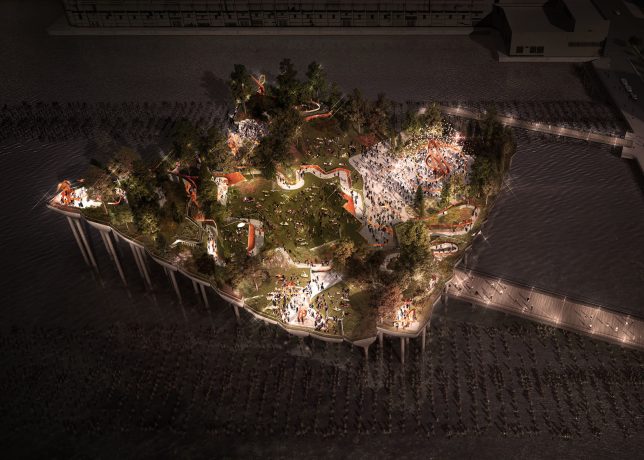
Following the success of the hovering High Line, an elevated park set on re-purposed rail tracks, New York City aims to pull off another park space in an unused space, this time at Pier 55 floating along the waterfront near the Chelsea endpoint of the High Line.

pier park

pier gardens

Designed by British architect Thomas Heatherwick, also behind a garden bridge project for London, the park will be supported on pier-like columns that branch out to hold up the green space above. This new park is as spread out and open as the High Line is linear and streamline, also offering experiences at different elevations compared to its relatively flat cousin.

pier wandering

pier pressure

“The pier will be a place of discovery, where visitors can wander and wonder, finding something new around every corner: places to lounge, eat lunch, or just lie in the grass,” said Heatherwick Studio. With its open spaces and various levels, the park is well-suited to hosting events and performances in the open air.

pier deck

pier space

pier side

The project is being funded by Barry Diller and Diane Von Furstenberg, who have pledged personal money and set up a non-profit to fund it. After a series of lawsuits and delays, the architects have now been given the go-ahead by the US Army Corps of Engineers and Hudson River Park Trust.


WebUrbanist

 
Comments Off on Pier Park: Undulating Landscape to Hover Over Hudson River in NYC

Posted in Creativity


5 Tips to Improve Your Background and Make the Subject Stand Out More

30 May

If you are looking for a quick, simple, hassle-free way to make your images pop more and stand out, this is the article for you!

You don’t have to be a Photoshop genius – in fact, this may help you spend less time in Photoshop. These simple tips can elevate the photos you take. If there was one element in many images I see that could greatly improve it, it would have to be this: backgrounds. An ugly or distracting background can easily reduce the impact of even the best subjects. A clean, un-distracting background will help improve your images and make your subjects stand out even more. The best past is, you wont even have to spend a cent to do this.

Even though the background here works quite well with the subjects, using a wider aperture has ensured that the subjects do not get lost, but stand out. © Daniel Smith / Getty Images.

Even though the background here works quite well with the subjects, using a wider aperture has ensured that the subjects do not get lost, but stand out. © Daniel Smith / Getty Images.

All too often we overlook the background and what is in it. You swear that those power lines weren’t in the viewfinder when you took that picture, and that post, where did that post come from?! That surely wasn’t protruding from your partner’s head when you clicked the shutter button. This occurs for a number of reasons:

  • You’re too focussed on the subject alone that it’s almost like you have blinders on and the subject is all you can see.
  • You may get too obsessed with the camera settings and making sure you nail the photo that you miss all those little annoying things that pop in to the frame.
  • Or you are simply unaware of the importance that a good background can make.

So how can you improve your backgrounds, or at the very least, reduce the negative impact they can have on your images? By following these simple strategies, you’ll be well on your way to a better background and improving your images.

#1 – Location, Location, Location

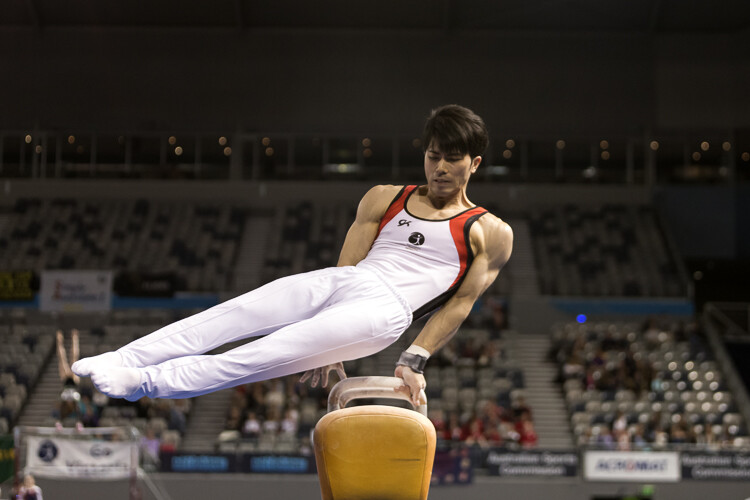
If you have the option, do try and choose a location that has a nice background – that will make it as easy as it can get. What defines a nice background will depend on your subject, but as a very general guide, look for a spot that has a uniform look to it. Brick walls, corrugated iron roller doors, metal cladding on walls, or even something as simple as a painted white wall, can all make for a nice clean background. Ultimately, what you are not looking for is something that has a lot of other elements in the frame, that do not add to your subject.

If you cannot find a location that has a clean background, looking for somewhere where the background complements – or works with – your subject will also work, too. An example of this would be with sport photography. You simply cannot decide where the game will be played, so you have to work with what you have. In this situation, think about what would look good as a background. Would a stand full of supporters look better than a car park full of cars or a building site? I think it would. The stand full of supports, while not clean, works with your subjects and in fact, has more impact as the supporters add a nice element of atmosphere to the image.

Cluttered BG 1

Even though this image has the stadium in the background, it is a little cluttered. The seats are mostly empty, so it’s not really portraying any sense of atmosphere in the sport.

Clean BG 5

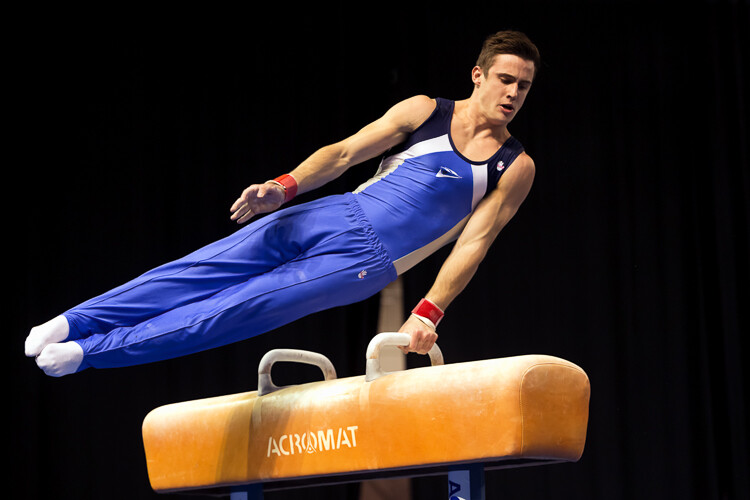
By changing my position, I was able to use a the large black cloth in the background to make the athlete stand out much more. Nothing more than moving was required; much easier.

Here, the backgrounds in these two images are quite plane. They help make the subjects the heroes of the images, as there is nothing else to compete with them.

With this image, the stands in the background have much more people in them. This works nicely to complement the subjects which, in this case, are the players. © Daniel Smith / Getty Images.

While this is a nice action frame, the background is not that fantastic. It’s in between areas of the different stands at this venue. It would look much better if it were against the full stadium, as in the previous image. © Daniel Smith / Getty Images.

You’ve found your location, but a clean background just cannot be had. What do you do?

#2 – It’s All About Perspective

A good backgrounds can be anywhere, and it can change quite a lot depending on the angle at which you photograph your subject. You may be in a very busy space, but within that space will exist areas of calm and peace. By this I mean that your backgrounds can be clean; even when it just looks cluttered in all directions.

When this happens, consider photographing from a different perspective. Photographing your subject from down low will make the sky your background. Conversely, if you’re looking down on your subject, whatever is below them will be the background. So if you cannot find an ideal background, don’t forget to look up and down – that’s where the best one may be hiding.

Relevant BG 1

This rower was photographed from a bridge, making the water the background. in this case, the background works quite well with the subject.

Clean BG 7

This time, I was photographing this plane landing. This meant that I would be looking up, and the sky became the background here. The complementary colour set of the blue sky and yellow light on the plane also help to make the subject stand out more.

You may have the best background sorted. But it’s not always possible to be lucky enough to have that perfect background all the time. So what else can you do to help your subject?

#3 – Camera Craft

There will be times – more often than not – where you simply cannot win with your background. No matter which way you stand, you just can’t seem to find a nice clean backdrop. What now? Here’s where a little camera craft comes in to play and you have a couple of tricks up your sleeve with this.

First point of call is aperture. You know that you can simply open your aperture up a little more, and give that background some nice bokeh (or blur) to reduce its impact. Even when you do have a nice complementary background, it’s still a good idea to use a wider aperture to blur it out a bit and make your subject stand out against it more.

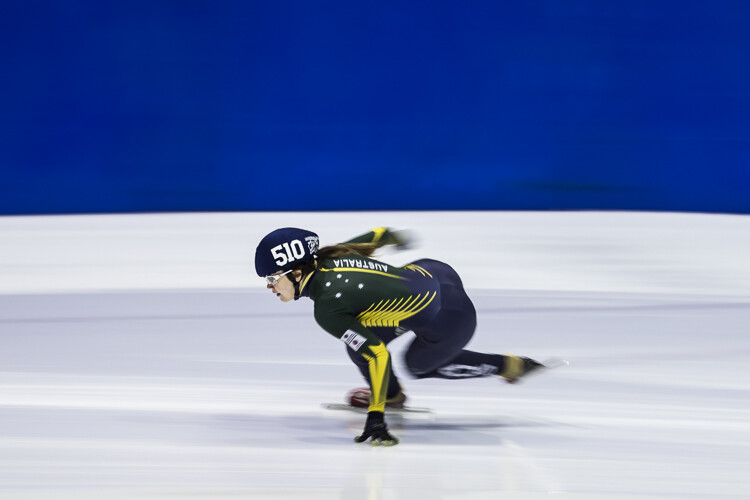
What if you can’t open your aperture any further, though? There’s still hope. Our next strategy is to play with shutter speed and use a panning technique. This can help greatly in rendering a busy background into a nice blurry mess. It also helps to add a great sense of movement and action, as well as give a sense of excitement to an image. If you’re unsure about how to do panning, have a read of this article – it will help greatly. But in a nutshell, panning is the technique of using a slower shutter speed (usually around 1/60th or slower) while tracking a moving subject. The combination of a slow shutter speed, coupled with the panning action, will result in a nice motion blur affecting the background, and if done correctly, the subject will remain sharp.

Cluttered BG 2

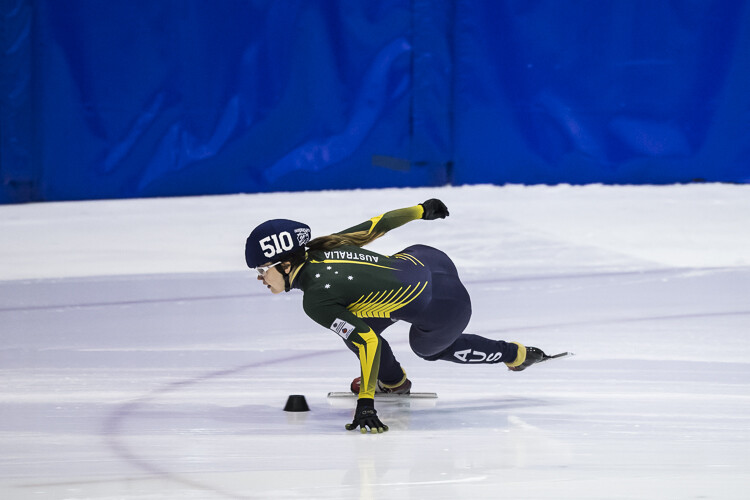
This background is clean; there are no real distractions in it, but it could be improved upon.

Clean BG 6

Here’s a different frame but this time, a panning technique has been used to remove all the creases in the blue backdrop. This has made the background cleaner again, and the added motion blur gives a sense of speed which works well with the subject.

Clean BG 8

The use of a wide aperture here has dramatically blurred out the background making it much cleaner. The result is that the subject stands out much more. © Daniel Smith / Getty Images.

#4 – Can You See the Light?

Something that seems to always be overlooked in photography is light. This seems to me like quite a remarkable thing since without light, we don’t have much of a photo. But using light, and the contrast it can provide, is another way to reduce the appearance of a distracting background. With this strategy you need to look for a higher amount of contrast between your subject and the background; that is, you’re subject is (ideally) brighter than the background. By exposing for your subject (the brightest area) you effectively make shadowed areas in the frame darker, thereby affecting your background. This can be achieved with both natural light and flash.

Contrast1

In this image, the flower was in the daylight; whereas the background was in the shade. I exposed for the flower and this made the background darker.

Again, the background here is much darker than the subject; helping to isolate the subject more. © Daniel Smith / Getty Images.

Again, the background here is much darker than the subject; helping to isolate the subject more. © Daniel Smith / Getty Images.

Clean BG 2 Clean BG 1

These photographs were taken in an undercover car park. I used two flashes (both off-camera) as my only light source. This removed any ambient light affecting the image.

#5 – The Final Stop

You’ve done what you can with the background. You’ve tried everything, but your background still doesn’t want to play ball. There will be times when you simply cannot control any of the aspects that have been mentioned. Don’t worry – it isn’t uncommon. Now all you can do is hope that there is something that can be done later, and there is!

If you’ve done everything you can to help improve your background and you’re still not winning, the last port of call is post-processing. You may be thinking, “Hold on, I’m not that great with selecting and masking in Photoshop yet.” but you needn’t worry. There is no selecting or masking with this one. (As a side note, if you intend on making a selection around your subject and replacing the background, you will need to photograph your subject accordingly to make this much easier and more natural).

All you need do is crop your image. That’s it. Cropping is about all you can do now. By cropping, you are effectively removing as much of the background as possible without cropping into your subject. Don’t worry about how much you are cropping out – unless of course you intend on doing a large print. You’d be surprised at how much many photographers are willing to crop.

Do you have any other tips for making the subject stand out, or improving the background? Please share your thoughts and images in the comments below.

googletag.cmd.push(function() {
tablet_slots.push( googletag.defineSlot( “/1005424/_dPSv4_tab-all-article-bottom_(300×250)”, [300, 250], “pb-ad-78623” ).addService( googletag.pubads() ) ); } );

googletag.cmd.push(function() {
mobile_slots.push( googletag.defineSlot( “/1005424/_dPSv4_mob-all-article-bottom_(300×250)”, [300, 250], “pb-ad-78158” ).addService( googletag.pubads() ) ); } );

The post 5 Tips to Improve Your Background and Make the Subject Stand Out More by Daniel Smith appeared first on Digital Photography School.


Digital Photography School

 
Comments Off on 5 Tips to Improve Your Background and Make the Subject Stand Out More

Posted in Photography


Fast Glass: Tips for Working With Wide Aperture Lenses

29 May

As photographers, many of us become infatuated with new gear, such as a new flash, tripod, or lens. We scrimp and save our money, and go off to the camera store to purchase that new lens we’ve had our eye on, most times satisfied with whatever new piece of kit has found its way into our bag. Sometimes, though, it happens that for some reason that new gear we’ve spent our hard-earned money on doesn’t live up to our expectations.

Shallow depth of field

Fast lenses enable the photographer to use shallow depth of field creatively. A 24mm f/1.4 lens, shot at f/1.4 was used for this image.

It may be that it was overhyped, or it doesn’t suit your workflow. There are occasions, however, when a piece of gear has a learning curve attached to it that needs to be solved before you can fully enjoy it. One such item that seems to have that learning curve attached, is a fast lens (one with large maximum aperture).

At some point, we all begin dreaming of fast (large aperture) lenses. For the purpose of this article, I’m going to define fast lenses as ones with maximum apertures wider than f/4.

Fast lenses are great for a lot of things, shooting in low light being one of the major advantages, because the wider aperture allows more light into the imaging sensor, which in turn allows you to use a faster shutter speed. This is why lenses like the 70-200mm f/2.8 are such a workhorse in a photojournalist’s camera bag. Another advantage to the wider aperture is the ability to create shallow depth of field in your image, which can make your subject really stand out from the background. The 85mm f/1.4 is one of my go-to lenses for almost any portrait situation for just that ability.

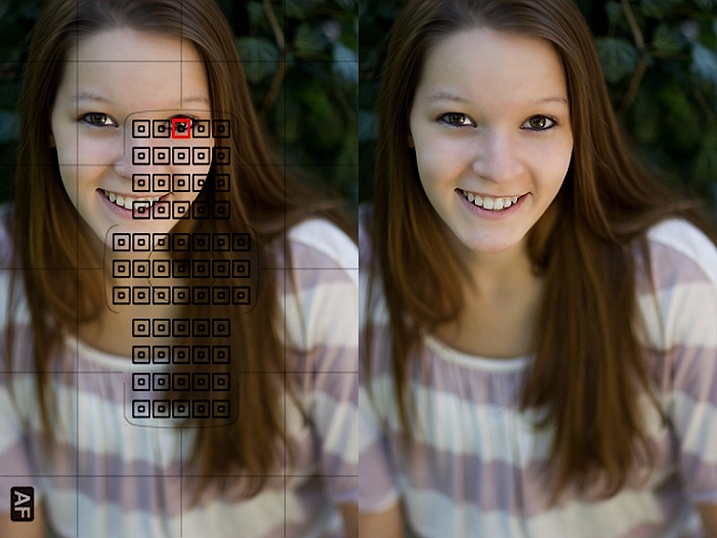
Focus on the eye

When photographing portraits, focusing on the closest eye is ideal when using shallow depth of field.

That all sounds great, right? But it’s that last point regarding shallow depth of field which seems to create the biggest problems for most photographers, who are new to using a fast lens. I often hear of photographers complaining about a lack of sharpness in their lenses, and more often than not, the issue crops up when the photographer is using a fast lens.

It may be a portrait photographer trying to use an 85mm f/1.8 wide open, or someone doing street photography with a 35mm f/1.4, and for some reason there’s a lack of sharpness to the image that will invariably be blamed on the lens. In my 20 years in photography, I’ve owned and worked with a lot of gear – 0ver a dozen different camera bodies, and several dozen lenses I’ve used at one point or another. I can honestly say that I have never once had one come straight out of the box brand new, and not be in perfect working order, so treat that option (that the lens is faulty) as a last resort for now.

Understanding Depth of Field

In addition to their low light capabilities, many photographers purchase fast lenses simply because of the ability to shoot with a shallow depth of field. When used creatively, a lens with a large aperture used wide open, allows you to be very selective in what you show the viewer, and what you hide in soft out of focus areas, known as bokeh.

However, it’s very important to understand that depth of field works differently dependent on the lens you are using. For instance, a lens such as the Nikon 85mm f/1.4 will have paper thin depth of field when used at f/1.4, at close distances to the subject. As the subject moves further away from the camera, that depth of field becomes a little greater. But at the minimum focusing distance, you could focus on an eyelash on your subject, and still have the eyeball be out of focus, despite the fact it’s only half an inch behind the eyelash. Assuming you don’t want to back up and change the framing on your subject, the best way to ensure sharp focus on the eye, is to choose a focus point on the eye and be careful it does not accidentally focus on an eyelash.

If you are willing to sacrifice a bit of that shallow depth of field, simply stop down a bit to give yourself some leeway on where you focus. While at f/1.4 or f/1.8 you may not be able to get both the eyelash and the eye in focus, but at f/2.2 or f/2.8, you’ll likely have enough depth of field to achieve sharp focus on both.

hyperfocal distance

Using a 24mm f/1.4 lens wide open, setting the focus distance to the hyperfocal distance, allows you to get greater depth of field even when photographing wide open.

Even on wide angle lenses, such as a 24mm f/1.4 or 35mm f/1.4, which have inherently (seemingly) greater depth of field due to the nature of wide angle lenses, you’ll still notice some issues arising due to the use of a wide open aperture. If you can step back from the subject, you can increase the perceived depth of field since you’ll be focusing further away. You can calculate how far away you need to be by using a hyperfocal distance calculator.

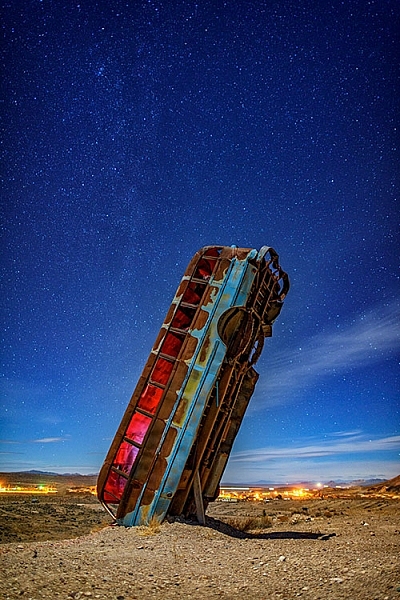
The hyperfocal distance is the closest distance at which a lens can be focused, while still keeping objects at infinity acceptably sharp. In the shot of the upended bus at night, knowing the bus was about 30 feet away, I calculated the near limit of focus for the lens I was using at about 18 feet and the far limit was 91 feet, meaning anything past that distance would still be out of focus at f/1.4. By focusing at the hyperfocal distance of 44 feet, I knew the bus would fall into the area of sharp focus, while still keeping the stars in sharp focus. This is true because the hyperfocal distance is where everything from that distance to infinity falls within your depth of field, and everything from the hyperfocal distance to the point halfway between the camera and that distance, also falls within your depth of field.

Unfortunately, it’s not always possible to focus at the hyperfocal distance. For instance, photographing at a party in a dimly lit room, you may notice some areas out of focus due to the shallow depth of field. The fix here is to  stop down a bit if you can. If you need more light, consider using a flash if appropriate, and stopping down the lens to give greater depth of field. Another option is to raise the ISO a bit to allow you to stop down the aperture more.

You may find yourself saying, “I didn’t purchase a fast lens to use it at a smaller aperture!” While that may be true, if you find yourself unable to capture sharp images due to the shallow depth of field, stopping down is the best solution. Please keep in mind, I’m not talking about a lens that just isn’t sharp. I’m talking about a lens that, due to its fast aperture, isn’t capable of capturing the depth of field needed to keep everything that you want sharp in focus.

Choosing Your Focus Point

choose a focus point

When it is critical to focus on a specific area in the image, choosing the correct focus point will ensure sharp focus where you want it, even when using a wide aperture with shallow depth of field.

One of the best things you can do when using a fast lens, is to ensure you’re focusing precisely where you think you are focusing. You want to be sure your camera is set to allow you to manually choose a focus point. By manually selecting a focus point, you can ensure the camera focuses on what you think it should. Most cameras default focus point selection method is automatic. In this mode, the camera will generally try to focus on the nearest object with detail that is covered by one of the focus points. Allowing the camera to choose can be a recipe for disaster, since quite often, the nearest object with detail is not what you want to focus on.

One of the best things you can do as a photographer is take control of where your camera is focusing by selecting the focus point that you want, and ensuring that the focus point you choose is on the subject you want to be sharp. Cameras today have multiple focus points, with some having as many as 61 AF points. While it’s true that generally speaking the center point will be the most accurate of those points, technological advances have made the points along the outer edge much more accurate than in the past. This means that you can choose those outer focus points with confidence when composing your image.

Focus on the eyes

Using shallow depth of field on a portrait allows the photographer to focus on the eyes, and lets the rest of the body fall out of focus. An 85mm f/1.2 lens was used here.

Another related problem to the camera choosing the wrong AF point, is photographers employing a technique known as focus and recompose. This technique came about back when cameras only had a few AF points bunched around the center of the viewfinder. In many situations, it’s not a problem, as long as you are using an aperture that will provide adequate depth of field to maintain focus on the object or person you’ve focused on.

However, when using a fast lens, at a wide open aperture, focusing and then recomposing your shot becomes a real problem. This is because when using a fast lens at a wide aperture, the depth of field is so thin, that recomposing the shot will actually shift the plane of sharp focus away from the subject you initially focused on. So while you may have focused on the correct subject, using the center AF point, in adjusting your composition you knocked your subject right out of focus again. The solution for this issue is the same as above: manually select an AF point that you can place right on top of your subject, without recomposing your shot.

Embrace the Bokeh

shallow depth of field

Shallow depth of field can be used to create interesting effects and force your viewers to look where you want them. This image was made with a 70-200mm lens at f/2.8.

Lastly, in answer to those who bought fast glass to shoot it wide open, I say – embrace the bokeh! Bokeh is defined as the visual quality of the out of focus areas of an image, and each lens renders these areas a bit differently. Fast lenses typically have beautifully smooth bokeh.

Compose your shots so that the shallow depth of field is used creatively. To do this, you’ll need to understand what you can and can’t do when shooting wide open. Knowing that you will have a shallow depth of field, you’ll want to avoid stacking subjects at different distances. Create compositions that contrast sharp areas, with out of focus areas. Use that contrast to highlight certain objects within your frame, and by the same token, hide other objects by causing them to be drastically out of focus.

Highlight an object using shallow depth of field

Using shallow depth of field allows you to highlight one object in sharp focus against a blurry background. This image was made with an 85mm f/1.2 lens.

Images created using shallow depth of field force your viewers to look where you want them to, because the eye is naturally drawn to areas of sharp focus. By using proper focusing techniques, you can ensure the image you see in your mind is the one you capture, and by understanding how the lens will handle depth of field, you can ensure that you’ll know to stop down when you need to for added depth of field, avoiding the mistake of having an important part of your image out of focus.

What’s your favorite fast lens to work with and why?

googletag.cmd.push(function() {
tablet_slots.push( googletag.defineSlot( “/1005424/_dPSv4_tab-all-article-bottom_(300×250)”, [300, 250], “pb-ad-78623” ).addService( googletag.pubads() ) ); } );

googletag.cmd.push(function() {
mobile_slots.push( googletag.defineSlot( “/1005424/_dPSv4_mob-all-article-bottom_(300×250)”, [300, 250], “pb-ad-78158” ).addService( googletag.pubads() ) ); } );

The post Fast Glass: Tips for Working With Wide Aperture Lenses by Rick Berk appeared first on Digital Photography School.


Digital Photography School

 
Comments Off on Fast Glass: Tips for Working With Wide Aperture Lenses

Posted in Photography


Looking Sharp: A focus stacking tutorial

29 May

This was taken in the deserts of Southern Utah at Snow Canyon State Park near St. George, Utah. 

 Photo: Chris Williams Exploration Photography

Background: Understanding the Process

One of the questions that I receive quite often from beginner photographers is “How do I produce tack sharp images from front to back in challenging shooting conditions or in cases where the foreground fills up nearly half the frame?” The answer in short is to utilize a process known as focus stacking. The answer is simple but the process can be very labor intensive from a shooting and processing standpoint.

Even when working with a large depth of field there may be occasions where you still have to take more than one image due to low light, wind and or large foreground subjects. Most technique books will tell you that this is easily accomplished by stopping down to a very small aperture such as F22, focusing on a set focal point at about 1/3 of the way into the frame or determining the spot from your hyperfocal distance (the distance between a camera lens and the closest object that is in focus when the lens is focused at infinity), focus at that spot and take your image.

Here’s one of the images that I used during focus stacking.  This was shot at 35mm and at f/2.8 due to conditions at the time of shooting.  As you can see it was impossible to achieve sharp focus throughout the image.

In principle this sounds like a very quick and easy fix to a somewhat complex problem that plagues most landscape photographers. In practice, however, it comes with a couple of big issues. Not only can using an aperture this small decrease image quality due to diffraction, it doesn’t actually deliver the maximum possible depth of field. That’s where stacking comes in. In the digital age we can now improve upon this technique and produce higher quality, tack sharp images from the front to the very back of the frame.

Before diving into this process I should mention that you may not always need to use this technique and this process is really up for interpretation in regard to what you define as a ‘sharp image’. The lens quality and aperture play a huge role in whether or not you wish to go through the work of focus stacking an image. In general, I always use this process now as I want my images to look tack sharp even when printed at very large sizes.

Selecting the Aperture

Choosing the aperture is an important first step to this process. I always try to choose an aperture in the ‘sweet spot’ of the lens. This is a bit of a loaded term; you have to decide whether you are after maximum resolving power or greater overall focus in your image. These differences may be subtle in some cases, but regardless I always try to choose optimal sharpness over depth of field in an individual image, bearing in mind that I’m going to be stacking multiple images. I would rather take a few extra shots to ensure that the RAW files are of the highest quality I can achieve given the conditions.

Generally speaking, the sweet spot of a lens is about 2.5 to 3-stops from the maximum aperture. This does vary from lens to lens however; for example, I normally shoot between f/8 and f/11 when possible on my Canon 16-35mm f/2.8L ii to achieve the sharpest results possible (which I know is a few stops greater). The bottom line is to get to know your lens! You can even run it through an aperture progression and compare the images to find that coveted lens ‘sweet spot’.

Behind the Lens

Focus stacking can be very tricky when you’re out in the field. I use the following steps to ensure that I don’t miss a focus point and to make adjustments on the fly in changing conditions such as light, wind and rain.

  • Find your desired composition and make sure that your tripod is in safe position that won’t allow for any movement or shifting while you’re performing the in camera focus stacking.
  • Place your camera on your tripod, turn on live view, switch your lens to manual mode, make sure that your camera is set to manual and dial in your composition.
  •  Once you have the composition dialed in lock your camera down on your tripod and make sure that your ball-head or camera mount is completely locked down so no movement can occur during this process (if some movement does occur you can try to correct this using Auto-Align in Photoshop, but I always try to avoid this to the best of my ability).
  • Use either your camera’s in camera timer (set for 2-10 seconds) or use a remote shutter trigger to avoid any camera movement issues.
  • Once you are 100% sure that you’re happy with the composition it’s time to adjust your settings; I always fire a few test shots to ensure that I can freeze the foreground subject (flowers etc.) and to see what I can get away with in regard to ISO/Aperture/Shutter-speed while still yielding an acceptable result with respect to proper exposure and the signal to noise ratio.
  • This may sound trivial but play with your settings a bit to find the right exposure/sharpness balance; aim to keep the ISO at base and the aperture as close to the ‘sweet spot’ as possible (f/8-f/11 in most cases) this may not be possible depending upon conditions, so make adjustments as you see fit.
  • Adjust your CPL or lens filter (ND etc.), if you’re using one, to give the foreground more pop etc.

The Progression

Now comes the fun part: how do you make sure that you have everything in focus and that you don’t miss a focus point? There’s definitely more than one way to go about doing this, but I generally focus on the foreground elements that are closest to the lens; normally near the bottom 1/3 of the frame in live-view.

I normally zoom in to my area of interest in Live-View and dial in my focus point using manual focus.  After taking the image I repeat the process for my next focus point.
  • While in live-view, zoom in to the bottom most portion of your foreground subject and manually adjust the focus until everything is sharp and adjust your settings depending upon conditions (wind etc.)
  • To find your next focus point stay in live-view, zoom in to the same area you just photographed and move up in the frame to find your next focus point
  • Repeat this process until you reach the background elements in your image and take your final exposure.
  • You may want to bracket your last exposure to keep the highlights and shadows from clipping or to catch a sunstar; if you’re shooting on a camera that has a great deal of dynamic range (like a Sony a7r/ii or Nikon D810) then you may be able to do this with one exposure; it’s completely up to you

The toughest thing about focus stacking in the field is dealing with changing conditions such as wind, rain and light. When wind is an issue I always run through at least two or three focus stacking progressions to ensure that I have a sharp frame at each focus point. Even in perfect conditions I still run through a focus point progression at least twice to ensure that I haven’t missed a point. There’s nothing worse then getting home after a long day of shooting only to find that you completely missed a focus point.

Once you take your camera off of your tripod or move your tripod, it will be a huge pain to get everything lined up again and you may not even be able to in most cases. Double and triple check your exposures to ensure that you’ve got all of your focus points nailed down before moving your camera and packing up your gear.

Articles: Digital Photography Review (dpreview.com)

 
Comments Off on Looking Sharp: A focus stacking tutorial

Posted in Uncategorized


6 Tips on How to Create Abstract Photos

29 May

It’s time to have some fun with your camera, and pop you out of the realistic rut you may not even know you’re in. It’s time to create some images based on color, light, emotion, and a lack of concern for sharpness or details.

It’s time to play around with abstract photography!

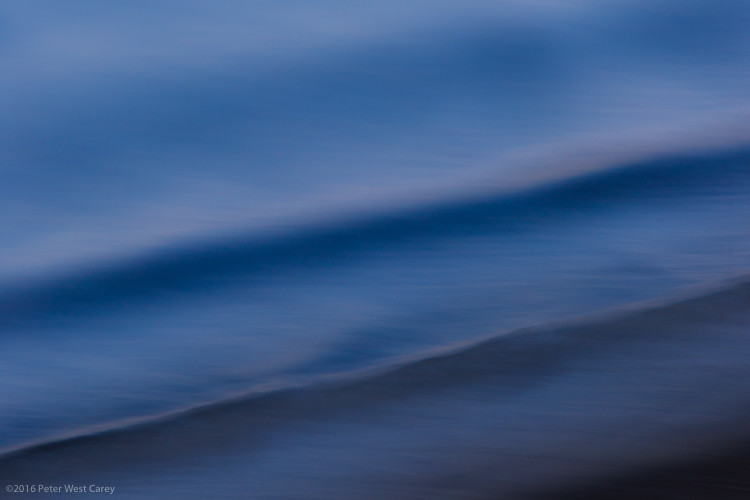
PWC-Travel2015-1229-0212

Abstract | ab-stract | adjective | of art : Expressing ideas and emotions by using elements such as colors and lines without attempting to create a realistic picture.

You already have all the tools you need (a camera or even a smartphone),  so let’s take a look at some methods of creating emotive and abstracted images.

Techniques

1 – Move Your Camera

The simplest method for creating images filled with color and lines, is to blur the snot out of everything. This is a liberating concept for most of us. “I get to move my camera and not worry about staying super steady? Heaven!” I can hear you shout.

All of these techniques are paths of self discovery, but I can give some tips on where to start.

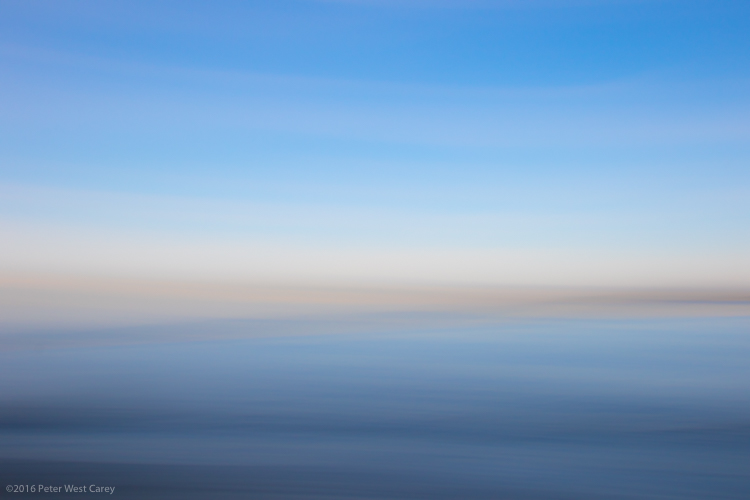
PWC-Travel2016-0323-3539

First, slow your shutter speed down to 1/10th of a second or slower. As with panning blur, this is where things get interesting. You can do this in Shutter Priority mode, or if you know how to adjust your camera in Aperture or Program modes, you can use those to get the same shutter speed. You’ll also be helped with a low ISO, such as 100 or lower.

Second, look for things in the shade. That slow shutter speed needs a lack of light to work well, otherwise your shots will be blown out (overexposed).

Third, take some sample shots moving your camera in one direction, then another. I know, this sounds like lame advice, and is simplistic, but it starts out that way. You have to start seeing what the scene in front of you does when you move one way or the other. Then start moving in circles or random wiggles.

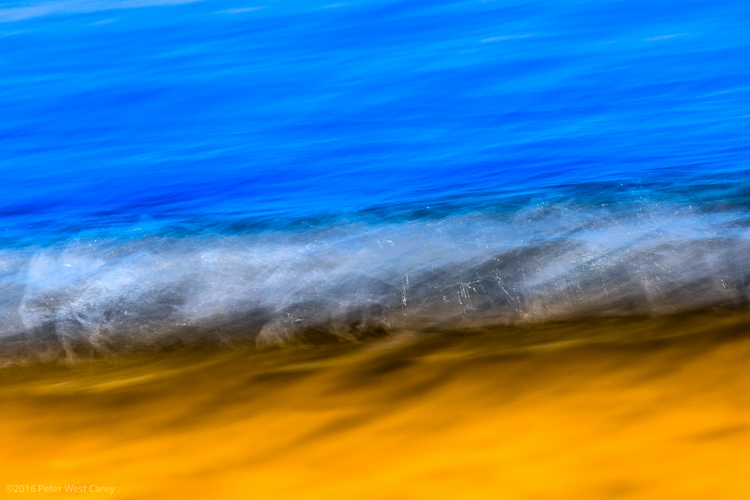
PWC-Abstract2016-0420-4743

Sometimes straight lined objects look best when you go with their grain and direction. Sometimes circular items (flowers being an easy target) look best with some random wiggle. This is your official “Get out of photography-jail free card” to experiment and make some ugly images. But you may also make some that pique your interest.

PWC-Abstract2016-0419-4286

2 – Move the Subject

I used to hate see tags on train cars, until I realized the magic of all those random colors screaming by at 40 miles per hour (65 km/h).

Now I often look for all kinds of colorful items, just for their color alone. The shape, subject, or intent may not be what I want, but if I can use that color and get it to move just the way I want…I can capture the colorful essence.

PWC-Oregon2012-0630-8954

This can be a lot like light painting, but without the subject emitting the light. Think of other things that can be moved around, and go for bold colors.

WARNING: Watch out for white, yellow and other super bright colors. Their properties mean they will fill your sensor with too much data too fast, and they will washout/cover over any other colors you may have in your shot.

3 – Remove Reference

A zoom lens will be your best friend here. Wide angle shots, even with ample blur, often allow us to ground ourselves in the scene, not the colors or emotion. It’s breaking out of what we can recognize, and can relate to, that helps the abstract images.

Let me show you an example. What do you see here (below)?

PWC-Abstract2016-0419-4328

Now let me show you the larger context.

PWC-Abstract2016-0419-4309

The more you zoom in and pick apart details, the more you can play with abstraction.

4 – Shoot Through Things

I have yet to experiment heavily with shooting through objects, but there is much fun to be had here too. Having a way to hold the object helps, and a clamp on a light stand would be handy. Otherwise, start with everyday objects and work your way through colored glass, a glass block, or even smear various gels and liquids (Vaseline, olive oil, etc.) on a clear sheet of glass or plexiglass.

PWC-Abstract2016-0428-4858

5 – Multiple Exposure

Using in-camera multiple exposure techniques can sometimes leave too much of the original, recognizable subject, for some photographers’ tastes. I have found the Average setting on my Canon to work well in combining shots. If you want to get funky, go for the Dark setting, and prepare to shoot a lot of tests.

My method is to take one shot, mostly in focus. Then I shoot two more in varying degrees of out of focus. This sometimes ends up with more of a soft focus look, and that’s where the argument can be made that these images are not abstract enough. That’s why I’ll choose to zoom way in, to hopefully make the subject a little more out of context.

PWC-Travel2016-0323-3621

6 – Post-Processing as a Playground

You know how people tend to complain about too much post-processing of some artists’ work? Now’s the time to cast off those bonds and have some fun. You can soften scenes to make them even more ethereal.

PWC-Abstract2016-0419-4585

Or you can try on different versions of the same image, but with vastly different color renditions (in this case, I simple moved the White Balance Temperature and Tint sliders in Lightroom).

PWC-Travel2016-0323-3463-3

PWC-Travel2016-0323-3463

PWC-Travel2016-0323-3463-2

Once your images are in the computer, let your impulses go wild!

Conclusion

PWC-Abstract2016-0419-4467

The thing I like most about abstract photography is that it plays on the “This is something I really like, but I’m not sure why” nerve inside all of us. I can possibly breakdown each of these images and tell you why I picked them, but in the end, it doesn’t really matter. It’s about creating art for art’s sake. It’s about getting back to the basics of attraction to art. It’s about being surprised by what you see on your LCD while breaking a few of the rules you used to hold so dear.

Now go experiment and show me what you can create!

googletag.cmd.push(function() {
tablet_slots.push( googletag.defineSlot( “/1005424/_dPSv4_tab-all-article-bottom_(300×250)”, [300, 250], “pb-ad-78623” ).addService( googletag.pubads() ) ); } );

googletag.cmd.push(function() {
mobile_slots.push( googletag.defineSlot( “/1005424/_dPSv4_mob-all-article-bottom_(300×250)”, [300, 250], “pb-ad-78158” ).addService( googletag.pubads() ) ); } );

The post 6 Tips on How to Create Abstract Photos by Peter West Carey appeared first on Digital Photography School.


Digital Photography School

 
Comments Off on 6 Tips on How to Create Abstract Photos

Posted in Photography


Lane-Spanning Airbus to Drive Right Over Car Traffic in China

29 May

land airbus solution china

A Chinese transportation company behind a lane-straddling bus design (which passes over lanes rather than occupying them) is moving from scale to full-sized test models this summer. The plan is to introduced fully-functional models of these “land airbuses” to (or: above) the streets of Beijing over the next few years.

straddlingbus

retro landliner design

The inspiration for this seemingly-novel design dates back to a 1960s “Landliner” proposed for New York City that would likewise ride on side rails adjacent to roadways. Cars would simply pass beneath the buses uninterrupted, moving faster than the bus in high traffic and allowing the bus to move over traffic jams. Such a system would be a fraction of the cost and effort compared to subway systems or even raised railways.

landairbus

In China, these new buses would hold up to 1,400 passengers each and cruise at up to 40 miles per hour, which sounds slow until you consider they do not have to stop for traffic. Running on electricity, these designs would reduce the need for conventional buses and cut polluting emissions. As a cyberpunk bonus: cars passing beneath these vehicles will see digital simulations of the sky above.

landair transit stations

For now, Transit Explore Bus is constructing a life-size model in Changzhou. This will allow real-time testing with actual cars, intersections and infrastructure, facilitating further refinements and eventual street deployments. For a country with serious pollution and traffic problems, this kind of solution could be just what is needed – for each new super-bus, 40 ordinary buses can be taken off the roads.


WebUrbanist

 
Comments Off on Lane-Spanning Airbus to Drive Right Over Car Traffic in China

Posted in Creativity


An Overview of Google’s Nik Collection Filters for Post-Processing

29 May

ArchesPanorama

By now, if you have not downloaded Google’s Nik Collection, at the very least you have heard that this once $ 500 software, was made free for download in March 2016. The Nik Collection, as it has been known for over a decade, is a set of photographic filter plug-ins, and image enhancement tools, that delivers another look and feel to your photo.

The Nik Collection is comprised of Analog Efex Pro, Color Efex Pro, Dfine, HDR Efex Pro, Sharpener Pro, Silver Efex Pro and Viveza. As you see, the suite is quite extensive, thus this overview will just touch on its potential uses, and hopefully encourage you to further explore the collection more in-depth.

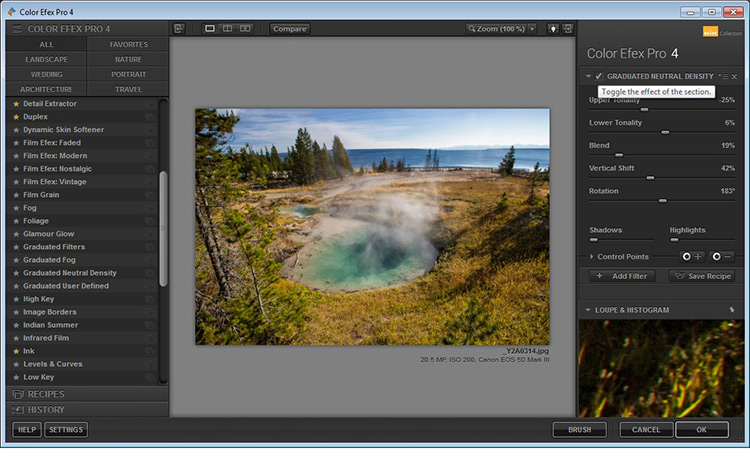
The layout in each set is very similar, which translates to ease of use once you get the hang of it. Preset filters are listed down the left side panel of the dashboard. If you click any of them, the chosen filter is immediately applied to your preview, and you then have sub-options for that filter listed on the right panel, which gives you further control over its application.
GlacierPrintScreen_NikCollection

An awesome feature that the Nik Collection utilizes is called Control Points, which is available in each plug-in. A control point, as the name implies, is a way to control the application of a filter to selected areas of your choice. Take note of this, as it will be referenced and elaborated on below, as the various plug-ins are discussed.

Analog Efex Pro

If you love the images produced by older cameras, or want to add a vintage look to your photo, Analog Efex Pro may be the set that appeals to you. It strives to pay homage to techniques used by photographers many years ago, and will help transport your image back in time.
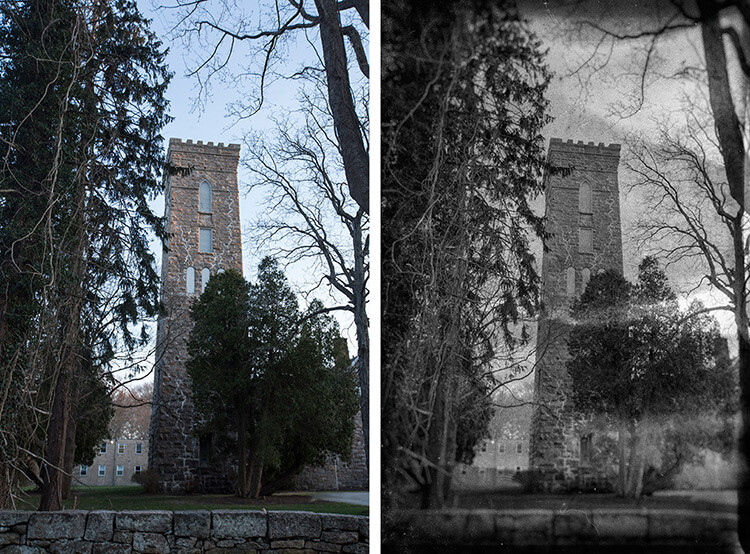
AnalogEfexProCastle_BeforeAfter

Original Image                                                                                                 Analog Efex Pro: Wet Plate preset applied

In the sample image above, the finish is one of the “Wet Plate” preset options available in Analog Efex Pro 2, inspired by an alternative processing technique of yesteryear. Along with Wet Plate, some of the preset filters in the left panel include Classic Camera, Vintage Camera, Toy Camera and the popular Double-Exposure – all of which require little effort to give your image a unique style.

AnalogDoubleExposureHeadstone_BeforeAfter

Original Image edit                                                                              Analog Efex Pro: Double-Exposure preset applied

With a few clicks, the application of this technique attempts to mimic processing techniques established in the darkroom, or in-camera double exposures. Each filter can further be fine-tuned to your desire, using the sliders and curve-adjustments included in the right panel; you can even add Dirt and Scratches to create a sense of age and give your digital photo a film-like feel.

Color Efex Pro

Color Efex Pro is a collection of visual presets that allows you to enhance, or get more creative with your photo. There are 55 filters in this set, but with the ability to stack filters, the possibilities are endless. Customized combinations can also be saved as a preset, so you can easily apply the same processing to other images with a single click.
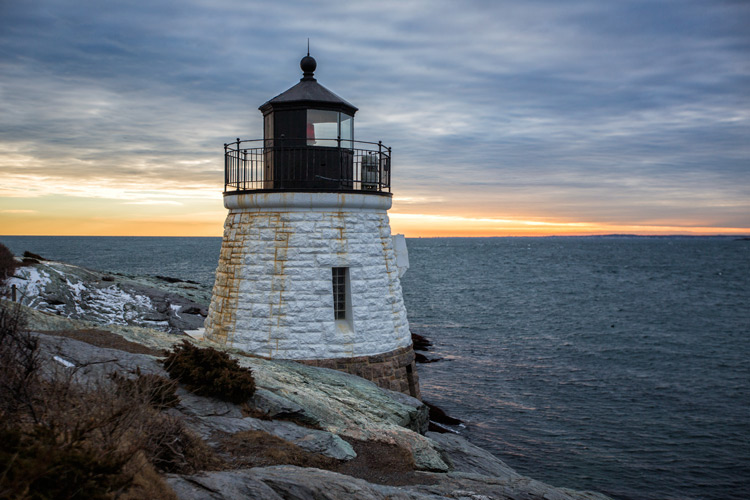
ColorEfexProLH_BeforeSkylightFilter

Original Image

Color Efex Pro: Skylight Preset Filter applied

Color Efex Pro 4: Skylight preset applied

In the Lighthouse example shown above, the Skylight preset filter was used, which simulates a glass warming filter. It removes some of the blue color casts, and intelligently warms the colors in the photo for a more pleasing effect. You can use your right sub-options to make this as intense as you want, but in some cases less is more.
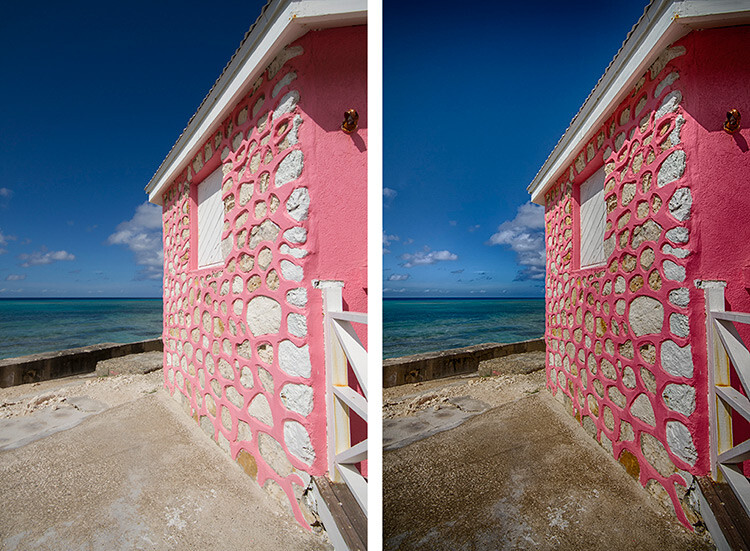
ColorEfexProHut_BeforeAfterTonalContrast

Original Image                                                                                            Color Efex Pro 4: Tonal Contrast preset applied

In the photo above, the Tonal Contrast preset was applied. This preset adjusts contrast and light levels on a small scale, as well as brings out some texture in the image. The sliders enable you to affect how dynamic the final result turns out.
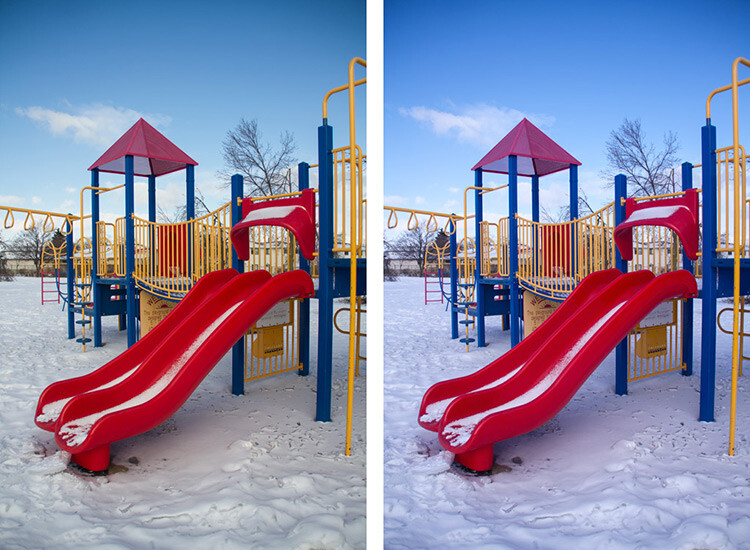
Original Image Color Efex Pro: Wgite Neutralizer Preset Filter applied

Original Image                                                                                            Color Efex Pro 4: White Neutralizer preset applied

Sometimes you need your whites to pop, for example the snow in the photo above. The White Neutralizer filter removes color casts from light objects and can be used to create bright, crisp whites without affecting the other colors of the photo. It is very useful for brides’ dresses and large expanses of white, such as snow or walls.

A very cool feature of Color Efex Pro is the ability to layer multiple filters on an image.
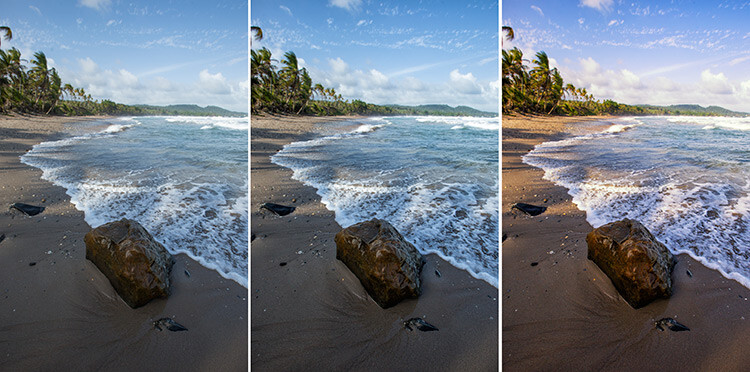
RockBeach_ColorEfex

Original Image                                         Color Efex Pro 4: Tonal Contrast               Color Efex Pro 4: Sunlight filter

In the example shown, the Tonal Contrast preset was applied to the original image, then layered with the Sunlight filter. Layering equates to endless possibilities for your final edit.

Dfine

Dfine is Nik’s answer to noise reduction. Image noise characteristics deviate with exposure length, ISO settings and even temperature based on your camera. Dfine selects areas of your image and generates a “noise profile”. This allows the quick reduction of noise in your photos while retaining the edges, and in one click applies the calculated noise reduction to the image.
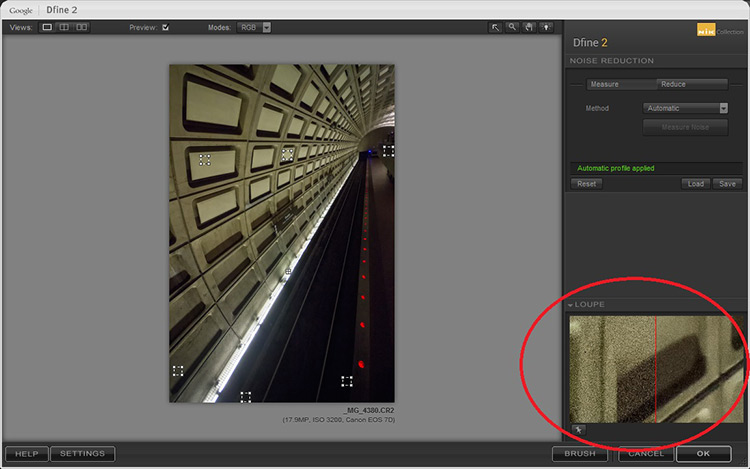
Dfine Dashboard

In the image above, the little squares denote what the software determined were areas requiring noise measurement. The loupe view (circled in red), shows the applied noise reduction on the right side – this view is at 100%.

On the right panel, the “Reduce” sub-option gives you two main methods to take away noise – either via the contrast or color. Both these adjustments affect the image differently, so play around with them and see which one works for your image.
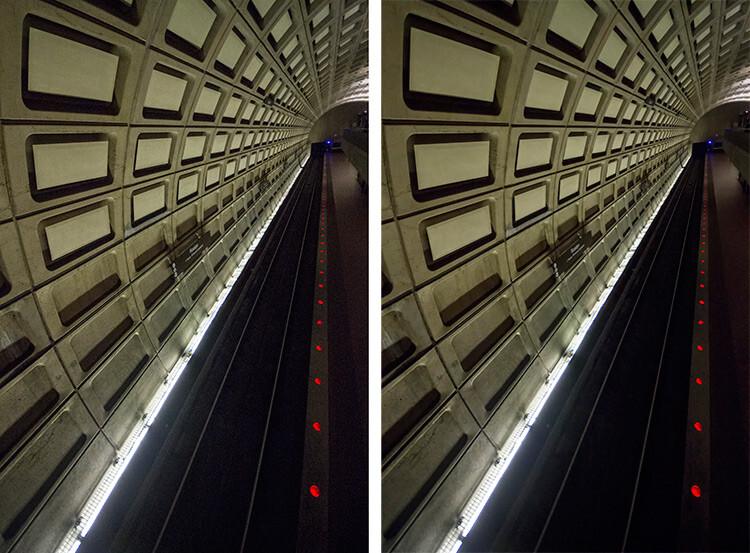
Subway_DfineProEdit

Original Image                                                                                                 Dfine 2: Auto Noise Reduction applied

Also included are some useful global adjustments for further refinement, such as the removal of JPEG compression artefacts and debanding.

Control Points in Dfine allows you to selectively apply noise reduction, which gives you the power to increase or decrease the noise reduction intensity in different areas of your image. So, even though Define auto-calculates the noise reduction needed, you can still maintain control over your noise processing.

HDR Efex Pro

High Dynamic Range (HDR) Imaging is a processing technique that has had mixed responses over the years. It was a trendy technique a few years ago, but has since matured into being used as a tool that extracts all the details of a scene available to the naked eye. HDR can be either overdone, or used subtlety, by exploring the differences between the darkest shadows and the brightest parts of the photo.

HDR Efex Pro is Nik’s contribution to this type of processing; where several images captured at different exposures, are translated into a single image that reflects a more dynamic range than your camera output is capable of creating (although camera advancement is starting to address this).
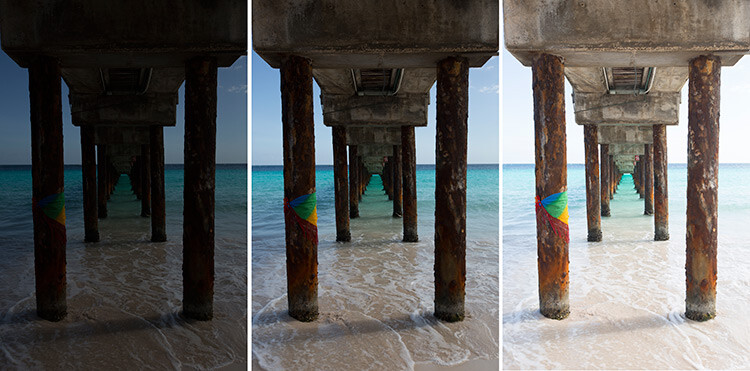
HDR_original

Original Images for HDR edit


HDR_HDREfexPro

Images combined using HDR Efex Pro 2

In the example above, three exposures are combined to bring back the lost highlights and shadows with tonality adjustments. This image can be pushed to look more realistic or even in the opposite direction.

Above its predecessors (such as Photomatix), HDR Efex Pro 2 has promised a simpler process and increased control and fine-tuning over the final image, along with an improved tone-mapping engine that claims to render color better. All tools are subjective, but no harm in trying this HDR tool out, even if just to verify some of Nik’s claims that they have improved Ghosting and Chromatic Aberration reductions.

Silver Efex Pro

Silver Efex Pro focuses on black and white processing. There are many programs quite capable of creating great black and white images, but various built-in tools like Dynamic Brightness, Soft Contrast, Amplify Whites, Amplify Blacks, and the advanced Grain Engine creates excellent diversity.
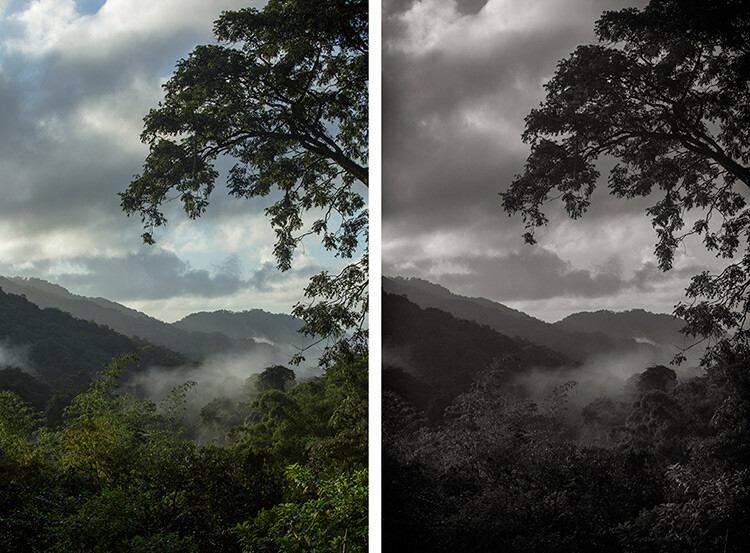
SilverEfexTree_BeforeAfter

Original Image                                                                                      Silver Efex Pro 2: Dark Sepia preset applied

Silver Efex Pro comes with quite a variety of presets, and of course you can also create your own. The easiest way to do this is use an existing preset, customize it by making your adjustments, then save it so you can apply it to other images later on. Saving a preset is especially useful if you are doing an image set, and want the photos to have the same look and finish.
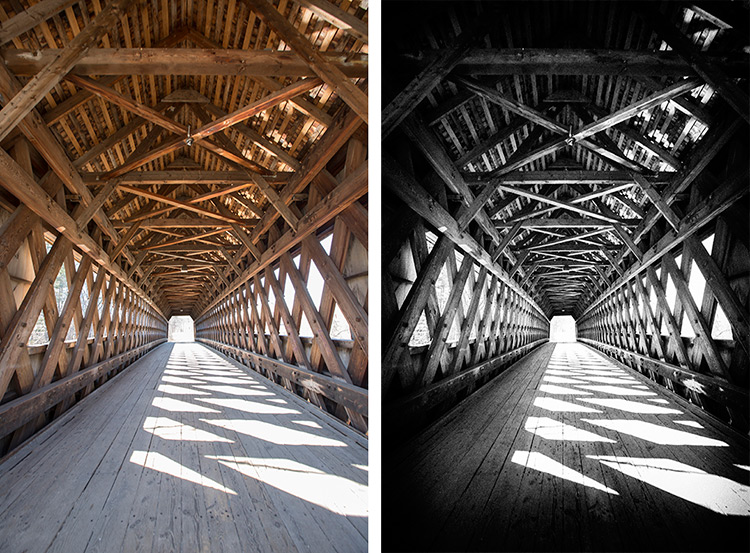
SilverEfexBridge_BeforeAfter

Original Image                                                                                      Silver Efex Pro 2: High Structure preset applied

The structure in this software adds depth to the photo by adding some sharpening. If you are into black and white photography, this is definitely a set you want to play around with.

Viveza

Viveza is an easy way to apply enhancements selectively without creating masks. Yes, you can still do global or image-wide adjustments, but it is very useful to be able to later refine only selected areas. Imagine the possibilities of applying structure, color, exposure changes, or doing shadow recovery to only areas you choose, knowing that the software is going to blend in your changes seamlessly.

You can use Control Points on any part of the image you want to change. As with the other software in the Nik Collection, the top control (on your control point) allows you to change the radius/size of your adjustment area.
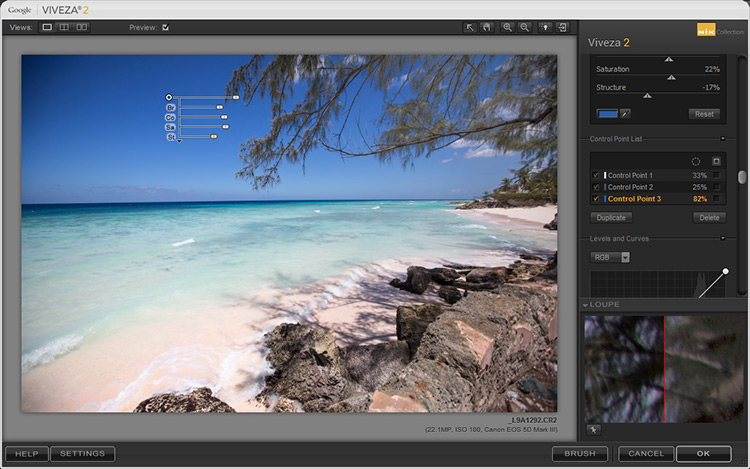
VivezaControlPointBlue

The Control Point shown in this image is on the blue sky. Based on the look you want, the radius of this area can be increased or decreased in size.

If you check the box next to the Control Point on the right (sub-options), all the affected areas will be shown in white, so you can decide if you want to adjust your work area.
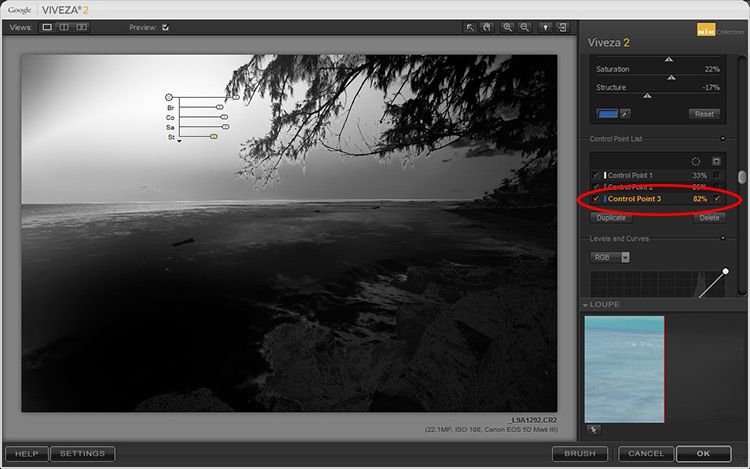
VivezaDashboardHighlight

In this example, the Control Point affects the blue in both the sky and sea, so any adjustments will apply to everything blue in the selected radius (highlighted in white on the image).

Selections, masks or adjustment layers may be your tool of choice to get precisely defined areas, but Viveza’s localized adjustments blend in with the surrounding areas quite well, and in some cases look more natural.

Sharpener Pro

While not everything in your image needs to be razor sharp, the best way to end up with a crisp finish and distinct edges, would be to start out with a properly focused image. Post-capture sharpening increases the contrast between adjacent pixels and significant edges within an image, which attracts your eye. Sharpening is thus used to enhance a focused image, as opposed to rescue elements of photograph that was captured out of focus.
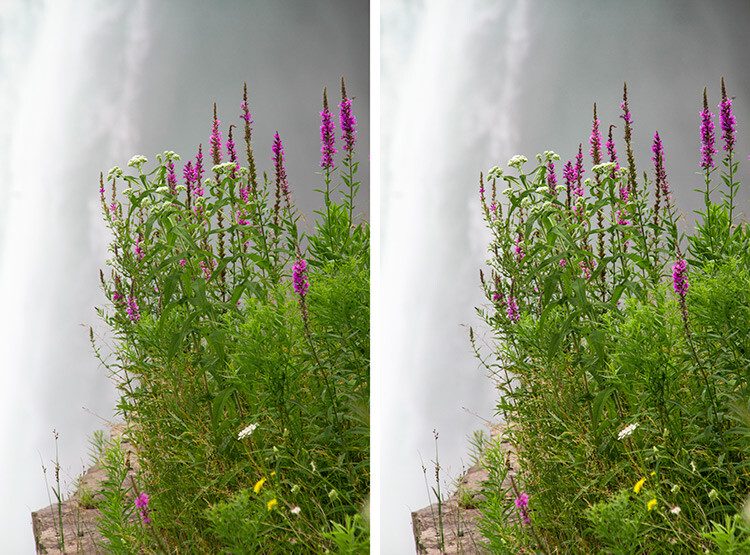
NiagaraFlower_SharpenerProBeforeAfter

Original Image                                                                                     Sharpener Pro 3: applied to show edges

In the sample image above, the sharpening is exaggerated to show the contrast effect that the software applies.

Sharpener Pro takes away some of the guesswork and gives you control over your sharpening, which is typically the last step in image processing. Control Points gives you the ability to selectively sharpen aspects of your image and allows the changes to blend in easily.

Conclusion

A great feature of each set in the Nik Collection is that it applies the effect on a duplicate layer. This is especially helpful if you want to dial back the effect and blend it with your original image, by simply changing the opacity of the layer.

Each plug-in has great potential, so do not be fearful to explore, test your creativity with preset combinations, and experiment with Control Points. It is a user-friendly collection and while this is a plus, it can also make it easy to overdo it.

Do share your thoughts and some of your images processed with Google’s Nik Collection of filters. How have they worked for you? Which is your favorite?

googletag.cmd.push(function() {
tablet_slots.push( googletag.defineSlot( “/1005424/_dPSv4_tab-all-article-bottom_(300×250)”, [300, 250], “pb-ad-78623” ).addService( googletag.pubads() ) ); } );

googletag.cmd.push(function() {
mobile_slots.push( googletag.defineSlot( “/1005424/_dPSv4_mob-all-article-bottom_(300×250)”, [300, 250], “pb-ad-78158” ).addService( googletag.pubads() ) ); } );

The post An Overview of Google’s Nik Collection Filters for Post-Processing by Nisha Ramroop appeared first on Digital Photography School.


Digital Photography School

 
Comments Off on An Overview of Google’s Nik Collection Filters for Post-Processing

Posted in Photography


Huawei P9 camera is nice, but it’s still a smartphone camera

28 May

To dismiss the Huawei P9’s imager as ‘just another smartphone camera’ would be unfair. Its dual 12MP cameras aren’t your average dual cameras – Huawei claims that by using one monochrome and one RGB sensor, the camera is 100% more sensitive to light than your standard smartphone camera. It offers Raw capture, full manual exposure control and laser-assisted autofocus. Oh, and Leica had a hand in designing the module. All-in-all, there’s plenty going for it camera-wise. 

We approached the P9 eager to give it a try, but with a healthy dose of skepticism. And keeping our expectations measured, we were pleased by the Huawei P9’s results. For one thing, shooting with is a nice experience. There are multiple grid overlay options, a level gauge (praise hands emoji!) and you can easily toggle between full manual and full auto shooting. It’s also possible to shoot exclusively with the monochrome camera, which opens up other creative possibilities.

The P9 offers many of the comforts of an advanced point-and-shoot. So how’s the image quality? It’s pretty much as we expected. Good light JPEGs look just peachy on phone-sized screens, but at 100% they don’t look exactly ‘100 emoji’ 100. Grass turns mushy and halos start appearing around high contrast edges. Things obviously get quite noisy by the time you get to ISO 3200.

$ (document).ready(function() { ImageComparisonWidget({“containerId”:”reviewImageComparisonWidget-42824869″,”widgetId”:365,”initialStateId”:null}) })

But wait, there’s Raw! You can see some of the benefits in terms of detail retention in the studio scene widget$ (document).ready(function() { $ (“#imageComparisonLink2550”).click(function() { ImageComparisonWidgetLink(2550); }); }), but definitely check out the difference it makes in some of our real-world samples. It should be noted that Raw capture is only available in Pro mode, and can’t be used when shooting with the monochrome camera.

TL;DR, I’d be pretty happy if the Huawei P9 camera was the camera I had with me all the time. But the dual camera system hasn’t solved the low light troubles inherent to small sensors.

Articles: Digital Photography Review (dpreview.com)

 
Comments Off on Huawei P9 camera is nice, but it’s still a smartphone camera

Posted in Uncategorized


23 Moving Images of Flowing Water

28 May

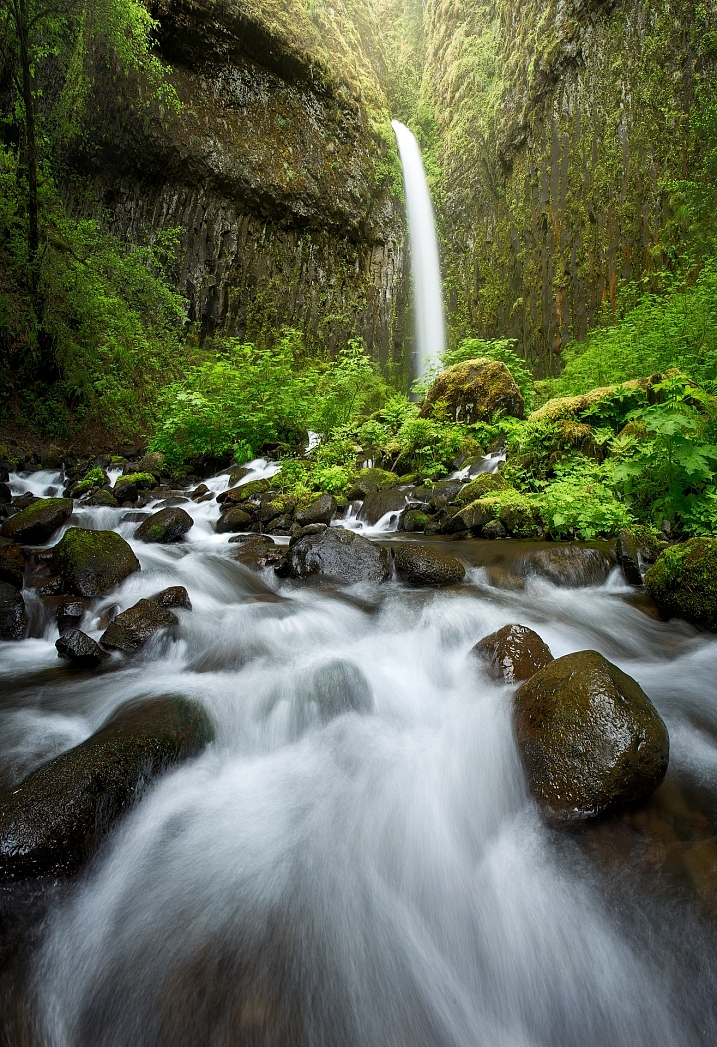
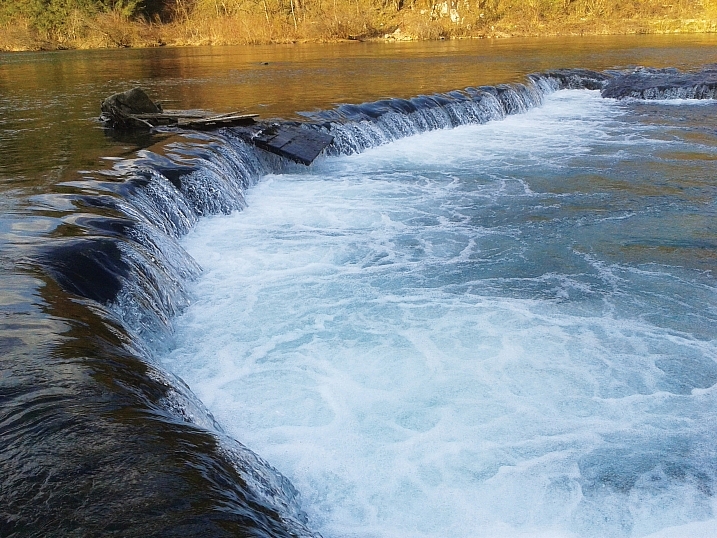
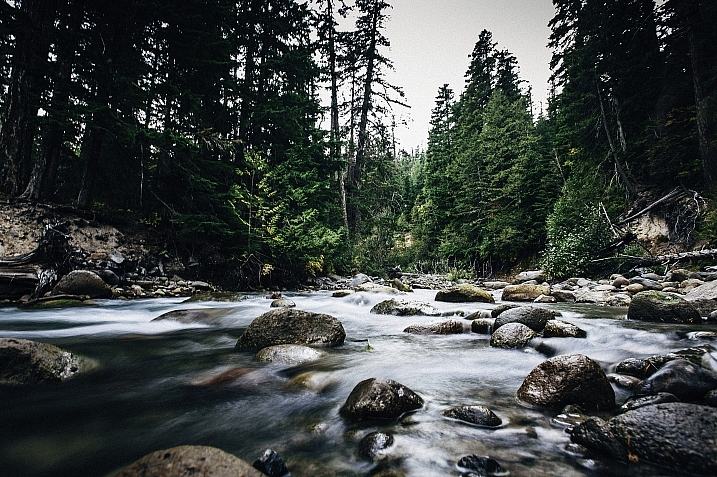
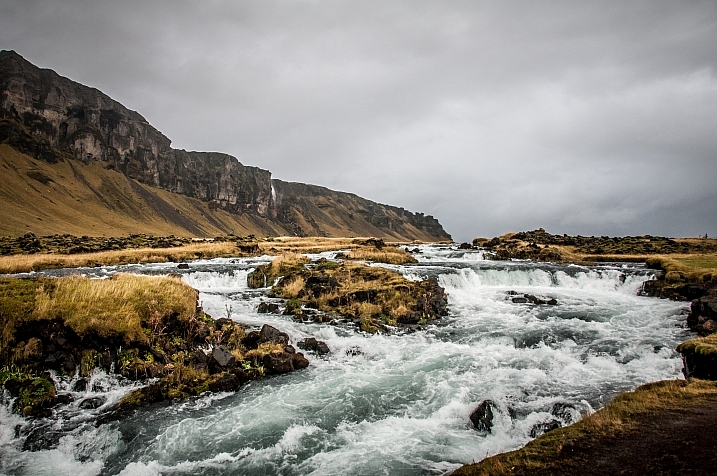
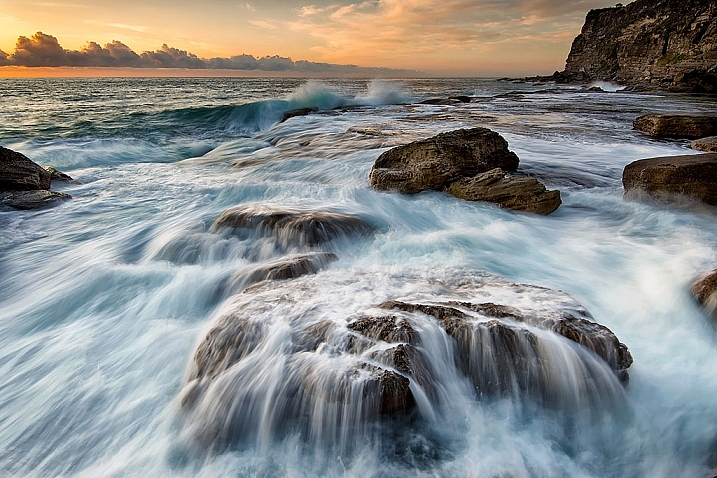
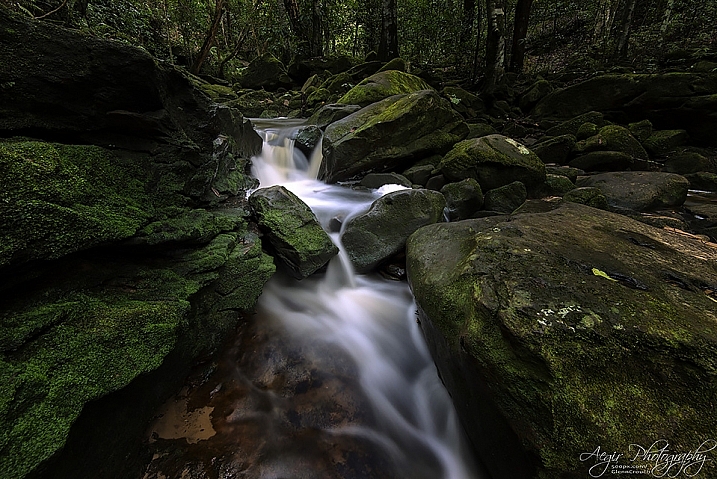
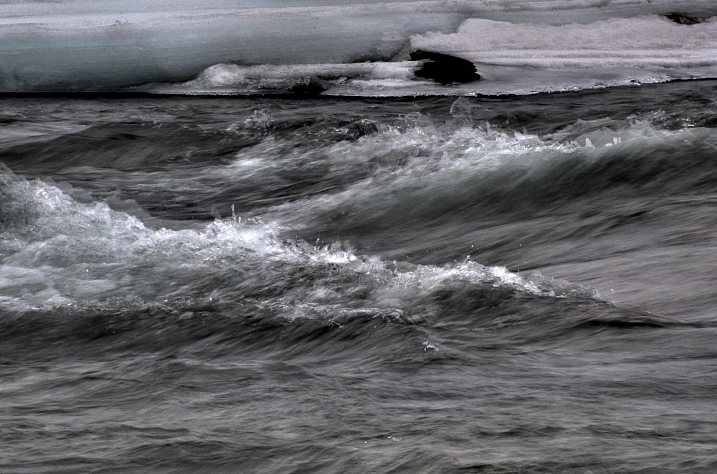
Water, especially that which is flowing, is a popular subject for photographers. You get to make artistic choices about whether to freeze or blur the water, and to what degree. That will affect how the final image looks.

Take a look at these images of flowing water and see how the photographers chose to capture the scene.

David Kingham

By David Kingham

Darlene Hildebrandt

By Darlene Hildebrandt

Little Shiva

By little shiva

Christopher

By Christopher

Kamil Porembi?ski

By Kamil Porembi?ski

~ Lzee. . . Mostly Out

By ~ lzee. . . mostly out

James Bremner

By James Bremner

Nick Kenrick

By Nick Kenrick

Andi Campbell-Jones

By Andi Campbell-Jones

Andy Rothwell

By Andy Rothwell

Crouchy69

By Crouchy69

Crouchy69

By Crouchy69

Christian Barrette

By Christian Barrette

Billy Wilson

By Billy Wilson

Neil Howard

By Neil Howard

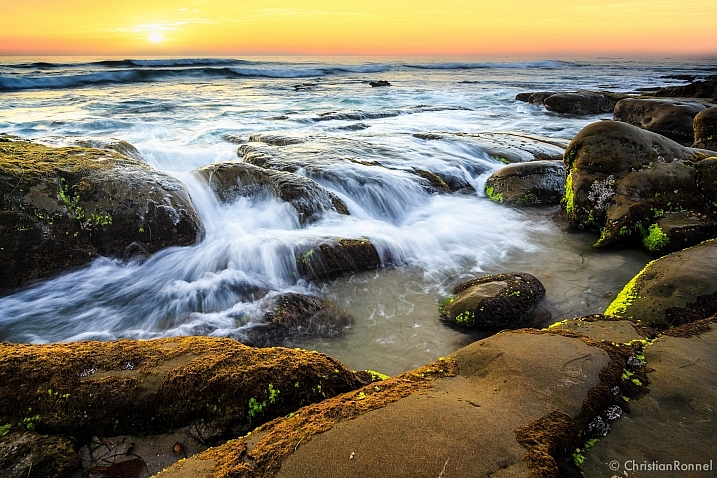
Christian Ronnel

By Christian Ronnel

Dirk Dittmar

By Dirk Dittmar

Nicole Quevillon

By Nicole Quevillon

Jonathan

By Jonathan

Marjan Lazarevski

By Marjan Lazarevski

John Fowler

By John Fowler

Susanne Nilsson

By Susanne Nilsson

Louis Du Mont

By Louis du Mont

googletag.cmd.push(function() {
tablet_slots.push( googletag.defineSlot( “/1005424/_dPSv4_tab-all-article-bottom_(300×250)”, [300, 250], “pb-ad-78623” ).addService( googletag.pubads() ) ); } );

googletag.cmd.push(function() {
mobile_slots.push( googletag.defineSlot( “/1005424/_dPSv4_mob-all-article-bottom_(300×250)”, [300, 250], “pb-ad-78158” ).addService( googletag.pubads() ) ); } );

The post 23 Moving Images of Flowing Water by Darlene Hildebrandt appeared first on Digital Photography School.


Digital Photography School

 
Comments Off on 23 Moving Images of Flowing Water

Posted in Photography