RSS
 

Archive for April, 2016

How to Create a Silky Water Effect in Post-Processing without Using Filters or a Tripod

17 Apr
Affiniy-photo-mean-stack-mode

Smooth water effect edited in Affinity Photo using the Live Stacks feature.

Even if you don’t shoot landscape photography, photos of waterfalls with the smooth water and glassy appearance are awesome. The gist to achieving this, and I do stand corrected if I have this wrong, is as follows:

  • Slow shutter speeds – the need for a tripod
  • A remote shutter release or your camera’s timer
  • Wide angle lens and the camera settings using a small aperture of f/22, ISO 100
  • Neutral Density and/or polarizer filters, as you’ll be shooting long exposures during the day
  • Of course the scene and by all accounts patience too

However, I personally don’t own ND or polarizer filters. These type of filters are required for long exposures during the day, so that your shutter speeds are slow enough, possibly one minute or more to get that misty look. On top of which, you have to get the exposure right, which requires a bit of math and experimentation. ND filters block out the light in terms of stops.

So taking long exposures during the day is an involved process, especially if you want to create that smooth, silky water effect in-camera. But, is there a way to simulate this effect in Photoshop or other post-processing software? Yes there is! It does require that you take multiple shots. I’m not advocating that this technique in post editing is a replacement to going out and achieving long exposures out in the field, far from it. But, I hope this technique may serve as a stepping stone or inspiration to go out and capture silky waters, clouds etc., in-camera.

This article will demonstrate how you can achieve a similar result by taking a bunch of photos in continuous mode without using any filters or a tripod. Although, I would recommend you use a tripod.

First, I’ll demonstrate this effect using a manual method in Photoshop CS6 (standard version). There is an automated way to do this with the Stack Mode feature, which I believe is in Photoshop CC. If you have previous versions of Photoshop, the Stack Mode feature is only available in extended versions, not standard, unfortunately. However, Gimp has this Stack Mode feature and it’s free. Then, I will compare the manual method in Photoshop with Affinity Photo, using Live Stacks. I was really impressed with this feature.

Photoshop manual method

Let’s begin. On the day I took these images, I was pressed for time. So I took a series of shots in continuous mode, and handheld the camera while I focused on this part of a small river. I would recommend that you use a tripod and give yourself some time. It will be easier to align the images later.

small-river-handheld

I took a bunch of images in continuous mode of this small river, close-up deliberately for this article.

You will need to load your images as layers into one document in Photoshop, as follows:

file-scripts-load-files-into-stack

Loading multiple images into one document in Photoshop. File>Scripts>Load Files into Stack

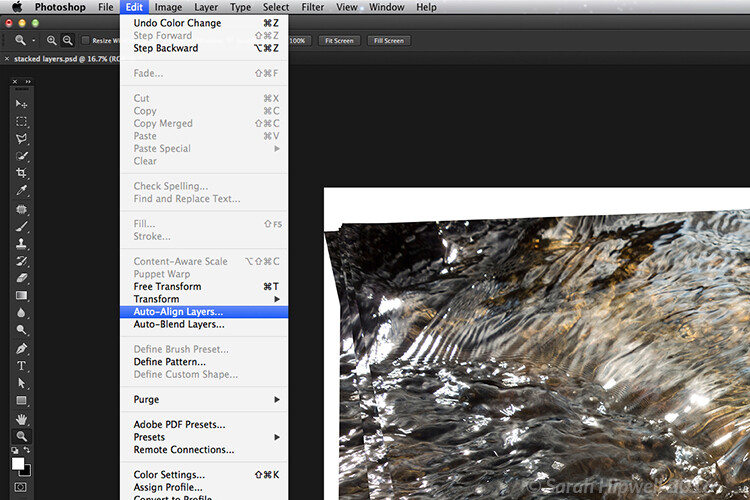
Go up to the Menu Bar > File > Scripts > Load Files into Stack. As I didn’t use a tripod, I selected all the layers to align them. Go to Auto-Align under Edit. As you can see, Photoshop had its work cut out trying to align the images.
images-after-auto-align-photoshop

I handheld my camera when I took a bunch of shots in continuous mode. As you can see from this screenshot, I needed to use Auto-Align Layers in Photoshop. If you use a tripod the alignment will be much easier.

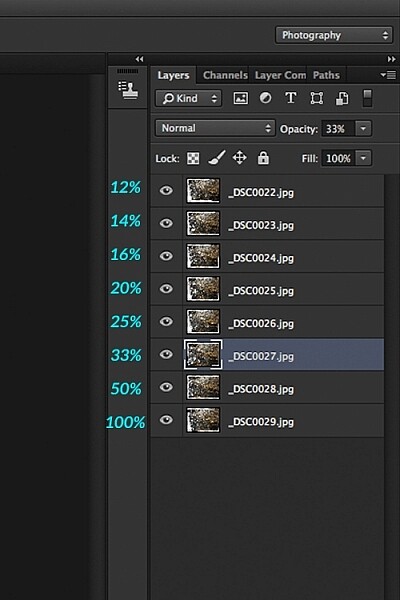
Now that the layers are stacked on top of each other. Start at the bottom and leave this layer at 100%, go to second layer above and reduce the opacity by 50%(100÷2=50). Continue with the next layer and reduce the opacity by 33%(100÷3=33).
percentages-opacity-reduced

Reducing the opacity of each layer by dividing the number of the layer into 100%. The bottom layer remains at 100%. The second layer is 50% and so on.

Therefore, depending on the amount of layers you have, and where they come in the stack, divide this number into 100. So if you had 30 images, the opacity for the top layer in the stack will be 3% (100÷30=3). Remember the bottom layer is always 1=100%. What this is doing is averaging out the layers. This may sound complicated, but in practice, it’s more straightforward. Although it is a bit more tedious than the automated way.
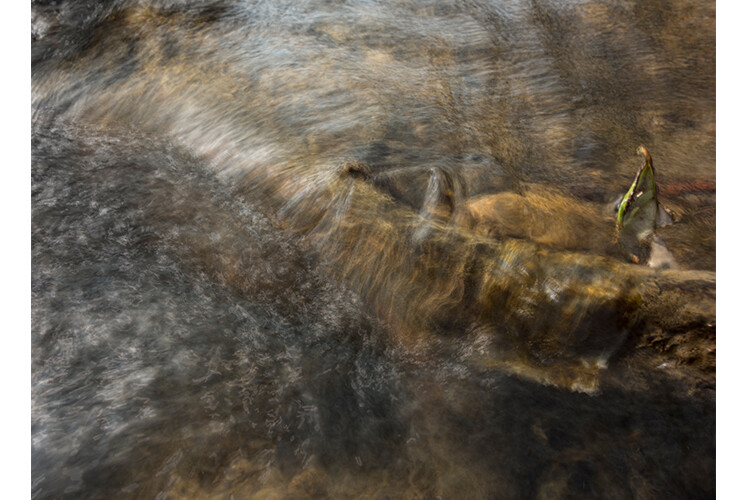
This is the effect of averaging out the layers in Photoshop - reducing the stacked layer's opacity by X amount. I also had to crop this image, whereas the same image when edited in Affinity Photo kept more of the image. See below.

This is the effect of averaging out the layers in Photoshop – reducing the stacked layer’s opacity by X amount. I also had to crop this image, whereas the same image when edited in Affinity Photo kept more of the image. See below.

I have been keeping a close eye on Serif’s Affinity Photo. So I took the plunge and purchased it for (€39) $ 44 USD. That was a discounted offer. At such an affordable price, I was curious to see how this software performs and what it can do.

In Affinity Photo, there is a Live Stacks feature which is similar to Stack Mode in Photoshop. It was easy and simple to use, and the process was fast.

Affiniy-photo-mean-stack-mode

Affinity-photo-new-stack

The equivalent Stack Mode feature in Photoshop is called Live Stacks in Affinity Photo.

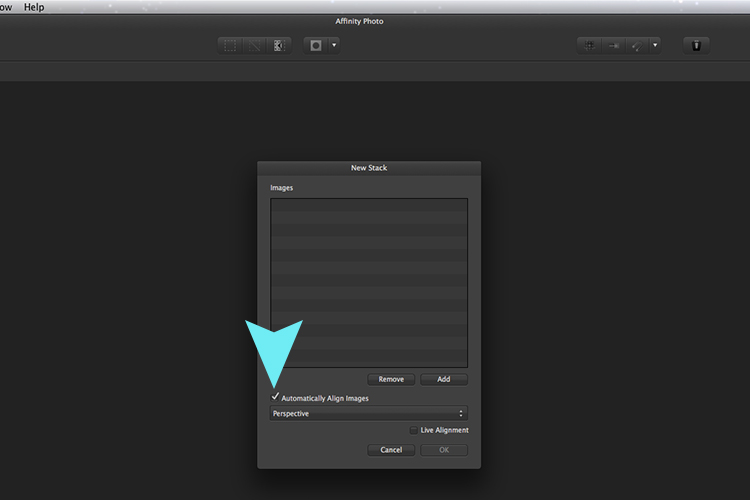
Go to File > New Stack. The pop up dialog box appears where you select your images. Make sure Automatically Align Images box is ticked. Click Ok. This takes a couple of seconds. It defaults to Median in the Live Stack Group, but scroll up to the next one and this is Mean. That’s the one you want.

Affinity-photo-auto-align-images

images-selected-after-new-stack

When you create a New Stack, the pop up dialog box appears. Select your images on your computer and click Open.
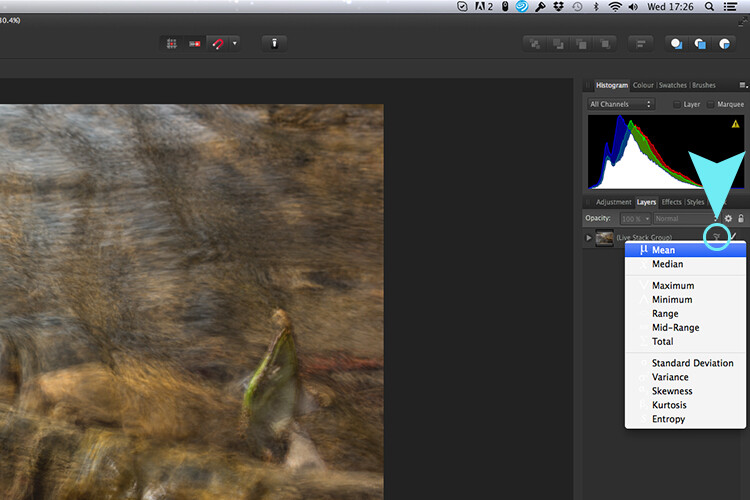
Affinity-photo-live-stacks-mean

The stacked images are grouped into a folder called Live Stack Group. The different stack options are located by clicking on the small icon, circled in blue. It defaults to Median but I changed it to Mean.

The cool thing about this feature is when you scroll through each of the different stack modes, it shows the different results live.
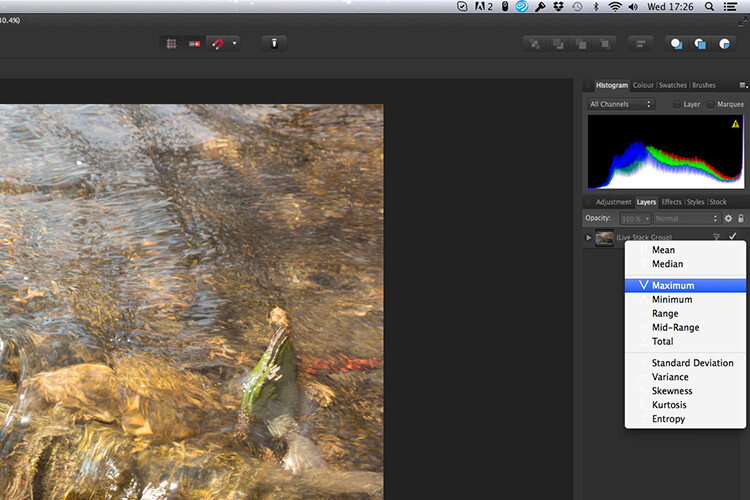
Affinity-photo-live-stacks-maximum

Different stack options can be scrolled through one by one, and the results can be seen live, which is impressive.

When I compared the two results from Photoshop and Affinity Photo, I could see no obvious difference, with the exception that I had to crop the image of the river more in Photoshop, whereas the auto alignment in Affinity Photo meant I didn’t lose much of the image at all.

second-river-original

Here is another example of moving water.

The same image as above edited in Affinity Photo using Mean in Live Stacks. I got the same result using the manual method in Photoshop.

The same image as above edited in Affinity Photo using Mean in Live Stacks. I got the same result using the manual method in Photoshop.

Take away tip:

In my examples, I didn’t use a tripod. I would recommend using one. I also took only a series of 8-10 shots. I would recommend taking at least 15 or more.

I found this technique interesting and fun, and I am now inspired to go out and take images of waterfalls. The good thing about this technique is if you don’t have ND or polarizing filters, it doesn’t prevent you from going out and taking shots of waterfalls. Then when you get back to your computer, you can create your own silky, smooth effect.

Let’s see some of your examples below.

googletag.cmd.push(function() {
tablet_slots.push( googletag.defineSlot( “/1005424/_dPSv4_tab-all-article-bottom_(300×250)”, [300, 250], “pb-ad-78623” ).addService( googletag.pubads() ) ); } );

googletag.cmd.push(function() {
mobile_slots.push( googletag.defineSlot( “/1005424/_dPSv4_mob-all-article-bottom_(300×250)”, [300, 250], “pb-ad-78158” ).addService( googletag.pubads() ) ); } );

The post How to Create a Silky Water Effect in Post-Processing without Using Filters or a Tripod by Sarah Hipwell appeared first on Digital Photography School.

Digital Photography School

 
Comments Off on How to Create a Silky Water Effect in Post-Processing without Using Filters or a Tripod

Posted in Photography


Secret Rooms Installed in Deserted Sewers & Maintenance Shafts

17 Apr

[ By WebUrbanist in Art & Installation & Sound. ]

underground art installation

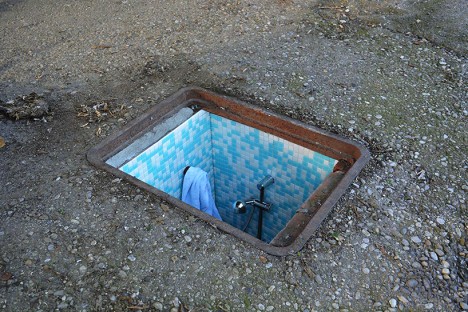
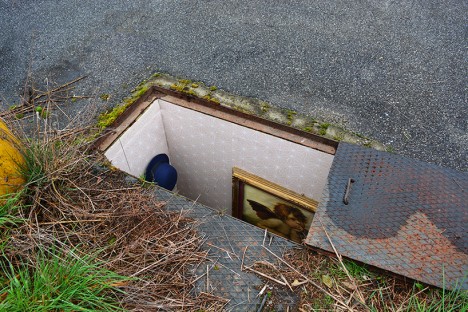
A series of abandoned subterranean spaces in Milan have been transformed into tiny living rooms, dining rooms, bedrooms and kitchens, complete with furniture and fixtures.

underground bathroom shower

Designed by Italian artist Biancoshock, these small dwellings are rendered especially surreal thanks to bright colors and attention to detail. The project has a social dimension as well, inspired by the actual people forced to live in extreme spaces thanks to unfortunate circumstances, including the hundreds that live in the sewer systems of Romania or places like Las Vegas.

underground manhole shaft room

Whatever your own interpretation, the next time you pass a sewer grate, manhole cover or set of maintenance doors on the streets of Milan, it might be worth taking a closer look. More about the artist and his philosophy: “Ephemeralism has the purpose of producing works of art that have to exist briefly in space but limitlessly in time through the photography, the video and the media. He has realized more that 650 interventions in the streets of Italy, Croatia, Czech Republic, France, Germany, England, Hungary, Lithuania, Malesia, Malta, Norway, Poland, Portugal, Singapore, Slovak, Slovenia and Spain and he is not thinking about stopping.”

Share on Facebook


[ By WebUrbanist in Art & Installation & Sound. ]

[ WebUrbanist | Archives | Galleries | Privacy | TOS ]


WebUrbanist

 
Comments Off on Secret Rooms Installed in Deserted Sewers & Maintenance Shafts

Posted in Creativity


For Everyman and Everywoman: Peak Design Everyday Messenger Bag Review

16 Apr

Peak Design Everyday Messenger
$ 249.95 | peakdesign.com | Buy Now

Peak Design isn’t a company that’s satisfied with the status quo. The San Francisco-based accessory design firm aims to produce highly functional and stylish photo gear, designing each detail from the ground up. The company has run a number of successful Kickstarter campaigns to help bring their designs into production, and that’s exactly how the Peak Design Everyday Messenger bag came to be. With a focus on style, substance and pockets for everything, the bag has been created specifically for photographers but can be used as a messenger bag by anyone with gear to haul.

The company was born out of the founder’s frustrations while traveling the world in 2010 with his camera gear. Peak Design’s ‘re-think the basics’ approach carries through in the Everyday Messenger, in ways that are immediately obvious – and some that aren’t. From its angular appearance to a proprietary closure system, no detail is too big or small for the company’s designers to re-think and re-tool. 

Inside and out, it’s obvious Peak Design has put effort into producing a bag that aims to get photographers of all levels through their day, whether they’re on a shoot or on the way to work. Take a look at what sets the Everyday Messenger apart, and whether or not its fresh approach indeed translates to a better bag for everyone.

Specifications

  • Empty bag weight: 2.5lbs
  • Average Outer dimensions: 30 x 43 x 18 cm / 12 x 17 x 7 in
  • Colors Available: Charcoal and Heritage Tan

In Use

The Everyday Messenger bag is comfortable to carry. I carried this bag while traveling on a couple of weekend trips, as well as around town for work and for shoots. I found it easy to use and comfortable to wear for the most part. A reversible, seatbelt style adjustable strap distributes the weight whether you decide to wear it as a traditional messenger bag, a low slung messenger bag, pop it on one shoulder or use the stabilizing straps as a waist belt.

Folks who are familiar with Peak Design’s camera straps will be familiar with the quick adjusting aluminum handle conveniently allowing you to adjust the length of the strap with one hand. This is a great feature for photographers who tend to hold their camera in one hand and might need to adjust their bag as they move along.

A patent-pending MagLatch closure system allows you to open and close the bag using one hand, and four latches allow the bag to expand and contract. A magnetic catch will close the bag shut and then a quick pull down on the latch lets you open and close the bag. The closure system did take a little getting used to, and when I filled the bag with my DSLR and a couple of lenses it didn’t feel as secure as I’d hoped; I felt the need to double check the latch to make sure it was closed and catching properly. I found when the bag wasn’t as wide or full, for example when I was using a mirrorless camera system versus a wider-bodied DSLR, that it became easier to manage. However, having to double-check the latch didn’t deter from how much I liked the other features.

The bag does tend to get a bit bulky and cumbersome if filled to maximum capacity, however for someone who over 6′ tall that is likely not an issue. 

Thoughtfully designed flexible inserts allow you to configure interior compartments however you want. The Everyday’s dividers are unique – while other camera bags offer rectangular foam pads that can be arranged to create space within a camera bag, the Everyday offers three 8-sided inserts. They are pre-folded so you can bend and flex them to your heart’s content, configuring custom areas to contain and protect your gear.

One of the bag’s best features is how the inserts fold over to create a box-like area, allowing you to store gear on top of each other. I managed to store an 85mm lens, protected by the folded insert, throw a flash on top of that, with my camera body with a 24-70mm lens right next to it, and then another lens in the next compartment. It became a well-filled bag and I was confident that all was secure and protected.

A convenient waterproof zipper allows access to the interior of the bag while wearing it, making it easy to grab gear on the go. You don’t have to take the bag off and put it down to get out your camera or a lens, rather just unzip and you can have your hands on your camera in no time. I did find it easier to pull out my camera body from the center of the bag rather than have it placed over to the side of the bag and wrestle the camera body from there. 

A zippered front pocket has eight color-coded interior mesh pockets: four red, four green, meant to denote which batteries and memory cards are fresh and which are spent. I found this system really user-friendly, and it’s just one more thoughtful detail that Peak Design has included for photographers. The front pocket zips all the way open and folds down to access whatever you have stored inside, or you can just zip down the top part and still get to your gear. 

Inside the main compartment is an interior pocket, perfect for passports, travel documents, phones, cash, credit cards, travel papers, small notebooks. This pocket is also conveniently accessed through the top zipper opening.

There is another smaller pocket on the inside flap of the bag but even better, behind that pocket is a built in carry option for most tripods. One of the tripod’s legs can slide through the back of the pocket, and with the flap closed the tripod can be carried braced on the front of the bag. This bag really does have hidden features everywhere.

Photo courtesy of Peak Design

The bag’s stabilizing straps tuck away into side pockets and behind them are additional pockets – perfect for a lens cap. But of course, there’s more: within one of those pockets is a tether with one of Peak Design’s anchor links that can be used to keep track of your keys.

On either side of the bag are anchor straps that can be used in conjunction with Peak Design’s quick-release Capture camera clips. As I didn’t have one of the clips I wasn’t able to test this out, and while it seems like a good idea in theory as someone who is shorter than average this might make the bag slightly unwieldy for me.

A zippered protected compartment holds a 15 inch laptop, and if you need, an additional pocket will hold a tablet or notebook. This bag is not super-flexible and the addition of a 15″ laptop makes it less so. Carrying photography gear and a laptop became a near impossibility for me, however, as it became too heavy and cumbersome.

The material is waxed, weather-proofed and looks smart too. I felt totally comfortable that my gear was protected while having to venture out in a downpour.

Summing Up

I enjoyed using this bag with and without my camera gear. It easily fit my DSLR, plus a couple of long lenses, or I’d put my laptop into the back pocket with a portable drive, plus a couple of notebooks and head off to a coffee shop. Where I found the bag worked less well for me was when carrying my laptop and DSLR plus lenses. I did that while traveling and found that carrying all of that gear for too long was just too heavy. 

There is no getting around the fact that the Everyday Messenger bag is big, and just because you can pack it to its limit doesn’t mean you necessarily should. Flexibility of the bag becomes a little more limited with a 15″ laptop in the back pocket. When the bag was full, I found myself double checking the Mag-Latch closure system just to make sure it was catching and closing.

The team at Peak Design seems to have thought of almost every detail and while the Everyday Messenger Bag is not cheap, it is certainly possible to use this as your everyday-everything bag, and you will certainly get your money’s worth.

What we like:

  • Comfortable shoulder strap
  • So many pockets make it functional and versatile
  • Sturdy and well-designed
  • Capture Clip anchor points on the sides of the bags
  • Plus Peak Design offers a lifetime guarantee, for fabric, straps or zippers that fail, not for normal wear and tear obviously

What we don’t like:

  • Can feel too big if you are smaller or shorter in stature
  • Bag becomes quite cumbersome with both a 15″ laptop and DSLR + lenses
  • Having to double check the closure system when the bag was more full

Articles: Digital Photography Review (dpreview.com)

 
Comments Off on For Everyman and Everywoman: Peak Design Everyday Messenger Bag Review

Posted in Uncategorized


Travels in China: Photographing the landscapes and people of Guilin and XiaPu

16 Apr

$ (document).ready(function() { SampleGalleryV2({“containerId”:”embeddedSampleGallery_0533137695″,”galleryId”:”0533137695″,”isEmbeddedWidget”:true,”standalone”:false,”selectedImageIndex”:0,”startInCommentsView”:false,”isMobile”:false}) });

A seasoned travel photographer knows that there’s hard work involved in getting the best photos from a trip. So when Ken Koskela arrived in China on a 17-day trip, he wasn’t exactly planning on a relaxing vacation. He rose at 4 AM each day to get himself into position to photograph sunrise over the rivers, rice terraces and mountains of Guilin and XiaPu. Then, spending his afternoons with a guide, he interacted and photographed residents of the villages in the region, and spent evenings capturing sunset.

He operated on an average of four hours of sleep per night, but his hard work paid of in memorable images that capture the beauty of the region and its people. Take a look at a few images here and head to Resource Travel for the full story. Do you sacrifice sleep for great shots when you’re traveling? Let us know in the comments.

Articles: Digital Photography Review (dpreview.com)

 
Comments Off on Travels in China: Photographing the landscapes and people of Guilin and XiaPu

Posted in Uncategorized


14 Essential Rain Photography Tips for Creating Dramatic Images

16 Apr

Wherever you travel, you are always free to take that perfect shot from the best angle. Not when it’s pouring down heavily, though. Winter is not always the best climate for comfortable outdoor photography. But guess what, if you are a clever photographer, you can take even better photos in the rain than on sunny days. Cold and stormy weather Continue Reading

The post 14 Essential Rain Photography Tips for Creating Dramatic Images appeared first on Photodoto.


Photodoto

 
Comments Off on 14 Essential Rain Photography Tips for Creating Dramatic Images

Posted in Photography


Shot With #PhotojojoIris

16 Apr

We put our Iris Phone Lenses into the hands of a few of our favorite Instagrammers. Just look at what they with ‘em!

Impressed? Grab your own set, and take $ 20 off with the coupon Iris20off.

Buy Now or Learn More

And, if you don’t have an iPhone 6, no sweat. Scroll along to see more phone lens options.

(…)
Read the rest of Shot With #PhotojojoIris (0 words)


© laurel for Photojojo, 2016. |
Permalink |
No comment |
Add to
del.icio.us

Post tags:


Photojojo

 
Comments Off on Shot With #PhotojojoIris

Posted in Equipment


Weekly Photography Challenge – City Skyline

16 Apr

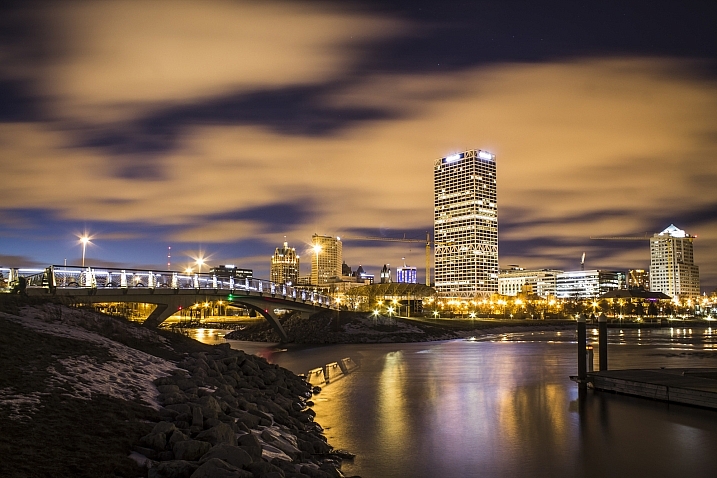
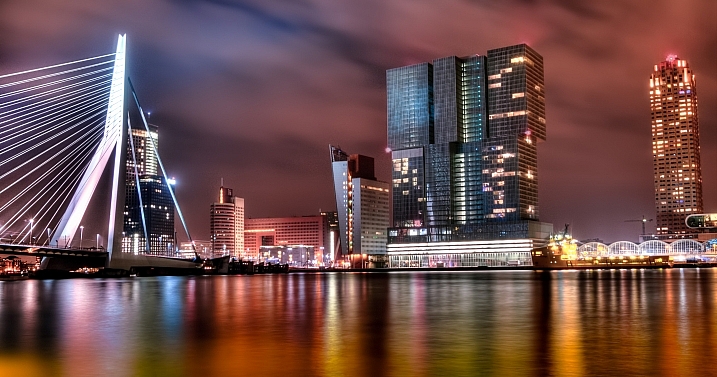
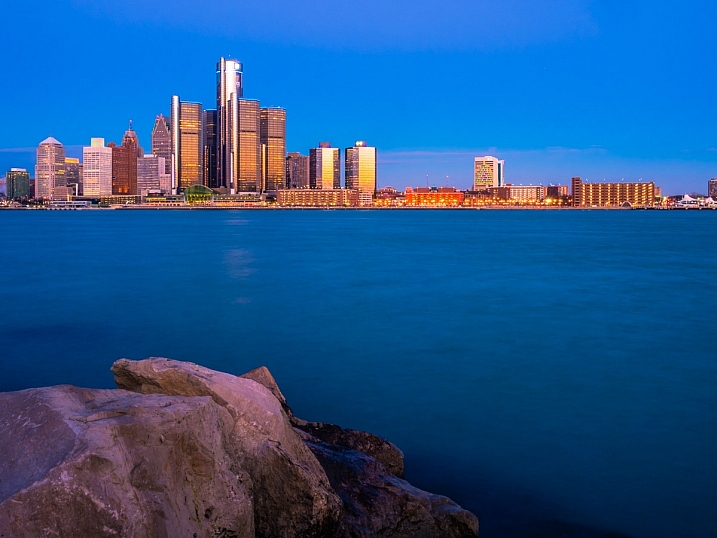
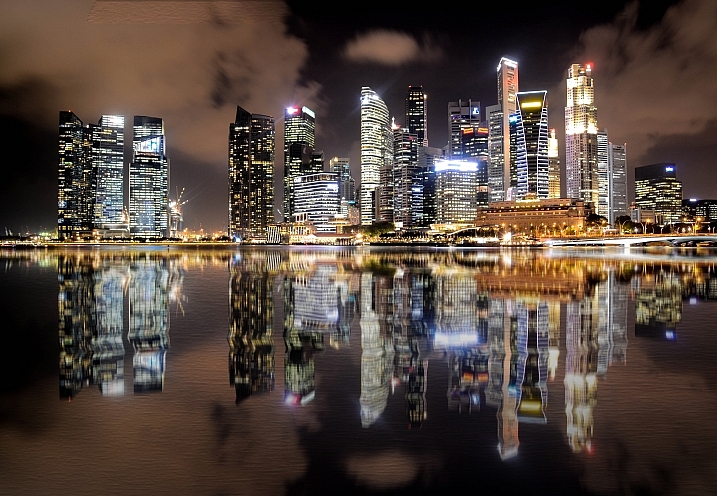
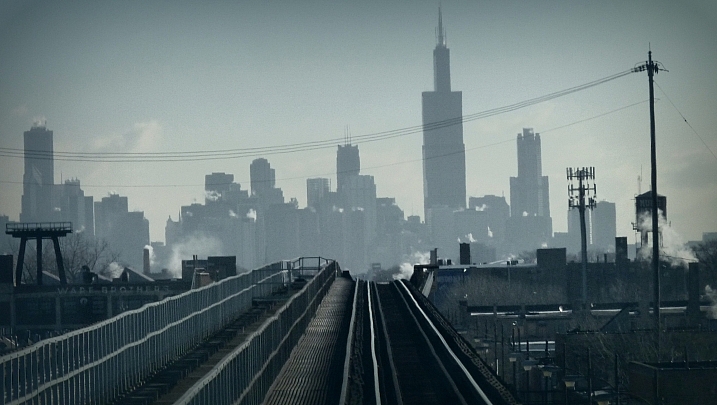
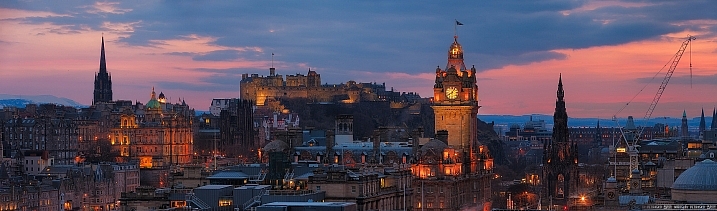
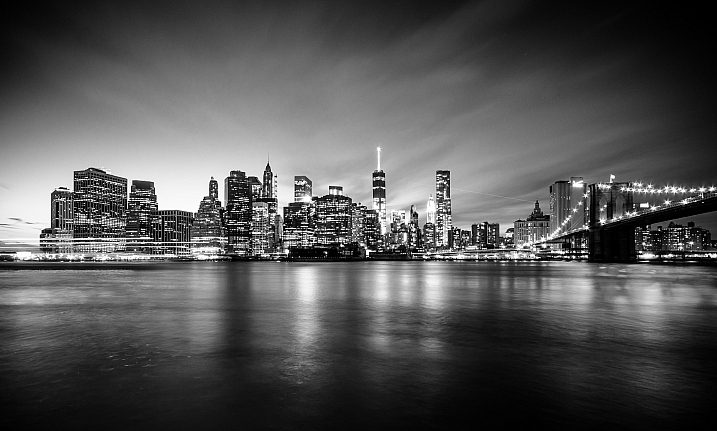
Whether you live in a big metropolis or a small town, your urban center will have a skyline of some kind. The outline of the buildings that make up the main part of town make up the skyline.

Barnyz

By barnyz

Rennett Stowe

By Rennett Stowe

Weekly Photography Challenge – City Skyline

You can see 25 more example of city skyline photos here.

If you browse online for skyline photos you may notice a common thread among the images – many of them are shot at dusk, or at night. That’s because cities look great just as daylight is fading away and the lights of the city illuminate. It’s the magic of blue hour.

You get to decide how you want to tackle this week’s challenge and shoot your city’s skyline. Maybe go out a few different times during the day and see how the light changes.

Trevorklatko

By trevorklatko

Fèlix González

By Fèlix González

Sdh_zh

By sdh_zh

If it’s a city near a body of water, try and capture a reflection of the lights at night. Or make your own reflection by finding a large rain puddle and a low camera angle.

If you live in a city that’s been photographed a million times like NYC or San Francisco, try something different like:

  • Shoot with a fish-eye lens
  • Convert to black and white
  • Shoot straight up and get just building tops
  • Put something in front to frame the city with
Louis Raphael

By Louis Raphael

David Yu

By David Yu

Maciek Lulko

By Maciek Lulko

Geoff Llerena

By Geoff Llerena

Rytc

By rytc

Ehpien

By ehpien

Share your images below:

Simply upload your shot into the comment field (look for the little camera icon in the Disqus comments section) and they’ll get embedded for us all to see or if you’d prefer upload them to your favourite photo sharing site and leave the link to them. Show me your best images in this week’s challenge. Sometimes it takes a while for an image to appear so be patient and try not to post the same image twice.

Michael Matti

By Michael Matti

Harshil Shah

By Harshil Shah

googletag.cmd.push(function() {
tablet_slots.push( googletag.defineSlot( “/1005424/_dPSv4_tab-all-article-bottom_(300×250)”, [300, 250], “pb-ad-78623” ).addService( googletag.pubads() ) ); } );

googletag.cmd.push(function() {
mobile_slots.push( googletag.defineSlot( “/1005424/_dPSv4_mob-all-article-bottom_(300×250)”, [300, 250], “pb-ad-78158” ).addService( googletag.pubads() ) ); } );

The post Weekly Photography Challenge – City Skyline by Darlene Hildebrandt appeared first on Digital Photography School.


Digital Photography School

 
Comments Off on Weekly Photography Challenge – City Skyline

Posted in Photography


Time Travel in China: Photos Reveal A Century of Dramatic Growth

15 Apr

[ By Steph in Culture & History & Travel. ]

time travel china 1

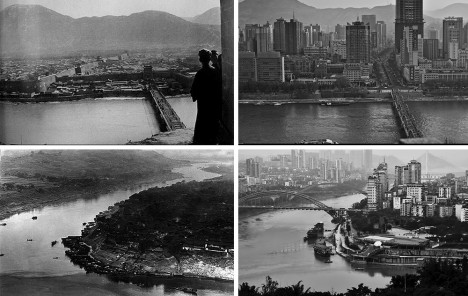
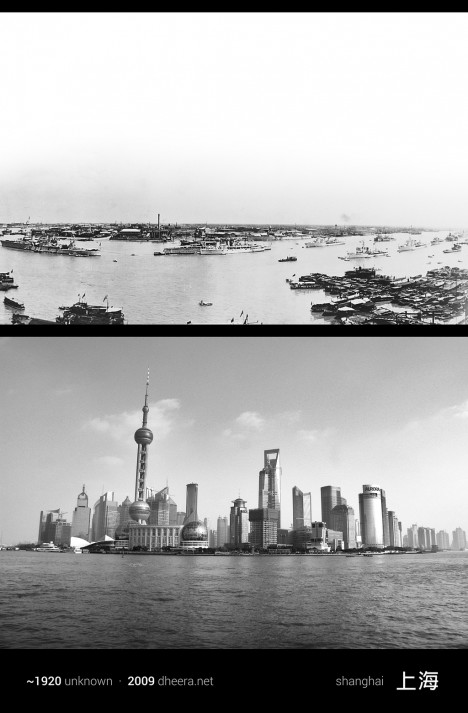
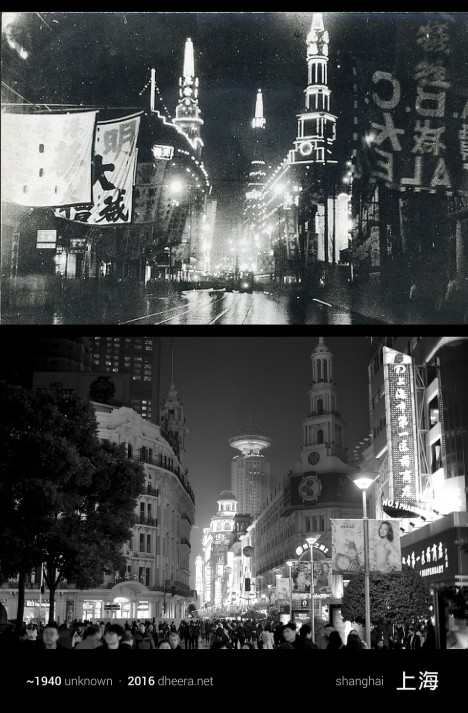
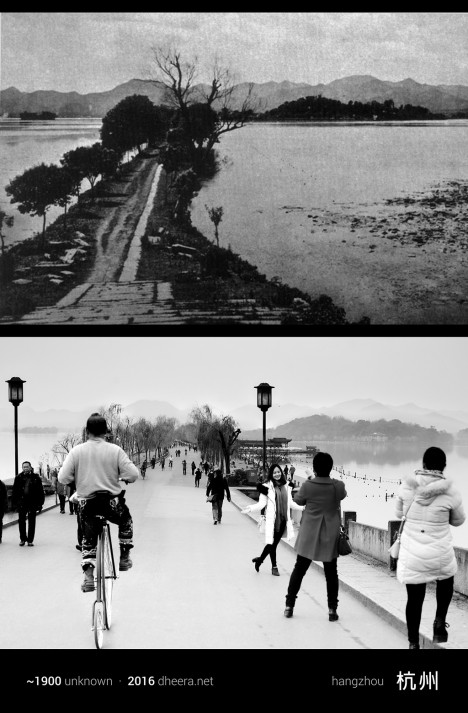
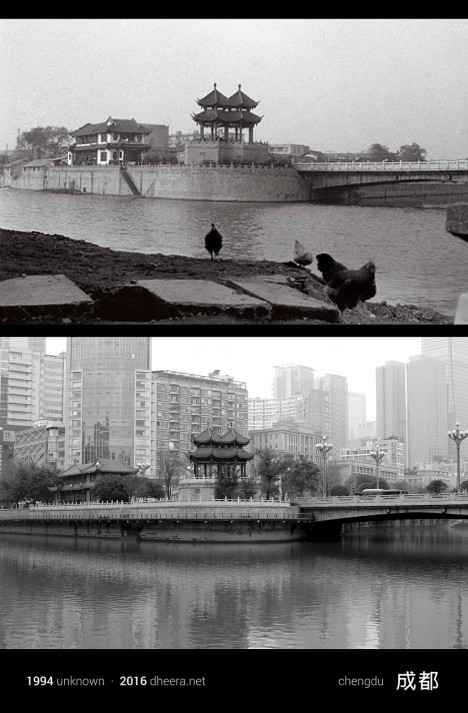
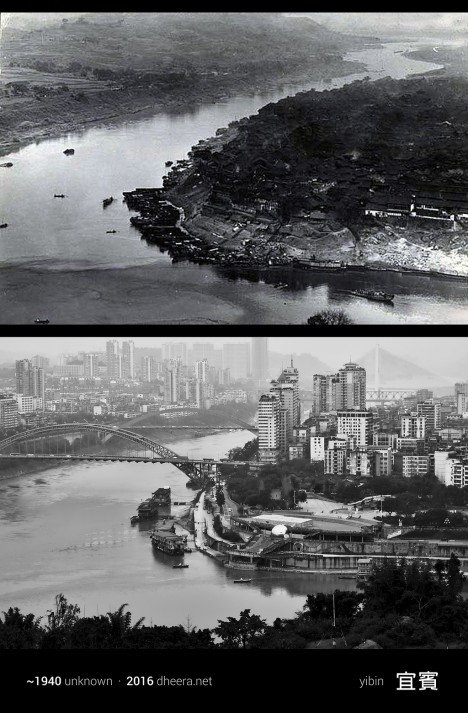
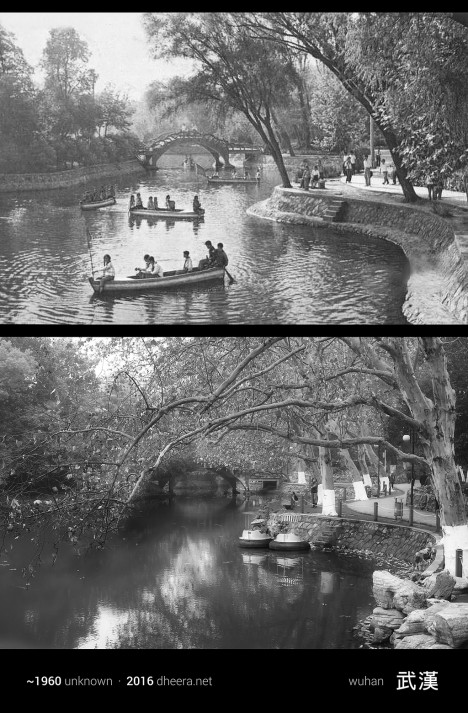
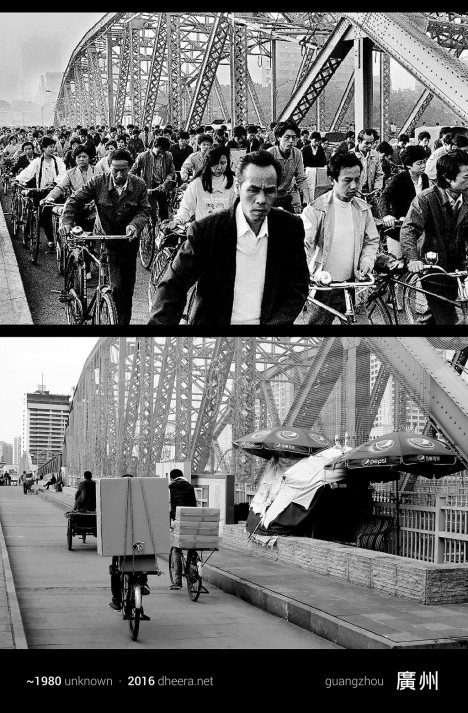
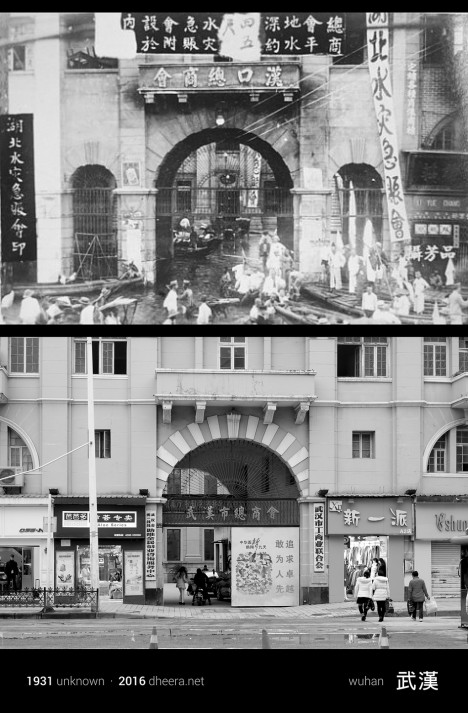
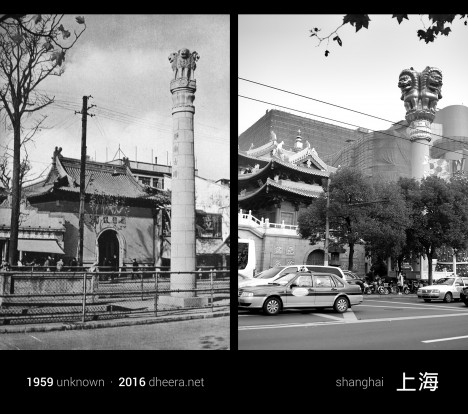
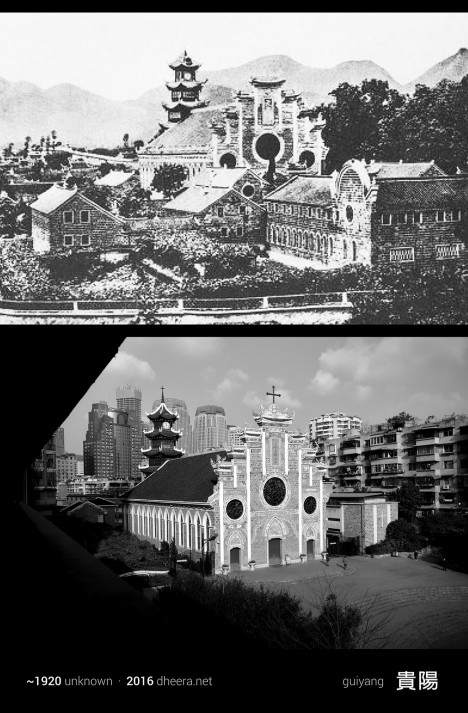
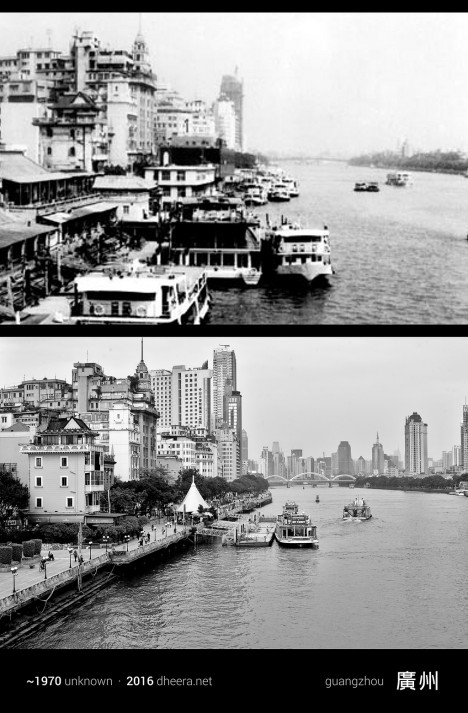
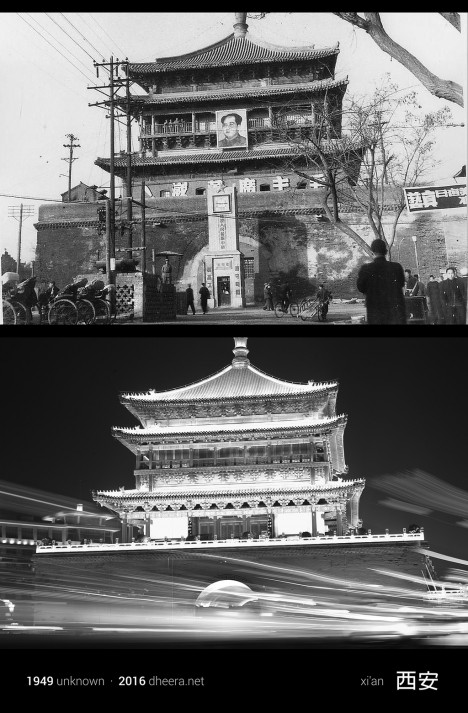
Few nations have experienced quite the explosive rate of growth over the last century as China, and a new photo series shows us just how dramatic those changes actually look on the ground. Photographer, computer scientist and MIT alum Dheera Venkatraman pored through books and archives to find images taken in the 20th century and then went out and re-took them, shot by shot, attempting to frame them exactly as they were originally photographed. All of the new imagery has been converted to black and white to highlight what’s different and what has managed to survive after decades of frantic industrialization.

time travel china 11

time travel china 5

The result is a series called Time Travel in China, creating pairs of images that Venkatraman likens to a ‘spot-the-difference’ game. Agricultural fields become towns, skyscrapers shoot up into the air, bridges stretch across waterways, dirt roads are paved, infrastructure becomes more complex.

time travel china 6

time travel china 7

time travel china 2

Yet not only do the contours of the land and the silhouettes of the mountains remain the same, a surprising number of buildings do, too, especially temples and historical structures. In some cases, the only notable shifts in a forty- or even eighty-year period are the vehicles, some lights and a handful of modern towers.

time travel china 12

time travel china 14

time travel china 3

time travel china 10

“When most people travel, they think of traveling in space,” she says. “Whether it’s hiking through a national park or learning about a distant culture, it’s usually about the destination. This time, I decided to travel in time.”

time travel china 8

time travel china 9

time travel china 4

“It wasn’t always easy to get that perfect angle match,” she continues in a post on PetaPixel. “In some places, the vantage point ended up being in a private location, and in some cases there was a large obstruction or building preventing me from getting the same view. But nonetheless, I managed to capture several shocking contrasts over the past century of Chinese history.”

Share on Facebook


[ By Steph in Culture & History & Travel. ]

[ WebUrbanist | Archives | Galleries | Privacy | TOS ]


WebUrbanist

 
Comments Off on Time Travel in China: Photos Reveal A Century of Dramatic Growth

Posted in Creativity


25 Stunning Photos of City Skylines

15 Apr

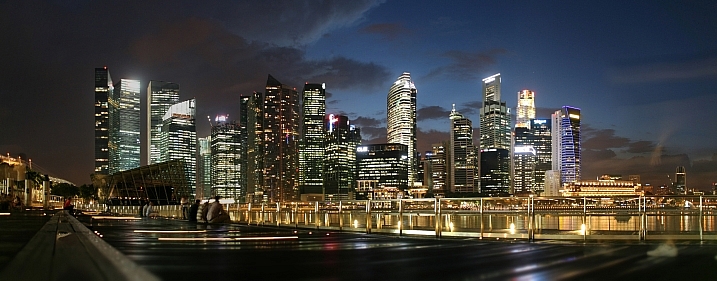
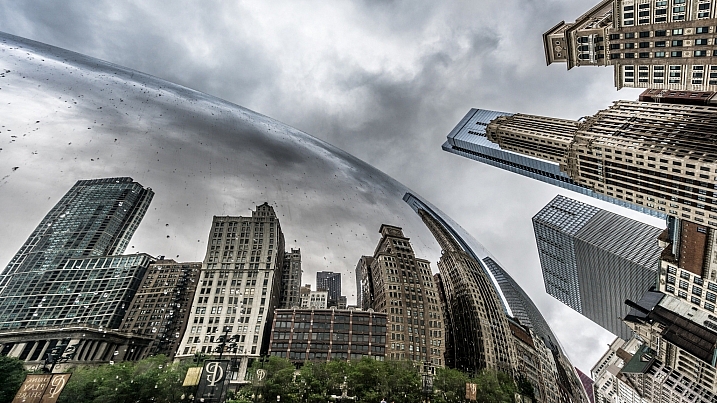
Urban landscape photography, pretty much involves city skyline images. Iconic shots of skylines and many cities of the world are instantly recognizable.

See if you find these images inspiring, and if you can name the cities:

Anh Dinh

By Anh Dinh

Olsonj

By olsonj

Viisoreanu Florin Gabriel

By Viisoreanu Florin Gabriel

Chris Toe Pher

By Chris Toe Pher

Matt Paish

By Matt Paish

Mike Boening Photography

By Mike Boening Photography

Michaela Loheit

By Michaela Loheit

Yooperann

By yooperann

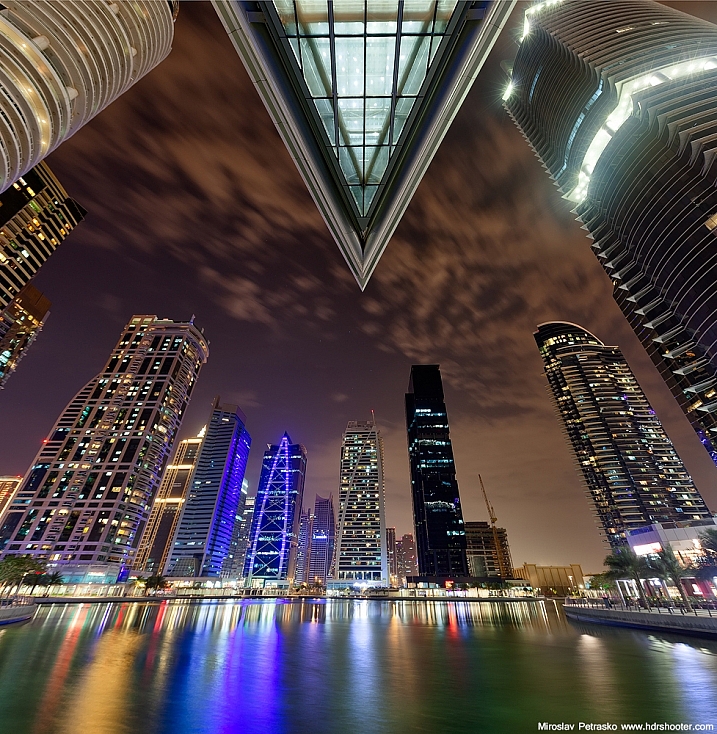
Miroslav Petrasko

By Miroslav Petrasko

Maciek Lulko

By Maciek Lulko

Miroslav Petrasko

By Miroslav Petrasko

Whereisemil

By whereisemil

Herr Olsen

By Herr Olsen

Giuseppe Milo

By Giuseppe Milo

Aurimas

By Aurimas

Jamie McCaffrey

By Jamie McCaffrey

Ram Balmur

By Ram Balmur

RobinTphoto

By RobinTphoto

Peter Hubler

By Peter Hubler

Gordon

By Gordon

Dave Wilson

By Dave Wilson

Gord McKenna

By Gord McKenna

Hopeless128

By hopeless128

Loïc Lagarde

By Loïc Lagarde

Siyamalan

By Siyamalan

googletag.cmd.push(function() {
tablet_slots.push( googletag.defineSlot( “/1005424/_dPSv4_tab-all-article-bottom_(300×250)”, [300, 250], “pb-ad-78623” ).addService( googletag.pubads() ) ); } );

googletag.cmd.push(function() {
mobile_slots.push( googletag.defineSlot( “/1005424/_dPSv4_mob-all-article-bottom_(300×250)”, [300, 250], “pb-ad-78158” ).addService( googletag.pubads() ) ); } );

The post 25 Stunning Photos of City Skylines by Darlene Hildebrandt appeared first on Digital Photography School.


Digital Photography School

 
Comments Off on 25 Stunning Photos of City Skylines

Posted in Photography


Pelican lightens up with Air cases

15 Apr

$ (document).ready(function() { SampleGalleryV2({“containerId”:”embeddedSampleGallery_2062335725″,”galleryId”:”2062335725″,”isEmbeddedWidget”:true,”standalone”:false,”selectedImageIndex”:0,”startInCommentsView”:false,”isMobile”:false}) });

Pelican cases have a reputation for sturdiness and reliability, making them a go-to for pros who want to guarantee their gear makes it to the shoot and back intact. Today Pelican has introduced the Air series of cases, boasting the same level of protection without all of the weight. The Air series cases are up to 40% lighter than their Protector series counterparts.

At launch, the Air series will include six sizes including an overhead compartment-friendly wheeled version, and Pelican plans to introduce 20 sizes over the next year and a half. The new cases are made of an HPX2 resin and will be offered in four configurations: no foam, with customizable cubed foam, with padded dividers or with Pelican’s TrekPak rigid dividers.

The Pelican Air series are available for pre-order now at pelican.com/air and will ship starting May 1, 2016. Prices range from $ 180 for the 1485 Air up to $ 340 for the 1615 Air wheeled check-in model.


Press release:

Pelican Products Introduces Pelican™ Air Cases That Are Up To 40% Lighter

TORRANCE, CA — April, 15, 2016 – Since 1976, the Pelican™ classic Protector™ case has been the go-to protective case solution for millions of people worldwide. It has made an impact in industries ranging from military and aerospace to photography and hunting. Today, Pelican is proud to announce the outcome of a relentless quest to offer Pelican users more versatility than ever before: Introducing Pelican Air cases. These new cases have been engineered to maintain the same standard of durability, but reduce the weight of each case by up to 40 percent and offer new size selections not currently available in the Pelican classic or Pelican Storm lines.

Available in six long-form, travel-ready sizes, Pelican Air cases are constructed of lightweight HPX2 resin, the next generation of Pelican’s proprietary formula that rebounds to stress without breaking. With the busy traveler in mind, the 1535 Pelican Air case (Wheeled Carry On) complies with overhead bin standards and the 1615 Pelican Air case (Wheeled Check In) complies with current airline check-in size regulations. 

Additional models are currently in development with more than 20 new sizes making their debut over the next 18 months. Each case passes the same performance tests (impact, drop, submersion, high and low temperature) that Pelican users have come to trust and is backed by the company’s legendary lifetime guarantee of excellence.

 “The Pelican brand is synonymous with protection and has set the gold-standard in the protective case market for more than 40 years,” said Lyndon Faulkner, President and CEO of Pelican Products. “While using the Pelican classic case design as the basis for the new line, our engineers have spent the past two years reimagining the classic case with a focus on taking out weight while maintaining the same high level of performance customers have come to expect from Pelican. This revolutionary Pelican Air case design underscores Pelican’s continuing commitment to innovation and making a legendary product even better.”

To construct a lighter case, Pelican’s engineering team faced the challenge of building lightness into every facet of the design without compromising Pelican’s renowned durability. By working with a team of materials scientists, Pelican was able to construct cases that are the lightest protective cases on the market today.

Pelican Air cases are available with several configurations:

  • No Foam (empty)
  • Pick N Pluck™ foam – manually customizable cubed foam
  • Padded Dividers – newly redesigned with a fully-sewn tub, felt exterior and high-visibility yellow interior, making it easier to identify equipment
  • TrekPak™ – a completely new divider system with rigid, customizable panels and locking pins

Pelican Air cases are available through select dealers, distributors and retailers starting May 1, 2016. For more information on Pelican Air cases and the full Pelican line, visit http://pelican.com/air. 

Pelican Products, Inc. is a portfolio company of Behrman Capital, a private equity investment firm based in New York and San Francisco. 

Articles: Digital Photography Review (dpreview.com)

 
Comments Off on Pelican lightens up with Air cases

Posted in Uncategorized