RSS
 

Archive for April, 2016

Tips for Processing Winter Landscapes in Lightroom

20 Apr

I see a lot of winter. The interior of Alaska, where I live, gets a solid six months, often seven, of the white stuff. Essentially anytime from October to mid-April, we are likely to have snow on the ground. Unless I put the camera down for most of the year (which I don’t), I end up with a lot of photos on my computer of snowy mountains, forest, and tundra. Come the early-spring, brown season, I have a lot of computer work to take care of.
Kelly DONE-1

Though the method of processing winter images is largely the same as many other types of outdoor images, you’ve got to approach snowy images with cold focus (insert laughter here). I jest, but actually the cold, and bright blue tones of winter, are elements that should not be forgotten (or overdone).

My Approach

When I come at an image in Lightroom, I don’t tackle it with a standard formula. Rather, I consider the time and place I made it, what the landscape looked like, and just as importantly, how it felt. Those memories play an important role in my vision for the final image.

With that in mind let’s dive into the first of the three winter images I want to walk you through my processing steps.

Brooks Range, Alaska – Early winter
Kelly 1

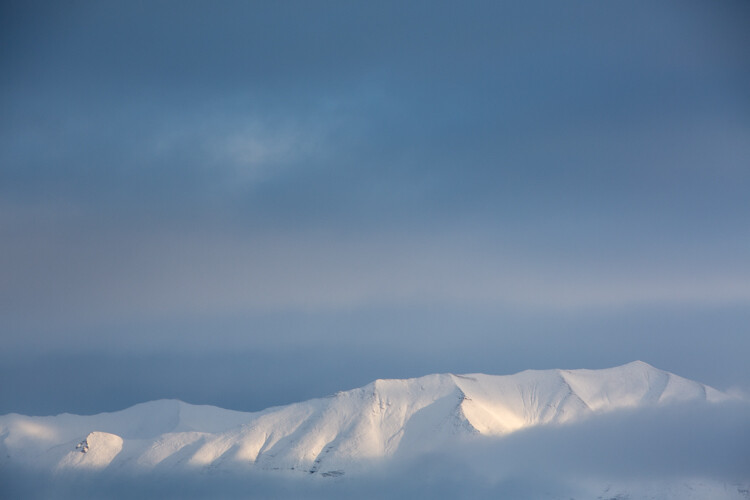
On a river trip in early September, down the remote Kelly River of the western Brooks Range, my clients and I were hit by the first snowfall of winter. It started the evening before I made this image, with a few big, wet flakes falling from the overcast sky. By the following morning, my tent, the gravel bar on which we were camped, and the entire landscape, was covered in six inches of fresh snow. The snow was tapering off, and I could see breaks in the clouds where patches of blue sky shone through. It didn’t take long before those patches were turned into beams of sunlight on the mountains. I walked down to the river with my camera, and started making images of the shifting light on the land. This shot came out of that session.

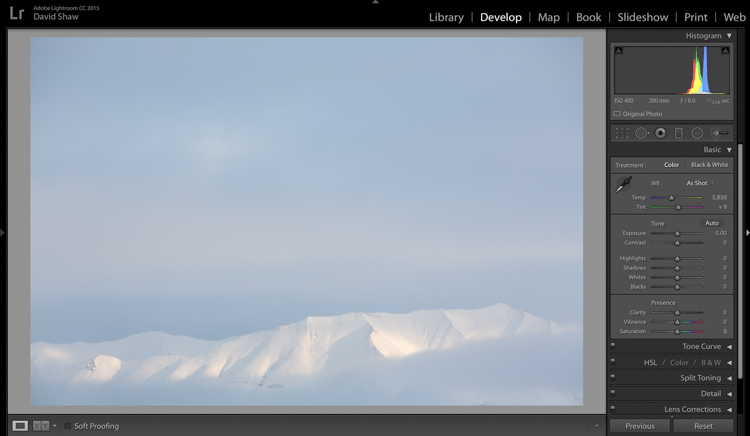
The light and color is typical of many winter images, bright, with lots of blue. Take a look at the histogram in the upper right, and you can see how it’s pushed to the right, meaning the image is on the bright side (but no blown-out highlights), exactly what I want with an out-of-camera winter shot.

Step One – White Balance

The first thing to consider is the white balance. Cloudy days tend to cause warmer tones, and snow, particularly under-exposed snow, can take on a yellowish hue. This can be off-putting, so pushing your white balance toward the blues can help provide a more pleasing, and accurate tonality. In this case, my camera selected an appropriate White Balance in the field, and didn’t need any adjustment in Lightroom. But keep this in mind when processing your own images.

Step Two – Exposure
Kelly 2

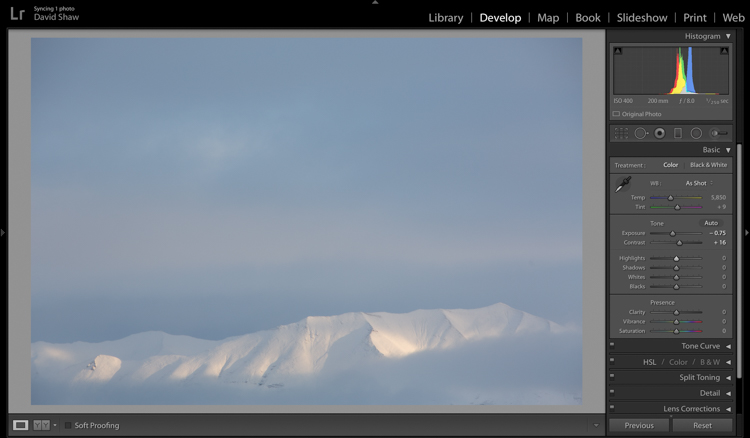
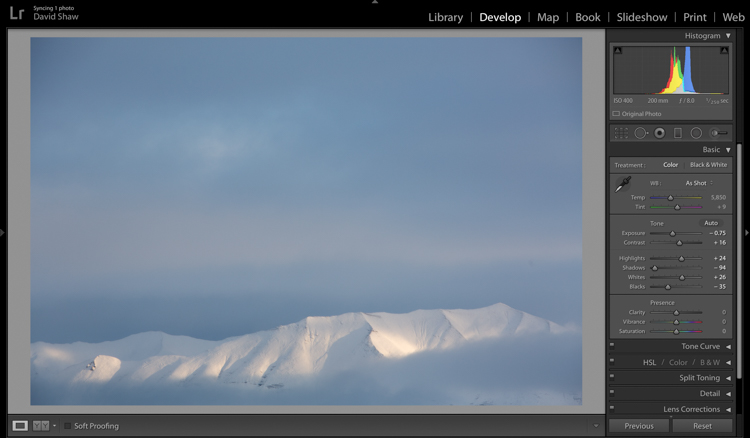
The next step was to bring down the exposure by 0.75 stops, making the image a bit moodier, and less bright. I then bumped the contrast a hair to +16 just to make those highlights more clear before I dove into the more important contrast adjustments.

As a quick note, I bet I do 85% of my Lightroom edits in the Basic panel. This very effective section of the program is one you should know intimately, before you go exploring too much of the huge variety of other tools provided by the software.
Kelly 3

The next four sliders provide a more specific modification of lighting in the image. In this case, I wanted to recollect some of the feeling of the dissipating storm by emphasizing the dark clouds. To do so, I pulled the Shadows slider down nearly all the way, making the dark blues and grays of the clouds appear more menacing. The Highlights, I bumped just a notch, adding some pop to the bright patch on the mountains. Whites and Blacks each got a nudge up (Whites) and down (Blacks) respectively, finishing the job I started with the first two sliders.

Step Three – Clarity
Kelly 4

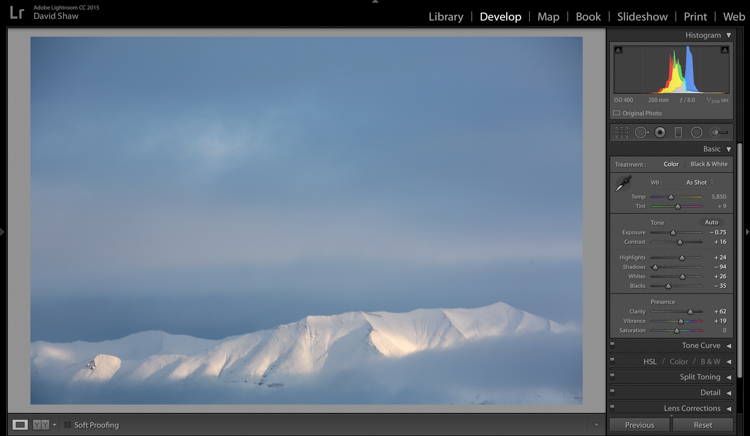
The first of the next three sliders is Clarity. This nifty tool, increases the contrast where dark and bright edges meet, and adds apparent sharpness to the image. On the morning I made the image, the clear morning light made the mountains very sharp to the eye. Wanting to emulate that effect in the image, I gave the Clarity a substantial boost to +62. That’s about as high as you can go on most images without appearing artificial.

Step Four – Vibrance and Saturation

The Vibrance and Saturation sliders are dangerous. Photographers tend to believe that bright colors mean a good image. I want to say this very clearly: Do NOT over-saturate your images. It doesn’t look as good as you think it does, so, you know, just don’t.

Vibrance increases the intensity of the less saturated tones. When used in moderation it adds pop. In this image, I left the saturation slider completely alone.
Kelly 5

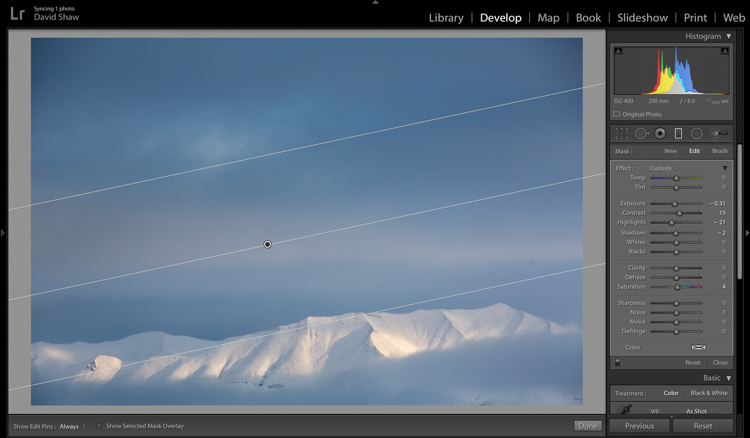
The rectangular icon in the row below the histogram is the Graduated Filter. This useful tool allows you to adjust a portion of the frame, without affecting the other areas. Just as importantly, you can adjust the edge softness (transition area) as hard or soft as you like. In this case, I wanted my changes to taper naturally into the frame so made the filter edge fairly wide (set feather to a high number). Using this tool, I chose to darken the sky, and draw attention to the mountains at the bottom of the frame. After adjusting the placement, I lowered the exposure in the sky. This allowed me to subtly darken the sky, without affecting the brighter tones of the mountains.
Kelly 6

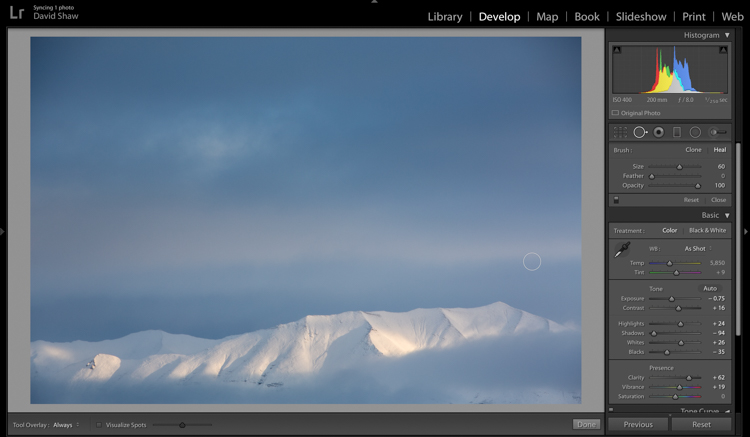
Adjusting contrast can cause previously invisible imperfections to appear. In this case, it was a dust spot on my sensor, which I cloned out using the “Heal” tool.

The final image, as you can see, is a substantial improvement over the original, and holds true to the scene as I remember it.
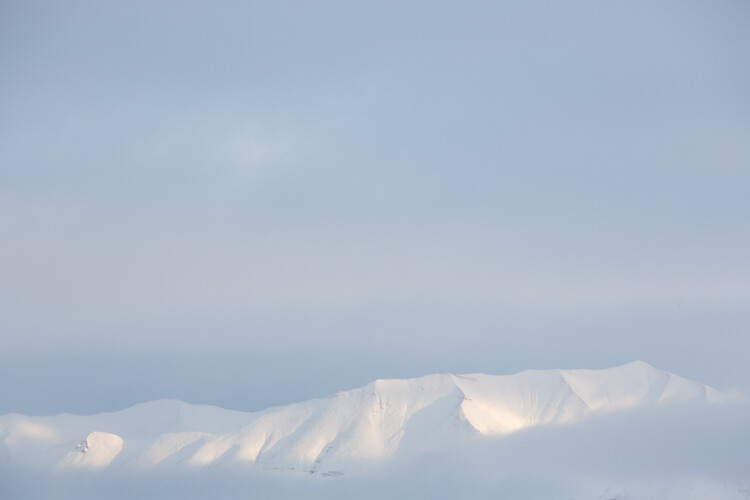
Before

Before processing

Kelly DONE-1

After processing

Color in the Cold

Not all images of the winter rely on cool tones for their success. At times, it is the juxtaposition of those cool tones and bright warm colors that make an image.
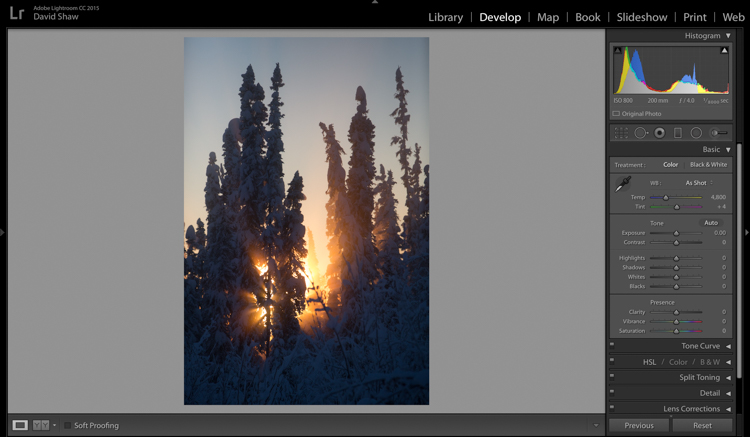
Beams 1

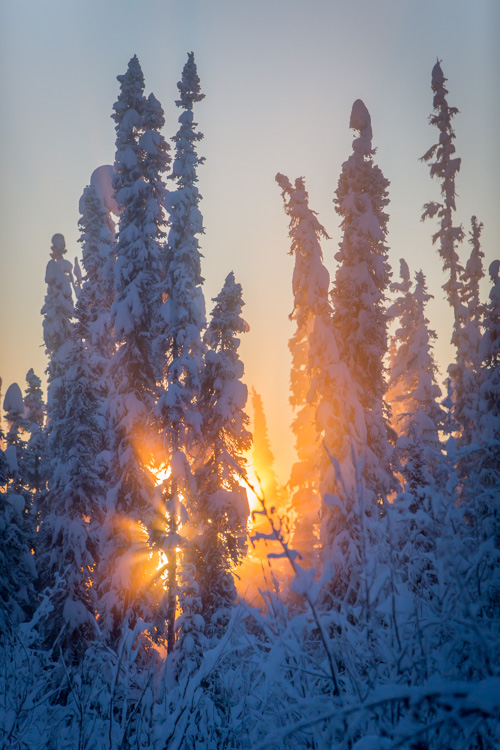
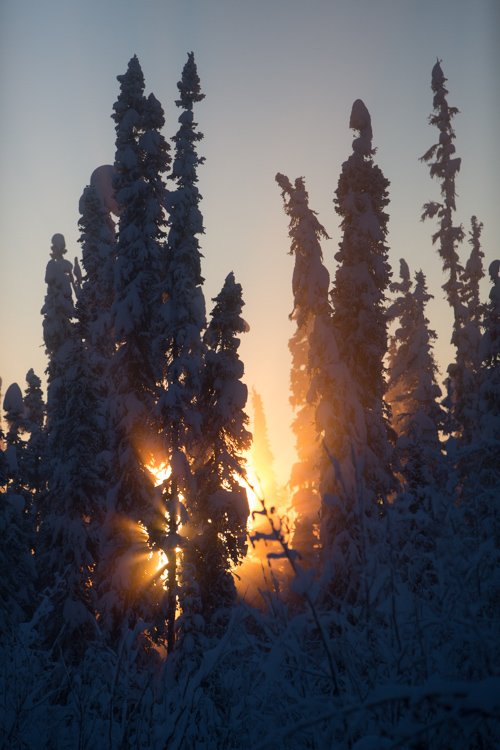
This is one such image. I made it on an extremely cold mid-winter day, on the ice of the small creek that flows on the lower part of my property north of Fairbanks, Alaska. It was about -35f (-37c), and water, pushed up from the bottom of the creek by the pressure of the ice, was trickling out onto the surface where it steamed into the frigid air, before freezing. It was midday, and the sun, just a few ticks above the horizon to the south, was throwing orange beams through the branches of the snow-colored spruces. Fortunately, I had my camera, and managed this photo before the sun slipped away.
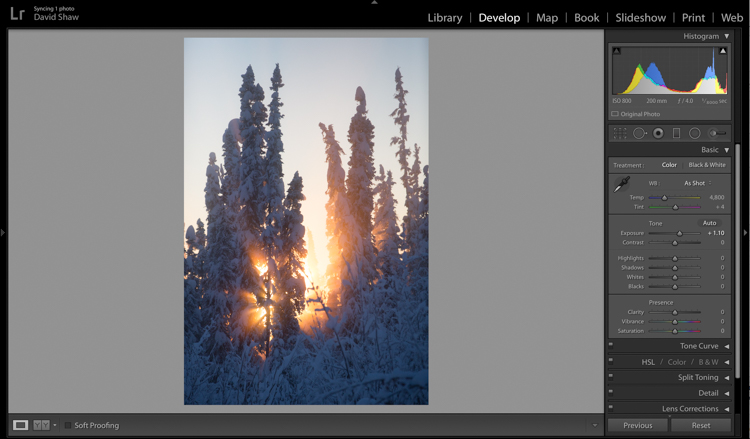
Beams 2

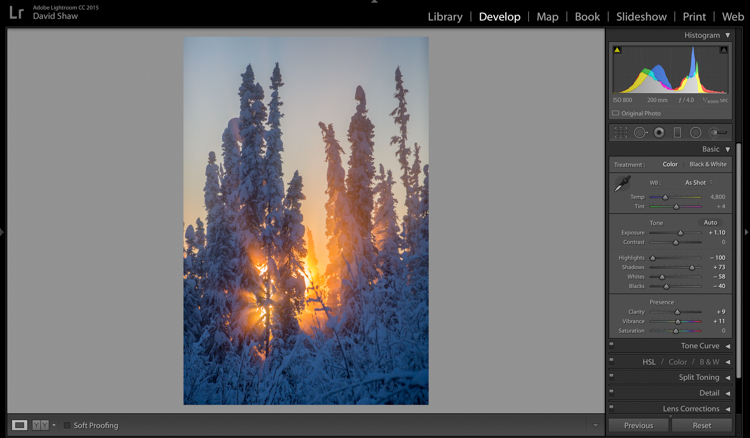
On that cold day, I was forced to underexpose the image to keep the beams of sunlight and the sky from blowing out. My first step was to return some of that brightness to the image by raising the Exposure +1.10 stops.
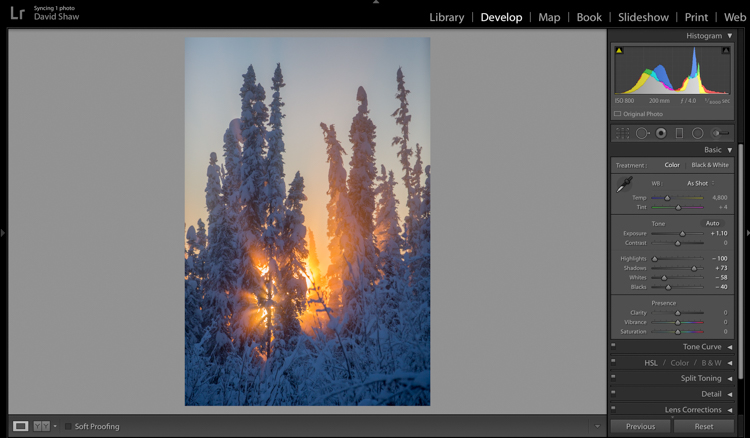
Beams 3

In general, I dislike High Dynamic Range (HDR) images, particularly the over-processed ones that appear regularly on Facebook and Instagram feeds. That said, HDR, or my Lightroom version of it, can be helpful in highly contrasted images like this one. Here, I pulled the highlights all the way down, bringing the beams and the sky back to more appealing levels. The Shadows I brought up, which revealed details in the trees and shrubs which were previously too dark to see. The effect, when used appropriately, does not look artificial.
Beams 4

The image was already colorful and sharp so required very little in the way of Clarity, Vibrance or Saturation. A small boost (+9) to Clarity, +11 to Vibrance, and no change in Saturation was all the image needed.
Beams 6

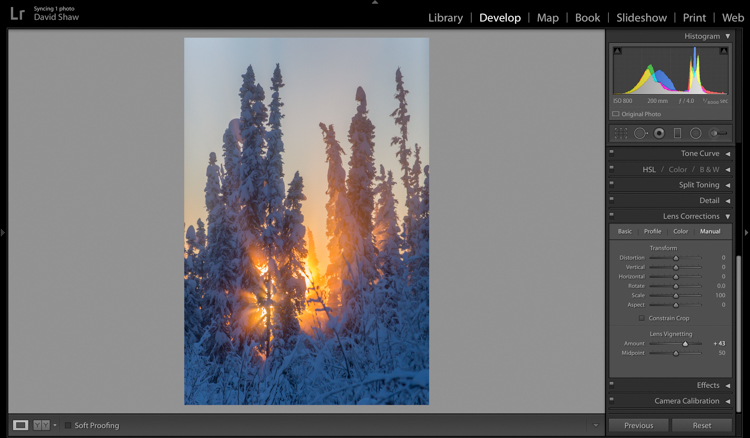
The lens I used to make the image has a hood, which I realized after the fact, was slightly mis-aligned and threw a vignette over the corners of the photo. If I want a vignette (see next), it needs to be purposeful, not the accident of a poorly fitted hood. So, using the Lens Corrections module, I made a single adjustment, sliding the Lens Vignetting slider to the right, brightening the corners, and almost entirely eliminating the ugly dark area in the top right.
Beams 7

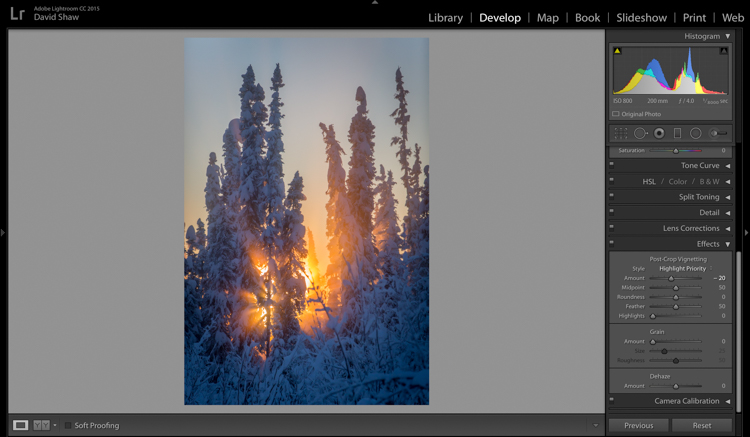
The last thing I wanted to do was darken the sky a touch more, and bring further attention to the starburst of sunbeams coming through the trees. So, using the Effects Module, I added a -20 Post-crop Vignette, which effectively darkened the sky and lower corners.

With that final change, the image was complete, a starburst of color on a brutal winter day.
Before processing

Before processing

Beams Done-1

After processing

The Storm

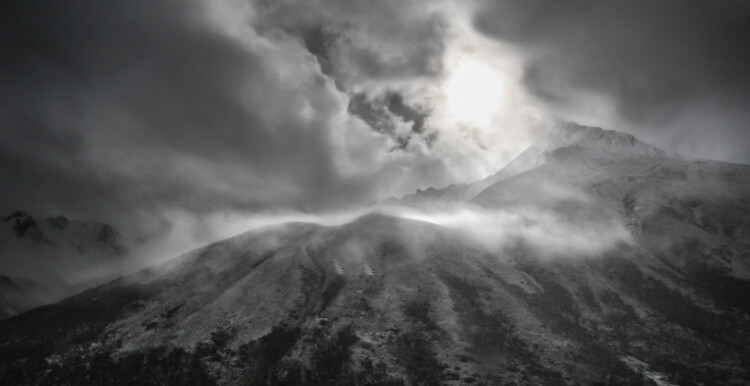
A number of years ago, I spent 10 days trekking through the Himalayas of Bhutan. It was October, the tail end of the trekking season for the little mountain kingdom. My group and I hiked up from the lowlands, to a high camp at over 13,000 feet, where we planned to cross over two 15,000 foot passes before making a long descent back to the city of Thimpu. It didn’t work out as planned. We’d scheduled two nights at the high camp to acclimatize before crossing the passes. Just before bed on the second night, a storm rolled in, and by the time we woke up the following morning, there were eight inches of snow on the ground. Any hopes of penetrating higher into the mountains were dashed. Making the best of it, I rose and made photos of the dark mountains and falling snow.
Bhutan 1

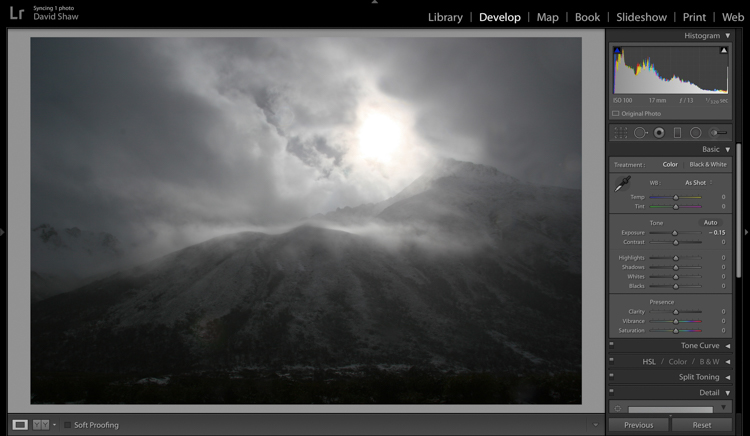
In the field, I purposely underexposed to keep the small patch of bright sky surrounding the sun from blowing out entirely. The mountains ended up nearly black, and the sky dark gray. Though consistent with my desire to make a moody, foreboding image, I wanted to emphasize that feeling even more.
Bhutan 2

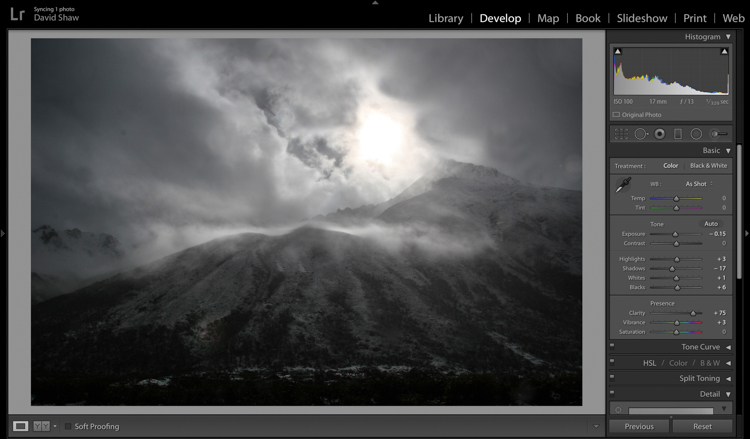
In the Basic Module, you can see that I darkened the image a bit more, left the highlights more or less alone, darkened the shadows a hair, and bumped the blacks just a bit to bring some texture into the dark lower corners. The Clarity slider I pushed notably to the right, which made the textures in the sky and mountain pop against the otherwise soft grays. I left the color adjustments mostly alone.
Bhutan 3

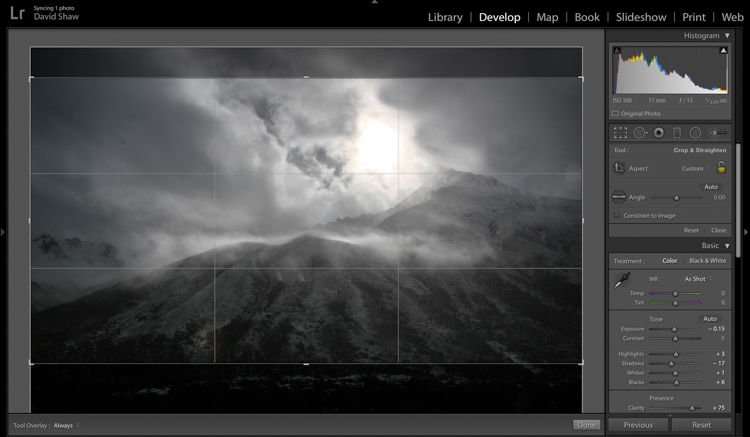
The more I looked a the photo, the more I realized the top and bottom edges added nothing to the image. Using the crop tool, I nipped them off, bringing all the attention to the action in the central part of the frame.
Bhutan 4

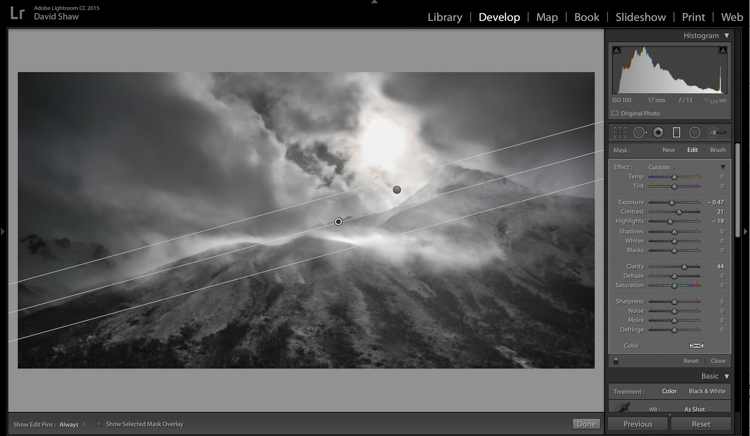
At this point, the processing got a bit complicated. I wanted to deal with the sky and mountains separately. One I wanted to brighten, the other darken. There were two ways to deal with this:

  1. Use the Adjustment Brush tool to select and develop the two areas
  2. Use Graduated filters to accomplish the same thing. Because the Graduated filter allows more flexibility to change the softness of the adjustment edge, I decided to use that.

The filter that adjusted the sky I darkened, and increased the clarity. The one for the mountains, I brightened, boosted the highlights, to make the scudding clouds pop, and added some clarity.
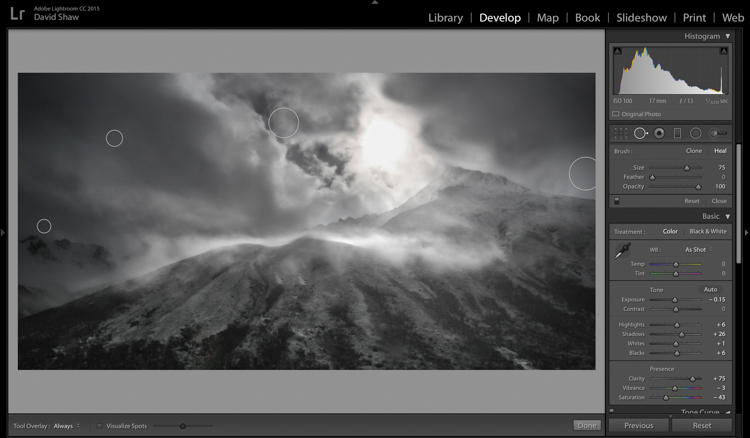
Bhutan 5

As noted earlier, the changes in contrast can emphasize imperfections, and I took a moment to remove lens flares and dust spots.

Last, I did a second pass of the Vibrance and Saturation. The yellowish patch around the sun was annoying me, so I dropped both the color sliders down reducing the image to a near black-and-white.
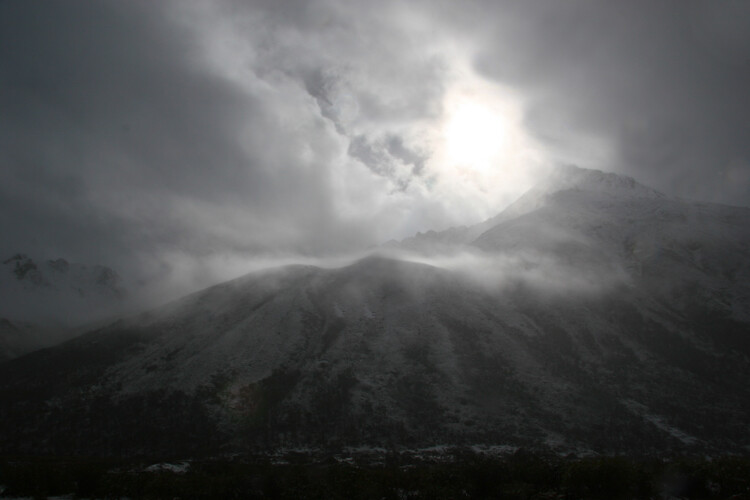
Bhutan-Jangothang-snowstorm-04

Before processing

Bhutan Done-1

Finished image after processing

I really like the final image. It provides a sense of the storm and the foreboding nature of mountain weather. Looking back, I can easily remember my nervousness that snowy morning, the uncertainty, and eventually, our retreat back the way we’d come.

Conclusion

Great images can come from snow. Many photographers put their cameras away during a winter storm, but I strongly recommend you don’t because there is great stuff out there if you’ve got the perseverance to suffer through some cold days. The images you gather, like these, can be optimized in your computer. Remember to take a moment before you begin, to recall how the scene looked and felt when you made the image, then use those memories as your guide.

Do you have any winter images on your computer that are begging to be processed? Now’s the time to do it, please share your images and comments below.

googletag.cmd.push(function() {
tablet_slots.push( googletag.defineSlot( “/1005424/_dPSv4_tab-all-article-bottom_(300×250)”, [300, 250], “pb-ad-78623” ).addService( googletag.pubads() ) ); } );

googletag.cmd.push(function() {
mobile_slots.push( googletag.defineSlot( “/1005424/_dPSv4_mob-all-article-bottom_(300×250)”, [300, 250], “pb-ad-78158” ).addService( googletag.pubads() ) ); } );

The post Tips for Processing Winter Landscapes in Lightroom by David Shaw appeared first on Digital Photography School.

Digital Photography School

 
Comments Off on Tips for Processing Winter Landscapes in Lightroom

Posted in Photography


Blue Light Special: Colored Streetlamps Precede Decline in Crime

20 Apr

[ By WebUrbanist in Architecture & Cities & Urbanism. ]

blue lights glasgow downtown

In the early 2000s, the city of Glasgow, Scotland, changed over to blue street lighting in an effort to improve the appearance of the city, but areas with the newly blue lights saw an unexpected and disproportionate decrease in crime.

blue lights street japan

No one could say for sure whether there was a causal correlation, but half a world away another city followed suit – Nara, Japan, experimentally began turning their street lamps blue. They also saw a decrease in crime.

blue light highway signs

In  the years that followed, similar deployments were tested, including the addition of over 150 blue lights to an expressway near Tokyo, aimed at reducing accidents.

blue lights underground

The Keihin Electric Express Railway Co. even changed the color of eight lights on the ends of platforms at Gumyoji Station in Yokohama, Japan, to curb track-jumping suicides. A subsequent report showed that in the years following, the station saw no suicide attempts (after previously being the site of multiple suicides per year).

There are a number of theories about why the blue light could be causing a decrease in criminal behavior.

Some argue the association of blue with police presence, except: Japanese police use mostly red lights.

Another theory posits that blue light has a calming effect, feeling more pleasant than orange or red. Indeed, studies have shown that blue lights (associated with calm waters and open skies) can reduce stress responses in fish and be used to treat SAD (Seasonal Affective Disorder) in humans.

blue light versus red

Of course, it is also possible that the new colored lights are simply different and unfamiliar enough to cause people to feel awkward engaging in illicit or dangerous behavior where they are present. And if that is the case, changing all the public lights in the world to blue might be at best temporary fix, working until people get used to the new blue lighting. Experts have warned not to read too much into the effect, regardless, since the causal mechanism or connection has not yet been definitively determined.

Share on Facebook


[ By WebUrbanist in Architecture & Cities & Urbanism. ]

[ WebUrbanist | Archives | Galleries | Privacy | TOS ]


WebUrbanist

 
Comments Off on Blue Light Special: Colored Streetlamps Precede Decline in Crime

Posted in Creativity


Tamron SP 90mm F2.8 DI Macro VC USD real-world sample gallery

19 Apr

Tamron’s venerable 90mm F2.8 Macro is re-born. This iteration, announced in February of this year, offers stabilization, 1:1 magnification and focusing as close as 13.9cm/5.5in. And as far as full-frame primes go, it’s on the less-expensive side at $ 650. Spring is definitely springing in Seattle, and an abundance of tulips (we’re really not kidding, there are tons of them) provided a great starting point for our real-world Tamron 90mm F2.8 sample gallery. 

Articles: Digital Photography Review (dpreview.com)

 
Comments Off on Tamron SP 90mm F2.8 DI Macro VC USD real-world sample gallery

Posted in Uncategorized


House of Eternal Return: Trippy Exhibit Owned by George RR Martin

19 Apr

[ By Steph in Destinations & Sights & Travel. ]

Meow Wolf House of Eternal Return

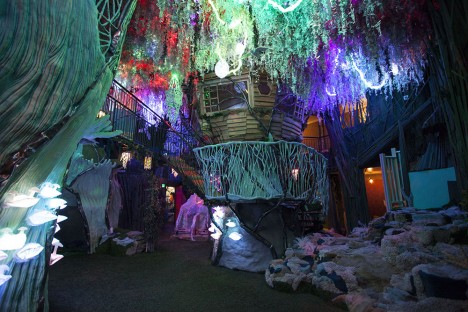
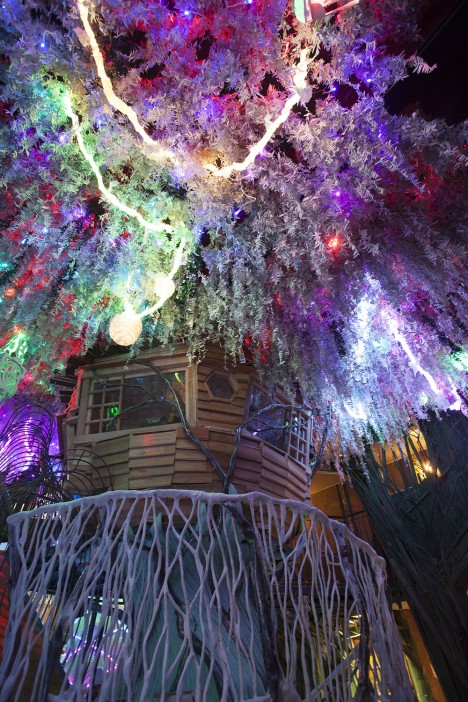
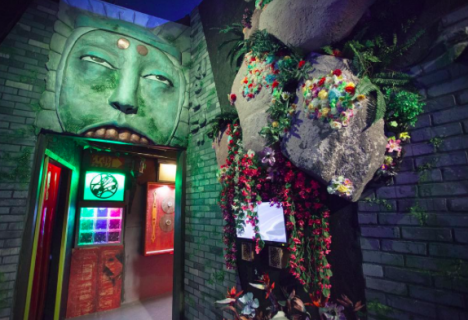
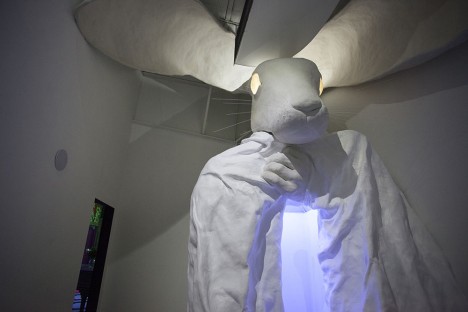
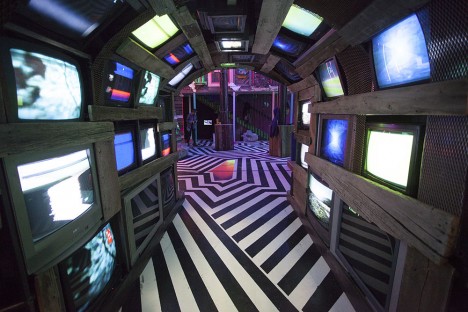
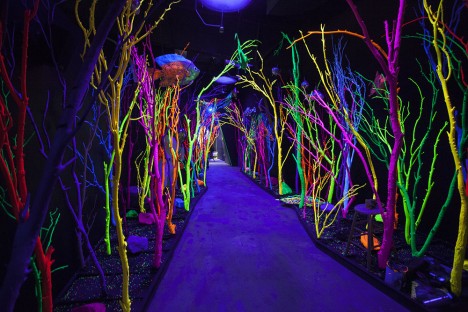
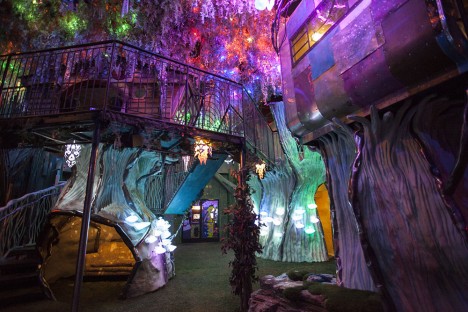
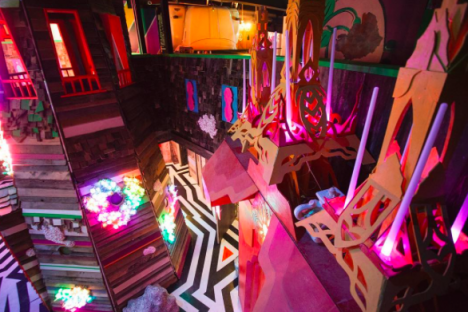
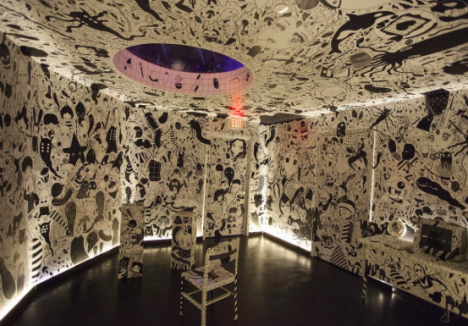
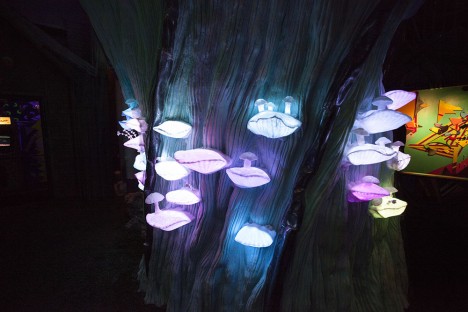
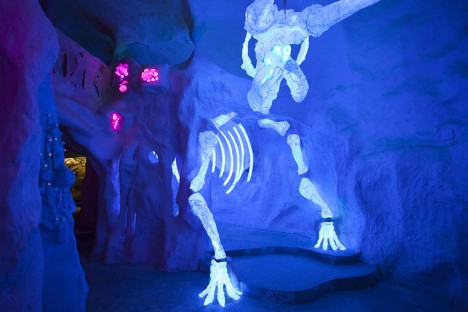
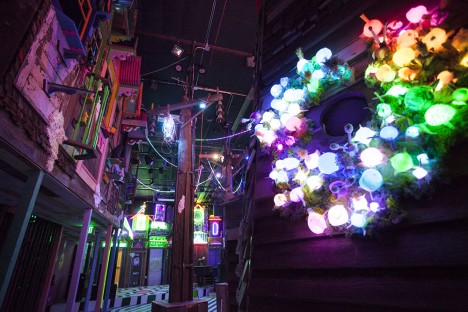
Game of Thrones author George R.R. Martin purchased a sprawling abandoned bowling alley in Santa Fe, New Mexico so an art collective called Meow Wolf could transform it into a bizarre and colorful immersive environment called The House of Eternal Return. Step inside to find 20,000 square feet of trippy black-lit spaces you can literally get lost within, crawling into a fireplace to find an expansive new space full of surreal wonders like neon forests, alien plants and twenty-foot rabbits.

Screen Shot 2016-04-18 at 3.43.44 PM

house of eternal return 1

Screen Shot 2016-04-18 at 3.44.23 PM

house of eternal return 9

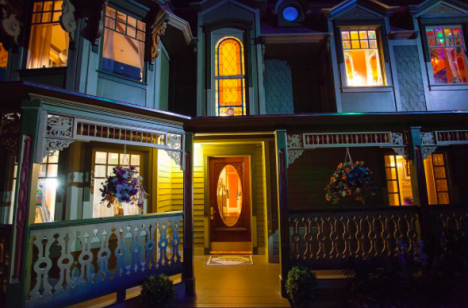
Unlike most art installations, it’s made to be experienced physically, with strange new sights around every corner waiting for you to touch, climb, squeeze and swing your way through all of their secrets. The result of a collaboration between over 100 artists, the House of Eternal Return is a “wild new form of non-linear storytelling which unfolds through exploration, discovery and 21st century interactivity. The premise: Something has happened inside a mysterious Victorian house that has dissolved the nature of time and space. Venture through the house of the Selig family, and discover secret passageways into fantastic dimensions!”


Meow Wolf House of Eternal Return

house of eternal return 10

Meow Wolf House of Eternal Return

house of eternal return 2

There are no guides, maps or pathways, and you could have a different experience in the space no matter how many times you explore it. At the center of the massive facility is a full-sized Victorian house where everything’s a little bit off: floors ripple, lights come streaming out of drains, refrigerators lead to secret tunnels and even the toilets contain unexpected surprises. You may enter through the front door, but you don’t leave that way. In fact, it’s hard to tell whether you’ll ever leave.

Screen Shot 2016-04-18 at 3.43.52 PM

Screen Shot 2016-04-18 at 3.44.43 PM

Meow Wolf House of Eternal Return

Meow Wolf House of Eternal Return

Meow Wolf House of Eternal Return

A team of six writers created the story elements, taking cues from the objects the various participating artists produced for the installation. In addition to this art exhibit turned fantasy world, there’s a jungle gym, a children’s museum and a music venue hosting such acts as CocoRosie and Mykki Blanco. Martin has granted Meow Wolf with a ten-year lease to do whatever they want with the space, so there’s plenty of time to plan a road trip to check it out. In the meantime, check out all the photos on Meow World’s Instagram.

Share on Facebook


[ By Steph in Destinations & Sights & Travel. ]

[ WebUrbanist | Archives | Galleries | Privacy | TOS ]


WebUrbanist

 
Comments Off on House of Eternal Return: Trippy Exhibit Owned by George RR Martin

Posted in Creativity


Fujifilm X70 Review

19 Apr

The Fujifilm X70 is fixed-lens APS-C compact camera with a 16.3MP X-Trans sensor and a 18.5mm (28mm field of view equivalent) F2.8 Fujinon lens. It shares many design elements and some specifications with Fujifilm’s popular X100-series, but omits their hybrid optical/electronic viewfinder – or indeed any kind of built-in viewfinder at all. Instead, the X70’s user interface employs a Fujifilm first: a touchscreen. And a tilting one, at that.

What the X70 does share with the X100 lineup is a metal chassis adorned with dials upon dials, putting camera settings exactly where you left them every time. It’s a setup that any vintage camera user can appreciate, but one that still makes sense in the digital age. It also represents a completely different approach to this camera’s closest competitor, the venerable Ricoh GR (II)*.

Let’s see what else the X70 brings to the market:

Fujifilm X70 Features:

  • 16.3MP X-Trans CMOS II APS-C sensor
  • Fixed Fujinon 28mm equiv. F2.8 lens
  • 77-point hybrid autofocus system (49 PDAF+CDAF points, plus 28 CDAF)
  • 3″ tilting 1.04M dot touchscreen LCD
  • Abundant physical controls, including shutter speed, aperture and exposure compensation
  • All-metal build
  • Both mechanical (leaf) and electronic shutter
  • Digital 35mm and 50mm teleconverter with upscaling to full-resolution
  • Wi-Fi

The fixed-lens 28mm camera segment already has quite a few current and defunct members, including the Nikon Coolpix A, Ricoh GR II, Sigma DP1Q and Leica Q. Still, the Fuji has plenty going for it. Of these cameras, the closest competitor is definitely the Ricoh GR II. Let’s take a look at its specs against the X70:

  Fujfilm X70 Ricoh GR II
 Effective pixels 16 megapixels 16 megapixels
 ISO Auto, 200-6400 (expandable to 100-51200) Auto, 100-25600
 Aperture F2.8 – F16.0  F2.8 – F16.0
 Autofocus Modes
  • Contrast Detect (sensor)
  • Phase Detect
  • Multi-area
  • Center
  • Selective single-point
  • Tracking
  • Single
  • Continuous
  • Touch
  • Face Detection
  • Live View
  • Contrast Detect (sensor)
  • Multi-area
  • Center
  • Selective single-point
  • Tracking
  • Single
  • Continuous
  • Face Detection
  • Live View
 Focus Range 10 cm (3.94″) 30 cm (11.81″)
Macro mode: 10 cm (3.94″)
 Rear Screen Tilting

Fixed

 Battery Life (CIPA) 330 320
 Weight (inc. batteries) 340 g (0.75 lb / 11.99 oz)
251 g (0.55 lb / 8.85 oz)
 Dimensions 113 x 64 x 44 mm (4.45 x 2.52 x 1.73?)

117 x 63 x 35 mm (4.61 x 2.48 x 1.38?

The X70 and GR II offer very similar feature sets. Both use 16MP APS-C sensors, but the GR is able to beat out the Fujifilm in both size and mass, although that doesn’t suddenly make the Fujifilm big. In fact, they’re almost the same size.

The similarities to the Ricoh GR II are almost uncanny.

So is the X70 a travel camera? A landscaper’s lightweight companion? A street shooter’s delight? Come with us to look deeper in to the X70 and to find out just how it fits in (and stands out) in this corner of the market.

* We put the (II) in parentheses because the main hardware differentiation between the 3 year-old Ricoh GR and last year’s GR II is the addition of Wi-Fi. The lens, AF, and sensor all remain the same.

Articles: Digital Photography Review (dpreview.com)

 
Comments Off on Fujifilm X70 Review

Posted in Uncategorized


How to Choose the Right Digital Camera for a Specific Type of Photography

19 Apr

Are you overwhelmed with the many digital camera options available in the market? This article will help you determine the right camera for your specific photography need. Whether it’s portrait, landscape, travel, sports and adventure, or aerial photography that you want to get into, you can’t just settle for the most popular. So before you go checking out what the Continue Reading

The post How to Choose the Right Digital Camera for a Specific Type of Photography appeared first on Photodoto.


Photodoto

 
Comments Off on How to Choose the Right Digital Camera for a Specific Type of Photography

Posted in Photography


Lexar offers microSD dongle with an Apple Lightning connector

19 Apr

Lexar has launched a microSD-to-Apple Lightning reader for transferring files from a media card directly to an iPhone or iPad. The dongle works in conjunction with an iOS file management app, and is designed to make file transfers possible from other devices, whether a camera, drone, or another phone at fast speeds via a wired connection.

“Users no longer need to wait until they’re back in front of their main computer at home or in the office to upload content captured on-the-go,’ said Lexar product marketing manager Steffi Ho. According to the company, the card reader’s Lightning connector can fit in ‘most iOS cases.’

The microSD reader is priced at $ 41.99; though it officially launched for purchase today, Lexar’s website still lists it as ‘coming soon.’


Press release:

New Lexar microSD Reader with Lightening Connector Allows for Rapid Transfer and Easy Offload of Content for On-the-Go Users   

Reader Designed for Management of Video and Photo Content from Sports and Aerial Cameras to the Latest iOS Devices

MILPITAS, Calif., April 14, 2016 (GLOBE NEWSWIRE) — Lexar, a leading global brand of flash memory products, today announced the Lexar® microSD™ Reader, allowing users to easily offload content from their sports camcorder or aerial camera to an iPhone® or iPad®. The small, portable reader features a Lightning® connector for quick transfer of files on the go, allowing users to view and playback photos and videos on their Apple device*. It also works with an easy-to-use and free file management app on the App Store®.**

“Users who are looking to capture more content in real time while on the move can find it challenging to manage that content, especially in an iOS device,” said Steffi Ho, product marketing manager, Lexar. “Shooters can now take advantage of the large screens and connectivity of their iOS devices by editing and uploading content captured on their action sports and aerial cameras wirelessly. Users no longer need to wait until they’re back in front of their main computer at home or in the office to upload content captured on-the-go.”

The new microSD Reader also allows users to offload files and store more on the card, creating more device space to capture content on the go. It also provides an easy way to move files from Android™ or other microSD-based device to an iPhone or iPad, and swap content between iOS devices. It has a small, portable design that makes it easy to take on the go, and its Lightning connector fits with most iOS cases, providing simple plug-and-play functionality. Furthermore, the microSD reader works with a free file management app on the App Store, allowing users to back up files when connected.

All Lexar product designs undergo extensive testing in the Lexar Quality Labs, facilities with more than 1,100 digital devices, to ensure performance, quality, compatibility, and reliability. The new microSD Reader is available for purchase in April 18, 2016 with an MSRP of $ 41.99, and includes a one-year limited warranty. For more information about Lexar products, visit www.lexar.com.

*Files supported: Music—MP3/CAF/ACC/AIF/WAV/AIFF/M4A. Video—AVI/FLV/MP4/MOV/M4V/MKV/MPG/RM/RMVB/WMV.

** App required for product use.

Articles: Digital Photography Review (dpreview.com)

 
Comments Off on Lexar offers microSD dongle with an Apple Lightning connector

Posted in Uncategorized


Huawei P9 Leica-branded dual-cam made by Sunny Optical

19 Apr

The Huawei P9’s camera may bear Leica’s name, but the innovative dual-cam module comes from Sunny Optical Technology of China. Read more

Articles: Digital Photography Review (dpreview.com)

 
Comments Off on Huawei P9 Leica-branded dual-cam made by Sunny Optical

Posted in Uncategorized


How to do Light Painting Photography Art with Endless Possibilities

19 Apr

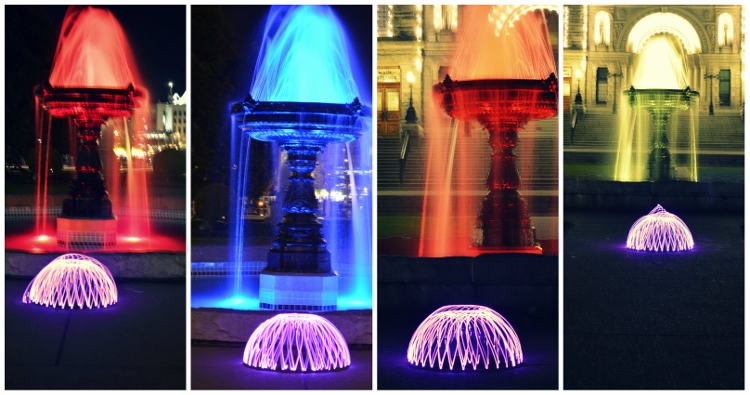
Wikipedia defines light painting as “A photographic technique in which exposures are made by moving a hand-held light source while taking a long exposure photograph, either to illuminate a subject or to shine a point of light directly at the camera.” In essence, with a basic DSLR, a tripod, and a light source of some kind, you have endless possibilities to create unique images. This technique is a way to unleash your imagination and inner artist – this article will show you how to do it.

Photo 7c (750x501)

When I realized this artistry had endless possibilities and creativity, I was in. Who wouldn’t be, right? Light painting always amazes me as to how you can create beautiful photos by simply capturing light. I started doing light painting for fun, but then it became a very therapeutic regime for me. If I was having a tough or bad day I would grab my gear, wait for it to get dark, and start painting.

Some basics before you begin:

  • You don’t need any fancy equipment.
  • Wear dark clothes if you don’t want to be seen in the image.
  • Typical camera settings for long exposure light painting are: Manual Mode, aperture f/3.5-5.6, exposure 10-30 seconds, ISO 100-125, lens 18-55mm.
  • Bring a friend. While you can do light painting solo (and I often do), it’s a lot more fun with a buddy.

Beginner DIY light painting tools you can make

I bought all of my supplies from the dollar store, ebay, or home depot. In my kit, I currently have:

  • Basic DSLR + wireless remote (optional) + tripod
  • Flashlights (all different sizes)
  • Mini keychain flashlights
  • Glow sticks
  • LED battery operated fairy lights (variety of colors)
  • Hoola-hoops (regular and small)
  • Sparklers (variety of sizes) + a lighter
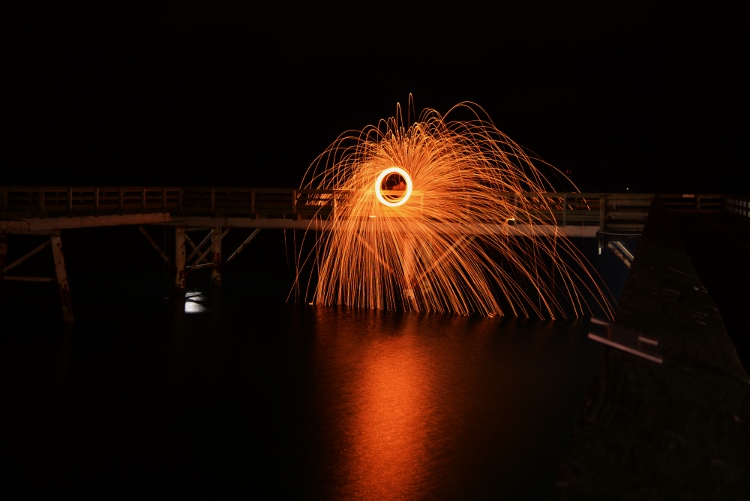
  • Steel wool kit (wire whisk, dog leash, gloves, lighter, steel wool grade #000)
  • A variety of light sabres and flashing rave toys

Photo 1 750x523

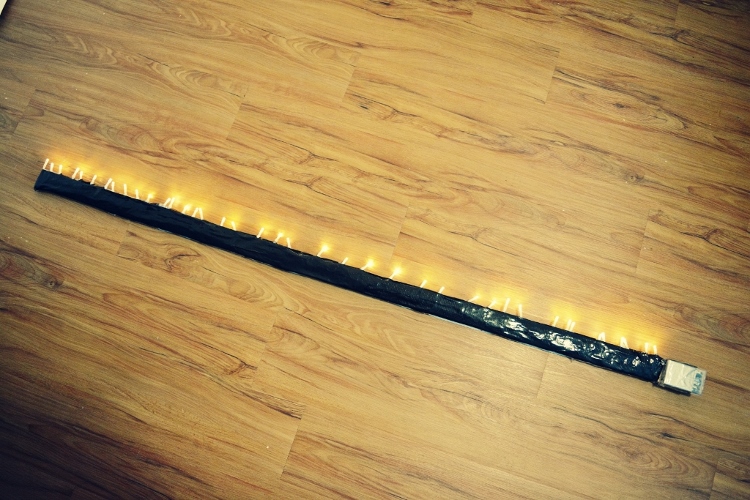
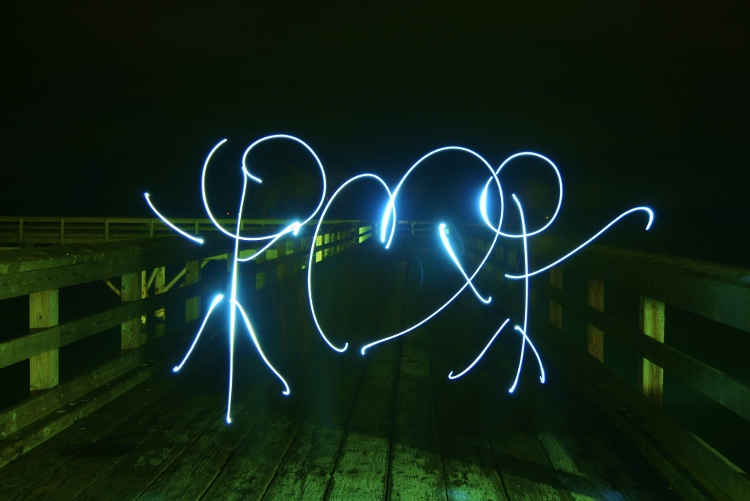
The first two tools that I ever made were a light stick and a light hoola-hoop. They both serve me well. For the light stick you need a piece of wood (any size you want, mine is 57×2″), tape, and one string of battery operated fairy lights.

Lay out your lights next to your piece of wood and tape them on. Viola! A home-made light stick. If you use white lights, you can tint your photo with your basic windows photo gallery editor. I have two, one with white lights and one with multi-colored lights.

Photo 2 750x500

Here are some of my top photos using just a light stick.

Photo 3 750x375

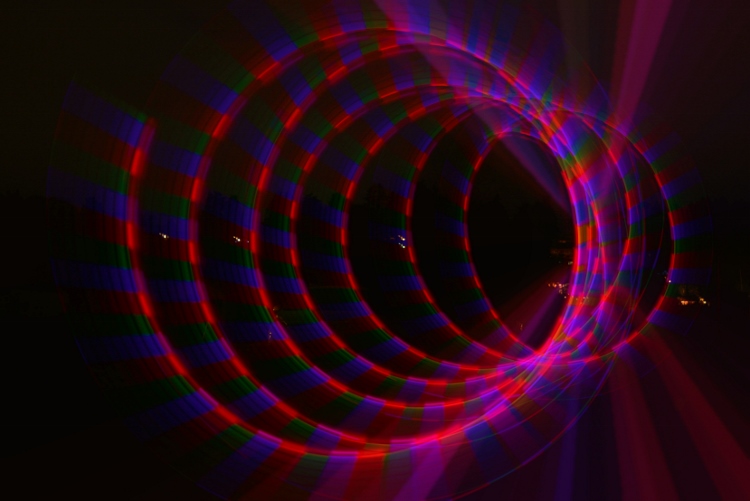
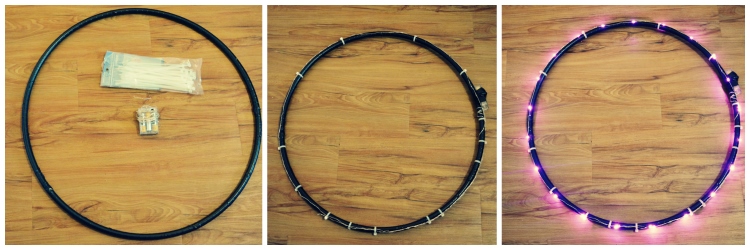
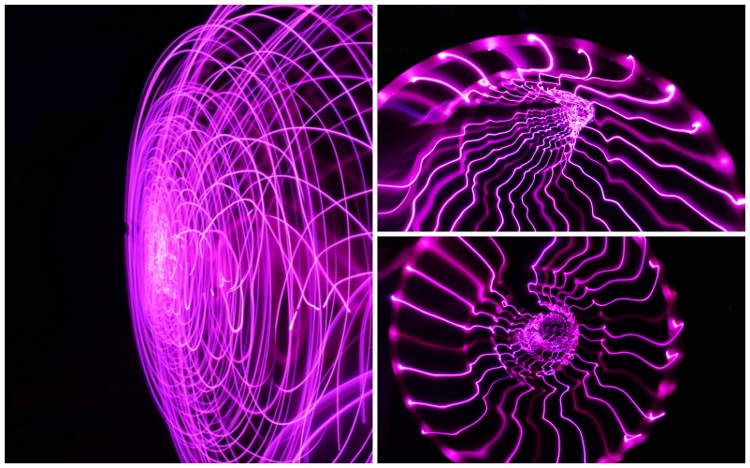
For the second tool I made, the light hoola hoop you need: a hoop, one string of battery operated fairy lights (approximately eight feet long or less, depending on how big your hoop is) and some tape or zip ties. Tape or zip tie your lights around your hoola-hoop. Bam!

Photo 4a 750x250

Photo 4b 750x468

Advanced light painting tools (The Pixelstick)

For those of you who have had experience with light painting, you might be asking, what’s next? Well, that’s where the Pixel Stick from Bitbanger Labs comes in. I recently purchased one on sale from Photojojo.com (thank you Boxing Day sales!).

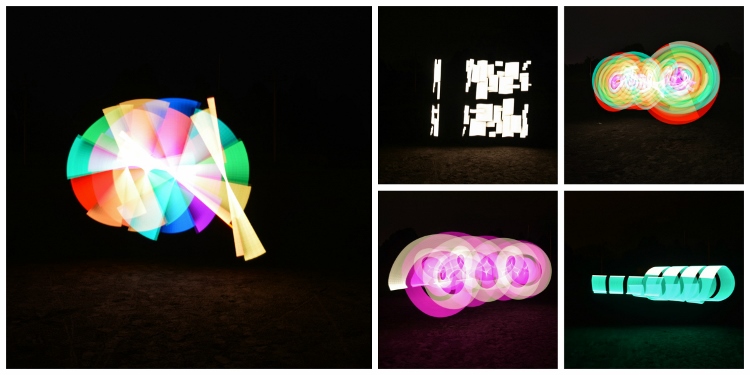
Each one of pixelstick’s 200 LEDs acts like a pixel on a screen, displaying your image one vertical line at a time as you walk. These vertical lines, when captured by a long exposure, combine to recreate your image in mid-air leaving pixelstick (and the person using it) invisible. – according to Bitbanger Labs.

Let’s just say, it’s the ultimate light painting artist’s tool. It takes a bit of practice to get used to, but once you have, you can create some pretty incredible photos. Here are a few of my favorite pictures that I was able to do with the pixelstick.

Photo 5 750x375

Ideas for light painting from abstract to using your city as inspiration

You can pretty much light paint anywhere however, please be respectful of your environment. Never damage, negatively impact, or harm a location in pursuit of light painting.

Having the right background or location can give your picture the right ambience, and add some dimension and feel to your photo. My preference is to use a black background most times so I usually find an empty dark field, but sometimes it’s nice to incorporate your surroundings.

Photo 6 750x395

Photo 7a

Photo 7b
Photo 7d

Photo 8 750x500

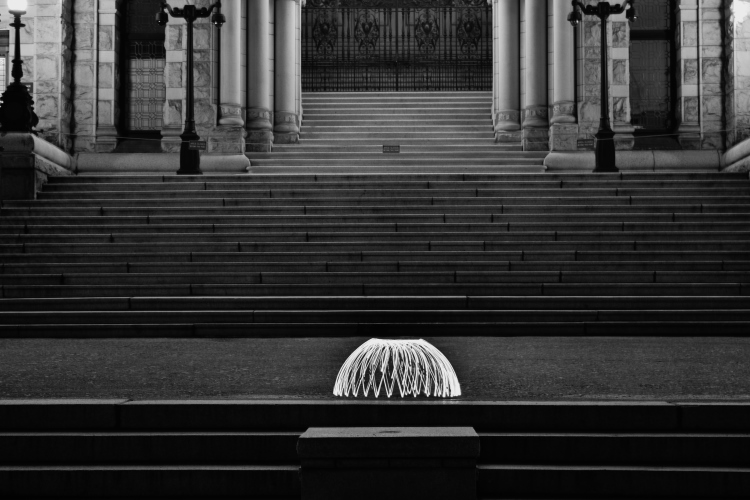
As you can see in this photo, I used a local anchor to center my picture around.

Inspiring light painting artists

When I was getting into the light painting community, I came across some great resources and artists that you may not know about.

  • Light Painting World Alliance
  • Light Painting Photography
  • Rob Tourney Visuals
  • Darius Twin
  • Denis Smith creator of the ball of light

So now that you know about light painting photography why not go out there and create some unique images yourself? Up for the challenge?

See more light painting articles here on dPS:

  • How to Make Unique Portraits Using Light Painting
  • Beginner’s Guide to Light Painting
  • Light Painting Part One – the Photography
  • Light Painting Part Two – Photoshop
  • How to Build an LED Light and Make an Orb
  • Fire Spinning with Steel Wool – A Special Effects Tutorial

googletag.cmd.push(function() {
tablet_slots.push( googletag.defineSlot( “/1005424/_dPSv4_tab-all-article-bottom_(300×250)”, [300, 250], “pb-ad-78623” ).addService( googletag.pubads() ) ); } );

googletag.cmd.push(function() {
mobile_slots.push( googletag.defineSlot( “/1005424/_dPSv4_mob-all-article-bottom_(300×250)”, [300, 250], “pb-ad-78158” ).addService( googletag.pubads() ) ); } );

The post How to do Light Painting Photography Art with Endless Possibilities by Jennifer Dowd appeared first on Digital Photography School.


Digital Photography School

 
Comments Off on How to do Light Painting Photography Art with Endless Possibilities

Posted in Photography


Phottix launches Cerberus adapter for using hotshoe flashes in Bowens and Elinchrom studio head modifiers

19 Apr

Flash manufacturer Phottix has launched a new adapter that is designed to allow hotshoe flash units to be used with standard studio accessories, such as softboxes, umbrellas and snoots. The Cerberus consists of a universal grip that holds the flash directly in the middle of an adapter ring that can be used to attach existing studio flash accessories in the Bowens S, Elinchrom and the Phottix Transfolder softbox range. The idea is that if users already have studio light modifiers they can use them with their hotshoe guns instead of having to buy accessories dedicated to smaller units.
The clamp used is the Phottix Griffin, which has a pair of spring-loaded jaws that close around the head of the flash unit, leaving the hotshoe free for remote triggers. The clamp is attached to a mounting bracket that can be fitted with the adapter ring to suit the mount of the modifiers you want to use. The unit is called Cerberus after the three-headed hound of Hades from Greek mythology because its interchangeable mount can accept modifiers in three different fittings.

The kit comes with a Phottix Varos Pro BG jointed Umbrella Adapter that is used to mount the whole kit on to a lighting stand or tripod. The Phottix Cerberus multi-mount kit, which includes the Bowens and Elinchrom rings, costs $ 92.50. For more information visit the Phottix website.


Manufacturer’s dramatic product video:

Press release:

Meet the Phottix Cerberus Flash Mount

There’s a new mounting system in town – the Phottix Cerberus Multi Mount.

The Phottix Cerberus Multi Mount is your all-in-one mounting solution for hot shoe flashes. Use your hot shoe flashes with Bowens-compatible accessories, Elinchrom-compatible accessories, and the Phottix Transfolder Softbox range.

The Cerberus system comes with:

  • Phottix Griffin with Phottix Easy-Folder-Compatible Mount and Phottix Varos Pro BG *
  • Cerberus Elinchrom-Compatible Mount
  • Cerberus Bowens-Compatible Mount
  • Cerberus Phottix Transfolder-Compatible Mount

Like the mythical Cerberus, the Phottix Cerberus Multi Mount has three heads. The standard round mount works with the range of Phottix Transfolder Softboxes. Add the Bowen-compatible mount – and traditional S-Mount compatible accessories can be used with your hot shoe flash. Swap that out for the Elinchrom-compatible mount and use Elinchrom’s vast array of accessories with your hot shoe flash.

The durable and patented Phottix Griffin Universal Flash Mount holds many popular hot shoe flash models secure in a synthetic-lined spring-loaded clamp. The system was designed to be both durable and easy to use. A Phottix Varos Pro BG Umbrella Adapter is included to mount the Phottix Cerberus Multi Mount to a light stand or boom. The Phottiax Griffin is available on its own as well as being included with the Cerberus Multi Mount set.

Several configurations of the Phottix Cerberus are avaialble. Talk to you local Phottix dealer or buy from the Phottix Online Store.

* Note: The Phottix Griffin Mount with this set is affixed to the Phottix Cerberus Softbox Mount and cannot be removed. Varos Pro BG does not come with metal Coldshoe and male 3/8” and ¼ “ screw.

Articles: Digital Photography Review (dpreview.com)

 
Comments Off on Phottix launches Cerberus adapter for using hotshoe flashes in Bowens and Elinchrom studio head modifiers

Posted in Uncategorized