RSS
 

Archive for February, 2016

Popping Off the Page: 15 Sculptural 3D Paper Art Creations

04 Feb

[ By Steph in Art & Sculpture & Craft. ]

paper rollercoasters 3

Defying the typically two-dimensional and impermanent characteristics of paper, these artists cut, sculpt, glue, twist and fold the material into fantastical and unexpected forms. The notoriously thin and fragile material transforms into baroque wigs, complex architectural scenes, cars, animals, religious iconography and even rollercoasters, some retaining a sense of fragility and ephemerality while others seem surprisingly solid and strong.

Baroque Paper Wigs and Costumes by Asya Kozina

paper art wigs 1

paper art wigs 2

paper art wigs 3

The elaborate towering hairstyles of yore are recalled in a new form by Russian artist Asya Kozina, who sculpts the wigs from sheets of paper. She also created a series of paper dresses inspired by Mongolian wedding costumes. “This is art for art’s sake, aesthetics for aesthetics – no practical sense, but they are beautiful. In this case, paper helps to highlight the main form and not be obsessed with unnecessary details.”

Interior Impressions by Simon Schubert

paper interior portraits

paper interior portraits 2

paper interior portraits 3 paper interior portraits 4

Looking like rubbings from a more permanent relief sculpture, these paper impressions by Simon Schubert are actually relief sculptures in their own right, mimicking intricate interiors through careful folding. Says the artist, “The works often show interiors from the end of the 19th century reminding the spectator of ‘haunted mansions.’ The pictures of the endless hallways with closed doors, the blind windows, the empty halls and the winding staircases appear to be single views of tremendous, labyrinthine building, which seems to continue ever further into the white.”

Cut Paper Rollercoasters

paper rollercoasters

paper rollercoasters 2

paper rollercoaster 4

Known for spectacularly detailed paper cutouts that take on three dimensional form, artist Bovey Lee is back with a new series depicting the culture clash she experienced after a move from Pittsburgh to Los Angeles. “Speaking to the motivation of my relocation, the works also feature imagery associated with romantic relationships, and wedding bouquets, engagement rings, cakes, and eternity symbols populate the pieces. In these works, I draw parallels between one’s romantic relationship and our relationship with nature.”

Abandoned Architecture Paper Collages by Lucy Williams

paper cut architecture collage 2

paper architecture collage 3

paper architecture collage 5

paper architectural collage 6

We’ve seen abandoned architecture incorporated into or transformed into art in a variety of different ways, but never before in the form of cut and layered paper. British artist Lucy Williams creates amazingly realistic-looking reproductions of deserted mid-20th century modernist architecture, from homes to swimming pools.

Religious Iconography by Carlo Fantin

paper art fantin

paper art fantin 2

paper art fantin 4

paper art fantin 5

Artist Carlo Fantin combines religious imagery with social media culture in a series of meticulously cut paper illustrations. “I want people to have a physical relationship with my art that tis not just confined to the distance of their arms. I want people to experience how the image changes as they walk away from it. At a very close look the piece seems to be abstract, when you step back the image comes to life.”

Next Page – Click Below to Read More:
Popping Off The Page 15 Sculptural 3d Paper Art Creations

Share on Facebook


[ By Steph in Art & Sculpture & Craft. ]

[ WebUrbanist | Archives | Galleries | Privacy | TOS ]


WebUrbanist

 
Comments Off on Popping Off the Page: 15 Sculptural 3D Paper Art Creations

Posted in Creativity


Sony releases three premium ‘G Master’ lenses for FE-mount

03 Feb

$ (document).ready(function() { SampleGalleryV2({“containerId”:”embeddedSampleGallery_6678742178″,”galleryId”:”6678742178″,”isEmbeddedWidget”:true,”selectedImageIndex”:0,”startInCommentsView”:false,”isMobile”:false}) });

Sony has created a new lineup of lenses for its full-frame cameras known as G Master (GM). These are the company’s high-end lenses that sit above its ‘G-series’ lenses and, as you might imagine, command a premium price. The first three GM lenses include FE 24-70mm F2.8, FE 85mm F1.4 and FE 70-200mm F2.8 OSS.

In addition to the lenses, Sony also released a pair of teleconverters (1.4x and 2.0x) for use with the new 70-200mm F2.8 lens.

At the press conference announcing the new lenses the company placed enormous emphasis on the importance of high resolution and high quality bokeh. Says Senior Technology Manager Mark Weir: “Being a leader in image sensor technologies, we have a unique insight into where sensor and camera technology is going, and we put this insight into our lens design.”

Sony mentioned they’re now designing G Master lenses to a 50 lines per mm standard, a step up from the 10 and 30 lines/mm MTF traces we’re used to seeing. Regarding bokeh, Sony explained that the lifelike nature of an image in either still or video is determined by the nature of the transition from in-focus to out-of-focus areas, and that an abrupt shift between the sharp region and the background can look artificial. Their research shows that this often comes down to a lack of precision in the preparation of the lens elements, and less than optimal positioning the optical cavity. Sony indicated that G Master lenses can be shaped to within 1/100th of a micron of their design spec to address this problem. 11 aperture blades on the new 85mm and 70-200mm lenses also indicate a serious commitment to smooth out-of-focus areas.

Additionally, each G Master lens employs a different drive mechanism for optimal AF performance. The 24-70mm uses a Direct Drive Supersonic motor (SSM), which we’ve previously noted to confer incredibly fast, accurate, and silent AF to the FE 35mm F1.4 lens. Sony boasts this focus motor to offer 0.01mm precision of focus group placement. The 85mm F1.4 uses a ring drive. The 70-200 sports a dual implementation: two focus groups at either end of the lens are drive by different actuators. A ring drive SSM drives the front AF group while dual linear motors drive a floating rear group. The result is fast continuous autofocus and silent AF for video, as well as in impressive minimum focus distance of <1m.

Sony also emphasized their development of advanced simulation techniques that make it possible to control things like bokeh right from the design stage. Previously, it was difficult to judge the effects of optical design without first building the lens – simulation technologies now help Sony see the effects of iterations on the optical design.

The first G Master lenses will be available in March, with the 24-70mm listing for $ 2200 and the 85mm listing for $ 1800 in the U.S. The 70-200mm will follow in May, with pricing yet to be determined.

Press release:

Sony Launches New G Master Brand of Interchangeable Lenses

Three new models including 24-70mm F2.8 Zoom, 85mm F1.4 Prime and 70-200mm F2.8 Zoom deliver unrivaled imaging experiences 

NEW YORK, Feb. 3, 2016 – Sony Electronics, a worldwide leader in digital imaging and the world’s largest image sensor manufacturer, has today introduced their flagship G Master™ brand of interchangeable lenses.           

Sony’s new brand includes three new E-mount full frame lenses including a 24-70mm constant F2.8 standard zoom, an 85mm F1.4 prime and a 70-200mm constant F2.8 telephoto zoom.   Representing the ultimate blend of high resolution and beautiful bokeh, the new lenses feature Sony’s innovative optical element technology, design and calibration.  This allows them to produce still image and video content with a level of detail and expression that has never before been possible. 

“The new G Master brand represents the finest and most impressive group of lenses that Sony has ever brought to market,” said Neal Manowitz, Vice President of Digital Imaging at Sony Electronics.  “With our knowledge of what the future will bring for digital imaging, we have designed these lenses and can ensure that the G Master brand will inspire and ‘wow’ photographers and videographers for years to come.”

New FE24-70mm F2.8 GM Standard Zoom Lens

Featuring some of the most advanced lens technologies in market today, the new FE 24-70mm F2.8 GM (model SEL2470GM) is the ultimate choice for those seeking the highest possible optical performance for portrait, travel and event photography or even simple everyday shooting1

The new lens is built with three aspherical elements including a newly developed, extremely precise XA (extreme aspherical) element that reduces aberration and delivers the ultimate resolution throughout the entire zoom range and aperture range, as well as from corner to corner of all image files. Additionally, an ED (Extra-low-Dispersion) glass element and Super ED glass element keep chromatic aberration to a minimum while maximizing resolution and bokeh without any unnatural coloration. 

The lens features a 9-bladed aperture that maintains a near circular shape at all settings and is coated with Sony’s original Nano AR coating to suppress reflections and ensure spectacular contrast and clarity.    

The new FE24-70mm F2.8 GM lens has a direct drive SSM (Super Sonic Wave Motor) focusing system that works with incredible efficiency thanks to a new set of algorithms that positions the lens elements quickly and accurately. The motor is smooth and quiet, making it an ideal choice for shooting both still images as well as movies.

To maximize usability, the lens is dust and moisture resistant and features a compact, streamlined design that includes AF/MF switch as well as focus hold, zoom lock and hood release buttons.

Two new matching filters for the FE24-70mm F2.8 GM lens have also been introduced, including the VF-82MP MC protector and VF-82CPAM Circular PL filter..

New FE 85mm F1.4 GM Telephoto Prime Lens

Designed as the ultimate portrait lens, the long-awaited new FE 85mm F1.4 GM telephoto prime lens (model SEL85F14GM) strikes a perfect balance between resolution and bokeh in a compact package.

The lens features a new XA (extreme aspherical) element as well as three ED glass elements that work together to ensure that the in-focus areas are captured in extremely high resolution while the surrounding out-of-focus areas dissolve smoothly into a beautiful soft backdrop. It has a circular aperture with 11 blades – the most ever used in an ? lens – that ensures bokeh is smooth and visually appealing.  Externally, the new model has Sony’s original Nano AR Coating, which is of particular importance in a portrait lens as it reduces flare and ghosting, even with backlit subjects or similarly challenging lighting conditions.

For accurate autofocusing, the FE 85mm F1.4 GM lens includes a ring drive SSM motor system that provides ample power and speed to drive the lens’ large, heavy focus group. It’s also equipped with two position sensors to support flawless focus control of the large, heavy lens elements.   

This new professional portrait lens is dust and moisture resistant and also has an aperture ring with on/off switchable click stops that can be adjusted based on whether a user is shooting still images or movies.  It also has an AF / MF switch and a focus hold button.2

New FE 70-200mm F2.8 GM OSS Telephoto Zoom

Covering the frequently used 70-200mm focal range, the new FE 70-200mm F2.8 GM OSS telephoto zoom lens (model SEL70200GM) offers extremely high rendering, AF performance and image stabilization, making it a versatile choice for shooting wildlife, sports, weddings and a variety of other events and locations1.

The new flagship telephoto zoom model delivers extraordinary sharpness and clarity throughout the entirety of its zoom range thanks to its three advanced lens elements including XA, Super ED and ED glass components, as well as its Nano AR coating. 

The new FE 70-200mm F2.8 GM OSS lens features a floating focusing system – implemented in an ? zoom lens for the first time – that contributes to an impressive minimum focusing distance of merely 0.96m and ensures AF performance is optimized during both still and video shooting. The lens includes a SSM (Super Sonic Motor) plus dual linear motors that work together to move large lens elements quickly – a task that requires a high level of drive control and ensures focus accuracy. The new model also has built in Optical SteadyShot™ image stabilization for capturing sharp, blur-free subjects at all focal lengths and a rotating tripod mount that allows the camera to be quickly removed from a connected tripod as needed. 

The new 70-200mm telephoto zoom lens is dust and moisture resistant with an additional fluorine coating added to the front lens.  It also has a focus hold button as well as a focal range limiter. 

Sony has also announced new compact 1.4x and 2x Teleconverters  – models SEL14TC and SEL20TC respectively – that offer even greater reach while maintaining the overall streamlined design and feel of the 70-200mm lens.3   

Pricing and Availability

The new FE 24-70mm F2.8 GM Standard Zoom and 85mm F1.4 GM Telephoto prime lenses will be available in March for about $ 2,200 and $ 1,800, respectively.  In Canada, they will be sold for $ 2,900 CA and $ 2,400 CA, respectively. 

The new 70-200mm F2.8 GM Telephoto Zoom Lens and its compatible 1.4x and 2x Teleconverters will be available in May.  Pricing is not yet available for these models. 

The new G Master Series of interchangeable lenses will be sold at a variety of Sony authorized dealers throughout North America.  

1.      A software update may be required to provide compatibility of lenses with some cameras. See the Sony support site www.esupport.sony.com for additional details.

2.      Limitations apply to AF operation when shooting movies with certain camera bodies. A software update may be required to provide AF compatibility of FE 85mm F1.4 GM with some cameras during movie shooting. See the Sony support site for lens/body compatibility details.

3.      SEL70200GM is only compatible lens at the time of announcement

Sony 24-70mm F2.8 GM & 70-200 F2.8 GM OSS specifications

  Sony FE 24-70mm F2.8 GM Sony FE 70-200mm F2.8 GM OSS
Principal specifications
Lens type Zoom lens
Max Format size 35mm FF
Focal length 24–70 mm 70–200 mm
Image stabilisation No Yes
Lens mount Sony FE
Aperture
Maximum aperture F2.8
Minimum aperture F22.0
Aperture ring No
Number of diaphragm blades 9 11
Optics
Elements 18 32
Groups 13 18
Special elements / coatings One extreme aspherical, one super ED, one ED element + Nano AR coating One double-side aspherical and one extreme aspherical element + Nano AR coating
Focus
Minimum focus 0.38 m (14.96) 0.96 m (37.8)
Maximum magnification 0.24× 0.25×
Autofocus Yes
Motor type Piezoelectric Ring-type ultrasonic
Full time manual Yes
Focus method Internal
Distance scale No
DoF scale No
Focus distance limiter Yes
Physical
Weight 886 g (1.95 lb) 1480 g (3.26 lb)
Diameter 88 mm (3.45) 88 mm (3.46)
Length 136 mm (5.35) 200 mm (7.87)
Sealing Yes
Colour Black Gray
Zoom method Rotary (extending)
Power zoom No
Zoom lock Yes
Filter thread 82.0 mm 77.0 mm
Hood supplied Yes
Hood product code ALC-SH141 ALC-SH145
Tripod collar No Yes

Sony 85mm F1.8 GM specifications

Principal specifications
Lens type Prime lens
Max Format size 35mm FF
Focal length 85 mm
Image stabilisation No
Lens mount Sony FE
Aperture
Aperture ring Yes
Number of diaphragm blades 11
Optics
Elements 11
Groups 8
Special elements / coatings Extreme Aspherical, Super ED, ED elements + Nano AR coating
Focus
Minimum focus 0.80 m (31.5)
Maximum magnification 0.12×
Autofocus Yes
Motor type Ring-type ultrasonic
Full time manual Yes
Focus method Internal
Distance scale No
DoF scale No
Focus distance limiter No
Physical
Weight 820 g (1.81 lb)
Diameter 90 mm (3.52)
Length 108 mm (4.23)
Sealing Yes
Colour Black
Filter thread 77.0 mm
Hood supplied Yes
Hood product code ALC-SH142

Articles: Digital Photography Review (dpreview.com)

 
Comments Off on Sony releases three premium ‘G Master’ lenses for FE-mount

Posted in Uncategorized


How to Avoid Fake Smiles in Your People Photography

03 Feb

DPSarticledee_cover750

A genuine smile is one of the most attractive expressions of the human face, and as photographers, we love them because they brighten up our pictures with warmth, and create connection.

When you look at it on a body language level, you discover that a genuine smile informs others that we are:

  • A friend, not a foe
  • Happy
  • In a good place mentally.

It’s a universal safety and happiness cue that we recognize on an instinctive level. It draws people in, and creates a sense of positive connection with the person in your image.

I’ve been talking so far about a genuine smile, because a smile can also be deceiving. We humans have developed the ability to fake smile when we want to pretend that we’re happy or friendly, even when we’re not… and this happens a lot in front of the camera.

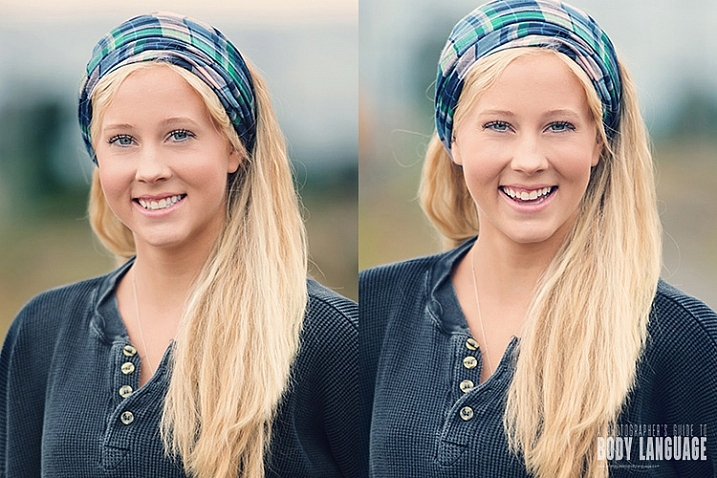
DPSarticledee_danimontage_750

Let’s face it, standing in front of a lens is not the most happiness inducing moment in most of our lives. To many people, this is actually really uncomfortable, but yet you are asking them to smile, which often ends up looking tense and fake.

What a fake or tense smile says about the person in the image, is that they are not being honest, that they are uncomfortable, or even submissive.

People will fake a smile to appease others, when:

  • They are nervous or uncomfortable
  • Showing submission
  • Being polite (when someone cracks a really bad joke for example)

No matter the reason, a fake smile will give off a low-power impression of the person in the image.

So what’s the difference between genuine and a fake smile?

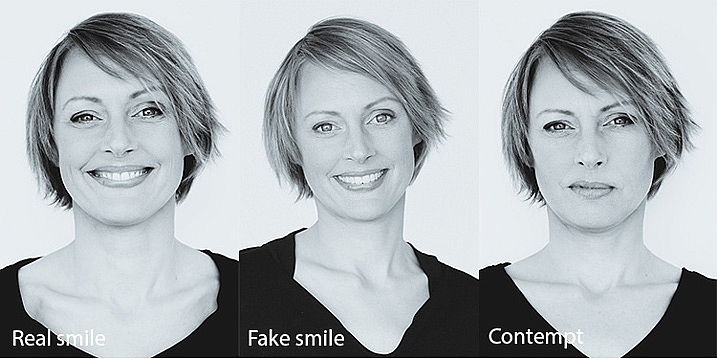
  • A genuine smile is visible mainly in the eyes. Smiling eyes are relaxed, with raised cheeks, and a nice tension appearing on the side of the eyes. The mouth can be anywhere from slightly raised or wide open, but it’s the eye action (not the mouth) that communicates the honesty of a smile.
  • A fake smile on the other hand, will have no, or very little, eye engagement. The mouth smile can still be very wide, but you will not see any action in the upper cheek and eye areas. It looks more like a grin, than a smile.
  • The expression of contempt is often mistaken for a smile. The most obvious sign of disdain is a one sided smile, with the lip slightly pulled up.

DPSarticledee_smilesmontage_750b

How to get a real smile? Don’t say cheese!

As a portrait photographer, your job is not only to make a beautiful image, but also to be the director of the shoot, helping your subject relax into the right emotion. If your subject is uncomfortable, you’ll most certainly end up with a fake smile or worse, an expression of contempt, and lose the warmth and honesty that comes from a genuine smile.

It has become a habit for many photographers to shout out, “Say cheese!!!” to get someone to smile in front of the camera. But this method usually ends up with embarrassed grins, or fake smiles, instead of genuine ones.

So what should you do instead?

It’s impossible to fake a feeling (unless you’re a sociopath) and the only way you can get your subject to genuinely smile is to help them connect with a real feeling of happiness. Asking them to think of something, or someone, they love allows them to connect with a genuine feeling of happiness, and you’ll see their cheeks raise and create a beautiful honest smile within seconds. As soon as you see it, let them know so they can feel it for themselves, and reproduce it. I ask my clients to give me a keyword for what they just felt and I use that for the rest of the shoot.

If they can’t think of anything, you can tell them a funny story, or a joke, and that can work really well, but can be a two edged sword if the joke falls flat and makes the situation very awkward instead.

Smiles are also a very useful barometer of your clients comfort level. If they can’t seem to relax and connect with a happy thought, it’s a good time to check your own body language and see if you are sending off stress, or discomfort, cues that they are mirroring back to you.

Differences between men and women

DPSarticledee contemptmale

Contempt

DPSarticledee femalesmilerapport

Genuine smile

Smiling is recognized universally as a sign of happiness and safety, by both women and men, but there are a few differences:

  • For women, smiling is a way of creating rapport and a sign of appeasement, but to men a smile can come across as submissive.
  • Men smile less often, and less widely than women.
  • Women are attracted more to photos of men smiling, but men prefer more serious photos of other men.

When coaching your client on the image selection, it’s important to know the usage they are going to make of their photos. A man needing a photo for a dating website would probably have more success with a smiling photo than a serious one. But if he’s looking for a job in a male dominated workplace, then he’d probably be better off choosing a more serious one for his LinkedIn profile.

DPSarticledee_rehmontage_750

I hope you have found these tips useful and I look forward to hearing about your own experiences with genuine and fake smiles. Please leave your comments below.

googletag.cmd.push(function() {
tablet_slots.push( googletag.defineSlot( “/1005424/_dPSv4_tab-all-article-bottom_(300×250)”, [300, 250], “pb-ad-78623” ).addService( googletag.pubads() ) ); } );

googletag.cmd.push(function() {
mobile_slots.push( googletag.defineSlot( “/1005424/_dPSv4_mob-all-article-bottom_(300×250)”, [300, 250], “pb-ad-78158” ).addService( googletag.pubads() ) ); } );

The post How to Avoid Fake Smiles in Your People Photography by Dee Libine appeared first on Digital Photography School.


Digital Photography School

 
Comments Off on How to Avoid Fake Smiles in Your People Photography

Posted in Photography


Nikon apologizes for awarding prize to digitally altered photo

03 Feb

Last week, Nikon Singapore chose an image submitted by photographer Chay Yu Wei as the winner of a ‘casual photo contest.’ Critics quickly pointed out that the airplane featured in the image had been digitally inserted, given away by the highly visible white square around the plane’s silhouette. Nikon and Yu Wei have both issued apologies over the submission, with Nikon saying it will bolster its image reviewing process ‘to avoid similar situations in the future.’

Nikon, which has since deleted the original Facebook post awarding the photograph, posted a status update on Saturday that reads:

We have heard your comments and feedback on this, and you are right – we should not compromise standards even for a casual photo contest. We have dialogued internally, with the community and with our loyal fans, and Yu Wei has also posted his own views on this issue. We have made an honest mistake and the rousing response from the community today is a reminder to us that the true spirit of photography is very much alive. Moving forward, we will tighten our image review process to avoid similar situations in the future. Thank you once again for all your responses today – for your humour and most of all, your candour and honesty. We hope not to disappoint you in the future and to continue to have your support.

Most sincerely, your Nikon team

Yu Wei posted his own lengthy apology on his Instagram account, saying in part:

Like one user commented, I was on a photo walk in Chinatown and I chanced upon that set of ladders. I snapped a picture of it, and subsequently felt that a plane at that spot would make for an interesting point of view. Hence, I inserted the plane with PicsArt and uploaded it to Instagram. That’s how I use Instagram, sometime it’s to showcase the work I’m proud of, sometimes just to have fun. This case, that small plane was just for fun and it was not meant to bluff anyone. I would have done it with photoshop if I really meant to lie about it, but no, it was a playful edit using the PicsArt app and uploaded to Instagram. When my friends commented with some questions, I also answered it jokingly, saying it’s the last flight of the day and saying it was my lucky day that I did not wait too long. At that time, of course everyone who read it took it as a joke, before this issue arrived and it is taken seriously.

However, I made a mistake by not keeping it to Instagram as a casual social media platform. I crossed the line by submitting the photo for a competition. I meant it as a joke and I’m really sorry to Nikon for disrespecting the competition. It is a mistake and I shouldn’t have done that. I also shouldn’t have jokingly answered Nikon that I caught the plane in mid-air and should have just clarified that the plane was edited in using PicsArt. This is my fault and I sincerely apologise to Nikon, to all Nikon Photographers, and to the photography community as general.

While Nikon’s apology seems genuine, we can’t help wondering how such an obviously altered image slipped through. We’re also not quite convinced by Wei’s apology, and DigitalRev points out that the concept for the image may not even be his either. What’s your take on the controversy? Let us know in the comments.

Articles: Digital Photography Review (dpreview.com)

 
Comments Off on Nikon apologizes for awarding prize to digitally altered photo

Posted in Uncategorized


Readers’ Choice Awards 2015: The winners

03 Feb

Readers’ Choice Awards 2015: The Winners

At the end of last year we asked you to vote for the best cameras and lenses of 2015. Across two rounds of voting DPReview readers did just that, selecting the top overall photography products of 2015. It was no easy feat, as 2015 brought huge advancements in stills and video technology, but with thousands of votes tallied it’s time to declare a winner. See how the votes stacked up.

Runner-up: Nikon D7200

In the runner-up position, coming third in our final poll is the Nikon D7200. The D7200 just edged out the Sony Cyber-shot RX100 IV to take the third highest number of votes at 9.9% of the overall vote. Both formidable cameras in their own categories, the D7200 nabs the runner-up title with its DX-format 24.2MP sensor, sophisticated AF system and enjoyable handling and ergonomics.

Runner-up: Olympus OM-D E-M5 II

‘How do you follow up a classic?’ is the question we found ourselves asking of the OM-D E-M5 II. Taking the second-place position in our final poll with 12.9% of the overall vote, the E-M5 II does a fine job of following up its well-regarded predecessor, and its class-leading 5-axis image stabilization system helps it stand out among last year’s notable products.

Winner: Sony a7R II

It was our Product of the Year and now that the votes are in, we know it was yours too. The Sony a7R II left a major impression on the industry in 2015 with its sheer capability: a 42MP sensor, built-in image stabilization and 4K video, for starters. Winning by a landslide, the a7R II took 36% of the overall vote.

Thanks to everyone that voted, and we hope that you’re all looking forward to more great gear in 2016!

Articles: Digital Photography Review (dpreview.com)

 
Comments Off on Readers’ Choice Awards 2015: The winners

Posted in Uncategorized


Nikon KeyMission 360 price and specs appear on retailer’s website

03 Feb

The Nikon KeyMission 360 action camera was unveiled at an event in early January, and while Nikon offered some details about the model, it did not reveal the price. Now, nearly a month later, the camera has surfaced on German retailer Cyberport’s website with a list price of €499 and a features list.

The KeyMission 360 records 4K UHD video, is waterproof to depths of 30m/100ft, shockproof from heights up to 2m/6.6ft, and has electronic image stabilization, according to Nikon. The product listing includes some additional specs, including support for microSDHC/SDXC media cards, WiFi, NFC, Bluetooth, an integrated microphone, non-removable Li-Ion battery and USB 2.0.

Nikon said during its January event that it is aiming for a Spring 2016 release; it has not confirmed pricing.

Via: NikonRumors

Articles: Digital Photography Review (dpreview.com)

 
Comments Off on Nikon KeyMission 360 price and specs appear on retailer’s website

Posted in Uncategorized


Veggie Factory: World’s First Vertical Farm Run Entirely By Robots

03 Feb

[ By WebUrbanist in Architecture & Offices & Commercial. ]

robofarming

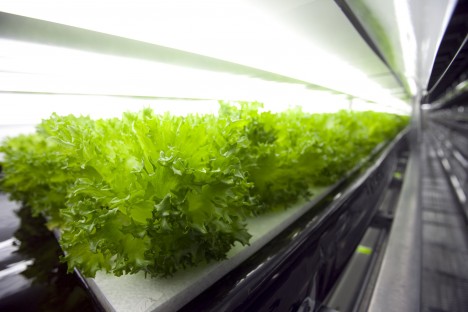
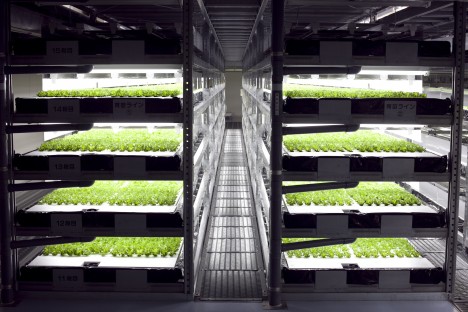
Taking vertical urban indoor farming efficiency to the next level, a new automated plant coming to Japan will be staffed entirely by robots and produce 30,000 heads of lettuce daily.

spread indoor farm

The so-called Vegetable Factory is a project of Spread, a Japanese company already operating vertical farms. Located in Kyoto, its small army of bots will various seed, water, trim and harvest the lettuce.  Spread’s new automation technology will not only produce more lettuce, it will also reduce labor costs by 50%, cut energy use by 30%, and recycle 98% of water needed to grow the crops.

spread stacked farm

“The use of machines and technology has been improving agriculture in this way throughout human history,” says J.J. Price of Spread, tells Tech Insider. “With the introduction of plant factories and their controlled environment, we are now able to provide the ideal environment for the crops.”

spread human farm

Like other vertical farms, the benefits of this approach are numerous, including: reduced waste, controlled runoff, more efficient use of space and the ability to produce food locally (reducing cost, time and waste associated with rural-to-urban transport). Meanwhile, the fear of automation is becoming a reality, say critics, while advocates point out that this will free up factory workers to potentially engage in more interesting occupations within the same industry (if herding robots is considered interesting, at least).

Share on Facebook


[ By WebUrbanist in Architecture & Offices & Commercial. ]

[ WebUrbanist | Archives | Galleries | Privacy | TOS ]

WebUrbanist

 
Comments Off on Veggie Factory: World’s First Vertical Farm Run Entirely By Robots

Posted in Creativity


Extreme made easy: GoPro HERO4 Session review

03 Feb

GoPro HERO4 Session review

Waterproof, ruggedized, incredibly-small and lightweight, the Session is a no-brainer to toss in your bag or coat pocket before heading out on an adventure. 

The GoPro HERO4 Session is the company’s latest action camera release. Unlike GoPros before it, the Session is completely waterproof without the need for any housing. It is also the smallest, lightest GoPro to date, 50% smaller than the HERO4 (Black or Silver) and 40% lighter.

The GoPro HERO4 Session is capable of video capture at the following resolutions and frame rates:

 Video Resolution Frame rate 
1920 x 1440  30 fps, 25 fps
1920 x 1080  60 fps, 50 fps, 48 fps (in Ultra Wide mode only), 30 fps, 25 fps
1280 x 960  60 fps, 50 fps, 30 fps, 25 fps
1280 x 720  100 fps, 60 fps, 50 fps, 30 fps, 25 fps
848 x 480  120 fps, 100 fps

The Session has dual microphones – one on the front and another on the back – for improved audio quality. The camera will automatically choose to prioritize one mic over the over, depending on the scenario. Stills can be captured at a frame rate as fast as 10 fps (limited to 1 sec bursts). Images are captured at 8MP resulting in a 3264 x 2448 still.

The Session can also capture time-lapses. Available intervals include 0.5, 1, 2, 5, 10, 30 and 60 secs.

Auto Low Light, a feature that determines video frame-rate based on lighting conditions, gives the promise of better low light video quality, something that action cams are not particularly good at. It’s worth noting that video files will playback at the selected frame-rate and resolution when using Auto Low Light.

ProTune, an option that allows users to dial in more advanced settings, is available on the HERO4 Session. Selecting ProTune allows users to set their ISO limit (either ISO 400 or ISO 1600), and toggle sharpness on and off. The Session also features a spot meter mode, that, as you may have guessed, determines exposure based on a small point in the center of the frame.

What’s included

In addition to the unit itself, the GoPro HERO4 Session ships with just enough to get you started, including: a standard frame, a low-profile frame, one curved adhesive mount, one flat adhesive mount, a ball joint buckle and mounting buckles. A Micro-USB cable is also included for charging and transferring files directly from the GoPro to a computer.

Compared to Siblings

The price of the GoPro HERO4 Session recently dropped to $ 200. Here’s how it sizes up against GoPro’s other current offerings:

  HERO4 Session  HERO4 Black  HERO4 Silver  HERO+
Max Video Resolution

1440/30p

4K (UHD) 2160/30p

4K (UHD) 2160/15p

1080/60p
Photo Resolution 3264 x 2448 4000 x 3000 4000 x 3000  3264 x 2448
 Waterproof (without a housing) Yes  No  No No
 Max Still Burst 10 fps 30 fps 10 fps 5 fps
 Weight 74 g 152 g 147 g 123 g
 Street price $ 200 $ 500 $ 400 $ 200

Design

The HERO4 unit itself is a tiny 1.5″ cube. The body has only two buttons: the large record button on top, located directly in front of the LCD, and a small Info/Wi-Fi button on the lower portion of the back (see lower image). Press the record button once to turn the camera on and start capture – by default the video will be 1080/30p. Press and hold the record button for two seconds to start a time-lapse. By default it will shoot a photo every half-second. In both cases, hitting the record button again stops capture and powers the device down.

Users can change video and still capture settings, in addition to turning on Wi-Fi by hitting the Info/Wi-Fi button and poking through the options. However, the two-button ergonomics can make for a pretty confusing user experience. We found it much easier to change settings by using the GoPro app. 

The LCD on top displays the battery life, recording mode, resolution and clip length (when capturing video), or the number of photos left (if you’re shooting a time-lapse). A small switch on the side of unit, when pressed, reveals the Micro-SD card slot and Micro-USB port (see below).

The HERO4 Session is impressively tough. The body is coated in a rubber-like material, and the door containing the Micro-USB port and microSD slot appears well-sealed. We’re not entirely sure what kind of glass the front element is made of, but several run-ins with a flying skateboard didn’t even leave a scratch. Seriously, we beat this unit up quite a bit over the course of field testing it, with no damage to speak of. 

Articles: Digital Photography Review (dpreview.com)

 
Comments Off on Extreme made easy: GoPro HERO4 Session review

Posted in Uncategorized


How To Find Your Lens’ Sweet Spot: A Beginner’s Guide to Sharper Images

03 Feb

Are you tired of blurry images?

It’s time to learn how to capture sharper images by finding your lens’ sweet spot. This will give you more confidence, save time, and help you take better photos.

In this article you’ll learn:

  • How to find your lens’ sweet spot (for sharper images)
  • Why you should shoot in Aperture Priority mode (and how to use it)
  • How to perform a test to get your sharpest image every time
  • How important is your lens’ sweet spot? Notice the difference

Mid range aperture sharper than wide open

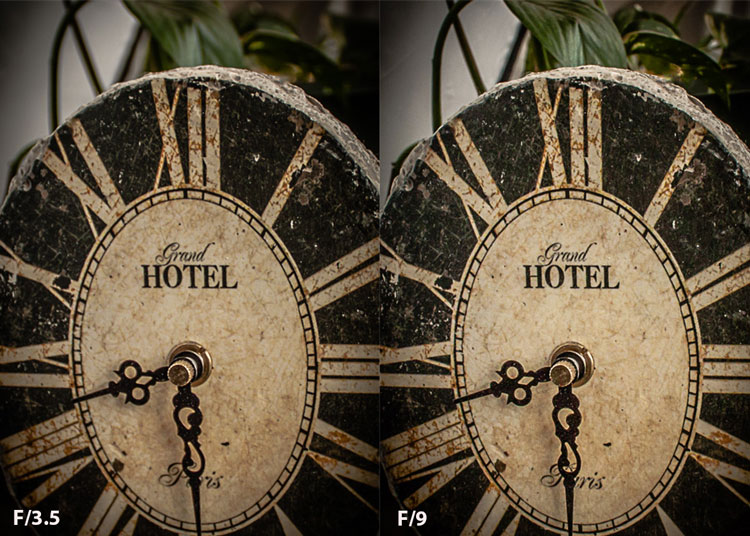
In the above images of the clock, the one on the right is sharper. Look closely at the words and at the leaves behind the clock. The f/9 image is sharper throughout because it was shot in my lens’ sweet spot. The f/3.5 one was not.

First, take a look at your lens

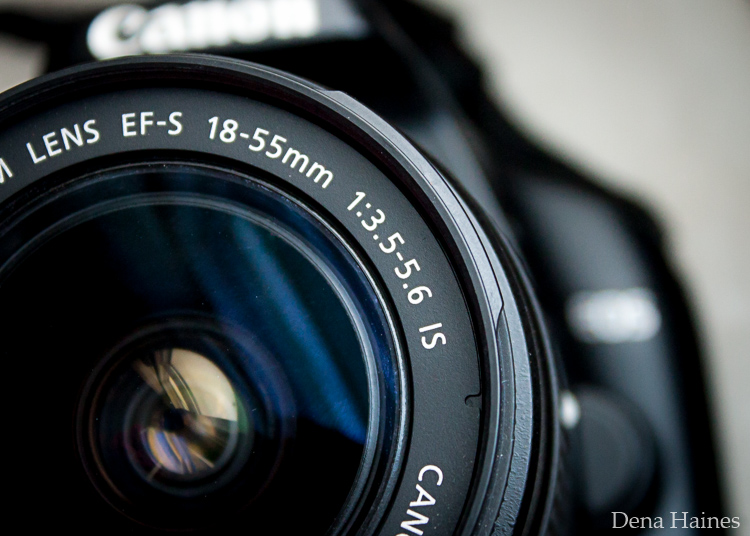
In this beginner’s guide, we’ll use an entry level zoom lens as our example. Most kit lenses (the basic lens that comes with a DSLR) generally shoot their sharpest at the mid-range aperture settings. To determine the mid-range of your lens, you’ll need to know its widest (or maximum) aperture setting. It is located on the side, or end, of the lens and will look something like this 1:3.5-5.6.

For example, here it is on my Canon 18-55mm zoom lens.

Lens aperture range

This means that when my lens is zoomed all the way out, its widest aperture is f/3.5. When zoomed all the way in, its widest aperture is f/5.6.

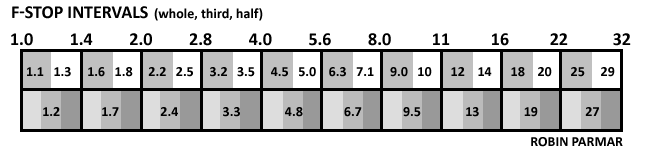
The rule to finding that mid-range sweet spot, is to count up two full f-stops (aperture settings are called f-stops) from the widest aperture. On my lens, the widest aperture is f/3.5. Two full stops from there would bring me to a sweet spot of around f/7.

Use this chart to count your f-stops

Robin Parmar

By Robin Parmar

There is some wiggle room in the mid-range, so anything from f/7 to f/10 will capture a sharp image. Once you know the mid-range of your lens, you can do an easy test to get your sharpest image. To perform the test you’ll need to shoot in Aperture Priority mode.

Take control with Aperture Priority Mode

Shooting in Aperture Priority allows you to choose the aperture setting you want, which gives you more creative control than Automatic mode. By controlling the aperture setting, it’s much easier to get a sharp image, and because your camera still chooses the ISO (if you are set to Auto ISO) and shutter speed automatically, it’s very easy to use.

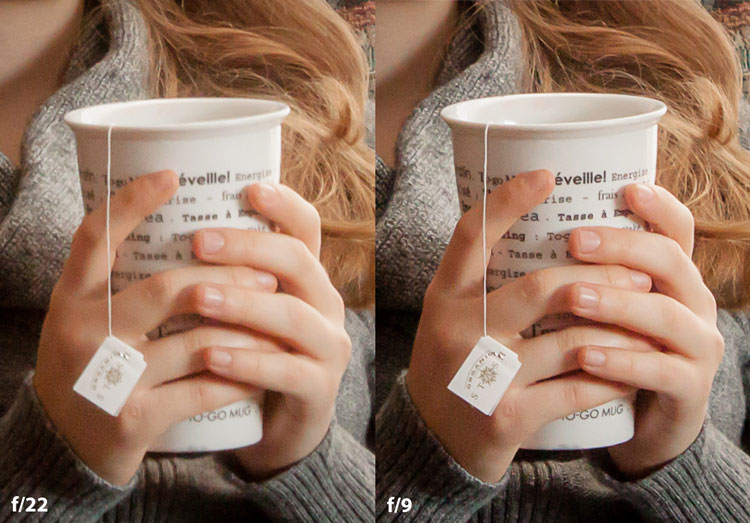
You’ve probably heard that apertures like f/16 and f/22 are best for keeping everything in focus. While that can be true, focus does not always equal overall sharpness. Choosing a mid-range aperture will give you sharper images throughout. You can improve them even further by reducing camera shake with a tripod and a remote shutter release (or your camera’s self-timer).

Here’s an example of how shooting in your lens’ sweet spot will give you sharper images.

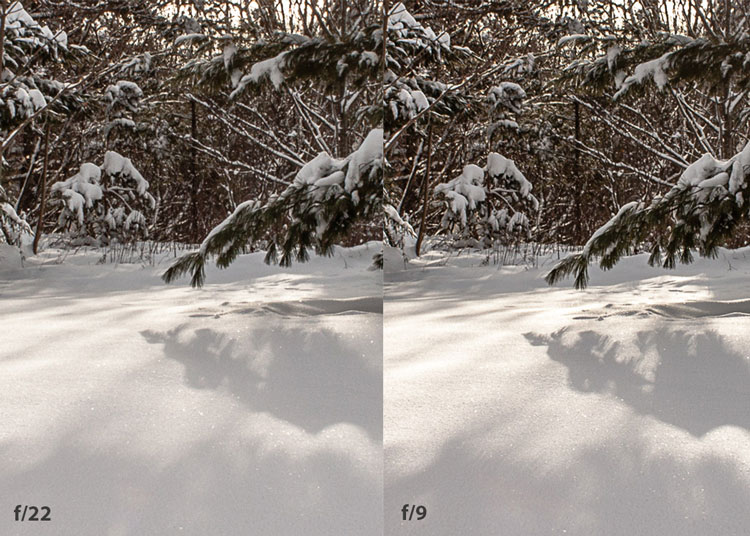
Sharp images shot in lens sweet spot

Mid range f stop sharper than small f stop

In the above split-image, the f/9 image is sharper than the f/22 one. The needles and shadows are not as soft or blurry as in the f/22 shot (look at the crispness and sparkles in the snow too).

Switching from Automatic to Aperture Priority Mode

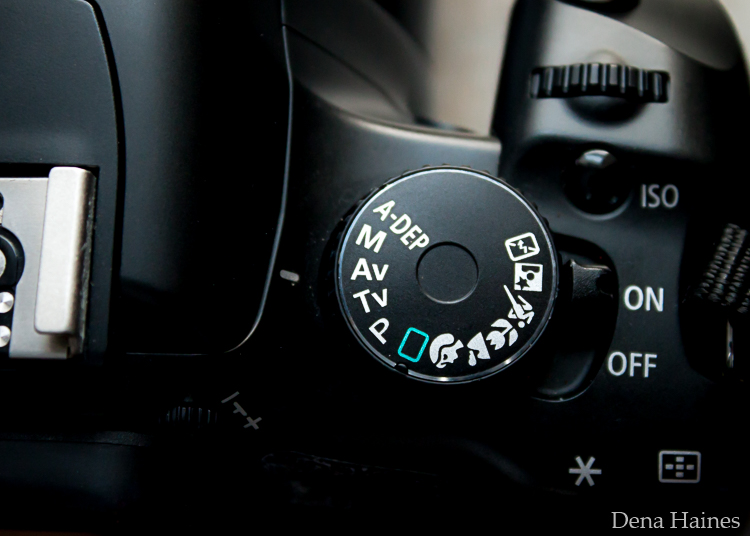
To take your camera out of Automatic and put it in Aperture Priority, just turn the large Mode Dial to Aperture Priority. This is what that looks like on my Canon (on Nikon and other brans look for the A).

Aperture priority on canon mode dial

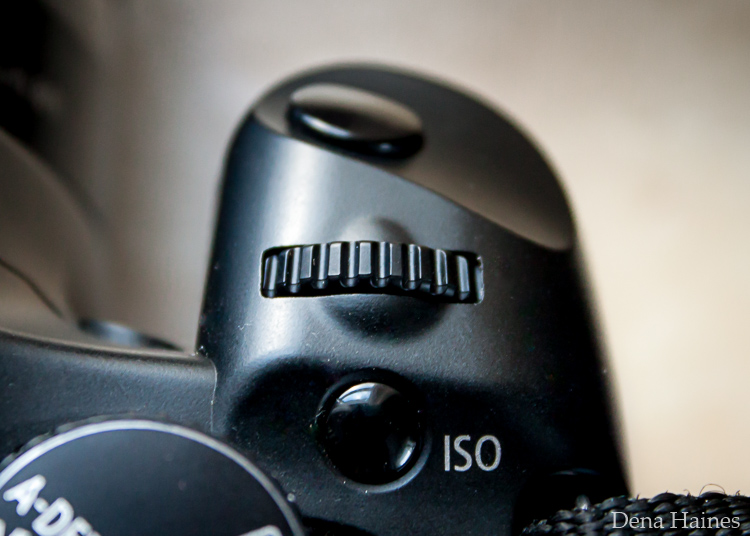
Automatic mode is the green rectangle; Aperture Priority mode is the Av (or A on a Nikon). Once your camera is in Aperture Priority mode, turn the smaller Main Dial (shown here on the top of my Canon) to choose your f-stop.

Main dial canon

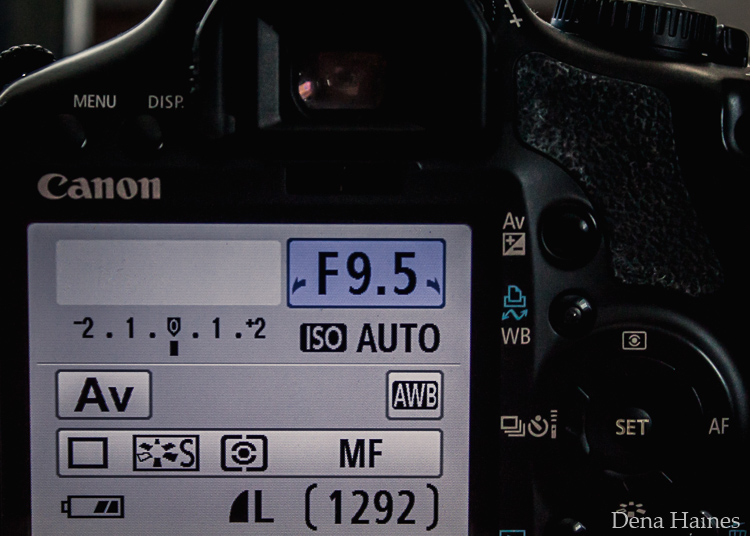
As you turn that dial, you’ll see the f-number changing on your screen. In the next picture, it’s set to f/9.5.

Aperture setting on canon LCD screen

Perform a Lens Sweet Spot Test

Once you have your camera set up on a tripod, performing a sweet spot test only takes a couple of minutes. To begin, put your camera in Aperture Priority mode, then compose your shot and take a photo at varying apertures. Start out with the widest, then click that main dial a couple of times (to the right) and take another. Keep doing that until you’ve taken seven or eight photos.

Upload your photos to your computer and zoom in on them. You’ll quickly see which aperture settings gave you the sharpest overall image.

This next photo of my daughter was shot using natural light. Shooting in my lens’ sweet spot gave me a pretty sharp image, even in this low light setting.

Mid range aperture sharp image low light

Find your lens sweet spot for sharper images

The close up of the mugs shows the advantage of shooting in the lens’ sweet spot. Whenever you want to make sure you get the sharpest capture possible, take a shot at each mid-range setting f/7, f/8, f/9, and f/10.

Getting Your Sharpest Images

Now that you know your lens’ sweet spot, it’s time to practice. I hope you’re as pleased with the results as I’ve been!

Mid range aperture for sharper images

I love shooting in natural light, and learning how to capture sharper images in low light has made me so much happier with my photos.

Tips for capturing your sharpest images:

  • Shoot in Aperture Priority mode
  • Choose a mid-range aperture (usually f/7 to f/10)
  • Use a tripod and a remote shutter release (or your camera’s self-timer) to reduce camera shake
  • Take a series of shots at f/7 through f/10 when a sharp capture is especially important

But don’t stop here. Keep playing with settings in Aperture priority mode. It’s awesome to get images that are sharp throughout, but there’s a lot more to aperture than that.

Learn more about aperture and depth of field here.

Do you have any lens sweet spot tips to share? Please do so by commenting below.

googletag.cmd.push(function() {
tablet_slots.push( googletag.defineSlot( “/1005424/_dPSv4_tab-all-article-bottom_(300×250)”, [300, 250], “pb-ad-78623” ).addService( googletag.pubads() ) ); } );

googletag.cmd.push(function() {
mobile_slots.push( googletag.defineSlot( “/1005424/_dPSv4_mob-all-article-bottom_(300×250)”, [300, 250], “pb-ad-78158” ).addService( googletag.pubads() ) ); } );

The post How To Find Your Lens’ Sweet Spot: A Beginner’s Guide to Sharper Images by Dena Haines appeared first on Digital Photography School.


Digital Photography School

 
Comments Off on How To Find Your Lens’ Sweet Spot: A Beginner’s Guide to Sharper Images

Posted in Photography


How to Size Images for Online Sharing

03 Feb

Whether you’re running a photography business, or sharing your photography on the web with friends, it’s important to know how to properly size your images for various uses. Generally speaking the smallest size you can share, while still retaining enough quality for the viewer to appreciate the photograph, is what you’ll want to aim for, but let’s dive into this with a bit more detail.

First rule – use the sRGB Color Space for anything going on the web

Before you even think about sizing an image for the web, you’re going to need to make sure that you’re using the correct color space. The web is standardized on the sRGB color space, which means that if you want your photography to appear accurately across the web, that’s the color space you need to use when you save your image.

Take a look at this side by side comparison of the same photograph, saved directly from Lightroom, using the sRGB color space versus the AdobeRGB color space.

sRGB

sRGB

AdobeRGB-750

AdobeRGB

You’ll notice that the AdobeRGB color space appears slightly more muted in terms of color and it has a slightly more greenish tint when compared to the sRGB image.

Second rule – Smaller size over image quality

Even in this world of high resolution monitors, it’s still the best practice to use smaller sizes when sharing images on the web.

Here at dPS, images in the articles are sized to be 750 pixels on their longest side at an overall size of around 200kb. The reason you want to reduce the size of your images for use on the web is primarily to improve the user experience for your readers. The more data a webpage has to load, the longer it will take for the reader to be able to see content.

Social media and dedicated portfolio sites, like Smugmug or Zenfolio, are the exception to this rule as they have optimized their backends to handle large image files when necessary, and actually require the full size image for printing purposes.

How to size your images?

Knowing why to size your images is only the first piece to the puzzle, now it’s time to learn how to size your images. This article will show you two ways to size images, one with Lightroom and another with Photoshop, as they are the two most commonly used pieces of software among dPS readers.

How to size an image in Lightroom

The best thing to do with Lightroom is to set up an export preset specific for your needs. Once this preset is set up, all you’ll have to do is select it, and everything will be done for you.

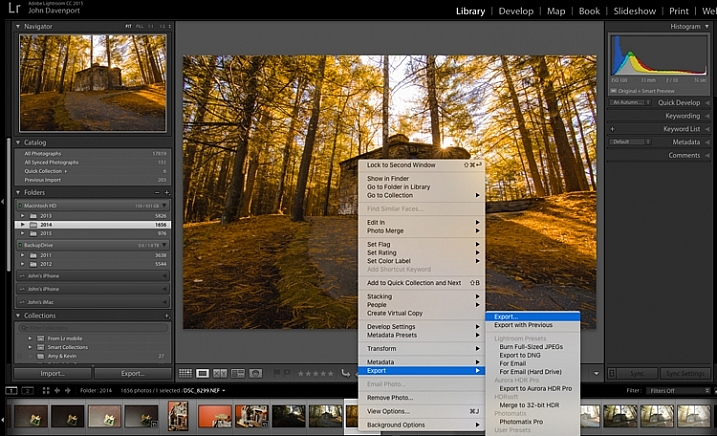
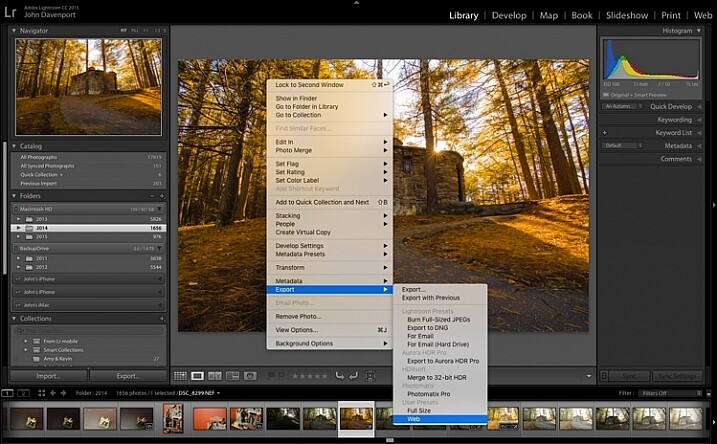
Step 1: Select any photograph and right click. Navigate to Export and select Export from the fly out menu.

export-images-lightroom

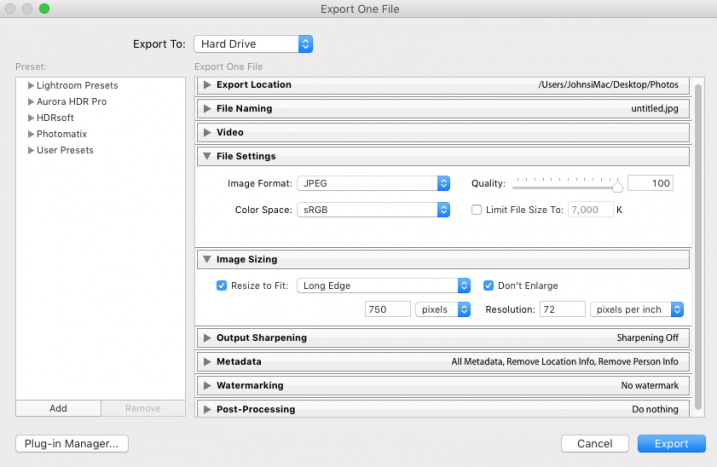
Step 2: In the box that opens, after selecting your Export Location and File Naming options, you’ll want to navigate to the File Settings and Image Sizing sections.

In the File Settings Section: Make sure that Image Format is set to JPEG, and that Color Space is sRGB. You can choose to limit the file to a specific siz,e if this matters to you, but know that too much size reduction can result in noticeable quality loss of an image.

sizing-images-with-lightroom

In the Image Sizing Section: You’ll want to check “Resize to Fit” and make sure that the drop down is set to Long Edge. Check the box “Don’t Enlarge” which will mean that any time you export an image smaller than your “Long Edge” setting, it won’t stretch the to fit that dimension. Finally, you’ll need to pick what size you want your image to be – here it’s set to 750px and 72 pixels per inch which is what we use at dPS.

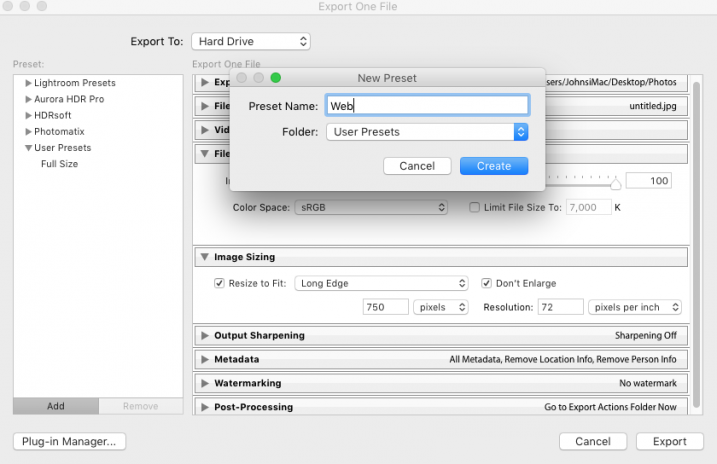
To save this as a preset that you can use over and over again, click on the “Add” button in the lower left corner, and name your preset when the dialogue box opens.

sizing-images-with-lightroom2

Now, whenever you want to export a photograph to the web, all you have to do is right click on the image you wish to export, and navigate to the preset you’ve just created. Super easy!

export-images-lr2
How to size images with Photoshop

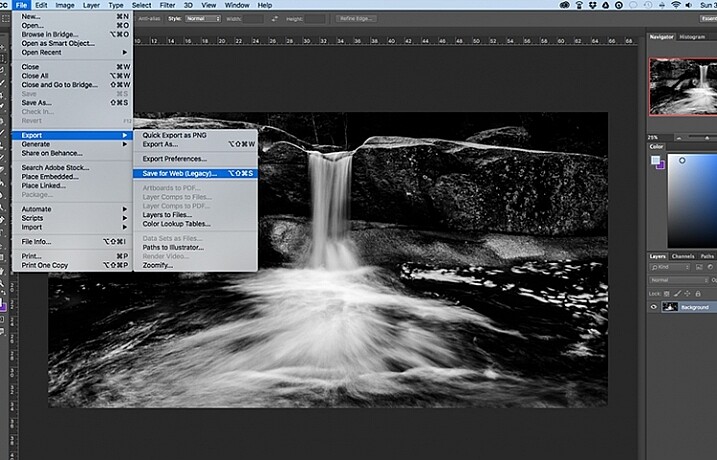
When you want to save your images for the web with Photoshop, the best option is to use Photoshop’s “Save for Web” tool. This will let you choose from various file types (in most cases you’ll want JPEG), and also allow you to convert the image to the all important sRGB color space.

photoshopsaveforweb

To find the Save for Web option you’ll want to navigate to File > Export > Save for Web

Once you select this option a new window will open, providing you with a number of options for exporting your image from Photoshop. Here you’ll want to make sure that “Convert to sRGB” is checked, and that your file format is set to JPEG. Sizing can be done by picking a width or height, and as long as the two are connected with the link symbol, Photoshop will calculate the other’s value based on the one you input and maintain the image proportions accurately.

The most important part about saving photographs for use on the web is getting the color space correct, and realizing that people browsing photographs on the web are often doing so on smaller screens, with limited time on their hands. Fast load times not only improve your user’s experience, but they also will reflect favorably on Google’s search engine’s algorithm which is used to determine if your content is worthy of being shown to people searching Google for answers.

How do you size your images for online use? Please share in the comments below.

googletag.cmd.push(function() {
tablet_slots.push( googletag.defineSlot( “/1005424/_dPSv4_tab-all-article-bottom_(300×250)”, [300, 250], “pb-ad-78623” ).addService( googletag.pubads() ) ); } );

googletag.cmd.push(function() {
mobile_slots.push( googletag.defineSlot( “/1005424/_dPSv4_mob-all-article-bottom_(300×250)”, [300, 250], “pb-ad-78158” ).addService( googletag.pubads() ) ); } );

The post How to Size Images for Online Sharing by John Davenport appeared first on Digital Photography School.


Digital Photography School

 
Comments Off on How to Size Images for Online Sharing

Posted in Photography