RSS
 

Archive for September, 2015

Taking Their Lumps: 12 Bitter Sweet Abandoned Sugar Mills

14 Sep

[ By Steve in Abandoned Places & Architecture. ]

abandoned-sugar-mill-clarksburg-1
Obesity epidemic notwithstanding, the world boasts more abandoned sugar mills than you can shake a peppermint stick at.

abandoned-sugar-mill-clarksburg-3

abandoned-sugar-mill-clarksburg-4

The former Delta Sugar Company mill in Clarksburg, Yolo County, California was constructed between 1934 and 1936… it took two years because the mill was transported by railroad, piece by piece, from its original location in Utah. By the early 1990s the mill became uneconomical to operate and in 1993 it was closed.

abandoned-sugar-mill-clarksburg-2

abandoned-sugar-mill-clarksburg-5

After lying abandoned for over 7 years, the “Old Sugar Mill” began to show some signs of life when some sections were upcycled into a grape-crushing and wine-tasting facility for several local wineries. Kudos to Flickr user Mark Brooks (cal_gecko), who exquisitely photo-documented the complex in late July of 2010.

Falling Like A Domino

abandoned-sugar-mill-domino-1

abandoned-sugar-mill-domino-2

The iconic Domino Sugar Refinery in Brooklyn, NYC’s Williamsburg neighborhood was built in 1882 on the site of an even earlier sugar mill that opened in 1856. At one point the plant employed over 4,000 workers and supplied half the sugar consumed in the United States. By the year 2000 when the factory closed, however, only 225 employees still worked there. The Domino Sugar Refinery was sold to developers in early 2014 and the wrecking ball began swinging in October.

Sugar Beaten

abandoned-sugar-mill-longmont-1

abandoned-sugar-mill-longmont-2

The Great Western Sugar Company mill in Longmont, Colorado closed in 1977 and – possibly due to the dearth of wineries in the region – has sat derelict and abandoned for well over thirty years.

abandoned-sugar-mill-longmont-3

The factory opened in 1903 and processed locally-grown sugar beets. Rumor has it the mill is haunted, perhaps by sweet-toothed ghosts. Flickr user Sheila Dee (sheiladeeisme) visited the decrepit factory in January of 2013.

American Paia

abandoned-sugar-mill-haiku-1

Paia, on the island of Maui, Hawaii may be “The World Capitol of Windsurfing” but the town of 2,668 (as of 2010) has another claim to fame: it’s where the once cutting-edge Haiku Sugar Mill processed sugar cane into brown sugar.

abandoned-sugar-mill-haiku-2

abandoned-sugar-mill-haiku-3

Opening in 1861 and powered by a steam engine, the mill only operated for 18 years and has sat abandoned for well over a century. These days its ruins are a popular wedding photography and reception venue. Flickr user Maria Caridad snapped some of the more obscure areas of the abandoned mill on June 28th of 2009.

Next Page – Click Below to Read More:
Taking Their Lumps 12 Bitter Sweet Abandoned Sugar Mills

Share on Facebook


[ By Steve in Abandoned Places & Architecture. ]

[ WebUrbanist | Archives | Galleries | Privacy | TOS ]


WebUrbanist

 
Comments Off on Taking Their Lumps: 12 Bitter Sweet Abandoned Sugar Mills

Posted in Creativity


13. September 2015

14 Sep

Das Bild des Tages von: Simon

© Simon

In unserem Ausblick meint man heute, das Meer rauschen zu hören.
kwerfeldein – Fotografie Magazin | Fotocommunity

 
Comments Off on 13. September 2015

Posted in Equipment


Road Trip: The wildlife and nature photography of Dave Welling

13 Sep

Based out of southern California, nature photographer Dave Welling has been volunteer and Director to the Wildlife Waystation hospice center since 1987. This has given him an intimate understanding of wildlife, and he often spends weeks at a time photographing the colorful landscapes and rare specimens that populate his portfolio. Take a look at his work and find out more about him. Read more

Articles: Digital Photography Review (dpreview.com)

 
Comments Off on Road Trip: The wildlife and nature photography of Dave Welling

Posted in Uncategorized


Die 5 Fotowettbewerbe des Monats

13 Sep

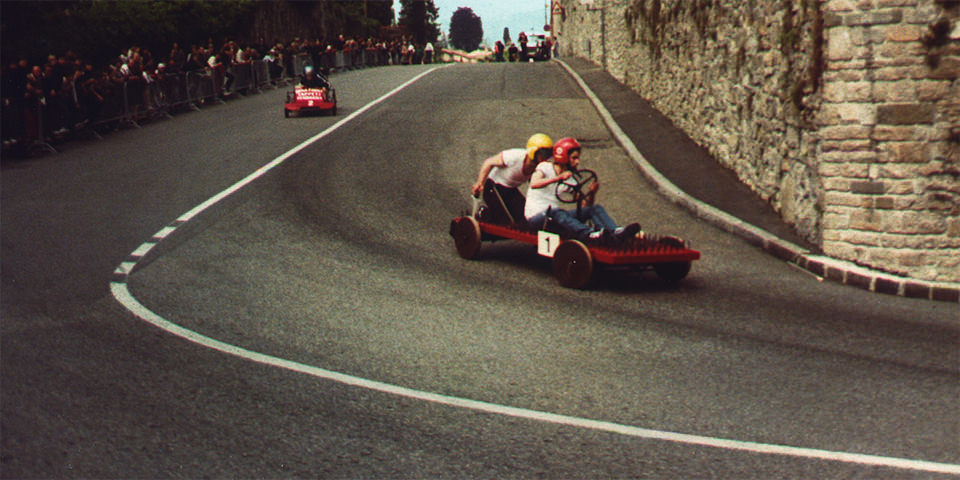
Seifenkistenrennen

Der Sommer ist vorbei und wir wühlen vermehrt in unseren Archiven, sortieren unsere besten Bilder und bearbeiten Aufnahmen, die sich im Laufe des Urlaubs angesammelt haben. Eine gute Zeit, sich einige neue Wettbewerbe anzusehen und das Glück herauszufordern.
kwerfeldein – Fotografie Magazin | Fotocommunity

 
Comments Off on Die 5 Fotowettbewerbe des Monats

Posted in Equipment


5 Practical Lightroom Tips for Newbies

13 Sep

One of Lightroom’s most important assets is also its Achilles Heel. It is such a powerful program that many of its useful features can take a long time to discover, and are often hidden beneath a blanket of keyboard shortcuts and obscure menus.

When I first started learning Lightroom I was already a longtime user of Apple’s image processing program Aperture, and for a while after making the switch I was overwhelmed by the sheer number of options available. With so many menus, buttons, and sliders at my fingertips I thought there was no way I would ever be able to make sense of them all. After much experimenting, online searching, and good old-fashioned trial and error, I have figured out a workflow that suits my needs; the same holds true for most photographers. You may not use every single feature and option available to you in Lightroom, but the key is to find the tools that work for you and learn to master them.

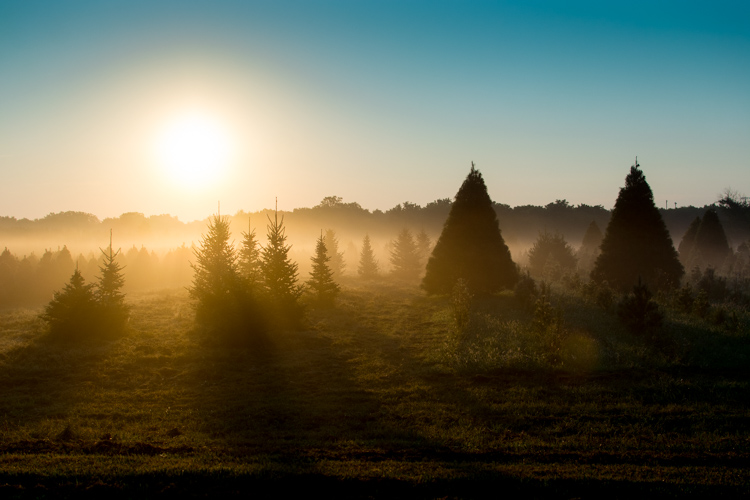
five-lightroom-tips-for-beginners-sunrise

Adjusting the RAW file to arrive at this final image took a while, but was a lot easier thanks to some simple tips and tricks described below.

That being said, here are five of the most practical, useful features that I use on a daily basis. Try them out and they may greatly enhance your own experience with Lightroom as well.

1. Create import presets

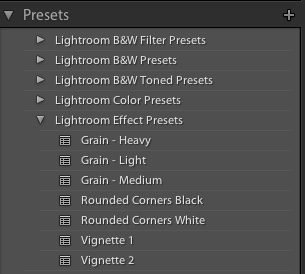
five-lightroom-tips-for-beginners-PresetsYou probably already know that Lightroom contains dozens of presets to get you started when editing your photos, which can be quite handy when you need a quick adjustment or effect such as Aged Photo, Bleach Bypass, or any number of black and white conversions. These presets are not special filters like what you might find in Instagram or other such image-sharing programs, but in fact are pre-made manipulations of the various sliders and controls available to you in the Develop module. The Cold Tone filter, for example, is a collection of saved values for the White Balance, Tone, and Presence adjustments in the Basic Develop pane.

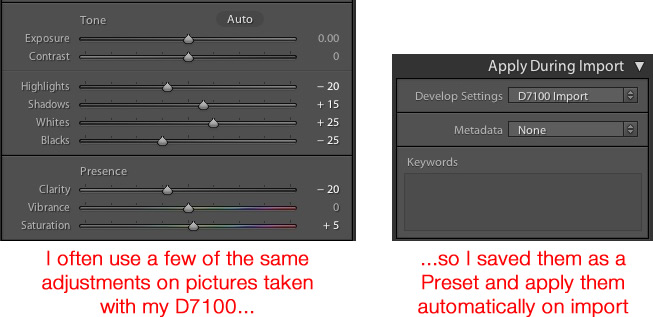
You might also be aware that you can create your own presets by adjusting any of the Develop parameters and then choosing New Preset from the Edit menu. But you can extend this functionality a step further by automatically applying a given preset, even one you create yourself, to all your pictures upon import. This is incredibly useful if you have a given set of values that you like to use as a starting point. Rather than making similar adjustments to things like Highlights, Shadows, and Clarity for every image you can simply apply default values to every picture you import. To do this, use the Apply During Impor” pane in the Import dialog, and select any of Lightroom’s existing Presets or one that you have made on your own.

five-lightroom-tips-for-beginners-D7100-Import-Preset

As an example of how this can be useful, I often found myself applying similar adjustments to every picture that I took with my Nikon D7100 because I was not happy with Lightroom’s interpolation of my RAW files. This became somewhat time-consuming, so I saved my common adjustments as a Preset called, D7100 Import. Now every time I import photos from my D7100 memory card, I apply that Preset. I have a unique Preset saved for each of my cameras, and applying these settings on import has saved me untold hours and a great deal of frustration. It’s a fantastically useful feature that could greatly improve your own workflow as well.

2. Use number keys to fine-tune adjustments in the Develop Module

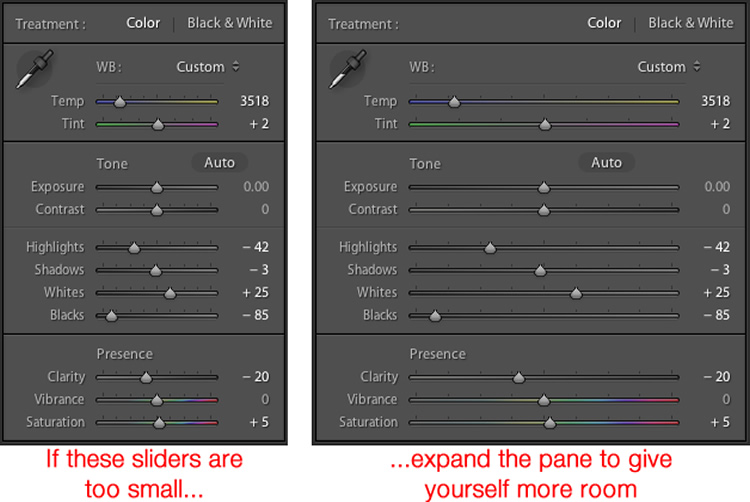
When working in the Develop module it can be a bit tricky to get the exact values you want by manually moving the sliders. One way to fix this is to give yourself a bit more real estate by hovering your cursor over the left side of the panes and dragging until the panels are much wider.

five-lightroom-tips-for-beginners-develop-sliders

Another handy trick is to use the arrow keys to adjust the number values in very small increments. For example, click on the White Balance numerical value, and press the Up or Down arrow keys to change it in increments of 10. Or highlight Clarity and press Up or Down to change it in increments of 1. For greater adjustments, hold down the Shift key while you press Up or Down, which will alter White Balance in increments of 200, Clarity in increments of 10, and so on.

3. Customize the Develop Module

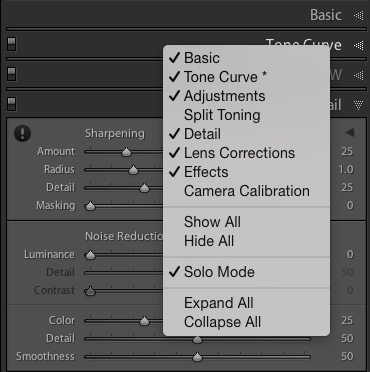
If you’re like me, you may have been overwhelmed at the massive number of options in the Develop module, but thankfully there is a way to tame this beast by right-clicking anywhere in the adjustment panels. Doing so brings up a menu that allows you to disable the adjustments you don’t want so you have a cleaner and less cluttered working environment, and don’t waste time clicking on features you never use.

five-lightroom-tips-for-beginners-hide-panels

One especially useful element of this right-click menu is called Solo Mode, which is a way to de-clutter the Develop module even more by collapsing all the panels except the one you are currently using. I used to waste all sorts of time scrolling up and down through the various open panels, expanding or collapsing them to get to the one I really wanted. But by using Solo mode every time I click on a new panel, the other one I was using is automatically shrunk to just its title. This one little feature has single-handedly saved me not just a lot of time, but a great deal of headache medicine as well.

4. Create Smart Collections to automatically sort photos in the Library Module

Lightroom’s Library module is a great way to help you keep your images organized. You can create virtual folders called Collections (e.g. Ceremony, Reception, and Speeches for a wedding) that can even be placed inside of Collection Sets (e.g. Smith-Miller Wedding).

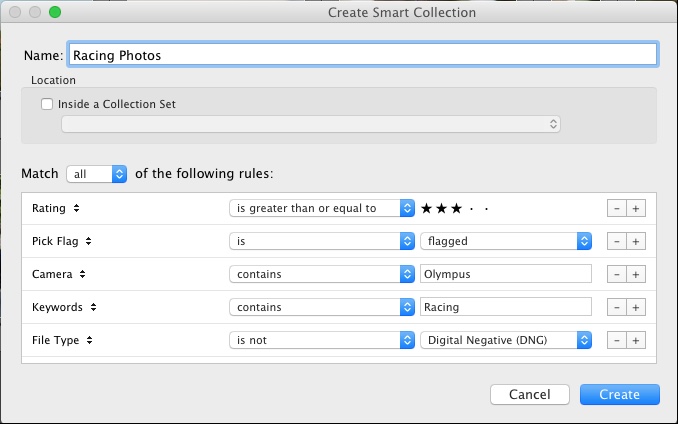
But what I find even more useful is the Smart Collections feature which allows you to dynamically organize your images, based on any number of conditions you specify. To create a Smart Collection, choose New Smart Collection from the Library menu and specify the parameters you want to use. Any picture that meets these criteria, at any point in your editing process, will automatically be placed inside the virtual folder you have just created.

five-lightroom-tips-for-beginners-smart-collection

In the above example I have created a Smart Collection that automatically sorts through all my photos, including any that I import after the Smart Collection is created, that meet specific criteria. Using Smart Collections are a great way to enhance your organization process, and help you sort through your images to focus on the ones you really want to work with.

5. Hold down the Option/Alt key when adjusting Develop sliders

The effects of many of the adjustments in the Develop module are self-evident; increase the Exposure and your image will get lighter. Increase the Saturation and your photo will lose a bit of color. But what about the adjustments that are not so easy to see? One particular set of sliders I use all the time is under Sharpening in the Detail pane, but the exact effects of the Radius, Detail, and Masking are sometimes difficult to see. This problem can be solved by holding down the Alt/Option key when moving almost any slider in the Develop module, which will show you a realtime display of exactly what is happening when you make the adjustment.

five-lightroom-tips-for-beginners-pastry

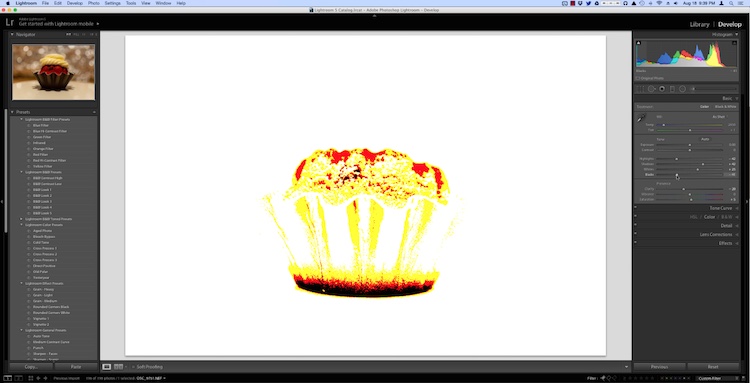
As I was editing this photo I needed to make some adjustments such as dialing down the Black levels, but I didn’t want to go so far so as to make any part of the image completely black. (That is, I did not want to clip anything in the picture.) By holding down the Option key as I adjusted the Black slider I was able to see a realtime display of what areas of the image were being affected:

five-lightroom-tips-for-beginners-pastry-option-key

In the above image the bottom of the pastry has become completely black, which means it cannot get any darker while the red areas will soon become entirely black if I continue to move the slider to the left. The yellow areas are being affected, but not so much just yet that I am losing my color data. This works for almost every adjustment slider in the Develop module, and can greatly assist you in making sure you are doing the edits precisely how you mean to.

These five Lightroom tips and tricks have been a major boon to me as I have worked with the program over the years, what about you? What are your favorite aspects of Lightroom that you find particularly handy? Or do you have any hidden gems that others might not know about? Leave your thoughts in the comments below.

googletag.cmd.push(function() {
tablet_slots.push( googletag.defineSlot( “/1005424/_dPSv4_tab-all-article-bottom_(300×250)”, [300, 250], “pb-ad-78623” ).addService( googletag.pubads() ) ); } );

googletag.cmd.push(function() {
mobile_slots.push( googletag.defineSlot( “/1005424/_dPSv4_mob-all-article-bottom_(300×250)”, [300, 250], “pb-ad-78158” ).addService( googletag.pubads() ) ); } );

The post 5 Practical Lightroom Tips for Newbies by Simon Ringsmuth appeared first on Digital Photography School.


Digital Photography School

 
Comments Off on 5 Practical Lightroom Tips for Newbies

Posted in Photography


6 Phrases to Help you Learn Photography Faster

13 Sep

5 simple photography tricks for accurate shots

Learning all the ins and outs of photography is a never ending challenge. For some, the technical side of photography seems more difficult to understand. Others feel they are challenged by the creative side of understanding composition and light. When learning any new skill, the understanding of fundamentals is always most important. The complexity of settings, along with endless creative options is what makes photography so challenging. That’s where these six sayings come in. These simple phrases will bring you back to the basics, helping you to create quality images quickly, allowing for more time to experiment creatively.

1. ISO: Set it first – change it last

Set it and forget it until you have to remember.

Many people get confused by the purpose of ISO, and how to use it when controlling light. Unlike the other two big settings (aperture and shutter speed) when used properly, ISO gives your photograph the ability to be more sensitive to the available light. When you are setting your ISO, remember to choose a setting based on the amount of available light you happen to have in your scene. Don’t set it because the shot you took before was too dark and you want to brighten the exposure.

ISO - Set if first. Change it last.

ISO 2500, f/1.8 at 1/125th of a second

Every time you enter a scene, before you take a shot, ask yourself, what kind of light is there?

Here are some starting ISO settings, adjust as necessary for your scene:

  • Bright sunny day: ISO 100-200
  • Shade/clouds: ISO 400-800
  • Indoors: ISO 800-1600
  • Little/no light: ISO 1600 and up

Don’t forget the negative side of ISO. Most camera models go above 1600 ISO now. However, if you choose 1600, or higher, you will most probably see noise (digital grain) in your image. There are many post-production techniques to remove noise, but it’s always best to capture your best shot in the camera. Consider this when choosing a higher ISO in dimly lit areas.

2. Set an intention

Both shutter speed and aperture measure and control how much light the camera takes in. But they each also have a creative aspect that must be considered when choosing your settings. Knowing their distinct qualities, and creating an intention when you shoot, are two extremely important fundamentals of photography.
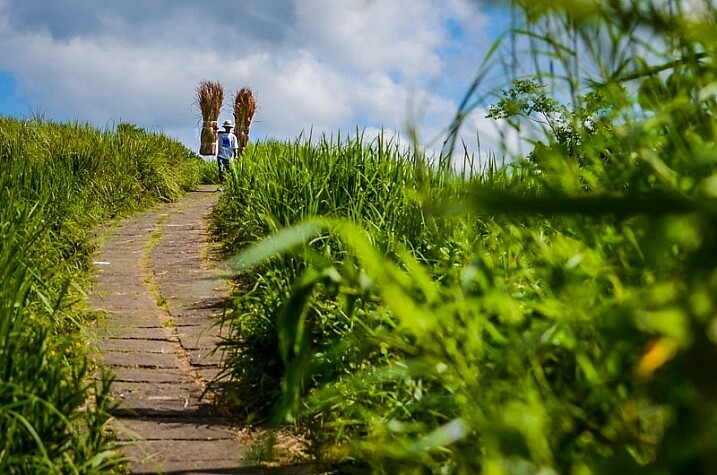
Set an Intention

ISO 200, f/4.0 at 1/5000th

Ask yourself, “What is my purpose?” Why are you taking that photo? Be clear on what you want to capture. Give yourself a moment to set an intention or two, then keep it in mind the whole time. Once you have figured out your main purpose, you can use that to choose which setting you will set first. As aperture affects the depth of field and shutter speed affects movement, which aspect is more important for creating the image you want?

Let’s take a look at two more awesome phrases to easily remember the different purposes of aperture and shutter speed.

3. Shutter speed: fast freezes – slow shows

Shutter speed is all about capturing (or not capturing) motion. When you want to show movement in the photograph, use a slower shutter speed. If a subject is moving and you want to freeze that movement, use a higher (faster) shutter speed. The faster the subject is moving, the higher your shutter speed must be to freeze them/it.

Quick Tip: Do not hand hold and shoot below 1/60th of a second. You are a vibrating creature, you are always moving. At about 1/60th of a second, the camera might capture the movement (called camera shake) you create just by pressing the shutter button.
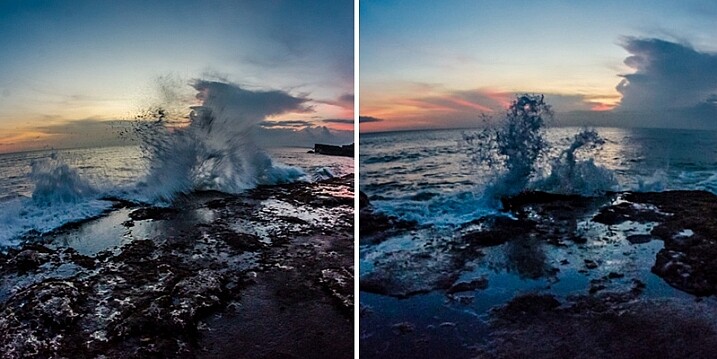
Shutter Speed

Image #1 (left): ISO 1000, f9.0, 1/20th
Image #2 (right): ISO 1000, f/4.0, 1/125th

Here are some starting points to freeze moving subjects. Start here and adjust as necessary:

  • Moving cars: 1/4000th of a second or faster
  • People running: 1/1000th or faster
  • Kids playing: 1/500th or above
  • Person sitting still: 1/100th or faster
  • Still object: 1/60th or faster
  • Night scene: (tripod) 1/60th or slower

4. Aperture: High number = more in focus. Low number = less in focus

This setting is all about depth of field, the distance between the front and back of a focal plane. The focal plane is determined by the spot where you tell your camera to focus. The higher the f-number, the larger the distance of that plane. This means, more depth of the scene is within the focal plane, thus it is in sharper focus. The opposite is also true. The lower the f-number, the smaller the distance between the front and the back of the focal plane and less is in focus.

If you want everything in the photo to be fully in focus you will need to choose a higher f-number. If you want to create a shallow depth of field bringing only one part into focus, you will use a smaller f-number.

Aperture Photography Trick

Image #1 (left): ISO 160, f/11.0, 1/400th
Image #2 (right): ISO 160, f/1.8, 1/4000th

Here are some aperture starting points, same as before, adjust as necessary:

  • Close-ups or detail shots: f/2.8 or lower (larger)
  • Portraits: (one person) f/1.8 – f/5.6
  • Groups: (2 or more) f/5.6 – f/8.0
  • Local scene: (less distance) f/8.0 – f/11
  • Landscape: (more distance) f/11 – f/22

5. Frame your finder

Witness your scene through your viewfinder, as you allow your eye to examine every inch of what you can see through the lens. Look from top left, across and down to the right. What is in each corner? Notice the edges of the frame. When examining everything you see, slightly move your camera around as you prepare for finding the best version (framing) of this shot. This will give you a greater sense of what you do, or do not want to be in the shot. You will notice if you have cut something off, or added something into the shot you do not want.

When you make a habit of always re-framing your viewfinder as you are shooting, you will gain a greater sense of awareness, allowing for more shots from other vantage points you hadn’t considered before. Even more importantly, as you practice this, every shot you take will be closer to what you want to capture in the first shot you take.
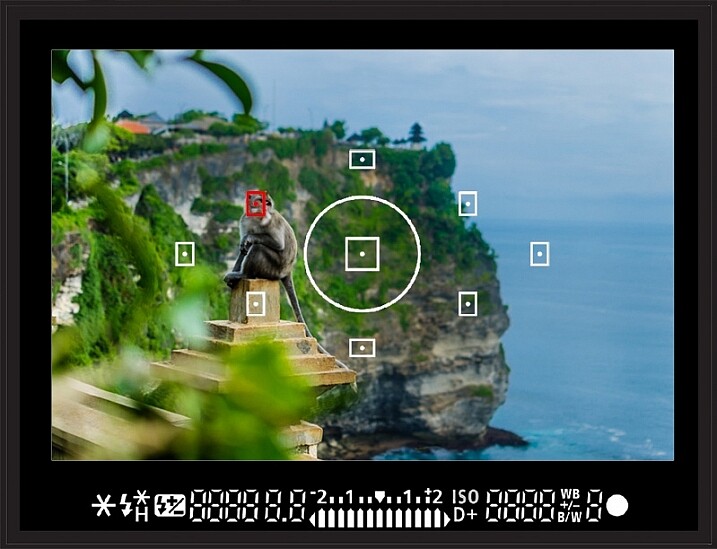
Frame your finder

See what is in every inch of your frame before snapping the shutter!

6. Count your clicks

Once you have your desired exposure based on the purpose of what you are capturing, you can choose to change your purpose (capture a different effect) by going up or down the range of either aperture or shutter Speed. To make sure you keep a proper exposure like you had before (assuming you are shooting in Manual Mode), just count your clicks. If you click six times in one direction on shutter speed (because now you want to show motion), you will need to click six times in the other direction for aperture to keep a proper exposure.

For example: When photographing a birthday party, you may go from focusing on close-ups and details, to kids running around, to capturing a sunset. In this case, the first intention is creating a shallow depth of field to capture a non-moving object. Set your aperture to a low f-number. Using your meter, now set your shutter speed for correct exposure and snap away. ISO will already be set because that’s the first trick to remember.

Now it is time to capture the kids running around. You will  switch focus from aperture to shutter Speed. To make sure you freeze their movement (no one likes a photo of a blurry kid), you will change your shutter speed to 1/1000th of second.

Photography tricks

But wait! Before you start moving the dial, remember to count how many clicks you are going. If you clicked down four times to get to 1/1000th of a second, then you will click UP four times using your aperture dial. Now your exposure will be the same, but you quickly changed your settings to creatively capture something entirely different. Note: if you are using Aperture or Shutter Priority modes the camera will do this adjustment for you automatically.

There you have it

The best thing you can do now is turn these tricks into habits by jotting down these simple phrases and stuffing them in your camera bag. Next time you are ready to shoot, read over them once or twice before you begin. As you practice using these tricks in order to become more accurate and efficient behind the lens you will create more stunning eye-catching photographs of any subject you choose to capture.

Do you have any other cool phrases that you say to yourself when you are shooting? If you know any other great tricks that are easy to remember and simple to understand, let us know in the comments section below. Together, it will be fun to build a compilation of great photography learning quotes!

googletag.cmd.push(function() {
tablet_slots.push( googletag.defineSlot( “/1005424/_dPSv4_tab-all-article-bottom_(300×250)”, [300, 250], “pb-ad-78623” ).addService( googletag.pubads() ) ); } );

googletag.cmd.push(function() {
mobile_slots.push( googletag.defineSlot( “/1005424/_dPSv4_mob-all-article-bottom_(300×250)”, [300, 250], “pb-ad-78158” ).addService( googletag.pubads() ) ); } );

The post 6 Phrases to Help you Learn Photography Faster by Danielle Werner appeared first on Digital Photography School.


Digital Photography School

 
Comments Off on 6 Phrases to Help you Learn Photography Faster

Posted in Photography


Stacked Ceramics: Shop Floor Made from 25,000 Pieces of Pottery

13 Sep

[ By WebUrbanist in Design & Fixtures & Interiors. ]

ceramic surface side view

A 400-year-old ceramics studio in Japan has completely remodeled their store with a most remarkable addition: a walkable surface constructed from a stack of tens of thousands of scrapped pieces of crockery.

ceramic walkable surface

ceramic stacked tableware discards

Yusuke Seki (photos by Takumi Ota) collected plates, saucers, bowls and cups for this creative endeavor, all to create a display platform for Maruhiro Ceramics in Hasami, Nagasaki.

ceramic steps display level

ceramics on display

To facilitate a more intimate experience, a pair of stairs is placed by the display platform, allowing visitors to walk up and peruse wares, all while enjoying a sense of wonder from the layers of history right beneath their feet.

ceramic platform in use

ceramic wood display cases

Traditionally, flawed ceramics are simply thrown into dedicated landfills, while this rethought application brings pieces of history back up to the surface.

ceramic top detail

ceramic space exxterior

Since the discards are eliminated before the coloring and glazing process, there is an aesthetic consistency to the materials reused in this creative context.

ceramic stairs side

ceramic view outside

Individually fragile, the tableware was turned into modular bricks by being filled with concrete, but their individual shapes and sizes still made this a daunting endeavor to actually deploy. Still, the result is compelling and interactive – not so much of a crackpot idea after all, as it turns out.

Share on Facebook


[ By WebUrbanist in Design & Fixtures & Interiors. ]

[ WebUrbanist | Archives | Galleries | Privacy | TOS ]


WebUrbanist

 
Comments Off on Stacked Ceramics: Shop Floor Made from 25,000 Pieces of Pottery

Posted in Creativity


12. September

13 Sep

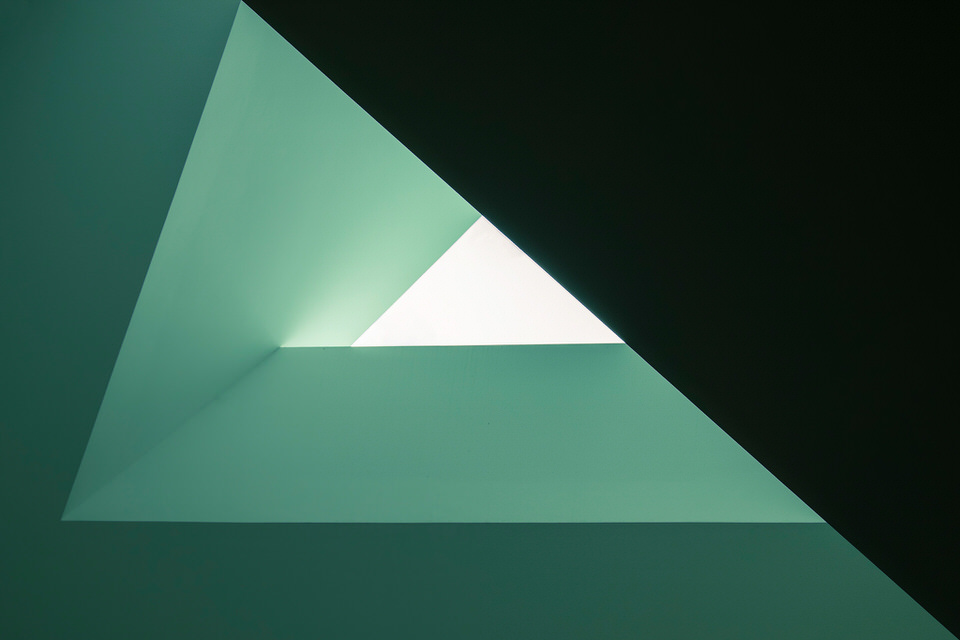
Das Bild des Tages von: Carsten Heyer

Blick auf eine dreiecksförmige Architektur-Ecke.

Manchmal ist minimal schon optimal. Die Damen, die Herren: der Ausblick.
kwerfeldein – Fotografie Magazin | Fotocommunity

 
Comments Off on 12. September

Posted in Equipment


Behind the Shot: Crystalline

12 Sep

Nature photographer Erez Marom explains the process of creating his image ‘Crystalline’. Originally shot in January 2014, the addition of new Photoshop processing tools lead him to revisit it and process it in a different way. Find out what he did and see the results. Read more

Articles: Digital Photography Review (dpreview.com)

 
Comments Off on Behind the Shot: Crystalline

Posted in Uncategorized


Weekly Photography Challenge – Backlighting

12 Sep

Check out these examples of images that have backlighting. Take a good look and get some ideas. Now it’s your turn.

Weekly Photography Challenge – Backlighting

This week’s challenge is to look for the light, particularly how it is hitting your subject. Backlight occurs when the light is coming from behind your subject, aimed back towards the camera. It works really on transparent objects like leaves and flowers.

The Guy With The Yellow Bike

By The Guy With The Yellow Bike

Bill Gracey

By Bill Gracey

Julie Kertesz

By Julie Kertesz

Look for things that allow the light to come through them, show their color. Or look for light that outlines the subject as in a rim light.

Bill Gracey

By Bill Gracey

Adam Hilliker

By Adam Hilliker

Dwight Sipler

By Dwight Sipler

Tambako The Jaguar

By Tambako The Jaguar

GollyGforce - Living My Worst Nightmare

By GollyGforce – Living My Worst Nightmare

Share your images below:

Simply upload your shot into the comment field (look for the little camera icon in the Disqus comments section) and they’ll get embedded for us all to see or if you’d prefer upload them to your favourite photo sharing site and leave the link to them. Show me your best images in this week’s challenge. Sometimes it takes a while for an image to appear so be patient and try not to post the same image twice.

googletag.cmd.push(function() {
tablet_slots.push( googletag.defineSlot( “/1005424/_dPSv4_tab-all-article-bottom_(300×250)”, [300, 250], “pb-ad-78623” ).addService( googletag.pubads() ) ); } );

googletag.cmd.push(function() {
mobile_slots.push( googletag.defineSlot( “/1005424/_dPSv4_mob-all-article-bottom_(300×250)”, [300, 250], “pb-ad-78158” ).addService( googletag.pubads() ) ); } );

The post Weekly Photography Challenge – Backlighting by Darlene Hildebrandt appeared first on Digital Photography School.


Digital Photography School

 
Comments Off on Weekly Photography Challenge – Backlighting

Posted in Photography