RSS
 

Archive for August, 2015

Split Toning Black and White Images in Lightroom

18 Aug

It can at times seem difficult to make our images unique, or at the very least more interesting. During our workflow we sometimes even discard photos because we feel they aren’t interesting, or that we have failed at an exposure or composition. What we often forget is that we can actually make our images stand out from the rest, and become less mundane, just by being slightly creative with our editing. Sometimes we can even go so far as to salvage an image that might otherwise have been introduced to the delete button. Just by using some powerful, yet simple, post-processing techniques we can discover hidden gems within our images.
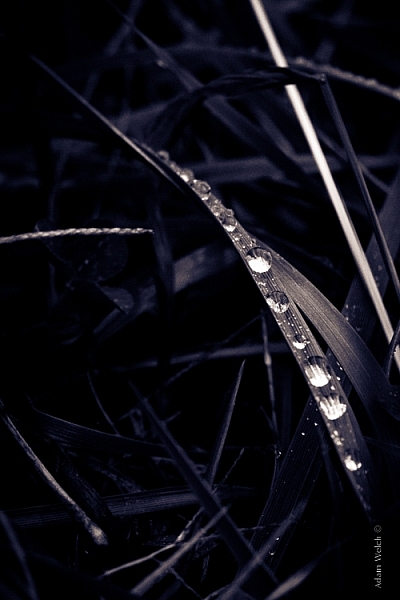
Rain-on-Grass.jpgIntroducing split toning

One such technique which can add uniqueness and strength to an image, is the process of split toning. Most likely, you have already viewed many images that were split toned, even if you didn’t know anything about it. Many of the vintage looking photographs, that seem to be trending at the moment, almost always employ split tone processing to some extent. That’s not to say that split tone images are something new, in reality, the situation is actually quite the opposite. Split toning has its roots in film photography and dark-room printing. Before we begin to learn just how easily you can convert your images to split tone, let’s first take a brief look at what split toned images are, and examine (even more briefly) a little bit of the history behind the process.

What is split toning?

Split toning is quite simply a process by which color tone is added to the highlight and shadow areas of an otherwise monochromatic photograph. Traditionally, the photo being processed with split tones begins its life as a black and white image capture. After the print has been fully made and developed, it is then introduced to other chemicals, which affect the image tones in different ways, depending on the relative compositions of the chemistry involved. In our world today, digital darkrooms now allow us to carry-over this technique of selective toning to our color prints. Color split tone images are quite possible and are often very pleasing. However, for our purposes here, we will keep the discussion limited to the process of using split toning as it relates to black and white photos exclusively.

History of split toning
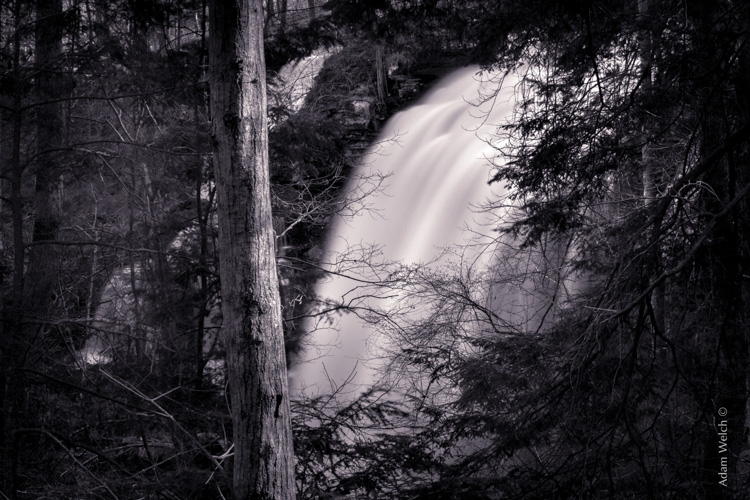
Virgin Falls

It all started with the birth of the photographic process itself in the mid 1800s. The images produced during that era of early experimentation into the medium were very delicate, and extremely susceptible to degradation from physical touch, atmospheric conditions, as well as exposure to light post-development. As photography evolved, the pioneers of the art found they needed a way to make their finished prints more durable and longer lasting. This lead to the introduction of toners in the darkroom printing process. Essentially, most toners replace the metallic silver present in the print with a more stable silver compound.

The finished print tone of course depended on the type of toner used. A readily identifiable example of this is sepia tone. We’ve all seen them before; the warm and golden hues that look predominately old fashioned and can lend a sense of nostalgia to an image. Originally, sepia toned photographs were a result of a chemical process in the darkroom. The process involved treating the finished print with chemical compounds that converted the silver present into a silver compound called silver sulfide, which made for a much longer lasting finished print.

The split toning processes came about by using different toning agents in different stages, in different proportions. A photographer might treat a photo with one type of toner and then stop the process at a desired stage, leaving only the highlights unreacted. Then, another and different type of toner might be introduced, which would react with the remaining silver present in the shadows left over from the previous treatment. Thusly, the tones visible within the image would be split – hence split toning.
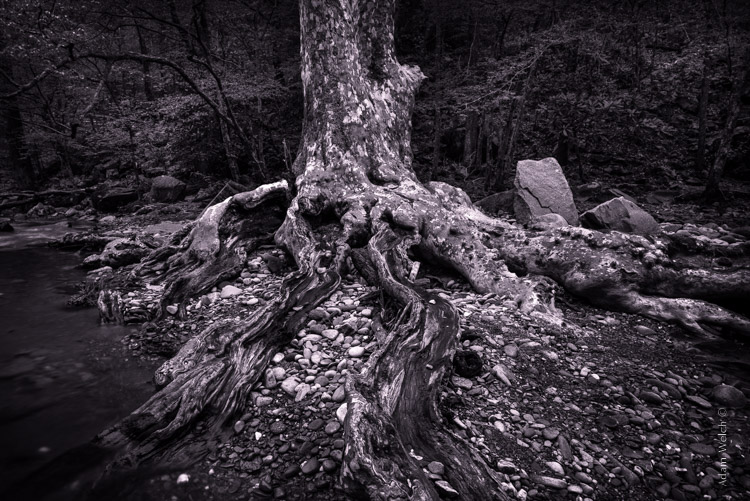
Roots

Ansel Adams, one of the most influential photo makers of the our time, also employed the use of split toning in his masterworks. This in itself is quite interesting since Adam’s was a realist in all ways. Meaning that he promoted straight photography with minimal manipulations in the darkroom aside from his own adjustments, using mostly dodging and burning. Ansel choose primarily selenium based toning agents for his work, which added a very slight blue hue to the shadows of most of his prints. He called the color tones eggplant, and indeed the coolness of bluish blacks produced images that are still counted among some of the most magnificent examples of photographic art ever made.

How to apply split toning in Lightroom

Now that you have an understanding of what the split tone processing is all about, we can move on to the fun stuff. Let’s take a look at how you can easily make your black and white images really stand out using split toning feature in Adobe Lightroom 6 (the split toning feature is also available in other image processing software including LR CC, Photoshop and ACR).

Let’s begin with a color image that we feel would benefit from being converted to black and white. Photos which transition well to black and white more often than not possess stark contrasts between the light and shadow areas, and have great texture within the subject matter.

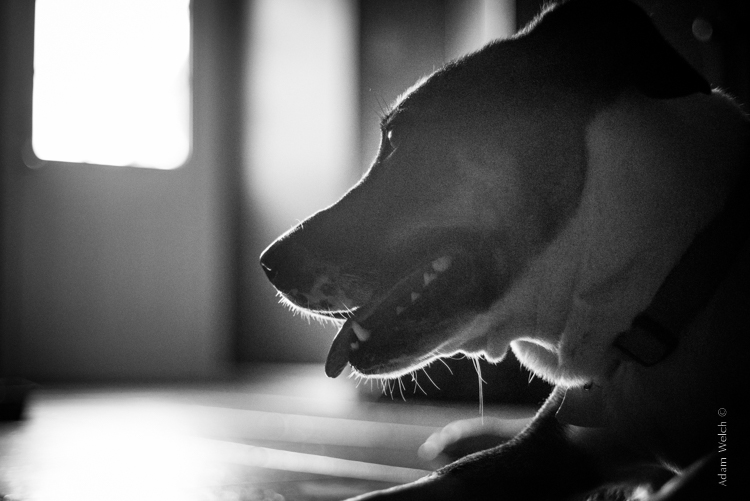
This is quick snapshot of my dog Leia. The bright light coming through the door casts her profile nearly in silhouette and the high ISO made for a slightly grainy image, but really no remarkable color of which to speak. So I chose to convert it to black and white and use the grain in order to produce a gritty, and spontaneous look to the photo.
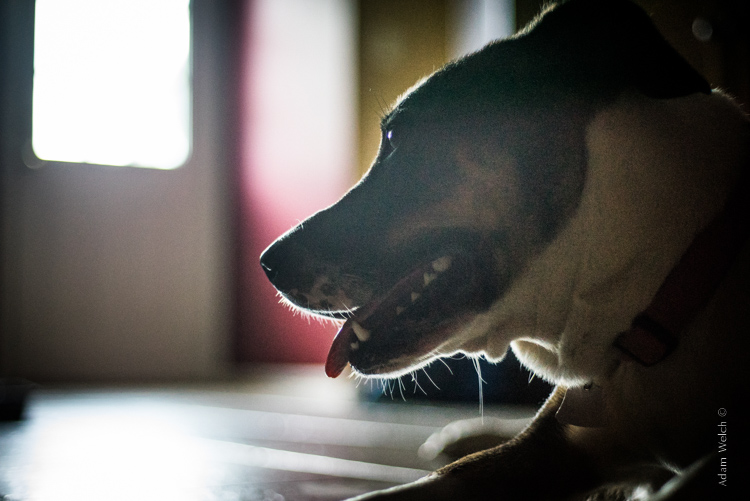
Leia Original

Original color image

Leia Original BW

This is the image after converting to black and white.

But, I still wanted more than just a black and white photo, so I decided to apply some slight split toning. Here we have the same photo of Leia opened in LR 6. The Split Tone panel is highlighted.
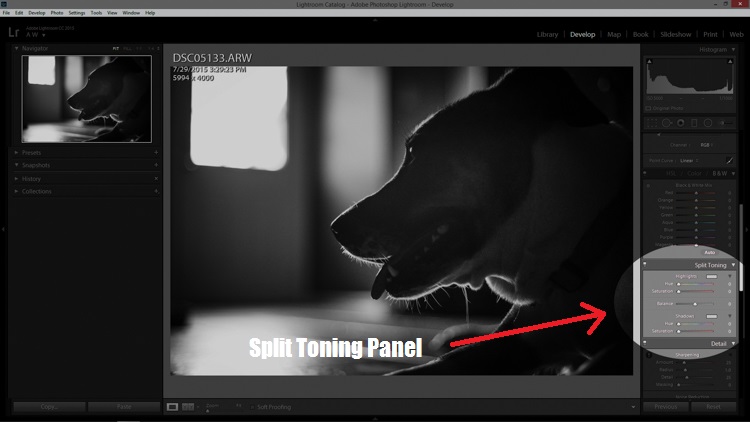
Split Tone Panel

You’ll see a few options for controlling the highlight and shadow tonality, along with a hue and saturation slider for each. There is also a balance slider. The balance slider controls how the color tones are applied in relation to one another.
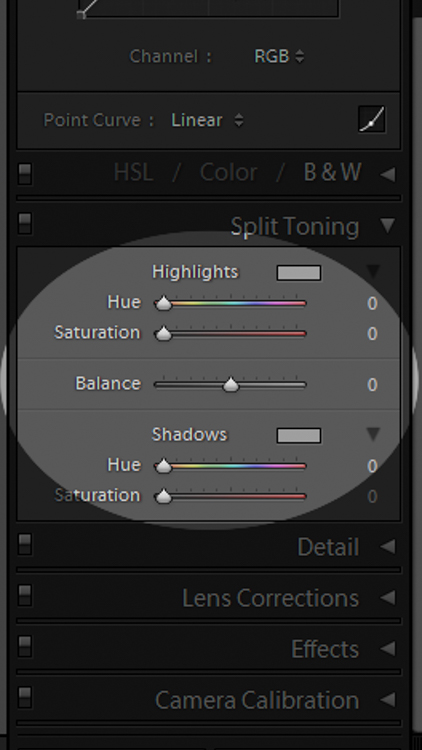
Split Tone Panel 2

I adjusted the tones to make the highlights into a yellow hue, while the shadows I changed to a bluish-purple. I simply kept adjusting each slider until I achieved the look I wanted for the image.
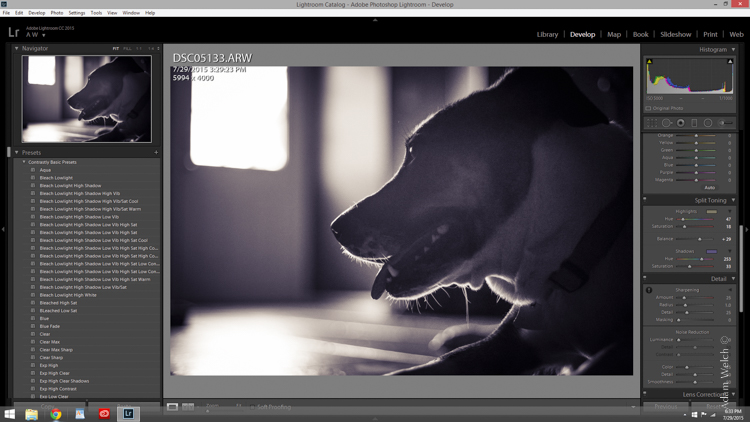
Split Highlights

Here is the edit with the balance slider favoring the highlights.
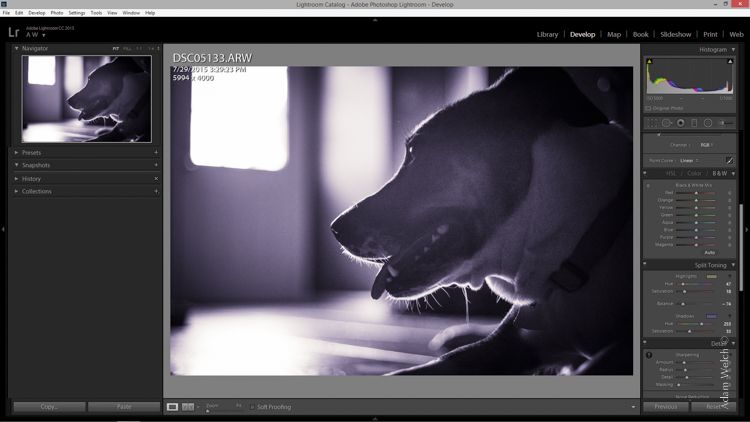
Split Shadows

Here we see it balanced to favor the shadows.
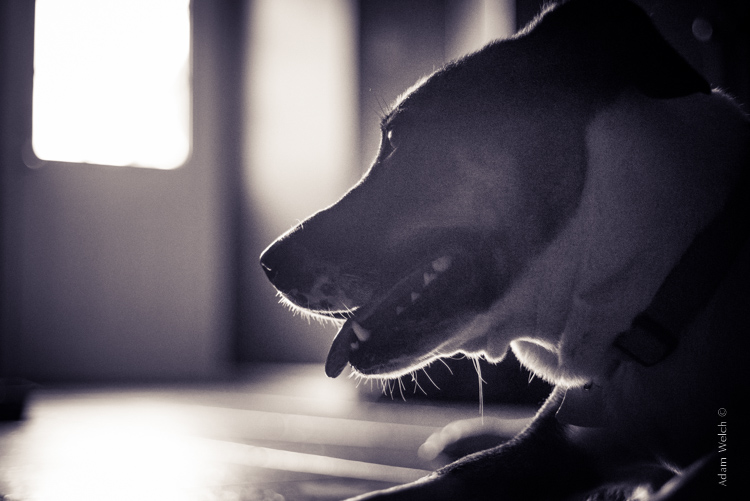
Leia Split Tone

Here is the finished image after split toning. From beginning to end the processing took less than five minutes.

Applying split toning to your black and white photographs can be an easy way to move beyond merely converting your photo to black and white. It adds interest to your shot, and helps to make it stand out from the ordinary. Luckily, digital photography has given us enormous range to experiment with our images, apply edits, and see the effects in real-time.

Here is another example of an image which has been processed using split toning (see others throughout the article as well). Try some split tone processing techniques for yourself and see what your black and white photos can become!
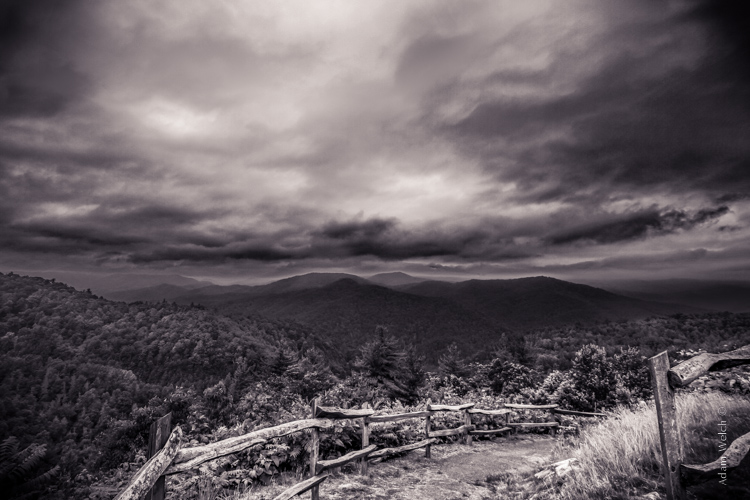
Cataloochee Valley Overlook

Editor’s Note: This is one of a series of articles this week featuring black and white photography tips. Look for earlier ones below and more daily over the next few days.

  • 5 Simple Ways to Create Expressive Photos in Black and White
  • Tips for Black and White Wildlife Photography
  • 7 Tips for Black and White Portrait Photography
  • 28 Images with Strong Black and White Compositions
  • Weekly Photography Challenge – Black and White Techniques
  • Tips for Black and White Wildlife Photography
  • How to Convert Images to Black and White and Add a Color Tint in Photoshop
  • Shooting all Black and White for a Day to Improve Your Photographic Eye

googletag.cmd.push(function() {
tablet_slots.push( googletag.defineSlot( “/1005424/_dPSv4_tab-all-article-bottom_(300×250)”, [300, 250], “pb-ad-78623” ).addService( googletag.pubads() ) ); } );

googletag.cmd.push(function() {
mobile_slots.push( googletag.defineSlot( “/1005424/_dPSv4_mob-all-article-bottom_(300×250)”, [300, 250], “pb-ad-78158” ).addService( googletag.pubads() ) ); } );

The post Split Toning Black and White Images in Lightroom by Adam Welch appeared first on Digital Photography School.
Digital Photography School

 
Comments Off on Split Toning Black and White Images in Lightroom

Posted in Photography


Under the hood: A closer look at the Sony a7R II

17 Aug

There’s a lot of new technology in the Sony a7R II, and here we were briefed on some of the salient features by Sony engineers during a recent Sony Digital Imaging event in Portland, OR. Join our Technical Editor Rishi Sanyal as he explains some of the capabilities of this camera, and why they matter to photographers. Click through to read more

Articles: Digital Photography Review (dpreview.com)

 
Comments Off on Under the hood: A closer look at the Sony a7R II

Posted in Uncategorized


Photographing in Black and White for a Day

17 Aug

I love to set myself little exercises to stretch my photographic muscles. I thought I might share one that has been most beneficial to me, photographing a familiar place or subject you would normally do in color, in only in black and white for a day, with the aim of getting a new perspective that could prove helpful when you go back to color.

black-and-white-photography-1

This possibly doesn’t sound like much of a challenge, and won’t be if you shoot mainly in black and white already, but for those of us used to color, it can be a real challenge not to cheat by shooting in color and converting later, or quickly switch settings back to color every now and then. I confess to failing the challenge pretty much every time, but the exercise has proven fruitful regardless.

Why black and white?

Because once you take the color out of the picture your awareness of other compositional elements such as tone and contrast increase. It also makes you photograph differently and look at your subject in a different way.

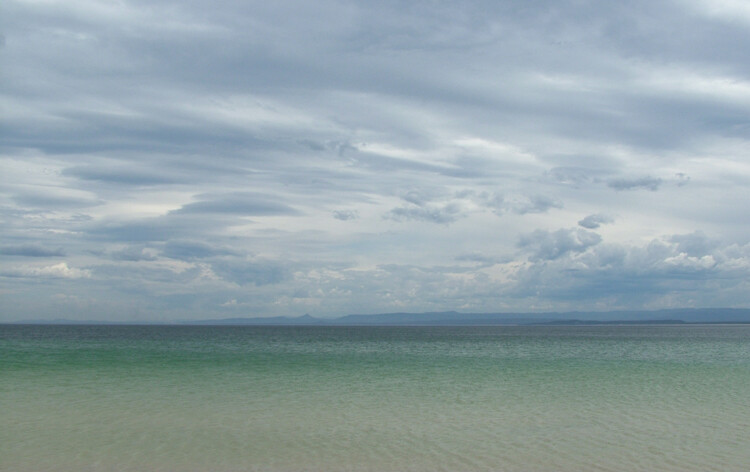
I first did this exercise some years ago during my regular walk along local beaches. It’s a stunning place with white sands and crystal blue water. You don’t have to be a fantastic photographer to capture a pretty image when surrounded by the beautiful colors of the water and the skies in this place.

Taking black and white photo's in a location you would normally shoot in color can help you to see things differently

It’s really a challenge sticking to black and white when in a location like this, full of gorgeous colors.

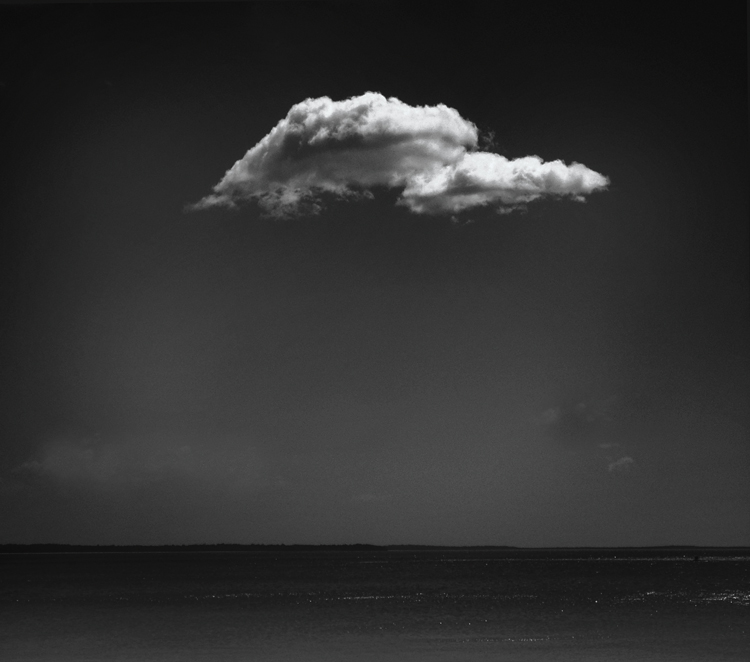
Once you challenge yourself to let go of the beauty of the colors in your usual color subjects your approach can change dramatically. It becomes more about tones, patterns, contrast and mood. You can end up photographing your regular subject entirely differently when you start to play more with shapes, patterns and designs you might otherwise not have noticed when color is involved.

By doing this simple exercise both my beach subjects and compositions changed. Some images I would normally take that looked lovely in color looked washed out and a bit nothing, and vice versa, something that just didn’t look so wonderful no matter how many times I color photographed them, suddenly worked. Things like graininess became a bonus rather than something to avoid.

Change your perspective by shooting your color subjects in black and white!

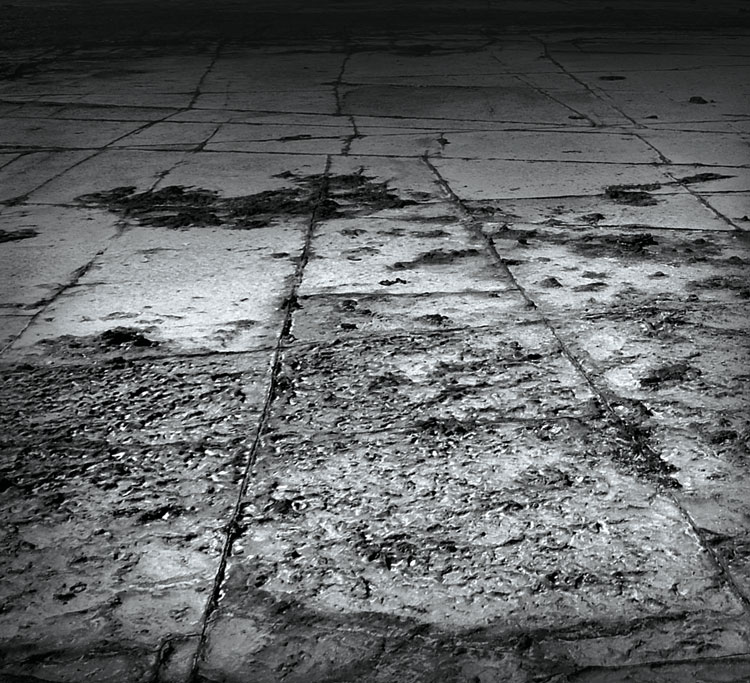
I had photographed this rocky part of the local beach a few times as a landscape image, always included the area’s amazing colors. A day of black and white changed my perspective. This image and the first one in this article where later commissioned for a guitar duo’s album artwork. A surprising result from a simple exercise.

Why a familiar place or subject?

Because you will be less tempted to switch to color when you can always go back and shoot color next time. If you are constantly tempted to switch back, you will keep seeing and thinking in terms of color and the point of the exercise is to see your familiar subject differently and hopefully start seeing it in a way that will then help you out with your color photography.

Whether you are a landscape, portrait or any other type of photographer it can be fun and beneficial to take a slightly more restricted approach. Much like a free form poet suddenly attempting a haiku, the limitations of the haiku format insist on a completely different attack requiring a stretching of creativity.

You might not be keen to try it again but it can be a learning experience and you might just get a decent photograph out of the experience.
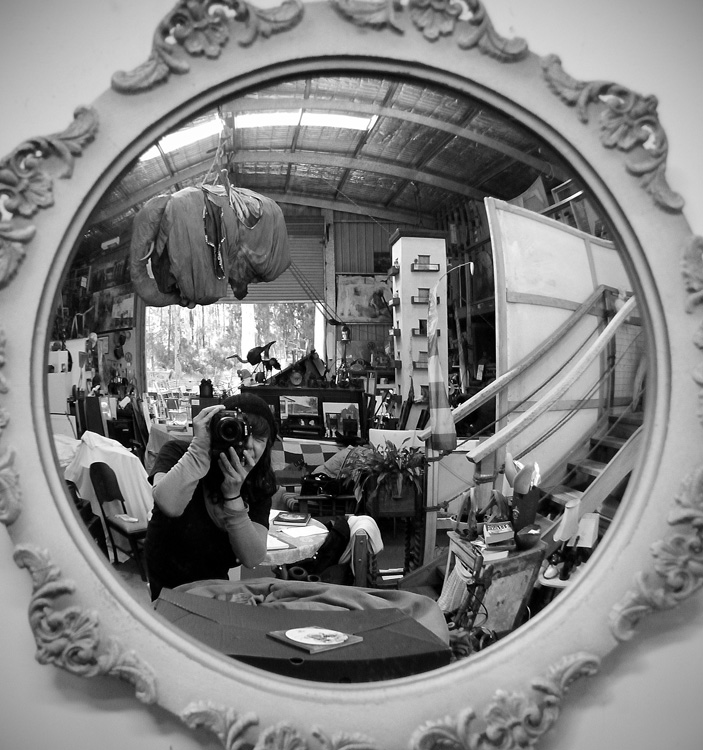
For this article I tried the exercise again at another familiar place I have photographed many times. An artists studio where I often work on collaborations.

Maybe try a day of black and white photography at a friend or family members place you visit regularly.

It doesn’t matter where you try this exercise, just as long as it is a familiar place or subject so you can always go back and do color versions later after seeing it through a black and white perspective.

An added benefit of shooting at this location being that the artist, Randall Sinnamon, is also an art teacher so I asked him for some tips on working in black and white.

“Contrast is the balance between the extremes of black and white, with tone being the gradation of black and white, you use them both to create form. It’s the placement of these elements that creates your composition. If you get these things right then the picture works. It’s often good to have some larger shapes of light or dark in a composition.”

tone and contrast , important to both painting and photography

Photographing in black and white for a day can help you see tones and shapes better, which you can then apply to compositions in your color photography.

“I often look at my paintings in the moonlight, the low light allows you to see the balance of shapes. You can also to this by squinting, or turning your image upside down. Considering I often work with charcoal and ink I tend to do a lot of black and white. It’s nice to just do a drawing and not worry about the color. Sometimes color can be an unnecessary complication. There is a lot of beauty in black and white, with so much color photography we still see a lot of black and white work, obviously there is something appealing about it. It simplifies things.”

Black and white can simplify things, and improve the mood of an image.

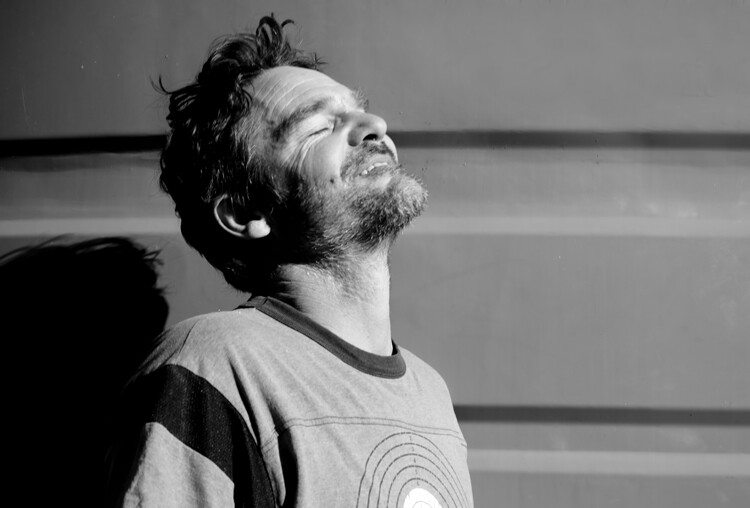
Portrait of artist Randall Sinnamon. As he said, “Black and white simplifies things”. The colors in this image were distracting, they bounced around too much, where as in black and white it calmed things down and we are more able to focus on the mood, the joy of his smiling face in the sun.

You might notice when trying this exercise that an image that can look like a busy mess in color can become elegant in black and white. Photographing outdoors in the middle of the day can work well too, we color photographers so often prefer the softer light of morning or evening, midday light can add harsh shadows or too much contrast, but black and white photography loves contrast. It also loves patterns and repetition.

Black and white photography works well with striking patterns and repetition .

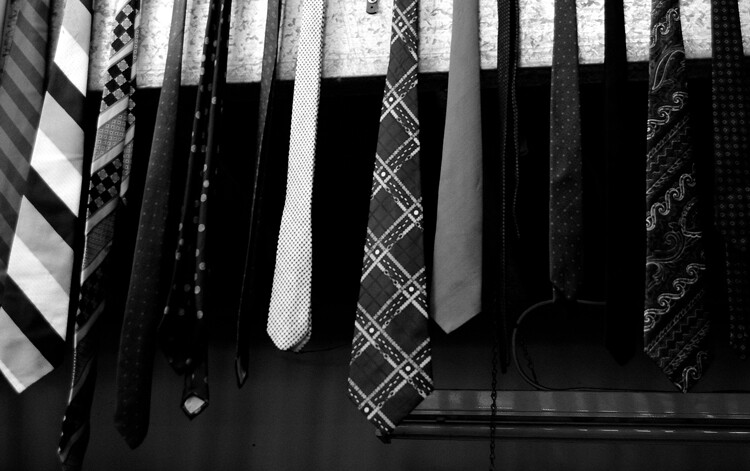
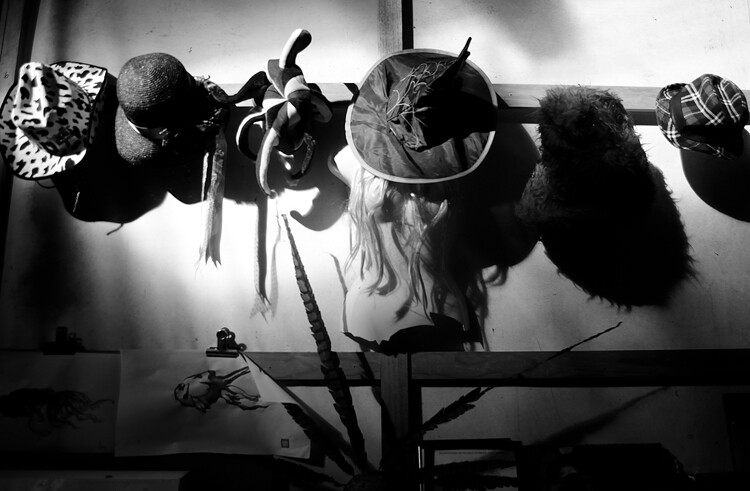
I’ve photographed this tie collection in the artists studio before in color, but this time without the distration of color, it became about the patterns and repetition and worked much better.

Of course sometimes it just makes sense to photograph in color. But this exercise can help with working out what does and doesn’t work in either camera setting.

Photographing in Black and white helps you with your compositions by not distracting you with color.

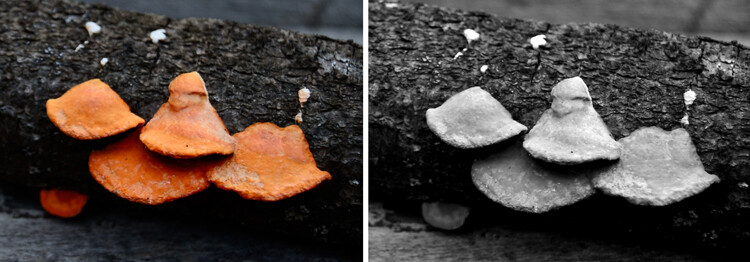
I cheated. Again. I’d like to pretend it was for the purpose of this article, but really I couldn’t say no to that orange color. Yet when photographing this fungus outside the studio, the orange was distracting, and when I looked at the black and white version, I realized composition wise, things could have been better.

So set your camera to black and white, and head out, or even photograph your own home or backyard. No cheating. OK, maybe a little cheating if the color is just too hard to resist. I wouldn’t want you to miss out on a brilliant shot. But do try to stick to it, keeping your eye out for situations with patterns, tones, shapes, contrasts without thinking about color can really make a difference to how you later compose your images. Remember this is just an exercise, you don’t have to get the perfect shot here, relax and enjoy the change. It’s as good as a holiday so they say.

If you do try the exercise, please share you favorite results in the comments below. Or perhaps you have some other simple exercise idea you’ve tried that you would like to share with our readers.
Happy photographing.

googletag.cmd.push(function() {
tablet_slots.push( googletag.defineSlot( “/1005424/_dPSv4_tab-all-article-bottom_(300×250)”, [300, 250], “pb-ad-78623” ).addService( googletag.pubads() ) ); } );

googletag.cmd.push(function() {
mobile_slots.push( googletag.defineSlot( “/1005424/_dPSv4_mob-all-article-bottom_(300×250)”, [300, 250], “pb-ad-78158” ).addService( googletag.pubads() ) ); } );

The post Photographing in Black and White for a Day by Lea Hawkins appeared first on Digital Photography School.

Digital Photography School

 
Comments Off on Photographing in Black and White for a Day

Posted in Photography


The Best Photography DIY Tips & Tutorials

17 Aug

When it comes to your passion, there is nothing like a good trick. Being resourceful can bring you so much satisfaction, and don’t mind all the extra learning involved! You may think that photographers take their time to research equipment, patiently saving money from all their commissioned work (haha) and finally invest $ 80 on the new flash modifier in the market. The reality is that, Continue Reading

The post The Best Photography DIY Tips & Tutorials appeared first on Photodoto.


Photodoto

 
Comments Off on The Best Photography DIY Tips & Tutorials

Posted in Photography


Wonderland with Kelli

17 Aug

There is a spot in northern Utah that my friend and sometimes assistant Chelsey Ott discovered near her home. A small trail off the road and into some trees reveals an expansive opening of all sorts of amazing places and things to shoot.

 
Comments Off on Wonderland with Kelli

Posted in Uncategorized


Kosovo: „Für mich ist das Leben hier scheiße.“

17 Aug

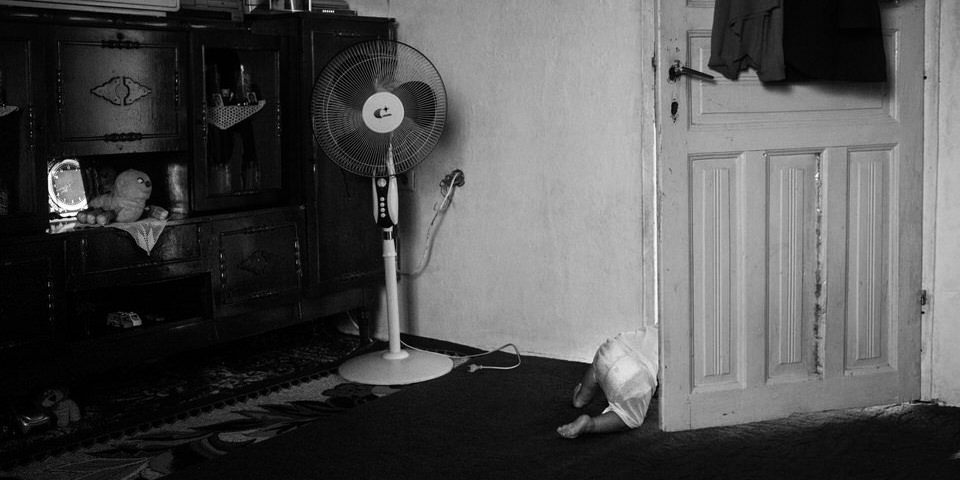
Ein Kleinkind verschwindet hinter einer Tür.

Gjakove. Ich besuche mit Zef und Sara eine kleine Kommune für Roma, Ashkali und Ägypter – die Caritas hat hier einige Häuser für die Ärmsten gebaut. Nach einer kleinen Einführung mit der Projekt-Leiterin führt uns der Sozialarbeiter, der hier Angebote für Kinder macht, zum Haus einer Familie.
kwerfeldein – Fotografie Magazin | Fotocommunity

 
Comments Off on Kosovo: „Für mich ist das Leben hier scheiße.“

Posted in Equipment


Slide & Hide: Stealth Staircases Save Space in Micro-Suites

17 Aug

[ By WebUrbanist in Design & Fixtures & Interiors. ]

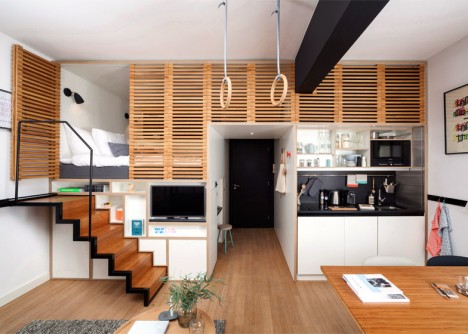
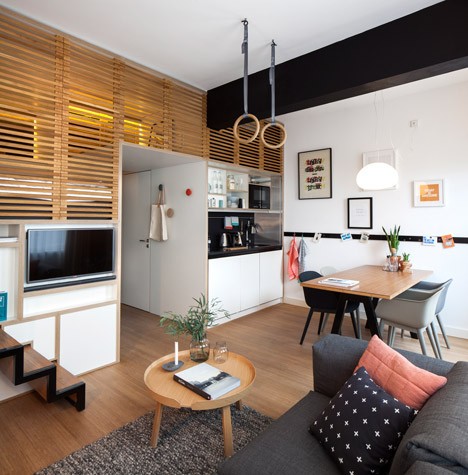
modular space saving interior

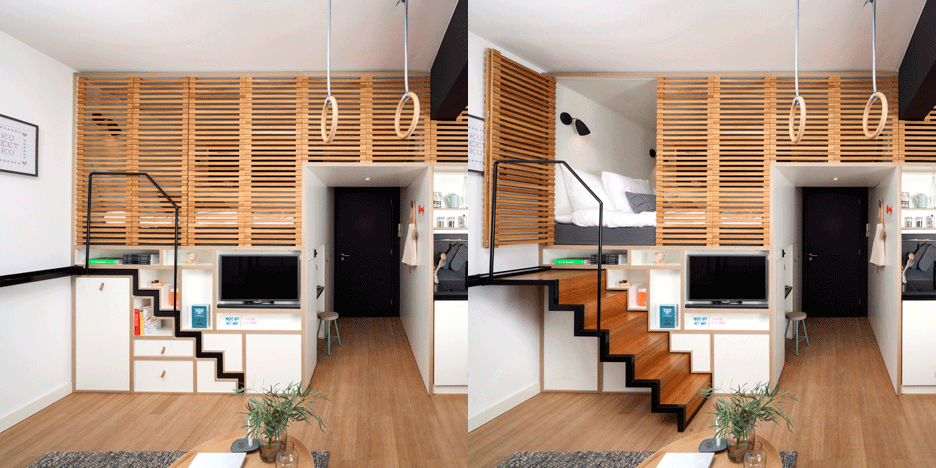
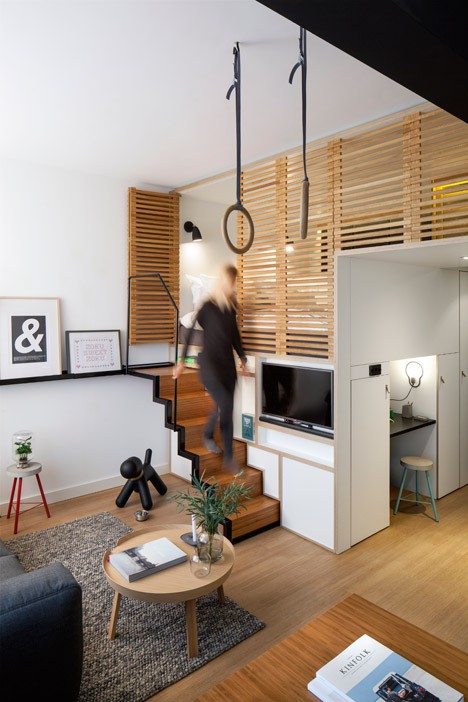
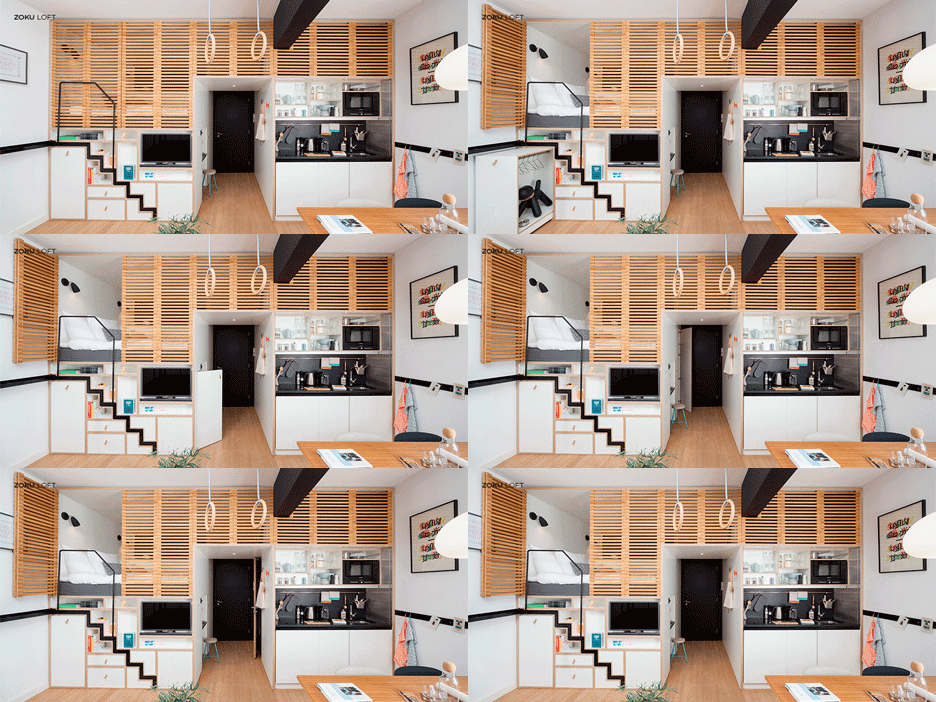
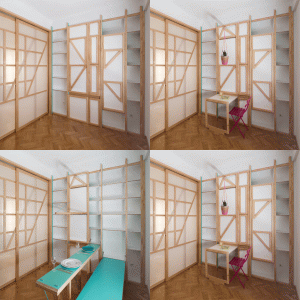
Maximizing usable space in a series of compact short-term apartments, these retractable steps slip back into a wall, all but disappearing beneath lofted bedroom areas when not needed. Drawers and other storage slots are designed around the dimensions of the zigzag shape created by the profile of the stairs while the railing above sits flush with the bedroom space divider.

retractable staircase apartment

modular bedroom steps view

Driving these space-saving retrofits is a desire to make hotel rooms feel more like homes, particularly since many guests of Zoku in Amsterdam end up staying for longer than a typical traveler would.

modular interior design

modular gymnast hoops ceiling

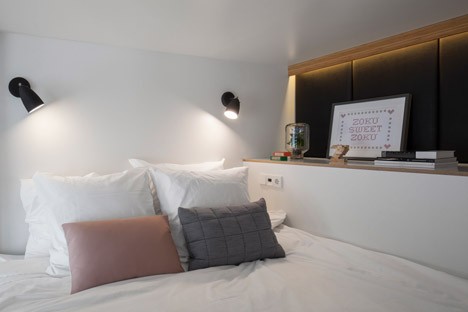
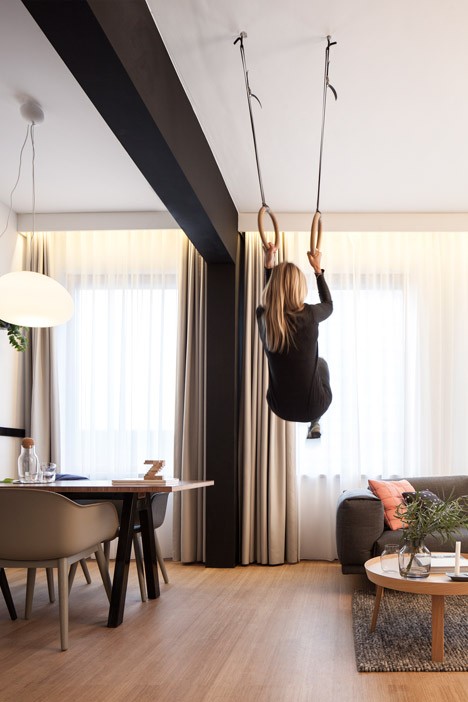
Each of the 133 units (270 square feet each) redesigned by Concrete features a similar set of unconventional amenities: a secret desk tucked beneath the bed, a slatted wood divider providing both privacy and light to the bedroom area above, hidden stairs that slide into the wall for access and a pair of suspended gymnast hoops hanging from the ceiling.

modular bedroom elevated nook

modular hidden workstation desk

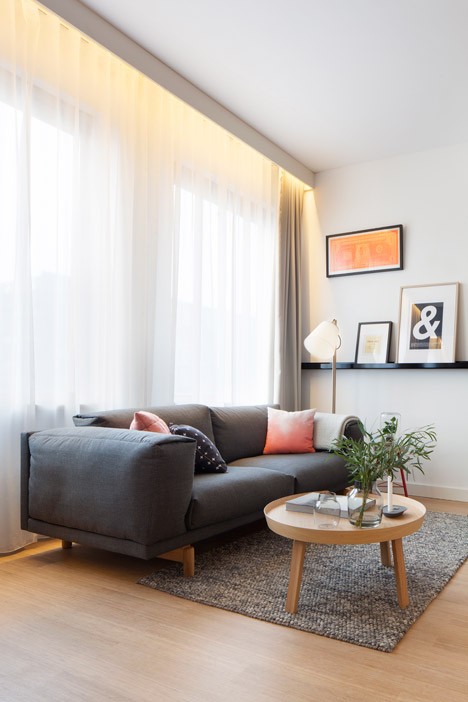
A combination of black and white, wood and bamboo, ceramic and organic elements help the spaces feel more variegated, like a house populated with individual furnishings and objects over time rather than a place made by a corporate hotel.

modularl living room window

modular hoop hanging

From the owners and architects: “A room at Zoku is much more than just a hotel room. It is a spacious micro-apartment. As space is becoming scarcer in urban areas, the way we use it sustainably to meet long-term accommodation requirements is more and more relevant. Smart solutions that create the opportunity to use less square metres and facilitate 24/7 multifunctional use are needed.”

Share on Facebook


[ By WebUrbanist in Design & Fixtures & Interiors. ]

[ WebUrbanist | Archives | Galleries | Privacy | TOS ]


WebUrbanist

 
Comments Off on Slide & Hide: Stealth Staircases Save Space in Micro-Suites

Posted in Creativity


How to Transfer a Photo to Wood – Video Tutorial

17 Aug

This is a good rainy day (or weekend) project for you to try at home. All you need is a print of your image (reversed, demonstrated in the video) on regular paper, a piece of wood, and a couple of other supplies (listed below the video).

Step by step – transfer a photo to wood

This video by SLR Coaching takes you through all the steps to print out your photo and get it transferred and applied to a piece of wood. He’s using pixlr.com to rotate and change the image, you can use that or your preferred photo editing software. If you don’t have Photoshop or Lightroom some other good free options include PicMonkey and Canva.

The mediums he used for the transfer are:

  • Medium gel (you can get matte or glossy finish and can only use it on top of the image as well)
  • PVA glue (although he recommends using a varnish in the second video below – you can get it in matte or glossy finish, spray or paint it on. If you use the paint on and put it on a bit heavier you’ll get a texture on the surface like a painting.)
  • Block of wood (get one at your local hardware or craft store)

Updated video with a few extra tips such as: best type of wood to get, coating the photo afterwards, and a few others.

If you “have a go” as he says, share a photo of your completed project below.

googletag.cmd.push(function() {
tablet_slots.push( googletag.defineSlot( “/1005424/_dPSv4_tab-all-article-bottom_(300×250)”, [300, 250], “pb-ad-78623” ).addService( googletag.pubads() ) ); } );

googletag.cmd.push(function() {
mobile_slots.push( googletag.defineSlot( “/1005424/_dPSv4_mob-all-article-bottom_(300×250)”, [300, 250], “pb-ad-78158” ).addService( googletag.pubads() ) ); } );

The post How to Transfer a Photo to Wood – Video Tutorial by Darlene Hildebrandt appeared first on Digital Photography School.

Digital Photography School

 
Comments Off on How to Transfer a Photo to Wood – Video Tutorial

Posted in Photography


How to Convert Images to Black and White and Add a Color Tint in Photoshop

17 Aug
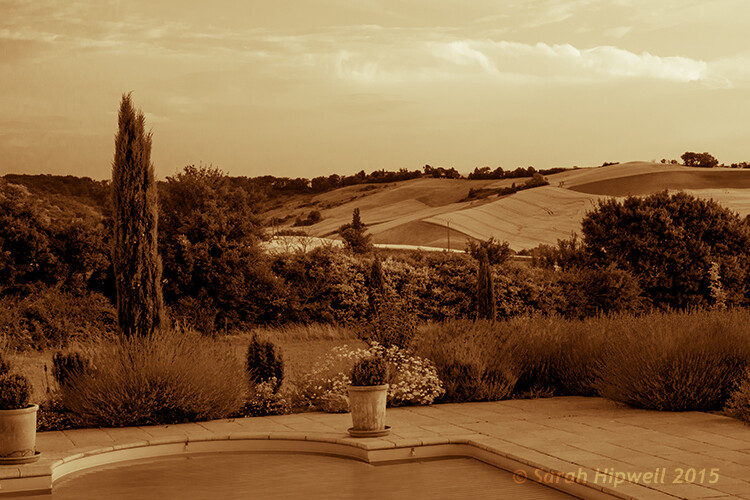
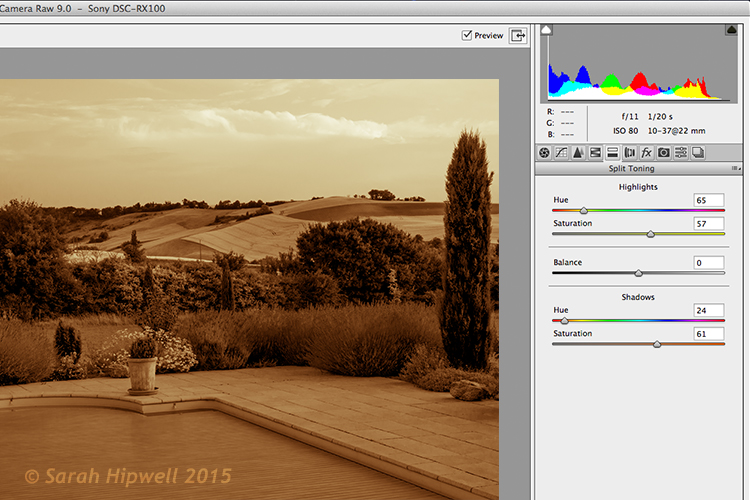
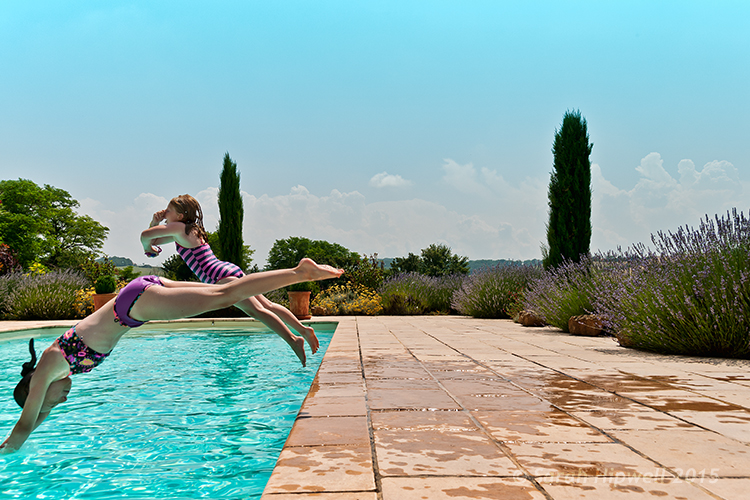
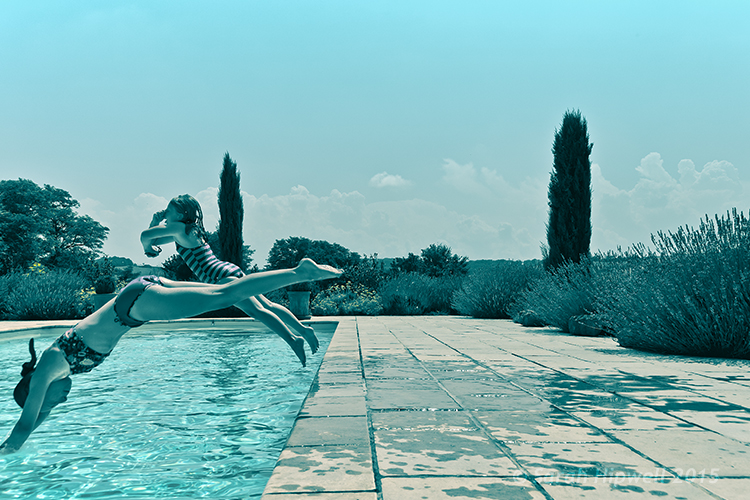
Split-tone-ACR

Landscape scene in south of France using split-tone effect in ACR

So why would you bother with black and white imagery when we live in a world full of color? There are many reasons why, but a simple answer is that a black and white image can be quite powerful.

A close up of a man’s or woman’s face, heavily lined from age, photographed in black and white may elicit a stronger emotion than the same image in color. The viewer focuses in on the texture and contrast of the image.

A heavy fog or mist over a landscape is much spookier in monochrome than in color. That’s why those old black and white movies are so good.

Converting to Black and White in Photoshop

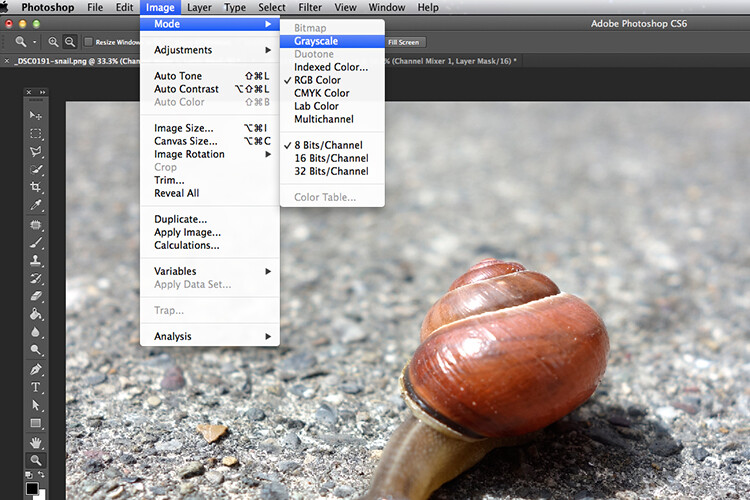
Converting a color to black and white in Photoshop is a relatively easy task. Open the image that you want to convert to black and white. Choose from the Image Menu>Mode>Grayscale. A dialog box appears, asking you if you want to, “Discard color information?”. Click Discard, but I would not recommend this method. All the color information has now been lost.

Snail-grayscale

A simple way to converting a colour image to black and white in Photoshop, but not the recommended way.

Channel Mixer

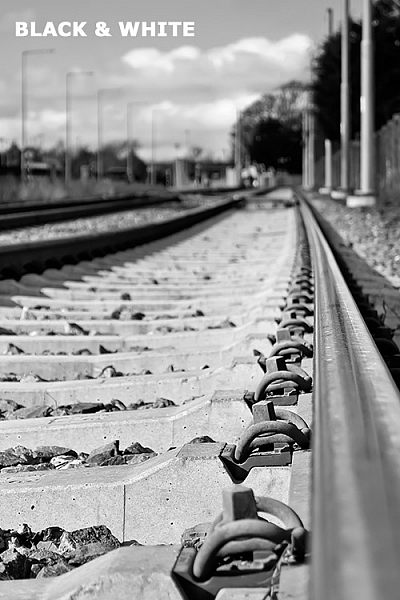
Instead, I’m going to show you a more effective way for converting your images to black and white in Photoshop. I like to use the Channel Mixer method. In Photoshop, choose the Channel Mixer icon from the adjustments palette or you can choose Layer>New Adjustments>Channel Mixer and click OK.

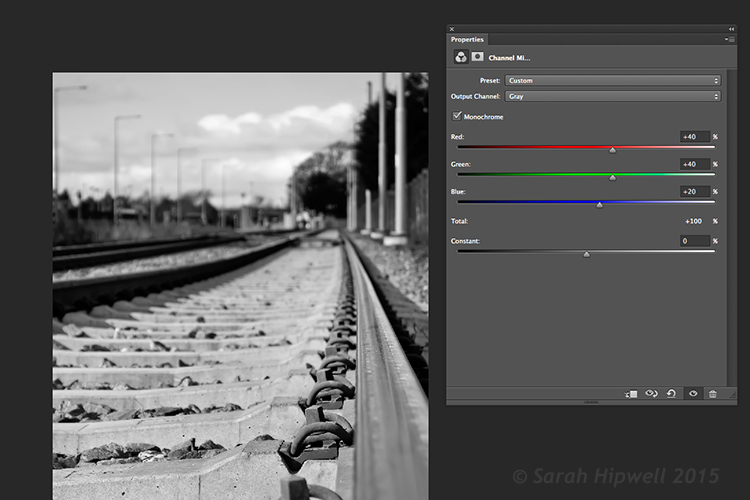
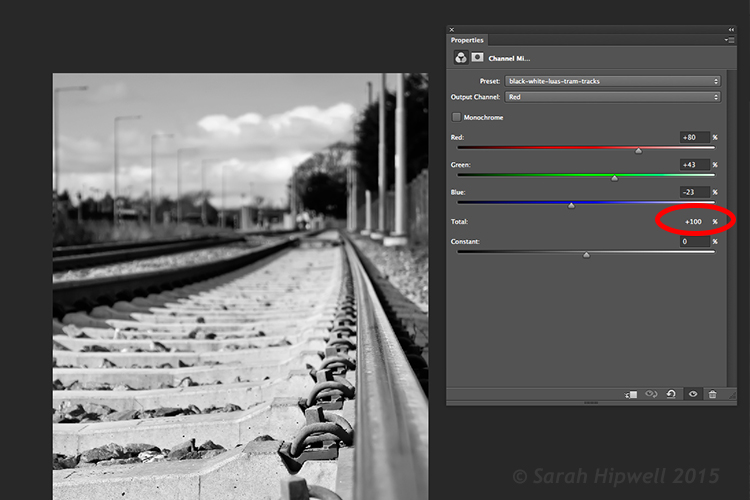
There is a check box next to the word Monochrome, on the lower left side in the Channel Mixer box. When you click on that, your image will turn to grayscale. The default settings are Red 40%, Green 40% and Blue 20%. See screenshot below. However, this is where I like to make my own changes.

Channel-mixer-default-settings

Using the Channel Mixer to convert a color image to black and white. The default settings when you click on the Monochrome box are Red 40%, Green 40% and Blue 20%.

The Red channel holds the most detail. The blue channel holds the most noise. The look that you’re after will depend on your choice. For this image, I moved the red slider to +80%, the green slider to +43% and the blue to -23%. The general rule of thumb is that the percentages should total to 100% (80+43-23=100).

Channel-mixer-custom-settings

The ability to adjust each of the Red, Green and Blue sliders gives you more control over how you want your grayscale image to look. Try and keep the percentage totals equal to 100%.

Adding a Color Tint

Next, let’s add some color to a black and white image, or rather a tint. Let’s start with a sepia tone, which is a reddish-brown color that gives those old vintage photos that classical look.

Sepia

Using the same image that you have just converted to black and white using the Channel Mixer – add another new adjustment layer, Color Balance. Similar to the Channel Mixer, choose Layer>New Adjustments>Color Balance

Name this layer, Shadows. In the properties panel, click to the right where it says Tone, it defaults to Midtones but you have the option of two others, choose Shadows, as you only want the color to effect the shadows. Move the red slider over to 55%, then move the yellow slider to the left -40% to give the image that classic reddish brown look. See the animated gif below.

Black-and-white sepia-tone

Antique

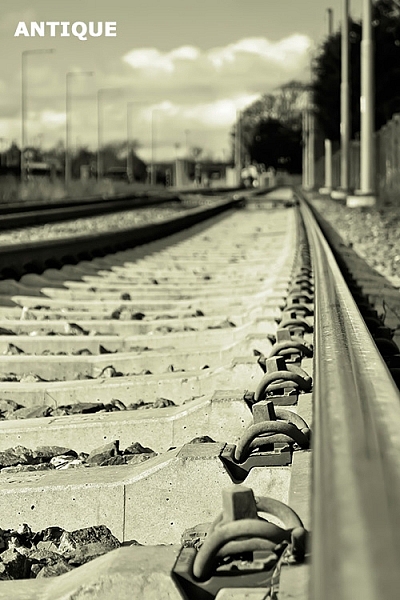
Now if you want the color to affect only the highlights. First, turn off the layer visibility on the Shadows layer. Add another Color Balance layer, choose Layer>New Adjustments>Color Balance and name this one Highlights. Same as above, click to the right of Tone where it says Midtones and choose Highlights. Move the yellow slider to the left -55%. This gives the image an Antique look. See image below left.

Antique tone split-tone

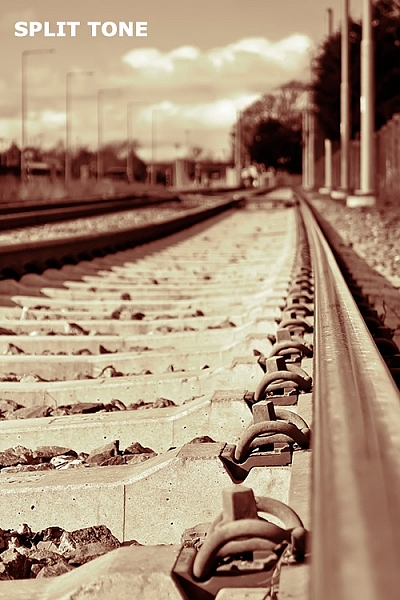
Split toning

Turn the visibility for the Shadows layer back on and you now have a split-tone look, as you have just added two different hues to the highlights and shadows. See image above right.

Split toning in ACR

To achieve this same effect in Adobe Camera Raw (ACR) it’s even easier. With your image open in ACR, having done the basic edits. Click the HSL/Grayscale tab, then check on the Convert to Grayscale box. Similar to the Channel Mixer adjustment layer in Photoshop the color sliders can be adjusted to make your own custom changes.

Click the Split Toning tab. Move the Highlights Hue to yellow and the Saturation over to the middle to start. Move the Shadows Hue to a red tone, and the Saturation to the middle as well. Then adjust the Saturation for the Shadows (I used 61) and the Highlights (I used 57).

Split-tone-ACR

Editing an image using the Split Toning tab in ACR

Gradient Map

As with most techniques in Photoshop, there are many ways of achieving the same results. It comes down to preference, and most importantly, time. So here’s a really quick, and very effective way, to convert your color photo to black and white and add a sepia tone, or even a duotone.

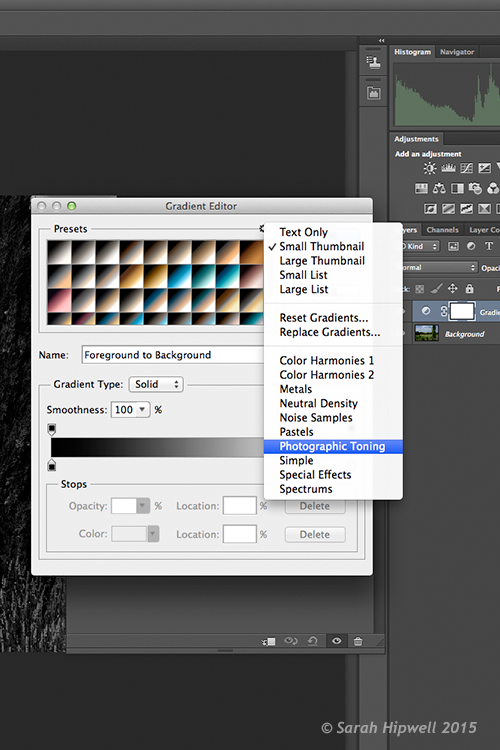
Normally, I don’t bother or rave about the presets that come bundled with Photoshop. But in the Gradient Editor, I beg to differ. There is a set called Photographic Toning, which consists of 38 presets in total, and I think these do an amazing job! Here’s how I applied this duotone effect to this image.

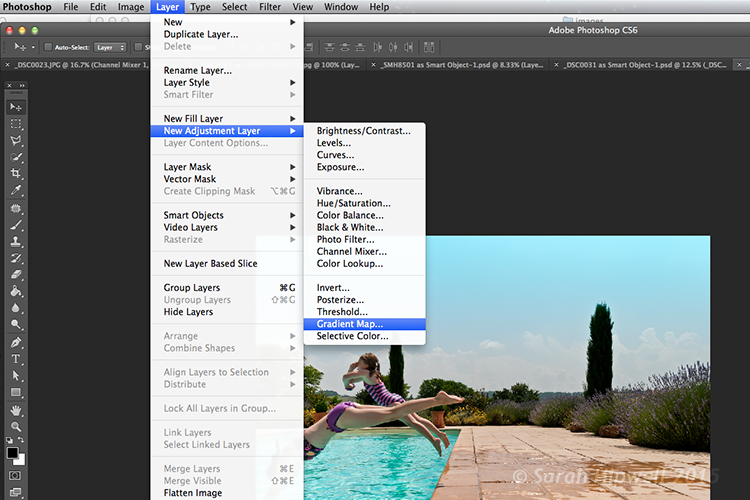
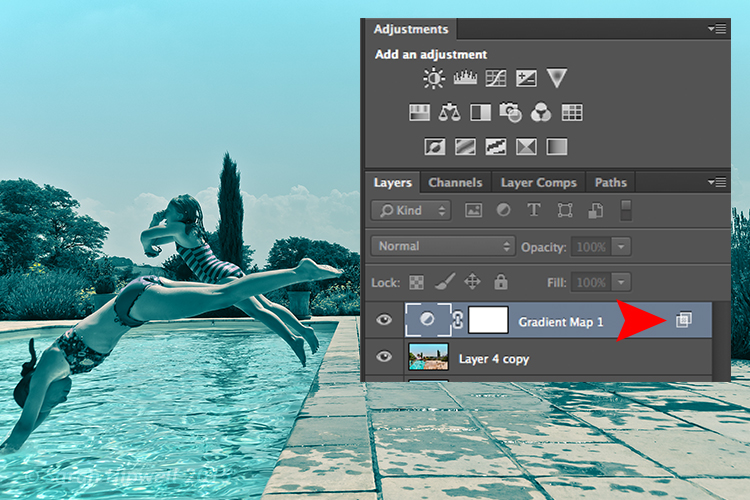
Go to Layer>New Adjustment Layer>Gradient Map or you can click on the last icon in the bottom row of the Adjustments panel. Ensure your Foreground and Background colors are set to Black and White. This will apply the default gradient, which is foreground to background and turn your image to black and white.

Layer-new-adjustment-layer-gradient-map

How to add a Gradient Map as an adjustment layer in Photoshop

Click on the gradient and the Gradient Editor menu appears. Click on the gear icon at the top right corner of the Presets section, and another pop-up menu appears. Photographic Toning is down near the bottom of the list. When you click on it, a dialog box appears asking you to replace the current default gradients with the ones that you are loading. Just click Ok.

Gradient-editor-photographic-toning

How to find the Photographic Toning presets in the Gradient Editor in Photoshop

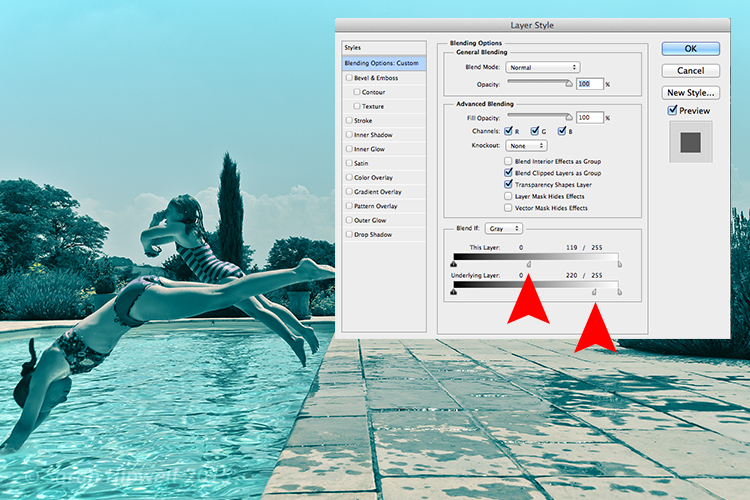
I chose Blue2 (the sixteenth one) to give it this greenish, turquoise color. As with any adjustment layer, you can lower the opacity or change the blend mode, but in this case, I did a slight Blend-if on both layers. By right-clicking on the layer, this brings up the Layer Style pop-up menu with the different blending options.

Layer-with-blending-options

Blending-options-Blend-if

Go down to the Blend-if section. You will see ‘This Layer’ and the ‘Underlying Layer’ . Both of these options have a white slider. Hold down the Alt key, which splits it into halves, and slide the left portion to the left (as shown above). This brings back some of the highlights to give the image a more cross-processed look. See image below.

There is a great range of Sepia presets to choose from which are worth trying out too.

Original-before-duotone

Color image before I applied a duotone effect from one of the presets in the Gradient Editor in Photoshop

Duotone

‘Blue2′ one of the presets in the Gradient Editor in Photoshop to give that ‘Duotone’ effect

Have you converted your color photos to black and white? What techniques did you use? If so please share in the comments below.

Editor’s Note: This is one of a series of articles this week featuring black and white photography tips. Look for earlier ones below and more daily over the next few days.

  • 5 Simple Ways to Create Expressive Photos in Black and White
  • Tips for Black and White Wildlife Photography
  • 7 Tips for Black and White Portrait Photography
  • 28 Images with Strong Black and White Compositions
  • Weekly Photography Challenge – Black and White Techniques
  • Tips for Black and White Wildlife Photography

googletag.cmd.push(function() {
tablet_slots.push( googletag.defineSlot( “/1005424/_dPSv4_tab-all-article-bottom_(300×250)”, [300, 250], “pb-ad-78623” ).addService( googletag.pubads() ) ); } );

googletag.cmd.push(function() {
mobile_slots.push( googletag.defineSlot( “/1005424/_dPSv4_mob-all-article-bottom_(300×250)”, [300, 250], “pb-ad-78158” ).addService( googletag.pubads() ) ); } );

The post How to Convert Images to Black and White and Add a Color Tint in Photoshop by Sarah Hipwell appeared first on Digital Photography School.

Digital Photography School

 
Comments Off on How to Convert Images to Black and White and Add a Color Tint in Photoshop

Posted in Photography


16. August 2015
17 Aug

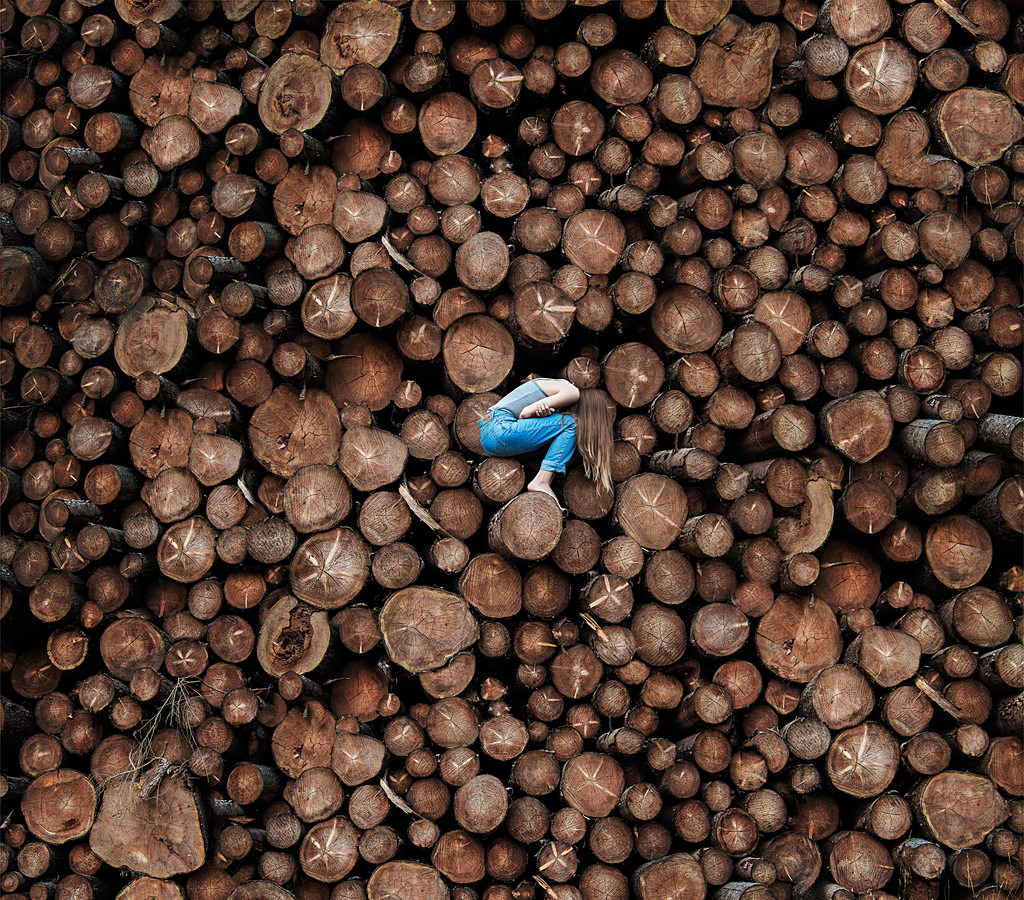
Das Bild des Tages von: Amelie Satzger

Baumstämme, Bäume, Holz

Im Ausblick: Eine ganze Menge Holz.
kwerfeldein – Fotografie Magazin | Fotocommunity

 
Comments Off on 16. August 2015

Posted in Equipment