RSS
 

Archive for July, 2015

Z Camera launches Micro Four Thirds E1 camera with 4K video and open platform

21 Jul

Z Camera, a China-based photography startup, has introduced a connected Micro Four Thirds camera called the E1. Shaped like GoPro’s HERO action cameras, the E1 carries a 16MP Four Thirds sensor and can record video at 4K 4096×2160 resolution. It provides Wi-Fi connectivity and an open platform for developers. Read more

Articles: Digital Photography Review (dpreview.com)

 
Comments Off on Z Camera launches Micro Four Thirds E1 camera with 4K video and open platform

Posted in Uncategorized


Arboreal Architecture: 14 Houses Built Around & Within Trees

21 Jul

[ By Steph in Architecture & Houses & Residential. ]

corallo house 6

Tree houses aren’t just rustic wooden huts slapped together around a living trunk – they also come in the form of elegant modern residences incorporating the forest into their design, whether by building around existing trees or integrating them right into the floor plan. These 14 modern tree house designs blend into their forest environments and make vegetal views top priority.

Casa Vogue by Alessandro Sartore
tree houses brazilian 1

tree houses brazilian 2

tree houses brazilian 3

tree houses brazilian 4

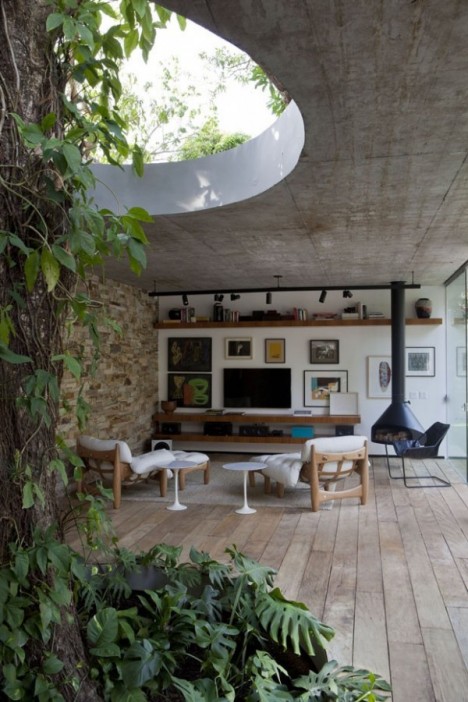
A tree called ‘Bethany’ is the centerpiece of this home in Rio de Janeiro, Brazil, passing through a three-meter hole in the floor slab and up through the ceiling of the living room. Casa Vogue by architect Alessandro Sartore also accommodates a second tree in the garage, keeping as much of the original landscape intact as possible and bringing the natural landscape indoors.

The Urban Treehouse by Baumraum
tree houses urban 1

tree houses urban 2

tree houses urban 3

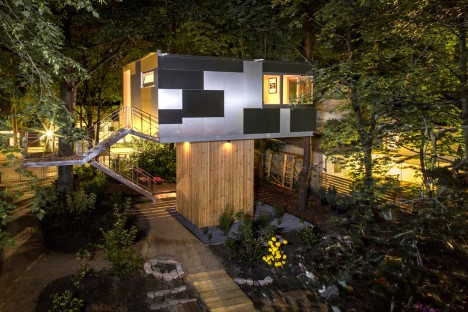
German architecture firm Baumraum is responsible for many of the world’s coolest modern treehouses, including a pair in Berlin that function as a mini-hotel. The Urban Treehouse preserves the trees on a 650-square-meter privately owned wooded property within the city limits, integrating nature and architecture.

Between the Trees by Sebo-Lichy
tree houses between 1

tree houses between 2

tree houses between 3

The design of ‘Between the Trees’ by Sebo-Lichy mimics the look of natural tree trunk supports, elevating a portion of the home to work with the steep terrain. It’s built around three chestnut trees and overlooks a forest, with floor-to-ceiling windows and a rooftop terrace blurring the lines between outdoors and in. The house was inspired by Mies van der Rohe’s famous Tugendhat Villa in Czech Republic.

Modern Austin Treehouse by MF Architecture
austin tree house 1

austin tree house 2

austin tree house 3

austin tree house 4

This entire Austin home was essentially designed around views of trees in the front yard and on the back terrace. Each of the rooms of the house by MF Architecture look out onto the oak in the backyard, which shelters the entire outdoor area.

Urban Treehouse Apartment Complex by Luciano Pia
tree house urban torino

tree house urban torino 2

tree house urban torino 4

tree house urban torino 5

The last place you’d expect to find a treehouse is in the middle of an urban Italian city – let alone an entire apartment building planted with dozens of trees on every level. 25 Verde by Luciano Pia has a load-bearing steel structure shaped like tree trunks as its base, with 63 wooden-shingled dwellings staggered around 50 trees. In addition to looking really cool, the trees help reduce air and noise pollution for the residents.

Next Page – Click Below to Read More:
Arboreal Architecture 14 Houses Built Around Within Trees

Share on Facebook


[ By Steph in Architecture & Houses & Residential. ]

[ WebUrbanist | Archives | Galleries | Privacy | TOS ]


WebUrbanist

 
Comments Off on Arboreal Architecture: 14 Houses Built Around & Within Trees

Posted in Creativity


How to Trigger an Off-Camera Flash with the Pop-up Flash

21 Jul

If you have ever wanted to explore off-camera flash but don’t know where to start, I have some good news. Many consumer-grade cameras such as the Canon Rebel series and the Nikon D3000 and D5000 models have a fantastic feature that might be just what you are looking for.

One challenge with off-camera flash is that you need a way to fire them at precisely the right moment. That usually means outfitting them with tiny little remote controls called triggers, that are tied into a transmitter unit affixed to the flash hot-shoe on your camera. When you want your off-camera flashes to activate, the transmitter sends a radio signal to them, and they go off at precisely the right time to give you the photo you want. Some triggers are inexpensive, while other, more customizable one,s will set you back hundreds of dollars. But, if you own one of the cheaper Canon or Nikon bodies, you already have a handy trigger built right in to your camera; the pop-up flash.

trigger-off-camera-flash-popup-flash

Your built-in flash can probably do a lot more than you might think.

Several manufacturers have this feature built-in to their cameras, but since Canon and Nikon are the most popular, those are what I’m going to focus on in this article. Both types of cameras require you to change a few menu settings that may seem a bit confusing at first, but get easier with practice.

Setup for Nikon cameras

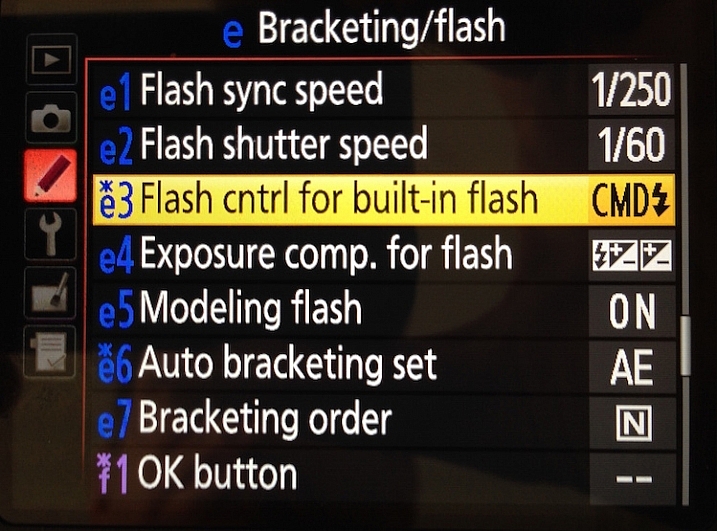
On a Nikon camera the first thing you will need to do is set your internal flash to Commander mode. This means it will still fire a burst of light when you take a picture, as a way of communicating with your external flashes. You will see this when you take a picture, but don’t worry, this brief burst is not bright enough to have much of an impact on your photo. This quick flash instead serves as a signal to your external speedlights that they need to fire. To do this, press your camera’s Menu button, then choose Custom Setting Menu (Bracketing/Flash) and the “Flash control for built-in flash” option.

trigger-off-camera-flash-nikon-menu-flash

Select the “Flash control for built-in flash” option

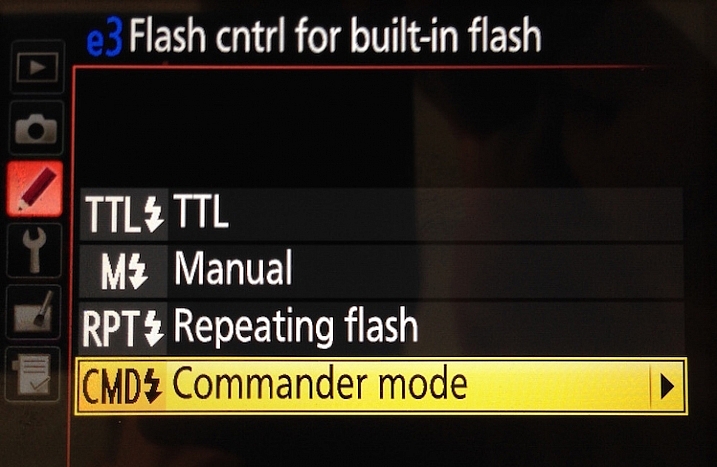
The default value for the “Flash Control” option is “TTL,” which means that your built-in flash functions exactly how you normally expect, and has no control or interaction with any off-camera flashes. Change this value to “Commander mode” which will then allow you to use it to trigger external speedlights.

trigger-off-camera-flash-nikon-menu-commander

Next, select “Commander mode” – press the right button to get to the next menu below

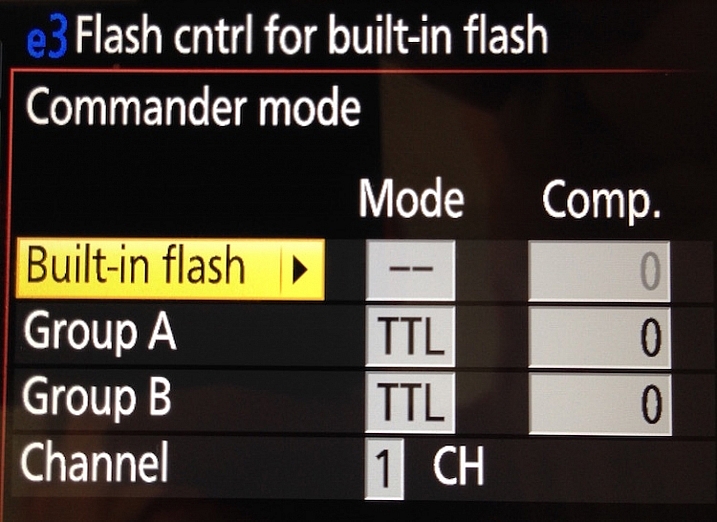
The final menu looks a bit complicated, but you only need to change a few settings in order to get everything set up initially. Change the Built-in flash option to display two dashes (–) and leave the rest of the values as shown below; Group A TTL, Group B TTL, and Channel 1.

trigger-off-camera-flash-nikon-menu-commander-control

Change “Built-in flash” to “–” and you’re all set.

You can do more complicated operations involving multiple flashes or even groups of flashes, but for a basic off-camera trigger setup not much else is required.

Setup for Canon cameras

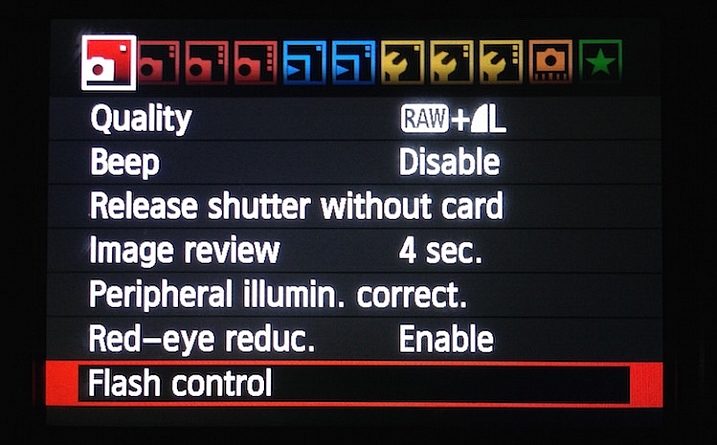
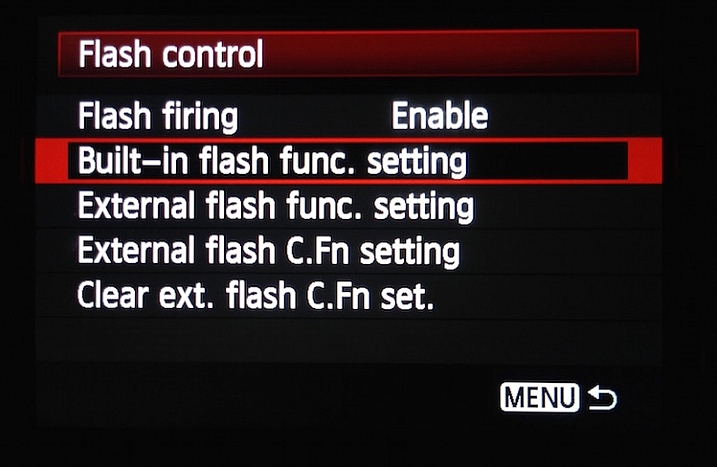
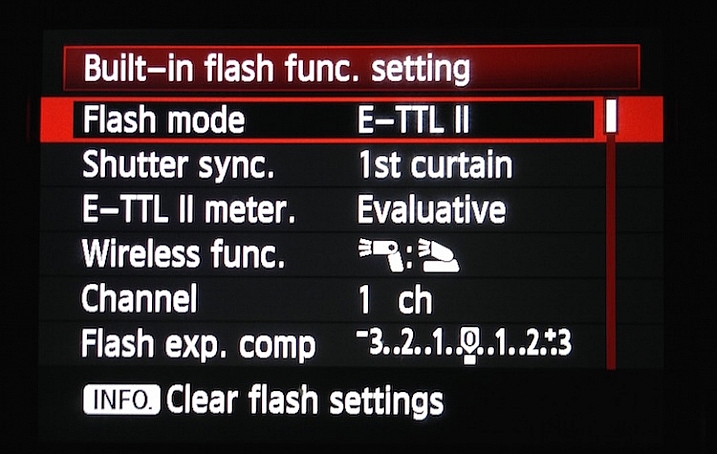
If you have a Canon camera, the process is similar but involves a few different menus. Go to your main camera settings menu and choose Flash Control. Then select Built-in flash settings and choose the EasyWireless option. Make sure your channel is set to 1, and you’re ready to go. If you have a higher-end camera like a 60D you won’t see EasyWireless, so leave Flash mode as E-TTL II and change Wireless function to an image of two flashes with a colon between them. As with the Nikon settings there are other options you can change to customize how your external flashes behave, but this is enough to just get you started.

trigger-off-camera-flash-canon-menu-flash

On Canon cameras, start by choosing the Flash control menu.

trigger-off-camera-flash-canon-menu-flash-control

Next choose Built-in flash func. setting

trigger-off-camera-flash-canon-menu-flash-settings

Set Flash mode to E-TTL II, and then set Wireless func. to the icons displayed above. Alternatively, you can select EasyWireless if that appears as an option.

Testing your setup

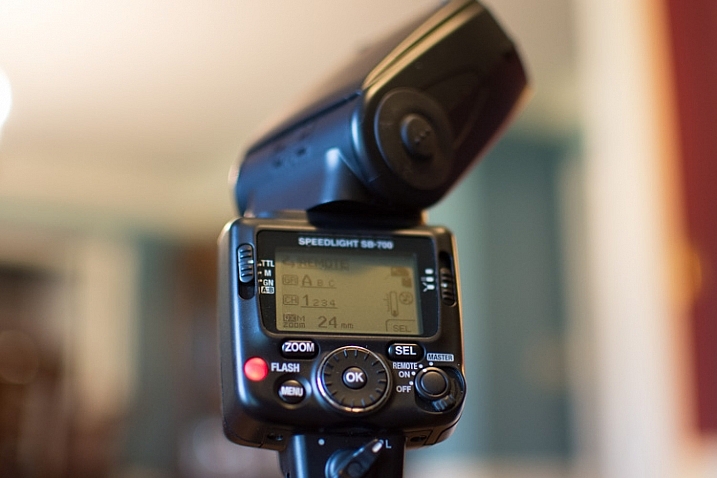
Now that your camera is set up, all you need to do is put your flash in Remote (Nikon) or Slave (Canon) mode and make sure there is an unobstructed line of sight between the receiver on the speedlight, and the flash on your camera. Some speedlights allow you to twist the base so it faces a different direction than the flash itself which is useful if you want to get a little more creative with your lighting angles.

Before you get too far into all this you should be aware of two caveats: Canon cameras can only control Canon flashes, and same with Nikon cameras and Nikon flashes. Also, most third-party flashes such as those made by companies like Yongnuo are not compatible with the on-camera remote trigger setup described here. To use those you will need to purchase a remote flash trigger, but since the flashes themselves are cheaper than their first-party counterparts you should have a bit of money leftover to buy a trigger setup.

trigger-off-camera-flash-nikon-sb700

Makesure your external flash is set to “Remote” (Nikon) or “Slave” (Canon). It should also be in the same Channel and Group as your camera, but if you have never changed these then the default values should work fine.

As you get more experience with off-camera lighting you might find yourself wanting to expand your horizons with diffusers, colored gels, additional flashes, and more. But if you just want to get some basic experience with this technique, learning to use your built-in flash as a remote trigger is a fantastic way to get started.

Have you tried using this method before? What has your experience been like, and what are some of your favorite off-camera flash tips? Leave your thoughts in the comments below.

googletag.cmd.push(function() {
tablet_slots.push( googletag.defineSlot( “/1005424/_dPSv4_tab-all-article-bottom_(300×250)”, [300, 250], “pb-ad-78623” ).addService( googletag.pubads() ) ); } );

googletag.cmd.push(function() {
mobile_slots.push( googletag.defineSlot( “/1005424/_dPSv4_mob-all-article-bottom_(300×250)”, [300, 250], “pb-ad-78158” ).addService( googletag.pubads() ) ); } );

The post How to Trigger an Off-Camera Flash with the Pop-up Flash by Simon Ringsmuth appeared first on Digital Photography School.


Digital Photography School

 
Comments Off on How to Trigger an Off-Camera Flash with the Pop-up Flash

Posted in Photography


3 Useful Photoshop Techniques for Making Images Exposure Corrections

20 Jul
Title-correct-exposure

Using a Curves Adjustment Layer with the Blend Mode set to Screen to correct exposure in Photoshop.

In general, where images are too dark, this is referred to as underexposed. Conversely, images that are too light are overexposed. Photos taken on sunny days are prone to being overexposed.
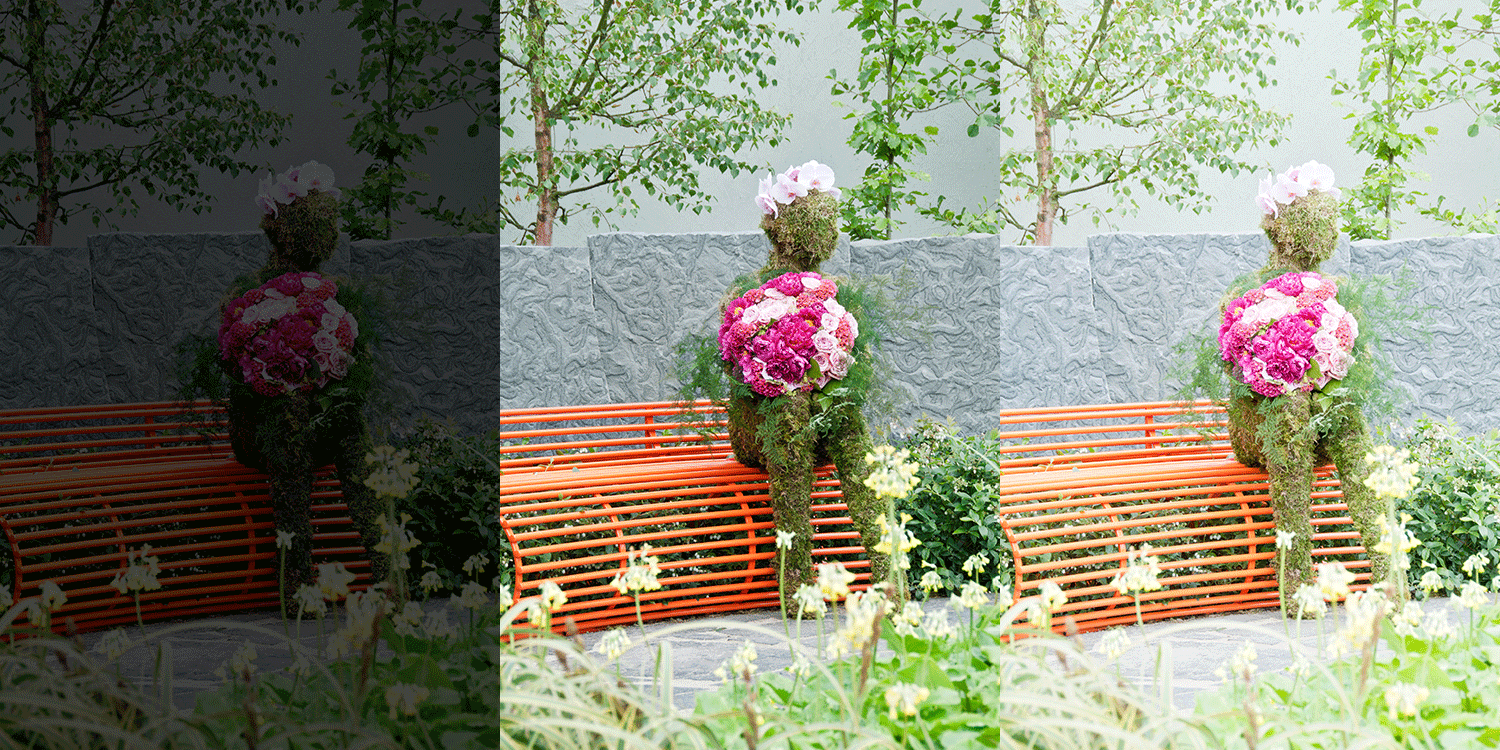
exposure

An animated gif to illustrate a correct exposure, an underexposed shot and an overexposed one.

In an ideal situation, the aim is to try and get the correct exposure in-camera. In doing so, less time will be spent in front of your computer post-processing.

In this article, I will describe how to easily correct photos that are underexposed (photos that are too dark) and overexposed (photos that too light) using Adjustment Layers and Blend Modes in Photoshop. I will then describe how the Dodge and Burn tools work to target specific areas to brighten or darken your image.

The following techniques are not new, but have been around for quite some time in Photoshop. The methods are still very effective, quick and easy to do.

  • Overexposed photos – Blend Mode: Screen with Curves Adjustment Layer.
  • Underexposed photos – Blend Mode: Multiply with Curves Adjustment layer.
  • Dodge & Burn tools – New Layer above the image filled with 50% gray – Blend Mode: Overlay/Softlight.

Read:  The First 3 Photoshop Blend Modes You Need to Understand

All of the images I used in this article are the jpegs straight out of the camera, completely unedited. I want to demonstrate how effective these techniques are when applied.

Correcting Overexposed Images

Becky-overexposed

A typical washed-out look from an overexposed photo.

As you can see, from the first overexposed shot. The subject has that washed-out look. The subject is overexposed by a stop and a half. I applied a Curves Adjustment Layer and changed the Blend Mode to Multiply. Straight away, the contrast of the image has dramatically increased.

Becky-curves-multiply

The result is quite dramatic when the Curves Adjustment Layer (with Multiply blend mode) has been applied, but there is a noticeable change in color shift.

The Multiply Blend Mode can cause a shift in color, but this is easily remedied. To adjust the color balance, go to the Properties panel (CS6) and choose the channel you want by clicking on the menu left of the Auto button. In this case, the color was too cool, so I adjusted the three channels (Red, Green and Blue) to get the result I wanted.

Becky-correct-exposure

The color balance has now been modified by adjusting the red, green and blue channels in the the properties panel for the Curves layer.

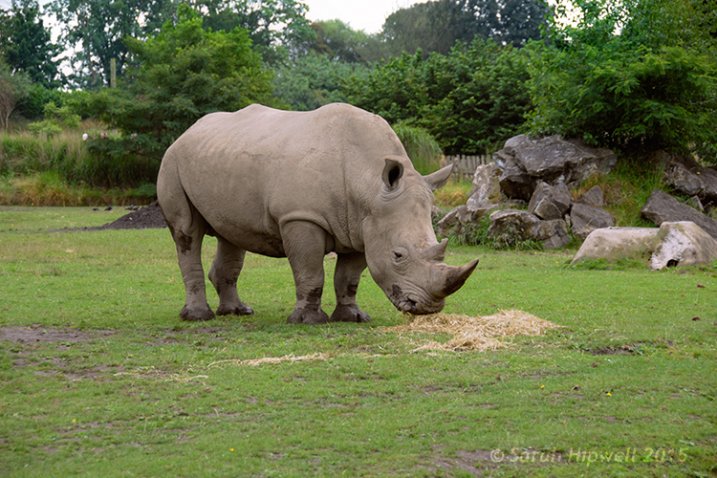
In the image of the Rhino below, when I applied the adjustment layer and changed the Blend Mode to Multiply, the effect caused a color shift to green, and the intensity of the effect was too dramatic. I adjusted the color balance by choosing the green and red channels in the Properties panel. I then reduced the Opacity to 55% of the layer to further fine-tune the image.
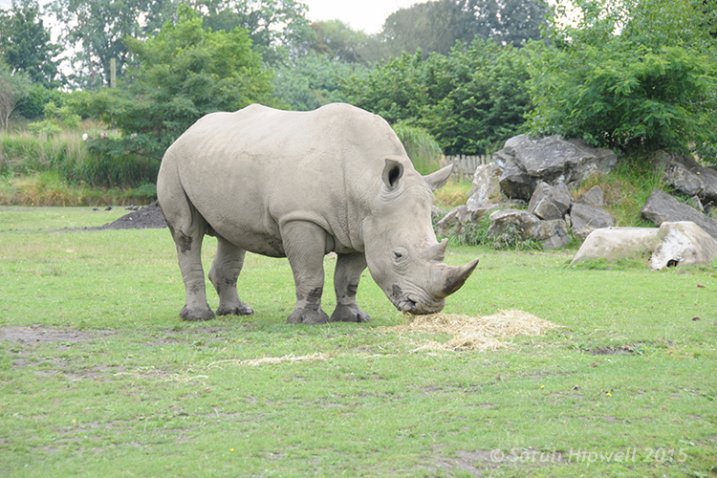
Rhino-underexposed

Overexposed photo of a Rhino taken at Dublin Zoo.
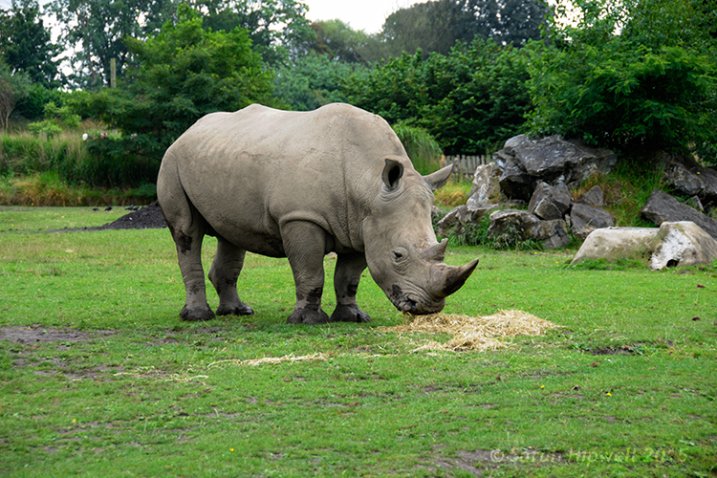
Rhino-curves-multiply

A Curves Adjustment layer with the Blend Mode set to Multiply.
Rhino-correct-exposure

I reduced the Opacity of the Curves Adjustment Layer as the effect was too much. I then adjusted the color balance by tweaking the red, green and blue channels.

Correcting Underexposed Images

Underexposed shots are typical when working outdoors on sunny days. Usually, the background is properly exposed but your subject is silhouetted. Similarly, if the background is washed out but your mode/subject is exposed correctly.

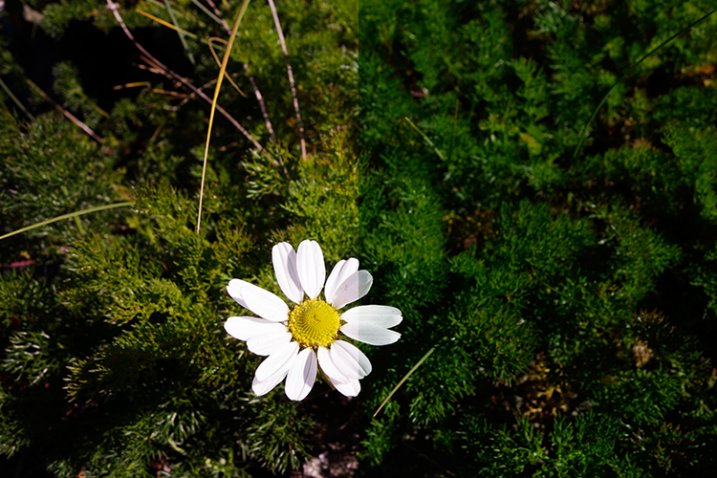
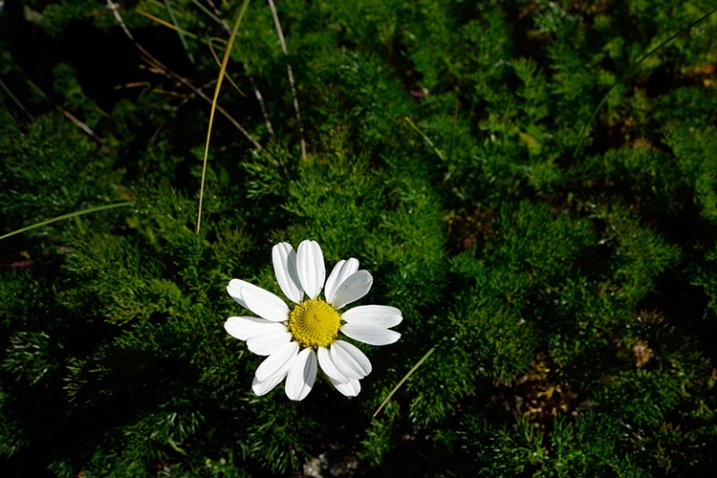
For example, the photo of the flower was taken at the beach on a very sunny day. I focused and exposed for the flower, which meant the background was way too dark. I applied a Curves Adjustment Layer and changed the Blend Mode to Screen. The shadows became lighter, but I duplicated this layer again as I wanted more detail in the shadows. (In most cases, this effect of using the one Adjustment Layer is enough but if your photo is very washed out, or very dark, you may need to duplicate the Adjustment Layer and adjust the opacity accordingly.)
flower-underexposed

An underexposed flower in green foliage.

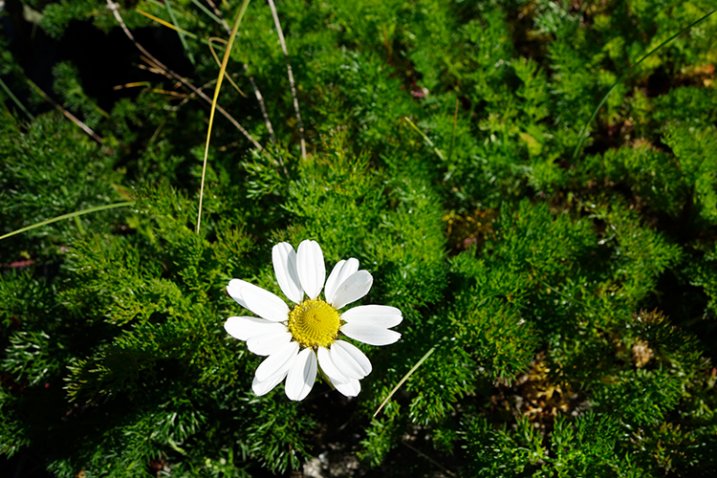
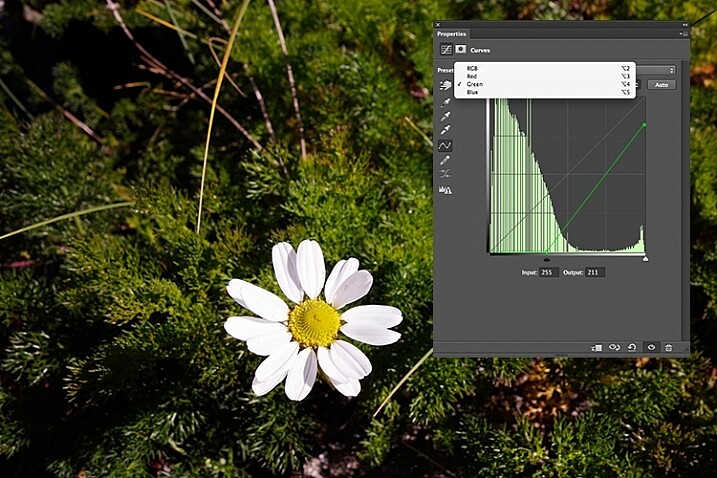
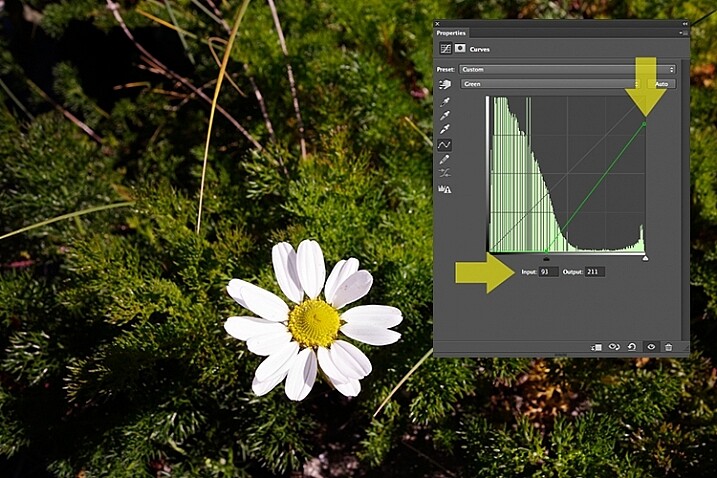
I reduced the opacity of both layers and added a mask to bring back the highlights on the flower’s petals. Similar to the Multiply Blend Mode, the Screen Mode can cause a shift in color. In this instance, the photo had too much green. Similar to the photo above, I was able to adjust the color balance in the Properties panel and chose the green channel to modify the color balance.
flower-curves-screen

Two Curves Adjustment Layers were applied to this photo. I wanted to bring out more detail in the shadows.
flower-changing-to-green-channel

flower-input-output-sliders

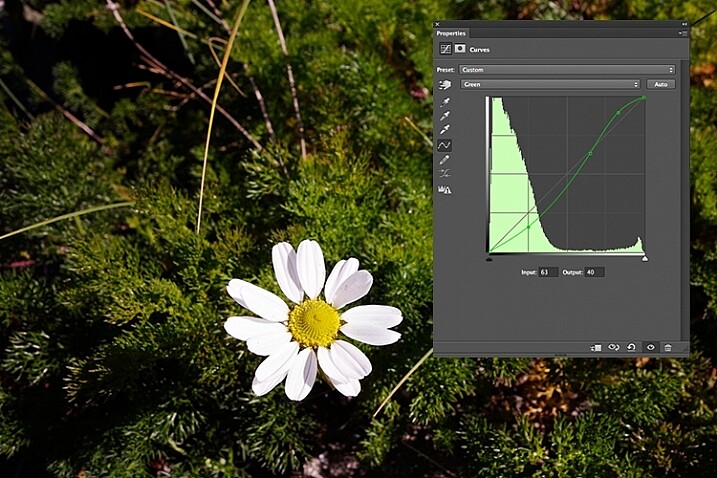
By going into the different channels, it’s easier to target the specific colour that needs adjusting. In the image of the flower, I wanted to reduce the green colour. So by clicking on the top right point of the graph (output) and dragging it down. I then moved this Input slider to the right to bring in some magenta. As this an adjustment layer, you can play around with each of the colour channels and experiment using the input and Output sliders in an non-destructive way.
flower-green-channel-S-curve

A more accurate way would be to plot different points on the grid to get that classic S shape, which is what the Curves Adjustment is know for.
flower-correct-exposure

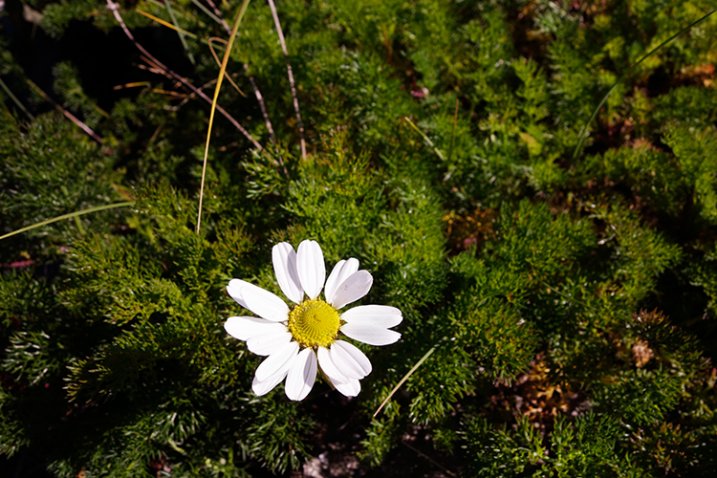
Opacity was reduced on each of the two Curves Adjustmnet layers. The green channel was adjusted to modify the color balance.

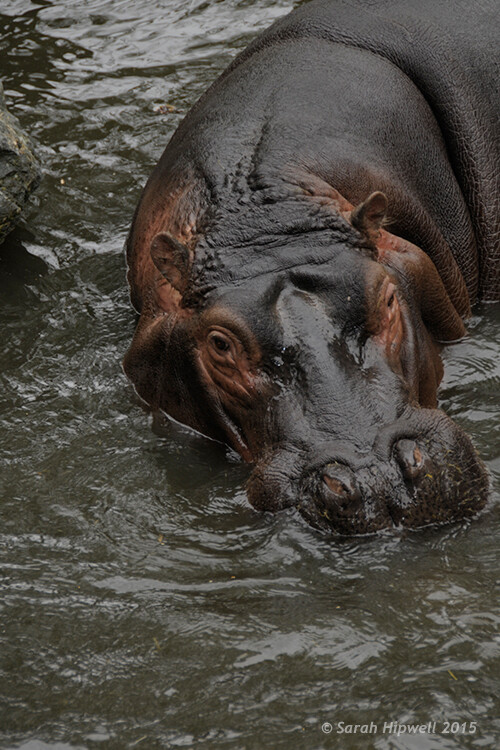
The shot of the hippo below was taken at Dublin Zoo and the day was quite overcast. As before, I added a Curves Adjustment layer and changed the Blend Mode to Screen. I then adjusted the red, green and blue channels to correct the color balance. I reduced the opacity on the Adjustment Layer only slightly.
Hippo-underexposed

A underexposed shot of a hippopotamus taken at Dublin Zoo
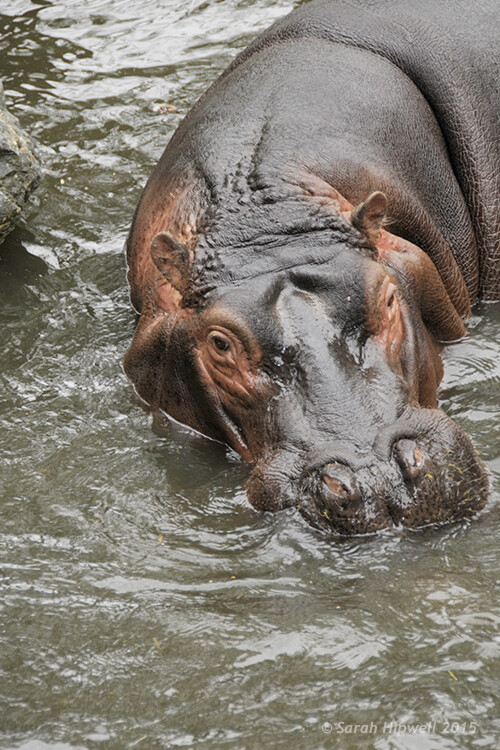
Hippo-curves-screen

A Curves Adjustment layer with the Blend Mode set to Screen.

The shot of the Hippo was taken at Dublin Zoo and the day was quite overcast. As before, I added a Curves Adjustment layer and changed the Blend Mode to Screen. I then adjusted the red, green and blue channels to correct the color balance. I reduced the opacity on the Adjustment Layer only slightly.
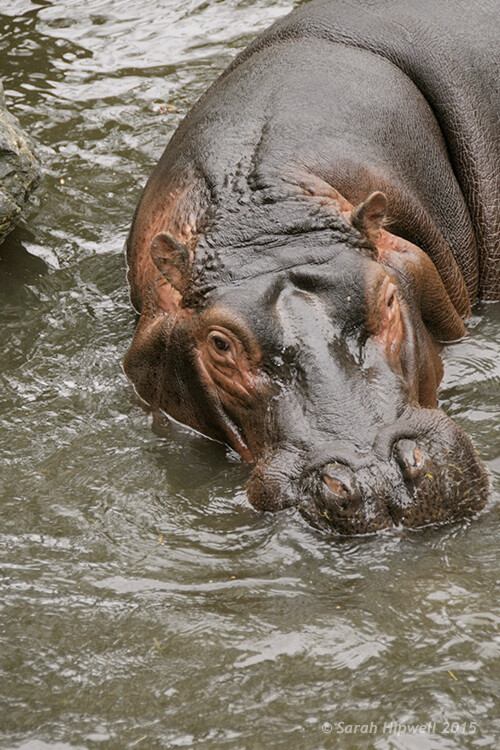
Hippo-correct-exposure

The Opacity was only slightly reduced for this image but the color balance again had to be adjusted in all the channels.

So by using an adjustment layer and changing the Blend Mode to Multiply or Screen, overexposed and underexposed shots can be easily fixed in a few steps. But what if specific areas of your image only need the exposure corrected?

Dodge and Burn

The Dodge tool lightens and the Burn tool darkens specific areas of your photo. This is why the Dodge and Burn tools are really useful if you don’t need to apply a global exposure correction.

I use these tools a lot in my workflow, it can create highlights in hair. When I shoot headshots, the eyes are important and the Dodge and Burn tools can also really enhance eyes and make them sparkle. Other forms or parts of the body can also be accentuated and given more depth by using these tools.

However, the Dodge and Burn tools, if used directly on a image, work in a destructive way. So to use these tools non-destructively, you will need to create a new blank layer above the image that you are working on, fill it with 50% gray and change the Blend Mode to Overlay or Softlight.
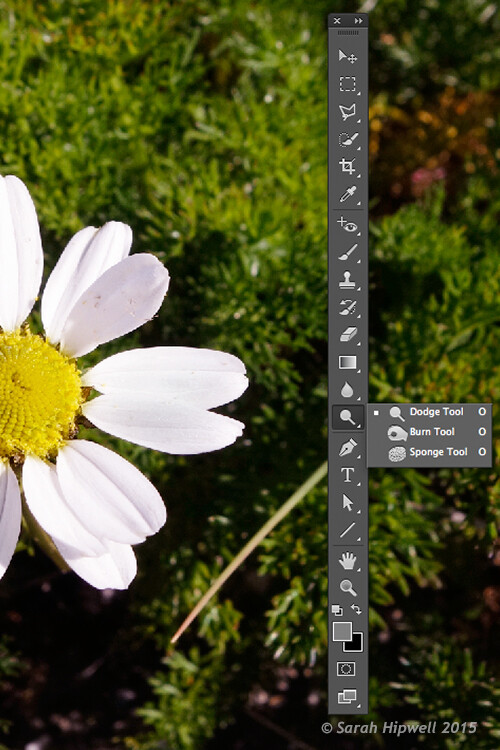
Dodge-Burn-tools

Where to locate the Dodge and Burn tools in Photoshop.

Before you begin, use a brush with the hardness set to soft (0-30). In the Tools Options Bar, make sure that you set the Range to Midtones, Exposure is set to low (8-10%) and that the Protect Tones is checked, as shown below.

Midtones+Exposure+Protect-Tonespsd

Set the Range to Midtones. Keep Exposure at a low setting. Make sure the Protect Tones box has been checked.
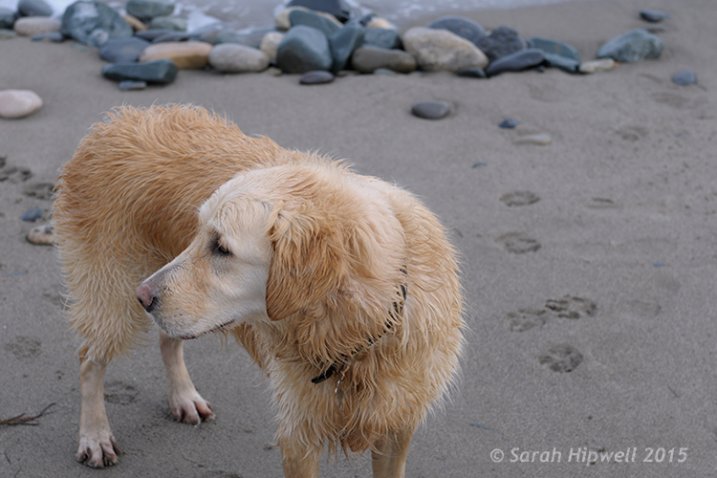
dog

In this photo of the dog, I want to create some highlights on the dog’s fur. Well, fur is like hair!
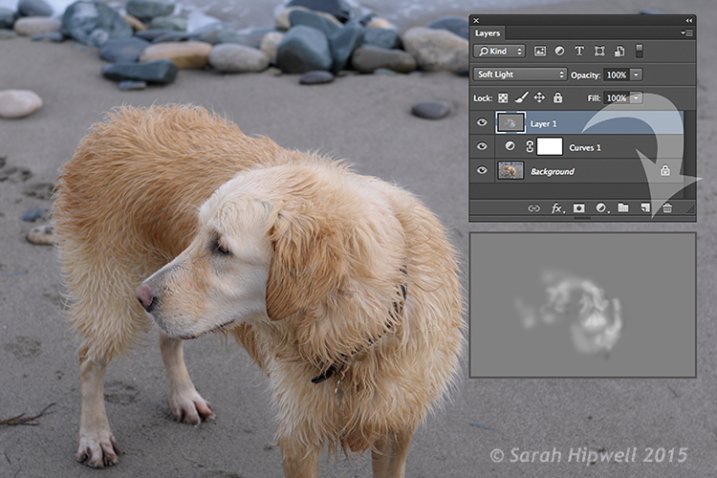
Dog-dodge-burn

You can see the difference in what a little dodging can do in this image of the dog with the photo above.

If you feel that you have overdone either the Dodge or the Burn tool, just lower the opacity of the layer.
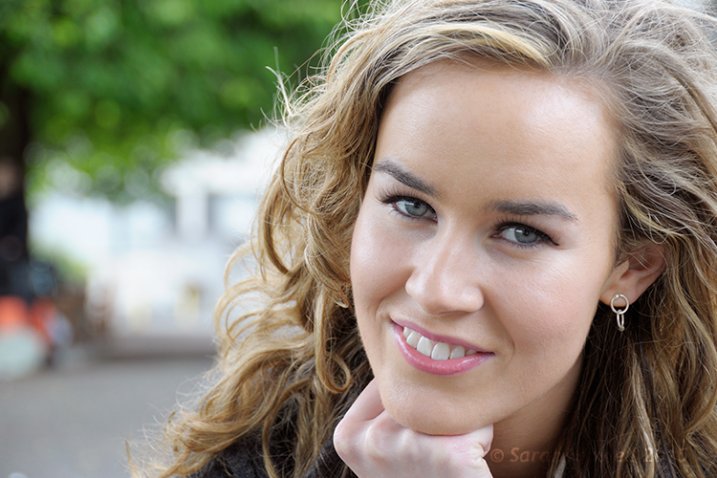
Lisa

Lisa, before any Dodging or Burning has been applied to the image.
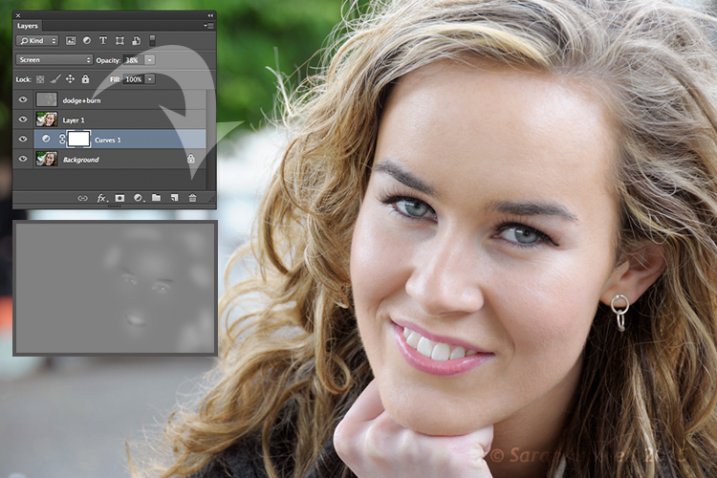
Lisa-dodge-burn

Just a little dodge and burn can make a difference to your photo.

Even subtle differences can enhance your images. In this image of Lisa, I applied some dodging to her eyes, I used the Burn tool to emphasize her lips. I then added a bit more dodging to the face and hair.

I hope you find these techniques useful? Maybe, you have some of your own? If so please share in the comments below.

googletag.cmd.push(function() {
tablet_slots.push( googletag.defineSlot( “/1005424/_dPSv4_tab-all-article-bottom_(300×250)”, [300, 250], “pb-ad-78623” ).addService( googletag.pubads() ) ); } );

googletag.cmd.push(function() {
mobile_slots.push( googletag.defineSlot( “/1005424/_dPSv4_mob-all-article-bottom_(300×250)”, [300, 250], “pb-ad-78158” ).addService( googletag.pubads() ) ); } );

The post 3 Useful Photoshop Techniques for Making Images Exposure Corrections by Sarah Hipwell appeared first on Digital Photography School.


Digital Photography School

 
Comments Off on 3 Useful Photoshop Techniques for Making Images Exposure Corrections

Posted in Photography


Canon EOS 5DS real-world sample gallery

20 Jul

Canon’s EOS 5DS may not have its more expensive sibling’s self-canceling optical low-pass filter, but it’s identical in all other ways starting with a 50.2MP full-frame sensor. We put its high resolution sensor and 61-point AF module to the test for some real-world shooting – take a look. See gallery

Articles: Digital Photography Review (dpreview.com)

 
Comments Off on Canon EOS 5DS real-world sample gallery

Posted in Uncategorized


20. Juli 2015

20 Jul

Das Bild des Tages von: camiche

Ein Mann am Meer.

Im Ausblick: Kreative Stillleben-Fotos, Locations suchen und Serien präsentieren.
kwerfeldein – Fotografie Magazin | Fotocommunity

 
Comments Off on 20. Juli 2015

Posted in Equipment


Simple Yet Effective Marketing Efforts to Get New Clients (and Tools)

20 Jul

After you have set up your business, made a business plan, created an attractive portfolio, and did a lot of other things, the most challenging part is still: “how to get clients”. What do you need to do to get the right people to see your website? How do you make them want to buy your services and products? These Continue Reading

The post Simple Yet Effective Marketing Efforts to Get New Clients (and Tools) appeared first on Photodoto.


Photodoto

 
Comments Off on Simple Yet Effective Marketing Efforts to Get New Clients (and Tools)

Posted in Photography


Capture One Pro 8 software review

20 Jul

Capture One Pro is a software package designed to perform as a Raw processing application as well as a host for those who like to shoot tethered. Created by Phase One, which also makes medium format backs, cameras and lenses, the application emerged first in the professional studio environment. Having expanded into the consumer market, it can handle Raw files from over 300 cameras. We tested out some of its newer capabilities. Read more

Articles: Digital Photography Review (dpreview.com)

 
Comments Off on Capture One Pro 8 software review

Posted in Uncategorized


Perfekte Illusionen

20 Jul

© Laura Zalenga

Ein Beitrag von: Laura Zalenga

Eigentlich war dieser Text nur als Wachrütteln an mich selbst gedacht, aber vielleicht gibt es ja auch andere, die ein bisschen Wachrütteln brauchen können. Die meisten von uns nutzen es täglich, manche sogar stündlich. Wir lieben es, wir genießen es und wir ziehen nicht selten großen Nutzen daraus. Auch ich liebe das Internet.
kwerfeldein – Fotografie Magazin | Fotocommunity

 
Comments Off on Perfekte Illusionen

Posted in Equipment


Make the Most of Your Phone Vids

20 Jul

You know your phone is often your best bet for photos, but don’t forget videos too!

Some of the best vloggers are using their phone these days, but how? What are they doing to get smooth shots, clear sound and incredible depth of field?

Well, we’ve figured it out. Check out our best tips and tools for making high quality vids with your phone! Everything you need to hit record.

(…)
Read the rest of Make the Most of Your Phone Vids (166 words)


© Erin for Photojojo, 2015. |
Permalink |
No comment |
Add to
del.icio.us

Post tags:


Photojojo

 
Comments Off on Make the Most of Your Phone Vids

Posted in Equipment