RSS
 

Archive for May, 2015

3 Ways to Try Macro Photography on a Budget

21 May

Editor’s Note: This is one of a series of article on macro photography this week. Look for a new one each day. The next newsletter will have them all if you miss any!

Ranunculus1

Has Macro Week here at DPS sparked your interest, but you’re still not sure whether you’re quite ready to invest in a macro lens of your own? If so, then this article is for you! I’ll outline three different ways that you can try out macro on a budget, and possibly even with gear that you already own.

Now, before any macro-purists fall off their chairs in disgust, let me say that the techniques outlined in this post will produce pseudo-macro images. In a true macro image, the subject is projected onto the camera’s sensor at a 1:1 magnification, which means that the subject is exactly the same size in real life as it is on your camera’s sensor. That’s not the case, or the intent here. The intent here is to allow those of you who haven’t tried macro photography, the opportunity to test the waters and see if it is even something that interests you before making a big investment in a macro lens.

1.  Use a Telephoto Lens
DoubleTulip

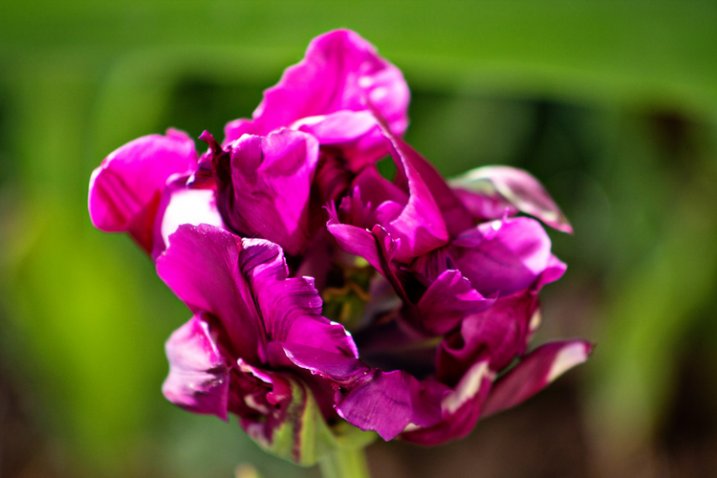
This image was shot about two feet away from this flower, using a telephoto lens at 220mm.

My very first dslr camera came in a package with both an 18-55mm lens and a 75-300mm lens. I don’t tend to use the 75-300mm lens very often, but when I do, it’s usually in a pseudo-macro capacity. If you have a telephoto lens already in your bag, give this a try–stand about two feet away from your subject, with your zoom lens at about 250-300mm. If you have trouble getting your subject to come into focus, continue to move backwards with your feet until you find the sweet spot. It’s important to zoom with your legs rather than your lens, in this instance, so that you can keep the background nice and blurry, and the focus on your subject. Once you find that sweet spot, you may want to set your camera on a tripod at that spot to avoid camera-shake as you’re taking the photo. I’ve also tried it hand-held a few times with good results, so don’t be afraid to give that a try as well.
Pollinator

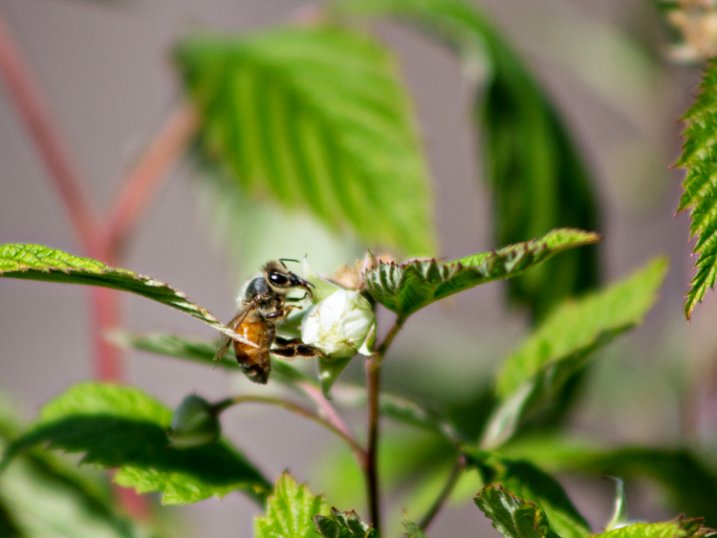
This image was shot using a telephoto lens at 300mm. This is about as sharp as I’m personally able to get when photographing living creatures with this method, and it isn’t sharp enough in my book.

One of the benefits of this method is that it doesn’t require you to get particularly close to your subject, which is ideal if you’re interested in taking macro photos of living creatures. Personally, I find that it is still difficult for me to achieve sharp focus when it comes to photographing living creatures with this method (even with a tripod),  so I usually stick to more stationary objects like flowers. Still, if you already have a telephoto lens in your bag it may be worth your time to try this method first, before buying a macro lens. I say this only because I have more than one friend who thought they’d be really interested in macro photography of insects, only to discover that they actually couldn’t stomach seeing the insects up close in all their glory.

2. Try Extension Tubes
This image was taken with an 18-55mm kit lens + manual extension tubes.

This image was taken with an 18-55mm kit lens + manual extension tubes.

An extension tube is a nifty little invention that screws on in between your camera body and your lens. They come in different widths, and can often be stacked so that you are able to use more than one at a time. They do not contain any glass, but simply allow you to get closer to your subject than you would be able to normally, while still maintaining focus. When it comes to extension tubes, you can find something for nearly any budget. More expensive versions maintain the electrical connections that allow you to use the autofocus feature on your camera, while less expensive versions will not. Additionally, some extension tubes will limit your ability to control aperture in-camera. If you have a lens that has a manual aperture ring, you can control it that way, but otherwise you’ll be shooting wide open. Personally, I have one of the least expensive sets of tubes $ 15, and even though I don’t have the capacity to use autofocus or control my aperture, I have always really enjoyed my set of tubes for creating macro images.
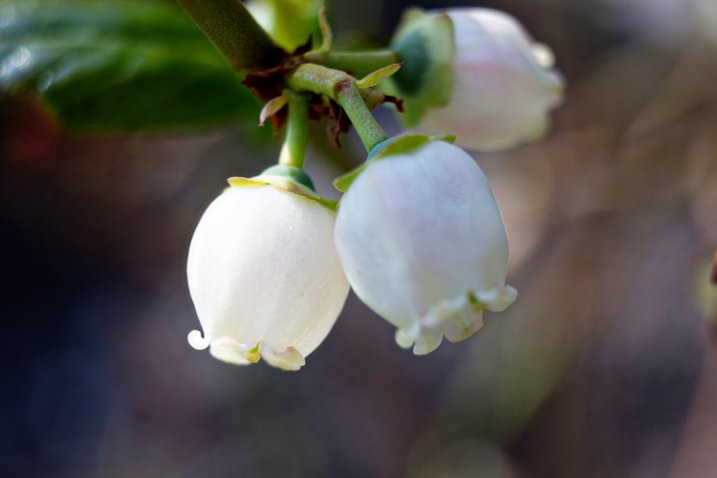
This image was taken with an 18-55mm kit lens + manual extension tubes.

This image of a blueberry bush was taken with an 18-55mm kit lens + manual extension tubes.

That said, before you buy, you should know three things.

First, some reviewers have reported that the less expensive tubes have gotten stuck on their camera body and/or lens. Others have reported that the tubes did not hook securely to their camera body and caused their lens to fall off during use. I have not experienced either issue, but generally use the tubes on my second body, with my kit lens, neither of which I would be devastated to lose. It is a trade-off though—using my kit lens means that I’m not able to control my aperture as I would be with other lenses, which is a bummer (but also not a major issue for me).

Editors note: buyer beware, just be sure to shop around and read reviews (the good and the bad) before you buy any extension tubes. It may seem like a great deal but if they wreck your camera or your lens it won’t be.

Second, be prepared to get close. Like, REALLY close. It will feel really strange to have the lens almost touching your subject, but that’s typically about as close as you will need to go in order to achieve focus. If you’re too close try using a longer focal length lens, that will help with this issue.

Third, there is absolutely a learning curve with extension tubes, particularly those that don’t maintain the electrical connection with the camera. It’s not insurmountable, but you probably won’t be able to use them perfectly right out of the box. Just be prepared for some trial and error.

3. Reverse Your Lens
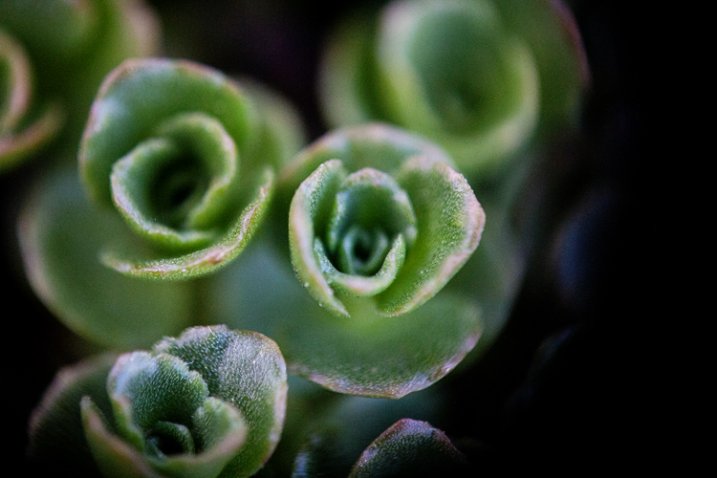
50mm lens hand-held in reverse up to an 18-55mm kit lens.

50mm lens hand-held in reverse up to an 18-55mm kit lens.

Did you know that you can turn any lens around and use it backwards? Well, you can! There are two different ways that you can reverse a lens to use it for macro photography.

The first way to use your lens in reverse is to buy a macro reverse ring. These rings are usually around $ 15, and you would need to know which lens you plan to use in reverse (different lenses require different sized reversal rings), AND whether you’d like to reverse the lens directly to the camera, or on to another lens.
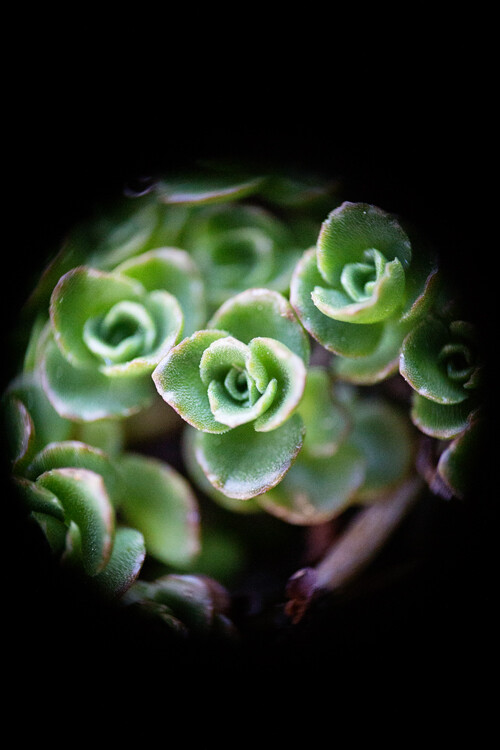
Another instance of a 50mm lens being hand-held in reverse up to an 18-55mm kit lens. Note the major vignetting in this image--that was straight out of camera.

Another instance of a 50mm lens being hand-held in reverse up to an 18-55mm kit lens. Note the major vignetting in this image, along with an almost tilt-shift effect. Both were straight out of the camera

The second way that you can reverse a lens is to simply hand-hold it in backwards. If you have both a kit lens and a 50mm lens, attach your kit lens to your camera as usual, and then hold your 50mm lens backwards, up to the end of the other one. If you can, wrap your fingers around the place where the kit lens and the 50mm lens join together to minimize any accidental light leaks. Again, you’ll have to zoom with your feet, and you’ll probably have to get pretty close in order for things to come into focus. This method works best for creative macro—you’ll find that the focus is much softer than the other methods, and often includes unpredictable vignetting. That said, if I’m trying to create a macro image that feels ethereal, this is my go-to method.

Are there any other techniques you’ve used to create macro or pseudo-macro images without a macro lens? If so, please share!

macro-coverWant to learn more about macro photography? Check out Ed Versosky’s Introduction to Close-Up & Macro Photography ebook – just $ 10 (over 30% off) this week with coupon code: DPS. You will need to enter the code to apply the discount.

googletag.cmd.push(function() {
tablet_slots.push( googletag.defineSlot( “/1005424/_dPSv4_tab-all-article-bottom_(300×250)”, [300, 250], “pb-ad-78623” ).addService( googletag.pubads() ) ); } );

googletag.cmd.push(function() {
mobile_slots.push( googletag.defineSlot( “/1005424/_dPSv4_mob-all-article-bottom_(300×250)”, [300, 250], “pb-ad-78158” ).addService( googletag.pubads() ) ); } );

The post 3 Ways to Try Macro Photography on a Budget by Meredith Clark appeared first on Digital Photography School.

Digital Photography School

 
Comments Off on 3 Ways to Try Macro Photography on a Budget

Posted in Photography


Ideas for Photo Fun With Water & Food Coloring

21 May

“Wow! Oh my gosh! Cool!”

This is what your friends will say when they see your gorgeous photos of food coloring in water.

These shots are not only incredible but surprisingly easy! And with our setup tips and ideas you’re gonna get the most vibrant and unique results possible.

Just don’t get so mesmerized by all those dancing colors that you forget to take the shot!

Make Photo Magic with Food Coloring

(…)
Read the rest of Ideas for Photo Fun With
Water & Food Coloring (630 words)


© Taylor for Photojojo, 2015. |
Permalink |
No comment |
Add to
Water & Food Coloring”>del.icio.us

Post tags:


Photojojo

 
Comments Off on Ideas for Photo Fun With Water & Food Coloring

Posted in Equipment


Italien, Blumen und ein Experiment

21 May

© Alessio Albi

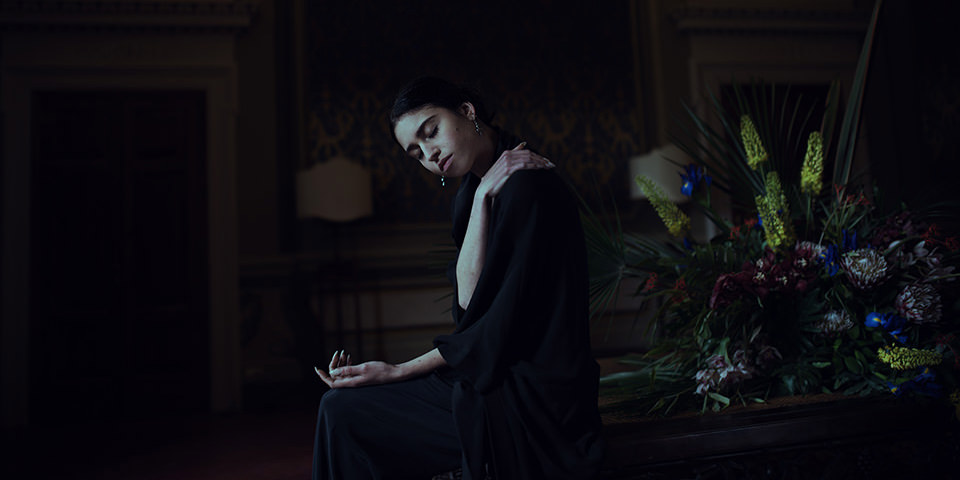
Über Ostern konnte ich zusammen mit Redakteur Chris tolle Menschen und Fotografen in der Toskana treffen. Zusammen erlebten wir einige Abenteuer und an unserem letzten Tag gab es eine besondere Herausforderung. Die Blumenstylisten und Designer von FluidaDesign stellten ein großes Blumenarrangement zusammen und wollten dieses von jedem Fotografen des Treffens fotografiert haben.
kwerfeldein – Fotografie Magazin | Fotocommunity

 
Comments Off on Italien, Blumen und ein Experiment

Posted in Equipment


Canon EOS Rebel T6s/T6i added to studio test scene comparison

21 May

The Canon EOS Rebel T6s and T6i (760D and 750D) have been in our hands long enough to put together a couple of real-world sample galleries, and now we’ve added the cameras to our studio test scene comparison tool. The new 24.2MP APS-C CMOS sensor that these cameras share represents a step forward for Canon’s Rebel lineup, which had been using an 18MP chip since the T2i. Read more

Articles: Digital Photography Review (dpreview.com)

 
Comments Off on Canon EOS Rebel T6s/T6i added to studio test scene comparison

Posted in Uncategorized


Oppo launches R7 and R7 Plus

21 May

Chinese manufacturer Oppo has today launched its new duo of flagship phones, the R7 and R7 Plus. The R7 features a 5″ 1080p screen, while a 6″ screen with the same resolution places the Plus model firmly into phablet territory. In the camera department both smartphones combine a 13MP sensor with an F2.2 lens but the R7 Plus chip is, like the Huawei P8, of the RGBW variant and supported by laser-AF and a dual-LED flash. Read more

Articles: Digital Photography Review (dpreview.com)

 
Comments Off on Oppo launches R7 and R7 Plus

Posted in Uncategorized


Olympus highlights the issues faced by ‘DSL-Arm’ sufferers, and claims to offer a cure

21 May

Olympus USA has produced a spoof documentary that claims to highlight the problems faced by those who spend too long carrying heavy DSLR equipment. The hero of the films, Paul, suffers a condition called ‘DSL-Arm,’ which is characterized by a dramatic lengthening of the right arm as a result of carrying weighty camera bodies and lenses. Read more

Articles: Digital Photography Review (dpreview.com)

 
Comments Off on Olympus highlights the issues faced by ‘DSL-Arm’ sufferers, and claims to offer a cure

Posted in Uncategorized


How to Give Your Macro Photography a Fine Art Touch in Post-Processing

21 May

Editor’s Note: This is part a series on macro photography this week. Look for a new one each day. The next newsletter will have them all if you miss any!

Macro photography is very popular and you will find lots of images, of all sorts of subjects on the internet. People spend a lot of time taking the photos, planning them, setting them up, and getting all the gear they need to get all the shots they want. Then the photos are loaded onto the computer and minimal processing is done to them.

With this tutorial we are going to look at how you can get your macro images from this:

1-fitzroy-gardens-succulent-marco-original

To this:

2-fitzroy-gardens-succulent-marco-fineart

There are many things you can do to your images; what I’m going to show you is only one way. You can try anything really as it’s up to you, it’s your image.

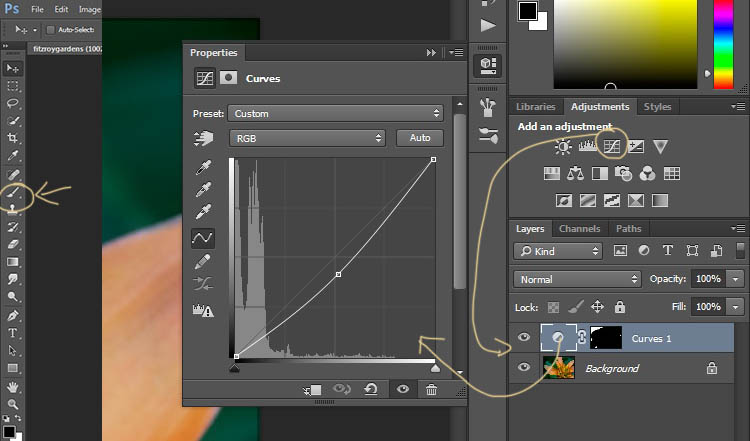
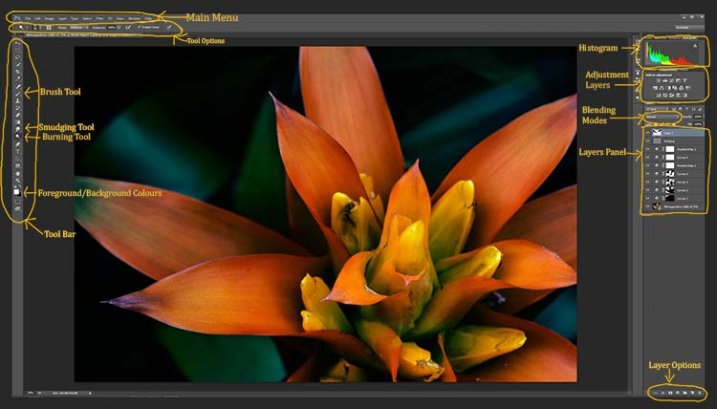
This image was first opened in Adobe Camera Raw and some processing was done to it, just to get the exposure right. From there the macro was opened in Photoshop CC (2014). To explain what some of the instructions are for Photoshop I am including an image below that has the various areas of the interface pointed out, especially the sections that we will be using for this tutorial.

Here is the screenshot of Photoshop with all the various places to find the tools, options, layers and adjustments that were used.

photoshop-setup-2

Step #1 – Curves

At this stage we are going to do several adjustment layers using Curves to change the lighting and bring the centre of the flower out more.

Work in adjustment layers so if you decide further down the track that you should have changed something you did earlier, then you still can go back and fix it, change it or delete the layer. The best way to do this is to use adjustment layers. The adjustment layers are often found above the layers panel on the right of your screen or in the layers menu at the top of the Photoshop window (if you don’t see them go to Window > Adjustments and place it above your layers panel). You will also need the brush tool for this, which is in the tool panel, usually found on the left of the window.

3-adjustment-layer-brush-tool

Once you know where each one of those are, you can start doing your layers for the image.

Click on the adjustment curves layer, as in the photo above. Then in the window that pops up, move the curve down to the dark area just a little, like the image above (just click on the straight line and hold the mouse button down while you drag to move it).

Grab your brush tool from the tool panel. Make it the size that you will need for your image. You can change the size by using the square bracket keys on your keyboard – [ or ] , or right click and in the pop-up window moving the slider for the size. The same changes can be made in the options bar for the tool at the top. Click on the second option from the left, the one that has the size of the brush, and you will get the same panel to change the size and hardness of the brush. For this tutorial a brush towards the soft end was chosen so the edges wouldn’t be too hard (Hardness set to 30% or lower).

You will need to click on the layer mask within the layer, it is the white rectangle in the curve layer. When the mask is white it means the adjustment is being applied to the image below, and when it is black it the change has been hidden. If you paint black onto the mask with the brush you are hiding the adjustment. Black on a mask conceals – white reveals. If you make a mistake and hide a bit you want, you can just paint it back in with the opposite color, white.

Start brushing the image, if nothing changes, then the foreground color (which the brush uses) is likely set to white. You will need to change that colour to black. You can also press X on your keyboard too, it will swap the foreground and background colours around.

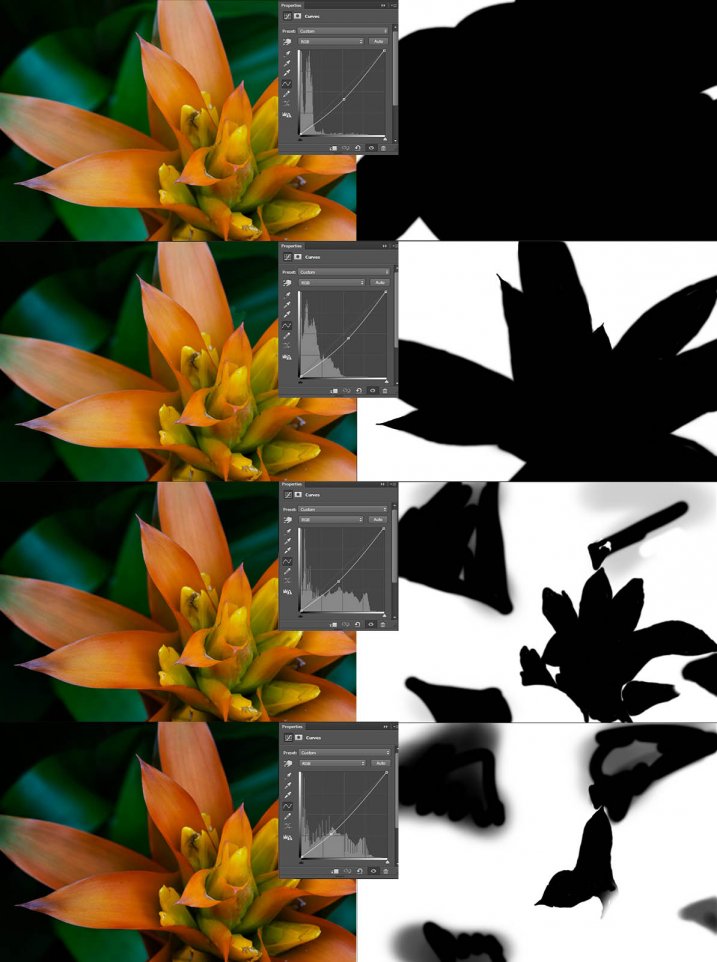
For each different curves layer I took less and less of the adjustment from the image. The following image will show you what I did to each layer. The white areas are where the curves layer still applies, and the black shows where it was hidden.

4-macro-curves-layer

This image was done with curves layers. You don’t have to use the same number of layers, it is up to the image. Some of the background leaves were brought back in the last couple of layers as they were getting too dark. It is something you should be aware of, take notice of what is happening in the background as well.

The centre of the flower is now the same as the original but everything else is darker. The changes should be subtle.

Step #2 – Gradient Map Adjustment Layer

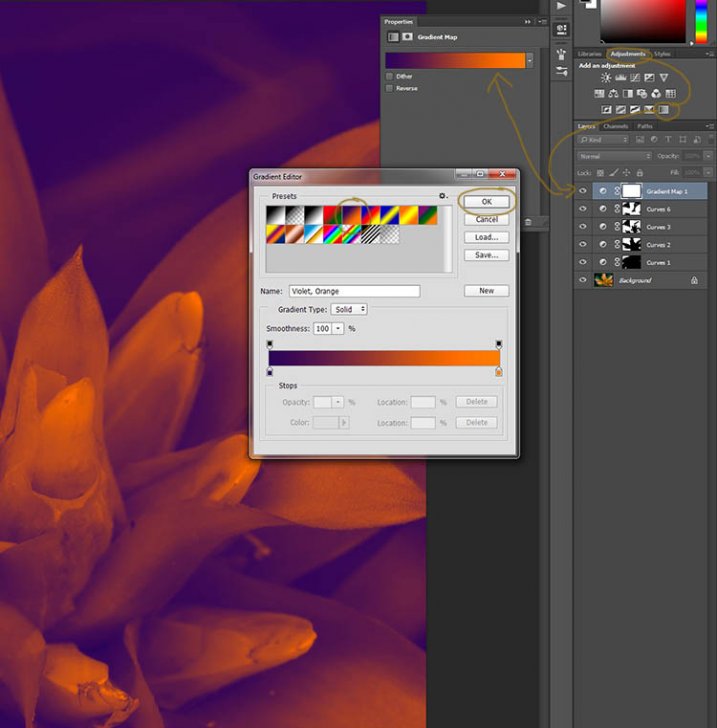
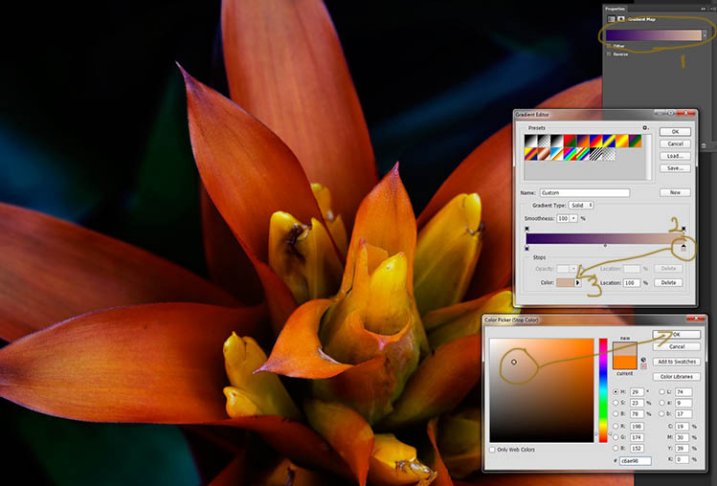
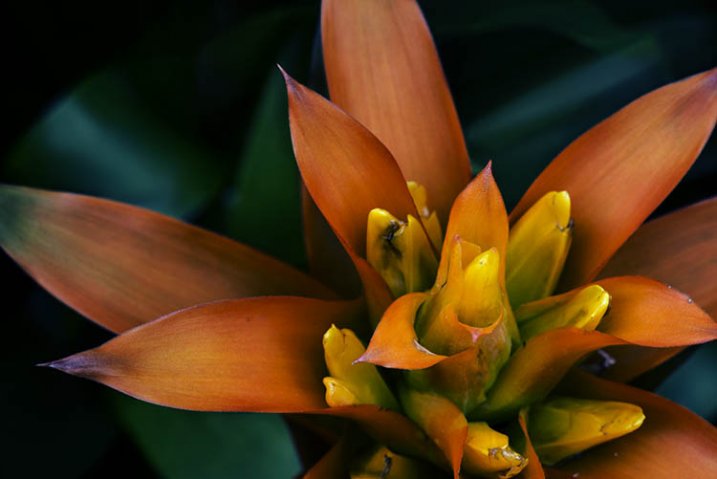
Once the curves were done a gradient adjustment layer was added. The gradient adjustment will change the highlights and shadows; you can decide what colours you want to use.

When you click on the gradient adjustment layer often the black and white gradient comes up and you will notice your image turns to monochrome. If you click on that bar in the window that comes up, you will get a lot more options for the gradient. For this tutorial I used the orange and purple gradient.

5-gradient-adjustment-layer-01

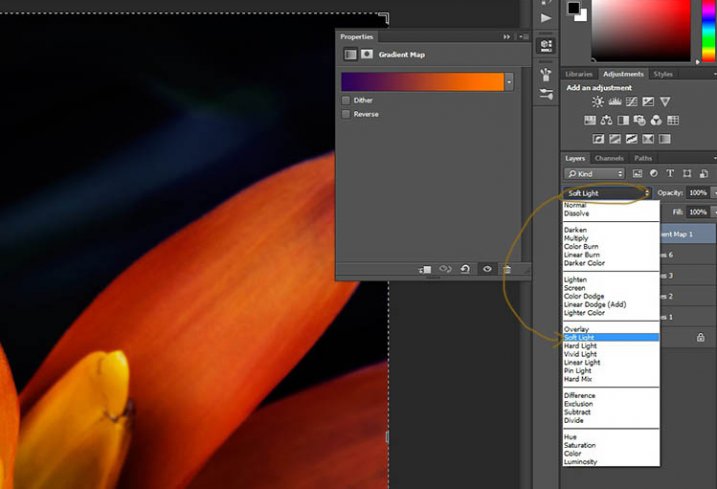
You will see all your highlights turn orange and the dark areas will go purple. You don’t want your image to remain like this, so now you need to blend it. In the image above you can see the blending modes that are above the layers, normal is the default. Click on that and go down to select Soft Light. You will notice the gradient layer is now blended and doesn’t look so horrible.

5-gradient-adjustment-layer-02

Just because that gradient has those colours, doesn’t mean you have to stick with them. They are easy to change them to give your highlights and shadows the tones you want.

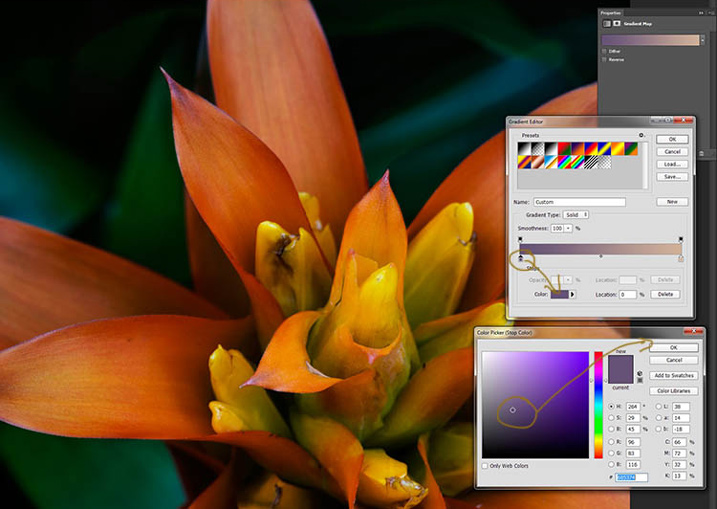
In the bottom part of the gradient editor you can see the colour slider which is how the change goes from one colour to another, and directly underneath you can see little colours. If you click on one of those, the colour comes up at the bottom.

6-gradient-adjustment-layer-2b

Click on that, you will see the Colour Picker window open up. You can change the colour to whatever you want, and as you do so you should be able to see the effect on your image straight away. If you can’t, then it is likely because you forgot to blend the layer. See the following image.

6-gradient-adjustment-layer-2c

You can see from the images what I changed the colours to; you don’t have to use the same ones. I would recommend trying a few colours to see which ones you like. Purple is my favourite colour, so I use it a lot.

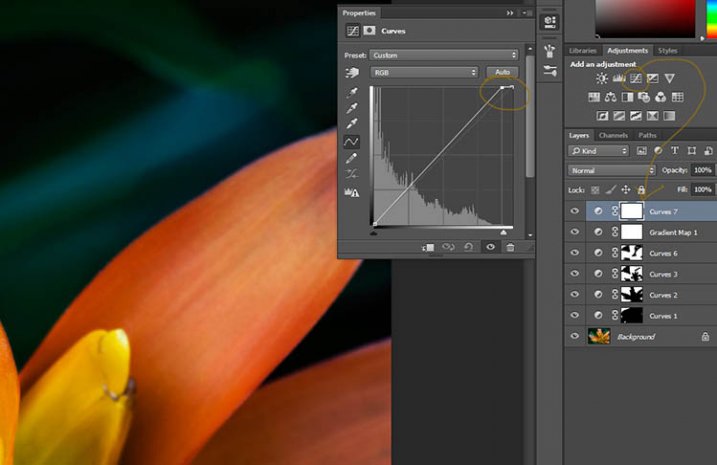
The next step is not always necessary, but often nice to do. All the work that has been done can mean losing the highlights, so to help bring them back you can use a Curves Adjustment Layer.

Step #3 – Adjusting the Highlights

Open a new Curves Adjustment Layer. In the Curves window go to the top right corner and move the line across the top. Watch as you do it and notice if you can see the highlights changing. Sometimes it is good to go too far and then bring it back, just to see what it does. Just be careful not to blow the the highlights out, making them solid white with no detail. Check out the image before to see what to change.

7-curves-highlights

Step #4 – Adding Another Gradient Map Adjustment

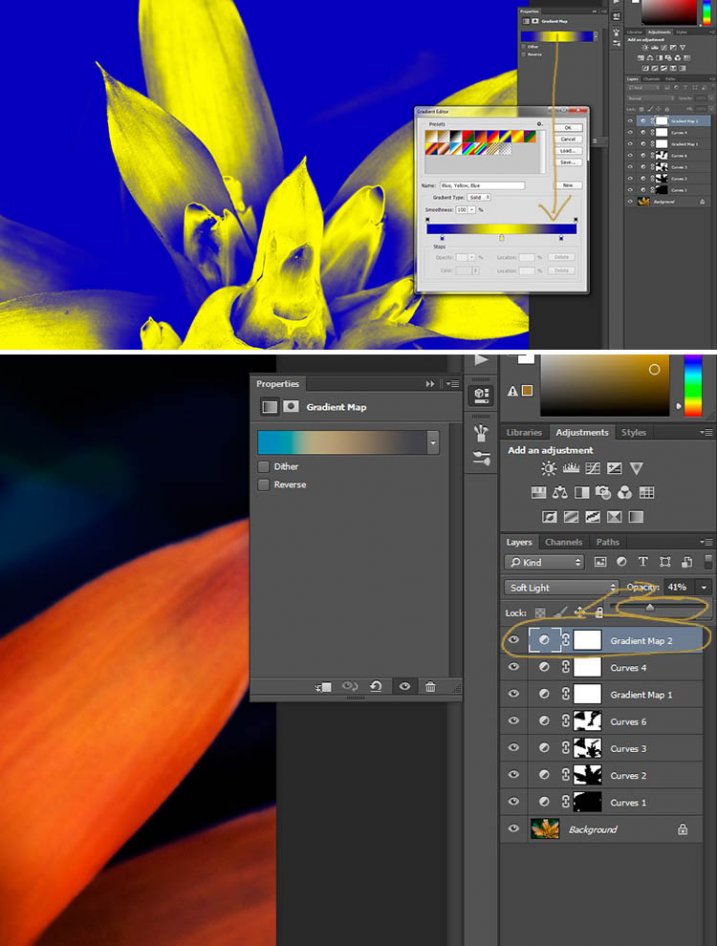
Next another gradient map adjustment layer was added, time time using a different one.

From the above image you should be able to see what colours I choose and follow along the same steps as previously. This time I chose a gradient that changed three areas.

8-gradient-adjustment-layer-3

Step #5 – Dodging the Highlights

One thing that I like to do on many of my images is to bring out the highlights, in small ways, with the dodging tool. The dodging tool is a touchy one, to be used carefully.

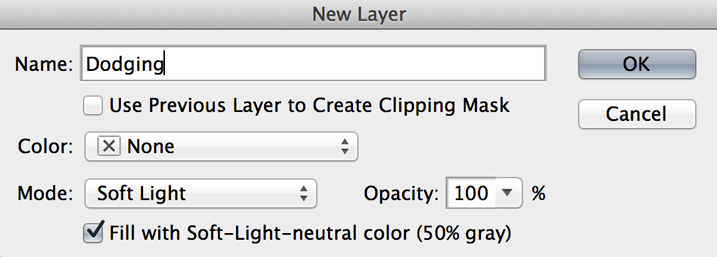
It is always best never to do anything straight onto your original image layer, so like with everything we have done so far it’s going to be on a separate layer. Go to the top menu and click layer, then new layer. When the window appears you can name the layer, if you want to, I called it “Dodging”.

Dodging

There are a couple of things you need to do so you can use this layer with the Dodge tool. First change the layer blend mode to Soft Light, then under the mode drop down menu you will see a box you can check to “Fill with Soft-Light Neutral Colour 50% Grey”, so check that, then press okay (see above)

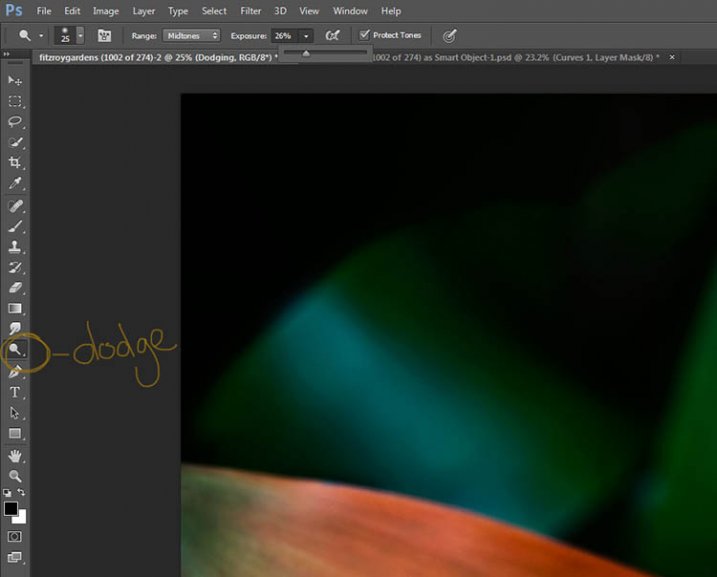
Over in the layers panel you will see what looks like a grey box, this is what you will do the dodging on. Go over to the tool bar on the left and select the dodge tool.

At the top under the main window you will see Exposure, I have set mine at 26% for this image, but you can set it to anything, it depends on how patient you are. In the options bar there is also a setting for the highlights, midtones and shadows, I tend to use midtones. The more you move over an area the more it will go white. In the days of the darkroom they would using dodging to stop the light from getting to certain parts of the area. In Photoshop you can use it to put a little of the highlights back into the image, or to make the highlight pop. It should not be obvious, again subtle is the way to go.

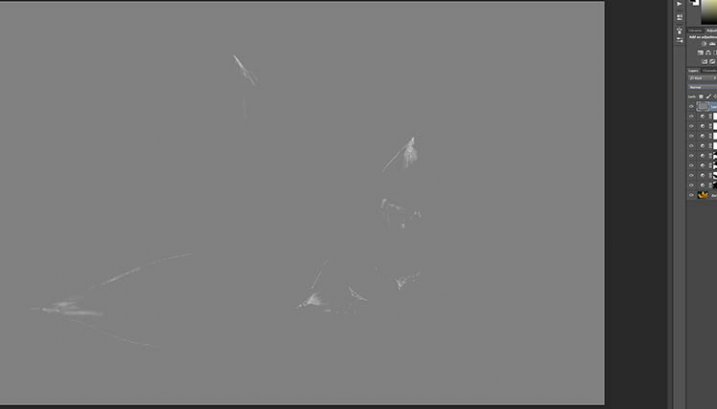
I have changed the layer back to normal mode so you can see what I worked on. Dodging shows up as white on the layer.

10-dodge-layer-2

You can see that I haven’t done a lot, except bring up some of the highlights a little more.11-dodge-layer-3

Step #6 – Smudging

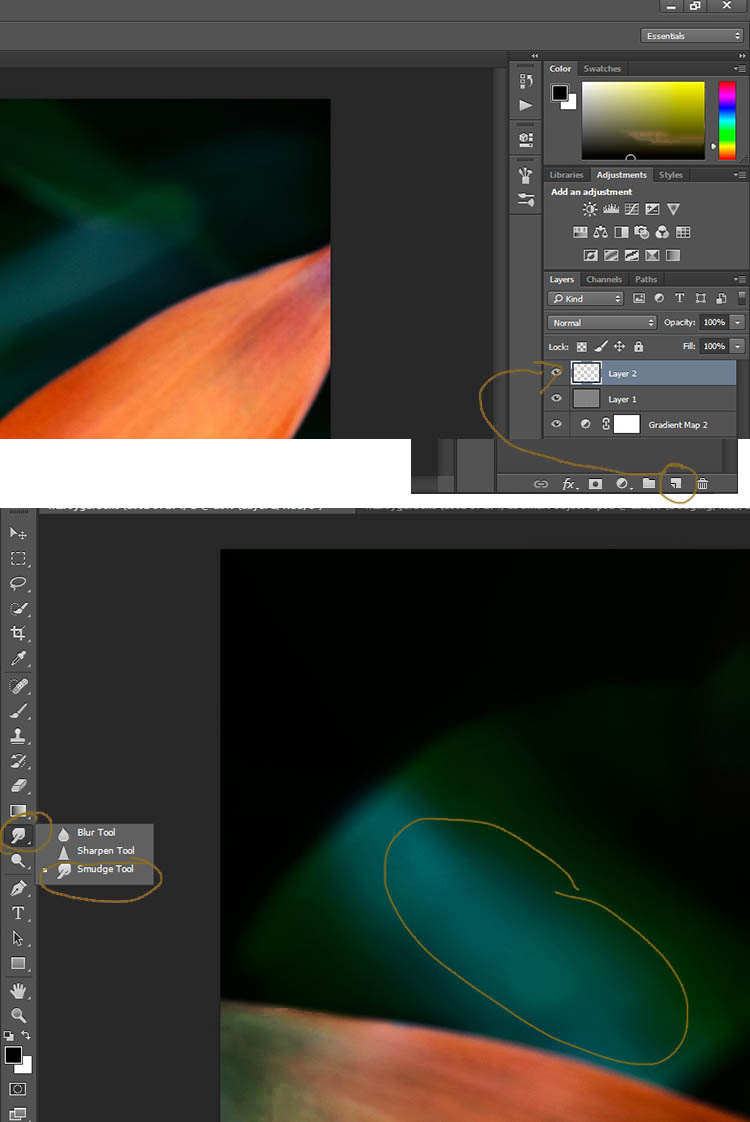
Finally I did a little smudging. Sometimes when you do a lot of work to images it can start to look pixelated, or you get some colour separation. I’ve found that the smudge tool can help get rid of that. You will find it in the tools panel.

I did this on a new transparent layer, again not working on the original image.

12-smudge-layer

Make sure you check the Sample all Layers in the options bar for the tool at the top, and for this tutorial I left the Strength at 50%. I went over the areas where I thought I had some colour separation to smudge them together. If it were a painting I would get my finger into it and smudge the colours together.

Here is the final image.

2-fitzroy-gardens-succulent-marco-fineart

It is all about personal taste, so you should do it to your own style. I like it like this, but other people might find it too much, and others may think it isn’t enough. I like the way the flower seems to be coming out of the darkness.

If you have any questions, please ask. I will do my best to answer them.


macro-coverWant to learn more about macro photography? Check out Ed Versosky’s Introduction to Close-Up & Macro Photography ebook – just $ 10 (over 30% off) this week with coupon code: DPS. You will need to enter the code to apply the discount.

googletag.cmd.push(function() {
tablet_slots.push( googletag.defineSlot( “/1005424/_dPSv4_tab-all-article-bottom_(300×250)”, [300, 250], “pb-ad-78623” ).addService( googletag.pubads() ) ); } );

googletag.cmd.push(function() {
mobile_slots.push( googletag.defineSlot( “/1005424/_dPSv4_mob-all-article-bottom_(300×250)”, [300, 250], “pb-ad-78158” ).addService( googletag.pubads() ) ); } );

The post How to Give Your Macro Photography a Fine Art Touch in Post-Processing by Leanne Cole appeared first on Digital Photography School.

Digital Photography School

 
Comments Off on How to Give Your Macro Photography a Fine Art Touch in Post-Processing

Posted in Photography


Ona introduces black version of the Leica M edition Berlin ll bag

21 May

US luxury camera bag brand Ona has announced a new black version of its Berlin ll messenger-style bag. Designed especially for the Leica M system, the Berlin was originally a limited edition model created to celebrate the 100th anniversary of Leica, but the Berlin ll went on general release beyond Leica stores. Previously only available in the Vintage Bourbon tan finish, the black version of the Berlin has been created, according to Ona, because so many people asked for it. Read more

Articles: Digital Photography Review (dpreview.com)

 
Comments Off on Ona introduces black version of the Leica M edition Berlin ll bag

Posted in Uncategorized


How to Make Your Photos More Interesting with a Human Element

21 May

The human element in photography

I believe that when someone asks how to improve their composition, that what they’re really asking is how they can make their photos more interesting.

The skill of composition is in arranging the elements of the scene in such a way that the resulting image is aesthetically pleasing, and interesting to look at. Composition involves using techniques such as including leading lines, isolating the subject, exploiting tonal contrast, deciding what to leave out of the frame, and so on. But none of this matters much if your subject matter is boring.

The most effective way to create interesting images is to find an interesting subject. Composition becomes much easier when your subject is interesting. You are more likely to be enthusiastic about the photos, and put more effort into finding a good composition, if you are engaged with, or passionate about the subject.

Luckily, there are lots of interesting things to take photos of. But for me the most interesting subject of all is people.

The human element in photography

Unlike static subjects like the landscape, which change slowly or not at all, people are transient. They change. Jobs change. Towns and cities change. The ebb and flow of life creates many interesting and varied subjects for the curious photographer.

Many of the great photographers (and yes, there are exceptions) built their reputations taking photos of people. Masters like Steve McCurry, Sebastião Salgado, David Bailey and Annie Leibovitz predominantly photograph people and their affect on the world.

So, how do you add the human element in your photos? Here are some ideas.

1. Include human figures in the landscape to show scale and context

Including human figures in the landscape provides both a focal point and a guide to scale.

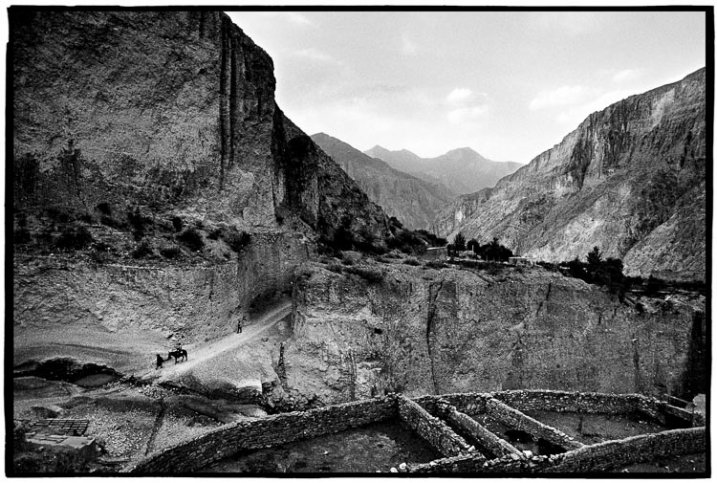
I took the following photo in a remote region of northwest Argentina. The scene caught my eye not just because it is spectacular, but because of the people walking in the middle ground. The presence of the figures reveals the height of the cliff face behind them. We know how big it is because we can compare its size to the them.

Even though the people are small in the frame they are still large enough for you to see they are wearing traditional dress. There are also some stone walls in the foreground, which are animal pens.

The human figures, and evidence of human activity, adds information, providing context about the relationship between the individuals in it and the landscape.

The human element in photography

2. Take environmental portraits

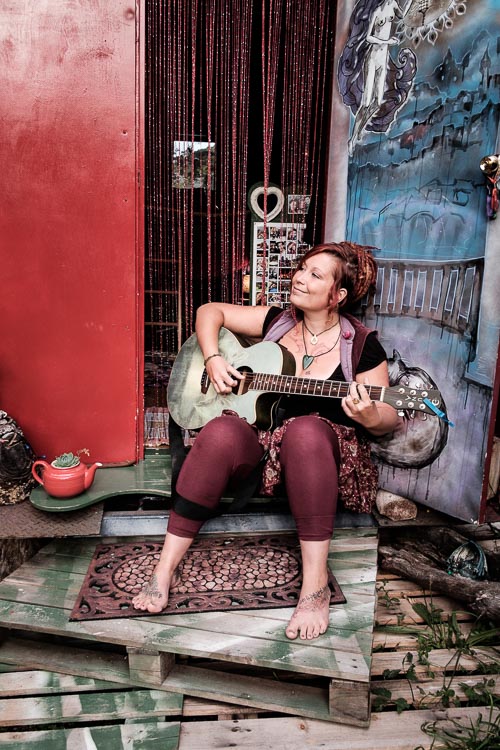
One way to create interesting photos of people is to take environmental portraits – photos that include information about the person’s surroundings. The person will be the focal point of the photo but really there are two stories being told here; one about the person, and another about their environment.

The photo below came about after I asked a friend of mine if I could take some portraits with her new gypsy caravan that she built herself from scratch. She loved the idea. This photo is as much about her caravan and the way she created a unique place for herself to live, as it is about capturing her likeness.

The human element in photography

3. Find interesting people to photograph

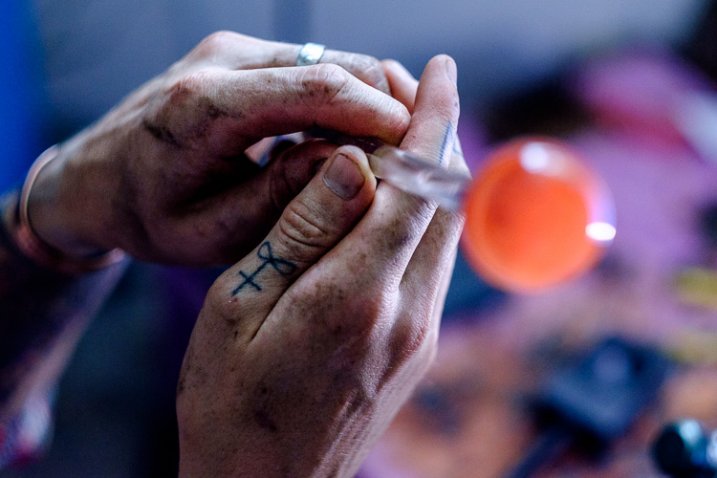
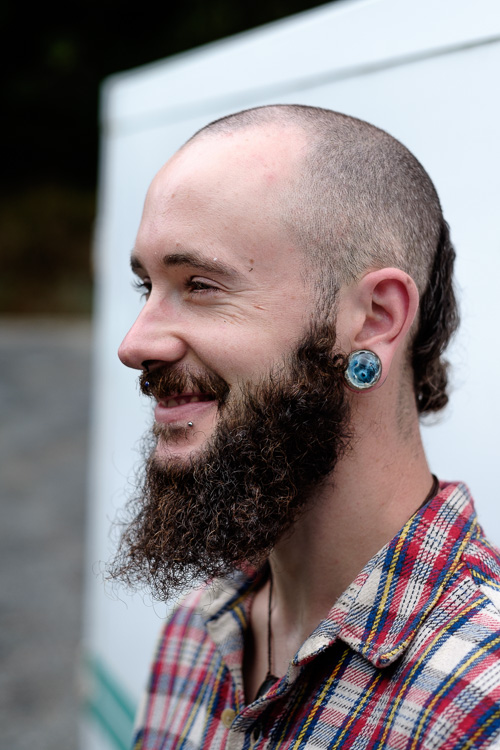
The easiest way to find interesting people to take photos of is to set yourself a project. One of my current projects is to take photos of local craftsmen. This led me to take photos of Eoin in his glass blowing studio.

After I had taken some photos of him blowing glass, we went outside to take some portraits. You can see one of the images below. He has a very interesting face, and was a great subject, but I would never have found him if it hadn’t been for the project.

The human element in photography

You may have read the story where a student asks photographer Jay Maisel how to take more interesting photos. The reply was,

“If you want to make more interesting pictures, become a more interesting person.” – Jay Maisel

Another way to find interesting people is to lead a more interesting life. The more hobbies and activities you participate in, the more people you will meet in everyday life. Some of them may make interesting subjects.

Your turn

Do you agree with my idea that people are the most interesting subject for photographers? Please let us know in the comments, I’m looking forward to hearing what you think.


Mastering Composition ebookMastering Composition

My new ebook Mastering Composition will help you learn to see and compose photos better. It takes you on a journey beyond the rule of thirds, exploring the principles of composition you need to understand in order to make beautiful images.

googletag.cmd.push(function() {
tablet_slots.push( googletag.defineSlot( “/1005424/_dPSv4_tab-all-article-bottom_(300×250)”, [300, 250], “pb-ad-78623” ).addService( googletag.pubads() ) ); } );

googletag.cmd.push(function() {
mobile_slots.push( googletag.defineSlot( “/1005424/_dPSv4_mob-all-article-bottom_(300×250)”, [300, 250], “pb-ad-78158” ).addService( googletag.pubads() ) ); } );

The post How to Make Your Photos More Interesting with a Human Element by Andrew S. Gibson appeared first on Digital Photography School.

Digital Photography School

 
Comments Off on How to Make Your Photos More Interesting with a Human Element

Posted in Photography


Mad for Max: 17 Cars, Clothes & Designs Inspired by the Series

21 May

[ By Steph in Design & Products & Packaging. ]

mad max power wheels

There’s so much to look at in the new Mad Max movie, from that ridiculous double-necked flame-throwing guitar to all of those terrifying spiked weapon-hurling vehicles, you’d have to watch it a dozen times to take it all in. Fury Road is just the latest film in the series to dazzle us visually, inspiring all manner of copycat creations and post-apocalyptic designs, including lethal-looking kid-sized vehicles, disaster fashion and fantasy architecture.

Mad Max Power Wheels
mad max power wheels 2

Maybe putting a six-year-old behind the wheel of a car covered in real metal spikes isn’t the best idea ever, but we’re still sad that this series of Mad Max-inspired Power Wheels isn’t actually real. The set is part of ThinkGeek’s annual April Fool’s Day stunt – but the site made one of its joke products into a real thing you can buy before (the Star Wars Tauntaun sleeping bag) so maybe the popularity of the movie will lead to less-lethal versions of these awesome little vehicles becoming available for purchase. The photos are fun, anyway.

Formula One x 1932 Ford 3-Window Coupe Combo
mad max formula 1 2

mad max formula 1

The glossy black body of a 1932 Ford 3-window couple comes together with Formula 1 aesthetics and functionality in this rendering by concept designer Aleksander of Muscle Car Invasion, who started sketching it in 2009 when the fourth Mad Max movie was first announced.

Runway Road Warriors: Post Apocalyptic Fashion
mad max rick owens 2

mad max fashion rick owens

PHOTO © PETER STIGTER  FALL/WINTER 2010

mad max fashion boris bidjian

mad max fashion devtac

Mad Max: Fury Road didn’t have quite the same emphasis on bizarre post-apocalyptic fashion as the previous three films, which makes sense, anyway: who would spend so much time on their appearance in a world where everyone is reduced to the single instinct of survival? But the series has made a huge impact on post-apocalyptic fashion, and Fury Road echoes the dark, rough-around-the-edges futuristic style seen everywhere from high fashion runways to indie designers’ Etsy shops. From Gareth Pugh sending his models down the runway with black foreheads a la Imperator Furiosa to a striking 2013 Mad Max-inspired editorial by Harper’s Bazaar, these visuals are all over the fashion world. The works pictured here include Rick Owens, Boris Bidjan Saberi and helmet designer Devtac. Style.com has a gallery of 18 more images.

4 Architectural Visions by Justin Plunkett
mad max architecture 1

mad max architecture 2

mad max architecture 3

mad max architecture 4
Jumbled yet unfussy, made of junk yet somehow sort of minimalist, the architecture in Mad Max is all about making use of whatever materials are available in surprisingly creative ways. Capetown, South Africa-based designer Justin Plunkett embodies this aesthetic with a series of fantasy structures made by layering 3D illustrations on top of photographs he has taken in some of his home city’s most down-and-out neighborhoods.

Next Page – Click Below to Read More:
Mad For Max 17 Cars Clothing More Inspired By The Series

Share on Facebook


[ By Steph in Design & Products & Packaging. ]

[ WebUrbanist | Archives | Galleries | Privacy | TOS ]


WebUrbanist

 
Comments Off on Mad for Max: 17 Cars, Clothes & Designs Inspired by the Series

Posted in Creativity