Accessories manufacturer Manfrotto has announced a new series of consumer LED lights that offer portable continuous output for stills and video photographers. The Lumie Art, Play and Muse lights are powered by a USB rechargeable Lithium-ion battery that is said to deliver over an hour’s worth of continuous lighting. While the Art and Play models come with a hotshoe adapter and a tripod mount, the Muse additionally has a ball and socket head that makes angling the light easy. Read more
Month: March 2015
-
How to Create a Simple Slideshow in Lightroom
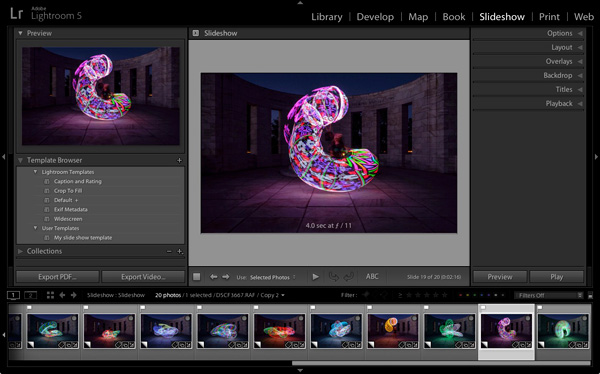
If you’re over a “certain” age, you remember creating slideshows for friends or family members to see. The viewing process required a projector and a screen, plus a darkened room to enable people to see the projected slides properly.
Thankfully, things have moved on since then and it’s now much easier to show your photos to an audience. The advent of laptop computers, social media, blogs and photo sharing websites has rendered the old style of slideshow redundant.
However, there’s still a place for the new style of slideshow – one viewed on a computer monitor, rather than a white screen. Lightroom users can create slideshows from within the program itself, using the Slideshow module, greatly simplifying the process.
In this article I’ll show you how to create a simple slideshow, and point out some of the more advanced customization features you may wish to explore.
First steps in the Slideshow module
It helps greatly if you create a new Collection for the photos you want to use in your slide show. Once you have done so, switch to the Slideshow module. You will see, depending on whether you have used it before, something like this.
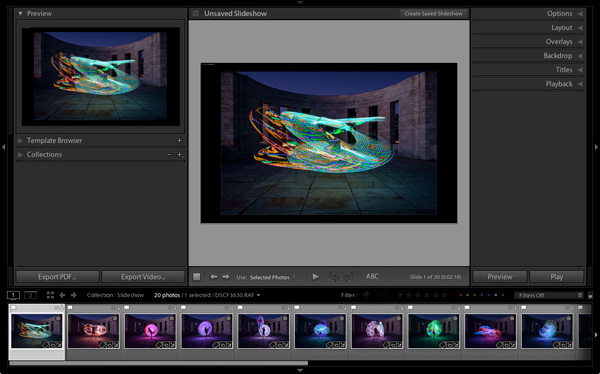
Click the Create Saved Slideshow button at the top of the Content window. When you do so, Lightroom creates a new Slideshow Collection which is placed (by default) inside the original Collection. From this point on, any changes you make to your slideshow are automatically saved, and you can’t lose them.
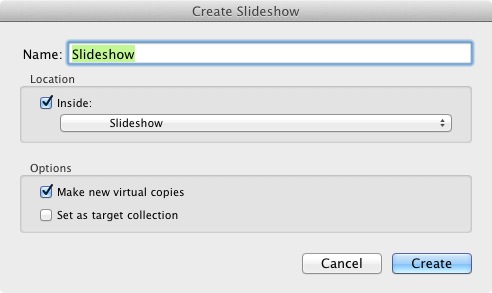
Give your slideshow a name in the Create Slideshow window, and decide where to save it using the drop-down menu under Location. If you tick the Make new virtual copies box you will be able to edit Virtual Copies in the Slideshow Collection without affecting the originals.
Identity Plates
If you have created a custom Identity Plate then you may see it displayed in the top-left corner of your slide show, as several of Lightroom’s slideshow templates incorporate Identity Plates in their layout.
You can move the Identity Plate by clicking and dragging, or enlarge it by clicking on, and dragging the white squares around the edge. Now is probably a good time to point out that there are two types of personalized Identity Plates in Lightroom – Graphical and Styled Text Identity Plates.
While Graphical Identity Plates have their uses (mainly as a picturesque alternative to Lightroom’s default Identity Plate) you can’t enlarge them beyond their native size of 400 x 57 pixels without pixelating the graphics, making them nearly useless for incorporating into slideshows. Styled Text Identity Plates are much better as Lightroom simply scales them to the required size without any pixelation.
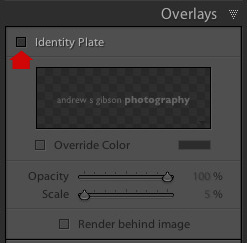
If you don’t want to include an Identity Plate in your slide show at all, go to the Overlays panel and untick the Identity Plate box. This is the simplest option, but if you wish you can create your own Styled Text Identity Plate by going to Lightroom > Identity Plate Setup (Mac) / Edit > Identity Plate (PC).
Previewing your slideshow
Opening the Slideshow module automatically creates a slideshow (yes, it’s as simple as that) and if you’re happy with the default settings you’re already done. To see what it looks like, click the Preview Slideshow button (the play icon) in the Toolbar. For maximum effect retract the top, bottom and side panels first (keyboard shortcut: Shift+Tab).
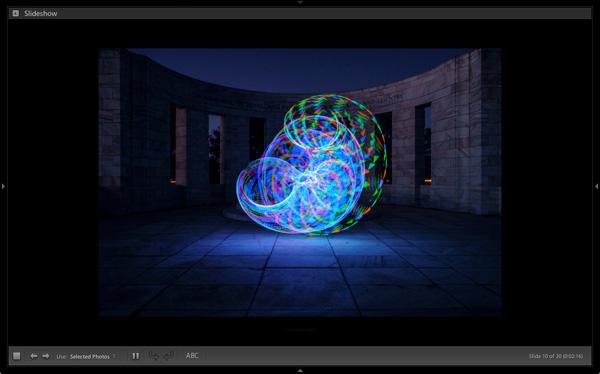
Customizing your slideshow
Now that you have seen the default slideshow in action, it’s time to take a look at how you can customize it.
The place to start is the Template Browser, located in the left-hand panels. There are five Lightroom Templates to choose from. They are fully customizable. The easiest way to design your slideshow is to choose the template that gets you closest to where you want to be, and then make the required adjustments from there.
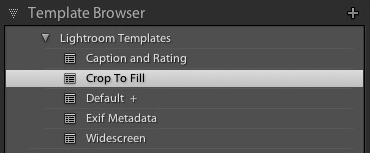
For my slide show I chose the Crop to Fill template, which expands (and crops) the photos in the slide show to fill the entire screen.
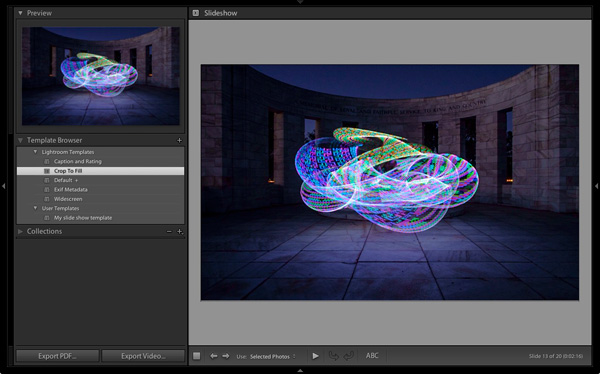
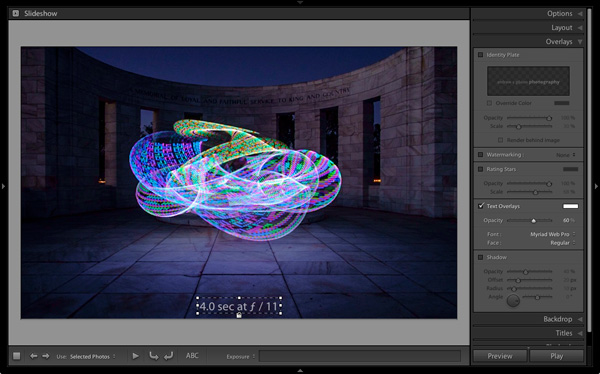
Most of the templates have Text Cells. If you don’t want a Text Cell to appear in your slide show, simply click on it and press the Delete (Mac) / Backspace (PC) key on the keyboard to remove it.
Alternatively, you can edit the content of the text box by clicking on the Text Cell, then going to the Custom Text menu in the Toolbar and select Edit. This opens the Text Template Editor, where you can select what will be displayed in the Text Cell.
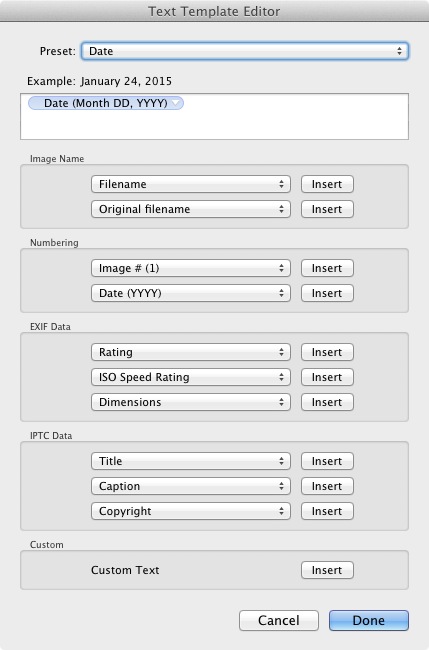
If you want to add a new Text Cell (for example, if you are using the Crop to Fill template, which has none) you can do so by clicking the ABC button in the Toolbar. Select Edit (or one of the presets) from the Custom Text menu. If you select Edit the Text Template Editor opens and you can choose what will appear in the Text Cell.
You can drag the Text Cell around the slideshow to position it, and adjust the size of the font by making the text box larger or smaller by dragging the corner or edge handles. Go to Text Overlays in the Overlays panel to set the font type, colour and opacity of the font in the active Text Cell.
Exporting slideshows
The easiest way to show someone a slideshow is to open Lightroom, go to the Slideshow Collection you wish to view and hit the Play button.
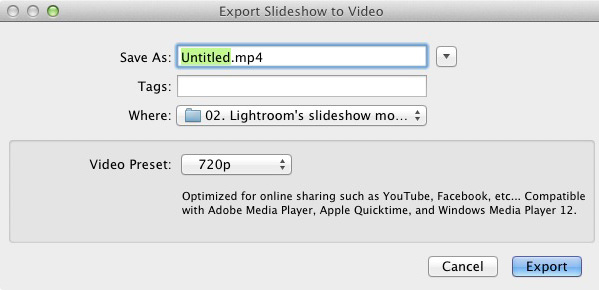
There are also times when you may need to export the slideshow in a format that is viewable by other people, such as a movie file. To do so, click the Export Video button underneath the left-hand panels. Exported videos are saved in the .MP4 format, which is compatible with many video players including Adobe Media Player, Apple Quicktime and Windows Media Player 12. The video includes music if it has has been added to the slideshow.
Conclusion
Hopefully this article has given you a good idea of what you can achieve in Lightroom’s Slideshow module. If you like what you’ve seen so far, take some time to explore the right hand panels, where you will discover more ways to customize the appearance of your slideshow.
What uses have you found for Lightroom’s Slideshow module? Is it powerful enough for your needs or do you prefer alternative software? Please let us know in the comments.
The Mastering Lightroom Collection
 My Mastering Lightroom ebooks will help you get the most out of Lightroom 4 and Lightroom 5. They cover every aspect of the software from the Library module through to creating beautiful images in the Develop module and making photo books and slide shows. Click the link to learn more or buy.
googletag.cmd.push(function() {
tablet_slots.push( googletag.defineSlot( “/1005424/_dPSv4_tab-all-article-bottom_(300×250)”, [300, 250], “pb-ad-78623” ).addService( googletag.pubads() ) ); } );googletag.cmd.push(function() {
mobile_slots.push( googletag.defineSlot( “/1005424/_dPSv4_mob-all-article-bottom_(300×250)”, [300, 250], “pb-ad-78158” ).addService( googletag.pubads() ) ); } );The post How to Create a Simple Slideshow in Lightroom by Andrew S. Gibson appeared first on Digital Photography School.
-
26. März 2015
Das Bild des Tages von: arianta

Im Ausblick: Ein Buchtipp, eine bunte Badewannen-Serie und etwas Fotografiegeschichte.
kwerfeldein – Fotografie Magazin | Fotocommunity -
Invisible Bicycles: Tokyo’s High-Tech Underground Bike Parking
[ By WebUrbanist in Technology & Vehicles & Mods. ]

Sufficiently advanced science has been said to look like magic, like this subterranean cycle storage system – except in this case images and videos give you a peak at the secret workings below the surface.

On the space-starved streets of Tokyo, every bit of spare square footage counts, making the city’s investment in this complex-seeming solution a sensible way to tackle bike storage and theft.


Users simply walk their bike up, input a card or code, and let the machinery do the rest. The bikes are then taken underground, sorted and stored in a cylindrical shaft until needed, then available at a moment’s notice – bikers can be back on their rides faster than a valet at a fancy hotel could bring a car around.

The Eco Cycle Anti-Seismic Underground Bicycle Park was designed and built by the engineers of Giken Seisakusho and can store up to 800 bicycles at a time. Its creators have also developed similar system designs that would work the same way but with cars.


The real wonder is not that it already exists in Japan, however, but that it has not been imported to other countries. There could be issues with water tables in certain cities, but the solution could also potentially be adapted to spaces like abandoned subway stations that already exist in others.
Want More? Click for Great Related Content on WebUrbanist:
Unstealable Bike: Theft-Proof Bicycle Frame Doubles as Lock
If you are sick of worrying about your bike being stolen or taking a lock with you wherever you go, this design will solve both of those every problems faced …
Click Here to Read More »»
The Charge Cycle: Bike-Powered Public Phone Charging Station
Soon, you’ll be able to charge your iPhone at strategic locations around New York City – but you’ll have to put in a little leg work.
Click Here to Read More »»

Abandoned Mine is Now World’s Largest Indoor BMX Bike Park
Boasting 5 miles of trails, ramps and obstacles, this cavernous subterranean space sits 100 feet underground and totals 320,000 square feet. The wide-open …
Click Here to Read More »»


[ By WebUrbanist in Technology & Vehicles & Mods. ]
[ WebUrbanist | Archives | Galleries | Privacy | TOS ]
-
On Assignment: I Got Rhythm

I have been photographing dancers for several years now as part of my affiliation with the local arts council. The results were catch-as-catch-can, mostly because of the limitations of flash recycle time, timing, and my not really knowing what to expect from them nor when to expect it.
But a little trick I tried last week changed everything.
Read more »
Strobist -
Get Surreal With Oil and Water Photos

Have you ever tried to mix oil and water? Fortunately it just doesn’t work.
“Wait,” you say. “Why is this fortunate?”
Well because, otherwise you wouldn’t get such fantastic-looking effects when you try to combine the two!
And once you get close (like macro close) then oil and water’s aversion to mingling will result in some seriously surreal photographs.
Excited yet? Good! ‘Cause we’re here to walk you through the five easy steps it takes to create these magical macro shots.
Simple Steps for Oil and Water Magic
(…)
Read the rest of Get Surreal With
Oil and Water Photos (418 words)
© Taylor for Photojojo, 2015. |
Permalink |
No comment |
Add to
Oil and Water Photos”>del.icio.us
Post tags:
-
In den Lavendelfeldern

Ein Beitrag von: Siréliss
Ich liebte die Lavendelfelder schon immer und als ich mit der Fotografie begann, war es selbstverständlich, dass ich in den Feldern fotografieren würde. Zunächst waren es sehr einfache Bilder der Blumen und der Landschaft. Dann begann ich mit Selbstportraits und Fine-Art Fotografie – natürlich wieder in meinen Lavendelfeldern.
kwerfeldein – Fotografie Magazin | Fotocommunity -
Ghost Rider: Disappearing Audi Billboard Made of Water Vapor
[ By Steph in Design & Guerilla Ads & Marketing. ]
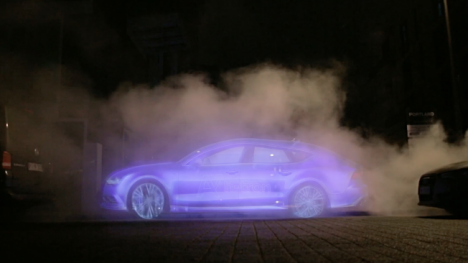
It’s a wonder nobody crashed their real cars doing a double-take at a glowing Audi that seems like an apparition, appearing in a fog and then disappearing just as quickly. German ad firm Thjnk came up with this ephemeral ad campaign for the hybrid-electric Audi A7 Sportback h-tron quattro to highlight the fact that nothing but water vapor comes out of its exhaust.
“We asked ourselves, where do you place ads for the most environmentally friendly and progressive engine Audi has ever built? Nowhere. So for the car that leaves nothing behind but vaporized water, we created ads that leave nothing behind but vaporized water.”
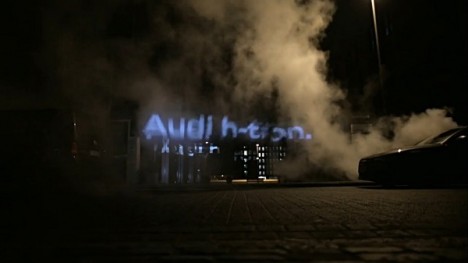
Though the agency doesn’t specify how the effect was achieved, it seems that an LED image is projected onto water vapor to get that ghostly look. The ads were placed in busy areas of big cities at night, flashing briefly and then vanishing.

Check out 300+ other creative advertising campaigns, from guerrilla marketing to controversial ads using revolting imagery and graphic content to hawk hand soap, nose trimmers and other products and services.
Want More? Click for Great Related Content on WebUrbanist:

Modified Water Bike: Inventor Commutes San Francisco Bay
Both the first person to bike across the San Francisco Bay and over the Hudson River is great, but being able to skip traffic jams and cycle to work over the …
Click Here to Read More »»

Billboard Trailers Turned into Tiny Parasite Apartments
Advertising is so ubiquitous that billboards aren’t even restricted to fixed positions anymore; they’re often found moving from one spot to another …
Click Here to Read More »»

15 Clever & Creative Billboard Advertising Campaigns
Some advertisers think outside the box – literally – with billboards that step outside their own boundaries and interact with the world at large.
Click Here to Read More »»
[ By Steph in Design & Guerilla Ads & Marketing. ]
[ WebUrbanist | Archives | Galleries | Privacy | TOS ]
-
University of Texas crowdfunding project will release macro images into public domain
The University of Texas has initiated a new crowdfunding campaign that, if successful, will result in macro photos of insects being released into the public domain. The funding for the project will be used to support the students learning to use the imaging system, to improve the photography hardware, and to help pay for the Web hosting. Read more
-
Reikan announces major update to FoCal AF tuning software
Reikan has announced a major update to its AF tuning software, FoCal. FoCal automates the process of calibrating your lens to your DSLR camera body, important – if not absolutely necessary – for critical focus when using fast lenses that yield shallow depth-of-field. Version 2 introduces the ability to check your copy of a lens against other users’ test results. Read more
