RSS
 

Archive for February, 2015

Royal Photographic Society announces medals touring exhibition for International Members’ Biennial competition

01 Feb

The results of the Royal Photographic Society’s International Member’s competition have been announced after judges selected 100 images for a touring exhibition from almost 3300 entries. The competition, which is held every other year, attracted RPS members from 16 countries, and was won by UK photographer Steve Jones for his shot, Joie de Vivre, of a young and prancing Lustitano stallion on a French stud farm. See winners

Articles: Digital Photography Review (dpreview.com)

 
Comments Off on Royal Photographic Society announces medals touring exhibition for International Members’ Biennial competition

Posted in Uncategorized


How to Use the Text Tool in Photoshop

01 Feb

royal-albert

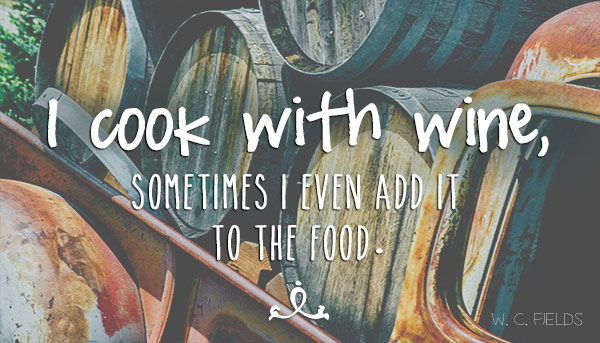
There are  many reasons that you might want to add words over your images. Text on photos makes great promotional items such as postcards; you can create your own social media messages with quotes or inspirational  sayings; and you can add your name or your website URL. I’m sure that once you understand all the creative options for adding text, you’ll come up with hundreds of other things you can create with your photos.

This article will guide you through the many ways you can work with text in Photoshop to create beautiful and eye-catching messages with your photos.

Basic Text Tools

It may seem like a pretty simple topic, but Photoshop has a really versatile selection of tools for working with text. Like so may other Photoshop goodies though, some of the best ones aren’t really obvious. So, in this section you’ll learn the various ways to add, adjust, and work with text.

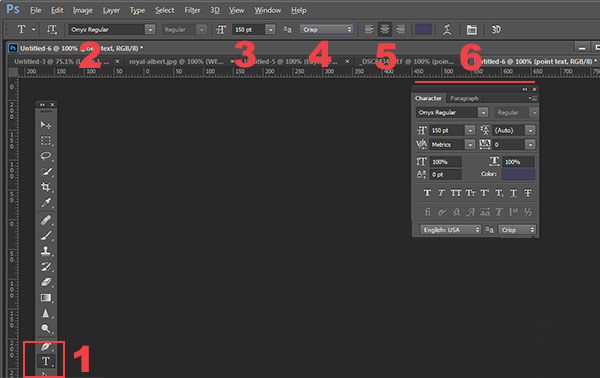
Here are the basic text tools in Photoshop:

tools_

  • When you click the Text Tool in the Tools Palette (#1), the context menu on top will display most of your text tools.
  • #2 Select your font  (the typeface ), font style, bold, italic, etc.
  • #3 Font size (TIP: you can type any number in here, you’re not limited to the numbers that are displayed so your text can be ANY size you like – type 500 into this space and see what happens!)
  • #4 Anti-aliasing options
  • #5 Alignment of the text
  • #6 Text adjustments pop out

There are a few more tools in here but we’ll talk about them later. So now that you know the lay of the land, lets add some text and play with it.

Playing with Text

There are 2 ways of adding text, and it’s critical that you know when to use one way, and when to choose the other.  The first way is how most people use text, by using what is called the Point text tool. You simply click on the Text Tool in the tools palette, click back on your image and start typing. The second way is to use Paragraph Text. Let’s try both.

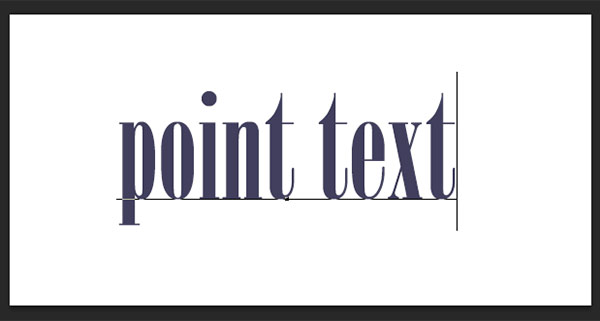
Open a new document in Photoshop, and click on the Text tool (keyboard shortcut = T). Start typing. you’ll see something like this:

point-text

Your text will have an underline and a cursor will show where you are inserting the next letter.  If you keep typing, the text will continue along in one long single line. To get text on a new line you have to hit ENTER. You have just created text using the POINT TEXT tool. Save this and call it “point text.”

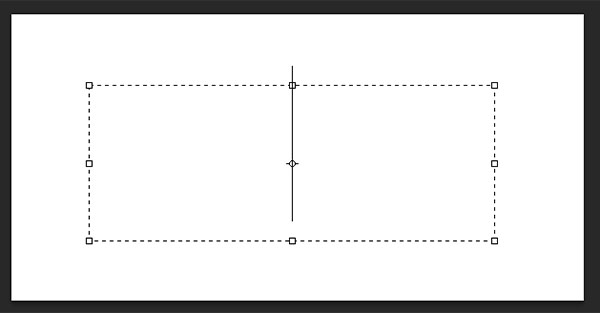
Open another document, click on the Text tool if it’s not already clicked, now take the text tool and DRAG it out to make a rectangle. You should see something like this.

paragraph-text-box

paragraph-text

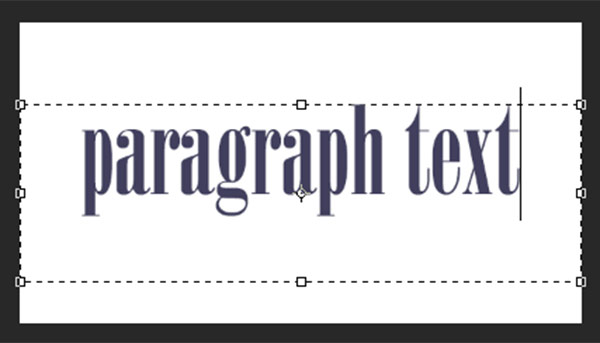
Go ahead and type. Type a lot of text. See how the text is constrained by the size of the box? This is Paragraph text. You can grab the text box handles (the little boxes on the middles and corners) to define the size of the area in which you want the text to appear. You can see this is great for larger areas of text. Because you can change the size of the text box, you have great flexibility using paragraph text.

You can use the MOVE tool to position the entire block of text anywhere on your page.

Paragraph text is also easier to center on your page. To center your text, just grab one of the handles and drag it to the right edge of your page. Drag the left box to the left edge of your page, then up in the context menu, click the CENTER text icon where number 5 is on the diagram above. It’s a little miracle! Your text is now precisely centered horizontally on your document. No more guessing.

Transforming letters in text

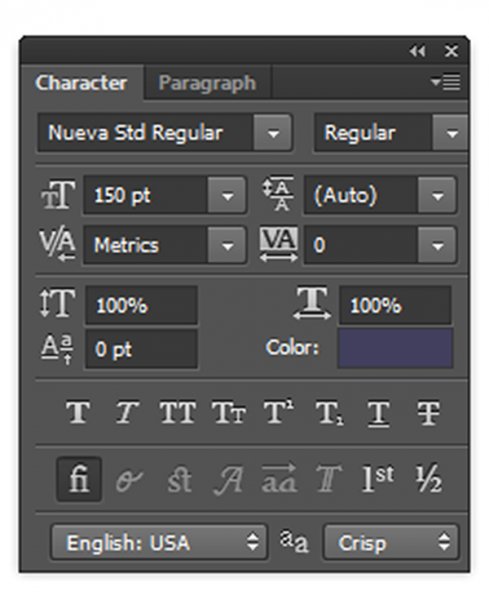
To give your text variety, you can also change the spacing of the individual letters, the height of the letters, and the width of letters. You can also instantly change a block of upper case text to lowercase, and vice versa. Sometimes the font you are using might be missing the italic version. You can create faux italic in Photoshop. So let’s explore the Text Character pop up box where you can try out all the nifty tricks.box

You’ll find this box in the context menu – so make sure you have your Text Tool selected, and look where number 6 is in the diagram above. Click the icon that looks like a sheet of paper (above the #6 above). This will open the Character Transform panel.  If you’re editing Point text, your text layer needs to be selected for these edits to work. If you’re using Paragraph text, you’ll need to select the text you want to transform. So, choose your text, and try going through all these options. Hovering over an item will cause a tool tip to pop up that gives you a brief explanation of what each does.

Transforming blocks of text

You can easily create attention-grabbing text by angling or slanting it. With your text layer or text selected, go to the main menu, and select EDIT>Transform>Skew. Grab a handle one of the corners and drag. You should see something like this:

skew

You can do the same with Edit>Transform>Scale and Edit>Transform>Rotate. Easy peasy!

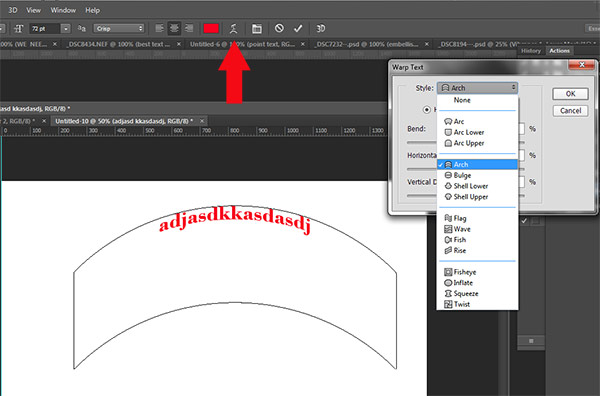
To make text follow a curve, use the Warp Text tool (select the text tool in the tools palette and look between 5 and 6 on the context menu – it looks like the letter T with a curve underneath).

Create some text, and  make sure you are on the text layer. Click the Warp Text Tool to open the section popup box. Here you can select what type of shape to give your text, it’s so easy!

warp-tool


Three simple ways to make text really pop

Sometimes when you add text to a photo it can get a bit lost in the image. Even if you make it larger it just doesn’t seem to be crisp or clear. There are a few options:

A) It may be your anti-aliasing settings, #4 on the top context menu. Make sure this drop down is NOT set to None. This is particularly important on images that you will be using online. Select any of the other options and see how they change the edges of the text. These chooses are personal preferences, as to what type of smoothing look you prefer.drop

B) It may be your choice of colors. Often white works best as it has a clean, elegant look. But it’s easy for white text to get lost in the details of the image. Here’s an old web designer’s trick to make light colored text really pop. Add a drop shadow of black. But not just any random drop shadow. This one will be almost invisible but the subtle punch it adds is tremendous. Here’s how:

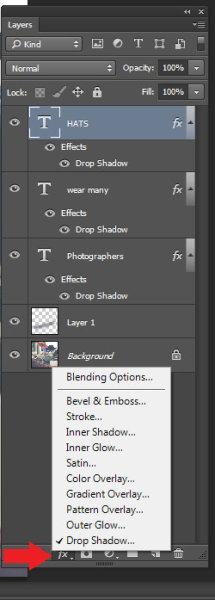
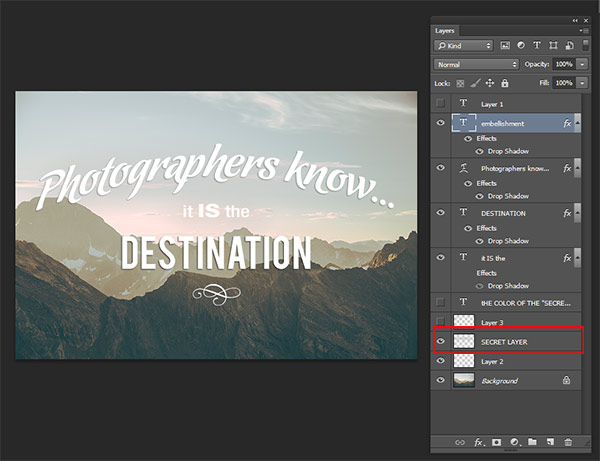
First select the text layer you want the drop shadow on. Go to your layers palette and select the Layer FX icon at the bottom, then select Drop Shadow.

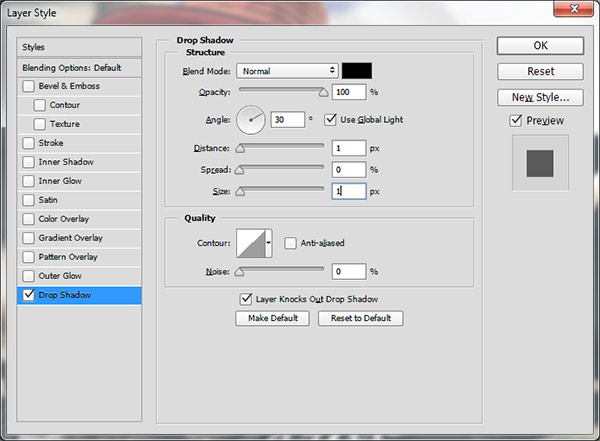
In the Drop Shadow dialog box make your drop shadow with these settings. If you are working on a high res image from print, change the shadow size from 1 to 10. You may need to adjust these setting depending on the size of your image, just make sure they are both the same number.

drop2

See how the white text pops in this image even though the image is all soft shades? No cheesy 1990’s drop shadows here.  It gives just enough edge separation and dimension to make the text obvious, without being obnoxious.

_DSC8453---W

C) Finally, another text popping trick from the graphic design world  – add a “secret” layer behind your text and use layer blending modes to darken it down just a bit, to give your text a darker background for more contrast.

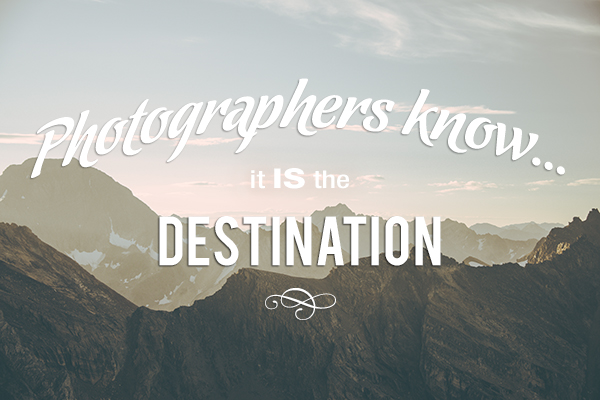
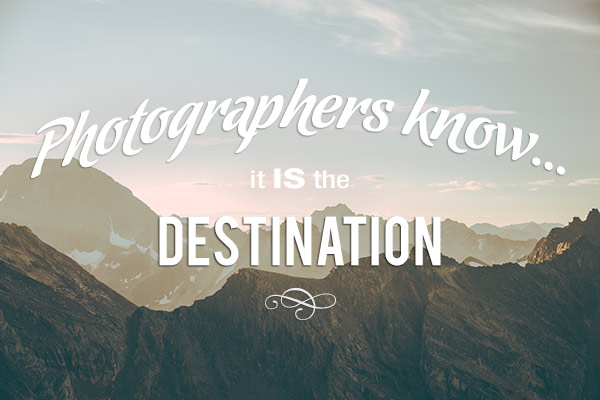
In the example below, you want to get rid of the clouds behind the text, and make the sky just a touch darker to make the text stand out more.   Select a soft-edged brush, and use the eye-dropper tool to select a mid-tone brush color – in this image I selected the sky just above the “P”. Make the brush diameter equal to the height of the letters. Now add a new layer between the photo and your text, this is your secret layer, and just brush over the text – which will really be under the text as your layer is “under” the text. Change the blending mode to Darker Color or Darken ( this will depend on the color you’re using) and then you can adjust the layer’s opacity to suit.

secret-layer

_DSC7232--

Text before the secret layer. 

With the secret layer added.

With the secret layer added.

Text embellishments and decorations

One of the most common questions I get asked about text on photos is how did I make the swooshes and swirly decorations and embellishments. These in most cases are simply fonts that are decorations rather than letters. There are hundreds of free fonts like this. Here’s one place you can get started: Embellishment fonts.  Be sure to check the licensing restrictions on free fonts  – some require payment or donations if you are selling your images.

_DSC8194---

So there you go – the basics of adding creative text you your photographs. You can now elegantly add messages, taglines, quotes, and verses to your images. You can make text grab your viewers’ attention by  placing it at an angle or on a curve; you can make it really stand out by using a few simple techniques, and you can add interest and artistic flair by adding embellishments and decorations. Unleash your inner graphic artist – you have the technology!

Give it a try – I’d love to see what kinds of messages you add to your images!

googletag.cmd.push(function() {
tablet_slots.push( googletag.defineSlot( “/1005424/_dPSv4_tab-all-article-bottom_(300×250)”, [300, 250], “pb-ad-78623” ).addService( googletag.pubads() ) ); } );

googletag.cmd.push(function() {
mobile_slots.push( googletag.defineSlot( “/1005424/_dPSv4_mob-all-article-bottom_(300×250)”, [300, 250], “pb-ad-78158” ).addService( googletag.pubads() ) ); } );

The post How to Use the Text Tool in Photoshop by Alex Morrison appeared first on Digital Photography School.


Digital Photography School

 
Comments Off on How to Use the Text Tool in Photoshop

Posted in Photography


Die 5 Fotobücher des Monats

01 Feb

Ein Stapel Foto-Bücher und Bände sitzen auf einem älteren Sessel.

Wenn ich etwas liebe, dann ist es die Fotografie. Doch die Liebe wäre nur halb so stark, gäbe es keine Fotobücher. Diese klobigen, sperrigen und oft schweren Teile, die in der immer papierloseren Welt oft nur im Weg stehen, geben mir so viel.

Ich halte sie gern in der Hand, schließe die Augen und rieche daran. Lausche dem leisen Zupfen der Blätter, wenn ich sie unter meinem Daumen durchfallen lasse. Vor diesen Werken habe ich Respekt, denn ich weiß, dass darin vor allem eines steckt: Harte Arbeit.

Mein Blick über die Neuerscheinungen des Fotobuchmarktes hatte es in den letzten vier Wochen leicht, denn viele an der Zahl waren es nicht. Und trotzdem fand ich fünf Bände, die mein Fotografenherz höher schlagen lassen (mein Gott klingt das kitschig).


Ein altes Ehepaar liegt sich in den Armen.

1. The Lovers*

Liebe hält meistens nicht sehr lange – ein Großteil aller (Ehe-)Paare geht nach kurzer oder langer Zeit wieder getrennte Wege. Vielleicht ist das auch der Grund, warum wir die Menschen so beneiden, die es geschafft haben, gemeinsam alt zu werden – und sich immer noch lieben.

Als die in England lebende Fotografin Lauren Fleishman alte Liebesbriefe ihres Großvaters an die Großmutter fand, die er während des Zweiten Weltkriegs verschickt hatte, war sie betroffen. Für Fleishman war dies eine Begegnung mit ihrem Großvater, mit der sie nicht gerechnet hatte. Sie beschloss, das Thema anzugehen und verbrachte die nächsten sechs Jahre damit, glückliche alte Paare zu fotografieren.

Im Nachrichten-Magazin The Telegraph verriet die Fotografin, worauf sie beim Fotografieren achtete: Fleishman war es nicht wichtig, die Paare gemäß ihres Alters, sondern gemäß ihrer Liebe zu fotografieren. Und zwar so, wie Mann und Frau sich selbst rezipierten.

Der Bildband „The Lovers“ ist mit seinen 176 Seiten demnach nicht nur ein Manifest der Liebe, sondern auch der Treue.

Informationen zum Buch

Veröffentlichung: Januar 2015
Gebundene Ausgabe: 176 Seiten
Verlag: Schilt Publishing
Größe: 22,9 x 17,8 cm
Preis: 35,62 €


Vier Kinder stehen auf einem Feld.

2. Lindsay Morris: You are YOU*

Ein Ausdruck der Liebe und Annahme ist auch „You are YOU“ der Fotografin Lindsay Morris, die in Zusammenarbeit mit Kehrer eine Kickstarter-Initiative initiierte, um die Produktion eines Bildbandes zu ermöglichen, der sich mit geschlechtsvarianten Kindern beschäftigt.

Morris besuchte die Kinder auf einem Sommercamp, das dem Thema der geschlechtlichen Freiheit gewidmet war. Dort blühten die Kinder in der von Akzeptanz geprägten Umgebung auf, ohne Angst vor Mobbing haben zu müssen.

Der Bildband enthält 82 Farbabbildungen eines liebevollen Projekts, mit dem die Fotografin ein bis heute in vielen Teilen der Welt als Tabu behandeltes Thema besprechen und zur Auseinandersetzung damit einladen möchte.

Was an „You are YOU“ so spannend ist, hat mit dem Alter der jungen Menschen zu tun, womit sich das Projekt deutlich von anderen abhebt. Über Transgender-Erwachsene wird heute oft berichtet, aber bereits Kinder erleben sich häufig anders, als es von ihnen stillschweigend erwartet wird.

So wirbt die Fotografin mit dem erfolgreich gecrowdfundeten Band vor allem für eines: Verständnis für geschlechtsvariante Kinder als Teil unserer Gesellschaft.

Informationen zum Buch

Veröffentlichung: Januar 2015
Gebundene Ausgabe: 122 Seiten
Verlag: KEHRER Heidelberg
Größe: 28,6 x 1,7 x 28,7 cm
Preis: 39,90 €


Cover des Buchtitels

3. Small Things in Silence*

Für die Freunde des Minimalistischen wird dieser Blickfang eine wahre Freude sein: Masao Yamamoto, einer der bedeutendsten Fotografen Japans veröffentlicht mit „Small Thinks in Silence“ ein zusammenfassendes Werk seiner bisherigen Arbeit.

Die Bildsprache Yamamotos erstreckt sich im Rahmen des monochromem Sepias vom Aktportraits über Landschaften bis hin zur Tierfotografie. Jedoch bedient sich der Künstler nie gängiger Kompositionen, Ausdrucksmöglichkeiten oder Techniken.

Yamamoto ist bekannt dafür, Malerei und Fotografie miteinander zu vermischen, indem er selbst entwickelte Drucktechniken (er färbt seine Bilder unter anderem mit Tee) einsetzt. Das Ergebnis ist eine höchst delikate Angelegenheit, die, wie Yamanoto sagt, Erinnerungen hervorrufen soll.

Informationen zum Buch

Veröffentlichung: 28. Februar 2015 (schon lieferbar)
Gebundene Ausgabe: 144 Seiten
Verlag: Editorial RM
Größe: 25,1 x 2,2 x 31 cm
Preis: 38,95 €


Eine Frau sitzt mit einem Jungen am Tisch und isst.

4. Bruce Davidson: In Color*

Wenn es einen Straßenfotografen gibt, der mich 2013 mit seinem eigenwilligen Stil erreicht hat, dann ist es Bruce Davidson. Selten hat mich ein Buch so „geplättet“ wie sein unerreichtes Werk „Subway“.

Davidson, Magnum-Fotograf und 81 Jahre alt ist kein bisschen müde geworden. Nun publizierte er mit Gerhard Steidl eine Art Retrospektive seiner Arbeiten in Farbe. Das 29 x 29 cm große Prachtstück enthält unbekanntere Farbfotografien aus 65 Jahren fotografischer Arbeit, die jedoch für den Werdegang von Davidson prägend und entscheidend waren – und immer noch sind.

„Schwarzweiß ist meine Frau, Farbe sind meine Kinder“, sagte Davidson 2014 in einem Interview zu dieser Publiaktion – und machte seine komplexe Beziehung zu beiden Ausdrucksformen deutlich.

Die 263 Seiten und die Größe des Buches sprechen eine deutliche Sprache: Nein, „Bruce Davidson: In Color“ ist kein Heftchen, das einmal durchgeblättert im Schrank verstauben wird. Es wird schwer sein und alle beeindrucken, die den Davidsonschen Stil mögen. Dringende Empfehlung.

Informationen zum Buch

Veröffentlichung: 31. Januar 2015
Gebundene Ausgabe: 263 Seiten
Verlag: Steidl Verlag
Größe: 2,5 x 30,5 x 29,8 cm
Preis: 67,46 €


Zwei Hände fassen ein Buch mit einem Auge darauf.

5. Ed Templeton: Wayward Cognitions*

Schon vor Monaten wurde ich von meinem Bürokollegen Mitch auf den professionellen Skater, „der auch ein richtig guter Fotograf ist“, aufmerksam gemacht: Ed Templeton. Mit „Wayward Cognitions“ präsentiert dieser nicht seine erste Publikation.

Der Band enthält wichtige Aufnahmen aus einer Zeitspanne von über 20 Jahren, die Templeton selbst entwickelt hat. Und nicht nur das: Auch das Gesamtkonzept und Design hat der ’72 in Kalifornien geborene Skater übernommen. Wie sagt man dazu? Ein Styler durch und durch.

Auf 160 Seiten präsentiert Templeton nun sein fotografisches Werk, das von der Spontaneität und der Achtsamkeit des Fotografen im Alltag lebt. „Wayward Cognition“ kommt dabei ganz ohne erklärende Bildunterschriften aus und appeliert so an die Fantasie der Betrachter.

Informationen zum Buch

Veröffentlichung: 31. Dezember 2014
Gebundene Ausgabe: 160 Seiten
Verlag: Um Yeah Press
Größe: 2,5 x 21 x 27,9 cm
Preis: 33,17 €


Habe ich einen Band vergessen? Welcher der fünf hat es Euch angetan? Oder wollt Ihr etwa gleich alle haben? Erzählt es mir.


kwerfeldein – Fotografie Magazin | Fotocommunity
 
Comments Off on Die 5 Fotobücher des Monats

Posted in Equipment


3 Principles of Light Behaviour Every Photographer Needs to Know

01 Feb

In this short video by Ed Vorosky he covers three rules about the behaviour of light. When you understand these principles you can then use them better in your photography.

  1. Light travels in straight lines
  2. The subject receives less light as the distance to the light source is increased
  3. The larger the light source relative to the subject, the softer the light source

Watch the video for a more detailed description and demonstration of each:

So what does that mean for your photography? How can you use this information in practice?

googletag.cmd.push(function() {
tablet_slots.push( googletag.defineSlot( “/1005424/_dPSv4_tab-all-article-bottom_(300×250)”, [300, 250], “pb-ad-78623” ).addService( googletag.pubads() ) ); } );

googletag.cmd.push(function() {
mobile_slots.push( googletag.defineSlot( “/1005424/_dPSv4_mob-all-article-bottom_(300×250)”, [300, 250], “pb-ad-78158” ).addService( googletag.pubads() ) ); } );

The post 3 Principles of Light Behaviour Every Photographer Needs to Know by Darlene Hildebrandt appeared first on Digital Photography School.


Digital Photography School

 
Comments Off on 3 Principles of Light Behaviour Every Photographer Needs to Know

Posted in Photography