RSS
 

Archive for December, 2014

How to Create a 2015 Calendar in the Lightroom Print Module

23 Dec

Create a calendar in the Lightroom Print module

The Lightroom Print module is a great tool for creating print layouts, but one thing it is not designed to do is make calendars (hopefully Adobe will introduce this feature in future versions of Lightroom). Luckily, in spite of that it is not too difficult to create a calendar once you know how, and you are prepared to put the work in to create the month and day parts of the calendar.

Or – you can let someone else do all the hard work. That somebody is photographer Ed Weaver, who has created some Print module calendar templates that anybody can download from his website for free.

Ed updates the templates every year, and has recently added templates for 2015. There are two versions, one with the week starting on Sunday, and the other with it starting on Monday. Just select the one that is appropriate for your part of the world (the links are at the bottom of the web page) and download the files.

The download includes a set of calendar graphics and Lightroom Print Templates, along with instructions. All you have to do is import the calendar images into the Lightroom Catalog and add the Print Templates to the Print module. It only takes a few minutes and you’re ready to go.

Creating a calendar

Follow these instructions to make your first calendar using Ed’s templates.

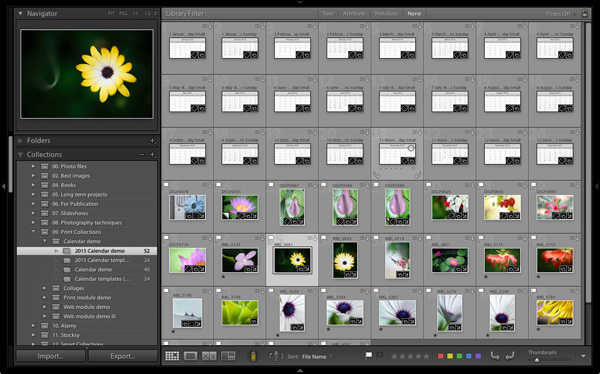
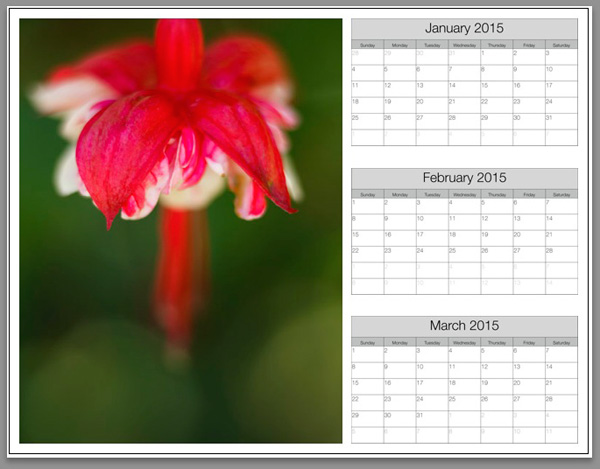
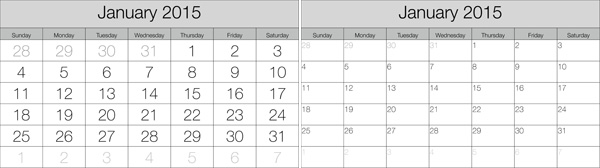
1. Open the folder containing the templates you want to use. Import the JPEGs into Lightroom. There are two JPEGs for every month in 2015, one with large numbers, the other with small numbers (see below), giving 24 in total.

Create a calendar in the Lightroom Print module

2. Go to the Library module and create a Collection for the calendar. Add both the calendar JPEGs you just imported plus any photos you may wish to use in the calendar.

Create a calendar in the Lightroom Print module

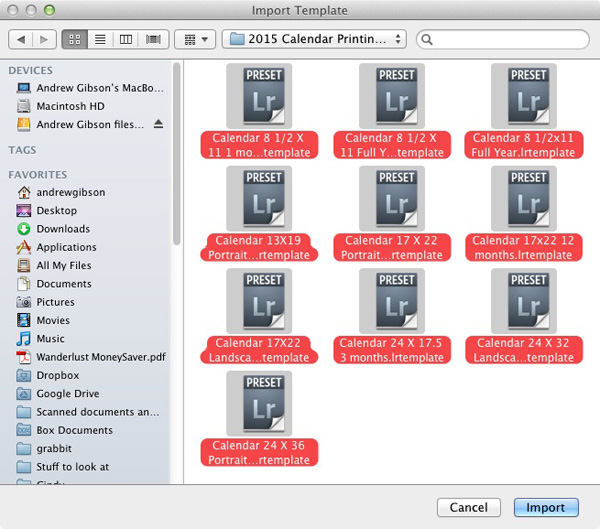
3. Go to Lightroom’s Print module, then select Print > New Template Folder from the menu. Give the folder an appropriate name (i.e. 2015 Calendar). Right-click on the folder name and select Import. Navigate to the folder where Ed’s calendar templates are stored, select them all and click the Import button.

Create a calendar in the Lightroom Print module

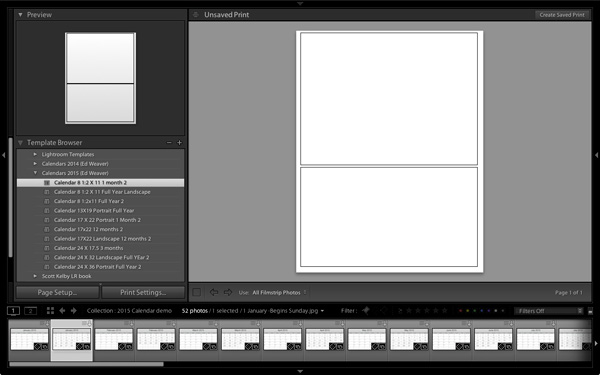
4. Open the Template Folder you just created. There are ten templates to choose from. When you click on a template, Lightroom displays it in the Content window (see below). The templates use the Custom Package layout style, which means that Lightroom doesn’t add photos to the layout automatically. Instead, you have to do it yourself by dragging the photos from the Filmstrip.

Create a calendar in the Lightroom Print module

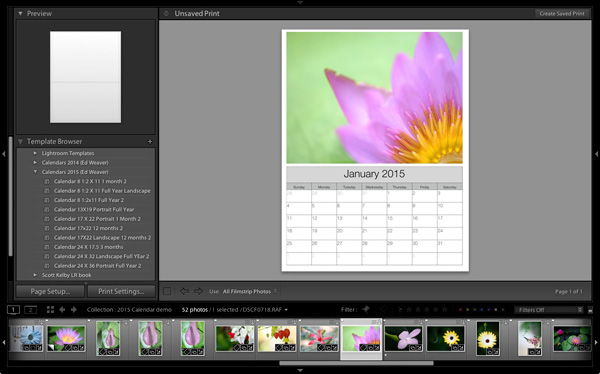
5. Drag photos and calendar templates as needed from the Filmstrip to create your calendar. With this template, you need just one of each.

Create a calendar in the Lightroom Print module

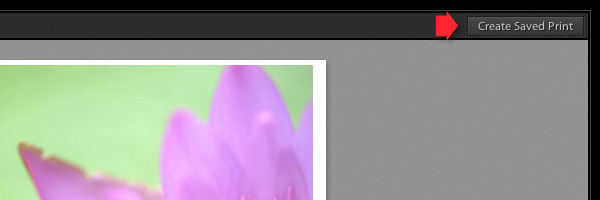
6. Click the Create Saved Print button in the top right corner of the Content window (see below). Give the print a name in the Create Print window and click the Create button. Lightroom creates a Print Collection (marked by a printer icon in the Collections panel) containing only the images used in the print. Now you can leave the Print module and return to your print at any time without losing any changes.

Create a calendar in the Lightroom Print module

7. Repeat for the rest of the months in the year, and you have a complete calendar.

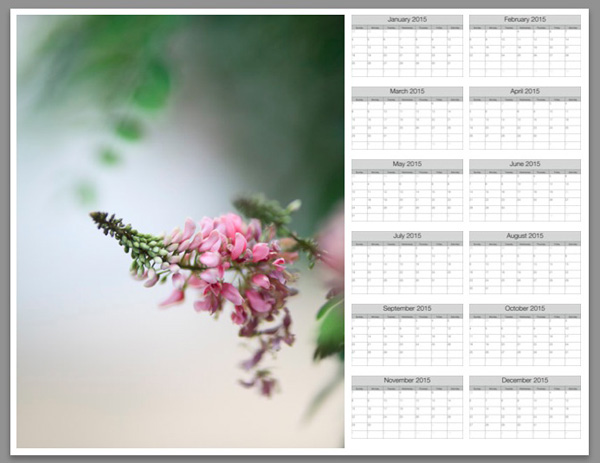
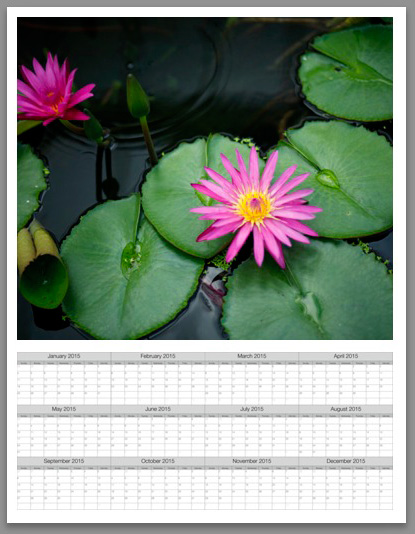
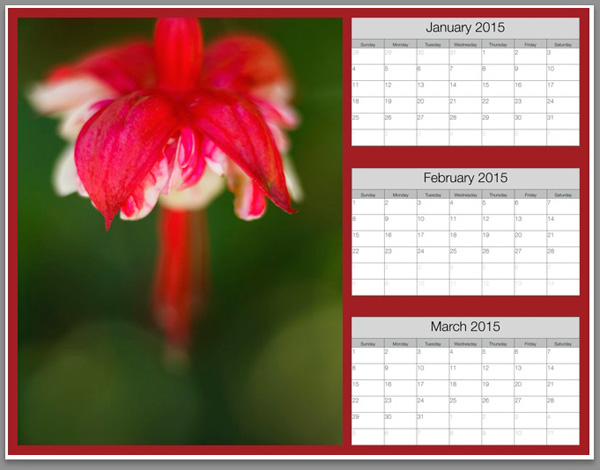
Here are some examples using some of the other templates:

Create a calendar in the Lightroom Print module


Create a calendar in the Lightroom Print module


Create a calendar in the Lightroom Print module

Modifying template files

Ed’s templates are great, but there is no easy way to change the colours, fonts, or any other aspect of the design of the JPEG files, at least not in Lightroom. If you want to change the style, you should open the files in Photoshop or Photoshop Elements. Using layers, it is relatively straightforward to replace the font Ed used with that of your own choice, or change the colours. Of course, you could also start completely from scratch and create your calendar files to use with Ed’s templates.

Changing background colour

Create a calendar in the Lightroom Print module

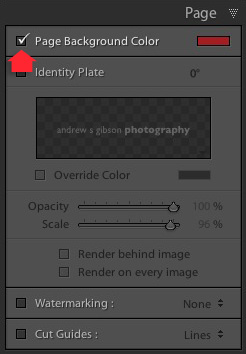
You can change the background colour of the calendar from its default white by going to the Page panel and ticking the Page Background Color box. Click the swatch on the right to choose a colour. Just bear in mind that adding a background colour uses more ink if you print the calendar on an inkjet printer.

Create a calendar in the Lightroom Print module


Mastering Lightroom: Book Five – The Other Modules ebook coverMastering Lightroom: Book Five – The Other Modules

My new ebook Mastering Lightroom: Book Five – The Other Modules shows you how to use Lightroom’s powerful features to create fun and interesting projects using the Map, Book, Slide show, Print and Web modules. Whether it’s geotagging, putting together a photo book, printing your best photos or creating web galleries all the information (and inspiration) you require is right here.


googletag.cmd.push(function() {
tablet_slots.push( googletag.defineSlot( “/1005424/_dPSv4_tab-all-article-bottom_(300×250)”, [300, 250], “pb-ad-78623” ).addService( googletag.pubads() ) ); } );

googletag.cmd.push(function() {
mobile_slots.push( googletag.defineSlot( “/1005424/_dPSv4_mob-all-article-bottom_(300×250)”, [300, 250], “pb-ad-78158” ).addService( googletag.pubads() ) ); } );

The post How to Create a 2015 Calendar in the Lightroom Print Module by Andrew S. Gibson appeared first on Digital Photography School.


Digital Photography School

 
Comments Off on How to Create a 2015 Calendar in the Lightroom Print Module

Posted in Photography


23 December, 2014 – Happy Holidays From Luminous-Landscape

23 Dec


Happy Holidays

It’s been a fun year at Luminous-Landscape.  The team has expanded with the addition of Kevin and a lot has been accomplished.  All of us at LuLa want to say Thank You for continuing to visit our site.  We also want to extend the best wishes for a Happy Holiday Season.  We hope you find time for family, friends and a bit of relaxation over the coming days.  Of course for many of us that will be taking photographs and enjoying some time at the computer working on images.  No matter how you spend your Holiday, enjoy it.

Luminous-Landscape is working hard on a number of projects for 2015 and we will be sharing these soon.  We are very excited about the direction we are headed and we’re sure you’ll share in that excitement.  Stay tuned.

From . . . Michael Reichmann, Chris Sanderson and Kevin Raber . . . . Enjoy!


The Luminous Landscape – What’s New

 
Comments Off on 23 December, 2014 – Happy Holidays From Luminous-Landscape

Posted in News


Ich sehe was, was du nicht siehst

23 Dec

Artikebild Manueal Tanner

Ein Foto ist erst ein Bild, wenn es jemand anschaut, sagte mal ein weiser Mann. Viele Bilder sehen wir oft nicht, weil sie in Alben stecken oder auf Festplatten versauern. Andere Bilder wiederum, die im Netz veröffentlicht werden, damit sie gesehen werden, werden nicht gesehen, weil sie sekündlich durch andere Bilder wieder verdeckt werden.

Unsere Ausblick-Gruppe ist mir daher ein wichtiges Werkzeug, um Bilder zu sehen, die mir sonst verborgen bleiben. Und hin und wieder erstaunt mich ein Bild so sehr, dass ich mehr wissen will.

So war es auch bei einem Bild von Manueal Tanner. Ich schaute mir seinen Stream auf Flickr an und fand mich in einer diffusen Gefühlswelt wieder. Irgendetwas an seiner Bildsprache fasste mir direkt in meine Vergangenheit. Als ich noch jung und stürmisch und schwer in Sophie Marceau verschossen war. Ich schaute mir damals fast alle ihre Filme an, ich sage nur „La Boum – Die Fete“.

Und seine Bilder formten in mir wieder diese unbeschwerte Leichtigkeit des Entdeckens, wie es damals nur französische Filme schafften. Aber schaut einfach selbst:

Eine schlafende Frau auf einem Kissen.

Ein Mann auf Asphalt, der Kopf ist nicht zu sehen.

Eine Frau, ein Mann, eine Straße, en Feuer.

Eine nackte Frau im Abendlicht.

In einem Zimmer stehen zwei Sühle an einer Wand.

Papierhandtücher aufgefächert liegen sie da.

Eine Frau in schwarzweiss schaut direkt in die Kamera.

Aus der Vogelperspektive ehen wir Menschen.

Ein Selbstportrait in einem Spiegel.

Licht, Häuser und blauer Himmel.

Licht und Schränke.

Ein Mann in Seitenansicht und einer Sonnenbrille auf.

Eine Frau schaut direkt in die Kamera und lächelt.

Manuel Tanner fotografiert gern auf Film und Fotos sind für ihn Erinnerungen, die er gern mit anderen teilt. Früher schaute er sich gerne Dias an der Wand an, heute nimmt er seine Kamera mit auf Reisen. Sein Vater zeigte ihm damals, wie man den ersten Film in die Kamera einlegt. Für ihn steckt noch immer Magie darin. Die hier gezeigten Bilder sind in den letzten zwei Jahren in Berlin, Kopenhagen und dem Iran entstanden.


kwerfeldein – Fotografie Magazin | Fotocommunity

 
Comments Off on Ich sehe was, was du nicht siehst

Posted in Equipment


23. Türchen: Sigma

23 Dec

Sigma dp2

23. Türchen

Es ist noch nicht Weihnachten, auch wenn unser Türchen so einen tollen Gewinn enthält. Also keine Panik, noch habt Ihr etwas Zeit, die letzten Geschenke zu besorgen. Davor solltet Ihr aber auch an Euch denken und die heutige Chance auf die dp2 quattro von Sigma wahrnehmen. Eine neue Generation von Kompaktkamera.

Zusammen mit der Sigma-eigenen Bildverarbeitungstechnologie erzeugt ein einzigartiger Direktbildsensor eine unglaubliche Auflösung, exakte Tonwertabstufungen, wunderschöne Farben und atemberaubenden Realismus mit räumlichen Charakter. Und auch äußerlich ist diese Kamera sehr beeindruckend.

Sigma dp2

Die dp-Serie von Sigma umfasst drei Festbrennweiten-Kameras. Jede besitzt eine andere feste Brennweite für verschiedene elementare Fotogebiete. Die in unserem Türchen liegende dp2 Quattro kommt mit einem 30-mm-Objektiv. Alle technischen Details dieser Kamera findet Ihr hier. Sie hat einen Wert von 999 €.

Um die Kamera zu gewinnen, schreibe einen Kommentar unter bürgerlichem Namen und gültiger E-Mail-Adresse bis heute um 24 Uhr. Danach verlosen wir sie per Zufallsgenerator unter allen Kommentatoren. Die genauen Gewinnspielregeln findest Du hier. Viel Glück!


kwerfeldein – Fotografie Magazin | Fotocommunity

 
Comments Off on 23. Türchen: Sigma

Posted in Equipment


How to Learn Your Camera’s Light Meter and Master Manual Mode

23 Dec

Most cameras have a few different shooting modes such as Automatic, Aperture Priority (A or Av), Shutter Priority (S or Tv), and Program. It’s not uncommon for people to take a majority of their photos in Automatic mode since it generally does a good job of getting decent results, though more advanced photographers will often use Aperture or Shutter Priority. Shooting in Manual, however, might seem intimidating and highly complex but once you understand a few basics it starts to make a lot more sense. Certainly you should have a working understanding of the three components of the exposure triangle: shutter, aperture, and ISO.

But in order to get the most out of your camera you will need to know how to use a simple, but incredibly powerful, tool that functions as the glue that binds everything together: the light meter.
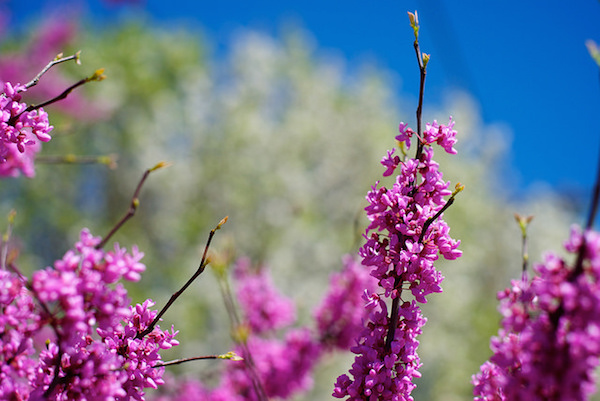
purple-flowers

Nestled quietly at the bottom of your camera’s viewfinder or Live View display is a small block of lines or bullets accompanied by a few numbers. You might also have noticed a little triangle moving back and forth, or some vertical hash marks appearing and disappearing from time to time, in a fashion that seems nonsensical or completely random. If these numbers and symbols make no sense at all, don’t worry, you are not alone. It can be a bit confusing to understand the light meter at first. But once you get the fundamentals you will probably find yourself growing much more confident in understanding how photography works. Maybe you’ll even venture out of Automatic and into Manual for the sheer amount of control you are able to have over your photos.

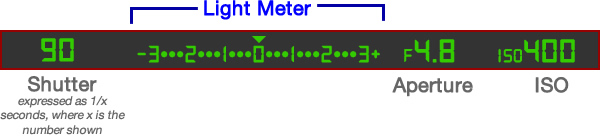
Before I get into the nitty gritty of the light meter itself, I want you to take a look at it in relation to the other data shown in your camera’s viewfinder. Note that this diagram is highly simplified and your viewfinder might look slightly different, or include other information, but all cameras (except some point-and-shoots) include the elements shown here.
light-meter-master

In this example the camera’s shutter is set at 1/90 of a second, the lens aperture is f/4.8, and the ISO is 400. The light meter is a readout that shows whether these values are going to result in a photo that is properly exposed – that is, a photo that is neither too light or too dark. The small triangle hovering over the zero in the light meter shows that the exposure is correct, and when the shutter button is pressed the picture will look fine.  But, I’ll show you a few pictures to see what happens as the camera’s exposure settings are changed. If you want to try this yourself you will need to have your camera in Manual mode, and I would recommend reading the rest of this article with your camera at your side so you can do a bit of experimenting on your own.

For my first shot, I’ll show you a photo that is underexposed and then illustrate how the camera settings can be adjusted to get the proper exposure. The values shown on these images are exactly what I used in my camera to get these shots, and nothing has been edited or retouched in Photoshop.
landscape-under

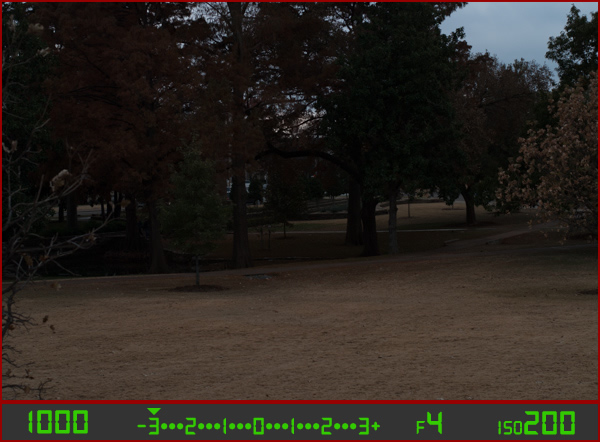
Here you can see that the shutter speed is 1/1000 of a second, the aperture of the lens is f/4, and the ISO is 200. The camera’s viewfinder displays this information along with the light meter, and note how the triangle has moved all the way over to -3 EV. (EV stands for Exposure Value, and technically this image is underexposed by three stops. Don’t worry about the technical jargon though! For now just follow along with the examples to see what happens when the exposure values are altered.

To get a properly exposed photo you are essentially trying to re-create what your eye already sees, but right now the light meter tells us that the photo will be way too dark. And indeed, the resulting photo turned out just how the light meter predicted: it’s so dark it looks like it was taken at night instead of mid-afternoon.

So what can be done to fix this? By adjusting the aperture, shutter, or ISO you can change the exposure settings with the goal of getting that little triangle to hover above the zero. Watch what happens when I change the shutter speed but I leave the aperture and ISO fixed at their present values:
landscape-over

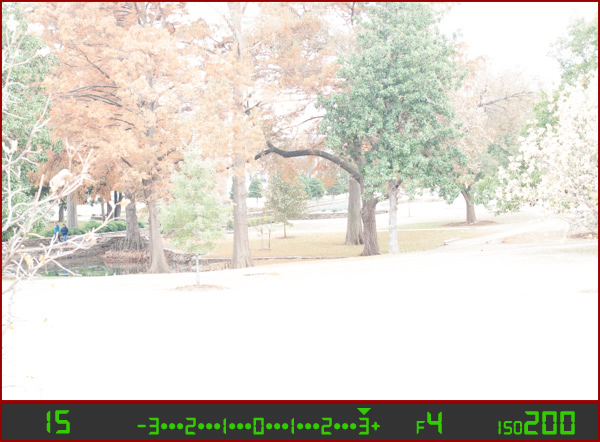
By altering the shutter speed from 1/1000 of a second to 1/15 of a second, the photo is now too bright – exactly as the light meter said it would. It is overexposed by three stops, and the image is virtually unusable. Because the viewfinder itself does not change as the aperture, shutter, and ISO are adjusted, you have to rely on your light meter to tell you how bright or dark the image will be. And sure enough, the triangle is hovering above the +3, which tells us the photo will be too bright. Here is what a properly exposed photo looks like.
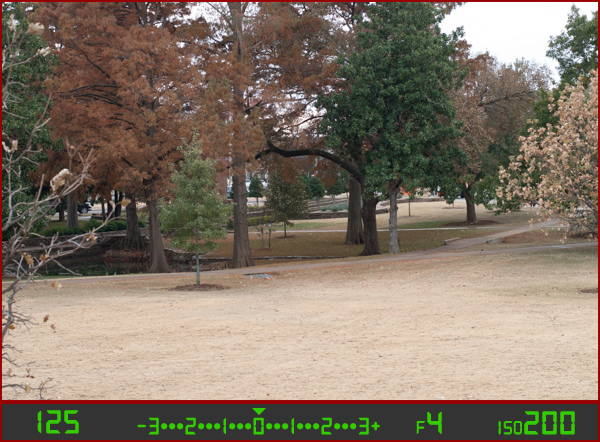
landscape-correct

Finally, a good picture! By adjusting the shutter speed to 1/125 of a second, I was able to get the triangle to hover above the zero, which means the photo would be properly exposed. Note that there is no one correct way to do this, and a proper exposure could have also been obtained by changing the aperture or ISO instead of the shutter speed, or a combination of all three. For instance, I could have left the shutter at 1/1000 and increased the ISO to get the same result.

Why bother with all this?

At this point you might be wondering why you would want to go to all this trouble when you can put your camera in Automatic mode and it will just take care of everything. The answer lies in the fact that you, not your camera, know exactly what kind of photo you want to take. Your camera does not know whether you are shooting landscapes, portraits, sports, starry nights, kids, pets, or anything else. All it sees is how much light is coming in, and it tries to adjust the shutter, aperture, and ISO to get that triangle to hover above the zero. But if you know how to control those values yourself, you can open up vast new areas of photographic creativity that Automatic mode can never do for you.

As another example, here is a picture of some berries, but again notice how it is underexposed by three stops.
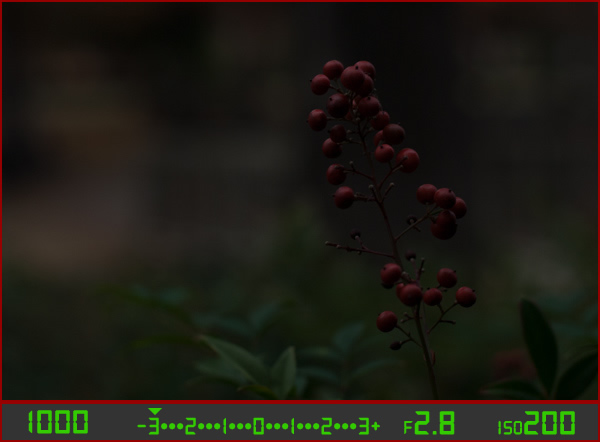
berries-underesposed

There are several settings I could adjust in order to fix this, or I could just put the camera in Automatic mode. The problem with Automatic in this case is the camera does not know that I am looking at berries. It just sees light, and would attempt to adjust the shutter, aperture, and ISO to get a proper exposure even though it might not end up with the exact type of picture I want to take.

Because I shot in manual using the light meter as my guide I was able to get precisely the shot I was looking for. I knew that I wanted a shallow depth of field, which meant I should use a large aperture of f/2.8. I knew that an aperture of f/1.8 would be too wide for my taste, and a smaller value like f/4 or f/8 would not give me the nice blurry background I was hoping for. By leaving the aperture at f/2.8 and changing the shutter speed I got a properly exposed photo with a nice smooth background as you can see here:
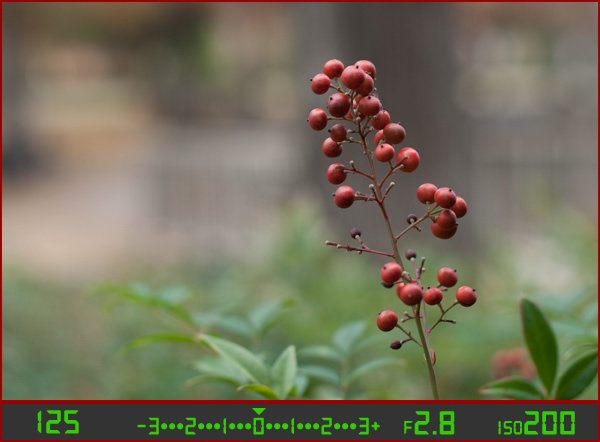
berries-correct

But what if I had changed the other values instead? Look what happened when I left the aperture and shutter at their original values from the underexposed photo (f/2.8 and 1/1000), and raised the ISO instead:
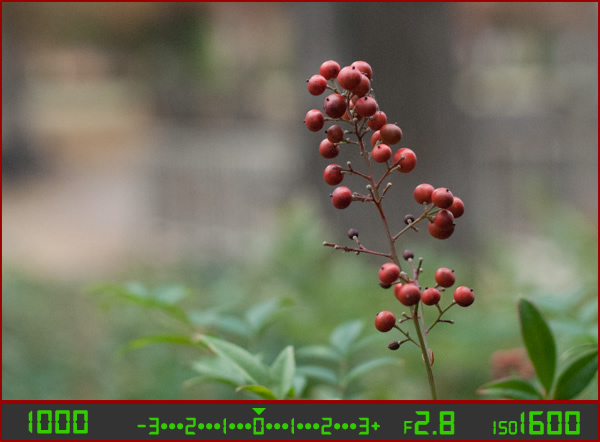
berries-correct-high-ISO

The end result is almost the same: a properly exposed photo (just like our light meter told us it would be, with the triangle hovering above the zero), but this image has much more noise and grain than the previous one. Notice how the tree in the background just behind the berries looks speckled and grainy instead of silky smooth, which is what usually happens at high ISO values. Thus, raising the ISO might not be the best way to get the image I want even though the photo itself is properly exposed.

So what about changing the aperture instead?
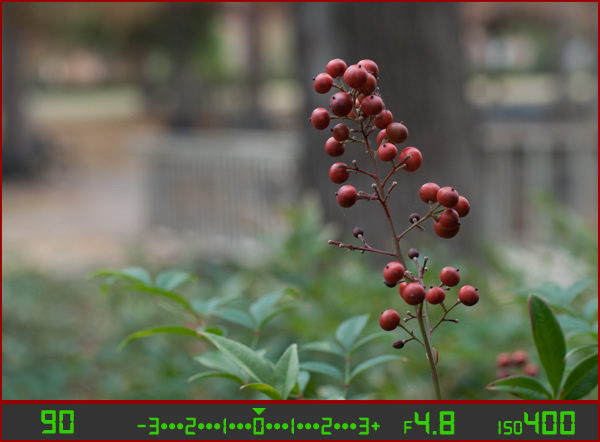
berries-correct-small-aperture

Once again the result is a photo that is properly exposed, but the depth of field is much wider – see how the background is not quite as smooth and blurry as before? Also, because the aperture was smaller I had to leave the shutter open longer at 1/90 of a second and even raise the ISO a bit in order to maintain a proper exposure.

Get the exact shot you envision

Shooting in manual and using the light meter as your guide is a good way to ensure that the image you see in your mind is exactly what you end up with when you click the shutter. If you are shooting fast-moving subjects like cars or sports, you would want to start with a fast shutter speed and adjust the other settings until you get that little triangle to hover above the zero. If you are taking portraits and want a shallow depth of field with nice blurry backgrounds, keep the aperture wide and change the shutter and ISO until the exposure is correct. It’s all about giving control back to you, the photographer, instead of letting your camera make the creative decisions for you.
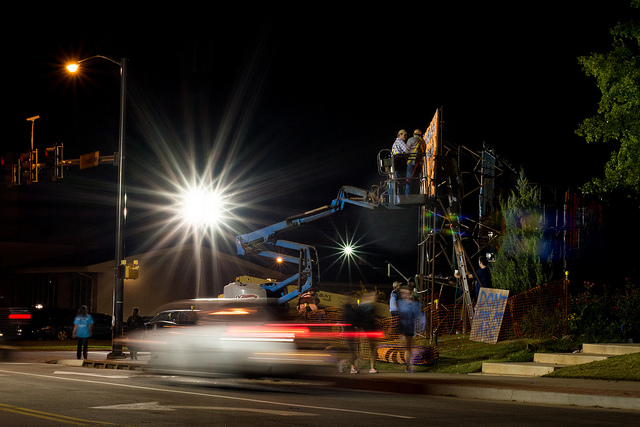
construction-lights

Shooting in manual was the only way to capture this photo. By reading the light meter while carefully adjusting my exposure settings I got precisely the shot I was aiming for. Camera settings: f/16, 1/3 second, ISO 800

Understanding the basics of the light meter is really just scratching the surface, though. Additional settings like your camera’s metering mode and the Exposure Lock function are even more tools you can use to take control over your photography and unlock your true artistic potential. Using manual mode and reading the light meter might seem like a complicated way to take photos, but remember that you know better than your camera what kind of picture you want to take. Once you know how to read your light meter and adjust your camera’s settings accordingly, you can open up a whole new world of creativity that has been right in front of you just waiting to be discovered.

Practice time

So now it’s your turn: grab your camera, put it in Manual mode, and hold the viewfinder up to your eye. Now start changing the aperture, shutter, and ISO values and watch what happens to the light meter. Is your image going to be overexposed? Lower the ISO, raise your shutter, tighten the aperture, or try a combination of all three. Is your image going to be underexposed? Do the exact opposite. The more practice you get, the easier it will be and soon you will feel much more comfortable shooting in a mode that might have seemed hopelessly confusing before.

Do you shoot in manual? If so, how did you get yourself off Automatic mode? Or do you actually prefer Automatic? Share your thoughts and experiences in the comments below.

googletag.cmd.push(function() {
tablet_slots.push( googletag.defineSlot( “/1005424/_dPSv4_tab-all-article-bottom_(300×250)”, [300, 250], “pb-ad-78623” ).addService( googletag.pubads() ) ); } );

googletag.cmd.push(function() {
mobile_slots.push( googletag.defineSlot( “/1005424/_dPSv4_mob-all-article-bottom_(300×250)”, [300, 250], “pb-ad-78158” ).addService( googletag.pubads() ) ); } );

The post How to Learn Your Camera’s Light Meter and Master Manual Mode by Simon Ringsmuth appeared first on Digital Photography School.


Digital Photography School
 
Comments Off on How to Learn Your Camera’s Light Meter and Master Manual Mode

Posted in Photography


Airball with a View: Play in the World’s Sexiest Car Park

23 Dec

[ By Steph in Art & Installation & Sound. ]

airball 1

When a parking garage is considered a landmark in itself and used as the setting for fashion shows, music videos and orchestral performances, perhaps it’s no surprise that people are happy to hang out there for hours on end playing airbag. 1111 Lincoln Road by Swiss architecture firm Herzog de Meuron is a work of modern art, so it was a natural setting for Snarkitecture to show off some of their own designs.

airball 2 airball 3

Known for unexpected installations and temporary works of architecture, the Brooklyn-based collaborative practice set up a bright white game room on level 5 of the carpark, inviting users to play ball and compete side-by-side on two fully-custom basketball arcade-style shootout games.

airball 4 airball 6

Of course, what takes this installation to the next level isn’t just the fact that it’s located in a parking garage – it’s the stunning views of the Miami skyline that guests take in as they play. No worries about losing your ball over the side, as there are safety nets in place.

airball 5

airball 7

The garage itself is famed for appearing incredibly light despite its concrete construction, influenced by designer Jacques Herzog’s perception of Miami as “all muscle without cloth.” Some of the levels feature triple-height ceilings to accommodate special events with the city’s Art Deco district as a backdrop.

Share on Facebook


[ By Steph in Art & Installation & Sound. ]

[ WebUrbanist | Archives | Galleries | Privacy | TOS ]


WebUrbanist

 
Comments Off on Airball with a View: Play in the World’s Sexiest Car Park

Posted in Creativity


Architectural Gems: 13 Blinged-Out Buildings Cut Like Stones

23 Dec

[ By Steph in Architecture & Offices & Commercial. ]

diamnd chapel bali

Architects hoping their creations will be described as ‘gems’ could take the literal route and design faceted structures that call to mind diamonds, geodes and other precious stones. Made of glass or mirrored stainless steel, the geometric panels shimmer in the sunlight and give off their own glow after dark.

Rock Gym by New Wave Architecture, Polur, Iran
gemstone buildings new wave

gemstone buildings new wave 2

A jagged stretch of glass slices up the boulder-like walls of this climbing gym in Iran, mimicking the look of crystals poking out of a geode. The design, by New Wave Architecture, was inspired by the geological process of large-scale movements of the earth’s crust and tectonic forces.

The Diamond Chapel, Bali

diamond bali

gemstone architecture diamond chapel bali 2

A massive blue diamond tipped on its side sits in a clear pool of water at Sanur’s Grand Bali Beach Hotel, serving as a dramatic and highly photogenic wedding chapel.

Park & Suites Arena, Montpelier, France

gemstone architecture park & suites 1

gemstone buildings park & suites 2

French architecture firm A+ Architecture gave the Park & Suites Arena in Montpelier a highly unusual look with an amethyst gemstone design on its steel cladding.

The Octopus, Make Architects, London
gemstone buildings octopus 1

gemstone buildings octopus 2

Make Architects call the Octopus, a proposal for London’s western gateway, “part building, part sculpture.” Sitting beside a derelict site next to a busy intersection, the building features a metallic, semi-transparent shroud that acts as a solar shade as well as a screen for high-resolution LED displays showing advertising.

Salvador Dali Museum, St. Petersburg, Florida
gemstone buildings dali 1

gemstone buildings dali 2

Designed by Yann Weymouth, who helped create the Louvre Museum’s famous glass pyramid, the $ 36 million Salvador Dali Museum in St. Petersburg, Florida boats an undulating geodesic wave comprised of over 1,000 glass triangles that contrasts with extra-thick concrete walls.

Next Page – Click Below to Read More:
Architectural Gems 13 Blinged Out Buildings Cut Like Stones

Share on Facebook


[ By Steph in Architecture & Offices & Commercial. ]

[ WebUrbanist | Archives | Galleries | Privacy | TOS ]


WebUrbanist

 
Comments Off on Architectural Gems: 13 Blinged-Out Buildings Cut Like Stones

Posted in Creativity


Using Graduated Neutral Density filters for Landscape Photography

23 Dec
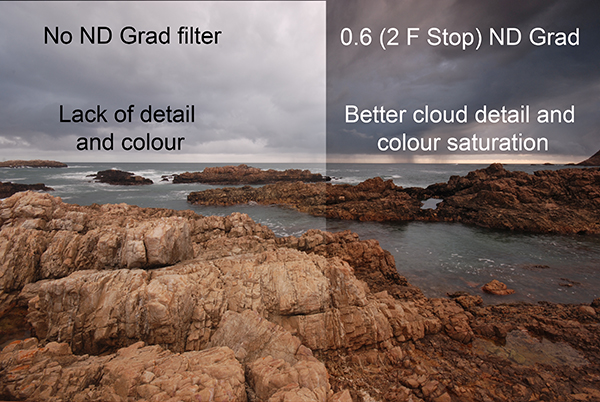
You can see the effect an ND Grad has on the scene

You can see the effect a graduated neutral density filter has on the scene

One of the biggest challenges in photography is managing the light in your scene. It is for this reason that many landscape photographers love to be out shooting during the golden hours or blue hour when the light is beautiful and the contrast is manageable. Contrast is tough to manage on bright days and in certain scenes, but there are a few ways to work around this. In this article we are going to look at the usefulness of using neutral density gradient filters (aka ND grads). These filters have been around for a long time, most landscape photographers will have a set of them in their camera bag.

Filters or Photoshop?

In recent years, there has been an ongoing debate around whether it is better to use filters or to bracket the images and blend them in Photoshop afterwards or even use HDR to capture all the different tonality and light in a scene. In many cases this is a personal preference, and I switch between the two depending on the scene or the vision I have of the image I want to make.

If I am shooting during golden hour I will most often use an ND grad filter. If I am doing a starscape, I will take two images and blend them, one for the sky and one for the foreground. The reason is this. At golden hour, I can expose for the ambient light and use a filter to keep the detail in the sky. If I want a starscape (not a star trail) I need to push my ISO up really high and if there is something in the foreground of the scene that is a little too bright, it will overexpose. My first shot will be an image that will expose the the scene properly. For my second shot, I will expose the sky to capture a starscape shot. Afterwards, I will blend them in Photoshop, which really works well.

In some cases, there is no substitute for an ND grad. If you want the waves in a seascape scene to become silky smooth or a river to look soft and white, then you will need to use ND grads. This effect cannot be made in Photoshop (not yet anyway). The best part about using ND grads is the surprise you get when you see the image on the screen. You will be amazed at the effect of capturing the blurred movement of different elements in your image.

What is a graduated neutral density filter (ND Grad)?

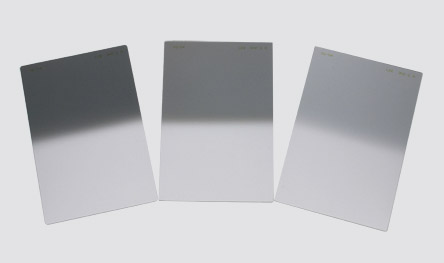
Essentially it is a rectangular, optically correct piece of resin or glass with a gradient from dark to light. It is called “neutral” because the dark part of the filter should not make any colour differences, or add a colour cast to the scene. This is not always true of cheaper filters, but the well established filter brands (Lee, Singh-Ray) leave very little colour cast on the final image. The reason behind using an ND filter is to hold light back so that the part of the scene that is brightest (usually the sky) does not overexpose. This effect creates a pleasing image. The sky is well exposed and the foreground is correctly exposed as well.

If you were to expose the scene without using an ND grad filter, very often, the foreground would be well exposed while the sky may simply be overexposed or, if you were to expose for the sky, the foreground would be very dark. As I said earlier, you can do blending in Photoshop, but sometimes, you may not capture all the detail in the sky and using a filter to capture the scene may be useful. Also, you will be able to spend more time shooting and less time editing afterwards!

A set of ND grads in varius strengths

A set of ND grads in varius strengths

When should you use an ND grad filter?

Most landscape photographers will use them at sunrise or sunset, during the golden hour. You can also use them during the day to slow the shutter speed to make water smooth and silky. Blurring moving objects such as people, cars, buses or even trees blowing in the wind is also an option. What you will get is a well exposed, daylight scene with some blurred movement. This can look really interesting and dynamic in your image.

The reason you will want to use an ND grad filter is that there can be a substantial difference, light wise, between the sky and your foreground. If you have more than a two stop difference, you will probably need an ND grad filter to correct that and get a good, well balanced exposure. This not a rule, but if you try and average the exposure and you are finding that your foreground looks too dark and your sky is too bright, maybe it is time to use the filter.

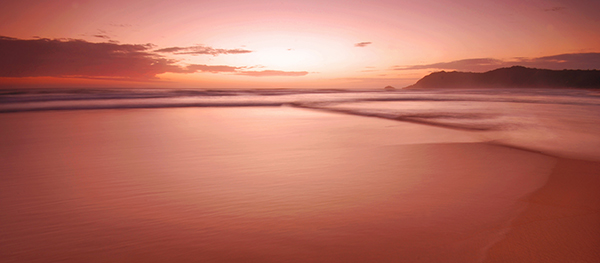
An ND Grad was used in this image to expose the sky and clouds correctly

An ND grad was used in this image to expose the sky and clouds correctly

Types of ND grad filters

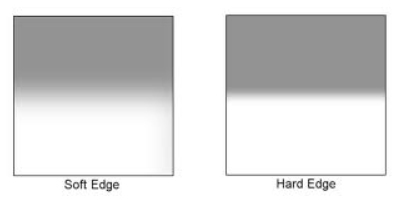
ND grad filters have a few variables. The first is whether the filter has a hard or soft edge. There is a reason for this and both types are useful. The hard edge filter has a very definite transition between the dark gradient part of the filter and the part that is clear. The soft edge filter gently blends the gradient across the filter, so the line is less obvious. Each one of these filters are used on different scenes. For example, the hard edge filter is really useful if you have a very definite horizon line (i.e. a seascape or a landscape scene where the horizon is pretty flat and straight). The soft edge filter is used for scenes where there is no clear horizon (i.e. a forest or street scene). Learning when to use which type of filter takes some practice, but once you can visualise what the result will look like, it is pretty easy.

Hard Edge and Soft Edge ND Grads

Hard Edge and Soft Edge ND Grads

ND grads come in different strengths

The filters are made in different strengths to compensate for different lighting conditions. Depending on the dynamic range (the difference between highlights and shadows) in your scene you can choose an ND grad filter that will be darker or lighter. Darker filters hold back more light and lighter filters, hold back less light. ND Grads are made in the following strengths 0.3 or one f-stop of light, 0.45 or 1.5 f-stops, 0.6 or two f-stops, 0.75 or 2.5 f-stops, 0.9 or three f-stops. The important calculation to remember is to try and keep your sky and your foreground within one stop of one another. Also, ND grads can be stacked if the light is really bright, so you can make the sky even darker, depending on the effect you want.

How do I use an ND grad filter?

It is easier than you might think. There are some technical details to think of, but once you have used grads a few times, it is really quite simple. Here is a process that works pretty well in most lighting conditions:

  1. Set up your camera on a tripod and take a light meter reading of the foreground. Making sure that your camera is on Manual, point it down and fill the viewfinder with the foreground to take the reading.
  2. Take a light meter reading in the same way as above, of the sky.
  3. Work out the difference between the two exposures and use an ND Grad to get your scene to within one stop of light difference. As an example, if the sky is three stops brighter than the foreground, you can use an ND Grad that blocks two f-stops of light or a 0.6 ND Grad.
  4. Slide the ND grad filter into place in front of the lens and determine the best position for the gradient to be in your image. If it is a hard horizon (i.e. a seascape scene) use a hard edge grad, if it is a forest scene, use a soft edge grad.
  5. Expose for your foreground and make the shot.
  6. Check the result on your LCD screen, zoom in on the image to make sure everything is properly exposed. Make any adjustments and shoot another image if necessary.

That’s it, simple really. Of course, as I said earlier, it takes a fair amount of practice to become adept at using these filters, but the results are worth it.

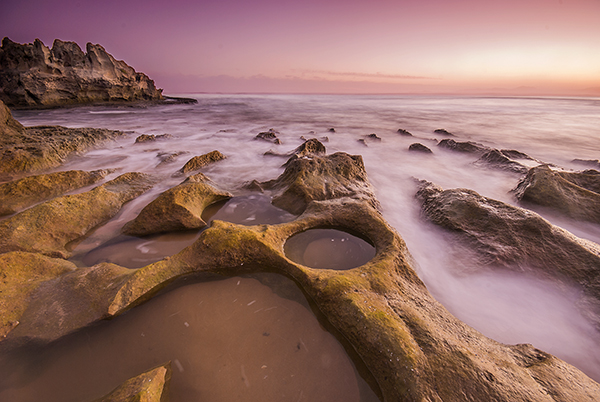
In this scene, the ND grad allowed the sky to be exposed properly and slowed the shutter speed won enough to blur the water

In this scene, the ND grad allowed the sky to be exposed properly and slowed the shutter speed down enough to blur the water.

Image editing

Once you have captured your well exposed scene, you will want to take it into Lightroom or Photoshop to put the finishing touches to the image. There are many different ways to enhance the image and make it really pop. I am not going to go into all the different adjustments you could make to the image except for one piece of advice. I will generally select the sky and the foreground separately and make a layer for each of them, then make separate adjustments to each. You may want to make the sky even more foreboding if it was a cloudy day, or perhaps brighten up the foreground a little more to show the detail. By doing this you will get the most out of the the light in the scene. Many photographers will convert their ND grad images into black and white because the movement and softness of the water in the scene can look very compelling in monochrome. The choice is yours.

What’s next?

To do this kind of photography, you will need to buy an ND grad or two. Some of the cheaper ND grads are a good place to start, brands like Cokin are good, and they are not especially pricey. The more expensive brands offer top quality, and in some cases the filters are hand made. If you find that you really love the effect these filters give, then you may want to invest in some Lee filters or Singh-Ray. These are top filter brands and the results from these products are amazing.

The most important thing to remember is to invest the time in getting the technique right and knowing how to use the equipment. Photography is all about practice and getting the technique right. Yes, good equipment helps, but the most important thing is practice. Once you have mastered the technique with a cheaper filter, then consider making the investment in the more expensive ones.

A final image after being processed in Photoshop

A final image after being processed in Photoshop

googletag.cmd.push(function() {
tablet_slots.push( googletag.defineSlot( “/1005424/_dPSv4_tab-all-article-bottom_(300×250)”, [300, 250], “pb-ad-78623” ).addService( googletag.pubads() ) ); } );

googletag.cmd.push(function() {
mobile_slots.push( googletag.defineSlot( “/1005424/_dPSv4_mob-all-article-bottom_(300×250)”, [300, 250], “pb-ad-78158” ).addService( googletag.pubads() ) ); } );

The post Using Graduated Neutral Density filters for Landscape Photography by Barry J Brady appeared first on Digital Photography School.


Digital Photography School
 
Comments Off on Using Graduated Neutral Density filters for Landscape Photography

Posted in Photography


23 December, 2014 – Give LuLa Video Subsc at 33% Off

23 Dec

If you are looking for a good gift for a photographer you know and are already a subscriber to our videos, here’s your chance to give that person an annual subscription for 33% off.

Contact Customer Service with your existing subscription name and e-mail and we will send you the 33% off coupon code.
Answers to questions about giving a digital gift can be found here.


The Luminous Landscape – What’s New

 
Comments Off on 23 December, 2014 – Give LuLa Video Subsc at 33% Off

Posted in News


22. Türchen: Nikon

23 Dec

Nikon D5300

22. Türchen

Habt Ihr schon alle Geschenke zusammen und auch an Euch bei all dem Weihnachtstrubel gedacht? Nikon wird einem von Euch definitiv einen großen Weihnachtswunsch erfüllen, denn in unserem heutigen Türchen liegt die Nikon D5300 mit AF-S DX NIKKOR 18-55 mm VR-Objektiv.

Die intuitiv bedienbare Nikon D5300 mit 24,2 Megapixeln sorgt nicht nur für strahlende Augen unter dem Weihnachtsbaum – mit der digitalen Spiegelreflexkamera lassen sich auch die schönsten Momente des Jahres festhalten. Die hervorragende ISO-Empfindlichkeit der Kamera (100-12.800 Standardbereich; erweiterbar bis zu 25.600) lässt gestochen scharfe Aufnahmen selbst bei ungünstigen Lichtverhältnissen zu. Lasst Eurer Kreativität mit dem neig- und drehbaren Monitor freien Lauf und teilt Eure Bilder und Full-HD-Filme mithilfe des integrierten WiFi-Moduls in Sekundenschnelle im Netz.

Nikon D5300

Nikon Cashback AktionNikon Logo

Die Nikon D5300 hat einen Wert von 809 € und ist in Schwarz, Rot und Anthrazit erhältlich. Welche Farbe ist Euer Favourit?

Für alle, die heute kein Glück bei unserer Verlosung haben, hat Nikon noch etwas: Eine Cashback-Aktion auf ausgewählte Kameras und Objektive bis zu 200 € bis zum 31. Januar 2015. Mehr darüber erfahrt Ihr hier.

Um die Kamera zu gewinnen, schreibe einen Kommentar mit Deiner Wunschfarbe unter bürgerlichem Namen und gültiger E-Mail-Adresse bis heute um 24 Uhr. Danach verlosen wir sie per Zufallsgenerator unter allen Kommentatoren. Die genauen Gewinnspielregeln findest Du hier. Viel Glück!


kwerfeldein – Fotografie Magazin | Fotocommunity

 
Comments Off on 22. Türchen: Nikon

Posted in Equipment