RSS
 

Archive for April, 2014

Die Schwarzweißexplosionen des Gareth Bragdon

18 Apr

Wenn ich mir die Schwarzweiß-Fotografien eines Gareth Bragdon ansehe, kann ich es eigentlich nicht glauben. Dass der Kollege tatsächlich solche Momente, mit derart ulkigen Menschen und einer messerscharfen Präzision komponiert und ausleuchtet, lässt mich ungläubig den Kopf schütteln. Diese Bilder sind zu gut, um wahr zu sein.

Aufmerksame Privatsphäre-Fanatiker werden nun „Der kopiert Gilden!“ rufen, doch das ist – wie immer – zu einfach. Zwar hat Bragdon eine ähnliche Technik, doch das war’s dann auch schon mit den Parallelen. Vergleiche ich Bragdons Fotos mit dem Gilden Stern Spezial, seinem Werk „Haiti“ und dem Gilden’schen Fashion Magazine, fallen die Unterschiede deutlich ins Auge.

Bragdon blitzt häufig von unten, Gilden nur sehr selten. Bragdon setzt alles auf die fotografierte Person, Gilden bezieht die Umgebung mit ein. Bragdon blitzt immer, Gilden nicht. Somit wäre der schwache Vergleich also aus der Welt geschafft, wenngleich es natürlich viele nicht von der Hand zu weisende Überschneidungen gibt, wie wir gleich noch sehen werden.

Gareth Bragdon, amerikanischer Staatsbürger aus dem Jahrgang 1989 lebt in Edinburgh (Schottland) und fotografiert seit dem Sommer 2011. Bragdon fing mit seinem Bruder an. Nachdem er sich an HDRs und satten Farben ausgetobt hatte, wurde er durch die Werke Cartier-Bressons, Meyerowitz’ und Winogrands von der Straßenfotografie gepackt. So berichtet er:

Ich war absolut fasziniert davon. Diese Idee des entscheidenden Moments, die Idee, dass Welt und Straßen Quellen unendlicher Begeisterung waren, wenn man nur achtsam wäre. Großartig.

Und die Bilder transportieren diese Begeiserung sehr gut.

Ein Affe am Fenster.

Zwei Damen, eine Straßenfotografie.

Ein Mann mit hochgewehtem Haar.

Ein angeblitzter Hund mit Zeitung im Maul.

Eine Straßenfotografie zeigt eine Frau mit hochgewehtem Schirm.

Eine Straßenfotografie, die eine Frau mit erschrockenen Augen zeigt.

Eine Straßenfotografie, die einen Zeitung lesenden Mann zeigt.

Eine Straßenfotografie zeigt einen rauchenden Mann.

Eine Straßenfotografie mit einem Mann, der eine Hitler-Maske abnimmt.

Drei Affen, die nach oben schauen.

Eine Straßenfotografie, die zwei Frauen beim Sitzen zeigt.

Eine Straßenfotografie zeigt einen rauchenden Senioren.

Eine Straßenfotografie zeigt einen Mann, der Zeitung liest.

Eine Straßenfotografie zeigt eine Frau unter einem Schirm.

Nachdem Gareth Bragdon zu Beginn versucht hatte, ohne Blitz, aus der Hüfte oder mit Zoom aus größerer Distanz zu fotografieren, entschied er sich, aus seiner Komfortzone zu treten und näher ranzugehen.

Als jemand, der sehr ängstlich war, hatte ich wirklich zu kämpfen. Um gegen das schottische Scheißwetter anzukommen, fing ich an, wie Bruce Gilden einen Blitz einzusetzen. Ab da gab es kein Verstecken mehr.

Heute ist es für ihn nahezu unmöglich, ohne Blitz zu fotografieren, weil ihm die Bilder dann vergleichsweise zu flach sind. Bragdon führt aus:

Auf den Straßen schaue ich nach interessanten Leuten. Vielleicht ist es die Art, sich zu kleiden, wie sie physisch aussehen – vielleicht aber auch etwas viel Tieferes, Nicht-materielles. Ich vertraue da ganz auf meine Intuition.

Heute ist Gareth Bragdon auf Flickr zu finden und auch Teil eines neuen Kollektivs aus Edinburgh, das sich GreySkies nennt.


kwerfeldein – Fotografie Magazin | Fotocommunity

 
Comments Off on Die Schwarzweißexplosionen des Gareth Bragdon

Posted in Equipment


Augmented Sandbox: Realtime 3D Topographic Landscaping

18 Apr

[ By WebUrbanist in Gaming & Computing & Technology. ]

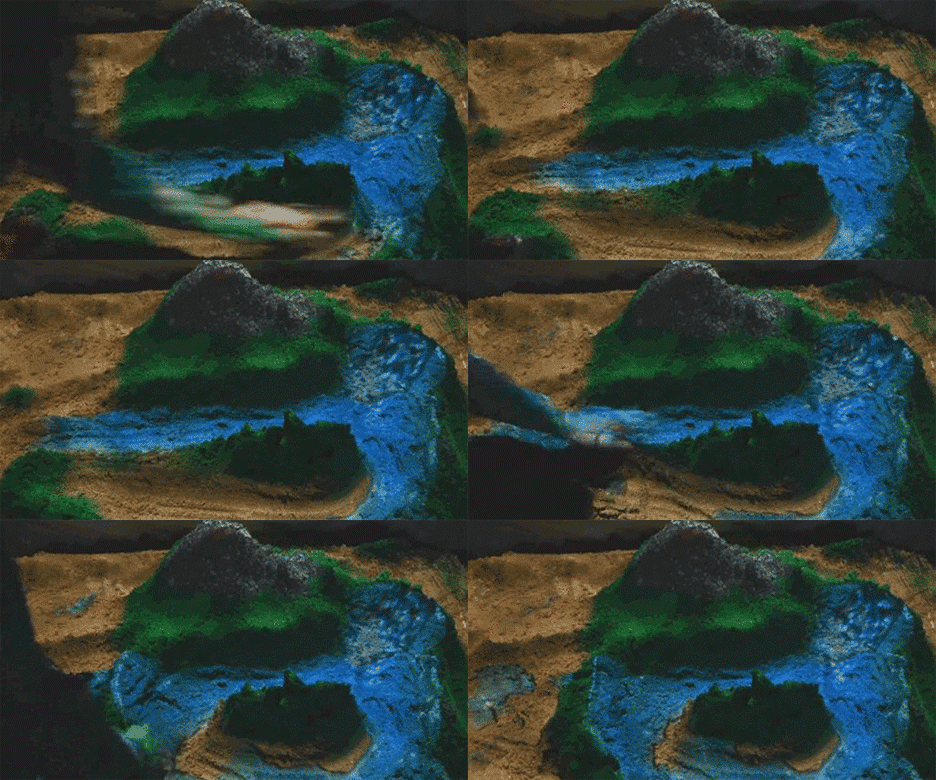
gif-water-island

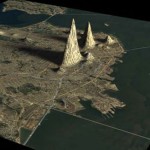
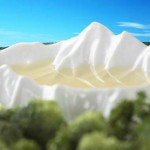
Simulating an amazing array of natural environments and phenomena, this dynamic playspace turns ordinary hand-sculpted sand into vividly colorful landscapes in the blink of an eye.

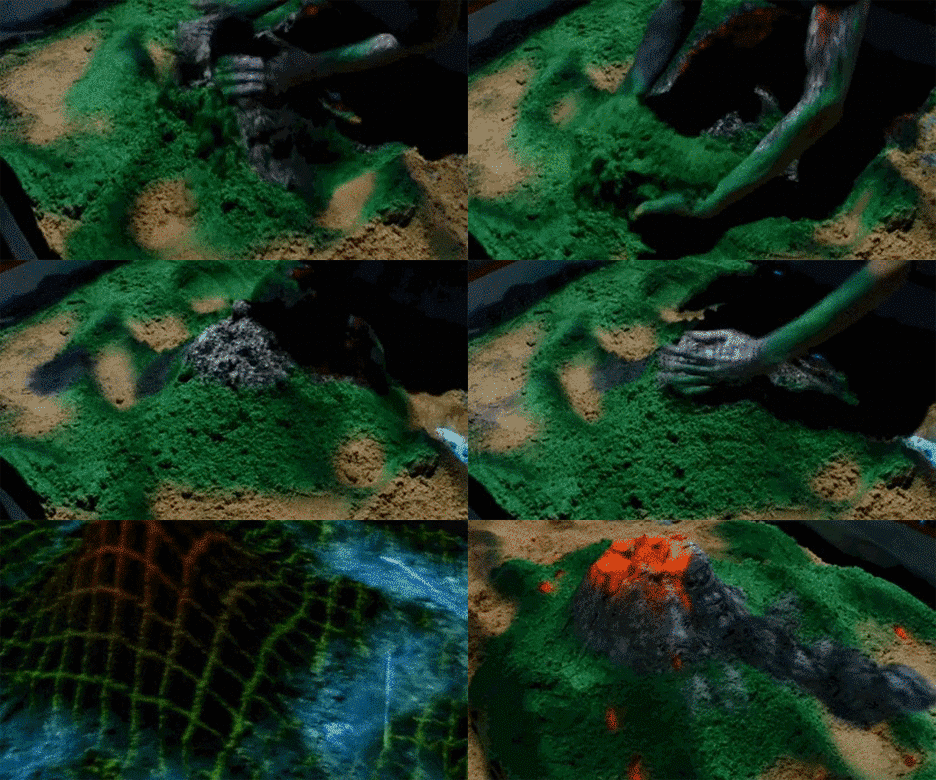
gif-volcanic-mountain

A real and working augmented reality sandbox, the system is designed to help educate students about earth sciences with a uniquely responsive and intuitive interface.

gif-interactive-volanco'

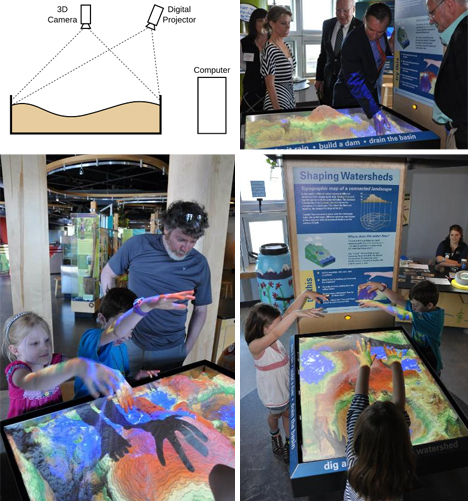
A team of data visualization and earth sciences experts, mainly from the University of California, created the setup using a Microsoft Kinect camera coupled with topographic visualization software and a 3D data projector.

From rough prototypes to its present state, the project has come a long way in terms of the level of rendering detail and response speed.

augmented reality sandbox

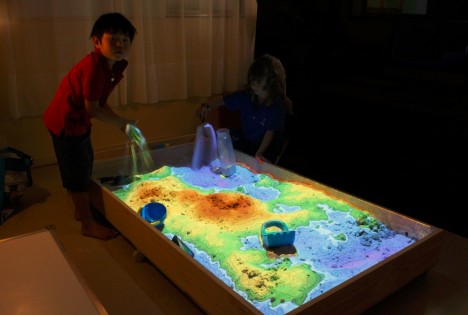
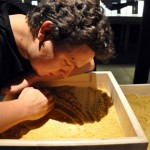
Tapping into a familiar form of childhood play, the project “allows users to create topography models by shaping real sand, which is then augmented in real time by an elevation color map, topographic contour lines, and simulated water. The system teaches geographic, geologic, and hydrologic concepts such as how to read a topography map, the meaning of contour lines, watersheds, catchment areas, levees [and more].”

Of course, one can imagine an array of applications of this technology beyond classrooms and science museums, from Minecraft-style, construction-centric games to simulators and modeling tools for landscape architects and urban designers.

interactive 3d projected sandbox

More about this amazing project: “UC Davis’ W.M. Keck Center for Active Visualization in the Earth Sciences (KeckCAVES), together with the UC Davis Tahoe Environmental Research Center, Lawrence Hall of Science, and ECHO Lake Aquarium and Science Center, is involved in an NSF-funded project on informal science education for freshwater lake and watershed science. The sandbox hardware was built by project specialist Peter Gold of the UC Davis Department of Geology. The driving software is based on the Vrui VR development toolkit and the Kinect 3D video processing framework, and is available for download under the GNU General Public License.”

Share on Facebook


[ By WebUrbanist in Gaming & Computing & Technology. ]

[ WebUrbanist | Archives | Galleries | Privacy | TOS ]


WebUrbanist

 
Comments Off on Augmented Sandbox: Realtime 3D Topographic Landscaping

Posted in Creativity


How to do Dreamy Landscape Photography with a Neutral Density Filter

18 Apr
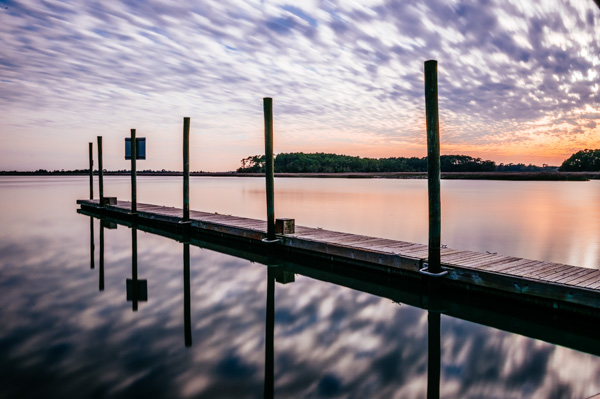
Neutral density filter 01

16mm lens, ISO 100, f/13, 2 second exposure

Perhaps one of the most overlooked and undervalued tools you can own as a photographer is a Neutral Density filter (ND Filter) or Graduated ND Filter. In fact, if photography is considered painting with light then a ND filter would be considered the brush tip. You see, different paint brush tips can be used to regulate, if you will, the amount of paint you apply with each stroke – just like different Neutral Density or Graduated ND filters can be used to regulate the amount of light you allow to enter your camera.

What is a Neutral Density Filter?

A Neutral Density filter reduces the intensity of all wavelengths or colors of light equally. That’s just a fancy way of saying it lets less light into your camera. They come in different intensities and styles. One such style is the Graduated Neutral Density filter which blocks light on half of the filter, and gradually transitions to the other half which is clear.

neutral-density-filter-07

Same scene as above without the Graduated Neutral Density Filter. Notice however that it is the same exposure – 16mm lens, ISO 100, f/13, 2 seconds

Mastering the ND Filter or Graduated Neutral Density filter does not take a degree from Hogwarts School of Witchcraft (though it couldn’t hurt). Below I’ll show you the dynamic photographs you are able to capture with the proper tools and then I’ll show you a technique to replicate the ND filter in the off chance that you don’t already own one, or can’t afford one due to the fiscal restraints your significant other has put in place to reign in your “hobby budget”. Remember, there is often more than one way to achieve the desired results in photography.

The neutral density filter is probably best recognized by its ability to slow your camera’s shutter speed to the point that fast moving water looks calm and silky.

Neutral density filter 02

23mm lens, ISO 200, f/16, 2.3 seconds

Anytime you are working with slow shutter speeds you need to be careful of camera shake so it’s always recommended that you use a tripod and either a remote shutter release, or set the self-timer. Depending on the neutral density filter you use, you may be leaving your shutter open for many minutes at a time. Shooting in RAW is highly recommended as most ND filters leave a color cast on your photograph and you’ll want the flexibility to fine-tune your white balance in post processing.

The Difference

Neutral density filter 03

26mm lens, ISO 100, f/18, 25 seconds

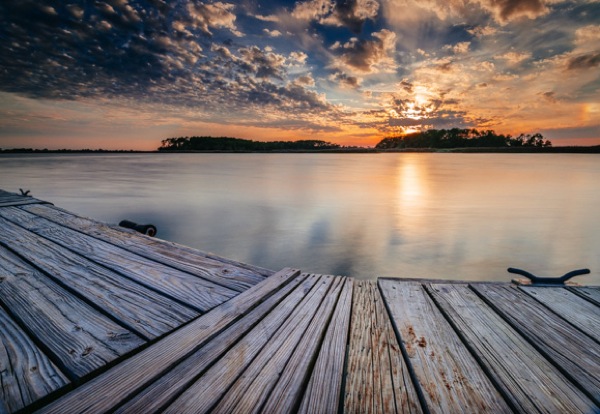
The above photograph was taken with a 10 stop neutral density filter in order to enhance the reflections on the water. The ND filter slows the shutter speed significantly allowing the water to look like glass. This is a more subtle example than the first photograph, but either way the end result is more unique than what you’d be able to do without it.

Think Outside the Box

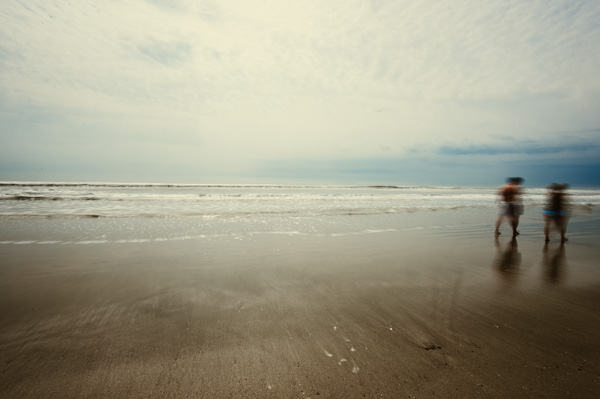
Neutral density filter 04

16mm lens, ISO 100, f/16, 0.6 second

By now, if you’re a regular reader, you’ll have learned that there is more than one way to photograph a subject or scene. There are many articles that talk about the harsh light during the afternoon – the neutral density filter tames that light and allows you to create some really interesting photography. The shot above was also taken with a 10 stop neutral density filter, on a very bright day. The ND filter allowed me to slow the shutter speed just enough to blur the couple who walked in front of me. The end result ended up being one of my favorite shots that day.

Fine Art

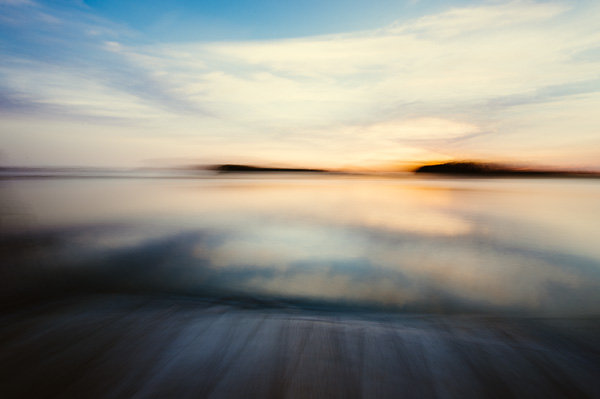
Neutral density filter 05

16mm lens, ISO 3200, f/4, 30 seconds

Fine art photography is created within accordance of your own vision as the artist photographer. Sound vague? It is, but that’s the great thing about fine art, you can express yourself through your photography without following anyones rules, not even your own. The photograph above is actually classified as Intentional Camera Shake (or ICM) and it’s created by moving your camera while the shutter is open. I used a 6 stop neutral density filter for this shot and panned the camera to the left, and then back to the right while the shutter was open. If you are new to Intentional Camera Shake, the ND filter will give you more time with the shutter open in order to make deliberate movements.

What if You Don’t Have a Neutral Density Filter?

If you don’t already have a neutral density filter, but you’d like to improve the look of your photographs right now, there is a little trick you can tuck away in the recesses of your mind for the next time you’re out and about. Remember how your shutter speed and aperture are so closely related? Well, you can slow your shutter speed enough to make choppy water look smooth even without a neutral density filter by making a couple of adjustments.

Note:  I’m going to recommend that you to close your aperture (smaller f-number) to the narrowest setting your lens will allow and you must be aware of the trade off. When you shoot with the smallest aperture your lens allows, you may cause lens diffraction. Lens diffraction is where your images will be less sharp due to light disbursement when passing through the small aperture opening of your lens. This is the tradeoff when trying to replicate the effects of a neutral density filter without having the actual filter.

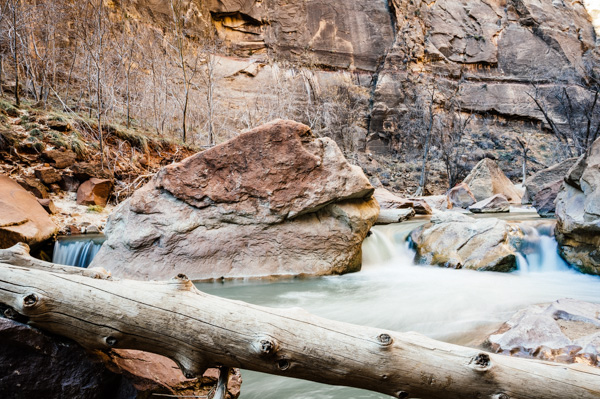
For this example we are going to talk about fast moving water, the Virgin River to be precise. The photo below was taken at Zion National Park in rather bright conditions. The brighter the scene, the harder it will be to use this technique. In order to smooth the water you need to slow your shutter speed, right? Right. In order to slow your shutter speed without overexposing the image you need to compensate by reducing the amount of light that enters the camera another way. Opening your aperture (smaller f-number) lets more light in, while closing your aperture (larger f-number) will reduce the light, so we must close the aperture.

Neutral density filter 06

34mm lens, ISO 100, f/22, 1.3 seconds – no filter

Close the aperture as far as you can, and make sure your ISO is as low as possible as well. Slow your shutter speed (if you are shooting in aperture priority mode the shutter speed will adjust automatically). Be sure to use a tripod or you’ll have blurry photographs. You will want a shutter speed around 1/4th to 1.3 seconds.

Note: this will be pretty much impossible if you’re in full bright sunlight as the “Sunny f/16 rule” will apply and best you can do without a filter is 1/50th at f/22. So you’d need at least a 3 stop ND filter to slow down more than that, 6 stop would be even better in that situation. 

Finally

Remember, not all neutral density filters are created equally and the glass you put in front of your cameras sensor will directly impact the image quality of the photographs you take. You should strive for the best quality you can afford. The best ND filters can be purchased for $ 50-$ 200+ depending on the size and materials.

When shopping for a neutral density filter I’d recommend purchasing the screw on type to fit the size of your largest lens (the size of filter you need will be written on the lens with a little circle with a line through it next to it, and inside the lens cap). You will save yourself money if you stick with the largest lens size, as you can purchase cheap metal adapters, (called step down rings) generally less than $ 10, to accommodate your smaller lenses.

Let me leave you with this final tip. Your camera lets light in through the lens (and sometimes leakage around the lens) as well as through the viewfinder. When you shoot with fast shutter speeds this is not noticeable but when shooting with longer exposure times you’ll find that the light that comes through the viewfinder will cause brown areas to pollute your image. Cover your viewfinder when using a neutral density filter and you’ll eliminate this phenomenon. Enjoy.

Check out the newest dPS ebook – Loving Landscapes A guide to landscape photography workflow and post-production – a brand new dPS ebook by the authors of Living Landscapes

The post How to do Dreamy Landscape Photography with a Neutral Density Filter by John Barbiaux appeared first on Digital Photography School.


Digital Photography School

 
Comments Off on How to do Dreamy Landscape Photography with a Neutral Density Filter

Posted in Photography


Exposure Blending Using Luminosity Masks Tutorial

18 Apr

There will be a time when the wizards behind your camera technology conjure up a sensor so powerful they will swallow up any scene and spit it out just as it was – no over, or underexposed areas. Until then, in order to produce an image with a high dynamic range of light, you have to work with the sensors available to you and create your own post-processing magic.
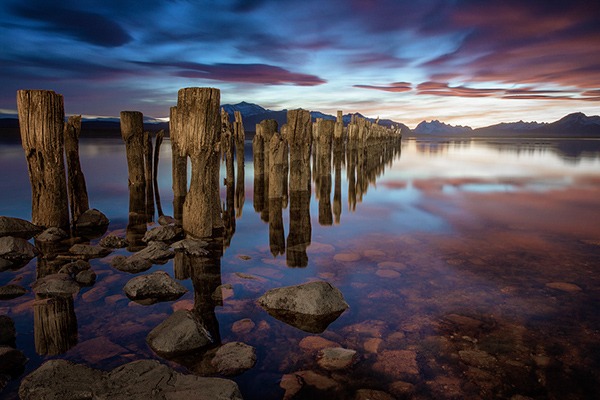
Pink sunset

Image created by blending two exposure with luminosity masks, one for the sky and one for the foreground.

While you, and many photographers, may have relied heavily on HDR programs in your exposure blending quest, many more are now beginning to turn to luminosity masks as a cleaner alternative. Through the use of luminosity masks you can create stunning, balanced images that encapsulate a vast dynamic range of light. They give you incredibly fine control over your imagery in almost every area.

While some HDR programs nowadays produce very natural, clean HDR images, luminosity masks do not affect the original files at all, so there is literally zero image degradation during the blending process. That is why so many digital photographers are beginning to make luminosity masks a staple in their workflow.

What are Luminosity Masks?

Luminosity masks break an image down into various channels of luminosity. In other words, they allow you to make very specific selections in Photoshop based on how bright or dark an area is. Let’s say you were looking at a beautiful nighttime cityscape shot. Everything is exposed correctly apart from the street lights, which are completely blown out. You also have a darker exposure in which the street lights are ideally exposed.

Through luminosity masks you can make an accurate selection of the street lights because you can hone in on their brightness, or luminosity values. With this selection you can simply replace the overexposed streets lights with the correctly exposed ones in the darker image.

What You Need to do Luminosity Masking

Firstly, creating your own luminosity masks is a complex and cumbersome process. However, I have a free Photoshop Luminosity Mask Action Set that will do all of the work for you. You can download it here: Free Luminosity Mask Action Set.

Secondly, it is imperative that you have a good understanding of Masking in Photoshop. If you’re a little bit unsure of the process, you can visit Adobe’s site which has a useful video tutorial for you to follow: Masking in Photoshop.

Which exposures to blend?

Ideally, the exposures you choose to blend should cover the full range of light in a given scene. Your brightest exposure should contain information in the darker areas, while your darkest exposure should contain information in the brightest areas. You are not limited to the number of exposures you can blend. Sometimes, in scenes of extremely high contrast, you may need to use as many as five to ensure a smooth transition between exposures and to cover the full range of light in the scene.

The order you choose to layer the exposures in Photoshop is dependent on your personal preference and the exposures you’re working with. Usually working with your normally exposed image as the base layer will derive the best results, but sometimes you may need to work with a darker or brighter exposure as your base layer.

Once you’ve decided on your exposures and have layered them in Photoshop, you now must decide which exposure you will run the actions on. Generally this will be done on your normally exposed image because it will offer the widest range of usable masks. For example, if you ran the luminosity mask actions on a darker exposure, you would gain a full range of dark and mid-tone luminosity masks, but very few, if any, workable bright masks, because the darker exposure is lacking in highlights. The converse is true for a strongly overexposed image.

Blending Exposures Using Luminosity Masks Tutorial

Today you’ll work with two exposures. One is ideally exposed for the sky and sea (download the underexposed image here), while the other is exposed for the foreground elements (download the overexposed image here).
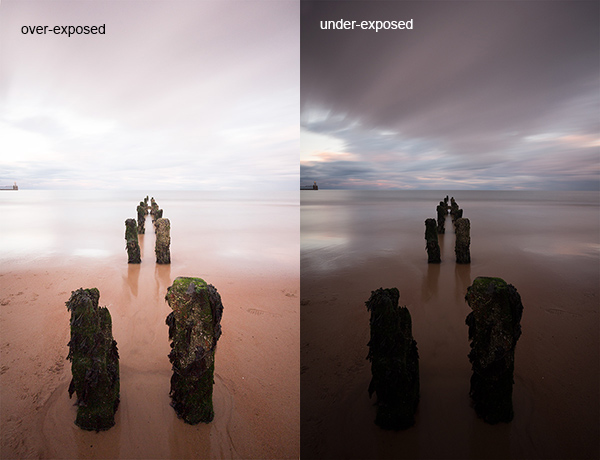
Original files

You want to combine the sky and the sea in the underexposed image with much of the foreground in the overexposed image. To do this, you need to find a way of selecting the sky and the sea (i.e., the blown out areas) in the overexposed shot. Once you’ve done that you just need to replace it with the sky and sea of the darker exposure.

Steps in Photoshop For Blending Exposures

1. Install the Photoshop Action set

Instructions on how to install actions can be found here: Get Creative With Photoshop Actions

2. Import your two images into Photoshop

Bring both images into Photoshop as layers, placing the underexposed image on top. Align the images by selecting both of them on the layers panel, and going to Edit > Auto-Align Layers.

3. Turn off the top layer

Uncheck the eye on the layers panel next to the underexposed layer. This will make it invisible and ensure that the luminosity mask actions will run on the overexposed layer only.

4. Run the Masking Action

Go to your Actions panel, which looks like a Play button on the toolbar. Open it up and go to the set called JM Luminance Masks. Click on the arrow to the left of that. You will now see an option called Generate Luminance Masks. Select it and press the Play button at the bottom of the Actions panel to begin the process.
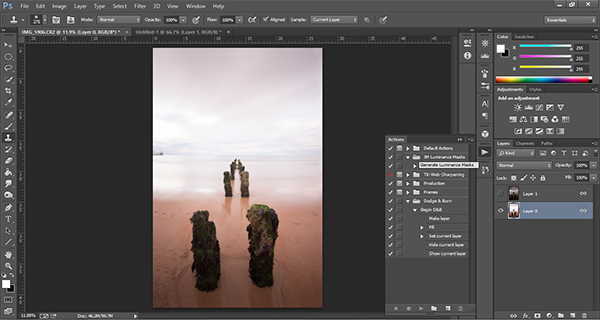
Luminosity mask actions

5. Add a Layer Mask to the Dark Underexposed Layer

Now, check the eye next to the underexposed layer, so that it is visible again. Make sure that layer is selected, then go down to the bottom of the Layers panel and, while holding Alt (Option on a Mac), left click the Add a Mask icon. This will create a black layer mask on the underexposed layer, making it invisible again.

6. View Luminosity Masks

To see the Luminosity Masks that you’ve generated, go to your Channels palette, next to the Layers panel (if it is not showing go to: Window > Channels and it will appear). You’ll see 18 monochromatic channels, ranging from Brights 1-6, Darks 1-6, Midtones 1-6. Every one of these channels is a potential mask.
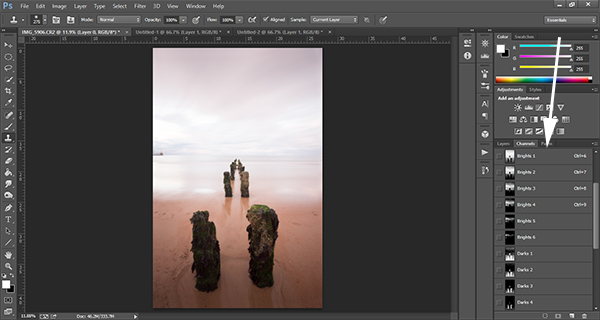
Luminosity mask channels

7. Comparing and Selecting a Luminosity Mask

For this set of images, you only need to use one mask in order to blend the sky from the darker exposure into the overexposed image. In this instance, you’ll need to select Brights 3.
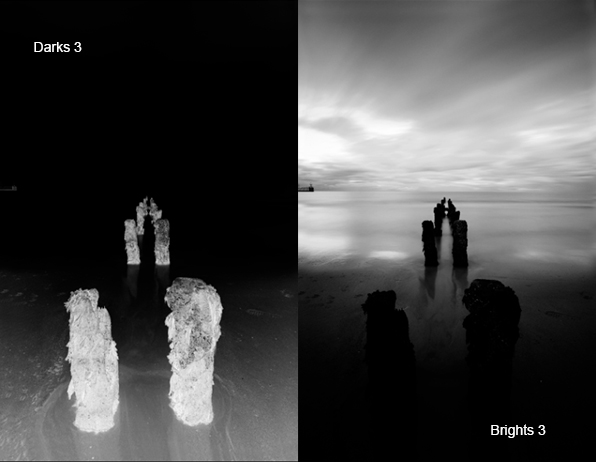
Comparing Masks

Just as with normal masking, the brighter the pixel the stronger the selection. In other words, in the image above, if you used Brights 3 you are selecting much of the sky and sea, but none of the foreground which is completely black. Conversely, if you selected Darks 3, for example, you would only be making a selection of the foreground sand and the poles that lead out to sea.

When choosing the appropriate mask, you are looking to isolate different areas. Therefore, it’s important that the mask you choose has the greatest contrast between the areas you wish to select and the areas you wish to ignore.

For example, if you were working on an image of a nice green field on sunny day, but the sky was blown out and you wished to exchange it with the sky from a darker exposure. You would run the luminosity mask actions and choose the mask where the field was black and the sky was white. This would ensure you would only select the sky and not the field in the foreground.

To turn Brights 3 into an actual selection, you just need to hold Control (Command on a Mac) and click the left mouse button on the thumbnail of the Brights 3 channel. Marching ants will appear to indicate your selection. Press “Control + H” to hide the marching ants.

8. Get Ready to Paint on the Mask

Now switch back to your Layers panel and select the underexposed layer. Make sure you select the mask, and not the actual layer itself.

9. Set up the Paint Brush Tool

Choose the Paint Brush tool on the toolbar and make sure the foreground colour is set to white. Choose the correct brush size. This will depend entirely on the area you’re working with in a given image, but usually, a larger brush is better. A brush size of 2,000 pixels was used here. Set the opacity depending on the strength of the masking you wish to use. For example, with this image, you will mask the sky with an opacity of 100%, but the overexposed areas in the water and foreground will only be masked at 40% opacity. This is because you don’t want to darken the sea too much.

10. Painting or Applying the Mask

Now you’re ready to begin masking. Freely move your paint brush around the areas you wish to affect. Since you are masking with a luminosity mask selection you don’t have to worry about going over the edges. Try varying opacities in different places. Even if your brush opacity is set to 100%, you can still run your brush through certain areas a few times to strengthen the effect.

By holding Alt (Option on a Mac) and clicking on the layer mask you’re working on, you can see exactly what the mask now looks like. The image below is the final layer mask after you’ve finished painting. Remember that white equals visible and black equals invisible. So the sky in this layer is completely visible, the sea is grey so it is partially visible. Since the foreground is black, which means invisible, you will be left with a foreground that is 100% from the overexposed layer below.
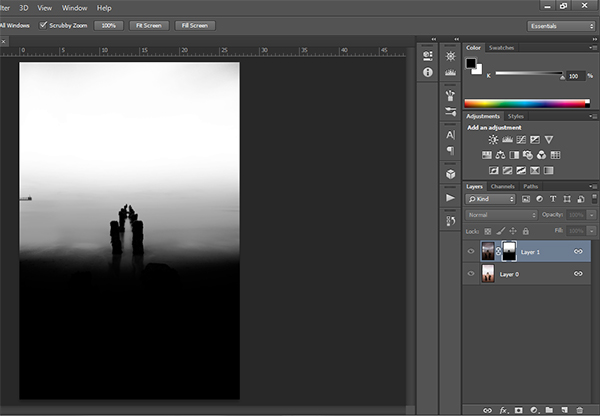
Final Mask

After a small contrast adjustment and a selective vignette added, here’s the final image along side the original overexposed image you were working with.
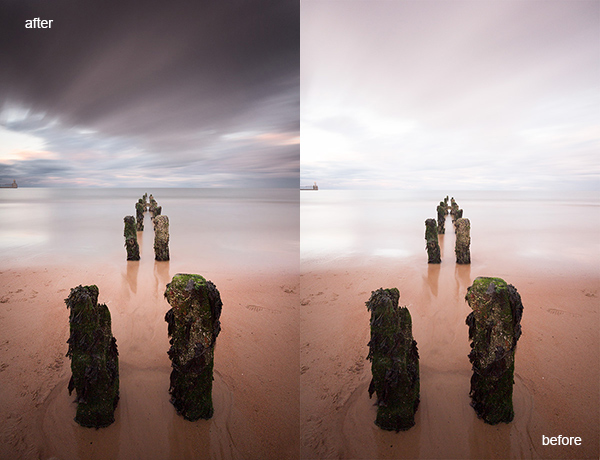
Final images

You now have a nicely balanced image with a good range of dynamic light and tones.

Deleting the Luminosity Masks

While working in Photoshop, the more layers you work on, the larger the demand on Photoshop and your system. Large workflows can seriously slow down your operating system. To ease the load, you should delete the luminosity masks once you’ve finished working with them.

To do this, go back into your Channels palette and select Brights 1. Then hold down Shift and press your left mouse button on Brights 2 to select this too. Do the same with each luminosity mask below. Once all are selected, click your right mouse button on any of the selected masks and choose the Delete Channels option. This will remove the selected channels.

Summary

At first, luminosity masks seem complex and sometimes daunting, but in truth, this whole workflow took less than 5 minutes. After a little bit of practice you begin to get an intuitive sense of how to use these powerful tools, and once you do, you gain extensive control over your images that can change your photography forever.

Have you tried this method of blending images, if so share your thoughts or images in the comments below. Or do you prefer the HDR tone-mapping process? Do you think HDR is dead or maybe it should be? Or perhaps you are somewhere in the middle in the 10 steps every HDR photographer goes through? What are your thoughts?

Check out the newest dPS ebook – Loving Landscapes A guide to landscape photography workflow and post-production – a brand new dPS ebook by the authors of Living Landscapes

The post Exposure Blending Using Luminosity Masks Tutorial by Jimmy McIntyre appeared first on Digital Photography School.


Digital Photography School

 
Comments Off on Exposure Blending Using Luminosity Masks Tutorial

Posted in Photography


17. April 2014

18 Apr

Ein Beitrag von: Bernd

Omniscient Narrators © Bernd


kwerfeldein – Fotografie Magazin | Fotocommunity

 
Comments Off on 17. April 2014

Posted in Equipment


Behind the scenes: Small lighting, big results with Joe McNally

17 Apr

Screen_Shot_2014-04-16_at_12.26.16_PM.png

Nikon’s latest in a series of behind the scenes videos features photographer Joe McNally. An off-camera lighting wizard, McNally shares some useful tips from three different flash scenarios. No diffusion panel? No worries, McNally explains you can get the same results by placing a bed sheet between the flash and the subject. And as natural light began flowing through his studio, like any good photographer, McNally moved his model to make some pictures — without flash, this time. See video

News: Digital Photography Review (dpreview.com)

 
Comments Off on Behind the scenes: Small lighting, big results with Joe McNally

Posted in Uncategorized


Eyefi announces photo sharing cloud service

17 Apr

card_mobi_16.png

The maker of popular Wi-Fi SD cards has launched Eyefi Cloud, a private photo-centric cloud service that makes photos instantly available on a smartphone, tablet, PC or smart TV. Once users send images from their camera to mobile device using the Eyefi Mobi SD memory card and updated iOS and Android Eyefi apps, images can now be transferred to Eyefi Cloud for viewing on any browser-enabled device. Learn more

News: Digital Photography Review (dpreview.com)

 
Comments Off on Eyefi announces photo sharing cloud service

Posted in Uncategorized


DIY: Photo Surprise Easter Eggs

17 Apr
Extra photos for bloggers: 1, 2, 3

What came first? The chicken or the chocolate egg? We don’t know but we do know what came next. You!

Surprise a friend as they bite into an Easter egg by hiding a photo on the inside.

All you need for this surprise are some chocolate eggs, a little chocolate surgery and a photo of yourself in your Easter best.

Put on those bunny ears and hop this way for chocolate surprise fun times.

Learn How to Make Your Own Photo Surprise Easter Eggs

p.s. Need a pick me up? Go to HighFiveTheInternet.com and HIGH FIVE THE ENTIRE INTERNET. We made this li’l site for National High Five Day today!

(…)
Read the rest of DIY: Photo Surprise Easter Eggs (253 words)


© Erika for Photojojo, 2014. |
Permalink |
No comment |
Add to
del.icio.us

Post tags:


Photojojo

 
Comments Off on DIY: Photo Surprise Easter Eggs

Posted in Equipment


Pocket Printer: Mini Roomba-Like Robot Prints on the Go

17 Apr

[ By Steph in Gadgets & Geekery & Technology. ]

Mini Robotic Printer 1

While other gadgets have gotten smaller and more streamlined, printers have generally remained space-hogging behemoths. Seemingly ignored in the quest to make computers and their accessories compact and ultra-efficient, most modern-day printers look like relics of the circa-2000, oversized beige PC era. One new concept aims to challenge that with a tiny mobile design that moves across paper of any size like a Roomba.

Mini Robotic Printer 3

The Mini Mobile Robotic Printer makes it possible to take printing capabilities on the go with you along with your laptop, cell phone and other mobile devices. It prints from any device, including phones, and isn’t constrained by the paper size accepted by a conventional printer. It consists of a printhead on a set of small wheels that travels across a sheet of paper to print. An omni-wheel system enables the printer to turn in any direction.

Mini Robotic Printer 4

Powered by a battery that can be recharged via USB, the Mini Mobile Robotic Printer has a small inkjet that lasts over 1,000 printed pages. Once charged, the battery gets an hour of printing time. While the first version will be grayscale only, Jerusalem-based ZUtA Labs aims to create a color version in the future.

Mini Robotic Printer 2

Measuring just over 4.5 inches in length, the printer connects to gadgets wirelessly via Bluetooth. A Kickstarter campaign is currently raising production funds, and the first printers will go out to backers of the project in January 2015.

Share on Facebook


[ By Steph in Gadgets & Geekery & Technology. ]

[ WebUrbanist | Archives | Galleries | Privacy | TOS ]


WebUrbanist

 
Comments Off on Pocket Printer: Mini Roomba-Like Robot Prints on the Go

Posted in Creativity


Call for entries: Getty Images grants

17 Apr

006.JPG

Getty Images has announced a call for entries for its Getty Grants, a series of photographic grants for editorial and portrait photographers totaling $ 130,000 (~£77,737). To celebrate the 10-year anniversary of its grant program, Getty Images is offering six prizes for editorial photography, three creative grants for non-profits and individual photographers, and one for portrait photographers. Learn more

News: Digital Photography Review (dpreview.com)

 
Comments Off on Call for entries: Getty Images grants

Posted in Uncategorized