RSS
 

Archive for September, 2013

Wedding Photography: Shooting The Rings

12 Sep
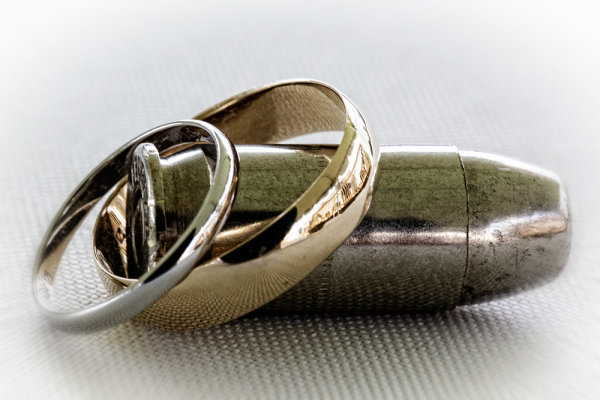
This bride and groom are both serving in the army, and both are gun enthusiasts. I asked the groom if he had their guns handy, and a bullet, and came up with this shot as one of the ring shots. This shot was taken in available light, under a tent outdoors.  EOS 5D Mark III with EF 100mm f/2.8L IS; ISO 2500, f/16, 1/125.

This bride and groom are both serving in the army, and both are gun enthusiasts. I asked the groom if he had their guns handy, and a bullet, and came up with this shot as one of the ring shots. This shot was taken in available light, under a tent outdoors. EOS 5D Mark III with EF 100mm f/2.8L IS; ISO 2500, f/16, 1/125.

In my career in photography, I’ve chosen not to focus on weddings as a business model, and shoot only a few every year.  I try to avoid being “traditional” in my approach to weddings, mixing traditional shots or types of shots with my own approach- which may or may not have been borrowed from other photographers I have worked with.

One such shot is the ring shot. It is what’s known as a detail shot, and while this may not be the most important shot of the wedding, it is one of the shots that helps sets the tone of an album, and can allow for a lot of creativity if you have the time.  If the shot fails, it will definitely be noticed.

The bride and groom in this wedding had a special affinity for the beach, and brought a beach theme to their wedding. Shells were scattered about the tables. I selected a few and quickly shot the rings on a table. The room was brightly lit with daylight pouring in the windows nearby, and I set my flash to bounce off the ceiling to add just a touch more light. . EOS-1D X, EF 100mm f/2.8L IS. ISO 800, 1/250, f/5.6.

The bride and groom in this wedding had a special affinity for the beach, and brought a beach theme to their wedding. Shells were scattered about the tables. I selected a few and quickly shot the rings on a table. The room was brightly lit with daylight pouring in the windows nearby, and I set my flash to bounce off the ceiling to add just a touch more light. . EOS-1D X, EF 100mm f/2.8L IS. ISO 800, 1/250, f/5.6.

There are many ways to go about these types of shots, some more cliche than others. The one that always comes to mind is a shot of the rings resting on the invitation, or the rings casting a shadow of a heart on a Bible opened to 1st Corinthians. My preference is to find something personal that connects the rings to the bride and groom, or else I’ll pull something from the theme of the day.  It may take some digging with your clients to find that personal connection- maybe a story about how they met, or something they share together, but once you find it, it can make shooting the ring shot a lot more fun. If I can’t find a personal connection, I’ll use flowers, the bouquet, or a even a champagne cork.  Be creative. There are a lot of ways to photograph wedding rings that will make them stand out.

There was no overriding theme at this wedding, and as a second shooter I didn't have time to get to know the bride and groom. I found a flower arrangement and played with several arrangements before settling on this one. EOS 5D Mark III, EF 100mm f/2.8L IS. I bounced the flash off the ceiling for this shot. ISO 800, f/8, 1/200.

There was no overriding theme at this wedding, and as a second shooter I didn’t have time to get to know the bride and groom. I found a flower arrangement and played with several arrangements before settling on this one. EOS 5D Mark III, EF 100mm f/2.8L IS. I bounced the flash off the ceiling for this shot. ISO 800, f/8, 1/200.

Technically, while a macro lens is helpful, it’s not absolutely necessary.  You can highlight the rings in whatever setting you choose, but be careful not to let them get lost in the setting.    Typically I use a Canon EF 100mm f/2.8L IS macro lens, but any lens that will let you get fairly close will work, depending on your composition. Ideally, I would use off-camera flash every time, but weddings tend to me fast moving events, and there isn’t always time to do it the way you’d prefer.  In this case, I’ll set up a small reflector or bounce card to bounce the flash and give a better quality light.  I will often try several angles to get different looks.  Outdoor weddings during the day are a bit easier. I’ll look for a shaded area and shoot the rings in the available light.

Ring shots are often my most fun shot of the day.  There’s no one stressing about their hair or makeup, and no one trying to pull their attention in a different direction.  So use the ring shot as your moment of peace on an otherwise busy day, and have some fun with it.

This shot was also from the military wedding. The bride and groom are knife enthusiasts as well. The groom gave me one of his knives and I played with a few arrangements before shooting this one. EOS 5D Mark III, EF 100mm f/2.8L IS. ISO 3200, f/9, 1/125.

This shot was also from the military wedding. The bride and groom are knife enthusiasts as well. The groom gave me one of his knives and I played with a few arrangements before shooting this one. EOS 5D Mark III, EF 100mm f/2.8L IS. ISO 3200, f/9, 1/125.

This is another set up from the military wedding.  His 'n' hers .45's.  This shot doesn't require a macro lens, though I used the EF 100mm f/2.8L. EOS 5D Mark II, Ef 100mm f/2.8L IS. ISO 3200, f/16, 1/160.

This is another set up from the military wedding. His ‘n’ hers .45′s. This shot doesn’t require a macro lens, though I used the EF 100mm f/2.8L. EOS 5D Mark II, Ef 100mm f/2.8L IS. ISO 3200, f/16, 1/160.

Post originally from: Digital Photography Tips.

Check out our more Photography Tips at Photography Tips for Beginners, Portrait Photography Tips and Wedding Photography Tips.

Wedding Photography: Shooting The Rings


Digital Photography School

 
Comments Off on Wedding Photography: Shooting The Rings

Posted in Photography


In Orbit: Transparent Suspended Net Playground in the Sky

12 Sep

[ By Steph in Art & Installation & Sound. ]

Tomas Saraceno Net Installation 1

A suspension of transparent nets hovering 80 feet over the floor of an indoor courtyard makes for a surreal playground for the brave, and a terrifying sight for those afraid of heights. Artist Tomás Saraceno created this 2500-square-meter installation at the Kunstammlung  Nordrhein-Westfalen museum in Dusseldorf, Germany for visitors to explore.

Tomas Saraceno Net Installation 2

The interactive exhibit invites museum guests to walk out onto the cloud-like nets amidst transparent and mirrored spheres, for the sensation of hovering in some kind of dream space. The steel wire construction spans the museum’s glass cupola on three levels.

Tomas Saraceno Net Installation 3

The transparency of the nets make it look like the people engaging with the installation are floating when viewed from ground level or some of the mid-floors. “When several people enter the audacious construction simultaneously, their presence sets it into motion, altering the tension of the steel wires and the intervals between the three meshwork levels,” states the museum on its website.

Tomas Saraceno Net Installation 4

“By virtue of its magnitude and radically, in orbit has no precedent in Saraceno’s oeuvre to date. Even visitors who do not wish to climb the net or hang suspended above the abyss, but who choose instead to explore the installation in exclusively visual terms are confronted with themes of flight, falling, and floating, are inevitably gripped by the archetypal emotions associated with these states.”

Tomas Saraceno On Space Time 1

Tomas Saraceno On Space Time 2

A previous installation by Saraceno, ‘On Space Time Foam,’ utilizes a similar effect with translucent PVC membranes at a museum in Milan. The work plays on the ‘mutual dependence’ that becomes necessary when multiple people are moving within the installation at once.

Share on Facebook


[ By Steph in Art & Installation & Sound. ]

[ WebUrbanist | Archives | Galleries | Privacy | TOS ]


WebUrbanist

 
Comments Off on In Orbit: Transparent Suspended Net Playground in the Sky

Posted in Creativity


Lightroom’s Tone Curve Explained

12 Sep

It’s no secret that there are many ways to enhance our photographs with Lightroom. By using just a handful of sliders we can get some great results in a matter of minutes and by learning how to use tools like the gradient filter tool we can create some more specialized effects with just a little extra effort.

So with all these great tools is there still a need for the Tone Curve tool in Lightroom 4 and beyond? Or is it just another way of creating the same effects?

What is Lightroom’s Tone Curve Tool?

tonecurve

Well the answer to that question really lies in the details of what you are trying to accomplish with your post production. The Tone Curve tool is designed to allow you to modify the various light levels found within an image in a way that will give you greater control over the tonal range and contrast of your photograph.

As we capture our images we are capturing an array of light from the scene. From the darkest of the shadows to the whitest of the highlights the Tone Curve gives us a way of visually modifying how these levels of lights appear in the final image.

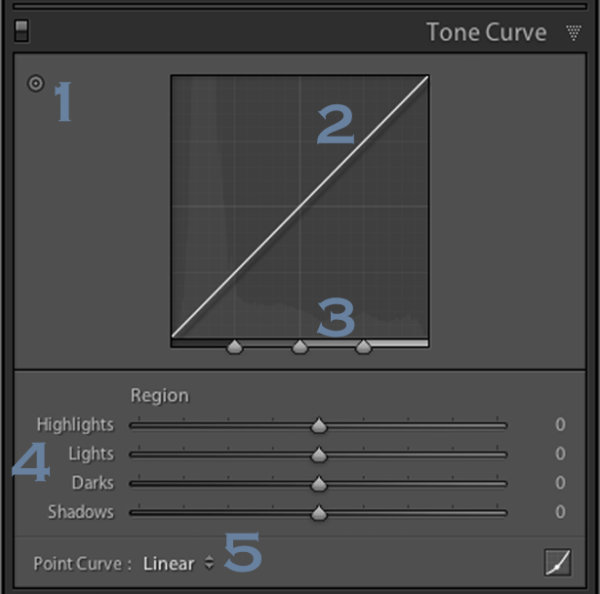
With the changes made to the basic tab back in Lightroom 4 the Tone Curve tool certainly doesn’t boast the power that it once did in comparison, but that doesn’t mean it’s useless. Today I’m going to show you how you can use the tool to modify your images and squeeze every little bit you can out of the tonal range that you’ve captured. As I’ve numbered above there are five ways that we can modify our images using the tool – let’s break them down now.

Number 1 – Make Tone Curve Adjustments by Dragging In Your Photo

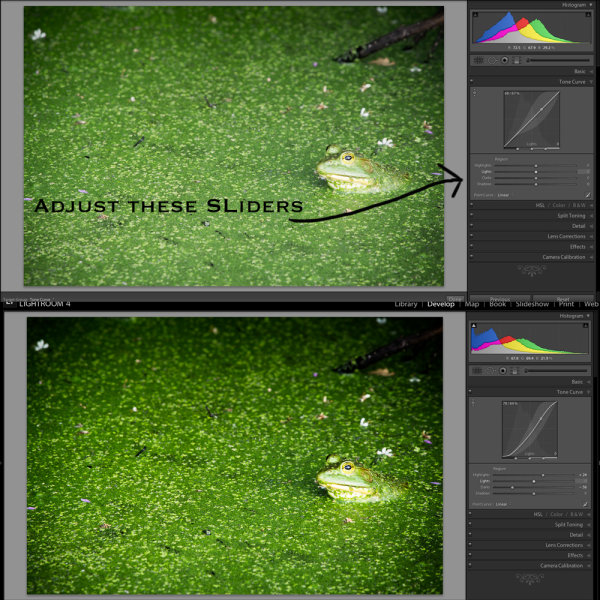
I honestly didn’t even notice this button until I started doing research for this article, but it does add a cool little function to the Tone Curve. By clicking on this button your mouse cursor will change allowing you to click and drag within your photo to make adjustments.

As you hover over your image you will notice that a point appears on the Tone Curve in the box to the right. As you move your mouse this point will move according to the light level of the area you are hovering over which makes it easy for you to determine what levels of light need adjustment in your image.

To use this tool simply click and drag up for more or down for less effect of the selected light level. It is important to note that this is a global change so it doesn’t just effect the area where you’re hovering, but all like pixels within the image.

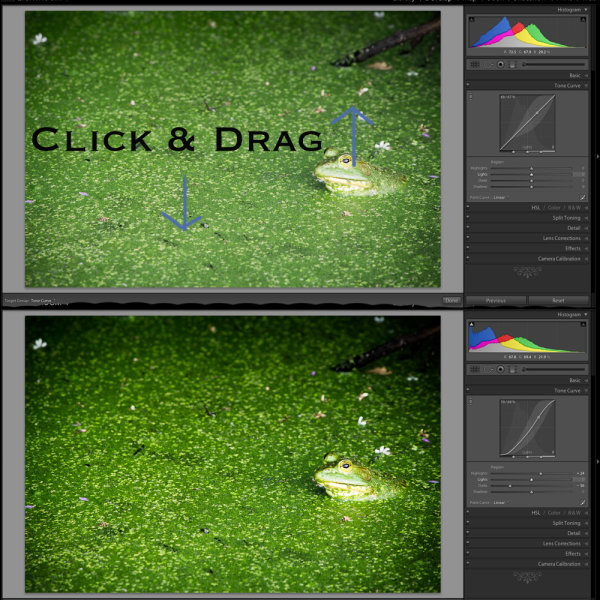
You’ll notice in the image below I dragged down on an area in the green algae and up on a highlight on the frog’s face. The result is more contrast in the final image. Please keep in mind that the examples in this article are extremes done to demonstrate the tool and not necessarily how you would use it in practice.

image1

Number 2 – Adjust Tone Curve by adjusting the curve itself

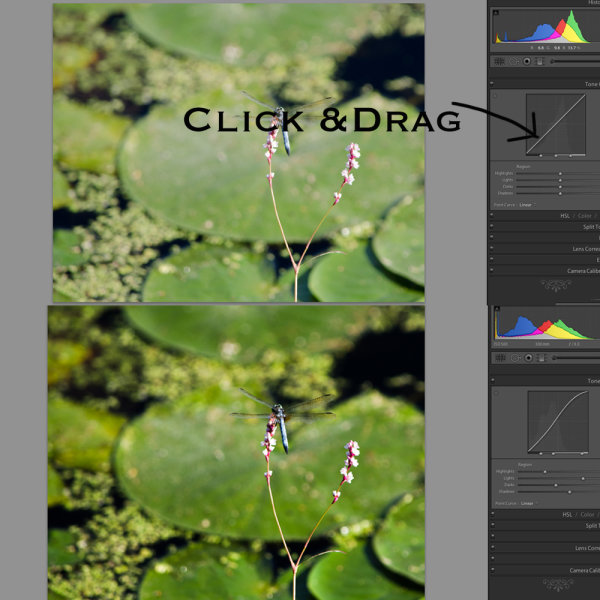
The Tone Curve itself is something that you can modify simply by clicking and dragging on the areas you wish to change. As you hover over the curve you’ll notice different pieces of the curve will be highlighted to show you what levels of light you are going to effect with your changes and how much room you have to make these changes.

In this photo I added a little more contrast by dropping a point towards the shadows end of the curve and raising a point towards the highlights end of the curve. This can be done in a similar manner with the sliders below the curve (see number 4 for that example).

image2

Number 3 – Adjust the strength of each light level’s region

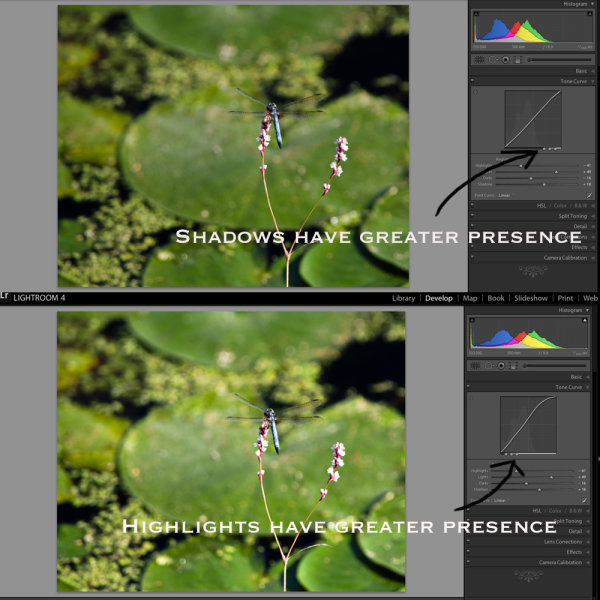
With this area of the tool we’re controlling the amount that each ‘region’ of light (highlights, lights, darks and shadows) effects the image.

The default settings (which are set in the modified image of #2 on this list) are set at 25, 50, 75 for the three sliders. In the first image below I’ve slid all three sliders to the right (an extreme example I know) which gives the shadow tones a greater impact over the overall photo. In contrast to this, the second image I’ve slid the sliders to the left which as you might expect gives the highlights within the image  more impact. In most cases I never touch the default settings, but they are good to be made aware of and might be useful one day when processing a specific image.

image3

Number 4 – Adjust using the familiar slider set up

Much like the sliders from the basic panel the sliders in the Tone Curve work in a similar manner. Slide left to lower a setting, slide right to raise a setting, double click to reset to zero.

It’s very straight forward and is important to note that it doesn’t do anything different than the other two methods I mentioned above. In fact you’ll notice that when you make any adjustments whether using #1, #2 or #4 the sliders and the tone curve will move to their respective positions regardless of which method you use to make your adjustments.

image4

Number 5 – The Point Curve Presets

Today we are going to only be talking about the three presets of the point curve and save the button in the lower right corner for another day – the presets are as follows – Linear, Medium Contrast and Strong Contrast and as you might expect the names pretty much say it all.

Linear contrast is a default and fairly flat setting and when using this setting you’ll notice that the curve is a straight line from the lower left corner to the top right corner. Medium and Strong contrast presets effect the ends of the curve in either a subtle way or a less subtle way changing the amount of contrast that is applied to the image simply by expanding the ranges of light at the ends of the curve.

In the example below I’ve simply switched from a Linear Curve to a Strong Contrast Curve to show the differences.

image5

When Would You Use the Tone Curve?

So now that we know how to use the tool, the question remains, when would you use it? I find that in my typical workflow I rarely touch the Tone Curve except for a small tweak here or a slight adjustment there. In my eyes the tool is designed to be a final adjustment to your images. Need a little extra shadow detail? Pull them down just a hair. Need some stronger highlights? Pull up on the highlights slider just a bit.

Of course you can get really creative with the Tone Curve to create some very unique and interesting effects and you can even click on the button that I didn’t cover above in the lower right hand corner and have access to the RGB scale and not only modify the overall tonal range, but the range specific to each color level in your photograph – but that’s an entirely different article.

Do You Use The Tone Curve?

With all the power that Lightroom offers in the other areas of it’s program it’s very easy to overlook the tone curve, I know I did for years, and even today I don’t go much further than applying one of the preset point curves to a photo, but I’d love to hear if you use it in your regular workflow and if so which one of the region adjustments do you use most often?

Post originally from: Digital Photography Tips.

Check out our more Photography Tips at Photography Tips for Beginners, Portrait Photography Tips and Wedding Photography Tips.

Lightroom’s Tone Curve Explained


Digital Photography School

 
Comments Off on Lightroom’s Tone Curve Explained

Posted in Photography


Google+ Releases Advanced New Photo Editing Tools

12 Sep

All At Once Her Heart Opened Up

Today Google+ released a whole new enhanced online photo editing suite of tools. I’ve been playing around with them for the past few hours and am impressed with what you can do with them as an online editor. While they won’t replace my more traditional desktop tools (i.e. Lightroom, Photoshop, Nik, FX Photo Studio Pro, etc.), I think a lot of more casual users will love them.

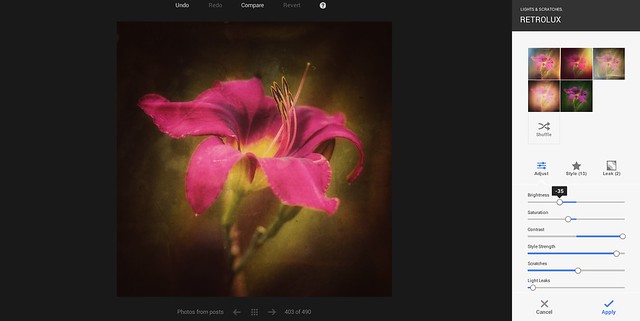
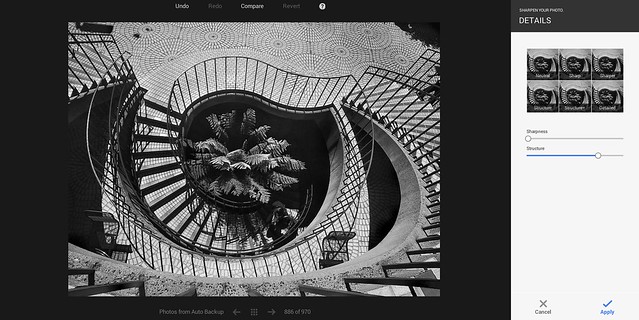
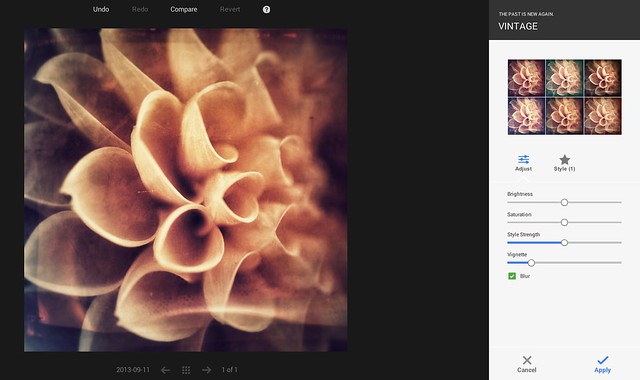
The online editor does a lot of the basics of editing (contrast, brightness, shadows, cropping, sharpening, structure etc.), but it also comes with some pretty slick vintage and what they call retrolux editing. These new tools allow you to customize your photos in a lot of the more popular faux photo styles currently hip with the Instagram crowd. While G+ offers some quick filters, they also give you more granular control over how much of each sort of effect you want.

The new editor also includes spot editing tools, which allow you to adjust only parts of a photo that need it and some interesting spot focusing tools, including tilt shift editing.

I edited the photo at the top of this post using the new G+ tools. It’s great to see Google continue to invest and innovate in the online photo sharing space. Below are some screen shots of some of the tools in action.

You can find more information about the new tools here and in the embedded post at the bottom of this post.

Google+ New Retrolux Editing

Google+ Structure and Sharpening Editing

Google+ Vintage Filters

Google+ Cropping Tools


Thomas Hawk Digital Connection

 
Comments Off on Google+ Releases Advanced New Photo Editing Tools

Posted in Photography


11. September 2013

12 Sep

Ein Beitrag von: Sebastian Schlueter

Alcatraz, San Francisco, California, Black and White, Fog, Foggy, Nebel, Kalifornien, USA, Langzeitbelichtungen, Langzeitbelichtung


kwerfeldein – Fotografie Magazin

 
Comments Off on 11. September 2013

Posted in Equipment


PhotoSmith app for iPad offers image organization, syncs with Lightroom

12 Sep

TC4x3AS520x0~cms_posts-3244247666-1_Photosmith_main-1.PNG

The PhotoSmith app for iPad lets photographers catalog and filter their photos on the move. There are no editing capabilities, but users can add ratings, labels, keywords and other metadata, and group photos into collections. It can export to Facebook, Flickr, Dropbox and iPad Albums, but its party trick is the ability to sync tags and ratings with Lightroom. Read more in our full review on our sister site, connect.dpreview.com.

News: Digital Photography Review (dpreview.com)

 
Comments Off on PhotoSmith app for iPad offers image organization, syncs with Lightroom

Posted in Uncategorized


Blickfang: Aparición – Erscheinung

12 Sep

Das Bild „Aparición“ (Erscheinung) stammt aus dem Bildband „Flor“* (Blume) der mexikanischen Fotografin Flor Garduño. Darin sind die Arbeiten eines Jahrzehnts enthalten, in dem sie sich nach ihrer Schwangerschaft mit den Themen Nacktheit und Stillleben auseinandergesetzt hat.

Ihre Bilder sind von einer starken Poesie durchzogen und so ist jedes einzelne wie ein Gedicht zu lesen. Formen verleihen den Bildern eine stumme Melodie, der Kontrast verspricht die ewige Dualität der Geschlechter.

Pflanzen und Pflanzenteile symbolisieren Fruchtbarkeit und erinnern in ihrer Form und Darstellung entweder an eine Vulva (eine aufgeschnittene Birne) oder Brüste (Granatäpfel). Gegenstände wie ein menschengroßes Schwert symbolisieren Macht oder Übernahme durch einen anderen. Ein Vogelkäfig zeigt die Gefangenschaft, die das menschliche Dasein oft mit sich bringt.

Ihre Bilder strotzen nur so vor Symbolik, so dass man sich ihnen länger widmen muss als nur ein Augenaufschlag lang. Jedes Bild ist Geheimnis und Offenbarung zugleich.

Flor © Flor Garduno

Mein Lieblingsbild ist „Aparicón“, weil es für mich, trotz seiner Klarheit, Fragen aufwirft. Der mit einem schwarzen Tuch verborgene Kopf, die schwarz gefärbten Hände und der weiße, aufgefächerte Rock lassen mich instinktiv die Bedeutung erahnen.

So erinnert mich der Rock an eine weiße Blüte, die aber nicht die Scham verdeckt, sondern den Blick darauf fokussiert und somit die Fruchtbarkeit symolisiert. Doch bleiben die schwarzen Hände und der verdeckte Kopf für mich ein Geheimnis.

Ihre Arbeiten inspirieren mich immer wieder. Ich mag die Einfachheit, die Stille, das Nicht-Aufgeregte, die es darin zu entdecken gibt. Ihre Bilder benötigen keine aufregenden Effekte, um Aufmerksamkeit zu erhalten. In ihrer Schlichtheit zeigen sie die Schönheit unserer Existenz und verbildichen gleichzeitig die immer wiederkehrenden Fragen unseres Seins.

Ich kann diesen Bildband von Flor Garduño also uneingeschränkt empfehlen. Er gehört zu den Schätzen in meinem Bücherregal.

* Das ist ein Affiliate-Link zu Amazon. Wenn Ihr darüber etwas bestellt, erhalten wir eine kleine Provision, Ihr zahlt aber keinen Cent mehr.


kwerfeldein – Fotografie Magazin

 
Comments Off on Blickfang: Aparición – Erscheinung

Posted in Equipment


Beyond Google Glass: 13 Real-Life Wearable Tech Inventions

11 Sep

[ By Steph in Gadgets & Geekery & Technology. ]

Wearable Tech Main
Once thought to be a dystopian dream of the distant future, the merging of technology and the human body is already well underway, and it could help us avoid injuries, diagnose disease, and even control gadgets with our minds. Google Glass is just the beginning – wearable technology gives us a vast array of incredible, unprecedented capabilities with everything from tiny ultrathin electronic ‘tattoos’ to clothing that translates our movements into computer commands. These 13 inventions are either already available to the public, or well on their way.

MIDI Controller Jacket Turns Your Body into a Synthesizer

Wearable Tech MIDI Jacket

Convert your body movements into music with Machina’s MJ v.1.0, a jacket that integrates a Musical Instrument Digital Interface (MIDI) controller with flexible motion sensors so you can operate digital music instruments and computers by modifying the position of your body. It’s so complex, including flexible membrane potentiometers to monitor finger position, it can’t be mass-produced just yet; it has to be hand-made by a master tailor. Other than the placeholders, the sensors are totally invisible, so the jacket looks like any ordinary piece of clothing.

Air Waves Pollution Mask by Frog Design

Wearable Tech Air Waves Pollution Mask 1

Wearable Tech Air Waves Pollution Mask 2

A smart device that monitors air quality in real time and shares the data to smartphones could help combat the negative health effects of extreme pollution in China. The AirWaves mask is a combination of wearable tech and an app that guides users to areas of the city with better air quality, and enables them to track air quality over time. So far it’s just a concept, but an intriguing one that could help raise awareness and give people a little bit of power over a frustrating problem.

MYO Band – Control Gadgets Using Gestures

Wearable Tech Myo Wristband

Rather than external sensors that ‘see’ your movements, like those used by the Nintendo Wii and XBox Kinect, this gesture-reading system for gadgets measures your actual muscle movements. MYO is a band that fits around your forearm, sensing movements similar to those you’d use on an Apple trackpad, like scrolling, flipping and zooming. It uses Bluetooth, so it could theoretically connect to virtually any mobile device, like smartphones, tablets and televisions. It’s currently available for preorder.

Robotic Exoskeleton Could Help Paraplegics Walk

Wearable Tech NASA Exoskeleton

NASA produced this robotic exoskeleton to help astronauts maintain muscle health in space, but the 57-pound X1 device could also help regular people here on Earth. Compared to the Iron Man suit by NASA, the X1features ten joints with multiple adjustment points that help astronauts in  zero gravity avoid muscle atrophy. Its more mundane uses could include increasing the range of movements possible in people who are disabled in various ways, including walking across varied terrain or stairs.

Wearable Solar by Pauline van Dongen

Wearable Tech Solar Dongen

Fashion designer Pauline van Dongen and solar panel specialist Gertjan Jongerden teamed up to join solar power and couture with ‘Wearable Solar.‘ The line consists of a leather and wool coat and dress featuring a series of solar-powered flaps that unfurl to soak up rays of sunlight, folding away ‘invisibly’ when not in use. The modules contain up to 48 flexible solar cells, which is enough to charge a smartphone 50 percent after an hour in full sunlight.

Next Page:
Beyond Google Glass 13 Real Life Wearable Tech Inventions

Share on Facebook


[ By Steph in Gadgets & Geekery & Technology. ]

[ WebUrbanist | Archives | Galleries | Privacy | TOS ]


WebUrbanist

 
Comments Off on Beyond Google Glass: 13 Real-Life Wearable Tech Inventions

Posted in Creativity


The Egg Factory – Bisti Bandlands, New Mexico

11 Sep

Egg Factory - Bisti Badlands, New Mexico


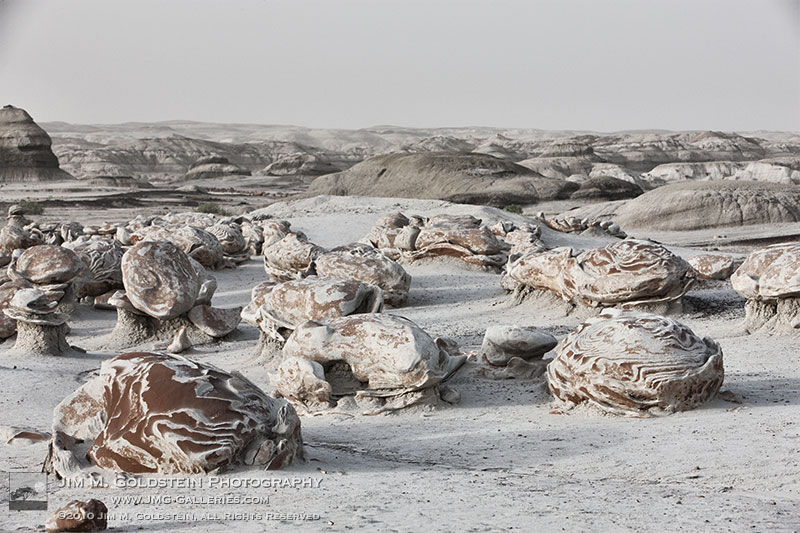
The Bisti Badlands of New Mexico is one of the most intimidating yet beautiful landscapes I’ve visited. This open arid expanse quickly puts you in your place or rather makes you realize how out of place you are walking around. Extreme weather can dominate the area (heat, sand storms and extreme winds), but it is this harsh combination that has made many of the geological features there including the Egg Factory. The last time I was there I got an in person tour of these harsh conditions with winds up to 55mph making it nearly impossible to get a photo. Even amidst a windstorm it’s amazing to see an “alien” landscape in your own backyard.

Copyright Jim M. Goldstein, All Rights Reserved

The Egg Factory – Bisti Bandlands, New Mexico

The post The Egg Factory – Bisti Bandlands, New Mexico appeared first on JMG-Galleries – Landscape, Nature & Travel Photography.


Related Stories

  • The Egg Factory – Bisti Bandlands, New Mexico – Enclosure
  • Primitive Coast V + Thoughts On The Singh-Ray 10-Stop Mor-Slo Filter
  • Primitive Coast V + Thoughts On The Singh-Ray 10-Stop Mor-Slo Filter – Enclosure
Feed Ads by FeedBlitz
powered by ad choices


JMG-Galleries

 
Comments Off on The Egg Factory – Bisti Bandlands, New Mexico

Posted in Equipment


MotoCMS Giveaway: Win 1×3 Professional Photography Website Template (Worth $139 Each)

11 Sep

Here on Photodoto, we know for sure what the biggest dream of every photographer is – it’s a professional, stunning portfolio website! Let your dreams come true! We’re pleased to announce a MotoCMS giveaway where all of you have a chance to win one of three premium website templates from our partners MotoCMS, spiced up with their powerful admin panel. Continue Reading

The post MotoCMS Giveaway: Win 1×3 Professional Photography Website Template (Worth $ 139 Each) appeared first on Photodoto.


Photodoto

 
Comments Off on MotoCMS Giveaway: Win 1×3 Professional Photography Website Template (Worth $139 Each)

Posted in Photography