RSS
 

Archive for August, 2013

Canon adds Pixma MG7120 and MG5520 all-in-one printers

22 Aug

Pixma_MG7120.png

Canon has refreshed its all-in-one lineup with the launch of the Pixma MG7120 and 5520. Both are Wi-Fi capable and, with use of the Pixma Printing Solutions app, can print directly from a host of popular social networks and cloud storage services. Both are also Apple’s AirPrint system. The faster, higher-resolution, 6-ink MG7120 includes a 3.5″ touchscreen and the ability to print on CDs and DVDs – it costs around $ 199. The 5-ink MG5520 has a 2.5″ screen and will cost around $ 149.

News: Digital Photography Review (dpreview.com)

 
Comments Off on Canon adds Pixma MG7120 and MG5520 all-in-one printers

Posted in Uncategorized


Canon announces PowerShot N Facebook ready edition

22 Aug

PowerShot-N02-trans.png

Canon has created a ‘Facebook ready’ variant of its social-media-focused PowerShot N digital camera. The ‘Facebook ready’ version will only be available directly from Canon (in the US, at least) and has a dedicated Facebook connect button in the place of the connect-to-device one on the standard N. Once the camera has been taught your login details, you can upload images with a choice of who gets to see them, once posted. The 1/2.3″ 12MP sensor camera will cost $ 299.

News: Digital Photography Review (dpreview.com)

 
Comments Off on Canon announces PowerShot N Facebook ready edition

Posted in Uncategorized


Canon unveils PowerShot SX510 HS and SX170 IS 16MP superzooms

22 Aug

sx510_thumb.png

Canon has announced its PowerShot SX510 and SX170 superzoom digital cameras. The PowerShot SX510 HS now uses a 12.1 megapixel CMOS sensor (versus a 16MP CCD on its predecessor), hence the new ‘HS’ designation. It offers Wi-Fi connectivity and what’s almost certainly the same 24-720mm equivalent optical zoom lens, a 3-inch LCD and Full HD video. The SX170 is essentially the same as its SX160 that came before it, with a 16x optical zoom and 16 megapixel CCD, though it’s no longer powered by AA-batteries.

News: Digital Photography Review (dpreview.com)

 
Comments Off on Canon unveils PowerShot SX510 HS and SX170 IS 16MP superzooms

Posted in Uncategorized


Canon reveals EF-S 55-250 F4-5.6 IS STM kit-friendly zoom lens

22 Aug

HR_EFS55-250_4-56_IS_STM_3Q-side-tr.png

Canon has released a version of its EF-S 55-250mm F4-5.6 lens that uses its STM stepping motor. STM lenses are designed for movie recording, with the goal of providing smooth and silent focusing. Unlike its predecessor, the STM version of the 55-250 has internal focusing. You’ll be able to pick up the 55-250 STM lens in late September for $ 350. It’s also a safe bet that the 55-250 STM will come bundled with Canon DSLRs in the near future.

News: Digital Photography Review (dpreview.com)

 
Comments Off on Canon reveals EF-S 55-250 F4-5.6 IS STM kit-friendly zoom lens

Posted in Uncategorized


Canon’s premium PowerShot G16 and S120 get minor updates

22 Aug

HR_G16_3Q_CL.png

Canon has announced its PowerShot G16 and S120 premium compact cameras – both of which get only minor updates compared to their predecessors. The G16 has the same lens, sensor, and design, but with Wi-Fi, a DIGIC 6 processor, a 12.2 fps burst mode, and a 1080/60p video mode. The Canon S120 has Wi-Fi like the S110 and gains a slightly faster lens (F1.8-5.7 vs F2.0-5.9), a 12.1 fps burst mode, and 60p video recording. Click through for more.

News: Digital Photography Review (dpreview.com)

 
Comments Off on Canon’s premium PowerShot G16 and S120 get minor updates

Posted in Uncategorized


LEGO Brooklyn: Artist Recreates Borough with Plastic Blocks

22 Aug

[ By Steph in Art & Sculpture & Craft. ]

LEGO Brooklyn Model 1

Familiar scenes from Brooklyn, from the local flower shop to the train station, are lovingly rendered in pixelated plastic by local resident and artist Jonathan Lopes. Lopes loves BK so much, he has filled his entire 400-square-foot living room with LEGO replicas of his neighborhood – and he does it without altering the bricks at all, working within the limitations of the retail sets.

LEGO Brooklyn Model 2

LEGO Brooklyn Model 3

The obsession started with a Star Wars LEGO model purchased a decade ago, leading to the design of his own creations. By 2011, Lopes had used a half-million bricks to mimic the Apollo Theater, trolleys in Red Hook, Firehouse Engine 226 and a gardening shop on Hoyt Street.

LEGO Brooklyn Model 4

LEGO Brooklyn Model 6
Lopes told the New York Daily News that he works out his ideas while riding on the subway. Some of the pieces, like a four-foot-tall model of the Williamsburg Savings Bank made of 12,000 bricks, go on display around the city, while others are dismantled almost as soon as they’re finished to build something new.

LEGO Brooklyn Model 5

See Lopes’ entire LEGO Brooklyn at MOCPages.

Share on Facebook


[ By Steph in Art & Sculpture & Craft. ]

[ WebUrbanist | Archives | Galleries | Privacy | TOS ]


WebUrbanist

 
Comments Off on LEGO Brooklyn: Artist Recreates Borough with Plastic Blocks

Posted in Creativity


Basic Skin Smoothing in Photoshop

22 Aug

I’ve always said that the best Photoshop is the Photoshop you never even notice.  I encourage my students to get it right in the camera, because my belief is that imaging software is a tool, not a crutch.  To quote commercial/portrait photographer Zack Arias, “If you find yourself saying, ‘I’ll just fix that later in Photoshop,’ stop what you’re doing and slap yourself as hard as you can.”  When people look at my portraits, I want them to see the personality.  I want them to see the emotion.  I want them to remember a moment in time.  What I don’t want is for them to look at my work and say, “Wow, great editing!”

In a perfect world, the photo shoot goes flawlessly.  The photos are creatively lit and bring out my subject’s personality.  It’s an intersection where subject and photographer come together in a collaborative effort that creates images needing almost no post production.

But since I don’t live or work in anything even remotely resembling a perfect world, Photoshop has become a necessary tool in the arsenal.  A levels adjustment to tweak the blacks.  Maybe a curves layer to bump the contrast.  I try to keep it subtle.  If you are shooting landscapes, it’s easy to let the artist run amok with color and special effects.  HDR?  Sure, go for it!  As a portrait photographer, though, you have to be very careful about not taking the editing and manipulation too far.

What do I mean by “too far?”  Have you ever seen a post-processed portrait where the whites of the eyes are so white that the subject looks like something out of a sci-fi movie?  What about skin so smooth it looks like plastic, totally devoid of any texture?  Any edit that pushes the bounds of reality is– in my opinion– “too far.”  I know there are people who disagree,  but my philosophy is this: whether you are coming to me for wedding/engagement photos, press photos for your band, or a head shot for the dust jacket of your latest book, we are coming together to make a portrait– not a semblance of a portrait.

Like I noted earlier, if I’ve done things properly, my portraits shouldn’t need much processing once they come off the camera.  Usually cropping/sizing.  Maybe a contrast tweak.  And maybe just a little attention to the skin.  But skin has texture.  It has pores.  It can be tricky, so here’s how I handle it.

This is a very old test shot from just before I went professional ten years ago.  Not exactly my finest hour– the pose is a bit awkward, there are multiple hot spots, the background is a mess– I could pick this photo apart for hours.  It is, however, a great image for demonstrating a skin smoothing technique.   There are a lot of different ways of doing this.  I’m not going to tell you that my way is best, but I am going to  tell you that my way is best for me.  It’s a pretty basic, straightforward approach, so it might end up being best for you, too.

First, let’s open up our image in Photoshop.  I’m doing this in Photoshop CS6 (No Cloud yet for me!), but I’ve been using this method for years, so you should be fine, regardless of which version you are using.   Step One is zooming in on our target areas.  Any adjustments you make in Photoshop will be less noticeable if you work on an enlarged view.  You’ll be making smaller, more direct adjustments, and you’ll have a better idea of when to stop.
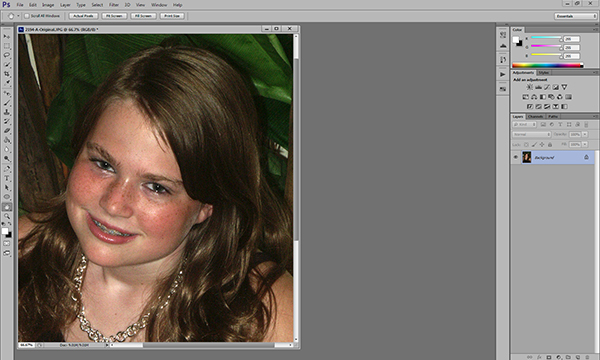
Zooming in lets you make more direct, subtle changes.

Zooming in lets you make more direct, subtle changes.

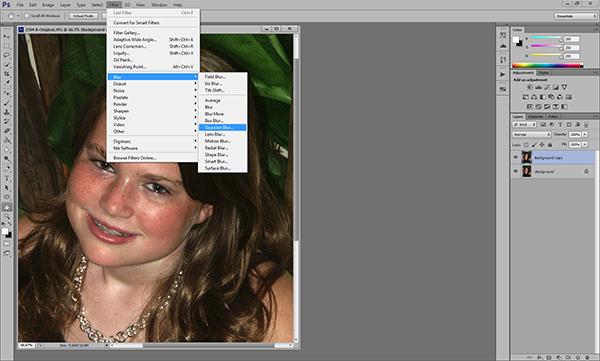
Once we’ve zoomed in on our target areas, we duplicate the layer and add a 20-pixel Gaussian blur in the Filters menu.  You’ll immediately see the entire image go very soft.  In the Layers palette, reduce the opacity of the layer to 50%.
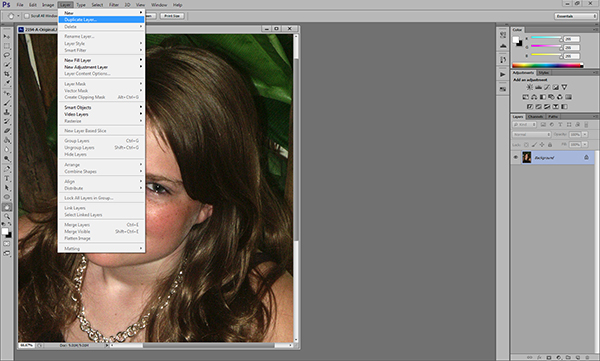
Duplicate the background layer in the Layers Menu.
Duplicate the background layer in the Layers Menu.

Add a Gaussian Blur.

Add a Gaussian Blur…

...and adjust it to 20 pixels.

…and adjust it to 20 pixels.

Next we are going to add a layer mask.  Don’t be intimidated.  The only thing a layer mask does is either hide or reveal the effects of the layers below it.  More on that in a little bit.  We are going to add the layer mask by holding down the ALT/OPTION key and clicking the Add Layer Mask icon at the bottom of the Layers palette.  You’ll see your image go back to its pre-blur appearance and a small black box will appear next to the layer thumbnail.
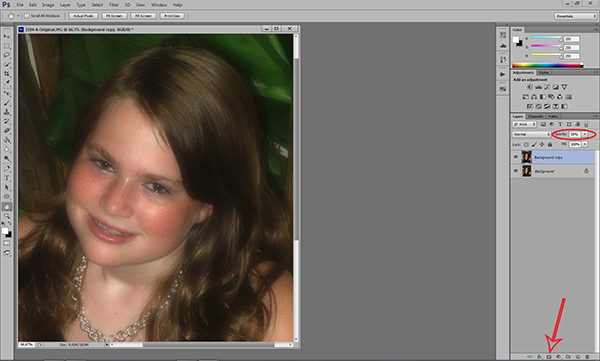
Reduce the opacity of the layer to 50% and add a layer mask.

Reduce the opacity of the layer to 50% and add a layer mask.

Next, select the brush tool.  You can use the bracket keys to adjust the size of the brush.  Pressing the SHIFT key while using the bracket keys will adjust the hardness/softness of the brush.  You’ll definitely want a brush with softer edges.  This will allow your facial edits to blend for a more natural look.  Hard brush edges will stand out.
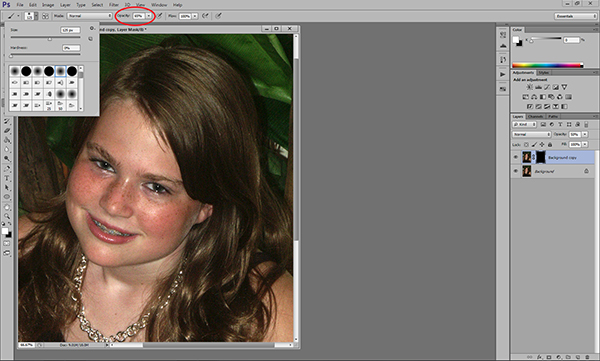
Select a soft, white brush and adjust the size.

Select a soft, white brush and adjust the size and opacity.

Make sure you are using a white brush.  The opacity of the brush will dictate the overall affect.  The closer you are to 100%, the closer you will be to the original Gaussian blur and we don’t want that.  I generally work with an opacity between 50%-70%.  I usually work at the higher end on female portraits and the lower end on males.  Experimenting with various opacities will show you how they affect the overall look of your image.  If you think you’ve chosen the wrong opacity, simply switch the brush color to black and go back over what you’ve done.  This will replace the part of the layer mask you’ve just removed.  Then readjust your opacity, switch the brush color back to white, and continue with your edits.

Before we go any farther, let’s take a look at what exactly is happening.  When we duplicated the layer and added the blur, creating the black layer mask only covered the blur– it didn’t remove it.  By using a white brush on the black layer mask we are removing parts of the mask, revealing the blur underneath only where we need it.  You’ll notice these areas appearing on the layer mask thumbnail.
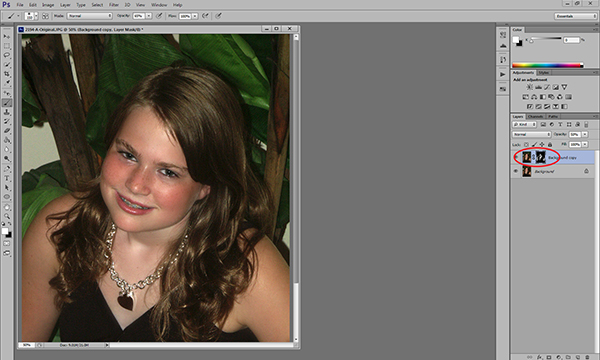
You'll see the effects of your brush strokes on the layer mask.

You’ll see the effects of your brush strokes on the layer mask.

Be careful to not brush over features like eyes and lips.  In a good portrait, facial features– the eyes particularly– should be sharp.  You do need to make sure, however, that you are consistent in your edits.  For instance, if I’ve smoothed the forehead and cheeks, chances are that the neck and shoulders are going to need some attention, too.  One sure-fire way to bring attention to your edits is to be inconsistent.  You don’t want some sort of imaginary line between retouched and non-retouched areas drawing attention to them.

The end result is a subtle, but noticeable change.

The bottom line is that skin has texture.  If you over-smooth it you will be left with a portrait that draws attention to the edits, rather than the person.  How much is too much is subjective, but keep in mind what I said earlier about going too far.  This is a technique where a little bit can go a long way.  What I really like about it is that it lets you make these edits in a subtle way, leaving you with a natural-looking portrait.

Post originally from: Digital Photography Tips.

Check out our more Photography Tips at Photography Tips for Beginners, Portrait Photography Tips and Wedding Photography Tips.

Basic Skin Smoothing in Photoshop


Digital Photography School

 
Comments Off on Basic Skin Smoothing in Photoshop

Posted in Photography


Blickfang: Alte Schreibmaschine, 1951

22 Aug

Das Bild „Alte Schreibmaschine, 1951“ stammt aus dem Bildband „Wynn Bullock“* aus der Phaidon-Reihe „55“, die in kleinformatigen Fotobüchern verschiedene Fotografen vorstellt. Der US-Amerikaner hat keinen leicht auszumachenden fotografischen Stil, er fotografiert in völlig verschiedenen Genres, viel mehr liegt etwas in seinen Motiven, das zutiefst die menschliche Seele trifft.

© Wynn Bullock

Wynn Bullocks Bilder sind ausnahmslos sehr feinsinnige Beobachtungen, Fundstücke, abstrahierte Dinge, zumeist im Grunde sehr alltäglich, aber in den Bildern hochpsychologisch. Es ist eine extrem poetische und sehr dichte Stimmung, vor allem in seinen Schwarzweißaufnahmen. Ein Zitat auf seiner Webseite sagt, dass er Dinge durch die Kamera „beyond conventional ways“ sehen will und für mich steht dieses „beyond“ hier für ein „tiefer“, für ein sehr genaues Reflektieren statt eines bloßen Wahrnehmens.

Menschliche Gegenstände, die in der Natur gefunden werden können, üben schon sehr lange eine tiefe Faszination auf mich aus. Ich liebe es sehr, wenn man sehen kann, wie die Natur sich über einen langen Zeitraum die Dinge zurückholt, mit menschlichen Dingen interagiert, sogar so etwas scheinbar Stabiles wie eine Schreibmaschine aus Metall und harten Plastikteilen.

Verschiedene pflanzliche und tierische Lebensformen haben sich an und auf dem Gerät angesiedelt, es zu ihrem Zuhause gemacht und verformen nach und nach ohne menschliches Zutun die Gestalt des Objektes. Einzelne Tasten liegen auf dem Gerät, ohne, das klar wäre, wie sie dort hingelangt sind. Man kann in dem Bild sehen, wie der Wald lebt, wie er sich als großer Organismus auf eine Weise bewegt, die wir Menschen genauso wenig beobachten können wie die Bewegung des Stundenzeigers einer Uhr.

Das Bild ist sicherlich kompositorisch nicht herausragend, viel mehr wirkt es zunächst so, als wäre einfach nur mit der Kamera draufgehalten worden, aber für mich gehört genau das wie auch der Titel mit zum Charakter von „Alte Schreibmaschine, 1951“. Ich habe fast das Gefühl, dass die Art der Aufnahme aus der stehenden Position genau vermitteln soll, wie sich jeder Betrachter fühlen würde, der diesen wunderbaren Gegenstand findet und vor ihn tritt. Wir begleiten den Fotografen als Beobachter der Welt.

* Das ist ein Affiliate-Link zu Amazon. Wenn Ihr darüber etwas bestellt, erhalten wir eine kleine Provision, Ihr zahlt aber keinen Cent mehr.


kwerfeldein – Fotografie Magazin

 
Comments Off on Blickfang: Alte Schreibmaschine, 1951

Posted in Equipment


Kodak bankruptcy plan approved, former film giant exits consumer business

22 Aug

shared:kodakextColor.jpg

The Kodak planning to exit from bankruptcy on September 3rd looks very different from the familiar imaging company that filed for Chapter 11 last year. The U.S. Bankruptcy court has approved Kodak’s plan for reorganization, a step that means the company can resume independent operation soon. CEO Antonio M. Perez issued a statement emphasizing Kodak’s move into commercial imaging for a profitable future, including “packaging, functional printing and professional services.” Click through to read more about where Kodak now stands.

News: Digital Photography Review (dpreview.com)

 
Comments Off on Kodak bankruptcy plan approved, former film giant exits consumer business

Posted in Uncategorized


4 Quick Tips to Notice the Supporting Cast of Your Landscape Scene

22 Aug

Recently I took a stroll through my photo archives as a way of bench-marking my progress as a photographer and something dawned on me – I’ve begun to overcome a very troublesome disorder for photographers known as Single Subject Blindness.

Single Subject Blindness

Have You Ever…

Come home from photographing something spectacular only to have ever photograph you upload be of that one spectacular subject? I mean there’s nothing wrong with this problem – after all you are still getting a photograph of one spectacular subject, but could you have gotten more? Done something else? Seen the scene differently?

So when you think back to some of your recent photo adventures – Have you ever photographed a dramatic sunset and walked away with photographs of only the sunset? Have you ever hiked deep into a forest to photograph a waterfall to walk away with only photographs of the waterfall itself? This is what I’m calling single subject blindness and it is something I’d like to mention today and talk about how I avoid it.

Thin Ice

There’s Nothing Wrong With Main Characters – But They Aren’t The Full Story

I do want to mention that there’s nothing wrong with capturing the main characters of your scene, the sunset, the waterfall, the expansive mountain range etc, but I do think that if that’s all you’re photographing when you go out on a shoot you’re missing a big part of the scene around you – the supporting cast!

I’ve done this myself for many years – I’ll get caught up in a scene and return to my computer to see what I’ve captured only to find every photo looks the same. Lately I’ve begun to catch myself doing it in the field and I’ve found a couple of ways to break the habit.

It’s not easy though – The thing is just like in the movies, a great book, or a dramatic play the main characters draw your attention, and keep it. The supporting cast is there to move the story along, but not necessarily be the story – however, they can make for very compelling and interesting subjects when isolated and taken separately. So while we can still photograph our main subjects I think it’s also important to find ways to steer our focus from the obvious subjects to those which are more subtle.

So How Do You Steer Your Focus?

There’s no denying that it’s hard to ignore the main character of your photo shoot – after all many times it’s the reason where there in the first place. If you want to have a chance to photograph the supporting cast of your scene you have to find the strength to divert your focus, even if only for a moment, from that main event. Here are four quick tips that I use to get myself noticing the smaller details of a scene – if you can think of more tricks leave them in the comments below!

Supporting Cast

4 Quick Tips to Notice the Supporting Cast of Your Scene

  1. Step back – It’s no secret that stepping back from you camera from time to time can be a huge benefit in improving your photography. It can help you see the entire scene as a whole, it can help you see different compositions of the subject you’re photograph, and yes it can even allow you to find and isolate the supporting cast of your scene which you might have otherwise missed with your eye glued to the viewfinder. 
  2. Close Your Eyes – Take a minute or two and close your eyes. I love doing this when I’m in the middle of no where, sometimes I’ll even spin myself in a couple circles and really try to disorientate myself (make sure you can find your way home before you try this though). The reason this works is because it causes you to really focus in on your location when you open your eyes to find your bearings. You’ll have a new view of your surroundings and this will help you see something that you didn’t notice before.
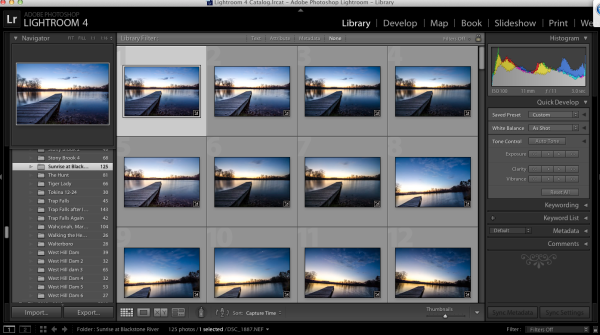
  3. Don’t Get Caught Up – I once woke up an hour before dawn in the middle of winter after a snow storm and drove to a frozen lake to photograph sunrise. I took nearly 150 shots during the 45 minutes I was there and ended up with one photograph – the one of the dock above. Of the photographs I took 95% of them looked exactly like the one above. I was cold, tired and very disappointed I didn’t make an effort to photograph other subjects during that shoot, but realized it wasn’t that I didn’t make an effort it was simply that I was caught up in photographing one subject instead of diverting my attention to other smaller details in the scene before me.
  4. Set an Alarm – If you know you’ll have a problem with number three try setting a timer. Allow yourself only a predetermined amount of time to get the shot you want from your main subject, and then once that time is up, spend the rest of your shoot looking for interesting supporting characters. This tip works wonders and it has a two fold effect – one due to the time crunch to capture the shot of your main subject you’ll find yourself working harder to get the shot you want in as short amount of time as possible, two it gets you looking for other interesting details in the scene you’re photographing.

Have You Ever Been Afflicted With Single Subject Blindness? What have You Done to Fix It?

I’d love to hear your own take on this and what you’ve done to avoid the problem in the comments below!

Post originally from: Digital Photography Tips.

Check out our more Photography Tips at Photography Tips for Beginners, Portrait Photography Tips and Wedding Photography Tips.

4 Quick Tips to Notice the Supporting Cast of Your Landscape Scene


Digital Photography School

 
Comments Off on 4 Quick Tips to Notice the Supporting Cast of Your Landscape Scene

Posted in Photography