RSS
 

Archive for May, 2013

Canon announces 200-400mm f/4 telezoom with built-in 1.4x extender

14 May

canon-200-400-news.png

Canon has introduced the EF 200-400mm f/4L IS USM Extender 1.4x – a top-end telephoto zoom with a built-in switchable teleconverter, whose development was first announced back in February 2011. Simply flicking a lever at the rear of the barrel converts it to a 280-560mm f/5.6 lens. Designed for professional sports and wildlife photographers, it includes an array of top-end features such as Power Focus for movie shooting, and IS ‘mode 3’ that only applies stabilisation at the point of exposure, aiding panning. It also offers weathersealed construction, 4-stop image stabilisation, and a minimum focus distance of 2m. It will go on sale on 29th May, at an RRP of £11999.99 / €11800.

News: Digital Photography Review (dpreview.com)

 
Comments Off on Canon announces 200-400mm f/4 telezoom with built-in 1.4x extender

Posted in Uncategorized


Nikon introduces 1 Nikkor 32mm f/1.2 portrait lens for 1 System

14 May

32_main.png

Nikon has introduced the 1 Nikkor 32mm f/1.2 portrait lens for its 1 System of mirrorless cameras. The lens, which will provide the angle of view and depth of field control of an 86mmm F3.2 lens for a full-frame system, making it the most enthusiast-friendly lens yet released for the 1 System. The lens, whose development was announced in October 2012, is also the first to use a silent wave motor for focus and to incorporate the company’s ‘nano crystal coat.’ Consistent with these loftier ambitions, Nikon will ask around $ 900 for the lens when it becomes available in June.

News: Digital Photography Review (dpreview.com)

 
Comments Off on Nikon introduces 1 Nikkor 32mm f/1.2 portrait lens for 1 System

Posted in Uncategorized


Developer releases open-source software to remotely control Nikon DSLRs

14 May

mainwindow.jpg

Developer Duka Istvan has created a release candidate of digiCamControl – free, open-source software that allows most Nikon DSLRs to be remotely controlled via computer. digiCamControl is compatible with Windows PCs and allows you to see your camera’s live view image on your computer screen, as well as trigger a tethered DSLR remotely, either directly or using a programmable timer. Multiple cameras can be connected at the same time. Click through for more details on connect.dpreview.com.

News: Digital Photography Review (dpreview.com)

 
Comments Off on Developer releases open-source software to remotely control Nikon DSLRs

Posted in Uncategorized


Test Your Geography Skills with Google Maps Game

14 May

[ By Steph in Global & Travel & Places. ]

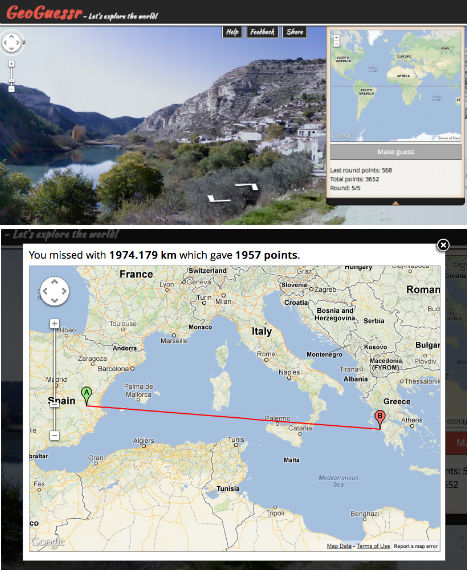
GeoGuessr Google Maps Game 1

Can you guess where in the world this unidentified Google Maps location is by landscape, road signs, architecture and cars? Test your geography skills with GeoGuessr, a site that drops you into a random Street View and challenges you to answer correctly five times in a row. Brilliantly simple, this virtual travel guessing game will stump you with featureless fields, and city scenes that seem to belong on entirely different continents.

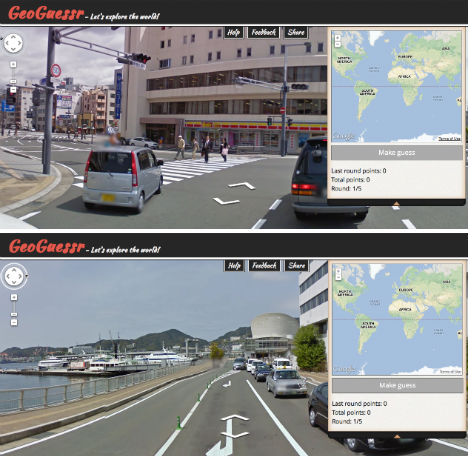
GeoGuessr Google Maps Game 2

Once placed in a location, you can move up and down the streets and use the arrows to view it in 360 degrees, just like on Google Maps and Google Earth. Sometimes, you might get lucky, and see some kind of identifying signs. Sometimes, there’s nothing but farmland and trees.

GeoGeussr Google Maps Game 3

When you think you’ve determined the location, drop a pin on the world map on the right side of the screen and make your guess. You might be surprised how many times you’re about as off as you can possibly be. Some streets in Northern Canada look an awful lot like those in Argentina. Try it for yourself at GeoGuessr.com (via Laughing Squid).

Share on Facebook


[ By Steph in Global & Travel & Places. ]

[ WebUrbanist | Archives | Galleries | Privacy | TOS ]


WebUrbanist

 
Comments Off on Test Your Geography Skills with Google Maps Game

Posted in Creativity


The 13 Most Popular DSLRS Among dPS Readers [May 2013]

14 May

It has been 4 months since we updated our ‘Popular Cameras and Gear’ list here on dP – a list of the hottest selling cameras and accessories among our readers (based upon what they are buying on Amazon*).

So today I have updated the most popular DSLR list of cameras. What follows is the most popular camera DSLR bodies.

It is topped by Canons Rebel T4i which tops the list for the first time after quite a long reign of the T3i (now in #2 spot).

1. Canon EOS Rebel T4i

61W0knoTL2L._SL1500_.jpeg

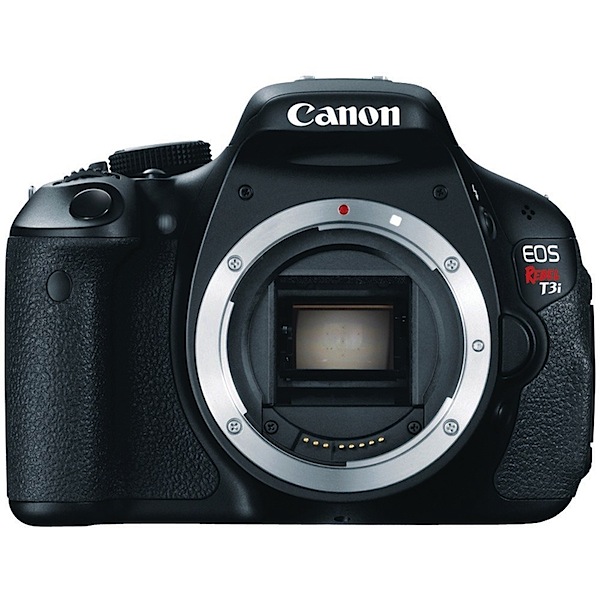
2. Canon EOS Rebel T3i

_images_I_71lbwO52tvL._AA1000_.jpg

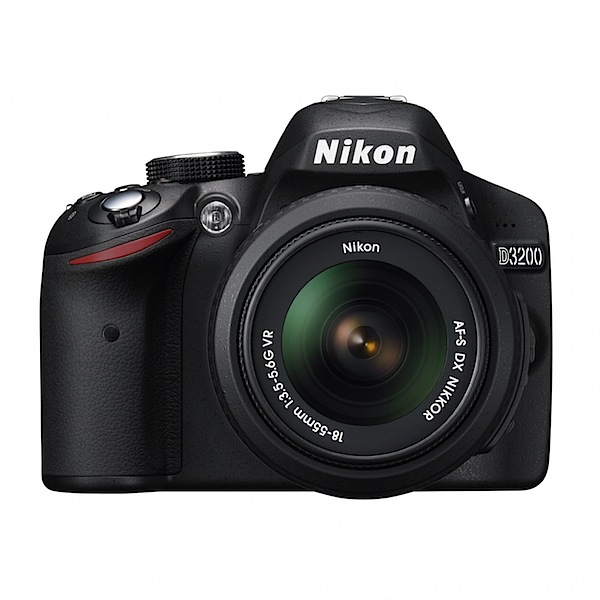
3. Nikon D3200

_images_I_91WSe2OKasL._AA1500_.jpg

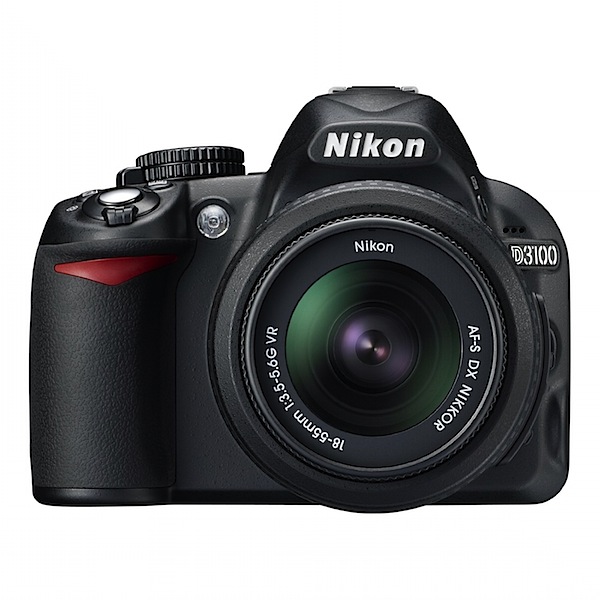
4. Nikon D3100

_images_I_713u2gDQqML._AA1500_.jpg

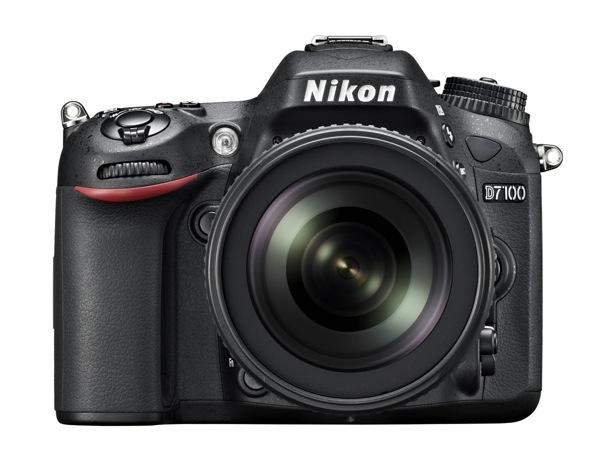
5. Nikon D7100

91Ns138GTAL SL1500

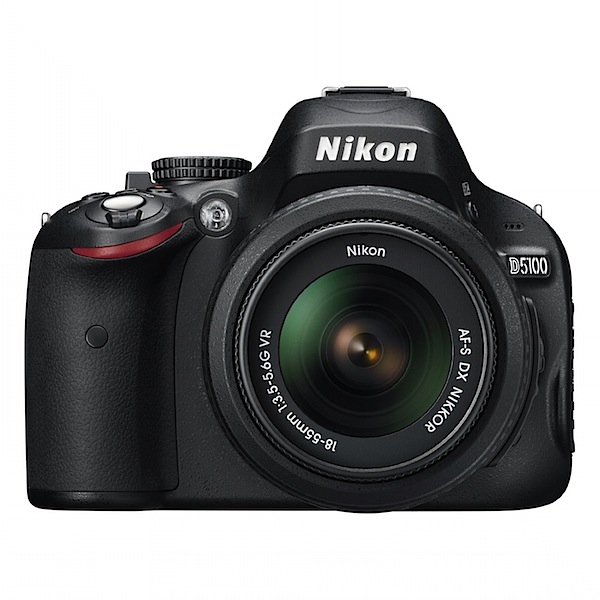
6. Nikon D5100

_images_I_81PnDu4O7tL._AA1500_.jpg

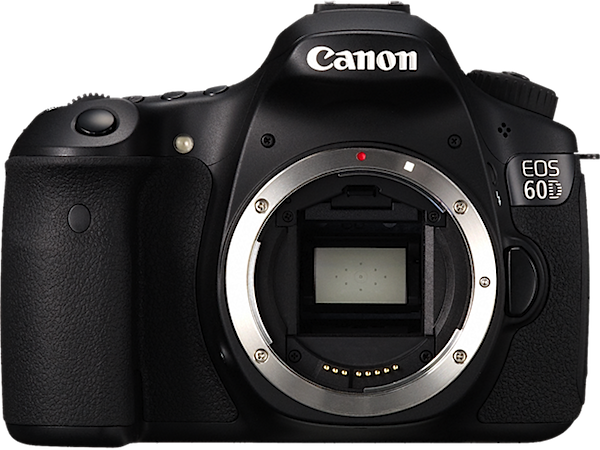
7. Canon EOS 60D

60D_07_AUS.png

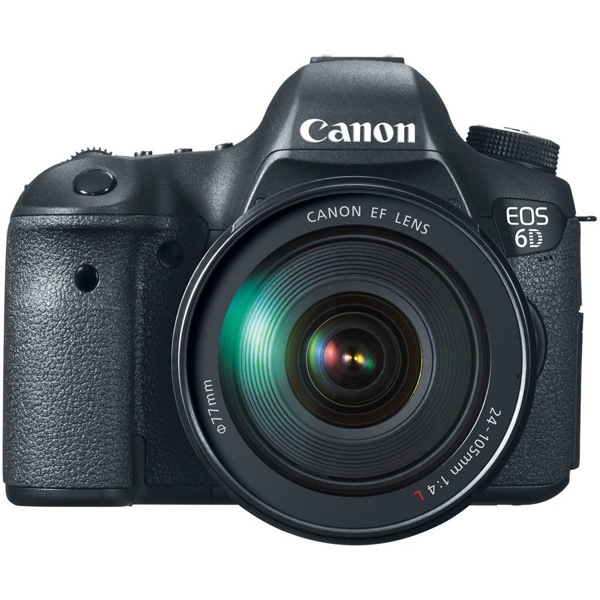
8. Canon EOS 6D

71lm0i0NUiL SL1000

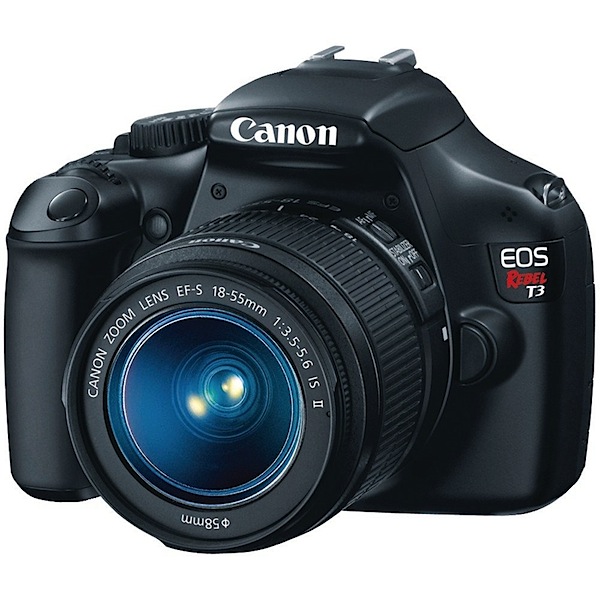
9. Canon EOS Rebel T3

_images_I_71AKBVTvZdL._AA1000_.jpg

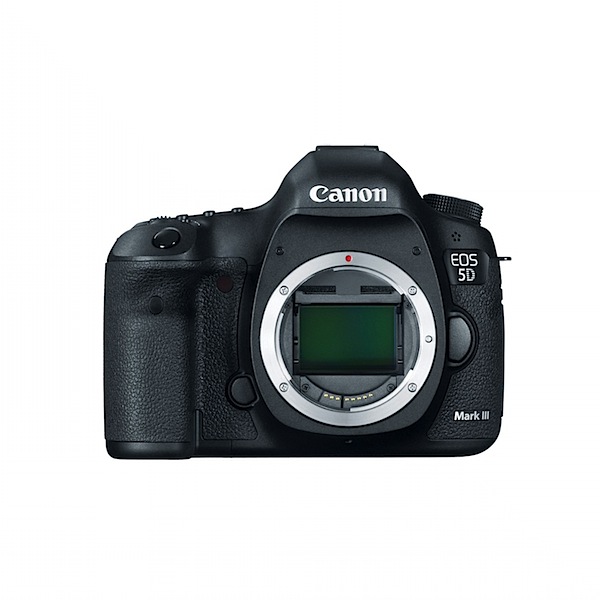
10. Canon EOS 5D Mk III

_images_I_71X9b9JhO8L._AA1500_.jpg

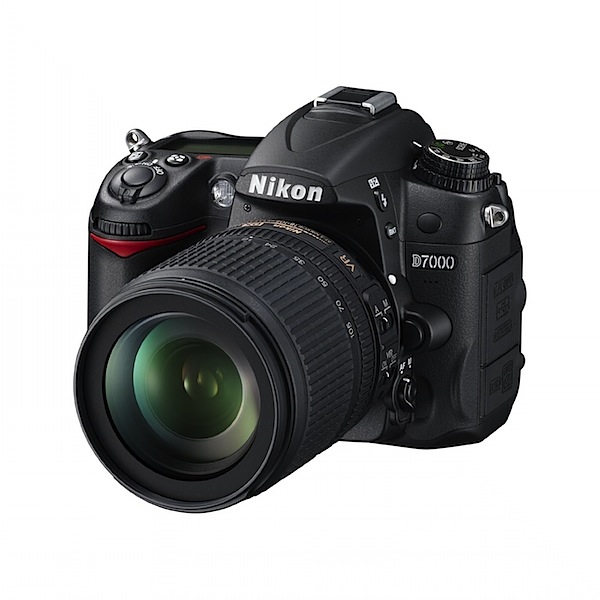
11. Nikon D7000

_images_I_71yf785aBmL._AA1500_.jpg

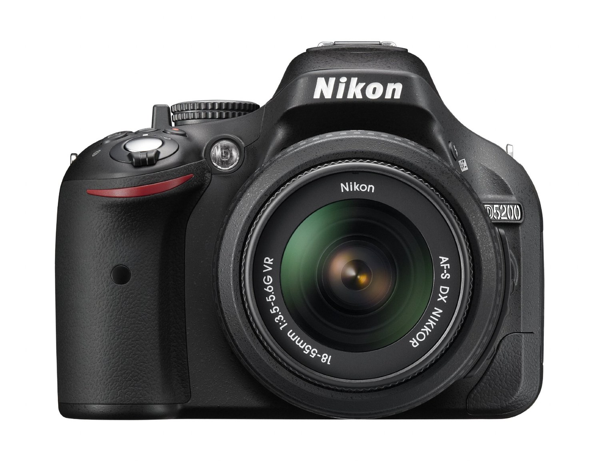
12. Nikon D5200

NewImage

13. Sony Alpha SLT-A57M

71-X96zbUiL._SL1000_.jpeg

As usual, this list isn’t a list of the ‘best’ cameras – just what people are buying on Amazon right now.

**Note: this list was compiled from reports supplied to us from Amazon.com where we are affiliates. One of the ways dPS is able to cover its costs and be a sustainable business is that we earn a small commission when readers make a purchase from Amazon after clicking on our links (including those above). While no personal details are passed on we do get an overall report from Amazon about what was bought and are able to create this list.

Post originally from: Digital Photography Tips.

Check out our more Photography Tips at Photography Tips for Beginners, Portrait Photography Tips and Wedding Photography Tips.

The 13 Most Popular DSLRS Among dPS Readers [May 2013]


Digital Photography School

 
Comments Off on The 13 Most Popular DSLRS Among dPS Readers [May 2013]

Posted in Photography


13. Mai 2013

14 May

Ein Beitrag von: Sebastian Kahl

0513_©_Sebastian-Kahl


kwerfeldein – Fotografie Magazin

 
Comments Off on 13. Mai 2013

Posted in Equipment


Magic Lantern enables Canon 5D Mark III Raw video output

14 May

ml.jpg

Camera feature modifier Magic Lantern has developed a version of its software enabling 24fps Raw video output from the Canon EOS 5D Mark III. This news has grabbed videographers’ attention as it allows for individual frames of 14 bit output, yielding a much wider dynamic range than you’d get from standard 8 bit video files. EOSHD’s Andrew Reid has had his hands on the latest version and discusses its implications. Click through for his accounts of this potentially game-changing capability.

News: Digital Photography Review (dpreview.com)

 
Comments Off on Magic Lantern enables Canon 5D Mark III Raw video output

Posted in Uncategorized


Light Painting Part Two – Photoshop

13 May

"1956 Le France Pumper"

In Part One of  the Light Painting Tutorial I went over how to do the photography part: equipment, camera settings, set up, lighting, potential pitfalls, and step by step instruction on how to do light painting shots.  In this article Part Two, we’re going to take a look at how to combine multiple exposures in Photoshop.

WHAT YOU’LL LEARN IN THIS TUTORIAL

  • how to create one big layered file of all your images
  • what layer settings to use to “turn the lights on” with each added image
  • how to get rid of any unwanted areas of each image
  • how to easily “dim the lights” on any shots that were too bright
  • saving your final combined image as a masterpiece

Combining images in Photoshop is surprisingly quick and easy

What you need to do this:

  • a series of images of the same subject, shot with the same angle of view (you didn’t move the tripod), with each image lit just a little differently
  • Photoshop (CS or Elements) or some other photo editor that uses layers
  • a basic knowledge of how to use layers, blend modes and masking in your photo editor
  • a computer with good memory and speed – creating multi-layered documents can sometimes slow down your computer if you have an old processor, not enough RAM (put as much in as your computer will hold, I have 6gb and want more but I’m maxed on my 6 year old MacBookPro) or your hard drive is overly full (you want your hard drive never to go over 75% full max, otherwise it will bog down).

Note: if your computer is slow you may not need a new one: just upgrade your RAM and get a bigger hard drive or empty a bunch of stuff off and see if that helps.

STEP ONE OPENING YOUR FILES AS LAYERS

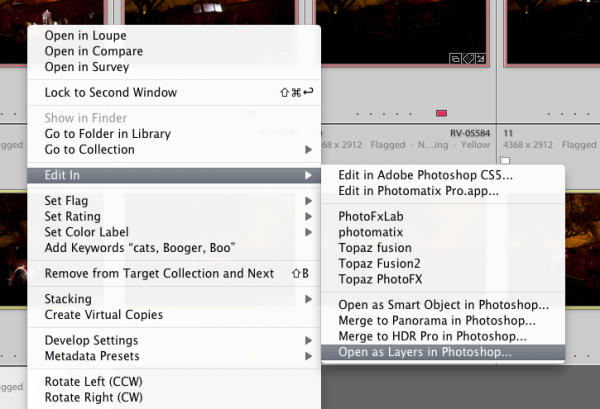
If you are using Adobe Lightroom, you can open your original files directly from Lightroom into Photoshop (wherever I mention Photoshop you can use CS, Elements or your usual editor that has layers capabilities). I do find however that if you are shooting Raw opening 12 or more Raw files into Photoshop really tends to bog it down. So in this case I have exported JPGs first and then opened those into Photoshop. If you are opening from Lightroom directly follow these steps:

  • select all the images of your scene so they are highlighted
  • right click on one of the thumbnails
  • from the pop up menu choose “Edit in” and then “Open as layers in Photoshop” like shown below in Figure #1
open-as-layers-from-LR-to-PS

Figure #1

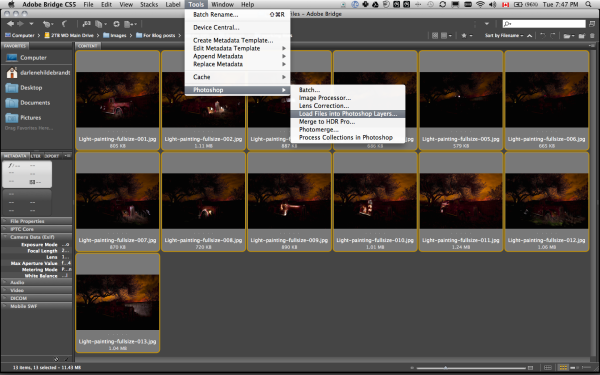
If you are using Photoshop you will follow almost the same steps using Bridge (or the mini browser where you can see your thumbnails)

  • select all the images of your scene so they are highlighted
  • go to the Tools menu
  • select Photoshop > Load files into Photoshop layers (as shown below in Figure #2)
Open as layers from Bridge

Figure #2

STEP TWO ALIGNING THE LAYERS

Once you have all your files opened as layers into one document in Photoshop you want to make sure they are perfectly aligned.  If you used a tripod and it didn’t move they should be pretty close, but we want to make sure they are perfect. Follow these steps:
eyeball-icon

Figure #3

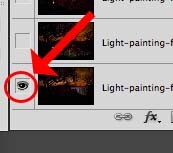
  • Turn on just your bottom layer by clicking and holding the Option or Alt key on your keyboard, then clicking on the little eyeball icon (next to the thumbnail of the layer) of the bottom layer. That will make that one active and hide all the others. (See Figure #3 right)
  • Next one by one turn on each layer by clicking the eyeball next to them. If you notice that any of the images seem to jump a bit as you do that, you’ll want to run an alignment. If not but you just want to be sure anyway, continue on to the next step
  • Select all your layers, click the bottom thumbnail, then shift>click the top one so all layers are highlighted (as shown below in Figure #4 below)
  • Align the layers by going to the Edit Menu> Auto align layers (see Figure #5 below) and just choose the auto method from the pop up box. If it adjusts any of the layers you may have to crop the result to get rid of any odd edges.
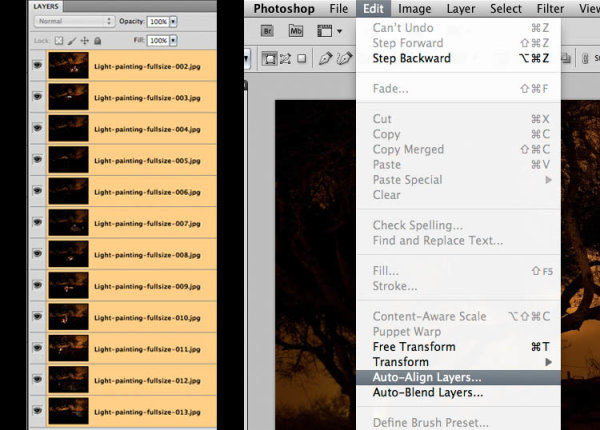
Figure #4 left - Figure #5 right

Figure #4 left – Figure #5 right

STEP THREE BLENDING THE LAYERS

Now that your images are aligned perfectly we’re ready to do some magic!  In this section we’re going to “turn on the lights” from each image one by one. Here’s how:
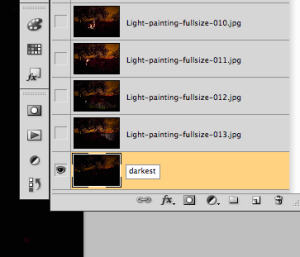
Rename darkest image, put it as bottom layer

Figure #6

  • find your darkest image by going through each layer one at at time.  This should be the image you shot before you added light with your flashlight. The base image you created in Part One of the Light Painting Tutorial.  
  • drag the layer with your darkest image to the bottom of your layers panel.  Just grab the thumbnail for the layer and drag and drop it below the bottom one.  You can rename that layer “darkest” if you like by double clicking on the layer name and typing in your new one. See Figure #6 right.
  • turn on the layer just above the bottom one and make it your selected layer – use the eyeball icon, they should all be turned off except your “darkest” layer and the one above it now
  • change the blend mode of the selected layer to “lighten” – you do this by going up to the pull down menu in the upper left corner of your layers palette, right under the tab that says “Layers” and to the left of where it says “Opacity”. See Figure #7 below.
  • copy the layer style – right click on the layer itself and choose “copy layer style”
  • change the blend mode of all other layers to lighten – select all other layers, right click and choose “paste layer style”. That is the only way I know of to change them all quickly without having to do them individually, one by one. See Figure #8 below.
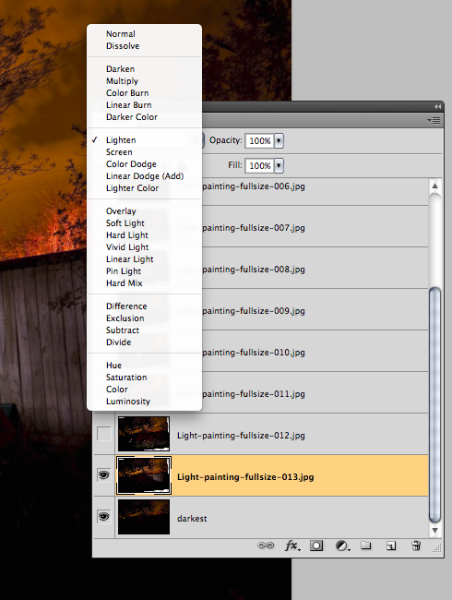
Figure #7
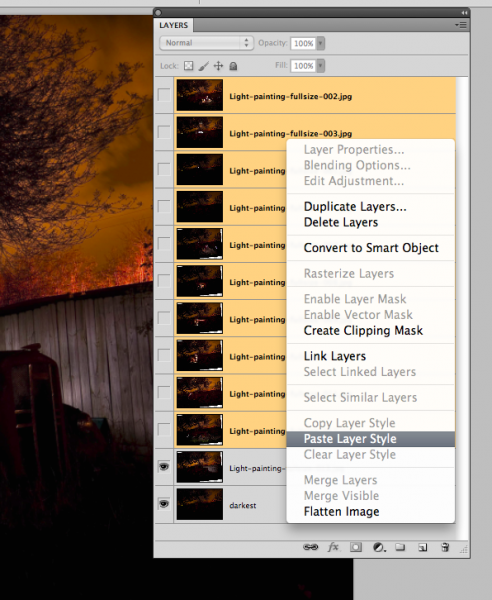
Figure #7

Figure #8

Figure #8

TURNING ON THE LIGHTS

Now if you click on each of the Eyeball icons for the layers above, you will see the lights turn on in the different spots you painted in each exposure. In the example of the firetruck here are a few views of the overall image as I turn on a layer above one at a time.

lights-on

REVIEW AND REFINING THE IMAGE

I’ve skipped a couple here, but you get the idea. Notice how as I turn each subsequent layer on a new part of the truck is magically lit up. There are a few issues however, as it’s never, or rarely perfect right out of the camera. But we can fix those things easily too using layer masks. Do you notice the following issues in the image above?

  • a few stray light bugs in places we don’t want them (on the fence to the right of the truck)
  • the sky got overly bright as well (caused by some of the exposures being longer than the “darkest” base layer)
  • there are some double images of the tree branches in a few places (caused by wind and the tree moving from one exposure to the next)

To fix any issues and clean up the image follow these steps:
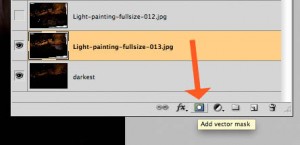
Figure #9

Figure #9

  • turn on just the bottom layer again (alt/option click the eyeball for that layer)
  • turn on each layer one at a time, let’s do the one above the bottom one first
  • review the image and look for any issues such as – areas that got too light, stray light bugs, your body showed up in the photo, etc.
  • create a layer mask by clicking on the “layer mask icon” in the bottom of the layers panel. See Figure #9 right.  ***Important to note: you can do this two ways. Just clicking it directly will create a mask that shows the whole layer (mask will be white).  Alt/option clicking on it will make the layer hidden or “masked” (mask will be black). If you only have a few issues to “paint out” use the direct click method.  But if you have a lot of issues you need to paint out, I suggest using the second method so the mask hides the layer and then you just paint in the good areas. Either way you’ll get the same result just with less painting or adjustments needed so choose the method that is best for each layer.***
  • mask-selected

    Figure #10

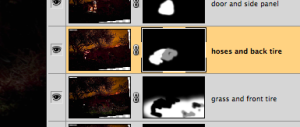
  • paint on the mask to show or hide the parts you want – TIPS: hit the “D” key on your keyboard, that will set your swatches to the default black/white for foreground and background colors. Then hit “B” to get your brush tool. Select a soft edge brush so you don’t get a harsh line where you paint on the mask. Paint at 100% using Black to over areas you want to hide and switch to white for areas you want to show. To switch the foreground/background colors back and forth use the X key. Here’s what it looks like – make sure you are painting ON the mask not the image. You’ll be able to tell because there will be little corner markers around the mask and not the layer thumbnail. See Figure #10 right.
  • repeat for each layer – turn it on, add a layer mask, paint to hide and show the areas you want. TIP: if you want to see what it looks like without the layer mask (especially useful if you are using a black mask and painting IN areas you want to show), hold SHIFT and click on the mask itself. A red X will appear and the mask is just disable. Do the same to turn it back on. 
  • if any of your images appear too bright you can tone them down by simply lowering the opacity of that layer, or by painting over the parts that are too bright with the layer mask to partially hide them (just set your paintbrush opacity to 20% and brush over that area gently)

This is what my layers look like with the masks added and areas painted to show only the bits I want from each exposure. Remember to save your file in two formats:  PSD to preserve all the layers, and a final JPG you can use for printing or sharing online (you may have to make a smaller one for email sharing).

all-layers

SUMMARY AND REVIEW

Okay so it seems like a lot of steps but once you get the hang of it, then it really doesn’t take that long to make something you can wow your friends with. They’ll be asking you “how’d you do that?!” in no time! Let’s take a look at the steps in short form again:

  • open your files as layers into one document
  • align the layers in perfect registration
  • change the layer blend modes to “lighten” (all except the bottom layer)
  • add a layer mask to each layer and paint in areas you want, or hide areas you don’t want to appear in the final image
  • save as a layered PSD file
  • flatten and save again as a JPG (full resolution, no compression)

I hope you enjoyed this two part series, once again here is the final image.
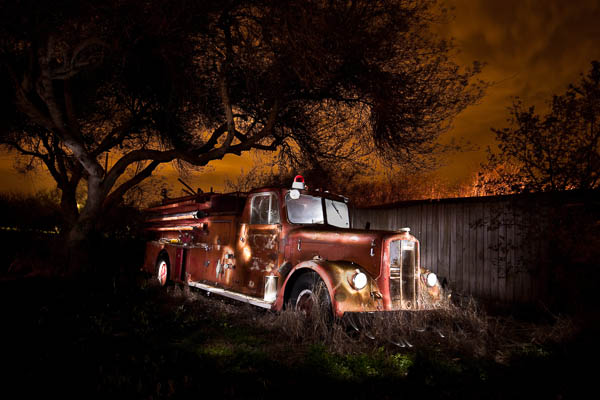
"1956 Le France Pumper" Corpus Christi, Texas

“1956 Le France Pumper” Corpus Christi, Texas

Post originally from: Digital Photography Tips.

Check out our more Photography Tips at Photography Tips for Beginners, Portrait Photography Tips and Wedding Photography Tips.

Light Painting Part Two – Photoshop


Digital Photography School

 
Comments Off on Light Painting Part Two – Photoshop

Posted in Photography


Fit for a Villain: 12 Surprisingly Homey Underground Lairs

13 May

[ By Steph in Architecture & Houses & Residential. ]

Underground Lairs Main

Nuclear missile silos, former quarries, natural caves and man-made hills camouflage homes ranging from rustic and understated to modern and luxurious. Seeming ideally suited to shield unsavory dealings from view, these subterranean lairs are perfect for villains – or just ordinary people who want to live in a really cool place.

Secret Subterranean Passage Connects Barn to Home

Underground Lairs Barn Home 1

Underground Lairs Barn Home 2

Looking out over the land, all you’ll see here is a very unassuming stone-and-wood barn. But go inside that barn and you’ll discover a concealed entry to an underground passage that leads to a hidden home. Villa Vals emerges from the hillside to look out onto a beautiful view. Located in Switzerland, this subterranean residence is also a part-time rental.

Subterra Castle Converted Nuclear Missile Silo

Underground Lairs Nuclear Missile Silo 1
Underground Lairs Subterra

Underground Lairs Nuclear Missile Silo 2

When Ed Peden first laid eyes upon what would later become his home, it was little more than a dark, dark, unmaintained hole in the ground. This underground nuclear missile silo wasn’t exactly welcoming, but Peden bought it for the relatively low cost of $ 48,000 and transformed it into a comfortable family residence. The home is topped by a modest-looking wooden structure, and nothing would look amiss at all if it weren’t for the escape hatches that have been altered to look like castle towers. The home takes up just a third of the nearly 20,000 available square feet of space underground.

Cave House, Festus, Missouri

Underground Lairs Cave House 2

A 17,000-square-foot artificial cavern left by a 1930s sandstone mine in Festus, Missouri is now a beautiful modern family home. Located 45 feet below a forest (and a neighboring home), Cave House was temporarily a roller rink and concert venue hosting the likes of Tina Turner and Bob Seger, and the back chamber still has the stage they performed upon. The middle chamber measures 80 by 80 feet, used by the family as a ‘party room’, and the front chamber holds most of the home. The property is 2.8 partially wooded acres with three freshwater springs and fourteen waterfalls.

Atlas F Missile Base House, Abilene, Texas

Underground Lairs Atlas F

Inspired by Ed Peden’s Subterra, a man named Bruce Townsley purchased an Atlas F missile base near Abilne, Texas for $ 99,000. Townsley transformed just 1,000 square feet of the sprawling base into his living space. Notable features like the massive blast doors have been preserved, while much of the home now has a coat of bright white paint that makes it feel surprisingly welcoming.

Malator, Wales

Underground Lairs Malator 2

Underground Lairs Malator 1

Commonly known by neighbors in Wales as the ‘Teletubby House’, Malator is mostly hidden within a hill, with no more than a clear glass facade and a steel chimney to give it away. Built in the town of Druidstone in 1998, the small underground dwelling has a turf roof and working porthole windows.

Underground House in a Former Quarry

Underground Lairs Quarry UK

An old quarry in the Eden Valley of Cumbria, UK hosts a two-story house with a massive glass facade to bring in daylight and warmth. The earth-sheltered, eco-friendly home was designed by architect John Bodger for Phil and Helen Reddy.

Next Page:
Fit For A Villain 12 Surprisingly Homey Underground Lairs

Share on Facebook


[ By Steph in Architecture & Houses & Residential. ]

[ WebUrbanist | Archives | Galleries | Privacy | TOS ]


WebUrbanist

 
Comments Off on Fit for a Villain: 12 Surprisingly Homey Underground Lairs

Posted in Creativity


Lighting In Layers on Lynda.com

13 May
I am happy to announce that Strobist’s video series, Lighting in Layers, has by special arrangement been adapted for the video tutorial site Lynda.com. Those of you who are Lynda subscribers can now view the videos there. (This includes Lynda’s many corporate subs, so check with your company.)

Last week saw the launch of the first segments, which are primarily aimed at beginners. Additional sessions will be released each week.

So even if you are not a newb, stick around. It’ll get more complex soon enough…

-30-


Strobist

 
Comments Off on Lighting In Layers on Lynda.com

Posted in Photography