RSS
 

Archive for August, 2011

Rusty faucet

08 Aug

Rusty faucet, originally uploaded by greg_mason.

Catchy Colors Photoblog

 
Comments Off on Rusty faucet

Posted in Equipment


Olympus announces SP-810UZ with the world’s longest zoom lens

08 Aug

Olympus has announced the SP-810UZ superzoom with a 36x (24-864mm equiv.) zoom lens – the world’s longest optical zoom in a compact camera. Successor to the SP-800UZ, the SP-810UZ also boasts a 14MP CCD sensor, 3.0" LCD and 720p HD video recording. Also included are a 3D capture mode, AF Tracking and Magic Filters including a new ‘reflection’ effect. Priced at $ 329.99, the camera will start shipping from September 2011.
News: Digital Photography Review (dpreview.com)

 
Comments Off on Olympus announces SP-810UZ with the world’s longest zoom lens

Posted in Uncategorized


Lightroom Presets

08 Aug

Lightroom presets enhance or simplify your develop time with your photographs. Here are a few websites for Lightroom presets that (mostly) offer free presets to be used in Lightroom. If you know of any other sites that I have not listed please comment below and I will add the sites you suggest.

Presetsheaven
Pretty Presets for Lightroom
onOne Software
Lightroom Killer Tips
Ultimate Collection of The Best Adobe Lightroom Presets
Presetpond
Adobe Exchange
Inside Lightroom
Wonderlandpresets
get totally rad
speckyboy
Presetopia
Rule of Thirds Photography
Flickr Discussing Presets
Kubota Image Tools
Camera Dojo
Prophotoshow
Mcg Studios
Rebecca Lily
Gantico

Any suggestions, ideas? Feel free to comment on this article!

Back to Top

BlogPhoto

 
Comments Off on Lightroom Presets

Posted in Equipment


Leica releases firmware update for S2 and S2-P

08 Aug

Leica has released a firmware update for its S2 and S2-P medium format DSLRs. Version 1.0.1.8 brings improvements to the auto-bracketing procedure and adds a customization option to the menu control button on both the S2 and S2-P cameras. Registered users can download the latest firmware via the Owner’s Area on Leica’s website.
News: Digital Photography Review (dpreview.com)

 
Comments Off on Leica releases firmware update for S2 and S2-P

Posted in Uncategorized


Windows Live Photo Gallery 2011 – Interactively Straighten a Skewed Photo

08 Aug

Interactively straighten or un-straighten a photograph via Windows Live Photo Gallery 2011

Windows Live Photo Gallery 2011 can quickly attempt to straighten a photograph by pressing one button (“Edit” tab of the Ribbon, “Quick Adjustments” section, “Straighten” button), useful if you don’t perfectly line up subjects in your digital camera’s viewfinder or LCD screen. However, this one-click tool may not always work as desired. For example, you may have a photograph with multiple conflicting elements – if one element appears straight, the others may appear crooked, and you may want a particular element straightened and Photo Gallery 2011 has other ideas.

Alternatively, for artistic reasons you may want to “un-straighten” a perfectly straightened photograph to make elements appear crooked for visual effect. For example, a city skyline photograph may be adjusted by skewing the horizon line to the left or right. In some cases, such as if the photo was taken from the top of a large building, this can make the photo appear as if it was taken from the air by helicopter – some may call this taking an artistic license :)…

Read more at MalekTips.
New Computer and Technology Help and Tips – MalekTips.Com

 
Comments Off on Windows Live Photo Gallery 2011 – Interactively Straighten a Skewed Photo

Posted in Technology


Windows Internet Explorer 9 – Add a Website Shortcut to the Start Menu

08 Aug

Add a shortcut to the currently-viewed website to the Windows Start Menu.

If you frequently browse a web site via Windows Internet Explorer 9, you probably have it stored in your Favorites for easy access. You may even have it as a Home page. However, if you don’t want to store it as a Home Page yet want a quick way to visit the site, how about adding a link directly from your Start Menu?

1. Visit a website in Internet Explorer 9….

Read more at MalekTips.
New Computer and Technology Help and Tips – MalekTips.Com

 
Comments Off on Windows Internet Explorer 9 – Add a Website Shortcut to the Start Menu

Posted in Technology


Guess?

08 Aug

IMG_4661-Edit-1024.jpg, originally uploaded by princer7.

Catchy Colors Photoblog

 
Comments Off on Guess?

Posted in Equipment


Windows 7 – Rotate Photos with the Keyboard

08 Aug

Stop switching between the mouse and keyboard in Windows 7 – adjust photo orientation using these keyboard shortcuts.

After copying a selection of photos to your Windows 7 machine over from a memory stick or digital camera, you might find that you need to rotate some photographs that were taken in portrait view into a landscape view orientation, and vice-versa.

One way to do this is to right-click a photo in Explorer and choose “Rotate clockwise” or “Rotate counterclockwise” as desired, as shown below:…

Read more at MalekTips.
New Computer and Technology Help and Tips – MalekTips.Com

 
Comments Off on Windows 7 – Rotate Photos with the Keyboard

Posted in Technology


Adobe Lightroom Lesson to Learn – Backup Your Library

08 Aug

If you use Adobe Lightroom then let me warn you, the following dialog box is the last thing you want to see when all is configured correctly (permissions are correct and another application is not using the catalog). Why? Because it means that your catalog file is inaccessible and may have big problems. The net result being lost work and time to fix the problem. Alas there is something you can do before this ever appears that will save you from spontaneously cursing late in the evening and/or instantly turning your hair white, but first a short story…
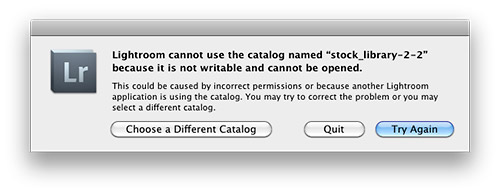
Learn From My Experience
This past Friday night at 11pm I was that guy in a darkened room being warmed by the glow of my monitor and cursing at the dialog box pictured above. Innocently enough I thought I’d work on an image or two before bed and brought up Lightroom 3.4.1, but the Zen-like activity of working on an image or two (cue the sound of water trickling over a cascading slope of river rocks with birds chirping above) was abruptly cut short (cue sound of a needle scratching on a record). Panic didn’t set in right away because I backup my Lightroom library on an external hard drive (see my drive setup) and I also employ Apple’s Timemachine backup function for my primary hard drive that houses my Lightroom catalog.
Note: It’s best practice to not keep your working Adobe catalog on an external drive due to degraded performance.

Remembering that I had these two backup mechanisms in place I thought, “Keep it together Jim. Let’s see if we can retrieve things to make this a quick fix before bed.” Then 30 milliseconds later my inner voice countered, “Shit! You’ve avoided backing up your Lightroom library for a at least 2 weeks so you could shut down your computer more quickly. Good job Jim, considering you just made a bunch of new smart collections and keyworded hundreds of photos.” Sure enough I looked and my last catalog backup via Lightroom was made to my external hard drive over two weeks before all my recent work had been completed. Backup plan #1 was a failure purely because I was lazy and impatient.

I then started sorting through my Timemachine drive to find my Lightroom catalog date stamped Thursday (the day before this mess happened). There were multiple backups for Thursday and Friday so I was starting to feel relieved, but then I noticed the file size was half what it should be.  I loaded the catalog and sure enough it was what my Lightroom catalog looked like not days or weeks ago, but several months ago. I’ll spare you the cuss filled thoughts that were shooting through my brain at this point. I opened backup after back up for the past week or two and Timemachine had not updated my catalog for what seems to be months…seemingly  just duplicating an older copy.

As you can imagine the thought, “Holy shit!” kept repeating in my mind. Instantly I opened a browser window and I started searching on Google “Lightroom cannot use the catalog named” and what I found was limited, very limited in fact. Most of the posts were for version 2 and not version 3. The one thing that was consistent advice was to delete the lrcat.lock file that comes up next to your catalog file ending with lrcat. (Note: Do not delete your catalog file ending in .lrcat that is having problems!!!!) I deleted the lrcat.lock file and reloaded Lighroom but kept getting the same result, seeing that dreaded dialog box. I was resigned to having to eat the loss of a lot of work at this point. At best I’d have to copy and paste metadata from exported files made the past 2 weeks  to get back to where I was before my catalog had problems.

Finally as a last resort I decided to restart my computer. The lrcat.lock file was removed and the catalog file didn’t show any signs of corruption you might visually see on a Mac. After my restart I loaded Lightroom and…

everything came up normal. So with out any hesitation I quit Lightroom and at the prompt backed up my catalog via Lightroom’s backup function. I then made a triple backup by copying the verified working catalog to a thumb-drive I carry on my keychain.

Lessons Learned, Please Take Note:

  1. Don’t be lazy and regularly backup your Lightroom catalog especially after completing a lot of work.
  2. Have a backup of your backup catalog
  3. Don’t rely on Timemachine as a backup for your Lightroom catalog. Period.
  4. Verify that your backup catalogs work
  5. Seriously don’t be lazy and regularly backup your Lightroom catalog!!!

Left Wondering
Granted I didn’t look at every forum entry when searching for a solution to this problem, but those that came up at the top of the search results were not helpful and dated. I was surprised I couldn’t easily find something in the Adobe Labs forum about this that was relevant to version 3.x either. While things are working again I’m not 100% satisfied and I’m going to be researching further what exactly caused my catalog to become inaccessible. Seeing that my Lightroom catalog now spans content on 4 drives and contains information for 110,000 image I’m not keen to risk losing it all.

Technorati Tags: Adobe, Lightroom, backup, error, best practice

Copyright Jim M. Goldstein, All Rights Reserved

Adobe Lightroom Lesson to Learn – Backup Your Library

flattr this!


JMG-Galleries – Jim M. Goldstein Photography

 
Comments Off on Adobe Lightroom Lesson to Learn – Backup Your Library

Posted in Uncategorized


Windows Internet Explorer 9 – Allow Different Zoom Levels and Text Sizes

08 Aug

Internet Explorer 9 keeps your current zoom level and text size when opening up new tabs or windows. If you prefer to have different settings, make this tweak.

To make it easier to read small text or view intricate pictures inside Windows Internet Explorer 9, especially useful for some older users, you can adjust the zoom level and / or text size. For example, pressing Ctrl+Shift++ zooms in (hold down the Ctrl, Shift, and + keys), pressing Ctrl+Shift+- (hold down the Ctrl, Shift, and – keys) zooms out, or Ctrl+Shift+0 (hold down the Ctrl, Shift, and zero) resets to the default zoom (100%).

When you make such a change, Internet Explorer 9 assumes that you want to keep these settings whenever opening a new tab or window. This way if you have difficulty reading web pages and always need Internet Explorer to zoom in, you will not have to do so manually each time. …

Read more at MalekTips.
New Computer and Technology Help and Tips – MalekTips.Com

 
Comments Off on Windows Internet Explorer 9 – Allow Different Zoom Levels and Text Sizes

Posted in Technology