The post Weekly Photo Challenge – Water appeared first on Digital Photography School. It was authored by Sime.
There are so many ways to photograph ‘water’ be it running, still, lakes, oceans, rivers… The list is likely to be endless and all-encompassing. #dPSWater
Tag your photograph #dPSWater if you share it on social media.
Slowing your shutter down and capturing the life in water, above with 1/10th of a second – unexpected and out on a shelf of rock with no filters, I had to stop my lens wayyyy down (f22) to get the slow shutter speed – just remember though, really high F numbers show you just how dirty your sensor is! (Clean it!)
Don’t know how to slow that shutter down? Click Here, try it, them come post your water photograph for this week’s challenge! Details on how to submit at the base of this post.
Maybe combine elements of water and sky to give your image extra levels of interest.
Great! Where do I upload my photos?
Simply upload your shot into the comments field (look for the little camera icon in the Disqus comments section) and they’ll get embedded for us all to see. Or, if you’d prefer, upload them to your favourite photo-sharing site and leave the link to them.
Join and post in our Facebook Group
The post Weekly Photo Challenge – Water appeared first on Digital Photography School. It was authored by Sime.
The post How to Use a Snoot in Photography: The Complete Guide appeared first on Digital Photography School. It was authored by Simon Bond.
What is a snoot in photography, and how can you use one for stunning photos?
That’s what this article is all about.
I’m going to take you through everything you need to know about snoots – including what they are, why they matter, and how you can use them to capture stunning images.
So if you’re ready to become a snoot expert…
…then let’s get started.
What is a snoot?
A snoot is basically a tube that goes over the front of your flash unit and creates a hard, concentrated beam of light.
Two examples of snoots mounted to flashes.
A snoot allows you to light your main subject – without lighting the surrounding scene. And this can be great for dramatic, low key photography.
A snoot is good for directing the light and creating low key images with lots of contrast. Canon 5D Mark II | Canon 50mm f/1.2L | 1/20s | f/2 | ISO 400
Now, you can pick up a snoot from plenty of off-camera lighting manufacturers. (More on that in a moment!)
But because snoots are simple, you can actually make your own, which is what the next section is all about.
Making your own DIY snoot
You can make your own snoot using basic household objects. You just need to make a tube that fits over your flash!
There are some design elements you must consider, though. For instance, you’ll want a color-neutral material, because if your snoot includes intense colors, you might get unwanted casts in your photos.
Bearing this in mind, here are the two simplest options for creating snoots:
Cereal box: Cut the box into a rectangular prism with a hole at either end. Add black tape around the outside of the snoot to prevent light from leaking out.
Pringles tube: Cut a hole in one end of the Pringles tube for the flash to fit inside, making sure the tube sits straight on your flash (so you get a clear, directed beam of light).
In either case, you can modify the type of light the snoot creates by making the snoot longer or shorter.
Just remember:
The longer the snoot, the smaller and more concentrated your source of light will be.
Buying a snoot
The other option is to buy a snoot, and there are plenty of good snoots available for you to choose from.
Here’s a nice snoot you can grab at a great price.
That said, given how easy it is to make an effective snoot yourself, if you’re going to buy one, you may want it to have some sort of extra functionality.
That’s why I highly recommend the Rogue FlashBender, which can be used as a snoot, a reflector, or a softbox.
(In other words: You get your money’s worth!)
When to use a snoot in photography
A snoot can be a highly useful tool in the studio.
Broadly speaking, a snoot produces hard light, which creates lots of shadows. A snoot also creates lots of contrast between your subject and the background (assuming the background isn’t lit independently).
Let’s take a look at a few cases where you might want to use a snoot:
Spotlight
Have you ever used a flashlight on a dark night to light up your face in a spooky way?
If so, you’ve essentially spotlighted your face – and broadly speaking, you’re doing the same with a flash and snoot.
Now, you can go for that spooky effect with a snoot, but you can also direct your light in different ways for different spotlight effects. You can highlight various parts of your subject while keeping the background dark, which tends to look both stunning and dramatic.
Low key effect
Low key photography involves partially underexposing your shots for a mostly black image.
Like this:
This is an example of low key light produced by a snoot. Canon 5D Mark II | Canon 135mm f/2L | 1/60s | f/5.6 | ISO 640
And a snoot is the perfect tool to create this type of image.
Simply direct your light at the main subject, whether that’s a still life or a model’s face. And ensure the light falls off before hitting the background for that dark, dramatic, low key look.
Rim light
You can use snoots to create beautiful rim lighting – which is any form of light that hits the edge of your subject.
And one of the most useful forms of rim lighting is the hair light.
By using a snoot to direct rim light (i.e., hair light) onto the back of a model’s head, you can add depth and interest to a photo, without impacting the front of the subject or the background.
For the best results, keep the rim light a little to the side and out of frame.
Of course, a rim light is only part of a lighting setup, so you’ll want to use it in conjunction with other lights. That way, you can capture a portrait like this one:
A hair light helps create a better-quality portrait photo. Canon 5D Mark III | Canon 135mm f/2L | 1/200s | f/3.2 | ISO 100
Flare
While photographers generally keep their off-camera lights out of the frame…
…there may be times when you want the lights to appear in your photos!
Specifically, you can use a snoot to create lens flare, as shown in the photo below:
Snooted strobes can be used to create lens flare when pointed toward the camera. Canon 5D Mark II | Canon 17-40mm f/4L | 42 seconds | f/5 | ISO 250
Now, you can create this artistic effect with several light modifiers (or just a naked flash).
But a snooted flash will help you control the light, so the source appears to be some sort of street light, rather than a flash unit.
How to use a snoot effectively
When using a snoot in photography, you’ll want to think about a few key factors, including:
The direction of the light
The distance of the flash
The length of the snoot
The brightness of the flash
These will dramatically impact how your photos turn out – so if you’re looking to really fine-tune your snoot photography, make sure you pay careful attention to the next few sections.
Direction of the light
Thinking about the direction of light is important in all forms of photography, but it is essential when working with a concentrated beam of light.
By positioning your snoot behind the subject, in front of the subject, or off to the side of the subject, you’ll get dramatically different results – so before taking a single shot, ask yourself:
What am I hoping to achieve with this snoot?
And position your snooted flash accordingly.
Distance of the flash
The distance from the flash to the main subject has three effects when used with a snoot:
First, the farther the flash is from the subject, the less bright the light becomes. If you position your light at the back of the room, you’ll get a darker image (though you can always adjust your exposure to compensate for the reduced light intensity).
Second, the farther the flash is from the subject, the harder the light becomes. If you’re looking for a softer effect with more gradual shadows, you’ll want to keep your snooted flash close to your subject – whereas if you’re after a harder effect with abrupt transitions from light to shadow, then you’ll need to increase the distance between the flash and the subject.
Third, as the distance between the flash and the main subject increases, the light radius becomes larger. This allows you to light more of your subject – so if you want to light your subject’s entire body, move the snooted flash back, whereas if you want to light only your subject’s head, you’ll need to move the flash in close.
Length of the snoot
Snoots can come in different lengths, with longer snoots offering a more concentrated beam of light, and shorter snoots producing wider lighting effects. Depending on the snoot length, you can create a precise spotlight effect, or you can widen the flash beam to light the entire scene.
Some snoots are actually adjustable, and if you make DIY snoots, you can create several of differing lengths.
Brightness of the flash
Of course, the brightness of the flash also needs to be considered.
You see, the light you’re creating with a snoot is going to be hard light. The subject will be lit, and the background will likely be dark.
But if you wish to show some background detail via ambient light, you can reduce the intensity of the flash and increase the exposure on your camera.
The key is to make sure the area lit by the flash is correctly exposed, then adjust your aperture, shutter speed, and ISO accordingly.
How will you use a snoot in photography?
The smoke in this photo was picked up by directed light from a strobe. Canon 5D Mark II | Canon 135mm f/2L | 1/200s | f/7.1 | ISO 160
Using a snoot in photography gives you plenty of artistic options.
A snoot is a simple, cheap, and effective way of doing something different with your photography.
So make sure you remember the tips and techniques I shared in this article…
…and start practicing with a snoot right away.
Have you tried photographing with a snoot? How did it go? Share your thoughts and photos in the comments below!
The post How to Use a Snoot in Photography: The Complete Guide appeared first on Digital Photography School. It was authored by Simon Bond.
The post In Praise of Program Mode: Why Program Mode is Great for Beginners appeared first on Digital Photography School. It was authored by Rick Ohnsman.
Here’s a myth: Being able to shoot in Manual mode is the mark of a professional photographer.
I frequently see articles and beginner photography workshops with titles like Get Off of Automatic Mode. If these instructors don’t promote Manual mode shooting, they will at least tell you that “real” photographers favor Aperture Priority mode. Working with Program mode? They will roll their eyes and joke that maybe you thought the “P” on the mode dial meant “Professional.”
The image of the Blue Angels (left) was taken with one of the first DSLRs Canon produced, the D30. I made the shot many years ago with the only mode I used at the time: Program mode. The Cooper’s Hawk shot (right) was made just a few weeks ago, also with Program mode.
Sure, as you grow as a photographer, you will ultimately want to understand which camera shooting mode might be the best for each situation. But knowing how to drive a manual transmission vehicle will not instantly make you a racecar driver, and knowing how to shoot in Manual mode is not a shortcut to being a great photographer.
My first car was a 1964 Volkswagen Beetle, and it looked just like this model. Learning to drive a manual transmission as a new driver was a bit like immediately trying to use Manual mode as a new photographer – challenging!
I will date myself here, but when I learned to drive, a 1964 manual transmission Volkswagen Beetle was my first car. Learning to operate the gas, brake, clutch, and gearshift was an “interesting” introduction to driving.
My first camera was an East German Hanimex Practika Nova 1B. That was in the early ’70s. It had no mode dial, no autofocus, and since ISO was controlled by whatever film you used, the only exposure controls were a manual aperture ring on the lens and a shutter speed dial on the top of the camera. Even the exposure meter was not a TTL (through-the-lens) type, but a crude averaging meter that was just above the lens mount.
My first SLR camera, used back in the early ’70s, was a Hanimex Praktica Nova 1B. It offered no autofocus, no TTL metering, a dial to set the shutter speed, and a ring on the lens to set the aperture. The film determined the ISO (then ASA).
With both the car and the camera, I had to handle all the controls myself. Did the VW make me a better driver? Did the Praktika make me a better photographer? No, and both caused far more frustration as a beginner than if I had started in a car with an automatic transmission and I had started photography with a fully automatic DSLR.
So that’s my point here:
Why you make a photo – choosing to communicate your vision with an image and then using the camera as a machine to capture it – is far more important than how you shoot a photo or what mode you use. If some help from modern automation makes it easier to get there, especially as a beginner, go for it.
Why get whiplash learning to feather the clutch (or as I once did, roll back into the car behind you when at a stop sign at the top of a San Francisco hill) when, as a new driver, you could have an automatic transmission?
I did a lot of portraits of friends, family, senior photos, and even weddings with some of my DSLRs. I would often use Program mode and a little fill light from the pop-up flash. This typically worked just fine, especially for a new photographer.
Program mode – yes, the “P” setting on your mode dial – is what I would term the “semi-automatic” mode on your camera. Unlike the green, fully-automatic mode where you simply “point-and-shoot” and the camera makes all the decisions, Program mode frees you to override the settings if you so choose.
Let’s use an example to explain how Program mode might work in a given situation.
Program mode: The “semi-automatic” setting
Back in the 35mm film days, you would often choose the film you used based on the shooting conditions you planned to work in.
ISO (or before that, ASA or DIN) was a function of the film. ASA speeds of common film types might be 25, 64, 125, 200, 400, and maybe up to 800. You could go a little higher with special processing. The rub was that, whatever film type you chose, you worked with the same ASA for the entire roll (be it 12, 24, or 36 exposures).
With film, you had to stick with the same ISO (ASA) for the entire roll.
Working with Program mode can be a little like shooting film – in that the first thing you will do is pick your ISO setting.
This could be ISO 100 for good outdoor light, maybe ISO 200 or 400 for lower lighting conditions, ISO 800 or higher for dim conditions (or perhaps for when you will be shooting action and need to be able to use short exposure times).
Some have called Program mode “ISO Priority,” because once you choose the ISO, it will be the setting that will stay set, even as the shutter speed and aperture change. (Of course, the big difference from film is that you can change the ISO from shot to shot if you so choose).
So you start by setting your ISO.
Then, unless you have a special reason not to, I suggest you use the averaging metering modes: Evaluative on Canon, Matrix on Nikon. These will consider the entire image and calculate the exposure.
If your camera is set to Program mode, you will now see that it has selected both aperture and shutter speed settings. Depending on the available light, these will usually be toward the middle of the settings range – perhaps something like 1/125th of a second, f/5.6, and ISO 100. You may want to change these, and we’ll get into that in a minute, but if not, you’re good to go. Nail focus and take the shot.
You can shoot all day like this, the camera pretty much working as a point-and-shoot machine. As a beginner, rather than puzzle over what your settings should be for each shot, you can concentrate on more important things – chiefly composition – and let the camera figure out the exposure. Take away the clutch and the gearshift and driving is so much easier, right?
Creative control
The one thing you relinquish when you allow the camera to make exposure setting decisions is creative control. We may go a long way with artificial intelligence, but soulless computers or robots, while able to nail exposure, get perfect focus every time, and maybe even edit the shot afterward, will never be able to make true art.
Two concepts to understand as a beginning photographer are how aperture and shutter speed controls not only the exposure, but also the depth of field and the freezing/blurring of motion. If you have not fully grasped those creative concepts, I encourage you to spend time learning the relationship between aperture and depth of field, as well as the relationship between shutter speed and motion capture.
Working with Program mode will almost always get you a correct exposure, but you will also need to understand when you want to override the suggested settings to get the creative look you seek.
Some examples
Let’s break down how you might work in Program mode for different interpretations of the same subject.
It’s an overcast day, so you set the ISO to 800.
Your camera is in Program mode and it suggests an exposure.
You decide you want a deeper depth of field, so you set the aperture to f/22. (Aperture can typically be changed with one dial and the shutter speed with another. Note that when you change one setting, the other setting automatically changes to maintain proper exposure.)
Your settings are now ISO 800, 1/20s, and f/22. (Note that you’ll need to be on a tripod with a 1/20s shutter speed.)
You focus, then take the shot.
You take a look and decide it might be better to isolate the foreground leaves with a shallow depth of field. Still in Program mode, you roll one of your dials to put the aperture at f/4. Your camera automatically adjusts the shutter speed to 1/640th of a second to maintain proper exposure. You take another shot.
Easy, huh? The ISO stayed locked in at 800, and as you adjusted the aperture, the shutter speed adjusted itself.
Suppose now you want to see the effect of shutter speed on a moving object. Still in Program mode, you leave the ISO at 800. To freeze the droplets of a fountain, you roll the dial to get a 1/1600th of a second shutter speed. You take the shot.
Note how the top shot, taken at 1/50s, has more blurred water drops and how the tree is sharper at f/22. The bottom image, taken at 1/1600s, better freezes the water – but at f/4, the depth of field is smaller.
Now, what if you want to get a little motion blur on those drops? Roll the dial to set a slower shutter speed of 1/50th of a second. The aperture automatically adjusts.
Exposure compensation is also possible should you need to make your images a little lighter or darker.
I mentioned earlier that you could lock in your ISO when working with Program mode. Depending on your camera, you might also let the ISO automatically adjust as light conditions change. Try Auto ISO in combination with Program mode and see how it works for you.
Then make the leap
Program mode can help you get good exposures. And if you pay attention to the settings it chooses, you’ll begin to understand the relationship between aperture, depth of field, shutter speed, and motion capture. Program mode can also give you a good jumping-off point to work with a mode such as Aperture Priority.
Say that after making a shot in Program mode, you see the camera chose f/11 as the aperture, and you like the amount of depth of field that resulted. You can then switch over to Aperture Priority mode (Av on Canon, A on Nikon), dial in an f/11 aperture, and start shooting. The camera will stay locked at f/11 while adjusting the shutter speed for various lighting conditions.
The same goes for shutter speed. If your Program mode shot shows a nice amount of motion blur at 1/5th of a second and you want to make subsequent images with that amount of blur, switch to Shutter Priority mode (Tv on Canon, S on Nikon), dial in 1/5th of a second, and shoot away.
The camera will stay locked on the shutter speed you chose and alter the aperture as needed.
In the left photo, the focus is on the tree trunk at the right edge. At f/22, there’s a good amount of depth of field. In Program mode, roll the dial to take the f-stop to f/4 for less depth of field. The camera automatically compensates, putting the shutter speed at 1/160s. The exposure stays identical.
Back to the safe spot
If you play around enough with settings, you may eventually mess things up to where you reach a bad exposure or become totally confused about why things are not working for you. That’s when Program mode comes to the rescue.
These were some of the first images I made when I got my Canon 10D years ago. Program mode was all I knew, but it got the job done. Don’t think you have to immediately learn to shoot in Manual mode to make nice shots.
Put the camera in Program mode, put the ISO back to a setting appropriate for your lighting situation (ISO 200 might be a good starting point), and it’ll be like hitting the reset button: you’ll be back to letting the camera choose exposure settings.
If you find Auto ISO works well, try that, too. The idea is to have a setup you can always turn to if you get confused (one that you can rely on to make good exposures consistently if needed).
It’s easy to explore the relationship between aperture and depth of field while in Program mode. This series starts at f/4 on the left, before a roll of the dial took the aperture to f/8 (middle), and then to f/22 on the right. The camera did all the exposure calculations. As simple as one, two, three!
Regardless of what mode I choose to shoot in, even Manual, I always put the dial back to Program mode before turning off the camera and putting it back in my bag. Then, if that once-in-a-lifetime shot presents itself and I must grab the camera, quickly power up, and shoot, I can be assured I will get a reasonably well-exposed shot.
I hope you will not take this article to mean you shouldn’t learn to shoot in Aperture Priority mode or Manual mode, because it’s true that a great number of professionals use these settings. But if you are new to photography and are confronted with more information than you can immediately absorb, working in Program mode might just be the helping hand you need.
Working in Program mode will free you to concentrate on composition while letting the camera figure out exposure.
Concentrate first on learning good composition. And make sure your images are well-focused, because blurry shots are impossible to fix in editing.
For now, let your camera help you with exposure until you begin to wrap your head around all there is to know. Even if you are a more experienced photographer, you might occasionally find that turning the mode dial and working in Program mode is the right choice for a given situation.
Mode doesn’t matter
Make a nice shot and no one is going to ask what camera mode you used.
People don’t usually ask what kind of paint, brushes, or canvas Leonardo da Vinci used when he painted the Mona Lisa. And when you make a great shot, no one should care what camera mode you used, what your settings were, or even what camera and lens you used.
Conversely, when your shot is poorly composed, doesn’t have an easily identifiable subject, or just doesn’t speak to the viewer, it doesn’t matter how masterful you might be in Manual mode or if you have the best camera money can buy.
Determine why you want to make a particular photo, find your vision, know what it is you want to communicate, and then use the machine that is your camera to produce that image. If working in Program mode gets you to that result, it’s a perfect choice.
Best wishes for great photos!
What do you think about Program mode? Have you ever used it? Why or why not? Share your thoughts in the comments!
The post In Praise of Program Mode: Why Program Mode is Great for Beginners appeared first on Digital Photography School. It was authored by Rick Ohnsman.
The post PortraitPro 21 Review: A Comprehensive Editor for Portrait Photographers appeared first on Digital Photography School. It was authored by Carl Spring.
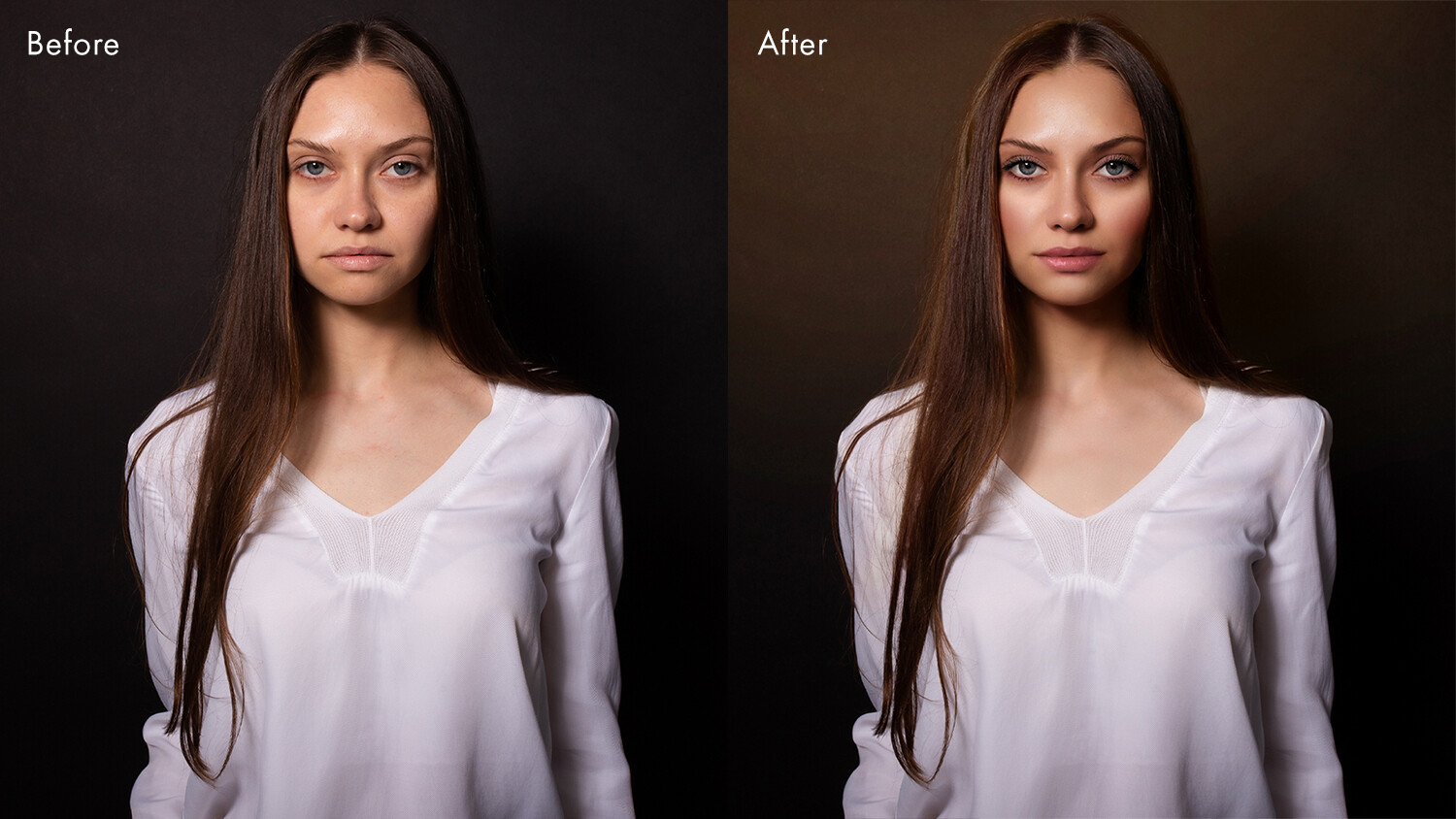
It was only a few months ago that I reviewed Anthropics PortraitPro 19, where the ease of use, the speed, and the AI technology really impressed me. Here we are only a few months later, and Anthropics has introduced PortraitPro 21. I was lucky enough to get my hands on a copy to see what has improved, what is new, and whether the updated software is worth the investment.
Also, spoiler alert: We have a special offer at the end of this PortraitPro 21 review, so make sure you take a look!
What’s new in PortraitPro 21
As always with Anthropics, there’s a long list of new features that really make PortraitPro 21 stand out. These include:
Sky replacement
Lighting brushes
Clone tool
Denoising/Sharpening
History tool
Color styles
Color copying
Hair highlights
There are actually even more new features, including a master slider for skin lighting and coloring, layer presets, optimized color-space handling, the ability to move catchlights, SVG backgrounds, new layers, backgrounds and overlays, free stock photos, and new tutorials from the creators.
If I offered an in-depth discussion of every new feature, you would probably be reading this for days. Instead, why not go and download your free trial of the software on the website? That way, you can check out the program for yourself.
In the meantime, let’s look at some of the new PortraitPro 21 features in greater detail.
Sky replacement
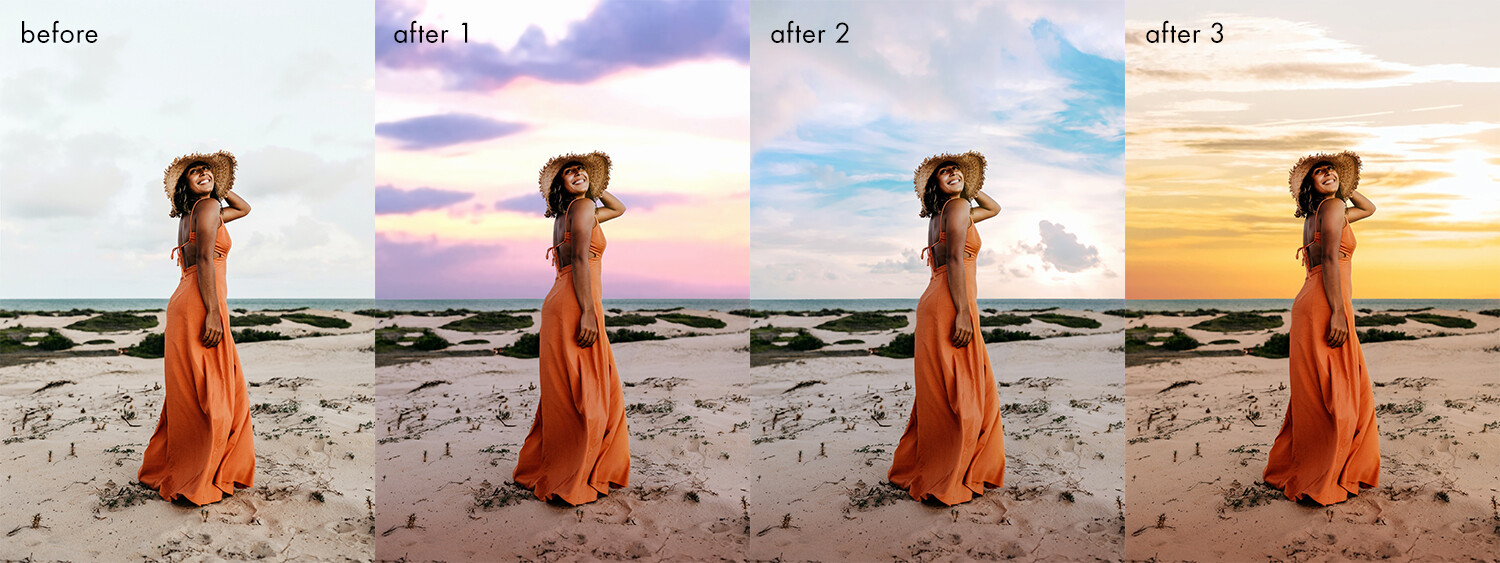
This feature is one that portrait photographers will love. There is nothing worse than capturing amazing shots against a blank sky, knowing you will need to edit them later. Swapping the sky on multiple images can be laborious and time-consuming. But in PortraitPro 21, replacing skies can be done with the click of a button.
Using technology from Anthropics LandscapePro software, this feature does not simply mask and drop in the new background. It also changes the color and tone of the image to match the new sky, giving a more natural result.
PortraitPro has quite a few skies for you to choose from, but if you are looking for something specific, you can always add in your own.
Lighting brushes
PortraitPro 21 includes a series of lighting brushes. These can be used to create specific effects such as light streams or realistic relighting elements.
You are able to select exact colors and alter the strength of the brushes, which allows you to quickly get the perfect effect. These brushes are able to separate the background and foreground for you, so you can really get creative.
Clone tool
The addition of the Clone tool means you can remove troublesome areas from your photos. And the presence of the Clone tool means there is no reason to use other software to perfect your edits.
As with all tools in PortraitPro 21, the Clone tool is easy to use and allows completely adjustable precision so you can get the exact result you want.
Ultimately, it’s a great addition to the feature set of PortraitPro. And while it is a tool that most will recognize and is not as groundbreaking as others, it’s one that will be hugely appreciated by all users.
Denoise/Sharpening
Denoise and sharpening tools are another new addition to this version of PortraitPro.
Yes, these tools are available in other editing programs. But as you are probably beginning to see, the addition of these features to PortraitPro 21 means that you have no real need to switch between programs to get your final result – making PortraitPro 21 a more all-in-one editing solution for portrait photographers.
History tool
The History tool continues the trend of the Clone tool. It’s a feature that users of other editing software will be well aware of, and it’s highly valuable.
Specifically, it allows you to move back to a specific point in your edit so you can rework an image without needing to start over.
Color styles
Filters will be familiar to everyone who reads this, because we frequently have these in our social media apps.
PortraitPro now includes a series of color styles that can dramatically change your image in just a few clicks.
Hair highlights
PortraitPro 21 features a variety of new tools for working with hair.
These include tools that add highlights, as well as change hair color and vibrance. And you can fine-tune these to achieve “salon-level” results.
PortraitPro 21 review: Performance
As always, I spent some time getting to grips with PortraitPro 21. Having used previous versions, I was familiar with the interface. But as with PortraitPro 19, I was amazed by Anthropics’s excellent tutorials.
In fact, there are many more tutorials in PortraitPro 21, which give new users confidence right away. Even as a previous user of PortraitPro, it was good to go through a series of tutorials on the new features. These allowed me to immediately understand what is possible in PortraitPro 21.
I started with the hair tutorial, which gave convincing results quickly and easily. From there, I fine-tuned to my liking.
I loved how the tutorials helped me get started, but then I fine-tuned to my own taste.
After that, I experimented with the new sky replacement feature. Due to my lack of outdoor photography over the last 12 months, I used the tutorial image as a starting point for this feature, and the results were impressive.
Changing the sky on the test image highlighted the importance of choosing your replacement sky wisely. Certain skies won’t work on certain images.
However, Anthropics has included so many different skies for you to choose from that, for every situation, there will be a replacement sky that matches your scene. Again, the ability to fine-tune really allows you to dial in the detail and increase the realism.
There are so many different sky options built into the software.
Using TIFF files
After working on the many image tutorials, I wanted to use some of my own images. I always feel this is the real test.
And I was hugely impressed.
My images worked exactly the same as those in the tutorials. Everything was fast, and the software’s AI technology picked features out flawlessly. The highest compliment I can pay the software is to say that I didn’t notice any slowdown between the images I used myself and those in the tutorials.
Even with a shallow depth of field, PortraitPro 21 picked out the face almost perfectly.
To push the software, I used 16-bit TIFF files in the Adobe RGB color space. The images opened fast, and PortraitPro 21 picked out the features flawlessly. Applying presets took a little longer than the test images, but considering I was working on 16-bit TIFF files, I was really impressed.
I loved the fact that little tips popped up in the bottom corner of the screen, reminding me of how to tweak things. I used an image with an incredibly shallow depth of field to test the feature-finding abilities, and again, I was very impressed.
For the first image I tested, I used the Clone tool to remove a couple of small blemishes. Even though I was editing TIFF files, the software worked perfectly.
With the blemishes cloned out, I simply added a preset and tweaked it to taste. I had a finished image in less than 5 minutes. This was much quicker than when I edited the image manually. One quick and simple export later, I had a beautiful image ready to go.
This full retouch only took 5 minutes.
The only thing I will say is that some of the presets are a little more extreme than my personal style. However, the great thing about PortraitPro is that you can create your own presets simply and easily.
In fact, I tend to do this on a shoot-by-shoot basis, starting with a preset and tweaking it to suit the shoot I am working on. I can then apply these presets quickly and easily to the whole set of images from the shoot before sending proofs to a client.
Working with presets is taken to a whole new level with the Studio Max version of PortraitPro 21, where you can batch process several images in seconds.
Batch processing
Import images, select your style, and click Go. Batch processing is an incredibly powerful feature in PortraitPro 21.
For a working photographer, the batch processing in Studio Max is a huge timesaver when you need a consistent retouch across a range of images. PortraitPro’s face recognition means that you can trust the software to pick up the face and apply the retouch for you automatically.
To test this feature, I exported full-sized JPEGs from a styled shoot. After creating a look with a single image, I used the batch feature of Studio Max to apply this style to a group of ten images. In less than one minute, all the images had saved and were ready to go. I simply clicked two buttons.
This feature alone changes how I deliver portrait and headshot proofs to clients. For so many working photographers, batch processing is going to be a game-changer. Imagine being able to deliver headshot proofs to clients with such little effort.
A variety of poses didn’t fool the software. Everything was ready to deliver in under a minute.
Who is it for?
In my last review of PortraitPro, I said, “PortraitPro is an amazing tool for those who are new to retouching portraits. It is simple yet incredibly powerful, and gives you pleasing results within seconds. However, it offers much more and encourages you to go back to the software and personalize your retouching.“
So much has changed since then. In fact, PortraitPro 21 has more features that make it even easier for me to recommend. It is possibly the most feature-rich portrait editing software out there.
If you’ve loved previous versions of PortraitPro, then you will love this even more – especially with the special offer for dPS readers (see below!).
Note that there are three PortraitPro 21 versions: Standard, Studio, and Studio Max.
PortraitPro 21 Standard is great for many people. It is a standalone software that allows you to work with JPEG or 24-bit TIFF files. For many photographers, this will be perfect.
By upgrading to PortraitPro Studio, you get the Photoshop/Lightroom plugin that so many of you will love, as well as the ability to work with RAW, DNG, and 48-bit TIFF files. It also has color-space conversion.
Finally, for those who shoot professionally or need the ability to retouch a batch of images in a few clicks, the Studio Max version of PortraitPro 21 will save you so much time (and professionals all know time is money!) that I cannot help but recommend it.
Sounds amazing! How do I get it?
You can download your free trial of PortraitPro 21 right here.
But if you’re thinking about purchasing the software, note that there is a 50% off launch offer, plus dPS readers get an extra 15% off with the coupon ZC1990. So click here to grab your discounted copy of PortraitPro 21!
Anthropics is a paid partner of Digital Photography School.
The post PortraitPro 21 Review: A Comprehensive Editor for Portrait Photographers appeared first on Digital Photography School. It was authored by Carl Spring.
The post Understanding all the Different Image File Formats appeared first on Digital Photography School. It was authored by Kav Dadfar.
When you take a photograph, the camera is capturing data, which creates a digital image. But there are many different types of image file formats that can be retrieved and edited using post-processing software.
The most commonly-used formats are:
JPEG (Joint Photographic Experts Group)
TIFF (Tagged Image File Format)
RAW
DNG (Digital Negative Format)
PNG (Portable Network Graphics)
GIF (Graphics Interchange Format)
BMP (Bitmap Image File)
PSD (Photoshop Document)
Choosing the right file format is important and can even be critical, depending on the level of quality – and the level of post-processing – that you require.
Now, to help you better understand the different file formats, and to ensure that you pick the right format for your needs, we’ve put together this comprehensive guide. It covers the pros and cons of using each image file format – so that, by the time you’re finished, you’ll be able to select the perfect format with ease!
JPEG
JPEG is probably the best known of all image file formats, and it’s what many cameras use as the default output.
The thing you should remember is that JPEG files are compressed in-camera, and thus result in a loss of detail and quality. They are essentially set up to store as many images on the memory card as possible.
Some cameras will have options for different JPEG quality levels (e.g., low, medium, and high). The better the photo quality, the less compression the camera will perform on the original photograph.
Generally speaking, JPEGs should be used:
When the photos are for personal use, for social media, albums, and small prints, and are not intended for large prints
When you don’t intend to enhance or edit the photos much in post-production
For sharing images via email
JPEG benefits
The small file size means more images can be stored on a single memory card
Quicker file transfer times, due to the smaller file size
JPEG negatives
Loss of quality due to image compression
Less opportunity for image manipulation in photo-editing software
TIFF
TIFF is commonly used in the photography industry; it’s generally requested by publishers. Even if the end file format will be a JPEG, the initial file is often a TIFF.
TIFF files are usually uncompressed, so they offer the opportunity for extensive post-processing. And because TIFFs are uncompressed, they are much bigger files, and will take up a lot of space – both on your memory card and on your computer.
Some cameras offer TIFF as their highest-quality image format.
TIFF benefits
Ability to manipulate photos extensively in editing software
Option to print at the highest quality and at much larger sizes
TIFF negatives
Much bigger file sizes (so more storage is needed)
Longer transfer and loading times due to file size
RAW
RAW files are generally available on advanced compact cameras, DSLRs, and mirrorless cameras.
Simply put, RAW is the best option if you want to get the highest-quality files from your camera, and it’s the option preferred by professional photographers. If you don’t use RAW files, then your camera will make adjustments automatically to your images, and these will be permanently embedded into your photos.
RAW files are created using a process that retains all of the information originally captured. This means that adjustments such as white balance, exposure, contrast, saturation, and sharpness can all be altered in image-editing software after the photo has been taken.
Photographing in RAW format requires plenty of memory cards, not to mention considerable post-processing time. It also requires some basic knowledge of image-editing software such as Adobe Lightroom, because files will have to be edited and converted out of the RAW format before they can be used (i.e., before they can be shared online, printed, sent to friends, etc.).
RAW benefits
The highest-quality image is captured
Extensive options in post-processing
RAW negatives
Significant time is needed to convert and edit photos (you must edit RAW files)
Bigger file sizes require more storage and longer post-processing times
DNG (Digital Negative)
Just about every camera these days uses a different proprietary format to capture RAW files. Even cameras from the same manufacturer will often use different formats, which means image editing software must be able to read files from all of these different cameras.
As a result, editing software providers face a challenge: how to manage and continuously provide updates for their program so it can read all these different file formats.
Enter the DNG.
This file format, created by Adobe, is an attempt to provide a standard RAW file for all manufacturers and cameras.
The DNG is offered as a main RAW file format, or as an alternative to the manufacturer’s native RAW format. One of the problems with keeping images in the original RAW format is that, several years from now, you may be unable to access these files, because they are specific to cameras and manufacturers.
But using an Adobe DNG Converter means you can also store your RAW files as DNGs for maximum future-proofing.
This does add another step to the post-processing workflow, which takes extra time. However, editing software such as Lightroom can convert large batches of files to DNGs so that it doesn’t have to be done manually.
DNG benefits
Ability to use image-processing software such as Lightroom and Photoshop
Possibly the safer option long-term, because it guards against the inability to open or access files in the future
DNG negatives
Extra time needed to convert camera RAW files to DNGs (if your camera does not have the option to create files in this format)
PNG
Designed in the ’90s as an improvement on the GIF file format, PNG files are ideal for use on the internet.
PNGs are compressed in a lossless format, and therefore retain all detail. But unlike other file formats, PNG quality doesn’t mean big file sizes – and this is useful on the internet, because you need pages to load quickly.
The other benefit of PNG files is that they allow for partial and total transparency, which is ideal for overlays and logos.
PNG benefits
Lossless compression makes for good image quality, which isn’t compromised when editing
The ability to maintain transparency, which is important for graphics such as overlays and logos
PNG negatives
Quality is not good enough for printing at any size
GIF
Like PNGs, GIFs are ideal for use on the internet. Lossless compression means image quality is not sacrificed, and like PNGs, GIFs offer the ability to maintain transparency (though they don’t support partial transparency). GIFs also allow for animation.
However, the limitation of GIF files is that they can only contain a maximum of 256 colors. Therefore, GIFs are not the best choice for photos, but rather for images with a limited color palette.
GIF benefits
The small file size makes GIF files ideal for use on the web
Files can contain animation
GIF negatives
The limited colors make GIFs a poor choice for photos
GIFs don’t support partial transparency like drop shadows
BMP
Another lossless file format, the BMP was invented by Microsoft, initially for use on the Windows platform. However, BMPs are now recognized by programs on Macs, as well.
BMPs are large files, as color data is saved in each individual pixel without any compression. As a result, BMPs provide a high-quality digital file, which is great for use in print but not ideal for the web.
BMP benefits
Can be used for printing, as the images are high quality
BMP negatives
The large file size means a lot of storage is required
PSD
This file type is what Adobe Photoshop uses as a default to save data. The big advantage of the PSD is that it allows for manipulation on specific individual layers, rather than on the main image itself.
This makes PSDs absolutely essential for any sort of extensive manipulation of the original photograph, such as retouching. PSDs give far greater flexibility and the ability to fine-tune an image, because layers can be added, removed, or edited at any time without affecting the original photo.
But remember:
Once a layered PSD file is flattened (this essentially merges all of the layers), it can’t be undone. So make sure you save your file as a PSD before flattening if there’s a chance you might want to rework some of the layers later on.
PSD benefits
Ability to manipulate the image extensively on separate layers
Once the image is ready, it can be re-saved as any other file format
PSD negatives
Layered files can be incredibly large in size due to all of the additional data they store
Image file formats: Conclusion
Now that you’ve finished this article, you know all the common image file types.
Professional photographers generally capture in RAW format (even if the final file needed is a JPEG), convert those files to DNGs, then edit in software such as Photoshop or Lightroom.
But as you can see, choosing the right file format when capturing the original photo – then choosing the right file format when saving the photo later – is absolutely essential.
What’s your favorite image file format? Do you use any formats not mentioned in this article? Share your thoughts in the comments below!
The post Understanding all the Different Image File Formats appeared first on Digital Photography School. It was authored by Kav Dadfar.
The post Nikon Dropping International Warranty on Lenses and Accessories appeared first on Digital Photography School. It was authored by Jaymes Dempsey.
Nikon recently announced its intention to shift away from international product warranties; the company will offer only country or regional warranties for camera equipment, including lenses and speedlights.
Nikon explains, “With the differences in regional laws and safety standards, it has become quite difficult to maintain a single international warranty that is effective around the world…[we] ultimately decided to begin the gradual transition from international warranties to regional warranties for interchangeable lenses and accessories in January of 2021.”
Prior to this move, select Nikon camera gear was guaranteed internationally for a full year after purchase. A travel photographer who purchased their Nikon lens in Britain could get it repaired in the US, and vice versa – but no longer. Once the transition to local warranties is complete, USA-bought equipment will likely only be repairable in the USA, and UK-bought equipment only repairable in the UK.
Nikon clarifies that you can still purchase gear with an existing international warranty, and the company will honor it (so if you were thinking of buying a Nikon lens and are a frequent traveler, then I suggest you move fast!). But regional and country warranties will only be honored within those regions and countries, which makes it much less desirable to purchase Nikon camera equipment abroad, take it back to your home country, and put it through its paces.
You may be wondering:
Does this really matter? How often will this affect me?
That depends on you and your photography. Travel photographers and casual photographers may purchase equipment while on vacation overseas – and if that’s you, you may find yourself with a useless warranty when you arrive back home.
Of course, there are also those who purchase photography equipment for lower prices overseas, then bring it back to their home country. If that’s you, then any future warranties will soon be void.
Nikon has not yet released information explaining which areas will be subject to country-wide warranties and which will have regional warranties, so keep an eye out for news from Nikon to see where you stand for future gear.
What do you think about this news? Does it bother you that Nikon is dropping its international warranty? Share your thoughts in the comments!
The post Nikon Dropping International Warranty on Lenses and Accessories appeared first on Digital Photography School. It was authored by Jaymes Dempsey.
The post Weekly Photo Challenge – Serenity appeared first on Digital Photography School. It was authored by Sime.
Welcome to the first weekly photo challenge for 2021! We’re starting out fairly calmly with the theme of ‘Serenity’ How will you convey ‘Serenity’ through a photograph?
Tag your photograph #dPSSerenity if you share it on social media.
Naturally, i’m thinking of Bonnie Doon which likely will mean nothing to anyone outside of Australia, but I guess serenity can be many things to many people, to me it’s generally sharing something ‘peaceful’ through a photograph, here are a couple of examples (and yes, we encourage great drone photography too)
The serenity in a scene, a single leaf on a tree, a still lake, a calm person, an empty beach at sunrise… SO many options for you to consider and then photograph. Make it your goal to go out and make a new photograph, make it a challenge.
Tag your photograph #dPSSerenity if you share it on social media.
Clearly I find my personal serenity at the ocean!
Great! Where do I upload my photos?
Simply upload your shot into the comments field (look for the little camera icon in the Disqus comments section) and they’ll get embedded for us all to see. Or, if you’d prefer, upload them to your favourite photo-sharing site and leave the link to them.
Share in the dPS Facebook Group
You can also share your images in the dPS Facebook group as the challenge is posted there each week as well.
The post Weekly Photo Challenge – Serenity appeared first on Digital Photography School. It was authored by Sime.
The post Long Exposure Fire Photography – 5 Tips for Beginners appeared first on Digital Photography School. It was authored by Dena Haines.
Do you want to capture stunning long exposure fire photography?
A long exposure photo can make flames look soft and feathery, capture spark trails, and create a romantic or cozy mood.
The tips in this article will help you get started taking gorgeous long exposure fire photos, today!
Long exposure fire photography: 5 tips for beginners
A word of caution:
Be careful as you practice your fire photography. Fire can be dangerous, and it’s easy to be careless when thinking more about your photography than the fire. Maintaining a safe distance is important for you and your gear.
5s | f/10 | ISO 100
1. Use a slow shutter speed
To take a long exposure photo, the camera shutter needs to be open long enough to blur motion and light. Here are a couple of ways to ensure that the shutter stays open:
Shutter Priority mode: Here, you choose the shutter speed and your camera selects the aperture
Aperture Priority mode: Here, the camera chooses the shutter speed, but you can control its choice based on the aperture you select
Fire photography with Shutter Priority
Put your camera in Shutter Priority mode, choose your desired shutter speed, and let the camera do the rest.
This will force your camera to let in light for the amount of time you’ve chosen. Your camera will choose your ISO (if it’s set to Auto) and your aperture.
Shutter Priority will give you different results depending on how much light is available – and shooting this way can be a lot of fun.
When you choose a shutter speed of five or six seconds, you can capture interesting flame shapes and lots of spark trails. In fact, the bonfire and torch photos in this article were captured in Shutter Priority mode.
6s | f/10 | ISO 100
Fire photography with Aperture Priority
You could also set your camera to Aperture Priority, choose a mid-range aperture (f/8-f/11), set a low ISO (100-200), and let your camera choose the shutter speed. If you’re shooting at night (when it’s really dark) and the fire is your main light source, your camera will choose a slow shutter speed. This should give you a photo with a large depth of field, and one that’s relatively free of grain (i.e., noise).
If Aperture Priority causes your shutter to be open for longer than you want, increase the ISO. This will decrease the shutter speed, though it will also start adding noise (fortunately, this can be reduced during editing).
The card game and match photos in this article were shot using Aperture Priority mode.
1s | f/11 | ISO 100
Anyway, those are just a couple of suggestions to get you started. Long exposure fire photography is all about playing around and having fun! Make sure to try lots of different apertures and shutter speeds.
If you’re like me, you’ll get excited as you review each shot and see the interesting shapes you’ve captured.
2. Set your camera on a tripod
When capturing a long exposure fire photo, you’ll want to reduce camera shake, which results in blurry photos.
Camera shake occurs when the camera moves while the shutter is open. Slow shutter speeds (of more than one second) make it impossible to handhold your camera and still get sharp images.
But using a tripod will keep your camera steady – and therefore prevent camera shake plus the resulting blur.
3. Use a remote shutter release or set the self-timer
A remote shutter release (or the camera’s self-timer) can also help you cut down on camera shake.
You see, when you press the shutter release, the camera moves slightly – and this can cause blur in your photos.
But when you use a remote shutter release (or you set your camera’s self-timer), you don’t have to worry about this movement.
Using a remote shutter release may seem like a small thing, but it can significantly affect your image sharpness.
6s | f/6.3 | ISO 320 Spark trails.
Note that, when capturing match flames, a remote works best. While a self-timer will prevent camera shake, the delay makes it tough to capture that initial burst of flame with any real precision.
4. Choose your subject
Do you want your main focus to be the fire itself? Or are you trying to capture the mood created by the fire?
When capturing the mood, it can be tricky to get sharp shots of people. It’s not easy for anyone to sit still during a long exposure, and movement will create blur in your photos.
So first identify your subject, and then adjust your camera settings to keep the subject sharp.
The following photos were shot in Aperture Priority mode with an aperture of f/8. For the first photo, I set the ISO to 100, and my camera chose a shutter speed of 5 seconds. That was too long for my daughter to stay still, so the photo turned out blurry.
5s | f/8 | ISO 200
For the second photo, I set the ISO to 400, which cut the shutter speed in half (to 2.5 seconds). That made it easier for my subject to stay still, and the photo is sharper.
2.5s | f/8 | ISO 400
5. Switch to manual focus
Autofocus doesn’t always work well in the dark. And autofocusing on a moving fire can be tough.
That’s where manual focus comes in.
Now, you don’t need to turn off your autofocus immediately. Instead, try autofocusing on something near the fire, then switch to manual focus to capture the shot you’re after.
How do you do this?
First, shine your flashlight on an object near the fire. Train your camera on the object, and press the shutter button halfway. When the autofocus locks on, turn off the flashlight and switch to manual focus.
Finally, without adjusting anything on the camera, take your shot. Your camera will maintain the same focus point – and you’ll end up with a sharp photo.
Note: You could also try back button focus!
Where will you practice?
Do you enjoy a cozy fire at your campsite or bonfires on the beach? Do you like candle-lit dinners? What about backyard marshmallow roasts? All of these would be great places to practice long exposure fire photography.
6s | f/5.6 | ISO 160
Experimenting with long exposures around a campfire can be a little addictive. The more you practice, the more fun you’ll have.
And don’t forget your flashlight! You’ll need it to see your camera controls, to help with focusing, and to get you safely back to your car.
5s | f/16 | ISO 100
Now over to you:
Do you enjoy creating long exposures of fire? Share your tips and photos by commenting down below!
The post Long Exposure Fire Photography – 5 Tips for Beginners appeared first on Digital Photography School. It was authored by Dena Haines.
The post How to Use Facial View and Camera Angle to take Flattering Portraits appeared first on Digital Photography School. It was authored by Darlene Hildebrandt.
How do camera and face angles affect your portrait photography? And how can you use different angles to create gorgeous portraits?
It’s all in this article!
Because today, we’re going to examine facial views and camera angles. I’ll discuss how to use both these concepts to your advantage – and how you can use them to flatter your subject.
Let’s get started!
What is facial view? What is camera angle?
Simply put, facial view is the portion or angle of the face that is showing toward the camera. It’s how the subject’s face is turned or angled relative to the lens.
Your camera angle is where you place your camera in relation to the subject – that is, the height, distance, and angle relative to the subject’s face.
Sounds pretty straightforward, right? It is – but small differences in facial view or camera angle can produce undesirable results. We’ll dig a bit deeper into that in a bit, so stay with me!
Facial views
First, let’s look at the four main facial views used in portraiture. They are:
Full face, where your subject’s nose is pointing directly toward the lens. You’ll see equal amounts of both sides of their face:
3/4 view, where your subject turns their face just slightly in one direction until you cannot see their far ear anymore:
2/3 view, where the subject turns their head until the line of the nose is almost touching the outline of their cheek on the far side. Be careful not to turn them past that point, because you don’t want the nose to break the line of the cheek. This isn’t a rule, but it doesn’t look as flattering.
Note: Check out the subject’s earrings in the image above, and how her right earring is not showing below her jawline. When she turned her face just a little more, the earring looked like it was coming out of her face, so I had her remove it for the image. Watch for things like that as the facial angle changes.
Profile, where the subject’s face is turned almost exactly 90 degrees from front, so that their nose is basically pointing sideways. In a true profile, you should only be able to see one side of the subject’s face and not the eye on the far side.
Note: Once again, watch for things like earrings and hair hanging down under the chin, which can look a bit odd. I usually brush the hair back and have the subject remove an earring if it doesn’t look right or if it looks like it’s dangling under the chin or neck.
Camera angle
Where you place your camera makes a huge difference to how your subject appears in the final image.
However, keep in mind that I can’t offer hard and fast rules here. Instead, use my advice as guidelines and starting points, then use your best judgment – because each person is unique. Portray the subject how they wish to be portrayed. When you learn these tips and see how they work in practice, it becomes easier and easier to know how to approach each portrait.
Here are your camera angle tips:
A high camera angle (above the subject’s eye level) will emphasize the face more than the body. This is good for a heavy-set person to help them appear slimmer if that’s desired. (Most women will not get upset if you make them look slimmer!)
A low camera angle (below their eye level or even below their chin level) can make a person look taller or make them seem more powerful. But this is not very flattering for most people. You end up looking up their nostrils, and the body appears larger than the head and face, which is generally unflattering.
For group portraits, the camera position should be about eye level or slightly lower. This cuts down on distortion of body parts and prevents the subjects from looking oddly proportioned.
For a portrait of one or two people, having the camera at eye level or slightly higher is often the most flattering option.
Lenses
In addition to the camera height and angle, the lens you select will change the look of your portrait drastically.
Consider what you know about different lenses:
Wide-angle lenses emphasize perspective, distort things, and make scenes seem more three-dimensional
Telephoto or long lenses compress things, isolate subjects, and make them look less three-dimensional
That’s all I’m going to tell you about this; I want you to find out what I’m talking about by trying it yourself. Look at my examples below, then find yourself a person to photograph. Use different lenses and see how they change the image.
What do you notice about the examples here? What changes in each photo?
How long does it take to master this stuff?
One of the most common questions I get asked by my students is “How long did it take you to learn all this stuff?”
The answer is two-fold: 4 weeks and 25 years!
I say that tongue in cheek, but it’s true. I “learned” all the concepts and guidelines relatively quickly, because I was in a two-year program that immersed me completely in photography. It’s like learning a new language; if you move to a new country and you have to speak the language all the time, you will learn a lot faster than if you only speak it once a month. So the best advice I can give you on how to learn faster is to get out and photograph more often.
The second part of my answer, the “25 years” bit, means that I’m still learning. I’ve learned things from my students and from other photographers and do so continually. Don’t ever expect to suddenly “get” it so that you can stop learning. Photography education is a process and it’s always ongoing. As soon as you think you’ve learned it all, or that you know it all, then it’s time to quit – because you’ve probably lost the passion. That’s my opinion, anyway.
Camera and face angles: Practice at home
This is not an assignment, but rather a suggestion for improvement.
Whenever possible, notice the facial view of your subject and how you can adjust it. If you sit a person by a light source such as a window, you can see that turning their head toward the light will also change the lighting pattern that falls on their face. See how this information can then be used to your advantage.
Different facial views will be flattering for different people. Experiment and see what works best for each person you photograph. Have the person sit and just turn their face, then see how the shape of their face changes and how the light falls on them differently.
While you’ve got your subject for the last exercise, see if you can slip this in, too:
Take five images of your subject from different camera heights. Don’t change the focal length or distance to the subject – just the camera height.
Here are the photos I recommend you take:
One slightly below the subject’s chin
One slightly below the subject’s eye level
One at eye level
One slightly above the subject’s eye level
One at quite a bit above the subject’s eye level
Then ask yourself:
Which is the most flattering angle for that person? From which angle would they most want to be photographed? Why?
Facial views and camera angles: Conclusion
Now that you’ve finished this article, you should be well on your way to using face angles and camera angles to create stunning portraits.
Just make sure you practice frequently. And before you know it, you’ll be an expert!
What’s your favorite face angle? What’s your favorite camera angle? Do you have any tips for working with these angles? Share your thoughts in the comments!
The post How to Use Facial View and Camera Angle to take Flattering Portraits appeared first on Digital Photography School. It was authored by Darlene Hildebrandt.
There is no doubting the fact that this year is going to be very competitive for photographers. This means that if you are not well-equipped with the proper software, there is a chance that your business may suffer. Many photographers don’t know how to remain competitive. They have yet to understand the fact that rendering top services requires some of Continue Reading Photodoto