RSS
 

Archive for the ‘Photography’ Category

What is a Stop? The Common Currency of Exposure Explained

30 Sep

What are stops? Are they the same as f-stops? How are they measured? Are they the same for different exposure controls? Are they still useful now?

These are common questions for those just starting out in photography. They are good questions, and the exposure concepts surrounding them can be confusing. You have probably been told that a stop is a “doubling of light,” which of course is true. That is helpful, but it doesn’t show how stops really works and how they tie your exposure controls together.

WesternLake

What I want to show you in this article is how the concept of a stop acts as a common currency in exposure, and allows you to take complete control of it. Rather than being confusing, stops are really a simplification tool. Without stops, we’d have a hard time controlling our exposure between the three controls; aperture, shutter speed, and ISO.

Introduction

I’m using the term “common currency” to describe stops. To see what I mean, think about the barter system before we had money. If you sold chickens, I sold apples, and someone else sold bricks, how would we all trade? And what if the person selling the bricks didn’t value your chickens as much as I did? It was a mess, which is why the concept of money was developed. Now we all value our goods using money and we exchange money with each transaction. This has proven to be a remarkably useful tool, which is why it has stuck around for a few thousand years.

Similarly, in photography we faced trade-offs when it came to exposure. For example, how could we value a change in the size of the aperture versus lengthening the time of shutter speed? And then how would we value the sensitivity of the digital sensor (or film in the old days) as compared to these other two adjustments? It isn’t apples to apples. The concept of stops is how we square everything up.

CameraBack

Understanding this is a necessary precondition to mastering your camera and controlling the exposure process. Hopefully this will help you grasp your exposure controls better. First, we’ll take a brief looks at each of them and show you how they are measured in stops. After that, we’ll get into how to use them together.

Shutter Speed

Your shutter speed is a measurement of time. As you probably already know, when you open up the shutter, the camera is gathering light. The longer you allow the camera to gather light, the higher the exposure value. Most shutter speeds you use will be a fraction of a second, but here are the common values for shutter speed you will see when you look through your viewfinder or at your LCD:

Shutter Speeds measured in stops

The segments in this chart are 1-stop increments. Again, a stop is a doubling of light. Remember that shutter speed is a measurement of time, so a doubling of the time your shutter is open is the same thing as a doubling of light. Therefore, for example, a move from 1/250th of a second to 1/125 is a one stop change. You have doubled the time the shutter is open so you have also doubled the exposure value.

Something that might confuse you is that your camera doesn’t change settings (each click of your dial) in 1-stop increments. Most cameras are set to move in 1/3 stop increments. So rather than moving from 1/250 to 1/125, each click of the dial on your camera will only move part of the way there. It will take three clicks to move a full stop. It looks something like this:

Changes to Shutter speed in thirds of stops

The point is to understand that we are taking a time measurement and converting it into a stop. Each doubling of the amount of time the shutter is open equals a stop. Conversely, you reduce by a stop every time you cut the shutter speed in half. We’ll be able to use that stop in connection with the other controls in a bit.

Aperture

Now let’s look at this in the concept of aperture. As you probably know, the aperture is the hole in the lens that lets light through into the camera, and it is adjustable. Making it larger lets more light into the camera; making it smaller lets less light in. To change your exposure value using the aperture control, you are changing the size of the aperture.

Aperture measurements can be confusing. To begin with, the measurement is actually of the size of the aperture compared to the focal length (The F-number of a lens is the ratio of its focal length divided by the diameter of the aperture.). That makes it a ratio or reciprocal figure, which means that the larger the aperture the smaller the measurement, and vice versa. Secondly, different lenses have different maximum and minimum aperture values. With that in mind, here are common aperture values:

Aperture values in full stop increments

Again, remember that your camera is probably set up to change values in 1/3 stop increments. So, for example, you camera won’t go directly from f/5.6 to f/8.0. Instead, it will probably go from f/5.6 > f/6.3 > f/7.1 > f/8.0 as you click the dial.

I’m ignoring the concept of depth of field here because it isn’t important for purposes of this discussion. All we care about now is converting these measurements into stops. So, on that front, what we have done here is convert a size measurement into a stop. That means we can easily compare it to shutter speed changes as we saw above. We’ll also be able to compare it to changes in ISO, which we’ll talk about next.

ISO

Finally, we get to ISO, the third exposure control. This is a measure of the sensitivity of your camera’s digital sensor to light. Making it more sensitive to light increases exposure but leads to increased digital noise in your pictures. Conversely, decreasing the ISO lowers the exposure value but also decreases digital noise. Here is a chart showing common ISO values in one stop increments:

ISO values in full stop increments

As you can see from the chart above, the ability to change ISO is pretty limited. Whereas there are 18 stops within the range of common shutter speeds, there are only seven in ISO. There are cameras with ISO values that go higher (such as ISO 12,800 and even 25,600), but they lead to pretty dramatic digital noise. This limited range though does show why increases are important.

In any case, as you can see what has been done is create a system where we have taken a measurement of sensitivity to light and converted it into stops. Each doubling in sensitivity doubles the exposure value, which equals a stop. What’s great is that (unlike the aperture measurements) ISO is simple. It is easy to understand that an ISO of 200 is double that of ISO 100.

Putting it all together

Now that we have covered the concept of stops for each of the three exposure controls, we are ready to talk about them together.

The key thing to understand here is that a stop, is a stop, is a stop. By that I mean that a stop of shutter speed exposure, equals a stop of aperture, equals a stop of ISO. In other words, lengthening your shutter speed by one stop is the exact same thing as opening your aperture by one stop. And that is exactly the same thing is changing the ISO by one stop. The measurements all equate.

Why does this matter? Because you will face the need to change your exposure values all the time. This will allow you to take complete control over the exposure process. For example, when you want to increase your depth of field you know you need to make the aperture smaller. But that will cause your picture to be underexposed. By using stops, however, you can increase the exposure by the exact same amount using either the shutter speed or ISO.

An example of using stops

If this seems confusing, an example should help make it clearer. Let’s say you are out shooting a landscape scene and you hold up your camera and set up a correct exposure. It is 1/500th of a second at f/5.6, with an ISO of 100.

That’s just fine, except that remember that this is a landscape photo. You want a much deeper depth of field than f/5.6 is going to allow, so let’s move that to something like f/11. You know that this is a 2-stop decrease (check the charts above for confirmation).

Landscape shot at 1/125 of a second at f/11.

Landscape shot at 1/125 of a second at f/11.

If you made no other change, your photo would be very underexposed. But you now know that you can just increase (lengthen) your shutter speed by the same amount (two stops) to offset this move. In other words, since we have converted all these exposure changes to stops, we have a common currency that we can interchange freely. A 2-stop shutter speed increase takes you to 1/125th. In other words, you started at 1/500, twice that is 1/250, and doubling that again is 1/125 (again, check the chart above to see).

You could also change ISO if you wanted (to ISO 400), but you probably don’t want to do that to keep noise to a minimum. Your new settings of 1/125, f/11, ISO 100 are much better for this situation.

For those who do better with visuals, here is how the two offsetting moves appear:

Two-Stop-Move

Another example

Let’s walk through another example to make sure you’ve got it. Let’s say you are photographing a friend or a family member and your camera settings are at 1/40, f/16, ISO 200. The camera’s meter says you have a correct exposure. Take a look at the shutter speed and aperture settings and you’ll see a few problems though.

First, the aperture is too small for this situation. You don’t need a small aperture like f/16. Not only do you not need the small aperture, which costs you light, but you actually don’t want the deep depth of field that f/16 gives you. You’d rather have an extremely shallow depth of field to blur out the background. Secondly, a shutter speed of 1/40 is probably a too slow for this situation. This shutter speed could lead to a lack of sharpness due to the camera shaking slightly or your subject moving while the shutter is open.

The good news is that both your problems can be solved by making changes to the shutter speed and aperture. You can use a stop as the common currency to make sure they offset and your exposure stays the same. You decide to open up the aperture all the way to f/4. That’s a 4-stop increase. Check the chart above, and you’ll see it goes like this; you start at f/16> f/11 > f/8 > f/5.6, and the fourth stop takes you to f/4.0.

Now that you’ve made that change you have the depth of field situation fixed. If you made no other change, your picture would be quite overexposed though. But that’s okay, this just allows you to shorten your shutter speed which you wanted to do that anyway avoid any possible camera shake or subject movement. Now you know you can shorten the shutter speed by four stops to offset the change you just made to the aperture. Starting at 1/40, moving fours stop gets you: 1/40th > 1/80th > 1/160th > 1/320th, and finally to 1/640th. That’s much better.

Shot at 1/620 second with aperture of f/4.0.

Shot at 1/640th of a second with an aperture of f/4.0.

Using stops to master exposure controls

Hopefully you see the utility of the concept of stops. It acts as a common currency so that all changes in exposure equate. One click of the dial that controls your shutter speed equates to one click of the aperture control. And that equals one click of the control for your ISO settings (if you can adjust your ISO in 1/3 stops). It all works out, and that is extremely important in the exposure process.

So many times you want to change one exposure control but keep the overall exposure setting the same. You may want to stop down the aperture to increase the depth of field, lower the ISO to reduce digital noise, or shorten the shutter speed to avoid any camera shake. Using stops you can do this with confidence.

Why can’t you just rely on the camera to do all this for you? In other words, why couldn’t you just use Aperture Priority mode, set the aperture you want, and then watch as they camera sets the right shutter speed? You can just change the aperture and ISO settings until the camera sets the shutter speed you want. And, yes, you can do it that way. But even so, you should understand the process so that you know what is going on under the hood. In addition, if you ever use neutral density filters or find yourself in a situation where you camera cannot meter light properly, you’ll know how to do it for yourself.

googletag.cmd.push(function() {
tablet_slots.push( googletag.defineSlot( “/1005424/_dPSv4_tab-all-article-bottom_(300×250)”, [300, 250], “pb-ad-78623” ).addService( googletag.pubads() ) ); } );

googletag.cmd.push(function() {
mobile_slots.push( googletag.defineSlot( “/1005424/_dPSv4_mob-all-article-bottom_(300×250)”, [300, 250], “pb-ad-78158” ).addService( googletag.pubads() ) ); } );

The post What is a Stop? The Common Currency of Exposure Explained by Jim Hamel appeared first on Digital Photography School.

Digital Photography School

 
Comments Off on What is a Stop? The Common Currency of Exposure Explained

Posted in Photography


Add Motion to Your Fall Photography to Help it Stand Out

30 Sep

This tutorial brought to you by The New York Institute of Photography. NYIP is the largest and longest running online photography school in the world. Offering ten online photography classes to choose from, the school makes learning photography fun and accessible to aspiring artists on a global scale. Whether you are interested in a new career or are in pursuit of a hobby, NYIP students get the personal attention they need to achieve their goals. They have access to professional photographers as their teachers and mentors to guide them through the course and help them improve.

NYIP is a paid partner of dPS.

Motion fall photography01

If you are gearing up to capture foliage photos this fall, you may want to brainstorm some ways to adjust your typical compositional style in an effort to produce more unique shots within such a commonly photographed category. How to add some motion to your fall photography will help it stand out.

Add motion to fall photography

One interesting way to update a lackluster landscape is to display some motion in your image. People are more likely to be drawn to your pictures if you can effectively incite some feeling that may be attached to the subject you are shooting. Considering the topic of the changing seasons, including some motion is a fun way to invoke that feelings associate with a shift from summer to fall.

Motion fall photography02

Bulb

Many photographers, new and experienced alike, overlook the BULB mode feature on their cameras. Some aren’t entirely sure what it does and therefore tend to skip past it altogether while adjusting their shutter speeds. This year, take a closer look at this functionality and explore its potential for adding some spark to your seasonal shots.

When working in BULB mode, you will be able to use shutter speeds that are several minutes long. For example, by keeping the shutter open for a mere few seconds, you will have just the right amount of time to move your camera during the actual exposure, allowing you to create a dreamy effect many others are only able to achieve on a computer with the help of post-production tools.

Motion fall photography03

In practice, let’s say you are trying to capture a shot of two different sunflowers growing several feet away from each other in a field. Rather than stepping back to include both flowers in a static, motionless frame, this is a great opportunity to slow your shutter speed and get creative with some movement. To capture a fluid, wistful effect while including both plants in the shot, simply focus on one flower first, start your exposure, and then quickly move the camera to the second flower while the shutter is still open.

Motion fall photography04

Capture falling leaves

Falling leaves are another perfect subject to explore when experimenting with slower shutter speeds. This autumn, try heading to a local park or hiking trail on a windy day to try out these new techniques. Find a tree with some pretty foliage that you’d like to use as your subject. Set up your gear and wait for the right moment to capture the natural motion of the outdoors.

As a gust of wind blows a handful of leaves from the nearby tree, get creative with the ways in which you can capture that windy motion. One method could be to try zooming in and out mid-exposure. Another could be to get into manual focus mode. Start capturing your shot in focus, then abruptly twist out of focus at the end of the exposure. You could even physically start moving your camera while the shutter is still open.

Motion fall photography05

Fall décor

If you’re interested in capturing some similarly unique shots of Halloween decorations, you can employ the same aforementioned techniques in an effort to add a dragging, spooky motion effect to candles or outdoor lights. Again, with open shutter exposure of a few seconds, you can create a look much more compelling than an otherwise stationary image of a home’s exterior décor. When experimenting with creative compositions such as these, you can toss the typical rulebook aside and just focus on trying to produce something innovative and exciting.

Motion fall photography06

Moving water

If you’re traveling to a hiking trail in search of captivating foliage shots, make sure to keep your eye out for any opportunity to capture images of water as well. At a speed like 1/30th of a second, you can transform an ordinary waterfall shot into a compelling silky cascade with a flourishing fall backdrop. If you can’t locate a waterfall and are instead working with a more slower-moving subject like a stream or brook, you might want to try a speed a bit slower, such as 1/15th or 1/4th. In general, we recommend you try fluctuating between speeds of around ¼ and 1/60 until you find one that you’re comfortable with. Make sure to experiment with the exposure time to find your favorite water effects.

Motion fall photography07

Getting Started

Before you head out to try these new techniques this year, here’s a checklist of some last minute tips you might want to keep in mind.

Keep the camera steady

When you’re working with such slow exposure times, your shot is prone to be affected by even the slightest jostle of your camera. You might want to consider packing a tripod. If you don’t own one (or lugging one along isn’t practical for your excursion) try to find something outdoors like a boulder as a means for stabilizing your camera before you get started. If you can’t locate a helpful natural prop, you could also try using the 2-second timer and propping the camera up on your gear bag.

Waterfalls

When shooting waterfalls, if you want to capture a more even exposure without the often inevitable inclusion of heavy, distracting shadows, try to head out very early in the morning. If this doesn’t work with your schedule, a cloudy day is your next best option for avoiding this.

Raise the ISO

If you’re trying to photograph fall décor indoors but the exposure is repeatedly too dark, try cranking your ISO (and using a simple noise reduction software).

Blur the background

If you’re trying to focus on a foreground subject but struggling to effectively blur the background, try using the widest possible aperture, and the longest focal length of your lens. Slowly move your subject further and further away from the background as you capture your shot.

Motion fall photography08

By effectively employing these tips and displaying the motion of your subjects, you’ll be able to capture the essence of autumn in a uniquely captivating way.

This tutorial has been brought to you by The New York Institute of Photography. NYIP is the largest and longest running online photography school in the world. Offering ten online photography classes to choose from, the school makes learning photography fun and accessible to aspiring artists on a global scale. Whether you are interested in a new career or are in pursuit of a hobby, NYIP students get the personal attention they need to achieve their goals. They have access to professional photographers as their teachers and mentors to guide them through the course and help them improve.

NYIP is a paid partner of dPS.

Jacob Boller is the School Director at The New York Institute of Photography and has been in his role for the past decade. Jacob first fell in love with photography taking wildlife photos with his Grandfather and still uses that same Olympus 35mm from time to time. Jacob is honored to be the Director at NYIP, the largest and longest running online photography school in the world, and is proud that via the NYIP Online Learning Center, course updates are made as fast as the camera technology develops.

googletag.cmd.push(function() {
tablet_slots.push( googletag.defineSlot( “/1005424/_dPSv4_tab-all-article-bottom_(300×250)”, [300, 250], “pb-ad-78623” ).addService( googletag.pubads() ) ); } );

googletag.cmd.push(function() {
mobile_slots.push( googletag.defineSlot( “/1005424/_dPSv4_mob-all-article-bottom_(300×250)”, [300, 250], “pb-ad-78158” ).addService( googletag.pubads() ) ); } );

The post Add Motion to Your Fall Photography to Help it Stand Out by Jacob Boller appeared first on Digital Photography School.

Digital Photography School

 
Comments Off on Add Motion to Your Fall Photography to Help it Stand Out

Posted in Photography


Avoid These 5 Common Mistakes in Black and White Photography

29 Sep

Black and white photography has been around for nearly 180 years, ever since Louis Daguerre introduced the daguerreotype process to the world. It is still hugely popular despite the rise and ease of color photography. And yet, whenever I look at other people’s black and white photos, I see the same mistakes over and over. Are you making any of these? Let’s find out!

Black & white photography mistakes

Mistake #1: Shooting in JPEG format

Ouch! This is a big one. It’s the single worse thing you could do.

The difference between RAW and JPEG

To understand why, you need to appreciate the difference between Raw files and JPEGs. Raw files contain all the information captured by your camera’s sensor. A Raw file is not a finished picture file. It has to be processed (using software like Lightroom or Adobe Camera Raw) and converted to a JPEG or TIFF file in order to be usable.

You can think of a Raw file as the equivalent of a negative (as in from film photography). You can’t send a Raw file to a photo library or a magazine any more than you could send a negative. You need to process the Raw file (or scan and process the negative) first.

JPEG files are created by the camera. It takes the information captured by the sensor, processes it (much like you would do with a Raw file in Lightroom, but according to the camera’s built-in parameters), compresses it, discards the unused information, and saves it as JPEG. They don’t necessarily need processing in software like Photoshop or Lightroom, although most can be improved by doing so.

Advantages of shooting RAW

Using the Raw format gives you the following advantages.

  • Control: You process the file yourself, rather than letting the camera do it. You can process it to your taste from a stylistic point of view. Using Raw lets you interpret the file as many ways as you want. Using JPEG means the file gets interpreted one way only – the way the camera does it.
  • More data: The Raw file contains much more information than a JPEG, especially in the highlights and shadows, that you can draw out when you process the file. The extra information helps prevent banding in areas of smooth continuous tone like clear skies.

Black & white photography mistakes

Black & white photography mistakes

Using Raw helps you get from the before image shown above to the processed version here. With Raw, you can increase contrast and make the sky darker without introducing banding in the sky or halos along the edges of buildings. You can’t do this with JPEG files.

More advantages of shooting RAW

  • Adjust sharpness: JPEG files created by your camera are sharpened. The sharpening limits the amount you can change tonal values before introducing halos and artefacts. Yes, you can turn JPEG sharpening off in-camera – but how many people bother?
  • RAW format keeps the color info: Raw files contain all the color information captured by the sensor, so you can create a color version of the photo in Lightroom, Photoshop, etc., as well.
Black & white photography mistakes

Using Raw let me create both a color and black and white version of the same image in Lightroom, without any loss of image quality.

  • Improvements: The software gets better every year. The version of Lightroom or Photoshop you use in five or 10 years time will be much better than the current one. With Raw, you can take advantage of these new improved tools and reprocess your images in the future.

So please, don’t use the JPEG format any more for black and white photography. There are, however, advantages to using your camera’s monochrome mode, as discussed in my article Mastering Monochrome Mode.

Mistake #2: Trying to save photos by making them black and white

Black and white is not a method for rescuing poorly crafted color photos. If your photo is bad in color, it will be bad in black and white too (although there are always photos that work better in black and white for compositional reasons).

There is nowhere to hide in black and white. In color, if the lighting or composition isn’t as good as it could be, the emotional impact of the colors in the photo may rescue the image (or, depending on how you look at it, cover up its shortcomings). Black and white images rely on factors like tonal contrast, textural detail, line and strong composition to work.

That’s why some photographers consider black and white to be a kind of higher art form than color photography.

Black & white photography mistakes

The texture in this photo is essential to make it work in black and white.

Mistake #3: Not processing the photos properly

Before digital cameras and Lightroom came along, many pro photographers used a professional printer to print their images. Creating top quality black and white prints in the darkroom is hard, and it was often outsourced to professionals.

This was a beneficial arrangement that let photographers concentrate full-time on photography and left printing to the specialists. Perhaps the best known pro printer in the UK is Robin Bell, who has worked with big names such as David Bailey, Terry O’Neil, and Eve Arnold.

Nowadays it is much easier to create beautiful black and white images in programs like Lightroom, Photoshop, or Silver Efex Pro 2, than it is to master the chemical darkroom process. But, sadly, many photographers don’t get to grips with the basics. The result is that their black and white photos are not nearly as good as they could be.

Take the time to learn how to use your software properly and your photos will get better.

Black & white photography mistakes

Black & white photography mistakes

This before and after example shows the photo how it looked straight out of the camera compared to the final version, processed in Lightroom. Learn how to get from one to the other in order to get the most out of your black and white images.

Mistake #4: Not shooting in the best light

One of the advantages of black and white is that you can often shoot in lighting conditions not suitable for color photography. For example, on a cloudy day you can create beautiful black and white seascapes with a tripod and neutral density filters (this is called long exposure photography). Yet, in color, you would really need to shoot close to dawn or sunset to make the most of the scene.

But what some people do is use black and white to shoot in lighting conditions that are simply unsuitable for the subject. Using black and white isn’t the solution. The important skill is in matching the light to the subject. This takes a while to learn but it’s very important. Don’t be lazy just because it’s black and white.

Black & white photography mistakes

A long exposure photo made on a cloudy day. The light suits the subject – it wouldn’t have worked in sunny weather.

Mistake #5: Not having a strong composition

Black and white is a true test of your compositional skills. The best monochrome images use visual elements like tonal contrast, texture, line, shape, pattern, and negative space. The emotional power of color can mask poor composition. But in black and white there is nowhere to hide. You have to learn how to use these building blocks of composition effectively.

That starts with learning how to see them. For example, you can’t use lines in your compositions if you haven’t trained yourself to see straight, diagonal, or curved lines in the scene.

The good news is that once you understand the fundamentals of composition in black and white, you will instinctively apply them to your color photos as well.

Black & white photography mistakes

I took a lot of care with the composition of this landscape photo. It has foreground interest and plenty of texture – important elements in black and white landscapes.

Have you made any of these mistakes?

Can you think of any other mistakes that photographers make when working in black and white? Please share your thoughts in the comments below.


If you’d like to learn more about black and white photography then please check out my ebook Mastering Lightroom: Book Three – Black & White.

googletag.cmd.push(function() {
tablet_slots.push( googletag.defineSlot( “/1005424/_dPSv4_tab-all-article-bottom_(300×250)”, [300, 250], “pb-ad-78623” ).addService( googletag.pubads() ) ); } );

googletag.cmd.push(function() {
mobile_slots.push( googletag.defineSlot( “/1005424/_dPSv4_mob-all-article-bottom_(300×250)”, [300, 250], “pb-ad-78158” ).addService( googletag.pubads() ) ); } );

The post Avoid These 5 Common Mistakes in Black and White Photography by Andrew S. Gibson appeared first on Digital Photography School.

Digital Photography School

 
Comments Off on Avoid These 5 Common Mistakes in Black and White Photography

Posted in Photography


Step by Step How to Clean Camera Gear so it Stays in Good Shape

29 Sep

You may be very aware that photography equipment is not cheap. If you’re not, you’re in for a rude awakening! Camera bodies can cost thousands of dollars and it’s not uncommon for a lens to be even more expensive than a body! Sometimes it’s very tempting to baby your equipment; treat it with extra caution and wrap it up in cotton wool so as no harm will come to it. But with the right care and maintenance, your equipment will last and continue to perform for many years, no matter what, and without the babying!

DANS4206-2

Being a professional photographer myself, my equipment is often subject to some not-so-camera-friendly circumstances. Rain, snow, dust, and even champagne (!) are not uncommon encounters for my equipment. Even though I generally take the right precautions (for example, I use rain covers on for my cameras and lenses if it’s raining) there are times when the conditions are just unavoidable and my equipment gets a little dirty. It’s going to happen. But because I care for my equipment (even though it may look like I don’t!), it keeps on performing and hasn’t let me down. So I thought that I would share some of my tips to help you do care and maintenance on your gear, too.

Supplies needed

The good news about caring for your equipment is that it’s relatively cheap to buy what you need. With so few things in photography being cheap, this comes as a nice relief! Here is a list of what I use to care for my gear.

From a camera store (camera specific tools)

An overview of essential cleaning items.

An overview of some essential cleaning items.

  • Rocket blower: I use this a lot! Squeezing it blasts out a puff of air to blow away any dust.

DANS4199

  • LensPen: I have just added one of these to my kit. At one end there’s a small soft, cleaning tip. At the other, is a retractable brush. I haven’t yet used it extensively but have been impressed with it so far. However, the cleaning tip is quite small so it’s not something I use on my larger lenses, such as a 400mm f/2.8; it would take forever.
  • Pre-moistened lens wipes: I love these things. These are almost like the refresher towelettes you can get at KFC, but for lenses. They’re pre-moistened with a lens cleaning solution that quickly evaporates from the lens. They’re also dirt cheap. I use the Zeiss brand ones (only ones I’m aware of) which for a pack of 200, cost about $ 13.90USD. (Note: also available by Hoodman especially for camera lenses)

DANS8686

  • Microfibre cleaning cloths: Another cheap must have. I like to have several of these. I reserve one just to buff lenses after using the wipes, and another just for cleaning the lenses without any product at all. I avoid using the same one across many devices, for example, using the same clothing to clean my iPhone screen, then using it to clean my lenses.

DANS8688

From a regular store (non-camera tools):

  • A paint brush: These are very handy at removing dust from the surface of camera bodies and lens barrels. Again, buy this brand new. You don’t want this to be super soft either, as it’s just being used on the outside of the cameras and lenses and not on anything that needs to be protected.

DANS4195

  • Make-up brush: this is something that people often have a laugh at when they see it in my bag. But then think, “Hey that’s a good idea”. If you want to add one to your kit, make sure you buy one brand new. You don’t want your partner’s blush going all over your lens. Generally, the more expensive brushes are better as their bristles are much softer. The one I have is also retractable, which is ideal as it protects the brush.

DANS4193

  • Teck Towel: I got a Tek Towel for my birthday years ago and decided to give it a go cleaning my gear. It works brilliantly, but a clean towel will work just as well.

DANS4197

  • Zip-Lock Bag: This is where I store my cleaning gear, to keep it clean and as dust free as possible!

With these items, I am able to keep my lenses and camera bodies looking (almost) like new. Here’s my workflow when it comes to cleaning time.

Lenses

Step 1. Use the Rocket Blower

The first step is to remove any larger bits of dust, etc., from the lens. For this, I use the rocket blower. Squeezing it blows air out of the tip and will blow away larger, loose bits of dust, etc. It’s important not to use a cloth for this step as this can drag dust over the lens and scratch it. This is why the Rocket Blower is very useful.

Step 2. Use the LensPen

DANS4194

Hopefully, the blower was able to remove all the dust. However, there are times when some little specs remain. To remove these, I use the brush on the end of the LensPen. Doing a quick flick of the brush around the lens should do the trick. There shouldn’t be a need to apply much if any pressure at all. This should remove all the dust from the surface of the lens. You may need to do a quick repeat with the blower, though. If you don’t have a LensPen, using a makeup brush works just as well.

If you don’t have a LensPen, using a makeup brush works just as well.

Step 3. Clean the glass

Your lens should now be free of dust and other debris. If there are some marks surface on the lens, this is when to give it a little clean. First off, use the cleaning end of the LensPen. It is very soft and doesn’t damage the glass at all so it is ideal for this. Using a circular motion, work your way around the lens until all the marks have been removed. This may take several passes to achieve. It’s important to not be tempted to push on the lens too hard. Just keep going around in a circular fashion until it’s satisfied. Give the blower another quick go over, too if necessary.If you don’t have a LensPen using a

If you don’t have a LensPen using a clean micro fibre cloth will also do the job. Just use the same circular motion and again, repeating the motion is preferred over applying more pressure.

Step 4. Get rid of stubborn marks

After Step 3, I am normally done cleaning the lens. Step four is completely optional, but sometimes, there is some muck on the lens that just will not budge; no matter how many times it’s gone over. This is when to use the pre-moistened lens tissues.

Using the same circular motion, I work my way around the lens until it’s been completely gone over (I normally go over it two or three times). Then I get a microfibre cloth (generally, a different one that I use just for this purpose) and give the lens a bit of a buff using the same circular motion. I’ll go over it a few times.

I favour these tissues over sprays because I don’t like the idea of having a bottle of liquid inside my camera bag. If it breaks, it can leak into my gear and cause major damage. I also quite like their single-use quality.

For me, using cleaning solutions is an absolute last resort and not something I do each and every time I clean my gear. I also don’t breathe on my lenses (you know, to fog them up to make it easier to wipe off grime) if I can avoid it. If you’re like me and quite a coffee drinker, your breath can be slightly acidic and with repeated use, it can wear down the coatings on your lens. At least that’s what Nikon mentioned a while back in an article I read (ps, I’m a Canon guy).

Step 5. Don’t forget the lens cap

The front element is now clean. But for me, the process is still not yet finished. Before placing the lens cap back on, I have a quick look at it – there could be grit and dust on it that is about to put back on my newly cleaned lens. Giving it a quick once over with the blower and a paint brush will keep it and the lens cleaner.

Step 6. Clean the rear element

Now it’s time to have a quick look at the rear element – the bit that goes inside your camera. This shouldn’t be too messy; after all, it stays inside the camera. But dust can fall on it, especially when changing lenses and this dust, while it may not show up in pictures, can definitely make its way on to the sensor. I give it a quick once over with the Rocket Blower making sure the bottom of the lens is facing down. Doing so will stop any dust from falling back on it.  Some rear elements are further recessed into the lens than others. With lenses that have the rear element much closer, I also may give it a quick wipe with a micro fibre cloth or LensPen to clean it up.

DANS4207

Notice with this lens, the rear element is very close to the surface. Also, those gold bars are the lens contacts.

Occasionally, I’ll also give the mount a clean up too, as well as the lens contacts. For this, I just use a Tek Towel, although any clean towel will do. Carefully wipe around the mount and go over it a couple of times. A small amount of alcohol on a cotton tip can be used to clean the contacts. Cleaning the contacts every now and then can help to prevent errors between the camera and lens caused by a build up of grime.

Now it’s time to give the rear cap a quick go over. Remove any dust with the blower and put it back on the lens.

With this lens the rear elements sits deeper in the lens barrel.

With this lens, the rear element is recessed deeper into the lens barrel.

Step 6. Clean the outside of the lens

Now that the elements (both front and rear) and the lens mount are clean, it’s time to give the outside a quick go over. For this, I whisk away any dust with the paint brush and wipe the whole surface area with the Tek Towel. If I’ve been at the beach (salt in the air), or my lens has had a shower, I’ll dampen the towel in fresh water to remove any salt or champagne, etc.

This step, while very quick and simple, has proven to be quite helpful in picking up some things that may need my attention. For example, a while back I was cleaning my 70-200mm lens and I noticed that the end of the barrel was a little loose. I took it into Canon it was fixed in 10 minutes and cost nothing. Prevention is the best remedy.

Camera

Here is a view of one of my camera bodies without its body cap. Care should be taken when cleaning around the lens mount so as to avoid dust/dirt etc from falling in. It's good practice to do this with the lens mount facing down.

Here is a view of one of my camera bodies without its body cap. Care should be taken when cleaning around the lens mount as to avoid dust, dirt, etc., from falling inside. It’s good practice to do this with the lens mount facing down.

Cleaning the camera is MUCH easier and quicker than the lenses. First off, I start by giving the outside a once over with the paint brush, followed by a thorough wipe down with the towel. I make sure the screens and the viewfinder are all nice and clean, too. As with lenses, I make sure that the mount and the contacts on the body are clean using the same steps and dampen the towel in fresh water if I’ve been at the beach.

While I have the body cap off, I’ll also blow out any dust that may be in the camera with the blower. With this step, I am much more cautious as I don’t want to blow into the body too much. Again, I also have the camera mount facing down to prevent dust from re-entering. This step can help reduce the amount of particles inside the camera which may eventually find their way onto the sensor.

Sensor

For me, this is where the cleaning process stops. I don’t do my own sensor cleaning as I much prefer it be done by the right people. Some people like to do their own sensor cleaning, and that’s completely fine. This is just something I like to give to professionals because if anything goes wrong, I can blame them.

Filters

Cheap-UV-Filters-202px.jpgYou may have noticed that I haven’t mentioned anything about UV filters. The reason for that is simply I don’t use them. I am yet to be convinced that they will actually save a lens from breaking if being dropped and have the view that if a lens is going to break from a fall, it will break; filter or no filter. I always use lens hoods which not only help to reduce lens flare but also provide some protection from objects falling on to the front element. However, if you’re in an extremely dusty environment, for example, then the use of a UV filter could be a smart investment.

Conclusion

So that’s it for my gear cleaning process. This isn’t something I do after each and every shoot, but I do try to get to it at least once a month or after shoots where my gear has been a little abused by the elements. It may seem that there are a lot of steps involved, but it really doesn’t take that long to do it. It’s even quite therapeutic when you get into it.

How do you clean your gear? Do you have any other tools you use? What’s your procedure and how often do you do it? Please share in the comments below.

googletag.cmd.push(function() {
tablet_slots.push( googletag.defineSlot( “/1005424/_dPSv4_tab-all-article-bottom_(300×250)”, [300, 250], “pb-ad-78623” ).addService( googletag.pubads() ) ); } );

googletag.cmd.push(function() {
mobile_slots.push( googletag.defineSlot( “/1005424/_dPSv4_mob-all-article-bottom_(300×250)”, [300, 250], “pb-ad-78158” ).addService( googletag.pubads() ) ); } );

The post Step by Step How to Clean Camera Gear so it Stays in Good Shape by Daniel Smith appeared first on Digital Photography School.

Digital Photography School

 
Comments Off on Step by Step How to Clean Camera Gear so it Stays in Good Shape

Posted in Photography


How to Connect With Your Photography Followers Through Instagram Stories

28 Sep

Recently Instagram released on of their biggest updates this year, Instagram Stories. It was met with both love and hate and I’ve found it interesting to see how it has been used since its release. Regardless of what you feel about this “Snapchat-copy”, it could be a great tool to connect with your Instagram audience. Here are my best tips on how you can benefit from Instagram Stories and improve your reach!

IMG_0193

During a recent trip to Greece I was able to interact with my followers through Instagram Stories

What is Instagram Stories?

Instagram Stories is Instagram’s latest feature which allows you to share pictures and videos that, similar to Snapchat, will disappear after 24 hours.  This lets you share images with your followers that you don’t want in your feed. Instagram itself describes their new feature like this:

With Instagram Stories, you don’t have to worry about overposting. Instead, you can share as much as you want throughout the day — with as much creativity as you want. You can bring your story to life in new ways with text and drawing tools. The photos and videos will disappear after 24 hours and won’t appear on your profile grid or in your feed.

Why should you use Instagram Stories?

The big question is then; why should you use Instagram Stories? Perhaps you already use Snapchat to share your day-to-day stuff, why do it another place?

Personally, I wasn’t on Snapchat until a few months ago but after enough nagging from friends and clients, I decided to finally jump on board. Talking to the phone and taking pictures of my travels felt a bit strange, to begin with, but I soon got used to it. However, I did feel like the time it would take to build a new audience, on a new platform, might not be worth it.

Instagram, however, is where I have the majority of my followers. With Instagram Stories I’m now able to do the exact same as I did for a while on Snapchat but with a much larger reach. Already I’ve received hundreds of emails and Direct Messages from people letting me know how much they enjoy my stories.

instagram-stories

Obviously, if you have a greater following on Snapchat than Instagram you might not want to ditch Snapchat completely. Uploading images and videos from Snapchat to Instagram Direct is rather easy, though, so you can be present at both.

I’ve found Instagram Stories to be an excellent way to connect with my audience and get to know them better. The reach and engagement in my feed have also increased slightly (I haven’t done any extended research so this increase might not be related). Instagram Stories is also a great way for your audience to get to know you better.

What should you share on Instagram Stories?

Since the release of Instagram Stories, I’ve paid attention to how photographers use it. What surprised me is how poorly they exploit this new tool. Sorry, but what you had to dinner or a picture of your dog laying on your lap isn’t interesting to most of us. The fact is if you start by uploading that type of content most people won’t come back and look at your stories even though you start creating more interesting content later.

If you wish to benefit from this tool and connect better with your audience you should be more aware of what you upload. If you just want to send pictures of your food perhaps it’s better to stay with Snapchat and send those images directly to your friends.

Here are some examples of interesting content to share with your audience:

Behind the Scenes

IMG_0439

When you’re out traveling or photographing, uploading images and videos from behind the scenes is something many people will find interesting. I love to see behind the scenes images from the photographers I follow and I enjoy seeing how the image turns out later on.

This can be done with both video and images. Perhaps you even could talk a little about the place you’re at or the subject you’re photographing.

Tips and Tricks

You don’t need to be an expert to share tips and tricks with your followers. In fact, it’s often interesting to see how beginners process their images or choose their settings.

I’ve gotten a lot of positive feedback on my short tutorials, tips, and tricks that I share on Instagram Stories. Many people have said that they don’t follow anyone else’s stories but mine due to this.

Gear talk

Another interesting thing you could talk about is your equipment. “What camera do you use” is one of the questions I get asked the most, so going through your camera bag every now and then is a good way to answer these questions, while also creating interesting and engaging content.

IMG_0402

I got much positive engagement when sharing my first impressions of the NiSi filter system

Q&A Sessions

Unfortunately, when you grow a large following online you don’t always have the time to reply to all the questions you receive through email or through social media platforms. Many of these questions take time to answer, so a good and efficient way of replying to as many as possible, is through Instagram Stories. When I receive questions now I answer them through videos in my story. This saves me a lot of time but my followers still get most of their questions answered.

Since Instagram Stories is still a rather new feature there’s still much to be taken from it. There are many  ways to benefit from this tool but this is how I’ve found it to be most beneficial.

Have you started using Instagram Stories yet? What do you think about this new feature?

googletag.cmd.push(function() {
tablet_slots.push( googletag.defineSlot( “/1005424/_dPSv4_tab-all-article-bottom_(300×250)”, [300, 250], “pb-ad-78623” ).addService( googletag.pubads() ) ); } );

googletag.cmd.push(function() {
mobile_slots.push( googletag.defineSlot( “/1005424/_dPSv4_mob-all-article-bottom_(300×250)”, [300, 250], “pb-ad-78158” ).addService( googletag.pubads() ) ); } );

The post How to Connect With Your Photography Followers Through Instagram Stories by Christian Hoiberg appeared first on Digital Photography School.

Digital Photography School

 
Comments Off on How to Connect With Your Photography Followers Through Instagram Stories

Posted in Photography


Where to Get Income When You’re New to Photography

28 Sep

Photography as a career is extremely challenging and rewarding at the same time. On the one hand, photographers seem to be blessed people, because they do what they love. On the other hand, it sometimes gets very hard to make money on doing what you love – especially when you’re a freelance photographer. Luckily, there are some ways to effortlessly Continue Reading

The post Where to Get Income When You’re New to Photography appeared first on Photodoto.


Photodoto

 
Comments Off on Where to Get Income When You’re New to Photography

Posted in Photography


Tips for Understanding the Lightroom Adjustments Panel

28 Sep

Lightroom can be an intimidating program. Even longtime users sometimes find themselves confused at all the options or unsure of exactly what to do to achieve a specific type of look for their pictures. Fortunately much of this can be mitigated by learning new things slowly and carefully, and taking the time to master just one new tool, option, or set of sliders at a time. The first thing I usually recommend to beginners is the Basic panel because, as its name implies, those sliders can go a long way towards improving your pictures. However another set of sliders in the Develop module, called the Adjustments panel, can take your images to a whole new level if you learn to use it properly.

lightroom-adjustments-panel-squirrel

What is the Adjustments panel?

While the Basic panel allows you to adjust global settings on an image related to things like white balance, overall tint, and highlights/shadows, the Adjustments panel lets you get much more specific with selective color editing. To access this panel click on the Develop module and then look on the right-hand side of your screen. If you do not see it (it’s the third one down), right-click (ctrl-click on a Mac) on any of the Develop panels and make sure the Adjustments option in the pop-up menu is checked.

lightroom-adjustments-panel

Right away you might be a little confused because the options have odd-sounding acronyms with no explanation. But once you understand how they are related it should get a little easier. For starters, here’s a brief explanation of the three main categories of HSL / Color / B&W.

  • HSL: Allows you to control the Hue, Saturation, and Luminance of all the main colors that make up a picture (Red, Orange, Yellow, Green, Aqua, Blue, Purple, and Magenta)
  • Color: This is essentially the same thing as the HSL panel, as you will see shortly, but the options are organized in order to help you focus on specific colors, and then specific types of adjustments within those colors.
  • B&W: This panel is often the most misunderstood, but one of the most powerful tools available in Lightroom when it comes to converting your images to black and white.

lightroom-adjustments-panel-apple

The HSL tab

This abbreviation stands for Hue, Saturation, and Luminance and allows you to control these parameters all at once for the various colors in your image. When you click the HSL option in the Adjustments panel you can then choose each of these three options to control, or you can click the “All” option and have access to all of the parameters at a glance.

lightroom-adjustments-panel-hsl

Hue sliders

Click the Hue option and you will be able to change the look of specific colors such as Red, Green, Yellow, etc. for the entire image. For example, you could make your greens have more of a yellow tint to them, or make them look almost fluorescent just by changing the Green slider. You can give your skies a deep, rich blue or tone it down to make them look a bit pale. Your purples can be anywhere from reddish to deep violet, all with the click of a mouse button.

Simply adjusting the green hue can give your nature photos an entirely different look and feel.

Simply adjusting the green hue can give your nature photos an entirely different look and feel.

Adjusting the hue, as is the case with many editing decisions, can be most effective when used subtly and in combination with other options such as the tone curve or white balance. Too much editing can come across as obvious and give your images a look that seems overly processed, especially when it comes to portraits. Still, it’s a powerful and valuable adjustment that can greatly affect your pictures.

If you are not sure exactly which color option to select from the ones that are available to you, you can click the target button in the top-left corner of the Hue panel (circled in red below) then click and drag on a specific point in your image. This will adjust the hue that matches the target area, and all similar colors for your entire photo.

lightroom-adjustments-panel-hue-click-drag

One tip I like to use when adjusting the values is to click on the 0 and enter numerical values using my keyboard. I’ll start with something small like 5 and then press the up and down arrows on my keyboard to raise the value in increments of 1. Or you can hold down the shift key while tapping the arrows to raise and lower values in increments of 10. It’s a good way of making more precise adjustments rather than moving the slider with your mouse.

Saturation and Luminance

The Saturation and Luminance tabs function in much the same way. You use sliders or enter numerical values in order to adjust how much of each color is present (Saturation) or the brightness of each color (Luminance). Finally, clicking “All” will let you edit all three parameters at once. I find that a bit overwhelming but others can think is quite useful. See what works best for you.

Subtly editing the HSL values on this picture helped me bring out more vibrant colors and produce the final image I was really going for.

Subtly editing the HSL values on this picture helped me bring out more vibrant colors and produce the final image I was really going for.

The Color tab

At first when you click on the Color tab of the Adjustments panel you might be hit with a feeling of déjà vu. The options look remarkably similar to what you might have already seen in the HSL tab, in that you can once again change the Hue, Saturation, and Luminance. The difference here has to do with how things are organized, and it’s why I find myself working more often in the Color tab than the HSL tab.

Here all three adjustments are available to you at the same time for each individual color, which makes it very easy to work with your image on a per-color basis as opposed to a per-adjustment basis. If I’m shooting portraits and want to tweak the color of my subject’s purple shirt I will probably want to adjust all three parameters at once, but just for the color purple. This tab gives me the option to do exactly that, and once again you can click on the All option to see all the colors, along with all their corresponding adjustment options, at the same time.

Working in the Color tab of the Adjustments panel let me tweak various parameters of the greens and yellows to get the final image I was going for.

Working in the Color tab of the Adjustments panel let me tweak various parameters of the greens and yellows to get the final image I was going for.

The B&W tab

lightroom-adjustments-panel-bwThis part of the Adjustments panel is often the most confusing because as soon as you click on it, your image turns grey, and yet you still have all the same color sliders as on the other tabs. What’s going on here?

The answer lies in how Lightroom essentially tries to mimic the effect of black and white filters on color pictures. What you are doing with this panel is turning your image into a grayscale version of its colorized counterpart, then adjusting the tone of each of the individual colors as the image is processed. Incidentally, if you open this panel and then click on one of the Black and White filter presets in Lightroom (in the presets panel on the left side of LR) you will see the sliders move around because they are really just specific values for the sliders you see here.

An example B&W conversion to see how the sliders work

To demonstrate how these Adjustment options work, here’s an image of a woman who owns a wildlife refuge in Oklahoma holding a macaw.

lightroom-adjustments-panel-macaw-color

There are several distinct colors in this image such as yellow, aqua, and green, which makes it an ideal candidate for understanding how the B&W adjustments work. In this first example I have clicked the B&W filter and left all sliders at their default values, but changed the yellow option for two different results.

lightroom-adjustments-panel-macaw-bw-yellow

Most of the image remains unaffected except for the bird’s bright yellow chest, which is starkly different depending on the values I have selected for the Yellow slider. Increasing the numerical value of yellow has made the corresponding areas much lighter, and decreasing it has made them appear significantly darker. Once again you will likely find that in this B&W panel the best edits are the most subtle, and you can use the sliders to creatively adjust the look and feel of a monochromatic image. To further illustrate the effects of these sliders, compare the following images. The first one has higher values of colors that correspond to the skin tones of the woman and the chest plumage of the bird, and darker greens for the foliage in the background.

lightroom-adjustments-panel-macaw-bw-all-1

Be careful not to go too far

In the next example, the colors of the bird’s chest have been significantly darkened while the background is much lighter, and the woman’s skin tone has been toned down quite a bit as well. I find the top image much more natural and pleasing, whereas the bottom one significantly alters the appearance of the bird and makes the woman look almost as though her face has been burned, particularly if you look where her jawline meets her neck.

lightroom-adjustments-panel-macaw-bw-all-2

As you play around and experiment with the B&W sliders you will start to get a feel for how you might prefer various adjustments in your images. If you are the type of person who likes to try black and white photography this panel is significantly more useful than just clicking on a preset or using built-in filters in a program like Instagram.

Conclusions

I hope this article has helped you understand a bit more about some of Lightroom’s useful editing options. If you have never used the Adjustments panel before go ahead and try it out! Lightroom is non-destructive which means your edits are not permanent and can be undone at any time, so it never hurts to try something and see what happens.

If you find the Adjustments panel to be useful, or have your own tips to share, please leave your thoughts in the comments below. I’m sure other readers would enjoy hearing them.

googletag.cmd.push(function() {
tablet_slots.push( googletag.defineSlot( “/1005424/_dPSv4_tab-all-article-bottom_(300×250)”, [300, 250], “pb-ad-78623” ).addService( googletag.pubads() ) ); } );

googletag.cmd.push(function() {
mobile_slots.push( googletag.defineSlot( “/1005424/_dPSv4_mob-all-article-bottom_(300×250)”, [300, 250], “pb-ad-78158” ).addService( googletag.pubads() ) ); } );

The post Tips for Understanding the Lightroom Adjustments Panel by Simon Ringsmuth appeared first on Digital Photography School.

Digital Photography School

 
Comments Off on Tips for Understanding the Lightroom Adjustments Panel

Posted in Photography


How to Shoot a Sequence of Photos That Capture a Story

27 Sep

As a photographer, you’ll often concentrate on perfecting your art at taking one perfect photo. However, there are many occasions where you’ll need to string together a sequence of photos with differing styles. Whether you’re shooting a magazine article or making a personal project, knowing how to produce photos that show details, people, and the whole scene is a skill worth having.

Shooting a sequence of photos

In the example you’re going to see in this article, a traditional puppet show will be used to produce this sequence of photos, but any number of other scenarios could apply. There is always plenty to photograph and although my example shows detail, portrait, and scene-setting images, there are other photos that could also have been taken from the same event.

In the image below you can see the area’s that are boxed. They contain the photos you’d be aiming to get from a scene such as this. Let’s talk about each of these shots and why they’re all important.

Overall image

The scene-setting photo

This is the big picture that shows your audience what’s going on, you’ll likely be using a wide-angle lens here to get as much story into your scene as you can.

The image from the puppet show below is the scene-setting photo. In this photo, the viewer can see the stage, audience, and the performers. In this case, a 50mm lens was sufficient to get the entire story needed from this scene. The aim here is not to go in too close, but to tell the whole story. The photo should capture the scale involved, and often it is helpful to do this shoot from an angle above or overhead

sequence tells a story - scene setter

This photo is the scene setter, you can see the stage and the audience watching the performance.

You’ll notice the image is almost identical to the image used to set out the example at the beginning. The left portion of the frame was a distracting element that wasn’t needed to show the action happening in front of the camera. It’s important to remember that although you want to capture a large canvas when telling your story, too much could detract from the specific story you intend the scene setter to display.

The portrait photos

Portrait photos are a real mainstay of any sequence that seeks to tell a narrative, it’s the people and their story you’re looking to show. There are many types of portraits, though, from ones that just show the face, to those that explore more of the scene around the person (often called environmental portraits).

When photographing a stage production you want to explore as much as you can, that means photographs of the stage, and if possible backstage as well. If the production is small, getting backstage may be as simple as asking the performers on the night of the event. But for large productions or things like music gigs, getting permission to shoot backstage ahead of time is advised. A lot of this work can and should be carried out with lenses best suited to portrait work, which means using primes lens in the range of 35mm to 135mm.

Sequence of photos

The layers created by a shallow depth of field act to give this photo impact, with the main focus on the puppet.

In the scene, you see photographs C (above) and D (below) are of the stage. In photograph C the image needed some compression to fit both the puppet and the puppeteer into the frame. To achieve that you’ll need to use a longer focal length, in this case, a 135mm lens was used. When using prime lenses like the 135mm f/2 you have a lot of control over the depth of field, making it possible to make your subject sharp while the background is blurred.

sequence of photos

In this photo, the interaction on stage between the puppeteers is captured.

In this case featuring the puppet, but contextualizing the image with the puppeteer in soft focus, gave the image more story, and hence more impact. Photograph D (above) shows more interaction between puppeteers and more of the stage in general. This time, the image was shot with a 50mm lens allowing for a wide part of the scene to be shown. Once again, focus is on the puppets, and the rest of the scene is softer because a large aperture of f/3.5 was used.

The photograph taken from location A shows musicians performing backstage (below). In this case, some tarpaulin was used to frame the image and give context to the photo. The woman was playing the gong as part of the music that goes with the puppet show. So although the live audience can hear this music, in terms of photography this aspect of the show can only be shown by going backstage to photograph musicians playing their instruments.

sequence of photos

This photo shows the backstage area of the puppet show. The tarpaulin background and the area being a little too cluttered for the stage can deduce this.

The detail photos

On their own detail photos can look nice, but don’t show your audience what’s happening. When added to a set of photos they can be a vital component that complements the scene setting and portrait shots. These photos are best taken with lenses that can get close to the subject, in other words, macro. You might only include details, or you could show detail but allow some background into the frame for context as well

sequence of photos

Here a line of puppets awaits use. Lines work well in detail photos, as do patterns.

sequence of photos - details

The puppets are full of intricate details, as this photo shows. The use of a macro lens at closer quarters would have enhanced this photo.

In the puppet show detail photos were taken on stage as shown in picture E (below), and backstage with two pictures taken from location B (above). At location B detail photos of the puppet were taken using a 135mm lens. Usually shooting with a macro would be better. However, walking around backstage wasn’t possible, so getting close to the subject was also not possible. The first shot shows a photo where the face of the puppet is prominent, taken in a similar manner to a portrait. The second image shows the puppets where they rest backstage between performances.

sequence of photos

Here is a detail photo that shows context.

Picture E (above) is a detail shot of one of the puppets, but with a bit more context as you can see how the puppet is being used. The shot has a minimalist feel to it, which makes it ideal for adding text above the puppet’s face. The strong light on the subject allowed me to expose for the puppet, and make the background much darker, which gave this shot its minimal tone.

How this set could be expanded on

Okay, so above there are a set of seven photos combining a number of different photos of differing styles into the one grouping that shows a puppet show. This is a snapshot of a show during a performance, could this be expanded on though? Yes, of course, it could. You could also get images of the puppeteers preparing before the show begins, you could ask if they’d let you photograph the puppets in a much more staged manner where you use lighting and select a background that would compliment the puppets. Then there could also be some staged portraits of the puppeteers with their puppets to add to the mixture of images taken during the show itself.

Other scenarios

The list of other scenarios that you could shoot to create a sequence of images is endless; it could be a rock concert, a wedding ,or a sports event. In the next example scenario, you’ll see another set of photos how a green tea field can be captured.

1
The scene-setting photo of the green tea fields, taken from a wide vantage point. On the left you can see some white bags, this is the area you’ll find portraits of the plantation workers. The field also has lots of lines and patterns that are ideal for detail photos

sequence of photos details

The fields are ideal for taking detail photos. In this case, a macro lens wasn’t needed to capture the lines and details, as the tea field required a wider lens.

sequence of photos

An environmental portrait shows a plantation worker at work, now you can see how those white bags are used.

sequence of photos portrait

Another portrait photo shows a plantation worker with his basket.

Your turn

If you have any scenario’s you’d like tips on capturing in the way described in this article please add those and any other comments in the comment section below.

googletag.cmd.push(function() {
tablet_slots.push( googletag.defineSlot( “/1005424/_dPSv4_tab-all-article-bottom_(300×250)”, [300, 250], “pb-ad-78623” ).addService( googletag.pubads() ) ); } );

googletag.cmd.push(function() {
mobile_slots.push( googletag.defineSlot( “/1005424/_dPSv4_mob-all-article-bottom_(300×250)”, [300, 250], “pb-ad-78158” ).addService( googletag.pubads() ) ); } );

The post How to Shoot a Sequence of Photos That Capture a Story by Simon Bond appeared first on Digital Photography School.

Digital Photography School

 
Comments Off on How to Shoot a Sequence of Photos That Capture a Story

Posted in Photography


Photokina Roundup

27 Sep

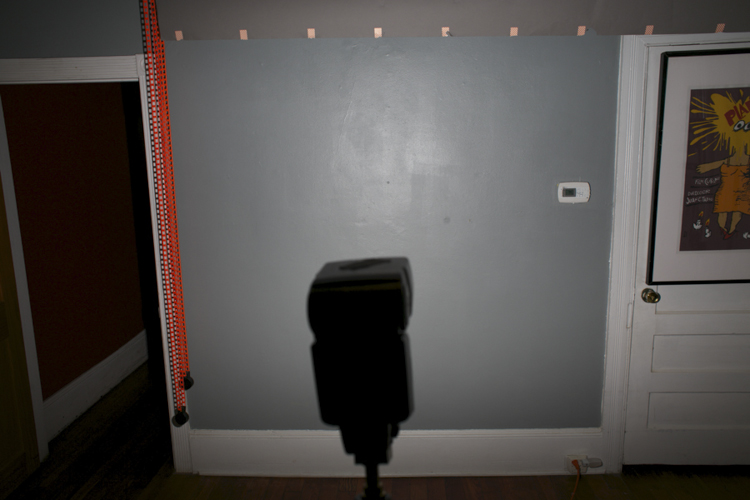
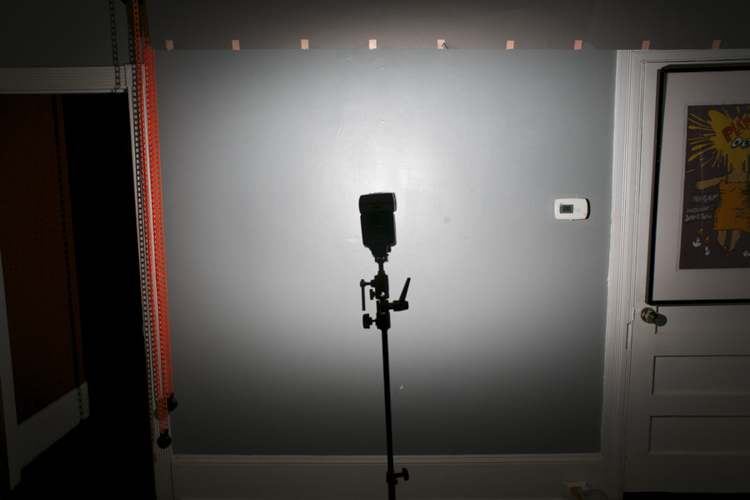
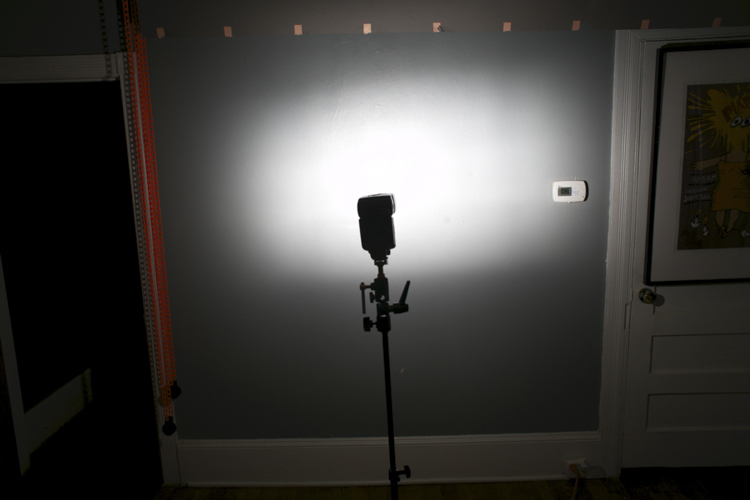
Hey folks. Just a quick post after returning from Photokina 2016 with some cool things that I found interesting and worthy of sharing. (Also, if you ever get a chance to go to Photokina … go. It is indescribably huge.)

So here it is: some lighting stuff, some other stuff . . . Read more »
Strobist

 
Comments Off on Photokina Roundup

Posted in Photography


5 Good Reasons to Take Your Dog on Photography Walks

27 Sep

When I travel into the city (San Francisco) I take along my furry assistant and mini model, Mila, for the trip. She’s been working with me for awhile now. She trades in Pup-Peroni and DentaStix, and her daily rate is affordable, but I think she’d work for free too without complaint. I’d always rather bring my pup along on photography walks than go solo.

Take Your Dog on Photography Walks Header

There are a lot of great reasons to practice photography with your dog! I can already think of five good reasons to take your dog on photography walks.

1. Dogs pose for you

What better way to get test shots of a location than to photograph an assistant? But assistants cost money or at least a glass of wine, so if you’re running a tight ship your dog is a great option. My girl Mila has stood in for me on many location scouting trips. The best part about it is that I now have gazillions of photos of her from all of our adventures.

Take Your Dog on Photography Walks - dogs pose

Would this image have been as interesting without Mila posed in the middle?

2. Dogs break the ice

I find this especially useful for street and travel photography. People are less leery of me walking around taking pictures of their homes, businesses, etc., when I have Mila with me. In fact, they often stop to take pictures of her. Her presence encourages positive interaction and engagement, which is very helpful for me when I am trying to get the pulse of a place. Plus, it relaxes people, which makes for all-around better photography in my book.

Take Your Dog on Photography Walks - dogs break the ice

Mila always turns heads on the street. Who doesn’t love a dog that knows how to work the camera?

3. Dogs are like kids, they teach you patience

They need to be fed when they’re hungry. They need to drink when they’re hot. They fidget and don’t give you much time to get that winning shot. Oh, and they get tired and need to take naps in the middle of the street. If you thought child photography was difficult, try pet photography.

Mila is an exceptionally well-trained and mature dog, but she still reacts to her basic needs much as a toddler would. Practicing photography with her makes me very aware of my timing and helps me develop my patience, speed, accuracy, and client empathy. Dogs are great “personal trainers” for working with younger or more demanding subjects.

dogs are like kids they teach you patience

The hunched shoulders tell me all I need to know: it’s time to take a break. Even so, Mila was patient enough to let me snap this shot of her in front of the famous murals at the Mission District Women’s Center.

4. Dogs protect you

I will not lie, the thought of walking solo through San Francisco with the street value equivalent of a small sedan around my neck is somewhat unnerving. Couple that with a lack of situational awareness when I am focused on taking a shot, and I’ve got all the makings for a pretty nice mugging. I always feel better when Mila is with me because (a) thieves don’t like messing with chicks with dogs, and (b) she’s got really sharp teeth. (I learned the hard way not to hand-feed her bacon.) If you can’t take a human friend on your next photography walk, why not take man’s best friend?

Take Your Dog on Photography Walks - dogs protect you

Check out that sassy tongue! I challenge anyone to mess with me while my furry bodyguard is on the job.

5. Dogs encourage new perspectives

It’s true that all photographers get into ruts. We get used to taking certain kinds of photos because we’ve had past success with them and therefore know they will be well-received. We have to continually challenge ourselves to seek out new perspectives, and a great way to do this is to imagine seeing the world through someone else’s eyes.

Why not a dog’s? When I work with Mila, I always get inspired to look at things differently because I have to get down on her level or compose shots to complement her smaller size. Just be prepared for lots of dirty knees, soiled shirts, and the occasional funny look as you combat crawl through grass and gutters towards your furry subject.

Get low. Amazing how the scenery changes when you're 18 inches off the ground.

Get low. Amazing how the scenery changes when you’re 18 inches off the ground.

Conclusion

I love taking my dog with me on photography walks. Does it add some extra complexity? Absolutely. (I realized a little too late that I shouldn’t drink two glasses of water on the way to the city, it’s not easy to find dog-friendly bathrooms!) But I think about the rewards of having a pet companion with you on a photography walk, one that encourages you to interact with your environment and seek out new perspectives. It is well worth the extra effort.

If you don’t have a dog of your own to accompany you, perhaps you can borrow a friend’s.

Scroll below for more images from our San Francisco photography walk. Do you take your dogs on photo walks with you? Please share your photos and thoughts in the comments below:

Take Your Dog on Photography Walks 8

Black Magic Woman. I never knew Mila was a Santana fan. The things you learn about your dog on a photography walk.

Take Your Dog on Photography Walks 9

Funky fun style is a must in the Mission! Wear something colorful and bohemian and you are bound to blend in. Mila’s fashion sense led the way to this rack of hot threads.

Take Your Dog on Photography Walks 10

Dog Friendly. There are lots of lovely outdoor seating options at cafes, making them great places to grab a bite with your furry friend.

Take Your Dog on Photography Walks 11

I imagine this is what Mila sees when she looks up. The Mission District is renowned for its vibrant murals that celebrate the heritage and culture of the local Mexican community.>

Take Your Dog on Photography Walks 12

Driveways in San Francisco are often small and on an incline, making backup mirrors like this an important garage accessory. They’re also convenient when you want to take a grungey selfie with your Sheltie.


googletag.cmd.push(function() {
tablet_slots.push( googletag.defineSlot( “/1005424/_dPSv4_tab-all-article-bottom_(300×250)”, [300, 250], “pb-ad-78623” ).addService( googletag.pubads() ) ); } );

googletag.cmd.push(function() {
mobile_slots.push( googletag.defineSlot( “/1005424/_dPSv4_mob-all-article-bottom_(300×250)”, [300, 250], “pb-ad-78158” ).addService( googletag.pubads() ) ); } );

The post 5 Good Reasons to Take Your Dog on Photography Walks by Jessica Tallman appeared first on Digital Photography School.

Digital Photography School

 
Comments Off on 5 Good Reasons to Take Your Dog on Photography Walks

Posted in Photography