RSS
 

Archive for the ‘Photography’ Category

18 Stunning Images of Effective Backlighting

30 May

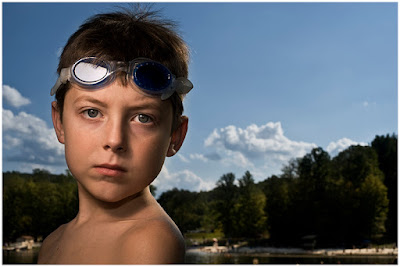
The direction of light is so important in photography. Backlighting is one that can be tricky to handle exposure wise, but make sure a stunning image if you can nail it. Let’s have a look at these 18 images that use backlight effectively.

By Bill Gracey

By Julian Schüngel

By Sascha Wenninger

By Toby

By Vincent Brassinne

By tai-nui

By Linh Nguyen

By Jason Walley

By Anne Worner

By M. Accarino

By Steve Corey

By philografy

By Eric Huybrechts

By Sean Molin

By denise carrasco

By Theophilos Papadopoulos

By Diana Robinson

By Sergiu Bacioiu

The post 18 Stunning Images of Effective Backlighting by Darlene Hildebrandt appeared first on Digital Photography School.


Digital Photography School

 
Comments Off on 18 Stunning Images of Effective Backlighting

Posted in Photography


Weekly Photography Challenge – Backlighting

30 May

If you aren’t sure what backlighting is all about, check out these 18 stunning examples.

By Stefan Lins

Weekly Photography Challenge – Backlighting

Good lighting is key to creating successful and powerful images. Backlighting is one such way to use light to your advantage. Certain subjects lend themselves well to having the light come from behind, or even through them. Such as:

  • Leaves and flowers
  • Steam and smoke
  • Anything translucent that the light can come through
  • Water
  • Glass
  • Hair (portraits that use backlight add a glow to the subject’s hair)
  • Pets (same with fur!)
  • Cut fruit and some foods

What other things can you think of that look great backlit?

By Bill Gracey

By M.G.N. – Marcel

By Torben Worm

Share your images below:

Simply upload your shot into the comment field (look for the little camera icon in the Disqus comments section) and they’ll get embedded for us all to see or if you’d prefer, upload them to your favorite photo-sharing site and leave the link to them. Show me your best images in this week’s challenge. Sometimes it takes a while for an image to appear so be patient and try not to post the same image twice.

Share in the dPS Facebook Group

You can also share your images on the dPS Facebook group as the challenge is posted there each week as well.

The post Weekly Photography Challenge – Backlighting by Darlene Hildebrandt appeared first on Digital Photography School.


Digital Photography School

 
Comments Off on Weekly Photography Challenge – Backlighting

Posted in Photography


How to Make Your Own Frames and Borders Using Photoshop

29 May

Give your photos an edge! This tutorial will show you how to make your own frames and borders using Photoshop.

Picture frames have been around for most of art history. This hasn’t change in our digital age. Whether you print your photo or leave it digital, adding an edge to it will always help its presentation. Here are three creative frames and borders that are easy to make in Photoshop.

How to Make Your Own Frames and Borders Using Photoshop

Back in the analogue-photography era, it was very common to leave a white edge around your photo so that the passé-partout wouldn’t cover any part of your image. If the photograph was an artwork, the blank part in the bottom would be bigger than the rest so that you could put your signature there.

Nowadays, a classic and elegant presentation can still be achieved with Photoshop following this idea. Of course you can get also much more creative! Let’s start with the basics:

FRAMES

White Frame

If you want to print your photo and have it framed in a traditional way, follow these easy steps:

  1. Open your image in Photoshop.
  2. Go to the top Menu >> Image >> Canvas Size. In the popup window you will have the choice for the New Size. There you need to change the measurement to Percent, that way it will be even all around your photo without you having to make a lot of calculations. Then choose how big you want your frame. In this case I chose to add 10% so the total size will be 110%. Make sure your anchor point is in the center (as shown in the picture below). At the bottom you can also choose the color of your frame. Click OK to apply.

How to Make Your Own Image Frames and Borders Using Photoshop

  1. Open the Canvas Size window again, but this time you will put your anchor point on the top center square (as shown in the image below). Add an extra 10% to the top/bottom so you leave the width at 100%, and change only the height to be 110%.

WhiteFrame2

  1. Add your signature, copyright or dedication under your image.
WhiteFrame3

Photo with white border and signature applied using this method.

Composed Frames

This basic idea of the white frame can be elaborated a little more in order to create a composition with a very elegant result. This is perfect for minimalistic or classic photographs.

  1. Open your image in Photoshop.
  2. Go to the top Menu >> Image >> Canvas Size and choose size and width of your frame just like you did for the white frame. This time you can get a little more creative, just remember to keep the anchor in the center. When you are done click OK.
  3. Repeat step #2, changing to a different color and size. For example, for this one I decided to first use a gray frame of 3% and then a slimmer one in the color of the grapes to complement the image.
  4. Repeat as many times as you like. In this case I added a third frame in black that was wider than the previous two.

How to Make Your Own Image Frames and Borders Using Photoshop

TIP: To select a color from your photo, choose “Other” in the color menu of the Canvas Size window. A new window will open with all the colors for you to choose from. At that point, passing your mouse through the image, the pointer becomes an eyedropper. Then you just have to click on the color you want and Photoshop figures out the rest!

How to Make Your Own Image Frames and Borders Using Photoshop

BORDERS

While frames consist of one or more solid rectangles, borders are much more complex. A border can even be an image in itself. Therefore you are not constrained to a specific shape which gives you a wider variety of options. Here is one example:

Creating a Grunge Border

First, choose an image of a skyline; it can be an urban or nature scene. In this case, I am using a photograph of trees in a pond. Open it in Photoshop.

Next, go to the top menu; Image >> Adjustments >> Threshold and set it to a very high number so that you end up with an image that is basically black and white (no gray tones).

How to Make Your Own Frames and Borders Using Photoshop

Select your image (CTRL/CMD + A) and copy it (CTRL/CMD + C). Then paste it in a new blank canvas (CTRL/CMD + V).

Go to the top menu; Edit >> Free Transform and squeeze your image over to one of the edges.

Grunge2

Duplicate the layer by going to the top menu; Layer >> Duplicate Layer. Do this three times so that you will have four layers.

Select each layer and place them on each side (use Transform to rotate and resize each one) creating a rectangular border. You can choose a different blending mode for each layer so that they don’t look so uniform. You can do this from a drop-down menu on the Layers panel. You can also go to the top menu and choose; Layer >> Layer Style >> Blending Options if you want more control over the blending mode.

How to Make Your Own Frames and Borders Using Photoshop

Now you have a very original border to use with any image you want! Remember that the borders not only complement the image but also show your creativity and personality.

How to Make Your Own Frames and Borders Using Photoshop

If you don’t know how to apply borders to your images don’t worry, it’s very easy. Check out the appendix below to learn how.

Appendix: How to use borders

Now I will place an image inside the border to show you how it’s done. I think a grunge border goes well with urban scenes, but that is up to you.

Open the border file.

Go to the top menu and choose; File >> Place >> and select your photo. This will paste the photo you want in the file of your border already resized. You will have to do the final size adjustments manually though by dragging the edges (hold down the Shift key if you’re using the Transform tool to maintain your image aspect ratio).

How to Make Your Own Frames and Borders Using Photoshop

Change the blending mode of the layer so that it looks integrated. In this case, I used the Darken Mode. Try different ones until you are satisfied. Remember you can you can do this from a drop-down menu on the Layers panel. You can also go to the top menu and choose; Layer >> Layer Style >> Blending Options if you want more control.

How to Make Your Own Frames and Borders Using Photoshop

Conclusion

That’s it! Try using the same border on different images to create a specific style to a photo collection you can hang on your wall.

How to Make Your Own Frames and Borders Using Photoshop

Graffitti author unknown, found on the streets of Milan, 2017.

Borders and frames are great for displaying photos in a digital photo-frame but also for printing. You will save a lot of money and have some one of a kind décor in your home. The possibilities of frames and borders are limitless so explore, create, and have fun.

The post How to Make Your Own Frames and Borders Using Photoshop by Ana Mireles appeared first on Digital Photography School.


Digital Photography School

 
Comments Off on How to Make Your Own Frames and Borders Using Photoshop

Posted in Photography


How a Short Versus Long Exposure Will Affect Your Landscape Images

29 May

The shutter speed is probably the factor which has the greatest impact on an image. By adjusting the exposure time by only a few stops, you’re able to completely change the appearance of an image. But what exposure time is best for landscape photography? Should you use a  long exposure or should you work with shorter ones? When will adjusting the shutter speed have the greatest impact?

In this article, I’ll share three case studies where I compare how adjusting the shutter speed has impacted the final images. I don’t believe that either is better than the other (in each case) but it’s important that you’re aware of the differences so it becomes easier to convey the story or emotions you desire.

What is a Long Exposure?

I’ve had many discussions with fellow photographers regarding the exact definition of Long Exposure. At first thought, most consider a long exposure to be an image where the clouds are dragged across the sky or moving water looks like silk or ice. However, this is judging solely based on the visual aspect of the image. Is it not still considered a long exposure if you don’t see its effect? Wouldn’t a 20-second exposure be 20 seconds no matter what?

The definition most of my photography friends have agreed upon is that a long exposure begins when you can’t take a sharp image handheld. Normally, this is at about 1/50th of a second with a wide angle lens.

Using a tripod makes it possible to have a longer exposure.

Case Study #1 – Waterfalls

Waterfalls are often ideal to start experimenting with long exposures. Since the water is moving quickly, you don’t need an extremely long exposure just to capture some motion. In fact, you’ll need a very quick shutter speed to avoid capturing any motion at all.

The choice of shutter speed has an extremely high impact on the image. You might not even need a filter to begin capturing the motion of water in your shots. However, I find waterfalls to be tricky to photograph at times because of this. The different shutter speeds have such a big impact that the entire mood (and story you tell) of your image quickly changes. So, consider what you wish to convey.

If it’s a huge waterfall with a lot of power you might want to use a quick shutter speed to capture its raw power and beauty. While a smaller waterfall might be more appealing when you use a slow shutter speed (long exposure). Experimentation is always the key when working with shutter speeds.

waterfall case study

Rjukandefossen, Norway 1/5th of a second shutter speed.

For the image above, I chose to use a shutter speed slow enough to require the use of a tripod but not so long that the water would become completely blurred. The textures in the water help build the overall atmosphere of the image and it compliments the rawness. By keeping some texture in the water, I’ve also strengthened the composition. When a longer shutter speed was used (see below), many of the lines in the foreground were lost and the flow wasn’t as natural anymore.

long exposure waterfall

Rjukandefossen, Norway 20-second exposure.

When lengthening the exposure time to 20-seconds, the image lost a lot of its raw and natural feel, which was what I wanted to convey. Now, the image has an unnatural appearance and even though it’s still visually pleasing, it’s not as interesting anymore.

A long shutter speed wasn’t ideal since the river was flowing so quickly. Had the water been slower, a 20-second exposure might have done a better job. So, when photographing a waterfall make sure that you keep in mind how quickly the water is flowing, as this will have a great impact on your choice of shutter speed.

Had I used a faster shutter speed than on the first image (for example 1/500th) the image would have a different impact yet again. Such a quick shutter speed would freeze most of the water and remove the sense of motion shown in the first image. Instead, there would have been a lot of texture in the water but no movement to compliment it. That would have resulted in a messy and, again, less appealing image.

Case Study #2 – Seascapes

When working with images that have more than one moving element (for example the sky and the water), you’ve got multiple factors to consider when choosing a shutter speed. Not only will the choice of shutter speed determine how the sky appears but it’s also crucial for the appearance of the water. In fact, since the water is what’s moving the quickest, that is where you’ll see the biggest difference (just as with the waterfalls).

For the image above, I used a shutter speed of 0.6 seconds. In the grand picture of long exposures this is still a relatively short shutter speed, and for some, it doesn’t even qualify as a long exposure. However, despite the shutter speed being only 0.6 seconds, there’s quite a lot of motion in the image. Since the waves were coming in fast the camera was able to register a significant amount of motion within that short time.

Personally, I’m a big fan of exposures between 0.5 seconds to 1.5 seconds when photographing seascapes (especially when using a low perspective like this). The shutter speed is long enough to capture the motion but it’s also fast enough that there’s still a lot of texture in the water. The lines that come as a result of the slow shutter speed do a significant job in improving the composition.

long exposure seascape

In the second image, I increased the exposure time to 30 seconds, allowing the camera to register motion for a longer period of time. As you can see, the texture that was the previous image is lost and the water has completely changed its appearance. Now it looks more like ice, or some sort of solid state.

However, the clouds are also considerably different than in the first seascape. By using a 30-second exposure the camera has also registered motion in the clouds, resulting in a more dynamic sky. When the clouds are dragged across the sky, such as above, you’ve got an extra factor to consider for your composition. In this scenario, the clouds are moving towards the horizon, creating a series of extra lines that help lead your eye through the image. Often this can be a great advantage.

I don’t believe that one is necessarily better than the other but, again, it’s important to understand how the choice of shutter speed (exposure time) will impact the image. When working with a slow shutter speed you’re introduced to several new factors (such as the helpful leading lines in the sky) and being aware of them will make the process of learning long exposure photography easier.

Case Study #3 – Generic Landscape

Once you remove the second element of motion, the choice of shutter speed becomes somewhat less crucial. Still, there will be a big difference between a 30-second exposure and a 1-second exposure if you’ve got some movement in the clouds. But the difference between a 0.5 second and 5-second exposure is less significant for a generic landscape and a seascape or waterfall photo.

It’s not uncommon for me to see someone using an ND Filter when photographing a mountain on a cloudless day. This is very common when first using filters, as you want to use them all the time. However, a 2-minute exposure won’t look any different than a 1/100th of a second exposure when there aren’t any moving elements in the image. After all, an ND filter doesn’t create motion, it registers it.

The image above is a typical example of when a long exposure wouldn’t make a big difference. I used a 1/5th second exposure time for this particular image but had I used a 30-second exposure with filters instead, it still would have looked more or less the same. Simply put, it wouldn’t have been beneficial to use a long exposure on this scene.

It isn’t until you’ve got at least one moving element that the true power of a long exposure photography appears (remember, this can be something as simple as grass moving in the wind). In the image below, you see the same scene but this time with clouds in the sky. The shutter speed I used for this image was 1/15th of a second, which means that I wasn’t able to capture any motion – yet.

short exposure generic landscape

Once clouds had appeared and there was one element of movement in the frame, a long exposure would have an impact on the image. Since the clouds were moving I was able to capture the motion and, again, create a more dynamic image.

For the image above I increased the exposure time to 30-seconds. By increasing it that much you can clearly see how the sky has changed and how the overall mood of the image has changed along with it. Unfortunately, the clouds were moving sideways. Had the clouds moved towards or away from me, the image would have greatly benefited from a long exposure and taken advantage of the leading lines that would have helped to lead the eyes towards the structure. Since the clouds were moving sideways, the extra leading lines in the image aren’t as helpful, even though they look nice.

Summary and Conclusion

After reading this article I hope you have a better understanding of how the shutter speed will affect an image and when increasing or decreasing it will be beneficial. There’s no “correct” way of doing it, and in the end, which image you prefer depends on what you’re looking for in your image. However, as I’ve mentioned multiple times, it’s extremely important that you understand how a longer or shorter shutter speed will impact the image. By understanding this, you’ll be able to save a lot of time in the field and ultimately create better images.

Remember, a slower shutter speed can affect the appearance of an image when there’s more than one moving element within the frame. A slow shutter speed is not going to make a difference when there are no moving elements.

The post How a Short Versus Long Exposure Will Affect Your Landscape Images by Christian Hoiberg appeared first on Digital Photography School.


Digital Photography School

 
Comments Off on How a Short Versus Long Exposure Will Affect Your Landscape Images

Posted in Photography


6 Tips for Getting Sharper Wildlife Photos With a Super Telephoto Lens

29 May

In recent years, super telephoto lenses by third-party manufacturers such as Sigma and Tamron have been made available on the market for really reasonable prices. Earlier on, photographers had no choice but to spend a huge amount in order to buy a super telephoto lens, but now these third-party lenses make it more affordable. One such super telephoto lens is the Sigma 150-600mm f/5-6.3 DG OS HSM, which allows you to get much closer to a distant subject.

Using a super telephoto lens for wildlife photography is in itself a skill to master as you may not get sharp and clear results when you first pick up the lens. The tips below will help you get work better with a super telephoto lens so you can capture sharper wildlife photos going forward.

Wildlife photography telephoto lens 01

#1 – Choose the correct shutter speed

Selection of the best shutter speed is one of the most important tasks when doing wildlife photography. There is a standard rule which says that the shutter speed should be equal to or faster than the focal length of the lens you’re using. So, if you are shooting with a 500mm focal length, then you need a shutter speed of at least 1/500th or faster (1/1000th, 1/2000th, and so on).

Shooting at a shutter speed slower than 1/500th can introduce camera shake and thus will affect the sharpness of the image. However, if your lens features image stabilization technology, you can then shoot at a slower shutter than the focal length. How much slower will depend on the performance of the technology for that particular lens.

NOTE: This rule is applicable for full-frame digital cameras. If you are using an APS-C sensor camera, then you also have to multiply the focal length by the crop factor of your camera brand (1.5x for Nikon, 1.6x for Canon, etc). In this case, the focal length would become 750mm with a Nikon APS-C sensor camera and thus a shutter speed of 1/750th of a second or faster needs to be used to get sharp photos.

Wildlife photography telephoto lens 07

Usually super telephoto lenses such as the Sigma 150-600mm f/5-6.3 DG OS HSM perform the best from 150mm to 500mm, and as you go beyond 500mm the sharpness starts to lessen. So try and avoid using a focal length which is towards the maximum limit of a telephoto lens.

#2 Use the right aperture value

In wildlife photography, depth of field plays a great role in helping to make the subject stand out from the background. In case you are not aware, shooting with wider aperture (smaller aperture values like f/2.8) helps you to achieve shallow depth of field. This results in a photo where the subject is sharp and well segregated from the background, which itself will be out of focus.

But this does not mean that you blindly shoot using the smallest available aperture value. Instead, I recommend that you shoot at the aperture value which is the sweet spot of your lens. Usually the sweet spot of a lens is 2-3 stops higher than the smallest aperture value. So it would be around f/11 if you are using the Sigma 150-600mm f/5-6.3. Shooting at the sweet spot aperture value allows you to get maximum possible sharpness in the photo, along with decent depth of field. By the way, you would likely be shooting at a focal length such as 500mm or so, and in that case, you would get shallow depth of field even at f/8 or f/11.

Wildlife photography telephoto lens 03

#3 – Selecting ISO sensitivity

ISO sensitivity is one of the sides of the exposure triangle which needs to be adjusted as per the shutter speed and aperture value required for the shoot. In the case of wildlife photography, you will have to compromise on the ISO sensitivity over the other two elements of the exposure triangle. Why?

You will have to use a fast shutter speed in order to freeze the motion of the subject and an aperture value which is not that wide in order to capture sharper photo. This is the reason why you might have to increase the ISO sensitivity value in order to capture a well-exposed photo. So the ISO should be the last exposure setting that you adjust in order to correctly expose the frame.

Wildlife photography telephoto lens 04

#4 – Use a tripod or monopod for stability

Considering the fact that the super telephoto lenses are really heavy, it is important and advisable to mount them on a tripod or a monopod. Almost all telephoto lenses have a tripod collar for mounting the lens on a tripod or a monopod. This will enable you to concentrate more on the surroundings and the movement of the animals/birds instead of worrying about carrying the weight of the lens.

If you shoot handheld at telephoto focal lengths such as 300mm, 400mm and so on, you are bound to get shake in your photos. As a precautionary measure, it is better to carry a tripod or a monopod along every time you plan to shoot wildlife.

Wildlife photography telephoto lens 05

#5 – Image Stabilization mode in your lens

In a situation when you need to pan your camera along with the moving animal or bird, make sure that you have switched on the image stabilization on your lens. This is helpful in case you are shooting handheld, as it reduces the shake that is caused while panning or tilting the camera. Image stabilization mode can be found on lenses as IS on Canon lenses, VR on Nikon lenses, OS on Sigma lenses, VC on Tamron lenses and OSS on Sony lenses.

But in case you are using a tripod or a monopod as advised above, switch off the image stabilization mode on the lens. If you keep it switched on, the image stabilization feature introduces minor shake which in turn reaches the camera mounted on a tripod or a monopod. So in order to eliminate this minor shake you must switch off the image stabilization mode on your telephoto lens.

Wildlife photography telephoto lens 02

#6 – Explore Back Button Focus

If you are not already using the back button focus method to lock the focus on the subject, then you must be half-pressing the shutter release button to do the needful. When you use the shutter release button to lock focus, you are further contributing introduction of minor camera shake.

By using the back button focus technique, you can dedicate one of the buttons located on the back of your camera to focus. By doing so, you are then balancing the weight of the camera as you press the button on the back side. Not only does it reduce camera shake, it also helps you shoot at much faster rate as compared to the traditional approach.

Wildlife photography telephoto lens 08

Conclusion

Shooting with a super telephoto lens is a delight, but it is also really important that you understand the technical aspects of using it to get sharp results. Do not be disappointed if your initial shots are not as sharp as you expected them to be.

Make sure that you are using the right shutter speed and aperture values, these two elements of the exposure triangle contribute the most to the sharpness of your photos. If possible, use a tripod or monopod and mount your telephoto lens on it to avoid any possible camera shake. In case you are shooting handheld, switch-on the image stabilization feature on the lens to further reduce the shake caused during panning or tilting of the camera.

Wildlife photography telephoto lens 06

Do you have any additional tips for getting sharper wildlife photos using a super telephoto lens? If so please share them in the comments section below.

The post 6 Tips for Getting Sharper Wildlife Photos With a Super Telephoto Lens by Kunal Malhotra appeared first on Digital Photography School.


Digital Photography School

 
Comments Off on 6 Tips for Getting Sharper Wildlife Photos With a Super Telephoto Lens

Posted in Photography


Top 5 Essential Photography Tips I Can’t Live Without

29 May

These are my big five photography tips which I would take with me to a desert island, the ones I can’t live without. For those who have not had the pleasure, that is a reference to the BBC Radio Four program, Desert Island Discs, which has been running for more than 70 years. The simple premise of the program is that guests choose just eight pieces of music they’d want if they were going to be marooned on a desert island.

Desert island

I think that these lists are much easier to complete if given criteria. This is my Desert Island Big Five. They are chosen on the basis that if you could only apply five ideas to your photography for the rest of your shutter button pushing days, perhaps on a desert island, these would be the ones which I would recommend.

#1 – Follow guidelines not rules

Did you ever see the first Pirates of the Caribbean movie? Captain Barbossa (played with menace by Geoffrey Rush) chastised the main character Jack Sparrow (Johnny Depp), that he could not do something, because “It is not in the Pirate Rule Book”. With great, exaggerated, cheeky charm, and great comic timing, Jack Sparrow replied “I do not think of it as a RULE book … more as GUIDELINES …”

It is my strong belief that all articles and photography tips, such as this one, should be considered in the same way. The first rule is that there are NO rules, there are only guidelines. You should do just as you like. If you enjoy taking the photographs, processing them, and then you enjoy looking at the results, that is enough. Pleasing yourself and no one else is absolutely enough.

If you want to take photographs of people’s feet, go ahead! If you want to take a photograph of … well, what exactly do you think this might be (below)?

What is it? It is actually the bottom of a curtain, with the morning light streaming in. Not a common photographic topic, but it is an image of reasonable interest.

There are no rules, only guidelines, Do what you like! Do whatever turns you on! I could live with that suggestion alone on my desert island.

This next photograph follows the suggestion of having no rules. I think it is unlikely that any rule is going to tell you to photograph the bottom half of someone’s face, right? This photograph also leads on to the next guideline.

#2 – Fill the frame

A good photography tip and guideline to live by is that the subject of the photograph should not be in doubt, it should fill the frame.

This is an unusual school building in Al Ain, in the UAE.

The photograph above shows the scene well enough. However what is interesting in the scene? The subject of the photograph is really the arches. If they are allowed to fill the frame, don’t you think that it becomes a much better photograph (as below)?

Then, I think the framing of the following photograph is quite interesting. There is no need to include the entire opening of the front of the shop, nor much beyond the stretched out arm of the potential customer. The subject of the photograph is the colored lamps and they fill the frame here nicely.

I think I will take this one. The brightly colored lamps are the subject here and there is no need to include any more of the scene to tell the story.

Put another way, look at whatever you are photographing, get close, then get closer yet again.

New Delhi train station.

This very handsome man sitting on the platform of the train station in Delhi caught my eye. It is an okay scene and tells a bit of the story of India. But he is really the subject, so get closer.

Closer

Then get closer again.

Is a star born? Fill the frame with the subject. This potential Bollywood star is the subject, so he should fill the frame.

As I have already mentioned, advice such as this is best taken as a guideline, not a rule. To prove that point, I agree with most people who seem to prefer the middle shot, the second one, in the above series.

You might say there are two photography tips in one here. First, fill the frame; secondly, get closer. However, both usually result in the same thing. There are other considerations, however, such as the engagement with a portrait subject, or the choice of focal length.

You can fill the frame or get closer according to whatever works for you. For Mr. Bollywood, my memory is of zooming in and moving closer to the subject.

#3 – Ignore the subject

So now you have decided on your subject and gotten closer. It may then seem a little contradictory to tell you to ignore the subject for this next tip. But your photograph will be better if you do so.

You have already decided that the subject is interesting. The decision has already been made that the face, that flower, or the landscape is worth photographing. The face, the flower, or the lake are not going to change much, right? So really, you do not have to keep staring at it, you can now let your eye wander away.

I suggest that it is a really good idea to let your eye take at least a quick look around the edge of the frame. As a general guideline, it is best to have tidy edges in your frame.  That means there is nothing sticking in and distracting from the subject.

Distracting things on the edge of the frame take away from the subject, the blue smiley face.

Examples

Here is an example. A small girl in Cebu, in The Philippines.

I am not saying that it becomes a much better photograph once edited. However, with a slightly tighter crop, and a bit of Photoshop to dull of the distraction in the top left corner, the photograph is more concentrated on the subject, and it is a better image.


Please note that recognizable shapes, the triangle over the girl’s left shoulder, and bright colors, as in the top left, tend to be especially distracting.

The image below was taken for a client in Qatar when Doha’s new airport was being built.

Is it just me, or is that portion of a circle at the bottom, in the front of the frame really distracting? It is very much just a small detail, but it is surely attention to such details that is going to move your photography forward. Next time, when you take a similar shot, you might frame a little bit more precisely. I would like to think that I would. I certainly do not like fixing things in Photoshop, but this is better, isn’t it?

Again, you might say that this is two rules, sorry guidelines, in one. However, I think that it is a natural consequence of looking around the edges of the frame that you will also check the background. This is one I did not get quite right. These people are not flattered by the pole growing out of his head.

The well-known bird photographer Scott Bourne once said that he looked around for a good background then waited for a bird to fly past. You would have to ask him, but I do not think he was joking.

For showing off a cheeky little face, plain white works well. I wanted to photograph a number of the children who lived in a house and just plonked them in front of a plain wall. I found a good background, and waited for the children to fly past!

Cheeky!

But that does not mean that you must have a plain background. It is a question of checking out the edges and being aware of the background. Sometimes the background can even become an important part of the photograph.

Stairway from heaven?

Here is a contrasting background using complementary colors.

#4 – Atomic powered

You may well have heard that you should work the scene. I was only ever half sure what that meant. It might help you, as it helped me when I heard the simple advice, “move your feet”.

Then I later heard that idea expanded upon, and an image from my high school science class was revived. The image is of an atom, with the nucleus and electrons (have I got that right?).

By SVG by Indolences.Recoloring and ironing out some glitches done by Rainer Klute. – based off of Image:Stylised Lithium Atom.png by Halfdan., CC BY-SA 3.0, Link


The nucleus, the red and black middle, is the subject. You, the photographer, are the electrons, the blue dots. You are moving over, under, and around the subject. Standing tall, crouching low, walking left, walking right, and working that subject. Looking for the best way to show what you want to show, to tell the story you want to tell.

Created by working the scene and trying different camera angles.

It is not normal to take a photograph of the top of someone’s head. But I hope you agree that this makes an interesting image (above).

Nor is it normal to angle your camera at 45 degrees, tilted over from the horizontal, then point the camera up at an even steeper angle. But this image below seems to tell some of the stories of Singapore’s Clark Quay and the Central Business District. The situation has been worked by moving the camera out of its traditional position in the horizontal and vertical axes.

You must take the shot above, it is mandatory, but it has been taken quite enough times, hasn’t it?

Then, by walking round this very famous building, you can see it in a different way, one that tells a bit more of its glorious tale. The side of the Taj Mahal, as shown below, has its own beauty.

So, the fourth guideline is that you should move around your subject like electrons move around the nucleus of an atom.

There is a bonus to this guideline as well. There is a clear implication that if you have decided that a subject is worth taking one photograph of, you should take ten! If you ever shot with film, you’ll understand that the incremental cost was quite high. When David Bailey shot six rolls of Kodachrome, it probably cost $ 200. Now, in the digital age, the incremental cost is negligible. So do not be shy about taking more photographs.

#5 – Guideline of Thirds

This is the famous, Guideline of Thirds.

Have you heard of it before? Perhaps not, but you may well have heard of the Rule of Thirds. Like many other clichés, it has attained that status because it works! It is so well known but, even then, I have heard people get it wrong. Still, though, I think it is better thought of as the Guideline of Thirds in my opinion.

In your mind, divide the frame by drawing two equally spaced vertical lines, and similar horizontal lines. The image below tells the story easily. This guideline works well with a square frame too, and we would then be able to describe it and use it as a tic-tac-toe board.

You now have a frame divided into nine equal pieces. Three equal horizontal sections, three equal vertical sections, hence the name thirds.

Place your subject on those lines, and the most significant items on the intersections of those lines. Got a tree? Position it on one of the horizontal and vertical lines (where they intersect as seen below).

A river might be placed along one of the horizontal lines.

Place the most significant items, the sun, the human eye, or a cat walking across a street, on the intersections, where the vertical and horizontal lines cross. These are called the power points.

Combining all three, you will have this as your composition.

Very simply, the accepted wisdom is that this arrangement below.

Looks more interesting, more dynamic, than this.

Of course, you cannot move trees and rivers and other stationary objects. However, you can move around and practice the fourth guideline. Often you can find a position where the major elements of the shot are aligned with the thirds, or somewhere close.

If you consciously practice using the rule of thirds it will be a good step in the right direction to creating more interesting photos. Stick with it, practice, and you will soon find that you do not have to really think about it. It soon becomes instinctive. Later you might move on to other guidelines for composition. There are many others, but if I could choose only one to take and use on my desert island this would be it.

I can tell you that this was taken with no conscious application of the Rule of Thirds. I would suggest it has at least some interest. And, lo and behold.

Here is another example.

I know with absolute certainty that The Rule of Thirds was not in consideration when I took this street shot in Jakarta, Indonesia. I wanted one of the drawings to be fully in the frame and as he is the artist, I wanted his hands in the frame too. Again, I am not claiming that this is a great work of art, but I think I can claim that it has some harmony and cohesion. Throw the grid at it and we see . . .

His hands and face, sit pretty much on the intersections of the lines.

A modest realization along the way, with this aspect of my photographic journey, was in respect to the horizontal lines and the placement of the horizon. Still not a rule, only guideline, but it seemed to me that if the sky was interesting, and it was the major subject of the photograph, then you might want to put the horizon on the lower third line. That simply gives more of the frame over to that stormy, wispy cloud-filled, or deep sunset filled sky. Simply, it is consistent with the guideline of fill the frame with the subject.

Boracay sunset, Philippines.

If it is the land which offers the subject for a photo, it usually works if you place the horizon along the upper third.

Beautiful Philippines golf course.

As I have already suggested, there are other compositional guidelines, which you might move on to using at a later date. But the Rule of Thirds, or as you might be better thinking of it, Guidelines of Thirds, is a very good place to start.

In summary

Looking at and understanding light, using a frame, empty space, leading lines, symmetry, contrast, and so on – there are many good guidelines. But these are the five essential photography tips which I would choose to use if I could select no others.

  1. Follow guidelines not rules
  2. Fill the frame with the subject
  3. Check your frame edges and the background
  4. Move yourself
  5. Guideline of Thirds

I would recommend that you could survive very well with the above big five on a metaphorical or, indeed, literal desert island.

The post Top 5 Essential Photography Tips I Can’t Live Without by Richard Messsenger appeared first on Digital Photography School.


Digital Photography School

 
Comments Off on Top 5 Essential Photography Tips I Can’t Live Without

Posted in Photography


Some Annoying Things About Photography and Cameras

26 May

Photography gave me a creative outlet in life, and I owe so much to it. It’s my form of escape and a way to relax. It pushes me to explore new places and it gets me out the door. I love it dearly.

That being said, there’s a lot about photography that annoys the heck out me, and here’s a list of everything I can’t stand. As a side note, I hope you don’t mind that I illustrate this article with some zen photography instead of pictures of the things that annoy me. That would just get my heart rate up too high.

Disclaimer: This article is meant to be tongue-in-cheek and have some fun. Don’t take it at all seriously, please!

Everything that annoys me about photography and cameras

Buttons

Have you seen a Nikon camera these days?? Most people will never need half of those buttons in their lifetime. Can’t they invent a camera that only needs a few buttons? Where is Apple when you need them?

But seriously, I wish more camera companies put extra time into thinking about ergonomics, design, and making everyday use more pleasant rather than trying to pack each camera with new unneeded features just to lure people into an upgrade.

Everything that annoys me about photography and cameras

Lens dust

Last time I changed lenses, I was literally in a vacuum chamber and still a piece of dust got stuck smack in the middle of the sensor. And is there anyone who can clean it easily near me? Nope, because Nikon stopped making repair parts available in order to shut down third party repair companies. So not only do I have to send my Canon camera to the factory for small repairs because my local shops couldn’t stay in business without the Nikon business, but I can’t even find someone locally to quickly clean my sensor.

Yes, I know I can do it myself, but I’d rather have someone trained so that I don’t screw something up.

Everything that annoys me about photography and cameras

Filters

Remember that time when you thought you needed all these expensive filters to be a good photographer? While you do need a few filters, everyone goes overboard at some point and now has a filter graveyard drawer.

Everything that annoys me about photography and cameras

Megapixels

We don’t need more megapixels Sony! Our computers and external hard drives can barely keep up. Instead, give us better ergonomics, better ISO, faster focusing, and better dynamic range. Which brings me to the next point.

Everything that annoys me about photography and cameras

Small cameras with big lenses

What’s the point in a tiny mirrorless camera with a massive 20-pound lens? Is it impossible to make that 24-70mm lens that everyone uses just a little bit smaller? Please take the money from the megapixel blitzkrieg department and put it into the making lenses smaller department.

Everything that annoys me about photography and cameras

Tripods

Why are all $ 300 tripods designed to fail after a year of use? I can’t imagine how much money the Planned Obsolescence Manager at Crap Tripod Inc. makes. We all learn this the hard way. We suffer until we get fed up and spend way too much money on a Gitzo that lasts us the rest of our lives and makes us really happy.

Everything that annoys me about photography and cameras

People walking in the way of your shot to get a closer shot

You’re pretending you don’t see me. I’ve been here for an hour. I’m a peaceful man, but I will strangle you with my remote shutter cord and break this tripod over your skull (not really, I’m just kidding!). Oh wait, it’s a Gitzo. This Gitzo will break your skull and then continue to work perfectly fine.

Everything that annoys me about photography and cameras

Neck pain

Please don’t carry your tripod over your neck. Use a backpack sometimes instead of a shoulder bag. Pick one lens before you go out the door instead of five. Stretch. Your body will thank you in 20 years when you’re not walking around like the Hunchback of Notre Dame.

Everything that annoys me about photography and cameras

Taking an iPhone photo of some sweaty person at a party with overhead lighting and them thinking it’s going to be amazing because I’m a photographer

I’m not Saint Theresa – I can’t perform miracles. Now stop trying to look like a duck.

Everything that annoys me about photography and cameras

People saying, “Isn’t everyone a photographer these days?”

You know, photography is a way for all types of people in all walks of life to find a creative outlet, and there’s a vibrant community of so many fun and interesting people that are drawn to it. But whether you meant it or not, that statement has a demeaning and devaluing undercurrent to it. All of us are completely different as photographers, just as anyone with a pen will write in a completely different way. Just because this amazing community is growing, does not mean that photography should be devalued.

Everything that annoys me about photography and cameras

When we’re traveling and I can’t skip out on all the fun stuff to take photos

You mean I have to go to a nice dinner at a fun looking place on the water with someone that I love dearly? What the heck – I want to go walk down this dirty alleyway for the next hour to take some moody photographs!

Everything that annoys me about photography and cameras

Conclusion

What things annoy or make you angry about photography or your gear? Please share in the comments below.

The post Some Annoying Things About Photography and Cameras by James Maher appeared first on Digital Photography School.


Digital Photography School

 
Comments Off on Some Annoying Things About Photography and Cameras

Posted in Photography


How to Understand Your Camera’s Light Meter and Get the Exposure You Want

26 May

Regardless of how you shoot, and whichever shooting mode you prefer to use, there is one item that remains constant – the light meter. Somehow, either you or your camera has to know how much light in on your scene in order to determine the optimal combination of aperture size, shutter speed, and ISO sensitivity to get the photo you want. This tool, which may not seem all that relevant to new photographers, is called a light meter.

Understanding what your camera’s light meter does and how it works is critical to advancing your skills and helping you get the shots you really want. Hopefully, this article will help you get a grip on it.

How to Understand Your Camera's Light Meter and Get the Exposures You Want

An analogy to help you understand the light meter

Before I get into a discussion about how the light meter works, think about the last time you cooked some meat on the grill. Whether it was a steak, some pork chops, or even just a couple hamburgers – you likely had a vision in your mind of what the finished product would be.

For backyard chefs like me who aren’t very good at this sort of thing, we have to use a meat thermometer to make sure our food is properly cooked. There’s always the question of where to put the thermometer to check and see if the meat is done. Or, in photography terms, check to see if the meat is properly exposed. You can touch it to the surface, poke it through to the middle, or insert the thermometer at various points around your dinner in order to get a good overall reading.

Each method would work for a different scenario, but it all depends on what you are cooking and how you want the finished food to turn out.

How to Understand Your Camera's Light Meter and Get the Exposures You Want

Your camera’s light meter is like measuring the temperature using a meat thermometer. Placement is crucial for an accurate reading.

How the camera light meter works

When you point your camera at a scene you also need a way of measuring the incoming light so you know how much of it there is and what settings you (or your camera) need to control in order to get the shot you want. It’s just like measuring the temperature of your food with a thermometer to make sure it’s done properly.

Most cameras today use a process called TTL Metering, which stands for through-the-lens. It means that your camera examines the light coming in through the lens and evaluates the brightness of the scene. Then you, or your camera, can adjust the settings in order to make sure your photo is exposed how you want. You may not ever notice the light meter at work or even see that it’s there at all unless you shoot in Manual Mode. But trust me, it’s constantly monitoring the light whether you know it’s working or not.

View the metering scale in Manual Mode

To see the light meter doing its thing, put your camera in Manual Mode and look for a series of dots or vertical lines at the bottom of your camera’s viewfinder.

How to Understand Your Camera's Light Meter and Get the Exposures You Want

In Manual Mode, look at the bottom of the screen in your viewfinder. Notice the scale with zero in the middle. That is the light meter at work.

The number scale at the bottom of the image above is an example of a camera’s light meter, and the tiny little triangle shows whether the picture is properly exposed or not. In this case, the triangle is at 0, which means the image is neither under or overexposed, but changing the aperture, shutter speed or ISO would make the triangle move up or down the line accordingly and result in a picture that is either a little too bright or a little too dark.

What part of the scene is the camera measuring the light from?

While that is all well and good, it’s only part of the story because it doesn’t explain how your light meter actually functions. Is it looking at all the incoming light or just some of it? Where in the frame is it looking as it measures the light? Understanding the answers to these questions is the key to unlocking the power of your camera’s light meter, and it all has to do with what’s known as metering modes.

How to Understand Your Camera's Light Meter and Get the Exposures You Want

Measuring the Light

Most cameras today have a few basic ways of measuring the incoming light:

  1. Matrix or Evaluative Metering – the camera looks at the light in the entire scene and averages it, (Nikon puts a bigger emphasis on the area where your lens is focused as well). Nikon calls this Matrix Metering, Canon calls it Evaluative.
  2. Center-Weighted Average Metering – looks at the light of the entire scene and averages it, but with emphasis on the center of the frame. Nikon and Canon both call this Center-Weighted Average Metering.
  3. Partial Metering – this measures the light only in a small portion of the center of the frame (about 8-12% of the scene). This is a Canon metering mode, Nikon does not have one similar.
  4. Spot Metering – measures the light only in a small area around the central autofocus point (about 1.5-3% of the frame). Nikon and Canon both call this Spot Metering.

Other camera manufacturers have different names for these modes, but suffice it to say the way in which your camera measures incoming light can have a huge impact on whether your photo is properly exposed. As an example, here are three shots that were taken with different metering modes.

Image #1, taken with Matrix (Nikon) or Evaluative (Canon) Metering.

Image #2, taken with Center-Weighted Metering.


Image #3, taken with Spot Metering.


Reflective versus incident metering

There’s another aspect of light metering that comes into play when setting up a shot. It has to do with how TTL metering works as opposed to a handheld light meter.

Reflective metering

The former, (the type of metering used in DSLRs), works by measuring the amount of light that comes through the lens. But the problem with that is that unless you are pointing your camera directly at the light source, the light being measured is actually bouncing off your subject first.

All the colors we see in the world around us get their hues and tonal values by absorbing every color of light except for what is bounced off of them. As many of us learned in grade school, light is made up of a spectrum of colors including red, orange, yellow, green, blue, indigo, and violet. A green tree leaf absorbs every color of light except for green. A red car absorbs every color except for red, and so on.

reflective metering - camera light meter

When your camera measures incoming light, it’s looking at the amount of light being bounced off your subject, not the amount of light actually hitting your subject. This has huge implications and can dramatically affect your exposure. In the illustration above, the subject is wearing clothes that absorb most colors of light except for blue, which means there is still a great deal of light being bounced off him and sent to the camera. However if the child changes clothes things can change a great deal.

reflective metering dark subject - camera light meter

In the illustration above, even though the amount of light hitting the boy has not changed, the camera will read the scene much differently because he is now wearing a dark shirt and pants. The camera will think it needs more exposure to compensate for what it thinks is less light on the scene, and the overall image will be overexposed as a result.

Here’s a real-world example of how this works:

reflective metering - camera light meter

Nikon D7100, 200mm, f/2.8, 1/8000th of a second.

In the photo above, so much light was being reflected off the girl’s white shirt that my camera had a hard time metering the scene properly. Much of the sunlight was bouncing off the shirt and coming directly back to my camera, so it responded by using a very fast shutter speed and low ISO value in an effort to make sure the shirt was properly exposed. Unfortunately, the rest of the scene was underexposed as a result.

Nikon D7100, 200mm, f/2.8, 1/1500th.

This was a few seconds later in the exact same spot, and all I did was have her put on a brown shirt. With much of the light from the sun being absorbed by the dark color of her outfit, my camera created a much brighter exposure by using a slower shutter speed. Not as much light was being captured by the TTL metering system so the camera thought more light was required for a good exposure.

Incident metering

This phenomenon can be particularly troublesome if you are shooting a wedding; grooms often wear dark tuxedoes whereas brides will usually be dressed in dazzling whites, which can really throw off your camera’s TTL metering system. The solution is to use an external handheld light meter, such as the Sekonic L-308S-U, which actually measures the amount of light falling on the subject.

Handheld light meter for incident light metering (light falling on the subject).

In the image above you can see that the meter shows you need an aperture value of f/16, shutter speed of 1/125th of a second, and ISO 100 in order to get a properly exposed scene. These numbers will likely be different from what the camera’s TTL system measures because some light will invariably be absorbed by the subject, which is why an external system like this can be so useful.

Here’s how the diagram from earlier would look if the setup involved an external handheld incident light meter.

incident metering - handheld light meter

You will often see wedding photographers using a light meter such as this in order to get a more accurate reading of how much light is hitting the wedding party during formal photos. This is especially true if they’re using a system of flashes or external speedlights because they need to know how much extra light the scene will require or tolerate.

When shooting a wedding it is quite common for the bride to wear a white dress, which reflects a great deal of light, and the groom to wear a dark tuxedo which absorbs almost all light. This can wreak havoc with a TTL metering system, and an external light meter is a great way to address the problem.

light metering - camera light meter

Conclusion

The overall goal here is to understand how the light meter in your camera functions. This, in turn, will help you know how you will need to alter the exposure settings to get the shot you want.

I hope this article has been helpful in explaining how the light meter works, how light is reflected off your subjects, and why your camera may not see a given scene quite like you expect it to. Ultimately it’s important to remember that there is no one correct way of metering a scene. Any of the metering modes and methods will work as long as you know what you are shooting and what type of results you are trying to achieve.

Knowing the difference between the various metering modes and types, and understanding how light is measured as it hits your camera can help you get the shots you want. None of these methods are any better or worse than the other, but each one has its own strengths and weaknesses. The more you know about how all of this works the better equipped you will be to get precisely the photographs you want.

The post How to Understand Your Camera’s Light Meter and Get the Exposure You Want by Simon Ringsmuth appeared first on Digital Photography School.


Digital Photography School

 
Comments Off on How to Understand Your Camera’s Light Meter and Get the Exposure You Want

Posted in Photography


Jinbei Studio Flash Units Recalled for Electrocution Risk

25 May

The Swiss government last month issued a recall for ten models of Jinbei studio flash units. While the recall notice has made the rounds on message boards, I am frankly surprised that photo media outlets have not picked this up. Read more »
Strobist

 
Comments Off on Jinbei Studio Flash Units Recalled for Electrocution Risk

Posted in Photography


Tutorial – How to Use the Lightroom Map Module

25 May

The Lightroom Map Module lets you add your photos to a map so you can search and organize them by location. It’s quite a cool feature, so let’s take a look at the best ways to make use of it.

1. Using the Lightroom Map module if your camera has built-in GPS

Photos taken with a camera or mobile that has built-in GPS are the easiest to work with in the Lightroom Map module. As long as GPS is enabled, the camera saves the exact location an image was shot in the photo’s EXIF data. Lightroom reads the data when you import the photos and automatically adds them to the map.

For example, I made this photo using an iPhone SE.

Lightroom map module

Lightroom automatically reads the GPS coordinates embedded in the photo’s EXIF data. The yellow square marks the spot where the photo in the filmstrip was taken.

Lightroom map module

Note: Lightroom uses Google maps and an internet connection is required for the Map module to work.

2. If you have a secondary GPS unit

Some camera manufacturers make GPS units that you can connect to the camera body. If you have one of these it does exactly the same as a built-in GPS unit. It embeds the camera’s coordinates in the EXIF data of your images. That data is then read by Lightroom when you import the photos.

3. If you have an app or sports device that records your movements in a GPS file

Most mobile phones have built-in GPS. You can download apps that record your route and let you export that information in a GPS tracklog (extension type .gpx) file that you can import into Lightroom. Some fitness devices like sports watches and fitness bands have the same functionality.

The effectiveness of this depends on how often the app or device records your location. If your camera has built-in GPS, for example, the location of the camera is always recorded accurately as the camera takes a GPS reading when you press the shutter.

When you use an app to do so, the app doesn’t record your location continuously. Instead, it takes a reading every few seconds. This creates a set of dots that can be joined together to show your approximate route. It’s how apps that record walking routes or running times work. That means that you can’t rely on this method for pinpoint precision, but it does help you with an approximate location.

The screenshot below shows a series of photos taken on a Canon camera that does not have GPS. The location information came from a .gpx file generated by a tracking app on my phone.

Lightroom map module

4. If your camera doesn’t have GPS but your mobile phone does

Here’s an easy method to add GPS data to your photos if you have a mobile phone with built-in GPS. All you have to do, whenever you take a photo with your camera, is remember to take an additional photo with your mobile phone. You can import these into Lightroom and add them to the same Collection. Once you have done so, simply drag the photos taken with your camera, those without GPS data, to the locations on the map indicated by the photos that do have GPS data (those taken with your phone).

Here’s a landscape photo I took in northern Spain.

Lightroom map module

Here’s another that I took with my mobile phone.

Lightroom map module

This screenshot shows exactly where I took the photo with my mobile phone.

Lightroom map module

The other photo in the Collection was made with my Fujifilm X-T1 camera, which doesn’t have GPS. I added location data to the Fuji image by dragging it onto the icon representing the location of the photo taken with my mobile phone at the same spot. The yellow icon now displays the number 2 to indicate that there are two photos in that location with the same GPS coordinates, as seen in the Lightroom Map Module below.

Lightroom map module

Lightroom automatically adds the GPS coordinates to the photo’s EXIF data.

Lightroom map module

This method requires the most effort and relies on you to remember to take a photo with your phone whenever you take one with your camera. This isn’t always practical and is most suited for landscape photography, where you have the time to take an additional photo with a mobile phone.

Conclusion

The Lightroom Map module is an often under-utilized but surprisingly useful tool. Using these ideas you can add Gcoordinatestes to any photo, even those taken by a camera without GPS. In years to come, you can find out exactly where your photos were taken, even if you can’t remember. It makes revisiting your favorite locations a much easier and more enjoyable task.

Do you have any questions about the Lightroom Map Module? Please let me know in the comments below.


Would you like to learn about Lightroom’s under-appreciated features? Then check out my Mastering Lightrooom ebooks and start getting more out of Lightroom now.

The post Tutorial – How to Use the Lightroom Map Module by Andrew S. Gibson appeared first on Digital Photography School.


Digital Photography School

 
Comments Off on Tutorial – How to Use the Lightroom Map Module

Posted in Photography