RSS
 

Archive for the ‘Photography’ Category

New Ayesha Curry, Michael Mina San Francisco Hot Spot International Smoke, A Contemporary Take on Barbecue

20 Nov

International Smoke
International Smoke, San Francisco’s newest restaurant in the lobby of the Millennium Tower

International Smoke

Last night mrsth, the four kids and I had the opportunity to dine at San Francisco’s newest restaurant hot spot from celebrity chefs Ayesha Curry and Michael Mina, International Smoke. The restaurant is the latest lobby tenant in the great leaning tower of Millennium at 301 Mission Street in San Francisco’s SoMA district.

Only a week old, International Smoke is already solidly booked for months. The good news though is that they take walk ins at the bar and have several tables that can seat up to six in the bar. Before getting into my thoughts on the food, I will say that with a big family (six of us) one of my frequent disappointments is when too many diners are crammed into a small table at a bar. In the case of International Smoke this is not the case for their 6 tops. They are large, roomy and comfortably accommodated our large group. There are also several 4 tops in the bar and of course you can also dine seating at the bar itself. We luckily got the last table in the bar last night just before dinner service started at 5:30 pm.

The bar also has several televisions which can be viewed from almost every seat and which were appropriately tuned in last night to the Warriors 124-116 win over the Philadelphia 76ers during dinner.

Although barbecue features prominently on the International Smoke menu, it would be misleading to call it a “barbecue” restaurant. While definitely a place for carnivores, the barbecue has a more modern and international presentation and the menu also includes many non-barbecue offerings.

Many of the offerings are also fairly theatrical in nature, not quite what you’d find at say Edith’s down in Cabo San Lucas, but they incorporate smoke prominently to give you your fun little dinner show to go along with the food. In addition to serving two of our dishes (the smoked burrata and instant bacon) in glass encased smoke filled canisters, they prepare the Wagyu Shaking beef in a hot skillet tableside and use a cooking torch to caramelize the sugar while serving the ribs. It’s always nice to get a little extra pizzaz at the table when taking the kids out.

So let’s get into the cocktails and food.

I started off the evening with the Curry Up Now cocktail, because, well Steph Curry right? Plus I like bourbon. The drink is made with Wild Turkey 101 Bourbon, Madras Curry, Amontillado Sherry, and Corazon Bitters. It was served in a beautiful Waterford crystal style tumbler over one of those giant ice cubes you get at fancy bars these days. Although I’m not sure that Steph drinks one of these things every day at cocktail hour, it was a well balanced, slightly sweet bourbon based cocktail and it worked just fine for me.

We also tried the Rhinestone Cowboy, made with Hangar One Kaffir Lime Vodka, Espolòn Blanco Tequila, and Coconut Calamansi, refreshing served over that nice soft crushed ice that you also find at fancy bars these days.

WAGYU SHAKING BEEF, International Smoke
International Smoke’s Wagyu Shaking Beef

International Smoke
International Smoke’s Wagyu Shaking Beef

Our first dish was the aforementioned Wagyu Shaking Beef, cooked in that black hot skillet tableside. It comes with lettuce and you make little lettuce wrap taco like things. This was a favorite. The beef was delicious, cooked slightly rare and very juicy. They added a marinade to the beef as it was cooking. It’s Wagyu so it’s bound to be tasty, but as expected for things labeled Wagyu, it’s also expensive and you wish you got a lot more of it. I would probably order this again, and probably again, and again.

Classic American Wedge, nternational Smoke

Smoked, Burrata, International Smoke

Next up was International Smoke’s take on an all time classic, the wedge salad. It’s prepared cut in half with everything served up on top. Again, a little small, but delicious and a beautifully balanced mixture of dressing, bacon, onions and tomatoes.

The burrata was served at the same time as the wedge and came in the previously described smoke filled canister. The aha moment comes as the canister lid is lifted and the smoke disappears into the air, leaving you with a very creamy piece of smoke flavored cheese. The brussel sprouts went well with the cheese and it was a nice bit of salad before getting into the meats.

We also ordered a mixed pickle jar which is a myriad of pickled vegetables. At $ 6 it felt like a bargain on the menu and if you like pickled veggies I’d recommend it. I liked the pickled onions the best.

Kalua Style, Instant Bacon, International Smoke
The big reveal, Kalua Style, Instant Bacon, International Smoke

Kalua Style, Instant Bacon, International Smoke

The Kalua “Instant Bacon” is more like a pork bun than anything, served in another one of those smokey canisters with the big reveal — a very rich piece of pork served in a bun — again very tasty, but two to a plate a bit on the small side.

Smoked Pork Shoulder, International Smoke

We tried two orders of the Trio Sampler smoked pork shoulder. This consisted of an American pulled pork slider, Cuban Mojo Tostones and Korean Scallion Crepes. The American pulled pork slider was the favorite (especially with the kids) but I liked the Cuban Mojo Tostones the best myself. I did not care for the Korean Scallion Crepes.

Double Duck Wings, International Smoke

The double duck wings were up next. These were ok but my least favorite dish of the evening. They were pretty basic and a bit bland. The sauce they came in was tasty and interesting, but I would not order this again. We didn’t eat most of this dish and took it home with us in a box. I tried it again for breakfast this morning and it tasted a little better cold, but still not a favorite.

Smoked Pork Ribs, St. Louis Cut, International Smoke

Up next was the main event, a full slab of the smoked pork ribs. As previously mentioned, they bring these out with a cooking torch and torch the sugar on the ribs right there tableside. As far as ribs go these were perfectly adequate but nothing spectacular. The ribs probably had too high a bar to live up to in my mind though. When I read “St. Louis Cut” on the menu the only thing I could think about from then on was how much I love the ribs at Pappy’s in St. Louis. Those juicy, beautiful bone dripping ribs at Pappys, or if not Pappy’s at least all of the great sauces at St. Louis’ latest downtown barbecue spot Sugarfire with one of the best neon signs ever.

International Smoke’s ribs were just fine, but they were not as good as what you’d get at the best spots in St. Louis, or Kansas City, or Texas or Alabama. Again, I’m spoiled having experienced some spectacular barbecue over the years though. I probably should have known San Francisco celebrity chefs would be no match for hardcore pitmasters who’ve been doing their thing for 30 years.

Along with the ribs we ordered the french fries, which were pretty much the same basic fries you’d get anywhere and three sides of the mac and cheese.

Smoked Rib Tip Mac and Cheese, International Smoke

The mac and cheese was interesting — actually it was my favorite dish of the evening, but I’m a big mac and cheese fan. It’s served with rib tips and cornbread crumble on top. It was very good. I was very happy with this dish… but… would I rather have International Smoke’s mac and cheese or the buffalo chicken mac from Homeroom? See, again, it’s a high bar in my opinion, so while I was perfectly happy with this dish it was probably doomed from the start in my mind.

Anyways, there you have it. We ordered too much food for dinner so didn’t have room for dessert. Apparently my youngest daughter Kate was promised ice cream earlier in the day, however, so we stopped by Fenton’s on the way back home to pick up a half gallon of toasted almond. I’m sure International Smoke’s ice cream is probably just fine, but I doubt they hold a candle to Fentons. ?

More on International Smoke from Business Insider, SF Eater and the San Francisco Chronicle.

International Smoke
Bar at International Smoke

Curry Up Now, International Smoke
Curry Up Now cocktail

International Smoke
Front desk at International Smoke

Rhinestone Cowboy, International Smoke
Like a Rhinestone Cowboy

Mixed Pickle Jar, International Smoke
Pickles at International Smoke

French Fries, International Smoke


Thomas Hawk Digital Connection

 
Comments Off on New Ayesha Curry, Michael Mina San Francisco Hot Spot International Smoke, A Contemporary Take on Barbecue

Posted in Photography


Full Frame or APS-C for Wildlife Photography – Which is Best?

20 Nov

Choosing between a full frame or cropped sensor camera for wildlife photography can be a tough decision. Both options offer their own benefits, so choosing between the two can cause quite the headache. Lots of photographers have their opinions, but choosing what’s right for your own use will largely come down to your personal style of shooting. So let’s break it down.

FX full frame and APS-C - Full Frame or APS-C for Wildlife Photography - Which is Best?

The Basics

Most modern camera companies use either full frame or APS-C (crop) type sensors in their DSLR (and mirrorless) cameras. The former is often classed as the professional standard, with the sensor size being a close replica to that of a 35mm film negative.

APS-C on the other hand, is roughly two thirds the size of a full frame sensor, resulting in the field of view being multiplied by a factor of 1.5-1.6x that of a standard full frame model. These sensors feature mostly in the lower tiered offerings by camera companies, with the chips being less expensive to produce.

Full Frame or APS-C for Wildlife Photography - Which is Best?

Working with APS-C means you can travel lighter.

Crop Factor

For APS-C models one of the largest benefits for wildlife photographers is that of the additional crop factor. The 1.5-1.6x magnification of your optics can be hugely beneficial when working out in the field, trying to photograph small birds or distant wildlife.

The crop factor also allows you to get a similar angle of view with a far smaller lens, helping to reduce the gear you need to carry while still giving you great telephoto reach. This is something a lot of photographers find as a huge benefit, as they can minimize the size and weight of the gear they need to carry out into the field.

For example, a 70-200mm lens on a 1.5x crop-factor body gives you the equivalent of a 105-300mm lens. A perfect compact wildlife setup.

APS-c cameras crop factor can be a great benefit for wildlife photography - Full Frame or APS-C for Wildlife Photography - Which is Best?

APS-C cameras crop factor can be a great benefit for wildlife photography.

ISO Sensitivity

One of the large benefits of a full frame camera is that of better image quality when shooting at high ISO. The larger sensor means in the individual pixels (and light sensitive photo sites) are larger than those on an APS-C type camera. This means as a general rule they are more sensitive to light, allowing cleaner noise-free images at high ISO settings, something that is fabulous when trying to work and photograph wildlife in low light conditions.

Now with modern sensor advances, APS-C models of the past few years have come up leaps and bounds in terms of ISO performance – easily being useable to ISO 6,400. But, if low light usability is key for the subjects you’re working with, a full frame camera is still king.

Full Frame or APS-C for Wildlife Photography - Which is Best?

APS-C cameras can still make great results at a high ISO.

Depth of Field

When comparing that of full frame sensors with APS-C models, one extra thing to consider is the depth of field characteristics and how areas are rendered out of focus.

With the smaller sensor in APS-C models, they give the effect of having a larger depth of field at equivalent apertures when compared to a full frame camera. This means that if you are going after images that render clean bokeh and have a very restricted depth of field to isolate and direct your viewer’s attention to your subject, a full frame model will be better suited.

Full Frame or APS-C for Wildlife Photography - Which is Best?

Full frame cameras are great for shallow depth of field effects.

Of course, if you do a large amount of macro work and want to maximize the depth then an APS-C camera might be right up your alley.

Resolution

In the past few years, technology has advanced in resolution steadily, with cameras being introduced that have high 36-42 megapixel sensors. For the most part, ultra high-res sensors have been used in the realms of advertising and commercial photography for years. But of course, now having been brought into DSLRs they offer photographers more flexibility.

The high resolutions models are mainly full frame sensors, as packing huge numbers of pixels onto small sensors can heavily impact their quality. The FX models that have high resolution offer a unique advantage, as they make the most of the benefits of full frame models, yet offer the ability to crop heavily to replicate the crop factor of those advanced APS-C DSLRs.

Often a disadvantage is that these high-resolution cameras are slower in terms of frames per second, due to internal data writing limitations. But this is advancing all the time, especially with new forms of storage media offering faster write times.


Full Frame or APS-C for Wildlife Photography - Which is Best?

High megapixel full frame cameras offer great all-around performance.

The full frame camera with a high-resolution sensor can be somewhat of a perfect compromise for those wanting the ISO performance and bokeh rendering benefits of full frame, combined with the ability to crop. Providing, of course, that they aren’t to hung up on needing blazing fast frame per second shooting rates.

Cost

One factor that always plays a part when looking to buy new gear is that of cost. Full frame bodies by their nature are more expensive, with the chips inside being harder to engineer and more expensive to produce. APS-C cameras are often found at lower price points, but this depends on the body design and extra features such as speed, construction, and technologies implemented.

Some full spec APS-C cameras are significantly more expensive than full frame models due to the advanced autofocus features, frame rates, and build quality.

So what to choose?

For wildlife photography, it largely depends on your target subjects.

If you love photographing birds and small creatures, a high-end APS-C body that combines the crop factor with speed will serve you well. The crop factor is also a huge benefit if you want to get a longer telephoto reach without having to shell out for ultra-expensive super telephoto lenses. Meaning you can have a small set up that offers a good compromise for most situations.

If you want to truly get the best performance and quality, full frame models are where to look. The high-resolution sensors and excellent low light performance make for great image quality. However, of course, you’ll also need to invest in the best optics to make the most of them.

These are both costly and a large burden to carry around. However, if you want the best quality imaginable that’s what it takes. For those starting out investing, an APS-C model would be my recommendation. Save your funds to buy decent quality lenses, as these will largely make more of a difference to your images than a single stop of ISO or a slightly higher resolution sensor.

The post Full Frame or APS-C for Wildlife Photography – Which is Best? by Tom Mason appeared first on Digital Photography School.


Digital Photography School
 
Comments Off on Full Frame or APS-C for Wildlife Photography – Which is Best?

Posted in Photography


How to Use Framing in an Urban Environment

20 Nov

Photographers have long developed different classifications to pair with the design and execution of a photograph – lines, shape, texture, light, framing, contrast, just to name a few. For example, leading lines appeal to a viewer’s natural tenancy to trace line into a photograph. Sharp lines are used to grab attention and organic lines create a peaceful atmosphere.

Other composition techniques like the Rule of Thirds require a photographer to mentally break down an image to evaluate balance. Low and high perspective alter the way a viewer sees the world and symmetrical/asymmetrical elements highlights the quirky beauty of life. The technique we’ll have a quick look in this article, demonstrates the power of framing, especially in an urban environment.

How to Use Framing in an Urban Environment

What is framing?

Framing in photography creates a self-contained image, like a photo-within-a-photo effect. As photographers, we are used to seeing the world through the frame of a viewfinder. We constantly evaluate what we’ll keep in an image and what we’ll exclude. We deliberately apply perspective, aim, zoom and positioning techniques to construct our photographs – sometimes without even noticing.

By cradling the subject in a balance of space and line, a frame is created, not dissimilar to the photo frames you’d find on your shelf at home.  Essentially, you are crafting a frame within a frame to deliberately bring focus to a subject, adding narrative and the unique experience of voyeurism that photography affords.

How to Use Framing in an Urban Environment

How do I frame a photograph?

For such an effective technique, framing has plenty to offer. It makes use of strong design skills, adding an extra layer to an image to create more depth.  Framing can also be used to obscure more mundane areas of a scene, boosting the efficacy of a photograph when viewed by others.

Composing an image by making use of framing is fairly straightforward. Start out searching for windows and doors as they are the most abundant frames in an urban environment. You’ll find that windows and doors, when photographed, contain their own little ecosystem within the one image. This is great for capitalizing on both content and narrative, almost like reading a window in a comic strip!

Frame shapes

Square or rectangular frames are probably the first things that leap to mind when someone considers framing. Doorways and windows are a great way for emphasizing a subject or depth, but they are not the only options and framing is not limited to squares or rectangles.

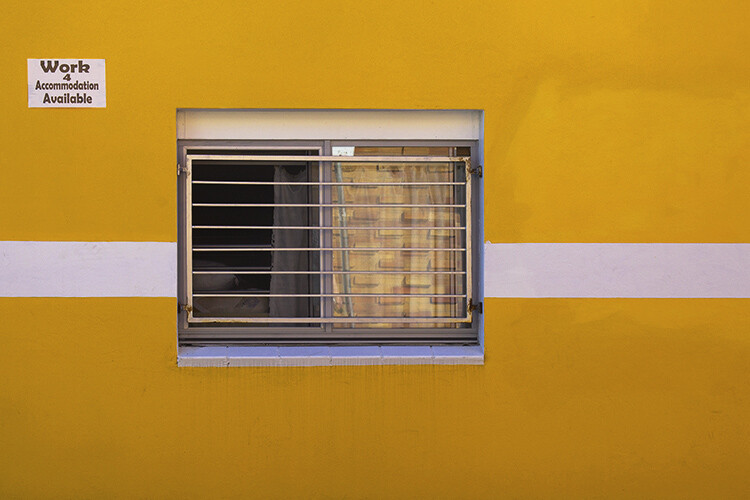
The image below proves how versatile the urban environment can be for artificial framing. The image was taken from the floor of a train station, lens pointed to the floor above. The darkness of the building structure is silhouetted against the blue sky, forming a crescent shape. The frame draws attention to the contrast of the architecture against the sky but also cradles the form of a human passing by.

How to Use Framing in an Urban Environment

How to Use Framing in an Urban Environment

This photo was taken by chance in a late night shopping district. The framing of the man emphasizes his presence but also isolates him from the rest of the landscape.

How to Use Framing in an Urban Environment

For this image, I aimed to align a gap in the cage with the cat’s face. The slight distortion caused by the lens draws the center square closer to the viewer’s eye. Framing isn’t always a split-second discovery, taking the time to assess a situation and respond creatively can be just as effective as shooting from the hip.

How to Use Framing in an Urban Environment

Shattered windows in rundown urban landscapes offer beautifully detailed landscapes complemented by an informed framing technique.

Keep it real

Framing can be really effective for highlighting specific areas of a photograph. However, it’s important to keep in mind that not every photograph needs framing. Some images are much more effective when they stand alone. Like most photography, you need to be versatile and trust your instincts.

While lining up a perfect shot through a fence can be effective, make sure to be aware of your surroundings too. Don’t focus so heavily on framing that you sacrifice other photographic opportunities. You don’t need to force a frame on an image, so don’t overthink it. You want natural images that are enhanced by a frame, not poor images that require a frame to garner interest.

Just stay open to the idea of framing and gather enough experience to recognize a framing opportunity when one presents itself. This way, opportunities tend to reveal themselves rather than you having to force them out of hiding.

How to Use Framing in an Urban Environment

How to Use Framing in an Urban Environment

The branches of these trees act as a natural frame, sectioning up the image to draw attraction to the cute little bunnies within.

The post How to Use Framing in an Urban Environment by Megan Kennedy appeared first on Digital Photography School.


Digital Photography School

 
Comments Off on How to Use Framing in an Urban Environment

Posted in Photography


How to Understand Pixels, Resolution, and Resize Your in Photoshop Correctly

19 Nov

Size, resolution, and formats… What do pixels have to do with it?

Do you buy your camera based on its number of megapixels? Are you having problems sharing your photos online? Does your print look low quality even if it looks great on the screen? There seems to be a lot of confusion between pixels and bytes (image size and file size), quality and quantity, size, and resolution.

So let’s review some basics to make your life easier, your workflow more efficient, and your images the correct size for the intended usage.

How to Understand Pixels, Resolution, and Resize Your in Photoshop Correctly

This image is sized to 750×500 pixels at 72 dpi, saved as a compressed JPG which is 174kb. Let’s look at what all that means.

Is resolution the same as size?

One of the biggest misunderstandings comes from the concept of resolution. If this is your case, believe me you’re not alone.

The problem is that resolution can refer to many things, two of them relate to the problem at hand. Further on I’ll explain these two resolution concepts, however, they have one thing in common that I need to clarify first. They both have to do with pixels.

You’ve probably heard a lot about pixels, at least when you bought your camera. This is one of the most available and “valued” specs on the market so I’ll start there.

What is a pixel?

A digital photo is not one non-dividable thing. If you zoom in far enough you’ll see that your image is like a mosaic formed by small tiles, which in photography are called pixels.

Pixel grid - How to Understand Pixels, Resolution, and Resize Your in Photoshop Correctly

The amount of these pixels and the way they are distributed are the two factors that you need to consider to understand resolution.

Pixel count

The first kind of resolution refers to the pixel count which is the number of pixels that form your photo. In order to calculate this resolution you just use the same formula you would use for the area of any rectangle; multiply the length by the height. For example, if you have a photo that has 4,500 pixels on the horizontal side, and 3,000 on the vertical size it gives you a total of 13,500,000. Because this number is very unpractical to use, you can just divide it by a million to convert it into megapixels. So 13,500,000 / 1,000000 = 13.5 Megapixels.

Pixel density

The other kind of resolution is about how you distribute the total amount of pixels that you have, which is commonly referred as pixel density.

Now, the resolution is expressed in dpi (or ppi), which is the acronym for dots (or pixels) per inch. So, if you see 72 dpi it means that the image will have 72 pixels per inch; if you see 300 dpi means 300 pixels per inch, and so on.

The final size of your image depends on the resolution that you choose. If an image is 4500 x 3000 pixels it means that it will print at 15 x 10 inches if you set the resolution to 300 dpi, but it will be 62.5 x 41.6 inches at 72 dpi. While the size of your print does change, you are not resizing your photo (image file), you are just reorganizing the existing pixels.

Imagine a rubber band, you can stretch it or shrink it but you’re not changing the composition of the band, you’re not adding or cutting any of the rubber.

Pixel Density 72dpi - How to Understand Pixels, Resolution, and Resize Your in Photoshop Correctly

Pixel Density 300dpi - How to Understand Pixels, Resolution, and Resize Your in Photoshop Correctly

In summary, no resolution is not the same as size, but they are related.

So quantity equals quality?

Because of the aforementioned correlation between size and resolution, a lot of people think that megapixels equal quality. And in a sense it does because the more pixels you have to spread out, the higher the pixel density will be.

However, on top of the quantity you should also consider the depth of the pixels, this is what determines the amount of tonal values that your image will have. In other words it is the number of colors per pixel. For example, a 2-bit depth can store only black, white and two shades of grey, but the more common value is 8-bit. The values grows exponentially so for example with an 8-bit photo (2 to the power of 8 = 256) you’ll have 256 tones of green, 256 tones of blue, and 256 tones of red, which means about 16 million colors.

This is already more that the eye can distinguish which means that 16-bit or 32-bit will look relatively similar to us. Of course, this means that your image will be heavier even of the size is the same, because there is more information contained in each pixel. This is also why quality and quantity are not necessarily the same.

Therefore quantity helps, but also the size and depth of each pixel determine the quality. This is why you should look all the specs of the camera and its sensor and not just the amount of Megapixels. After all, there’s a limit to the size you can print or view your image, more than that it will only result in extra file size (megabytes) and no impact in the image size (megapixels) or the quality.

How to choose and control image size and file size?

First of all, you need to choose the outlet for your photo, there is a maximum density that you need. If you are going to post your image online you can do great with only 72 dpi, but that is too little for printing a photo. If you are going to print it you need between 300 and 350 dpi.

Of course, we are talking about generalizations because each monitor and each printer will have slightly different resolutions as well. For example, if you want to print your photo to 8×10 inches you need your image to have 300dpi x 8″ = 2400 pixels by 300dpi x 10″ = 3000 pixels (so 2400×3000 to print an 8×10 at 300dpi). Anything bigger than that will only be taking up space on your hard drive.

How to resize in Photoshop

Open the menu for the image size and in the popup window, you need to tick the Resample Image box. If you don’t activate “resample” you will only be redistributing the pixels like I explained at the beginning of the article.

You can also choose to tick the Constrain Proportion if you want the measure to adjust according to the changes you make. So the width adjusts when you change the height and vice versa.

How to Understand Pixels, Resolution, and Resize Your in Photoshop Correctly

8×10 inches at 300 ppi, this is the size needed for printing an 8×10. Notice the pixel size is 3000 x 2400.

750×500 pixels at 72 ppi. This is web resolution and is the exact size of all the images in this article. The size in inches is irrelevant when posting online – only the pixel size matters.

On the top of the window, you’ll also see how the file size changes. This is an uncompressed version of your image, it’s the direct relationship I explained in the first part of the article: fewer pixels means less information.

How to Understand Pixels, Resolution, and Resize Your in Photoshop Correctly

Now, if you still want to change the file size without resizing anymore, you have to do it when you save the image. Before saving your photo you can choose the format you want:

Formats - How to Understand Pixels, Resolution, and Resize Your in Photoshop Correctly

If you don’t want to loose any information you need to save an uncompressed format. The most common, and therefore easier to share is TIFF.

Tiff - How to Understand Pixels, Resolution, and Resize Your in Photoshop Correctly

If you don’t mind losing a little information as long as you have a lighter file, then go for a JPEG and choose how small you want it. Obviously the smaller you set it, the more information you will lose. Fortunately, it has a preview button so you can see the impact of your compression.

JPG high quality.

JPG low quality. Notice how it’s pixelated and breaking down? If you crunch it too much or go too low quality you risk degrading the image too far.

Conclusion

So there you have it. So quality, quantity, size and resolution explained and they all have to do with pixels, as they are the basic units that constitute your image. Now that you know you can make the best choices to print, share and save your photos.

The post How to Understand Pixels, Resolution, and Resize Your in Photoshop Correctly by Ana Mireles appeared first on Digital Photography School.


Digital Photography School

 
Comments Off on How to Understand Pixels, Resolution, and Resize Your in Photoshop Correctly

Posted in Photography


Best Black Friday & Cyber Monday Deals for Photographers

19 Nov

While Black Friday was born in the United States, people from all over the world now wait for this day to do some serious shopping too, and photographers are no exception. The Friday after Thanksgiving has become popular everywhere marking the beginning of the winter holiday season. So are Black Friday deals really a “big deal” for photography enthusiasts? Yes, Continue Reading

The post Best Black Friday & Cyber Monday Deals for Photographers appeared first on Photodoto.


Photodoto

 
Comments Off on Best Black Friday & Cyber Monday Deals for Photographers

Posted in Photography


How to Shoot Engaging Travel Portraits from Start to Finish

19 Nov

I love travel portraits. Not only do they test your photography skills but also challenge you to interact with people in unfamiliar environments. The end result directly reflects your subject’s personality along with your ability to make them feel at ease, read the light, select optimal settings, and compose a great shot.

How to Shoot Engaging Travel Portraits from Start to Finish:

A boy named Ashim and his father at Dasaswamedh Ghat – Varanasi, India.

Every photographer has a slightly different approach, which evolves with every new person you meet and country you visit. Join me as I walk you through an encounter from start to finish and share tips on how to shoot engaging travel portraits.

1 – Approach the person and get permission

As a photographer, it’s up to you to develop your own code of ethics. However, I implore you to seek permission and not just stick a camera in someone’s face. The initial approach can often be the hardest part; taking the shot is comparatively easy.

Aim for a consensual, mutually enjoyable exchange from which you can both walk away with a happy story to tell. Be open, smile, and pay people compliments.

How to Shoot Engaging Travel Portraits from Start to Finish:

Boy monks at Rumtek Monastery – Sikkim, India. I kept my camera at my side, introduced myself, and asked their names. Their answers made me regret leaving my notebook in the car (Sikkimese names are notoriously long). They wanted to talk about soccer. When I asked for a photo, the boy on the right jumped and said “I know a good place. Follow me!” It was a fun encounter and their personalities shone through in the pictures because they’d had a chance to chat about their favorite topic.

If it’s a firm no, you can smile warmly, tell them it’s absolutely fine, and ask them if they would like to see photos you’ve taken of the local area. This way, you can both still walk away having had a pleasant experience, and sometimes, they even change their mind.

2 – Communicate for a meaningful experience

Your challenge now is to make your subject feel at ease. The best portraits come when people are relaxed and open to you. Most crucially, don’t rush the photo, say goodbye, and walk away. Show genuine interest in their lives.

Ask questions if you can speak a mutual language. If not, remember that much of your intentions and warmth can be communicated through body language, facial expressions, and gestures.

How to Shoot Engaging Travel Portraits from Start to Finish:

Ba-An, an 81-year-old lady, in front of the Banaue rice terraces – Luzon, Philippines. I will remember Ba-An because I had the longest and most interesting conversation I’ve had with anyone before taking their portrait. “These? They’re chicken feathers,” she said when I asked about her headdress. “Sometimes I tell people it is tradition, but really, we just started doing it a few years ago!”

3 – Read the light and use it to your advantage

With permission granted and your subject warming to you, the next step is reading the light. Whether it’s day or night, look at the lighting conditions around you. Consider asking your subject to turn their body or move completely to seek the best light.

How to Shoot Engaging Travel Portraits from Start to Finish:

While waiting for a Hindu ceremony to begin, this gentleman wobbled his head enthusiastically and motioned towards my camera – Varanasi, India. Sometimes, as in this situation, when people see you photographing others in a respectful manner, they may prompt you to take their portrait. I asked him to turn so that the light from a spotlight would be cast across his face at a less harsh angle.

4 – Select your settings

Ideally, you have a fixed focal length (prime) lens with a wide aperture attached to your camera body. However, if you’re traveling, you may have an all-purpose zoom lens attached. I like portraits that I’ve taken with both types.

With my fixed focal lens, I often shoot portraits at f/2.8 or slightly above. If you shoot any wider, the focal plane can be so thin that you risk your subject’s eyes being in focus but having their nose out of focus. For a zoom lens, I recommend selecting your widest aperture but standing further away from your subject. Zooming in on their face will accentuate the shallow depth of field effect that works so well for portraits.

How to Shoot Engaging Travel Portraits from Start to Finish

A Muslim traveler at Haji Ali Dargah, an Islamic shrine off the coast of Mumbai – India. My settings and lens for this portrait were f/2.8 | 1/1600th | ISO 160 | Sigma 35mm 1.4 Art lens. The fast shutter speed allowed by using f/2.8 picked out fine details on the man’s face. Such a fast shutter wasn’t necessary for this level of sharpness but it was an extremely bright day in Mumbai.

For engaging portraits, the most important element requiring sharp focus is the eyes. I suggest setting your camera to spot focus on the center AF point. Next, aim the center point at one of your subject’s eyes. Use the focus and recompose method or even better – the back button focus method to lock in on the eyes. This will ensure they’re in sharp focus in the finished photo.

5 – Choose a strong composition

Numerous compositions can work for portraits. The rule of thirds can work incredibly well but try not to wear it out or all your travel portraits will look the same.

Another one to try is placing one of your subject’s eyes directly in the center of the frame; a study proved that portraits composed this way appeal to viewers on a subconscious level. I promise I’m not making that up. This can be applied in portrait or landscape orientation.

A general rule exists in travel portraiture that you shouldn’t place your subject directly in the center of the frame; however, rules are made to be broken sometimes.

How to Shoot Engaging Travel Portraits from Start to Finish

As I stood taking pictures of the Banaue rice terraces, I heard a frail voice saying “Photo? Who is taking a photo?” It belonged to a 96-year-old woman named Bah Gu-An. She was completely blind. I wasn’t sure how to communicate as I normally would for a portrait so took her hands in mine to let her know I was there. Her friends translated back and forth for us. I decided on a rule of thirds composition because I felt the blue umbrella added extra visual interest and balance to the frame.

6 – Come down to their eye level

Try not to stand above your subject if they are sitting. This is intimidating and works against your goal to relax them. Positive psychological things happen when you come down to someone’s eye level. Take a look at the example below.

How to Shoot Engaging Travel Portraits from Start to Finish

A Hindu holy man on a tiny island in the Brahmaputra River – Assam, India. This is not a touristy location in India so he is the real deal. I sat down on the step to receive a blessing. Accompanied by mystical chanting, I drank some lukewarm tea of unknown provenance, had air blown all over my face, and ash spread across my forehead. We chatted after and I felt in no rush to suggest a portrait. It was a fascinating experience. What do you think when you look at his facial expression – Is the time spent together palpable?

7 – Shoot different styles of portrait

Posed versus candid portraits

Posed refers to approaching a person and asking them to sit for a portrait, whereas candid portraits refer to catching a person in an unguarded moment. This doesn’t have to mean without permission.

For the image below, I’d already gained this lady’s trust and permission but waited until she’d forgotten that I was there to continue shooting. Later, I showed her all of the photos, which she seemed happy with.

How to Shoot Engaging Travel Portraits from Start to Finish

A devotee watches the nightly Ganga Aarti ceremony – Varanasi, India. This image could be called a candid environmental portrait.

Headshot versus environmental portraits

A headshot refers to filling the frame with your subject’s face. The background is not important for setting the scene, although you might consider finding one of a complementary color to your subject’s clothing, skin tone, or eye color. Environmental portraits are zoomed out to allow your subject’s surroundings into the frame to add to their story.

8 – Shoot a series with the same subject

When you have someone’s permission and have bonded with them, consider staying with them a while and shooting a series of images. This is what I did when I met one man in the Philippines recently. I directed him gently for a series of shots after telling him how interested people would be to learn about his culture. He was happy to oblige.

How to Shoot Engaging Travel Portraits from Start to Finish

I would have kicked myself if I’d walked away without getting a side profile shot of this man and his headdress that featured the real heads of a long-dead bird and monkey.

How to Shoot Engaging Travel Portraits from Start to Finish

I decided to fill the frame here to draw attention to his excellent smile, patterned clothes, and monkey headdress.

9 – Always remember aftercare

Aftercare means bringing the encounter to a close in the best possible manner. I believe an extra layer exists as to why the verb is to “take” a portrait. You are taking something from them, but what are you giving in return?

Make sure you show the person their image on the back of your camera, pay them a compliment, and thank them sincerely. So much joy can come from this simple act.

How to Shoot Engaging Travel Portraits from Start to Finish

A man named Ibrahim at the Haji Ali Dargah, Mumbai. As we sat together cross-legged on the ground enthusiastically shaking hands at the side of a busy walkway, I could tell from his reaction and those of passersby that this wasn’t a common occurrence. The overall encounter lingered with me for the rest of the day, and I sincerely hope that Ibrahim remembers it fondly too.

Conclusion

I want to know your best advice for shooting travel portraits and see the images you’re most proud of. Be sure to share them in the comments section below.

The post How to Shoot Engaging Travel Portraits from Start to Finish by Ben McKechnie appeared first on Digital Photography School.


Digital Photography School

 
Comments Off on How to Shoot Engaging Travel Portraits from Start to Finish

Posted in Photography


Video Tutorials and Tips for Shooting Blue Hour

18 Nov

Blue hour is a fantastic time to get out and do some night photography. Yes, you read that right – night photography is best done before it’s actually night time.

To help you out with blue hour photography here are three videos with examples and tips.

How to shoot at blue hour with filters

Ray Salisbury takes you on location at blue hour and demonstrates how he scouts a location for the best spot, finds a good composition and uses filters.

Get the timing right for blue hour

In this next video photography education guru Brian Peterson gives you tips for getting the timing just right when shooting blue hour. He’s on location in Las Vegas.

Blue hour photography examples

Finally, Brendan Van Son is shooting blue hour in Leiden, Netherlands. In this video, you can see how the length of blue hour varies greatly depending on your geographic location.

The farther away from the equator you are, the long blue hour will last. Where I live it’s usually about an hour, so it’s frustrating for me that it’s so quick in more tropical locations I like to visit. So you really have to plan ahead and be prepared when that is the case.

I hope that gives you some good blue hour shooting tips. Now get out there and give it a try.

The post Video Tutorials and Tips for Shooting Blue Hour by Darlene Hildebrandt appeared first on Digital Photography School.


Digital Photography School

 
Comments Off on Video Tutorials and Tips for Shooting Blue Hour

Posted in Photography


Weekly Photography Challenge – Blue Hour

18 Nov

Blue hour is the time of day after sunset (and just before sunrise) when the sky still has some color it and it’s not pure black. This is the number one tip for shooting night photography – don’t shoot at night! If you want a dark, deep blue sky – shoot at blue hour.

This is a bonus – you don’t have to stay up all night getting shots for this week’s challenge. Just catch the blue hour and you’re good to go.

Blue hour in New York City.

If you need some help:

  • Video Tutorials and Tips for Shooting Blue Hour
  • 5 Quick Tips for Better Blue Hour Photography
  • New Photographer’s Guide to Blue Hour
  • Recommended Gear for Doing Long Exposure Photography at Twilight and Dusk
  • Do you pack up and leave after sunset and miss the fun of night photography?
  • How to do Long Exposure Photography and Light Trails at Night

Weekly Photography Challenge – Blue Hour

Simply upload your shot into the comment field (look for the little camera icon in the Disqus comments section) and they’ll get embedded for us all to see or if you’d prefer, upload them to your favorite photo-sharing site and leave the link to them. Show me your best images in this week’s challenge. Sometimes it takes a while for an image to appear so be patient and try not to post the same image twice.

Blue hour in Rome, Italy.

San Francisco – the complementary colors of blue hour make for stunning compositions. Use it to your advantage.

Share in the dPS Facebook Group

You can also share your images on the dPS Facebook group as the challenge is posted there each week as well.

The post Weekly Photography Challenge – Blue Hour by Darlene Hildebrandt appeared first on Digital Photography School.


Digital Photography School

 
Comments Off on Weekly Photography Challenge – Blue Hour

Posted in Photography


How to Stylize Your Images Using Complementary Colors in Lightroom

17 Nov

In this tutorial, I’m going to show you a process that uses complementary colors to stylize your images and create a consistent theme in your collections.

I recently embarked on an 1,800-mile road trip through the dusty outback of Western Australia. After two days on the road, I arrived at Karijini – a national park famous for its iron-rich earth, icy-cold gorges and sheer remoteness from absolutely anything.

Complementary colors Lightroom 01

The Middle of Nowhere – Karijini National Park, Western Australia

Karijini is awash with complementary characteristics; hot deserts, icy-cold gorges, warm days and freezing nights. Nothing quite compares, however, to the daily occurrence of Karijini’s natural complementary colors. Each night, my eyes were treated to a beautiful blend of golden earthy tones and cool shadows. And each night, they couldn’t get enough.

You may find yourself getting a little trigger happy when you’re on a holiday. Perhaps you are trying out a new lens, maybe practicing new techniques or just getting carried away with the shutter button – we’ve all been there! If so, you’re likely to return home with a mixed bag of great shots and perhaps some images that aren’t particularly strong enough in their own right to add to your portfolio, blog, or Instagram feed.

Here’s a collection of images from my trip to Karijini that don’t combine very well as a collection in their current form. They each have a different color palette, there are multiple different techniques going on, and they don’t really share the same style. There’s no cohesiveness, no harmony.

Complementary colors Lightroom 02

Individually, these images are not particularly strong. However, as a collection, they have potential to pull together to form a great storyboard.

To help this image set convey that story, I’m going to show you a coloring process to stylize this collection. By using complementary colors I will create a consistent look, feel, and style that will run through the entire collection. This process is something that you can adapt to your own collections, time and time again.

Complementary Colors

If you’re thinking, “What on earth is a complementary color?” don’t worry, it’s quite easy to understand. Put simply, they are colors that are opposite each other on the color wheel. Here’s a screenshot with some examples:

Complementary colors Lightroom 03

Complementary color examples.

Complementary colors appear everywhere, particularly in nature. Think of a beautiful sunset, the beach, or even Finding Nemo – each of them is jammed packed with complementary colors. They are called complementary because they do exactly what they say on the tin – complement each other.

You can use complementary colors in your photography to create a consistent look, feel, and style to a collection of images. This can be achieved while capturing your shots (i.e. by asking your subjects to wear a particular color) or by applying subtle adjustments to colors in post-processing. I am going to show you precisely how to achieve the latter using Adobe Lightroom.

Step #1: Create a Color Palette

Before you jump into Lightroom and begin to adjust your colors, you need to be clear about which colors you want your images to include.

A great way to do this is to create a simple color palette that you can refer to while editing your images. This color palette could be a collection of images you have cut out of magazines, perhaps some color swatches from a paint store or even a bunch of squares on your computer filled with your desired colors.

Here I opted for the bunch of squares, filling the color palette with complementary warm earthy tones and cool murky shadows that capture the landscape of Karijini.

Complementary colors Lightroom 04

Step #2: Align and Subtract using Hue, Saturation, and Luminance (HSL)

When you sit down to edit a photograph, you typically approach it with the mindset of adding something. For example, you tend to add contrast, sharpness, or perhaps you add a gradient.

When you are working with color, particularly when you have a color palette in mind, you need to alter your approach and instead think about subtracting. You need to subtract the colors from your images that don’t align with your color palette, because working with color is as much about the colors you can’t see as it is about the ones you can see.

Once you are happy with your colors, and they sit within the boundaries of your color palette, you can then go forth and add, enhance, and beautify.

In this step, I will show you how to use the HSL (Hue, Saturation and Luminance) panel in Lightroom to subtract and align the colors of an image to reflect those of your color palette.

Align with Hue

Start off inside the Hue section of the HSL tab. The Hue sliders allow you to replace your existing colors with neighboring colors on the color wheel.

For example, you are able to replace all red tones in your image with magenta by adjusting the Red Hue slider to -100. Moving this slider to +100 will replace all the Reds with Oranges. This is because magenta and orange sit on either side of red on the color wheel.

At this point, it’s worth taking a moment to study the color in your image and start to think about what colors you can push and pull to align your image with your color palette.

Let’s do this with an example image. At the moment, this image is a bit off from the desired color palette. It appears to have an aqua/green color cast, particularly in the sky.

Complementary colors Lightroom 05

Original image.

To remove the aqua/green color cast, you can push the aqua tones up to replace them with blue. In this example, a value of +81 works well. In addition, you can push the Blue slider up a little, to around +36. This will deepen the blue tones and remove what was left of the aqua/green color cast.

Finally, to align the orange/yellow tones to the color palette, you can pull the Orange and Yellow sliders to -26 and -15 respectively. This subtle adjustment pushes the orange tones towards red and the yellow tones towards orange – essentially warming up those earthy tones.

While editing, it’s always a good idea to view your image alongside your color palette, to ensure you are working along the same lines for each photo. This will help you pull the collection together at the end.

Complementary colors Lightroom 06

Hue adjustments in the HSL panel of Lightroom.

Here, you can already see that the Hue adjustments have aligned the color of the sky and earth to the desired color palette. However, there are still plenty of green tones roaming around in the shrubbery and navigation system that are wreaking havoc with the color palette. You can remove the green tones with the Saturation sliders.

Subtract with Saturation

The Saturation sliders within the HSL tab allow you to control the intensity of your colors. By increasing the saturation, your colors will become stronger and more vibrant. Decreasing the saturation sliders will make your colors less intense.

Have another look at your image and take note of any distracting colors that do not align with your color palette. Adjust the corresponding sliders to desaturate those colors. This will leave you with only the colors that align with your color palette. Once you have these base colors in place, you can then give them a little saturation boost to strengthen the image.

Let’s jump back to the example image to demonstrate.

While the example image is a lot closer to the desired palette, it still contains distracting colors that don’t align – notably, the green tones and strong yellows. You can subtract these colors from the image by desaturating the Green and Yellow sliders. In this case, values of -100 (Green) and -78 (Yellow) worked nicely.

To finish up with the Saturation sliders, you can increase the saturation of the colors that align to your complementary color scheme. In the example image, boosting the red, orange, aqua and blue colors worked a charm.

Time for another review of the example image against the color palette.

Complementary colors Lightroom 07

Saturation adjustments.

Lighten with Luminance

The Luminance sliders in the HSL tab allow you to control how bright or dark you want a particular color to look. Increasing the Luminance adds brightness to your colors, whereas decreasing the Luminance darkens your colors.

Compare your image to your color palette. How does it look? Are the colors a little too dark or too light? If so, adjust the corresponding Luminance slider to lighten or darken your colors.

In the example image, the oranges are appearing a little too dark and perhaps the blues could do with a little brightening as well. To achieve this, you can increase the luminance of the Orange, Yellow and Blue sliders until you are happy with the brightness. In this case, moving the Orange slider to +28, Yellow to +21 and Blue to +11 did the trick.

Complementary colors Lightroom 08

Luminance adjustments.

Try to get into the habit of regularly comparing your image to your color palette, particularly after you have made any adjustments to the HSL sliders. At this point, if you think that your colors need a little more work, run through each of the HSL sliders again and tweak them accordingly.

Step #3: Adding Character with Curves

Creating a consistent style and applying this to every image in your collection can be the difference between a good collection and a great one.

If you have a particular editing style, now is the perfect time to apply it to your images. If you’re at a stage where you’re perhaps trying to create or establish your own style and you’re not sure what to do, it’s a great idea to use your subject or environment as a style guide. Let’s take a look at doing precisely that with an example.

Karijini is awash with complementary colors, iron-rich earth, warm dusty air, and murky shadows. To help inject some of these characteristics into the image you can use the Tone Curve.

The Tone Curve is essentially a square graph that consists of a Histogram and a linear line running from the bottom left to the top right. Much like the Histogram, the left side of the Tone Curve represents the shadows, the middle represents mid-tones and the right side represents the image highlights.

Complementary colors Lightroom 09

Tone Curve – Basic

By clicking on the “Point Curve” Icon (in the lower-right corner of the Tone Curve window) you’re now able to click on the Tone Curve graph to create control points. You can then drag these control points up or down to alter the value of the corresponding tones.

Complementary colors Lightroom 10

Point Curve icon for adding adjustment points.

Your Tone Curve works in four distinct channels – RGB, Red, Green, and Blue. For now, ensure the channel of your Tone Curve is set to RGB. This allows you to control the overall tone of your image by manipulating the Red, Green and Blue tones simultaneously. You’ll get to know the other channels shortly.

Creating Atmospheric Shadows

Before incorporating atmospheric shadows into your image, you want to ensure that any adjustments you make only apply to the shadows. So, to safeguard your mid-tones, you can place a control point in the middle of your Tone Curve (as seen below).

Complementary colors Lightroom 11

Now you can add some control points on the left side of your Tone Curve. These will allow you to manipulate your shadows.

Complementary colors Lightroom 12

Dragging these control points downwards will darken your shadows. However, to create flat, murky looking shadows, you can drag these control points upwards – essentially lightening your shadows. While doing so, pay close attention to the darker areas of your image to ensure you don’t overdo it.

To complete this murky atmospheric look, you can darken the highlights by dragging the control point on the extreme right of your Tone Curve down a little.

In the example, you can see that this subtle adjustment has lightened the shadows, darkened the highlights, reduced the contrast, and introduced that murky atmospheric style to the image.

Complementary colors Lightroom 13

Tone Curve applied.

Color Stylizing

Every pixel in your photo is made up of a mix of Reds, Greens, and Blues. The Tone Curve isolates these individual color channels so you can adjust how much or how little of that color channel is present in your shadows, mid-tones, and highlights.

Studying the example image, the base colors of the image are looking good. It’s full of complementary colors, and it aligns nicely with the color palette. So then, why bother with these individual tone curve channels?

It goes back to infusing your photos with a style reminiscent of your subject or the environment. Perhaps there was a particular feeling or emotion during the shoot. Was it lively? Happy? Bright? Melancholic? Hot? Cold? Is there a color tone within your color palette that you feel best represents these?

Perhaps there was a lot of earthy red dust and cool shadows floating around? If so, you could add a subtle warm tone to your image and cool down those shadows to help enhance the look, feel and style of your images. Let’s take a look at how to achieve precisely that by using the Tone Curve with the example image.

Start off by selecting the Red Channel inside your Tone Curve. If you can’t see the “Channel” option, be sure to click on the “Points Curve” icon.

Complementary colors Lightroom 14

Working on the Red Channel of the Tone Curve.

Any adjustments you make to this Tone Curve will only affect the Reds in your image. If you create a control point in the shadows and drag this upwards, it will increase the Reds in your shadows. If you were to do the opposite and drag this control point downwards, it will remove the Reds from your shadows.

It’s worth noting here that when you remove a primary color using the Tone Curve, you will introduce its opposite color. Here’s a list of the primary colors and their corresponding opposite colors.

  • The opposite color to Red is Cyan.
  • The opposite color to Blue is Yellow.
  • The opposite color to Green is Magenta.

To add a subtle warm underlying tone to an image, simply click and drag the control point on the extreme left of the Red channel upwards slightly. You’ll notice that it doesn’t take a lot of adjusting to achieve the desired look.

Complementary colors Lightroom 15

Red Tone Curve adjustments.

To cool down your shadows, switch your Tone Curve channel over to Blue. This will enable you to increase the amount of Blue in the darker areas of your image. To do this, click and drag the control point on the extreme left of the Blue channel upwards. Pay attention to the darker areas of your image to ensure you don’t overdo it.

Complementary colors Lightroom 16

Working on the Blue Channel of the Tone Curve.

You may find that while this adjustment cools down the shadows, it also cools down the mid-tones and highlights. To counter this, you can click and drag the control point on the extreme right of the Blue Channel downwards. This will remove the blue tones from your highlights and introduce a little of Blue’s opposing color (Yellow) to warm your highlights back up.

Complementary colors Lightroom 17

Blue Tone Curve adjustments.

Step #4: Split toning (Optional)

The final step in the complementary color stylizing process is to apply a subtle split toning adjustment using Lightroom’s Split Toning tab.

By now, you may feel that your image is already perfectly aligned to your color palette and perhaps there is nothing more that needs to be adjusted. If so, congratulations! I encourage you to go forth, infuse your collections with your style and inspire others to do the same.

If you are looking at your images thinking “there’s something not quite right” or “they still need a little work”, head to the Split Toning tab. This is a very simple tool that can add a final layer of polish to your images.

Split Toning enables you to apply a specific color tone to your highlights and shadows. It’s a good idea to refer to your color palette and select the exact Hue that you want to be present in the highlights and likewise for the shadows. You can then dial back the intensity of this look using the saturation sliders until you are happy with the result.

For the example image, selecting complementary warm hues of 45 for the highlights and 240 for the shadows aligned perfectly with the color palette. Adjusting the Saturation of each to 10 and 6 respectively, applies just the right amount of toning and completes the stylizing process.

Complementary colors Lightroom 18

Split Toning adjustments added.

Recap

Let’s take a few seconds to do a recap of the coloring and stylizing process before taking a peek at the before and after.

  1. Start off by creating a complementary color palette.
  2. Using your complementary color palette as a guide, align the existing colors in your image and subtract those that don’t quite fit. Use the HSL panel for this step.
  3. Gently boost the saturation and luminance of your complementary colors, again using the HSL panel
  4. Use the Tone Curve to stylise your image and incorporate atmospheric shadows and subtle underlying tones.
  5. Pull all of your adjustments together with a subtle Split Toning adjustment, by adding complementary warm and cool tones to your highlights and shadows.

Before and After

Complementary colors Lightroom 05

Before

Complementary colors Lightroom 20

After

Below, you can see an example of what this process looks like when I applied it to the remaining images in my collection.

This collection now has a great level of consistency. It has a beautiful complementary color palette and a similar style running throughout the collection. As a result, there is a togetherness about the collection that wasn’t present before. It shares the same message and comes together to tell a lovely little story.

Complementary colors Lightroom 02

Collection – before.

Complementary colors Lightroom 19

Collection – after.

Conclusion

Working with color is a process, it’s not an exact science. While the exact values of the sliders and curve adjustments used for the example image will not necessarily work on every image, this overarching process will.

I hope this tutorial gets you thinking about how you apply color in your photography. It’s a great skill to develop, so try not to rely on presets and instead get thinking about defining a color palette of your own that you can use to stylize your collections. It’s much more fun that way!

PS. Do you have a color palette that you stylize your images with? If so please share in the comments below, I’d love to see your collections.

The post How to Stylize Your Images Using Complementary Colors in Lightroom by William Palfrey appeared first on Digital Photography School.


Digital Photography School

 
Comments Off on How to Stylize Your Images Using Complementary Colors in Lightroom

Posted in Photography


How to Shoot High-Traffic Locations Creatively

17 Nov

The experience of the hustle and bustle that comes from shooting in high-traffic, highly photographed areas is a pain that most photographers know all too well. People can be packed into overlooks and pull-offs with hardly even room to stand let alone set up a tripod.

It seems as if everyone is trying to get the same shot. Not that there’s something incredibly wrong with making photographs just like the person standing next to you. If you are simply after a snapshot to record where you’ve been then a quick capture or two taken from the herd will do just fine.

How to Shoot High-Traffic Locations Creatively

However, if you’re like me, you probably want more from a location than just a cookie cutter photo. When I visit a well-known photo spot that is crowded with people all shooting the exact same thing, I feel a need to produce something that is more of an artistic expression of how I view the scene.

While recently shooting in Yosemite National Park, I observed this situation in full force. But how can you shoot in these high-traffic areas creatively? Believe it or not, in some cases it doesn’t require too much effort in order to breathe new life into a stale or overshot scene. In this article, we’re going to talk about three ways that can help you break the monotony and guide you toward making your photos of well-known areas less ordinary.

#1 – Get High…Get Low

Changing from the common perspective to one that is either more or less elevated can have a huge impact on the final interest of your photographs. Often times, the majority of photographers shoot from the same plane of view each and every time which often produces literal “photocopies” of the same location.

This changeup doesn’t have to be anything drastic, either. It can be as simple as holding your camera at waist level or even above your head.

How to Shoot High-Traffic Locations Creatively

If you’re able to be more adventurous, then search for even more unique vantage points. Ones which can show people a well-known place from a different angle than what they’re used to seeing. This is the key to setting yourself apart as a photographer.

How to Shoot High-Traffic Locations Creatively

This was just up the road from the famous Tunnel View in Yosemite. While it’s virtually the same landscape, the higher elevation adds a different feel to the scene.

#2 – Shoot at Night

This is likely the easiest and most powerful methods of creatively photographing popular locations. There’s almost always less crowding (unless it’s a spot popular exclusively at night) which will give you much more room and creates a more relaxed experience.

However, the most obvious benefit that comes from shooting at night is the instant change in the visual appeal of the landscape.

How to Shoot High-Traffic Locations Creatively

The inclusion of stars and moonlight or even bright city lights and cars can add so much to a scene that has been completely worn out during the day. If it can be done safely, I urge you try out shooting a popular destination at night during your next photo excursion. You just might get hooked.

#3 – Ignore the Popular Subject

Yeah I know, this is one idea that is difficult for some people to get a handle on initially. Please don’t misunderstand me here, I’m not talking about completely disregarding the main attraction. Rather, place the popular subject within your photograph in such a way that is still recognizable but doesn’t consume the composition.

How to Shoot High-Traffic Locations Creatively

Just remember that if you want to produce something truly unique you will have to learn how to think critically and creatively about what you’re shooting and why. This means coming up with new ways to display the subject in a way that might not have been considered by many others.

How to Shoot High-Traffic Locations Creatively

This image was made while standing shoulder to shoulder with about 25 other folks. I happened to notice the reflection of Half Dome in the water and decided to approach the scene in a more surreal, abstract way.

Some Final Thoughts

There will be times when a location becomes almost too popular for its own good. Even beautifully majestic locations can become artistically depleted. This is when we as photographers have to stretch our creative legs to produce more unique images.

While there’s nothing wrong with shooting alongside the masses, the overall power of an image can be lessened if every photo of a place looks exactly the same as the next 50 images. Here’s a recap of some ways you can shoot a little more creatively:

  • Change your perspective. Try shooting from a higher or lower vantage point than is usually seen.
  • Try the nighttime. Popular locations are often deserted at night. Night photography will also give you the opportunity to present the scene in a way that might not be common.
  • Move the primary subject to the back burner. Try setting the commonly shot subject matter as the secondary subject.

Adding a little spice to your images taken in such high-traffic places can be a lot easier than you might think and can work wonders for your photography. A little effort truly goes a long way.

The post How to Shoot High-Traffic Locations Creatively by Adam Welch appeared first on Digital Photography School.


Digital Photography School

 
Comments Off on How to Shoot High-Traffic Locations Creatively

Posted in Photography