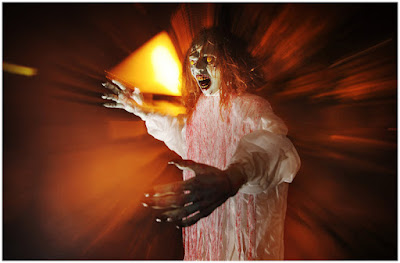
As Halloween approaches, a timely story about a little prank available to any lighting photographer. All you need is a remote flash trigger, a clueless friend and the maturity level of a 12-year-old.
Read more »
Strobist
As Halloween approaches, a timely story about a little prank available to any lighting photographer. All you need is a remote flash trigger, a clueless friend and the maturity level of a 12-year-old.
Read more »
Strobist

Among other things, high-speed sync lets you underexpose your backgrounds for dramatic images.
High-speed sync (HSS) is easily one of the most useful features in lighting. Not only does it let you overpower the sun for more flattering light in the middle of the day, it also lets you use your largest apertures in broad daylight.
It also lets you use another useful technique – underexposing your backgrounds by several stops. With a powerful enough light you can even underexpose the sun by three or four stops, thus making it a compositional element in your frame. This lets you create dark, dramatic backgrounds for visual impact. It also brings your subject forward in the frame, ensuring they’re the dominant aspect of your image.
Fortunately, using HSS to create dark backgrounds like this is easy. And in this short tutorial, I’ll show you how to do it using both E-TTL and manual exposure modes.
While you won’t want to darken the background in every situation, dark backgrounds in scenes that would normally be very bright look great. It may be a stylised affair, but it’s a cool style.
Darkening the background brings your subject forward in the frame(providing they’re well lit), and emphasizes them as the focal point of the background. And the inherent contrast added by putting extremely dark tones in the frame helps to make things pop.

This shot was taken without a flash and is all natural light. You can see the background shares a similar tonality to the subject, reducing the subject’s impact within the frame.

By intentionally underexposing the background with HSS, the subject now dominates the frame.
To get started with this technique you’ll need:

Some studios strobes (such as the Pixapro Citi600) now come with HSS functionality built in.

If you want to use manual mode, a PC Sync cable will do the job. But for E-TTL you’ll need a compatible trigger. (The icon circled in red is the HSS icon.)
To use this technique with TTL metering, turn on the flash, trigger, and camera of whatever system you’re using. Set your flash mode to HSS and E-TTL. (If you don’t know how to do this, refer to your manual.) You should also zero out the flash exposure compensation settings on your flash.
Switch your camera to ‘Aperture Priority‘ mode and choose the desired aperture. I’m fond of f/4 and f/5.6 for this technique, but it’s not a rule.
Now dial between -1 and -3 stops of exposure compensation into your camera. What this does is underexpose all the ambient light in your scene. It’s how you achieve the dark backgrounds – everything that isn’t properly exposed by your flash will be darkened.

Backgrounds that are already in shadow (such as the one in this photo) may only need one stop of underexposure.
For dark backgrounds already in shadow, -1 stop of exposure compensation will be enough. For bright backgrounds or backgrounds in direct sunlight, you’ll need to underexpose more. To overpower the sun, you’ll need to underexpose by at least three stops.

Backgrounds lit by direct sunlight (such as the one in this image) may need up to four stops of underexposure.
Take a test shot, evaluate the image and the histogram on your camera, and adjust the flash exposure compensation as needed.
That’s all there is to it.

HSS is great for overpowering the sun. Here, three stops of underexposure controlled the appearance of the sun in the frame. Notice how dark the rest of frame (lit in broad daylight) appears.
The steps for manual mode are almost identical to using E-TTL mode.
However, in manual mode, the meter in your camera doesn’t relay any exposure information to your flash as it does in E-TTL mode. That means you’ll need to set your flash power yourself by evaluating your test shot and turning the flash power up or down as needed. You may need to alter the flash power a lot more than you would with E-TTL. Just keep taking tests shots and evaluating the exposure until it’s where you want it.

Adjusting the power in manual mode means dialing through all the increments on your flash. This isn’t a problem, but it’s harder than E-TTL.
As an aside, light meters are now available that can measure HSS such as the Sekonic L-858D. However, they’re very expensive. A Slovenian company called Lumu also makes a light meter that plugs into an iPhone to measures HSS. I saw these being demoed at a trade show and was very impressed with the results. They’re less expensive, but they currently work only with iPhones.
Provided you have the necessary equipment, the technique is quite easy. And it can give you a variety of results, so make sure you experiment with different amounts of exposure compensation.

Though limited by your access to the equipment, this HSS technique is easy to employ and can result in bold, dramatic imagery.
Here are a few things to keep in mind while using this technique:
ISO. Generally speaking, you should keep your ISO as low as possible. Of course, if you have a particularly low-powered flash you may need to bring it up.
Flash Meters. Most flash meters can’t meter for HSS exposures. There are specialist meters that can, but be prepared to pay through the nose for them.
Daylight Conditions. This technique works in all sorts of lighting conditions, from direct midday sun to diffused light on a cloudy day. You’ll need a powerful light to overpower the sun on a bright day, but if you do the technique works really well.

This HSS technique works well in all lighting conditions. The image on the left was created in overcast conditions, while the image on the right was taken in direct sunlight.
Flashguns / Speedlights. Many flashguns have HSS functionality built in and are capable of great results. If you have a flashgun, consider using them for this technique.
Now that you’ve seen what can be accomplished with this relatively easy technique, I encourage you to get out and try it for yourself. And let us know how you went in the comments.
The post How to Create Dark and Dramatic Backgrounds Using High-Speed Sync appeared first on Digital Photography School.
Photographers often struggle to make portraits of strangers while they’re traveling. They’ll have wonderful photos of all the picture postcard views and landmarks, but none of their pictures will have faces. We often encounter this with people who join our photography workshops.

© Kevin Landwer-Johan
One of the keys to returning home with a good selection of people pictures is being able to pick the best people to photograph. If you learn to observe people you can often judge who’ll enjoy having their portrait made. These are the best people to photograph.
Not everyone likes having their photo taken. Photographers often fall into this group. If you’re like this then your perception, based on your own feelings and experiences, can be negative. You presume others don’t like being photographed because you don’t enjoy the experience.
How do I know this? Because I used to think the same way.

© Kevin Landwer-Johan
Take your camera to your next social gathering and photograph your friends. You’ll soon learn who enjoys the experience because they’ll probably tell you if they don’t.
If you’re not used to photographing people, making portraits for your friends is a great way to ease into the experience. It’s easier to communicate with someone you already know. And make a point of reading their body language. It’s an important skill to have when you’re visiting a place where you can’t speak the language.

© Kevin Landwer-Johan
People of a different culture won’t necessarily respond the same way you would. Here in Thailand, people often laugh if they are uncomfortable or embarrassed. Sometimes they’ll even laugh when something terrible happens, which is a lot different to where I grew up.
Other cultures may become a bit hostile at having a snapshot of them taken in the streets.
Look for talkative people who are engaging with others – they’re often happy to be photographed. Quiet and sullen people are less likely to respond positively to your request to photograph them.
When I’m in the street or at a market, I look for a place where I can stand back and observe the people and my surroundings. I look for people who:
These are the types of people I find it easiest to make engaging portraits of.

© Kevin Landwer-Johan
I always get permission before taking photos of children. Most parents will love the face you want a picture of – they are likely the delight of their life.
Be ready to be confronted by a forced toothy (or toothless) grin. These generally don’t make great portraits, but it’s worth taking a few photos and then working towards a more natural expression. Show them the photos and thank them. They’ll probably go right back to what they were doing. Stay close by, and move back to photograph them again. Hopefully, this time they’ll ignore your camera, thinking you’ve already taken their picture. (This method works equally well with adults.)
Getting down to the child’s level also helps. Look them in the eye and smile. You can get a better response than if you were towering over them with a huge camera.
Some kids enjoy getting their picture taken more than others. Malu lives in an ethnic minority village we often visit on our photography workshops. From the moment we first encountered her we knew she’d be wonderful to photograph. Not only is she super cute, but she also loves being photographed and interacts with us. We’ve built a relationship with her and others in this village that works to our advantage. When we visit with our workshops, our participants can make more intimate portraits than if they were on their own.

© Kevin Landwer-Johan
Local knowledge and relationships can be extremely helpful and valuable. People who’ve developed relationships with locals and have a rapport with them can help you. Make the most of their relationships so you can connect more easily with your subjects.
Guides and teachers can also help you by translating questions you may have. Being able to ask questions and show an interest in the person you’re photographing can lead into a more open portrait.

© Kevin Landwer-Johan
It’s unlikely that the bellhop at your hotel or the receptionist will refuse a photo. Even the cleaning staff will most likely pose for a portrait. Taxi drivers and boatmen can be great to photograph.
If you’re in one location for a few days, keep buying your coffee of fruit juice from the same vendor. Once they’ve seen you a few times, ask if you can make a picture of them. Anyone you’re giving money to will usually oblige.

© Kevin Landwer-Johan
People often reflect the feeling you express. They read your body language. If you’re smiling, open and confident, they’ll more than likely be the same. But if you’re nervous, fiddling around with your camera and not making eye contact, their response may not be so positive.
Learn to say “Hello” and “May I take your photo?” in the local language. This will bring a smile to most people’s faces as they appreciate the fact you’re making an effort to connect with them.

© Kevin Landwer-Johan
Avoid the temptation to use your longest lens. The photos you take will appear distant and removed. Use either a 50mm or wider lens on a full-frame sensor or a lens around 35mm on a crop sensor. I prefer a 35mm on a full-frame camera for travel portraits. A wider lens means you need to be close, which lets you interact more easily.
If your subject seems a little uneasy, start with a few photos from further back. Show them the picture on your camera monitor. They’ll usually smile. If you’re quick, you can squeeze a few more frames of them. But if you have a longer lens you’ll need to be further back.

© Kevin Landwer-Johan
That’s how I managed to make this portrait of Malu just after her neck ring was removed. She was quiet and a bit self-conscious that morning, so I crouched next to her and asked if I could take her photo. She nodded, and I took a few frames using my 35mm f1.4 lens. I showed her the photos, and suddenly realized she hadn’t seen herself without her traditional neck ring.
She reached behind her neck and pulled her hair back so I could make another photo and see her neck more clearly. If I’d had an 85mm or other longer portrait lens I would have missed this photo because I would have been too close.
A wider lens also means a more intimate portrait. You need to instill confidence in the person you want to photograph. Observe carefully, and ask people who look as if they’ll enjoy the experience.
By following these tips, I’m sure you’ll find great people to photograph, and create some wonderful travel portraits.
Have you taken some great travel portraits, or have some other photography tips? We’d love you to share them in the comments below.
The post How to Find the Best Kinds of People to Photograph While Traveling appeared first on Digital Photography School.
Much thought goes into photographing an interesting, compelling main subject. In concentrating too much on the main subject though, it’s possible to neglect an equally important part of the photo – the photography background. The background needs to be controlled to achieve a great photo, and in this article, you’ll learn the various ways to do this. So let’s look at the various strategies you can employ.
The creative use of light is what makes a good photo. That means you need to be in control of this key element. Control this, and your photo should be better for it. In the majority of cases that light is daylight though, of course, there are artificial light sources as well. Those looking to know where the sun is can use a great website called Suncalc, which is also available as an app. So how does this relate to your background? Well knowing where the sun is rising and setting means you can plan for sunset and sunrise skies in your background. Equally, you’ll know when the sun is in the optimum position to light up your main subject properly. Having a poorly lit subject often impacts the background, which is overexposed to compensate for an under-lit main subject.

One option for the background is to underexpose it. This woman is lit by a strobe to the left of the camera.
A great choice to control your background, especially for street photography, is to underexpose it relative to your main subject. To achieve this, you’ll need to find somewhere that lets a beam of strong sunlight in, like a gap in the roofing at a market. Now the aim is to photograph your subject in that sunlight, and in so doing underexpose the background by -2 to -3 EV.
The position of elements in the sky, such as the sun, the moon and the milky way, all change with the seasons. Knowing when to visit a location so that the background lines up with your photo requirements is another crucial step to make. Once again, Suncalc can help you here, or for astrophotography, Photopils is a great resource. Good landscape photography takes planning. Some photos are only possible for a few days per year, and you’ll need luck with the weather on those days.

The Milkyway appearing behind Durdle Door during Spring.
Photography is the art of subtraction, and a busy background is an easy way of adding more elements to your frame than you need. A simple change in the angle can avoid such elements as wires or unwanted people in the background of your image. Keep your photo as simple as possible, with your background often needing to be a minimal element of the frame.

This photo is effective because the background and angle chosen help to frame the model.
Closely related to changing the angle of your photo is using leading lines to your subject from your background. Those lines are a great way to bring the viewers eye to your main subject, thus, making that background an essential element of your photo. A photographers favorite is the use of tunnels, where lines lead from an infinity point to your main subject. Using this gives you more control over your frame and results in a photo with real impact. A shallow depth of field isn’t always necessary when using leading lines, as the lines hold the background together.

Leading lines and tunnels are a favorite of photographers.
It’s not just about lining up leading lines and avoiding distracting elements in your background. Particular elements in your background can be lined up to compliment whatever you have in the foreground. An example of this is when your background is blurred out with bokeh. In that background, there can be lighter and darker portions. You can also position your main subject in front of a patch of brighter background to highlight this area, and provide a natural frame.

The center of the Japanese flag in the background makes and excellent frame.
One of the most effective controls you have over the photography background is aperture. What this does is controls the depth of field, allowing you to blur out the background if you wish. Bokeh is the term given to the out of focus portion of an image, often in the background. You can produce bokeh by opening up your aperture, usually on a prime lens. It’s also possible to produce bokeh with a long focal length, as long as the background is some distance from the object you’re focusing on. So controlling the aperture is one of the easiest and most effective ways of controlling your background.

Background bokeh can be an attractive element of a frame.
Another option available to photographers is to use a textured background. Find a background, like a wall, that has a pattern or texture to it. Photography backgrounds that work well include: brick walls, old decaying facades that have one color, or metal shutters that shops use when they’re closed. Chances are, you’ll be photographing a model in this situation, and a clean background works well for this style of photo.

A natural photography background can also work well. In this example, the grass in the background is blurred out.
There are many ways to create an excellent background in your image. Which of the suggestions in this article do you like to use? Is there a different way of controlling the background that you like to use? This article aims to make you think a little more about the background of your photo, the next time you go out with your camera. So please share your thoughts, and comments with us. Let’s see some of your fantastic photography backgrounds in the comments section!
The post Seven Great Ways to Control the Photography Background appeared first on Digital Photography School.

Sony has very quickly risen to be a photography power horse in the professional world. With their collection of impressive mirrorless cameras and fantastic cinema products, Sony has carved a name for themselves among the photography legends such as Canon, Nikon, and Leica. As such, it is of no wonder that the company has released a version of their own of the famous 85mm f/1.4 lens (Sony FE 85mm f/1.4 GM Lens) – a fixed millimeter that features a beautifully creamy bokeh.

I am a very versatile photographer. My work spans a variety of niches in the field, from live concerts to portraiture, action photography to animals. I have found a use for the Sony FE 85mm f/1.4 GM lens in all of these situations, and the wide aperture is a fantastic bonus for the work that I do.
I use this lens in low light situations, aiding in isolating the subject in busy locations, and creating a precise depth-of-field-look for my clients.

My frame of reference is the Canon L lenses of which this is meant to be an equivalent. I find the build of those lenses to be very high quality and durable. Upon opening the box to unveil the Sony FE 85mm f/1.4 GM lens, I was actually rather impressed at the build quality. The camera weighs about 825g – almost 2lbs – a significant weight.

The outer casing of this lens is high-quality polycarbonate, and all markings are engraved and filled with paint. The physical feel of the lens in your hand is solid and sturdy. The rubberized focus ring was quite comfortable to the touch and was very smooth to turn.

The lens features a rubberized focus ring, an aperture ring, an AF/MF switch, and on the left side of the lens, there is a programmable button that you can set to work as most anything. An excellent idea for a lens!

The hood that comes with the camera is also high quality in build. The hood sports a rubberized front bumper and felt on the inside to counteract stray light. Furthermore, there is also a button which you have to press to remove the hood, which ensures the hood stays in place.

As an avid Canon DSLR and EF lens user who had recently added a Sony mirrorless to the collection, the aperture ring was something a bit new to me.
Intended to be very beneficial during cinema work, instead of adjusting the aperture on the camera body, you have the option of adjusting its width on the lens. This ring can be adjusted to either be silent or make little clicks to indicate it is turning – very useful for silent shooting.

For those that prefer to adjust the aperture on the camera body itself, you can set the dial ring to ‘A’ for automatic. My one gripe would be the location of the ‘A’ option- it sits on the f/16 side rather than the f/1.4. It seems more logical to me to place this option on the side of the widest aperture. I found myself accidentally shifting the ring over to f/16 during shooting.

The focus on this lens is very accurate if I do say so myself. Although in these types of camera combinations, much of the autofocus relies on the camera- but the speed is very much the lens. The close focusing distance is approximately 0.8m.

I have read reviews of others who have had focus issues with this model, but I have not. I was able to record an entire sequence of a dog running directly at me from start to finish in perfect tack sharpness. The body I am pairing the lens with is the Sony a7r III, which can make a significant difference.

Keep in mind that shooting at f/1.4 has its challenges- wide apertures tend to be difficult if you aren’t used to them. To quickly refresh you of the basics, when you focus your camera on a subject, it establishes a focal plane. To get your subject in focus, it has to be on the focal plane. Focal planes happen on an x (horizontal) and y (vertical) axis.
Anything along either of those axes will be in focus, and anything not on them will be out of focus. With wide apertures like f/1.4, your focal plane is quite narrow. Quick trick? Step further back to widen the plane!

Talking about the focus naturally leads to sharpness. This lens is tremendously sharp. I was very impressed with the amount of detail that this lens can capture. There is absolutely no reason to add sharpening in post-processing.
One of the first sessions I did with the Sony FE 85mm f/1.4 GM lens was action portraits at the beach, and the final result managed to pick up all of the detail including specks of sand flying up.

I was also very impressed with the clarity and colors when using this lens- the glass was superb. Though I still find a significant advantage in Canon L glass (reminding that I am an avid Canon user), in regards to raw-off-of-the-camera quality. This lens is a close second best.
The bokeh produced from this lens is where the difference is quite noticeable to the trained eye. The depth of field (DOF) at f/1.4 looks somewhat different from that of its competitors, such as Canon’s equivalent.
I find the depth of field looks more dreamy and a bit artificial from other similar lenses, but it has an authenticity and liveliness to it. The shallow DOF has quite a bit of a subtle, calmer rotation that creates a very natural look to the images (or in the least, as natural as this shallow of a field can be).

That said, there is a vignetting that occurs at f/1.4. Some people like this, others don’t. I enjoy the natural vignetting that is contrary to popular opinion, but for those that find it a nuisance, keep in mind that this issue does occur with this lens.

A big bonus that sets this lens apart from others is its impressive flare resistance. Most of the time you can just shoot directly into the sun and you will neither have problems with a huge loss of contrast nor ghosting. This is brilliant for natural light photographers, especially during the beloved golden hour.
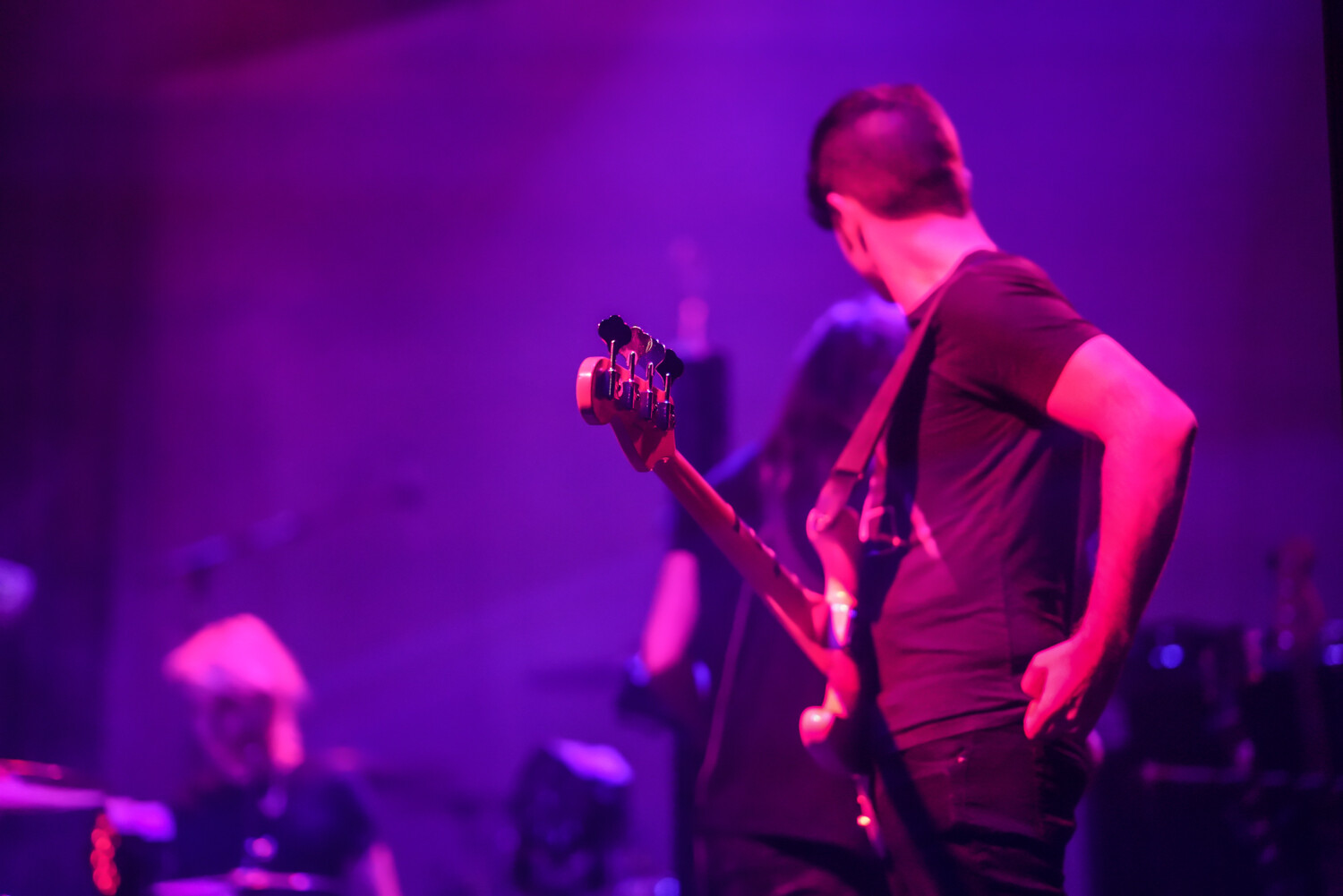
For me, as a concert photographer, I found this to be a significant perk as the stage lights didn’t flare too badly.

Chromatic aberration, also known as ‘color fringing’ or ‘purple fringing,’ is a common optical problem that occurs when a lens is either unable to bring all wavelengths of color to the same focal plane, or when wavelengths of color are focused at different positions in the focal plane.

Unfortunately, where I lose a bit of love for this lens is the chromatic aberration issue it suffers. Though I have read reviews in which others claim that the chromatic aberration is minimal, I have experienced the contrary and consider the chromatic aberration to be rather severe.
I have used several high-quality fast lenses that have little to no aberration, and this is not one of them. I have experienced a slew of colors coming out in quite contrasted images, ranging from the purple fringe to aqua or bright green fringing. Although this can be removed in post-processing (especially in a program such as Lightroom), that is an extra step.


For those rocking Sony E-mount cameras, this lens is dreamy. An excellent and high-quality choice as a native Sony mount. I find it to be rather worth it for those sporting this brand’s camera body.
Have you used the Sony FE 85mm f/1.4 GM lens? What are your experiences with it? Let us know in the comments below.
The post Gear Review: Sony FE 85mm f/1.4 GM Lens appeared first on Digital Photography School.
Besides the obvious cost of camera equipment, they are also a key part of photography. A damaged camera, especially when away in remote places, can mean no photos. Those missed photos might be something that you can’t replicate. So to keep your camera equipment safe and in working order is an essential part of photography. Here are 5 tips for keeping your camera safe and in working order.

There’s an age-old saying ‘prevention is better than the cure.’ So your first step in ensuring that your camera is in good working condition is to keep it that way. Get into the habit of regularly cleaning your camera. There are plenty of camera cleaning products out there, and it only takes a few minutes. Wipe your camera clean of dust and any other build up of dirt. Carefully clean your lenses using the relevant material. It’s best to avoid touching or cleaning your sensor unless you are confident in what you are doing.
Even if your camera is working, if there is a minor fault with it, get it fixed rather than leaving. It’s also worth getting your camera serviced professionally every now and again. Yes, it might be an annoying expense to have to pay, but it is a small price to pay to ensure that your camera is in perfect working condition.

Water and sand are two of the biggest dangers to cameras. Anyone who has a scratched lens glass or sensor due to sand knows the cost involved in fixing these things. However, there are ways to protect your camera equipment to ensure you minimize the risk. The first thing you need to know is how well sealed your camera is. For example, high-end DSLR cameras often specify that they are ‘weather sealed.’ While weather-sealing offers good protection from things getting into your camera, you should still be cautious.

One of the dangers to your camera equipment is theft. With a little bit of common sense and caution, you can avoid being a victim. The key is to know your surroundings and take action accordingly. For example, if you are walking on a busy sidewalk, keep away from the curb and keep your camera away from the roadside where snatch and grabs on motorbikes happen. Alternatively, if you are sitting on an outside table in a restaurant, put your camera away in your bag or have the strap around your arm.
Even in quite countryside car parks, it’s important to take precautions. Don’t leave cameras or valuables on display. Hide them away, or better still take them with you. As long as you use common sense and know what it is happening around you, you shouldn’t have any problems.

My only ever accident with my camera was when I was using a tripod. As I rushed to put my camera on, I didn’t clip it in, and the camera fell straight into a muddy puddle. Luckily the mud stopped my camera bouncing off into the river that I was photographing, and it also avoided the rock that I was standing on. With a bit of cleaning up, I was able to use it straight away. I was fortunate on this occasion.
I am always astonished when I see people setting up tripods, and they don’t evenly distribute the weight, causing it to fall over, or people putting expensive DSLRs on cheap tripods that are not secure enough to take the weight.
Whenever you are using a tripod, the key is to take your time. Make sure your tripod is secure, and the legs are taking the weight evenly. When you put your camera on the tripod, hold on to the strap for a few seconds to ensure it’s not going to topple over. Only when confident it’s not going to fall should you let go. Be especially careful when there are high winds as a sudden gust can easily knock over your tripod and camera.

Depending on how much photography you do, there are always periods when your camera is not in use. So, where you store your camera is also essential in keeping it safe. Avoid storing your camera in places where there is high humidity like laundry rooms. You should also avoid leaving it in direct sunlight. Try to store it in a cupboard rather than just leaving it out to gather dust. A great tip is to keep your camera equipment in your camera bag and place your bag in a cupboard. Not only does it protect against dust but also ensures everything is one place and out of sight.

While you hope you never have to use it, it’s always best to ensure that you have appropriate insurance in place for your camera equipment. Make sure that it covers you for things like damage at home, in transit and even in cars. It’s also worth noting the details of their claims policy, so you are aware of things such as whether they pay for or replace damaged or stolen equipment. It is also important to know these details, in case you may have to wait six months for your equipment to get replaced. So always make sure you have insurance to cover your equipment.

There’s nothing more frustrating than seeing an amazing photo opportunity in front of you and having no camera. However, with a little bit of care, forward planning, and common sense, you can avoid this happening to you by keeping your camera safe and in working order.
Anything else that you can think of? Let us know below.
Want more? Check out the latest photography tips on our blog.
The post 5 Tips For Keeping Your Camera Safe And In Working Order appeared first on Digital Photography School.
Want to know how to balance exposure in Adobe Camera Raw to improve your photographs without causing white or black clippings?
Have you ever faced a scene so contrasted that it’s impossible to achieve balance in the exposure?
If you shoot in Auto mode, you may have seen this quite a bit. If you were not able to solve this problem while shooting, this is the tutorial for you. I’ll show you how to balance exposure in Adobe Camera Raw using helpful post-processing techniques.
For this exercise, I’m using a photo with extreme problems to really highlight the adjustments I’m making. Images with less-obvious exposure problems can still be improved using this same technique.

Firstly, let’s clarify that this works best with a RAW file, but even if you shoot in JPG format this tutorial can help – so keep reading!
A RAW file is a ‘digital negative’ that contains all the information without being processed, so it won’t open directly in Photoshop. Instead, it opens in Adobe Camera Raw (ACR), which is where the editing is done for this tutorial.

If you are working with a JPG file, open the ACR manually. To do this, go to Photoshop ->Menu -> File -> Open. From the browser window choose your JPG file and select ‘Camera Raw’ from the ‘Format’ drop-down menu. Click ‘OK’ to open in ACR.
If you are not sure whether to shoot with RAW files or JPG Files, read this interesting article.

*From this point, you can follow the same steps for both RAW and JPG files.
To help balance your image, activate the clipping warning in ACR.
To do this, go to the top corners of the histogram where you have a white and black clipping alert. Click on the one you want to view first.
Once activated, this highlights any pixels that exceed the intensity represented.

The order in which you decide to tackle different problems doesn’t matter. You have to go back and forward through the adjustments until you reach the balance that works for you anyway.
In this case, I’m going to start brightening up the bottom, so my first instinct would be to lighten the shadows.
Adjust the ‘shadows’ slider until you achieve the desired look.
Look at the changes to the histogram as well.

Now we can see much more detail in the lower part of the photo, but now the contrast has lowered so much that the image has become quite flat. You can correct this by moving the ‘Black’ slider, which determines the darkest black of your image.
Adjust the ‘Black’ slider and see how the darkest areas are now being highlighted in blue to show you the clipping areas because you’re exceeding the range.
Be careful not to exaggerate.

Now it’s time to fix the lightest parts. The sky is completely blown out and has little detail; therefore I’ll lower the brightest white possible by moving the ‘White’ slider.
Adjust the ‘White’ slider until you achieve the desired look.
Notice how the red spot in the sky that represented the clippings is getting smaller.

The image looks better but it hasn’t completely solved the problem.
The next step is the ‘Highlights’ slider to add more detail to it. Be careful not to render the image too dark now.
Adjust the ‘Highlights’ slider until you achieve the look you want.
You’ll need to go back to the Shadows and Blacks to balance them according to the new sky. You can go back and forth through these until you find a balance you are happy with.
Notice how all the clippings have gone:

Apart from the clippings you canals keep an eye on the histogram, look how the original had very high points in both ends and was very flat in the middle while the current one is much more balanced.
To view before and after previews, press the P on your keyboard, allowing you to make comparisons without losing any of your adjustments.

Balance is not necessarily all there is to it.
In this case, it resulted in a flat and muted image.
To give it that extra punch you can boost areas such as contrast or saturation.
Keep in mind that these can create clippings again, so always keep checking the entire image.

If you worked through this process with a RAW file, it is non-destructive, so you can keep editing until you’re satisfied without losing any pixels or lowering the image quality.
Due to the JPG file being a destructive process, I advise you to save it as a copy to always keep your original intact.
If you want to learn more about the basics of ACR, I invite you to read my tutorial ‘Quick Beginner’s Guide to Processing RAW Files in Photoshop Adobe Camera Raw‘.
The post Balance Exposure in Adobe Camera Raw to Improve Your Photographs appeared first on Digital Photography School.
Are you looking to make money using Instagram? Then this Instagram Tip from Rich Maciver is for you.
Many of you photographers out there are sure to have an Instagram account by now. You’ve probably been sharing your photos and following some of the photographers you love for quite some time. But have you ever wondered how you can utilise this platform to help you make money as well as share your photos?
In this video, Rich Maciver shares some useful pointers on how to make money with your photography using this popular social media platform.
Instagram Directing Messaging (DM)!
The deeper you go, the more people you will find that may be potential new clients.
Give it a go, and let us know if it works for you in the comments below.
You may also find the following articles on our website helpful when it comes to using Instagram.
How to Publish Images Directly to Instagram From Lightroom
How to Connect With Your Photography Followers Through Instagram Stories
12 Steps to Successfully Promote your Photography on Instagram
10 Tips for Mastering Instagram
The post How to Make Money as a Photographer with this Instagram Tip appeared first on Digital Photography School.

It’s coming up to Halloween and it’s a tradition that is being observed more and more in the Southern Hemisphere, so we thought no matter where you are, you might be up to the challenge. And if there’s no Halloween where you are, just take a spooky photo and see if you can scare us silly!
If you’re heading out to snap some ‘trick or treaters’ check out these tips on night time street photography:
In the Dark: 10 Tips for Street Night Photography
Or this one for getting proper exposure at night:
Tips for Getting Proper Exposure for Night Photography
Here are some techniques you can try to get a spooky feel in your images:
Light Painting Part One – the Photography
Here are some previous posts with plenty of ideas to motivate you for the challenge:
Halloween Photography Tips
26 Spooky Images for Halloween Week
27 Sinister Images for the Week of Halloween
Can’t think of anything? Here’s a few project ideas:
How to Light Creepy Halloween Masks for Added Drama
Creating Ghostly Images for Halloween
Simply upload your shot into the comment field (look for the little camera icon in the Disqus comments section) and they’ll get embedded for us all to see or if you’d prefer, upload them to your favorite photo-sharing site and leave the link to them. Show me your best images in this week’s challenge.
You can also share your images in the dPS Facebook group as the challenge is posted there each week as well.
If you tag your photos on Flickr, Instagram, Twitter or other sites – tag them as #DPSHALLOWEEN to help others find them. Linking back to this page might also help others know what you’re doing so that they can share in the fun.
The post Halloween – Weekly Photography Challenge appeared first on Digital Photography School.

Have you ever wondered what difference studio light modifiers make to your portraits?
Are you even convinced that they make a difference in the quality of light? I thought I’d do a little experiment to show you the effects that a few basic studio light modifiers can have on your portraits.
For some, the right modifier may make an image great, and the wrong modifier could break it.
Firstly, if you are new to artificial lighting, let’s look at some technical terms.
Flash – an electronic artificial light source which gives out a brief, sudden burst of light. A flash is also known as a strobe in North America.
Reflector – a panel that bounces light back towards the source and comes in silver, gold, black, white, fabric or other material.
Light modifier – an object attached to the front of the flash to change the quality and effect of light entering the camera.
Shoot – through Umbrella – an umbrella made of translucent fabric that allows light to pass through it.
Diffusion – a material that scatters light evenly as it passes through, thereby making the light softer and with less glare and harshness.
Softbox – a closed chamber usually lined in white or silver fabric, available in various shapes (such as a square, rectangle, umbrella, octagon). A softbox confines the light from the flash and releases it through a diffusion material, thereby allowing more control as to the size and spread of light that reaches your subject.
Grid – usually made from fabric strips of material that are sewn together to form a 3D grid that is attached to the light modifier. A grid restricts the focus of light, making it more directional, allowing the photographer more control. It also limits or restricts the spill of light onto other areas.
Let’s start with the lighting diagram as shown below. My set-up consisted of 2 lights and the following:

You can also shoot with one light, of course, see here for a beginner’s tutorial on how to create dramatic portraits with one light.

Left: #1 Shoot-through umbrella facing away. Right: #2 Shoot-through umbrella facing toward.
For the above-left image, I used an umbrella as a shoot through with the flash facing away from the subject. You can see there is still light hitting the subject’s face, but the shadows on the left side of the face and the neck are a lot more pronounced and harsh. The light was not able to reach the reflector to the left of the subject at all.
Compare this with the image on the right. I turned the flash and umbrella 180 degrees so that the flash was facing the subject and shot from behind the umbrella. The shadows are much softer, more light has reached the subject, and you can also see the light hitting the sofa on the far left which means the reflector was doing its job of bouncing some light back.

Left: #3 Bare flash with hood. Right: #4 Umbrella softbox
For the above-left image, I shot using just the electronic flash and the hood that comes with it. As it is rather small, it restricts the spread of light a little and focuses it more on the area you are lighting.
The light spills only as the light leaves the hood. Shadows on the face here are still defined, and not as smooth as I’d like it, but it is much better than on #1, where the shadows are much darker and harsher.
In the above-right image, I used a deep umbrella softbox allowing me to face both the flash and umbrella away from my subject. The umbrella is silver-lined which bounces all the light back towards the subject through a diffuser fabric. The resulting light quality is softer and more evenly spread due to bouncing and diffusion.
Compare this to image #2 that used only the shoot-through umbrella without the bounce. Notice how the light quality is gentler on the skin and more evenly spread, with softer shadows on the neck and under the nose.

Left: #5 Softbox Without the Diffusion Panel. Right: #6 Softbox with diffusion panel.
I switched to a 90 x 60 rectangular softbox for the images above. The one on the left is an example without the diffusion panel that covers the softbox. Shooting your subject without the diffusion panel is like shooting with a hood, as per example #3 (the hood also has a silver lining), only the softbox is larger.
The light is flashed away from the subject onto the silver lining of the softbox and bounced from the silver lining towards the subject without having to go through a diffusion panel.
Comparing both images above, do you notice the softer quality of the light on the subject’s face on the image with the diffusion ‘on’? It is a subtle difference, but I can see it. Look even closer and you see the light without the diffusion is cooler and slightly harsher. It comes directly from the silver lining of the softbox not having gone through any diffusion.
This difference is noticeable on the sofa; the one on the left is a touch sharper and the one on the right darker and even. Compare the subject’s left eye (on camera right) – the shadow on the left image is stronger and deeper than the one on the right.
Such is the modifying effect of even just one diffuser fabric!
Left: #7 Softbox with the grid. Right: #8 Gridded softbox with the power adjusted.
I attached a grid to the light set-up above so that it’s a silver-lined softbox with a diffusion panel plus a grid attached on the front of the diffusion panel. This setup is called a gridded softbox.
Notice just how much of the light has been cut out. Light gets focused on the face, and there are very few spills of light on the clothes, arms and outer areas of the space photographed.
The resulting image is a lot darker, moodier, and warmer in tone. However, I feel this is too underexposed, and details on the dress get lost, when I wanted these to show. The green wall looked too black, and the dress seemed to blend too much into it.
On the above-right image, I kept the gridded softbox on and adjusted the flash power to my liking in order bring back the details I wanted. This new flash setting illuminated the face more and brought highlights back onto the hair and eyes. It also allowed a touch of light on the background too.
Finally, the end product I had in my mind used a textured background, so I added this texture to my dark green wall in Photoshop. For a step-by-step guide on how to add textures and creative overlays, see this post. In my opinion, the subtle texture adds more drama to the image and fits in better with the dark and moody lighting I was after.

Did you find this side-by-side comparison on light modifiers helpful? Please let me know and also share your studio lighting experiments in the comments below.
The post Side-by-side Comparisons of Basic Studio Light Modifiers appeared first on Digital Photography School.
