RSS
 

Archive for the ‘Photography’ Category

Sigma to Release Canon RF Lenses Next Year

19 May

The post Sigma to Release Canon RF Lenses Next Year appeared first on Digital Photography School. It was authored by Jaymes Dempsey.

sigma canon rf lenses

If you’re a Canon shooter, or you’re thinking about grabbing a Canon body, you’ve probably noticed two big problems with the Canon full-frame (RF) lens lineup.

First, Canon doesn’t offer many RF lenses.

There are around a dozen RF mount options at present, which pales in comparison to the number of lenses offered by mirrorless competitors like Sony, Fujifilm, and Olympus.

And second:

For the RF lenses that Canon does offer, the price tags are huge.

For instance, if you’re a sport, landscape, or event shooter in need of a high-quality 70-200mm zoom, you’re stuck with the Canon RF 70-200mm f/2.8L, which costs over $ 2500 USD.

And if you’re a landscape, travel, or architectural shooter looking for a good ultra-wide lens, the Canon RF 15-35mm f/2.8L is probably the way to go. Unfortunately, it costs just under $ 2300 USD.

So for photographers who want to dedicate themselves to Canon mirrorless bodies but don’t have a huge budget, you’ve got a big problem.

Of course, there’s always the option of using an adapter with Canon EF and EF-S lenses. But this will add bulk and inconvenience to your setup, and it doesn’t take full advantage of the possibilities offered by RF-mount lenses.

Fortunately, it seems that Sigma may be offering another solution.

Because according to Canon Rumors, Sigma may soon come forward with an RF lens announcement.

Sigma has a reputation for producing high-quality glass at excellent prices, which is exactly what Canon full-frame mirrorless shooters are looking for. Even a few Sigma lenses could quickly expand the Canon lens lineup, while also offering some entry-level options for folks who can’t pay thousands of dollars for a single RF mount lens.

While there are not any details on this roadmap as of yet, Sigma is apparently hoping to release lenses starting in 2021. And Canon Rumors’s source suggests that Sigma has sped up its original plans for RF lenses, thanks to the interest generated by the EOS R5 announcement.

The source also revealed that Sigma won’t be modifying their popular ART lenses to fit the Canon RF mount. Instead, Sigma will be developing new glass for Canon shooters.

On the one hand, it’s disappointing to hear that Sigma’s ART lenses won’t make an appearance under the Canon RF label, given how all-around fantastic they’ve turned out to be.

But on the other hand, it’ll be nice to see what Sigma develops.

Now over to you:

What lenses are you hoping that Sigma produces for Canon’s full-frame mirrorless cameras? Share your thoughts in the comments!

The post Sigma to Release Canon RF Lenses Next Year appeared first on Digital Photography School. It was authored by Jaymes Dempsey.


Digital Photography School

 
Comments Off on Sigma to Release Canon RF Lenses Next Year

Posted in Photography


A Beginner’s Guide to Layer Masks in Photoshop

17 May

The post A Beginner’s Guide to Layer Masks in Photoshop appeared first on Digital Photography School. It was authored by Simon Ringsmuth.

dps-layer-masks-in-photoshop

Adobe Photoshop has so many buttons, tools, and options it can seem overwhelming and intimidating to beginner photo editors. Rather than diving into the deep end and trying to learn every possible tool all at once, I recommend a more measured approach. Pick one thing and learn that, and then move on to the next tool or technique. And learning Layer Masks in Photoshop is one of the most important and useful tools for any editor.

layer masks in Photoshop high school senior
High school senior, class of 2017. There is no number 17 on his shirt. I added it in Photoshop with layer masking. Nikon D200, 50mm, f/1.8, 1/90 second, ISO 200.

In 1994, Photoshop Version 3 introduced a concept that blew the doors off the image editing industry: layers. This allowed editors to stack multiple image elements on top of each other to form a complete picture. This is all well and good, but what if you put one layer on top of another layer and still want to see something on the layer below?

You could use the Eraser tool to remove part of the top layer, which is what I used to do when I first started using Photoshop years ago.

A much better solution is to use a Layer Mask, which lets you show and hide any part of a layer. Instead of using the Eraser tool, you use the Paintbrush (or other tools) to make any part of a layer visible, invisible, or transparent.

As an example, here’s a picture of a truck on a farm. It’s alright, but the sky behind the truck isn’t very dramatic.

layer masks in Photoshop truck on the prairie
Nikon D750, 95mm, f/2.8, 1/3000 second, ISO 100

What if I replaced the boring blue sky with this dramatic sunset? Surely that would be a much more interesting photo, and maybe help the farmer sell his truck too.

layer masks in Photoshop dramatic sunset
Fuji X100f, 23mm, f/16, 30 seconds, ISO 200

If the pictures of the truck and sunset are stacked in Photoshop, the truck is visible but not the sky. This is where Layer Masks in Photoshop can save the day! You can use a mask on the truck layer and then edit it to remove the sky. This would leave the truck visible but the sunset showing through.

layer masks in Photoshop
Layers are fundamental to the image editing process in Photoshop. Layers are on top are visible, whereas layers underneath cannot be seen unless some parts of the layers on top are visible.

To add a Layer Mask, click the top layer (in this case, the truck) and choose Layer>Layer Mask>Reveal All.

Alternatively, click the Layer Mask icon at the bottom of the Layers panel.

layer masks in Photoshop
The rectangle with a circle icon will add a layer mask to the selected layer.

At this point, nothing in the picture has changed because the entire layer is still visible, and nothing has actually been masked out. This is why the menu command is “Reveal All.”

The layer mask shows the entire layer to which it is applied. At this point, you can use any number of methods to remove portions of the layer you are working on.

layer masks in Photoshop
The white rectangle is your layer mask. Click on it to select the mask, and then you can start hiding portions of the layer which it is attached to (in this case, the Truck layer).

My preferred method to show and hide Layer Masks in Photoshop is to use the Brush tool. Press the ‘B’ key on your keyboard or click the Brush tool icon on the left-side toolbar. Then start brushing the portions of the layer that you want to make invisible, just as though you were using an eraser.

layer masks in Photoshop layer mask erasing
Brushing the layer mask will reveal whatever is beneath the layer. Here you can see how, after a few brushstrokes, the sunset layer is starting to show through.

Notice how any part of the mask that you erase is also reflected in the thumbnail. Black portions are where the mask has been eliminated, which is a subtle but useful indicator of the work you are doing on the mask.

layer masks in Photoshop
As you apply the brush to portions of the mask, the mask thumbnail is updated accordingly.

To completely remove the sky behind the truck, I used the Quick Selection tool to select the sky. Then I switched back to the Brush tool and brushed over the entire selected area.

layer masks in Photoshop layer mask demonstration with errors to fix
It worked! The original sky is gone, replaced with a dramatic sunset. But there are some errors that I still need to fix.

At this point, a Layer Mask probably seems much more complicated than just using the Eraser tool. If you want to erase part of an image, why over-complicate the matter with masks and brushes and selections? Layer Masks provide an enormous advantage in that you can un-erase whatever you want just as easily.

With the Brush tool selected, press the ‘X’ key to invert your brush, and you can now put everything you erased back. Use the ‘[‘ and ‘]’ keys to change the size of the brush, and the ‘Z’ key to zoom in on portions of the image to get the finer details.

layer masks in Photoshop modifying the layer mask
Invert the brush tool by pressing the X key to un-erase any part of the layer.

All the normal controls for brushes can be used when working with layer masks – opacity, smoothing, etc. This makes Layer Masks in Photoshop incredibly powerful and exponentially more useful than just using the eraser tool.

layer masks in Photoshop
It still needs some touch-ups, but it’s a lot better than before thanks to the flexibility of layer masks.

Layer Masks can do so much more than replacing the sky. They can be used to combine any number of images, layers, and effects.

I created the picture at the top of this article with Layer Masks in Photoshop in just a few minutes. It started with the picture below of a high school senior wearing a blue shirt. Since this young man graduated in 2017, I wanted to put a 17 on his shirt. Photoshop made it easy.

layer masks in Photoshop high school senior blank shirt
A high school senior, Class of 2017. A nice big 17 would look good on his shirt.

I started by using the Fyra font for the number 17. I set the color to white and used the Soft Light blend mode to make the number look like it was part of the shirt, not just sitting on top of it. The young man’s crossed arms presented a challenge, but one that was easily solved in seconds thanks to layer masks.

layer masks in Photoshop high school senior number 17 without mask
What to do about his arms? Layer Masks to the rescue!

With the base layer selected, I chose the Lasso tool and selected the portion of the picture containing the arms. Then with that selection active, I right-clicked on the image and chose “New Layer via Copy.” This created a new layer in my Layers panel, which I moved to the top of the list by clicking and dragging.

layer masks in Photoshop

With the new layer selected in my Layers panel, I went to the Layer menu and selected Layer Mask>Reveal All. This created a new masking layer, much like the truck and sunset example, that I could use to show and hide whatever portions of the arms I wanted to.

layer masks in Photoshop
Click the white box next to Layer 1 to edit the layer mask for the top layer.

With the new Layer Mask in place, the rest of the operation was fairly simple.

I zoomed in on the image to get a closer view by pressing ‘Z’ and then clicked on the arms. Then I pressed the ‘B’ key to select my Brush tool and used the [ and ] keys to get the right size. As I brushed out the part of the top layer I did not want, I pressed the ‘X’ key to switch back and forth between erasing and un-erasing. This makes it very simple to perform fine adjustments to your layer mask.

layer masks in Photoshop
Brush options such as Opacity and Smoothing can be used to perform edits to your layer mask with surgical precision.
layer masks in Photoshop fine adjustment to layer mask
With one hand on your mouse and another hand on the X key, you can quickly show and hide whatever part of your layer that you want.

Using layer masking instead of just erasing portions of an image means you can continue to manipulate your image as separate layers even after you have made your edits. Watch how the number 17 can be moved and resized without any additional editing or erasing. This is possible because the arms are a separate layer in front of the number, and the blue part of the arms layer has been erased or masked out.

layer masks in Photoshop transform layer

Reading through all these steps to learn Layer Masks in Photoshop might seem kind of overwhelming. If you follow along step by step, it’s a lot easier than it seems. Also, there are hundreds of ways to edit layer masks to create compositions you probably thought were previously unattainable.

If you have never tried using layer masks in Photoshop, I recommend giving it a try, and see where your creativity takes you. You might find that it opens up a door to entirely new types of artistic expression and editing possibilities.

Share your results with us in the comments below!

The post A Beginner’s Guide to Layer Masks in Photoshop appeared first on Digital Photography School. It was authored by Simon Ringsmuth.


Digital Photography School

 
Comments Off on A Beginner’s Guide to Layer Masks in Photoshop

Posted in Photography


Tips For Editing the Colors in Landscape Photos Using Lightroom (video)

16 May

The post Tips For Editing the Colors in Landscape Photos Using Lightroom (video) appeared first on Digital Photography School. It was authored by Caz Nowaczyk.

In this video from Nigel Danson, you’ll gain some invaluable tips for editing the colors in landscape photos using Lightroom.

While Nigel uses Lightroom Mobile to show you his editing tips, these tips also apply to Lightroom classic.

The features that Nigel discusses to improve the colors in your landscape photos include the:

  • Temperature slider
  • Contrast Slider
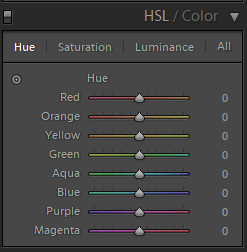
  • HSL Panel
  • Split Toning Panel
  • Curves Panel
  • Gradient Adjustments
  • Calibration panel

So try out some of these tips for editing the colors in landscape photos using Lightroom and share your results with us in the comments section! Furthermore, if you have some tips for editing colors in landscape photos, please share those with us too.

You may also like:

  • Create Stunning Photos in Lightroom
  • Create Amazing Sunrise Photos with these Easy Lightroom Editing Tips
  • Landscape Editing Techniques for Fine Art Photography Using Lightroom
  • Four Lightroom Tips to Enhance Your Landscape Photos
  • Living Landscapes

The post Tips For Editing the Colors in Landscape Photos Using Lightroom (video) appeared first on Digital Photography School. It was authored by Caz Nowaczyk.


Digital Photography School

 
Comments Off on Tips For Editing the Colors in Landscape Photos Using Lightroom (video)

Posted in Photography


Weekly Photography Challenge – Cards

16 May

The post Weekly Photography Challenge – Cards appeared first on Digital Photography School. It was authored by Caz Nowaczyk.

This week’s photography challenge topic is the CARDS!

Weekly Photography Challenge – Cards

Many people have a set of playing cards around the house, or some motivational cards, tarot, companion cards, etc. So get creative with them – build a house of cards, use interesting light, try macro, or intentional camera movement. Color or black and white, or try a series, like mine.

I look forward to seeing what you come up with!

Weekly Photography Challenge – Cards

Check out some of the articles below that give you tips on this week’s challenge.

Tips for photographing CARDS

Moment Smartphone Lens Review for Photography and Videography

How to Understand Light and Color to Improve your Photography

Reverse Lens Macro: Close Up Photography Lesson #3

Reverse Mounting Your Prime Lenses for Affordable Macro Photography

Photographing a Still Life Series for Exhibition or a Portfolio

Simply upload your shot into the comment field (look for the little camera icon in the Disqus comments section) and they’ll get embedded for us all to see. Or, if you’d prefer, upload them to your favorite photo-sharing site and leave the link to them. Show me your best images in this week’s challenge.

Share in the dPS Facebook Group

You can also share your images in the dPS Facebook group as the challenge is posted there each week as well.

If you tag your photos on Flickr, Instagram, Twitter or other sites – tag them as #DPScards to help others find them. Linking back to this page might also help others know what you’re doing so that they can share in the fun.

The post Weekly Photography Challenge – Cards appeared first on Digital Photography School. It was authored by Caz Nowaczyk.


Digital Photography School

 
Comments Off on Weekly Photography Challenge – Cards

Posted in Photography


10 Great At-Home Creative Photography Ideas

15 May

The post 10 Great At-Home Creative Photography Ideas appeared first on Digital Photography School. It was authored by Simon Bond.

at-home creative photography ideas

There is really no better time to practice some at-home creative photography ideas. There are lots of ideas you can experiment with, and with some basic equipment, you can really work wonders. Let’s get into it and discover some creative photography ideas you can work on at home, and work into a series of images.

1. Photographing water droplets

This is a classic project that you can try at home. It’s also relatively simple to set up, though you will need some specialized photographic equipment.

The equipment needed here includes a camera with a macro lens, a tripod, and an off-camera flash. You’ll then need to set up a location where you can drip water into a bowl of water. Learn more about how to take these photos here.

10 Great At-Home Creative Photography Ideas
Water drop photography is another form of refraction photography.

2. Food photography

Everyone loves to practice food photography, especially when the food looks amazing! This genre is huge, and potentially lucrative, as the images you take could be sold as stock.

So what are some of the things that can lead to successful food photography in the home? Take a look at this list, but for a more detailed guide take a look at this article.

  • Lighting – This is key to good food photography. Natural light such as window sidelight works well. If you use off-camera flash, the light should come from behind the food, but be sure to reflect the light back to avoid shadows in your photo.
  • Backdrop – Standard still life backdrops like photographing the food in a lightbox can be effective. Otherwise, make sure the background provides context to the food you wish to photograph.
  • Food layout – Make sure your food is well presented. The best professional food photographers use food stylists, so see how you can produce something with style. The use of repeating elements is one potential solution here.
10 Great At-Home Creative Photography Ideas
The best bit about food photography is eating the food!

3. Lensball light painting

A lot of Lensball photography will be carried outdoors, however, the Lensball is an excellent still-life object too.

One popular indoor project for Lensball photographers is light painting. You’ll need a dark room, tripod, and sheet of glass to go on the table as your initial setup.

  • Keyring – Use this under the ball to prevent it from rolling on the glass.
  • Table – Place the glass sheet on a table, and then put the ball on this.
  • Camera – Set the camera up on the tripod, and focus it on the ball.
  • Dark – Turn the lights off in the room, and ensure no ambient light seeps into the room.
  • Exposure – The exposure length should be around five seconds, but could be longer.
  • Light painting – With the camera setup, hit exposure, and light paint behind the ball with the light-emitting device of your choice.
10 Great At-Home Creative Photography Ideas
In this photo, an iPhone was used to produce the light painting.

4. Freezing objects in ice

A fun project to try when you have a bit of time at home is freezing objects in ice. You’ll need a few days to complete each photo since there is a process involved in freezing an object. The main thing you need to achieve is getting the object to freeze in the middle of the block of ice.

If you want to read about how to successfully carry out this technique, then click this link.

10 Great At-Home Creative Photography Ideas
Take your food photography in a different direction with this technique.

5. Still life photography

Once again, this is a huge genre in photography. The most professional photos will always have good lighting.

This style of photography could dovetail nicely with another hobby you may have. For instance, if you’re a quilter, photographing your finished product is a great idea.

If you want to get the best out of your still life photography then you can learn more by reading this article.

10 Great At-Home Creative Photography Ideas
A nice simple image with a white background can look nice.

6. Mixing oil and water

Another of the at-home creative photography ideas involves getting into the science vibe with a bit of hydrophilic and hydrophobic action.

That’s mixing oil and water and then photographing the resultant oil “bubbles.”

You’ll need to add your oil and water mix to a glass container, and then suspend this glass container above the ground a little. Now you’re ready to photograph downwards and through the oil bubbles.

To get the best results, use colorful backgrounds underneath the glass container.

10 Great At-Home Creative Photography Ideas
A classic project to try at home is mixing oil and water.

7. Water droplets on glass

Another science-based photography project you can try is placing water droplets on glass.

This style of photography utilizes refraction and repetition to produce great results.

You can experiment with the number of water droplets, or varying the background to increase your output. To learn more about this read this article.

10 Great At-Home Creative Photography Ideas
Use an interesting background to get great results.

8. Learn a new post-processing skill

One of the more obvious candidates for at-home creative photography ideas is post-processing.

Everyone knows this is a vital aspect of photography, it’s basically the new darkroom. Yet investing time in learning new post-processing skills when you’d rather be outside photographing? Well, if you have to be inside, then learning some new post-processing skills is a great idea!

  • Digital blending – A great technique to learn for landscape photographers, you’ll learn some key Photoshop skills like layer masking through learning this procedure.
  • Cloning – Whether it’s cloning an object out of the image, or cloning yourself multiple times, this is a great skill to learn.
  • Sharpening and softening – An essential skill for portrait photographers to learn. Sharpen the eyes and soften the skin for best results.
10 Great At-Home Creative Photography Ideas
In this photo, cloning and selective coloring were both used in post-processing.

9. Creating bokeh shapes

This is a great project with a little hands-on craft to it.

Bokeh is produced when your camera blurs the background, and this area of the photo is referred to as bokeh. When there are points of light in the background they will enlarge to “balls of light.”

To create bokeh shapes, you need to put that shape onto the front of your lens. This involves attaching a black disc to your lens, with the desired shape in the center of this disc. Want to try this out? Take a look here.

10 Great At-Home Creative Photography Ideas
This photo used shaped bokeh with colored fairy lights in the background.

10. Light spirals

Another kind of light painting you can try at home is light spirals. This is a lot of fun, and you can get quite creative with the patterns you produce.

You’ll need a completely dark room to get the best results from this. You’ll be spinning a light source attached to some string, and this will be above your camera.

This is a long exposure photo, so of course, a tripod is recommended. However, you could go without in this case by placing the camera faced upwards on the ground. If you want to learn more, then check out this excellent video.

10 Great At-Home Creative Photography Ideas
Light patterns like this can look great.

Which of these at-home creative photography ideas will you take on?

With time at home it’s a great chance to take up an indoor photography project. Have you ever tried any of these at-home creative photography ideas yourself?

If you haven’t, which of these is the most interesting to you? Perhaps you have another technique like water-drops on a CD, that you’ll try out?

As always, please leave your thoughts and comments below, and if you have any images you’re willing to share that would be great as well!

The post 10 Great At-Home Creative Photography Ideas appeared first on Digital Photography School. It was authored by Simon Bond.


Digital Photography School

 
Comments Off on 10 Great At-Home Creative Photography Ideas

Posted in Photography


Peak Design Everyday Backpack Zip Review

14 May

The post Peak Design Everyday Backpack Zip Review appeared first on Digital Photography School. It was authored by Suzi Pratt.

peak design everyday backpack zip review

In October 2016, Peak Design released the Everyday Backpack, a pack that has become iconic and ubiquitous among photographers and non-photographers alike. You might recognize this bag by the MagLatch and unique design that doesn’t scream, “I’m carrying tons of expensive camera gear!” Three years later, Peak Design updated its Everyday Bags to V2, and added brand new bags to the line including the Everyday Zip. In this Peak Design Everyday Backpack Zip review, I’ll discuss some of the unique features of this bag and who this bag is for.

peak design everyday backpack zip review - front view of backpack
The all-new Peak Design Everyday Backpack Zip (20L). 1/125, f/7.1, ISO 500.

Everyday Zip 20L specs

Even though its formal name is the Peak Design Everyday Backpack Zip V2, this is the very first iteration of this backpack design. Its design borrows heavily from the original Everyday Backpack, but there are a couple of key differences. First, the Everyday Zip is only available in 20-liter or 15-liter versions, while the Everyday Backpack can be either 20 liters or 30 liters. This review is of the 20-liter version of the Everyday Zip. Second, the Everyday Zip does not have the MagLatch and instead is secured via the wrap-around zippers.

  • Weight: 2.91 lbs (1.3 kg) without dividers, or 3.42 lbs (1.55 kg) with dividers
  • Maximum laptop carry: 38.1cm x 25.4cm x 2.5cm (15″x10″x1″) – Holds 15/16” Macbook Pro
  • Maximum tablet carry: 30.6cm x 22.1cm x .7 cm (12″ x 8.69″ x 0.27″) – Holds 12.9″ iPad Pro
  • External dimensions: 48cm x 31.5cm x 23.5cm (18.9” x 12.4″ x 9.3″)
  • Internal dimensions: 45cm x 28.5cm x 20cm (17.7” x 11.2″ x 7.9″)
peak design everyday backpack zip review - comparison of V1 and V2
Peak Design Everyday Backpack V1 (left) and Everyday Backpack Zip (right). 1/125, f/7.1, ISO 500.

What’s new?

If you’re familiar with the Everyday Bags V1, here are some of the V2 changes:

  • More streamlined seams and rounder profiles.
  • Softer, more comfortable bag straps.
  • New UltraZips that are 20x stronger than standard zips.
  • Sleeker and more ergonomic MagLatch (on applicable bags).
  • New colors (navy and cream) and two new bags: Everday Backpack Zip and Tote.

Who is this bag for?

I originally purchased the Everyday Backpack V1 (20L) as a daypack for shooting and working in the city. The features that most appealed to me was the ability to carry my full-frame DSLR camera, 2 lenses, and flash, plus my 15-inch MacBook Pro in a low-profile bag to fit my 5’2″ frame.

Many other camera backpacks out there are either too big and bulky or have an outdoorsy design that doesn’t fit well in corporate photography settings, which is where I often find myself. I also appreciated the fact that the bag dividers are not specific to camera gear and you can even remove them if you want to use the backpack for non-photography purposes.

If you can relate to my situation above, then the Everyday Backpack might be right for you.

peak design everyday backpack zip review - contents that fit inside the backpack
Contents that can fit inside of the Peak Design Everyday Backpack V1 and Everyday Backpack Zip (20L). 1/280, f/4.5, ISO 2000.

Is the Everyday Zip better?

Throughout my 2 years of using the Everyday Backpack V1, the main thing that I disliked about it was also its main selling point: the MagLatch.

It gives the bag a unique look and makes it very easy to access the top portion of the bag, but it was not possible to lock or secure. In many of my photography settings (corporate events), I empty my camera bag of most of its contents and walk around to shoot, while leaving the bag in a semi-secure area. Oftentimes, my laptop and a spare lens are in the bag, and it is unnerving to leave the bag unlocked. While I haven’t had the bag or its contents stolen before, I am often pushing my luck.

My hope with the Everyday Zip was that all of the big compartments could be locked and secured. While it takes a little DIY work to secure the 5 zippers on this bag, it does indeed live up to this standard.

Peak Design Everyday Backpack Zip Review
Top access on the Everyday Backpack Zip (20L). 1/125, f/7.1, ISO 500.

Other positive points

Another great feature of the Everyday Backpacks is that you can access your camera gear (or chosen contents) via the side zippers. This means you don’t have to empty the entire contents of your bag to reach things sitting on the bottom.

Given the wrap-around zipper on the Everyday Zip, side access requires a bit more attention to detail to avoid accidentally opening your entire bag, but it is still a nice feature.

Peak Design Everyday Backpack Zip Review
Side access on the Everyday Backpack Zip (20L). 1/125, f/7.1, ISO 500.

The Everyday Zip also has side pockets for stowing things like a small tripod, monopod, water bottle, etc, and a back panel for easily attaching the bag to a rolling suitcase.

There are also straps for attaching a tripod or large item to the outside of the bag, but I always find that a cumbersome and impractical way to carry a tripod.

Another selling point of the Everyday Backpacks is their ability to carry a 15″ or 16″ laptop, or so Peak Design claims. A lot of modern bags have sized down and only carry 13″ laptops or tablets. On the Everyday Zip, my 15″ MacBook Pro from 2015 fits, but it is very tight and leaves no room for adding anything else to that pocket, even though there are dividers for adding other items such as documents.

Modern laptops are getting thinner and will likely fit more easily, but be wary if you have an older computer.

Peak Design Everyday Backpack Zip Review
Laptop compartment on the Peak Design Everyday Backpack Zip (20L). 1/125, f/7.1, ISO 500.

The final selling point of this bag and Peak Design products in general is the overall aesthetic and attention to detail. This is a really unique and modern-looking bag with tons of storage pockets throughout. Peak Design values not wasting any space and that rings true for the Everyday Backpack Zip. It’s easy to pack this bag full and not have any loose space anywhere.

However, the maximization of space comes at a cost, which echoes my original complaints about the Everyday Backpack V1.

When filled with heavy contents, this definitely is not the most comfortable backpack out there. Sure, the bag has sternum and waist straps to distribute the weight more ergonomically, and the shoulder straps are noticeably more padded.

But the comfort problem stems from the ultra-stiff back padding, which seems to be there to allow the bag to attach to rolling luggage. This is indeed helpful if you travel a lot, and is a feature lacking on my favorite large camera backpack. But in general, this bag still feels like a pair of stilettos – you sacrifice some comfort for the sake of fashion.

Peak Design Everyday Backpack Zip Review
The all-new Peak Design Everyday Backpack Zip (20L). 1/125, f/7.1, ISO 500.

Let’s end this on a positive note by talking about the real reason why I’m sticking to Peak Design: there’s a lifetime warranty on all of their products.

My Everyday Backpack V1 was a trooper for 2 years, but the zipper came apart recently, rendering the bag useless. Upon realizing there was a lifetime warranty, I contacted Peak Design via their website, and within days organized for a replacement bag to be sent my way.

I could not arrange for a new style of bag as the replacement and paid for the Everyday Zip out of my pocket. I still have a brand new version of my old bag that I can give away or sell, and I know that my Everyday Zip is covered under a similar warranty.

Peak Design Everyday Backpack Zip Review
The all-new Peak Design Everyday Backpack Zip (20L). 1/125, f/7.1, ISO 500.

Conclusion

If you’re looking for a sleek, modern backpack to hold light camera gear and a laptop, this might be the camera bag for you. Because this bag is uniquely structured when compared to other camera backpacks on the market, it can take some time to get used to if you’re new to Peak Design backpacks.

Given its compact size, thorough utilization of space, and that lifetime warranty, this is a great bag to consider. It’s not perfect, but then again, what bag is?

The post Peak Design Everyday Backpack Zip Review appeared first on Digital Photography School. It was authored by Suzi Pratt.


Digital Photography School

 
Comments Off on Peak Design Everyday Backpack Zip Review

Posted in Photography


Unsplash: The Perfect Source for Free Images?

14 May

Have you ever wanted to make your life simpler when it comes to finding stock photos, and by simpler I mean not dealing with confusing licenses, being afraid that one day an image you used may change its license, and not paying for subscriptions or collections of images? Well you are in luck as today I will be going into Continue Reading

The post Unsplash: The Perfect Source for Free Images? appeared first on Photodoto.


Photodoto

 
Comments Off on Unsplash: The Perfect Source for Free Images?

Posted in Photography


How to Arrange Your Photoshop Workspace for Faster Editing

13 May

The post How to Arrange Your Photoshop Workspace for Faster Editing appeared first on Digital Photography School. It was authored by Darina Kopcok.

tips for aranging photoshop workspace

The key to quick and painless retouching is creating a workflow that works for you. Photoshop has a highly customizable workspace that you can set up in a way that best suits your needs. Here are some tips on how to declutter your Photoshop workspace for a seamless and efficient workflow.

photoshop workspace

Photoshop workspace preferences

A workflow that’s effective for one photographer may not be as helpful for another.

Your Photoshop workflow has to be built around your preferences and your most-used tools and windows. For example, the tools that I use most for my food photography may not be as useful for wedding photography or street photography.

For this reason, you may want to have multiple workspaces set up for different applications, especially if you shoot in more than one genre.

You may want to have a workspace for black and white photography only, and another you use for color retouching. It’s up to you if you want to have multiple workspaces and how you organize them.

The important thing is that you arrange your workspace in a way that you’re best prepared for the type of retouching that you want to do. This will keep distractions to a minimum and make the process of retouching go faster.

Photoshop comes with some pre-configured workspaces, depending on what you use the program for. You’ll find these, as well as your various options to set your preferences, under the Window tab at the top of the Photoshop workspace. The panels that show up in your workspace are denoted with a checkmark. Click them on or off accordingly.

Choose the default Photography workspace as a base and customize it from there.

When setting up your workspace, I recommend always showing your Layers and Histogram panels to keep you on track while retouching. I also like to sometimes have my History and Actions visible.

photoshop workspace

Rename your workspace in a way that will help you quickly differentiate it from other workspaces, if you have them. I personally only use one workspace because I mostly shoot in one genre – food photography.

Creating a new workspace

To create a new photoshop workspace:

go to > Window
navigate to > Workspace
choose > New Workspace
Give your workspace a name
Hit >Save

photoshop workspace
photoshop workspace

Toolbar and windows

The toolbar and various menus in the Photoshop workspace can be easily dragged to where you want them. In the default workspace, you can find the toolbar on the left-hand side. However, you can drag it to the right-hand side of your workspace, so you have all your tools and menus on one side. This can make the workspace cleaner and more effective because everything you need to access will be consolidated in one area, and your eyes won’t be bouncing around, looking for things.

Make sure that your most important windows are visible, and that you hide or collapse any that are unused, or rarely used.

Observe which windows and tools you use the most and make sure that they are prominent and easy to navigate to.

You can make your menus larger or smaller in relation to the rest of your workspace, depending on your preference. If you have a large screen, you might feel comfortable having several wide menus.

photoshop workspace

In my Photoshop workspace, I want to see my Histogram and Navigator panels at the top, where I’m used to seeing them in my RAW editor.

Below that, I have my Adjustments and Actions, which I access regularly.

I also always have my Layers panel open so I can see them all and know exactly which one I’m working on.

You can minimize a given window and have it noted by an icon. For example, I have minimized my History panel to a small icon because I want it accessible in case I need to step back in my retouching process, but it’s not a panel that I constantly use, therefore I don’t need to expand it.

photoshop workspace
History panel denoted with an icon.

When you move your panels around, note that they will be saved as such in the organization of the current workspace. If you go to another workspace and then come back, all your panels will be found in their most recent arrangement.

Floating menus

Any of the individual panels can be moved onto the screen. They can be moved outside the Photoshop window, or even onto other monitors, if you use a double or multiple monitor set-up.

Some photographers like to work this way, while others find floating panels annoying and intrusive.

photoshop workspace

Docking panels

You can dock panels with other panels to create panel groups.

To do this, you hover the pointer of the mouse over the boundary of another panel. A blue outline will show you where the panel will be docked.

photoshop workspace
Two panels docked together.

You can also dock several panels into columns, as I did with my History panel. Again, you probably want to do this with the panels that you need but use less often.

photoshop workspace
photoshop workspace
Shot at 38mm on a 24-70 f.2.8 zoom lens at ISO 100, shutter speed 1/160th.

Conclusion

An organized workspace is one of the most important factors in working effectively in Photoshop. Arrange your tools and panels in a way that makes sense for you.

This might mean:

  • creating multiple workspaces with various preferences for different applications
  • consolidating your toolbar and panels on one side of the screen
  • hiding unused menus and collapsing those that are used less often
  • docking floating panels and tools together or using floating panels on another monitor
  • minimizing the number of panels in your workspace to avoid distractions

At the end of the day, your retouching process has to make sense for you. Hopefully these tips will help you declutter your Photoshop workspace for a faster and efficient retouching workflow.

If you have any other tips for decluttering your Photoshop workspace, let us know in the comments.

The post How to Arrange Your Photoshop Workspace for Faster Editing appeared first on Digital Photography School. It was authored by Darina Kopcok.


Digital Photography School

 
Comments Off on How to Arrange Your Photoshop Workspace for Faster Editing

Posted in Photography


Non-Photographic Activities To Improve Your Photography Without Leaving Home

12 May

The post Non-Photographic Activities To Improve Your Photography Without Leaving Home appeared first on Digital Photography School. It was authored by Ana Mireles.

activities to improve your photography

What makes a good photograph? Is it more about the form or the content? The great photographer Cartier Bresson once said, “to photograph: it is to put on the same line of sight the head, the eye, and the heart.” So, here are some suggested activities to improve your photography by exercising your mind.

There are lots of things you can do to improve your photography without leaving home – from getting inspiration and exercising your analytical perception to gaining introspection to focus your mind. In this article, you’ll find some ideas to get you going.

activities to improve your photography
1/6 sec. f/8 ISO 200

Find inspiration online

Being stuck at home doesn’t mean you can’t visit a museum anywhere in the world. Using Google Arts & Culture, you can take virtual tours of some of the biggest museums. Also, you can zoom into the masterpieces; seeing details you could never appreciate in person.

activities to improve your photography online

If virtual museums aren’t enough for you, check out a library. They also hold valuable heritage and have much of it available online. One of the biggest ones is the World Digital Library from UNESCO. Here, you can get free access to thousands of books, documents, and photos from all over the world.

Inspire your photography from books

If traditional searches aren’t giving you what you need, look for some innovative thinking. Thanks to current technology, you can get inspired using an unusual starting point. For example, with “Color Palette” you can look for artworks that share the same colors.

Another favorite of mine is “From a picture to a thousand stories.” It helps you find books through words or concepts.

transversal thinking to improve your photography

If you prefer the behind-the-scenes to the artwork itself, follow podcasts with artist talks. For example, Dialogues where “Each episode pairs two exceptional makers and thinkers.”

Also, look for the different initiatives museums around the globe have launched during this time, like #StayAtHomeStedelijk, that features mini-documentaries.

Learn how to draw

Artistic disciplines often complement each other because of the different skills you develop by practicing them. One of the most direct links is between drawing and photography.

Learning to draw is an activity that improves your photography because it teaches you to actually see what’s in front of you. It also allows you to analyze how light interacts with objects of different shapes and materials.

For example, this will come in handy when you’re setting up studio lighting.

activities to improve your photography
1/5 sec. f/8 ISO 200

Understanding shadows also helps you when you’re making photo-composites. That is because you need coherent shadows to fully integrate the subject into the background. You also need to consider how it will affect the other subjects to get a realistic result. Drawing can help you understand all of this.

Meditate

There are many techniques and traditions for meditation. There’s no right or wrong way to do it in this case. Just choose the one that works for you.

Some of the benefits of meditation include self-awareness, a decrease of anxiety, and therefore increased perception.

All of these are good things for you to focus on your photographic practice and unleash creativity.

Meditation as an activity to improve your photography
1 sec. f/22 ISO 200

Sometimes you can’t even think of a good idea for your next project; other times you can’t find the right angle for a certain topic. This is often the result of a busy life that won’t give you time to reflect because it requires action.

If you work at uncluttering your mind, you may find it easier to overcome these blocks. A related activity that covers both mind and body is yoga, so you can consider doing that as well.

Join a virtual ‘Salon’

Artistic and intellectual gatherings have taken place to fuel some of the greatest movements throughout history. So, why wouldn’t it be a good activity to improve your photography? The idea is, that through conversation, you can exchange knowledge and refine ideas.

Online groups and gatherings for feedback and inspiration

Thanks to current technology, you don’t have to leave your house to meet like-minded people or receive feedback on your projects.

Even reflecting on current events with other artists may influence your work.

Look for Facebook groups, discussion blogs, or even host your own salons with your colleagues via video conferences. The possibilities are endless.

Conclusion

There’s a number of activities to improve your photography that don’t necessarily imply making a photograph. If you find yourself without the possibility of leaving the house or picking up your camera, use this time to exercise your mind. You’ll notice the difference the next time you go out to shoot.

Share in the comments section any other activities to improve your photography that you find useful.

The post Non-Photographic Activities To Improve Your Photography Without Leaving Home appeared first on Digital Photography School. It was authored by Ana Mireles.


Digital Photography School

 
Comments Off on Non-Photographic Activities To Improve Your Photography Without Leaving Home

Posted in Photography


Nikon Launching Two New Mirrorless Cameras in 2020

12 May

The post Nikon Launching Two New Mirrorless Cameras in 2020 appeared first on Digital Photography School. It was authored by Jaymes Dempsey.

dps-new-nikon-mirrorless-news

While Canon’s soon-to-debut mirrorless offerings have dominated the news, we have a new Nikon rumor to report:

The imaging company will release two mirrorless cameras before the year is out.

While the details of these cameras are uncertain, previous rumors have indicated that a Nikon Z8 is currently under development; this will be a “pro” body à la the Nikon D850 series, one that features a 60 MP sensor, a rugged build, and dual card slots.

And given that the Z8 has been given a suggested “late 2020” or “early 2021” release date, such a camera would certainly fit the bill.

As for the second model, Nikon Rumors suggests several possibilities. These include a Z30, which would be an APS-C mirrorless body with no viewfinder, and would sit under Nikon’s only current APS-C mirrorless offering, the Z50.

Additional options include a Nikon Z6 successor, which would fit with a standard two-year launch cycle (the Z6 launched back in fall of 2018), or a Nikon Z5, a lower-level alternative to the Z6.

The Nikon Z8 may debut in 2020

Given that Nikon’s current mirrorless lineup only consists of a Z50, a Z6, and a Z7, Nikon fans will appreciate any additional options. A Z30 model would make a lot of sense, given Nikon’s complete lack of a true budget mirrorless model. But the Z lineup is also missing a lower-end full-frame camera to compete with the Canon EOS RP or even the upcoming Canon EOS R6, so I wouldn’t be surprised to see the so-called Z5, either.

Here’s the bottom line:

If you’re a professional looking for a true “pro” mirrorless camera from Nikon, you’ll probably be seeing it before the year is out. And if you don’t get a Z8 in 2020, it’ll almost certainly drop in the first half of 2021.

Also, if you’re a hobbyist DSLR shooter waiting for a budget mirrorless option from Nikon, you may be in luck; the Z5 will probably be a nice upgrade from several current Nikon DSLRs, while the Z30 will make for a cheap way to break into the mirrorless world.

Now over to you:

Which Nikon mirrorless models are you hoping for in 2020? And which do you think is more likely: a Nikon Z5, a Nikon Z30, or a Nikon Z6 replacement? Share your thoughts in the comments!

The post Nikon Launching Two New Mirrorless Cameras in 2020 appeared first on Digital Photography School. It was authored by Jaymes Dempsey.


Digital Photography School

 
Comments Off on Nikon Launching Two New Mirrorless Cameras in 2020

Posted in Photography