RSS
 

Posts Tagged ‘Black’

5 Steps to Achieve the Look of Black and White Film Using Lightroom

10 Nov

As a hobbyist, amateur, or professional photographer, you may be interested in achieving the look and feel of black and white film without the hassle and investment in equipment and gear. You can edit a digital image using Lightroom with this goal without having your hands smell like rotten eggs (developing chemicals). If you shoot black and white film often, as I do, then you might actually love that smell. If not, then you might want to read on.

Look feel black white film Lightroom01

The feel of black and white film – research first

The objective here is to provide you with a few basic steps to get you started on the path to edit your digital images to look like they were shot on black and white film, without the mess. If you are not familiar with the qualities of film images or have not examined them closely, it would be a good idea to do so. Try to pick up and look closely at some actual prints on photographic paper. You might find these in your grandmother’s attic or your local museum. Photography books or online searches will yield many reprinted or scanned examples as well.

First, consider the subject of style as it relates to film photography. Film photographs generally have a certain nostalgic or vintage look and quality to them that distinguish them from the clarity and realistic look of a well-composed digital image. Film tends to render subjects and scenes in a more abstract manner. Although you can make tack sharp and very realistic looking images using today’s film and gear, that’s not really the role of film photography.

Look feel black white film Lightroom02

If you want clean, shoot digital. Film should look old, slightly out of focus, and definitely grainy. All film has some or a lot of grain and it is basically the equivalent of digital noise. While you may prefer some of your images to look super sharp and smooth, you may also find it pleasing to add a little (or a lot) of grain from time to time.

Film adds an air of mystery

You might want to experiment with this more abstract style or look of film that comes with a distinctive aesthetic. One advantage of presenting this style of image is that the viewer is given the task of filling in the blanks, so to speak. Subjects in your image that are not entirely in focus or even blurry can be representative of anything or anyone. Your image can be more open to interpretation by the viewer as compared to an image that was sharply composed with a subject that is obvious. In other words, you might want to leave some room for mystery in your images. Film photography, or working towards the look and feel of film, can do that for your images.

Look feel black white film Lightroom03

Like digital, film is really just another medium in which we can express ourselves as artists and photographers. I love many things about both film and digital and each has a place in my professional and personal photography life.

5 steps to getting the look and feel of film using Lightroom

If you shoot digital and are looking to achieve the look and feel of film, below are five easy steps using Lightroom.

1. Set your ISO high

ISO should be set to somewhere between 1600 and 6400. Digital noise is the modern day equivalent of the grain in film. The grain or digital noise creates atmosphere and the look or aesthetic that you are trying to emulate.

2. Make an image of something interesting

Look feel black white film Lightroom04

Choose a subject. Framing and composition should be pleasing, and be careful to avoid too many distractions. Emotion is usually a good idea to include if there are people or animals in your photo. Any additional compositional techniques can be applied to the image. The subject could be in focus or blurry. This is completely up to you and your vision.

3. Convert the image to black and white

To convert your image to black and white, press V or use another method for black and white conversion in Lightroom. You can stay in color, but the look and feel of color film is more difficult to achieve and will require some additional steps.

4. Open the Develop module in Lightroom

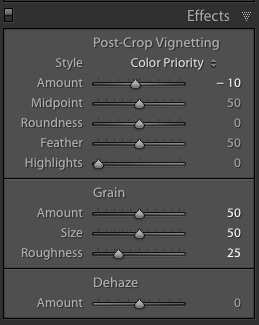
Look feel black white film Lightroom11In the bottom panel of the Develop module called Effects, make the following adjustments:

  • Using the sliders, set the Post-Crop Vignetting to -10. Older camera lenses tended to impart some vignetting onto the image. This will give the image an authentic older film quality to it. Ansel Adams famously burned (darkened) the edges to all of his prints.
  • Set the Grain Amount slider to 50.
  • Adjust the Grain Size to 50.
  • Set the Grain Roughness to 25.

5. Review your image and make the finishing touches

Adjust the sliders to increase or decrease the three Grain options to achieve your vision for the given image. You can also dial in or out the vignette as well. All images are different and all digital image files will respond differently to these adjustments based on the sharpness and ISO settings.

Look feel black white film Lightroom05

You may want to consider the following questions to evaluate your adjustments at this point. Do these edits help the image? Does it assist in the presentation of the image as more abstract so that it might connect better with the viewer? Did the adjustments achieve the look at feel of film that you were gong for? You can decide on the answers to these questions and make editing decisions as you see fit or recruit a friend to provide a critique.

If you like your results and would like to explore this topic further, there are free online software programs such as Analog Efex Pro that are part of Google’s Nik Collection. Presets are also available that will aid you in this process and even help you to achieve the look and feel of color film. You might want to consider making your own presets and applying them en masse to a given photo shoot or batch of images as well.

Look feel black white film Lightroom06

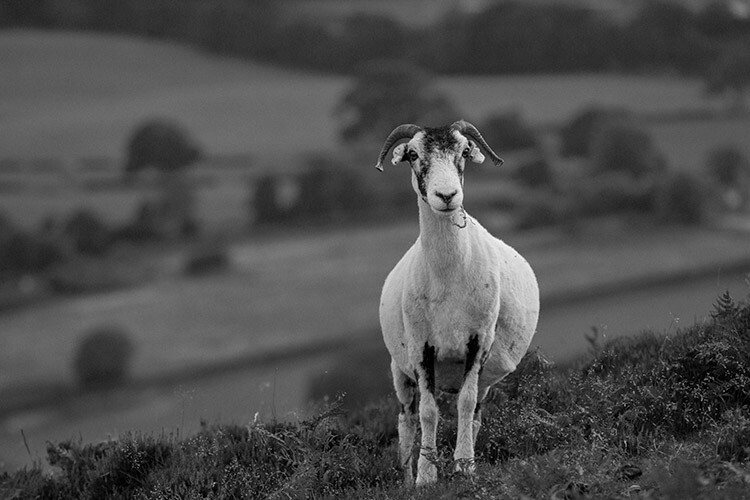
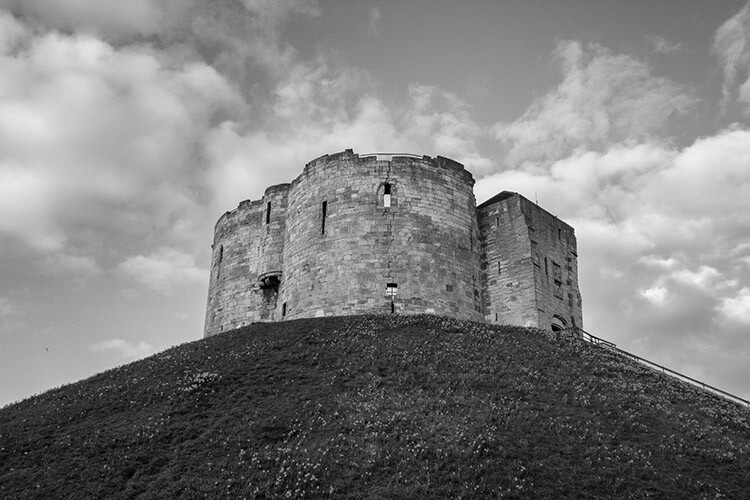
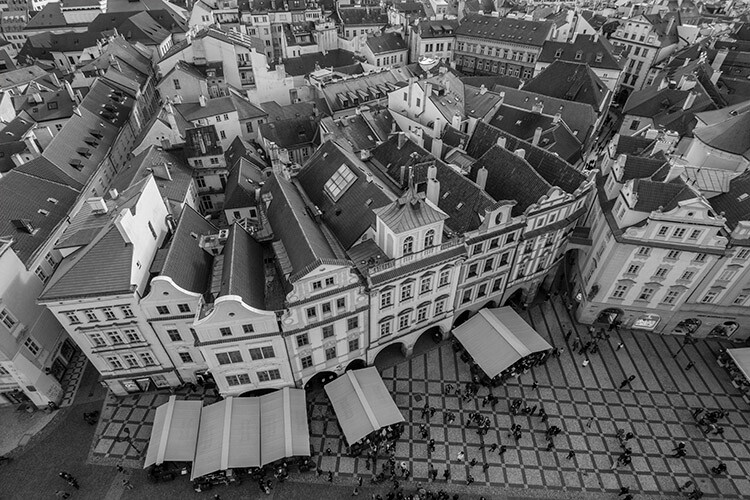
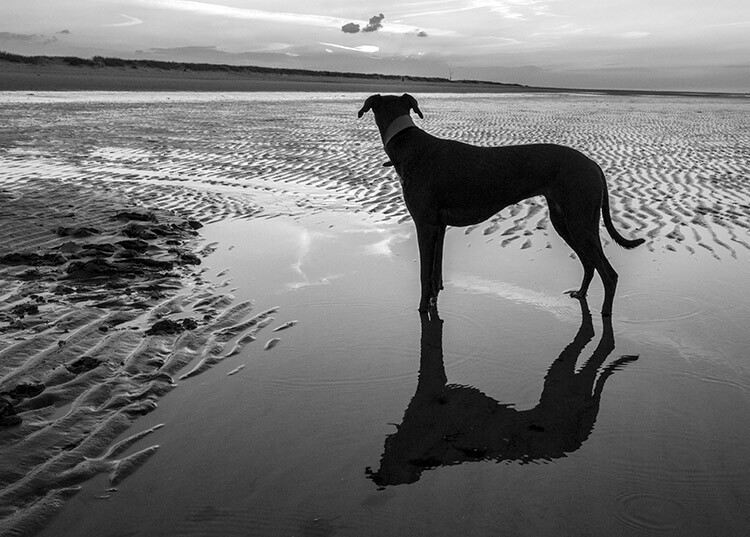
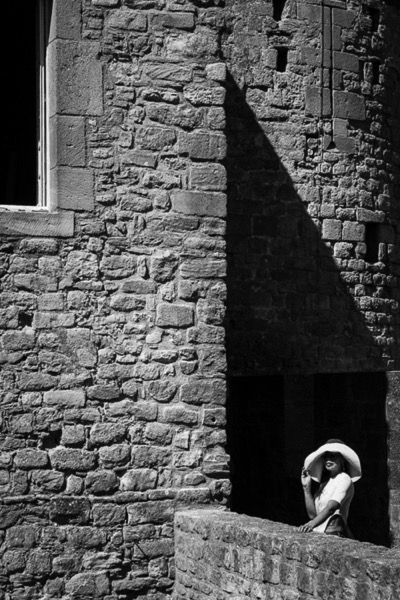
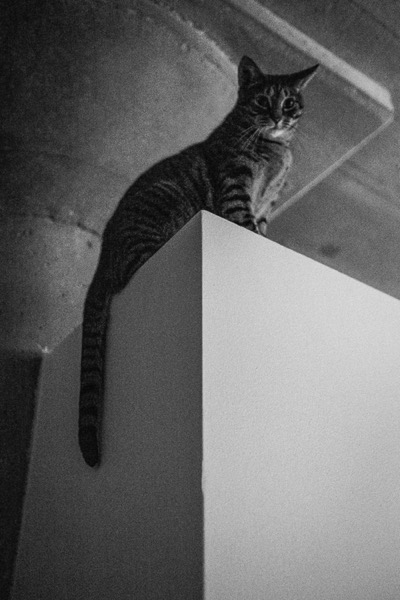
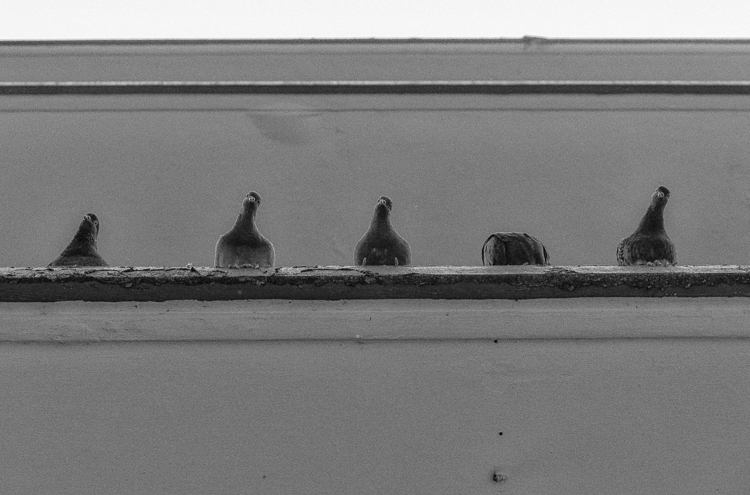
Below are a few images representing multiple genres that I made with a digital camera then edited to achieve the look I was going for using the settings in the Effects panel above.

Look feel black white film Lightroom07

Look feel black white film Lightroom08

Look feel black white film Lightroom09

Look feel black white film Lightroom10

Do you enjoy shooting film or reproducing the look of it using digital methods? Do you have a favorite way to achieve it? Please share in the comments below.

googletag.cmd.push(function() {
tablet_slots.push( googletag.defineSlot( “/1005424/_dPSv4_tab-all-article-bottom_(300×250)”, [300, 250], “pb-ad-78623” ).addService( googletag.pubads() ) ); } );

googletag.cmd.push(function() {
mobile_slots.push( googletag.defineSlot( “/1005424/_dPSv4_mob-all-article-bottom_(300×250)”, [300, 250], “pb-ad-78158” ).addService( googletag.pubads() ) ); } );

The post 5 Steps to Achieve the Look of Black and White Film Using Lightroom by Jeremy H. Greenberg appeared first on Digital Photography School.


Digital Photography School

 
Comments Off on 5 Steps to Achieve the Look of Black and White Film Using Lightroom

Posted in Photography


Top 6 Considerations to Help You Decide on Color or Black and White for Your Image

07 Nov

As soon as humans discovered that it was possible to capture black and white tones in a photographic image, a practical means of color photography was sought by those who dreamed of harnessing the full spectrum of visible light. Some of the very first photographic color experiments began in the mid-19th century with scientists trying to discover a material that could capture the color properties of the light that fell upon it.

In 1886, physicist and inventor Gabriel Lippmann created what was to be the first color photograph without the aid of any pigments or dyes. By 1906, Lippmann exhibited his process along with color images of a parrot, a bowl of oranges, a group of flags, and a stained glass window. His discovery earned him the Nobel Prize in Physics.

blackworcolor03

But Lippmann was onto something else in his experiments. Selecting subjects for his photographs that are not only inherently colorful but are also strongly associated with color within the human brain. Perhaps without realizing it, Lippmann was one of the first photographers to draw a line between color and black and white photography. Deliberately selecting subject matter that was exemplified by radiant colors to reproduce in a color medium.

Nowadays, digital photography grants photographers with both the blessing and the burden of being able to choose between color or black and white in post-production. It can often be a painstaking process deciding between the two. Although making a deliberate decision between a color or a black and white image is a skill that requires practice and trial-and-error, ultimately the choice is down to you, the individual.

blackworcolor07

However, there are a few points to consider if you find yourself stuck between the two. Here are the top six tips for deciding whether to go with color or black and white.

#1 Color Relationships

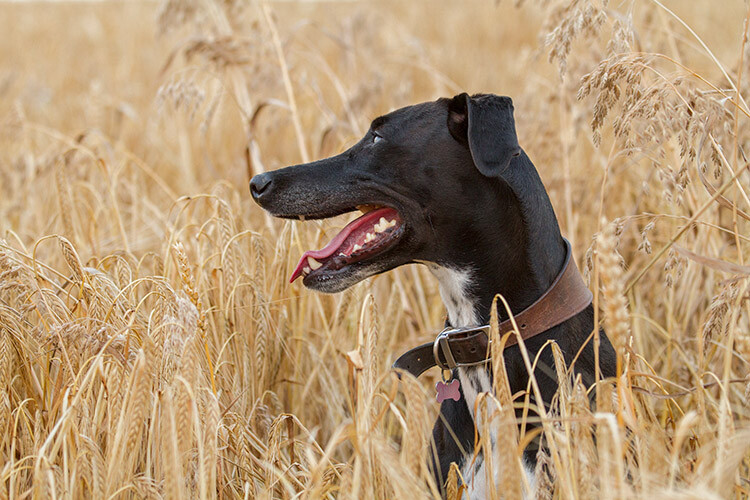
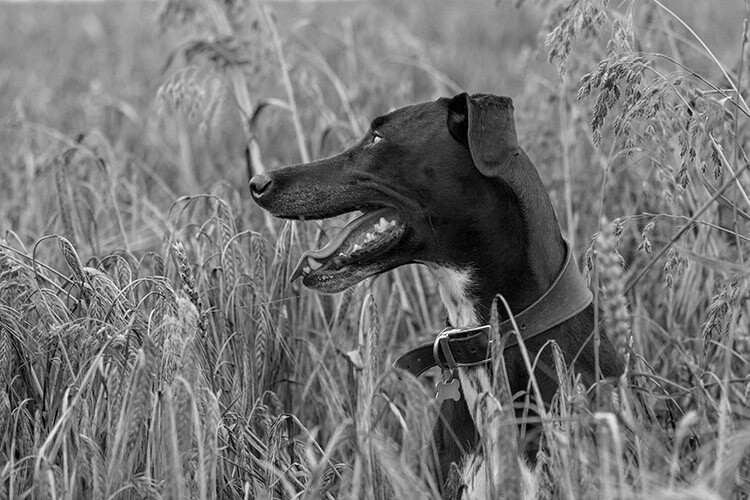
The first thing to consider when choosing between color or black and white is in fact, color itself! Ask yourself; what is it that draws you to the image? If you find that the relationship between distinct hues in your image are important, color is your best bet. Color doesn’t always translate to a black and white image successfully. An image with contrasting hues such as red and green often appears similar in tone in a black and white conversion, making for a less striking or muddy image.

blackworcolor04

black-white-or-color-considerations-04b

#2 Mood

Just as artists have used color in paintings to denote mood for centuries, the colors in a photograph can also create the emotional atmosphere of an image. Color is a powerful messenger. It can impact a viewer’s emotions, draw associations between ideas, and guide the eye around an image.

While black and white images generally evoke a sense of sensuality or seriousness due to its association with documentary photography, color can emphasize a feeling of joy or sadness depending on the color scheme. Just as we associate warm colors like red and orange with comfort and warmth, so do we relate to the colors in a photograph, giving the viewer clues about the image and creating a more immersive experience.

The tone or color balance of a photograph can point to a time of day or season which conveys a particular emotion or experience within the image. Black and white photographs appear to be more timeless than color images because they are free from color schemes associated with particular types of film, processes, or trends in digital processing. Black and white photojournalism is often hard to date with a cursory glance, so the subject matter remains relevant to the present day.

blackworcolor05

black-white-or-color-considerations-05b

See how the color version has a completely different mood?

#3 Attention

We see it all around us in marketing, architecture, and print. Color is used to grab a viewer’s eye and draw them in. But it is a fine balance and can often become complicated or convoluted if too much is happening with the picture. Look for a dominant color or color combination in your work. The most visual impact is often created by either isolating a particular color or having two colors from

The most visual impact is often created by either isolating a particular color or having two colors from well-separated areas of the color spectrum included in the one image. Colors such as red and green, or orange and purple (complementary colors) play off each other when they reach the human eye and create a sense of movement and action.

If your image has these combinations it might be better to stay with color and spend time emphasizing the colorful components of the image rather than converting it to black and white. A lack of color accentuates the light and shadows rather than eye-catching color combinations. Emphasis on particular colors can also be useful in forming a cohesive body of work, using color to contrast different imagery in a series, or uniting each piece with harmonious trends in color schemes.

Black&WorColor01

#4 Viewing time

Many photographers prefer black and white images for their tendency to distance the subject matter from reality. In documentary photography, the reverse is also true as humans see the world in color, and a rendition of the world in monochrome gives us pause to investigate. In both cases, removing color from a picture helps the viewer to focus on what is happening in an image. Due to the lack of cues that we naturally look for in color imagery, the viewer tends to look at a photograph more closely to ‘read’ what is happening in the image. A slower viewing time means that there is more time for the image to communicate with the viewer, impart emotion to a greater extent and perhaps stay with the viewer even after they have stopped looking at the work physically.

Due to the lack of cues that we naturally look for in color imagery, the viewer tends to look at a photograph more closely to read what is happening in the image. A slower viewing means that there is more time for the image to communicate with the viewer, impart emotion to a greater extent, and perhaps stay with the viewer even after they have stopped looking at the work physically.

blackworcolor09

#5 Content

To put it simply, black and white images create an emphasis on light, form, or texture. If the content of the photograph is more important than the color of the subject, or you feel that the color in a photo serves only as a distraction from the message you want the image to convey – then black and white is probably a good choice.

The focus shifts from colors to tones in black and white. So subjects like smoke, shadows, subtle changes in light and dust become more obvious in a black and white image. Because of our associations with these subjects and their otherworldly appearance, a sense of drama can become more apparent in a black and white image than that of a color image.

blackworcolor06

#6 Simplicity

Often a color photograph looks too busy or convoluted if it has too many colors going on at once. Sometimes converting the image to black and white is a way of separating those tones out into an image that is easier on the eye. Images with a wide range of tonal values tend to work well for black and white imagery. As well, most black and white images work best when there is a definite range from the blackest black through to the whitest white, with varying gray tones in between.

A few words of advice…

Beware the quick fix! Inexperienced photographers can sometimes fall into the trap of converting a sub-par image to black and white in order to quote, “save it”. Photographs that are out of focus, blurry, or poorly exposed may or may not be saved with a black and white conversion. But they do look suspiciously obvious when they are presented within a series of images that is mainly in color.

The problem with relying on black and white as a crutch is that you aren’t investigating what you did wrong in the first place. While a black and white conversion may or may not save a photograph, relying on converting images will not help you develop your own technical practice.

blackworcolor02

Digital photography is amazing, in that we have the option of shooting in color and switching to black and white in post-production. With film, this was at least a pain in the neck and at most, impossible. If you are unsure about an image, play around with it in Photoshop! Tools in Photoshop like the premade settings for black and white conversion are designed to give you a good set of variations to experiment with. If an image looks busy and over saturated, but you don’t want a full black and white conversion, try desaturating the image with the Vibrance adjustment layer or the Curves tool which are located in the Adjustment Layers panel.

Conclusion

Experimenting with color and black and white is fun, but no matter what option you do go with, be certain that you know why you chose that particular color scheme and make sure it adds to the sum of the image rather than detracting from it!

googletag.cmd.push(function() {
tablet_slots.push( googletag.defineSlot( “/1005424/_dPSv4_tab-all-article-bottom_(300×250)”, [300, 250], “pb-ad-78623” ).addService( googletag.pubads() ) ); } );

googletag.cmd.push(function() {
mobile_slots.push( googletag.defineSlot( “/1005424/_dPSv4_mob-all-article-bottom_(300×250)”, [300, 250], “pb-ad-78158” ).addService( googletag.pubads() ) ); } );

The post Top 6 Considerations to Help You Decide on Color or Black and White for Your Image by Megan Kennedy appeared first on Digital Photography School.


Digital Photography School

 
Comments Off on Top 6 Considerations to Help You Decide on Color or Black and White for Your Image

Posted in Photography


Paint it Black: 16 Mysterious Houses That Have Joined the Dark Side

20 Oct

[ By SA Rogers in Architecture & Houses & Residential. ]

black-houses-seven-gables-2

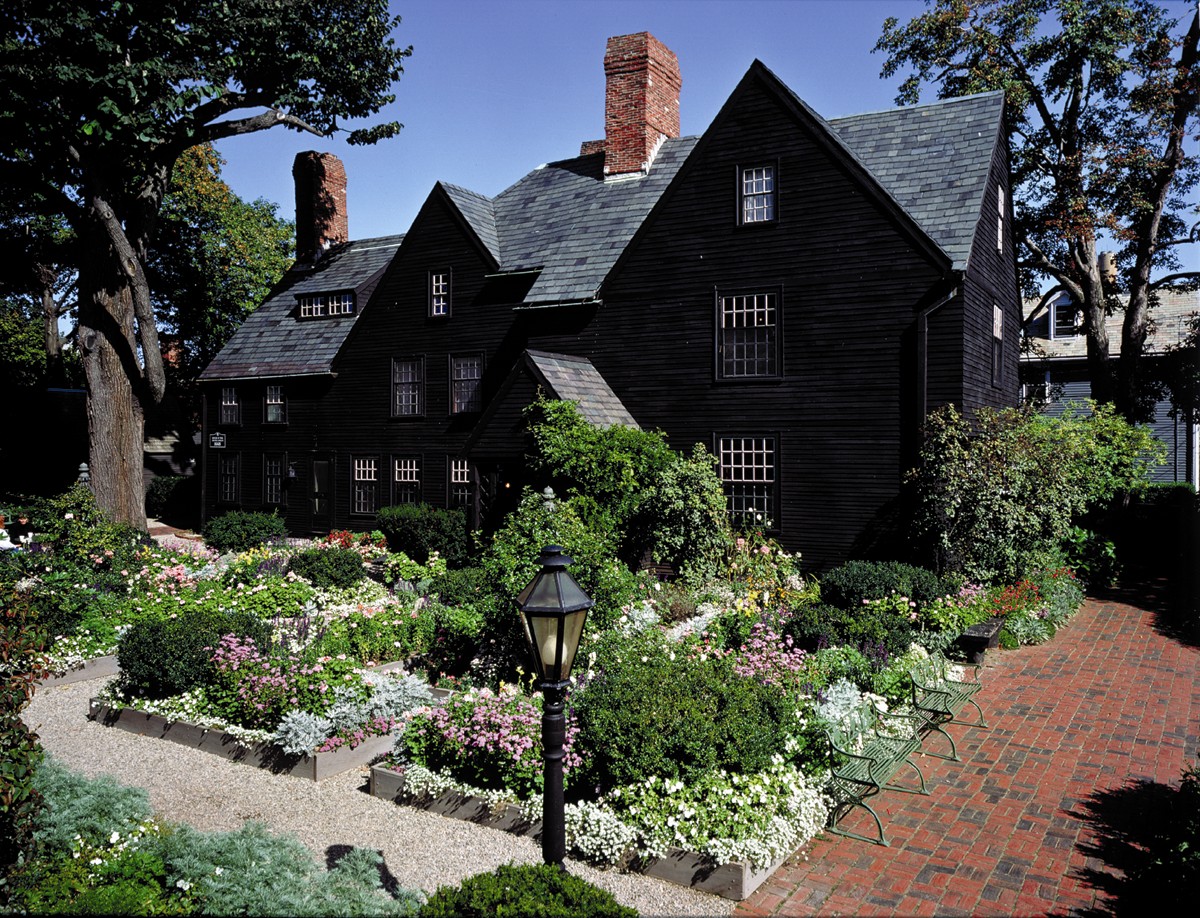
Most people can be divided into two pretty clear-cut categories: those who think black houses are creepy in a bad way, and those who love them for all their mysterious allure. Victorian houses in San Francisco, famously witchy mansions in Salem, modern homes in Japan and gingerbread houses in the woods of New York all get cool points when they’re painted top-to-bottom in shades of coal and pitch, though one abandoned black house in North Carolina looks legitimately scary in its dark disarray.

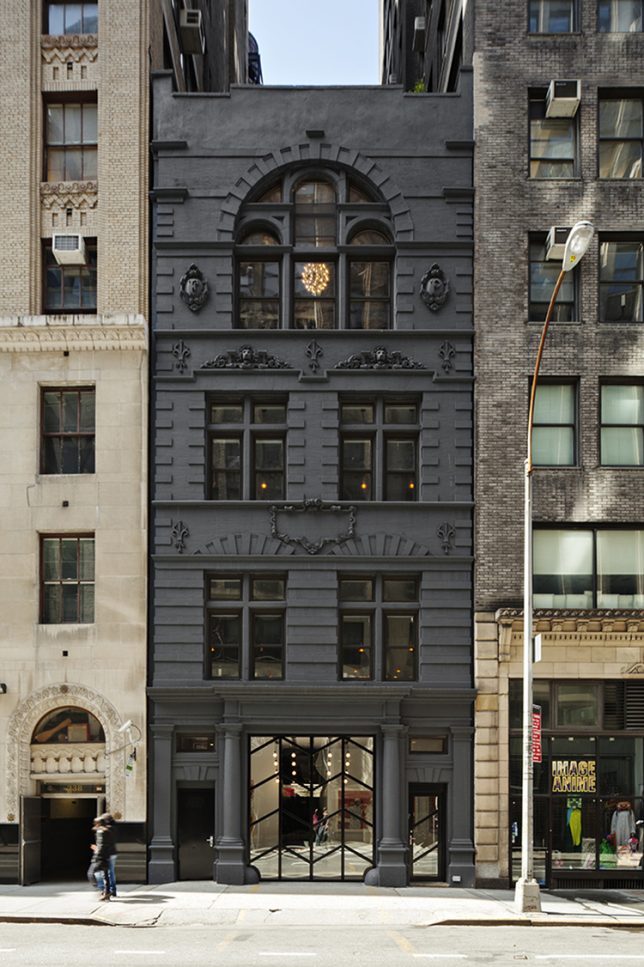
Black Ocean Firehouse, New York

black-houses-ocean

The black paint on this facade of a former New York City firehouse highlights all of the ornate neo-gothic architectural details, modernizing the 1890s structure for its new life as the headquarters for Black Ocean, a digital media company.

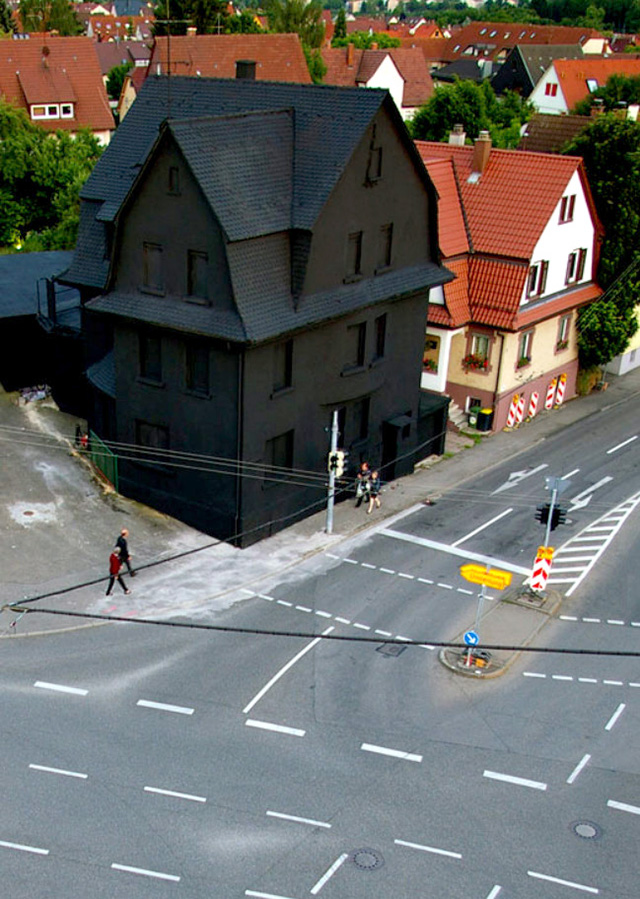
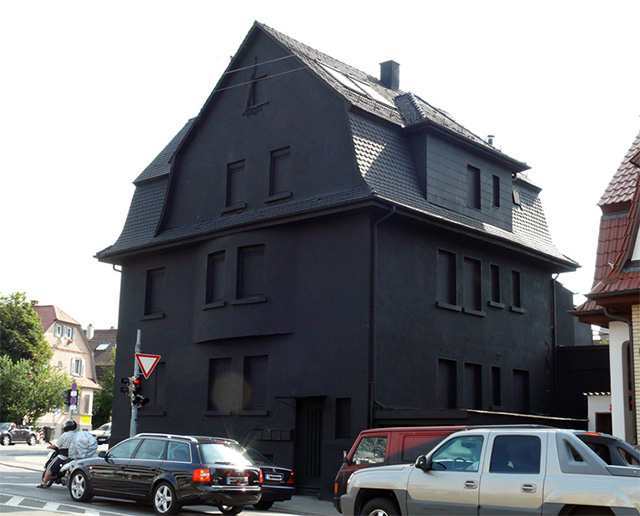
Haus in Schwarz, Germany

black-houses-schwarz-1

black-houses-schwarz-2

This house in Germany wasn’t painted pitch black all over until after it was condemned, as a sort of tribute before it was demolished, and that’s kind of a shame. It looks way cooler than its similarly-shaped neighbors on the same street. At night, it virtually disappears into the sky.

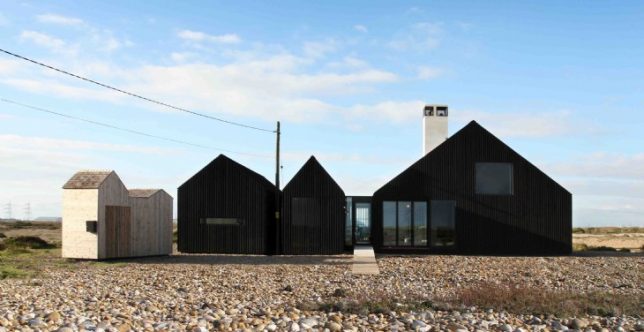
Shingle House by NORD

black-houses-shingle-1

black-houses-shingle-2

black-houses-shingle-3

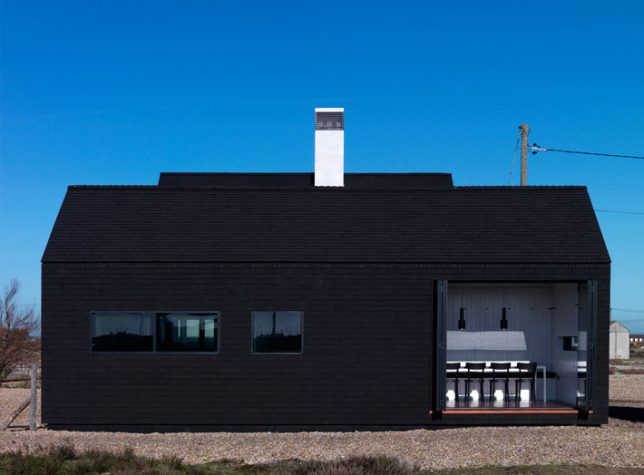
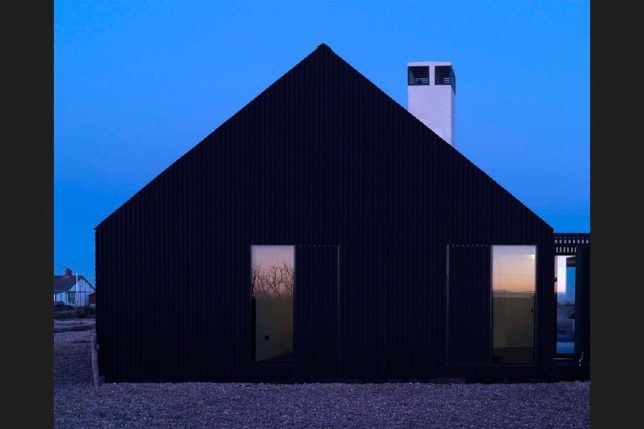
Located on the shingle beach of Dungeness, one of England’s most unique landscapes, this home by NORD stands out from a sea of fisherman’s huts with its pitch paint and tarred black roof. It’s available for rent as part of Living Architecture, a project offering vacations in striking works of modern architecture.

Abandoned Black House in North Carolina

black-houses-abandoned-1

black-houses-abandoned-2

black-houses-abandoned-3

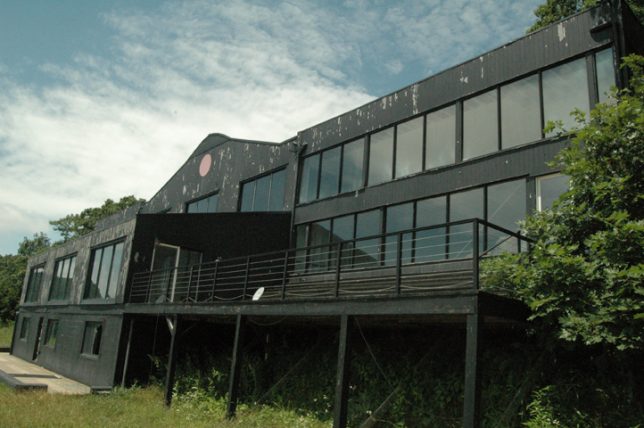
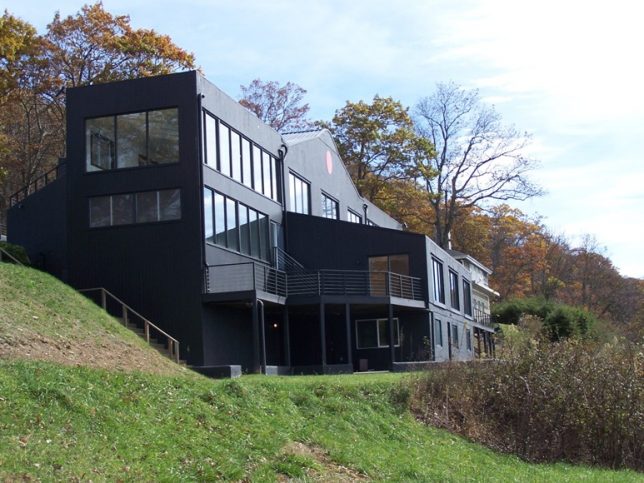
Unlike the other houses on this list, which simply don harmless black exteriors, this home on a peak in mountainous Western North Carolina is truly creepy. Located on Howard’s Knob in Boone, the home known as “The Cult House” has been abandoned for many years since its owners were went to prison, and has deteriorated after being broken into, vandalized and used as a party house. Once a million dollar home, it’s now peeling and crumbling.

Black-Fronted Residence for Park Place, London

black-houses-park-place

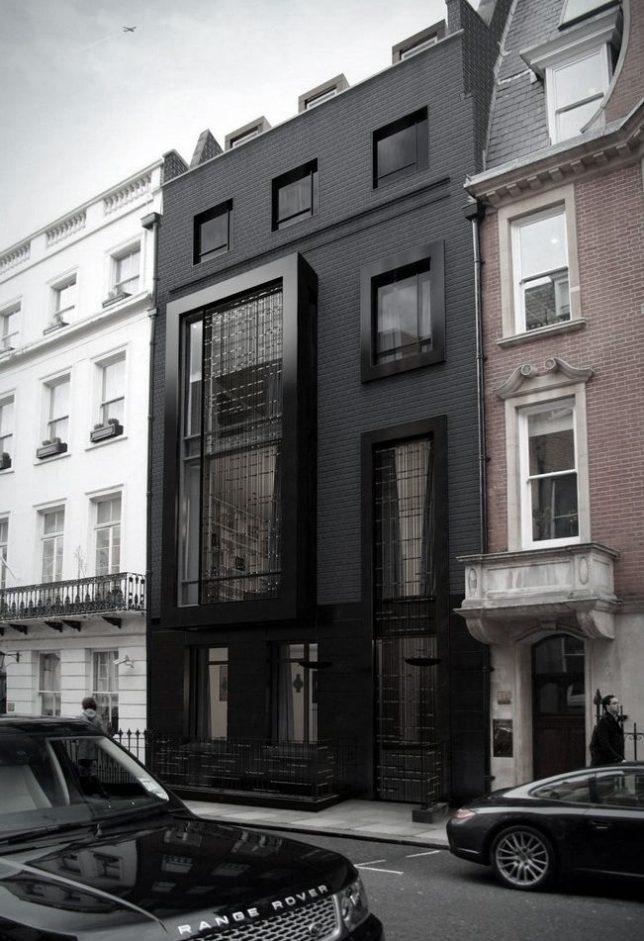
In London, SHH Architects won permission to convert a 1960s office into a home with a black facade. The original seven-story building was demolished and replaced with black brick, a double-story Oriel bay window with a decorative metalwork screen, and polished granite window frames.

Next Page – Click Below to Read More:
Paint It Black 16 Houses That Have Joined The Dark Side

Share on Facebook


[ By SA Rogers in Architecture & Houses & Residential. ]

[ WebUrbanist | Archives | Galleries | Privacy | TOS ]


WebUrbanist

 
Comments Off on Paint it Black: 16 Mysterious Houses That Have Joined the Dark Side

Posted in Creativity


Avoid These 5 Common Mistakes in Black and White Photography

29 Sep

Black and white photography has been around for nearly 180 years, ever since Louis Daguerre introduced the daguerreotype process to the world. It is still hugely popular despite the rise and ease of color photography. And yet, whenever I look at other people’s black and white photos, I see the same mistakes over and over. Are you making any of these? Let’s find out!

Black & white photography mistakes

Mistake #1: Shooting in JPEG format

Ouch! This is a big one. It’s the single worse thing you could do.

The difference between RAW and JPEG

To understand why, you need to appreciate the difference between Raw files and JPEGs. Raw files contain all the information captured by your camera’s sensor. A Raw file is not a finished picture file. It has to be processed (using software like Lightroom or Adobe Camera Raw) and converted to a JPEG or TIFF file in order to be usable.

You can think of a Raw file as the equivalent of a negative (as in from film photography). You can’t send a Raw file to a photo library or a magazine any more than you could send a negative. You need to process the Raw file (or scan and process the negative) first.

JPEG files are created by the camera. It takes the information captured by the sensor, processes it (much like you would do with a Raw file in Lightroom, but according to the camera’s built-in parameters), compresses it, discards the unused information, and saves it as JPEG. They don’t necessarily need processing in software like Photoshop or Lightroom, although most can be improved by doing so.

Advantages of shooting RAW

Using the Raw format gives you the following advantages.

  • Control: You process the file yourself, rather than letting the camera do it. You can process it to your taste from a stylistic point of view. Using Raw lets you interpret the file as many ways as you want. Using JPEG means the file gets interpreted one way only – the way the camera does it.
  • More data: The Raw file contains much more information than a JPEG, especially in the highlights and shadows, that you can draw out when you process the file. The extra information helps prevent banding in areas of smooth continuous tone like clear skies.

Black & white photography mistakes

Black & white photography mistakes

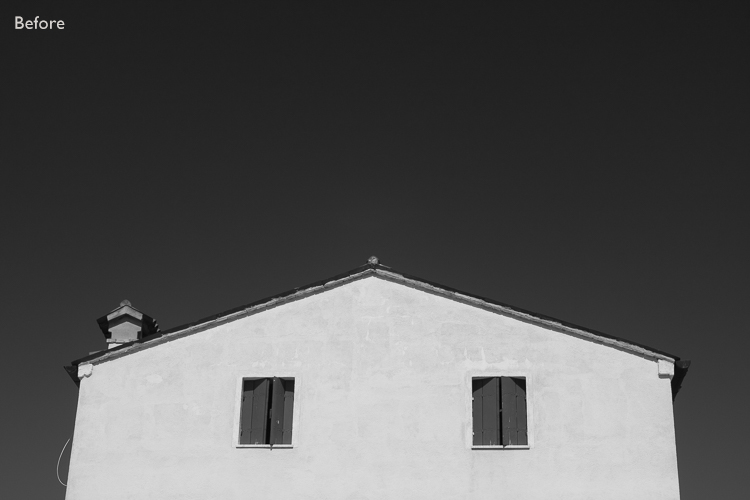
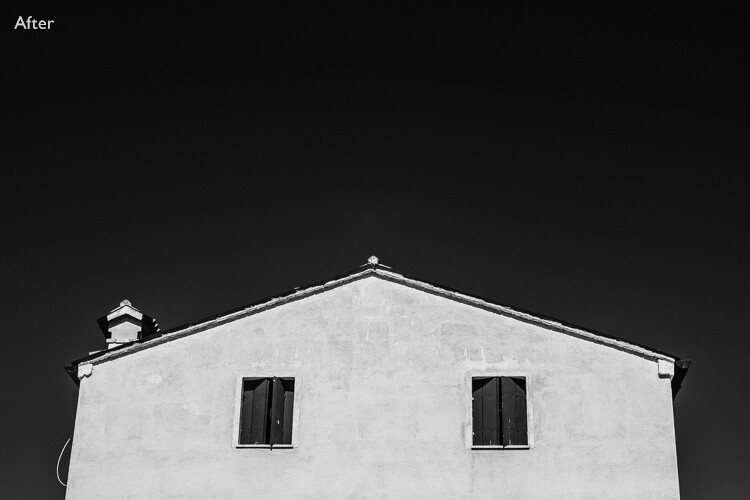
Using Raw helps you get from the before image shown above to the processed version here. With Raw, you can increase contrast and make the sky darker without introducing banding in the sky or halos along the edges of buildings. You can’t do this with JPEG files.

More advantages of shooting RAW

  • Adjust sharpness: JPEG files created by your camera are sharpened. The sharpening limits the amount you can change tonal values before introducing halos and artefacts. Yes, you can turn JPEG sharpening off in-camera – but how many people bother?
  • RAW format keeps the color info: Raw files contain all the color information captured by the sensor, so you can create a color version of the photo in Lightroom, Photoshop, etc., as well.
Black & white photography mistakes

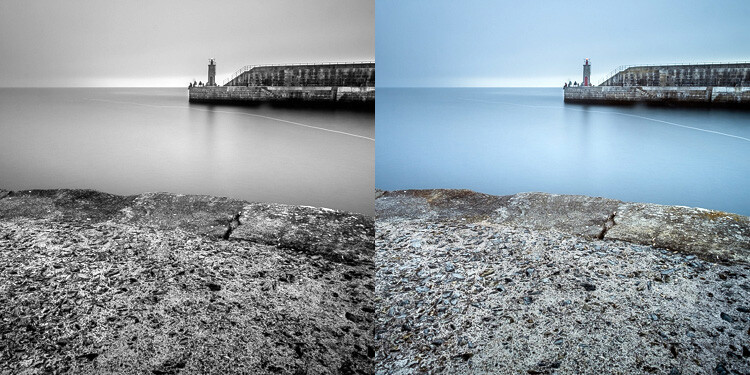
Using Raw let me create both a color and black and white version of the same image in Lightroom, without any loss of image quality.

  • Improvements: The software gets better every year. The version of Lightroom or Photoshop you use in five or 10 years time will be much better than the current one. With Raw, you can take advantage of these new improved tools and reprocess your images in the future.

So please, don’t use the JPEG format any more for black and white photography. There are, however, advantages to using your camera’s monochrome mode, as discussed in my article Mastering Monochrome Mode.

Mistake #2: Trying to save photos by making them black and white

Black and white is not a method for rescuing poorly crafted color photos. If your photo is bad in color, it will be bad in black and white too (although there are always photos that work better in black and white for compositional reasons).

There is nowhere to hide in black and white. In color, if the lighting or composition isn’t as good as it could be, the emotional impact of the colors in the photo may rescue the image (or, depending on how you look at it, cover up its shortcomings). Black and white images rely on factors like tonal contrast, textural detail, line and strong composition to work.

That’s why some photographers consider black and white to be a kind of higher art form than color photography.

Black & white photography mistakes

The texture in this photo is essential to make it work in black and white.

Mistake #3: Not processing the photos properly

Before digital cameras and Lightroom came along, many pro photographers used a professional printer to print their images. Creating top quality black and white prints in the darkroom is hard, and it was often outsourced to professionals.

This was a beneficial arrangement that let photographers concentrate full-time on photography and left printing to the specialists. Perhaps the best known pro printer in the UK is Robin Bell, who has worked with big names such as David Bailey, Terry O’Neil, and Eve Arnold.

Nowadays it is much easier to create beautiful black and white images in programs like Lightroom, Photoshop, or Silver Efex Pro 2, than it is to master the chemical darkroom process. But, sadly, many photographers don’t get to grips with the basics. The result is that their black and white photos are not nearly as good as they could be.

Take the time to learn how to use your software properly and your photos will get better.

Black & white photography mistakes

Black & white photography mistakes

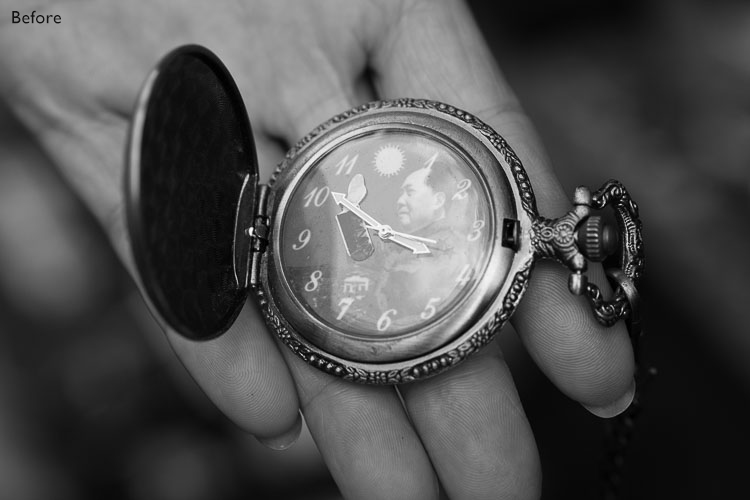
This before and after example shows the photo how it looked straight out of the camera compared to the final version, processed in Lightroom. Learn how to get from one to the other in order to get the most out of your black and white images.

Mistake #4: Not shooting in the best light

One of the advantages of black and white is that you can often shoot in lighting conditions not suitable for color photography. For example, on a cloudy day you can create beautiful black and white seascapes with a tripod and neutral density filters (this is called long exposure photography). Yet, in color, you would really need to shoot close to dawn or sunset to make the most of the scene.

But what some people do is use black and white to shoot in lighting conditions that are simply unsuitable for the subject. Using black and white isn’t the solution. The important skill is in matching the light to the subject. This takes a while to learn but it’s very important. Don’t be lazy just because it’s black and white.

Black & white photography mistakes

A long exposure photo made on a cloudy day. The light suits the subject – it wouldn’t have worked in sunny weather.

Mistake #5: Not having a strong composition

Black and white is a true test of your compositional skills. The best monochrome images use visual elements like tonal contrast, texture, line, shape, pattern, and negative space. The emotional power of color can mask poor composition. But in black and white there is nowhere to hide. You have to learn how to use these building blocks of composition effectively.

That starts with learning how to see them. For example, you can’t use lines in your compositions if you haven’t trained yourself to see straight, diagonal, or curved lines in the scene.

The good news is that once you understand the fundamentals of composition in black and white, you will instinctively apply them to your color photos as well.

Black & white photography mistakes

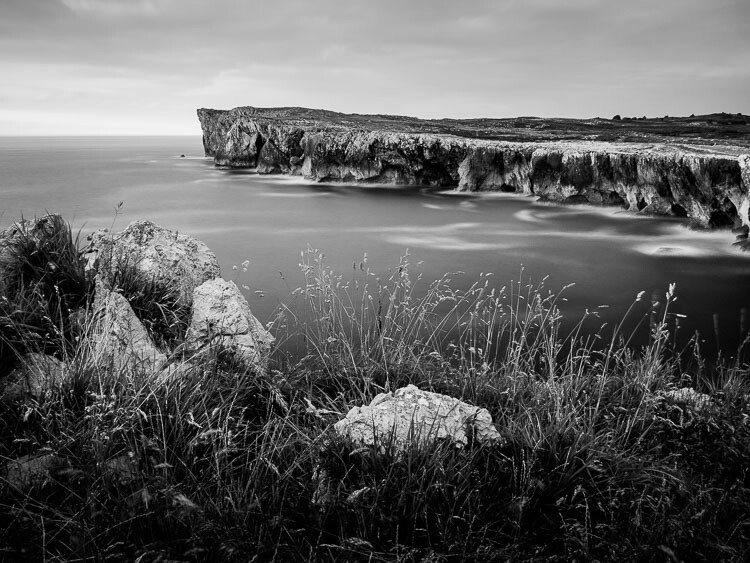
I took a lot of care with the composition of this landscape photo. It has foreground interest and plenty of texture – important elements in black and white landscapes.

Have you made any of these mistakes?

Can you think of any other mistakes that photographers make when working in black and white? Please share your thoughts in the comments below.


If you’d like to learn more about black and white photography then please check out my ebook Mastering Lightroom: Book Three – Black & White.

googletag.cmd.push(function() {
tablet_slots.push( googletag.defineSlot( “/1005424/_dPSv4_tab-all-article-bottom_(300×250)”, [300, 250], “pb-ad-78623” ).addService( googletag.pubads() ) ); } );

googletag.cmd.push(function() {
mobile_slots.push( googletag.defineSlot( “/1005424/_dPSv4_mob-all-article-bottom_(300×250)”, [300, 250], “pb-ad-78158” ).addService( googletag.pubads() ) ); } );

The post Avoid These 5 Common Mistakes in Black and White Photography by Andrew S. Gibson appeared first on Digital Photography School.


Digital Photography School

 
Comments Off on Avoid These 5 Common Mistakes in Black and White Photography

Posted in Photography


Blow-Up Party: Inflatable Black Plastic Dance Club & Bar

28 Sep

[ By SA Rogers in Drawing & Digital. ]

inflatable-club-1

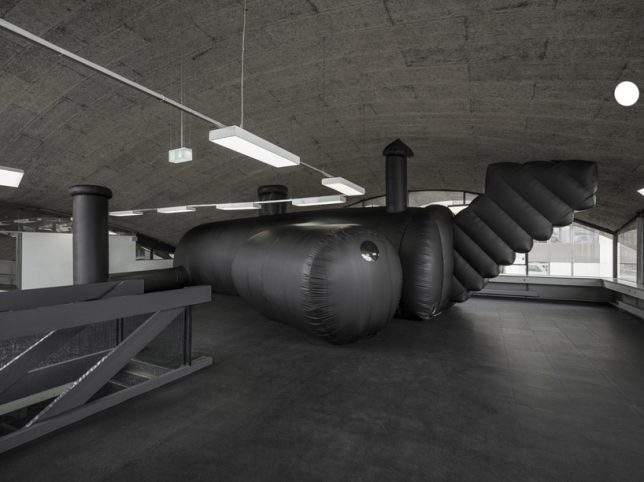
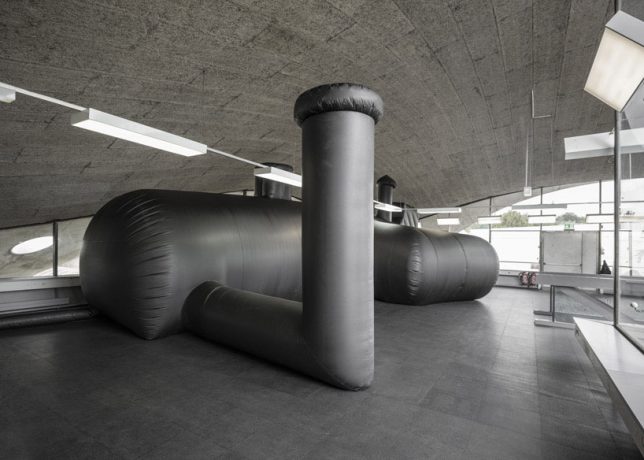
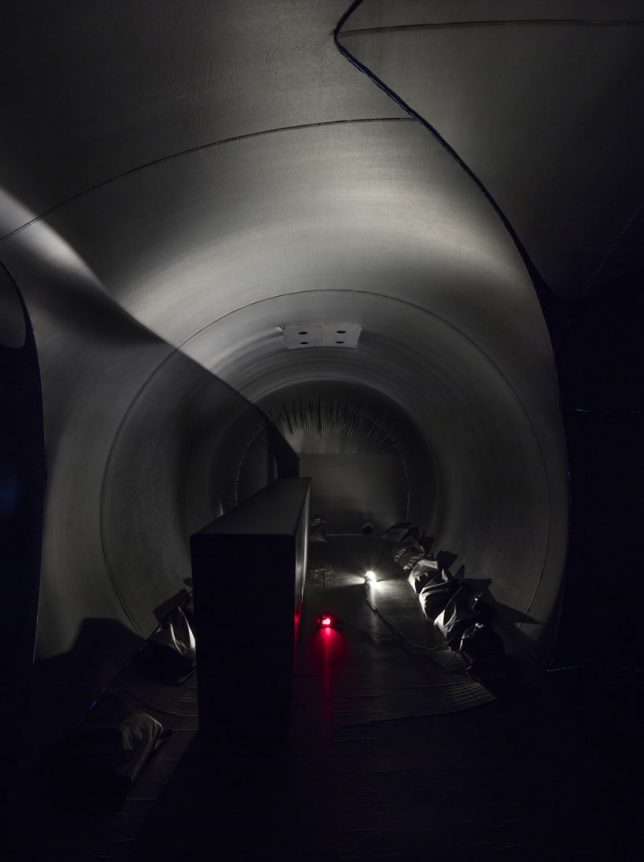
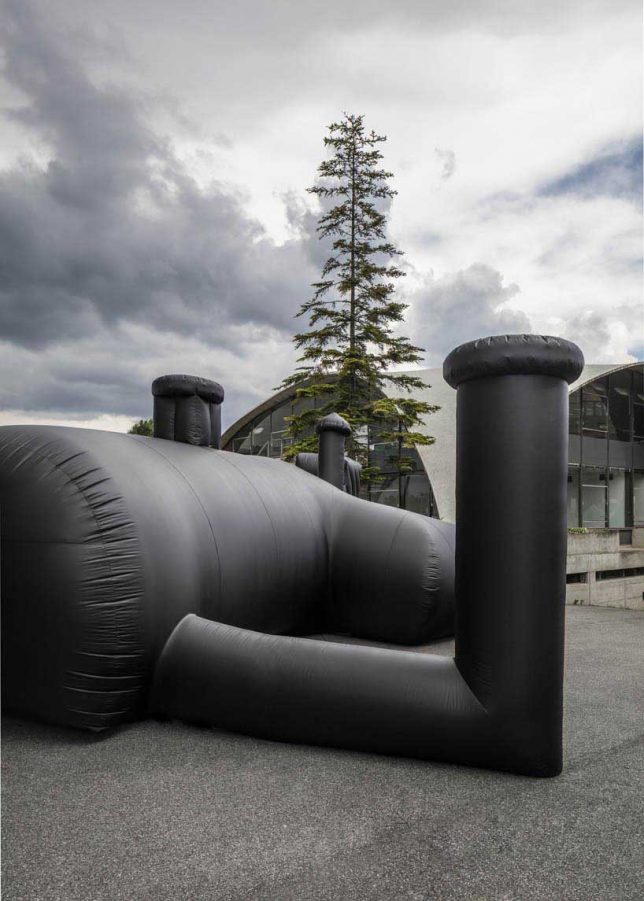
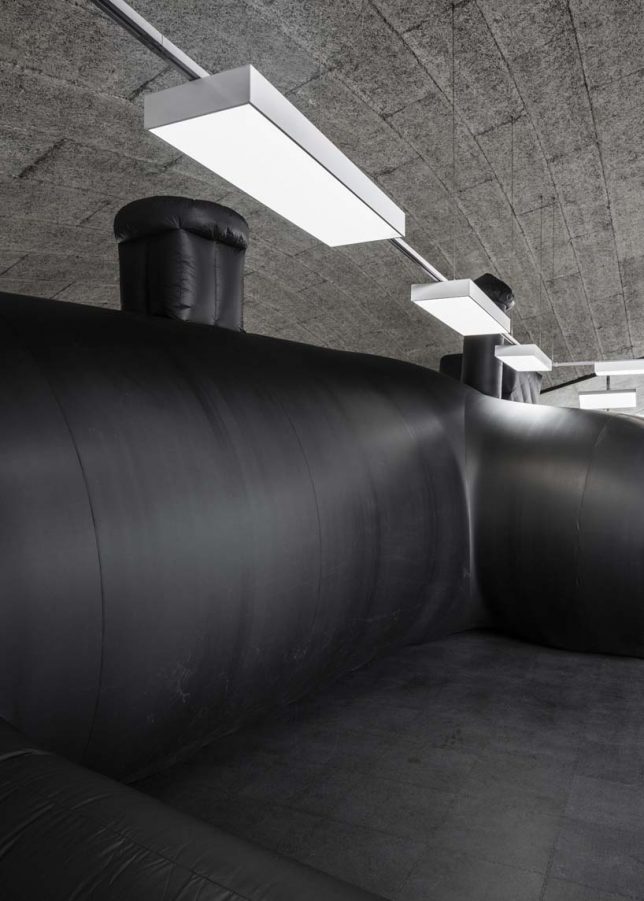
Deliberately dark and pipe-like to recreate the feel of being in a secret subterranean space, this inflatable nightclub and bar by Bureau A comes complete with blow-up benches, tables and a DJ booth. Constructed entirely from black PVC membrane, ‘Shelter’ was commissioned as a party venue for the Federation of Swiss Architects (better known as Bund Schweizer Architekten) and installed inside the cold, concrete Pavillon Sicli in Geneva.

inflatable-club-2

inflatable-club-3

“The underground fascinates and completes the hygienic and pan optical work of the over-ground,” say the architects. “For one night, the black hole of a neat and well-organized society is revealed as a potential for distortion, a potential of let-go and provoke, with a slight smile, the unsaid and the sweat. The mysterious black vessel lands in the modern space of a highly engendered concrete vault; a great spatial condition to explore the corners of what is hidden.”

inflatable-club-4

inflatable-club-6

The space inside is clearly quite limited and dark, so it would have been interesting to see what it looks like with people inside. The concept of inflatables for temporary spaces certainly isn’t new, but it’s still pretty cool to see these structures show up in unusual shapes and configurations, standing tall within mere moments of arrival on-site and then disappearing so quickly, it’s as if they were never there.

Share on Facebook


[ By SA Rogers in Drawing & Digital. ]

[ WebUrbanist | Archives | Galleries | Privacy | TOS ]


WebUrbanist

 
Comments Off on Blow-Up Party: Inflatable Black Plastic Dance Club & Bar

Posted in Creativity


How to Process a Black and White Landscape Photo Using Lightroom

20 Sep

The process of converting a color landscape photo into a black and white image using Lightroom goes beyond changing the treatment to black and white. That’s just the start. From there you have to tweak and refine, using all tools that Lightroom gives you, to craft an image that matches the vision you carry in your mind.

Black & white landscape in Lightroom

A good way of showing you how this works is to take you step by step through the process that I use when converting a landscape photo to black and white in Lightroom. You’ll see the techniques that I use. and more importantly, the reasoning behind them. This should give you the insight you need to use these tools on your own images.

1. Make sure you have a good image for black and white

The first step is to make sure that you are working with a photo that suits a black and white treatment. Good black and white photos have strong composition that make use of texture, line and tonal contrast.

It’s a good idea to convert only your best landscape photos to black and white. It will take you some time to convert a photo, so why waste it on anything less than your best work?

2. Prepare the color photo

First, open your photo in Lightroom’s Develop module. Then, I do two things before converting a color landscape photo to black and white.

  1. Use the Spot Removal tool to get rid of any dust spots.
  2. Set White Balance to Auto so that the color balance of the photo is more or less neutral. Photos with strong color casts are harder to successfully convert to black and white.

If you are converting a photo that you have already processed in color it’s a good idea to make a Virtual Copy and work on that. This way you don’t lose the work you have done on the original color version.

Black & white landscape in Lightroom

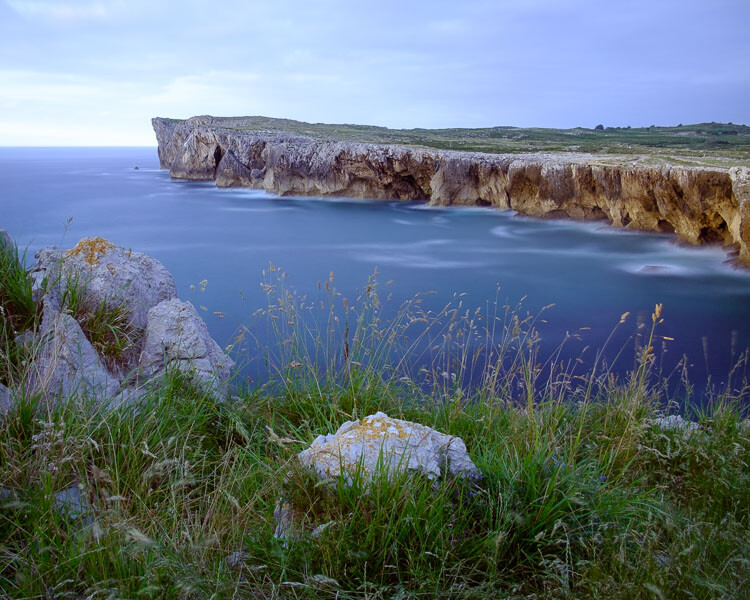
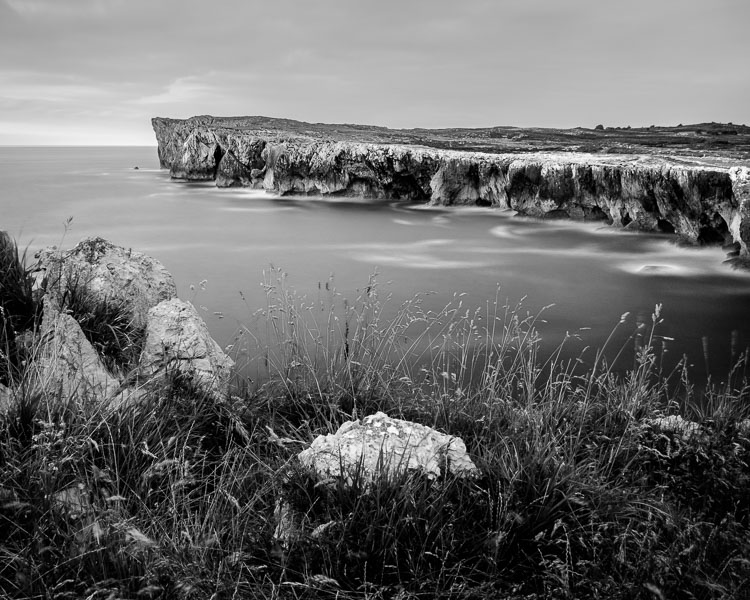
Here’s the color photo that I am going to convert to black and white.

3. Analyze your photo

This takes practice and becomes easier the more you convert photos to black and white. The idea is to make some big picture decisions about what you want to achieve with your conversion. With my photo I can see that:

  • The sky is too bright, and I would like to make it darker.
  • The distant cliffs have beautiful texture that I would like to bring out
  • So do the grass and stones in the foreground.
  • The sea and sky are smooth, creating a visual contrast against the heavily textured parts of the photo.
  • There is good tonal contrast between the grass and stones in the foreground.

This analysis helps me set some goals for the conversion.

4. Convert the image to black and white

There are three ways to convert the photo to black and white using Lightroom. They all do the same thing, so it doesn’t matter which of these methods you use:

  1. Set Treatment to Black & White in the Basic Panel.
  2. Use the keyboard shortcut; V .
  3. Click on B&W in the HSL/Color/B&W panel.

The conversion is likely to look quite flat. That’s okay – it’s easy to add some contrast.

Black & white landscape in Lightroom

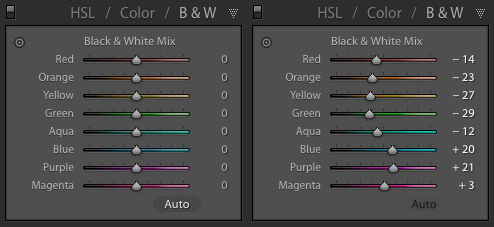
Now go to the B&W tab in the HSL / Color / B&W panel. It will look like one of the these two examples below depending on your Preference settings in Lightroom:

Black & white landscape in Lightroom

If you go to the Presets tab in Preferences (see below) you’ll see a tick box titled Apply auto mix when first converting to black and white. If this is unchecked, all the sliders will be zeroed, as in the screenshot on the left (above). If it is ticked, Lightroom takes a guess at what settings to use to make a good conversion and you’ll see something like the screenshot on the right (above).

Black & white landscape in Lightroom

My preference is to leave the box unticked.

When I convert the image to black and white I go to the HSL / Color / B&W panel and click the Auto button at the bottom of the B&W tab. If I like the result, I leave it there. If I don’t, I use the undo command (Ctrl-Z on a PC, Cmd-Z on a Mac) to undo it.

In this case, I liked the result of pressing the Auto button, so I left the settings as they were. I rarely do any work more than this in the HSL / Color / B&W panel.

Black & white landscape in Lightroom

5. Basic panel adjustments

Now it’s time to make some global adjustments in the Basic panel. Global adjustments are those that apply to the entire image.

The image is flat so the first step is to increase contrast.

Going back to the analysis I did earlier, I can see that I want to emphasize the textures in the photo. Clarity is the ideal tool for this. Increasing Clarity also increases contrast. You should adjust both Clarity and Contrast sliders to get the best overall effect, without overdoing it. You can also use the Highlights and Shadows sliders to adjust the brightness of the lightest and darkest tones in the image individually.

In the end I set Contrast to +40, Clarity to +60, Shadows to -13 and Highlights to -49. Remember that every image is different, and that these settings only apply to this one.

Black & white landscape in Lightroom

6. Make local adjustments.

Now it’s time to make some local adjustments. Local adjustments are those that just affect part of the image. Lightroom gives you three tools to do this – the Radial filter, the Graduated filter and the Adjustment Brush.

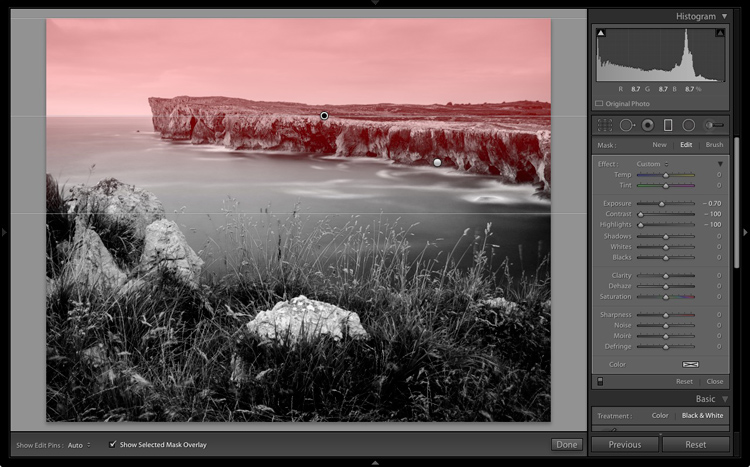
I want to make the sky darker in this photo, so I will do that with a Graduated filter. This screenshot shows the location of the Graduated filter (the area affected by the local adjustment is shown in red).

Black & white landscape in Lightroom

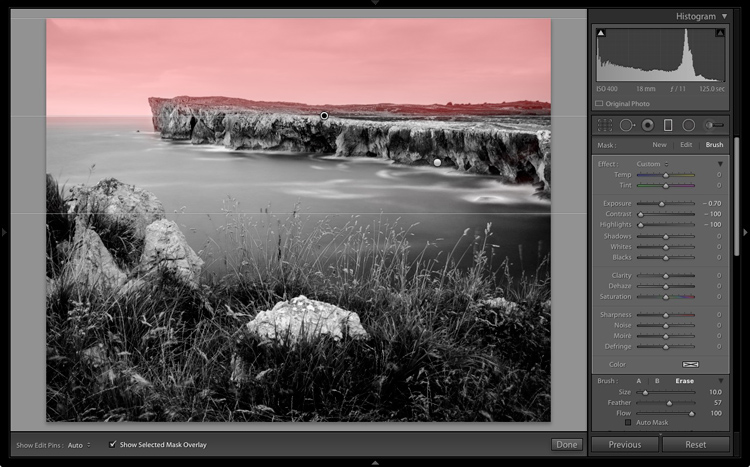
I used the brush to erase part of the Graduated filter so that the sea and cliffs weren’t affected.

Black & white landscape in Lightroom

I set Exposure to -0.70, Contrast to -100 and Highlights to -100. Again, the settings required depend on your photo.

My aim here was to make the clouds darker and reduce the contrast so that they appeared smoother. The contrast in this image is in the cliffs, the sea and the foreground, not the sky. Less contrast in the sky means that it won’t compete with those areas for attention.

Black & white landscape in Lightroom

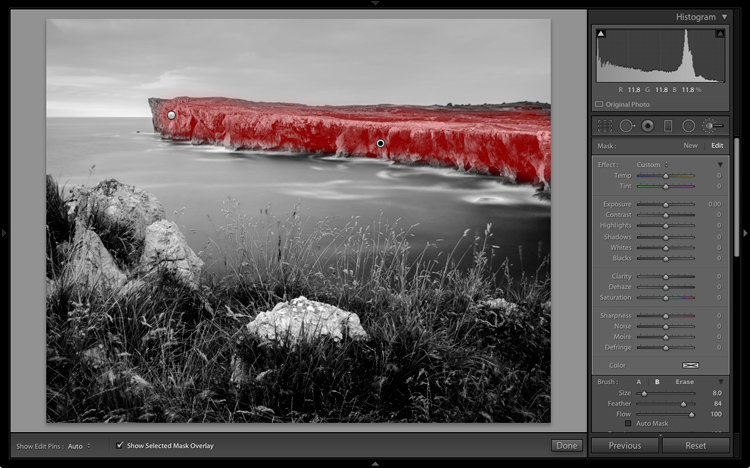
The next local adjustment is on the cliffs in the background. I used the Adjustment Brush for this. Here’s the area affected by the local adjustment (shown in red again).

Black & white landscape in Lightroom

I set Clarity to +86 and Shadows to +16.

Black & white landscape in Lightroom

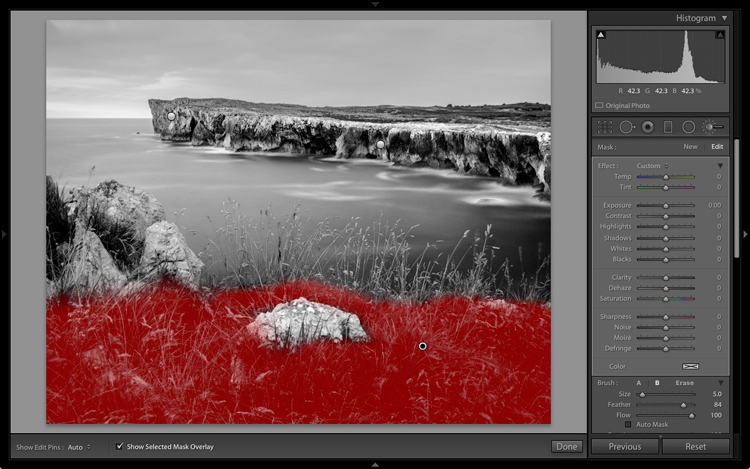
You may remember that in my analysis I decided that I wanted to make the foreground darker to emphasize the tonal contrast between the grass and the rocks. I’m going to use the Adjustment Brush for this as well.

First, I added an Adjustment Brush to make the grass darker. Here’s the area affected (shown in red).

Black & white landscape in Lightroom

I set Highlights to -64, Shadows to -48.

Black & white landscape in Lightroom

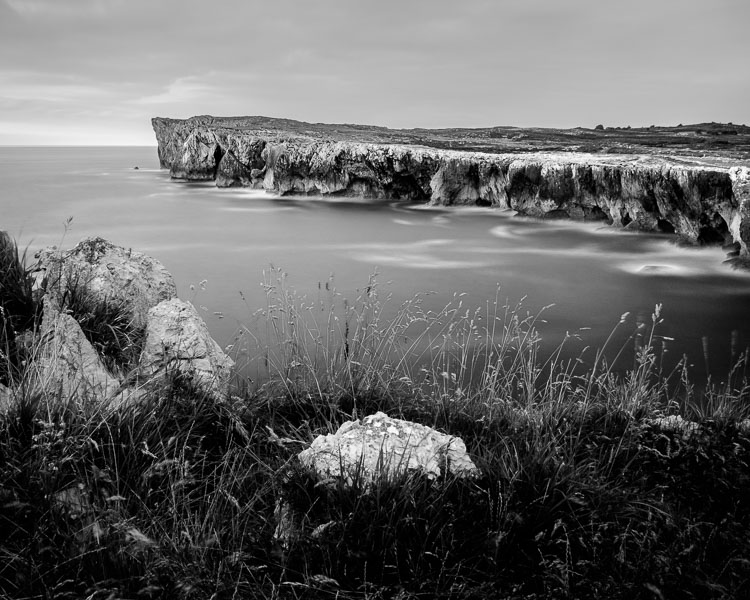
That left a light patch in the bottom left corner, and a dark patch under the stone in the center. I used the Adjustment Brush two more times, to make the light patch darker and the dark bit lighter, creating a more even tone across the bottom of the image.

Then I used the Adjustment Brush on the stones, with a Clarity adjustment to bring out the texture. Below is the result of all those adjustments.

Black & white landscape in Lightroom

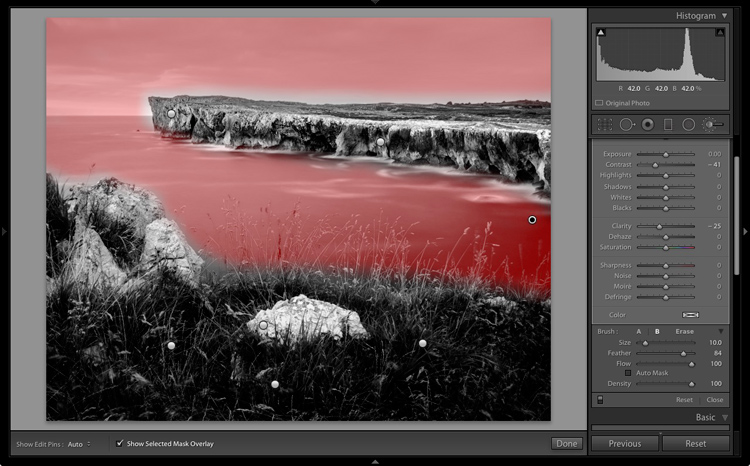
Next I used the Adjustment Brush again and selected the sea and the sky.

Black & white landscape in Lightroom

Then I set Contrast to -41 and Clarity to -25. The idea was to remove some of the contrast and texture from these areas, to emphasize the smoothness and lack of texture and set up a stronger visual contrast against the heavily textured cliffs and foreground.

Black & white landscape in Lightroom

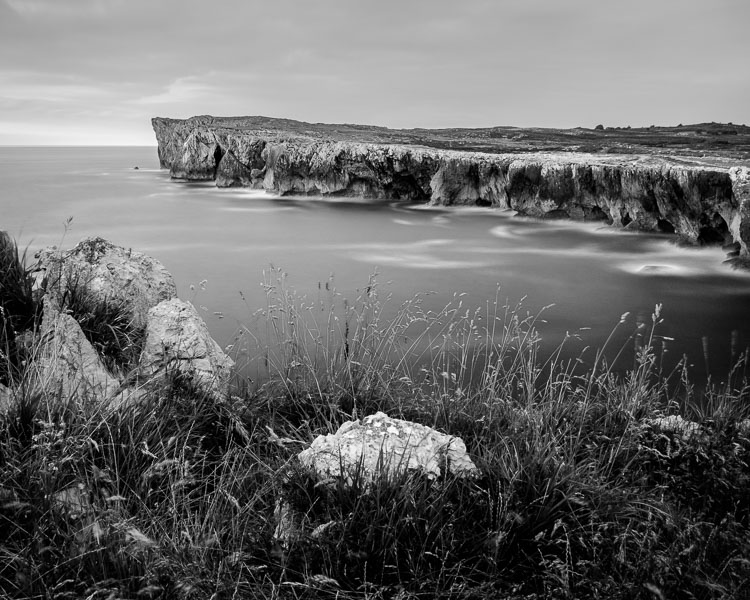
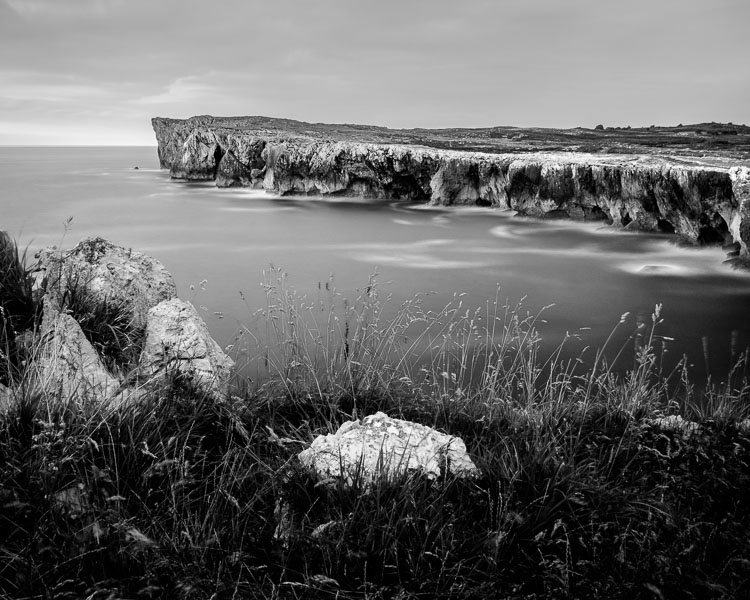
That’s it. The final image could certainly be refined a little further, but it’s important to pick a point at which to stop so that you don’t spend too much time on the conversion. Where this point is depends on how much of a perfectionist you are, and how much time you are willing to devote to a single image.

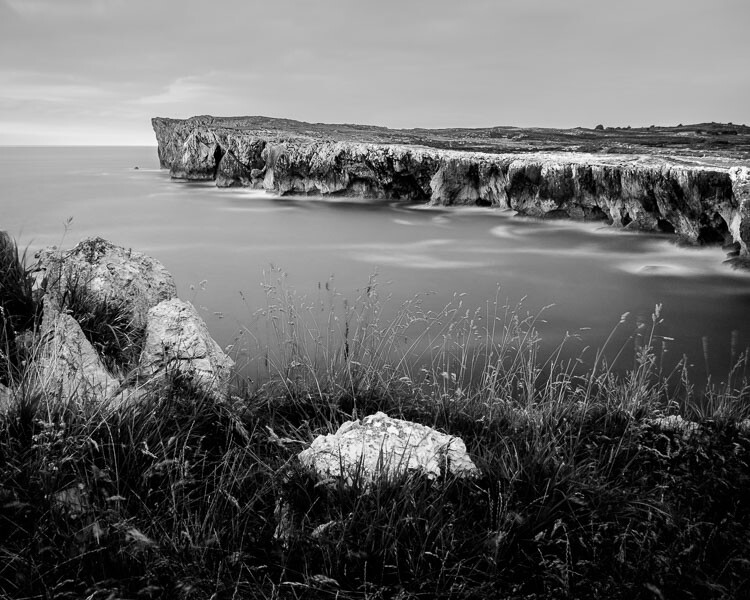
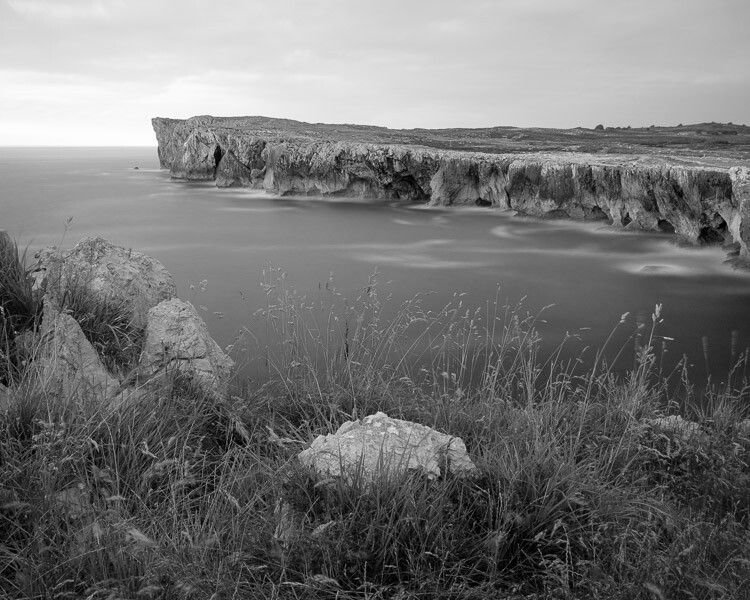
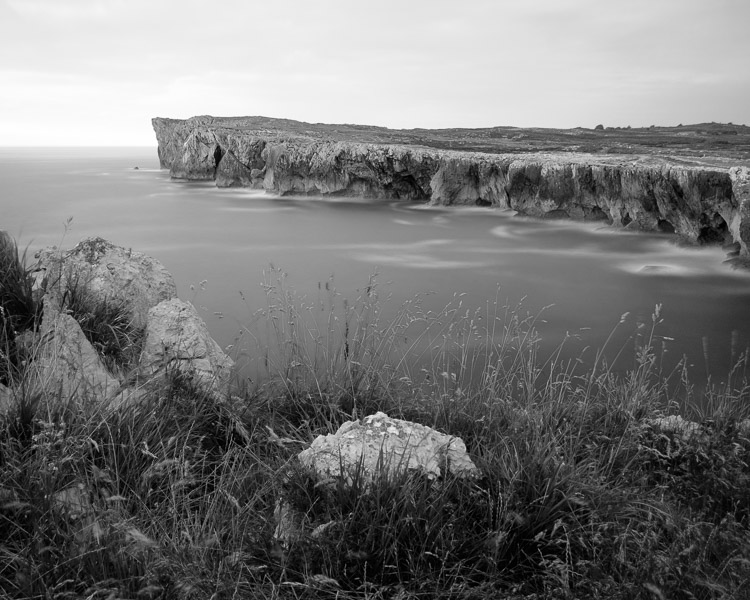
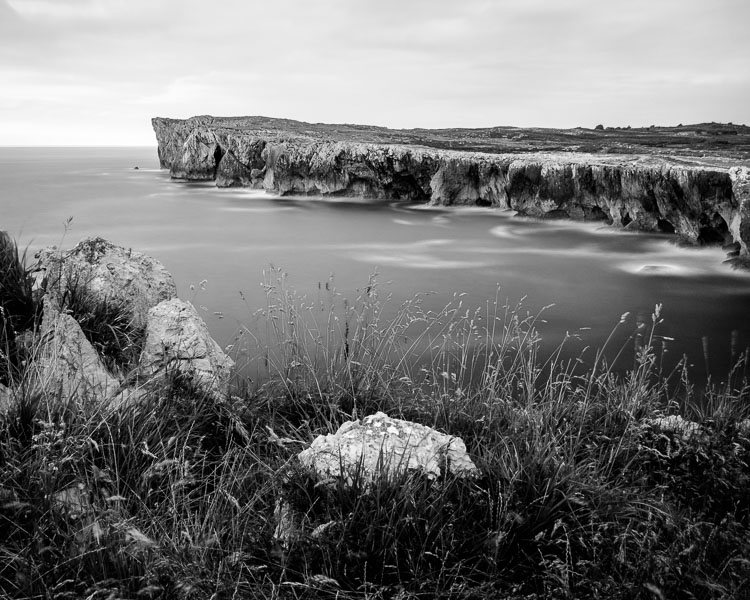
Here’s the initial black and white conversion and the final result together so you can see the difference more clearly.

Black & white landscape in Lightroom

Original color image.

Black & white landscape in Lightroom

First version of black and white conversion.

Black & white landscape in Lightroom

Final image.

There are lots of ways you can convert landscape photos to black and white in Lightroom. I’ve only touched on the topic here, so if you have anything to add please let us know in the comments.


Mastering Lightroom

If you want to know more about processing black & white photo in Lightroom then please check out my ebook Mastering Lightroom: Book Three – Black & White.

googletag.cmd.push(function() {
tablet_slots.push( googletag.defineSlot( “/1005424/_dPSv4_tab-all-article-bottom_(300×250)”, [300, 250], “pb-ad-78623” ).addService( googletag.pubads() ) ); } );

googletag.cmd.push(function() {
mobile_slots.push( googletag.defineSlot( “/1005424/_dPSv4_mob-all-article-bottom_(300×250)”, [300, 250], “pb-ad-78158” ).addService( googletag.pubads() ) ); } );

The post How to Process a Black and White Landscape Photo Using Lightroom by Andrew S. Gibson appeared first on Digital Photography School.


Digital Photography School

 
Comments Off on How to Process a Black and White Landscape Photo Using Lightroom

Posted in Photography


Black Rock City’s Biggest Art Car: Converted 747 Lands at Burning Man

04 Sep

[ By WebUrbanist in Art & Installation & Sound. ]


black rocket

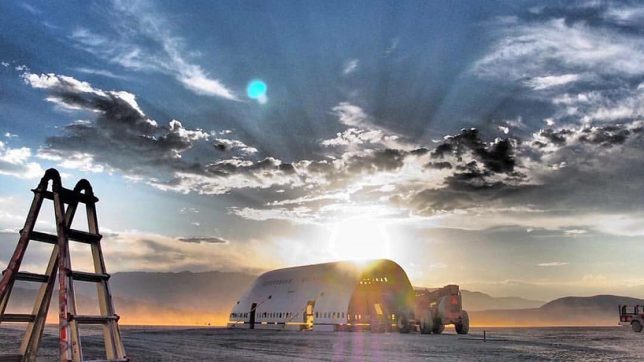
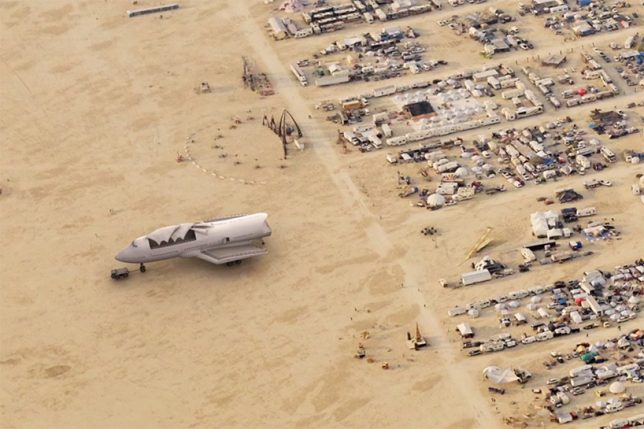
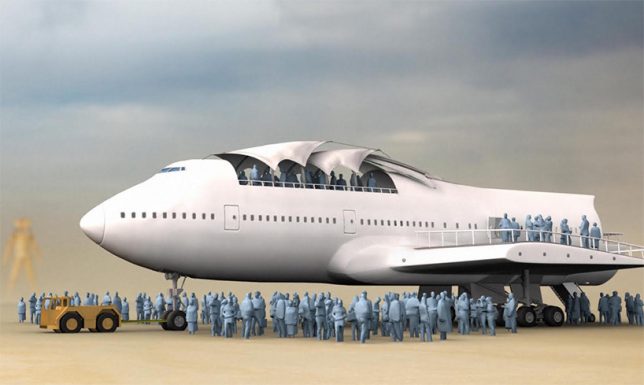
A temporary metropolis for tens of thousands built annually in Nevada’s remote Black Rock Desert, the Burning Man festival is famous for its extreme architecture and creative art cars, the latter now including a transformed Boeing 747.

black rock 747

747 arts venue

747 in city

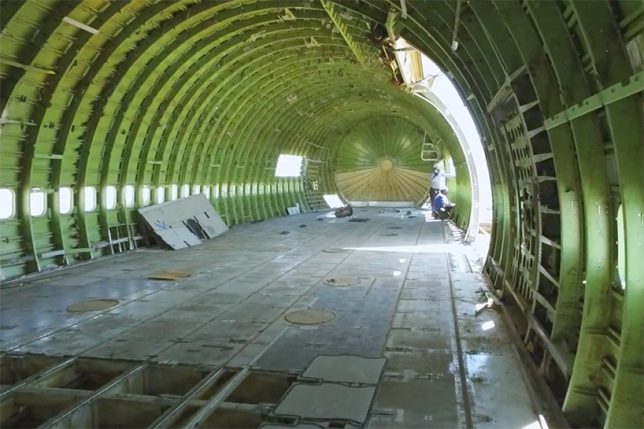
Fitting this year’s theme of Da Vinci’s Workshop (art and technological innovation), the huge gutted hull has been in the works for seven years thanks to Big Imagination Foundation and their supporters.

747 shell

converted 747

The carved-out jumbo jet invites people to hop on board for speakers, parties and other events. It is being towed around the dusty playa by a surprisingly small service vehicle, a bit like one might see on the tarmac at an airport.

747 work

747 gutted

747 interior

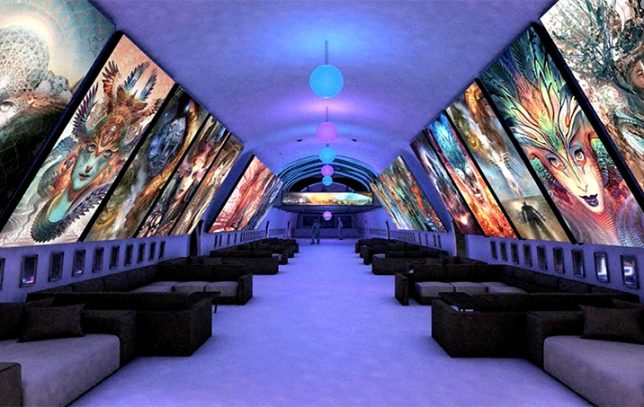
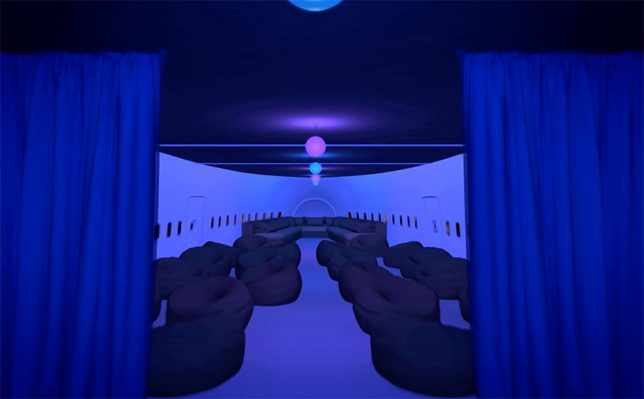
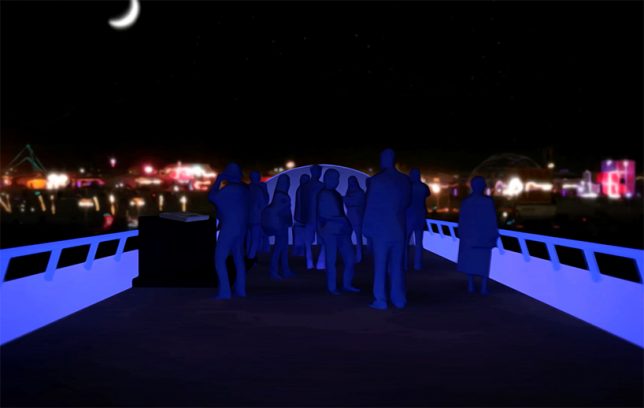
A team of over 100 artists, engineers and other creatives helped strip and reconstruct the original plane, reinforcing its removed structure with custom interior supports and adding a series of staircases.

747 art car huge

747 screens

747 lounge

747 roof

747 in person

Anyone who has attended the festival will know that one of the most fascinating experiences is the serendipity of boarding a big art vehicle and seeing where it leads, either spatially or experientially (or both). This may be the best such adventure yet, featuring interactive art, music and other live performances and inspirational talks.

Share on Facebook


[ By WebUrbanist in Art & Installation & Sound. ]

[ WebUrbanist | Archives | Galleries | Privacy | TOS ]


WebUrbanist

 
Comments Off on Black Rock City’s Biggest Art Car: Converted 747 Lands at Burning Man

Posted in Creativity


How Black and White Photography Taught Me to Capture Emotion

04 Sep

My first experience with photography was a black and white film photography class in high school. We were given one roll of film per week, and told to, “go capture something compelling.” Though learning photography on a fully manual, very low-tech camera, resulted in a bit of a learning curve when I switched over to digital (hello metering modes, back button focus, and exposure compensation!), one of the most important things that my first black and white photography class taught me was the importance of capturing emotion in photography.

capture-emotions-2

Ted Grant–an amazing Canadian photojournalist–has said, “When you photograph people in color, you photograph their clothes. But when you photograph people in black and white, you photograph their souls!” While I’ve certainly seen my fair share of color photos that beautifully capture emotion, I also relate to Grant’s words very much.

capture-emotions-4

Black and white strips the image down to the basics

In a sense, black and white photography strips away all the extras, and forces you to think about things like contrast and emotion, in a way that isn’t always be as crucial when you’re shooting in color. Whether intentional or not, it can be easy to use color and props as a sort of crutch in photography. I love a photo of a toddler licking a giant multi-colored lollipop just as much as the next person. But, the tendency with images like that can sometimes be for the color and the whimsy to carry the image, rather than the emotion.

Starting in black and white photography taught me that it’s not enough to have perfectly matched clothing, or a brightly colored chandelier hanging from a tree in the woods. It’s not enough to stand someone in front of a beautiful backdrop and tell them to smile. Compelling photographs do more than that. They give you a glimpse into what the person being photographed is feeling right at that moment.

capture-emotions-6

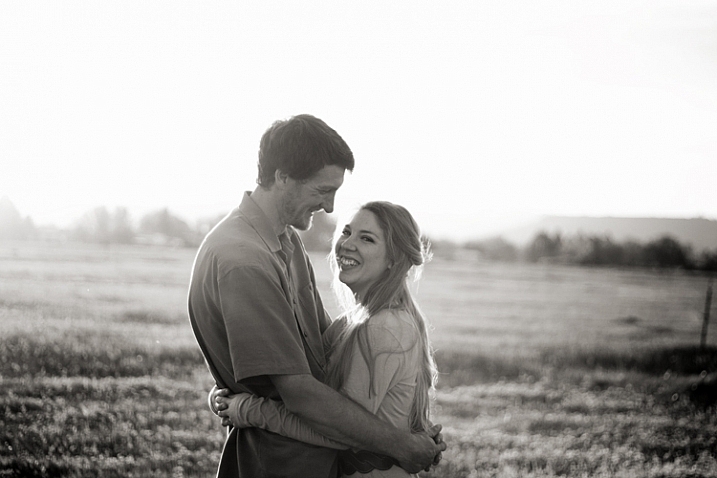
Black and white only challenge

If you’ve never had experience shooting exclusively in black and white, I highly suggest giving it a try. Most digital cameras have the capacity to shoot black and white right in camera (consult your manual). It’s a really great exercise to occasionally force yourself to do so. Grab a friend, and go shoot 50 or 100 frames in black and white.

I do recommend shooting black and white right in camera for this exercise, because it completely eliminates color from the equation. It’s a quick and easy way to see which images are successful in black and white, and which are not. It also helps train your brain to “think” in black and white. Once you’ve completed this quick exercise, take a look at your images. Are your black and white images compelling? If not, one of the reasons may be that the images are lacking emotion.

capture-emotions-1

Getting emotion into your images

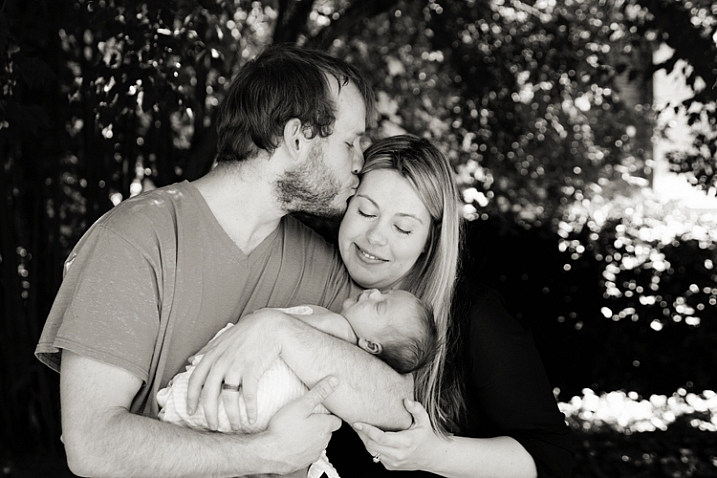
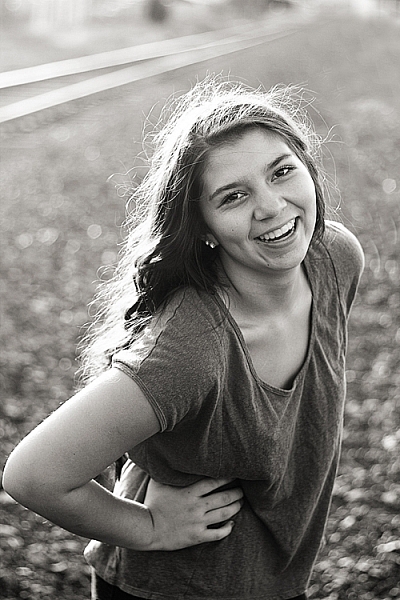
As a photographer, there’s no exact science to capturing emotion in your photos. Some children will be naturally expressive, and some couples will be naturally affectionate. Other people may need a bit of help getting comfortable enough to express themselves in front of the camera. As always, building rapport with the people that you’re photographing, before and during the session, will go a long way in helping them relax and feel comfortable.

capture-emotions-8

Your subjects will mirror you

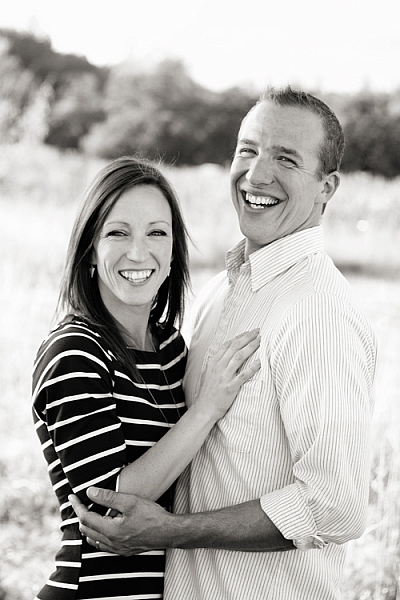
In my experience, the key to capturing emotion, is helping your subjects to actually feel the same emotion that you’re trying to capture during the session. One simple and effective tip is to remember that humans naturally mimic the emotions and attitudes of those around them. As the photographer, if you come into the session laughing and joking around, it’s much more likely that the people you’re photographing will start to laugh and joke around as well.

So, keep a book of silly knock knock jokes tucked into your camera bag, or come prepared to tell a funny story that happened to you recently. If you’re having a bad day, make the conscious decision to leave it behind for the duration of your session, and even fake it until you make it if you must. It really does make a difference!

Couples

capture-emotions-3

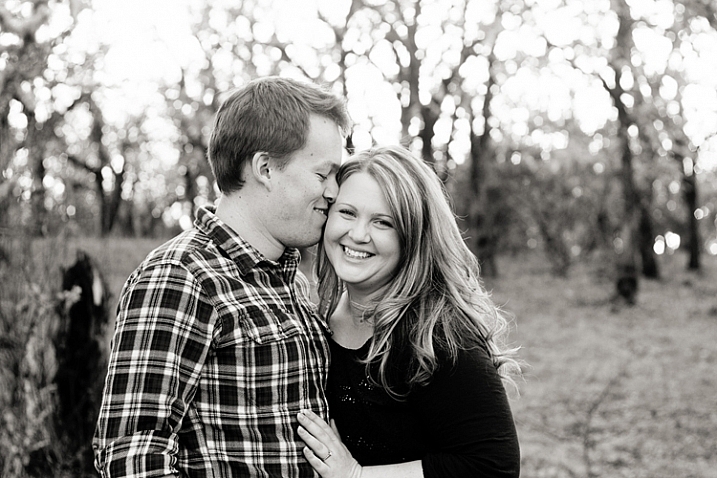
When photographing couples, asking them to tell you a story about how they met, got engaged, or the best part of their wedding, are all topics that can help cultivate real emotions during your session. Ask the question, then wait and watch carefully, with camera in hand, for interaction between the couple during the story.

Kids

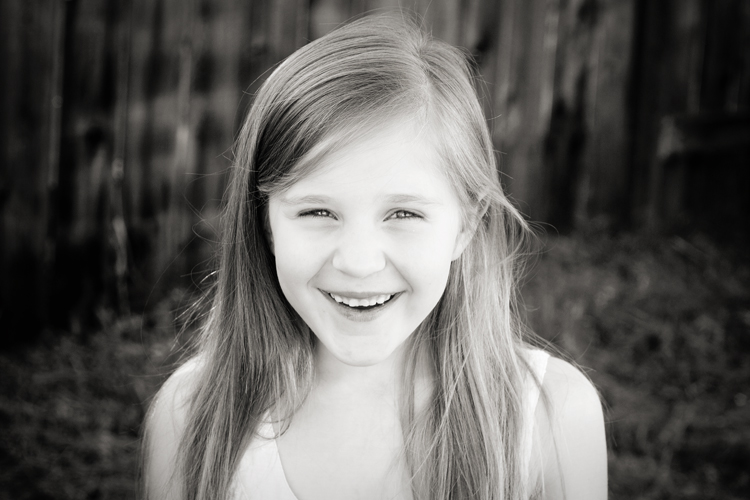
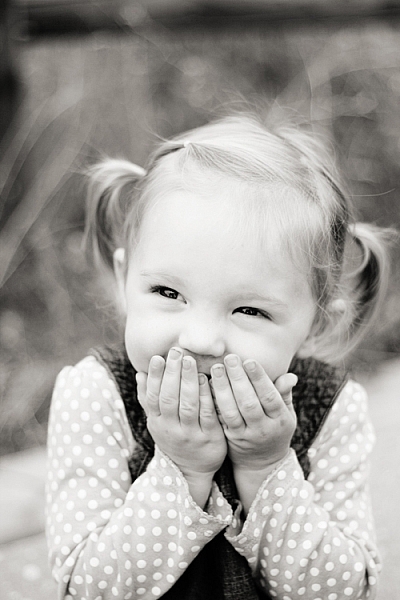
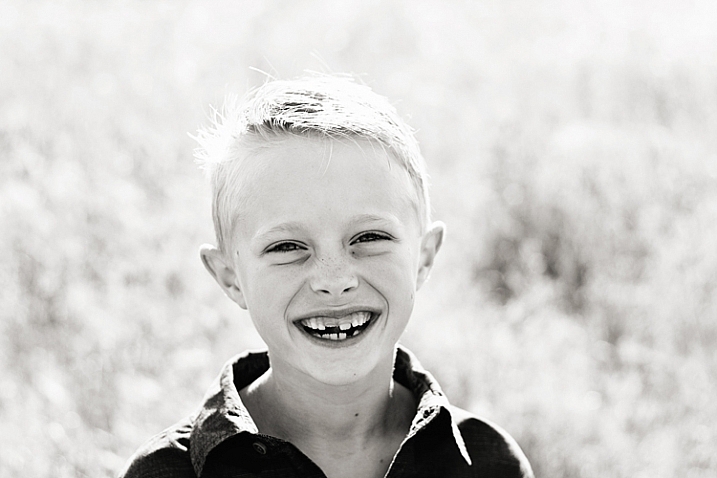
For kids, try asking them about their favorite movie, TV show, or the best part of their week so far. If you don’t have children around the same age as the ones you’re photographing, it’s a good idea to ask the parents in advance about the sorts of books, songs, TV shows, movies, and/or sports their children enjoy so that you can prepare thoughtful questions that will allow them to talk about the things they love.

capture-emotion-9 capture-emotions-7

Get them laughing

As funny as it sounds, another method that’s really effective in making people laugh is to actually ask them to fake laugh. Ask them to be silly and to give you their biggest and deepest Santa Claus chuckle. It will feel weird and awkward, but the end result is usually that everyone around starts genuinely laughing, and that’s the moment you’re waiting for as the photographer.

During family sessions, getting mom or dad to play along and be over-the-top silly, almost always helps elicit laughs from the kids. It’s a good idea to tell the parents in advance that you’re going to ask them to be silly and ridiculous, but that if they just roll with it, the kids will smile and laugh in a natural way. They won’t if you just say, “look here and smile!”

capture-emotions-5

Summary

I no longer shoot exclusively in black and white, nor am I arguing that black and white photography is the only way to capture emotional images. Ones that capture real emotions will be compelling whether they are processed in color or in black and white. However, upon reflecting on my personal journey in photography, I can clearly see that beginning with black and white photography forced me to prioritize emotion in my images over color, props, and styling, in a way that has strengthened my photography overall.

Do you struggle with capturing genuine emotion in your images, or does it come easily for you? Do you have any other tips about capturing emotion to share? Please share in the comments below.

googletag.cmd.push(function() {
tablet_slots.push( googletag.defineSlot( “/1005424/_dPSv4_tab-all-article-bottom_(300×250)”, [300, 250], “pb-ad-78623” ).addService( googletag.pubads() ) ); } );

googletag.cmd.push(function() {
mobile_slots.push( googletag.defineSlot( “/1005424/_dPSv4_mob-all-article-bottom_(300×250)”, [300, 250], “pb-ad-78158” ).addService( googletag.pubads() ) ); } );

The post How Black and White Photography Taught Me to Capture Emotion by Meredith Clark appeared first on Digital Photography School.


Digital Photography School

 
Comments Off on How Black and White Photography Taught Me to Capture Emotion

Posted in Photography


A Guide to Black and White Conversion in Photoshop

04 Sep

Black and white photography is as popular as ever. If you’re one of the many photographers who adore it, you know why that is the case. On one hand, black and white conversion removes the distraction of color from an image. It can help you to create evocative and dramatic images, that concentrate on the forms and shapes of a subject as a whole. On another level, black and white photographs can be reminiscent of a time gone by, one of film canisters and darkroom chemicals.

With digital photography, it doesn’t matter whether you come to black and white from a stance of nostalgia, or approach it as a tool for visual storytelling. The tools to create it are the same either way. These tools, however, are many, and can be confusing if you’re approaching Photoshop (or any post-processing tool) for the first time.
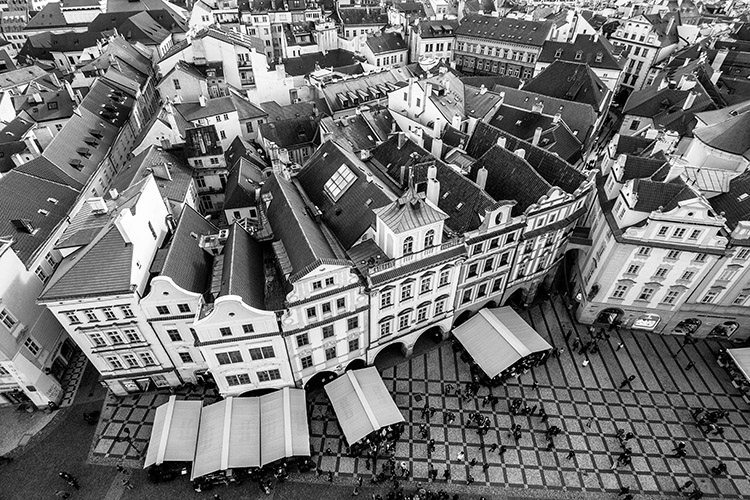
Black and White Conversion in Photoshop image of a city

Photoshop conversions

Photoshop alone has many methods to create black and white conversions. Some of them are quite useless, and should be avoided. Others are very powerful, yet won’t work well in every instance. However, it is important to know and understand as many of the tools as possible. No two images are alike, and every image requires its own treatment. While one tool may provide perfect results, another image from the same shoot might require the use of an entirely different tool for the best results.

In this tutorial, we’ll work through nine different methods for black and white conversions in Photoshop. By following along with your own images, you will be able to quickly develop an understanding of the many tools available. Some of these methods work at the press of a button. While others take a few minutes, they offer absolute control over every aspect of the tonality of your photographs.

The basic techniques

The first four black and white conversion techniques are very basic, and will not lead to good results in most instances. I can already hear you asking; “If they’re so bad, why are they in this article?” They are here so that you will be aware of them, and know to avoid them. Also, some of them (like the Grayscale method) are among the few clearly labeled in Photoshop as black and white conversions. By actively knowing about them, you will be able to save time later when you come across a tool you previously weren’t familiar with.

This isn’t to say that they don’t have their uses. Often these techniques can be used as part of a much larger retouching workflow. But, for straight black and white conversions, these methods will leave you with muddy tones and lacklustre results.

It’s important to note, that this article concentrates on the black and white conversion process only. With the exception of the Gradient Map tool, you will still need to consider using some other post-processing techniques (blemish removal, contrast adjustments) on your images, for the best results.

1) Grayscale mode
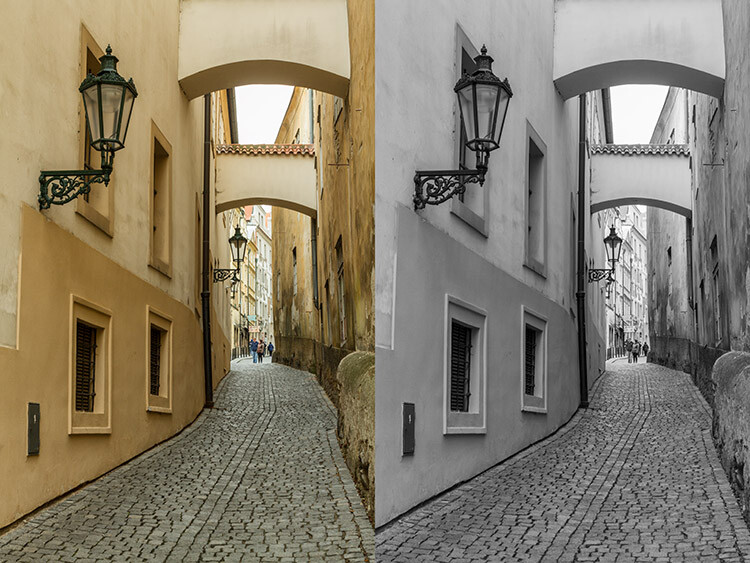
black-and-white-conversions-in-photoshop-greyscale-example

Converting your images to Grayscale is fast, but the cost is a loss of control, and a lot of file information.

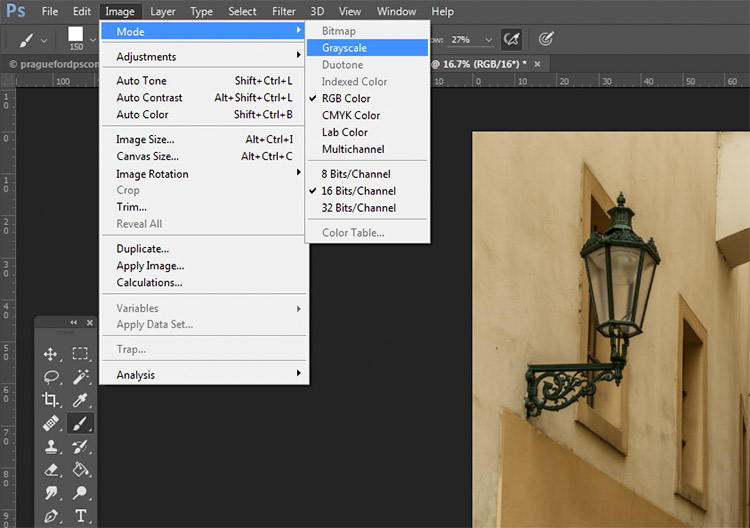
This method is as simple as it gets. In Photoshop, go to your toolbar and click Image > Mode > Grayscale. When prompted to discard your color information, click discard.
black-and-white-conversions-in-photoshop-greyscale-method

Out of all of the options, this is the one to avoid at all costs. The act of discarding all of the color information from your images is a destructive technique. That makes it difficult, if not impossible, to make changes later if you decide you don’t like the output. Also, as you’ll see in later techniques, that discarded color information is what gives you the most control over the tonality in your images.
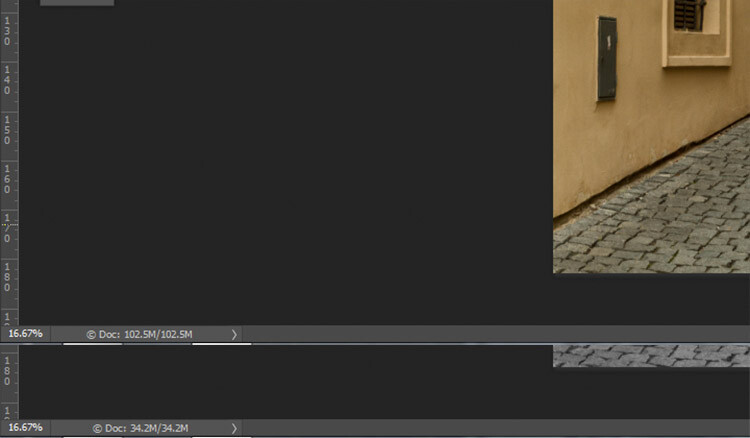
black-and-white-conversions-in-photoshop-greyscale-filesizes

Here, you can see how much data was lost when converted to Grayscale. The converted image (bottom) has nearly 2/3 less data than the original image (top).

The best advice for this conversion method is to try it, acknowledge it, and then avoid it at all costs.

2) Desaturate
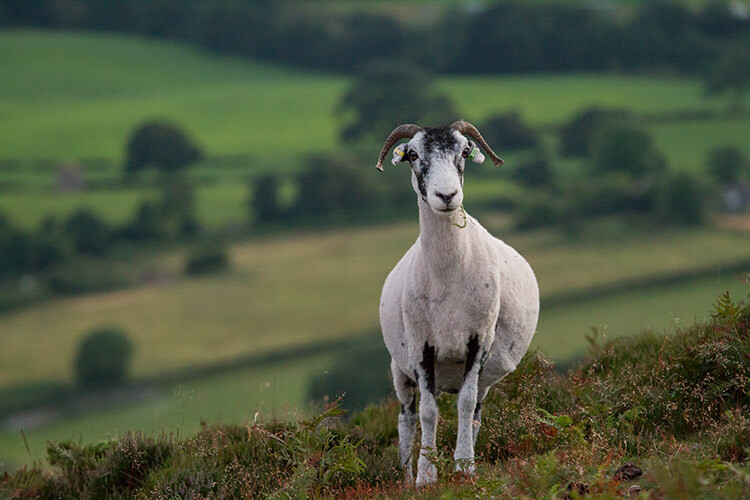
black-and-white-conversions-in-photoshop-desaturate-color-example

Original Image

black-and-white-conversions-in-photoshop-desaturate-bw-example

Converted to black and white using the Desaturate command.

Unlike the Grayscale method, using the Desaturate command does not discard the color information from your image. It is, however, still a destructive technique, as it does not allow you to alter or control any aspects of the conversion once it’s made.

To Desaturate your image, go to your toolbar in Photoshop and choose Image > Adjustments > Desaturate
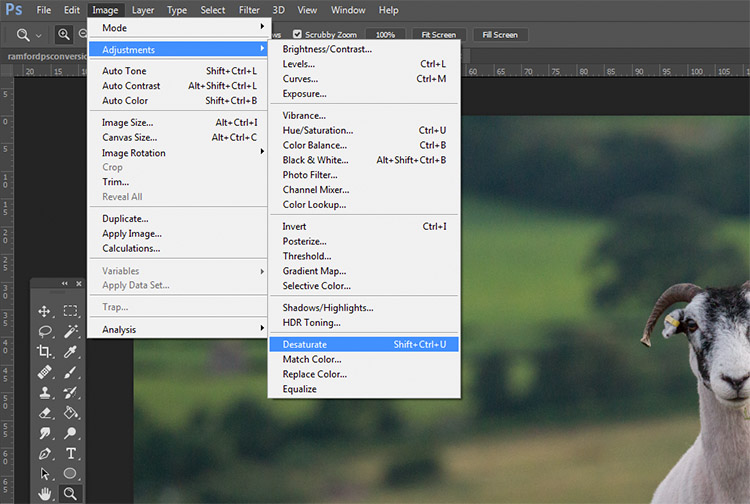
black-and-white-conversions-in-photoshop-desaturate-method

Once again, as a destructive technique, I encourage you to avoid this tool whenever possible.

3) Hue/ Saturation layer
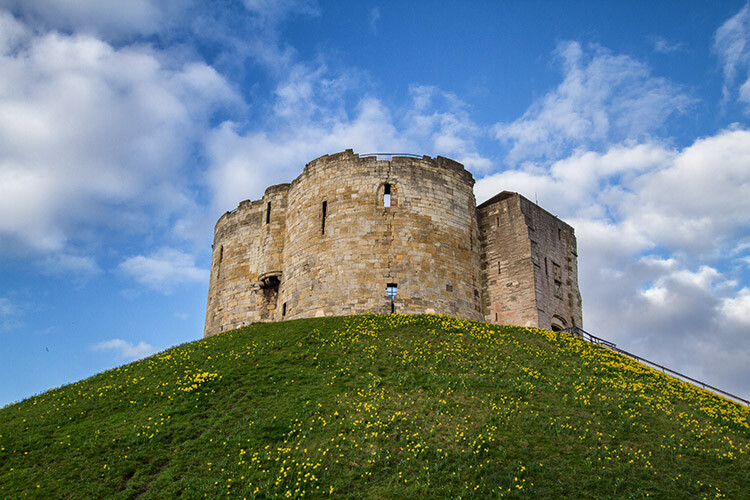
black-and-white-conversions-in-photoshop-huesaturation-color-example

Original image

black-and-white-conversions-in-photoshop-huesaturation-bw-example

Converted to black and white using a Hue/Saturation adjustment layer.

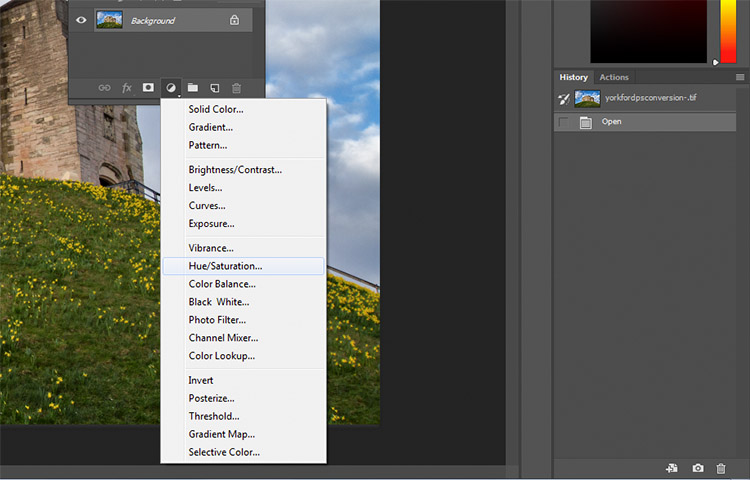
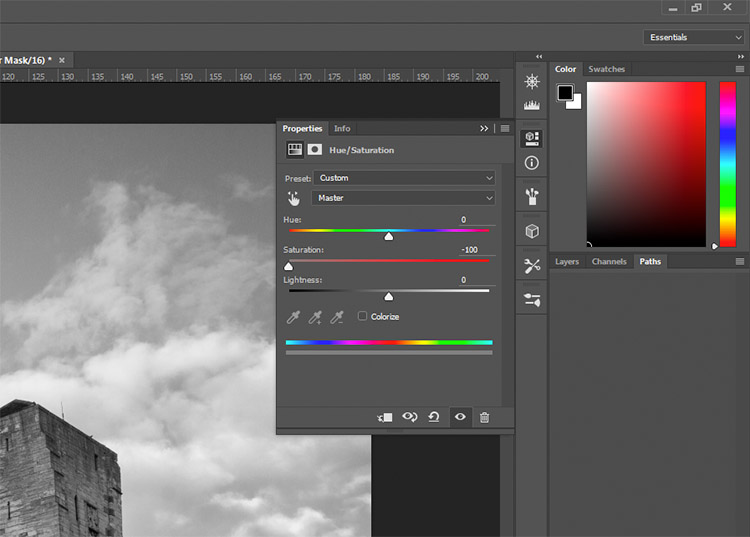
By using a Hue/Saturation adjustment layer, you will get the exact same results as the Desaturate method, with one exception. Because this is an adjustment layer, it can be changed or discarded at any time, without any alteration to your original image, making this a non-destructive technique.

To convert your image with this method, find the Create new fill or adjustment layer button (circle that is half dark, half white) at the bottom of the Layers Palette and choose Hue/Saturation (you can also select it from the Adjustments panel if you have it visible).
black-and-white-conversions-in-photoshop-huesaturation-method1

In the layer properties tab that should have opened, find the Saturation slider and move it across to -100.
black-and-white-conversions-in-photoshop-huesaturation-method2

This is still not an ideal method, as it offers no control in the actual conversion process.

4) Solid black or white layer
black-and-white-conversions-in-photoshop-blacklayer-color-example

Original image

black-and-white-conversions-in-photoshop-blacklayer-bw-example

Converted to black and white using a solid black layer, set to the Color blending mode.

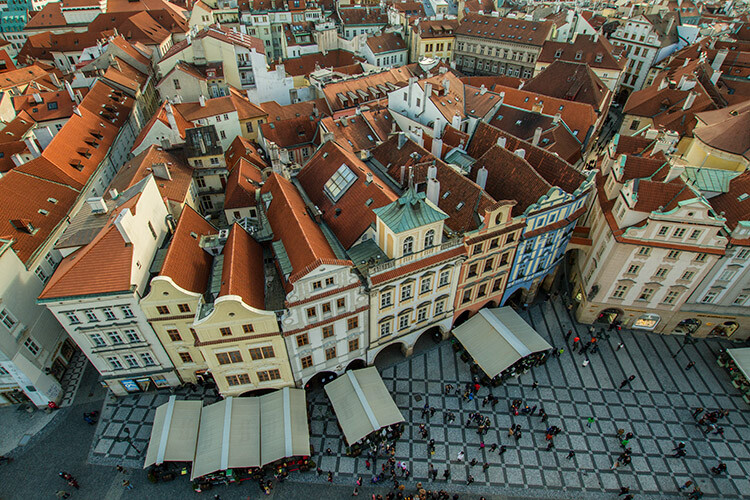
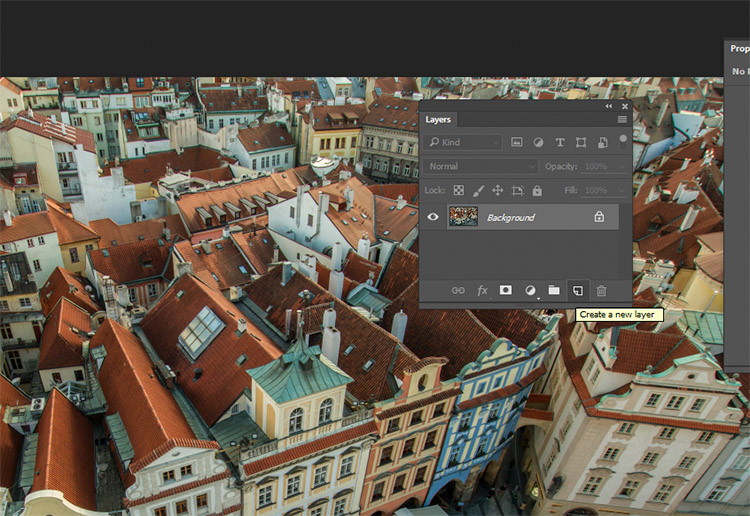
Another easy method of converting your image to black and white is to create a new layer filled with black or white, then set the blending mode to Color. Again, this technique offers no control over the actual conversion, so it’s best avoided.

To do this, create a new empty layer by pressing the New Layer button on the layer palette (ctrl/cmd+shift+N).
black-and-white-conversions-in-photoshop-blacklayer-newlayer

With the empty layer selected go to Edit>Fill (shift+f5) and choose either black or white. Your image should now be filled with the color you selected.
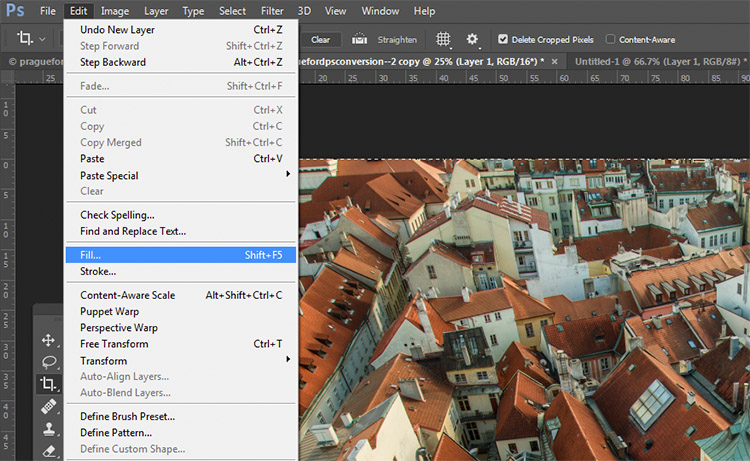
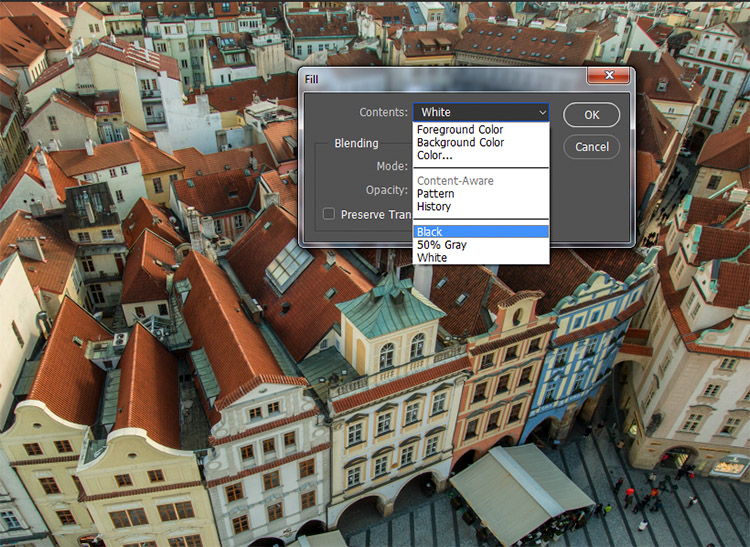
black-and-white-conversions-in-photoshop-blacklayer-fillblack-and-white-conversions-in-photoshop-blacklayer-fill2

On the layer palette, find the drop down menu for the blending modes and choose color.
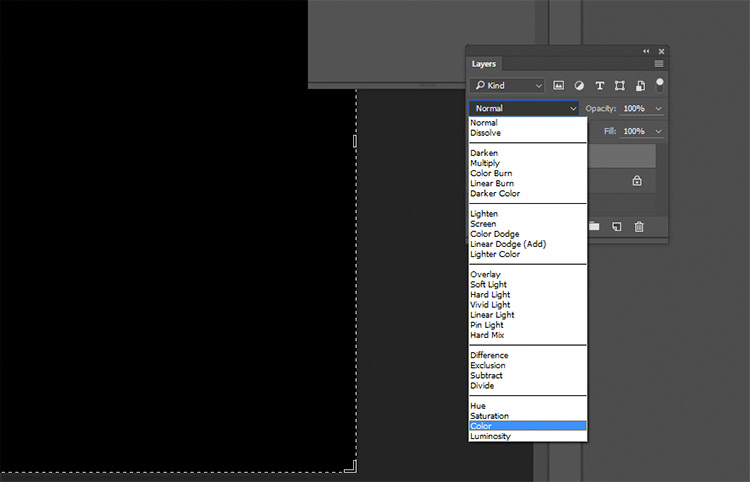
black-and-white-conversions-in-photoshop-blacklayer-blending

Intermediate Techniques

The previous four techniques are very basic, and offer you very little control, if any, over the actual conversion of your image to black and white. Now that you’re aware of them, you know what to avoid if you want the best results. The following techniques offer you a range of control over your black and white conversions, however, they take a bit more effort to get right.

5) Channels
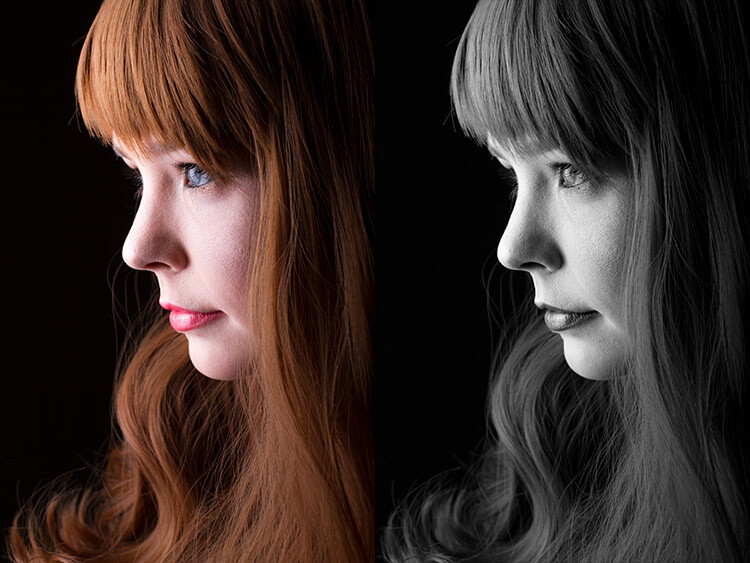
black-and-white-conversions-in-photoshop-channels-example

Left: Original image
Right: Converted to black and white by using Channels

Out of all of the techniques presented in this tutorial, this one may be the least obvious. To start, you want to make sure that you can see the Channels tab in your layer palette. If it’s not visible, go to Window in the top menu bar and make sure Channels is ticked.
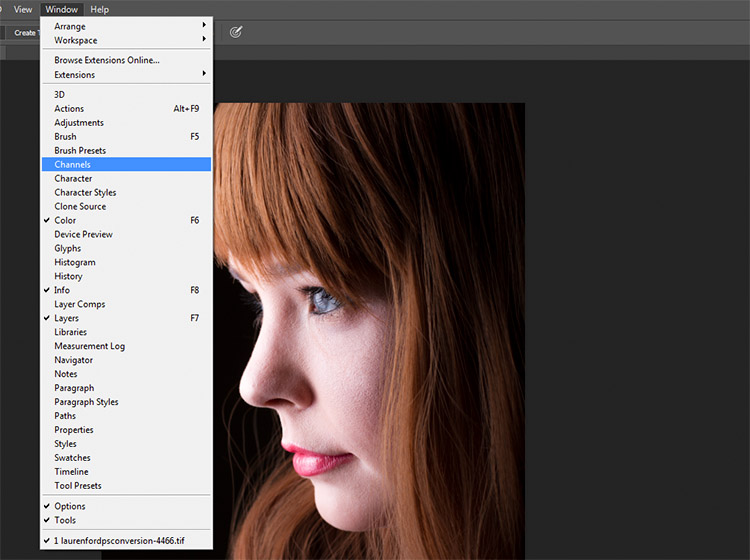
black-and-white-conversions-in-photoshop-channels-window

This is a destructive technique, so please make sure you are working on a copy of your original image in case it goes wrong. If you’re unsure, go to Image>Duplicate to have Photoshop create a second instance of your file to work with.

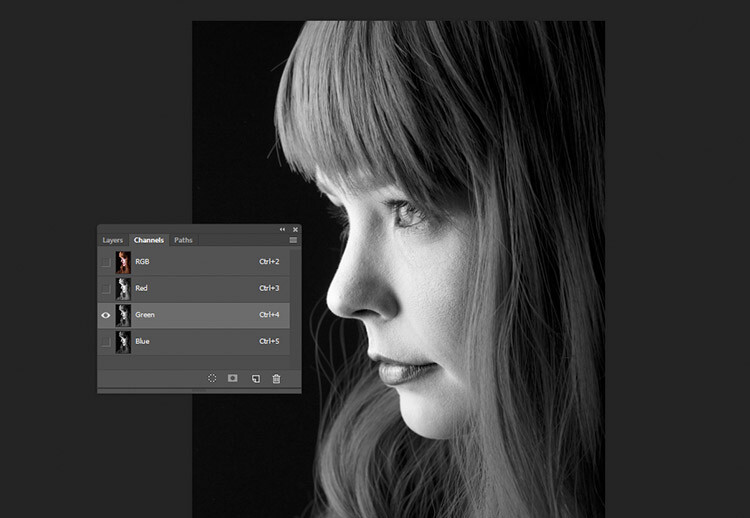
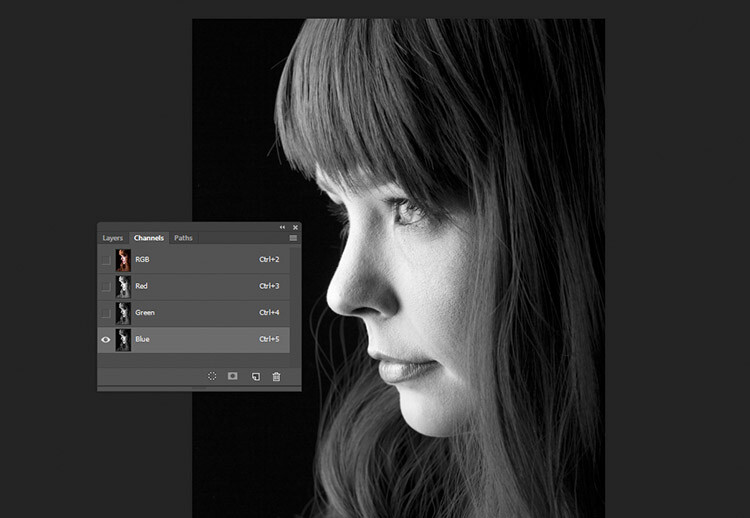
With the Channels tab selected, you should see four sections (they appear as layers would in the Layer Palette) labeled RGB, Red, Green and Blue. If you select the Red, Green and Blue Channels in turn, you will see variations of your image in black and white as it relates to the color information in your image.
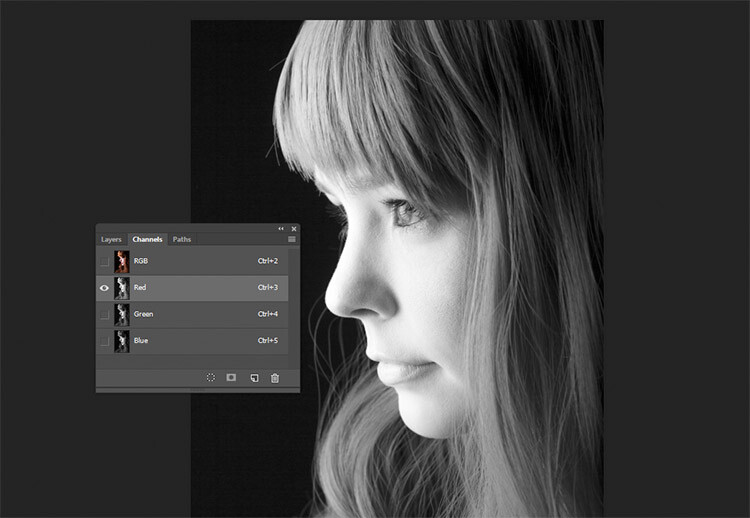
black-and-white-conversions-in-photoshop-channels-redchannel

Red Channel

black-and-white-conversions-in-photoshop-channels-grenchannel

Green Channel

black-and-white-conversions-in-photoshop-channels-bluechannel

Blue Channel

To use this to convert your image, choose the channel that has the most pleasing effect on your image. This will vary depending on your subject, and the range of colors in your photos. Once you’ve made your choice, make sure you click on the channel you wish to work with. Now, on the toolbar, choose Select>All (ctrl+A or cmd+A). With the selection active go to Edit>Copy (ctrl/cmd+C)

The next step is to paste the selected channel into the other two. In this case, Green is copied and pasted into the Blue and Red channels. One at a time, select the other two channels and go to Edit>Paste (ctrl/cmd+V).

Once that is done, click on the RGB channel and you should see that your image has been converted to black and white. While this technique does not offer complete control over the conversion, it can still be used to great effect.
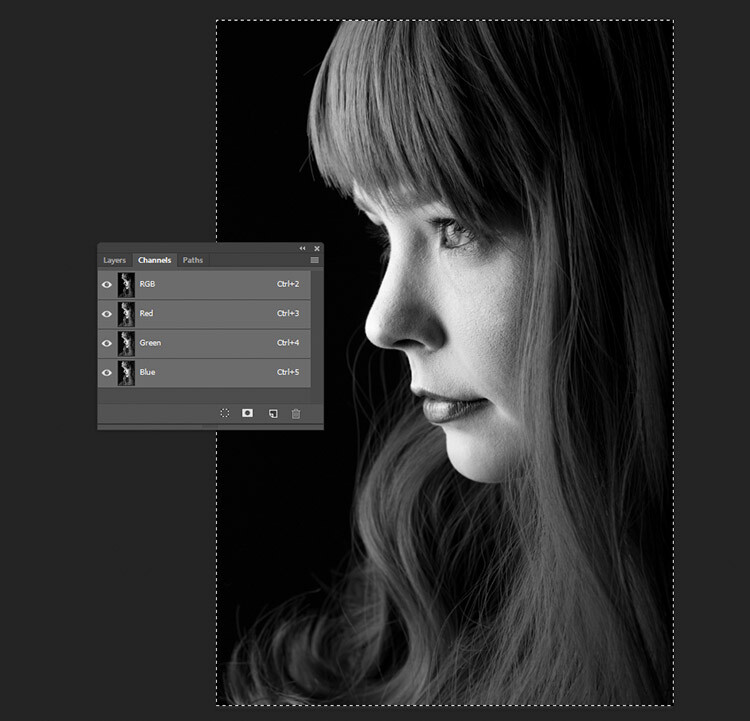
black-and-white-conversions-in-photoshop-channels-pasted

The final result with the Green channel, pasted into the Red and Blue channels.

6) Channel Mixer adjustment layer
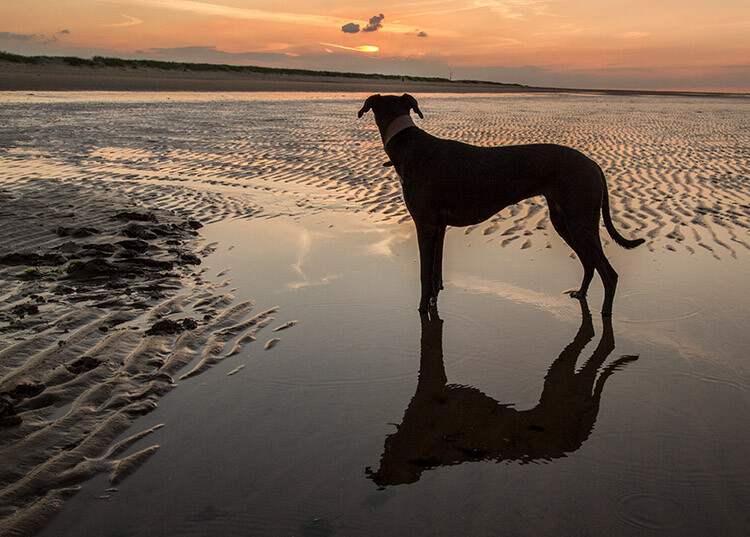
black-and-white-conversions-in-photoshop-channelmixer-colorexample

Original Image

black-and-white-conversions-in-photoshop-channelmixer-bwexample

Converted to black and white using a Channel Mixer adjustment layer.

For a bit more control, you can use a Channel Mixer adjustment layer, as a non-destructive technique. On the Layer Palette, find the Create new fill or adjustment layer button and choose Channel Mixer (or select it from the Adjustments panel).
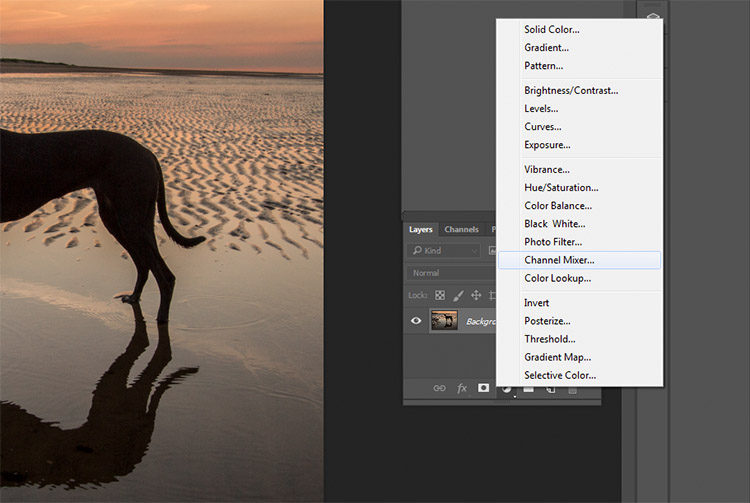
black-and-white-conversions-in-photoshop-channelmixer-layer

On the properties tab for the Channel Mixer layer, click the box that says Monochrome.

To fine tune your image, you can adjust the red, blue and green sliders until you get the effect you desire. These sliders are not very forgiving, so try to keep the adjustments small to avoid destroying the highlights and shadows in your image.
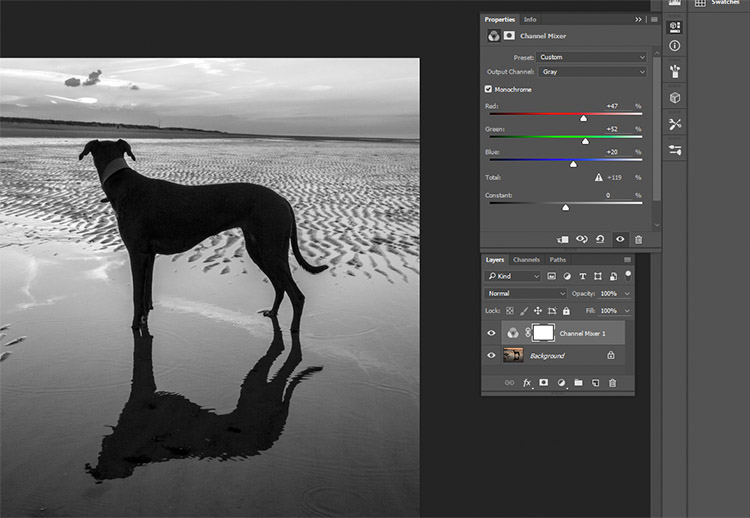
black-and-white-conversions-in-photoshop-channelmixer-layerproperties

7) Black and White adjustment layer

black-and-white-conversions-in-photoshop-blackandwhitelayer-color-example

Original image

black-and-white-conversions-in-photoshop-blackandwhitelayer-bw-example

Converted to black and white using a Black and White adjustment layer.

Okay, this one’s pretty obvious in function. It’s also pretty powerful, but it’s not always the best choice. However, it is a good starting point in many cases. As such, this technique will likely become your go-to black and white conversion method, especially if you’re just starting out.

To start, find the Create new fill or adjustment layer on the Layer Palette and choose Black and White (or select it on the Adjustments panel).
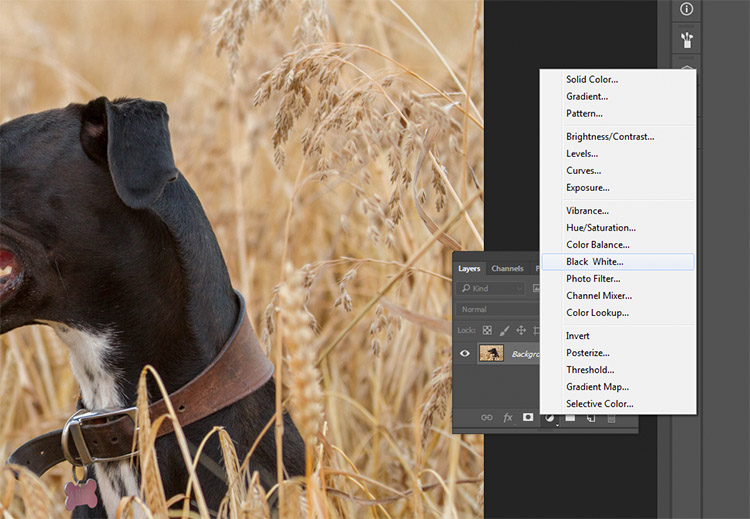
black-and-white-conversions-in-photoshop-blackandwhitelayer-method

Your image will be converted to black and white, and in the properties tab, you will now see an array of color sliders. Moving these sliders to the right will brighten any tones associated with that color. Moving them to the left will darken those tones. The idea behind these sliders is to emulate the effect that colored lens filters used to have on black and white film.
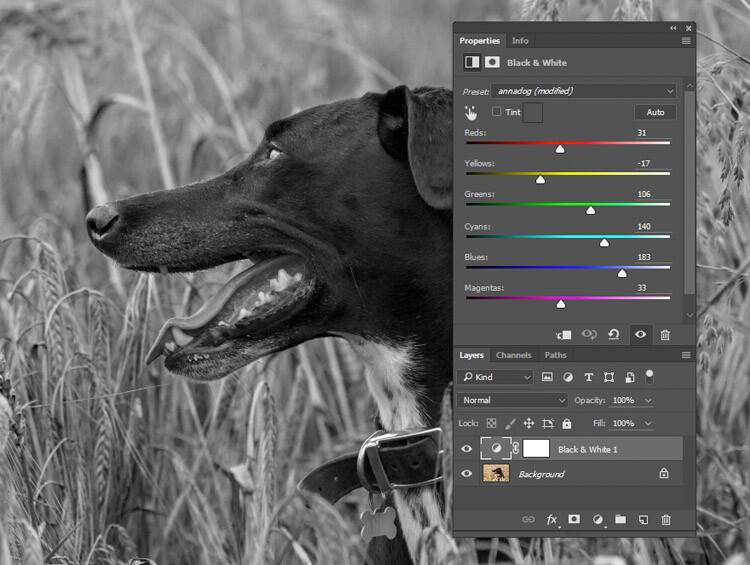
black-and-white-conversions-in-photoshop-blackandwhitelayer-sliders

Moving the Reds and Yellows slider to the left brings out the detail in the grass by darkening the tones associated with those colors.

For portraits, the most noticeable changes will come from moving the red and yellow sliders. For landscapes, the blue and green sliders will be more useful.

As with any adjustment layer, if you change your mind later, you only need to return to the properties tab and alter the sliders to your heart’s content. This is non-destructive editing.

8) Gradient Map
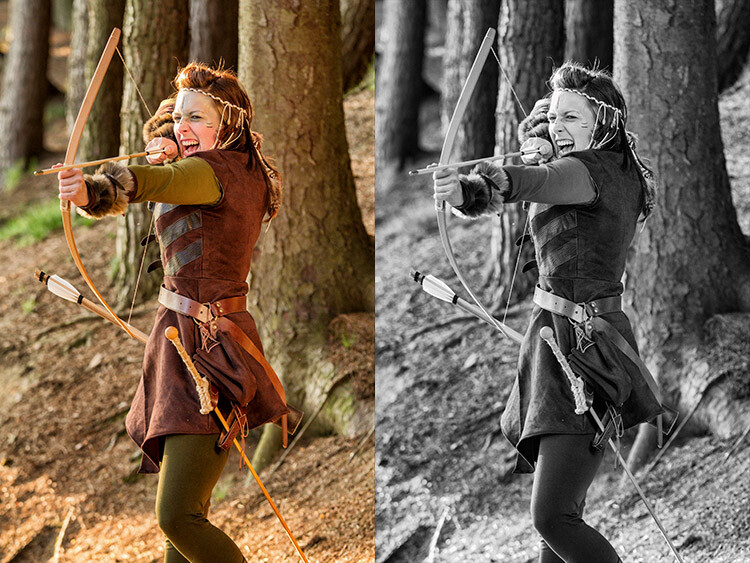
black-and-white-conversions-in-photoshop-gradientmap-example

Left: Original Image
Right: Converted to black and white using a Gradient Map adjustment layer.

The Gradient Map is easily the most powerful of all the black and white conversion tools. It allows you to control every aspect of the tonality of your image. Because of this control, it’s also the most complicated and hardest to use. It is worth knowing though, and a bit of practice will make it an invaluable tool on your belt.

Make sure your foreground and background colours are set to black and white. You can do this by pressing D on your keyboard. Now, find the Create new fill or adjustment layer on the Layer Palette and choose Gradient Map.
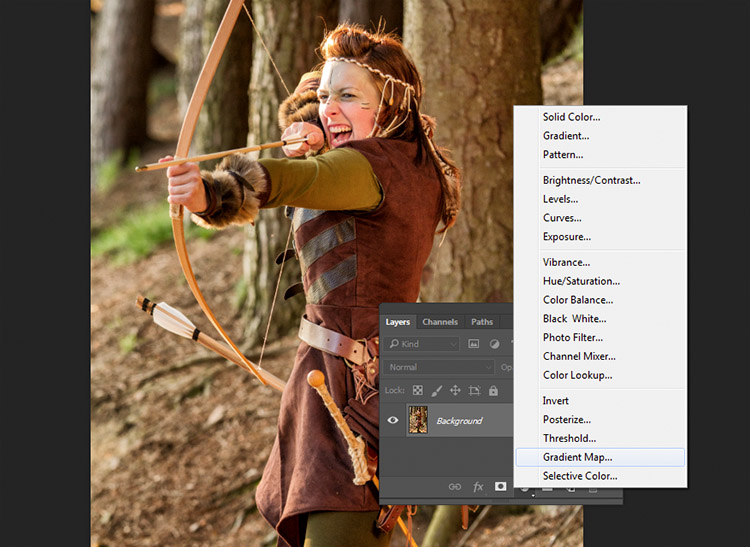
black-and-white-conversions-in-photoshop-gradientmap-layercreation

Make sure the gradient that is selected is black to white. Your image is now monochromatic, and you may notice that this technique gives it higher contrast to begin with, than the other methods.
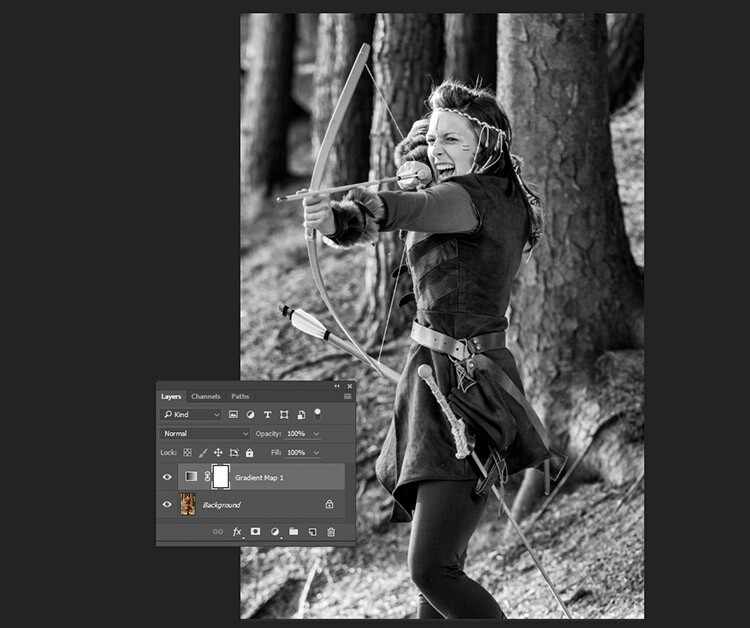
black-and-white-conversions-in-photoshop-gradientmap-basigradient-example

This is an example of how an image might look with a Gradient Map layer, and no further adjustments.

Note: If your image looks like a negative after making the adjustment layer, just click the Reverse box in the layer’s properties tab.
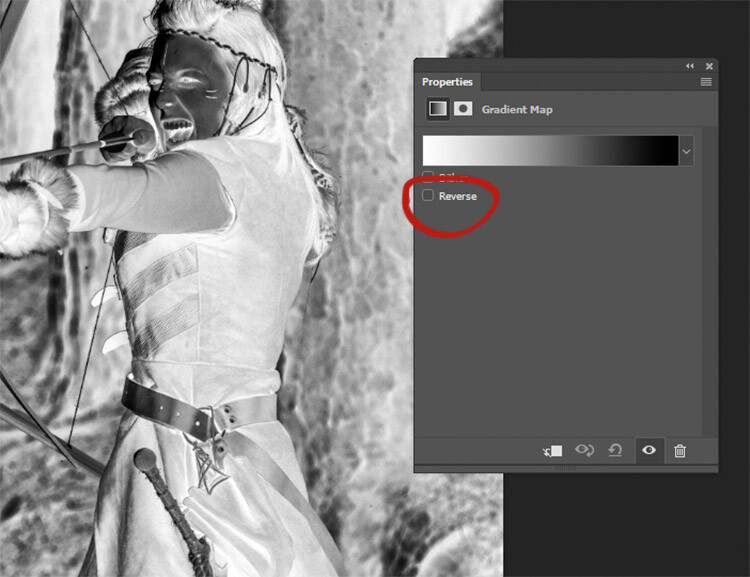
black-and-white-conversions-in-photoshop-gradientmap-reverse

If your image looks like a negative, it just means your foreground and background colors are backwards. Just click the Reverse box in the Gradient Map’s properties tab.

If you forgot to reset your foreground and background colors, your image probably looks like a colored mess. Just click in the gradient in the properties tab, and choose the black and white gradient to fix this with little error.
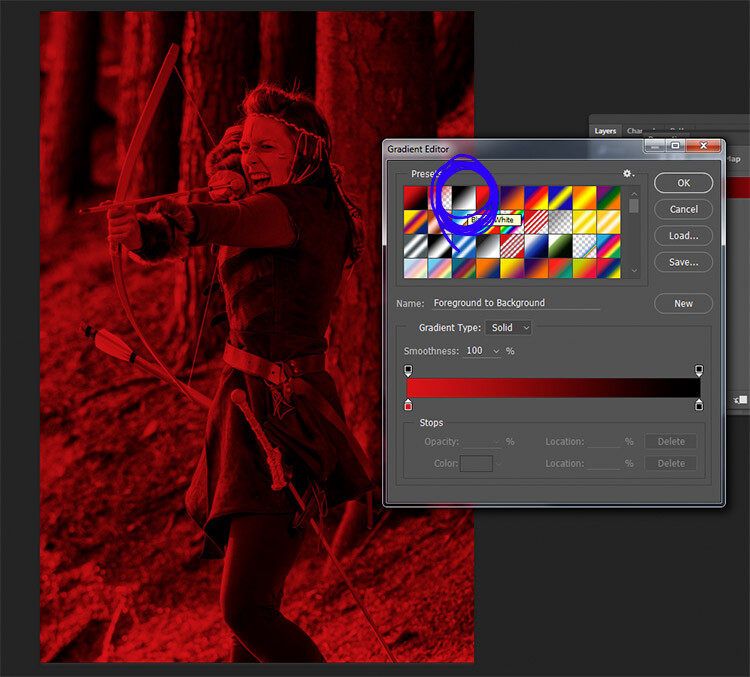
black-and-white-conversions-in-photoshop-gradientmap-colorgradient

Forgetting to reset your foreground and background colors may result in something like this image. To fix it, just choose the black and white gradient (circled in blue) in the presets section of the Gradient Editor.

At this stage, you may feel that this enough. However, the Gradient Map offers a lot more in terms of control over tonality of the image.

In the properties tab, if you double click the image of the gradient, the Gradient Editor will open. Towards the bottom of this screen, you will see a visual representation of your gradient. There are also be a set of sliders that show either black or white.

If you move the bottom sliders inward, you will increase the contrast in your image. Moving the black slider in, will deepen the shadows, while moving the white slider in will brighten the highlights (which direction those are will depend on whether you have reversed the gradient or not). This is an effective way to increase contrast in your image without leaving the conversion layer. Do watch your histogram for shadow and highlight clipping though.
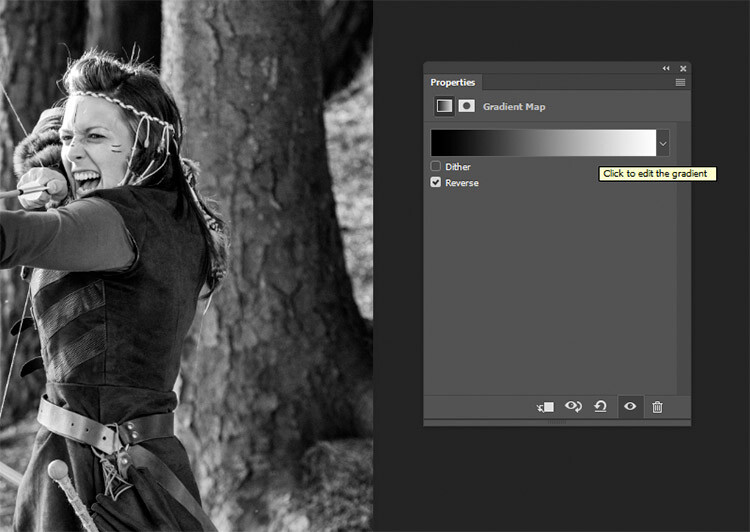
Click into the image of the gradient to enter the Gradient Editor.

Click into the image of the gradient to enter the Gradient Editor (note my gradient here is reversed)
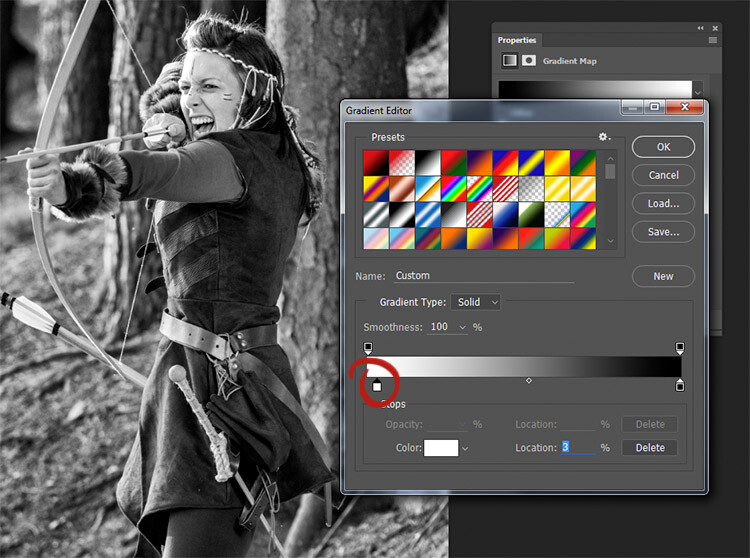
black-and-white-conversions-in-photoshop-gradientmap-whiteslide

Moving the white slider to the right (circled in red) will brighten the highlight tones in this image. Moving the lower black slider (to the left) will deepen your shadows.
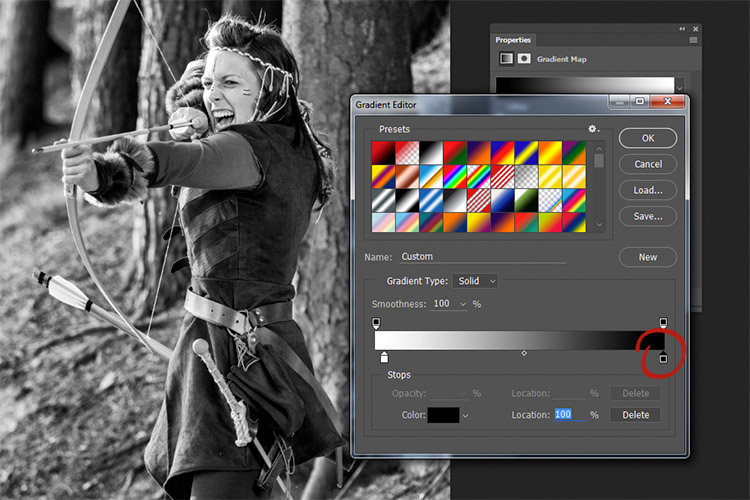
black-and-white-conversions-in-photoshop-gradientmap-clickslide

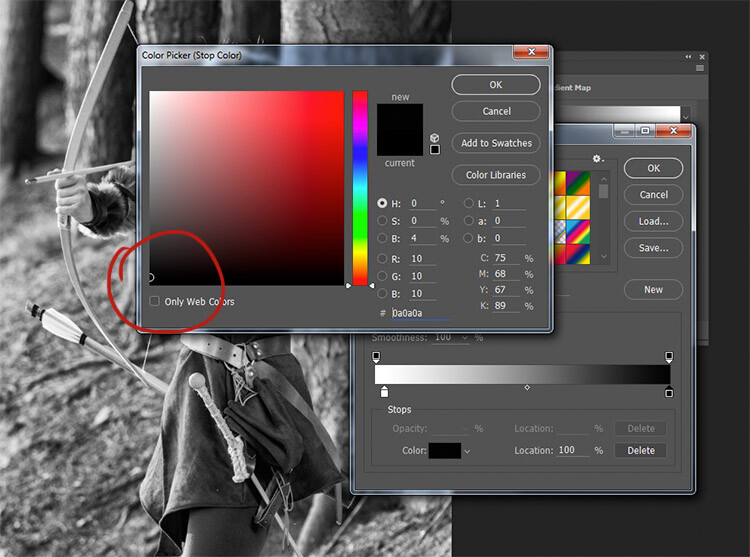
If you wanted to darken your highlights or brighten your shadows, you can change the colour of the sliders. To do this, double click on one of sliders. In this image, the dark tones are more intense than I would like, so I double-clicked the shadow slider as circled in the above image.

You should then see a Color Picker colour palette (if you don’t see red as shown below, just click the H for Hue). Click into the far left hand side of the palette, and slide the cursor up and down until you get the tone you want for your darkest shadows(or highlights if you chose them). Try to only use colours all the way to the left in the palette. Anything even a bit to the right will have a color tint to it.
black-and-white-conversions-in-photoshop-gradientmap-blacktones

By selecting a colour just above pure black, the shadow tones in the image are brightened significantly.

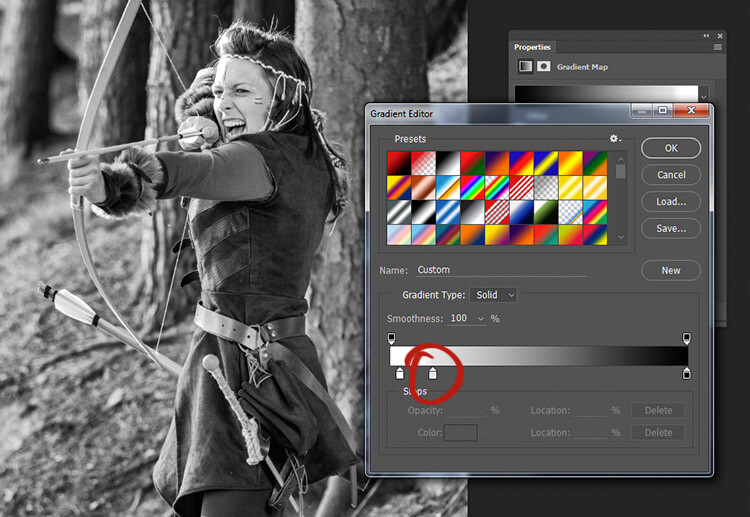
To really take control over your image’s tonality, you can also control your mid-tones with the Gradient Map. Click just underneath the gradient bar and create a new slider.
black-and-white-conversions-in-photoshop-gradientmap-newslider

To control the mid-tones in your image, create a new slider in the Gradient editor by clicking and dragging under the gradient.

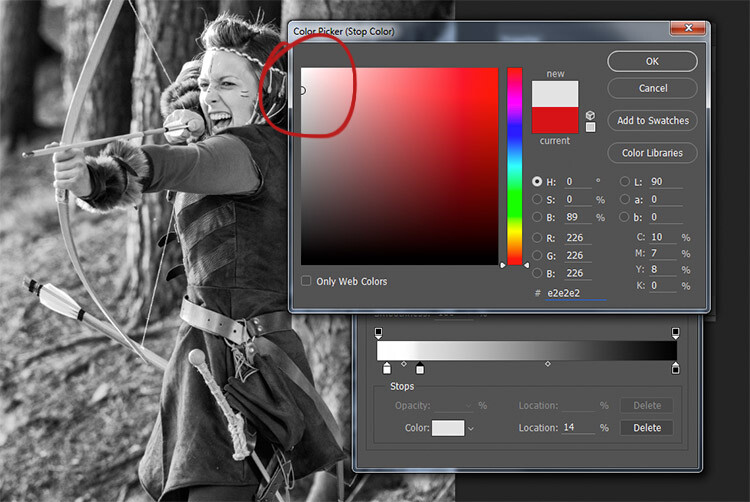
Double clicking this slider will open a color palette. Choose a grey tone (light if you want to alter lighter tones, dark if you want to alter darker tones) and press okay.
black-and-white-conversions-in-photoshop-gradientmap-newwhitetones

Choose a color relevant to the tones you want to alter in your image.

Now drag the slider to a point where it affects the image in the way you desire. If your tone is wrong, just double click the slider again and pick a new shade. You can make as many of these sliders as you need. This gives you absolute control over every tone in your image.

At first, it may be difficult to get used to this tool, but practice will make it easier. The Gradient Map is by far the most powerful black and white conversion tool for your images.

9) Adobe Camera Raw
black-and-white-conversions-in-photoshop-ACR-example

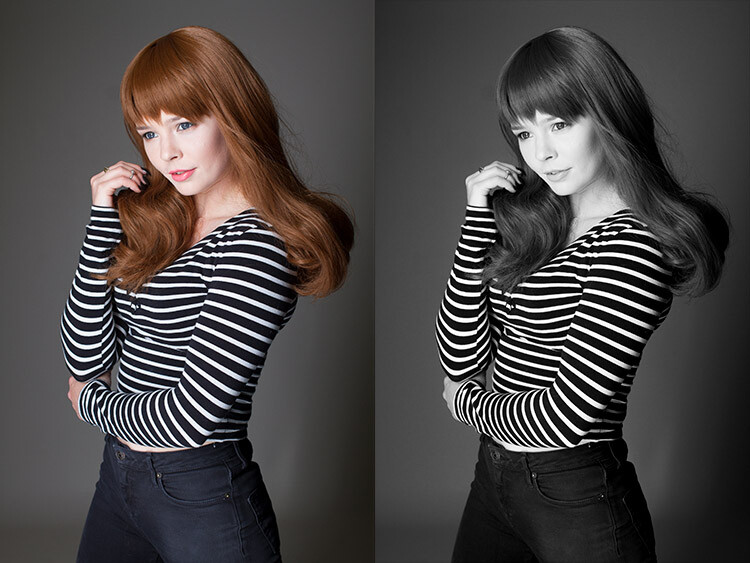
Left: Original Image
Right: Converted to Black and White in Adobe Camera Raw

The last method involves converting your image to black and white at the raw processing stage. Doing this, doesn’t grant you absolute control over your tonality, but it is still quite a powerful possibility. Because you’re working with a raw file, no matter what changes you make, the file information will remain untouched, making this a completely non-destructive technique. It also grants you access to the rest of the tools available in raw processing after you’ve converted your image, giving you a more polished result without having to open your image in Photoshop.

To start, open your image in ACR (Adobe Camera Raw) by opening your raw file with Photoshop. On the toolbar to the right, you should see a row of icons. Find the one that’s called HSL/Grayscale and click it.
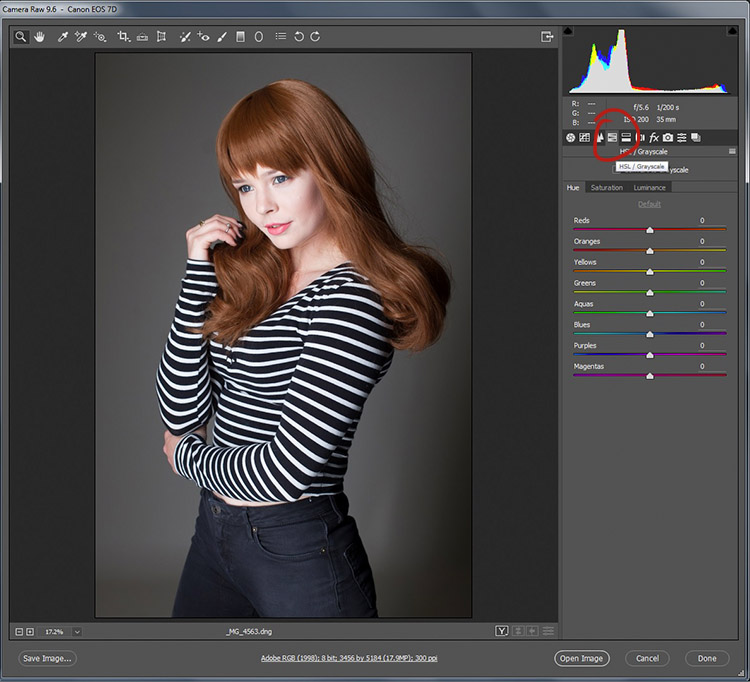
black-and-white-conversions-in-photoshop-ACR-HSL

You should see a box labeled Convert to Grayscale. Click it.
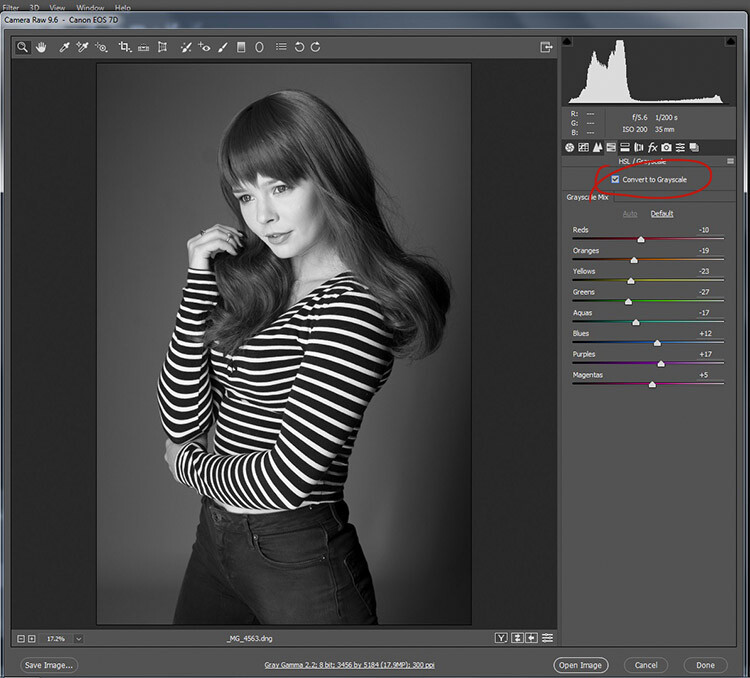
black-and-white-conversions-in-photoshop-ACR-mono

To convert your raw file to black and white in ACR, click the Convert to Grayscale box in the HSL tab.

From here, you have access to a bunch of sliders that act the same way as if you were using a Black and White adjustment layer in Photoshop. Play around with them until you’re happy with the way the tones appear in your image.
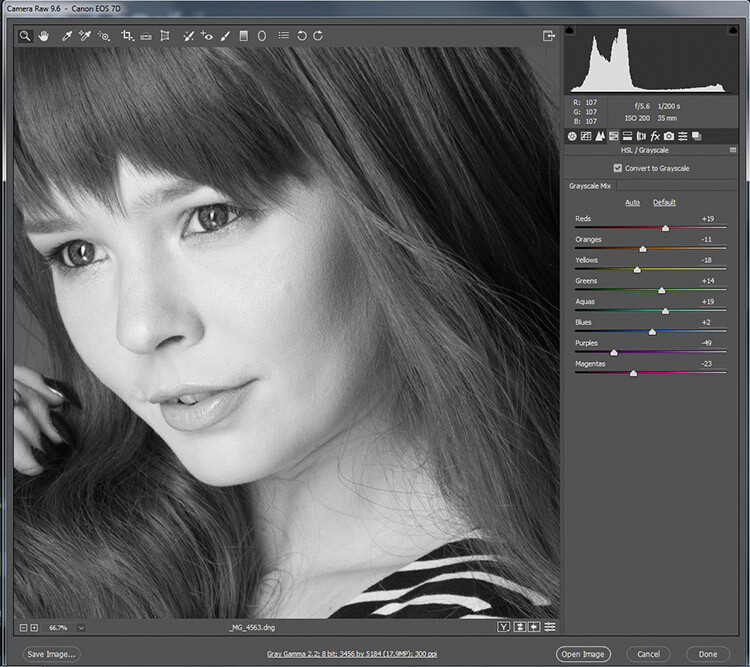
black-and-white-conversions-in-photoshop-ACR-zoom

While adjusting the sliders, zoom in to areas like skin tones, so you can watch exactly how the sliders are affecting your image.

If you go back to the Basic panel, you have access to all of the basic functionality in ACR. Here you can process your raw file as normal, and you can go back to the HSL panel to alter your sliders at any point (before you leave ACR).
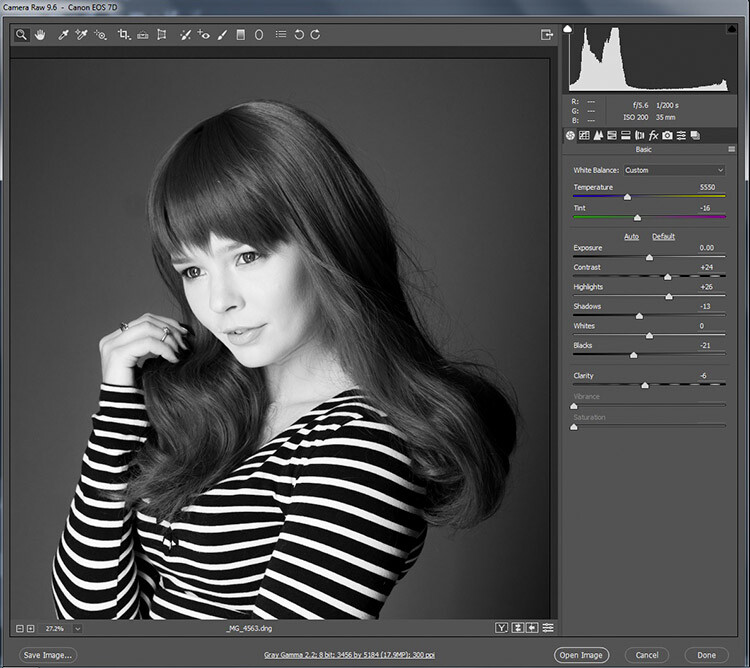
black-and-white-conversions-in-photoshop-ACR-rawcontrols

By doing your black and white conversion at the raw stage, you still have access to all of the processing tools in ACR. Take advantage of these to get a more polished result, before even entering Photoshop.

Once you’re done, export your image in your preferred format (or open it directly into Photoshop) and there you have it.

The right tool for the job

If you’ve followed each of these tutorials through, you will have gained at least a basic understanding of how to use each for black and white conversions in Photoshop. Now, ask yourself the following questions:

  • Which of these tools worked best for me?
  • Which of these tools did I enjoy using?
  • Which of these tools did I hate using?
  • Which of these tools created results that fit my tastes?

In the end, the best tool for the job is the one that gets you the results that you are looking for (even if it’s the tools that I’ve urged you to avoid). Just keep practicing, and you’ll be able to figure out which tool is best, before you even start working on your image.

How do you use Photoshop for your black and white conversions? Please share in the comments below.

googletag.cmd.push(function() {
tablet_slots.push( googletag.defineSlot( “/1005424/_dPSv4_tab-all-article-bottom_(300×250)”, [300, 250], “pb-ad-78623” ).addService( googletag.pubads() ) ); } );

googletag.cmd.push(function() {
mobile_slots.push( googletag.defineSlot( “/1005424/_dPSv4_mob-all-article-bottom_(300×250)”, [300, 250], “pb-ad-78158” ).addService( googletag.pubads() ) ); } );

The post A Guide to Black and White Conversion in Photoshop by John McIntire appeared first on Digital Photography School.


Digital Photography School
 
Comments Off on A Guide to Black and White Conversion in Photoshop

Posted in Photography


DEAL: Learn How to Take Beautiful Black and White Photos for just $6

10 Jul

NewImageToday is deal 4 of our mid year sale and you’re sure to love this one…

Our Essential Guide to Black & White Photography ebook – just $ 6!

We’ve never offered this best selling eBook at this price – so save 70% today only.

Grab your copy using this link: http://resources.digital-photography-school.com/summer/day4

Not only do black and white images have undeniable beauty, they can also bring added emotion, passion and drama to your photography portfolio. So if you’re looking to ramp up any of these things in your work, then this is definitely the deal for you.

Remember, each deal this week is open for 24 hours only. So get in early or risk missing out on this exceptional $ 6 price!

Snap it up here before it’s gone.

Note: as with all our eBooks this one comes with a money back guarantee. If you don’t find it suits your needs simply contact our support team within 60 days and we’ll refund your money – no questions asked.

googletag.cmd.push(function() {
tablet_slots.push( googletag.defineSlot( “/1005424/_dPSv4_tab-all-article-bottom_(300×250)”, [300, 250], “pb-ad-78623” ).addService( googletag.pubads() ) ); } );

googletag.cmd.push(function() {
mobile_slots.push( googletag.defineSlot( “/1005424/_dPSv4_mob-all-article-bottom_(300×250)”, [300, 250], “pb-ad-78158” ).addService( googletag.pubads() ) ); } );

The post DEAL: Learn How to Take Beautiful Black and White Photos for just $ 6 by Darren Rowse appeared first on Digital Photography School.


Digital Photography School
 
Comments Off on DEAL: Learn How to Take Beautiful Black and White Photos for just $6
Posted in Photography