The post How to Create Cool Effects Using Displacement Maps in Affinity Photo appeared first on Digital Photography School. It was authored by Kevin Landwer-Johan.
Adding natural-looking text to a photo can be challenging. But with displacement maps in Affinity Photo, you can easily produce awesome-looking text blends.
In fact, it takes just a few clicks to merge text with a second photo, so that it looks like the text was there all along.
There are a couple of different ways to achieve this look in Affinity Photo. If you’re used to other image manipulation software, you may be familiar with some of the steps. And if you’re new to Affinity Photo, you may not be aware of the features that make creating cool effects using displacement maps even easier.
So let’s dive right in!
What are displacement maps in Affinity Photo?
Displacement maps in Affinity Photo allow the texture of an image to be mapped onto another layer.
Displacement maps are commonly used to add natural-looking text to an image. You can use them when you want to place a logo or text on a t-shirt or make text look like a natural part of a scene.
How to create a displacement map: Step-by-step instructions
As with pretty much any editing effect, there is more than one way to reach your end goal.
In this article, I will show you a simple, step-by-step method I use to create displacement maps in Affinity Photo.
Specifically, I’ll use Affinity Photo’s Displace filter.
Using the Displace filter is a great way to work with displacement maps. It’s quick, easy, and non-destructive.
This means you have a great deal of control. You can apply your Displace filter and tweak it as much as you like – without permanently altering the underlying photo.
Step 1: Open your mapping image
Select the image you plan to modify. Open it in Affinity Photo.
Step 2: Add text or your logo
Locate the file with your text or logo, then drag and drop it onto the underlying image file.
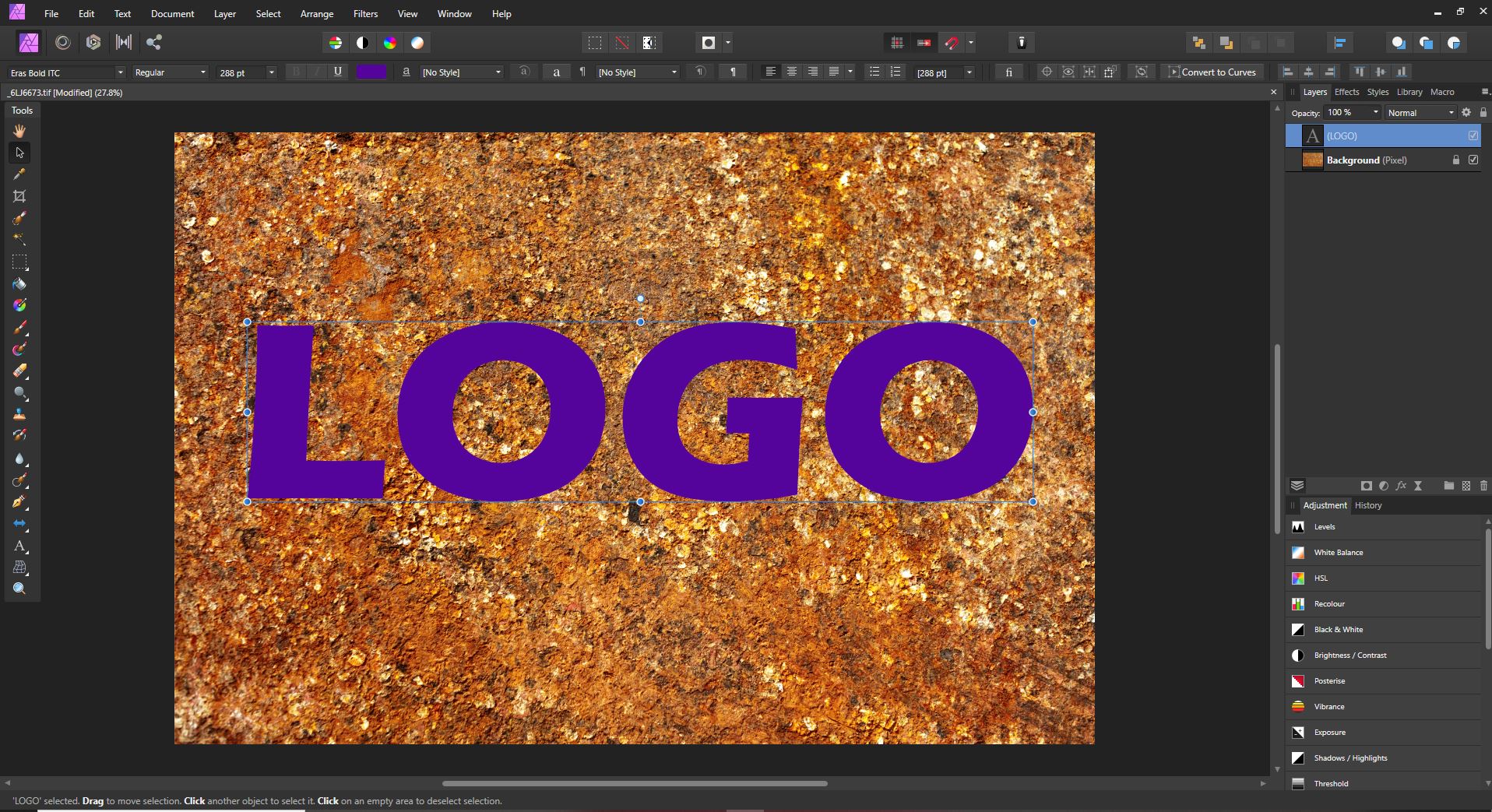
You can use a TIFF or PNG file with transparency. Alternatively, type in the text you want to use, as I’ve done in my example file (below).
Position your image or text where you want it to appear. If you’ve chosen to type your text, pick the font and color you think will best suit your needs.
Step 3: Create a live filter layer
In the top menu, choose Layer.
Then go down to New Live Filter Layer>Distort>Displace Filter.
In the Layers panel, you will now see a live displacement map filter added to your logo or text layer.
Step 4: Choose a displacement map
In the displacement map dialog box, you will have the option of loading a map from a file or loading it from other layers. Sometimes you may have a separate image you want to use as your mapping layer. In this example, I will show you how to use the lower layer to create a displacement map, because this is what will typically provide you with a great result.
Click on the option to Load Map From Layers Beneath. At this point, depending on the resolution of the photo you are working with, you may begin to see the effects of the mapping filter.
(But don’t worry if you can’t yet see this; we’ll work on the effect in the next steps.)
Step 5: Adjust the displacement strength
Use the slider in the Displace filter dialog box to increase or decrease the strength of the filter.
Adjust the filter intensity until your top layer merges naturally with the image below.
Note that this is just the first level of adjustment. In the next steps, you’ll discover how to fine-tune the result, so don’t be concerned if you can’t yet get your image looking exactly how you want.
Step 6: Rasterize the text layer
At this point, if you are working with a text layer or some other non-rasterized layer, you need to rasterize it so the next step will work.
Right-click on the text layer and select Rasterize.
Step 7: Control your blending options
Now it’s time to further adjust how your text or logo blends with the layer beneath it.
Click on the cog icon in the Layers panel. (It’s between the blend mode drop-down and the padlock icon.)
A new dialog box will appear; this lets you control the blending options for your layer. Note the two curves graphs:
You’ll want to use the rightmost curve, labeled Underlying Composition Ranges. But before you start, make sure to uncheck the Linear box below it.
Now click and drag from the top left of this curve. Watch as your text or logo further blends with the layer beneath. Continue to click and drag on the curve until you have a look you’re happy with.
Step 8: Tweak the displacement amount
If you’ve merged an image rather than text, you can now go back and tweak the Displace filter.
(If you merged text, this option won’t be available, because the filter is combined with the text layer when it’s rasterized.)
Step 9: Change the blend mode
For further control, you can select a different blend mode for your text or logo layer.
Scroll through the options in the blend mode drop-down box until you find one that best fits the look you want.
You can also decrease the opacity of the top layer so the underlying texture shows through more.
Using displacement maps in Affinity Photo: Conclusion
The key to success in all photo manipulation is experimentation.
So if you want to create a stunning result, use these steps as guidelines, but don’t be afraid to play around. Push the boundaries!
Using displacement maps in Affinity Photo is fun and non-destructive. This means you can try as many options as you like without permanently affecting your images!
Now over to you:
How do you plan to use displacement maps? Share your thoughts (and images) in the comments below!
The post How to Create Cool Effects Using Displacement Maps in Affinity Photo appeared first on Digital Photography School. It was authored by Kevin Landwer-Johan.
The post 7 Tips – How to Add Depth and Dimension into Your Photos appeared first on Digital Photography School. It was authored by Andrew S. Gibson.
How can you add depth in photography? And how can you make your photos look stunningly three-dimensional?
Depth helps create a sense of place, and it draws the viewer into your images. Plus, it’s a great way to take your compositions to the next level, fast.
In this article, you’ll find seven techniques and tips, all designed to help you convey a stronger sense of depth in your photos.
Let’s get started!
1. Use leading lines
Here’s one of the easiest ways to convey depth in photography:
Use a wide-angle lens and include leading lines that move from the bottom of the frame to the top.
This technique is mainly used in landscape and architectural photos, but you can also incorporate leading lines into portraits, street shots, and more.
The lines don’t have to be obvious. For instance, take a look at this photo:
The rocks form natural lines that lead the eye from the foreground to the island on the horizon.
This photo has a similarly subtle set of leading lines:
The waterways in the middle distance lead the eye to the mountains. But the lines are meandering, rather than straight, which helps give the image a more organic feel – one that fits well with the theme of the landscape.
2. Use perspective
This photo demonstrates how lines can add depth in a different way:
The buildings form converging lines that disappear towards the horizon, creating an effective sense of depth.
Note that this technique is similar to an artist’s use of perspective. I’ve added an overlay so you can see how it works:
3. Think foreground, middle ground, and background
Most photographers are familiar with the rule of thirds, but when it comes to conveying a sense of depth, it is helpful to break the photo up into a different set of thirds:
The foreground, middle ground, and background.
What you’re looking for is a way of connecting each portion of the photo while pulling the viewer’s eye from foreground to background. Having three zones in the image – zones that are distinct but linked – will help create a sense of depth and three-dimensionality.
Leading lines are one way of linking the three zones, but lines are not always present in a scene. So when there are no lines to be found, you’ll need to work with some other compositional element.
Often, this simply means including something interesting in the foreground.
For example, in the photo below, there are some buildings in the background, a concrete jetty in the middle ground, and the edge of another jetty in the foreground. I included the foreground jetty to help create a sense of depth.
Here’s another example:
Do you see how adding the rocks to the foreground creates a composition with three distinct zones (foreground, middle ground, and background)?
And once the zones are present, you get a sense of depth, with the viewer’s eye moving through the shot.
It helps that the wide-angle lens makes the rocks seem quite large in comparison to the distant cliffs.
4. Use aerial perspective
Another technique that helps convey a sense of depth in photography is aerial (or atmospheric) perspective.
This is where the atmospheric conditions make objects in the distance appear hazy.
Of course, you’re often limited by the environmental conditions – but as soon as you see haze in the distance, I highly recommend you try to find a way to include it in your composition.
In the photo below, you can see that the trees in the distance on the left side are obscured by atmospheric haze, which adds depth:
And the depth is further enhanced by the converging lines formed by the walls. So the two techniques actually work together to give increased depth to the final shot:
5. Shoot through a foreground object
The techniques I’ve shared above work well with wide-angle lenses, but are less helpful if you’re using telephoto lenses.
You see, telephoto lenses put distance between you and your subject, which leads to a flatter perspective overall (i.e., a perspective with less depth).
That said, there are still some techniques you can use with telephoto lenses to create a sense of depth.
One method is to shoot through something that is between you and the subject (such as grass, twigs, or windows).
In the photo below, the subject is the setting sun. I shot through the grass (and I actually focused on the grass, throwing the sun slightly out of focus) to add a sense of depth to what otherwise would have been a very flat image.
You can also use this technique with portraits. I created the portrait below by shooting through the branches of a tree:
So the next time you’re shooting a subject with a telephoto lens, look around for objects to shoot through. I guarantee you’ll find an object or two – which you can then use to create depth!
6. Use selective focus
Selective focus is a technique where you deliberately set a wide aperture and focus on the subject (and create a blurry background in the process).
It’s especially effective with portraits, as the blur helps separate the model from the background – and ultimately creates a sense of depth.
The following portrait was taken at f/2.0 with the lens focused on the model’s eyes:
Do you see how the blurry background and the sharp subject creates a three-dimensional image?
That’s the power of selective focus!
7. Convey depth through color
Here’s a question to ask yourself:
What happens to colors in the background when you use a selective focus technique (as discussed in the previous tip)?
You see, when the background is out of focus, colors merge into each other.
And if you arrange your colors carefully, you can achieve a nice contrast between the colors in the background and those on the subject.
What does this do?
It conveys depth!
For example, check out the colors in this portrait:
The background is nearly white, whereas the man’s sweater and hair is a darker red; this separates him from the background.
In fact, you can take this idea to its extreme by using an off-camera flash fitted with an orange gel. When you do this, the model will be lit by orange light (from the gelled flash), but the background will be lit by colder ambient light.
(This technique works well at dusk when the ambient light has a natural blue color.)
Ultimately, you’ll get a nice contrast between the warmer model and the cooler background. For the example below, the model was lit by a single speedlight fitted with a 60 cm softbox and an orange gel.
How to add dimension and depth in photography: Conclusion
Now that you’ve finished this article, you should be well-prepared to create photos with plenty of depth and dimension!
So go out and practice some of the techniques I’ve discussed.
Now over to you:
What other ideas do you have for creating and adding depth in photography? Please let us know in the comments below!
The post 7 Tips – How to Add Depth and Dimension into Your Photos appeared first on Digital Photography School. It was authored by Andrew S. Gibson.
The post Is the Online Photography Community Toxic? appeared first on Digital Photography School. It was authored by Carl Spring.
Is the online photography community toxic? It certainly feels like it sometimes.
There seems to be a lot of toxicity to go around right now – and not just in photography.
Every time I look at social media these days, things get angry very quickly. You only have to look at anything political on Twitter and it generally takes just a few tweets before everything descends into accusations and hatred.
When I look at the photography groups I follow, I’m sad to say I tend to find similar issues. Not in every group, but you only have to look at news of any camera release before things generally descend into tribalism:
“My brand is way better! What were they thinking? This is garbage!”
And my personal favorite:
“You call yourself a professional with opinions like that?”
Sometimes it’s easy to drop the popcorn meme and sit back and enjoy the fireworks. But it does make me question whether there is value in staying in these groups and reading these sites (and comment threads). For pretty much all of us, photography is a hobby that some of us have been lucky enough to turn into our career.
So we need to think about why the photography community can be so toxic.
And we need to ask ourselves:
How can we do better?
Why are online communities toxic?
There any many in-depth essays from people way more qualified than I who have looked into this. It tends to boil down to the fact that not looking in someone’s eyes when you are talking to them removes inhibitions. There is no person and no feelings to be seen, just text on a screen.
That, combined with the ability to hide behind a username, gives people the power to be the vilest version of themselves without consequence.
It’s hard not to retaliate when faced with somebody sniping at you, whether you’re talking online or in person. However, what makes things harder is the fact that, when talking online, we lose the subtlety of delivery and expression.
I am sure everyone reading this has received an email, got the tone completely wrong, and sent a blunt reply. Our ability to articulate through speech is much more advanced and allows for many more subtleties than the written word.
This inability to read tone can get amplified when people from different backgrounds and cultures clash. The internet is worldwide, and as such, cultural differences can be misunderstood and can lead to innocent comments being taken the wrong way.
Finally, we need to take into account the stresses of real life. These days, we tend to lead less social lives. We work longer hours in incredibly stressful jobs where we cannot always say what we want to due to the repercussions.
So we need an outlet for our frustration.
Each of us responds in a different way. For some, it may be going for a run, whereas others may blast away their stresses on the latest first-person shooter video game.
But some people haven’t found a healthy outlet for their frustration, and the release of their anger occurs in online conversations.
With photography, every discussion tends to have two opposite viewpoints. And so, depending on the way your brain is wired, you may struggle to see other community members’ points of view.
Let me explain what I mean in the next section:
The horizon is crooked. What a joke! Idiot!
Two schools of thought: technical and artistic
Have you ever seen someone from an arts background make conversation with someone from an academic background?
It’s usually very awkward, and both individuals will struggle to find some common ground.
Because while artists tend to deal with unquantifiable factors such as feeling and emotion, academics prefer to work with facts and theory.
Photography, however, is the point at which science and art meet. This brings in two distinct schools of thought – which tend to be polar opposites of each other.
Those who prefer the academic side of photography enjoy technical perfection. The fact that engineers made sensors with the ability to capture so much detail and lenses that are so amazingly sharp is fascinating to them. They look at composition based on mathematical formulae, and past this, they may struggle to make sense of their art.
On the other hand, there are artistic photographers. Those who like lenses that have character, those who do not mind blur in photographs. Those for whom the feeling and the moment are the keys to the perfect photograph, not how sharp it is or whether it follows the golden ratio.
These photographers feel the confines of technology should not stop them from capturing the perfect moment.
Who is right in this argument depends on where you sit on the scale. Without getting too psychological about it, people generally fall into one of two character types: academic or creative. This is due to the makeup of each person’s brain and goes some way toward explaining these differing schools of thought and why people don’t see eye to eye.
In other words:
People are approaching the same problem from different angles.
But this doesn’t explain why there can be so many arguments about photography brands. For this, we need to look at sports teams and the problems of tribalism.
What the hell is this?! Are you trying to be Banksy or something?
Tribalism
Tribalism is clearly present in sports. But is it also rife in photography?
As photographers, we tend to find a brand that we like, and we stick with it. If the company (and their marketing team) do their job properly, we become loyal to that brand.
Now, we invest a lot in photography from an emotional standpoint. We all know that feeling when you get a shot that turns out better than you expected. It releases the same chemicals in the brain as when your favorite sports team scores.
And the camera you used to take the photograph becomes your team. Your investment in the camera (both emotionally and financially) means it plays a part in your victories.
Ultimately, your camera brand becomes part of your photography and therefore part of you.
They should have called it the H5 for “hot.” Canon sucks!
Over time, this can lead to tribalism. You love your brand, your brand has helped you in many photographic victories, and in many cases, it has been with you since your youth. So hearing someone talk badly about the brand you shoot with becomes associated with them talking badly about you. You feel the need to defend yourself and your team.
We also tend to surround ourselves with people who love the same brands that we do, which reinforces our opinions. Canon users frequent Canon groups, where Canon is the best and everyone else sucks. The same with Sony, with Nikon, and with every brand. This leads to our opinions becoming reinforced by those we surround ourselves with, cementing the inevitable tribalism.
No brand seems to personify this tribalism more than Sony. If Sony were a football team (or soccer, depending on where you’re from), it would be Manchester United – a team with incredibly adoring fans, but that is also despised by many others.
I have wasted too much of my life reading comment sections of Sony releases (and every brand!) that erupt into arguments about how much Sony rules or Sony sucks. Each time fans attack, then defend their side until the final whistle.
However, unlike sports, these arguments always end in a draw. Nobody wins, nobody loses. It just creates a deeper rivalry between those on either side of the argument and increases tensions for the next meeting.
Also, when you’ve invested thousands into a system, you don’t want to feel like you’ve made the wrong decision. You need to be secure in the knowledge that you have made the right choice, which leads nicely to my next point:
Do Sony users have their own chant yet?
Insecurity
It’s scary to put something that you are so passionate about out into the world.
Sharing a photograph you are proud of is like putting a part of yourself out there for people to talk about. And to have people pick your photo apart can be soul-destroying. It can feel like people are saying that they don’t like you.
How people deal with this critique differs. Some people get depressed and withdraw. Others don’t take criticism very well and lash out toward those giving the critique. It depends on the person, their mood, and a multitude of factors that, quite frankly, are none of anyone else’s business.
A photo similar to yours getting more likes doesn’t mean anything. Unfortunately, thanks to social media, we are now conditioned to associate likes with validation.
Personally, I feel this is shallow, meaningless, and only serves to stroke the ego rather than nourish the soul. However, some see likes and positive comments as the holy grail of photography. It all comes back to our cultural values and our personal belief system.
Art is subjective by nature; remember, we are allowed to have different opinions. It’s not a bad thing to disagree with other people, but it is important that you respect other opinions. It is okay to agree to disagree.
And always try to remember:
Different is good.
Otherwise, there would only be one camera brand, one style of photography, one editing style. It’s also fine to be passionate and argue your case, but always keep it civil. Your bad day, boredom, and whatever else you have going on have nothing to do with your “opponent” or their creativity.
Remember that ripping something to pieces just to make yourself feel better is a pretty lousy way to interact with other people.
Which brings me to my final point:
It’s just a nice-colored leaf. It sucks, right? I mean, how many leaf photos does one article need?
Some people are simply not very nice
All groups have people that are amazing, kind, and like helping others out.
Unfortunately, all groups also contain people who are simply not nice.
And these are the ones who make the online photography community toxic.
There is nothing much you can do about it, apart from blocking those who you simply cannot agree with and trying not to let them bother you. Life is too short.
For some, going online to try and get a reaction from people is almost like a sport. And what better place to spark a reaction than a creative space where people are giving something of themselves?
A seagull! Jeez, you can’t even find a rare bird of prey to photograph. Give up as a bird photographer!
What’s it like having to moderate all of this?
While websites and forums may seem full of hate, remember that there are moderators behind these pages trying their hardest to make people’s experience the best it can be.
I caught up with Simon, who moderates the Digital Photography School Facebook page and works with other camera companies’ social media, to see what it is like trying to keep a photography community a nice place for users to interact.
Here’s our exchange:
Can you describe your job and how it works?
I’ve been a social media/community manager for about 12 years now – 10 full time, and part-time for the two prior. I manage all aspects of social media, from content creation to community management to customer support.
Have things gotten better or worse over that time?
When Digital Photography School was in its infancy, I was working in the VBulletin forums that we had back then. I don’t think things have become particularly worse or better. I think, ever since people had a platform where they could speak their mind with little (to them) consequence, we’ve seen people talking without thinking.
How much toxicity do you deal with on a day-to-day basis in your work?
I see negativity on many levels every day: commentary on politics and religion, right through to “your horizon is crooked, are you stupid?” The sad part of what I see is that, with minor wording changes in the photography space, I think there’s potential for a lot less online anger and toxicity. From “Your horizon’s crooked, idiot!” to “I wonder how this photo would look if you straightened up that horizon?”
What is the most common thing that sparks arguments/toxicity in your experience?
In my opinion, insensitivity is what sparks most negative sentiment online. From insulting someone’s photography skills to insulting their way of life, we never can know what someone’s going through on the other end of that interaction; someone has a bad day and takes a comment badly, and up and up it goes until someone’s very upset. I see it daily.
Do you feel that photography is better or worse than other communities for this type of behavior?
I feel like photography is similar to any other, but I’ve always asked myself why. (I mean, I feel like I know the answer! We are making our vision come to life through photography, and when someone leaves an insensitive comment, we respond passionately…)
As someone who sees the worst of the photography community, does it depress you how bad it has become? Do you tend to avoid parts of the community due to this?
It does depress me. Obviously, it’s a little different for me than I guess most people, as it’s my job to wade into those conversations where it has an impact on a community that I manage or a brand that I manage, so I can’t avoid it. If I were a reader or contributor in one of our groups or on the blog, after seeing the conversations that I have seen spiral out of control so many times, I’d teach myself to have patience with people and to skip through threads that made me angry or sad; life is too short for that stuff!
What one thing would you ask of dPS readers when they are posting comments that could be considered obnoxious/rude/toxic?
I don’t want to ever control people’s commentary on a topic; sometimes I need to close and remove threads or give people little “timeouts.” But I’d ask that, if they were replying to something that made them angry, to maybe take a minute and think through what is happening in that thread; find a different way to respond. Don’t use incendiary phrases like “You’re an idiot!” It never achieves anything. Be kind.
You didn’t use a tripod for a long exposure?! How can you call yourself a photographer?
How can we do better?
To conclude, I wanted to find a way to try and help the photography community. After many hours of thought, I came up with four simple words you should think about before you post to a website. They are as follows:
Don’t be a jerk!
I hope that helps.
Now over to you:
How do you feel about the photography community? Do you think that things are pretty toxic? How does that make you feel, and what can be done to make things better? Share your thoughts in the comments below!
The post Is the Online Photography Community Toxic? appeared first on Digital Photography School. It was authored by Carl Spring.
The post 20 Dos and Don’ts for Shooting the Moon appeared first on Digital Photography School. It was authored by Bruce Wunderlich.
If you’ve ever tried shooting the moon, you’ve probably discovered that it’s actually a pretty tricky subject!
But don’t worry; there are some tips and techniques you can use to quickly improve your moon photography.
In this article, let’s look at some dos and don’ts to take your moon images from snapshots to stunning art.
The April moon, called the “Pink Moon,” rising over Marietta, Ohio. The setting sun lit the city with a warm glow.
1. Do use a tripod
One of the most important pieces of equipment for shooting the moon is a good tripod.
Since the moon is so small, it is very important to have a sturdy foundation, because even the most minute movement of the camera will cause your image to blur.
You might think that, if you use a fast-enough shutter speed, you can handhold the camera. But since your subject is so small in the frame, even small movements will be exaggerated.
2. Don’t use a slow shutter speed
While it’s a good idea to use a tripod, you must avoid using a slow shutter speed.
Why?
Because the moon is actually moving very quickly around the earth. The moon is so distant, it doesn’t appear to be traveling very fast. But if you let your shutter speed relax too much, you’ll end up with all sorts of unwanted motion blur.
A good rule of thumb for tack-sharp moon photography is to shoot at 1/125s or faster.
3. Do use a telephoto lens
To successfully capture any kind of detail on the moon, you need at least a 300mm telephoto lens.
If you want the moon to take up the entire frame, you will need around an 800mm lens.
4. Don’t use any filters on your lens
To prevent any chance of a blurry image, don’t use any filters.
Yes, even remove the UV filter. This may sound scary if you never remove the UV filter from your lens, but in this case, it’s best to set it aside.
Some may suggest using a neutral density (ND) filter for moon photography to cut back on the bright light of the moon. But all this will do is require a slower shutter speed, and you want to use the fastest shutter speed possible to get that crisp, tack-sharp image.
5. Do try the Looney 11 Rule
The Looney 11 Rule is similar to the Sunny 16 Rule. It’s designed to help you exposure properly when shooting the moon, while also ensuring you get a fast-enough shutter speed for sharp shots.
Here’s how it works:
Set your f-stop to f/11.
Then match the shutter speed to your ISO.
For example, if your ISO is set at 200, set your shutter speed to 1/200s.
(This is not an exact science, but it should give you a good starting point.)
6. Don’t use the shutter button to start your exposure
Do not manually press the shutter button or even touch your tripod when initiating your moon shot.
Remember that even the slightest touch could add enough vibration to blur the image.
Instead, use a cable release or remote trigger to start your exposure. If you don’t have either of these gadgets, use the self-timer feature on your camera.
7. Do use mirror lock-up
If you’re working with a DSLR and it has the option, lock up your mirror. This can greatly increase your chances of getting a tack-sharp moon image.
You see, even the slightest shake of your camera’s mirror can be enough to blur the shot. So if your camera has this option, use it!
Lock the mirror up and wait a few seconds to allow any vibrations to settle before beginning your exposure.
(If your camera doesn’t have a mirror lock-up option, you can always shoot in Live View, which will have the same effect!)
8. Don’t use image stabilization
Your lens’s (and camera’s) image stabilization technology must be turned off as soon as you put your camera on a tripod.
Turning on an image stabilization feature with your camera mounted on a tripod will actually create blur in your image!
9. Do know the cycles of the moon
Use The Photographer’s Ephemeris app to predict the location of the moonrise.
There are 29.5 days between full moons.
And by learning when the full moon will come, you can ensure you get the best-looking moon in your shots!
There are many online and smartphone applications that can help you track the phases of the moon. One must-have app is The Photographer’s Ephemeris, which will give you the phases of the moon, and also show you when and where the moon will appear in the sky.
This is especially useful when planning your moon shoots. The full moon is very popular and photogenic, but it’s also the brightest and the most difficult to expose correctly.
The side lighting of a gibbous moon produces some interesting shadows which may allow you to capture craters and mountains. The crescent moon is, of course, the darkest stage, but one that may offer some interesting effects when added to a nighttime landscape.
10. Don’t always place the moon in the center of the frame
Putting the moon in the center of the frame – especially if there’s nothing else in the shot – is boring.
It’s been done a million times before. So try to put the moon off-center.
Oh, and make sure to include other interesting objects in the frame!
That’s how you’ll end up with a truly impressive moon photo.
Don’t just place the moon in an empty sky. Including a foreground object will create a more dramatic image.
11. Do switch to manual focus
There are a couple of different methods you can use to focus on the moon.
First, try using your camera’s autofocus to make the moon tack sharp. Then, once you have a desirable point of focus, turn off the autofocus and switch to manual focus.
Alternatively, you can start by setting your lens to manual focus. With your camera’s Live View feature turned on, zoom in on the moon and turn the manual focus ring until the moon becomes sharp. Then do not touch the ring again.
12. Don’t just shoot the moon at night
The best time to photograph the moon is just after it rises or just before it sets, when it’s low in the sky.
Why is this important?
For one, when the moon is near the horizon, it will appear larger in your images (due to a trick of the eye).
Also, as the full moon rises, the sun will be setting, and as the full moon sets, the sun will be rising. This can give you great lighting to accentuate foreground objects.
Note that shooting the moon in the daytime (e.g., in the late afternoon) will give you the opportunity to include foreground objects, and you may also be able to capture some craters on the moon’s surface.
The June full moon, called the “Honey Moon,” captured as it sets at sunrise.
13. Do use exposure bracketing
Once you have found an exposure that you’re happy with, it’s best to bracket around that setting.
You see, the view of your images in the dark, on the back of your camera, can often be deceiving. In the dark, images always appear brighter on the camera LCD than they are when opened on your computer.
So after you’re satisfied with the exposure you have dialed in, bracket two stops under and two stops over, just to ensure that you get a result you’ll be happy with later.
14. Don’t use Auto White Balance
Using Auto White Balance will give you very inconsistent results.
Instead, I recommend you try the daylight white balance preset. And if you’re looking for a different effect, try the tungsten or cloudy presets.
Don’t be afraid to experiment.
And remember:
If you are shooting in RAW, you can change the white balance in post-production.
15. Don’t depend on your meter
In general, your camera’s light meter will be fooled by the amount of light reflecting off the moon.
So make sure you constantly check your LCD and histogram to ensure you’ve nailed the exposure.
Also, it is important to note that, as the moon rises, the exposure will change. The moon gets brighter as it rises, so you’ll need to keep adjusting your shutter speed to compensate.
16. Do shoot the moon in RAW
Shooting in RAW will allow you to capture more details of the moon’s surface, and also give you more latitude for adjustments in Lightroom and Photoshop.
So, unless you are not at all comfortable with using camera RAW software, always shoot the moon in RAW.
17. Don’t be afraid to crop your images
Unless you are shooting with a very large telephoto lens, you will want to crop your image to display the moon at a decent size.
But remember:
The more you crop, the more you reduce your ability to print at a high resolution.
18. Do tweak and sharpen
Most moon photography is going to require some post-processing in Photoshop or other photo editing software. Adding clarity and contrast will help bring out details, and this will enhance the craters and mountains of the moon.
As mentioned above, the white balance and exposure may also be adjusted to achieve a nice result, as both are somewhat difficult to perfect in-camera.
19. Don’t be afraid to get creative
Here’s the truth:
Most great moon photography has been manipulated in post-production, because of the difficulty of capturing a great moon shot in one image.
So don’t be afraid to get creative.
For instance, you might create a composite, as I did for this image:
Be creative! I combined two images to make this composite.
A popular method used by many photographers is to combine two exposures: one set to bring out the best of the foreground landscape, and a second exposed for the moon.
When combining these two images, try enlarging the moon slightly to achieve a more dramatic effect, but don’t overdo it to the point that it looks fake. The moon needs to look believable, unless you are going for a science fiction effect (which isn’t always a bad idea, creatively speaking!).
Two exposures were combined to make this final image. One image was exposed for the landscape and the other for the moon. The moon was enlarged slightly for dramatic effect.
20. Do practice, practice, practice
You now know everything you need to get started with moon photography.
So get out there and shoot the moon!
Remember that moon photography is not as easy as it looks, so if your first results are not as dramatic as you expected, then keep trying!
Now I’d like to see some of your moon images! Please share any moon shots in the comments below.
The post 20 Dos and Don’ts for Shooting the Moon appeared first on Digital Photography School. It was authored by Bruce Wunderlich.
The post Weekly Photo Challenge – Mirrors appeared first on Digital Photography School. It was authored by Sime.
Mirror mirror on the wall… or, in my case, in a train station! Where will you find a mirror and how will you make a creative photo with it! I have a couple of ideas in mind and will be out and about making my photo to submit in the Facebook group, during the week! Meanwhile, here are a couple from yesteryear!
Find a mirror in a train station and make a self portrait.
Here are 19 more creative mirror self-portraits if you’d like to try!
A couple more great examples for you, below.
Photo by Caroline Veronez on UnsplashPhoto by Marc-Olivier Jodoin on Unsplash
Don’t forget, you can go back and try ALL of our CHALLENGES over HERE!
You can upload your photograph here (comments down below) or over in our Facebook Group.
Share them on Instagram or Twitter and use the hashtag #dPSMirror so we can see them!
Great! Where do I upload my photos?
Simply upload your shot into the comments field (look for the little camera icon in the Disqus comments section) and they’ll get embedded for us all to see. Or, if you’d prefer, upload them to your favourite photo-sharing site and leave the link to them.
The post Weekly Photo Challenge – Mirrors appeared first on Digital Photography School. It was authored by Sime.
The post A Beginner’s Guide to Working With Flash Off-Camera appeared first on Digital Photography School. It was authored by Gina Milicia.
I spent the first three years of my photography career avoiding the use of off-camera flash.
Why?
Because I couldn’t wrap my head around the concepts and science behind it.
I tried to cover up my struggles by saying things like “I’m a natural light photographer,” or “I really don’t like the aesthetics of flash photography.”
But I eventually – reluctantly! – invested in a flash for my first Nikon. This was the ’90s, pre-digital, pre-autofocus, and pre-TTL. I had to calculate how much power to use via a chart on top of the flash.
Each photoshoot I went on that required flash was preceded by a sleepless night filled with anxious dreams about turning up to the shoot naked. And the thought of having to use flash also had a mild to moderate laxative effect on me.
Luckily, those days are long gone and shooting flash off-camera has never been easier! In this tutorial, I’ll show you the quick and easy steps I take to shoot portraits using off-camera speedlights.
The gear essentials
If you’re going to use off-camera flash, here’s what you’ll need:
1. Speedlights
I use speedlights most often when I’m traveling and need light, portable flashes, when I’m working on location without access to power, or when I’m working in small, confined locations where studio flashes would be too powerful or cramped.
I work with two Canon speedlights. A great alternative if you are looking to save a few bucks is the Yongnuo YN560 IV. It has a very similar look to Canon speedlights as well as Nikon’s SB speedlight series.
2. Remote triggers
Remote triggers allow you to fire speedlights when they’re not mounted to your camera. As you can imagine, this is essential when using off-camera flash.
The cheapest and most reliable way to fire your speedlights off-camera is by using a sync cord — basically, you connect your speedlight to your camera via a long cable.
The drawbacks of using a cable are that it reduces the distance you can be away from your flash, and it can create a tripping hazard. That said, I still carry a couple of spare sync cables in my kit; remote triggers do fail from time to time, and the sync cords have saved me on a few occasions.
The next option for firing off-camera flashes is cheap infrared triggers. These do the job of setting your flash off remotely, but they’re sensitive to bright sunlight and affected by external factors such as alert lights on emergency vehicles and forklifts, etc., so they can go off without warning. I started out with a $ 30 set of triggers and used them for a couple of years before trading up to PocketWizards, which I’ve been using for the last eight years.
3. Light stands
Speedlights don’t float in the air – which means you need something to hold them up!
Now, there are three options when it comes to mounting speedlights off-camera:
First, you can use a light stand. Light stands vary in price from $ 20 to $ 200+ dollars, depending on the make and construction.
Second, you can use a GorillaPod and mount your speedlight to a door or place it on top of something near your model.
Third, you can mount your speedlight to an extension pole (or monopod) and have someone hold the light above your model. I like to do this because it gives me more options when shooting, and it also means there aren’t any light stands that get in the way of my shot.
4. Light shapers
Using a speedlight as a bare light source creates a very hard style of lighting similar to harsh sunlight. This looks great in certain situations, but I prefer to soften and control the light source with a small or medium softbox. This creates a much softer, more flattering, and more realistic-looking light source.
A good softbox to start with is the LumiQuest Mini Softbox. It’ll attach to your speedlight with velcro and can fold flat for easy storage.
5. Camera with a hot shoe
Finally, you will need a camera that works in Manual mode. It must also have a hot shoe.
Note that the “hot shoe” is just a square bit of metal on top of the camera that an external flash or wireless trigger slides into.
Working with off-camera flash
Once I got over my fear of off-camera flash, I started to believe that great portraits needed artificial lighting regardless of the environment. I often added two or three lights to my portrait shoots because I thought that anything less was lazy or unprofessional. I actually felt guilty when I shot with natural light because I thought it was cheating.
Fortunately, I’ve gotten over those thoughts. Here’s what I know now:
Finding great light and being able to use it are learned skills – and so is knowing when to use fill-flash in a portrait.
Nowadays, whenever I set up portrait shoots, I always look for opportunities to use great natural lighting first. It’s the most beautiful and flattering light for portraits, so if it ain’t broke, no need to fix it.
Having said that, there are many times when natural lighting is only just okay or even terrible – and sometimes a portrait needs more mood or drama than the available light can provide.
The following is an example of how I used off-camera flash to light a heavily backlit image. My objective was to create a shot that looked naturally lit. This technique can be used for any portrait that requires off-camera fill flash.
In the first shot (A), you can see that my model was heavily backlit, which makes a great silhouette but not such a great portrait.
For the second shot (B), I attempted to correct the lighting by increasing my ISO, which overexposed the background and brought more detail to the motorbike, but leaves the model’s skin tones flat, dull, and underexposed. It also added extra noise to the shadows. At this stage, I could have used a reflector to bounce light back onto the model to help create better skin tones.
Finally, for the third shot (C), I used an on-camera flash. As you can see in my example, the Canon speedlight did an okay job of lighting my model, given that I was about five meters (sixteen feet) away using a 200mm lens.
But the thing I don’t like about using flash on-camera for portraits is that it tends to make the subject look unnatural and have a flat appearance. On the other hand, by using a flash off-camera, you can control the direction and amount of light going onto your model to achieve a more natural look.
Which leads me to my off-camera flash setup:
Here’s a bird’s-eye view of my setup.
My speedlight was positioned approximately one meter (three feet) from the model. I set it at a 45-degree angle because I wanted to make my model look like he was lit from the side.
I was working with a 70-200mm zoom lens set to a focal length of 200mm because I wanted to blur all the details in the background.
My camera was approximately six meters (20 feet) from my model.
My ISO was set at 100, and my aperture was set to f/4. I was working at f/4 rather than wide open at f/2.8 because I find it very difficult to make eyes look sharp at f/2.8 at that distance and in such extreme lighting conditions.
Setting up the gear
Setting up speedlights and radio slaves.
For this motorbike model shoot, I mounted my speedlight to a light stand via an adapter and used a small LumiQuest Softbox to soften and shape my light.
To manually adjust the flash output of your speedlight, first switch the setting from its default of TTL to M (Manual mode). I recommend you start with the following settings:
First, if you’re shooting in full sunlight and you need an aperture of f/16 or higher, use a power setting of 1/1 (full).
If you are shooting at f/2.8 or f/4, start at around 1/16-1/32 power.
The diagram above is based on Canon’s 580EX II speedlight. For any other flash, check your manual for instructions on how to increase and decrease power. It should be very similar.
Now take a look at how I set my flash power:
Flash set at 1/32 power is underexposed, skin tones look muddy, and there’s no detail in the blacks.
Flash set at 1/16 power is starting to look better.
Flash set at 1/8 power is looking good, but I prefer slightly brighter skin tones.
Flash set at ¼ power is the correct reading for the look I was going for.
Flash set at ½ power gives slightly overexposed skin tones, which is perfect for many portraits, as it creates a very flattering light (no model will ever tell you they love seeing all the detail in their pores and skin tones!).
Flash set at full power is overexposed; there’s very little detail in the skin tones and the blacks are too light (gray).
A step-by-step guide to how I lit this shot with off-camera flash
Now that you know how to set up your flash and how to determine a good exposure, I’d like to run through my motorcycle photoshoot.
How did I get a nice final result?
Let me take you through the step-by-step process:
My ambient reading was f/4 at 1/125s with ISO 100.
Take an ambient reading to determine the correct exposure for the background (without any flash). In this case, my ambient reading was f/4 at 1/125s and ISO 100. This exposure was set for the entire shoot.
Ask yourself if adding flash will improve or detract from the shot. In this case, the answer is a definite yes – it will improve the shot.
Bring in your flash and set it up as per the diagrams above.
The quickest and easiest way to figure out the best flash power settings is to use a light meter. (If you don’t have a light meter, you can still work with off-camera flash. It will just take a bit longer to work out your exposure.) I believe a light meter is an essential tool in good portrait photography, and I would never leave home without one. When you use a light meter, you know you’ll end up with the most accurate readings and lighting becomes easy. I suggest you set up your lights per the diagram above, start at a power setting of 1/32, and gradually increase your power in small increments (1/32, 1/16, 1/8, 1/4, etc.) until you get your desired result.
Set your light meter to non-sync and press the button on the side of the meter. The non-sync button will flash on and off indicating that it’s ready. If you don’t have an assistant, I suggest taking a radio slave off-camera and using it to test-fire your flash so you can take a reading. Hold the meter in front of your subject’s face and point the sensor dome toward the camera.
Keep increasing or decreasing the amount of light until you have it a half stop to one stop over the ambient setting.
If you want a clean, beauty-style shot with lots of shadow detail, add one stop of fill-flash and shoot at your ambient meter settings.
This is something I strongly urge you to practice with as many patient friends, family members, and pets as possible. That way, you can build up your confidence and really get to know your equipment.
And here’s my final image:
Glauco Junior Solleri. Vespa courtesy of Glow Studios.
Notice the different background? It’s from a shoot I did in St Mark’s Square, Venice last year. I merged the two images together using Photoshop.
Working with off-camera flash: Conclusion
Now that you’ve finished this article, you should be ready to capture some beautiful shots using off-camera flash!
So make sure you have the right equipment. And make sure you follow my process carefully.
You’ll come away with amazing results.
What are your experiences working with off-camera flash? Have you tried it? Does it intimidate you? Share your thoughts in the comments below!
The post A Beginner’s Guide to Working With Flash Off-Camera appeared first on Digital Photography School. It was authored by Gina Milicia.
The Sony a7 III and Fujifilm X-T4 aren’t cameras we would normally compare head-to-head. Yet, they’re two of the most popular enthusiast models available today. Watch Chris and Jordan duke it out over which one is best.
Subscribe to our YouTube channel to get new episodes of DPReview TV every week.
The post See the Wildlife Photographer of the Year People’s Choice Award Winners appeared first on Digital Photography School. It was authored by Jaymes Dempsey.
The Natural History Museum in London just announced their Wildlife Photographer of the Year People’s Choice Award winner plus four highly commended images, and they are stunning.
Over 55,000 votes were cast. Here is the overall favorite photo, “Bushfire,” by Robert Irwin:
Robert Irwin / Wildlife Photographer of the Year
As explained by the Natural History Museum:
“After spotting smoke billowing out of the horizon, Robert knew he had a prime opportunity. Launching his drone, he sent it straight over to the location of the fire. With only a few minutes of battery left, he knew he had to act fast. Taking it right into the thick of the smoke, he managed to frame a clear 50:50 shot, with a pristine natural conservation area on one side juxtaposed with the blackened, devastated remains on the other. Taken near the Steve Irwin Wildlife Reserve in Cape York, Queensland, the area is of high conservation value and is home to over 30 different ecosystems with many endangered species.”
Robert goes on to comment:
“I am incredibly excited to win the Wildlife Photographer of The Year People’s Choice Award. For me, nature photography is about telling a story to make a difference for the environment and our planet. I feel it is particularly special for this image to be awarded, not only as a profound personal honor but also as a reminder of our effect on the natural world and our responsibility to care for it.”
The four “Highly Commended” images are equally inspiring.
First, Ami Vitale’s heartbreaking photo, entitled “The Last Goodbye:”
Ami Vitale / Wildlife Photographer of the Year
“Joseph Wachira comforts Sudan, the last male northern white rhino left on the planet, moments before he passed away at Ol Pejeta Wildlife Conservancy in northern Kenya. Suffering from age-related complications, he died surrounded by the people who had cared for him. With every extinction we suffer more than loss of ecosystem health. When we see ourselves as part of nature, we understand that saving nature is really about saving ourselves. Ami’s hope is that Sudan’s legacy will serve as a catalyst to awaken humanity to this reality.”
Then Andy Parkinson’s gorgeous image, called “Hare Ball:”
Andy Parkinson / Wildlife Photographer of the Year
“Andy spent five weeks watching the mountain hares near Tomatin in the Scottish Highlands, waiting patiently for any movement – a stretch, a yawn or a shake – which typically came every 30 to 45 minutes. As he watched, frozen and prostrate, with 50 to 60 mph winds surging relentlessly around him, the cold started to distract and his fingers clasping the icy metal camera body and lens began to burn. Then relief came as this little female moved her body into a perfect spherical shape. A movement of sheer joy. Andy craves such moments: the isolation, the physical challenge and, most importantly, time with nature.”
Next, Guillermo Esteves’s “Close Encounter:”
Guillermo Esteves / Wildlife Photographer of the Year
“The worried-looking expression on this dog’s face speaks volumes and is a reminder that moose are large, unpredictable wild animals. Guillermo was photographing moose on the side of the road at Antelope Flats in Grand Teton National Park, Wyoming, USA, when this large bull took an interest in the furry visitor – the driver of the car unable to move it before the moose made its approach. Luckily, the moose lost interest and went on its way after a few moments.”
And finally, Neil Parkinson’s “Drey Dreaming:”
Neil Parkinson / Wildlife Photographer of the Year
“As the weather grew colder, two Eurasian red squirrels (only one is clearly visible) found comfort and warmth in a box Neil had put up in one of the pine trees near his home in the Scottish Highlands. In the colder months, it’s common for the squirrels, even when unrelated, to share dreys. After discovering the box full of nesting material and in frequent use, Neil installed a camera and LED light with a diffuser on a dimmer. The box had a lot of natural light so he slowly increased the light to highlight his subjects – and using the WiFi app on his phone he was able take stills from the ground.”
The Natural History Museum in London is currently closed. But when it reopens, you’ll be able to view the physical images – along with other Wildlife Photographer of the Year photos – in person.
Wildlife Photographer of the Year is developed and produced by the Natural History Museum, London.
The post See the Wildlife Photographer of the Year People’s Choice Award Winners appeared first on Digital Photography School. It was authored by Jaymes Dempsey.
UK-based photographer Brendan Barry has used his lockdown to grow closer to nature. He’s been taking regular neighborhood walks with his daughter and learning more about the area surrounding their home in Exeter and the city’s surprising nature. They have regularly picked wildflowers on the journey, which Barry has been photographing using a color reversal process he has been developing over the last few years.
Barry’s process is ‘long and laborious and the photographs hard to achieve.’ He tells us that it can take up to eight hours to create a successful exposure, and due to the nature of the toxic chemicals he uses, he often shoots at night to protect his toddler daughter. Plus, as he says, ‘it is so peaceful and quiet then.’
Barry shoots directly to 20″ x 24″ photographic paper using a camera obscura. He has been using a color reversal process that he’s developed over the last few years to make his images.
In a project commissioned by Maketank and filmed by Chen Liu (Lynd), we go behind the scenes with Brendan Barry as he creates a 20″ x 24″ color still life of wildflowers captured directly to photographic paper. Barry uses a camera obscura and his color reversal process, which he has been working on for the last few years. The image is from his series, ‘Wildflowers picked on walks with Bea.’
The ongoing photo series is a very personal project for Barry. The subjects are collected during walks with his daughter, and the images are time-consuming and difficult to make. The images are also a reflection of the times. The lockdown is very difficult for many, and the ongoing pandemic is even more challenging in and of itself. With that said, the lockdown has also given people like Brendan Barry the chance to connected differently with their neighborhoods.
Brendan Barry carefully arranges wildflowers for a new image. Each shot can take upwards of eight hours to create from start to finish.
For Barry, he feels it is ‘vital to capture and appreciate what is here, to remind ourselves of what we have all around us, literally on our doorsteps, in the hope that we may seek to retain some of this when normality, whatever form that will take, returns.’
If Brendan Barry’s name sounds familiar, there’s a good reason. He has created many fascinating cameras and photographic projects over the years, many of which we have featured. Last October, we shared how Barry was commissioned by the Exeter Canal and Quay Trust to convert an entire room into a camera obscura. If you’d like to learn how to do that, we also covered a tutorial from Barry about this topic last spring.
During the lockdown, Barry converted his backyard shed into a camera and darkroom, which he has used as part of his wildflower series.
In 2019, Barry transformed the 46th floor of the 101 Park Avenue skyscraper in New York City into a massive camera obscura. That same year, he also converted a shipping container into a camera, which he called ‘the world’s biggest, slowest, and most impractical Polaroid camera.’
If you’d like to see more of Brendan Barry’s work, visit his website and follow him on Instagram. He’s always up to something awesome.
Image credits: All images used with kind permission from Brendan Barry.
Who doesn’t love Amazon? Come on, where else can you buy live ladybugs, a ready-made shipping container home or tiny house kit, and a bacon-scented mustache all in one place? Amazon’s Prime membership is pretty sweet too. It allows you to take advantage of free delivery, as fast as same-day delivery for some products. You can also take advantage of Continue Reading Photodoto