RSS
 

How to Work a Location to Get More Great Photos

20 Aug

I wouldn’t be able to count the number of potentially great photos I’ve missed because I visited a location with only one image in mind. It’s easy to fall for the temptation to set up, get your shot, then pack up and leave. I’ve done it countless times, and I’m sure you have too.

How to Work a Location to Get More Great Photos- photo of a rocky coast and trees

Every location on earth has the potential for thousands of different images. Even a simple beach scene can be photographed in a huge variety of ways to create many beautiful images. You don’t need to have stunning scenery to come home with a collection of great images.

It only takes a little planning combined with the ability to improvise and adapt to the environment. Here are some tips to help you work a location to come home with more and better photos.

Step 1: Plan Plan Plan

I’m a huge advocate of planning your photos. In landscape photography, you’re at the mercy of mother nature, so the more prepared you are, the better your chances are of getting the shot.

How do the top landscape photographers in the world manage to consistently produce gorgeous images? They’re in the right place at the right time. Of course, there’s a bit of luck involved, but it’s largely down to a lot of careful planning.

How to Work a Location to Get More Great Photos - sunset and reflection in water

Once I’ve chosen a photography location I’ll almost always do some planning for the shots I want. This usually involves looking at satellite and topographical maps on Google Maps. This will give you an idea of the landscape and features of the location.

Consider the time of day

Once you have an idea of the photos you want to take, it’s worth considering the best time of day. Golden hour at either end of the day provide great light, but you also may need to consider other factors like the tide and travel time.

There are many tools available to help you research and plan your photos. My favorite by far is PhotoPills. It’s a paid app, but worth every cent. It includes too many features to list here, and I can’t recommend it enough.

Photo sharing sites like Flickr and Instagram are great for finding inspiration. Experiment with a variety of tools and find what works for you. Whatever you decide on, be sure to use them. Planning your landscape photos will dramatically increase your rate of keepers.

How to Work the Scene to Get More Great Photos - overhead view of a rocky beach

Step 2: Work the Location

Once you’ve planned your photos, the obvious next step is to go and create the beautiful images you’ve imagined.

Make sure you’re well prepared. Nothing will ruin well-planned photography like flat batteries or full memory cards. Watch the weather forecast and get to your location with plenty of time to spare. Wear comfortable shoes because you’ll likely be doing some walking.

Get the shot, but don’t stop there. There are still many opportunities to get more great photos. Exploring on foot is the best way to find different and interesting photos that you may not have considered when originally researching the location.

Walk in the direction you just photographed and look back the way you came. Hike up to a high place. Walk up a river or climb some rocks. Move your legs. Very few incredible photos are taken from parking lots.

How to Work the Scene to Get More Great Photos - empty beach and blue sky

Change it up

Other than finding different perspectives and subjects to photograph, there are a few other ways to get more out of a location. Try using different gear. A different focal length can open up a bunch of new possibilities for shooting the same scene.

If you’re used to photographing landscapes with a wide-angle lens, put a longer lens on your camera. It will not only allow you to create many more compositions from the same place, but it will also stretch you creatively.

How to Work the Scene to Get More Great Photos - aerial view of coastline

Rent or borrow a macro lens and try taking a look at the smaller details of the location. You have almost limitless possibilities once you start looking at the grass, rocks, sand, or trees around you.

Light is everything

Another option is to wait for the light to change. Within the space of a couple of hours, you can photograph everything from daylight, through the golden hour, and into twilight. The same scene can look very different as the intensity, color, and direction of the light changes. Watch the way the shadows shape a landscape as the sun drops.

How to Work the Scene to Get More Great Photos - tidal pool at sunset

I learned to love photographing blue hour when I went out for sunset and noticed that I loved the light about 30 to 60 minutes after sunset. Try sticking around into the evening and playing with the low light. You could even stay until well after sunset and try including some stars or the Milky Way in the scene.

Finally, using various photographic techniques or effects can add a different look to the same location. If there’s movement in the scene, try photographing it with different shutter speeds. Fast shutter speeds that freeze movement look very different from long exposures that blur movement.

How to Work the Scene to Get More Great Photos - long exposure of ocean waves sunset

The way you expose the light can also change the look of the image a lot. Try exposing for a blown-out back-lit image or an underexposed the foreground for dark silhouettes. Photograph landscapes with both a large and small depth-of-field for a different look.

That’s it!

As you can see, with a bit of creativity, forethought, and patience, your options are many. You don’t need to come home from a location with only one good image.

Since I’ve learned to work a location, I often come home with many more decent images than I expected. Even with plenty of research and planning. Next time you go out to photograph a location, do some planning, get the shot, then walk, wait, and get creative to find a bunch more photos you’ll be happy with.

The post How to Work a Location to Get More Great Photos appeared first on Digital Photography School.


Digital Photography School

 
Comments Off on How to Work a Location to Get More Great Photos

Posted in Photography


DPReview TV: Looking back at the Panasonic G1 and ten years of mirrorless

20 Aug

It’s not just the Seattle team celebrating ten years since the announcement of the first mirrorless system. Chris and Jordan have also been looking back at the camera that started it all: the Panasonic Lumix DMC G1. This week they’ve been remembering what it was like and how things have progressed from there.

Click here to see Richard’s look back at Micro Four Thirds and the birth of Mirrorless

Be sure to subscribe to our YouTube channel to get new episodes of DPReview TV every week.

Articles: Digital Photography Review (dpreview.com)

 
Comments Off on DPReview TV: Looking back at the Panasonic G1 and ten years of mirrorless

Posted in Uncategorized


Cell Phone Versus DSLR – Can you tell which is which?

19 Aug

We live in weird times as photographers. Paradoxes abound and when it comes to the idea of cameras and whether or not cellphone photographic performance is on par with dedicated digital camera systems is an issue which sees even learned opinions hopelessly polarized.

“Cellphone cameras are killing photography!” – “It’s such a great time to be a photographer since we have cameras right on our phones.” – “A cell phone is not a camera!” – There are many opinions on this topic!

I have a good friend who photographed his way through Europe with nothing but his cellphone while editing along the way using Lightroom Mobile. His photographs are nothing short of incredible.

At the same time, even I sometimes get tired of all the “cellphone artists” who seem to bypass the fundamental nature of photography with their tiny little gadgets held out in front of them.

Canon camera and a smartphone - Mobile Phones Versus DSLRs

So with the debate still raging over whether or not a cellphone can match the performance of a more traditional camera…an idea suddenly came to me. Granted, I’m not the first person to ever think of this but it’s a new idea for me nonetheless and one that I wanted to share with all of you fine people.

I decided to put my own cell phone up against one of my standby full-frame DSLR camera bodies and do some blind comparisons of the images.

I want you to come along for the ride. Can you tell which images were shot with the DSLR and which were done with the cell phone? Could it be that a cell phone will ever be capable of producing images that are close to or dare I say even exceed the results obtained from a “professional” grade DSLR?

The Test

For this fun little evaluation we will be looking at the core quality of both RAW and JPEG files from a DSLR and a cellphone. The test camera is a Canon 5D Mk3 and the phone is the Samsung Galaxy S8 Active.

The comparison is for image quality only. Pay attention to the sharpness, the color, and the contrast presented in each one of the images. I’ve numbered each photo so you can make your guesses down below in the comment area if you like!

And yes, before you mention it, lenses play a huge role in final image quality. To me that makes this test even more interesting because the glass of the cell phone camera isn’t interchangeable; meaning the lens you have on your phone is the essentially the only one you can use (unless you go with aftermarket attachments) which makes its fidelity all the more crucial.

Let’s talk sensors…

As far as image sensor size is concerned there really isn’t much comparison between one inside a full-frame DSLR image and the one that fits inside of your cellphone. This is what interests me. Dimensionally speaking the image sensors from the 5D MK3 and the S8 Active is like comparing grapes and watermelons.

That being said, deciding how that impacts image quality is completely up to the eye of the beholder depending on your definition of “professional quality”.

Samsung Galaxy S8 Active

Samsung phone - Mobile Phones Versus DSLRs

The camera on the Galaxy S8 Active sports a 12MP sensor which has a physical dimension of 1/2.55 inches or about 12.7mm with individual pixels measuring 1.4 microns. I assume the 12.7mm is the diagonal measurement but I have found no information directly indicating this.

The lens of the S8 Active has a maximum aperture of f/1.7 and fixed (??mm) focal length.

Canon 5D MK3

The Canon 5D MK3 has a 22.3MP full frame sensor featuring a diagonal measurement of approximately 1.7 inches (about 43.27mm) with a pixel size of 6.1 microns. I used a (??mm) lens with a maximum aperture of f/1.4.

Canon camera and 50mm lens - Mobile Phones Versus DSLRs

I know I know…there’s no focal length indicated for either the S8 Active or the one I used with the 5D MK3. This is because some of you astute readers would probably connect the dots for each image and that would ruin the fun!

So, I’m keeping everyone in the dark as far as the focal lengths for both lenses are concerned.

RAW Versus RAW

Just like the estimable 5D MK3, the Samsung S8 (like many others) has the capability to record both RAW and JPEG image files when shooting in “Pro” mode.

So the first series of photos will be comparing the typically drab RAW images from both the 5D MK3 and the S8 Active. Each image was shot at ISO 100 with the shutter speed being matched as closely as possible.

Mobile Phones Versus DSLRs - red fire hydrant

Image #1

Mobile Phones Versus DSLRs - puddle reflection

#2

Mobile Phones Versus DSLRs - cat

#3

#4

brick wall - Mobile Phones Versus DSLRs

#5

JPEG Versus JPEG

Moving into the realm of non-RAW (uncooked?) image files, it’s time to take a look at the JPEG photos from both the Canon 5D MK3 and the Samsung Galaxy S8 Active.

Just like the RAW files before, each one of these images was shot with the same ISO setting except this time at ISO 400. The 5D MK3 was set to Adobe Standard Fine JPEG and the S8 Active was set to its “Standard” profile mode as well. Again, shutter speeds were kept as close to uniform as could be achieved.

Toyota car logo - Mobile Phones Versus DSLRs

#6

shadows of door handles - Mobile Phones Versus DSLRs

#7

door handles - Mobile Phones Versus DSLRs

#8…These two looked so similar that I had to include them both.

laptop keyboard - Mobile Phones Versus DSLRs

#9

fence design - Mobile Phones Versus DSLRs

#10

Peeping at Pixels

Alright, you know you want to do it. Let’s really take a close look at the images from my S8 Active cell phone and the tried and true 5D MK3.

Just to refresh ourselves with the rules of the game here, we are looking at overall image quality. First, let’s have a look at a RAW file of a leaf lying on a bed of grass.

leaf on grass - Mobile Phones Versus DSLRs

Then I cropped and got extremely up close and personal with said leaf…

Mobile Phones Versus DSLRs

11a (left)
11b (right)

And here’s one more for those of us who like to hold a magnifying glass up to each one of our photos. This time let’s take a look at a side-by-side zoom of a JPEG image from both the 5D MK3 and the S8 Active.

Here we have a photo originally shot as an in-camera JPEG.

Sony camera - Mobile Phones Versus DSLRs

Now zooming in on those knobs and buttons.

Mobile Phones Versus DSLRs

12a (left)
12b (right)

Final Thoughts

I realize that it’s somewhat of a risky move not telling you which one of the images are which here at the terminus of this article. Alas, that is exactly what I’m going to do.

Have a look at each one of these images which I assure you were, in fact, each shot with both my everyday-carry Galaxy S8 Active cell phone and my trusty 5D MK3. As you look at the photos examine them closely and pick which one you think came from which source.

I also encourage you to evaluate where you stand on the idea of whether or not cellphone photography is a good or a bad thing for the medium as an art. Do you think cameras and cell phones will forever remain separate pieces of technology or do you feel that some day they will be one in the same?

I’d love to hear your ideas on the future of camera tech and your opinions on the photos from the above tests. Please post your thoughts in the comments below. And yes, eventually I will provide an answer key so you have to forgive me.

The post Cell Phone Versus DSLR – Can you tell which is which? appeared first on Digital Photography School.


Digital Photography School

 
Comments Off on Cell Phone Versus DSLR – Can you tell which is which?

Posted in Photography


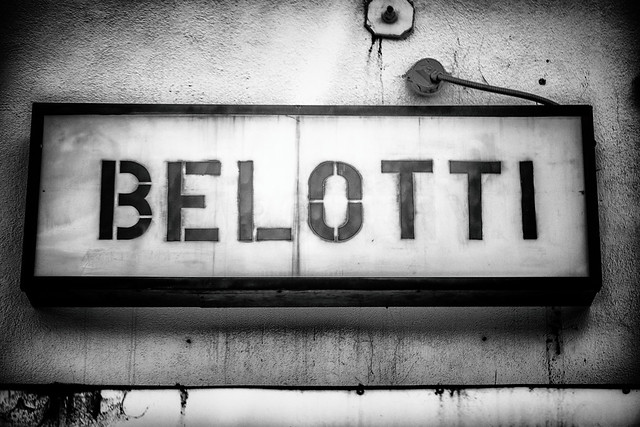
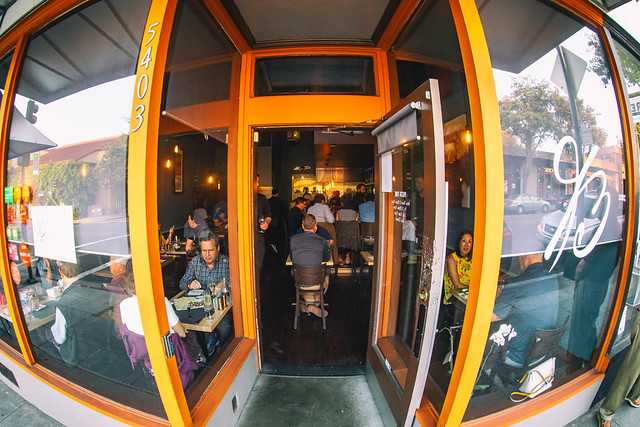
Belotti, Oakland, California

19 Aug

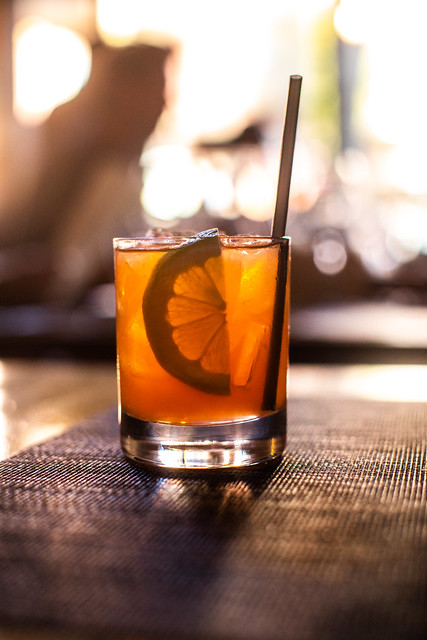
Had dinner tonight at the lovely Belotti on College Avenue in Oakland, California — a wonderful Italian restaurant with some of the most amazing dishes. Definitely a memorable meal and definitely a new local favorite. Since we were speaking Italian, brought a nicely cellared 1998 Barolo which accompanied the meal perfectly.

Belotti

Belotti

Sen?or Belotti

Clerico 1998  Ciabot Ginestra Mentin Barolo

Belotti
Hand cut certified Piedmontese ribeye dry aged beef tartare, carasau bread, parmigiano reggiano, micro arugula, aged balsamic, truffle caviar, quail egg yolk.

INSALATA DI BURRATA
INSALATA DI BURRATA — Organic mixed leaves, celery, California nectarines, Italian burrata, crostini, Piedmontese amaretti cookies, 8 years aged balsamic Giuseppe Giusti

Tortino
My favorite dish of the night. Don’t miss this one! Tortino. Organic spinach flan with runny egg yolk center, Grana Padano D.O.P. sauce, sauteed spinach, brown butter, Alba black truffle.

AGNOLOTTI DI LIDIA
AGNOLOTTI DI LIDIA — Traditional Piedmontese style stuffed pasta with beef shank, flat iron, pork loin, sausage, escarole, spinach, parmigiano, beef reduction

BRASATO
Brasato — 5-hour braised flat iron, Italian organic polenta, organic hen of woods mushrooms, nebbiolo reduction

Panna Cota
Panna Cota for dessert.


Thomas Hawk Digital Connection

 
Comments Off on Belotti, Oakland, California

Posted in Photography


8 Elementary Travel Photography Mistakes to Avoid When Starting Out

19 Aug

Starting out in photography may seem like a daunting task. There are so many things to learn and practice that sometimes it can seem like an impossible task. Unfortunately, there are no shortcuts and if you want to take better photos then you need to be willing to put the hours of practice and learning in.

The good news is that these days there are lots of resources online that can help you. To get you started here are 8 elementary travel photography mistakes to cut out when starting in photography.

temple in asia in golden light -  Travel Photography Mistakes

Mistake #1 – Setting Your Camera On Auto

It always amazes me when I see newbie photographers with the latest expensive DSLR, using the auto mode. Besides capturing better quality photos from a resolution point of view, the other main benefit of DSLRs is the amount of control that you have over the photo taking process.

Admittedly auto functions on cameras are a lot better these days. But often it means compromises which are not necessarily best for the image. For example, if your camera is setting your ISO too high you will get a lot of noise in your photo. Instead, you may decide that actually underexposing your image slightly, which you can then adjust in post-production, will be a better compromise than extra noise.

But the biggest reason you should avoid auto mode when starting out is that it will stop you from learning. You need to learn to be able to set your shutter speed and aperture. You need to learn when and how much to raise your ISO by because it’s the only way that you can have full control over the final outcome.

auto mode on DSLR -  Travel Photography Mistakes

Mistake #2 – Shooting in JPEG

I can’t see any reason why anyone would want to shoot in JPEG format with a DSLR camera. Unless you are on a specific brief that requires instant upload of the images to the client, capturing JPEGs shouldn’t be an option. The only reason that people use JPEG mode in the camera is to save disk space.

But ask yourself if it’s worth compromising the quality of the photo for the sake of buying a couple more memory cards?

If your camera has RAW files (which all DSLRs and most mirrorless and compact cameras do these days) that’s what you should use. It gives so much more flexibility when it comes to post-processing, supplying images to clients, and even printing them out.

Even if you plan to only use your images on social media you are better off capturing the images in RAW, post-processing them and then saving them as JPEGs.

raw setting on a DSLR menu -  Travel Photography Mistakes

Mistake #3 – ISO Too High

A few years ago I remember bumping into an amateur photographer in Vietnam. As we got talking it became apparent that he didn’t understand what ISO actually was and how it affected his photos. He just assumed it was a number that allowed him to take photos in most conditions. So while his ISO was at 6400, his shutter speed was 1/4000th.

For those of us who were photographing in the days of film, ISO was the sensitivity of the film to light. So if you wanted to capture photos in darker conditions you would use a roll of film with a higher ISO.

This concept is exactly the same now in digital photography. The higher your ISO the more sensitive the camera’s sensor is to light. The downside of this is that the higher your ISO is, the more noise you will get in your image.

So while the amateur photographer I met was able to capture photos in any and lighting conditions, all of his images when zoomed-in were soft and grainy. So one of the biggest tips for any aspiring photographer is to always keep your ISO as low a possible and only increase it as much as you have to in order to get the shot.

The Kremlin -  Travel Photography Mistakes

Image taken at 4000 ISO means noise and an image lacking sharpness.

Mistake #4 – Shutter Speed too Slow

One of the biggest struggles for newbie photographers is often capturing sharp images. One reason could be that the camera has been focused on the wrong part of the image. The other big reason is often that the photographer didn’t use a fast enough shutter speed.

At slow shutter speeds of 1/60th or slower, you simply will not be able to hold the camera steady enough for sharp photos. Even 1/60th for some people might be too slow so it’s worth testing this when you are starting out.

Start capturing photos of the same subject at 1/100th all the way down until the image is blurred. You’ll then know how slow you can go. But your shutter speed is also dependent on how fast the object that you are photographing is moving and the lens you’re using.

For example, you might be able to capture a photo of someone running with a shutter speed of 1/250th. But a fast-moving car would need a faster shutter speed to freeze it. If you’re using a 300mm lens you will also need a faster shutter speed (keep the shutter speed as a reciprocal of the focal length so 1/300th).

With experience you will learn what shutter speed you will need so make sure you practice photographing different moving objects.

blurry trumpet player -  Travel Photography Mistakes

Shot at 1/40th of a second. This was not fast enough to freeze the action so the image is blurred.

Mistake #5 – Photographing at Midday

For any outdoor photography, light is often the key component of turning an okay image into a great image. As such photographing at midday when it’s bright and sunny will usually mean your images will look flat as the harsh light washes out shadows. So try to avoid photographing around midday and instead build your shoot around early morning or late afternoon/evening.

 Travel Photography Mistakes - two guys by a lake

The light is too harsh and so the image looks flat.

Mistake #6 – Not Being Ready

One of the great satisfactions for photographers is capturing those fleeting moments that would otherwise be missed. But to do that you have to be ready.

That means having your camera out of your bag, turned on, with the lens cap off. You should also get into the habit of adjusting your settings as you are moving around to cater for the conditions so that you are ready to capture the image when the opportunity arises.

rural farm with pigs in Asia -  Travel Photography Mistakes

Mistake #7 – Highlights / Shadows Clipped

One of the key tools for you as a photographer is the histogram. Even if you don’t fully learn or understand how to read one, the one thing you should know is how to use it to see if your highlights and shadows are within an acceptable range.

Highlights are bright areas in your photos and shadows are dark areas. If your highlights are too bright they may actually be completely white with no detail at all. Similarly, if your shadows are too dark they will be completely black. This is called “clipping”.

The best way to check this at the time of taking the photo or in post-production is to use your histogram. If any part of the histogram is cut off on the left there are pure black areas in your image and if it is cut off on the right there are pure white areas in your image.

By spotting this on your histogram you can either adjust your settings to avoid clipping or fix any issues in post-production.

photo with clipped areas -  Travel Photography Mistakes

The areas highlighted in red are pure white and the areas highlighted in blue are pure black. In other words, those areas are “clipped” and will have no detail.

Mistake #8 – Photo Not Straight

Whether you are an advocate of post-processing or someone who doesn’t believe photos should be altered, the one thing that you should always do is to ensure that your images are straight.

Of course, it is best to get things right in-camera when you are taking the photo. Some DSLRs have various elements to help you get your image straight when you look through the viewfinder or on the LCD screen.

But if you find that your image is not straight, make sure you fix it in post-production.

grid view on a DSLR screen -  Travel Photography Mistakes

Conclusion

Most people who start out in photography will make some of these mistakes along the way. The important thing is to learn from them and move on. But if you can cut these mistakes out from the start you’ll be well on your way to capturing better photos.

Have you made any mistakes that others should avoid? Please share your experiences below.

The post 8 Elementary Travel Photography Mistakes to Avoid When Starting Out appeared first on Digital Photography School.


Digital Photography School

 
Comments Off on 8 Elementary Travel Photography Mistakes to Avoid When Starting Out

Posted in Photography


Shooting live music with the Panasonic Lumix GX9

18 Aug

Introduction

85mm | ISO 200 | 1/2000 sec | F2.8

The South Lake Union Block Party is pretty standard as far as block parties go these days; loud music and expensive beer in a vacant lot in the heart of Seattle’s South Lake Union neighborhood. Over the course of putting the finishing touches on our full review of the Panasonic Lumix DC-GX9, I wanted to get some real-world autofocus experience to put our more formal testing into better context.

So, on a hot and hazy Seattle afternoon, I took the GX9 and Lumix G Vario 35-100mm F2.8 lens down to see the band Acid Tongue, and exclusively used Touchpad AF and Tracking the entire time. Here’s what I found.

All images in this article were shot with the GX9 and Lumix 35-100mm F2.8 and are processed in Adobe Camera Raw.

Tracking technique

47mm | F2.8 | ISO 200 | 1/4000 sec | F2.8

Touchpad AF on the GX9 allows you to drag your finger around the screen to move your AF point while the camera’s viewfinder is up to your eye. This is great for quickly moving around a single area, but I also found it’s a great way to take advantage of the sticky AF tracking that the GX9 is capable of.

Firing off single shots, I was really impressed at how consistently in-focus my images were

If you’re using tracking while composing via the rear LCD, you simply tap on what you want to track; to disengage tracking, you have to hit the ‘Menu / Set’ button, or you can tap elsewhere on the screen to track another subject instead.

When you use tracking with the electronic viewfinder, you can use Touchpad AF to move the area over the subject you want to track, and half-press to initiate autofocus. You can then re-compose at will, with an AF box tenaciously tracking your chosen subject. Firing off single shots, I was really impressed at how consistently in-focus my images were.

100mm | ISO 200 | 1/4000 sec | F2.8

Since you can’t simply tap the screen to change subjects when using the electronic viewfinder, I found another way of working: dragging on the rear screen automatically disengages tracking, and once you place the area over a new subject and release your thumb, it begins tracking that new subject. Pretty neat.

While you may be able to get similar results by just moving a single area around with the Touchpad and ignoring tracking altogether, I tend to like using tracking in these scenarios to allow me more compositional freedom – and if the subject moves erratically to another point in the frame, the camera will help me keep up and get more images that I wouldn’t have been able to get otherwise.

It’s not perfect

51mm | ISO 200 | 1/1300 sec | F2.8

As always with autofocus tracking, there are times when it doesn’t quite work. When subjects move from bright light to shadow, the tracking algorithm can sometimes get tripped up and shoot off to the background, or simply fail to focus on anything at all. Additionally, there is some shot-to-shot lag in the GX9 that can make it difficult to follow your subjects.

The GX9’s keeper rate is significantly higher if you shoot single images as opposed to bursts

So why not simply shoot bursts then? Well, we’ve found in our testing that the GX9’s keeper rate is significantly higher if you shoot single images compared to bursts (stay tuned for the autofocus page in our full review for the details). So I made a call to take the shot-to-shot lag and impressive focus accuracy over shooting bursts with a lower hit rate.

The wrap

100mm | ISO 200 | 1/1600 sec | F2.8

The GX9 was a really good companion for this type of event. Paired with the Lumix 35-100mm F2.8, I had a compact, responsive package that wasn’t all that conspicuous, but I had plenty of reach and ended up with far better image quality than, say, a 1″-type superzoom. Of course, this combo can’t quite match up to a full-frame DSLR and a 70-200mm F2.8 lens, but that’s not really the point here.

Sure, the GX9 wouldn’t be my first choice for critical, action-oriented work (and Panasonic makes higher-end models for that sort of purpose anyway). But for the casual user who wants a small, stylish camera and wants to occasionally photograph a concert or sporting event for fun, the GX9 is easily up to the task.

Articles: Digital Photography Review (dpreview.com)

 
Comments Off on Shooting live music with the Panasonic Lumix GX9

Posted in Uncategorized


Lightroom Local Adjustments – Radial Filter Versus the Adjustment Brush

18 Aug

Adobe Lightroom is image editing software that allows you to edit and make color adjustments to your photos. Among many, the Radial Filter and Adjustment Brush are two very useful local adjustment tools in Lightroom.

But often people get confused between both of these tools and are not sure which one to use in which situation. So I thought I’d share a few tips on the basis of which you can easily figure out the importance of each respective tool.

Radial Filter Tool

This tool is a blessing for portrait, event, wedding, and wildlife photographers. The reason why I am pointing to these genres of photography is that such photos usually have a single subject in the frame which needs to be highlighted.

The Radial Filter allows you to select an area using an elliptical mask. Then the shape of the ellipse can be changed by dragging one of the points. Once the area is selected, you can make adjustments inside or outside the shape using the new Brush component depending on your requirements.

radial filter Lightroom local adjustments

Adjustment Brush Tool

The Adjustment Brush is like painting the image canvas with the required adjustments. You can use the mouse pointer, drag and select the area manually where you wish to make desired adjustments. You have the ability to increase or reduce the size of the brush to make a fine and precise selection.

 Lightroom local adjustments - adjustment brush

Radial Filter or Adjustment Brush? How to Decide?

As you saw in the example above, using the Radial Filter allows you to select a particular area using the elliptical mask whereas the Adjustment Brush allows you to manually select the area using the cursor.

As a photographer and a creative person, you have to first visualize the result you want to achieve for your picture. If you believe that using the Radial Filter would suffice for your editing needs, go ahead with it. But if you feel that you need more manual and precise control over the selection of the area where you need desired changes, go with the Adjustment Brush.

It may sound easy but it might be challenging in some situations, so let me help you with this by looking at two examples.

Example 1: When to use the Radial Filter

 Lightroom local adjustments - radial filter image of an Indian boy

In the image above, my intention was to make changes to the area around the face of the boy. Now as the shape of the face is defined, I can easily select the area using the elliptical shape of the Radial Filter tool. Later, if I feel that I need to change the shape of the selection I can easily do that by dragging the points or using the Brush feature.

It does not make any sense to use the Adjustment Brush in this particular scenario as I can save my time by simply using the Radial Filter.

Basically, you should use the Radial Filter when the shape of your subject is defined and you can easily make the selection using the ellipse. Weddings, portraits, wildlife, events, and sports are some of the genres of photography where you can use the Radial filter to make changes faster.

Example 2: When to use the Adjustment Brush Tool

 Lightroom local adjustments - landscape scene sky selected

In this particular image, I wanted to make exposure and highlight changes selectively in the sky region. As you can clearly see, the shape of the sky area in this photo is not defined therefore I can not use the Radial Filter. If I use the Radial Filter I would either select unwanted areas of the mountains or would miss out some parts of the sky.

But by using the Adjustment Tool I can manually select the area I want to make changes in and I was able to do that precisely. Though this approach is a bit time consuming as compared to the Radial Filter, but you surely get an accurate selection. Now whatever changes I make would perfectly be made only on the sky region.

Conclusion

So the conclusion is that you should be using the Adjustment Brush when the shape of the area that you wish to select is not well defined. Landscapes, Cityscapes, or any photo where the shape of the subject is very complex, the Adjustment Tool would give you much accurate selection than the Radial Filter.

If you want to read more about each of these tools check out these dPS articles:

  • Creative Use of the Radial Filter in Lightroom
  • Lightroom’s Secret Weapon: The Radial Filter and How to Use it
  • Lightroom Mastery: The Power of the Adjustment Brush
  • 5 Tips for Using the Lightroom Adjustment Brush Tool
  • How to Use the Local Adjustments Tools Inside Lightroom

The post Lightroom Local Adjustments – Radial Filter Versus the Adjustment Brush appeared first on Digital Photography School.


Digital Photography School

 
Comments Off on Lightroom Local Adjustments – Radial Filter Versus the Adjustment Brush

Posted in Photography


Sony takes five at the 2018-19 EISA awards

18 Aug

The European Imaging and Sound Association has announced the winners of its 2018-19 awards, with Sony doing particularly well and coming away with five of the eighteen prizes. The Camera of the Year award went to the Sony a7 III, while the a7R III took Professional Mirrorless Camera of the Year and the Cyber-shot RX10 IV bridge camera came away with the award for the best superzoom model.

The prize for the best mirrorless camera went to the Fujifilm X-H1 and the Canon EOS M50 was the recipient of a new award for Best Buy Camera. Nikon’s D850 deservedly won Professional DSLR of the Year so the Canon EOS 6D Mark II took the DSLR title.

Three of the lens awards went to models designed for the Sony system, with the Sony FE 100-400mm F4.5-5.6 GN OSS and FE 16-35mm F2.8 GM being joined by Tamron’s 28-75mm F2.8 Di III RXD in the mirrorless sector. Canon and Nikon took a DSLR lens award each for the EF 85mm F1.4L IS USM and the Nikkor AF-S 180-400mm F4 TC1.4 FL ED VR, while Tamron and Sigma took Tele Zoom and Zoom awards for their 70-210mm F4 Di VC USD and 14-24mm F2.8 DG HSM I Art lenses.

Best Photo Video Camera went to the Panasonic Lumix DC-GH5s, the Photo Innovation prize went to the Canon Speedlite 470EX-AI and the 40MP sensor of the Huawei P20 Pro was one of the factors that won it the Best Smartphone award.

We suspect that some readers might be at odds with the decisions made by the EISA Photo Expert Group and will feel that some very good products have been overlooked, so it would be interesting to hear what you all think should have won each award. Remember, EISA only picks products launched in the year up to the end of May 2018.

For more information, and to see all the awards, visit the EISA website.

Articles: Digital Photography Review (dpreview.com)

 
Comments Off on Sony takes five at the 2018-19 EISA awards

Posted in Uncategorized


A wildlife photographer’s perspective on the Sony a9

18 Aug

$ (document).ready(function() { SampleGalleryV2({“containerId”:”embeddedSampleGallery_3417452429″,”galleryId”:”3417452429″,”isEmbeddedWidget”:true,”selectedImageIndex”:0,”isMobile”:false}) });

Aaron Baggenstos is a veteran wildlife photographer and, until recently, almost exclusively a Nikon shooter. For a recent trip to the Alaskan wilderness, he left his D5 at home and instead took the Sony a9. He quickly found the a9 to be more than up to the task, as he details in the video below. While it’s easy to dismiss him as overly enthusiastic at times, it’s certainly tough to argue with the stunning images he was able to capture.

See what he thought of the a9 in his video review below, and find more of Baggenstos’ work on his Instagram, Facebook, YouTube channel and website.

Articles: Digital Photography Review (dpreview.com)

 
Comments Off on A wildlife photographer’s perspective on the Sony a9

Posted in Uncategorized


DJI teases August 23 launch event, new drone in new video

18 Aug

DJI has published a video on its YouTube channel teasing a new product due out August 23, 2018. No specific details are shared, but at the very beginning of the video, we catch a glimpse of what appears to be an on/off button of a drone.

After the short clip of what looks like the body of a drone, the narrator of the video says:

For more than a decade we’ve taken the dimension of space to give you the freedom of flight. But did you think we’d stop there? Let us take you beyond the horizon where something incredible awaits. It’s about time.

The video wraps up with a clip that overlays the words ‘see the bigger picture.’

DroneDJ says the on-off button we see at the beginning of the video is likely that of the yet-to-be-announced Mavic 2 Drone. Considering the similarities between the device in the teaser clip and the Mavic Pro, it’s not much of a stretch to draw that conclusion.

Back in June, DJI sent out an invitation to press outlets teasing an event set for July 18. Three weeks after sending out the invitation, DJI delayed the event, citing issues regarding user experience and customer expectations. We’ll have to wait and see if the August event stays on-track or is pushed back once again.

Articles: Digital Photography Review (dpreview.com)

 
Comments Off on DJI teases August 23 launch event, new drone in new video

Posted in Uncategorized