RSS
 

X-Rite launches the ColorChecker Video XL

12 Sep

X-Rite has announced the ColorChecker Video XL, an oversized color target designed for those shooting situations in which smaller variants won’t quite cut it.

The Video XL uses the same gray and color patches as well as skin tones as the standard ColorChecker Video but is simply twice as large. Features include two rows of six chromatic color chips, both saturated and de-saturated, skin tones ranging from light to dark, patches for even gray balance, including white, 40IRE gray, deep gray and high gloss black, six color chips for linear gray balance, and illumination check chips in the corners.

“The X-Rite ColorChecker Video XL is designed for those longer and wider shots when the space between your camera and subject is too great to capture a smaller target,” X-Rite says. “With ColorChecker Video XL, users can increase capture resolution for post, maintain the same lighting conditions falling on their subject, eliminate the need to move the camera closer or adjust focal length, and minimize color casting from surrounding light.”

X-Rite says the new tool can help video shooters and photographers set exposure, check highlights, shadows and mid-tones, achieve accurate color balance, match multiple cameras and edit for mixed lighting.

The ColorChecker Video XL is available now for $ 399. With a sleeve it is $ 429 and the bundle with a carrying case will set you back $ 495. More information is available on the X-Rite website.

Articles: Digital Photography Review (dpreview.com)

 
Comments Off on X-Rite launches the ColorChecker Video XL

Posted in Uncategorized


ExperimentalOptics launches Kickstarter for 35mm F2.7 pancake lens

11 Sep

ExperimentalOptics has launched a Kickstarter campaign to crowdfund the production of what it claims is the ‘smallest fastest pancake lens in the world.’

The 35mm F2.7 lens is measures just 7mm thick — the same height as exactly 4 quarters stacked on top of one another — and weighs 40 grams/1.4 ounces. Although most of the testing for the lens was done on full-frame mirrorless cameras — Sony from the looks of it — ExperimentalOptics says the lens really shines on APS and smaller cameras. On APS-C and APS-H cameras, the lens is equivalent to roughly 50mm, while Micro Four Thirds gives it an equivalent focal length of 70mm.

The lens, which is milled from a solid piece of metal has no moving parts and features a native M39 mount. It can be used with almost any camera though when paired with an optional helicoid adapter.

‘This is not a cheap, low quality, low speed toy lens,’ says ExperimentalOptics on the campaign page. ‘It is a high quality, fast lens, [that gives] you the utmost creative possibilities of speed, selective focus and bokeh – and all in an unobtrusive and uncompromisingly compact body that never gets in the way of your creative expression.’

$ (document).ready(function() { SampleGalleryV2({“containerId”:”embeddedSampleGallery_0910928296″,”galleryId”:”0910928296″,”isEmbeddedWidget”:true,”selectedImageIndex”:0,”isMobile”:false}) });

To find out more information and to secure your pledge, head on over to the Kickstarter campaign. A pledge of € 1,199 (approximately $ 1,390) will get you the 35mm F2.7 lens, a handmade lens pouch, a manual and free worldwide shipping. It’s set to ship in ‘late 2018.’

If you want to see more sample photos from the lenses, ExperimentalOptics has shared a gallery of sample images on its Flickr page.

Articles: Digital Photography Review (dpreview.com)

 
Comments Off on ExperimentalOptics launches Kickstarter for 35mm F2.7 pancake lens

Posted in Uncategorized


Tips for Portrait Processing with ON1 Photo RAW 2018.5

11 Sep

There are many genres within the framework of photography and one that is very popular is portraits. As such, many photographers are looking for great software that can help them make their portraits so much better. ON1 Photo RAW 2018.5 has some great tools and adjustments for portrait processing to give them a professional touch.

In ON1 Photo RAW 2018.5 you will find all the tools you need to retouch out blemishes or any imperfections that the person or model may have. You can give the skin the same hue all over to get rid of blotchiness. Finally, you can make the eyes whiter and the teeth brighter. Your subjects will love the results.

Tips for Portrait Processing with ON1 Photo RAW 2018 - portrait image

Portrait processing with ON1 Photo RAW

We are going to start with the basic skin retouching before heading to the Magic Eye Fixer and finally the Toothbrush.

Basic Retouching

Open the image you want to work on in the Develop Module of ON1 Photo RAW 2018.5. Here you can make the basic adjustments like correcting the exposure or the white balance. Play around with the sliders to get what you want.

You can see what was done to this image below.

Tips for Portrait Processing with ON1 Photo RAW 2018 - basic adjustments

Basic adjustments.

No girl wants to be seen with acne on her face, so the next step is to get the Erase tool and remove as much of it as you can.

Tips for Portrait Processing with ON1 Photo RAW 2018 - blemishes

There are still blemishes on and around the chin, so now it is time to take it a step further with the skin retouching. ON1 Photo RAW 2018.5 has some great adjustments you can use to do just that.

If you are working on images of people that you know or clients, consult with them first about what they are happy with you removing from their skin. It might be good to remove scars, for example, however, if they are proud of those scars, it might upset them. Always ask.

Skin Retouching

You can do skin retouching in either the Develop or Effects modules. For this article, we will use the latter so click on Effects in the right-hand panel.

Once you are there click on Add Filter under the Overall settings.

Tips for Portrait Processing with ON1 Photo RAW 2018 - Effects Add Filter

Effects > Add Filter

When you click on that you will get a big list of options from which you can choose. For this tutorial, click on Skin Retouching.

Tips for Portrait Processing with ON1 Photo RAW 2018 - skin retouching filter

Skin Retouching filter.

You should see a new window open up that has all the adjustments for Skin Retouching. The first thing you want to do is select the eye dropper that is next to the square color patch. You will see a cross-hairs cursor so that you can make a selection on the skin.

Tips for Portrait Processing with ON1 Photo RAW 2018 - skin selection

Choose a part of the skin that is somewhere in between the darks and the lights. A mid-tone is the best option and a good place to find that is on the forehead.

Once you have your selection you are ready to retouch all the skin. You can now set the range of how much you want to do on the face. Use the Range slider at the bottom.

As you move it around you will see parts of the image that are covered in black while others are now. The black parts will not be affected, which as the lighter sections and places where it doesn’t cover it you can use the skin retouch. It doesn’t hurt to move it up a lot.

As you move the Range slider along you will see parts of the image covered in black while other areas are not. The black parts will not be affected by the retouching. However, the light sections, or the parts of the image that seems like they are not being affected, is where the skin retouching will apply to the image.

It doesn’t hurt to move the Range slider up a lot.

Tips for Portrait Processing with ON1 Photo RAW 2018 - range of skin retouching

Add a Mask

Next, you need to add a mask. You can do that at the top of the layer window, it is the white rectangle with the black circle inside.

You will see more options appear and along with the mask. The cursor will also change and the brush will come up automatically once you have done that.

Tips for Portrait Processing with ON1 Photo RAW 2018 - mask and brush options

Once you have the mask, go ahead and invert it. When you do this the mask will go black. When it is black it means that nothing from that layer is affecting your image. The brush is already chosen and now it is time to work out what parts of the image you want to add the skin retouch.

Make sure you brush is set to Paint In. You can change the brush options including feathering along the top above the image. You don’t need a lot, my brush was set at 31.

Now paint over the skin you want to affect. You should see parts of the mask going white where you are painting. Avoid the eyes and the mouth.

leannecole-skin-retouching-on1-portraits-6

Once you think you have done all the skin it is best to check and make sure.

Along the bottom of the window, you will see the button for a preview. Press it to see your original image. However, on the left, you will see a rectangle with a grey dot in it. If you click on it you will see the image go to solid black and white.

Tips for Portrait Processing with ON1 Photo RAW 2018 - mask

This shows you what your mask looks like. Pressing the letter O does the same thing if you like keyboard shortcuts. It can be hard when it is like this to really see what you have got painted and what you haven’t.

Go up the Main Menu > Masks > View Mode and finally choose Red Overlay.

Tips for Portrait Processing with ON1 Photo RAW 2018 - red mast overlay

The red overlay will show you where the black part of the mask is (the unaffected areas), so you can now refine your mask.

Tips for Portrait Processing with ON1 Photo RAW 2018 - red overlay mask

In the above image, you can see what has been selected. The areas with no red are where the skin retouching will be applied. If you have areas that should be red, change your brush to Paint Out and it will cover them.

Click the circle at the bottom to change back to the image, or press O to show it.

The skin retouching can seem very subtle, but if you toggle the layer on and off you should be able to see the changes.

Tips for Portrait Processing with ON1 Photo RAW 2018 - toggle layer

Final Adjustments

Now to do some final adjustments. At the bottom of the layer you can see Blemishes, Smoothing, Shine and Evenness. Move all the sliders to the left.

Tips for Portrait Processing with ON1 Photo RAW 2018 - sliders at the bottom

Slowly move each slider up and see how they change the image. Take them all the way to the right to see how bad would be if you go too far, then bring them back to where you want.

The one you have to be really careful about is the Smoothing slider. You can make the skin look like plastic very easily. You can see what was done for this image in the following example.

Tips for Portrait Processing with ON1 Photo RAW 2018 - sliders adjusted

The next step is to again turn the layer off and on to see the results and whether you think it has improved the image.

Tips for Portrait Processing with ON1 Photo RAW 2018 - skin retouching before and after

Magic Eye Fixer

The Magic Eye Fixer is great to help whiten the white parts of the eyes. It can make the subject’s eyes seem a lot brighter. However, this one needs to also come with a warning, it is very easy to take it too far and make the eyes look ridiculous.

To use this tool, go to the Local Adjustments tab and then select Add Layer.

Tips for Portrait Processing with ON1 Photo RAW 2018 - new layer

In the new layer window, you will see options like Lighten, Darken, Vibrance, and Detail across the top (just below the Opacity slider). Then there is a square with a down-arrow that says More underneath. Click on it and a drop down menu will appear.

Look down the list and you will see Magic Eye Fixer. Click on that.

Tips for Portrait Processing with ON1 Photo RAW 2018 - magic eye fixer

Once you have clicked on it you will see some of the adjustments change automatically. The brush tool will also be automatically selected. Paint over the eyes.

leannecole-eye-fixer-on1-portraits-3

Obviously with the automatic changes that ON1 Photo RAW makes for the adjustments are too much. You may also find it too hard to paint exactly over the eyes. Don’t forget you can change the brush to Paint Out to deselect the areas you don’t want if you mess up.

Enlarge the image view so you can get a better look at what you are doing; make sure you are only changing the parts you want to affect. You can also press O to check the mask as well.

Tips for Portrait Processing with ON1 Photo RAW 2018 - masked eyes

You can see that the adjustment is too much. Now you can change the exposure slider to make it look more natural. You can also use the Opacity slider at the top of the layers panel. That will also help you tone down how much the layer affects the image.

Tips for Portrait Processing with ON1 Photo RAW 2018 - eye settings

You can toggle the layer off and on to see if you like the effect or want to make further adjustments. Just remember not to go too far.

Healing the Skin

You could leave the image here, but there are other things you can do to make the skin look even better.

In the left-side panel, there is a brush called the Retouch Brush. This is a good one to use to help remove unwanted skin blemishes. It softens them, without removing them completely.

Tips for Portrait Processing with ON1 Photo RAW 2018 - retouch brush

Paint this Retouch Brush over the areas where you would like to remove imperfections. For this image, we will use it for the bags under the eyes, the scar on the forehead and the one over the right eye. It will also work well for the acne marks on the chin.

The brush is feathered and the opacity has been changed to around 50%.

Tips for Portrait Processing with ON1 Photo RAW 2018 - after retouch brush

After the Retouch Brush

It is a great tool, but as with all things, you can go too far. Sometimes it is good to leave the image for a day or two, then go back and take another look. It gives you a better perspective.

Whitening Teeth – Toothbrush

You will find that many people like to have their teeth appear whiter in photos. We aren’t all blessed with brilliant white teeth and now you can help them achieve that. ON1 has included an adjustment that will help you do the job very easily.

So still in the Effects Module, go to Add Layer. As you did for the Magic Eye Fixer, click More and select Toothbrush this time.

Tips for Portrait Processing with ON1 Photo RAW 2018 - toothbrush

You will see a new layer open up with many adjustments already made, so it is ready for you to go.

Tips for Portrait Processing with ON1 Photo RAW 2018 - preset adjusments

Do much the same as you did for the eyes. Click on the mask and then the brush will come up. Paint over the teeth. It may be easier to do them one at a time. If you go outside the teeth click on the brush to Paint Out and go over the areas you don’t want affected.

The teeth should be very white.

Tips for Portrait Processing with ON1 Photo RAW 2018 - overly white teeth

Obviously, it looks terrible like this so you will need to make further adjustments to get the right look.

You can change the opacity of the layer, or turn down the exposure slider so the effect isn’t so bright. For this image, I changed the exposure because there was something else I wanted to do.

These images are of my daughter, who has never thought looking after her teeth were worth worrying about. So, I wanted to get rid of the yellow staining. The best way to do that was to lower the saturation so the teeth appeared whiter. Move the Saturation slider to the left until you get the result you are happy with.

Tips for Portrait Processing with ON1 Photo RAW 2018 - teeth whitening

Now we can compare the final image by turning the layer on and off. You do that by clicking the Yellow dot in the top left corner of the layer panel you are working in.

Tips for Portrait Processing with ON1 Photo RAW 2018 - layer off

Layer off.

Tips for Portrait Processing with ON1 Photo RAW 2018 - resulting image

Layer on, final result.

The image could be left there, but I decided that her face and hair could do with some brightening overall. So I choose a new layer, and did a mask with her face, that included her hair. The exposure was brought up slightly and so was the White balance to make the image warmer.

Tips for Portrait Processing with ON1 Photo RAW 2018 - lighten the image

Looks much better now. She even likes it as well.

Finally

ON1 Photo RAW 2018.5 has everything you need to do the most amazing portrait processing. You can give people skin that is attractive or remove unwanted hues that the camera adds. Everyone wants to look beautiful in photos and now you can help them look the way they see themselves.

The people at ON1 have created an amazing community for all their users and there are many other videos to help go to the next level. Don’t forget to check all of them out and see what else you can do with your portraits.

Disclaimer: ON1 is a paid partner of dPS.

The post Tips for Portrait Processing with ON1 Photo RAW 2018.5 appeared first on Digital Photography School.


Digital Photography School

 
Comments Off on Tips for Portrait Processing with ON1 Photo RAW 2018.5

Posted in Photography


Understanding Sensor-Shift Technology for High-Resolution Images

11 Sep
rock silhouette sunset - Sensor-Shift Technology

Georgian Bay – Summer Landscape

Changing How Photographs are Taken

In recent years, a number of manufacturers have produced cameras that are capable of producing higher-resolution images through something called Sensor-Shift Technology. This technology has been made possible with the advent of in body image stabilization (IBIS). Camera designers have used the IBIS as a way to get incredible increases in image resolution or to improve the color information for the images that are taken.

There are a number of names for this technology including High-Resolution Mode, Pixel Shifting Resolution System, Pixel Shift Multi Shooting Mode or the more generic names of pixel-shift/sensor-shift but in the end, the concepts behind this technology are all the same. Multiple images of the same view are taken in such a way that the images are stacked and blended to create a single, usually large, high-resolution image.

There are strengths and weaknesses of this new technology and understanding how it works can help you make better images yourself if you have a camera that is capable of doing this.

NOTE: Because websites use lower resolution images, the images used in this article have been downsized and modified to simulate the differences between the high-resolution images and the standard output from the cameras. When looking at the images in full, the images look similar but when you get closer to the details in the images that is when you start to see the differences.

gerbera daisies - Sensor-Shift Technology

Gerbera daisies indoors, regular resolution (20 MP) Olympus OMD EM 1 Mark II

Gerbera daisies - Sensor-Shift Technology

Gerbera daisies indoors, high-resolution (50MP) Olympus OMD EM 1 Mark II

Many Approaches to Sensor-Shift Images

Sensor-shift image capture has been transformed from expensive specialty cameras to become an increasingly available feature on newer, resolution-oriented cameras. Today, in addition to Hasselblad’s monster H6D-400c (400 Megapixel images), there are offerings from Olympus, Pentax, Sony, and Panasonic.

These versions generally use the same conceptual approach but at much more accessible prices.

Sensor-Shift Technology diagram

Sensor-Shift Movement

Who Uses Sensor-Shift?

Regardless of the manufacturer, the basic action of sensor-shift image capture remains the same. Take multiple images but move the camera’s sensor slightly for each image to capture more image data and then put the image together.

By moving the sensor around, the image color data improves allowing for more detail to be resolved by overcoming the inherent problems with color specific photosites. Ignoring the Hasselblad, the systems that use this technology include cameras such as the Olympus OM-D E-M1 Mark II (Micro Four Thirds), Pentax K-1 Mark II DSLR, Sony a7R III, and Panasonic Lumix DC-G9 (Micro Four Thirds) although there are others from the same manufacturers.

Three of these lines are mirrorless cameras with the Pentax being a crop sensor DSLR. It is interesting to note that the Panasonic/Olympus cameras take one approach and Pentax/Sony take a different approach to the same concepts.

The Olympus/Panasonic systems use an approach that makes very large high-resolution images whereas the Pentax and Sony systems use the sensor-shift to improve the color information of same size images. Both the Pentax and Sony systems also allow for the separation out of the individual sensor-shifted images whereas the Olympus and Panasonic blend the stacked images into a single photograph.

Sensor-Shift Technology Olympus camera

Olympus OMD EM5 Mark II has the sensor-shift technology.

How does sensor technology work?

To understand how sensor-shift technology works you need to also understand how a sensor generally works at a very small scale. In the good old days of film photography, cameras used light-sensitive film to record images. Digital cameras use a very different approach to record light.

Digital cameras use light-sensitive photodiodes to record the light striking the sensor. In most digital cameras, each photodiode has a specific color filter (red, green, or blue), forming a photosite. These photosites are arranged to allow the light to be blended to see the color from the image coming onto the sensor.

The red, green, and blue photosites on a sensor are generally arranged in a specific pattern known as a Bayer array (a.k.a. Bayer matrix, filter). There are also other configurations such as the Fuji X-Trans sensor (used on several of their camera models) or Sigma that uses a Foveon sensor.

With a Bayer arrangement, there are twice as many green photosites as red or blue because human vision is most attuned to resolving detail in green. This arrangement generally works well but if you think about it, on an image, a color pixel is created by blending these photosites together.

The sensor does not know how much red there is on a green sensor location or a blue sensor location so interpolation is required. This can create some artifacts in photographs if you look very closely and tends to mean that RAW images have an ever so slightly soft focus. All RAW images need some sharpening in post-processing (the green, the red and the blue for a pixel are blended together).

Sensor-Shift Technology

Bayer pattern of photosites

Static Sensors

In a regular camera without IBIS, each photosite only records the light from one color in that one spot, so the data that it records is technically incomplete. It is like a bucket that only collects light from a particular color. A cluster of light buckets in the Bayer pattern is used to create a single pixel in the digital image but within that pixel, there are two green buckets, one blue and one red.

To meld the image together and put a single color into that one pixel, the signals from the cluster of photodiodes are resolved together. The collected data is interpolated via a de-mosaicing algorithm either in-camera (jpeg) or on a computer (from a RAW image), a process that assigns values for all three colors for each photosite based upon the collective values registered by neighboring photosites.

The resulting colors are then outputted as a grid of pixels and a digital photograph is created. This is partly why RAW images have a slightly softer focus and need to be sharpened in the post-production workflow.

Moving Sensors

IBIS means that the sensors now move ever so slightly to adjust for subtle movements of a camera to keep the image stable. Some manufacturers claim that their systems are capable of stabilizing the sensor and/or lens combination for an equivalent of 6.5 stops.

Sensor-Shift Technology

Moving the sensor allows all the color photosites to record the data for each location on the sensor.

This stabilization is accomplished by micro adjustments of the position of the sensor. For sensor-shift images, those same micro adjustments are used to have each photosite exposed to the light from the single image recording. In essence, the sensor is moved around not to adjust for external perturbations but to have each portion of an image contain full-color information.

Photosites Rather Than Pixels

You may have noticed the term photosites instead of pixels. Cameras are often rated by their megapixels as a measure of their resolving power, but this is confusing because cameras do not have actually have pixels only photosites.

Pixels are in the image produced when the data from the sensor is processed. Even the term “pixel-shift” which is sometimes used, is misleading. Pixels don’t move, it is the sensors that have photosites on them that move.

In single-image capture, each photosite records data for red, green, or blue light. This data is interpolated by a computer so that each pixel in the resulting digital photograph has a value for all three colors.

Shifting Sensors

Sensor-shift cameras attempt to reduce the reliance on interpolation by capturing color data for red, green, and blue for each resulting pixel by physically moving the camera’s sensor. Consider a 2×2 pixel square taken from a digital photograph.

Conventional digital capture using a Bayer array will record data from four photosites: two green, one blue, and one red. Technically that means there is missing data for blue and red light at the green photosites, green data and red at the blue photosites and blue and green at the red photosites. To fix this problem, the missing color values for each site will be determined during the interpolation process.

But what if you didn’t have to guess?  What if you could have the actual color (red, blue and green) for each photosite?  This is the concept behind sensor-shift technology.

Sensor-Shift Technology

A normal resolution image.

Diving Deeper

Consider a 2×2 -pixel square on a digital photograph that is created using pixel-shift technology. The first photo begins as normal with data recorded from the four photosites. However, now the camera shifts the sensor to move the photosites around and takes the same picture again but with a different photosite.

Repeat this process so that all the photosites have all the light for each exact spot on the sensor. During this process, light data from four photosites (two green, one red, one blue) has been acquired for each pixel, resulting in better color values for each location and less of a need for interpolation (educated guessing).

Sensor-Shift Technology

A high-resolution image at the same ISO, aperture, and shutter speed.

The Sony and Pentax Approach

Sony’s Pixel Shift Multi Shooting Mode and Pentax’s Pixel Shifting Resolution System operate in this manner. It is important to note that using these modes does not increase the total number of pixels in your final image. The dimensions of your resulting files remain the same, but color accuracy and detail are improved.

Sony and Pentax take four images moved one full photosite per image to create a single image. It really is simply improving color information in the image.

The Olympus and Panasonic Approach

The High-Resolution Mode of Panasonic and Olympus cameras, which both use Micro Four Thirds sensors, takes a slightly more nuanced approach, combining eight exposures taken ½ pixel apart from one another. Unlike Sony and Pentax, this significantly increases the number of pixels in the resulting image.

From a 20 megapixel sensor, you get a 50-80 megapixel RAW image. There is only a single image with no ability to access the individual images of a sequence.

What are the Advantages of Using Sensor-Shift?

Using sensor-shift technology has several advantages. By taking multiple images, knowing the color information for each photosite location and increasing the resolution you accomplish three main things. You decrease noise, reduce moire, and increase the overall resolution of the images.

Noise and Improved Resolution

By taking multiple images with a subtle change in position of the sensor, the resolution of the image goes up but so does the color information in the images. This allows similar images to allow for a greater drilling down into the image with smoother colors, less noise, and better detail.

Sensor-Shift Technology - pink gerbera daisy

A normal resolution image.

Sensor-Shift Technology - flower

A high-resolution image.

Sensor-Shift Technology

Cropped in tight to the normal resolution image, you start to see noise showing up like grain and color variation.

Sensor-Shift Technology

Here is the same crop on the high-resolution version, the color and detail are better with less noise.

Less Moire

Moire is the appearance of noise or artifact patterns that appear in images with tight regular patterns. Newer sensors tend to have fewer issues with Moire than in the past but it will still appear in some images.

The cause of the moire tends to be related to the tight patterns being recorded and the camera having problems resolving the pattern because it is having problems with the sensor photosite patterns. The color information for the Red, Green and Blue photosites have troubles with edges in these tight patterns because not all the color for a single location is recorded.

With sensor-shift, all the color for each location is there, so moire tends to disappear.

Sensor-Shift Technology

Normal resolution image.

Sensor-Shift Technology

High-resolution Image with crop area highlighted

Sensor-Shift Technology

The cropped area on the standard resolution image – noise starting to appear (the scratches on the paper were there before).

Sensor-Shift Technology

The higher-resolution image has less noise and more detail.

So Why Not Use This for Every Image?

Well, the main reason is that you have to take multiple images of a single scene. This means that this really doesn’t work well for moving subjects. The process requires, at a minimum, four times the exposure time of single image capture. This translates into four opportunities for a part of your composition and/or your camera to move during image capture, degrading image quality.

Such constraints limit the technology’s application to still life and (static) landscape photography. Any movement in the scene being captured is going to create a blurry or pixelated area. This is a problem for landscape photography if there is a wind moving plants or clouds as well as areas where running water is present.

This also means that usually, you need to be very stable and use a tripod, although there are some clear intentions from manufacturers to make available versions that will allow for handheld shooting of the camera (Pentax has this feature).

Sensor-Shift Technology

High-resolution image shot on a tripod.

Sensor-Shift Technology

Movement artifacts are visible when viewed more closely.

Quirks of some of the systems

As sensor-shift technology has been implemented in different ways and depending upon the system used, the problems are a bit different. The main quirk is that you generally need a tripod, so no run and gun.

The Sony system has other limitations that you cannot see the image until you process the four separate images together. This means you cannot review your resolved image on the camera. In addition, due to the high pixel count on the A7R mark III, any subtle movement of the tripod is particularly noticeable on the resultant image. In order to edit the images, you also need to use proprietary Sony Software to merge the images together.

Pentax has some interesting features. Using the software application that comes with the camera allows for addressing movement by using an algorithm within the software for removing movement artifacts. This works better than software commonly used for image manipulation such as Adobe.

The Olympus system has been around a while and in the most recent iteration on the Olympus OMD EM1 Mark II, any detected movement will have those affected pixels replaced with parts of one of the single regular resolution images in areas of movement. This creates uneven resolution but makes the image look better for things like wind. It also limitations particularly if there is a lot of movement. Often the images look a little pixelated.

trees - Sensor-Shift Technology

Standard resolution image of a tree – everything is sharp.

Sensor-Shift Technology

A high-resolution image of the same tree but it was windy… Cropped area is shown in the yellow box.

Sensor-Shift Technology

Cropped area expanded – the wind movement generated some artifacts on the image.

Limitations

The greatest challenge facing sensor-shift image capture is moving subjects. Additionally, trying to pair a strobe with a camera using pixel-shift image capture can be complicated by the speed of image capture, flash recycle limitations, and general compatibility problems. Manufacturers are aware of these problems and are working to resolve them.

Overall the Technology is Only Going to Get Better

More and more systems are using algorithms to produce these higher resolution images. As the technology matures, the implementations will get better and better results, potentially able to deal with movement and handheld conditions.

The advantage to manufacturers is that better quality images are produced without the need for really expensive high pixel density sensors (cheaper). The advantages to the user are that the images can have better noise and color information for better final results.

Happy hunting for that perfect high-resolution image!

The post Understanding Sensor-Shift Technology for High-Resolution Images appeared first on Digital Photography School.


Digital Photography School

 
Comments Off on Understanding Sensor-Shift Technology for High-Resolution Images

Posted in Photography


Cosyspeed launches Phoneslinger line of smartphone “camera” bags

11 Sep

Easy accessibility in your pocket and ultimate portability are a smartphone’s main advantages over dedicated digital cameras. However, if you’re the kind of mobile photographer who likes to use their device in combination with add-on lenses, powerbanks or other accessories, the pockets in your pants might not be roomy enough.

Help is at hand, though, in the shape of Cosyspeed’s new Phoneslinger line of smartphone “camera” bags which you can now pre-order on Indiegogo. There are three bags in the new line, the Phoneslinger Power, Prime and Outdoor, which are all designed for different use cases and, in conjunction with a few accessories, form part of a modular bag system.

The Phoneslinger Power is a phone pouch that comes with a built-in 8000mAh powerbank that can charge your device via the QI wireless standard or a USB-cable. The Phoneslinger Prime comes close to a “real” camera bag, offering space for even the largest smartphones and four accessory lenses. You can also leave a lens attached to your device. The Phoneslinger Outdoor is a rugged phone pouch that protects your expensive device while hiking, climbing or any other activity that might put your phone at risk.

Accessories include the Flowbelt which comes with attachment points for the Phoneslinger bags and other items. The Stuffbag is designed to hold items such as sunglasses, passport, keys, etc. and comes with an included wallet. The Prime Pouch is a dedicated lens pouch, holding up to five smartphone accessory lenses.

A full Power kit, which includes the Phoneslinger Power, Stuffbag, Prime Pouch and the Flowbelt will set you back $ 149. For more information and full pricing for all items have a look at the Phoneslinger Indiegogo page.

Articles: Digital Photography Review (dpreview.com)

 
Comments Off on Cosyspeed launches Phoneslinger line of smartphone “camera” bags

Posted in Uncategorized


Getty family strikes deal for majority stake in Getty Images

11 Sep

The Getty family is working to regain control of stock photo agency Getty Images, according to multiple reports published late last week. Sources claimed to Financial Times that the Getty family is working to buy back Carlyle Group’s 51% equity stake, which it acquired six years ago.

Though the terms of the deal haven’t been officially revealed, FT claims the Getty family is paying approximately $ 250 million with about $ 2.35 billion in existing debt rolling over. This is compared to the approx. $ 500 million that Carlyle Group paid years ago to acquire the majority stake.

On September 4, The Wall Street Journal reported that the Getty family confirmed a deal including both cash and “units that provide Carlyle with a continuing financial interest.” However, specific terms for the arrangement weren’t disclosed. The family confirmed to WSJ that the deal is expected to close by the end of Q3 2018.

Via: Financial Times

Articles: Digital Photography Review (dpreview.com)

 
Comments Off on Getty family strikes deal for majority stake in Getty Images

Posted in Uncategorized


6 Ways to Do Architecture Photography That Stands Out

11 Sep

Architecture offers a great advantage over other fields of photography in that your subject will remain in one place. It is, therefore, easier to locate a subject and it will still be there the next time you visit. But this does not mean that photographing buildings is easy. To capture striking architecture photography requires hard work and lots of practice.

Architecture photography 01

Here are some tips to help you create architecture photos that stand out and catch the eye:

1) Nighttime illuminations

You can create your own interesting images of architecture by shooting a city at night.

Photographing architecture at night as opposed to daytime can transform an image with the variety of light providing a unique perspective. While sunlight can provide shadows and interesting angles of light during the day, you will find nighttime can help to make an image more radiant with bursts of building and street light contrasting a vivid color palette from the sky.

One way to obtain eye-catching images is to start photographing at dusk when the sky retains some light as it begins to be tinged with darkness. At this time of day (blue hour), the rich blue hue nicely balances the lights on the building.

Architecture photography 02

You will find it is best to use a tripod at nightfall because of the low light levels. I recommend that you try different exposures to find the best settings and experiment with your composition.

2) The postcard look

Have you ever wondered how to shoot that wow factor image? To create something fresh and distinct you will need to consider your viewpoint and the building you are photographing.

Often, the best viewpoint is the one that reveals queues of tourists, street signs, or other unsightly elements.

This photogenic prospect of a church on a hilltop was partially obscured by bushes and trees so I found a position that shows off the building while concealing any eyesores. A wider landscape (horizontal) shot suited this subject better over a portrait (vertical) format and creates a picture-postcard look.

Architecture photography 03

It can be very rewarding when you nail a great image that you would be proud to hang on your wall.

Light is another factor to consider when striving to capture your very best architecture images. Consider the interplay of light and any interesting patterns that emerge.

3) Abstract views

Many example photos of modern architecture offer a visual treat with massive forms and flows of energy. But how do you capture the qualities inherent to a building in one image?

Sometimes it is impossible to photograph a building in its entirety either because you cannot stand far back enough without an obstruction or you are at risk by standing in a traffic-heavy street. Instead, move closer to the building and capture some of its details.

You can also shoot at a wide-angle setting to capture abstract views that provide a sense of the space or shoot upwards towards the upper structure of the building.

Architecture photography 04

4) Iconic city landmarks

When photographing important architectural landmarks, we tend to photograph them in a certain way that has been photographed before. There is nothing wrong with capturing this familiar and general view. In fact, I encourage you to shoot an iconic monument in this way as there is often a limited number of uninterrupted views.

It is also good practice to try and find another view of the icon, perhaps by including other buildings or subjects.

Architecture photography 05

5) World landmarks

The world is a huge place with a spectacular abundance of photogenic global landmarks. The Taj Mahal in Agra, India is a magnificent architectural example that is breathtakingly beautiful in any light. When you capture a world landmark such as the Taj Mahal, I suggest you select the largest picture size settings for your camera and the optimal image quality to ensure the finest images are captured.

If you can, photograph the landmark at different times of the day. The changing light can be used to develop interesting compositions. Shoot in broad daylight to capture vibrant colors, strong shadows, and clouds and then create a more atmospheric image by shooting the landmark at sunset.

Architecture photography 06

Architecture photography 07

6) Bridges and bridge life

Bridges throughout the world are the hub of daily life and transport. Whether old or new, suspended or cantilever and of stone or metal construction, bridges are full of photographic potential.

To create images with impact, consider what you want to shoot. Photographing a bridge and the city shows more context and distance while shooting an intrinsic part of the structure such as girders and cable displays defines the bridge’s details.

Architecture photography 08

Another aspect to consider is the life that the bridge conveys such as the flow of pedestrians and vehicles. You could capture foot and car traffic with the bridges to give more of a feel to the construction and location.

Conclusion

Remember these tips when you next do architecture photography and you will soon be capturing images that you can be proud of. Share your tips and photos in the comments below.

The post 6 Ways to Do Architecture Photography That Stands Out appeared first on Digital Photography School.


Digital Photography School

 
Comments Off on 6 Ways to Do Architecture Photography That Stands Out

Posted in Photography


CamRanger 2 set for 2019 launch with improved range, Sony and Fujifilm support

11 Sep

CamRanger has shared an announcement on its website teasing the upcoming CamRanger 2 system. In addition to faster connections and improved range, CamRanger 2 will offer full support for select Sony and Fujifilm camera systems.

CamRanger 2 is said to be five times faster than previous versions with 802.11ac WiFi and roughly two times faster when using 802.11n WiFi. CamRanger 2 will also have an effective usage range more than three times its current model.

More significantly, the CamRanger 2 system will support select Sony and Fujifilm cameras. ‘We always said we would not offer support until we could do it in a way that works for professionals,’ says CamRanger on its announcement page. ‘Our new design removes previous limitations, limitations other wireless tethering devices suffer from.’ It remains unknown what cameras will and won’t be supported.

CamRanger has also updated the accompanying apps for the impending CamRanger 2, noting it’s taken inspiration from the CamRanger Mini apps and customer feedback to make an app that both looks better and includes new features.

Unfortunately, CamRanger doesn’t give a hard number for a release date. The only thing we know is the CamRanger 2 system will launch sometime in 2019. If you want to keep up with the latest updates, head over to CamRanger’s website and sign up for its newsletter.

Articles: Digital Photography Review (dpreview.com)

 
Comments Off on CamRanger 2 set for 2019 launch with improved range, Sony and Fujifilm support

Posted in Uncategorized


Shooting a music video with the Nikon Z7

10 Sep

As well as high-resolution stills, the new Nikon Z7 also shoots 4K video and 120p HD video, and offers a suite of filmmaker-friendly features including focus peaking, zebra stripes and 10-bit N-Log recording.

We recently spent two days with director Chris Hershman and his DP Corey Popp in Chicago, shooting a music video for pop artist Emily Blue. Chris shot the entire video using the Z7 and Nikon’s new Z-series lenses, and we joined his crew for a behind the scenes look.

Check out the final video, below.

Emily Blue, ‘Falling in Love’ – shot with Nikon Z7


This is sponsored content, created with the support of Amazon and Canon. What does this mean?

Articles: Digital Photography Review (dpreview.com)

 
Comments Off on Shooting a music video with the Nikon Z7

Posted in Uncategorized


dPS Writer’s Favorite Lens: Why I Love My 35mm F1.4

10 Sep

I’ve used a multitude of different lenses over the years, but never one that I have loved using so much as my 35mm f1.4.

This lens fits with my style of photography. I like things fairly natural and unmanipulated. I love isolating my subject and enjoy being able to photograph in low light without a flash. Also, I prefer getting close to what I am photographing.

Buddha Face - dPS Writer’s Favorite Lens: Why I Love My 35mm F1.4

My 35mm lens gives me a slightly wider field of view than our typical visual attention. Our visual attention is around 55 °, not including peripheral vision, and the angle of view of a 35mm on a full frame camera body is 63 °.

At wide aperture settings, this lens charms me. In most lighting conditions I can achieve super sharp focus and beautiful bokeh in my backgrounds. I am not left shaking in my boots wondering if my shutter speed is too slow.

This is not a review. This is an article about why I love my 35mm f1.4 lens and how I make the most of it in everyday use.

Why I Bought a 35mm f1.4 Lens

Nikkormat FTN with 50mm lens - dPS Writer’s Favorite Lens: Why I Love My 35mm F1.4

My original Nikkomat FTN and 50mm f1.4 lens

My first camera, purchased second hand in 1983, was a Nikkormat FTN with a 50mm f1.4 lens. After using this lens for 28 years it was no longer consistently producing sharp photos. I think it was just worn out.

At the time I had the popular 24-70mm and 70-200mm f2.8 zooms but was not happy with either of them. They were big, heavy third party lenses that also did not always produce sharp images. For a number of reasons, I was gravitating back to using prime lenses. I’ve always had a collection of older primes and love them.

I became so familiar with my old 50mm. I loved the wide aperture but preferred a wider angle of view. After checking online for example photos produced by the 35mm f1.4 lens, I convinced myself it was worth the money. At US$ 1696 it is not cheap. But I figured that if I use it for 10 years it works out to less than 50 cents per day.

Versatility in Most Situations

Lotus Flowers - dPS Writer’s Favorite Lens: Why I Love My 35mm F1.4

Capturing a diverse range of images with a single lens is a common reason people often prefer zooms. But I find I can use my 35mm lens to photograph just about anything. It just suits my style. I am not a sports or bird photographer so much.

For travel, street, environmental portraits, and even more standard portraits, I am happy to use my 35mm. At times I’ll need a telephoto to get in closer so I switch to my 105mm or a longer lens.

During the photography workshops I teach, this is often the only lens I take with me now. I can use it to demonstrate and make examples of anything that I am teaching. For the subjects I like to photograph I most often use this lens.

The great photographer Robert Capa said, “If your pictures aren’t good enough, you aren’t close enough.”

I find the 35mm lens is the perfect focal length to get close enough.

Street and Travel Photography

Poi Sang Long Festival - dPS Writer’s Favorite Lens: Why I Love My 35mm F1.4

Whether you’re shooting wide, medium or close-up street compositions, the 35mm f1.4 can capture them all well.

Taking in the feeling of a market or parade with a wide photo is essential to have in a series of images. Often using a 24mm or wider lens can squeeze too much into one frame. Choosing a location far enough back from the scene to include a good amount of it works best with a 35mm.

Medium range compositions, where you photograph some of the environment and one main subject, are perfect for a 35mm lens. You can get in close and still easily show enough of the surroundings to keep your subject in context with your photo story.

I do like controlling how much or how little of the background is in focus in a medium range composition. I don’t always choose the widest aperture setting as too much detail from the story could be lost. Having the widest aperture of f1.4 gives me more flexibility in how far back I can get from my subject and still control the bokeh.

Macro photos are not possible with this lens, but I can get pretty close. The lens can focus down to about 30cm (1 foot). For including some detail in a photo series, this is often good enough. If I need a macro image I swap lenses for my 105mm or 55mm micro.

Malu young Thai girl - dPS Writer’s Favorite Lens: Why I Love My 35mm F1.4

Environmental Portraits

Portraiture which includes some of the surroundings, telling more of the story, is my favorite genre of photography. I love using my 35mm f1.4 lens for creating environmental portraits. Being able to get in close enough to my subject and still see sufficient background is vital.

Connecting with my subjects is also important to me. Often I will be chatting with them while I am photographing. Other times I will be silent, only communicating with a smile and some gesturing.

Photographing with my 35mm I can create more intimate portraits than when I am further back with my 105mm.

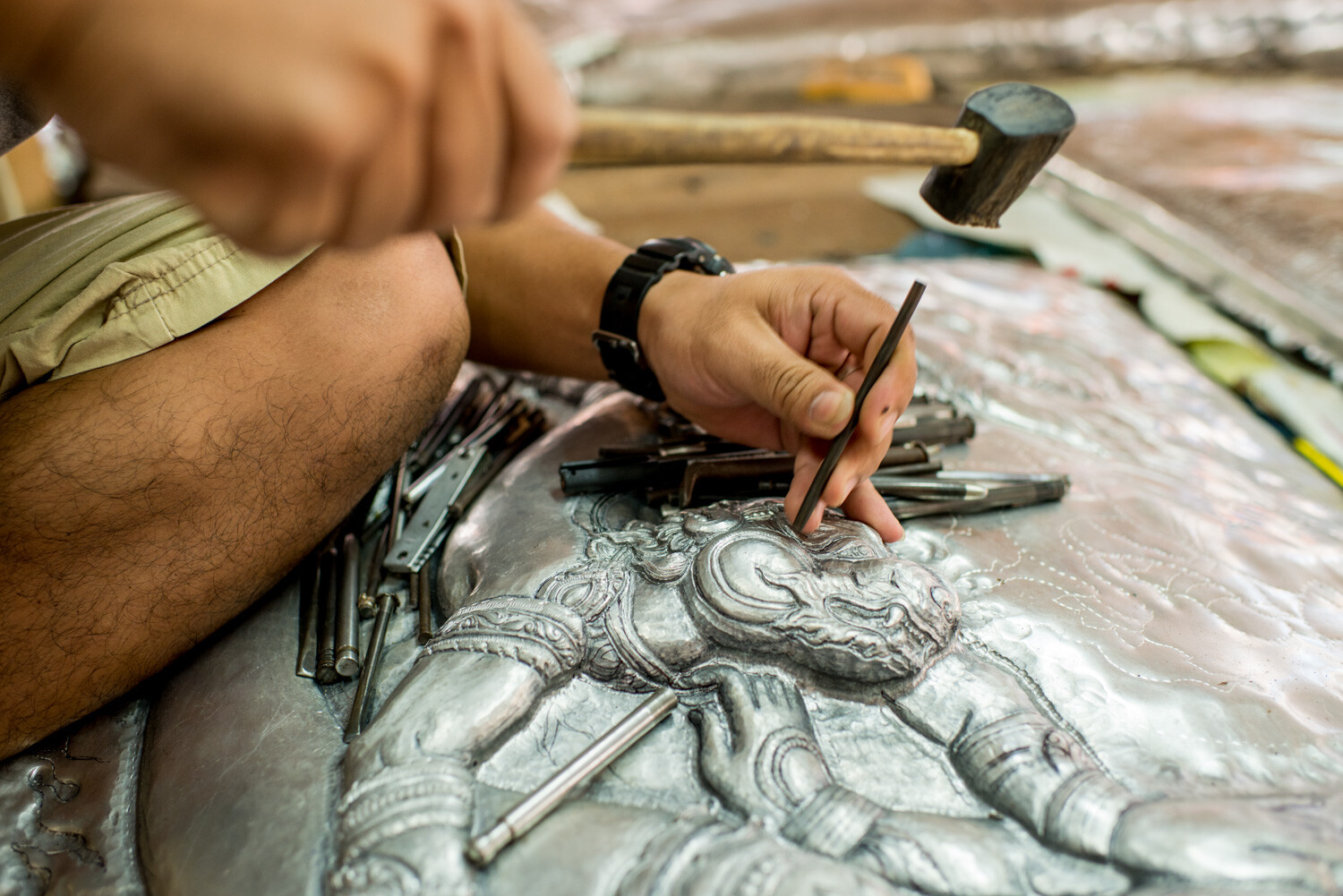
Silver Temple Artist - dPS Writer’s Favorite Lens: Why I Love My 35mm F1.4

I’ve photographed this guy working on his pressed metal art many times. He’s at the Silver Temple in Chiang Mai that we visit during one of our photography workshops. I know he is comfortable being photographed.

When he’s busy we don’t talk much, if at all. I can be close enough to him to exclude a lot of the clutter in the background and show just what he is working on. Then I can come in closer and capture a little more detail.

Silver Temple Artist close up - dPS Writer’s Favorite Lens: Why I Love My 35mm F1.4

Regular Portraits

Photographers often prefer a longer lens than a 35mm for making regular portraits. I do use my 105mm much of the time for photographing people in posed positions. However, I like to create a variety of styles during a portrait session and I find my 35mm lens provides pleasing alternatives.

With wider lenses, you start to see some distortion, which is not all that great for portraits. At 35mm there is no real noticeable distortion, but even still, I usually will not place my subject at the edge of the frame.

Working with a model and using a 35mm lens it is important to build a rapport with them first. You do not want them feeling uncomfortable with you being so close. Showing them a sample of the photos you are taking will often help them relax and build their confidence in what you are doing. This is especially so if the model is concerned that being so close to the camera may be distorting their features.

This young woman was very confident and experienced in being photographed. Still, she was a little wary of me being so close. I had started the session photographing with my 105mm lens. Once I changed to the 35mm I made sure to show her some of the pictures I was taking with it and she loved them.

Thai Dancer - dPS Writer’s Favorite Lens: Why I Love My 35mm F1.4

Architecture and Landscape Photography

It’s not at all uncommon to use a 35mm lens for landscapes or photographing buildings. There’s no huge advantage of having such a wide aperture for these subjects as I will typically want more rather than less in focus. At times I will focus on an element in the foreground and intentionally blur out most of the landscape in the background.

Lack of distortion makes the 35mm a good choice for architectural photography. Having a similar field of view to what we see naturally also helps structural photos look more natural.

Chedi Luang, Chiang Mai, Thailand - dPS Writer’s Favorite Lens: Why I Love My 35mm F1.4

Loving a Lens

I’ve gotten a huge amount of use out of my 35mm f1.4 lens. The experience of using it frequently and really enjoying it has helped me to get to know it well. Being so familiar with a lens means you can make more creative photos with it.

35mm f1.4 Lens well loved - dPS Writer’s Favorite Lens: Why I Love My 35mm F1.4

My 35mm f1.4 looking well loved.

I love this lens and I have a feeling for it. I know, often by instinct, how much my background will be blurred. With the 35mm, I can be close enough to my subject to comfortably communicate with them. Also, I am able to include or exclude as much or little background detail as I want.

Lens love is different than lens lust. You can lust after a new lens every day of the week. To build a loving relationship with a lens you must be committed to taking it out frequently and enjoying spending time with it.

Here’s a video with more about why I love my 35mm f1.4 lens. Do you have a favorite lens? Which one, and why?

The post dPS Writer’s Favorite Lens: Why I Love My 35mm F1.4 appeared first on Digital Photography School.


Digital Photography School

 
Comments Off on dPS Writer’s Favorite Lens: Why I Love My 35mm F1.4

Posted in Photography