RSS
 

Posts Tagged ‘VIEWING’

Viewing Images in Lightroom – What Are The Options?

26 Feb

The post Viewing Images in Lightroom – What Are The Options? appeared first on Digital Photography School. It was authored by Kevin Landwer-Johan.

viewing-images-in-lightroom-options

Digital photographers can tend to take tons of photos. Viewing images in Lightroom can be a tedious and time-consuming task if you are not familiar with the various tools available to you. In this article, I’ll outline some techniques and tools to help improve your post-processing workflow.

Lightroom Grid View - Viewing Images in Lightroom

Viewing many images in Lightroom

The most common way of viewing images in Lightroom is by using the Grid View option. You can also use the Filmstrip option.

In Grid View, your main panel in Lightroom is populated with the thumbnails of photos stored in the folder you have open. To select the folder with images you’d like to view, open the left module panels. To do this, you can press F7 on your keyboard, or click on the triangle to the left of your main panel. Then navigate in the Folders tab to the folder you want to open.

Alternatively, you can use the Filmstrip. This shows up below your main panel when you press F6 or click the triangle at the bottom. Using the Filmstrip module, you are limited to viewing the thumbnails at only one size.

In Grid view, you are able to alter the size of the thumbnails. Three ways you can do this are by:

  1. Using the Zoom slider below the main panel and to the right
  2. Using the + and – keys
  3. Holding down the Ctrl key (cmd on Mac) and scrolling your mouse wheel.

Below the main panel, you will also find the option for choosing how Lightroom sorts your images. By default, it uses Capture Time, but you might find it more convenient at times to change this. There are lots of options including File Name, File Type or Label Color.

Lightroom Grid View Options

You can customize the way your Grid View looks.

To do this, go to View in the top menu then click on View Options. Alternatively, you can press Ctrl+J (or cmd+J on a Mac). Here you have a lot of control over how the information about your photos is displayed. It may seem overwhelming if you are new to viewing images in Lightroom, but keep in mind these options. They will be good to visit again later when you are more familiar with the software.

Selecting and viewing more than one image in Lightroom

There are various options for ways to view images in Lightroom when you want to compare images. To select the photos you want to compare, click on one, and then, while holding down the Ctrl (Cmd on Mac) key, click on the other photos you want to select.

When you have selected more than two photos, you can press the “N” key. This will bring you into Survey View, where you will only see the photos you have selected. I use this feature often when I am initially culling my photos. Being able to view a limited number of images helps compare them and then select the best one.

Compare viewing images in Lightroom

If you select only two images, you can use the “C” key to bring you into Compare View. This can help you see the differences between two very similar photos. You can view the images side-by-side, full size, and you can zoom in. When you are zoomed, you can use the hand tool to drag around and view different parts of the photos. Both images will move together when you do this. You are also able to change the Candidate image using the arrow keys at the bottom right.

Viewing images with Loupe View

Viewing images in Lightroom using Loupe View allows you to see them much larger. Loupe View gets its name from the magnifying loupe used to view slides and negatives on an old fashioned lightbox. To switch to Loupe View from Grid View, use the “E” key or the spacebar.

Old Fashion Loupe and Lightbox

When you are in this mode, you can view other images in Lightroom by using:

  • The arrow keys
  • The scroll wheel on your mouse (when you are not zoomed in)
  • Or the film strip panel

You can zoom in on an image using the slider under the main panel. Or you can hold down Ctrl (Cmd on a Mac) and use the scroll wheel on your mouse. Once you are zoomed in, you can use the hand tool to move the image around.

You can also choose to show a Grid overlay on your images in Loupe View. This option is at the bottom right. If you cannot see one of these options, click on the triangle to the lower right to bring up the panel to display the available tools.

Viewing images in Lightroom Develop Module

The Lightroom Develop Module is where you make adjustments to the way your photographs look. In this module, it’s’ good to be familiar with some of the ways you can view your photos.

One of the functions I use the most in the Develop Module is the “\” key. Hitting this backslash key will show you what your original image looked like prior to you making any adjustments. This helps you see what you are doing and guide you towards further steps you might take.

Another similar option is to use the “Y” key. When you’ve made some changes in the Develop Module, hitting the “Y” key will bring up your original image alongside one with the changes you have made. Once again, when you are zoomed in, you can move the images around in tandem using the hand tool.

Before and After Viewing images in Lightroom

Viewing image information

One more handy tip is to use the “I” key to bring up a display of image information about the photo you are currently viewing. This will show you EXIF data from the image.

You can control and change what you see. To do this, go to View in the top menu and then click on View Options. In either the Loupe View or Develop option panel, check the boxed for the information you’d like displayed.

options for viewing images in Lightroom

Conclusion

I hope you’ve picked up at least two or three useful tips from this article. I’m sure there are many more ways of viewing images in Lightroom. Please share some of the techniques you employ in your regular Lightroom workflow.

The post Viewing Images in Lightroom – What Are The Options? appeared first on Digital Photography School. It was authored by Kevin Landwer-Johan.



Digital Photography School

 
Comments Off on Viewing Images in Lightroom – What Are The Options?

Posted in Photography


Facebook adds 360 photo viewing to iOS and Android apps

10 Jun

Facebook has rolled out the ability to upload and view 360-degree images on its iOS and Android apps. These images can be taken via a phone’s panorama function or with a 360 capture device, such as the Samsung Gear 360.

Once uploaded, any user can click on the image and move through the scene by moving their phone in space or just scrolling with a finger. Owners of Samsung cameras which support the company’s Gear VR headset can view the 360s by tapping a button in the Facebook app.

The updated version of the Facebook app will be available for iOS and Android tomorrow, June 10th.

Articles: Digital Photography Review (dpreview.com)

 
Comments Off on Facebook adds 360 photo viewing to iOS and Android apps

Posted in Uncategorized


Mountaintop Viewing Walkway Culminates in 300-Foot-Long Slide

01 Jan

[ By WebUrbanist in Destinations & Sights & Travel. ]

mountaintop spiral

After winding their way up a hundred-foot-tall pathway in the Czech Republic set atop a mountain peak (itself located over 3,000 feet above sea level), visitors are presented with two options: walk all the way back down, or take a ride on the slide that shoots back down through the center of the spiralling walkways on all sides.

mountain spiral walkway

mountain viewing net platform

Another feature for daredevils comes in the form of netting suspended from a section along the top. Those who wish to can walk and lay on this mesh, experiencing whatever level of terror they can tolerate.

mountain steel suspended wood

mountain in fog

Fránek Architects designed this massive wooden structure, dubbed Sky Walk and aimed at giving viewers a number of twists, turns and chances to find the perfect vista while they work their way up.

mountain views below

mountain path brave

“It offers an endless amount of views, situations and moments where an indiscernible human being enters the depth and emerges on the outskirts of this natural structure,” said Fránek.

mountain emergency exit

mountain structural supports

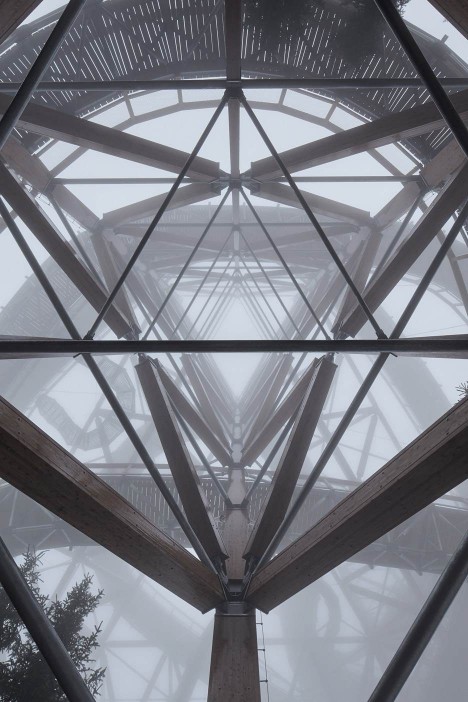
The pathways are suspended from a central structural core made up of metal-joined wood trusses, forming a space frame that also supports the stainless steel slide more brave guests will opt to take for their return trip.

mountain central truss frame

Located as it is on top of a tall and exposed mountain, the structure is heavily reinforced throughout and tied to concrete footings buried deep in the ground. It also features an emergency spiral staircase down its center. Travelers can get to this wheel-accessible pedestrian viewing spiral via a chairlift at the foot of the mountain, near Dolni Morava.

mountain architecture distance

mountain side view

“I don’t know of any other timber construction with steel elements of a similar size and purpose,” Fránek said. “There are constructions of a similar size but ours takes on an abstract form that suggests the flight of a nocturnal butterfly whose path is seemingly chaotic.”

Share on Facebook


[ By WebUrbanist in Destinations & Sights & Travel. ]

[ WebUrbanist | Archives | Galleries | Privacy | TOS ]


WebUrbanist

 
Comments Off on Mountaintop Viewing Walkway Culminates in 300-Foot-Long Slide

Posted in Creativity


Flickr launches 360 degree image viewing app for Samsung Gear VR

10 Dec

Image sharing platform Flickr has announced today its app for the Samsung Gear VR virtual reality headset. It allows you to view the tens of thousands of 360-degree panorama images that have been uploaded by Flickr users in an immersive way that allows for panning by moving your head. Read more

Articles: Digital Photography Review (dpreview.com)

 
Comments Off on Flickr launches 360 degree image viewing app for Samsung Gear VR

Posted in Uncategorized


Could the future of photo viewing be virtual reality? Flickr thinks so

15 Sep

This past weekend Flickr demonstrated an early preview of a ‘virtual reality experience’ designed for viewing 360-degree panoramic photos. The demonstration used the Oculus DK 2 headset connected to a computer, and allowed wearers to completely immerse themselves within the panorama. Read more

Articles: Digital Photography Review (dpreview.com)

 
Comments Off on Could the future of photo viewing be virtual reality? Flickr thinks so

Posted in Uncategorized


Wisdom on Creativity Worth Viewing by John Cleese

17 Apr

Whether you find yourself in a creative rut or you’re looking to improve your creative mojo I highly recommend viewing this presentation on Creativity by John Cleese. I guarantee devoting 36 minutes to view this will be worth your while. Enjoy!

Can’t watch videos where you are?

Here is the transcription of his presentation

Copyright Jim M. Goldstein, All Rights Reserved

Wisdom on Creativity Worth Viewing by John Cleese

The post Wisdom on Creativity Worth Viewing by John Cleese appeared first on JMG-Galleries – Landscape, Nature & Travel Photography.


Related Stories

  • Wisdom on Creativity Worth Viewing by John Cleese – Enclosure
  • Vemödalen vs. Zero to One
  • Vemödalen vs. Zero to One – Enclosure
Feed Ads by FeedBlitz
powered by ad choices


JMG-Galleries

 
Comments Off on Wisdom on Creativity Worth Viewing by John Cleese

Posted in Equipment


A Collection of Golden Images for Your Viewing Pleasure

01 Aug

It’s that time again for me to find some great images for you to see and get inspired by. I have to say that this is one of my favorite parts of this role as Editor as I get to troll through dozens of outstanding images to curate the best for you. Really, it’s a hard job but somebody has to do it, right?!

Without further ado, here is a set of golden images for you to enjoy. I’ll leave the “golden” part open for your interpretation.

Photograph Yellow by Milad Haghighi on 500px

Yellow by Milad Haghighi on 500px

Photograph Yellow by Mariia Kudriashova on 500px

Yellow by Mariia Kudriashova on 500px

Photograph Panning.. by Selycan  on 500px

Panning.. by Selycan on 500px

Photograph Canola by Yusuf YAMAN on 500px

Canola by Yusuf YAMAN on 500px

Photograph Blue | Yellow by Syahrel Azha Hashim on 500px

Blue | Yellow by Syahrel Azha Hashim on 500px

Photograph Lead from the front by Maharajan Pounrajan on 500px

Lead from the front by Maharajan Pounrajan on 500px

Photograph Follow the line by Jiwan Mir on 500px

Follow the line by Jiwan Mir on 500px

Photograph Turban... by Savan Upadhyay on 500px

Turban… by Savan Upadhyay on 500px

Photograph Yellow by Ian Stuart on 500px

Yellow by Ian Stuart on 500px

Photograph Yellow by Marta Maseras on 500px

Yellow by Marta Maseras on 500px

Photograph yellow by Andrea Schuh on 500px

yellow by Andrea Schuh on 500px

Photograph yellow by Borni Merisoniom on 500px

yellow by Borni Merisoniom on 500px

Photograph Yellow by Jayanta  Kshirsagar on 500px

Yellow by Jayanta Kshirsagar on 500px

Photograph Bed of Melted Gold by Maybelle Dumlao- Sevillena on 500px

Bed of Melted Gold by Maybelle Dumlao- Sevillena on 500px

Photograph golden by Silke Roberts on 500px

golden by Silke Roberts on 500px

Photograph Golden by Annette Kelter on 500px

Golden by Annette Kelter on 500px

Photograph Midnight Rush by Michael Shainblum on 500px

Midnight Rush by Michael Shainblum on 500px

Photograph Golden by Ron Lancin on 500px

Golden by Ron Lancin on 500px

Photograph hypnotic golden by Danny Block on 500px

hypnotic golden by Danny Block on 500px

Photograph do you believe in magic? by Jessica Trinh on 500px

do you believe in magic? by Jessica Trinh on 500px

Photograph Shaking Dog by Lorenzo Patoia on 500px

Shaking Dog by Lorenzo Patoia on 500px

Photograph Monarch by Lorraine Hudgins on 500px

Monarch by Lorraine Hudgins on 500px

Photograph Baños Dorados by David Rodríguez Palomar on 500px

Baños Dorados by David Rodríguez Palomar on 500px

Photograph Gold exterior of Phra Mondop by Sunny Merindo on 500px

Gold exterior of Phra Mondop by Sunny Merindo on 500px

Photograph Novice Monk praying to the Buddha by Sasin Tipchai on 500px

Novice Monk praying to the Buddha by Sasin Tipchai on 500px

Photograph Golden Temple by Phoomin Karagate on 500px

Golden Temple by Phoomin Karagate on 500px

Photograph Sunrise : The Golden Mount in Bangkok by noomplayboy  on 500px

Sunrise : The Golden Mount in Bangkok by noomplayboy on 500px

Photograph Pattaya Big Buddha by Mishel Breen on 500px

Pattaya Big Buddha by Mishel Breen on 500px

Photograph Golden crown by Jason Meng on 500px

Golden crown by Jason Meng on 500px

Photograph Flower Queen by Serg Tisso on 500px

Flower Queen by Serg Tisso on 500px

Photograph Golden crown by Chantal Pimparé on 500px

Golden crown by Chantal Pimparé on 500px

Photograph Taj Majal courtyard view by Soma Images on 500px

Taj Majal courtyard view by Soma Images on 500px

Photograph golden nugget by Sandra Oberer on 500px

golden nugget by Sandra Oberer on 500px

Photograph Golden Nugget Casino by Cameron Wendt on 500px

Golden Nugget Casino by Cameron Wendt on 500px

The post A Collection of Golden Images for Your Viewing Pleasure by Darlene Hildebrandt appeared first on Digital Photography School.


Digital Photography School

 
Comments Off on A Collection of Golden Images for Your Viewing Pleasure

Posted in Photography


EyeEm updates its Android app for clutter-free viewing

27 Jun

The image sharing platform and marketplace EyeEm has released an update to its mobile app for Android devices. The new version includes some modifications under the hood to improve performance and make future upgrades easier, but it’s the cleaner, redesigned interface that most users will notice first. Read more

related news: Digital Photography Review (dpreview.com)

 
Comments Off on EyeEm updates its Android app for clutter-free viewing

Posted in Uncategorized


Lytro adds 3D viewing capability to its photos

13 Nov

lytro_lfc16gb.png

Lytro, the tiny camera that allows you to choose your focus point after your image has been shot, has announced a software update to its desktop and iOS app that allows photos taken with the device to be displayed in 3D. The update lets users show off Perspective Shift processed images in 3D when connected to a 3D-capable TV over HDMI or Apple AirPlay.

News: Digital Photography Review (dpreview.com)

 
Comments Off on Lytro adds 3D viewing capability to its photos

Posted in Uncategorized


New image viewing options for forums

05 Jan

shared:DPRlogo.png

We’ve just deployed a smart new viewing system for images embedded in forum posts. It offers easy access to original images (100% view), makes navigating images easier within a post and lets you pixel-peep to your heart’s content with the new loupe tool. We hope you like it – more information after the link.

News: Digital Photography Review (dpreview.com)

 
Comments Off on New image viewing options for forums

Posted in Uncategorized