RSS
 

Posts Tagged ‘View’

Room with a View: How to Create this Window with Blinds Portrait Anywhere

13 Feb

In this post Gina Milicia – author of our brand new Posing eBook – walks us through the taking of one of her portraits of Christy Vandenberg.

Final

I’m constantly on the look out for new and interesting ways to pose my models. This shoot only took me 20 minutes from start to finish and is really basic to set up and photograph.

The following tutorial is a step by step of how I pose and light my window portrait.

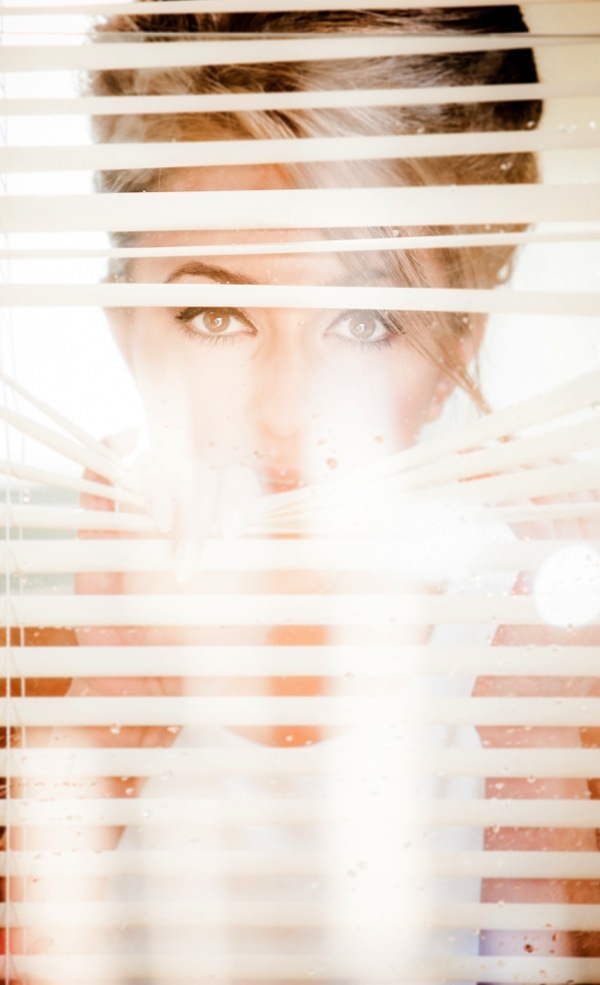
This set up is great way to add mood to a portrait. The reflections caused by the glass that partly obscure my model add a sense of mystery and romance to the shot.

This image was taken in my studio using daylight and can be recreated almost anywhere.

The example I’ve given is of a full-face shot but this also works with ¾ shots and profile shots and with or without venetian blinds.

Gear Checklist

  • Canon 5D Mark II
  • Canon EF 70-200mm f/2.8L IS lens*

I’ve used a focal length of 200mm but a focal length of anywhere between 70-200mm will work. If you have a cropped frame sensor a 50mm will also give a similar result.

  • Manfrotto 475B Pro

I shoot most of my headshots using a tripod because having my camera fixed gives me the freedom to focus on expression and pose rather than having to worry about whether my vertical and horizontal angles are straight.

The other reason I love shooting on tripod is it allows me to shoot portraits at very slow shutter speeds of 1/15th or 1/8th of a second, which I could never get using hand held.

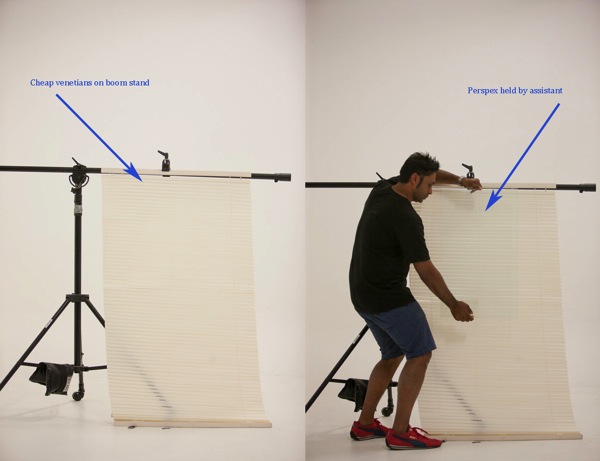
  • 1 x cheap Venetian blind + boom c stand or clothes rack to hold up venetians
  • 1 x sheet of clear Perspex* approx. 3ft x 3ft ( held by assistant)

* Perspex is lighter and cheaper than glass and easier to transport.

Camera Settings

  • ISO 400
  • 200mm
  • f/2.8 at 1/80th second
  • Daylight

I’ve used a long focal length of 200mm and short depth of field of f/2.8 because I wanted my models eyes to be in focus and the background to be out of focus.

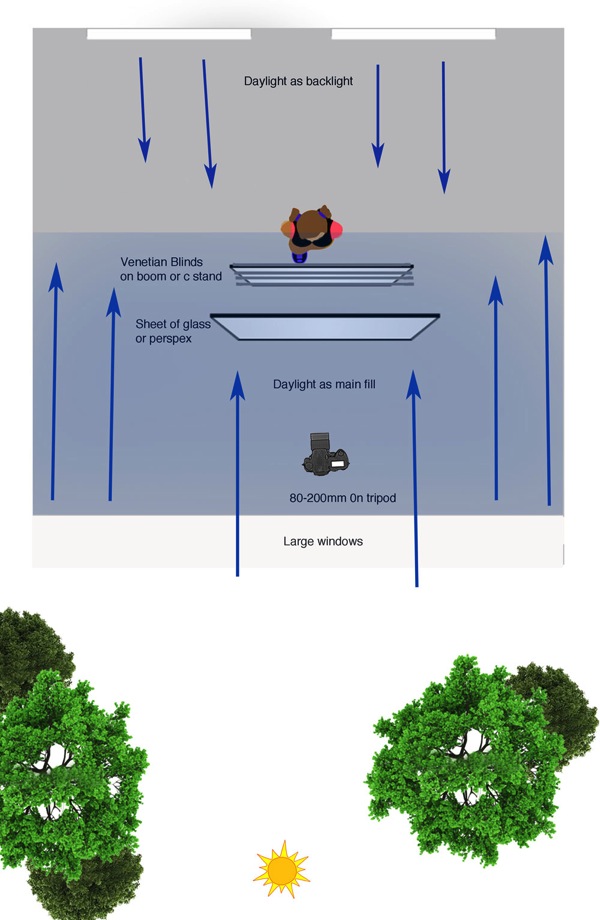
The lighting in this shot is very simple daylight coming in from a large window directly behind me.

The model is also backlit by two large windows directly behind her.

Window Diagram

Lighting diagram

Attach venetian blinds to your stand

Venetians 50

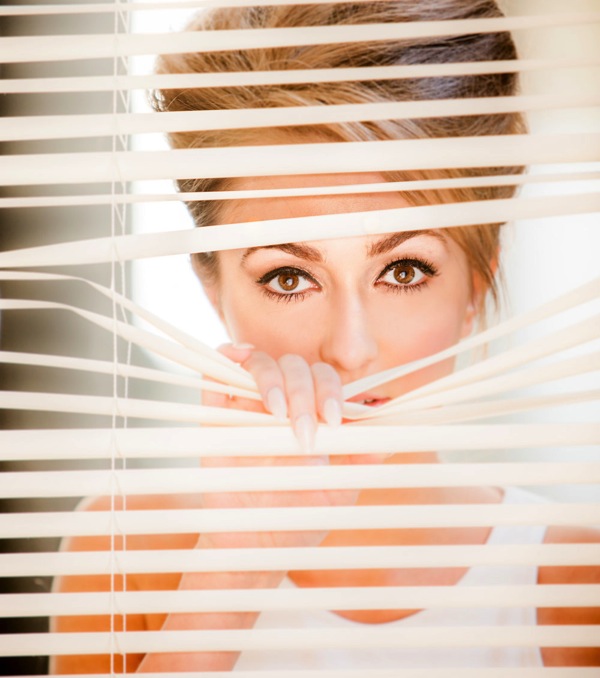
I positioned my model behind the venetians and then took a test shot to make sure my exposure was correct.

Venetian no glass 7

The Perspex is then held in front of the Venetian and tilted forward slightly to minimize reflections.

Flare 50

The style and type of reflections will vary depending on the location you shoot in.
I experimented by having the Perspex tilted at various angles. The example above has a slightly more mysterious vibe because the face is obscured by reflections.

Finally I introduced texture to the image by spraying water on the Perspex.

Final

The post Room with a View: How to Create this Window with Blinds Portrait Anywhere by Gina Milicia appeared first on Digital Photography School.


Digital Photography School

 
Comments Off on Room with a View: How to Create this Window with Blinds Portrait Anywhere

Posted in Photography


Extreme Street View: Google Employee Maps Deserted Island

31 Jan

[ By WebUrbanist in Global & Urbex & Parkour. ]

street view battleship island

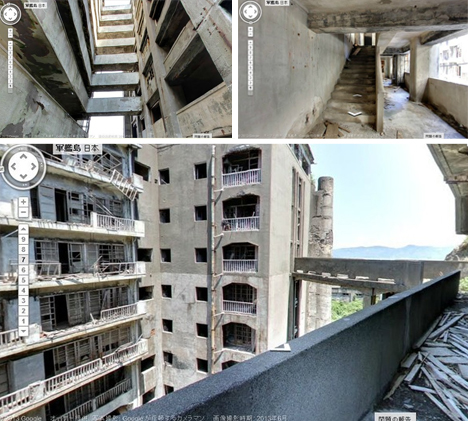
Street View has mapped much more than roads in its, but sending a lone urban explorer through the haunting multistory ruins of a remote island may be one of their riskiest geographic ventures yet.

street view abandoned island

street view japanese employee

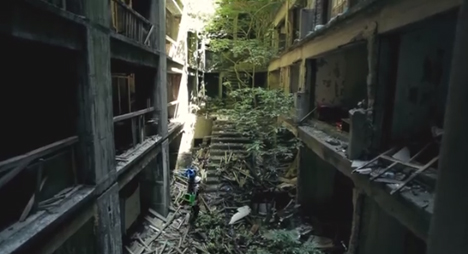
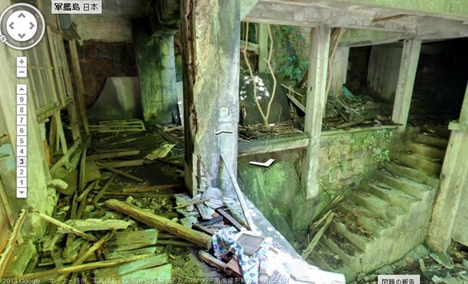
Strapped with panoramic photography equipment, this video shows a lone Google employee crawling through rubble, scaling partially caved-in abandonments and standing on precarious roofs, all to document one of the most unique deserted cities on the globe.

street view urban exploration

Occupied for over a century, and briefly the world’s most densely-populated island, Gunkanjima, Japan (aka Hashima) is now one of the loneliest places on the planet.

street view overview aerial

street view island rooftop

A giant concrete wall surrounds the ship-shaped Battleship Island, giving it its nickname. At one point it was packed with an average of 1.4 residents per square meter of space, almost like an overcrowded sea vessel.

street view inside walking

street view building infiltration

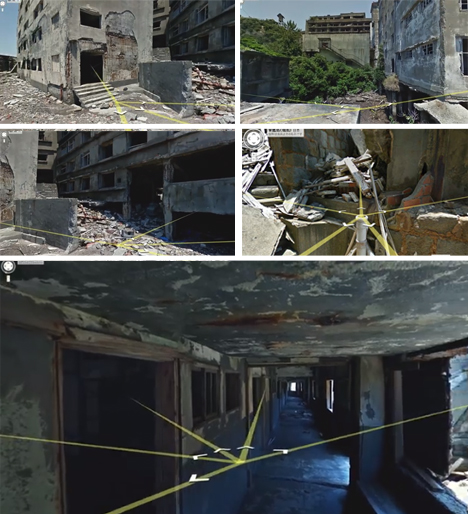
Parts of the deserted island have since been reopened to the public, but Google secured special permission to go off the beaten path and pass through long-abandoned buildings that only intrepid infiltrators have seen in recent decades past.

street view ruin interior

street view routes paths

Thanks to their carefully mapping, virtual visitors (web viewers) can now tour the corroded corridors, crumbling stairs and uncertain roofs from a much safer distance, almost look a choose-your-own-adventure for urban explorers.

Share on Facebook


[ By WebUrbanist in Global & Urbex & Parkour. ]

[ WebUrbanist | Archives | Galleries | Privacy | TOS ]


WebUrbanist

 
Comments Off on Extreme Street View: Google Employee Maps Deserted Island

Posted in Creativity


Make your own Google Street View virtual tours

11 Dec

google.png

Google is reaching out to photographers to help capture and record the planet’s most hard-to-reach places using Android’s Photo Sphere feature. A new tool lets users upload and connect their 360-degree photo spheres to create virtual tours that can be shared in Google’s Street View. Learn more on connect.dpreview.com.

News: Digital Photography Review (dpreview.com)

 
Comments Off on Make your own Google Street View virtual tours

Posted in Uncategorized


Comparing Images with Lightroom 5’s Survey View

26 Nov

Using Survey View

Andrew S. Gibson is the author of Mastering Lightroom Book One: The Library Module, on offer now at SnapnDeals for a limited time.

‘Working the subject’ is an expression often used in photography to describe the process of taking a series of photos of the same subject. The idea is to work your way closer to the ‘perfect’ photo (if there is such a thing) by varying the camera angle, focal length, point-of-view and other factors. As part of the editing process it’s the photographer’s job to select the best images to process. In the old days this meant poring over a lightbox or contact sheet with a loupe. Some people still do it this way, but most of us work with digital images. One of the benefits of this is that software like Lightroom makes it very easy to view images side-by-side and organize the keepers into a “Collection” for processing.

When I use Lightroom’s Library Module to cull my photos, I start off in Grid View and then use either Compare View or Survey View to compare similar images. The previous article in this series showed you how to use Compare View, and today I’m going to take a look at Survey View.

Compare or Survey View – which one to use?

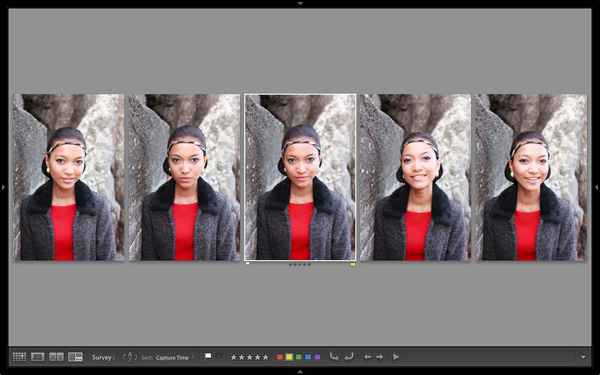
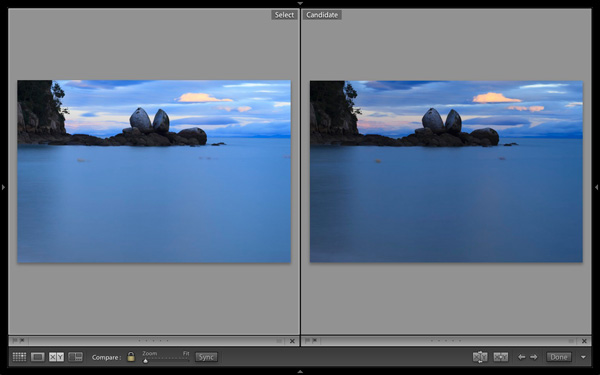
What’s the difference between the two? The main difference is that you can only compare two images at one time in Compare View, but as many as you want in Survey View. Here’s an example:

Using Survey View

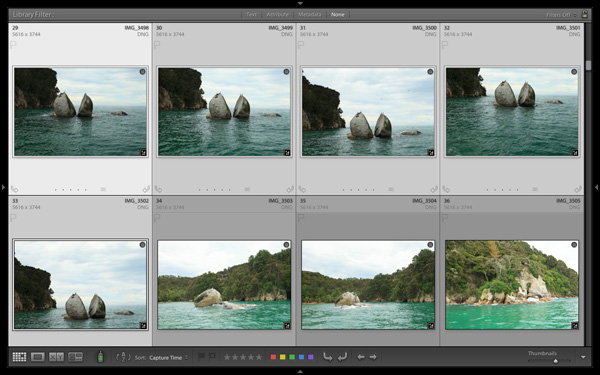
To arrive at this view I selected five images in Grid View and used the ‘N’ keyboard shortcut to go to Survey View. Lightroom arranges the images in the way that fits the screen space best so you can look at them all together. A little common sense is required here – Lightroom will try and squeeze as many photos as you select into the one screen, but the thumbnails will soon become too small to be of any practical use. The practical limit is probably somewhere between eight and 20 images, depending on your monitor size.

Using Survey View

The ‘most selected’ image is displayed with a white border, and if you have assigned a flag, star rating or colour label it is displayed underneath. These also appear in the Toolbar at the bottom of the screen (press ‘T’ to reveal the Toolbar if you don’t see it):

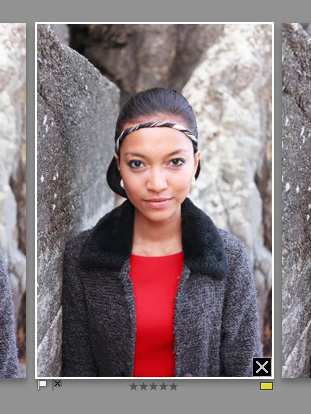
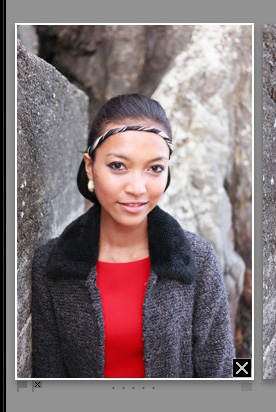
If you hover over one of the images you can assign a flag, star rating or colour label by clicking one of the icons displayed underneath (you can also do this in the Toolbar). You’ll also see a white X in a black square in the bottom right-hand corner of the image. Click this to remove the image from the selection. Lightroom removes it from the screen when you do so, and the remaining images rearrange themselves. If you click the X by mistake, press Ctrl-Z (PC) or Cmd-Z (Mac) to bring the de-selected photo back.

Using Survey View

What do you do once you’ve decided which images are keepers? I find the simplest approach is to flag each image that I want to process, and send them to a new Collection (see my article Use Lightroom Collections to Improve Your Workflow for more information on this).

Another useful feature of Survey View is that you can press the Space bar whenever you like to view the most selected image in Loupe View – useful if you want to see it in a larger size or zoom in to check for fine detail such as accurate focusing. Simple press the Esc key or use the ‘N’ key shortcut to return to Survey View.

Mastering Lightroom

Using Survey View

My latest ebook Mastering Lightroom Book One: The Library Module is a complete guide to using Lightroom’s Library module to import, organize and search your photo files. You’ll learn how to tame your growing photo collection using Collections and Collection Sets, and how to save time so you can spend more time in the Develop module processing your photos. It’s available now over at Snapndeals, for a special price for a limited period.

Post originally from: Digital Photography Tips.

Check out our more Photography Tips at Photography Tips for Beginners, Portrait Photography Tips and Wedding Photography Tips.

Comparing Images with Lightroom 5’s Survey View

The post Comparing Images with Lightroom 5’s Survey View by Andrew Gibson appeared first on Digital Photography School.


Digital Photography School

 
Comments Off on Comparing Images with Lightroom 5’s Survey View

Posted in Photography


How to Find Your Best Images With Lightroom 5’s Compare View

15 Nov

Using Lightroom 5's Compare View

For decades photographers have faced the question of how to determine which of their images are the best. I’ve been through it all, from squinting at 35mm slides through a loupe on a lightbox, to creating contact sheets from negatives and marking the best with a red marker, to scanning negatives and slides through to the modern version of looking at Raw files on the camera’s LCD screen or in the various programs I have used over the last few years. Of those, there’s no doubt that Lightroom is one of the best for the task of comparing images and selecting the best ones.

Compare View

The tool I use for comparing images in Lightroom is the aptly named Compare View (I also use Survey View, to be covered in a future article).

To get the most out of Compare View, you should use Collections to organise your images, and Grid View to view thumbnails. Click the links to learn more about both.

Using Lightroom 5's Compare View

Grid View is the starting point for using Compare View. Select the images that you want to compare. It may be just two, or you may want to compare more. In this example (above) I selected five images.

Using Lightroom 5's Compare View

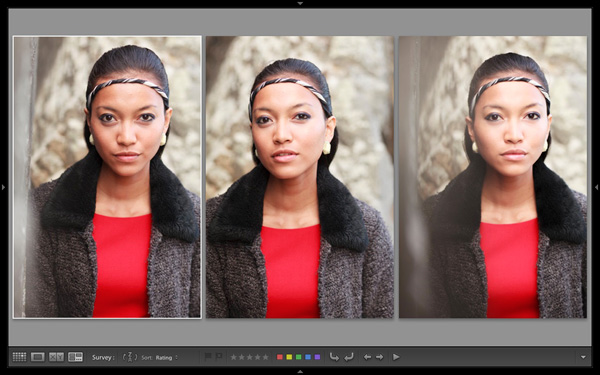
The first image that you select is, in Lightroom terminology, the most selected image. It is surrounded by a lighter frame than the other selected photos. In the screenshot above the photo on the left is the most selected.

Using Lightroom 5's Compare View

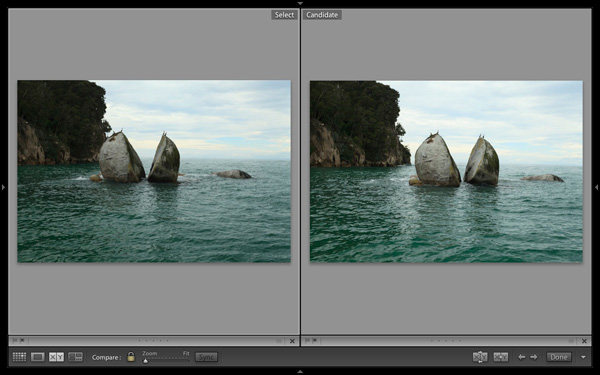
Images selected, press ‘C’ on your keyboard to go to Compare View. The most selected image is displayed on the left. Lightroom calls this photo the Select. The next image in the selection is displayed on the right. This one is called the Candidate.

The idea is to compare the Select with the rest of the images in the selection. Test it out by using the left- and right-arrow keys on your keyboard. If your selection contains more than two images, Lightroom cycles through the remainder of the selection, displaying each image as a Candidate.

Compare View icons

The icons along the bottom of the window in Compare View help you tell Lightroom what to do with either the Select or Candidate images. The first set is located underneath each photo:

Using Lightroom 5's Compare View

1. Click on these icons to flag the photo as a Pick (left) or a Reject (right).

2. Click on these dots to give the photo a Star rating.

3. Click on the faint grey square to apply a Colour label.

4. Click on the X to deselect the photo. Lightroom removes it from Compare View when you do this.

The icons change to indicate the updated status of the image.

If the photo changes when you click any of these options, it is because you have the Auto Advance option ticked. Turn Auto Advance off by going to Photo > Auto Advance. I find it easiest to use Compare View with Auto Advance disabled.

The Toolbar icons

The rest of the icons are displayed in the Toolbar at the bottom of the Compare View window (press ‘T’ on your keyboard to reveal the Toolbar if you don’t see it).

Using Lightroom 5's Compare View

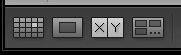
This indicates that you are in Compare View. From left to right, these icons show Grid View (G), Loupe View (E), Compare View (C) and Survey View (N). You can switch between these modes by clicking on the icon or using the keyboard shortcuts (indicated in brackets).

Using Lightroom 5's Compare View

With the padlock icon in the locked position (above) you can zoom into both the Select and Candidate image simultaneously by clicking once on either one. The magnification is set by the Zoom slider and both images move in tandem with the hand tool. This is useful for comparing two near identical images for fine detail such as accurate focusing or noise.

Using Lightroom 5's Compare View

With the padlock icon in the unlocked position you can zoom into either image without affecting the other. Press the Sync button at any time to bring the second image into sync with the first.

Using Lightroom 5's Compare View

These icons are perhaps the most important in Compare View, as they help you navigate around the images in the selection.

The two arrows on the right are straightforward. Click on them to navigate through the selection, just like you did with the arrow keys earlier.

The Swap button (X|Y with two arrows) tells Lightroom to swap the Candidate and Select images. Use it when you decide that the Candidate is the strongest image in the selection, and you want to compare it to the others.

The Make Select button (X|Y with one arrow) tells Lightroom to turn the Candidate image into the Select. The Select is removed from the display, and the next image in the selection becomes the new Candidate.

Using Lightroom 5's Compare View

If you press the Done button Lightroom takes you to the Loupe View and displays the Select image. Alternatively, you can use the ‘G’ shortcut to return to Grid View.

Click the White arrow icon to add or remove icons from the Toolbar.

Putting it together

The main purpose of Compare view is to let you compare similar image so that you can decide which ones you want to process in the Develop module (you can also use it to compare photos that you have processed, or partly processed in the Develop module – but that’s another topic). Use the arrow keys to cycle through the images in your selection, and the Swap and Make Select buttons to compare different images. If this is new to you, it won’t take much practice before you settle into a rhythm. You’ll be pleasantly surprised at how quickly you can work you way through even hundreds of images using Compare View.

While some photographers use Star ratings and Colour labels to help organise their images, by far the simplest method is to use Flags. If you decide to process an image, click the grey flag icon underneath the photo (it’s on the left) to flag it as a Pick. If decide not to process it, leave it unpicked. Then, when you have finished, all you have to do is return to Grid View and choose the Flagged option in the Filter bar to remove the unwanted images from view. Then go to Edit > Select all to select all the flagged images and send them to a new Collection containing only the images that you want to process in the Develop module (using Collections to organise your images is covered in this article).

Mastering Lightroom Book One: The Library Module

Using Lightroom 5's Compare View

My latest ebook Mastering Lightroom Book One: The Library Module is a complete guide to using Lightroom’s Library module to import, organise and search your photo files. You’ll learn how to tame your growing photo collection using Collections and Collection Sets, and how to save time so you can spend more time in the Develop module processing your photos.

Post originally from: Digital Photography Tips.

Check out our more Photography Tips at Photography Tips for Beginners, Portrait Photography Tips and Wedding Photography Tips.

How to Find Your Best Images With Lightroom 5’s Compare View

The post How to Find Your Best Images With Lightroom 5’s Compare View by Andrew Gibson appeared first on Digital Photography School.


Digital Photography School

 
Comments Off on How to Find Your Best Images With Lightroom 5’s Compare View

Posted in Photography


A different point of view: Our Panasonic Lumix DMC-GX7 Review

07 Nov

gx7.jpg

We’ve just posted our full review of the Panasonic Lumix DMC-GX7. With a 16 megapixel Four Thirds sensor, in-body image stabilization, and built-in articulated EVF, the GX7 boasts a lot of refinements to tempt enthusiasts away from similar Olympus and Sony offerings. Panasonic engineers have thrown just about everything they’ve got into this mid-range mirrorless camera, will it find a loyal audience the way its GF1 predecessor did? Click through and read our review.

News: Digital Photography Review (dpreview.com)

 
Comments Off on A different point of view: Our Panasonic Lumix DMC-GX7 Review

Posted in Uncategorized


Bugs Eye View: Weekly Photography Challenge

02 Nov

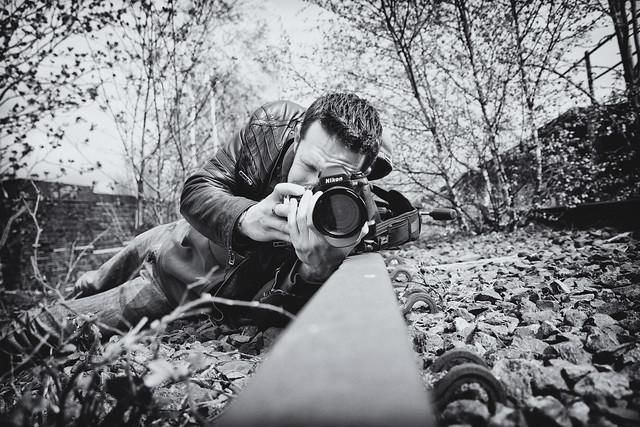
This week your photographic challenge is to take and share a photo (or photos) with the theme of ‘bugs eye view’.

Hit The Deck

We’re looking to see lots of shots shared taken from a low down perspective (i.e. where a bug lives).

So get down low and go go go!

sometimes the road gets rugged and it's hard to travel on...

Further Reading on the Topic

  • 7 Tips for Great Low Angle Shots
  • Get Down Low for a Unique Perspective
  • 20 Examples of Low Angle Photography

Once you’ve taken your ‘Bugs Eye View’ shots we’d love to see them in comments below. Simply upload your shot into the comment field (look for the little camera icon in the Disqus comments section as pictured below) and they’ll get embedded for us all to see or if you’d prefer upload them to your favourite photo sharing site and leave the link to them.

If you tag your photos on Flickr, Instagram, Twitter or other sites with Tagging tag them as #DPSBUGSVIEW to help others find them. Linking back to this page might also help others know what you’re doing so that they can share in the fun.

Also – don’t forget to check out some of the great shots posted in last weeks Pets challenge – there were some fantastic shots submitted.

Post originally from: Digital Photography Tips.

Check out our more Photography Tips at Photography Tips for Beginners, Portrait Photography Tips and Wedding Photography Tips.

Bugs Eye View: Weekly Photography Challenge

The post Bugs Eye View: Weekly Photography Challenge by Darren Rowse appeared first on Digital Photography School.


Digital Photography School

 
Comments Off on Bugs Eye View: Weekly Photography Challenge

Posted in Photography


The Hidden Secrets of Lightroom 5’s Loupe View

31 Oct

Lightroom 5 Loupe View

Last week I showed you how to use Lightroom’s Grid View. Once you have customised the Grid View to suit your needs, it is time to move on to the Loupe View. Getting there is easy. Just press the letter ‘E’ on your keyboard. This will take you to the Loupe View from anywhere in Lightroom. Alternatively, if you are in the Grid View, you can press the space bar.

On the surface, Loupe View looks simple. But there are a few things I’d like to show you that you may not be aware of. They are the ‘hidden features’ of Lightroom’s Loupe View, and will help you when you view your images, and assess their potential for creative processing.

Lightroom 5 Loupe View

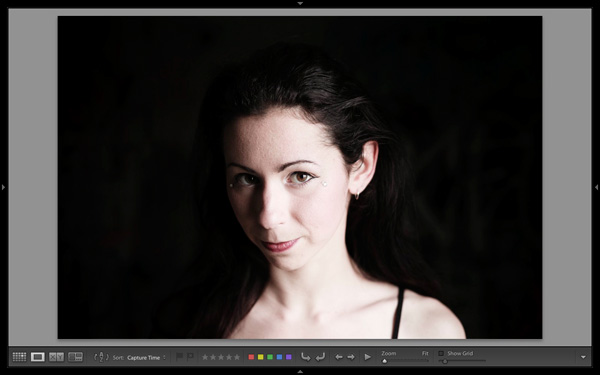
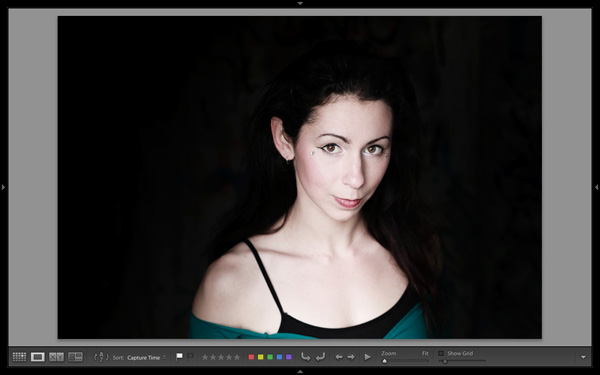
This is what the Loupe View looks like, with all four side panels removed (use the Shift+Tab keyboard shortcut to hide them from view).

Lightroom 5 Loupe View

The Loupe View is divided into two parts. The Content window (yellow) occupies the main part of the screen. The selected photo is displayed here.

The Toolbar (red) lies along the bottom. Press ‘T’ to reveal it if it isn’t there. The same key hides the Toolbar if you press it again.

The main difference between the Loupe View and the Grid View is that you can only view one image at a time in the Loupe View.

The hidden features

Of course, these features are not really hidden. But if you are not aware of them they may just as well be. They are all useful, so it’s worth taking a few minutes to learn how to use them.

Library view options

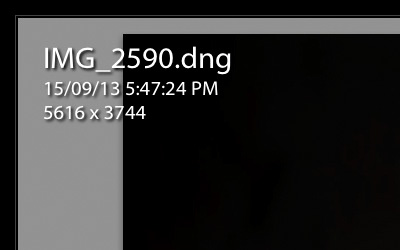
When you press the ‘I’ key on the keyboard Lightroom displays some information about the photo you are looking at in Loupe View. Press the ‘I’ key again and the information changes. Finally, press it once more to hide the information:

Lightroom 5 Loupe View

The first information overlay displays the filename, the time and date the photo was taken, and the image size (in pixels).

Lightroom 5 Loupe View

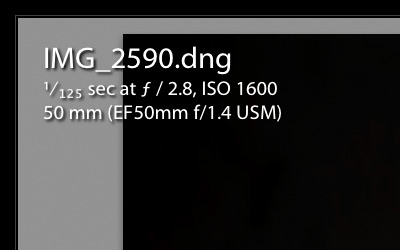
The second overlay shows the filename, the exposure settings (shutter speed, aperture and ISO) and the focal length and lens used. This is handy for checking the camera settings when you are viewing your images.

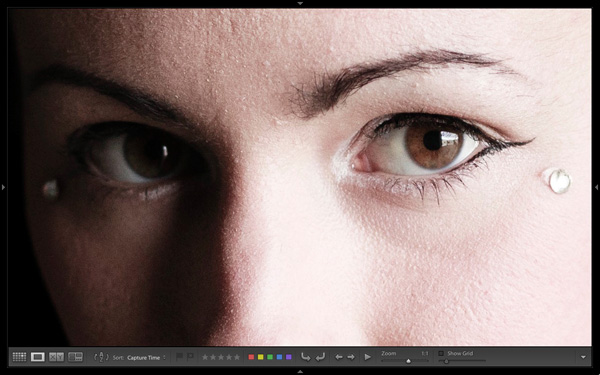
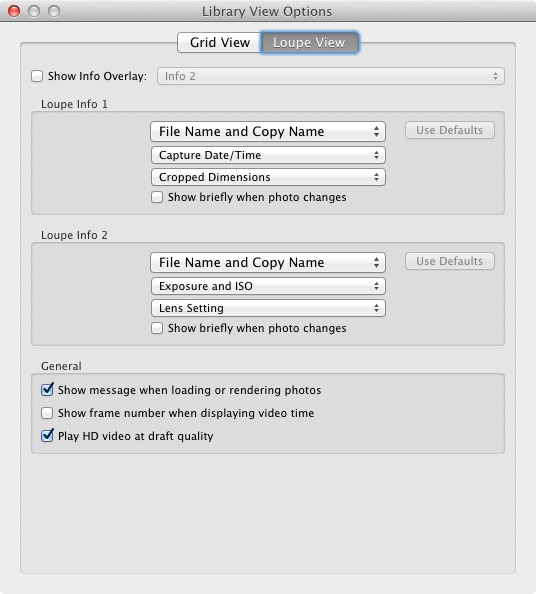
Here’s the hidden feature: Did you know you can customise the information overlays to display the information that you want them to? Go to View > View Options to bring up the Library View Options window. Here you can tell Lightroom which information to display in each information overlay:

Lightroom 5 Loupe View

Mirror image mode

Wondering how your photo would look if it was back to front? Just go to View > Enable Mirror Image Mode to see:

Lightroom 5 Loupe View

Grids and guides

Lightroom 5 Loupe View

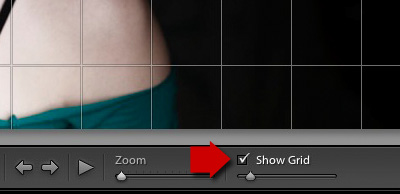
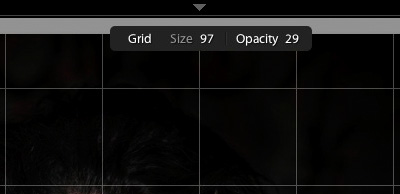
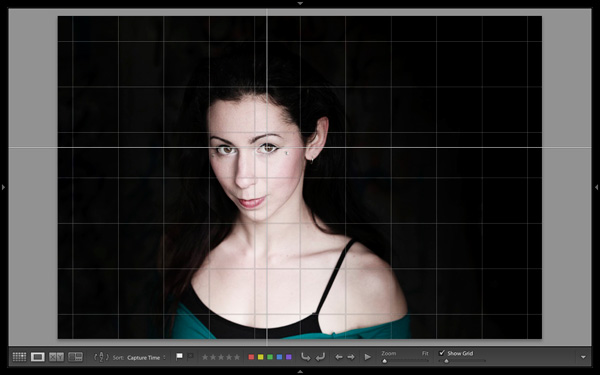
To reveal the grids and guides, tick the Show Grid box in the Toolbar. Use the slider to set the size of the squares. If you hold the Cmd key down (PC owners should use the Ctrl key) you can also alter the size of the grid and the opacity of the lines by mousing over the Size and Opacity settings displayed at the top:

Lightroom 5 Loupe View

Note: If you don’t see the Show Grid box, click on the white arrow on the right hand side of the Toolbar and select Grid Overlay from the menu. Lightroom removes any unticked options in this menu from the Toolbar.

Lightroom 5 Loupe View

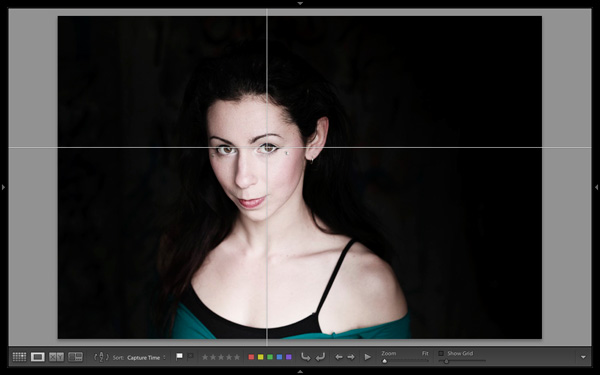
Next, go to View > Loupe Overlay and select the Guides option. This turns the central horizontal and vertical grid lines into guides that you can move by holding down the Cmd (Mac) or Ctrl (PC) keys. They come in useful for checking things like the straightness of horizons and buildings.

Lightroom 5 Loupe View

Untick the Show Grid box to see the Guides by themselves.

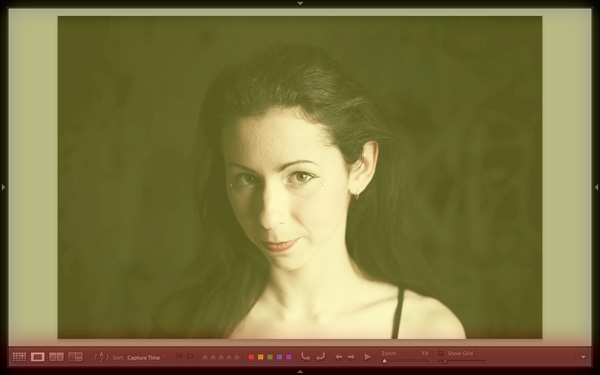
The Loupe Overlay

The final hidden feature is something that is more likely to interest professional photographers than hobbyists. But it comes in handy as a creative exercise if you have any interest in submitting images to stock libraries or to magazines.

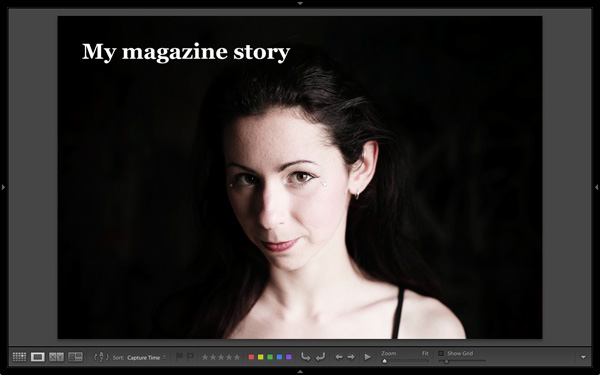
When buying images for editorial use, magazines often look for photos with empty space where they can lay out headings or text. The Loupe Overlay feature lets you display an overlay containing text over the top of your image so you can see whether the composition of your image provides enough space. While pros can obtain an official file from their client, there’s nothing to stop you making up your own.

Go to View > Loupe Overlay > Layout Image. Navigate to the folder containing your overlay and open it. The file must be saved as a PNG file, which supports transparency.

Lightroom 5 Loupe View

In this example, you can see that the portrait isn’t composed in a way that works with the sample text. It would have been better if the model was further to the right in the frame.

Mastering Lightroom Book One: The Library Module

Lightroom 5 Loupe View

My latest ebook Mastering Lightroom Book One: The Library Module is a complete guide to using Lightroom’s Library module to import, organise and search your photo files. You’ll learn how to tame your growing photo collection using Collections and Collection Sets, and how to save time so you can spend more time in the Develop module processing your photos.

Post originally from: Digital Photography Tips.

Check out our more Photography Tips at Photography Tips for Beginners, Portrait Photography Tips and Wedding Photography Tips.

The Hidden Secrets of Lightroom 5’s Loupe View

The post The Hidden Secrets of Lightroom 5’s Loupe View by Andrew Gibson appeared first on Digital Photography School.


Digital Photography School

 
Comments Off on The Hidden Secrets of Lightroom 5’s Loupe View

Posted in Photography


Making Sense of Lightroom’s Grid View

23 Oct

Using Lightroom's Grid View

In last week’s article about Lightroom you learnt how to use Collections and Smart Collections to organise your images. Today, I’m going to take a closer look at the Grid View (part of the Library module) and show you how to customise the display.

If you’re not in Grid view, just press the ‘G’ key. It’s a keyboard shortcut that will take you to the Grid view from any part of Lightroom.

The Grid View displays thumbnails of photos contained in the currently selected Folders, Collections or search results. Here, I used the Shift+Tab shortcut to remove the left-and right-hand panels, the filmstrip and the module picker button panels from the view:
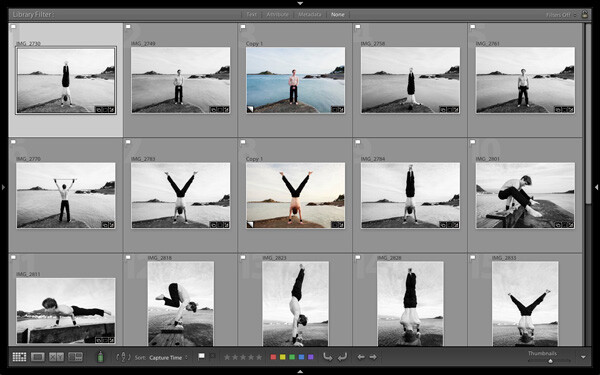
Using Lightroom's Grid View

These are the three main sections of the Grid View:
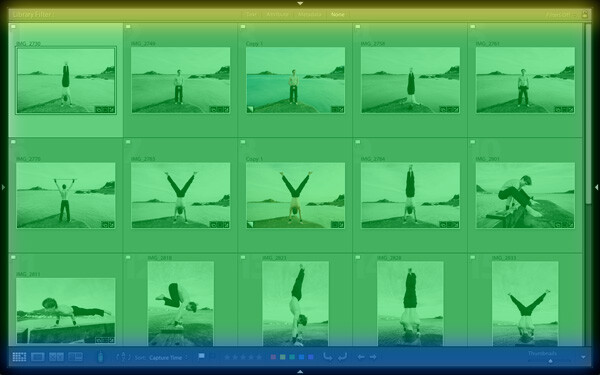
Using Lightroom's Grid View

The Filter bar: marked in yellow. Press the backward slash (‘\’) key to reveal the Filter bar if you don’t see it. You can use the same key to hide it.

The Content window: marked in green. This is where Lightroom displays the image thumbnails.

The Toolbar: marked in blue. Press ‘T’ to reveal it if you don’t see it. The same key also hides the Toolbar.

The Toolbar

There are several items on the Toolbar of immediate interest:
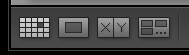
Using Lightroom's Grid View

These icons represent the four view modes of the Library module. From left to right they are Grid View, Loupe View, Compare View and Survey view. The Grid view icon is highlighted to indicate that it is the active view mode (I will look at the other view modes in future articles).
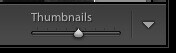
Using Lightroom's Grid View

The Thumbnails slider is on the right-hand side of the Toolbar. Use it to set the size of the thumbnails in the Content window.
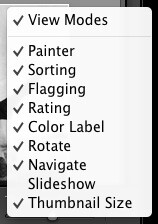
Using Lightroom's Grid View

Finally, if you click the white arrow on the very right of the Toolbar, you’ll see the above menu. Each menu item corresponds to an item on the Toolbar. The ticks indicate which items are displayed on the Toolbar. Click on any of the menu items to add or remove them.

The Content window

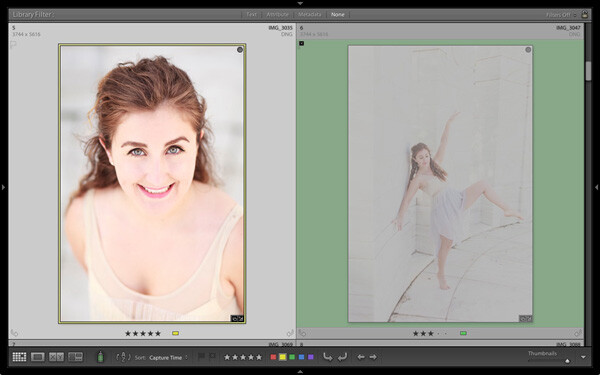
The Content window is where Lightroom displays thumbnails. Each thumbnail, plus the grey border around it, is called a cell. There are two types of display: Compact cells and Expanded cells.

Compact cells

This is what the Compact cell display looks like:
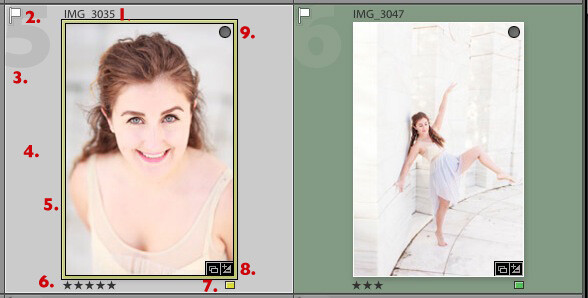
Using Lightroom's Grid View

I’ve numbered the important parts:

1. The filename of the photo.

2. The white flag indicates this photo has been flagged as a pick.

3. The big number 5 shows this image is the fifth in the sequence in the currently selected folders or Collections.

4. The light grey border means this photo is selected.

5. The yellow border shows that the yellow colour label has been applied to this image. This photo is selected, so Lightroom displays a thin border. If the image is not selected, Lightroom applies the colour label to the entire border. That is why the thumbnail on the right is surrounded by a thick green border.

6. These stars show that the image has a five star rating.

7. The yellow square also indicates the colour label.

8. There are two icons at the bottom right of the photo (you may see different icons depending on what you have done to the image). The icon on the left indicates that the photo has been added to at least one Collection. The icon on the right tells you that the photo has Develop adjustments.

Tip: If you hover the mouse over an icon and keep it still, Lightroom will display a label telling you what the icon means. It appears after about two seconds.

9. The grey circle in the top right indicates that the photo has been added to at least one Collection.

Tip: To see what Collections the photo has been added to right-click on the thumbnail and go to the ‘Go to Collection’ option. Click on a Collection name to open that Collection in Grid View.

Expanded cells

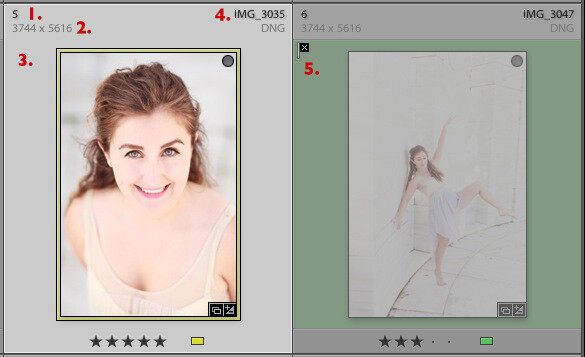
Here is the Expanded cell display. The cells are larger than the Compact cells, and contain a little more information. I’ve marked the parts that are different:
Using Lightroom's Grid View

1. The size of the number indicating that this is the fifth photo in the currently selected folders or Collections has changed.

2. These figures show the dimensions of the photo in pixels.

3. There is no flag here, indicating that this photo hasn’t been flagged as a pick or flagged as a reject.

4. The filename of the photo, with the file type (in this case, DNG) underneath.

5. The black flag indicates that this photo has been flagged as a reject. Lightroom fades out the thumbnail so you can see it has been rejected.

View Options

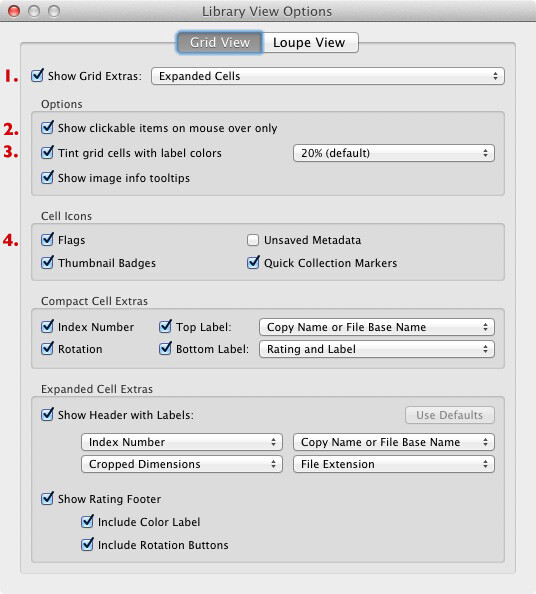
Lightroom lets you customise the layout of the cells so the display shows as much or as little as you wish. Go to View > View options (or use the keyboard shortcuts PC: Ctrl+J, Mac: Cmd+J) to bring up the Library View Options window. Again, I’ve marked some of the interesting menu options:
Using Lightroom's Grid View

1. Show Grid Extras. This is where you chose between Compact Cells and Expanded Cells. Untick the Show Grid Extras box if you want to simplify your display. Doing so removes the information displayed around the thumbnails in Grid View.

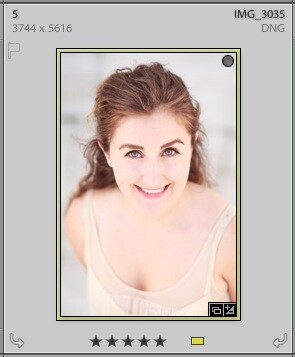
2. Show clickable items on mouseover only. If you untick this box every thumbnail is displayed with arrows in the bottom corners that you click to rotate the image, and a grey flag if the image is unflagged. With this box ticked, these icons are only displayed when you move the mouse over the image:
Using Lightroom's Grid View

3. If the colour labels annoy you, or you just don’t use them, untick this box to turn them off. The menu on the right lets you adjust the intensity of the colour tint.

4. The rest of the View Options let you customise what icons and information are displayed alongside the thumbnails.

Your thoughts

How do you customise Lightroom? I’d be interested to hear your thoughts, whether they are about the Grid View or another part of Lightroom. Leave a note in the comments if you have anything to share.

Mastering Lightroom Book One: The Library Module
Using Lightroom's Grid View

My latest ebook Mastering Lightroom Book One: The Library Module is a complete guide to using Lightroom’s Library module to import, organise and search your photo files. You’ll learn how to tame your growing photo collection using Collections and Collection Sets, and how to save time so you can spend more time in the Develop module processing your photos.

Post originally from: Digital Photography Tips.

Check out our more Photography Tips at Photography Tips for Beginners, Portrait Photography Tips and Wedding Photography Tips.

Making Sense of Lightroom’s Grid View

The post Making Sense of Lightroom’s Grid View by Andrew Gibson appeared first on Digital Photography School.


Digital Photography School

 
Comments Off on Making Sense of Lightroom’s Grid View

Posted in Photography


Converted Clock Tower: Ultimate Urban Loft with a View

11 Oct

[ By Steph in Architecture & Houses & Residential. ]

Converted Clocktower Penthouse 1

At the top of a former cardboard box factory built in 1915, within a clock tower overlooking Brooklyn and Manhattan, is one of New York City’s most remarkable residences. The pinnacle of the Clocktower Building is a three-story penthouse measuring over 6,800 feet, with four 14-foot glass clocks – one on every wall of the top floor.

Converted Clocktower Penthouse 2

Converted CLocktower Penthouse 3

The clocks offer massive, unparalleled views of the city in all directions. Additional windows provide a look at the Manhattan Bridge to the Statue of Liberty from a soaking tub. Or, simply go on the sky roof cabana and enjoy it in the open air.

Converted Clocktower Penthouse 4

Converted Clocktower Penthouse 5

Transformed from its industrial past, the penthouse features a ceiling that extends from 16 to 50 feet in height, as well as a glass-enclosed, three-story elevator running up the center of the space. It entered the market in 2009 for $ 25 million – the most expensive apartment on record in Brooklyn by far – and has now been lowered to $ 18 million.

Converted Clocktower Penthouse 6

Converted Clocktower Penthouse 7

For a while, as it went unsold, the clock tower penthouse was put up for rent for a mere $ 50,000 per month. It’s also been offered up for various special events while it sits on the market, including a dinner for Esquire Magazine.

Share on Facebook


[ By Steph in Architecture & Houses & Residential. ]

[ WebUrbanist | Archives | Galleries | Privacy | TOS ]


WebUrbanist

 
Comments Off on Converted Clock Tower: Ultimate Urban Loft with a View

Posted in Creativity